1
Implementing a Weblogic Architecture with High Availability
Contents
1. Introduction ... 3
2. Topology... 3
2.1. Limitations... 3
2.2. Servers diagram ... 4
2.3. Weblogic diagram ... 4
3. Components ... 6
3.1. Hardware ... 6
3.2. Software ... 6
3.3. Domains ... 7
4. File system preparation ... 7
4.1. Oracle ZFS configuration ... 9
4.2. Local storage configuration... 12
5. Machines preparation ... 13
5.1. Networking configuration ... 13
5.1.1. Configuring virtual IPs ... 14
5.1.2. Modifying host files ... 16
5.2. Creating directories ... 17
5.3. Mounting file systems ... 18
5.4. Creating users, groups and giving privileges ... 19
5.4.1. Creating operating system users and groups ... 19
5.4.2. Setting privileges ... 20
6. Products Installation ... 21
6.1. JDKs ... 21
6.2. Weblogic ... 22
6.3. Oracle Http Server... 26
7. Creating domains ... 31
7.1. Creating the load balancer domain... 31
7.2. Creating the web layer domain ... 36
7.3. Applications domain ... 37
2
7.3.2. Extending the domain to create the managed server WLS_01 on weblogic01.sysco.no ... 45
7.3.3. Creating the cluster directory ... 48
7.3.4. Extending the domain to create the managed server WLS_02 on weblogic02.sysco.no ... 49
8. Configuring the load balancer ... 50
9. Configuring virtual hosts on ohs01 and ohs02 instance ... 54
10. Configuring the frontend host and the frontend http port ... 58
10.1. Configuring the cluster WLCluster_01 ... 58
10.2. Configuring the AdminServer ... 59
11. Testing the Administration Server high availability ... 60
12. Conclusions ... 63
3 1. Introduction
As a system administrator, I faced the challenge of building several application server architectures with high availability. This kind of work is a challenge because it compromises several layers and professionals. However, one of the most important problems is the lack of documents that allow new system administrators the revision of the whole process. With this in mind, the purpose of this document is to show several of the most important phases to deploy an architecture like this.
2. Topology 2.1. Limitations
Before showing the topology, it is important to remark that this document is based on the design presented in [1]. Thus, the following model is used as a reference.
Architecture designed by Oracle [1]
However, because of the resources limitations given by implementing a virtual environment on a laptop. These components will not be used:
4
Domain Name Servers
Firewalls
The database
In addition, the architecture deployed in this post will not implement Oracle SOA. Thus, this is the topology used in this document.
2.2. Servers diagram
This is a high-level design of the servers used in this document. The load balancer is implemented using Oracle HTTP Server. All the servers shown in the diagram are virtual servers on Oracle VM.
Load Balancer
OHS01 OHS02
Weblogic Server 01 Weblogic Server 02
Storage Server
2.3. Weblogic diagram
The following diagram shows more details about the Weblogic architecture implemented in this document. In general, it is composed by
A load balancer,
Two web servers,
An administration server,
Two managed server conforming a cluster distributed within two machines
A storage server based on the Oracle ZFS simulator to demonstrate how to configure the architecture using shared storages.
5 Load Balancer (lbohs.sysco.no)
app12c.sysco.no:443 SSL
admin12c.sysco.no:80 Non SSL Memory: 1.5 GB
File Systems: Local
Version: Oracle HTTP Server 12C OS: Oracle Linux 6.5 Hypervisor: Oracle VM
ohs01.sysco.no
OHS01IP:7777 Virtual host Administration
Server
OHS01IP:7777 Virtual host Cluster Managed
Servers Memory: 1.5 GB
File Systems: Local
Version: Oracle HTTP Server 12C OS: Oracle Linux 6.5 Hypervisor: Oracle VM
ohs02.sysco.no
OHS02IP:7777 Virtual host Administration
Server
OHS02IP:7777 Virtual host Cluster Managed
Servers Memory: 1.5 GB
File Systems: Local
Version: Oracle HTTP Server 12C OS: Oracle Linux 6.5 Hypervisor: Oracle VM
weblogic01.sysco.no AdminServer VIP: 192.180.56.10 Port: 9001 WLS_01 VIP: 192.180.56.11 Port: 9003 Memory: 2.0 GB File Systems: Shared
Version: Oracle Weblogic Server 12C OS: Oracle Linux 6.5
Hypervisor: Oracle VM
weblogic02.sysco.no WLS_02 VIP: 192.180.56.12 Port: 9003 Cluster Storagehost.sysco.no /export/fsadm /export/fsbinaries01 /export/fsm01 /export/fsbinaries02 /export/fsm02 /export/fsdp /export/fsapp /export/fscluster
Memory: 2.5 GB SATA Controller: 16 Ports
Version: Oracle ZFS Storage Appliance Simulator OS: Solaris
Hypervisor: Oracle VM
Memory: 2.0 GB File Systems: Shared
Version: Oracle Weblogic Server 12C OS: Oracle Linux 6.5
6 3. Components
This architecture is deployed on a laptop using Oracle Virtual VM and Oracle Linux so these are the components.
3.1. Hardware Laptop
Memory: 16 GB
Processor: 1 socket, 4 cores and 2 threads so there are 8 VCPUs. Speed: 2.49 GHz
Virtual servers
SERVER IP Description Memory in GB OS
lbohs.sysco.no 192.180.56.190 Load balancer 1.5 Oracle
Linux 6.5
ohs01.sysco.no 192.180.56.191 Web server 1.5 Oracle
Linux 6.5
ohs02.sysco.no 192.180.56.192 Web server 1.5 Oracle
Linux 6.5 weblogic01.sysco.no 192.180.56.200 Application server 2.0 Oracle
Linux 6.5 weblogic02.sysco.no 192.180.56.201 Application server 2.0 Oracle
Linux 6.5
storagehost.sysco.no 192.180.56.100 Storage 2.5 Solaris
File system
It is important to remark that in order to simulate the high availability of the Administration Server the Oracle ZFS simulator is used as a shared storage. In addition binaries and managed servers will be installed on these file systems [2].
3.2. Software
This is the list of products to install.
Product Version Installer
Oracle Weblogic Server 12.1.3 V44413-01.zip (fmw_12.1.3.0.0_wls.jar)
Java Development Kit 7u55 jdk-7u55-linux-x64.gz
Oracle HTTP Server 12.1.3 V44417-01.zip
(fmw_12.1.3.0.0_ohs_linux64.bin)
Operating System Packages compat-libcap1-1.10
compat-libstdc++-33-3.2.3 libstdc++-devel
gcc-c++
libaio-devel-0.3.107
Before installing review the certification. According to [5] this configuration is supported by Oracle as can be seen in the following screens.
7 3.3. Domains
The configuration of Oracle HTTP Server 12C is similar to the Weblogic server configuration. In previous versions like 11G Oracle HTTP Server did not need a domain. These domains are defined within this document.
The load balancer
The ohs1 as part of the web layer
The ohs2 as part of the web layer
The domain for the application layer
All of these domains use the same name “incadomain” 4. File system preparation
According to [1] these is a suitable structure to implement a Weblogic server with high availability.
8 “Recommended Local Storage Directory Structure for an Application Tier Host Computer in an Enterprise Deployment” [1]
9 “Recommended Local Storage Directory Structure for a Web Tier Host Computer in an Enterprise Deployment” [1]
The difference between the topology developed in this document and that proposed by [1] is that application tier host (managed servers) use shared storages. These are the steps to configure the file systems.
4.1. Oracle ZFS configuration
After analyzing the structures provided by Oracle in [1] and taking into account that managed server will use shared storages. This is the list of file systems created on the Oracle ZFS storage simulator.
File System MACHINE DESCRIPTION U Comments
fsbinaries01 weblogic01 Products u01 Products
binary files
fsms01 weblogic01 Config u02 Managed
Server
fsbinaries02 weblogic02 Products u01 Products
binary files
fsms02 weblogic02 Config u02 Managed
Server fsadm weblogic01
(contingency weblogic02)
Config u01 Administration
Server fsapp weblogic01, weblogic02 Applications u01 Applications
developed fsdp weblogic01, weblogic02 Deployment plans u01 Deployment
plans fscluster weblogic01, weblogic02 JMS, Tlogs u01 JMS, Tlogs
10 The recommended protocol to implement this architecture is NFS V4 [2] and the instruction to create these file systems were taken from [3]. Thus, these are the screens related to these tasks.
1. Create a new project
Shares > Projects > Click on Add (+)
In this case the name is middleware 100815. Click on Apply
2. Changing the project’s properties
Double click on the project that has just created
11 Adding servers that will access to the storage
3. Creating file systems
Click on Shares > Filesystems
12 At the end this the list of file systems created.
In this section, the file systems were created on the shared storage. In further activities they will be mounted on weblogic01.sysco.no and weblogic02.sysco.no.
4.2. Local storage configuration
The load balancer and web layer use Oracle HTTP Server so they are installed on local disks. In order to avoid competition with the Operating System an additional virtual disk is added for each one of the following severs.
lbohs.sysco.no
ohs01.sysco.no
ohs02.sysco.no
These virtual disks has to be formatted and mounted on each one of these machines. For example, lbohs.sysco.no has
13 In order to format that disk, you have to use the root user to run:
fdisk /dev/sdb
The same procedure is applied on ohs01.sysco.no and ohs02.sysco.no. 5. Machines preparation
This section includes the activities done on the machines in order to support the installation of configuration of the topology.
5.1. Networking configuration
As was stated in 2.1 there is not a DNS so machine names have to be registered in the hosts files.
SERVER IP Description
lbohs.sysco.no 192.180.56.190 Load balancer ohs01.sysco.no 192.180.56.191 Web server ohs02.sysco.no 192.180.56.192 Web server weblogic01.sysco.no 192.180.56.200 Application server weblogic02.sysco.no 192.180.56.201 Application server storagehost.sysco.no 192.180.56.100 Storage
In addition, a set of virtual IPs are used to implement the Administration Server high availability and the possibility of configuring whole server migration. Just to remember “A virtual IP address is an unused IP Address which belongs to the same subnet as the host's primary IP address. It is assigned to a host manually. Individual Managed Servers within the Oracle WebLogic Server domain are configured to listen on this IP Address.” [1]. This is the list of virtual IPs.
Machine Virtual IP Virtual host name Weblogic server Comments
weblogic01.sysco.no 192.180.56.10 admvhost.sysco.no AdminServer Administration server weblogic01.sysco.no 192.180.56.11 ms01vhost.sysco.no WLS_01 Managed server 01 weblogic02.sysco.no 192.180.56.12 ms02vhost.sysco.no WLS_02 Managed server 02
Furthermore, two additional virtual IPs are defined to create a load balancer.
Machine Virtual IP Virtual host name Comments
lbohs.sysco.no 192.180.56.20 admin12c.sysco.no Administration server requests lbohs.sysco.no 192.180.56.21 app12c.sysco.no Applications requests
14 5.1.1. Configuring virtual IPs
According to the previous section, this is the configuration for each server. For weblogic01.sysco.no
cd /etc/sysconfig/network-scripts cp ifcfg-eth0 ifcfg-eth0\:1 vi ifcfg-eth0:1
Modify the file according to this picture to set the DEVICE, IPPADDR and NAME.
cd /etc/sysconfig/network-scripts cp ifcfg-eth0 ifcfg-eth0\:2 vi ifcfg-eth0:2
Modify the file according to this picture to set the DEVICE, IPPADDR and NAME.
For weblogic02.sysco.no
cd /etc/sysconfig/network-scripts cp ifcfg-eth0 ifcfg-eth0\:1
15
vi ifcfg-eth0:1
For lbohs.sysco.no
16 5.1.2. Modifying host files
In this section host files are modified because of the lack of a DNS server. These are the results.
lbohs.sysco.no
ohs01.sysco.no
ohs02.sysco.no
17 weblogic02.sysco.no
5.2. Creating directories
In section 4, a distribution of directories is shown. These directories are implemented locally for web servers and on shared storages for application servers. These are the directories created in this document using the root user.
For weblogic01.sysco.no
/u01/oracle/config /u01/oracle/products /u02/oracle/config /u01/oracle/config/dp
/u01/oracle/config/applications/incadomain
For weblogic02.sysco.no
/u02/oracle/config /u01/oracle/products /u01/oracle/config/dp
/u01/oracle/config/applications/incadomain
18 For lbohs.sysco.no, ohs01.sysco.no and ohs02.sysco.no
/u02/oracle/config /u02/oracle/products /u02/oracle/config/domains
/u02/oracle/config/domains/incadomain
5.3. Mounting file systems
In this section, the process of mounting file systems is show for each one of the machines. These activities are executed using the root user.
For weblogic01.sysco.no
Modify the /etc/fstab file to include these lines
IMPORTANT: For weblogic01.sysco.no the folder
/u01/oracle/config/domains/incadomain/incacluster will be created after creating the Domain. For that reason, in the previous picture, there is not any reference to the cluster
folder Execute this command
mount –a
For weblogic02.sysco.no
19 IMPORTANT: For weblogic02.sysco.no the cluster folder can be mounted without any problem as is shown in the previous picture. That is because in that machine the domain will
be unpacked on /u02/oracle/config Execute this command
mount –a
For ohs01.sysco.no, ohs02.sysco.no and lbohs.sysco.no Modify the /etc/fstab file to include the remarked line.
Execute this command
mount –a
5.4. Creating users, groups and giving privileges
In this section the oracle user and groups dba and oinstall are created. In addition, privileges for users and groups are given.
5.4.1. Creating operating system users and groups
According to [1] the oracle user and the groups called dba and oinstall must be created on each node. In addition, these users and groups must have the same ID in each machine. This table shows users and groups:
20
Name Type ID
oracle User 501
oinstall Group 502
dba Group 503
Oracle will be member of oinstall and dba groups where oinstall is the main group. Execute these commands on all the nodes: ohs01.sysco.no, ohs02.sysco.no, weblogic01.sysco.no, weblogic02.sysco.no, lbohs.sysco.no to create the user and groups [4].
groupadd –g 502 oinstall groupadd –g 503 dba
useradd –c “Oracle software owner” –g oinstall –G dba oracle –u 501 passwd oracle
5.4.2. Setting privileges
In this section privileges are set for each server lbohs.sysco.no
chown -R oracle:oinstall /u02/oracle chmod -R 775 /u02/oracle
ls -ld /u02/oracle
ohs1.sysco.no
chown -R oracle:oinstall /u02/oracle chmod -R 775 /u02/oracle
ls -ld /u02/oracle
ohs2.sysco.no
chown -R oracle:oinstall /u01/oracle chmod -R 775 /u01/oracle
ls -ld /u01/oracle
weblogic01.sysco.no
chown -R oracle:oinstall /u01/oracle chmod -R 775 /u01/oracle
ls -ld /u01/oracle
chown -R oracle:oinstall /u02/oracle chmod -R 775 /u02/oracle
ls -ld /u02/oracle
weblogic02.sysco.no
chown -R oracle:oinstall /u01/oracle chmod -R 775 /u01/oracle
ls -ld /u01/oracle
chown -R oracle:oinstall /u02/oracle chmod -R 775 /u02/oracle
21 6. Products Installation
6.1. JDKs
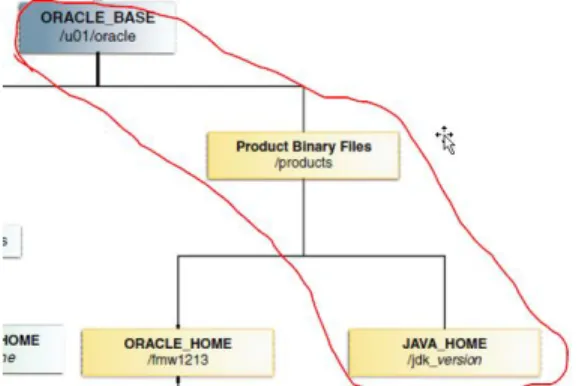
Previously 2 file systems (fsbinaries01 and fsbinaries02) were defined in order to install products. In this case we will work on this part of the file system. In addition, three local systems were defined for the web layer and balancer.
Figure that shows the path where JDK is installed
Machine Mount Point NFS
weblogic01.sysco.no /u01/oracle/products /export/fsbinaries01
weblogic02.sysco.no /u01/oracle/products /export/fsbinaries02
lbohs.sysco.no ohs01.sysco.no ohs02.sysco.no
/u02/oracle/products Local file system
Table of file systems where products will be installed
In order to install the JDK execute these steps on weblogic01.sysco.no, weblogic02.sysco.no, lbohs.sysco.no, ohs01.sysco.no and ohs02.sysco.no.
a. Login with the Oracle user
b. Go to the directory where the product will be installed
cd /u0[1|2]/oracle/products/
c. Unpack the installer
22 6.2. Weblogic
This product is installed on weblogic01 and weblogic02. Execute the following steps in both machines.
Important: Take into account each server uses different storages to store products. Thus, copying inventories between servers is not necessary.
a. Create the ORACLE_HOME directory
mkdir /u01/oracle/products/fm1213
b. Set the JDK variables
export JAVA_HOME=/u01/oracle/products/jdk1.7.0_55 export PATH=$JAVA_HOME/bin:$PATH
c. Run the weblogic installer.
java –d64 –jar [Installer path]/fmw_12.1.3.0.0_wls.jar
d. Select the inventory directory, the OS group and click on Ok
23 f. Set the ORACLE_HOME directory and click on Next
24 h. Click on Next
25 j. Click on Save Response File (it will be useful to automate future installations) and click on
Install
26 l. Uncheck the checkbox and click on Finish
m. Make a backup of the installation 6.3. Oracle Http Server
This product is installed on ohs01.sysco.no, ohs02.sysco.no and lbohs.sysco.no. Execute the following steps in these machines.
a. Use the root user account to install operating system packages.
yum install compat-libcap1-1.10 yum install compat-libstdc++-33-3.2.3 yum install libstdc++-devel
27
yum install libaio-devel-0.3.107
b. After installing operating system packages, use the oracle user account to create the ORACLE_HOME.
mkdir /u02/oracle/products/fm1213
c. Execute the installer
./fmw_12.1.3.0.0_ohs_linux64.bin
d. Click on Ok
e. Click on Next
28 g. Select Standalone HTTP Server and click on Next
29 i. Uncheck the checkbox and click on Next
30 k. Click on Next
31 m. Make a backup of the installation
7. Creating domains
7.1. Creating the load balancer domain
In this section a machine will be configured as a load balancer. The machine is lbohs.sysco.no and the OHS was installed in the previous section. In addition, a JVM was also installed because the Oracle HTTP Server 12C is configured to use an Oracle Weblogic Domain, which is different from previous versions like 11G.
In order to configure the domain follow these steps. a. Login with the oracle user account on lbohs.sysco.no.
b. Run the configuration wizard
/u02/oracle/products/fm1213/oracle_common/common/bin/./config.sh
32 d. Mark the checkbox and click on Next
33 f. Specify a system component name and click on Next.
34 h. Set the node manager user and password and click on Next.
35 j. Click on Next
36 l. Startup the node manager
cd /u02/oracle/config/domains/incadomain/bin nohup ./startNodeManager.sh > nm.out&
m. Startup the Oracle HTTP Server
cd /u02/oracle/config/domains/incadomain/bin ./startComponent.sh ohsloadbalancer
7.2. Creating the web layer domain
In order to create the web layer domain apply the same steps shown in the previous case (load balancer domain) on these machines ohs01.sysco.no and ohs02.sysco.no. The following screen shows two relevant screens for each configuration where system component names and port are set.
37 ohs02.sysco.no
7.3. Applications domain
The aim of this section is to create a domain composed by an administration server and two managed servers that are part of a cluster. This section is based on the information available in [1]. In this case, the process starts in the machine weblogic01.sysco.no and these are the steps. 7.3.1. Domain creation
a. Login with the oracle user account on weblogic01.sysco.no
b. Run the configuration wizard
/u01/oracle/products/fm1213/oracle_common/common/bin/./config.sh
38 d. Select the checkbox Weblogic Coherence Cluster Extension and click on Next
39 f. Select the Domain Mode (in this case is Production), set the JDK path and click on Next.
40 h. Set the Administration Server Listen Address and its Listen Port. It is important to remark that in this case that hostname (admvhost.sysco.no) represents a virtual IP in order to configure the AdminServer high availability in future steps.
i. Choose a node manager type (in this case Per Domain Default Location), set the node manager credentials and click on Next.
41 j. Add two managed server, these server are configured to use virtual IPs in order to configure
the whole server migration further.
42 l. Assign managed servers to the cluster and click on Next.
43 n. Define three machines, the first one is the Administration Server machine and is tied to the
virtual IP. In addition, there are two machines for each managed server.
44 p. Review the configuration and click on Create.
45 r. Click on Finish
7.3.2. Extending the domain to create the managed server WLS_01 on weblogic01.sysco.no
Even though the domain was created on this server, it is necessary to extend the domain (using commands pack and unpack) to create the managed server (WLS_01) in a different domain directory on the same host.
Just to remember
Domain path ASERVER_HOME
/u01/oracle/config/domains/incadomain -> it was configured during the domain creation
Domain path MSERVER_HOME
46 These are the steps to create the WLS_01 managed server
a. Login with the oracle user account on weblogic01.sysco.no
b. Create the domain directory
mkdir –p /u02/oracle/config/domains/incadomain
c. Run the pack command to create a template
cd ORACLE_COMMON_HOME/common/bin
In this installation is:
cd /u01/oracle/products/fm1213/oracle_common/common/bin
According to [1] this the pack command ./pack.sh -managed=true
-domain=ASERVER_HOME
-template=soadomaintemplate.jar
-template_name=soa_domain_template In this installation is:
./pack.sh -managed=true -domain=/u01/oracle/config/domains/incadomain -template=incadomaintemplate01.jar -template_name=inca_domain_template
d. Run the unpack command
cd /u01/oracle/products/fm1213/oracle_common/common/bin
./unpack.sh -domain=/u02/oracle/config/domains/incadomain – overwrite_domain=true -template=incadomaintemplate01.jar – log_priority=DEBUG –log=unpack01.log –
app_dir=/u01/oracle/config/applications/incadomain
In this case -domain means the directory of managed servers (/u02/oracle/…) and app_dir means the common directory applications that is shared between two machines.
47 e. Creating the boot properties file
mkdir -p ASERVER_HOME/servers/AdminServer/security
Create the boot.properties file with the Administration Server Credentials
username=weblogic password=password
f. Starting up the AdminServer
cd /u01/oracle/config/domains/incadomain/bin nohup ./startWeblogic.sh > wlAdminServer.out&
g. Test the console: http://admvhost.sysco.no:9001/console
h. Start the node manager related to the managed server (WLS_01) on weblogic01.sysco.no
cd /u02/oracle/config/domains/incadomain/bin nohup ./startNodeManager.sh > nodeManager.out&
It is possible to review the node manager status using the admin console.
i. Use the admin console to startup the managed server WLS_01
48 j. Shutdown all the services and make a backup of the installation before extending the domain
to the server weblogic02.sysco.no
7.3.3. Creating the cluster directory
In section 5.2 was not possible to create the folder
/u01/oracle/config/domains/incadomain/incacluster because the configuration wizard requires an empty directory. In this section, this directory is created and mounted within the shared storage.
a. Stop all the weblogic services running on weblogic01.sysco.no
b. Login into weblogic01.sysco.no with the root user account.
c. Create the directory
mkdir /u01/oracle/config/domains/incadomain/incacluster
d. Take a backup of the file /etc/fstab
e. Modify the file /etc/fstab to include the cluster shared storage (with the root user account)
f. Run this command (with the root user account)
mount -a
49 7.3.4. Extending the domain to create the managed server WLS_02 on weblogic02.sysco.no
It is necessary to extend the domain (using commands pack and unpack) to create the managed server (WLS_02) in a different host.
Just to remember
Domain path ASERVER_HOME in this case is:
/u01/oracle/config/domains/incadomain -> it was configured during the domain creation on weblogic01.sysco.no
Domain path MSERVER_HOME in this case is
/u02/oracle/config/domains/incadomain -> it is configured in this section on weblogic02.sysco.no
These are the steps to create the WLS_02 managed server a. Login with the oracle user account on weblogic02.sysco.no
b. Create the domain directory
mkdir –p /u02/oracle/config/domains/incadomain
c. Run the pack command on weblogic01.sysco.no
./pack.sh -managed=true -domain=/u01/oracle/config/domains/incadomain -template=incadomaintemplate02.jar -template_name=inca_domain_template d. Copy incadomaintemplate02.jar into weblogic02.sysco.no
e. Run the unpack command
cd /u01/oracle/products/fm1213/oracle_common/common/bin
./unpack.sh -domain=/u02/oracle/config/domains/incadomain – overwrite_domain=true -template=incadomaintemplate02.jar – log_priority=DEBUG –log=unpack02.log –
50 f. Start the node manager related to the managed server on weblogic02.sysco.no
cd /u02/oracle/config/domains/incadomain/bin nohup ./startNodeManager.sh > nodeManager.out&
It is possible to review the node manager status using the admin console.
g. Use the admin console to startup the managed server WLS_02
h. Shutdown all the services and make a backup of the installation 8. Configuring the load balancer
In this section, one of the Oracle HTTP Server installations (lbohs.sysco.no) is configured as a load balancer. Two virtual addresses have been created to use the load balancer, these are:
Machine Virtual IP Virtual host name Comments
lbohs.sysco.no 192.180.56.20 admin12c.sysco.no Administration server requests lbohs.sysco.no 192.180.56.21 app12c.sysco.no Applications requests
These addresses will be configured as virtual hosts in the Oracle HTTP Server installed in lbohs.sysco.no. In addition, each virtual host will have a cluster to redirect requests towards instances ohs01 and ohs02. Furthermore, virtual hosts to direct the traffic from instances osh01 and oh02 to the AdminServer and managed server will be created. The following graph depicts the configuration.
51
Load Balancer Instance: lbohs Virtual host
admin12c.sysco.no:80 Proxy Balancer: ClusterAdmin
192.180.56.191:7777 192.180.56.192:7777
Virtual host app12c.sysco.no:443 Proxy Balancer: ClusterApp
192.180.56.191:7778 192.180.56.192:7778
Web Server 01 Instance: ohs01 Virtual host Admin
192.180.56.191:7777
Virtual host App
192.180.56.191:7778
Web Server 02 Instance: ohs02 Virtual host Admin
192.180.56.192:7777
Virtual host App
192.180.56.192:7778
In order to create the configuration shown in the previous picture, follow these steps. a. Login into the server lbohs.sysco.no with the oracle user.
b. Create this file
cd
/u02/oracle/config/domains/incadomain/config/fmwconfig/components/OHS/instances/ohsloadba lancer/moduleconf
touch loadbalancer.conf
c. Add this configuration to the file
<VirtualHost app12c.sysco.no:443> ProxyRequests off ServerName app12cLBOHS <IfModule ossl_module> SSLEngine on
SSLProtocol nzos_Version_1_0 nzos_Version_3_0_With_2_0_Hello nzos_Version_3_0 SSLCipherSuite SSL_RSA_WITH_RC4_128_MD5,SSL_RSA_WITH_RC4_128_SHA,SSL_RSA_WITH_3DES_EDE_CBC _SHA,SSL_RSA_WITH_DES_CBC_SHA,TLS_RSA_WITH_AES_128_CBC_SHA,TLS_RSA_WITH_AES _256_CBC_SHA SSLVerifyClient none SSLWallet "${ORACLE_INSTANCE}/config/fmwconfig/components/${COMPONENT_TYPE}/instances /${COMPONENT_NAME}/keystores/default" SSLCRLCheck Off </IfModule> <Proxy balancer://ClusterApp>
52 # WebHead1
BalancerMember http://ohs01.sysco.no:7778 BalancerMember http://ohs02.sysco.no:7778
# Security "technically we aren't blocking # anyone but this the place to make those # chages
Order Deny,Allow Deny from none Allow from all
# Load Balancer Settings
# We will be configuring a simple Round # Robin style load balancer. This means # that all webheads take an equal share of # of the load.
ProxySet lbmethod=byrequests
</Proxy>
# balancer-manager
# This tool is built into the mod_proxy_balancer # module and will allow you to do some simple # modifications to the balanced group via a gui # web interface.
<Location /balancer-manager> SetHandler balancer-manager
# I recommend locking this one down to your # your office
Order deny,allow Allow from all </Location>
# Point of Balance
# This setting will allow to explicitly name the # the location in the site that we want to be # balanced, in this example we will balance "/" # or everything in the site.
ProxyPass /balancer-manager ! ProxyPass / balancer://ClusterApp/ </VirtualHost> <VirtualHost admin12c.sysco.no:80> ProxyRequests off ServerName Admin12cLBOHS <Proxy balancer://ClusterAdmin> # WebHead1 BalancerMember http://ohs01.sysco.no:7777 BalancerMember http://ohs01.sysco.no:7777
# Security "technically we aren't blocking # anyone but this the place to make those
53 # chages
Order Deny,Allow Deny from none Allow from all
# Load Balancer Settings
# We will be configuring a simple Round # Robin style load balancer. This means # that all webheads take an equal share of # of the load.
ProxySet lbmethod=byrequests
</Proxy>
# balancer-manager
# This tool is built into the mod_proxy_balancer # module and will allow you to do some simple # modifications to the balanced group via a gui # web interface.
<Location /balancer-manager> SetHandler balancer-manager
# I recommend locking this one down to your # your office
Order deny,allow Allow from all </Location>
# Point of Balance
# This setting will allow to explicitly name the # the location in the site that we want to be # balanced, in this example we will balance "/" # or everything in the site.
ProxyPass /balancer-manager !
ProxyPass / balancer://ClusterAdmin/ <IfModule ossl_module> SSLEngine off </IfModule> </VirtualHost>
d. The previous configuration uses ports 80 and 443 so we have to activate these ports. Before changing ports, use these articles to apply a patch and to set privileges to start the service in privileged ports.
IMPORTANT:
OHS 12c Fails to Start With the Error "Permission denied: make_sock: could
not bind to address" on Linux6 (Doc ID 1599750.1)
http://docs.oracle.com/middleware/1213/webtier/HSADM/getstart.htm#
HSADM848 [Starting Oracle HTTP Server Instances on a Privileged Port
54 e. Changing ports
cd
/u02/oracle/config/domains/incadomain/config/fmwconfig/components/OHS/instances/oh sloadbalancer/moduleconf
vi httpd.conf
f. Start the Oracle Http Server on lbohs.sysco.no with these commands.
cd /u02/oracle/config/domains/incadomain/bin nohup ./startNodeManager.sh > nm.out& cd /u02/oracle/config/domains/incadomain/bin
./startComponent.sh [INSTANCE_NAME] (For example ohsloadbalancer or ohs01)
g. Test the port 80
Obviously, the OHS services on ohs01.sysco.no and ohs02.sysco.no are up and listening to requests on port 7777.
9. Configuring virtual hosts on ohs01 and ohs02 instance
In the section two virtual hosts are configured, they will use the same IP (physical IP) and different port according to this table.
55
SERVER Instance IP Virtual
Host
Port Virtual Host
Redirect to
ohs01.sysco.no ohs01 192.180.56.191 Admin 7777 admvhost.sysco.no:9001 ohs01.sysco.no ohs01 192.180.56.191 App 7778 ms01vhost.sysco.no:9003,
ms02vhost.sysco.no:9003 ohs02.sysco.no ohs02 192.180.56.192 Admin 7777 admvhost.sysco.no:9001 ohs02.sysco.no ohs02 192.180.56.192 App 7778 ms01vhost.sysco.no:9003,
ms02vhost.sysco.no:9003
These are the steps to create these virtual hosts.
a. Login into the server ohs01.sysco.no with the oracle user. b. Create these files
cd
/u02/oracle/config/domains/incadomain/config/fmwconfig/components/OHS/instances/ohs01/mod uleconf
touch admVhost.conf
touch appVhost.conf
c. Configure these files as is shown in the following pictures
admVhost.conf
appVhost.conf
56 h. Start the Oracle Http Server on ohs01.sysco.no with these commands.
cd /u02/oracle/config/domains/incadomain/bin nohup ./startNodeManager.sh > nm.out& cd /u02/oracle/config/domains/incadomain/bin
./startComponent.sh [INSTANCE_NAME] (For example ohsloadbalancer or ohs01)
i. Test the applications URL from the load balancer
j. Copy the following files from ohs01.sysco.no to ohs02.sysco.no and modify the remarked values
57
appVhost.conf
k. Modify the httpd.conf (on the server ohs02.sysco.no) to add the port 7778
l. Start the Oracle Http Server on ohs02.sysco.no with these commands.
cd /u02/oracle/config/domains/incadomain/bin nohup ./startNodeManager.sh > nm.out& cd /u02/oracle/config/domains/incadomain/bin
58 m. Shutdown the server ohs01.syco.no and test URLs from the load balancer. In this case it
works.
10. Configuring the frontend host and the frontend http port
Configure the frontend host and the frontend http port the cluster and for the AdminServer in order to use those ports configured in the load balancer.
10.1. Configuring the cluster WLCluster_01 Follow these steps
a. Login into the AdminServer with this URL: http://admin12c.sysco.no/console
b. The system will redirect the request towards one of the Oracle HTTP Servers.
The following steps will avoid this kind of redirection
c. Click con WLCluster_01 as can be seen in the picture
d. Click on HTTP tab
59
10.2. Configuring the AdminServer Follow these steps
a. Click on AdminServer
b. Click on Protocols
7
c. Click on HTTP
60 e. Log out of the Amin Console and log in again. Now the address used by the Admin Console is
that defined on the load balancer.
11. Testing the Administration Server high availability
With the previous a high available architecture was create according to the Oracle recommendations. Therefore, this architecture can be used to show how to start the admin serve in another machine. In this way, a contingency server is used in case the Admin Server machine has problems. It is important to remark that this work is possible because the Admin Server domain was created on a shared storage and it is using virtual IPs.
This is the relevant information for this testing: Virtual IPs
Machine Virtual IP Virtual host name Weblogic server Comments
weblogic01.sysco.no 192.180.56.10 admvhost.sysco.no AdminServer Administration server
weblogic01.sysco.no 192.180.56.11 ms01vhost.sysco.no WLS_01 Managed server 01 weblogic02.sysco.no 192.180.56.12 ms02vhost.sysco.no WLS_02 Managed server 02
File system
File System MACHINE DESCRIPTION Comments
fsbinaries01 weblogic01 Products Products
binary files
fsms01 weblogic01 Config Managed
Server
fsbinaries02 weblogic02 Products Products
61
fsms02 weblogic02 Config Managed
Server
fsadm weblogic01
(contingency weblogic02)
Config Administration
Server
fsapp weblogic01, weblogic02 Applications Applications developed fsdp weblogic01, weblogic02 Deployment plans Deployment
plans fscluster weblogic01, weblogic02 JMS, Tlogs JMS, Tlogs
Fstab weblogic01.sysco.no
The following steps show how to do this configuration a. Review that the Weblogic Admin server is running
As can be seen the server is running on weblogic01.sysco.no
b. Shutdown the virtual machine weblogic01.sysco.no
62 d. Configure the virtual IP 192.180.56.10 on the server weblogic02.sysco.no using the root user
account
e. Make a backup of the file /etc/fstab
f. Add the following line in the file /etc/fstab using the root user account
g. Run the following command using the root user account
mount –a
h. Start the Admin Server using the oracle user account
63 j. Test the Admin Console again
As can be seen in the previous picture, the Admin Console is working again, but on other server.
12. Conclusions
This document shows a comprehensive process to construct an architecture with high availability that demonstrates how useful is in order to do tasks such as the recovery of the Administration Server in other machine. Even though, the whole server migration of managed servers is not configured in this guide, the architecture is ready to apply this configuration because of the use of virtual IPs and shared storages. In fact the directories that allow this work are also create. For example, the path
/u01/oracle/config/domains/incadomain/incacluster is created to store the JMS and TLOG files. This document can be used to learn how to do this configuration and to apply this knowledge to other cases such SOA and OSB.
13. References list
[1] Oracle (2015) Fusion Middleware Enterprise Deployment Guide for Oracle SOA Suite [Online document] Available from:
https://docs.oracle.com/middleware/1213/soasuite/SOEDG/edg_storage.htm#SOEDG2179
(Accessed: 07 August 2015)
[2] Oracle (2013) Oracle WebLogic on Shared Storage: Best Practices [Online document] Available from:
http://www.oracle.com/technetwork/database/availability/maa-fmwsharedstoragebestpractices-402094.pdf (Accessed: 10 August 2015)
[3] Oracle (2010) Oracle® E-Business Suite 11i Deployment Guide Using Oracle’s Sun Storage 7000 Unified Storage Systems [Online document] Available from:
64 [4] RedHat (n.d) Chapter 23. Creating Oracle User Accounts [Online document] Available from:
https://access.redhat.com/documentation/en-US/Red_Hat_Enterprise_Linux/5/html/Tuning_and_Optimizing_Red_Hat_Enterprise_Linux_for_Ora
cle_9i_and_10g_Databases/chap-Oracle_9i_and_10g_Tuning_Guide-Creating_Oracle_User_Accounts.html (Accessed: 13 August 2015)
[5] Oracle (2015) Certifications>Search Results: Oracle Weblogic Server 12.1.3.0.0 [Online document] Available from: https://support.oracle.com/ (Accessed: 17 August 2015) [6] Oracle (2014) JDK 7 Installation for Linux Platforms [Online document] Available from:
https://docs.oracle.com/javase/7/docs/webnotes/install/linux/linux-jdk.html (Accessed: 18 August 2015)