NVG-105-8.2.1-EN-01 01/13/09
NetVault
:
Backup
version 8.2.1
Installation/Upgrade Guide
NetVault: Backup v8.2.1 - Installation/Upgrade Guide Software Copyright © 2009 BakBone Software Documentation Copyright © 2009 BakBone Software
This software product is copyrighted and all rights are reserved. The distribution and sale of this product are intended for the use of the original purchaser only per the terms of the License Agreement. All other product trademarks are the property of their respective owners.
The NetVault: Backup v8.2.1 - Installation/Upgrade Guide documentation is copyrighted and all rights are reserved.
This document may not, in whole or part, be copied, photocopied, reproduced, translated, reduced or transferred to any electronic medium or machine-readable form without prior consent in writing from BakBone Software.
THIS PUBLICATION IS PROVIDED “AS IS” WITHOUT WARRANTY OF ANY KIND, EITHER EXPRESS OR IMPLIED, INCLUDING, BUT NOT LIMITED TO, THE IMPLIED WARRANTIES OF MERCHANTABILITY, FITNESS FOR A PARTICULAR PURPOSE, OR
NON-INFRINGEMENT.
THIS PUBLICATION COULD INCLUDE TECHNICAL INACCURACIES OR TYPOGRAPHICAL ERRORS. CHANGES ARE PERIODICALLY ADDED TO THE INFORMATION HEREIN; THESE CHANGES WILL BE INCORPORATED INTO NEW EDITIONS OF THE PUBLICATION. BAKBONE SOFTWARE MAY MAKE IMPROVEMENTS AND/OR CHANGES IN THE PRODUCT(S) AND/OR THE PROGRAM(S) DESCRIBED IN THIS PUBLICATION AT ANY TIME.
BakBone Software
Preface 7
• About this Document ... 7
• Target Audience ... 7
• Organization ... 7
• Recommended Additional Reading ... 8
• Technical Support ... 8
• Documentation Updates ... 8
Chapter 1: Introduction 9
• NetVault: Backup – At a Glance ... 9• Key Benefits ... 9
• Feature Summary ... 10
Chapter 2: NetVault: Backup Architecture Overview
11
• NetVault: Backup Architecture – An Overview ... 11- Architecture Components ... 12
Chapter 3: Pre-installation Requirements
15
• Planning New Installations ... 15- Determine NetVault: Backup Server and Client Machines ... 15
- Determine NetVault: Backup Database (NVDB) Location ... 16
- Determine NetVault: Backup Machine Names ... 17
• Prerequisites ... 19
• Platform Specific Prerequisites ... 21
- AIX ... 21
- Asian Linux 3 (64-bit) ... 21
- Debian 4.0 (64-bit) ... 21
- FreeBSD 7 (32-bit) ... 21
- Linux/Unix ... 22
- RHEL 4 Itanium ... 22
- Ubuntu 8.04 (64-bit) ... 23
• Additional Requirements on Linux-based Systems ... 23
- Required Shared Library Files ... 24
- Finding the Missing Packages ... 24
- Installing the Required Packages ... 25
• Additional Notes ... 25
Chapter 4: NetVault: Backup Server Installation
27
• AIX Installation ... 27- Installing from the Installation CD-ROM on AIX ... 27
- Installing from the Downloaded Binary File on AIX ... 28
• HP-UX Itanium Installation ... 29
- Installing from the Installation CD-ROM on HP-UX Itanium ... 29
- Installing from the Downloaded Binary File on HP-UX Itanium ... 30
• Linux x86/x86-64 Installation ... 31
- Installing from the Installation CD-ROM on Linux x86/x86-64 ... 31
- Installing from the Downloaded Binary File on Linux x86/x86-64 ... 32
• Linux Itanium Installation ... 32
- Installing from the Installation CD-ROM on Linux Itanium ... 32
- Installing from the Downloaded Binary File on Linux Itanium ... 33
• MP-RAS Installation ... 34
- Installing from the Installation CD-ROM on MP-RAS ... 34
- Installing from the Downloaded Binary File on MP-RAS ... 35
• Solaris x86/x86-64 Installation ... 35
- Installing from the Installation CD-ROM on Solaris x86/x86-64 ... 35
- Installing from the Downloaded Binary File on Solaris x86/x86-64 ... 36
• Solaris (SPARC) Installation ... 37
- Installing from the Installation CD-ROM on Solaris (SPARC) ... 37
- Installing from the Downloaded Binary File on Solaris (SPARC) ... 38
• Windows Installation ... 39
• Platform Specific Post-installation Requirements ... 40
- Debian 3.1 and Ubuntu 7.04 ... 40
- Solaris 10 ... 40
- Windows ... 41
• Example Installation on a Windows-based System ... 46
Chapter 5: NetVault: Backup Client Installation
51
• AIX Installation ... 51- Installing from the Installation CD-ROM on AIX ... 51
- Installing from the Downloaded Binary File on AIX ... 52
• FreeBSD Installaiton ... 52
- Installing from the Installation CD-ROM on FreeBSD ... 52
- Installing from the Downloaded Binary File on FreeBSD ... 53
• HP-UX Itanium Installation ... 53
- Installing from the Installation CD-ROM on HP-UX Itanium ... 53
- Installing from the Downloaded Binary File on HP-UX Itanium ... 54
• Linux x86/x86-64 Installation ... 54
- Installing from the Installation CD-ROM on Linux x86/x86-64 ... 55
- Installing from the Downloaded Binary File on Linux x86/x86-64 ... 55
• Linux Itanium Installation ... 56
- Installing from the Installation CD-ROM on Linux Itanium ... 56
- Installing from the Downloaded Binary File on Linux Itanium ... 57
• MP-RAS Installation ... 58
- Installing the Installation CD-ROM on MP-RAS ... 58
- Installing from the Downloaded Binary File on MP-RAS ... 58
• Solaris x86/x86-64 Installation ... 59
- Installing from the Installation CD-ROM on Solaris x86/x86-64 ... 59
- Installing from the Downloaded Binary File on Solaris x86/x86-64 ... 59
• Solaris (SPARC) Installation ... 60
- Installing from the Installation CD-ROM on Solaris (SPARC) ... 60
- Installing from the Downloaded Binary File on Solaris (SPARC) ... 61
• Windows Installation ... 61
• Platform Specific Post-installation Requirements ... 63
- Debian 3.1 ... 63
- Debian 4.0 (32-bit) ... 63
- Debian 4.0 (64-bit) ... 63
- Ubuntu ... 63
- Windows ... 64
Chapter 6: Upgrading NetVault: Backup
65
• Upgrade – Overview ...65• Pre-upgrade Procedures ...66
- Backup the Existing NVDB ... 66
- Stopping NetVault: Backup Processes ... 66
- Removing Extraneous NetVault: Backup Installation Files ... 66
- Disabling Anti-Virus Software ... 67
• Upgrade Procedure ...67
- Upgrading from v7.x and Later Versions ... 67
- Upgrading from Earlier Versions ... 67
• Post Upgrade Procedure ...68
- Post-Upgrade NVDB Summary ... 68
- Does the System Require a Reboot After Upgrade? ... 68
- Post-upgrade Requirement on Solaris 10 NetVault: Backup Server ... 68
• Known Upgrade Issues ...73
Chapter 7: NetVault: Backup Plugin Installation
76
• Installing NetVault: Backup Plugins ...76- Installing Optional Plugins and APMs ... 76
- Installing NetVault: Backup Core Plugins ... 77
- Removing a Plugin or APM ... 78
Chapter 8: Licensing NetVault: Backup
79
• Licensing NetVault: Backup ...79- Locating Machine IDs ... 79
- Requesting a License Key ... 80
- Installing a License Key ... 80
Chapter 9: Uninstallation
82
• Uninstalling NetVault: Backup ...82- Uninstalling from a Linux/UNIX-based O/S ... 82
- Uninstalling from a Windows-based O/S ... 83
P
REFACE
About this Document
This guide provides complete details on installing the NetVault: Backup Server and Client software. It does not provide information on the NetVault: Backup features and functionality. For details on using NetVault: Backup, refer to the NetVault®: Backup Administrator’s Guide.
Target Audience
This guide is intended for Backup Administrators and other technical personnel who are responsible for designing and implementing a backup strategy for the organization. A good understanding of the operating systems under which the NetVault: Backup Server and Clients are running is assumed.
Organization
The Installation/Upgrade Guide is organized as follows:
Chapter 1: Introduction – This chapter gives an overview of NetVault: Backup and describes the features and benefits of the product.
Chapter 2: NetVault: Backup Architecture Overview – This chapter gives an overview of NetVault: Backup deployment and architecture.
Chapter 3: Pre-installation Requirements – This chapter describes the pre-installation requirements for the NetVault: Backup system.
Chapter 4: NetVault: Backup Server Installation – This chapter describes the procedure for installing the NetVault: Backup Server software.
Chapter 5: NetVault: Backup Client Installation – This chapter describes the procedure for installing the NetVault: Backup Client software.
Chapter 6: Upgrading NetVault: Backup – This chapter describes how to perform an upgrade.
Chapter 7: NetVault: Backup Plugin Installation – This chapter provides information installing NetVault: Backup Plugins.
Chapter 8: Licensing NetVault: Backup – This chapter provides information on licensing NetVault: Backup.
Chapter 9: Uninstallation – This chapter describes the procedures for uninstalling NetVault: Backup.
Recommended Additional Reading
NetVault ®: Backup Getting Started Guide – This guide is intended for a
first-time user. It describes how to set up a NetVault: Backup system quickly and perform a test backup and restore.
NetVault®: Backup Administrator’s Guide – This guide describes how to use
NetVault: Backup and provides comprehensive information on all NetVault: Backup features and functionality.
NetVault ®: Backup Configurator Guide – This guide explains how to
configure the default settings for NetVault: Backup.
NetVault ®: Backup Command Line Interface Guide – This guide provides
detailed description of the command line utilities.
You can download these guides from the BakBone website at the following address:
http://www.bakbone.com/documentation
Technical Support
BakBone Software is dedicated to providing friendly, expert advice to NetVault customers. Our highly trained professionals are available to answer your
questions, offer solutions to your problems and generally help you make the most of your NetVault purchase. Log on to our Web site for more information:
http://support.bakbone.com
Documentation Updates
For the latest documentation updates, refer to the BakBone Software Knowledge Base. BakBone's Knowledge Base article for NetVault: Backup v8.2.1 can be found at the following link:
Chapter 1:
I
NTRODUCTION
This chapter gives an overview of NetVault: Backup and describes the features and benefits of the product. The information in this chapter is organized into the following topics:
NetVault: Backup – At a Glance
Key Benefits
Feature Summary
1.1 NetVault: Backup – At a Glance
NetVault: Backup offers enhanced data protection and enterprise-class
functionality that delivers ease of use while scaling to meet the demands of any sized environment, from a single server to complex, heterogeneous environment. The flexible, modular architecture provides proven reliability and high
performance, with a unique combination of features designed to reduce deployment costs and Total Cost of Ownership (TCO) by enabling you to implement a solution designed to meet current as well as future needs. Whether you are managing a few servers or a multi-site networked storage environment, there is a NetVault: Backup package designed to fit your needs.
1.2 Key Benefits
Rapid Deployment
NetVault: Backup's automated installation and device configuration features make it easy to add, manage or re-deploy distributed data management components throughout a growing enterprise storage environment. With our modular architecture you can license only those components you need today, while easily expanding the system as your storage environment or
performance requirements grow.
Enhanced Administrator Productivity
Policy based job management and enhanced reporting capabilities simplify maintenance of your data protection strategies. Many activities such as job definition and event notification can be defined and modified at a group level, making administrative tasks quicker and easier.
Increased Automation
NetVault: Backup's event notification enhancements and policy based job management features provide increased automation, especially when deployed across heterogeneous storage networks. NetVault: Backup enables administrators to define, manage and monitor jobs from remote clients, while the flexible notification feature ensures business continuance with the ability to define event contexts and triggers, tailoring the product to meet your unique requirements.
Lower Total Cost of Ownership
By dramatically simplifying implementation and networked storage administration, NetVault: Backup ensures improved data availability while reducing the associated labor costs. The product can significantly lower TCO and provide a return on initial software investment in as little as six to nine months.
1.3 Feature Summary
Extensive application data protection
Broad platform support
VMware protection without scripting
Policy based job management
Powerful reporting capabilities
Advanced SAN/NAS support
Comprehensive NDMP support
Command Line Interface (CLI) options
Full media management
Powerful Disk-to-Disk backup options
Dynamic device sharing
Event notification
Chapter 2:
N
ET
V
AULT
: B
ACKUP
A
RCHITECTURE
O
VERVIEW
This chapter gives an overview of NetVault: Backup architecture. The information in this chapter is organized into the following topics:
NetVault: Backup Architecture – An Overview
Architecture Components
2.1 NetVault: Backup Architecture – An Overview
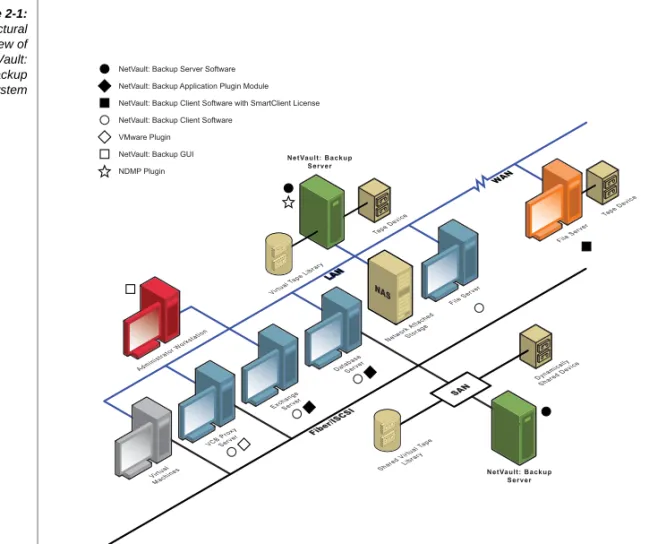
Figure 2-1: Architectural overview of NetVault: Backup system Tape Device Virtua l Machines VCB ProxyServer DatabaseServer File Server ExchangeServer Virtual T ape Library LAN LAN WAN Tape Device Fiber/ISCSI SAN Dynamically Shared Device Shared V irtual Tape Library Administrator W
orkstation Network Attached
Storage NA S NetVault: Backup Server NetVault: Backup Server File Server NetVault: Backup Application Plugin Module
NetVault: Backup GUI NetVault: Backup Server Software
NetVault: Backup Client Software
NetVault: Backup Client Software with SmartClient License
VMware Plugin
The NetVault: Backup Server must be deployed first, followed by the individual Clients. This arrangement of a single NetVault: Backup Server and its associated Clients constitutes a NetVault: Backup Domain.
2.1.1 Architecture Components
A NetVault: Backup deployment consists of the following components:
NetVault: Backup Server
The NetVault: Backup Server is the main component of the NetVault: Backup solution. It provides for the job management, media management, device management, client management, reporting, notifications and logging. The NetVault: Backup Server maintains a history of backups in the NetVault database, enabling users to quickly identify which file, database instance or email storage group they want to restore. Stand-alone tape drives or tape libraries may be attached directly to the NetVault: Backup Server. The NetVault: Backup Server software is installed on each of the machines designated as a NetVault: Backup Server.
NetVault: Backup Clients
NetVault: Backup Clients are basically the file servers, database servers, or mail servers you need to protect. NetVault: Backup Clients are managed by the NetVault: Backup Server and transfers the backup/restore data across the LAN/WAN. NetVault: Backup Clients can be any number of Windows, Linux, Mac OS X, or UNIX machines. NetVault: Backup Client software is installed on each of the machines designated as a NetVault: Backup Client. Additionally one or more Application Plugin Modules or Plugins can be installed on any of the NetVault: Backup Client machines.
NetVault: Backup SmartClients
NetVault: Backup SmartClients are NetVault: Backup Clients with one or more locally-attached tape drives or tape libraries which may be physical or virtual. SmartClients can share tape drives with a NetVault: Backup Server, NAS Device, and other SmartClients. SmartClients speed up the backup process by allowing the data stream to flow directly to the attached storage device rather than being slowed down by traveling across the network.
Figure 2-2:
NetVault: Backup Clients and SmartClients
Virtual Tape Library
A Virtual Tape Library (VTL) is a user configured tape library on a disk subsystem to allow Disk to Disk (D2D) backups, and ultimately Disk to Disk to Tape (D2D2T) backups. Virtual Tape Libraries allow users to run
simultaneous backups from multiple clients to the same disk device which reduces backup windows. Additionally, a Virtual Tape Library speeds up restores because the backup is stored on random access drives as apposed to reading the backup from sequential tape.
Figure 2-3:
NetVault: Backup VTL
Shared Virtual Tape Library
A Shared Virtual Tape Library (SVTL) allows multiple NetVault: Backup Clients of varying operating systems to share same raw disk for LAN-free backups via Fibre Channel or iSCSI.
NDMP
The Network Data Management Protocol (NDMP) is designed to efficiently transfer large blocks of data across a LAN or SAN to a storage device. For Network Attached Storage devices utilizing NDMP, backups are performed via a high performance protocol rather than using less efficient file sharing method such as NFS or CIFS. NetVault: Backup can send NDMP data directly to a locally attached SCSI device, a SAN-attached storage device (tape or VTL) or to a storage device elsewhere on the network. NetVault: Backup offers advanced NDMP features such as Browsable Volume and Direct Access Restore (DAR) support, which helps restore files quickly by fast positioning to the required data on the storage device (tape or VTL). Files can be selected and restored at the directory level. NDMP is the only truly server-less backup technology.
Dynamically Shared Devices
Dynamically Shared Devices (DSD) is LAN-free backup at its best by allowing more than one system to utilize a tape drive connected to a Fiber Channel SAN, IP SAN using iSCSI. Tape drives (Physical or Virtual) are dynamically assigned on demand to any SmartClient, NDMP device, or NetVault: Backup Server for duration of the backup/restore.
Application Plugin Modules
NetVault: Backup supports Application Plugin Modules (APMs) for online backups for a wide variety of database and messaging applications - such as Oracle, SQL Server, Exchange, MySQL, PostgreSQL, Lotus Notes/Domino, DB2, Informix, and Sybase. With the APMs, NetVault: Backup servers and clients can be enhanced to perform application specific backups. Interfacing with the native APIs, NetVault: Backup draws data from the applications and catalogs backup data according to application type: all in a simple point-and-click manner, within NetVault: Backup's GUI.
Chapter 3:
P
RE
-
INSTALLATION
R
EQUIREMENTS
This chapter describes the pre-installation requirements for the NetVault: Backup system. The information in this chapter is organized into the following topics:
Planning New Installations
Determine NetVault: Backup Server and Client Machines
Determine NetVault: Backup Database (NVDB) Location
Determine NetVault: Backup Machine Names
Prerequisites
Platform Specific Prerequisites
Additional Requirements on Linux-based Systems
Additional Notes
3.1 Planning New Installations
Review this section when planning a new NetVault: Backup system.
3.1.1 Determine NetVault: Backup Server and Client
Machines
Installation of NetVault: Backup involves installing a NetVault: Backup Server
and any number of NetVault: Backup Clients. The NetVault: Backup Server
must be deployed first, with the Server version of NetVault: Backup installed there, followed by each individual Client. Therefore, the first step in the operation is to determine which machine will serve as the NetVault: Backup Server, and which machines will be NetVault: Backup Clients:
NetVault: Backup Server - This machine will house the Server version of NetVault: Backup and it will accessed to manage all NetVault: Backup operations (i.e., administer backup and recovery operations for any number of NetVault: Backup Clients).
NetVault: Backup Client(s) - Each of these machines will house the Client
3.1.2 Determine NetVault: Backup Database (NVDB)
Location
With the machine that is to serve as the NetVault: Backup Server determined, the next step is to choose a directory on a drive/volume with enough free space to house NetVault: Backup and its database. The typical NetVault: Backup Server installation requires about 50MB of free disk space. However, the NVDB will grow as operations are performed in NetVault: Backup (e.g., backups, restores and reports generated). It is critical that space considerations be made for the growing of this database. NetVault: Backup operations could halt if its database can not be updated due to space limitations. When the NetVault: Backup Server software is installed, the installation includes a NVDB directory (db or nvdb) containing four sub-directories:
Install - Very small directory. Contains the modules binary file detailing which modules are installed).
Keys - Very small directory. Contains license key files for the main software and any plugins or APMs installed.
MediaDatabase - This directory grows to be rather large with use of NetVault: Backup. Holds records for media and backups performed.
ScheduleDatabase - Small directory (generally less than 10 MB in size) Holds records for all backup and restore jobs).
The only portion of the database for which size requirements are an issue is the MediaDatabase. The NetVault: Backup Administrator of a particular NetVault: Backup domain must estimate the anticipated size of the database to allocate adequate disk space for growth. To calculate these requirements, the following information is necessary:
The Approximate Number of Files and Directories Being Backed Up in the NetVault: Backup Domain (i.e., on the NetVault: Backup Server and all NetVault: Backup Clients).
How Many Generations of Each File are Being Kept - Each generation is a separate instance of a file or directory backup. For example, if the same file is backed up seven times, using default backup settings, there are seven
Important:
Once established, a NetVault: Backup Server can serve as a Client unto itself (i.e., the Server can be accessed and backups/restores of its own local data can beperformed).
Important:
Each file and directory backed up requires an average number of bytes for an index entry in the NVDB. This average is based on a formula of 71 bytes plus the average number of characters contained in the files that make up a target file system.generations of the file held on media and indexed in the NVDB. By default, backups have an infinite life (i.e., the number of generations increases for every backup, causing the NVDB to continuously grow in size). Most systems cannot handle this amount of storage requirement, so one of the NetVault: Backup Administrator's tasks is to ensure that a suitable Backup Life is applied to each backup (a setting found in the Advanced Options tab of the Backup window). For more information on Backup Life, refer to the
NetVault: Backup Administrator’s Guide.
3.1.2.a Example Calculation
With an average file/directory name of eight characters for a target file system, if 200,000 files and 15,000 directories were backed up once, approximately 17.5 MB will be required for NVDB indexing. If the same files and directories were backed up three times, 52.5 MB would be required. If backed up 5 times, 87.5 MB would be required, and so on.
3.1.2.b NVDB Index Entry Size Limitations
A single NVDB index entry is generated for each NetVault: Backup backup job created/submitted. It is important to note that NetVault: Backup must adhere to a maximum size requirement of four Gigabytes (4 GB) for each of these individual index entries. Index entries of this size will only occur with very large jobs (e.g., a backup job that contains a few million files and directories). If a backup job is run that requires an index entry larger than this maximum, it will most likely fail. Therefore it is recommended that large jobs requiring the backup of a few million files be broken down into multiple jobs to avoid this. For complete details on backing up data, refer to the NetVault: Backup Administrator’s Guide.
3.1.3 Determine NetVault: Backup Machine Names
During the installation process of the NetVault: Backup software (regardless of installation type (e.g., Client vs. Server) or Operating System platform), it is necessary to input a NetVault: Backup name for the machine. This name is used in NetVault: Backup for the purpose of recognizing it over the network. Hence, each NetVault: Backup Client must have a unique name. At default, a value will be displayed matching the machine’s Operating System-tied name. With this in mind, the following should be taken into consideration:
Database Size Calculation Formula
Approximate number of files and directories backed up per machine Multiplied by Approximate number of generations to be kept using Backup Life optionsa Multiplied by Number of machines backed up Multiplied by (71 bytes + average file name lengthb)
Illegal Characters in a Machine Name - Although the core software will still function regardless of how the machine is named, certain aspects of
NetVault: Backup may not function properly when the NetVault: Backup machine name includes any of the following characters:
Non-Number/Letter Alpha-Numeric Characters - This includes, “! @ # $ % ^ & * ( )” as well as the colon (“:”), and hyphen (“-”).
Japanese/Korean/Chinese Characters
Underscore Character in a Machine Name - It is possible to use an underscore (“_”) in the name of a NetVault: Backup machine (e.g., as a substitute for a space -- “NVBU_Server”, or to replace any of the illegal characters named in the point above). However, conflicts will arise when referencing a machine named in this manner in NetVault: Backup’s
Command Line Interface (CLI). The CLI sees the use of an underscore in its syntax as a replacement for a space, because a space is not recognized. For example, if a machine whose actual name is “NVBU_Server” is included in a CLI command, NetVault: Backup will, in reality, search for a machine named “NVBU Server”. Not finding a machine named this, the CLI request will fail and return an error. Therefore, if the CLI is to be used with the target machine, it is recommended that the machine be given a name that does not
include any underscore characters. For complete details on the use of NetVault: Backup’s CLI utility, please see the NetVault: Backup Command Line Interface User’s Guide.
NetVault: Backup Client Systems must be Given Different Names - When performing a Client version install of NetVault: Backup, you must assign a unique name value for each Client system.
3.1.3.a Best Practice
When performing an installation to establish the NetVault: Backup Server, it is recommended that the NetVault: Backup name used be different than the machine’s O/S-tied name. As a recommended example, use a name value signifying that the machine is the NetVault: Backup Server. This is recommended in case it is ever necessary to relocate the NetVault: Backup Server to a different machine (e.g., because of hardware failure). In relocating a NetVault: Backup Server, a backup of the NetVault: Backup Server Database (NVDB) is required.
Important:
It is of critical importance that the following points be reviewed in order to properly name a NetVault: Backup Server/Client for complete use.Important:
It is highly recommended that only the following characters be used when generating a NetVault: Backup machine name: standard uppercase characters (e.g., “A - Z”), standard lowercase characters (e.g., “a - z”), and standard numerals (e.g., “0 - 9”).The NVDB is integral to NetVault: Backup operations and is tied to the NetVault: Backup Server via its NetVault: Backup name. If relocating, a fresh installation of the Server version of NetVault: Backup would be required on the new machine, followed by a restore of the backed up NVDB to this new machine. During the installation, the NetVault: Backup name assigned must bethe same as the name used for the original installation, in order to successfully proceed to the restore of the NVDB. Therefore, if the original NetVault: Backup Server was named using the default setting of it’s O/S-tied name, the relocation target’s installation of NetVault: Backup would have to be named using this same O/S-generated name, even though its actual machine name is something different. This could result in confusion when performing future backups and restores, especially if the machine previously set up as the NetVault: Backup Server is ever brought back on line. For details on relocation of the NVDB, refer to the NetVault: Backup Administrator’s Guide.
3.2 Prerequisites
The following requirements must be met before starting a NetVault: Backup Server or Client installation.
Review Release Notes and Supported Platform Matrix – Prior to initiating an installation of NetVault: Backup, it is of critical importance that you thoroughly review the Release Notes. This document may contain important information regarding installation and use of the NetVault: Backup software. You must also review the NetVault: Backup Supported Platform Matrix to verify the platforms, operating system versions, devices and application versions supported by the current release of NetVault: Backup.
NetVault: Backup Graphic Requirements – To properly use the NetVault: Backup GUI, it is recommended that you set your system’s screen resolution to 1280 x 1024 or higher. Low resolution settings may result in display issues when using the GUI.
Permissions – All target machines must have O/S permissions set that will allow the user to install software components.
System Memory – Memory requirements on a target system can vary based on the intended use:
User Mode (Runlevel) – On Linux/UNIX platforms, boot into runlevel 3 (multi-user mode).
Disable Anit-virus Software – While it is possible to leave anti-virus software running on a target machine, it is recommended that you disable this software, before attempting to perform an installation or upgrade of NetVault: Backup. The NetVault: Backup installation process may conflict with anti-virus software during installation and various NetVault: Backup operations may not function properly after the installation.
Ensure TCP/IP Connectivity and Name Resolution – Once the machines which will host the NetVault: Backup Server and Client software have been established, it is necessary to ensure that good TCP/IP connectivity and Name Resolution exists between the proposed NetVault: Backup Server and each potential NetVault: Backup Client.
Check Backup Device Mapping/Connections – It is necessary to determine what backup devices are to be used (e.g., tape libraries and standalone drives) and map them out. Generally, the NetVault: Backup Server is set up to contain one or more of these devices (i.e., they are directly attached to the machine acting as the NetVault: Backup Server). However, this is not required and a usable backup device can be attached to a machine configured as a NetVault: Backup Client. This is referred to as a NetVault: Backup SmartClientTM. It is also important to ensure that these devices are connected and functional and that backups can be performed to them (e.g., through the use of any native O/S tools used for minimal backup operations on the device. If these native backup tools can't see an attached backup device, then neither will NetVault: Backup)
Configure “ulimit” Variables (Linux/UNIX Platforms Only) – UNIX-based O/Ss utilize a default setting for various size limitations that may create a conflict when attempting to install NetVault: Backup (e.g., the “file size (blocks)” and “virtual memory (kbytes)” settings, which may use a default setting that is too low). Failure to increase these values from their default may result in a “core dump” error message and a failed installation of various NetVault: Backup components. A recommended setting of “unlimited” is suggested to remedy this issue. To accomplish this, launch a terminal session and perform these steps:
Figure 3-1:
The way the required variables should appear for “ulimit” settings to successfully install all NetVault: Backup components
1. Issue the command:
2. A list of the values currently set as limits will be displayed. If the values for either of the following settings are anything other than “unlimited”, issue the following command to change the setting accordingly:
File Size (Blocks) – “ulimit unlimited”
Virtual Memory (Kbytes) – “ulimit -v unlimited”
3. Issue the command “ulimit -a” to re-list these statistics after modification to verify that they are properly set.
3.3 Platform Specific Prerequisites
3.3.1 AIX
On AIX load the NetVault SCSI Driver contained in the file image as described below:
On AIX 5.x, use the SMIT utility to load the NetVault SCSI Driver.
On AIX 6.1, issue the following command to install the AIX5changer (assuming the binary is in /tmp):
installp -acqd /tmp/aix5changer netvault.chm
Then, issue the following command to automatically search and configure the media changer:
/usr/lpp/netvault/addchm
3.3.2 Asian Linux 3 (64-bit)
To install and run NetVault: Backup v8.2 on a 64-bit Asian Linux 3 machine, you must create the following symbolic link as Asian Linux 3 does not use libXm.so.3 anymore
ln -s /usr/lib/libXm.so.4.0.0 /usr/lib/libXm.so.3
3.3.3 Debian 4.0 (64-bit)
Before starting the installation, perform the following steps:
1. Install ia32-libs and then issue the command ldconfig on this system 2. Download the i386 version of libmotif3 from http://packages.debian.org and
then use dpkg -x libmotif3 to extract.
3. Copy all extracted files in usr/X11R6/lib to /usr/lib32
3.3.4 FreeBSD 7 (32-bit)
To install and run the FreeBSD NetVault 8.2 distribution on a FreeBSD 7 platform create two symbolic links on your target machine using the following commands:
ln -s /lib/libc.so.7 /usr/lib/libc.so.6
3.3.5 Linux/Unix
The NetVault: Backup installation will fail on Linux/UNIX platforms if the
installation directory is a mount point. The NetVault: Backup installation script tries to delete the existing contents on the mount point (which isn’t allowed in a UNIX-based environment) and the installation will fail. To work-around this issue, create a sub-directory below the mount point, and install NetVault: Backup to that directory.
3.3.6 RHEL 4 Itanium
The “openmotif21-2.1.30-11.RHEL4.4.ia64.rpm” package located on disc 4 of the RHEL 4, U1 ia64 installation CDs, must be installed on all DR Client machines running this O/S. A standard installation of this O/S may not request this CD, so the component may not be present. To install the component, follow the steps below:
1. Insert CD 4 into the drive on the target DR Client, and launch a terminal session prompt.
2. Navigate to the CD-ROM drive, and issue the following command:
rpm -i openmotif21-2.1.30-11.RHEL4.4.ia64.rpm
3.3.7 RHEL 5.x
On RHEL 5.x systems, you must install the following packages from the installation CD: x86-32 libXp-1.0.0-*.i386.rpm x86-64 libXp-1.0.0-*.i386.rpm libXmu-1.0.2-*.i386.rpm
openmotif22-2.2.3-*.i386.rpm (required only to display the GUI)
Itanium
llibXp-1.0.0-*.ia64.rpm
llibXmu-1.0.2-*.ia64.rpm
3.3.8 Ubuntu 8.04 (64-bit)
On Ubuntu 8.04 (64-bit), perform the following steps: 1. Install Ubuntu Server 8.04 64-bit.
2. sudo su
3. apt-get install ia32-libs lib32nss-mdns 4. tar -xzvf <NetVault: Backup binary file> 5. cd netvault
6. ./install
The install will fail.
7. ldconfig
(It is important that you run ldconfig before you remove the /usr/netvault directory.)
8. rm -rf /usr/netvault 9. ./install
To make the NetVault: Backup GUI work, perform the following steps:
1. apt-get install ubuntu-desktop
2. Reboot
3. Go to http://packages.ubuntu.com/hardy/libmotif3
4. Download the i386 version of libmotif3.
5. dpkg -x libmotif3 . 6. cd usr/lib
7. mv * /usr/lib32 8. nvgui&
3.4 Additional Requirements on Linux-based
Systems
For Linux installations, certain shared library files must be present on the system for NetVault: Backup to run. These include the shared “C” libraries and “X Windows System” libraries.This appendix outlines these requirements. Note that the requirements mentioned in this section of the guide are not pre-requisites to installing NetVault: Backup. The installation script will run without interruption, installing the software to the specified directory, even if these required packages are not available on the system. However, the NetVault installation will not run if these dependencies are not present on the system.
3.4.1 Required Shared Library Files
These shared library files are available as RPM packages. A standard installation of RedHat or SUSE Linux will include the packages containing the required files by default. For customized installations of Linux, however, the availability of the following files must be ensured.
3.4.1.a X Window System Shared Libraries
These libraries provide the GUI functionality. On Linux systems running NetVault: Backup, the following X Window System shared library files must be available.
libICE.so.6 libSM.so.6 libX11.so.6 libXext.so.6 libXp.so.6 libXt.so.6
3.4.1.b Shared C Libraries
These libraries provide the standard library functions, including the “system calls”. On Linux systems running NetVault: Backup, the following shared C libraries must be available.
libc.so.6
libdl.so.2
linux-gate.so.1 (a virtual shared library that is exported by the kernel to provide a way to make system calls faster)
3.4.2 Finding the Missing Packages
As mentioned earlier, on systems that do not have the above-mentioned packages NetVault: Backup will not start after installation. In such a scenario, the following command can be issued from the NetVault: Backup installation directory (e.g., “/usr/netvault/” - by default) to obtain a list of NetVault dependencies and to determine any missing ones.
find ./|xargs file|egrep 'shared object|executable'|cut -d: -f1|xargs ldd|egrep -v '^\.'|perl -pe 's/ *\(.*$//'|sort -u
Following is an example output of this command in a RedHat Linux installation:
Important:
The various distributions of Linux might have slight differences. As a result of which the list given here is only representative.Figure 3-1:
NetVault: Backup dependencies listed using the “find” command on a system running Linux (e.g., a RedHat distribution of Linux)
The missing dependencies will be reported as “Not Found” as shown in the figure.
3.4.3 Installing the Required Packages
As mentioned earlier, these required files are available as RPM packages and can be installed using the RPM utility. For more information on rpm, please see the man page for this command.
A configuration tool like YaST (Yet another Setup Tool) can also be used for searching and installing packages. Once the package containing the required file is found by the tool, the “Install” command can be selected from the “Package” menu in order to install the file. For more information on YaST, please see the user guide for this tool.
3.5 Additional Notes
Review the following notes before starting the NetVault: Backup Server or Client installation:
By default, both NetVault: Backup and NetVault: Replicator are installed on ...\NetVault directory. If the target machine contains an installation of the NetVault: Replicator, append the backup to the default installation path as shown below to avoid overwriting NetVault: Replicator installation files:
Linux/UNIX-based Operating Systems: “/backup”
Windows-based Operating Systems: “\backup”
This will install NetVault: Backup to the ...\NetVault\backup directory. This only applies to a new instal-lation of NetVault: Backup, not an upgrade.
For OpenMotif, you will require a 32-bit binary since its GUI is a 32-bit application.
Even though NVDB is not installed on NetVault: Backup Clients, the installation script prompts for the NVDB path during client installations on Solaris platform. This path can be left as is during installation as NVDB location is irrelevant for NetVault: Backup Clients.
Chapter 4:
N
ET
V
AULT
: B
ACKUP
S
ERVER
I
NSTALLATION
This chapter describes the procedure for installing the NetVault: Backup Server software. The information in this chapter is organized into the following topics:
AIX Installation
HP-UX Itanium Installation
Linux x86/x86-64 Installation
Linux Itanium Installation
MP-RAS Installation
Solaris x86/x86-64 Installation
Solaris (SPARC) Installation
Windows Installation
Platform Specific Post-installation Requirements
Example Installation on a Linux/UNIX-based System
Example Installation on a Windows-based System
4.1 AIX Installation
NetVault: Backup can be installed either via the installation CD-ROM or the binary file downloaded from BakBone Software’s Web site. This following sections describe these two installation methods.
4.1.1 Installing from the Installation CD-ROM on AIX
To install the NetVault: Backup Server software from a CD-ROM, perform the following steps:
1. Mount the CD-ROM drive.
2. While still logged on with the root level account, insert the CD-ROM into the drive and initiate a terminal session.
3. From the prompt, issue the command:
cd /cdrom/netvault/aix/netvault ./install
4. With the installation successfully initiated, a step-by-step set up process will begin. Follow the on-screen prompts as they are given and provide the desired information.
5. With the installation successfully initiated, a step-by-step set up process will begin. Follow the on-screen prompts as they are given and provide the desired information.
6. When confronted with the “Should a Client or Server version of NetVault be installed?” select “S” for a NetVault: Backup Server installation and press Enter to continue.
4.1.2 Installing from the Downloaded Binary File on AIX
These instructions assume that you have successfully downloaded the appropriate binary file from BakBone Software’s Web site. In addition, this file must be accessible to the potential NetVault: Backup Server machine. To complete an installation of this type, perform the following steps:
1. The downloaded file will be in a compressed state and must first be decompressed (i.e., using the necessary O/S-related decompression software). Once complete, initiate a terminal session and navigate to the directory in which the decompressed files reside.
2. From the prompt, issue the command:
./install
3. With the installation successfully initiated, a step-by-step set up process will begin. Follow the on-screen prompts as they are given and provide the desired information.
4. With the installation successfully initiated, a step-by-step set up process will begin. Follow the on-screen prompts as they are given and provide the desired information.
5. When confronted with the “Should a Client or Server version of NetVault be installed?” select “S” for a NetVault: Backup Server installation and press Enter to continue.
Important:
All of the prompts revealed during the installation process have a defaultselection for which it is possible to simply hit the Enter key to automatically select this default value and continue. These options will appear at the end of each prompt, enclosed in brackets (“[ ]”). For a detailed example of these prompts, refer to the section Example Installation on a Linux/UNIX-based System on page 43.
4.2 HP-UX Itanium Installation
NetVault: Backup can be installed either via the installation CD-ROM or the binary file downloaded from BakBone Software’s Web site. This following sections describe these two installation methods.
4.2.1 Installing from the Installation CD-ROM on HP-UX
Itanium
To install the NetVault: Backup Server software from a CD-ROM, perform the following steps.
4.2.1.a Mounting the CD-ROM Drive on HP-UX Itanium
If not already performed, it is necessary to mount the CD-ROM drive. To accomplish this, perform the following steps:
1. Log into the system using the root level account.
2. Start the PFS Daemons, utilizing the following commands:
# nohup /usr/sbin/pfs_mountd & # nohup /usr/sbin/pfsd 4 &
3. Mount the CD-ROM using the following command:
# pfs_mount -o xlat=unix /dev/rdsk/cXtXd0 /mountpoint
4.2.1.b Running the Installation File from CD on HP-UX Itanium
Perform the following steps to initiate an installation of NetVault: Backup:
1. While still logged on with the root level account, insert the CD-ROM into the drive and initiate a terminal session. From the prompt, issue the command:
cd /cdrom/netvault/hpux_ia64/netvault ./install
2. With the installation successfully initiated, a step-by-step set up process will begin. Follow the on-screen prompts as they are given and provide the desired information.
3. With the installation successfully initiated, a step-by-step set up process will begin. Follow the on-screen prompts as they are given and provide the desired information.
Important:
All of the prompts revealed during the installation process have a defaultselection for which it is possible to simply hit the Enter key to automatically select this default value and continue. These options will appear at the end of each prompt, enclosed in brackets (“[ ]”). For a detailed example of these prompts, refer to the section Example Installation on a Linux/UNIX-based System on page 43.
4. When confronted with the “Should a Client or Server version of NetVault be installed?” select “S” for a NetVault: Backup Server installation and press Enter to continue.
4.2.2 Installing from the Downloaded Binary File on HP-UX
Itanium
These instructions assume that you have successfully downloaded the appropriate binary file from BakBone Software’s Web site. In addition, this file must be accessible to the potential NetVault: Backup Server machine. To complete an installation of this type, perform the following steps:
1. The downloaded file will be in a compressed state and must first be decompressed (i.e., using the necessary HP-UX Itanium O/S-related decompression software). Once complete, initiate a terminal session and navigate to the directory in which the decompressed files reside.
2. From the prompt, issue the command:
./install
3. With the installation successfully initiated, a step-by-step set up process will begin. Follow the on-screen prompts as they are given and provide the desired information.
4. With the installation successfully initiated, a step-by-step set up process will begin. Follow the on-screen prompts as they are given and provide the desired information.
5. When confronted with the “Should a Client or Server version of NetVault be installed?” select “S” for a NetVault: Backup Server installation and press Enter to continue.
Important:
All of the prompts revealed during the installation process have a defaultselection for which it is possible to simply hit the Enter key to automatically select this default value and continue. These options will appear at the end of each prompt, enclosed in brackets (“[ ]”). For a detailed example of these prompts, refer to the section Example Installation on a Linux/UNIX-based System on page 43.
Important:
All of the prompts revealed during the installation process have a defaultselection for which it is possible to simply hit the Enter key to automatically select this default value and continue. These options will appear at the end of each prompt, enclosed in brackets (“[ ]”). For a detailed example of these prompts, refer to the section Example Installation on a Linux/UNIX-based System on page 43.
4.3 Linux x86/x86-64 Installation
NetVault: Backup can be installed either via the installation CD-ROM or the binary file downloaded from BakBone Software’s Web site. This following sections describe these two installation methods.
4.3.1 Installing from the Installation CD-ROM on Linux x86/
x86-64
To install the NetVault: Backup Server software from a CD-ROM, perform the following steps:
1. Log on to the target machine with the root-level account.
2. With the CD-ROM in the drive, initiate a terminal session and input the following command (assuming that all versions of Linux should automount the CD-ROM drive):
32-bit Linux
cd /cdrom/netvault/linux_x86_32/netvault
64-bit Linux
cd /cdrom/netvault/linux_x86_64/netvault
On some Linux installations (e.g., RHEL 5), if a CD-ROM is auto-mounted, installation from the CDROM will fail with error message "bash: ./install: / bin/sh bad interpreter: Permission denined". To avoid this problem, the CD-ROM needs to be mounted manually without the noexec mount option. Example:
umount /media/
mount -t iso9660 /dev/cdrom /media
3. Execute the “install” file, by typing the following:
./install
4. With the installation successfully initiated, a step-by-step set up process will begin. Follow the on-screen prompts as they are given and provide the desired information.
5. When confronted with the “Should a Client or Server version of NetVault be installed?” select “S” for a NetVault: Backup Server installation and press Enter to continue.
Important:
All of the prompts revealed during the installation process have a defaultselection for which it is possible to simply hit the Enter key to automatically select this default value and continue. These options will appear at the end of each prompt, enclosed in brackets (“[ ]”). For a detailed example of these prompts, refer to the section Example Installation on a Linux/UNIX-based System on page 43.
4.3.2 Installing from the Downloaded Binary File on Linux
x86/x86-64
These instructions assume that you have successfully downloaded the appropriate binary file from BakBone Software’s Web site. In addition, this file must be accessible to the potential NetVault: Backup Server machine. To complete an installation of this type, perform the following steps:
1. Log on to the target machine with the root-level account.
2. The downloaded file will be in a compressed state and must first be
decompressed (i.e., using Linux’s native decompression utilities either via its GUI or a terminal session). Once complete, navigate to the directory in which the decompressed files reside.
3. Execute the “install” file, by typing the following:
./install
4. With the installation successfully initiated, a step-by-step set up process will begin. Follow the on-screen prompts as they are given and provide the desired information.
5. When confronted with the “Should a Client or Server version of NetVault be installed?” select “S” for a NetVault: Backup Server installation and press Enter to continue.
4.4 Linux Itanium Installation
NetVault: Backup can be installed either via the installation CD-ROM or the binary file downloaded from BakBone Software’s Web site. This following sections describe these two installation methods.
4.4.1 Installing from the Installation CD-ROM on Linux
Itanium
To install the NetVault: Backup Server software from a CD-ROM, perform the following steps:
1. Log on to the target machine with the root-level account.
2. With the CD-ROM in the drive, initiate a terminal session and input the following command (assuming that all Linux Itanium installations should automount the CD-ROM drive):
Important:
All of the prompts revealed during the installation process have a defaultselection for which it is possible to simply hit the Enter key to automatically select this default value and continue. These options will appear at the end of each prompt, enclosed in brackets (“[ ]”). For a detailed example of these prompts, refer to the section Example Installation on a Linux/UNIX-based System on page 43.
cd /cdrom/netvault/linux_ia64/netvault
On some Linux installations (e.g., RHEL 5), if a CD-ROM is auto-mounted, installation from the CDROM will fail with error message "bash: ./install: / bin/sh bad interpreter: Permission denined". To avoid this problem, the CD-ROM needs to be mounted manually without the noexec mount option. Example:
umount /media/
mount -t iso9660 /dev/cdrom /media
3. Execute the “install” file, by typing the following:
./install
4. With the installation successfully initiated, a step-by-step set up process will begin. Follow the on-screen prompts as they are given and provide the desired information.
5. When confronted with the “Should a Client or Server version of NetVault be installed?” select “S” for a NetVault: Backup Server installation and press Enter to continue.
4.4.2 Installing from the Downloaded Binary File on Linux
Itanium
These instructions assume that you have successfully downloaded the appropriate binary file from BakBone Software’s Web site. In addition, this file must be accessible to the potential NetVault: Backup Server machine. To complete an installation of this type, perform the following steps:
1. Log on to the target machine with the root-level account.
2. The downloaded file will be in a compressed state and must first be
decompressed (i.e., using Linux’s native decompression utilities either via its GUI or a terminal session). Once complete, navigate to the directory in which the decompressed files reside.
3. Execute the “install” file, by typing the following:
./install
4. With the installation successfully initiated, a step-by-step set up process will begin. Follow the on-screen prompts as they are given and provide the desired information.
Important:
All of the prompts revealed during the installation process have a defaultselection for which it is possible to simply hit the Enter key to automatically select this default value and continue. These options will appear at the end of each prompt, enclosed in brackets (“[ ]”). For a detailed example of these prompts, refer to the section Example Installation on a Linux/UNIX-based System on page 43.
5. When confronted with the “Should a Client or Server version of NetVault be installed?” select “S” for a NetVault: Backup Server installation and press Enter to continue.
4.5 MP-RAS Installation
NetVault: Backup can be installed either via the installation CD-ROM or the binary file downloaded from BakBone Software’s Web site. This following sections describe these two installation methods.
4.5.1 Installing from the Installation CD-ROM on MP-RAS
To install the NetVault: Backup Server software from a CD-ROM, perform the following steps.
4.5.1.a Mounting the CD-ROM Drive on MP-RAS
If the CD-ROM drive is not currently mounted, this must be done in order to access the drive for installation. To manually mount the CD-ROM, launch a terminal window and issue the following commands (the below example assumes that the mount point “/cdrom/cdrom0” already exists):
su root
mount -r -F cdfs <CD-ROM device node> /cdrom
4.5.1.b Running the Installation File from CD on MP-RAS
NetVault: Backup software is installed to an MP-RAS machine through a standard “pkgadd” installation. The mount point information for the CD-ROM drive is required (as illustrated in the previous section) in order to issue proper command from a command line prompt.
1. Log on to the target machine with the root level account.
2. With the CD-ROM inserted in the drive, initiate a terminal session and issue the command listed below:
pkgadd -d /cdrom/netvault/mpras/netvault
3. With the installation successfully initiated, a step-by-step set up process will begin. Follow the on-screen prompts as they are given and provide the desired information.
4. When confronted with the “Should a Client or Server version of NetVault be installed?” select “S” for a NetVault: Backup Server installation and press Enter to continue.
4.5.2 Installing from the Downloaded Binary File on MP-RAS
These instructions assume that you have successfully downloaded the appropriate binary file from BakBone Software’s Web site. In addition, this file must be accessible to the potential NetVault: Backup Server machine. To complete an installation of this type, perform the following steps:
1. Log into the system with the root level account.
2. The downloaded file will be in a compressed state (e.g., “<filename>.Z”) and must first be decompressed (i.e., using the necessary MP-RAS O/S-related decompression software). Once complete, launch a terminal window and add the package for installation, by typing the following:
pkgadd -d /<full path to installation files>/netvault
3. With the installation successfully initiated, a step-by-step set up process will begin. Follow the on-screen prompts as they are given and provide the desired information.
4. When confronted with the “Should a Client or Server version of NetVault be installed?”, select “S” for a NetVault: Backup Server installation and press Enter to continue.
4.6 Solaris x86/x86-64 Installation
NetVault: Backup can be installed either via the installation CD-ROM or the binary file downloaded from BakBone Software’s Web site. This following sections describe these two installation methods.
4.6.1 Installing from the Installation CD-ROM on Solaris x86/
x86-64
To install the NetVault: Backup Server software from a CD-ROM, perform the following steps.
Important:
All of the prompts revealed during this process have a default selection for which it is possible to simply hit the Enter key to automatically select this default value and continue. These options will appear at the end of each prompt, enclosed in brackets (“[ ]”). For a detailed example of these prompts, refer to the section Example Installation on a Linux/ UNIX-based System on page 43.Important:
All of the prompts revealed during this process have a default selection for which it is possible to simply hit the Enter key to automatically select this default value and continue. These options will appear at the end of each prompt, enclosed in brackets (“[ ]”). For a detailed example of these prompts, refer to the section Example Installation on a Linux/ UNIX-based System on page 43.4.6.1.a Mounting the CD-ROM Drive in Solaris x86/x86-64
If the CD-ROM drive is not currently mounted, this must be done in order to access the drive for installation. To manually mount the CD-ROM, use the following commands (the below example assumes that the mount point “/cdrom/cdrom0” already exists):
1. Initiate a command line terminal and issue the following commands:
su root
mount -r -F cdfs <CD-ROM device node> /cdrom
4.6.1.b Running the Installation File from CD on Solaris x86/x86-64
NetVault: Backup software is installed to a Solaris machine through a standard “pkgadd” installation. The mount point information for the CD-ROM drive is required (as illustrated in the previous section) in order to issue proper command from a command line prompt.
1. Log on to the target machine with the super user ID.
2. With the CD-ROM inserted in the drive, initiate a terminal session and issue the command listed below:
pkgadd -d /cdrom/netvault/solaris_x86/netvault
3. With the installation successfully initiated, a step-by-step set up process will begin. Follow the on-screen prompts as they are given and provide the desired information.
4. When confronted with the “Should a Client or Server version of NetVault be installed?” select “S” for a NetVault: Backup Server installation and press Enter to continue.
4.6.2 Installing from the Downloaded Binary File on Solaris
x86/x86-64
These instructions assume that you have successfully downloaded the appropriate binary file from BakBone Software’s Web site. In addition, this file must be accessible to the potential NetVault: Backup Server machine. To complete an installation of this type, perform the following steps:
1. Log into the target machine using the Super User ID.
2. The downloaded file will be in a compressed state (e.g., “<filename>.Z”) and must first be decompressed (i.e., using the necessary Solaris 10 (x86)
Important:
All of the prompts revealed during this process have a default selection for which it is possible to simply hit the Enter key to automatically select this default value and continue. These options will appear at the end of each prompt, enclosed in brackets (“[ ]”). For a detailed example of these prompts, refer to the section Example Installation on a Linux/ UNIX-based System on page 43.O/S-related decompression software). Once complete, initiate a terminal session and navigate to the directory in which the decompressed files reside. 3. Add the package for installation by typing the following:
pkgadd -d. netvault
4. With the installation successfully initiated, a step-by-step set up process will begin. Follow the on-screen prompts as they are given and provide the desired information.
5. When confronted with the “Should a Client or Server version of NetVault be installed?”, select “S” for a NetVault: Backup Server installation and press Enter to continue.
4.7 Solaris (SPARC) Installation
NetVault: Backup can be installed either via the installation CD-ROM or the binary file downloaded from BakBone Software’s Web site. This following sections describe these two installation methods.
4.7.1 Installing from the Installation CD-ROM on Solaris
(SPARC)
To install the NetVault: Backup Server software from a CD-ROM, perform the following steps.
4.7.1.a Mounting the CD-ROM Drive on Solaris (SPARC)
If the CD-ROM drive is not currently mounted, this must be done in order to access the drive for installation. To manually mount the CD-ROM, use the following commands (the below example assumes that the mount point “/cdrom/cdrom0” already exists):
1. Initiate a command line terminal and issue the following commands:
su root
mount -r -F cdfs <CD-ROM device node> /cdrom
4.7.1.b Running the Installation File from CD on Solaris (SPARC)
NetVault: Backup software is installed to a Solaris machine through a standard “pkgadd” installation. The mount point information for the CD-ROM drive is
Important:
All of the prompts revealed during this process have a default selection for which it is possible to simply hit the Enter key to automatically select this default value and continue. These options will appear at the end of each prompt, enclosed in brackets (“[ ]”). For a detailed example of these prompts, refer to the section Example Installation on a Linux/ UNIX-based System on page 43.required (as illustrated in the previous section) in order to issue proper command from a command line prompt.
1. Log on to the target machine with the super user ID.
2. With the CD-ROM inserted in the drive, initiate a terminal session and issue the command listed below:
pkgadd -d /cdrom/netvault/solaris_sparc/netvault
3. With the installation successfully initiated, a step-by-step set up process will begin. Follow the on-screen prompts as they are given and provide the desired information.
4. When confronted with the “Should a Client or Server version of NetVault be installed?” select “S” for a NetVault: Backup Server installation and press Enter to continue.
4.7.2 Installing from the Downloaded Binary File on Solaris
(SPARC)
These instructions assume that you have successfully downloaded the appropriate binary file from BakBone Software’s Web site. In addition, this file must be accessible to the potential NetVault: Backup Server machine. To complete an installation of this type, perform the following steps:
1. Log into the target machine using the Super User ID.
2. The downloaded file will be in a compressed state (e.g., “<filename>.Z”) and must first be decompressed (i.e., using the necessary Solaris (SPARC) O/S-related decompression software). Once complete, initiate a terminal session and navigate to the directory in which the decompressed files reside. 3. Add the package for installation by typing the following:
pkgadd -d .
Alternatively, you can issue the following command from the parent directory:
pkgadd -d netvault
4. With the installation successfully initiated, a step-by-step set up process will begin. Follow the on-screen prompts as they are given and provide the desired information.
5. When confronted with the “Should a Client or Server version of NetVault be installed?”, select “S” for a NetVault: Backup Server installation and press Enter to continue.