David Chappell
June 2011
INTRODUCING WINDOWS HPC SERVER
RUNNING PARALLEL APPLICATIONS ON CLUSTERS
Sponsored by Microsoft Corporation
Copyright © 2011 Chappell & Associates
Contents
Understanding Windows HPC Server: The Power of Clusters ... 3
What is a Cluster? ...4
How Windows HPC Server Works: Technology Basics ...5
Using Windows HPC Server: Four Types of Applications ...7
MPI Applications ...7
Embarrassingly Parallel Applications...9
Excel Applications ...10
Data-Intensive Applications ...11
Examining Windows HPC Server: A Closer Look at the Technology ... 13
Managing a Cluster ...13
Creating a Cluster ...14
Monitoring a Cluster ...15
Running Jobs on a Cluster ...17
Using a Cluster: How Windows HPC Server Supports Applications ...20
MPI Applications ...20
Embarrassingly Parallel Applications...21
Excel Applications ...22
Data-Intensive Applications ...23
Conclusion ... 25
Understanding Windows HPC Server: The Power of Clusters
Some applications run just fine on a single computer. For others, though, one computer isn’t enough. To run fast enough to be useful, these applications need to be broken into many different components, then have each of those components run simultaneously across many different machines. An application that needs to do lots of processing, for example, can benefit from using many CPUs in parallel, while an application that needs to access a large amount of data can improve its performance by using many disk drives at once.
When an application needs simultaneous access to many CPUs, many disk drives, or both, it can benefit from running on a cluster. A cluster is a group of computers, each with processing power and storage, capable of running an application in parallel across those machines. In virtually every case, the goal of using a cluster is to make applications run faster.
To support Windows-based clusters, Microsoft provides Windows HPC Server 2008 R2. This technology offers a way to create and manage clusters built using Windows servers, Windows desktop workstations, and Windows Azure instances in the public cloud. As its name suggests, the goal is to support high-performance computing
(HPC), a category that includes a range of applications that can benefit from being distributed across a cluster. To
allow this, Windows HPC Server 2008 R2 Service Pack (SP) 2 supports four major types of parallel applications: Applications (frequently called jobs in the world of cluster computing) where components running on different computers in the cluster interact with one another while the application is running. Because this interaction typically happens via a technology called the Message Passing Interface (MPI), these are commonly known as
MPI applications.
Applications where components running on different computers in the cluster do not interact with one another while the application is running. Because applications like these are so easy to run in parallel, they’re referred to as embarrassingly parallel applications.
Excel applications that offload a workbook’s calculations to a cluster, speeding up work that would take much
longer to complete on a single machine.
Data-intensive applications that process large amounts of unstructured data in parallel. Rather than focusing
on the processing power provided by a cluster’s CPUs, this technology exploits the multiple disk drives a cluster provides and the fast parallel access to data they allow.
One important thing to notice from this list is that clusters are used for a range of problems today. Traditionally, cluster computing has been synonymous with certain kinds of HPC, primarily scientific and technical applications such as simulating car crashes or modeling nuclear reactions. These kinds of workloads are still an important aspect of cluster computing, but they’re no longer the whole story. The applications that run on clusters today are broader than this, spreading out to address more business-oriented problems. Yet whatever a cluster-aware application does, the cluster it runs on has common requirements for management, job scheduling, and more. It makes sense to provide these in a single product, such as Windows HPC Server, then support a range of
applications on this common foundation.
This paper provides an introduction to Windows HPC Server 2008 R2 SP2, including a look at the services it provides for creating and using clusters and an overview of how it supports each of the four application types just
listed. The goal is to provide a big-picture description of Microsoft’s technology for running parallel applications on clusters.
What is a Cluster?
The word “cluster” means different things in different contexts. SQL Server, for example, allows creating failover clusters for high availability databases, letting one server take over if another fails. It’s also common to use this term to describe groups of machines that run Web applications, such as the cluster of machines in a Web farm. Both of these are important, but neither is what the word “cluster” means here.
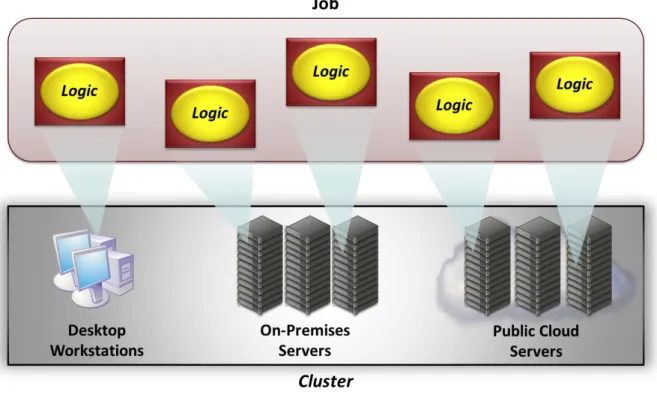
With Windows HPC Server, a cluster is a group of machines—physical or virtual—that act in a unified way to run parallel applications. A modern cluster can contain three types of compute resources:
Desktop workstations running on premises within an organization. Servers running on premises, e.g., in an organization’s data center. Servers running in a public cloud.
An application running on a cluster can simultaneously use computing resources from any of these options. Figure 1 shows how this looks.
Figure 1: A parallel application can run on a cluster that contains a combination of desktop workstations, on-premises servers, and servers in the public cloud.
It’s worth pointing out how the idea of clusters has changed. Until recently, an HPC cluster was typically defined as a group of servers maintained on premises by a single organization, i.e., as only one of the options shown in Figure 1. Today, however, the ability to build clusters that include workstation and cloud nodes makes parallel computing available with less effort and lower cost. This shift makes the power of clusters more easily available to more people.
This is a significant change. Traditionally, getting the benefits of cluster computing meant investing in a number of on-premises servers, then making sure those servers remained as heavily utilized as possible to justify the investment. The large fixed cost of this approach meant that only organizations with substantial, ongoing
computing requirements could make a credible case for clusters. Yet letting clusters include desktop workstations and cloud nodes as well as on-premises servers means that computing capacity can be acquired only when it’s needed—a large up-front investment is no longer required. A small engineering shop can now have access to the same kinds of parallel simulation applications used by much larger competitors, for example, while a financial services firm that needs the power of a cluster only once every quarter can get it. This is a significant
improvement, one that opens the door to cluster computing much wider.
Many organizations will still choose to maintain on-premises clusters, of course, such as those with ongoing requirements to run parallel applications. Yet even they can benefit from this more expansive notion of a cluster. If a job outstrips the abilities of their on-premises cluster, for instance, they can add more capacity as needed with workstation or cloud nodes. Taking a modern approach to cluster computing increases the options for everybody.
How Windows HPC Server Works: Technology Basics
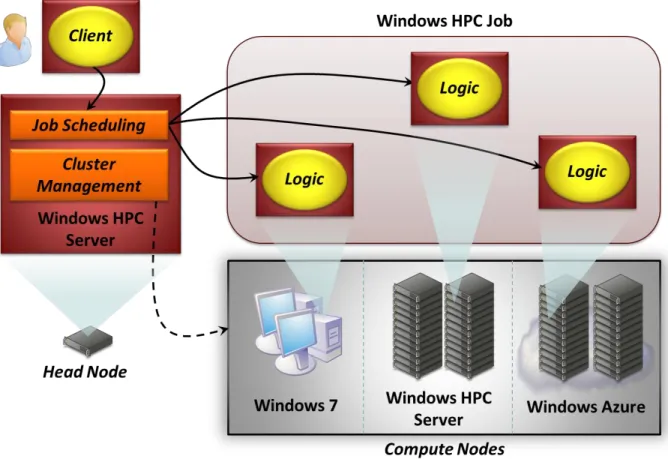
Figure 2: In Windows HPC Server, a head node provides job scheduling and management for a cluster.
As the figure shows, a Windows HPC cluster can contain three kinds of compute nodes: Desktop workstations running Windows 7.
On-premises servers running either Windows HPC Server 2008 R2 or its predecessor, Windows HPC Server 2008. These can be physical or virtual servers, including virtual servers running in private clouds.
Servers running in Windows Azure. Windows Azure allocates resources to its users as instances, each of which is typically a virtual machine (VM).
Whatever it contains, the cluster is managed by a head node. The head node runs Windows HPC Server 2008 R2, and it handles all scheduling, deployment, and management for the cluster. The head node can be a single computer or, for higher reliability, a pair of machines, with a backup configured to take over transparently if the primary node fails. And even if a cluster’s compute nodes are all in Windows Azure—a supported option—the head node must always remain on premises.
The head node software performs two primary functions:
Job scheduling, which includes accepting jobs submitted by users, assigning those jobs to compute nodes, and monitoring their progress. The cluster’s administrator can specify different scheduling policies based on job priorities and other factors.
Cluster management, which provides tools that let a cluster administrator create a cluster, monitor the cluster’s operation, and run reports that summarize the cluster’s behavior over a period of time.
A Windows HPC cluster runs in a Windows domain with Active Directory. This lets each application run on the cluster under the identity of the user who submitted it, not as an administrator. And like other Windows environments, the machines in a cluster can be managed using System Center or other Windows management tools. Clusters created with Windows HPC Server 2008 R2 can contain thousands of nodes, which makes effective management all the more important.
To make life easier for developers, it’s possible to create a cluster with just one computer: A head node and one or more compute nodes can run on the same machine. This might or might not rely on VMs—both options are possible—but in either case, the goal is to help developers create and test Windows HPC applications without needing access to a full cluster.
Using Windows HPC Server: Four Types of Applications
Windows HPC Server is a general-purpose technology for creating, managing, and using clusters, and it can be applied to a variety of problems. As described earlier, the kinds of applications supported by Windows HPC Server 2008 R2 SP2 can be grouped into four areas: MPI applications, embarrassingly parallel applications, Excel
applications, and data-intensive applications. This section provides an introduction to each one.
Before looking at these, however, it’s worth reiterating what they all have in common: All can benefit from being run on a cluster. And regardless of the kind of applications it’s used for, every cluster must address some common problems. There must be a way to create and manage the cluster, for example, and to schedule jobs intelligently across its compute nodes. And since a cluster can contain a large number of machines, dealing with hardware failures is essential. Clusters aren’t simple things, and so it makes sense to provide one cluster technology, then use it for many different kinds of applications.
MPI Applications
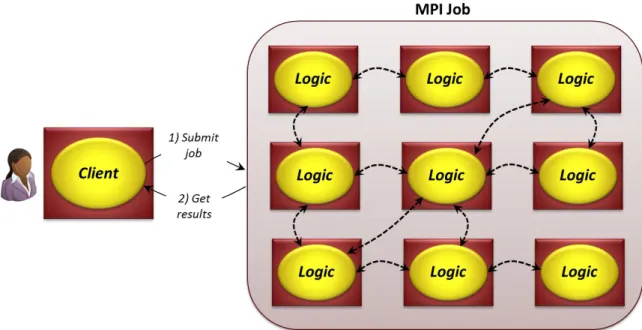
Like all applications that run on a cluster, MPI applications run code—discrete chunks of logic—on multiple machines at once. The defining characteristic of an MPI job is that these components communicate with one another while the job runs. Figure 3 illustrates this idea.
Figure 3: In an MPI job, components of an application running on different compute nodes communicate using the Message Passing Interface.
The components in an MPI job exchange messages using the Message Passing Interface. (In fact, MPI jobs are sometimes referred to as message-intensive jobs.) And as the figure suggests, MPI applications are most often batch jobs. The client submits the job, waits for it to complete, then gets the results. Their batch nature reflects how an MPI job executes: Each component does its part, then passes work on to another component in the job. Results usually aren’t available until every component in the application has completed. And although it’s not required, MPI jobs commonly run the same logic on every node in the cluster, with each instance working on different data.
The most common use of MPI jobs today is carrying out some kind of finite element analysis. For example, simulating a car crash requires modeling how different points in the car behave under stress. As the crash progresses, the behavior of the first affected points impacts that of other points in the car. An MPI job can model these points with different components, with the work of each component passed on to others in the simulation. Many other scientific and engineering applications take this same approach, in fields such as fluid dynamics, biology, and weather forecasting. In fact, the majority of MPI jobs run today on Windows HPC Server rely on packaged applications provided by software vendors. Automobile manufacturers use LS-DYNA to simulate crashes, for example, while other organizations use packages from firms such as ANSYS to simulate the behavior of soccer balls, swimsuits, building materials, and more. In virtually every case, the goal is the same: to learn how something will behave in the real world without the expense, delay, and complexity of creating and testing physical
prototypes. Good simulations let an organization try more options in less time for less money, a fact that helps make clusters cost-effective. And because these applications typically provide user interfaces designed for the engineers and scientists that use them, programming skills aren’t required to get the benefits of cluster computing. MPI jobs are a fundamental part of cluster computing. Supporting this application style was the primary motivation for creating clusters in many organizations, and MPI jobs still comprise a large share of the applications on
Windows HPC clusters today. They’re not the whole story, however, nor are they the fastest growing application type on clusters today. Understanding how clusters are used now requires looking at a broader range of
applications, such as those described in the following sections.
Embarrassingly Parallel Applications
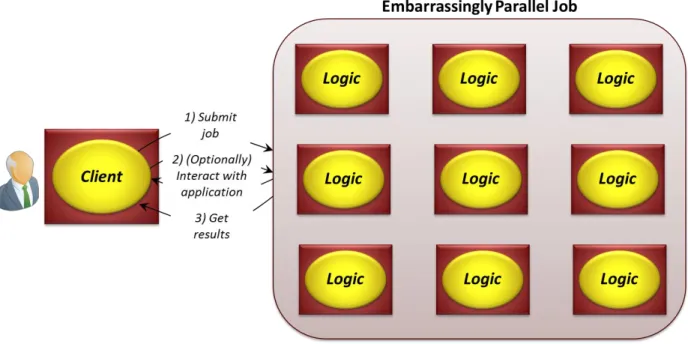
In an MPI application, components running on different compute nodes in the cluster communicate with one other while the job runs. In an embarrassingly parallel application, each component runs entirely on its own—there’s no need for communication between them. Unlike MPI jobs, where writing the code requires working out how and when the various components running in parallel should communicate, this kind of application is comparatively straightforward to write. Many developers even think they’re embarrassingly easy, hence their ungainly name: embarrassingly parallel. Figure 4 illustrates the idea.
Figure 4: In an embarrassingly parallel application, each component runs independently without communicating with other components in the job.
Windows HPC Server 2008 R2 supports two main styles of embarrassingly parallel applications. In the first, known as a parametric sweep job, the same code runs in parallel on each compute node. Each instance of the code is implemented as an independent application that reads its own input data and writes its own output data. While they’re running, these instances don’t communicate with one another or (typically) with the user that submitted the job.
The second type of embarrassingly parallel application supported by Windows HPC Server 2008 R2 is referred to as
a SOA job. Like parametric sweep jobs, a SOA job runs its (typically identical) components in parallel, with no
communication among them. Unlike a parametric sweep job, however, each of a SOA job’s components is implemented as a service, exposing operations that the client can call. (“SOA” stands for “service-oriented architecture”, hence the name used for this category.) This makes it easier for the client to interact with the application while it’s running, since it can invoke operations in one or more components as the job executes.
Unlike MPI applications, where ISVs create a majority of the applications, SOA jobs are mostly custom code created by the organizations that use them. And while MPI applications are used most heavily by scientific and technical users, the most common users of SOA jobs today are in financial services. This difference stems from the kinds of problems that financial services firms need to solve.
For example, suppose an investment firm needs to determine a price for a bond based on the bond’s likely value in ten years. To do this, the firm’s developers can create a SOA job with, say, 100 independent services. Each of those services calculates a possible value for that bond assuming a particular set of events, such as interest rate changes, over those ten years. The calculations for each scenario are wholly separate from one another, so the services don’t need to interact while they run. Once they’re all complete, the application can compute some average of the results to arrive at the most probable value for the bond in ten years, and thus determine a reasonable price for it today.
This kind of process, commonly called a Monte Carlo method, is in essence a form of sampling. It’s not possible to compute every possible path that interest rates might take, but it is possible to compute many of them, then derive the most likely value from this sample set. While this kind of application might run on a single machine, using a cluster can significantly increase the number of paths—and thus the sample size—that can be explored. The more samples the job computes, the more accurate the result can be, and so using a cluster can bring real business benefit. This same approach is useful in other scenarios as well, such as an insurance firm that needs to calculate the aggregate risk of its portfolio or a hedge fund determining the long-term value of an investment. Other situations can also benefit from embarrassingly parallel jobs—financial services aren’t the only option. For example, think of a digital effects house that must render frames for a movie. Each frame can be created
independently, making the problem a natural fit for a SOA or parametric sweep job. Or suppose a Web site needs to convert digital video into multiple formats for different players. Once again, each conversion can be done independently, making this a good match for an embarrassingly parallel job. In all of these cases, running many independent components in parallel on a cluster is a useful approach.
Excel Applications
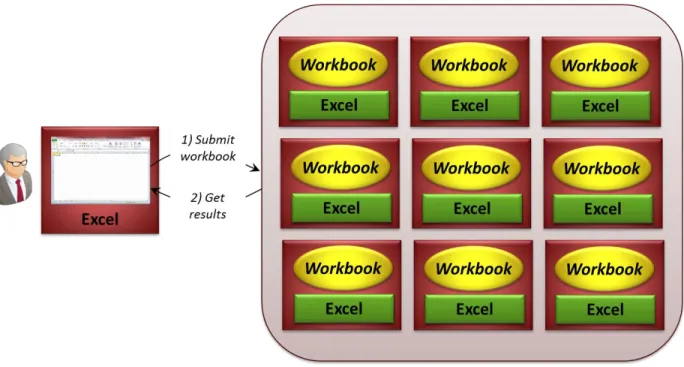
When embarrassingly parallel applications are used in financial organizations, it’s common to give those applications interfaces that financial analysts can use. But most financial analysts already have a user interface they’re quite comfortable with: Microsoft Excel. Why not allow exploiting the power of a cluster directly from Excel? An aspect of Windows HPC Server called HPC Services for Excel does exactly this, as Figure 5 shows.
Figure 5: The same Excel workbook can run simultaneously on many machines in a cluster.
Suppose a workbook performs the same complex calculations on a range of different input data. Running that workbook on a single machine probably means doing those calculations sequentially, which can take a long time. Running that workbook simultaneously on multiple computers, each with its own data, is likely to be much faster. To allow this, it’s possible to install a copy of Excel 2010 on multiple compute nodes in a Windows HPC cluster, as shown in Figure 5. The user can then run an instance of the workbook on each one in parallel. Doing this requires some custom work, and there are a few limitations on the kinds of workbooks that can be used. Yet for situations that match these requirements, this approach can result in getting answers much more quickly. Calculations that take days to run on a single machine might be reduced to hours or minutes on a cluster.
Installing a copy of Excel on each machine in the cluster isn’t the only option, however—Excel can also use a Windows HPC cluster in other ways. Whatever option an organization chooses, the result is the same: the familiar user experience of Excel spreadsheets, but with much better performance.
Data-Intensive Applications
So far, all of the application styles supported by Windows HPC Server have focused on the compute power that a cluster can provide. This shouldn’t be surprising: It’s typically what high-performance computing has meant. Yet a cluster doesn’t only contain lots of CPUs; it can also contain lots of disk drives. For some kinds of problems, the ability to quickly access large amounts of data in parallel can be very useful.
For example, suppose an organization needs to process the log files produced by the servers in a large Web farm. This data is unstructured—it’s stored in files, not a relational database—and each day’s information needs to be examined for patterns of user behavior, evidence of break-in attempts, and more before the next day begins. The application reading this data probably isn’t especially compute-intensive, but the amount of data it needs to read
is massive. Running it on a single machine just isn’t fast enough. Because there’s so much data, the time required to run the application exceeds the window in which the application needs to produce its results.
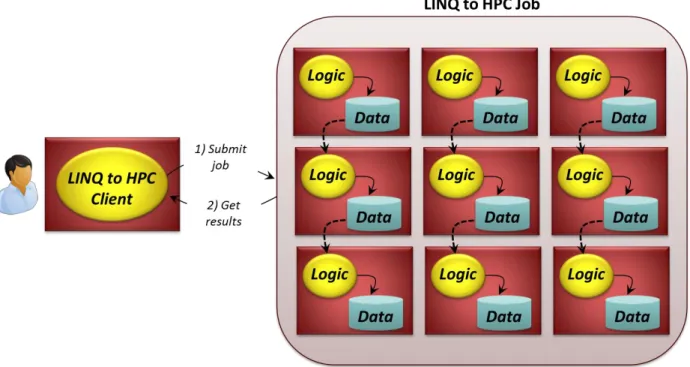
If the application is run on a cluster, however, the data can be read in parallel, then processed by code running on the same computer that holds that data. The application is now likely to complete much sooner than it would on a single machine. Supporting this kind of I/O-bound application is exactly what the Windows HPC Server technology known as LINQ to HPC1 is designed for. Figure 6 illustrates the idea.
Figure 6: A LINQ to HPC client submits a query that runs as a LINQ to HPC job, taking advantage of parallel access to data.
As the figure shows, the user initiates the process via a LINQ to HPC client. This client executes a query expressed in a version of Microsoft’s Language-INtegrated Query (LINQ) technology. This query, in turn, creates a LINQ to HPC job that runs on a Windows HPC cluster. As much as possible, each component in this job reads and processes data stored on its own local disk. By taking advantage of this data locality, the job can process information faster than it could accessing data stored remotely. And assuming the LINQ to HPC application’s logic allows processing each chunk of data independently, the job will run much faster on a cluster than it will on a single machine, since it’s no longer limited to reading data from only a single disk drive.
Getting a better grasp of LINQ to HPC, or of any of the application styles supported by Windows HPC Server 2008 R2 SP2, requires taking a deeper look at the technology. The next section does this, looking first at the product’s
1
LINQ to HPC is currently in beta, and so this technology must be installed separately from Windows HPC Server 2008 R2 SP2.
management and job scheduling functions, then walking through how Windows HPC Server 2008 R2 SP2 supports each kind of application.
Examining Windows HPC Server: A Closer Look at the Technology
Windows HPC Server 2008 R2 SP2 is the third major release of the product. Accordingly, it’s a quite complete technology, offering a broad set of services for managing and using clusters. This section looks at how the product does this, describing its management technologies, its job scheduler, and the support that Windows HPC Server provides for the various application styles it runs today.
Managing a Cluster
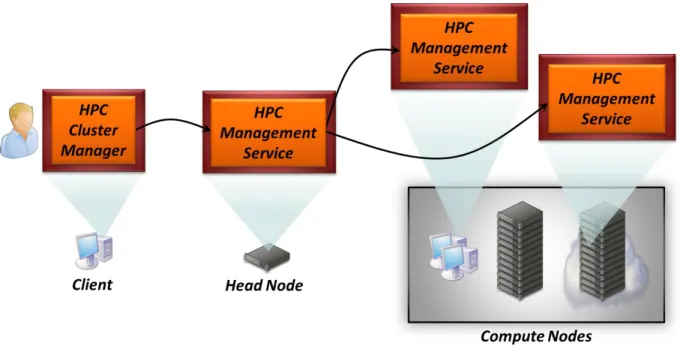
Whatever a cluster contains—desktop workstations, on-premises servers, or Windows Azure instances—and whatever kinds of applications it runs, Windows HPC Server manages that cluster through a common infrastructure. Figure 7 shows its main components.
Figure 7: HPC Cluster Manager is a graphical tool for administrators that relies on an HPC Management Service running on every node in a cluster.
Every node in a cluster, including the head node and all compute nodes, runs the HPC Management Service. A Windows HPC Server administrator can interact with these services using the HPC Cluster Manager. This graphical tool wraps together nearly all of the management functions the administrator needs, letting her rely on a single tool to create, configure, and manage clusters. Sometimes called the Administration Console, this tool can run on the administrator’s desktop machine, on a cluster’s head node, or elsewhere.
Wherever it runs, Cluster Manager provides five different views, each letting an administrator do different things. Those views are:
Configuration, which allows tasks such as setting up the network for a cluster, adding users, and maintaining a to-do list of the steps required to set up a cluster.
Node Management, which lets an administrator add nodes to a cluster, remove nodes from a cluster, and monitor the status of a cluster’s nodes. As described later, this view provides a variety of options for keeping track of a cluster’s state.
Job Management, which allows submitting, monitoring, and managing cluster applications. This view is actually implemented by the Job Manager Console, another Windows HPC Server tool that’s described later. Diagnostics, which lets an administrator run diagnostic tests on one or more nodes in the cluster. For example, the cluster administrator can run a simulated job that heavily loads the cluster, letting her flush out issues such as insufficient network bandwidth before real applications suffer from this problem.
Charts and Reports, which provides information about the cluster’s behavior. An administrator can run reports summarizing node availability, for example, or job throughput over the last week. It’s also possible to create custom reports for the cluster using SQL Server Reporting Services or Microsoft Excel.
The user interface of HPC Cluster Manager follows the style of Microsoft’s System Center products, so it looks familiar to a large set of existing Windows administrators. And while all compute nodes in a cluster are managed through this tool, administrators needn’t see any difference between desktop clients, on-premises servers, and Windows Azure VMs. HPC Cluster Manager is a polymorphic tool, which means that the administrator applies the same action to different kinds of compute nodes, and Cluster Manager does the right thing to that node.
Creating a Cluster
Using Windows HPC Server first requires creating a cluster. (In fact, one way to define a cluster is as the thing that can be created and managed as a unit using Windows HPC Server.) Creating a cluster with only a few nodes isn’t hard—an administrator might even choose to do it manually. Most clusters are bigger than this, however, and so HPC Cluster Manager provides an automated way to create them.
This creation process typically relies on node templates. As the name suggests, a node template encapsulates the work required to create a node in a cluster. Node templates can be used with all three types of compute nodes, and each template can include a base operating system image (such as Windows HPC Server 2008 R2), any necessary drivers, applications, and other software.
A node template might also define more than this. For example, a node template for desktop workstations can define an availability policy that controls when that node is allowed to be part of the cluster. Most users probably wouldn’t be happy having HPC jobs running on their desktop machine while they’re using it, for instance, so this policy can be set to automatically include workstations in a cluster only between, say, 7 pm and 7 am, or only when the workstation has been idle for ten minutes. (Even if a workstation is configured to be part of a cluster, if the user hits a key or moves the mouse or leaves a job running, Windows HPC Server will notice this and not send it work.) Similarly, a node template for Windows Azure instances can define a policy for when a VM for this node should be created and when it should be shut down. Since Windows Azure charges by the hour for the VMs it provides, leaving them running when they’re not needed is wasteful. Starting a new Windows Azure node takes several minutes, however, so making an HPC application wait for this also might not be appropriate. Defining an availability policy in the node template provides a good compromise between these two.
Once a template is available, Windows HPC Server can rely on Windows Deployment Services, a standard part of Windows Server 2008, to get it out to a cluster’s compute nodes. This service runs on the cluster’s head node, and it’s able to discover new compute nodes automatically as they’re turned on, then deploy the correct node template to make those nodes part of the cluster.
Monitoring a Cluster
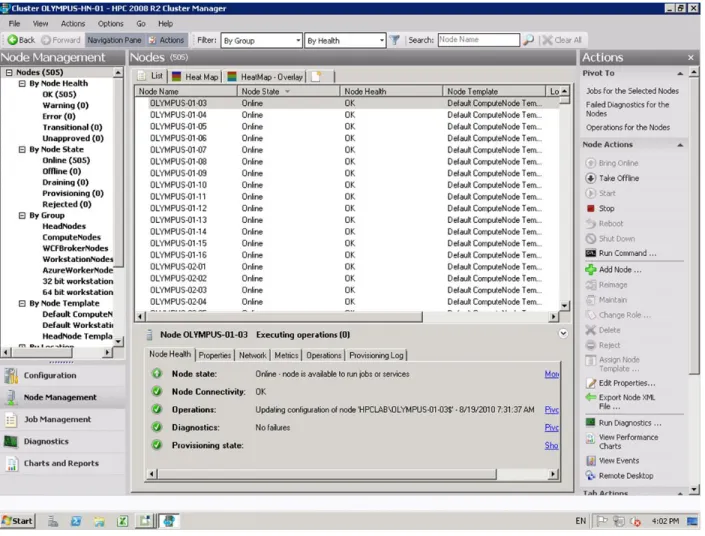
Once a cluster exists, the cluster administrator can use HPC Cluster Manager to monitor the computers and jobs in that cluster. For example, the Node Management view allows examining the status of each compute node, as Figure 8 shows.
Figure 8: Using HPC Cluster Manager, an administrator can see the status of each compute node in a cluster.
The tabs at the lower left let an administrator switch between the five views HPC Cluster Manager provides. In this example, the administrator has selected the Node Management view, using it to list the nodes in the cluster and look in more detail at one of them.
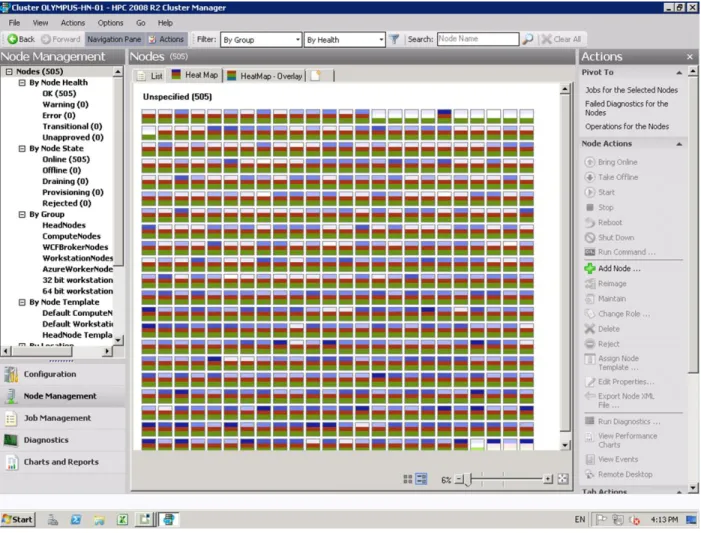
This kind of monitoring is just right for some situations. For others, though, this approach is too cumbersome. If an administrator wants to quickly understand the status of a large cluster, for example, he might choose to use the Node Management view’s heat map option. Figure 9 shows an example.
Figure 9: The HPC Cluster Manager's heat map shows a summary of an entire cluster's status.
With this option, each node in the cluster is represented as a box. Performance counters for each node, such as CPU utilization and others, are shown using different colors within each of these boxes. (Exactly which
performance counters a heat map shows are customizable by the administrator.) It’s also possible to group nodes by their physical location, such as all of the nodes in a particular rack or all of the Windows Azure instances, then examine only the nodes in that location. While heat maps aren’t right for every situation, they can provide a convenient way to get a big-picture view of a cluster’s health, especially for clusters with hundreds or thousands of nodes. For example, if the cluster is running an application that typically has high CPU utilization, the heat map can show at a glance when something is wrong, since it makes that performance counter immediately visible for many compute nodes.
HPC Cluster Manager provides graphical access to a variety of cluster management tasks, but it’s not the only option. Administrators who wish to automate parts of their work can also create scripts using Windows
PowerShell. The people who manage a cluster can mix and match these approaches, choosing whatever’s best for the problem at hand.
Running Jobs on a Cluster
On a single Windows machine, the operating system decides which application to run at any given time. It also decides how the machine’s CPU, memory, and other resources should be shared among applications. In a cluster of Windows machines, the same problems must be solved for the group as a whole. Which jobs should run when? How should resources be allocated among those jobs?
In a Windows HPC cluster, the HPC Job Scheduler is responsible for doing these things. As with the scheduler in an operating system, its primary goal is to use the cluster’s resources as efficiently as possible. Figure 10 shows a high-level view of what the Job Scheduler does.
Figure 10: The Job Scheduler maintains a queue of waiting jobs, then assigns them to compute nodes as resources become available.
As the figure shows, a user typically submits a job to the Job Scheduler on the head node from a client workstation (step 1). Windows HPC Server provides a number of different ways to do this, including a command line interface, PowerShell cmdlets, a .NET API, a Web browser interface, and more. It’s also possible to submit jobs using a tool called the Job Manager Console, shown in Figure 10. (As mentioned earlier, this component is what actually provides the Job Management view in HPC Cluster Manager, so jobs can be submitted from this cluster management tool as well.)
However a job is submitted, the Job Scheduler places it in a queue (step 2), where it waits until whatever cluster resources it needs are available. When the Job Scheduler decides that this job can run, it starts the job, which then executes on some number of compute nodes (step 3). As the figure shows, the Job Scheduler relies on a Windows
HPC Server Node Manager running on each compute node to initiate whatever logic this job needs. The user who submitted this job can then monitor its operation using the Job Manager Console (step 4).
For each job, the user submitting it can specify its priority, how many cores it requires and how long it needs them, whether the job can share a compute node with other jobs, and more. To make this easier, an administrator can define job templates, each of which specifies things like maximum run time and maximum job priority. Using a job template lets a user submit a job without worrying about (or even understanding) many of the details. The Job Scheduler uses all of this information to determine when and how a job runs.
Like the scheduler in a single-machine operating system, the Job Scheduler is capable of running more than one job at a time on a cluster. To support this, the product implements two scheduling options:
Queued, which is a first come, first served approach that by default runs jobs in the order in which they are submitted. Jobs can also be assigned different priorities, so a higher-priority job might displace a currently running job that’s been given a lower priority.
Balanced, where the Job Scheduler first gives as many queued jobs as possible the minimum resources they require, regardless of their priority. It then allocates any remaining resources (such as compute nodes) to higher-priority jobs.
A key point to understand is that by default the Job Scheduler views all cores in all CPUs in all of a cluster’s compute nodes in the same way. Whether the node is an on-premises server, a desktop workstation, or in the cloud makes no difference. From the Job Scheduler’s perspective, they’re all just resources in the cluster. It is possible, however, for an administrator to partition a cluster into node groups, then constrain particular jobs to run only on a certain group. For example, a cluster administrator might define a node group containing only a subset of the on-premises servers in the cluster, then create a job template that restricts jobs to only this node group. All jobs submitted using this template will run only on the compute nodes in that node group.
Once a job is running, a user can track its progress with either the Job Manager Console or the (identical) Node Management view in HPC Cluster Manager. Figure 11 shows an example.
Figure 11: A user can monitor a job's progress using either the Job Manager Console or HPC Cluster Manager.
In this example, many jobs are running on the cluster, with the state, owner, and progress shown for each one. One of those jobs has been selected for a closer look, which shows the command line used to run the job. Other information is available as well, such as the number of cores allocated to each job and the job’s priority. Notice also that a user can submit a job through this same interface via the options in the upper right of the screen. While this isn’t the only option—as described earlier, there are a number of different ways to submit jobs—the Job Manager Console provides a unified graphical approach to submitting and monitoring Windows HPC jobs. The Job Scheduler also attempts to shield users from the impact of hardware failures. How it does this varies across the application types that Windows HPC Server supports. For MPI jobs, where nodes depend on the work done by other nodes, a failed compute node requires restarting the job. The Job Scheduler will notice the failure and automatically do this, so users need not be aware of the failure. Still, restarting a job from scratch that takes hours or days to run isn’t an appealing option, so it’s possible for an MPI job to create checkpoints as it executes, then have the Job Scheduler restart a failed job from the last checkpoint.
For all other kinds of jobs—embarrassingly parallel, Excel, and data-intensive—the failure of a compute node will cause the Job Scheduler to choose another appropriate compute node, then restart just that node’s logic. Since the work being done by a node doesn’t depend on what other nodes are doing, it’s safe to restart just that one
chunk of logic. In every case, however, including MPI jobs, the goal is the same: to shield the user as much as possible from the effects of failure.
Using a Cluster: How Windows HPC Server Supports Applications
Windows HPC Server provides a general technology for creating and managing Windows clusters. It also implements a general-purpose approach to scheduling and running jobs on a cluster. These two things are the foundation on which everything else builds.
Yet different kinds of applications require different supporting services. Accordingly, Windows HPC Server 2008 R2 SP2 includes different technologies for each of the four main application styles it supports. This section takes a closer look at each one.
MPI Applications
The defining characteristic of an MPI job is that its components must communicate with one another while the job executes. On Windows HPC Server, they typically do this using MS-MPI, the Microsoft implementation of this standard interface. MS-MPI is based on MPICH2, a popular open-source implementation of MPI, and the two are almost entirely compatible2. It’s important to note that MPI defines only an interface, not a standard protocol. Its goal is to make it easier to move the code for MPI jobs (and the people who write that code) across different types of clusters.
Because the components in an MPI job interact with each other while the job runs, how fast they communicate can significantly affect how long the job takes to complete. Accordingly, Windows HPC clusters used for MPI jobs commonly connect compute nodes with high-speed networks. MS-MPI takes advantage of this, running over technologies such as Gigabit Ethernet, 10 Gigabit Ethernet, and InfiniBand.
To support the languages most commonly used to create MPI jobs, MS-MPI has bindings for C, Fortran 77, and Fortran 90. To support the developers of those applications, MS-MPI is integrated with standard Microsoft services such as Event Tracing for Windows. Visual Studio also provides an MPI Cluster Debugger that lets developers run an MPI application on a cluster, then do typical debugging actions such as pausing a component and looking at the values of its variables.
Windows HPC Server 2008 R2 SP2 includes the ability to run MPI jobs on Windows Azure instances. This brings the usual benefits of cloud computing, such as capacity on demand and paying only for what you use. It also brings some trade-offs, however. Access to cloud compute nodes is generally slower than access to on-premises servers, and Windows Azure also doesn’t provide specialized high-speed networks between these nodes. While these realities might make the cloud unsuitable for some MPI jobs, other scenarios can be a good fit.
For example, suppose an MPI job takes a day to run in an on-premises cluster, but two days to run using only compute nodes in Windows Azure. If the user has access to both options, running the job on premises is probably better. But in a busy cluster, a large job might wait in the queue for several days before it begins executing, especially if it’s low-priority work. In this case, running the job in the cloud might make sense. Even though the
2
user is paying for each hour a cloud node runs, the total time elapsed between submitting the job and getting its results is less. The extra cost might well be worth it.
Embarrassingly Parallel Applications
It’s a funny name, but it’s exactly right: Compared to MPI applications, embarrassingly parallel applications are easy to create because their components don’t need to communicate while the job runs. As described earlier, Windows HPC Server 2008 R2 SP2 supports two kinds of embarrassingly parallel jobs:
Parametric sweep jobs, where each node runs an independent executable. Once it’s started, the program on each node typically reads some input, then writes some output with no further client interaction.
SOA jobs, where each node runs a service. The client can interact with these services while the job is running. Parametric sweep jobs are easy to understand: Many copies of an application run in parallel, one on each compute node. SOA jobs have a bit more complexity, however, and so they’re worth a closer look.
The logic of every SOA job is implemented as a group of services created with Windows Communication Foundation (WCF), a standard part of the Windows platform. A WCF service exposes operations that can be invoked via REST, SOAP, or in other ways. When a SOA job is executed, the client calls those services to tell the job what to do. Figure 12 illustrates this situation.
Figure 12: SOA applications rely on a broker node to pass requests to services running on a cluster's compute nodes.
The process begins when the user submits a SOA job from her workstation (step 1). As always, this job is queued by the HPC Job Scheduler, then started (step 2). Once the SOA job begins, the Job Scheduler hands responsibility for interacting with this job to a broker node (step 3), then connects the client to this broker node (step 4). The client can then invoke operations on the WCF services in this job. Those requests are sent first to the broker node (step 5), which passes them on to the job’s WCF services (step 6). Results are then returned to the client (step 7), either synchronously, with the client waiting for them, or asynchronously, which lets the client come back later to check the job’s results.
There’s an obvious question here: Why bother with the broker node? Why not let the head node handle requests from the client to the job’s service, or even let the client make those requests directly? The answer is that by offloading this work to a broker node, the head node remains free to carry out its main functions of cluster management and job scheduling. As Figure 12 shows, the broker node maintains a queue of requests, dispatching them to a job’s WCF services when it can. Adding this intermediary between the client and the WCF services helps make the system more scalable.
Unlike MPI jobs, it’s common for SOA jobs to be interactive. One reason for this is that interaction is built into the model: A client can invoke the operations a SOA job exposes as the job runs. And while a typical MPI job does one thing that takes a while to finish, such as simulating a car crash, a SOA job might do many smaller things. This also encourages interactivity, since the user can try something, get a result in reasonable period of time, then try something else.
As with MPI jobs, running SOA jobs on Windows Azure instances brings a trade-off: There’s plenty of pay-as-you-go capacity compared to an on-premises cluster, but there’s also increased latency in accessing that capacity. One advantage that SOA jobs in the cloud have over MPI jobs stems from the fact that their WCF services don’t interact with each other while the job runs. This means that the high-speed networks commonly deployed in on-premises clusters for MPI jobs—but unavailable on Windows Azure—aren’t needed.
Excel Applications
As with any application that does calculations, work done by Excel can sometimes run faster on a cluster. A user might not even know that a cluster is involved; he just sees a workbook that completes its calculations much more quickly. All that’s needed is a way to run that work on a group of computers, something that Windows HPC Server provides.
Because people use Excel in a variety of different ways, Windows HPC Server 2008 R2 SP2 supports three approaches to offloading Excel calculations onto a cluster. They are as follows:
Running Excel workbooks on a cluster. As shown earlier, it’s possible to install Excel on multiple compute nodes in a cluster, then have each copy run the same workbook simultaneously with different data. This is straightforward to understand, and it’s probably the most popular way to use Excel with Windows HPC Server today.
Running Excel user-defined functions (UDFs) on a cluster. UDFs are a common way to extend Excel’s functionality. By packaging custom code into Excel extension libraries (XLLs), they allow creating custom behavior that can be called from spreadsheet cells just as if they were built-in Excel functions. With Excel 2010, XLLs can also run on a Windows HPC cluster. This lets developers create UDFs that run much faster than
they would on a single machine. And Excel itself needn’t be installed on each compute node in a cluster—only the XLLs run there.
Using Excel as the client for a SOA job: Another option for offloading Excel calculations onto a cluster is to write a custom SOA application that gets executed from an Excel workbook. Visual Studio Tools for Office supports this—once again, a developer is required—but this is perhaps the most flexible of the three options: The SOA application can implement whatever embarrassingly parallel job a workbook needs.
Some aspects of Excel aren’t a good fit for clusters. Displaying charts and other interactive functions wouldn’t make much sense, for instance, since compute nodes often don’t have user interfaces. But if the goal is to speed up a large set of calculations performed by an Excel workbook, offloading that work onto a Windows HPC cluster can be an attractive option.
Data-Intensive Applications
A Windows HPC cluster allows applications to exploit multiple CPUs at once. It also allows exploiting multiple disk drives at once, something that’s useful when working with large amounts of unstructured data. LINQ to HPC applications do exactly this, using a cluster to process data in parallel.
One challenge when dealing with large amounts of unstructured data is accessing it. It’s not in a relational database—it’s unstructured—yet it’s also likely to be too big to fit in a single Windows file. While it’s possible to force an application developer to work directly with data spread across multiple files, life would be simpler if she could work with very large data sets as a single unit. To allow this, LINQ to HPC provides the Distributed Storage
Catalog (DSC). The DSC keeps track of DSC file sets, each of which contains some number of DSC files. A DSC file is
just an ordinary Windows file, stored on some compute node in a Windows HPC cluster. Because DSC files are grouped into DSC file sets, however, an application that uses them can treat a large amount of data as a single unit with a single name. And because LINQ to HPC applications do batch processing on large amounts of data, DSC file sets are designed to be read. They can be appended to but the contents of a DSC file can’t be changed once they’ve been written.
Another challenge in working with large amounts of unstructured data is expressing the operations to be performed on that data. Rather than requiring developers to write code for this, the approach taken by LINQ to HPC is evident from its name: use LINQ. Designed for accessing data directly from C# and other programming languages, LINQ has been applied in a number of ways, including LINQ to SQL for querying relational databases and LINQ to Objects for accessing in-memory objects. Extending it to work with unstructured data stored on a cluster is a natural thing to do.
To use LINQ to HPC, a developer creates one or more DSC file sets containing the data she wishes to process. She then creates a LINQ to HPC query expressing what she’d like to do with that data and executes it. Figure 13 illustrates the process.
Figure 13: Created by a LINQ to HPC client, a LINQ to HPC job strives to run each chunk of logic on the same computer that stores the data that logic works on.
When a client application containing a LINQ to HPC query executes, it generates a LINQ to HPC job and submits it to the Job Scheduler (step 1). The job is queued, as usual, then eventually started on the Windows HPC cluster3 (step 2). The job knows the name of the DSC file set it should read, and so before its logic starts running, the job contacts the Distributed Storage Catalog to learn which machines in the cluster hold the DSC files in this file set (step 3). The job then starts a copy of its logic on each of these machines, giving each copy local access to data (step 4). This data locality is a primary benefit of using LINQ to HPC: It helps applications that process lots of data run much faster.
Although it’s not shown in the figure, a LINQ to HPC job runs in several different stages, each with its own logic. The logic used at each stage is sometimes called a vertex, and the interaction between vertices throughout an application’s execution forms a tree-like structure. (In fact, the technology’s code name was Dryad, a kind of tree nymph in Greek mythology.) All of this is invisible to the developer using LINQ to HPC, however. All she does is
3
LINQ to HPC is the newest of the application types supported by Windows HPC Server, and so the current beta release doesn’t yet support either desktop workstation nodes or Windows Azure instances. Instead, LINQ to HPC jobs must run solely on a cluster built using on-premises servers. Microsoft has said that this will change in the not-too-distant future, however.
create the DSC file set, write a client containing a LINQ to HPC query against this file set, then run the client and wait for the results. The complexity of vertices and stages is hidden from her.
Conclusion
Windows HPC Server provides a general-purpose infrastructure for running applications in parallel on many different computers. On this foundation, it builds more specialized support for several different kinds of cluster-aware applications, including MPI jobs, embarrassingly parallel jobs, Excel workbooks, and data-intensive jobs. All of this runs in a Windows environment, using Active Directory and other standard Windows technologies. For Windows environments that can benefit from cluster computing, Windows HPC Server is a good fit.
And with today’s broader notion of cluster, which includes desktop workstations and cloud instances as well as traditional on-premises servers, adopting this technology has gotten easier. Organizations need no longer make a large up-front investment in servers just to get started with cluster computing. Combined with the increasing breadth of applications supported on clusters—they’ve moved well beyond traditional HPC—this lower barrier to entry suggests an ever-broader role for this technology. Long relegated to a supporting role, cluster computing just might be headed for center stage.
About the Author
David Chappell is Principal of Chappell & Associates (www.davidchappell.com) in San Francisco, California. Through his speaking, writing, and consulting, he helps people around the world understand, use, and make better