Lesson: Software Update Services
To maintain a secure computing environment, it is critical to keep systems up to date with security patches. Since 1998, Microsoft has provided Windows Update as a Web-based source of information and downloads. With Windows XP and Windows 2000 service pack 3, Microsoft added Automatic Updates, whereby a system automatically connects to Windows Update and downloads any new, applicable patches or “hot-fixes.” Although the Windows Update servers and Automatic Updates client achieve the goal of keeping systems current, many administrators are uncomfortable with either computers or users deciding which patches should be installed, because a patch might interfere with the normal functioning of a business-critical application.
The latest improvements to these technologies deliver Software Update Services (SUS). SUS is a client-server application that enables a server on your intranet to act as a point of administration for updates. You can approve updates for SUS clients, which then download and install the approved updates automatically without requiring local administrator account interaction.
In this lesson you will learn to install and administer SUS on a Windows Server 2003 computer. The following lesson will guide you through issues related to client config-uration.
After this lesson, you will be able to
■ Install SUS on a Windows Server 2003 computer
■ Configure SUS
■ Install or deploy Automatic Updates for SUS clients
■ Administer SUS and Automatic Updates
■ Monitor, troubleshoot, back up, and restore SUS
Estimated lesson time: 35 minutes
Understanding SUS
Since 1998, Microsoft Windows operating systems have supported Windows Update, a globally distributed source of updates. Windows Update servers interact with client-side software to identify critical updates, security rollups, and enhancements that are appropriate to the client platform, and then to download approved patches.
Administrators wanted a more centralized solution that would assure more direct con-trol over updates that are installed on their clients. Software Update Services is a response to that need. SUS includes several major components:
■ Software Update Services, running on an Internet Information Services (IIS) server The server-side component is responsible for synchronizing information about available updates and, typically, downloading updates from the Microsoft Inter-net-based Windows Update servers or from other intranet servers running SUS.
■ The SUS administration Web site All SUS administration is Web-based. After install-ing and configurinstall-ing SUS, administration typically consists of ensurinstall-ing that the SUS server is synchronizing successfully, and approving updates for distribution to net-work clients.
■ Automatic Updates The Automatic Updates client is responsible for downloading updates from either Windows Update or an SUS server, and installing those updates based on a schedule or an administrator’s initiation.
■ Group Policy settings Automatic Updates clients can be configured to synchronize from an SUS server rather than the Windows Update servers by modifying the cli-ents’ registries or, more efficiently, by configuring Windows Update policies in a Group Policy Object (GPO).
Installing SUS on a Windows Server 2003 Computer
SUS has both client and server components. The server component runs on a Windows 2000 Server (Service Pack 2 or later) or a Windows Server 2003 computer. Internet Information Services (IIS) must be installed before setting up SUS and, as you learned in Chapter 6, “Files and Folders,” IIS is not installed by default on Windows Server 2003. For information about how to install IIS, see Chapter 6.
SUS is not included with the Windows Server 2003 media, but it is a free download from the Microsoft SUS Web site at http://go.microsoft.com/fwlink/?LinkID=6930.
Note The SUS download is not available in every localized language. However, this down-load determines the installation and administrative interface for the server component only. Patches for all locales can be made available through SUS.
After downloading the latest version of SUS, double-click the file and the installation routine will start. After you agree to the license agreement, choose Custom setup and the Setup Wizard will prompt you for the following information:
■ Choose File Locations Each Windows Update patch consists of two components: the patch file itself and metadata that specifies the platforms and languages to which the patch applies. SUS always downloads metadata, which you will use to approve updates and which clients on your intranet will retrieve from SUS. You can choose whether to download the files themselves and, if so, where to save the updates.
Tip If you elect to maintain the update files on Microsoft Windows Update servers, Auto-matic Updates clients will connect to your SUS server to obtain the list of approved updates and will then connect to Microsoft Windows Update servers to download the files. You can thereby maintain control of client updating and take advantage of the globally dispersed host-ing provided by Microsoft.
If you choose the Save The Updates To This Local Folder option, the Setup Wizard defaults to the drive with the most free space, and will create a folder called SUS on that drive. You can save the files to any NT file system (NTFS) partition; Microsoft recommends a minimum of 6 gigabytes (GB) of free space.
Note The SUS partition and the system partition must be formatted as NTFS.
■ Language Settings Although the SUS administrative interface is provided in English and a few additional languages, patches are released for all supported locales. This option specifies the localized versions of Windows servers or clients that you support in your environment.
■ Handling New Versions Of Previously Approved Updates Occasionally, an update itself is updated. You can direct SUS to approve automatically updates that are new versions of patches that you have already approved, or you can continue to approve each update manually.
■ Ready To Install Before installation begins, the Setup Wizard will remind you of the URL clients should point to, http://SUS_servername. Note this path because you will use it to configure network clients.
■ Installing Microsoft Software Update Services The Setup Wizard installs SUS.
■ Completing the Microsoft Software Update Services Setup Wizard The final page of the Setup Wizard indicates the URL for the SUS administration site, http://
SUS_servername/SUSAdmin. Note this path as well, because you will administer
SUS from that Web location. When you click Finish, your Web browser will start and you will be taken automatically to the SUS administration page.
Software Update Services installs the following three components on the server:
■ The Software Update Synchronization Service, which downloads content to the SUS server
■ An IIS Web site that services update requests from Automatic Updates clients
■ An SUS administration Web page, from which you can synchronize the SUS server and approve updates
IIS Lockdown
When run on a Windows 2000 server, the SUS Setup Wizard launches the IIS Lockdown Wizard to secure IIS 5.0. Windows Server 2003 is locked down by default, so IIS Lockdown is not necessary.
If you have Web applications running on an IIS server, those applications may not function properly after SUS has been installed. You can re-enable Internet Server Application Programming Interface (ISAPI) filters and open other components that are secured by IIS Lockdown. However, due to the sensitive nature of oper-ating system updates, you should consider running SUS on a dedicated server without other IIS applications.
Configuring and Administering SUS
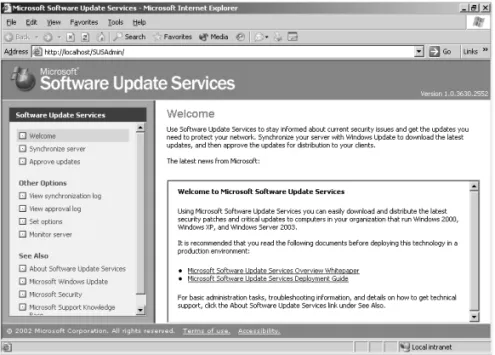
You will perform three administrative tasks related to SUS: configuring SUS settings, synchronizing content and approving content. These tasks are performed using the SUS Administration Web site, shown in Figure 9-1, which can be accessed by navigat-ing to http://SUS_servername/SUSAdmin with Internet Explorer 5.5 or later, or by open-ing Microsoft Software Update Services from the Administrative Tools programs group. The administration of SUS is entirely Web-based.
Note You may need to add Server01 to the Local Intranet trusted site list to access the site. Open Internet Explorer and choose Internet Options from the Tools menu. Click the Secu-rity tab. Select Trusted Sites and click Sites. Add Server01 and Server01.contoso.com to the trusted site list.
Note You must be a local administrator on the SUS server to administer and configure Soft-ware Update Services. This is another consideration as you review dedicating the SUS server. With a dedicated SUS server, you can delegate administration of SUS without inadvertently delegating authority over other server roles or applications.
f09nw01.eps
Figure 9-1 The SUS Administration Web site Configuring Software Update Services
Although some of the configuration of SUS can be specified during a custom installa-tion, all SUS settings are accessible from the SUS Administration Web page. From the Software Update Services administration page, click Set Options in the left navigation bar. The Set Options page is shown in Figure 9-2.
f09nw02.eps
The configuration settings are as follows:
■ Proxy server configuration If the server running SUS connects to Windows Update using a proxy server, you must configure proxy settings.
Tip Although the SUS server can be configured to access Windows Update through a proxy server that requires authentication, the Automatic Updates client cannot access Windows Update if the proxy server requires authentication. If your proxy server requires authentica-tion, you can configure SUS to authenticate, and you must store all update content—files as well as metadata—locally.
■ DNS name of the SUS server In the Server Name box, type the fully qualified domain name (FQDN) of the SUS server, for example, sus1.contoso.com.
■ Content source The first SUS servDer you install will synchronize its content from Microsoft Windows Update. Additional SUS servers can synchronize from Win-dows Update, from a “parent” SUS server, or from a manually created content dis-tribution point. See the sidebar, “SUS Topology” for more information.
■ New versions of approved updates The Set Options page allows you to modify
how SUS handles new versions of previously approved updates. This option is discussed earlier in the lesson.
■ File storage You can modify the storage of metadata and update files. This option is also discussed earlier in the lesson.
Tip If you change the storage location from a Windows Update server to a local server folder, you should immediately perform a synchronization to download the necessary pack-ages to the selected location.
■ Languages This setting determines the locale specific updates that are synchro-nized. Select only languages for locales that you support in your environment.
Tip If you remove a locale, the packages that have been downloaded are not deleted; how-ever, clients will no longer receive those packages. If you add a locale, perform a manual syn-chronization to download appropriate packages for the new locale.
SUS Topology
Software Update Services is all about enabling you to control the approval and distribution of updates from Microsoft Windows Update. In a small organization, SUS can be as simple as one server, synchronizing from Windows Update and providing a list of approved updates to clients.
In a larger organization, SUS topologies can be developed to make SUS more scalable and efficient. Although the 70-290 certification exam expects you only to administer existing topologies, it is helpful to understand some of the design pos-sibilities:
■ Multiple server topology Each SUS server synchronizes content from Win-dows Update, and manages its own list of approved updates. This would be a variation of a single-server model, and each SUS server administrator would have control over that server’s list of approved updates. Such a con-figuration would also allow an organization to maintain a variety of patch and update configurations (one per SUS server). Clients can be directed to obtain updates from an SUS server with the appropriate list of approved updates.
■ Strict parent/child topology A “parent” SUS server synchronizes content from Windows Update and stores updates in a local folder. The SUS administrator then approves updates. Other SUS servers in the enterprise synchronize from the parent, and are configured, on the Set Options page, to Synchronize List Of Approved Items Updated From This Location (Replace Mode). This set-ting causes the child SUS servers to synchronize both the update files and the list of approved updates. Network clients can then be configured to retrieve updates from the SUS server in or closest to their site. In this configuration (Synchronize List Of Approved Items), administrators of child SUS servers
cannot approve or disapprove updates; that task is managed on the parent
SUS server only.
■ Loose parent/child topology A “parent” SUS server synchronizes content from Windows Update and stores updates in a local folder. Other SUS servers in the enterprise synchronize from the parent. Unlike the strict configuration, these additional SUS servers do not synchronize the list of approved updates, so administrators of those servers can approve or disapprove updates inde-pendently. Although this topology increases administrative overhead, it is helpful when an organization wants to minimize Internet exposure (only the parent SUS server needs to connect to the Internet), and requires (as in the multiple-server model) distributed power of update approval or a variety of client patch and update configurations.
■ Test/production topology This model allows an organization to create a test-ing or stagtest-ing of updates. The parent SUS server downloads updates from Windows Update and an administrator approves updates to be tested. One or more clients retrieve updates from the parent SUS server and act as test platforms. Once updates have been approved, tested, and verified, the con-tents of the parent SUS server are copied to a manually created content dis-tribution point on a second IIS server. Production SUS servers synchronize both the updates and the list of approved updates from the manual content distribution point. The steps for configuring such a manual distribution point are detailed in the Software Update Service Deployment White Paper, avail-able from the Microsoft SUS Web site.
Synchronizing SUS
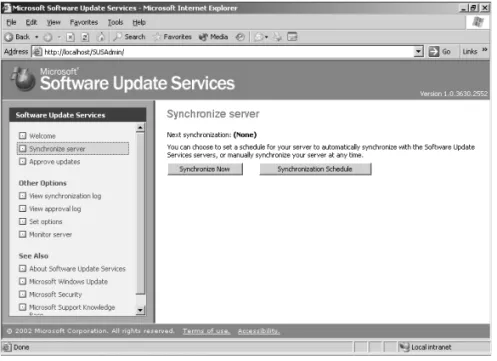
On the SUS Administration Web page, click Synchronize Server. On the Synchronize Server page, as shown in Figure 9-3, you can start a manual synchronization or config-ure automatic, scheduled synchronization. Click Synchronize Now and, when synchro-nization is complete, you will be informed of its success or failure, and, if the synchronization was successful, you will be taken to the Approve Updates page.
f09nw03.eps
Figure 9-3 The Synchronize Server page
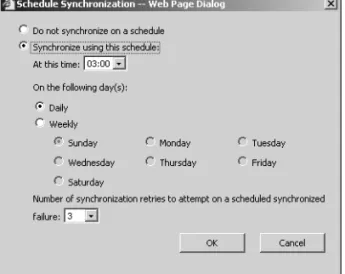
To schedule synchronization, click Synchronization Schedule. You can configure the time of day for synchronization, as shown in Figure 9-4, and whether synchronization occurs daily or weekly on a specified day. When a scheduled synchronization fails, SUS will try again for the Number Of Synchronization Retries To Attempt setting. Retries occur at 30-minute intervals.
f09nw04.eps
Figure 9-4 The Schedule Synchronization Web Page Dialog page Approving Updates
To approve updates for distribution to client computers, click Approve Updates in the left navigation bar. The Approve Updates page, as shown in Figure 9-5, appears. Select the updates that you wish to approve, then click Approve. If you are unsure about the applicability of a particular update, click the Details link in the update summary. The Details page that opens will include a link to the actual *.cab file that is used to install the package, and a link to the Read More page about the update, which will open the Microsoft Knowledge Base article related to the update.
f09nw05.eps
Tip The first synchronization will download dozens of updates. It may be tedious to scroll and click each check box for approval. Instead, after clicking the first check box, press TAB twice to navigate to the next check box, and press the spacebar to select (or clear) the item.
The Automatic Updates Client
The client component of SUS is Windows Automatic Updates, which is supported on Windows 2000, Windows XP, and Windows Server 2003. The Automatic Updates client is included with Windows Server 2003, Windows 2000 Service Pack 3, and Windows XP Service Pack 1.
For clients running earlier releases of the supported platforms, you can download Automatic Updates as a stand-alone client from the Microsoft SUS Web site, at http://
go.microsoft.com/fwlink/?LinkID=6930. The client, provided as an .msi file, can be
installed on a stand-alone computer or by means of Group Policy (assign the package in the Computer Configuration\Software Settings policy), SMS, or even a logon script. If a localized version of the client is not available, install the English version on any locale.
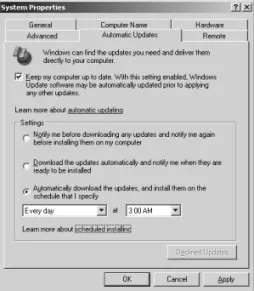
The Automatic Updates client of Windows Server 2003 is configured to connect auto-matically to the Microsoft Windows Update server and download updates, then prompt the user to install them. This behavior can be modified by accessing the Automatic Updates tab in the System Properties dialog box, accessible by clicking System in Con-trol Panel, in Windows XP and Windows Server2003. In Windows 2000 click Automatic Updates in Control Panel. The Automatic Updates tab is shown in Figure 9-6. Auto-matic Updates can also be configured using GPOs or registry values.
f09nw06.eps
Download Behavior
Automatic Updates supports two download behaviors:
■ Automatic Updates are downloaded without notification to the user.
■ Notification If Automatic Updates is configured to notify the user before download-ing updates, it registers the notification of an available update in the system event log and to a logged-on administrator of the computer. If an administrator is not logged on, Automatic Updates waits for a user with administrator credentials before offering notification by means of a balloon in the notification area of the system tray. Once update downloading has begun, Automatic Updates uses the Background Intelli-gent Transfer Service (BITS) to perform the file transfer using idle network bandwidth. BITS ensures that network performance is not hindered due to file transfer. All patches are checked by the SUS server to determine if they have been correctly signed by Microsoft. Similarly, the Automatic Updates client confirms the Microsoft signature and also exam-ines the cyclical redundancy check (CRC) on each package before installing it.
Installation Behavior
Automatic Updates provides two options for installation:
■ Notification Automatic Updates registers an event in the system log indicating that updates are ready for installation. Notification will wait until a local administrator is logged on before taking further action. When an administrative user is logged on, a balloon notification appears in the system tray. The administrator clicks the balloon or the notification icon, and then may select from available updates before clicking Install. If an update requires restarting the computer, Automatic Updates cannot detect additional updates that might be applicable until after the restart.
■ Automatic (Scheduled) When updates have been downloaded successfully, an
event is logged to the system event log. If an administrator is logged on, a notifi-cation icon appears, and the administrator can manually launch installation at any time until the scheduled installation time.
Tip If a computer is not turned on at the scheduled Automatic Updates installation time, installation will wait to the next scheduled time. If the computer is never on at the scheduled time, installation will not occur. Ensure that systems remain turned on to be certain that Auto-matic Updates install successfully.At the scheduled installation time, an administrator who is logged on will be notified with a countdown message prior to installation, and will have the option to cancel installation, in which case the installation is delayed until the next scheduled time. If a non-administrator is logged on, a warning dialog appears, but the user cannot delay installation. If no user is logged on, installation occurs automatically. If an update requires restart, a five-minute countdown notification appears informing users of the impending restart. Only an administrative user can cancel the restart.
Configuring Automatic Updates Through Group Policy
The Automatic Updates client will, by default, connect to the Microsoft Windows Update server. Once you have installed SUS in your organization, you can direct Auto-matic Updates to connect to specific intranet servers by configuring the registry of cli-ents manually or by using Windows Update group policies.
To configure Automatic Updates using GPOs, open a GPO and navigate to the Com-puter Configuration\Administrative Templates\Windows Components\Windows Update node. The Windows Update policies are shown in Figure 9-7.
f09nw07.eps
Figure 9-7 Windows Update policies
Note If you edit policy on a Windows 2000 Active Directory server, the policies may not appear. Automatic Updates policies are described by the %Windir%\Inf\Wuau.inf administra-tive template, which is installed by default when Automatic Updates is installed. If Automatic Updates has not been installed on the domain controller to which you are connected (typi-cally, the PDC Emulator), you must right-click the Administrative Templates node and choose Add/Remove Templates, click Add, then locate the Wuau.inf template, perhaps by copying it from a system that does have Automatic Updates installed.
The following policies are available, each playing an important role in configuring effective update distribution in your enterprise:
■ Configure Automatic Updates The Configure Automatic Updates Behavior deter-mines the behavior of the Automatic Updates client. There are three options: Notify For Download And Notify For Install, Auto Download And Notify For Install, and Auto Download And Schedule The Install. These options are combina-tions of the installation and download behaviors discussed earlier in the lesson.
■ Reschedule Automatic Updates Scheduled Installations If installations are sched-uled, and the client computer is turned off at the scheduled time, the default behavior is to wait for the next scheduled time. The Reschedule Automatic Updates Scheduled Installations policy, if set to a value between 1 and 60, causes Automatic Updates to reschedule installation for the specified number of minutes after system startup.
■ No Auto-Restart For Scheduled Automatic Updates Installations This policy causes Automatic Updates to forego a restart required by an installed update when a user is logged on to the system. Instead, the user is notified that a restart is required for installation to complete, and can restart the computer at his or her discretion. Remember that Automatic Updates cannot detect new updates until restart has occurred.
■ Specify Intranet Microsoft Update Service Location This policy allows you to redi-rect Automatic Updates to a server running SUS. By default, the client will log its interactions on the SUS server to which it connects. However, this policy allows you to point clients to another server running IIS for statistics logging. This dual policy provides the opportunity for clients to obtain updates from a local SUS server, but for all clients to log SUS statistics in a single location for easier retrieval and analysis of the log data, which is stored as part of the IIS log. IIS logs typically reside in %Windir%\System32\Logfiles\W3svc1.
Automatic Updates clients poll their SUS server every 22 hours, minus a random offset.
Any delay in patching should be treated as unacceptable when security vulnerabilities are being actively exploited. In such situations, install the patch manually so that sys-tems do not have to wait to poll, download, and install patches.
After approved updates have been downloaded from the SUS server, they will be installed as configured—manually or automatically—at the scheduled time. If an approved update is later unapproved, that update is not uninstalled; but it will not be installed by additional clients. An installed update can be uninstalled manually, using the Add Or Remove Programs application in Control Panel.
SUS Troubleshooting
Although SUS works well, there are occasions that warrant monitoring and trouble-shooting.
Monitoring SUS
The Monitor Server page of the SUS Administration Web site displays statistics that reflect the number of updates available for each platform, and the date and time of the most recent update. The information is summarized from the Windows Update meta-data that is downloaded during each synchronization. Metameta-data information is written
to disk and stored in memory to improve performance as systems request platform appropriate updates.
You can also monitor SUS and Automatic Updates using the following logs:
■ Synchronization Log You can retrieve information about current or past synchro-nizations, and the specific packages that were downloaded by clicking View Syn-chronization Log in the left navigation bar. You can also use any text editor to open the (Extensible Markup Language) XML–based database (History-Sync.xml) directly from the SUS Web site’s \AutoUpdate\Administration directory in IIS.
■ Approval Log For information about packages that have been approved, click
View Approval Log in the left navigation bar. Alternatively, you can open History-Approve.xml from the SUS Web site’s \AutoUpdate\Administration directory in IIS.
■ Windows Update Log The Automatic Updates client logs activity in the
%Windir%\Windows Update.log file on the client’s local hard disk.
■ Wutrack.bin The client’s interaction with SUS is logged to the specified statistics server’s IIS logs, typically stored in the folder: %Windir%\System32\Logfiles \W3svc1. These logs, which are verbose and cryptic, are designed to be analyzed by programs, not by humans.
Exam Tip Although you should know what logs are available, and where they are located, you are not required for the 70-290 exam to be able to interpret cryptic messages or log entries. The SUS Deployment White Paper includes appendices with detailed information about event descriptions and log syntax.
SUS System Events
The synchronization service generates event log messages for each synchronization performed by the server, and when updates are approved. These messages can be viewed in the System log using Event Viewer. The events relate to the following sce-narios:
■ Unable to connect Automatic Updates could not connect to the update service (Windows Update or the computer’s assigned SUS server).
■ Install ready—no recurring schedule Updates listed in the event were downloaded and are pending installation. An administrator must click the notification icon and click Install.
■ Install ready—recurring schedule Updates listed in the event are downloaded and will be installed at the date and time specified in the event.
■ Installation success Updates listed in the event were installed successfully.
■ Installation failure Updates listed in the event failed to install properly.
■ Restart required—no recurring schedule An update requires a restart. If installation behavior is set for notification, restart must be performed manually. Windows can-not search for new updates until the restart has occurred.
■ Restart required—recurring schedule When Automatic Updates is configured to automatically install updates, an event is registered if an update requires restart. Restart will occur within five minutes. Windows cannot search for new updates until after the restart has occurred.
Troubleshooting SUS
Software Update Services on a Windows Server 2003 computer may require the follow-ing troubleshootfollow-ing steps:
■ Reloading the memory cache If no new updates appear since the last time you synchronized the server, it is possible that no new updates are available. However, it is also possible that memory caches are not loading new updates properly. From the SUS administration site, click Monitor Server and then click Refresh.
■ Restarting the synchronization service If you receive a message that the synchro-nization service is not running properly, or if you cannot modify settings in the Set Options page of the administration Web site, open the Microsoft Management Console (MMC) Services snap-in, right-click Software Update Services Synchroni-zation Service and choose Restart.
■ Restarting IIS If you cannot connect to the administration site, or if clients cannot connect to the SUS serve, restart the World Wide Web Publishing Service in the same manner.
If Automatic Updates clients do not appear to be receiving updates properly, open the registry of a client and ensure that the following values appear in HKEY_LOCAL_MACHINE\Software\Policies\Microsoft\Windows\WindowsUp-date:
■ WUServer Should have the URL of the SUS server, for example, http: //
SUS_Servername
■ WUStatusServer Should have the URL of the same SUS server or another IIS server on which synchronization statistics are logged
And, in the AU subkey:
SUS Backup and Recovery
As with any other server role or application, you must plan for recovery in the event of a server failure.
Backing Up SUS
To back up SUS, you must back up the folder that contains SUS content, the SUS Administration Web site, and the IIS metabase.
Exam Tip The process described to back up the IIS metabase is useful not only for backing up SUS, but for any other Web site or application running on Windows Server 2003 and IIS 6.0.
First, back up the metabase—an XML database containing the configuration of IIS. Using the MMC IIS snap-in, select the server to back up and, from the Action menu, select All Tasks, then Backup/Restore Configuration. Click Create Backup and enter a name for the backup. When you click OK, the metabase is backed up.
Then back up the following using Ntbackup or another backup utility:
■ The default Web site, which is located unless otherwise configured in C:\Inetpub \Wwwroot.
■ The SUS Administration Web site. SUSAdmin is, by default, a subfolder of C:\Inet-pub\Wwwroot. In that event, it will be backed up when you back up the default Web site.
■ The AutoUpdate virtual directory, also by default a subfolder of C:\Inetpub \Wwwroot.
■ The SUS content location you specified in SUS setup or the SUS options. You can confirm the SUS content location in IIS manager by clicking Default Web Site and examining the path to the Content virtual root in the details pane.
■ The metabase backup directory, %Windir%\System32\Inetsrv\Metabac k, which
contains the copy of the metabase made earlier.
See Also For more information about the Ntbackup utility, see Chapter 7.
This process of backing up the metabase, and then backing up the components of SUS, should be repeated regularly because updates will be added and approved with some frequency.
SUS Server Recovery
To restore a failed SUS server, perform the steps described below. If a certain step is unnecessary, you may skip it, but perform the remaining steps in sequence.
1. Disconnect the server from the network to prevent it from being infected with viruses.
2. Install Windows Server 2003, being sure to give the server the same name it had previously.
3. Install IIS with the same components it had previously.
4. Install the latest service pack and security fixes. If the server must be connected to the network to achieve this step, take all possible precautions to prevent unnec-essary exposure.
5. Install SUS into the same folder it was previously installed.
6. Run Ntbackup to restore the most recent backup of SUS. This will include the SUS content folder, the Default Web Site, including the SUSAdmin and AutoUpdate vir-tual directories, and the IIS metabase backup.
7. Open the MMC IIS snap-in and select the server to restore. From the Action menu, select All Tasks, then Backup/Restore Configuration and select the backup that was just restored. Click Restore.
8. Confirm the success of your recovery by opening the SUS Administration Web site and clicking Set Options. Check that the previous settings are in place, and that the previously approved updates are still approved.
Note The preceding steps apply to Windows Server 2003 only. If you are recovering a Win-dows 2000-based SUS server, refer to SUS documentation for appropriate steps.
Lesson Review
The following questions are intended to reinforce key information presented in this lesson. If you are unable to answer a question, review the lesson materials and try the question again. You can find answers to the questions in the “Questions and Answers” section at the end of this chapter.
1. You are configuring a Software Update Services infrastructure. One server is syn-chronizing metadata and content from Windows Update. Other servers (one in each site) are synchronizing content from the parent SUS server. Which of the fol-lowing steps is required to complete the SUS infrastructure?
b. Configure GPOs to direct clients to the SUS server in their sites c. Configure a manual content distribution point
d. Approve updates using the SUS administration page
2. You are configuring SUS for a group of Web servers. You want the Web servers to update themselves nightly based on a list of approved updates on your SUS server. However, once in a while an administrator is logged on, performing late-night maintenance on a Web server, and you do not want update installation and poten-tial restart to interfere with those tasks. What Windows Update policy configura-tion should you use in this scenario?
a. Notify For Download And Notify For Install b. Auto Download And Notify For Install c. Auto Download And Schedule The Install
3. You want all network clients to download and install updates automatically during night hours, and you have configured scheduled installation behavior for Auto-matic Updates. However, you discover that some users are turning off their machines at night, and updates are not being applied. Which policy allows you to correct this situation without changing the installation schedule?
a. Specify Intranet Microsoft Update Service Location
b. No Auto-Restart For Scheduled Automatic Updates Installations c. Reschedule Automatic Updates Scheduled Installations
d. Configure Automatic Update
Lesson Summary
■ SUS is an intranet application that runs on IIS 6.0 (or on IIS 5.0 on a Windows 2000 Server) and is administered through a Web-based administration site: http: //
SUS_Servername/SUSAdmin.
■ The SUS server synchronizes information about critical updates and security rol-lups and allows an administrator to configure approval centrally for each update. Typically, an enterprise configures SUS to download the actual update files as well.
■ Automatic Updates, which runs on Windows 2000, Windows XP, and Windows
Server 2003, is responsible for downloading and installing updates on the client.
■ Group Policy can be used to configure Automatic Updates to retrieve patches from an SUS server rather than from the Windows Update servers. GPOs can also drive the download, installation and restart behavior of the client computers.
Questions and Answers
Lesson Review
1. You are configuring a Software Update Services infrastructure. One server is syn-chronizing metadata and content from Windows Update. Other servers (one in each site) are synchronizing content from the parent SUS server. Which of the fol-lowing steps is required to complete the SUS infrastructure?
a. Configure Automatic Updates clients using Control Panel on each system b. Configure GPOs to direct clients to the SUS server in their sites
c. Configure a manual content distribution point d. Approve updates using the SUS administration page
The correct answers are b and d.
2. You are configuring SUS for a group of Web servers. You want the Web servers to update themselves nightly based on a list of approved updates on your SUS server. However, once in a while an administrator is logged on, performing late-night maintenance on a Web server, and you do not want update installation and poten-tial restart to interfere with those tasks. What Windows Update policy configura-tion should you use in this scenario?
a. Notify For Download And Notify For Install b. Auto Download And Notify For Install c. Auto Download And Schedule The Install
The correct answer is c. You want the Web servers to update themselves, so you must sched-ule the installation of updates. However, an administrator always has the option to cancel the installation.
3. You want all network clients to download and install updates automatically during night hours, and you have configured scheduled installation behavior for Auto-matic Updates. However, you discover that some users are turning off their machines at night, and updates are not being applied. Which policy allows you to correct this situation without changing the installation schedule?
a. Specify Intranet Microsoft Update Service Location
b. No Auto-Restart For Scheduled Automatic Updates Installations c. Reschedule Automatic Updates Scheduled Installations
d. Configure Automatic Update
The correct answer is c. Updates are automatically downloaded using background processes and idle bandwidth, but the installation is triggered by the specified schedule. If a computer is
turned off at the installation time, it waits until the next scheduled date and time. The Resched-ule Wait Time policy, if set between 1 and 60, causes Automatic Updates to start update instal-lation 1 to 60 minutes after system startup.