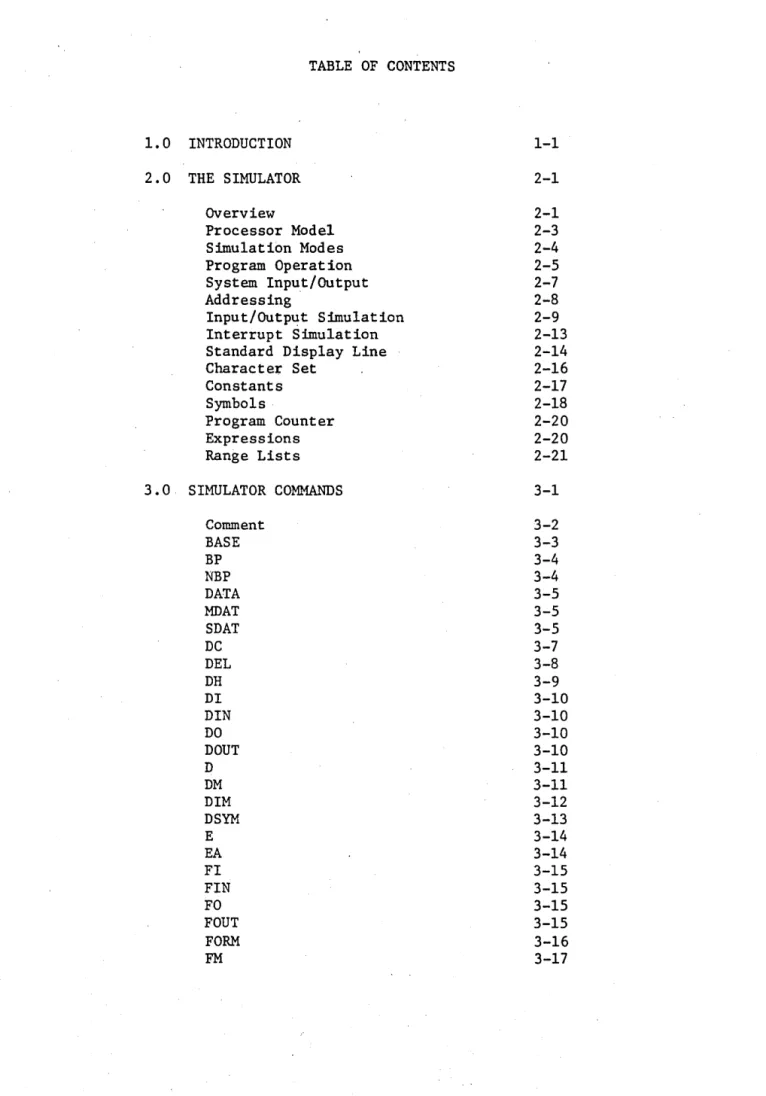
TABLE OF CONTENTS
1.0 INTRODUCTION 1-1
2.0 THE SIMULATOR 2-1
OVerview 2-1
Processor Model 2-3
Simulation Modes 2-4
Program Operation 2-5
System Input/Output 2-7
Addressing 2-8
Input/Outp~t Simulation 2-9
Interrupt Simulation 2-13
Standard Display Line 2-14
CharacteJ::' Set 2-16
Constants 2-17
Symbols· 2-18
Program Counter 2-20
Expressions 2-20
Range Lists 2-21
3.0 SIMULATOR COMMANDS 3-1
Comment 3-2
BASE 3-3
BP 3-4
NBP 3-4
DATA 3-5
MDAT 3-5
SDAT 3-5
DC 3-7
DEL 3-8
DH 3-9
Dr 3-10
DIN 3-10
DO 3-10
4.0 SIMULATOR EXAMPLES 4-1
Sample Simulation 4-1
Test Program 4-1
5.0 APPENDICES 5-1
A - Simulator Messages 5-1
B - Command Summary 5-4
INTRODUCTION
Microtec has developed an Interactive Simulator for the 8080/8085 microprocessor. The Simulator program is written in FORTRAN IV to achieve compatibility with most computer systems. The program is approximately 4200 FORTRAN statements in length, twenty percent of which are comments. The program is written in ANSI standard FORTRAN IV and no facility peculiar to anyone computer was utilized. This was done in order to eliminate FORTRAN compatibility problems. The program is modular and may be executed in an overlay mode should memory restrictions make that necessary.
Although the Simulator is most effective in an interactive environment, '~'it may also be used in a batch mode.
The program simulates all aspects of the microprocessor, including interrupts. The full 64K byte microprocessor memory is simulated. The Simulator provides for the unlimited setting of instruction breakpoints and the ability to trace or single step the execution of each instruction. A very extensive I/O capability is provide~ that allows the user to perform I/O simulation inter-actively or from files and Data Tables. Symbolic debugging is also provided; the Simulator can read in symbol values from the assembler, and the user may then use these symbols as command arguments instead of absolute addresses.
THE SIMULATOR
OVerview
This program simulates the operation of the 8080/8085 microprocessor by implem.enting, in software, the registers and logic control functions of the actual microprocessor. Like the actual microprocessor, the Simulator's simulated memory must be loaded with an object module which contains the program to be debugged. The Load or LS command
is used to do this. The object program may be generated through use of ariyappropriate. 'Assembler Program,. but it mliIstJ be in standard Intel Hexadecimal format (see' Appendix C). Microtec's MASM80 Assembler will perform this function.
After the object module has been loaded, the user may use the Simulator commands to initialize the various registers and status bits. The RES command may be used to simulate an actual microprocessor Reset, or the simulated Program Counter may be set to a specific
address to debug a particular subroutine. Simulation is initiated through use of the !xecute or ~race commands. When program execution begins, the Simulator fetches the instruction pointed to by the
Program Counter from the simulated memory and executes it. Memory Registers and Status Bits are then changed to reflect the results of the instruction execution.
Another useful feature implemented in the Simulator is symbolic debugging. Symbols (labels) from the ,Assembly program may be read into the Simulator. The symbols may then be used as command argu-ments when perfo~ing functions such as setting breakpoints. This reduces the need to refer to absolute addresses, especially helpful when debugging code written in a higher level language'.
Processor Model
As previously mentioned, the Simulator has internal variables and arrays that correspond to all of the microprocessor registers and status bits. These elements may be initialized through use of the Simulator's SET Command.
The full 64K word microprocessor memory is simulated and
kept on a disk file. However, segments or pages of the memory that are being accessed are kept in an array in main memory. By only keeping the pages being accessed in main memory, the size of the simulation program on the host computer is kept down to a reasonable limit. A multi-page scheme keeps disk page swapping to a minimum, allowing rapid Simulator execution.
Memory may be made to have the characteristics of Read Only Memory (ROM) through use of the Protect Command. Protected memory may not be written to. The Protect Command description discusses this feature further.
Simulation Modes
The following terms describe those conditions or modes in which the Simulator operates and which are referred to throughout this manual. Modes are not exclusive. The Simulator may be in the Command Mode and the Read Mode.
Command Mode - the program is considered to be in the command mode whenever it is requesting and executing user input commands. It leaves the command mode only when a command is recognized that requires instruction execution.
Execute Mode - this mode is entered from the command mode. Any of the following commands cause the Simulator to enter the execute mode: T, TA, TB, E, EA. When simulated program
execution is complete, the command mode is returned to. Also, any errors that occur during the execution mode will cause the program to return to the command mode.
Read Mode - the Simulator enters the read mode with respect to I/O input assignments whenever the user specifies a R, RO, RE, or RED command to change the current command
input device. Note that the program is said to be in the read mode even if the device assignment specified in one of the read commands is the standard input device.
Write Mode - the Simulator enters the write mode with respect to I/O output assignments whenever the user specifies the W command. This is the case even if the device assignment specified in the command is the standard output device.
Program Operation
When the Simulator is executed, a header is printed on the standard output device (usually a terminal) indicating that the Simulator has been entered. Commands are initially read from this device but may be read from other devices or files through use of the "R" and "RE" commands. When a command is entered, it is checked for validity and then executed. Any output (trace information, I/O messages, etc.) is written to the standard output device or to an alternate I/O device or file if specified by a
"w"
command.If an error occurs during command interpretation or execution, an appropriate error message will be written to the current output device and to the standard output device (usually a CRT terminal in the -interactive mode). The current output device could be a line printer. An error will also cause all I/O device assignments to be returned to the "standard I/O devices." This means that if an error occurs after an "R" or "RE" command has been specified causing commands to be read from an alternate device, the program will
return to reading commands from the standard input device.
The program may be installed to run in an interactive or batch mode. The differences are:.
standard interactive "input device. Command errors in the batch mode are fatal.
3. If an end-of-file (EOF) is detected during a "R" or "RE" command, the Simulator will return to the standard input device to read commands in both batch and interactive modes. If an EOF is detected while reading commands from the standard input device, the program will terminate in the batch mode. In the interactive mode, the Simulator will execute only one instruction. A blank line is treated the same as detecting an EOF in both the batch and inter-active modes. This allows users who cannot detect an EOF to enter a space followed by a carriage return to simulate an EOF condition.
4. During the simulation of an input instruction, the program will sometimes display the message "*INPUT PORT N
=" .
System Input/Output
There are several commands in the program which utilize the I/O capabilities of the host computer. Object modules and Simulator commands are read from the host computer's logical devices or disk files. Simulator output may be written to any logical device or disk file.
At compile time, a set of I/O devices called the "standard I/O d"evices" are defined. These are defined for Command input, Object Module input, and Simulator output. These are the devices used by the Simulator when it is first executed. Through use of the Read and Write Commands, I/O may be performed with disk files and logical devices different from the standard devices. The following three paragraphs summarize the types of I/O the Simulator can
perform:
1. I/O is performed with the standard I/O devices defined at compile time. This is the standard method of performing I/O and is in effect if no Read or Write commands are specified. 2. I/O is performed with an alternate I/O device such as a
ca"l'd reader or line printer. To do this the user must specify the appropriate logical device number as the Read or Write command argument. The unit number specified may even be one of the standard I/O devices.
Addressing
Many of the simulator commands require operands which are memory addresses. Some software simulators distinguish between instruction and operand addresses when setting and checking for trace and breakpoint control bits. This one does not. If an instruction accesses an operand in memory, the user may stop the simulation by setting a breakpoint at the instruction address or at the operand address. This allows the user the greatest amount of flexability.
Input/Output Simulation
The Simulator provides complete control over any simulated' I/O that occurs during program execution. In addition to con-trolling the source and destination of data for the standard input and output ports and the serial port, the user may define any number of memory locations to be I/O locations and control the source and destination of data for these ports. Memory locations are declared to. be I/O locations through use of the MIB, MIC,MIP, MIS, MOC, MOP, or MOS commands.
Input data values for standard input or memory mapped input ports may be obtained from the standard input device, from the current input device (controlled by Read commands), from a pre-defined data value, or from an input data buffer. The user may
specify the source of input data for each input port.
Output data values from standard ports or memory mapped output ports may be written to the standard output device, the current output device (controlled by Write commands), or to an output data latch which can be examined with the DOUT, DIM, or DM commands. The user may specify where the output data is to be written for each output. port •.
Port Input
the serial port, the message would be " PPPP INPUT OR SERIAL PORT Any valid expression may be entered as the input value. An in-valid expression or a value greater than 255 will cause the input message to be displayed again. The invalid input data is ignored. A blank line or no input (carriage return) response to the message will cause the Simulator to stop program execution and return control to the command mode. This feature may be used to advan-tage in certain situations.
Data values read in the batch mode from the standard or current input device or from the current device in the inter-active mode must be supplied in the command stream where required. For example, assume the program is reading commands from the ' current input device in the batch mode and a "T 50" command is encountered, causing 50 instructions to be traced. If five input instructions are executed in these 50 instructions that request data from the current input device, these input values must follow the liT 50" command. When data values are supplied in this manner, more' than one value may be specified on a line provided the data values are separated by commas. The following two methods of providing input data values are equivalent:
T 50
20,40,50,100,10
T 50 20 40 50 100 10
"
,If the user specifies an input port as begin preset (IP, SIP, or MIP commands), all data read from this port will be obtained from the predefined input latch and no message will be displayed
simulation, such as the status of a UART.
Input data values may ·also be read from an input data buffer (IB, SIB, and MIB commands). Each request for input data reads the next value in the buffer associated with that port. When all of the data values have been used, the values are used again. A user may thus supply a recurring sequence of data values for a particular port. See the DATA command for a further discussion of this capability.
Regardless of the type of input port specified, the last input value for a port is saved in the input port latch. This value may be examined by the DIN command.
Port Output.
When an output instruction.is executed, the following message is displayed:
*PPPP OUTPUT ON PORT N = VV
where: PPPP - is the program counter and N - is the port number and VV - is the port value
As with th~ corresponding INPUT message, slight variations indicate if the input is from a memory mapped port or a serial port.
The user controls whether this message is written to the current output device (OC, SOC, and MOC commands) or the standard output device (OS, SOS, and MOS commands).
This value can be examined by the DOUT, DIM, or DM commands and may be modified by the SOUT, SET SOD, or SM commands.
Input Errors
The response to input data errors is dependent upon the Simulation mode. In the interactive mode, if input was requested
?y
the input message and an input error occurs, the message will be displayed again. If input is being read from a device other than the standard input device in the interactive mode and an error occurs, an error message will be displayed and the Simu-lator will return to the command mode. If an error occurs in the batch mode, an error message will be displayed and the pro-gram will terminate. 'File Input
The RD and RED (read with delay) commands have been imple-mented so that the user may specify that I/O input data is to be read from an alternate I/O device, and then start program execu-tion before the device switch is made. This would be done as follows:
RD 5
T 100
In this case the user has specified that additional input should be read from I/O device 5. It is assumed that this file probably contains input data. The user then specifies that 100 instructions should be traced~ If the read command had gone into effect
Interrupt Simulation
The Simulator allows the user complete freedom when simulating Normal 8080, Restart, or Trap Interrupts. An interrupt can be initiated after a certain number of cycles, or an interrupt can be initiated at a particular address.
As with the actual 8080/8085 microprocessor, the response of the Simulator to an interrupt is dependent on the internal enable bit, IE, and the interrupt mask bits. These bits are set and reset by microprocessor instructions just as they are in the actual
microprocessor. These" bits may also be initialized by the SET Command.
Fe
'0(('1
Standard Display Line
Throughout this manual, reference is made to the "Standard Display Line." This is the line that is displayed when the user is tracing through a program or uses the DC command. An example of the standard display line is shown below, preceded by a
heading which is controlled by the H command:
i~ST
EA
( t A) f\fCCZSfl
A B C 0 E...
L~ TA ~ 0 5102
,,.,
~ ~00t.;2 GOOOC 2~ 5c. O~ 5~ 02 5f- 07 The standard display line consists of the following inform-ation. This information is displayed after the instruction whose mnemonic is displayed is executed.
PC - address of instruction ju·st executed INST - instruction mnemonic
NPC - address of the next instruction to be executed EA - Instruction Operand, or Effective, Address
(EA) - contents of Effective Address C - Carry flag
Z - Zero flag S - Sign flag P - Parity flag
I - Interdigit carry (half carry) A - A Register
B - B Register C - C Register D - D Register E - E Register H - H Register L - L Register SP - stack pointer
SP
eye
The following line shows the short format of the standard display line. This form of the standard display line is listed when the "FORM SIt command is specified. The line consists of the Program Counter, the Instruction Mnemonic, and Register A.
Character Set
The following list describes the characters that the simulator will recognize. Use of any other characters'will cause the simulator
to generate errors. Most of the special characters have no particular meaning in the simulator and may only appear within quote marks to denote an ASCII character.
Alphabetic Characters
ABCDEFGHIJKLMNOPQRSTUVWXYZ
Numeric Characters
o
1 2 345 6 7 8 9Special Characters
~ Blank Character ) Right Parenthesis
> Greater Than Period
< Less Than & Ampersand
Single Quote
"
Double QuoteCommd II Sharp
+
Plus % Percent-
Minus Colon/
Slash Semi-colon$ Dollar Sign
=
Equal*
Asterisk ? Question Mcirk( Left Parenthesis @ At Sign
Constants
A constant is an invariant quantity which may be an arithmetic value or an ASCII charact~r code. There are several ways of spec-ifying constants in the simulator.
Decimat constants can be defined as a sequence of numeric characters optionally preceded by a plus or a minus sign. If unsigned, the value is assumed to be positive. Other constants are defined by placing a one letter descriptor after the constant. If the descriptor is hexadecimal, a leading
0
must be added to values that start with A-F (unless the user has specified the "BASE RS" command). This will distinguish a hexadecimal number from a symbol. The legal descriptors and their corresponding bases are shown below. If no descript~,r ,i~.giv.en,-the "number.: is assumed to be decimal .. ; .", __ ·-~"''''''·--''·-·-·--''~r'''''_''''~''
B - Binary
a -
Octal Q - Octal D - Decimal H - HexadecimalAn ASCII character constant may be specified by enclosing a character in single quotes. (For example, 'A"'.) The character constant may be used anywhere that a numeric constant may be used.
Symbols
A symbol is a sequence of characters, the first of which must be alphabetic or one of the special characters ? or @. Except for these two special characters, only alphanumeric characters may be used in a symbol.
Only the first six characters of a symbol define the symbol and are retained by the Simulator in the symbol table. Additional
characters may be added to a symbol for documentation. The parameter in the program that dictates the length of a symbol may be changed by the user at compile time (see Installation Notes).
Typically, a user will use those symbols that were defined during the assembly of the program being simulated and that were read into the Simulator along with the object data. However, a user may define new symbols or change the value of a symbol with the SSYM command.
Since some assemblers and higher level languages allow the definition of the same symbol more than ·once in a program (in
macros, for example), a method is required to uniquely specify such a redundant symbol to the Simulation program.
The Simulator enables the user to uniquely specify a
redundant symbol by allowing the specification of a "symbol string" in place of a symbol. For example, assume that the label "CALR" is a val id, though redundant, symbol, an.d the user wishes to refer to a particular occurence of that symbol in the program. This may be done by specifying a unique symbol string in a command argument consisting of one or more symbols whieh preceed the symbol of interest in the symbol table.
uniquely specify the occurence of the symbol "CALR" desired. Slash characters are used to separate, concatonate, symbols in a symbol string. Such a concatenated symbol string may be used anywhere a simple symbol is permitted. A symbol string of the form "CALR/CALR" is permitted and would indicate the second occurrence of the symbol "CALR". The DSYM command may be used to display the symbol table and determine the sequence of symbols in the table. Typically, dupli-cate symbols will not be present, and a single symbol will be sufficient to uniquely define that symbol.
The general format of the symbol string is:
This causes a search for sym! followed by a search for sym2and so on until sym is found. A symbol string can be used in any
n
Program Counter
By use of the symbol
U$",
the user may include the current value of the simulated program counter in any expression. "$" alwaysrepresents the address of the next instruction to be executed or the new value of the program counter if it has been modified by the SET command. For example, the following commands are valid:
SET PC=$+20 RA $+2 10
Expressions
An expression is a sequence of one or more symbols, constants, or the location counter symbol, "$", joined by the arithmetic operators + and -. Parenthesis are not allowed and all expressions are evaluated from left to right •.
Range Lists
Many of the simulator commands accept operands that may consist of a single value ~ a contiguous range of values. This is called a Range List. Typically, a Range List specifies a range of addresses for a command. For example, to display a group of memory addresses, the user may type:
DM 0 0FFH
',The address range specified is a Range List. In general, a Range List consists of a single expression or two expressions without a separating connna. Thus the above command will display all memory locations from 0 to 0FFH , while the command
DM
0,
0FFHwould display only locations 0 and 0FFH. From the above examples it can be seen that a separating comma determines whether a range list consists of a single value or a range of values. It should be noted that the comma must immediately follow the first value but blanks may exist between the comma and successive values.
In a range list, the second expression, if present, must be a value greater then or equal to the first expression, otherwise an error
message will be generated.
SIMMULATOR COMMANDS
This section describes the simulator commands. A command begins in the first column of the input line. Only one command may be
placed on a line; however, many commands allow multiple arguments. At least one blank or tab must separate the command from any operands. In general, command operands may be separated by blanks, tabs, or commas. For some commands a blank or tab as the separator will per-form a different function than a comma. Remember that range lists are separated by a blank or a tab. Individual addresses are separated by commas. Multiple command arguments are separated by commas.
The following nomenclature is used in the command descriptions: { } - denotes an optional operand or part of the command name R - indicates a Range List
A - denotes a memory address N - denotes an expression
*
~ Comment Line 1.A comment may be included among Simulator Commands by placing an
"*"
or ";" as the first character on a command line. In some cases a comment may be included on the same line as a command but only if the command requires a definite number of parameters andthey have all been specified.
Comments are useful to document and describe blocks of commands or data values that seldom change.
Example:
BASE - Set Numeric Input Base BASE {D,H,HS}
All numeric values specified as input data or command arguments are assumed to be decimal unless a descriptor is used to indicate a different base. The user may specify hexadecimal, decimal, octal, or binary be placing the descriptors H, D, 0 or
Q,
or B after the value. For example: 37Q.The BASE command may be used to specify that all numeric values will be treated as hexadecimal values. There are two hexadecimal modes that can be specified. The "H" operand specifies that all input values will be treated as hexadecimal; values that start With A-F must
begin with a zero in this mode. The "HS" operand specifies that all input values will be hexadecimal and, in addition, the values do not have to start with a leading zero. In this case, input data values beginning with A-F are first assumed to be symbols. If no
corres-ponding symbol is in the symbol table, the input data is assumed to be a numeric. If the base is set to either the "H" or "HS" mode, the
descriptor H after a numeric data value is optional. Thus lFH could also· be specified as IF.
The "D" connnand argument may be used to switch back to the decimal default mode.
Note, when in one of the hexadecimal modes, values other than hexadecimal may not be entered by appending a descriptor after the value. Except for the descriptor ,"H", any other descriptor
will either cause an error to be generated or cause the input data to be recognized as a value not intended by the user.
BP - Set Breakpoint NBP - Clear Breakpoint
{N}BP
The BP and NBP are used to set or clear an instruction or operand breakpoint. During execution of instructions by the E, EA, or TB
commands, the encountering of a breakpoint will cause program execution to terminate. '!be standard display line is then displayed. Break-p.oints may be set for any memory location. The memory location may contain an instruction, an instruction operand, or may even b~ an I/O location.
The BP command is used to set a breakpoint at an address or a
range of addresses. The NBP command enables the user to negate the effect of the BP command. Any addresses specified in the NBP co~nd
will have their breakpo'int flags permanently cleared so that no break-point will occur when these addresses are accessed.
These commands may also be specified without any operands.
In
this case, the command affects only the master breakpoint flag. When the NBP command is used without any operands, all checks for breakpoints are inhibited during the E, EA, or TB commands, but the breakpointflags previously set will remain set. "The BP command with no operands may then be used to reactivate the breakpoints. This feature is useful When the user thinks a section of code is completely debugged and ready
\ "
DATA }IDAT SDAT
DATA DATA SDAT
Specify Input Buffer Data
{*}
N {V, V, ••• } {V, V, ••• }
The DATA, MDAT, and SDAT commands are used to enter data into the Simulator's input data buffer. This FIFO buffer may be used to supply data values as required to any of the input ports. The DATA directive specifies values for normal ports, the MDAT directive
specifies values for memory mapped I/O ports, and the SDAT directive specifies values for the serial port. A port can be made to read data from the Data Buffer through the use of the IB, MIB, and SIB
commands. The DATA, MDAT, and the SDAT commands may also be used to vary the parameters associated with the input data buffer. The commands may be used in the ways described below to p.erform the stated functions. The port number parameter, N, is not specified for the SDAT command.
1 •. If no argument is specified, the input data buffer table is cleared of data for all ports. This variation of the command is typically used when the user wishes to change the data in·the buffer. The user would specify the command without any operand followed by the command with operands. The second command would be'used to fill the buffer with
i data. Any· of the three commands may be used to clear the
buffer for all types of ports.
2. If an
"*"
is specified as the operand, then any port4. "DATA N V •.• " is used to enter data values for port N into the buffer. The order in which· the data is entered is the same order in which the data will be "read" by microprocessor input instructions. Therefore, the buffer
is refered to as a FIFO (first-in-first-out) buffer. Input data values for different ports may be entered into the buffer in any order; all data for a particular port does not have to be entered consecutively. The user may enter 5 bytes for port
0
fol-lowed by 3 bytes for port 2 followed by another 2 bytes for port0.
Only the data associated with a particular port can be "read" by that port.If the program "reads" more data values from a port than have been entered into the buffer, the data values. specified will be used again, starting with the first data value entered for that port. In other words, the data "pointers" are automatically reset when
necessary. This feature can be advantageous when an input port supplies the same data values repeatedly.
If the program being simulated attempts to read input data from the buffer and no data has been entered for that port, a warning will be printed. The contents of the registers will not change.
DC ~isp1ay f?U
DC {*}
This command is used to display the standard display line immediately. The long form of the display line is used even if the command "FORM SIt has been specified. This command is typically used after instruction execution with the short display line ~r if the user is using a terminal and the listing is routed to another device, making the results of the last instruction execution unavailable.
The line displayed by the DC command will always contain the address and instruction mnemonic of the last instruction executed. If the user has modified the program counter, execution will commence at the new address displayed in the
NPC
field. Any modifications to the other elements of the display line (PSW, registers, etc.) will be immediately reflected by the command.The registers displayed by this command.wi11 be from the
currently selected register. bank. The user may examine the alternate register bank "!alues by specifying
"*"
as the command operand.The DC command does not modify any of the heading parameters or counts. A heading is never displayed with this command.
Example: DC
DC
*
Error Conditions:
DEL - Delete Symbols
DEL {symbol string{,symbol string, ••• }}
The DEL command is used to delete a few symbols from the symbol table or to delete all symbols from the symbol table. If no operand is specified, then all symbols in the table are deleted. If a symbol(s) is specified, only that symbol(s) is deleted from the symbol table.
A deleted symbol will provide additional room in the symbol table, .which may be of advantage if the user has encountered the "SYMBOL TABLE FULL" message.
Example: DEL
DEL TABLE, LABEL/ONE Error Conditions:
DR'- Qisplay ~istory
DR {V}
The DR command may be used to display the addresses of previous instructions executed by the simulator. "V" instruction addresses will be displayed. Each line of the display consists of the address of the instruction executed, starting' with the instruction executed "V" instructions ago.
If no operand is specified, 32 in~truction addresses will be displayed. If the operand is greater than 32, only 32 instruction addresses will be displayed. An example of the DR command may be found in the sample simulations.
At the start of simulation, if "V" is 'greater than the number of instructions executed,
"****"
will be displayed for instruction addresses not execut~d.DIN Qisplay ~ut Port DOUT Qisplay Output Port DIN R { ,R, R, ••• } DOUT R { , R, R, ••• }
The DIN and DOUT commands are used to display the contents of the processor input and output ports. The last value read from an input port is always saved in the input port latch and may be examined by this command. The DIN command also allows the user to examine the value to which an input port has been preset by the SIN or FIN command.
The last value written to an output port is saved in the output port latch and may be examined by the DOUT command. This command also allows the user to display the value to which an output port has been set by the"SOUT command.
The maximum value of any operand is 255.
Example:
DIN O,1 DOUT
0
16 Error Conditions:DM - Qisplay ~emory
D
D{M} R {,R, R, ... }
This command is used to display the contents of the simulated memory. The operands are ranges of addresses which are to be . displayed. Each range will be displayed starting on a new line. Up to 16 bytes will be displayed on each line.
An
example of the DM command may be seen in the sample programs.The maximum value of any operand may be 0FFFFH or the maximum memory size set at compile time if smaller.
This command may also be used to examine memory mapped. input port preset values or the last value read at a memory mapped port that is not preset. Likewise, the command can be used to examine the last value to be written to a memory mapped output port. Example:
DM
0
3FHt100H, 200H
DM 300 3FF Error Conditions:
1. Operand not specified 2. Address out of range 3. Invalid operand
DIM Display Interrupt Mask
DIM
This command is used to display the Interrupt Status and serial input bits, 1M, read by the RIM instruction; the serial output
bit, SOD; and the edge triggered Restart 7.5 flipflop. The output generated by this command is shown below.
1M
=
10000000 S00=
1 liTJ.5=
0The Binary bits shown in the interrupt mask correspond exactly to those read into the A register by the RIM instruction. The bits are:
Bit 7 - Serial input data
Bit 6 - Interrupt Pending, Restart 7.5 Bit 5 - Interrupt Pending, Restart 6.5 Bit 4 - Interrupt Pending, Restart 5.5 Bit 3 - Interrupt Enable Flag
DSYM - Qisplay ~bols
DSYM {symbol string {,symbol string, ••• }}
This command is used to display the value of a symbol or the values of all the symbols in the symbol table. If no operand is specified, then each symbol in the symbol table along with its value is displayed, one symbol per line. If operands. are specified, each symbol specified along with its value is displayed.
If there are no symbols in the symbol table, the command wi th no operand will display no info.rmation. If a symbol is specified but it is not in the symbol table, the message "UNDEFINED SYMBOL" will be displayed.
Example: DSYM DSYM DSYM
START , TABLE GO/DATA
Error Conditions:
E - Execute Instructions
EA - Execute Instructions until Address
E {N}
EA A {N}
. The E and EA commands cause the program to begin execution of instructions. The execution begins at the address contained in the simulated Program Counter. The standard display line is not displayed for instructions executed unless the trace· flag for that instruction has been set by the TR command. This distinguishes these commands from the T and TA commands.
These commands will terminate program execution and display the standard display line for the final instruction executed if anyone of the following conditions is met:
1. A breakpoint is encountered
2.
An
illegal instruction is executed3. The number of instructions specified by the LI command is executed.
For the E command, the optional
"N"
parameter specifies the num-ber of instructions that should be executed before the command termin-ates. This value overrides the value specified by the LI command.FIN Iill '!!!put Port FOUT Fill Output Port
FIN A A V { ,A A V,
...
}s e s e
FOUT A s A e V { ,A s A e V
.'
..
}The FIN and FOUT commands are used to fill a group of input or output ports will a specified value. "As" specifies a start,ing port number and "A " specifies the ending port number that will be
e
filled with the value "V". All ports ,starting at "As" up to and including "A " will be set to the value
"V".
As many port rangese
as desired may be set to the specified values with a single command. The maximum value that may be specified for a port number is 255. The maximum value of the data that can be placed in a port buffer is 0FFH.
The FIN command may be used to specify the Preset value used when an input port is specified as preset with the IP command. Although no microprocessor instruction can read the values set into an output port latch, the user may wish to initialize these values with the FOUT command before executing a section of code that writes data to these ports.
Example:
FIN
0
7 .FOUT 4 7Error Conditions:
0FFH
3, 0 2 4FH
1. Port number too large
2. Ending port number less than starting port number 3. Port value too large
FORM - Set Display Line Format
FORM {L}{S}
The standard display line consists of the Program Counter, instruction mnemonic, Next Program Counter, status bits, registers, and the cumulative cycle count. For users in an interactive mode and with slow terminals, the listing of a standard display line requires a reasonable amount of time and contains more information than is needed. These users may use the FORM command to turn on the short display line listing option. The short standard display line consists of the Program Counter, instruction mnemonic, and the A register. Whenever a standard display line is required, only this information i$ displayed. The one exception to this is the DC command, which always displays the long form of the standard display line.
When it is necessary only to follow the flow of the program and the values of the registers are not of interest, the short display line format is particularly useful.
Users may modify the information that is displayed with the short display line option to suit their particular needs. How to modify the contents of this line is discussed in the Simulator
Installation Notes.
FM - Fill Memory
FM A
e
v
{,A s A e V, ••• }The FM command is used to fill a range of memory
loca-tions with a specified value.
"A"
specifies the starting memory saddress and
"A "
specifies the ending memory address that will bee
filled with the value
"V".
All memory locations starting at"A "
s up to and including
"A "
will be set to the value"V".
As manye
blocks of memory as desired may be set to a given value with a single command. This command is useful when the user desires to read a new object module into simulated memory after already having done some simulation with a different object module. In this case, the user could fill the complete Memory with the halt opcode value. The simulator "initially sets the Memory to this value so that, if the program counter gets out of range, the program will halt.
The maximum value that may be specified for any memory addresses is 0FFFFH or the maximum memory size set at compile time, if tha"t is smaller (see Installation Notes).
Example:
FP 0 OFFFFH 76H Error Conditions:
1. Memory Address too large
2. Ending address less than starting address 3. Memory value too large
H - Specify heading count
H {N}
This 'command is used to specify the heading display count. The heading, which can be seen in· the sample program, describes the information on the standard display line.
If no operand is specified on the command, then no headings will be displayed during further instruction execution and listing.
If the heading count is specified as
0,
then a heading is generated immediately but no other parameters set by previ'ous H commands are affected. "H- 0-" is typically used when the user has turned the heading off, but when the user would like a single heading before generating tra.ce information.If the heading count is greater than
0,
a heading will be displayed after every Nth instruction has been traced. The default is "H10".
Example:
H
H 25
Errors:
IB Read Port Input 'Data from Data Buffer
IC Read Port Input Data from Current input device IP Read Port Input Data from preset data latch IS Read Port Input Data from Standard input device Ix R {, R, R,
...
}These four commands allow the user wide flexibility in the simulation of microprocessor input instructions. Each port may "read"'its data from one of the sources described below. Of course, the source of a port's input data can be altered at any time during the simulation.
IB - any port specified by this command will "read" data from the input buffer table (see DATA command). If more data is "read" than has been entered in the table, the data is re-read. An attempt to read from the buffer, by a port for which no data has been entered, will result in a warning message. In the batch mode, the input instructions will be executed but the accumulator will not change. If in the interactive mode, the Simulator will return to the command mode.
IC - a port specified in this command will "read" data from the current input device. This device may be either the standard input device or a device or file specified by the R or RE commands. If the current device is the same as the standard device, this command has the same effect as the IS command.
\
. "
the por~ number. If the program is in the batch mode, no message w:t1l be displayed. In the batch mode, data 'bytes must be included in the command stream where required.
IP - a port specified in this command will "read" data from the preset data latch. The value in this latch may be specified by the SIN command. This input mode is typically used for those , p'orts which contain data which will not change during the
simulation, such as an I/O status value.
When the Simulator is first entered, all ports are initialized as though they were set by the Ie command. When reading data in the batch mode or in a read mode, from a port set by the Ie command
(also by IS in batch mode), the user must provide the data values in ·the command stream where. needed. For example, if a T or E instruction
\
. causes five 'input values to be read, these five values must follow the T or E command. The user may specify more than one data byte per line. The data bytes are separated by blanks.
If an End-of-fi1e (EOF) condition is encountered while reading input data for ports in the Ie or IS mode, the Simulator will
return to the command mode. This is especially useful in the interactive mode as a way to stop program simulation. If invalid data is read by the Simulator or a value is out ~f range, the response will depend upon the mode of the Simulator. If the user was prompted by the message requesting input data as shown und~r
Example: IB 2 IS 0 2,7
Error Conditions:
INT - Set Interrupt NINT - Clear Interrupt
INT NINT
type cycles {instruction or address}
These commands may be used to simulate the interrupt mechanism of the microprocessor. Normal 8080, Restart, or Trap interrupts can be simulated. Only one interrupt may be pending at any time. If the INT command is used to specify an interrupt, any previously specified interrupt that has not occurred is cancelled. For a Normal 8080 or Restart interrupt to be recognized, the interrupt enable bit must be set. For a Restart interrupt to be recognized, the interrupt must not be masked. If these bits are not set, the interrupt will not be recognized at the specified time. However, the interrupt will still be pending and, unless cleared, will occur as soon as the interrupt enable bit is set.
"Type" specifies which kind of interrupt is to occur: I Normal 8080 Interrupt
T Trap Interrupt
5 Restart 5.5 Interrupt 6 Restart 6.5 Interrupt 7 Restart 7.5 Interrupt
"Cycles" specifies the number of cycles after the current instruction at which the interrupt is to occur. A cycle count of
instructions are separated by blanks. The instruction field is ignored for Restart and Trap interrupts.
If no instruction or data byte is specified, the last one specified is used.
As with the actual 8080/8085, the interrupt enable bit is reset when the Simulator is reset and when the simulation program is first executed.
Although the interrupt simulation mechanism is based on a cycle count, it is also easy to simulate an interrupt at a parti-cular address. The user may set a breakpoint at the address he wishes to simulate the interrupt and when that address is reached, he can specify an interrupt command with a cycle count of O.
Examples (Mode 0 assumed): INT I 25 C7
INT 6
o
NINTError Conditions:
1. Invalid Operand
2. Opera~d Not Specified
Perform Normal 8080 interrupt after 25 cycles, then execute a RST 8 instruction
Perform Restart 6.5 interrupt tmmediately
L Load Object Module
L8 ~oad Object Module with EYmbol Table
L{S} {*} {I/O device} {file name}.
The L command is used to load an object module into simulated memory while the LS command is used to load an object module into
simulated memory, and additionally, load any' symbol table information present in the object module. Note that although symbols may be present in an object module read by the L command, these symbols will not be placed into the symbol table. This feature is useful since the symbols in an object module are placed into the symbol table . even if the same symbol already exists. Thus the L command avoids having many duplica~e symbols, reducing the possibility of symbol table overflow.
The object module may be read into simulated memory from the logical I/O device number or file name specified in the operand field. The operands are:
* -
the object module is read from the standard object module unit that was specified in the program at compile time. This would typically be a paper tape reader or some default file name. This method avoids the problem of users having to know the device numbers of peripherals. I/O device ~ this is a numeric value which specifies that theobject module will be read from the logical unit specified. file name - specifies that the object module will be read
"END OF FILE ENCOUNTERED" is displayed. The Simulator's Program Counter will be set to the starting address specified in the load module.
Note that in the batch mode, both commands and object module may be read from the same unit.
Example:
L
LS
L
*
5 TESTZ8 Error Conditions:
1. Object module contains invalid hexadecimal characters 2. Object module contains invalid symbol information
3. Symbol table overflow. In this case, all remaining symbols in the object module are ignored and all data is processed and placed into simulated memory.
4. Checksum error encountered in object module
LI - Set Instruction Execution Limit LI N
This command is used to specify a limit to the number of instructions that will be executed during an E, EA, T, TA, or TB command. When this limit is reached, the message "LIMIT REACHED" is displayed and control returns to the command mode. This limit may be changed for the duration of the command by specifying an optional limit on the E, T or TB commands. The above message is only displayed when no limit was specified on the E, T, or TB command and ,the limit set by this command has been reached. There is no inherent limit parameter for the
EA
or TA commands, so the only limit which applies is set by this command.This limit applies ,only for the duration of the current command and is not cumulative for all commands. When running in the batch mode or a read mode, it may be necessary to increase the limit to enable a large program to execute to completion with one E or T command. The default for this command is 1000 instructions.
Example:
LI 100
Error Conditions:
1. No limit specified
MIB - Read Memory Mapped input data from Data Buffer
MIC - Read Memory Mapped input data from Current input device MIP - Read Memory Mapped input data from preset data latch MIS - Read Memory Mapped input data from Standard input device
MIx R { ,R, R, •.• }
These four commands allow the user wide flexability in the simulation of Memory Mapped Input. Each Memory Mapped Input Port may "read" its input data from anyone of the sources described below. Of course, the source of a port's input data can be altered ·at any time during the simulation.
The memory mapped input commands, MIB, MIC, MIP, and MIS are analogous to the Normal P9rt Input commands, IB, IC, IP, and IS. A brief description of the }~emQry Mapped (Input 'Connnarids i:iJs given here. The user may refer to the Port Input Command descriptions for more details.
MIB - read memory mapped input data from Data Buffer. Data is entered into the Data Buffer by the MDAT Command. MIC - read memory mapped input data from the current input device.
MIS - read memory mapped input data from the standard input device. The following message is displayed at the standard input device in the interactive mode:
*PPPP INPUT ON MEMORY PORT N =
Simulated memory used as a Memo~y Mapped input port would act as a preset port if no memory I/O instruction were specified. .There-fore, specifying the MIP command for a memory location not previously specified as a Memory Mapped input port would have no effect. The MIP command may also be used to turn a Memory Mapped I/O port back
into regular memory location.
There is no limit to the number of memory locations that can be declared to be I/O ports.
The actions taken when. an input data error is encountered are the same ~s those actions taken for normal input port errors. These error actions are discussed in the Normal Port I/O Command descriptions (IB, IC, IP, and IS).
Examples:
MIC 5000H,5010H MIB 5050H
Error Conditions:
MOC Write Memory Mapped Output Data to Current Output Device MOP Write Memory Mapped Output Data to Memory Location
MOS Write Memory Mapped Output Data to Standard Output Device
MOx R {,R,R, .•• }
These three commands allow the user wide flexability in the simulation of Memory Mapped output. Each Memory Mapped output port may "write" its data to one of the destinations described below. The destination of a memory mapped port's output data may be changed at any time during the simulation.
The memory mapped output commands, MOC, MOP, and MOS, are analogous to the Normal Port Output Commands, OC, OP, and
as.
A brief description of the Memory Mapped commands is given here. The user may refer to the Port Output Command descriptions for more details.MOC - write output data to the current output device. The following message is displayed:
*PPPP OUTPUT ON MEMORY PORT N = V
where PPPP is the address of the instruction writing the vutput data to the port, N is the port number, and V is the output data value.
MOS - write output data to the standard output device. The same message described in the MOC command description is displayed.
MOP command for a memory location not previously specified as a Memory Mapped Output port would have no effect. The MOP command may be used to turn a Memory Mapped I/O port back into a regular memory location.
There is no limit to the number of memory locations that can be declared I/O ports.
Examples:
MaC 500lH,50llH MaS 50SlH
Error Conditions:
OC Write port output data to Current output device OP Write port output data to data latch
OS Write port output data to Standard output device
Ox R {,R, R, .•• }
These commands allow the user wide flexibility in the simulation of microprocessor output instructions. Each port may "write" its data to one of the destinations described below. The destination of a port's output data may be modified at any time during the simulation.
oc-
a port specified in this command will "write" data to the current output device with the following message:*PPPP OUTPUT ON PORT N ='V
PPPP specifies the address of the output instruction writing data to the port, N is the port number, and V is the value written to the port.
OS - a port specified in this command will "write" data to the standard output device with the message shown for the OC
command. This command is typically used when the user has specified the W command but would like to see the output data cf any output instructions on the standard output device. OP - a. port specified by this command will "write" data to the output port latch only. The value in this latch may be examined by the,DO command. This command is typically used when output occurs that is not of current interest to the user.
Note that the last value written to a port is saved in the output port latch regardless of the mode specified for the output port.
Example: OC 0,2 OP 5
Error Conditions:
PRO - Protect Memory NPRO
{N}PRO R {, R, R, ••• }
The PRO command allows the user to specify portions of memory that should not be written into (Simulated ROM). When an attempt is made to write into Protected Memory, an informative error message is displayed. The contents of the memory are not changed.
The NPRO command enables the user to negate the effect of the PRO command. The protect flag will be reset for the address range specified.
The PRO and NPRO commands may also be specified without any ,arguments. In this case, the commands affect only the master protect
flag. The NPRO command without an argument turns off the master protect flag. Checking for protected memory will not be performed until enabled again by specifying the PRO command without any argu-ments. The PRO and NPRO commands do not affect the protect flags at specific addresses. They only turn the master flag off and on.
Examples:
PRO lOOH 200H' NPRO
a
OFFFFH Error Conditions:1. Invalid Operand
R Read Commands
RD Read Commands with delay RE Read Commands with echo
RED Read Commands with echo and delay R{D} {*} {I/O device} {file name} RE{D} {*} {I/O device} {file name}
These commands enable the user to read subsequent commands or input data values from an alternate I/O device. The RE and RED commands will read the input data from the alternate device or disk file and also echo the input to the current output device. The RD and RED commands,will not go into effect until one additional command has been entered on the current device. These commands may be used when reading input data from a file. The RD or RED command can be specified immediately followed by a trace or execute command. If there was not a one~instruction delay before the input device was switched, the first entry in the file of input data would have to be a Trace or Execute command. 'The Rand RE commands are typically used to execute a complete set of commands that have been debugged and reside on a file.
Subsequent input may be read from the following sources when the argument underlined is specified:
file name - specifies that subsequent input will be read from the file specified. File names must begin with an alphabetic character. If the file does not exist, the message "FILE NOT FOUND" will be displayed.
If the user does not specify any operand, it is the same as if
"*"
were specified.Ex~mple:
RE
RD
R
*
TESTFILE 5
Error Conditions:
1. File not found
RES Reset Microprocessor
RES
The RES command is used to reset the Simulator in a similar fashion to activating the reset line on the actual device. The RES command performs the following functions:
1. Program coun,ter is set to
0000
2. Stack Pointer is set to0
3. Interrupt enable bit is reset 4. All restart interrupts are masked 5. All accessable Registers are set to0
6. Cycle count is set to0
RET - Return from Read MOde
RET
This command is used to restore the simulator input mode to the standard input device after an R, RD, RE, or RED command (Read Commands .from file) has been specified. Thus the RET command should be the last
command in a command stream read by one of the above commands. An End-of-File condition will have the same effect as the RET command. If this command is used when a read command is not in effect, no action takes place.
The RET command is similar to the "R
*"
command. The "R*"
command returns control to the standard input device as does the RET command. . However, as will all R commands, th'e "R*"
command prevents the prompt 'character from being generated in the interactive mode. In contrast, the RET command exits the read mode and displaysS Set Processor Element SET
S {ET} ele=V {,ele=V,ele=V, ••• }
The SET command is sued to set the values of the various registers and status bits of the microprocessor.
The elements, along with the legal maximum values, are listed below:
A
-
Register A (255)B
-
Register B (255)C
-
Register C (255)D
-
Register D (255)E
-
Register E (255)H
-
Register H (255)L
-
Register L (255)Z
-
Zero Flag (1)CY
-
Carry Flag (1)P
-
Parity/overflow Flag (1)S Sign Flag (1)
I Interdigit Carry, Half Carry (1)
SP
-
Stack Pointer (655,35)CC Cycle Count (65535)
PC
-
Program Counter (65535)IE
-
Interrupt Enable (1)1M
-
Interrupt Mask (7)The equal sign between the elements and their values is optional. If desired, it can be replaced with a blank. Examples:
SET A=45H, C=55, PC=200H . SET IE=l
Error Conditions:
SIN - ~et ~ut Port SOUT - !et Output Port SIN A
SOUT A
V {,V, V, ••• } V {,V, V, ••• }
'The SIN and SOUT commands are used to set and/or examine the value of the processor input and output ports respectively. The first operand of these commands specifies a port number at which the
following data will be entered or examined. The first data byte (V) will be entered at the specified port number and successive data bytes will be entered at successive ports.
The user may continue this command on additional lines by terminating the last data value on a line with a comma. If the command is continued, the address of the next I/O port, followed by the contents of that port, will be displayed on the following line. For example:
0001
05-The user may then modify the contents of this port as well as the contents of successive ports as required, starting at the port number displayed. If a comma is the first character on the line, the contents of the port· at the address shown will not be modified and the display will advance to the next port . . This feature may be used to examine and modify ports one at a time, skipping over ports that the user does not wish to change. If the last data value on a line is not terminated by a comma, the command terminates.
These commands enable the user to specify the preset value to be used with a port when the port is declared preset with the IP or OP commands. Keep in mind that if an input port is preset (IP command), its value will not change except by use of the SIN or FIN command. However, any output instruction will change the value placed into an output port by the SOUT command.
Example: SIN SOUT
o
14 0FH,2
Error Conditions:
1. No starting port number specified for command 2. Data value greater than 255
~ Read Serial Input Data from Data Buffer
SIC Read Serial Input Data from Current Input Device SIP Read Serial Input Data from Preset SIn Latch SIS Read Serial Input Data from Standard Input Device
SIx
These four commands allow the user wide flexability in the simulation of Serial Input. The Serial Input Port may "read" its input data from anyone of the sources described below. Of course, the source of a port's input data can be altered at any time during the simulation.
The Serial input commands, SIB, SIC, SIP, and SIS, are analogous to the Normal Port Input commands, IB, IC, IP, and IS. A brief description of the Serial Input Commands is given here. The user may refer to the Port Input Command descriptions for more details.
SIB - read serial input data from Data Buffer. Data is entered into the Data Buffer by the SDAT Command. SIC - read serial input data from the current input device. SIS - read serial input data from the standard input device.
The following message is displayed at the standard input device in the interactive mode: