HTML5
Multimedia
DEVELOP AND DESIGN
HTML5 Multimedia: Develop and Design Ian Devlin Peachpit Press 1249 Eighth Street Berkeley, CA 94710 510/524-2178 510/524-2221 (fax)
Find us on the Web at: www.peachpit.com
To report errors, please send a note to: [email protected] Peachpit Press is a division of Pearson Education. Copyright © 2012 by Ian Devlin
Editor: Rebecca Gulick
Development and Copy Editor: Anne Marie Walker Technical Reviewer: Chris Mills
Production Coordinator: Myrna Vladic Compositor: David Van Ness Proofreader: Patricia Pane Indexer: Valerie Haynes-Perry Cover Design: Aren Howell Straiger Cover Production: Jaime Brenner Interior Design: Mimi Heft Notice of Rights
All rights reserved. No part of this book may be reproduced or transmitted in any form by any means, elec-tronic, mechanical, photocopying, recording, or otherwise, without the prior written permission of the pub-lisher. For information on getting permission for reprints and excerpts, contact [email protected]. Notice of Liability
The information in this book is distributed on an “As Is” basis, without warranty. While every precaution has been taken in the preparation of the book, neither the author nor Peachpit Press shall have any liability to any person or entity with respect to any loss or damage caused or alleged to be caused directly or indirectly by the instructions contained in this book or by the computer software and hardware products described in it. Trademarks
Many of the designations used by manufacturers and sellers to distinguish their products are claimed as trademarks. Where those designations appear in this book, and Peachpit was aware of a trademark claim, the designations appear as requested by the owner of the trademark. All other product names and services identi-fied throughout this book are used in editorial fashion only and for the benefit of such companies with no intention of infringement of the trademark. No such use, or the use of any trade name, is intended to convey endorsement or other affiliation with this book.
ISBN-13: 978-0-321-79393-5 ISBN-10: 0-321-79393-5 9 8 7 6 5 4 3 2 1
Dedicated to the memory of Paul Fallon
Tá daoine a shiúlann inár saolta agus shiúlann amach astu go luath Tá daoine a fhanann ar feadh tamaill
Agus fágann said rianta a gcos ar ár gcroíthe Agus casann ár n-anamacha port nua go deo deo
IV HTML5 MULTIMEDIA
Writing a book is a time-consuming and difficult process, and one I knew noth-ing about before embarknoth-ing on this project. A number of people have helped me through the book-writing process, and others have helped me through the HTML5 process, whether they know it or not. All deserve my thanks.
To Rebecca Gulick for giving me the opportunity to actually write this book and for clearly explaining to me the steps involved.
To Anne Marie Walker for ensuring that my words are clear and understandable. To Chris Mills for his editing and technical reviewing skills, and providing me with many good suggestions and alterations throughout the text.
To Rich Clark for giving me the opportunity to curate for HTML5 Gallery (www. html5gallery.com), which not only increased my interest in and knowledge of HTML5, but it also led to me writing this book.
To Remy Sharp for first drawing my attention to HTML5 in an article in .net
magazine back in October 2009.
To you, the reader, for deciding to purchase this book with the intention of learning. I hope you find it enjoyable and educational.
CONTENTS V
Introduction . . . xi
CHAPTER 1 AN INTRODUCTION TO HTML5 . . . . 2
What Is HTML5? . . . 4
The Progression of HTML5 . . . 4
When Can You Use HTML5? . . . . 7
Main HTML5 Structural Elements . . . 8
DOCTYPE and Charset . . . . 8
<header> and <footer> . . . . 11
<hgroup> . . . 12
<article> and <section> . . . . 13
<nav> . . . . 17
<aside>. . . 18
<figure> and <figcaption> . . . . 19
<script>. . . . 21
Wrapping Up . . . 21
CHAPTER 2 HTML5 MULTIMEDIA ELEMENTS. . . . 22
History of Web Multimedia . . . 24
Media Players . . . 24
HTML Elements . . . 28
Welcome, Native Multimedia! . . . 31
The Audio Element . . . . 32
The Video Element . . . . 35
The Source Element . . . . 38
The Track Element . . . . 40
Wrapping Up . . . 43
VI HTML5 MULTIMEDIA
CHAPTER 3 USING AUDIO . . . . 44
Audio Codecs and File Formats . . . 46
Ogg Vorbis . . . 46
MP3 . . . 47
WAV . . . 48
AAC . . . 48
MP4 . . . 48
Browser Support for Audio Formats . . . 49
Encoding Your Audio File . . . 50
Legacy Browser Fallback . . . . 51
Examples of Using the Audio Element . . . 52
Playing an Audio File . . . 52
Playing an Audio File with Different Sources . . . 54
Playing an Audio File with Different Sources and Legacy Fallback . . 55
Wrapping Up . . . 59
CHAPTER 4 USING VIDEO . . . . 60
Video Codecs and File Formats . . . 62
Theora Ogg . . . 62
MP4 (H.264) . . . 63
WebM . . . . 63
Browser Support for Video Formats . . . 64
Encoding Your Video Files . . . 65
Using the Video Elements . . . 67
Playing a Video File . . . . 67
Playing a Video File with Different Sources . . . 69
Playing a Video File with Different Sources and Legacy Fallback . . . . 72
Targeting Devices with Different Video Files Using Media Types and Queries . . . 75
Android and Video . . . 80
CONTENTS VII
CHAPTER 5 JAVASCRIPT API AND CUSTOM CONTROLS . . . . 84
What Is JavaScript? . . . 86
Exploring the API Attributes . . . 87
Harnessing the API Events . . . 93
Using the API Methods . . . 96
Creating a Simple Video Player with Custom Controls . . . 98
Adding Play/Pause and Stop Buttons . . . . 99
Adding Volume and Mute Buttons . . . . 104
Adding a Progress Bar . . . 107
Adding Fast-Forward and Rewind Buttons . . . . 110
Adding a Seek Bar . . . . 112
Non-HTML5 Browsers . . . . 114
Wrapping Up . . . 115
CHAPTER 6 STYLING MEDIA ELEMENTS WITH CSS. . . . 116
Simple CSS Styling . . . 118
Advanced Whizzyness with CSS3 . . . 122
Opacity. . . 122
Gradient . . . 123
Rounded Corners . . . 126
Shadow . . . 126
Sizing Your Content . . . 128
WebKit-specific CSS3 Rules . . . 135
Reflect . . . 135
Mask . . . 136
VIII HTML5 MULTIMEDIA
CHAPTER 7 TRANSITIONS, TRANSFORMS, AND ANIMATION . . . . 138
Using Transitions . . . 140
Using Transitions with Audio and Video . . . 143
Styling with CSS Transitions . . . 144
Fading Transitions . . . 146 Exploring 2D Transforms . . . 148 Scaling a Video . . . 148 Rotating a Video . . . 150 Skewing a Video . . . . 151 Translating a Video . . . . 151
Playing with 3D Transforms . . . 154
Working with Animations . . . 158
@keyframes . . . 158
Animated Video Cover . . . . 161
Animated Spin . . . 167
Extending the Animated Video Cover to 3D . . . 169
Wrapping Up . . . 171
CHAPTER 8 MULTIMEDIA AND ACCESSIBILITY . . . . 172
Media and Potential Accessibility Issues . . . 174
A Brief Look at SRT . . . 175
Introducing WebVTT . . . 176
What Can WebVTT Do? . . . . 176
WebVTT File Format . . . 177
The Track Element . . . 185
Using WebVTT and the Track Element Now . . . 188
Playr Example . . . 189
Media Controls and Accessibility . . . 192
CONTENTS IX
CHAPTER 9 USING VIDEO WITH CANVAS. . . . 196
The Canvas Element . . . 198
The 2D API . . . 200
Taking a Screen Shot of an HTML5 Video . . . 202
Making a Copy of a Playing Video . . . 206
Playing the Video Copy in Greyscale . . . 208
Wrapping Up . . . 213
CHAPTER 10 USING VIDEO WITH SVG . . . . 214
A Brief Introduction to SVG . . . 216 Browser Support . . . . 217 The svg Element . . . . 217 SVG Text . . . 218 SVG Circle . . . 219 SVG Ellipse . . . . 220
Using SVG with HTML5 Video . . . 221
Adding a Text Mask to a Video . . . 221
Adding an Ellipse Mask to a Video . . . . 226
Animating an SVG Video Mask . . . . 228
Moving an SVG Video Mask . . . . 230
Applying SVG Filters to HTML5 Video . . . 233
X HTML5 MULTIMEDIA
CHAPTER 11 FUTURE FEATURES . . . . 238
Audio APIs . . . 240
Audio Data API . . . . 240
Web Audio API . . . . 245
getUserMedia API . . . 247
PeerConnection API . . . 249
Stream API . . . 250
The MediaStream Object . . . . 250
WebSocket API . . . 252
The WebSocket Interface . . . . 252
Using WebSockets . . . . 254
Wrapping Up . . . 259
INTRODUCTION XI
INTRODUCTION
As a web developer or web designer, or those of you who just maintain your own website, you know that the web is constantly changing, and the tools and methods that are used to build websites are in constant development. Like sand dunes in the Sahara, they shift constantly, but fortunately, usually in a forward direction.
The shift in web technologies has currently arrived at HTML5, the latest ver-sion of the language used to define and build web pages. With it comes an easier method of adding multimedia to your web pages.
The goal of this book is to provide you with an introduction to adding audio and video to your website, and to give you a glimpse of what else you can do with HTML5 multimedia.
Throughout the book you’ll find in-depth details of the various HTML5 mul-timedia elements, as well as full code examples on how you can use them to add audio and video to your website. You’ll also learn about the accompanying JavaScript API that allows you to create your own media controls.
In addition, you’ll find explanations and examples of how you can style the HTML5 media elements with CSS, including some of the new features that CSS3 has to offer. You’ll also learn about multimedia and accessibility, and how you can add subtitles to your website video.
WHO THIS BOOK IS FOR
This book is aimed at those who are starting out with HTML5 and adding HTML5 audio and video to their websites, and those who are already familiar with HTML5 multimedia but want to learn more.
Some basic knowledge of HTML and CSS is assumed, and the later chapters require at least a rudimentary knowledge of JavaScript. That said, all the examples on the book’s accompanying website at www.html5multimedia.com are complete.
XII HTML5 MULTIMEDIA
SCREEN SHOTS AND BROWSER VERSIONS
During the course of writing this book, some browser vendors released newer versions of their products. Firefox is now on version 7, Chrome is on version 14, and Safari has moved to 5.1. The screen shots in the book usually indicate which browser and version it was taken from at the time the chapter was written. This, of course, means that some of the screen shots are from older versions of the browser. But rest assured that they still work just as well in the latest versions, and if they don’t, it is clearly marked.
THE WEBSITE FOR THIS BOOK
All the code used in the examples in this book is on the accompanying website at www.html5multimedia.com. You can either download the files in their entirety or navigate to the various files via the website and see them working online. CONTACT
If you would like to contact me, you can do so at [email protected]. BEFORE YOU BEGIN
In the later chapters of this book, some of what you’ll read is experimental due to specifications that were still in development at the time of this writing and poor or nonexistent support in browsers. This of course may have changed by the time you have this book in your hands. The book’s website will indicate improved sup-port where applicable.
It’s time to begin! Let’s start by taking a quick look at HTML5, what it is, and where it comes from.
4
61
The popularity of video-sharing sites such
as YouTube and Vimeo, combined with
bandwidth speeds that makes online video
feasible, have led to a huge demand for embedding video in web
documents. Yet until recently the only way was by using
third-party plugins such as Flash and QuickTime. HTML5 provides that
missing standard method for embedding videos in web documents.
Major browsers have begun to support it in their latest releases,
so you can be confident that modern browsers can handle your
video content.
This chapter covers the file formats and codecs supported by
HTML5 video, how to convert between formats, and solutions to
issues you might encounter. You’ll also learn how to deliver video
to browsers that don’t support HTML5 video.
62 CHAPTER 4 USING VIDEO
VIDEO CODECS
AND
FILE FORMATS
As with audio, HTML5 video has a number of different formats that you can use to encode video content in due to browser vendors being unable to agree on a standard. The video file formats available include Theora Ogg, MP4 (H.264), and WebM. Let’s look at each in detail.
CODECSANDCONTAINERS
As mentioned in Chapter 3, a codec is a computer program that uses a com-pression algorithm to encode and/or decode a digital stream of data, making it more suitable for playback.
Acontainer is a wrapper format whose specification describes how the differ-ent data elemdiffer-ents within the container exist and interact together within a computer file.
THEORA OGG
Theora Ogg, as you’ve probably guessed, is also from the Xiph.Org Foundation (www.xiph.org). Like its audio counterpart, Theora Ogg is free and open, and has no licensing or royalty issues.
As with audio, Ogg is the name of the container format, and in this case Theora refers to the video-compression format that it uses. Earlier versions of the Theora codec showed it to be inferior to other similar codecs at the time, but it has improved a great deal and is now considered comparable to YouTube’s H.264 output (before YouTube started encoding high-definition video).
Theora Ogg uses the application/ogg MIME type and the video/ogg video attribute type.
VIDEO CODECS AND FILE FORMATS 63 MP4 (H.264)
MPEG-4 Part 10, or MP4, is a compressed video format, which like the MP3 audio format (see Chapter 3) was defined by the Moving Picture Experts Group (MPEG; www.mpeg.org). It was developed to deliver DVD-quality video and audio in a small package. This small file size makes MP4 files highly suitable for portable players, and naturally, the web.
H.264 has been split into 17 different “profiles”; each of which provides addi-tional features that usually increase the file size. Some are suitable for use with HTML5 video, whereas others are not. The Baseline and Main profiles are usu-ally used for HTML5 video. For a full list of these profiles, see en.wikipedia.org/ wiki/H.264#Profiles.
MP4 uses the video/mpeg MIME type and the video/mp4 video attribute type.
WEBM
WebM is a project (www.webmproject.org) that is supported by web-industry giants, such as Mozilla, Opera, Adobe, and Google. The aim of the project is to produce a high-quality, royalty-free, open video format.
The video content is compressed with the VP8 codec, which was developed by On2 Technologies (the company was acquired by Google in February 2010). The codec tends to be used within the WebM container.
64 CHAPTER 4 USING VIDEO
When the first draft of the HTML5 specification was released, it recommended that browsers should support the Theora Ogg video format. Knowing that all browsers that supported HTML5 video would support a standard video format would have allowed you to guarantee availability of your video content to users when you served up a Theora Ogg video file. However, note the use of the phrase “would have.” Unfortunately, like the audio specification, both Nokia and Apple objected to the requirement to support Theora Ogg, which they regarded as not being widely supported and not as open and free as the Xiph.Org Foundation claimed. So the requirement was removed. As a result, you’re back to having to supply your video content in more than one format to guarantee coverage of all browsers that sup-port HTML5 video.
Table 4.1 contains a list of which vendors support certain video formats in their browsers.
TABLE 4.1Video Formats and Browser Support
FORMAT BROWSER
Theora Ogg Firefox 3.5+ Chrome 5+ Opera 10.5+
MP4/H.264 Safari 3+ Chrome 5–? IE9+ iOS Android 2+
WebM Firefox 4+ Chrome 6+ Opera 11+ IE9+ Android 2.3+
In fact, you need to serve up at least two different formats, MP4 and WebM, in order to support the latest versions of the major browsers. This isn’t too much of a chore if you’re only serving up a few videos, because it can be easily done using thevideo and source elements mentioned in Chapter 2. For video-intensive sites, it can unfortunately be a burden because many files need to exist in at least two different formats, thus doubling the storage space required.
NOTE: Chrome currently supports MP4/H.264 but will drop support for it soon. Internet Explorer 9 will support WebM as long as a third-party plugin that can play it is installed.
BROWSER SUPPORT
FOR
BROWSER SUPPORT FOR VIDEO FORMATS 65 MOBILEDEVICES
Another good reason to use HTML5 video is Apple’s decision not to support Flash in the iPhone and iPad. iOS, the operating system that runs on these phones, has support for MP4 video.
Android phones also support MP4 (and WebM from version 2.3), Windows Phone 7 has native support for both MP4 and WebM, and Blackberry sup-ports MP4 from version 7 of its browser.
Because you’ll have your video file in one format, the easiest way of providing the two formats is by converting from one format to the other.
Let’s take a quick look at how you’d convert your video content between the different formats before diving into the code examples.
ENCODING YOUR VIDEO FILES
You might already have the video content that you want to display on your web document, or you might still need to record it. Let’s assume that you already have the content, and that it is in one of the aforementioned formats, although it could just as easily not be. Either way it’s not a problem because there are plenty of encoders on the market that you can use to convert your video content from one format to another.
TIP: It’s wise to support at least MP4 and WebM to cover the latest versions of the major browsers. Safari supports MP4; Firefox and Opera support WebM; and Chrome and Internet Explorer 9 currently support both MP4 and WebM, although Chrome will drop support for MP4 in the near future and IE9 needs a plugin for WebM. However, you might also choose to support Theora Ogg, because WebM wasn’t supported by Firefox until version 4, and Firefox doesn’t support MP4 at all.
66 CHAPTER 4 USING VIDEO
Here are three of my favourite encoders:
䊏 Miro Video Converter (http://www.mirovideoconverter.com). As well as converting between audio formats, this converter also supports conversion of video files to Theora Ogg, MP4, and WebM. It really is all you need and runs on both Windows and Mac.
䊏 Handbrake (http://handbrake.fr). This open source converter allows you to convert video files to MP4 and the Theora Ogg format. It runs on Windows, Mac, and Linux.
䊏 Media Converter (http://www.mediaconverter.org). This online conversion application allows you to upload a file for conversion or provide the URL of an existing file. It allows you to convert files to Theora Ogg, MP4, and Flash FLV, among others.
Although you can choose from many other encoders, these are three solid encoders that you can use to get started.
MP4 ENCODINGANDDELAYED PLAYBACK
Sometimes the way an MP4 file is coded can cause problems with its play-back. Namely, the file doesn’t start playing until it has downloaded com-pletely. This is due to the encoding process placing the file index—with all the metadata on file length and so on—at the end of the file rather than the beginning.
If you find this is happening to your MP4 files, you can fix the problem by running the files through the QTIndexSwapper (http://renaun.com/blog/ code/qtindexswapper) by Renaun Erickson of Adobe. QTIndexSwapper simply moves the index to the beginning of the file.
Now that you’ve converted your files, you’re ready to start using them within your documents!
USING THE VIDEO ELEMENTS 67 Let’s begin with some basic examples of embedding video files within a web
docu-ment. You’ll have previously encountered all the elements and attributes used in the examples in Chapter 2, so nothing should be new to you.
PLAYING A VIDEO FILE
The easiest example of them all is to play a simple video file of one format with default media controls for the user.
To play a WebM file, you use:
<video src=”snowy-tree.webm” controls></video>
Thecontrol attribute informs the browser that it should display a set of basic video controls on top of the video player.
If you wanted the video to start playing as soon as the page loads, you could simply add the autoplay attribute:
<video src=”snowy-tree.webm” controls autoplay></video>
You might also want the video to start playing immediately and then keep play-ing in a loop via the loop attribute:
<video src=”snowy-tree.webm” controls autoplay loop></video>
It is, however, strongly advised not to do this: Not only is it annoying, but it can be an accessibility nightmare because a looping video file might play over added audio that’s inserted for accessibility reasons.
You could also mute the video file on startup by using the muted attribute. Of course, if your video has no sound, this has no effect:
<video src=”snowy-tree.webm” controls autoplay muted></video>
NOTES: None of the major browsers currently support the muted
attribute. However, you can set it via the Media JavaScript API, which is discussed in Chapter 5.
All of the examples in this section and more can be found on the accompanying website at www.html5multimedia.com.
68 CHAPTER 4 USING VIDEO
By default, the browser will start loading the entire video file when the page loads. If you would prefer that the browser not do this (perhaps you think it’s unlikely that users will want to view the video and don’t want to waste bandwidth because they might be viewing your site over a mobile network), you can use the
preload attribute and set it to none:
<video src=”snowy-tree.webm” controls preload=”none”></video>
You can also request that the browser load the video’s metadata (e.g., file length) by setting the preload attribute to metadata:
<video src=”snowy-tree.webm” controls preload=”metadata”></video>
Any setting of the preload attribute merely suggests to the browser what your intentions are, but ultimately, the browser will decide what to do. The browser may, for example, ignore your suggestion due to a user setting in the browser.
If you want to hardcode the width and height of the video rather than letting the browser automatically decide for you, you can do so via the width and height
attributes:
<video src=”snowy-tree.webm” controls width=”300” height=”210”>
p </video>
You can also remove the controls entirely by omitting the controls attribute:
<video src=”snowy-tree.webm”></video>
Note that the user can restore the default controls in most browsers by right-clicking on the video and selecting the controls from the displayed drop-down menu Figure 4.1.
All of the preceding examples use just one video file format. But because you’ll need to serve up more than one video file format to cover all major browsers, let’s take a look at how to do that next.
FIGURE 4.1 Restoring the browser’s default media controls via the browser menu in Firefox 5.
TIP: If you also specify autoplay, the preload setting will be overridden because the video must be downloaded for it to play!
USING THE VIDEO ELEMENTS 69 PLAYING A VIDEO FILE WITH DIFFERENT SOURCES
Presenting different video file formats to the browser is quite easy using the source
element, which you also used in the audio examples in Chapter 3.
Here is the code you need to provide two different sources for the video to play:
<video controls>
<source src=”snowy-tree.mp4” type=”video/mp4”> <source src=”snowy-tree.webm” type=”video/webm”> </video>
But let’s also support Theora Ogg, just in case a Firefox 3.5 or Opera 10.5 user wants to view your video:
<video controls>
<source src=”snowy-tree.ogv” type=”video/ogg”> <source src=”snowy-tree.mp4” type=”video/mp4”> <source src=”snowy-tree.webm” type=”video/webm”> </video>
The examples in the previous section, “Playing a Video File,” where different attributes were applied to show you how they work and what they do, also apply to any video element that contains multiple source elements.
NOTE: You probably won’t need to add support for Theora Ogg, and you should only really bother if you know that you need to support specific older versions of Firefox.
70 CHAPTER 4 USING VIDEO THEtypeATTRIBUTE
When you use the source element within the video element, you’ll notice that the type attribute moves from the video element to the source element. The reason is that the whole idea of serving up different sources is because they use different formats, and each source element needs to specify the format the source is in via its own type attribute.
Thetype attribute can also contain the actual codec that the video file is encoded in. For example:
<source src=”snowy-tree.mp4” type=’video/ogg; codecs=”theora, vorbis”’> <source src=”snowy-tree.mp4” type=’video/webm; codecs=”vp8, vorbis”’> <source src=”snowy-tree.mp4” type=’video/mp4; codecs=”mp4a.40.2”’>
Including the codec in the type attribute can be beneficial because it helps the browser decide if it can play the file or not. It’s best to only include the codec if you know for certain which codec was used to encode your video content.
Should you decide to include the codec, be very careful and ensure that you format the string correctly, paying particular attention to the quotes used; otherwise, the browser won’t recognise the source. In the preceding example, note how the entire string is enclosed within single quotes, the type and codecs
attributes are separated by a semicolon, and the codecs values are contained within a double quote.
If you want to autoplay and loop your video, you would add the autoplay and
loop attributes to the video element like this:
<video controls autoplay loop>
<source src=”snowy-tree.mp4” type=”video/mp4”> <source src=”snowy-tree.webm” type=”video/webm”> </video>
You can of course also autoplay and remove the controls like this:
<video autoplay>
<source src=”snowy-tree.mp4” type=”video/mp4”> <source src=”snowy-tree.webm” type=”video/webm”> </video>
USING THE VIDEO ELEMENTS 71 Notice that when autoplay is off, the first still from the video is displayed in
the browser as an image. You might want to use a different image if the first still from the video isn’t what you want to display; it might be blank or just not the still you want to show first.
If you want to use a different image, you can use the poster attribute to point at an image file to use instead:
<video controls poster=”snowy-tree-poster.gif” width=”300”
p height=”210”>
<source src=”snowy-tree.mp4” type=”video/mp4”> <source src=”snowy-tree.webm” type=”video/webm”> </video>
You can get an idea of how the poster attribute works in Figure 4.2.
Now that you know how to play video files, you might want to think about the legacy browser fallback. How do you show video in legacy browsers? Let’s take a look.
FIGURE 4.2 The image on the left displays the first still from the video that the browser shows by default; on the right, the same video is shown but with a defined poster image displayed instead.
72 CHAPTER 4 USING VIDEO
PLAYING A VIDEO FILE WITH DIFFERENT SOURCES AND LEGACY FALLBACK
Throughout this chapter I’ve recommended providing a fallback for legacy browsers, such as Internet Explorer 6 to 8, that don’t support HTML5 and native multimedia. This of course means reverting to an old third-party plugin that these browsers understand, such as Flash.
Because browsers ignore what they don’t understand, legacy browsers will ignore the video and source elements, and act as if they don’t exist. This of course allows you to provide a simple link to the video file so it can be downloaded:
<video controls autoplay>
<source src=”snowy-tree.mp4” type=”video/mp4”> <source src=”snowy-tree.webm” type=”video/webm”>
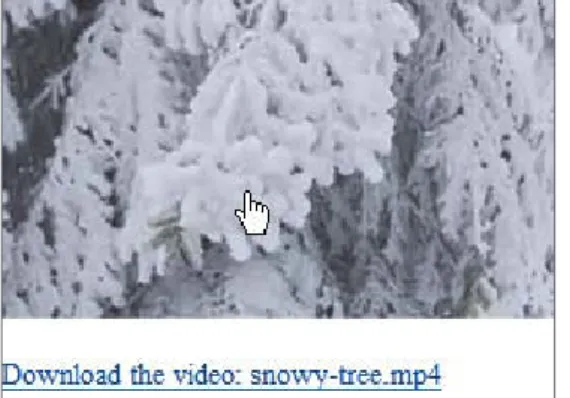
<a href=”snowy-tree.mp4”>Download the video: snowy-tree.mp4</a> </video>
You might prefer to actually provide an image link rather than a simple text link:
<video controls autoplay>
<source src=”snowy-tree.mp4” type=”video/mp4”> <source src=”snowy-tree.webm” type=”video/webm”> <figure>
<a href=”snowy-tree.mp4”>
<img src=”snowy-tree.gif” alt=”Branches of a fern tree
p covered in snow” height=”210” width=”300” /> <figcaption>Download the video: snowy-tree.mp4
p </figcaption> </a>
</figure> </video>
USING THE VIDEO ELEMENTS 73 Figure 4.3 shows how this might look in Internet Explorer.
If you decide to support Flash and allow non-HTML5 browsers to play your video via Flash, you can of course do so using either the embed or object elements. You can then play the video using a downloaded Flash player (which you have uploaded to your server) and the object element.
You can also take advantage of the fact that Flash can play MP4 files, so there’s no need to create another file in a different format. The following code shows how a Flash fallback can be achieved:
<video controls autoplay>
<source src=”snowy-tree.mp4” type=”video/mp4”> <source src=”snowy-tree.webm” type=”video/webm”> <object type=”application/x-shockwave-flash” data=”player.swf?videoUrl=snowy-tree.mp4&autoPlay=true” height=”210” width=”300”> <param name=”movie” value=”player.swf?videoUrl=snowy-tree.mp4&autoPlay=true”> </object> </video>
A non-HTML5 browser will ignore the two source elements because it doesn’t know what to do with them. It will then recognise the object element, and provided Flash is installed, will play the video through the Flash player.
FIGURE 4.3This is how the image and link to download the MP4 file might be displayed in Internet Explorer 8.
74 CHAPTER 4 USING VIDEO
The same code using the embed element looks like this:
<video controls autoplay>
<source src=”snowy-tree.mp4” type=”video/mp4”> <source src=”snowy-tree.webm” type=”video/webm”>
<embed type=”application/x-shockwave-flash” wmode=”transparent” src=”player.swf?videoUrl=snowy-tree.mp4&autoPlay=true” height=”210” width=”300”>
</video>
It’s better practice to use object instead of embed, because any content in the
object start and end tags will be rendered even if the browser doesn’t support the plugin that the object element specifies in its type attribute. This allows you to specify yet another fallback should you need to. As you can see in the previous
object example, the param element will be read by browsers that don’t understand the value specified by the type attribute in the object element.
Of course, you still need to rely on the fact that users have the Flash player installed on their computers, but this may not always be the case. Therefore, you can also add the image download link mentioned earlier as a final fallback, just in case Flash isn’t installed:
<video controls autoplay>
<source src=”snowy-tree.mp4” type=”video/mp4”> <source src=”snowy-tree.webm” type=”video/webm”> <object type=”application/x-shockwave-flash” data=”player.swf?videoUrl=snowy-tree.mp4&autoPlay=true” height=”210” width=”300”> <param name=”movie” value=”player.swf?videoUrl=snowy-tree.mp4&autoPlay=true”> </object>
<a href=”snowy-tree.mp4”>Download the video: snowy-tree.mp4</a> </video>
USING THE VIDEO ELEMENTS 75 The download link here isn’t a true fallback in the sense that if the browser falls
back to Flash, the download link will also be displayed, but that’s not necessarily a bad thing because it just provides another way to access the file.
There’s plenty to think about when deciding which browsers you want to sup-port and which fallbacks you want to provide to do so. Whatever you decide on, HTML5 multimedia should enable you to get the job done.
VIDEOFOREVERYBODY!
You can read an excellent article by Kroc Camen of Camen Design (http:// camendesign.com) on how to make video available to all without using JavaScript or browser sniffing. Kroc’s site is definitely worth checking out for future reading because he keeps it up to date with any new developments or discoveries that he or others make.
You’ll find the article at http://camendesign.com/code/video_for_everybody.
Of course, these days it isn’t just modern and legacy desktop browsers that you need to worry about supporting. You also need to make your content available to users of modern mobiles, tablets, and other alternative browsing devices with video-playing capabilities. To optimise your web content for such devices, you also need to learn about media types and media queries, which is what you’ll look at next.
TARGETING DEVICES WITH DIFFERENT VIDEO FILES USING MEDIA TYPES AND QUERIES
Let’s say you wanted to serve up a different video file depending on the browser’s capabilities and size. For example, you might want to play a smaller video, in both dimensions and file size, to a mobile phone that will have a small screen and pos-sibly be retrieving data over a 3G connection. Is this even possible? It is if you use a combination of media types and media queries, and the media attribute in the
source element.
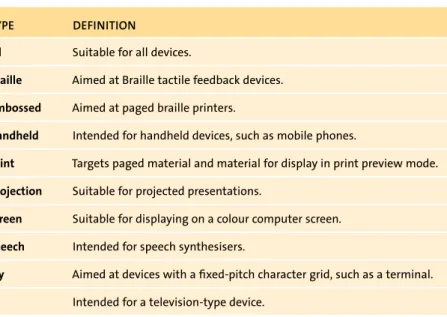
Media types were introduced in CSS2 (www.w3.org/TR/CSS2/media.html) to enable you to target different devices with specific styling and/or style sheets. Table 4.2 (on the next page) lists the media types.
76 CHAPTER 4 USING VIDEO
TABLE 4.2Media Types
TYPE DEFINITION
all Suitable for all devices.
braille Aimed at Braille tactile feedback devices.
embossed Aimed at paged braille printers.
handheld Intended for handheld devices, such as mobile phones.
print Targets paged material and material for display in print preview mode.
projection Suitable for projected presentations.
screen Suitable for displaying on a colour computer screen.
speech Intended for speech synthesisers.
tty Aimed at devices with a fixed-pitch character grid, such as a terminal. tv Intended for a television-type device.
You may have come across some of the media types listed in Table 4.2 before, although most of them are probably alien to you. If you’ve ever created a style sheet for printing content, you’ll be familiar with the print media type; if you’ve ever attempted to target a mobile phone, the handheld type will also be familiar to you. But it is the handheld type that has caused particular issues as technology has moved on. Initially, phones didn’t have browsers that were capable of rendering HTML sites, so developers largely ignored them. When phones became “smarter” and came with improved browsers, the handheld media type wasn’t being used in websites. Vendors then chose to ignore it and default to the screen media type instead. But something was needed to help combat this because website configu-rations that were meant for full-screen browsers were now rendering on phones, causing many an annoying scroll bar. This is where media queries come in.
Media queries were created by the W3C and have a complete specification of their own (see www.w3.org/TR/css3-mediaqueries). They are an extension to CSS3 media types that allow you to check for conditions of particular media features, such as width,height, and orientation, to deliver either different content or styling. You can check for a number of device features, the list of which appears inTable 4.3.
USING THE VIDEO ELEMENTS 77 TABLE 4.3 Media Query Device Features
FEATURE MIN/MAX PREFIXES DEFINITION
width Yes The width of the target display area.
height Yes The height of the target display area.
device-width Yes The width of the device’s rendering area.
device-height Yes The height of the device’s rendering area.
orientation Yes Orientation of the rendering device: portait or landscape.
aspect-ratio Yes Ratio of target width to the height.
device-aspect-ratio Yes Ratio of device-width to the device-height.
resolution Yes Density of pixels in the device.
color Yes Number of bits per colour component.
color-index Yes Number of entries in colour lookup table.
grid No Tests if the device is grid-based or not.
monochrome Yes Number of bits per pixel in monochrome device.
scan No For TV browsing: progressive or scan.
The great thing is that you can combine media types and media queries to target certain devices using the and keyword:
screen and (min-device-width:300px)
You can also target all devices that don’t match particular settings by using the logical not operator keyword:
not screen and (max-width:800px)
Theonly keyword can also be used to hide the settings from older browsers:
78 CHAPTER 4 USING VIDEO
Of course, these settings don’t work on their own and need to be assigned to themedia attribute of the required source element within the video container:
<source src=”myVideo.webm” media=” screen and
p (min-device-width:300px)”>
The following code example serves a different video to all media types that have a maximum width of 600 pixels. Both WebM and MP4 formats are provided. Anything that doesn’t match these features will move on to the succeeding source definitions:
<video controls>
<source src=”snowy-tree-small.mp4” type=”video/mp4”
p media=”all and (max-width:600px)”>
<source src=”snowy-tree-small.webm” type=”video/webm”
p media=”all and (max-width:600px)”>
<source src=”snowy-tree-medium.webm” type=”video/webm”> <source src=”snowy-tree-medium.mp4” type=”video/mp4”> </video>
If you want to also provide a medium-sized video file based on a larger maxi-mum display width of 800 pixels, you can do so like this:
<video controls>
<source src=”snowy-tree-small.mp4” type=”video/mp4”
p media=”screen and (max-width:600px)”>
<source src=”snowy-tree-small.webm” type=”video/webm”
p media=”screen and (max-width:600px)”>
<source src=”snowy-tree-medium.webm” type=”video/webm”
p media=”screen and (max-width:800px)”>
<source src=”snowy-tree-medium.mp4” type=”video/mp4”
p media=”screen and (max-width:800px)”>
<source src=”snowy-tree-large.webm” type=”video/webm”> <source src=”snowy-tree-large.mp4” type=”video/mp4”> </video>
USING THE VIDEO ELEMENTS 79
TESTINGWITHMEDIA TYPESAND QUERIES
You might be wondering how on earth you would test media types and queries if you don’t have specific devices available to you.
With the examples that I’ve provided, simply changing the size of the browser window and then refreshing the page will usually result in the desired outcome.
You can also use the ProtoFluid application (http://app.protofluid.com), which allows you to load a website (even those running on your local
server) and change the view to that of a handful of phones (such as Blackberry and iPhone) and moni-tors of various sizes, among other devices. You can see how the code in the section “Target-ing Devices with Different Video Files Us“Target-ing Media Types and Queries” works in ProtoFluid in Figure 4.4
andFigure 4.5.
Of course, nothing beats testing your code on the real thing, but that isn’t always a viable option given the sheer number of devices on the market.
NOTE: Firefox completely ignores media queries, so changing the browser window size will have no effect. I suggest using Opera, which does exactly what it’s supposed to.
FIGURE 4.5 Selecting the desktop 800×600 size in ProtoFluid displays the medium video file.
FIGURE 4.4 Selecting the iPhone size in ProtoFluid displays the smaller video file.
80 CHAPTER 4 USING VIDEO
Again, any device that has a maximum display size that is larger than 600 pixels or 800 pixels will ignore the smaller sizes and play whichever one of the WebM or MP4 larger videos that it is capable of playing.
These are just some simple examples of what you might want to achieve when targeting different devices. By combining media types and queries, you can target any device to meet your specific requirements. Unfortunately, none of the previous examples discussed will work with Android.
ANDROID AND VIDEO
The implementation of HTML5 video in Android is nothing short of shockingly poor. For this reason, it deserves its own small section to prevent you from tear-ing your hair out.
Android supports MP4 files from version 2.0 and WebM from version 2.3. You shouldn’t use the type attribute with the video or source element when defining the video file you want Android to use. For some reason, this confuses Android and it ignores the source.
In addition, Android will completely ignore the controls attribute, and you’ll have to either implement your own controls via the JavaScript API (which is the subject of Chapter 5), or to achieve autoplay, play the video via the API on page load. Android also won’t show the first frame of the video as an image; it instead dis-plays a video icon. It does however recognise and understand the poster attribute, so if you specify an image with that attribute, it will display that image correctly.
The code for specifying a video for Android follows, along with the JavaScript required to play the video on Android when the user presses the video icon. I’ll defer the explanation of this JavaScript for now but will discuss it in detail in Chapter 5:
TIP: Peter Gasston, a web developer and author of many articles and a book on CSS3, provides an in-depth tutorial on how to make HTML5 video work on Android phones. Be sure to check out what he has to say at www.broken-links.com/2010/07/08/making-html5-video-work-on-android-phones if you have problems working with HTML5 video on Android phones.
USING THE VIDEO ELEMENTS 81
<!DOCTYPE html> <html>
<head>
<title>Playing a Video File: Media Query Android</title> <script>
function play() {
var video = document.getElementById(‘video’); video.addEventListener(‘click’,function(){ video.play(); },false); } </script> </head> <body onload=”play();”> <video controls>
<source src=”snowy-tree-small.mp4” media=”screen and
p (max-width:800px)”>
<source src=”snowy-tree-large.mp4” type=”video/mp4”> </video>
</body> </html>
The preceding issues mentioned only affect the default browser that comes with Android. If the user uses another mobile browser, such as Opera Mobile, the preceding code isn’t necessary. It’s a good bet that Google will improve Android’s implementation of HTML5 video in a future release. And by the time you read this, it may have already been updated.
82 CHAPTER 4 USING VIDEO
You should now be aware of just how easy it is to add video to your website using HTML5 native multimedia. You are probably also aware that there are still a number of details you need to consider before doing so. For example:
䊏 Which browsers should you support? 䊏 Will you support legacy browsers?
䊏 Should you support mobile devices? If so, which ones?
These are just some of the questions you may need to ask before forging ahead. Once you’ve made those decisions, however, harnessing the power of HTML5 multimedia to deliver video to your users is relatively simple. With the standardised method of delivery the multimedia part of the HTML5 specification brings, you know which viewers you’ll reach and what kind of experience they will have.
So far you’ve been leaving it up to the browser to provide the video (and audio) controls. And these controls vary from one browser to the next.
In the next chapter you’ll learn how to use the HTML5 multimedia JavaScript APIs included as part of the HTML5 specification to create your own custom con-trols for both audio and video. Let’s go!
260 INDEX
NUMBERS
2D API, 199–200. See alsocanvas element 2D drawing context, using, 199
2D Transforms. See also transforms
matrix() function, 153 rotating videos, 150 scaling videos, 148–150 skewing videos, 151 support for, 148 translating videos, 151–153 X and Y equivalents, 153 3D Transforms. See also transforms
perspective property, 154, 156 rotating elements, 154, 156–157 using, 154–157 W3C definition, 154 3D video cover, 169–170
SYMBOLS
& (ampersand) character, including in video cues, 183
< (left angle bracket), including in video cues, 183
> (right angle bracket), including in video cues, 183
A
AAC (Advanced Audio Coding) audio format, 48
browser support for, 49 accessibility
audience for, 174
checkKey() function, 194
improving for custom controls, 192–194 progress bar, 194
SRT file format, 175
WebVTT (Web Video Text Tracks), 176
Adobe Flash media player, 25–26, 29 in Internet Explorer 8, 57–58 usingembed element, 56
all media type, 76
ampersand (&) character, including in video cues, 183
Android video support, 64–65, 80–81
animateMotion element, using with SVG video masks, 231
animating SVG video masks, 228–229
animation-fill-mode property, using, 164–165
APIs.See also JavaScript API Audio Data, 240–244 getUserMedia API, 247–248 PeerConnection, 249 Stream, 250–251 Web Audio, 245–246 WebSocket, 252–258
applet element, using with plugins, 28
application/ogg MIME type, 62
article element, 10, 13–16
aside element, 18
audio browser support, 49–51 audio codecs, defined, 46 audio controls, 34 Audio Data API
accessing data, 241 framebuffer data, 242–243 JavaScript code, 242 loadedmetadata event, 241 mozChannels attribute, 241 mozCurrentSampleOffset() method, 243 mozFrameBufferLength attribute, 241 mozSampleRate attribute, 241 mozSetup() method, 243 mozWriteAudio() method, 243 play function, 244 reading audio data, 240–243 writing audio data, 243
INDEX 261 audio declaration, 34 audio element autoplay attribute, 33 controls attribute, 33, 52–53 crossorigin attribute, 33 loop attribute, 33 mediagroup attribute, 33 muted attribute, 33 muting files, 53 playing audio files, 52
preload attribute, 32, 53
src attribute, 32
using in native multimedia, 32–34 using transitions with, 143–144 audio files
encoding, 50 playing, 52–58 audio formats
AAC (Advanced Audio Coding), 48–49 browser support for, 49–51
MP3, 47, 49 MP4, 48–49 MPEG, 47 Ogg Vorbis, 46, 49
WAV (Waveform Audio File Format), 48–49
B
backwards compatibility, 5 Berners-Lee, Tim, 4
black and white filter, applying, 235–236 Blender Foundation, 162
blur, adding to video, 236
braille media type, 76 browser support
audio formats, 49–51
canvas element, 198
SVG (Scalable Vector Graphics), 217 video formats, 64–66, 114–115
browsers
compatibility, 20 encoding audio files, 50 legacy, 51
button CSS class name, 10
C
Camen, Kroc, 75
canvas element. See also 2D API attributes, 198
browser support for, 198 clearing contents of, 203 defining, 198
drawing context, 199
fillRect() function, 199–201 getting handle to, 199
height attribute, 198
overriding default dimensions, 202 website, 212
width attribute, 198 X and Y axes, 198
Captionator JavaScript library, 188 captions, element for, 19
Cascading Style Sheets (CSS). See CSS (Cascading Style Sheets) character encoding, providing, 9 charset element, 9
Chrome
enabling Web Audio API in, Web Audio API, 246 opacity consideration, 146 playbackRate attribute, 111 video support, 64 circle-animate-motion.svg file, 230 codec defined, 62
including in type attribute, 70
colour saturation matrix filter, applying, 234 container, defined, 62
262 INDEX
content CSS class name, 10
control attribute, using with video files, 67 controls. See also JavaScript API
accessibility of, 192–194 fast forward button, 110–111 Mute button, 104–107 Play/Pause button, 98–102 progress bar, 107–109 removing from videos, 100 rewind button, 110–111 seek bar, 112–113 Stop button, 98–102 Volume button, 104–107 copying playing video, 205–207
copyright CSS class name, 10
createElement() function, using, 208
crossorigin attribute, 36 CSS (Cascading Style Sheets), 118
interpreting, 9 quirks mode, 9 standards mode, 9 CSS class names button, 10 content, 10 copyright, 10 footer, 10 header, 10 menu, 10 nav, 10 small, 10 text, 10 title, 10 CSS styling
div for video title, 119–120 title added to video, 119 video example, 118–121
CSS Transitions, styling with, 144–145. See also transitions
CSS2 website, 75
CSS3.See also WebKit-specific CSS3 rules gradient, 123–125 linear gradients, 125 object-fit property, 129–131 object-position property, 132–134 opacity property, 122 rounded corners, 126–127 shadow, 126–128 sizing content, 128–134 specification, 122 CSS3 Animations 3D video cover, 169–170 defining, 160 from property, 159 Keyframes function, 158–161 properties, 160 spin, 167–168 to property, 159 video cover, 161–166 W3C specification, 158 CSS3 Transitions specification, 147
currentTime setting, capturing, 108–109 custom controls. See also JavaScript API
accessibility of, 192–194 fast forward button, 110–111 Mute button, 104–107 Play/Pause button, 98–102 progress bar, 107–109 removing from videos, 100 rewind button, 110–111 seek bar, 112–113 Stop button, 98–102 Volume button, 104–107
D
DirectShow media player, 25
div element, 13 DOCTYPE element, 7–8
INDEX 263
downloads. See websites
drawImage() function, using, screen shot, 202
drop shadow, adding to video, 144–145, 155 DTD (Document Type Definition),
defined, 223
Durian Open Movie Project, 162
E
elements applet, 28 article, 13–16 aside, 18 charset, 9 charset, 9 DOCTYPE, 8–9 embed, 28 figcaption, 19 figure, 19 footer, 11 h, 16 header, 11 hgroup, 12 naming, 10 nav, 17 object, 28 param, 30 for plugins, 28 range, 104 script, 20 section, 13–16 svg, 217–218 wmode, 30 Elephant’s Dream cue subtitle, 180–181 Playr video player, 190 subtitle cue, 179updating canvas element, 206 video-cue text, 182–183
ellipse mask
adding to video, 226–227
mask element, 227
use element, 227
embed element, using with plugins, 28
embossed media type, 76 encoders for audio
Media Converter, 50 Miro Video Converter, 50 English subtitles, specifying, 186
event listener, adding for keypress event, 194 events in JavaScript API
abort, 93 canplay, 93 canplaythrough, 94 durationchange, 94 emptied, 93 ended, 94 error, 93 keypress, 194 listening for, 102–104 loadeddata, 89, 93 loadedmetadata, 93, 202 loadstart, 93 onclick, 106, 110 pause, 94, 104
pause and play, 102–103
play, 94 playing, 94 progress, 93 ratechange, 94 seeked, 94 seeking, 94 stalled, 93 suspend, 93 timechange, 95 timeupdate, 94–95 volumechange, 94 waiting, 94
264 INDEX
F
fast forward button, adding, 110–111
feColorMatrix filter, 233
feGaussianBlur filter, applying, 236
figcaption element, 19
figure element, 19
fill attribute, setting to freeze, 231
fillRect() function, using with canvas, 199–202
filter element definition, 233–237 Firefox
audio support, 49 video support, 64
Flash fallback, using with video files, 73 Flash file playback, providing, 55 Flash Player, 25–26, 29
in Internet Explorer 8, 57–58 usingembed element, 56 Flash Player 10.2
lack of support for, 27 vulnerability in, 27
footer element, 10–11 Fraunhofer patent, 47 functions in JavaScript API
addEventListener(), 102 addTextTrack(), 97 canPlayType(), 97 changePlaybackSpeed(), 110 changeVolume(), 105 clearInterval() function, 206 createElement(), 208 drawImage(), 201 fillRect(), 201–202 findPos(), 113 getImageData(), 209 load(), 97 Math.floor(), 105 pause(), 97, 101 play(), 96–97, 101 playVideo(), 96 putImageData(), 209 setInterval() function, 205 setPlayPosition(), 112–113 toggleMute(), 106 togglePlay(), 101, 103 using, 96
G
Gasston, Peter, 80Gaussian blur, applying to video, 236 German subtitles, specifying, 186
getImageData() function, using, 209 getUserMedia API, 247–248 audio parameter, 247 errorCallback parameter, 248 microphone access, 248 options parameter, 247 successCallback parameter, 248 video parameter, 247 Google Chrome
enabling Web Audio API in, Web Audio API, 246 opacity consideration, 146 playbackRate attribute, 111 video support, 64 gradients using in CSS3, 123–125 using with video, 123–125 greyscale video, playing, 208–212
H
h element, using in header, 16 H.264 (MP4) video format, 63 Handbrake video encoder,
INDEX 265
handheld media type, 76
header element, 10–11
hgroup element, 12 Hickson, Ian, 6, 10
HTML (HyperText Markup Language), 4 HTML controls, specifying tab order of, 192 HTML5 availability of, 7 backwards compatibility, 5 versus HTML4.01, 4 progression of, 4–6 range element, 193 tabindex attribute, 192–193 video support, 65 W3C specification, 4–6 WHATWG specification, 4–6 HTML5 elements applet, 28 article, 13–16 aside, 18 charset, 9 DOCTYPE, 7–8 embed, 28 figcaption, 19 figure, 19 footer, 11 h, 16 header, 11 hgroup, 12 naming, 10 nav, 17 object, 28 param, 30 for plugins, 28 range, 104 script, 20 section, 13–16 svg, 217–218 wmode, 30
html5shim script, downloading, 20 hue rotation filter, applying, 234
I
image links, using with video files, 72–75
ImageData object contents
data attribute, 209
height attribute, 209
width attribute, 209
innerHTML, setting, 20
innerShiv script, downloading, 20 Internet Explorer 9, native multimedia in, 42 Internet Explorer (IE), 5
browser compatibility, 20 video support, 64 iOS video support, 64
J
JavaScript API. See also APIs; custom controls
audio attributes, 87–91
audioTracks attribute, 90
autoplay attribute, 87
buffered attribute, 89 checking video looping, 92
controller attribute, 90 controls attribute, 88 crossOrigin attribute, 88 currentSrc attribute, 88 currentTime attribute, 90, 92, 95, 101 defaultMuted attribute, 90 defaultPlaybackRate attribute, 90 duration attribute, 87 ended attribute, 87 getElementsByTagName() function, 92 grabbing handle to video object, 92
height video attribute, 91
266 INDEX
JavaScript API (continued)
loop attribute, 88 mediaGroup attribute, 90 muted attribute, 88 networkState attribute, 88 paused attribute, 87 playbackRate attribute, 87 played attribute, 90
poster video attribute, 91
preload attribute, 89 readyState attribute, 89 seekable attribute, 90 seeking attribute, 89 src attribute, 88 startOffsetTime attribute, 90 startTime attribute, 88 textTracks attribute, 90 TimeRange object, 91 title attribute, 101 tutorial, 86 video attributes, 87–90
videoHeight video attribute, 91
videoTracks attribute, 90
videoWidth video attribute, 91
volume attribute, 87 Web Audio, 240
width video attribute, 91 JavaScript API events
abort, 93 canplay, 93 canplaythrough, 94 durationchange, 94 emptied, 93 ended, 94 error, 93 keypress, 194 listening for, 102–104 loadeddata, 89, 93 loadedmetadata, 93, 202 loadstart, 93 onclick, 106, 110 pause, 94, 104
pause and play, 102–103
play, 94 playing, 94 progress, 93 ratechange, 94 seeked, 94 seeking, 94 stalled, 93 suspend, 93 timechange, 95 timeupdate, 94–95 volumechange, 94 waiting, 94 JavaScript API methods
addEventListener(), 102 addTextTrack(), 97 canPlayType(), 97 changePlaybackSpeed(), 110 changeVolume(), 105 clearInterval() function, 206 createElement(), 208 drawImage(), 201 fillRect(), 201–202 findPos(), 113 getImageData(), 209 load(), 97 Math.floor(), 105 pause(), 97, 101 play(), 96–97, 101 playVideo(), 96 putImageData(), 209 setInterval() function, 205 setPlayPosition(), 112–113 toggleMute(), 106 togglePlay(), 101, 103 using, 96
INDEX 267 JavaScript libraries Captionator, 188 LeanBack Player, 188 MediaElementJS, 188 Playr, 188 jQuery, using, 20 js_videosub, downloading, 188 jscaptions, downloading, 188 JW Player, downloading, 55
K
Kaltura, downloading, 188 Keyframes function removecover, 165, 169 using, 158–161using with video cover, 164
keypress event, adding event listener for, 194
L
“Last Call” stage, 6
LeanBack Player JavaScript library, 188 left angle bracket (<), including in video
cues, 183
lineto command, using with SVG video masks, 231
“Links and Anchors,” 5
loadedmetadata event, using, 202 luminance to alpha filter, applying, 235
M
Macromedia media players, 25
makeItGrey() function calling, 212 defining, 210
masks.See alsoSVG video masks adding over video, 136–137 applying to video element, 222–223 defining in SVG, 221
Media Converter, downloading, 50, 66 media players. See also plugins
Adobe Flash, 25–26 Adobe Flash media player, 29 DirectShow, 25 plugins, 27 QuickTime, 26 RealAudio, 24 security issues, 27 Shockwave, 25
Windows Media Player, 25–26 media queries
aspect-ratio device feature, 77
color device feature, 77
color-index device feature, 77 combining with media types, 77 device features, 77
device-aspect-ratio feature, 77
device-height feature, 77
device-width feature, 77
grid device feature, 77
height device feature, 77
monochrome device feature, 77
orientation device feature, 77
resolution device feature, 77
scan device feature, 77 specification, 76 testing with, 79 using, 75–78, 80
width device feature, 77 media types
all, 76
braille, 76
combining with media queries, 77
embossed, 76
handheld, 76
print, 76
projection, 76
268 INDEX
media types (continued)
speech, 76 testing with, 79
tty, 76
tv, 76 using, 75–78, 80
MediaElementJS JavaScript library, 188
mediagroup attribute, 36
MediaStream objects input and output, 250
LocalMediaStream object, 251 obtaining, 249
record() method, 251 using, 250–251
menu CSS class name, 10 methods in JavaScript API
addEventListener(), 102 addTextTrack(), 97 canPlayType(), 97 changePlaybackSpeed(), 110 changeVolume(), 105 clearInterval() function, 206 createElement(), 208 drawImage(), 201 fillRect(), 201–202 findPos(), 113 getImageData(), 209 load(), 97 Math.floor(), 105 pause(), 97, 101 play(), 96–97, 101 playVideo(), 96 putImageData(), 209 setInterval() function, 205 setPlayPosition(), 112–113 toggleMute(), 106 togglePlay(), 101, 103 using, 96 Microsoft plugins, 26
MIDI (Musical Instrument Digital Interface) format, 24
MIME (Multipurpose Internet Mail Extension), 29, 47
application/ogg type, 62
video/mpeg type, 63
video/webm type, 63
Miro Video Converter, downloading, 50, 66 Modernizr detection library,
downloading, 115 Mozilla Firefox
audio support, 49 video support, 64 Mozilla’s Audio Data API
accessing data, 241 framebuffer data, 242–243 JavaScript code, 242 loadedmetadata event, 241 mozChannels attribute, 241 mozCurrentSampleOffset() method, 243 mozFrameBufferLength attribute, 241 mozSampleRate attribute, 241 mozSetup() method, 243 mozWriteAudio() method, 243 play function, 244 reading audio data, 240–243 writing audio data, 243 MP3 audio format, 47, 49 MP4 (H.264), 48
browser support, 49, 64–65 encoding delayed playback, 66 video format, 63
MPEG (Moving Picture Experts Group), 47, 63 multimedia. See media players; native
multimedia
Mute button, adding, 104–107
muted attribute, setting, 67 muting files, 53
INDEX 269
N
native multimedia audio element, 32, 52 benefits, 31 in Internet Explorer 9, 42 in Safari, 42 source element, 38–39 track element, 40–41 video element, 35–37 nav element, 10, 17 node.js website, 254O
object element, using with plugins, 28–29 Ogg Vorbis audio format, 46, 49
browser support for, 49 using, 52
opacity value fading, 146–147 using in CSS3, 122 Opera video support, 64, 133 Outlining Algorithm, 16
P
param element, using with plugins, 30
path element, using with SVG video masks, 231
PeerConnection API, 249
perspective property, using with 3D Transforms, 154
Pfeiffer, Silvia, 184
pixelData object, manipulating data in, 210–211
pixels, setting transparency for, 235 playing video, copying, 205–207. See also
video copy
Play/Pause button, adding, 98–102 Playr JavaScript library, 188–191 plugins.See also media players
applet element, 28
embed element, 28
object element, 28
param element, 30 using with media players, 27
wmode element, 30
print media type, 76 progress bar
adding, 107–109
adding for accessibility, 194
updateProgress() function, 108–109 usingrange element as, 193
projection media type, 76
ProtoFluid application, downloading, 79
putImageData() function, using, 209
Q
QuickTime multimedia player, 26 quirks mode, 9
R
range element, using as progress bar, 193 rastar graphics, 216
RealAudio player, 24
reflection, specifying on HTML elements, 135–136
rewind button, adding, 110–111 RGB channels, converting, 235
right angle bracket (>), including in video cues, 183
rotate transform, using, 150, 164
rotate3d() transform, using, 167–168 rounded corners, using in CSS3, 126–127
270 INDEX
S
Safari
audio support, 49 native multimedia in, 42
playbackRate attribute, 111 video support, 64
Scalable Vector Graphics (SVG) advantages, 216–217, 222 browser support, 217
circle element, 219
ellipse element, 220
fill attribute for text colour, 218
text element, 218
scale transform, using, 148–150
screen media type, 76 screen shot
drawImage() function, 202–203
fillRect() function, 201–202
loadedmetadata API event, 202
ratio variable, 202
snap() function, 203
taking of HTML5 video, 201–204
script element, 20
section element, 13–16 seek bar, adding, 112–113 shadows, using in CSS3, 126–128 Sharp, Remy, 20, 254
Shockwave, 25
Sintel video cover animation, 162 sites
2D API, 199 2D Transforms, 153 3D Transforms, 154, 157 Android video support, 80
animate element, 229
animateMotion element, 231
animation-play-state property, 160 Audio Data API, 244
sites (continued)
Blender Foundation, 162 Camen Design, 75 canvas basics, 200, 212
Captionator JavaScript library, 188 CSS2, 75
CSS3 linear gradients, 125 CSS3 specification, 122
CSS3 Transitions specification, 147
drawImage() function, 202 Durian Open Movie Project, 162 getUserMedia API, 247 Handbrake, 66 HTML5 Document Outlines, 16 html5shim script, 20 innerShiv script, 20 JavaScript tutorial, 86 js_videosub, 188 jscaptions, 188 JW Player, 55 Kaltura, 188
LeanBack Player JavaScript library, 188 “Links and Anchors,” 5
mask property, 137 Media Converter, 50, 66 media queries, 76
MediaElementJS JavaScript library, 188 Miro Video Converter, 50, 66 Modernizr detection library, 115 MPEG (Moving Picture Experts Group), 63 node.js, 254
object-fit property, 134
object-position property, 134 PeerConnection API, 249 Playr JavaScript library, 188 ProtoFluid application, 79
reflect property, 137
Sintel video cover animation, 162 Stream API, 250
INDEX 271
SubRip program, 175 SVG filters, 233
SVG text element attributes, 218 Theora Ogg, 62
transforms, 157 transition properties, 142 WebSocket API, 252 WebSocket servers, 254
WebVTT Working Group Charter, 176 Working Group Charter, 184 Xiph.Org Foundation, 62
skew transform, using, 151
small CSS class name, 10
snap() function
using with screen shot, 203 using with video copy, 205–206
source element
media attribute, 39
src attribute, 39
type attribute, 39
speech media type, 76
spin Keyframes function, defining, 167–168 SRT file format, 175, 188
standards mode, 9 Stop button, adding, 98–102 Stream API, 252
goal of, 250
MediaStream object, 250–251 SubRip program, downloading, 175 subtitles
adding to videos, 189–191 English, 186
German, 186 using, 175
SVG (Scalable Vector Graphics) advantages, 216–217, 222 browser support, 217
circle element, 219
ellipse element, 220
fill attribute for text colour, 218
text element, 218
SVG and HTML5 video, 220. See also videos adding ellipse masks, 226–227 adding text masks, 221–225
svg element, 217–218, 224 SVG filters
applying to HTML5 video, 233–237 black and white, 235–236 colour saturation matrix, 234
feColorMatrix, 233
feGaussianBlur, 236 hue rotation, 234 luminance to alpha, 235 merging, 237
SVG text element attributes, fill attribute for text colour, 218
SVG video masks. See also masks
animate element, 229 animateMotion element, 231 animating, 228–229 attributeName attribute, 229 circle element, 231 circle-animate-motion.svg file, 230 defs element, 224 doctype declaration, 224 ellipse element, 228 fill attribute, 231 lineto command, 231 moving, 230–233 mpath element, 232 path element, 231 text.svg file, 224
xlink document definition, 224 SWF file format, 25