HABIT-CHANGE
User’s Manual
Online Decision Support System (DSS)
[2]
Output Number: 5.2.2 Date: 09/2012 Title: Manual of Decision Support System
Author: Kathrin Renner (EURAC)
Project: HABIT-CHANGE – Adaptive management of climate-induced changes of
habitat diversity in protected areas
Programme: CENTRAL EUROPE Project Number:
2CE168P3
Start date: 3/2010 End date: 2/2013
Lead Partner: Leibniz Institute of Ecological and Regional Development (IOER),
Germany
Project Partner: University of Vienna, Austria
National Academy of Sciences, Scientific Centre for Aerospace Research of the Earth, Ukraine
Thuringian State Institute for Forestry, Game and Fishery, Germany
Potsdam Institute for Climate Impact Research, Germany
Technische Universität Berlin, Germany
Balaton Uplands National Park Directorate, Hungary
Szent Istvan University, Hungary
Biebrza National Park, Poland
Environmental Protection Institute, Poland
Triglav National Park, Slovenia
University of Bucharest, Romania
Central Institute for Meteorology and Geodynamics, Austria
Danube Delta National Institute for Research and Development, Romania
SOLINE Pridelava soli d.o.o., Slovenia
University of Maribor, Slovenia
European Academy Bolzano, Italy
Contact: Marco Neubert, [email protected], +49 351 4679-274
Sven Rannow, [email protected], +49 351 463-42359
Further information
Contents
1
Introduction and background
4
2
Executing the Habitat Management Support tool
5
2.1 The startup page 5
2.2 The main page 6
2.3 Creating and managing H-P-I-R chains 7
2.3.1 Creating new chains 7
2.3.2 Managing H-P-I-R Chains 11
[4]
1
Introduction and background
The HABIT-CHANGE project deals with changes that Natura 2000 nature protection sites in Central Europe are currently confronted with due to anthropogenic as well as climatic impacts. Specifically habitat compositions are changing when climatic conditions and land use change. The aim of HABIT-CHANGE is to help nature conservationists to better understand those changes and to provide guidelines and practical experiences to react most appropriately.
Scenarios and indicators, collated in the project, help describe those changes, its drivers and effects. Pressures, impacts and management strategies were collected from seven test-sites representative for central European habitat-types as well as literature. Furthermore we investigated climate projections and their potential impact on habitat-types.
The results of this research are made available in the form of reports, in the WebGIS cartographically as well as the herewith presented DSS knowledge database that can be interrogated via an online interface.
The aim of the DSS is to provide managers of protected areas with information on possible pressures due to Climate Change or land use change. Furthermore contained in the database are impacts that pressures are likely to have on habitat-types. Proposals on how to respond to those very specific changes are another very important component of the knowledge system.
With the DSS the project provides a tool to those nature conservationists that were not involved in the HABIT-CHANGE efforts. It allows to browse habitat-types, pressures, impacts and response options identified, analysed and structured by the project team.
Expert users that have a login to the system are authorised to create so called decision chains linking the four input variables Habitat (H), Pressure (P), Impact (I), Response Option (R) and thus provide added knowledge to others.
A protected area manager looking for ways to manage certain habitat types responding to the circumstances they are in can benefit from the expert knowledge the DSS is offering. The DSS enables the user to query the database and to thus identify cause and effect, for example it allows to identify pressures that are causing certain impacts. At the same time does the database provide knowledge as to what management practises are relevant for which habitat-types.
This User’s Manual provides a step-by-step guide how to use the Habitat Management Decision Support tool. The HABIT-CHANGE DSS can be accessed using this address:
2
Executing the Habitat Management Support tool
2.1
The startup page
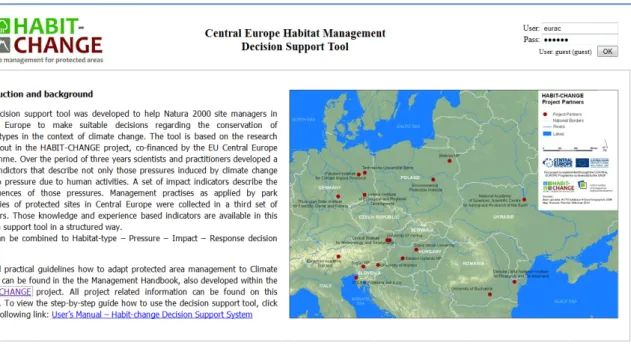
The startup page consists of an introduction test, an overview map depicting the area under consideration and a login facility (Figure 1).
The introductury text provides an overview over the background of the DSS and the topic Adaptive management of protected areas. Importantly it contains a link to the comprehensive Management Handbook elaborated in the project. Specifically the Management Handbook contains guidelines, practical experiences from the HABIT-CHANGE Climate Adapted Management Plan (CAMP) test-sites as well as a step-by-step guide how to go about adaptive management.
A map, next to the introduction text, visualises the project area and the locations of HABIT-CHANGE project partners.
The login facility, at the top right of the startup page, enables the user to be recognized as an expert user. Logged in users are able to create decision chains and can add additional indicators to the database. Since chains are linked to their creators they alone can modify them, however all chains can be browsed and looked at by all users of the site.
Alternatively logging in as guest, the user is able to browse the contents of the knowledge system, i.e. the tools to query the database will be available, whereas he is not allowed to create decision chains or add new indicators to the database. Guest users can enter the site using the following login:
User: guest Pass: guest
An expert login, enabling the user to add information to the database, can be requested by sending an Email to the contact details given at the bottom of the startup page.
[6]
Figure 1: Startup page with introduction, overview map and login facility
2.2
The main page
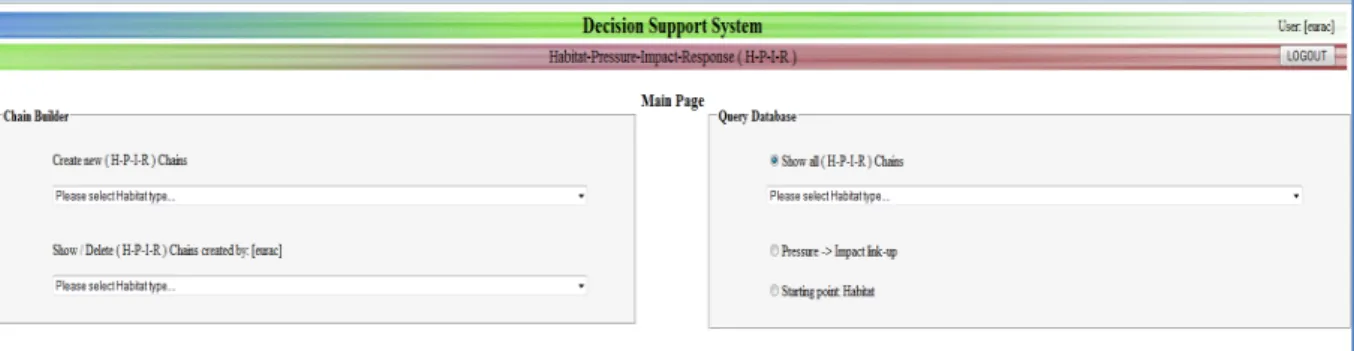
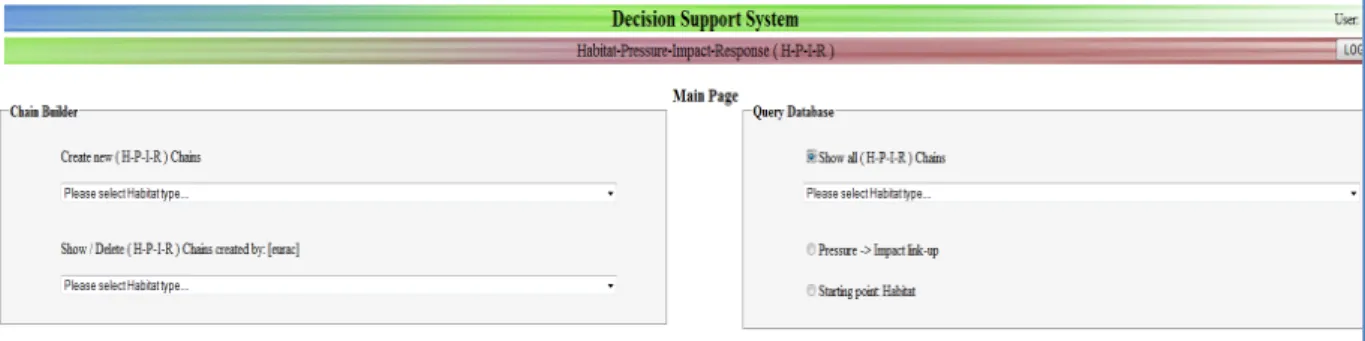
Once the login information has been entered, click OK. You will be automatically directed to the main page (Figure 2). This page allows you to create new H-P-I-R chains, modify or delete chains you created as well as to query indicators.
Figure 2: The Main Page with options to create new chains and show or delete existing chains on the left hand site. On the right hand side of the page the user can query the chains in the database. Querying of existing chains is possible in three different ways: 1. Show all full H-P-I-R chains for all habitat-types in a habitat group, 2. Starting from a pressure, show all related impacts and corresponding habitat-types, 3. Starting from a habitat-type, select a pressure and an impact to see the related response options
The main page consists of two parts. On the left hand side, under Chain Builder, you find the tools to create (top tool) and manage (bottom tool) H-P-I-R chains. On the right hand side queries can be put to the database in three different ways.
2.3
Creating and managing H-P-I-R chains
2.3.1 Creating new chains
Starting from the main page use the tool on the top left to create new H-P-I-R chains. The steps below describe in detail how to create new chains.
1. Click on the drop down list on the top left of the page and choose a habitat category by clicking on it (Figure 3). After having selected one habitat category you will be automatically directed to the next page, the Chain Builder page.
Figure 3: To create a new chain the first step is to select a habitat category using the top left tool on the Main page
2. On the Chain Builder page you now see all the habitat-types that are part of the habitat category that you selected in the previous step, listed in a text box. You now want to select one of the habitat-types listed by clicking on it. It will be instantly added in bold writing below the text box and next to the (H) thus forming the first element of the chain (Figure 4).
Figure 4: Chain Builder page: The second step to create a H-P-I-R chain is to select a type out of all the habitat-types contained on the habitat category selected in the previous step
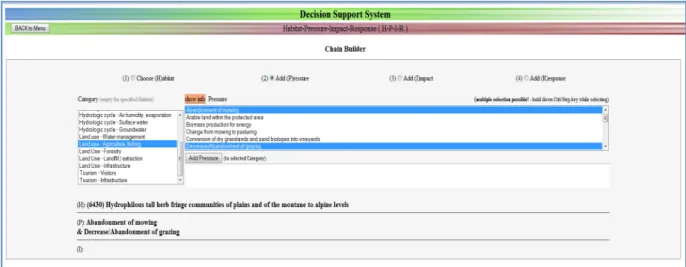
3. Next you like to add a pressure type to the chain. To do this check the box (2) Add Pressure. Three text boxes appear. In the box on the left hand side select a category, or select ‘All’ if you like to see all pressure types contained in the database (Figure 5).
[8]
Clicking on the ‘show info” highlighted in orange, brings up information how the terms Pressure, Impact and Response are used in the HABIT-CHANGE project. The information box also contains links to the glossary on the HABIT-CHANGE project website where further terms are explained.
Now select one or several pressure types (hold down the Control key to select more than one item) in the box on the right. The selected pressure(s) will be added as the second element of your chain below the already selected habitat-type.
If you like to add a pressure to the list, that is not already in the database, this can be done by typing it into the third box. To add the new pressure type to a certain pressure category, select the category before clicking on ‘Add Pressure’. The newly added pressure type will be immediately available for you to add to the chain. The newly added pressure type is available straightaway for adding to the H-P-I-R chain by clicking again on the category you added the new Pressure to and it will be listed in the top right box.
Figure 5: Chain Builder page. First a pressure category is selected, followed by a selection of a Pressure types. The selection will then be written as the second element of the chain and written below the boxes next to the (P)
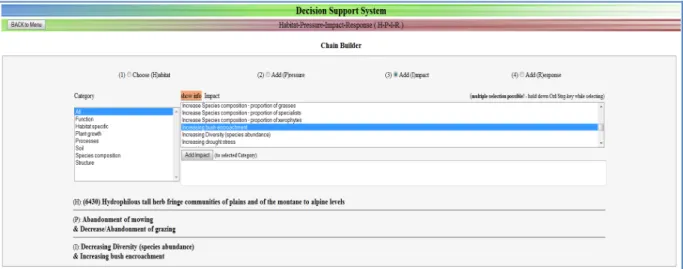
4. To now add one or several impact(s) to the H-P-I-R chain check the box (3) Add Impact at the top of the Chain Builder page (Figure 6). The set up and procedure are the same as for the previously added pressure type. First select an impact category on the left, or select ‘All’ if you are not sure which category an impact belongs to. Then select, by clicking on it, an impact type (to select several pressure types hold down the Control key) in the box on the right.
Additional impact types can be added to the database by typing them in the box below the ‘Add Impact’ button. Clicking once again on the category the new Impact is added to the database making it instantly available for selection and thus adding to the H-P-I-R chain. As a result the first part of the chain consisting of (H), (P) and (I) is written in bold at the bottom of the page.
Figure 6: Impacts are selected and added to the chain by first selecting an impact category, then selecting the impact. If the impact one likes to use is not available, on can type a new impact into the third box, hit the ‘Add Impact’ button and the impact will be immediately available to be added to the chain
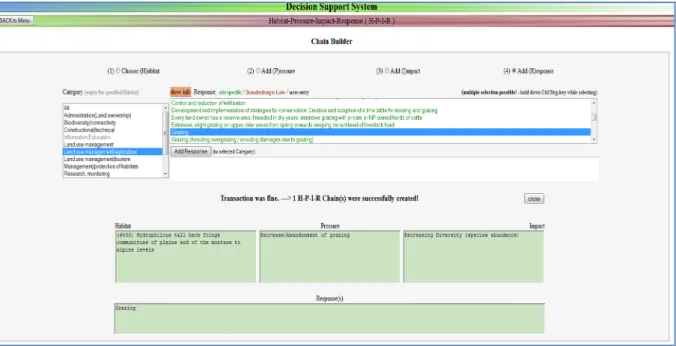
5. Adding a response option is the final step in creating a chain. To do this check (4) Add Response near the top of the Chain Builder page. This will direct you to a new page with the same drop-down selection boxes as for pressure and impact, with the only difference that you now see the Habitat-Pressure-Impact part of the chain, you created earlier, listed. If you have chosen more than one pressure or impact, that list will contain every combination of the input you gave. Now, to add response options, chains are completed one at a time (Figure 7).
To add a response option to the first part-chain, tick the box next to it. To mark that it is edible the colour of the text changes from grey to black. Now, as with pressure and impact, select a category in the drop-down list on the left, or click ‘All’ if you prefer to see all available management options. Then select one or several response options in the box on the right.
If you like to add a management practise that is not already in the list you can do this by typing it in the third box and click ‘Add Response’. Clicking once again on the category you added to the new Response to and will make it instantly available for selection (in black). Having selected one or several response options click on ‘Now Create Complete’ Chain at the very bottom of the page.
[10]
Figure 7: The H-P-I chains created in the previous steps are in this steps complemented through addition of the Response element to the chain. In the left hand box a response category is selected, then one or several response options, that should be added to the part chain are selected in the top box. New response options can be added to the database by typing it in the third box
A new page opens and confirms that a new chain was added to the database (Figure 8).
Figure 8: This web page confirms that a newly created chain was added to the database
adding a Response option.
2.3.2 Managing H-P-I-R Chains
An expert user has a login that allows to create and add chains to the knowledge system. Those can be viewed and deleted by that same user or the database administrator.
On the Main Page of the DSS it is the bottom tool on the left, titled ‘Show / Delete (H-P-I-R) Chains created by: …’ (Figure 9).
Figure 9: On the Main page, the left hand side window contains the Chain builder tool. The bottom tool allows to list and delete those chains created by yourself
In order to manage your chains click on the drop-down list and those habitat categories for which you created chains are listed. Pick one by clicking on it and you will be directed to a new page listing all the chains that you created for habitat-types within that habitat category (Figure 10).
Figure 10: Example for managing chains. The user has created one H-P-I-R chain in a habitat category. The user could delete this chain if necessary
If you like to delete a chain you can do that by checking the box next to it and click ‘Delete’. The chain will be instantly removed from the database.
[12]
2.4
Querying H-P-I-R information
The tools on the right hand side on the Main Page allow to query the database for existing H-P-I-R chains. Information can be queried in three different ways.
1) Allows to look at all H-P-I-R chains available for a habitat category.
2) Enables to start from the pressure type and finds all impacts and habitat-type it is linked to. 3) Permits to query the database starting from a habitat-type, one selects one of the related
pressure types, one selects one of the linked impact types and the output will be a response option.
It has to be noted here that the querying of the database can only provide information that was entered previously by experts.
1. Querying complete H-P-I-R chains
Check the box of the top option ‘Show all H-P-I-R Chains’ to see all H-P-I-R chains created for habitat-types that belong to a habitat category. First select a habitat category out of the available categories in the drop down list. A new page will open up showing all decision chains in that habitat category (Figure 11).
Figure 11: The database can be queried by listing all H-P-I-R chains available for a habitat category. To view existing chains use the top option on the right hand side of the main page
2. Find out which pressures are associated with which impacts and which habitat-types
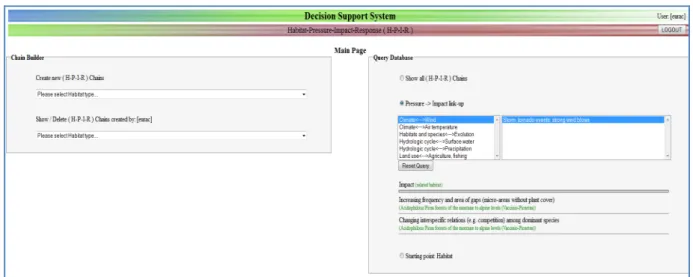
Check the box of the second tool ‘Pressure -> Impact link-up’. By selecting a pressure category in the list on the left hand and choosing a pressure on the right hand boy, impacts (and in green relevant habitat-types) associated with that pressure type will be listed (Figure 12).
Figure 12: The Pressure -> Impact link-up tool on the right hand side allows to query the database starting from a pressure. Having selected a pressure category and a pressure, the database writes out associated impacts and in brackets and in green writing the habitat-types this pressure-impact effect is linked to
3. Query the database for pressures, impacts and response options related to a specific habitat category
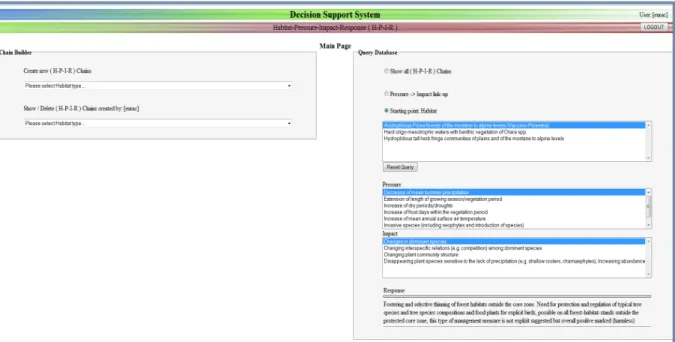
The third tool under Query Database, ‘Starting point: Habitat’ allows to find all pressures, impacts and response options associated with a habitat-type. Checking the box next to ‘Starting point: Habitat’ opens up three boxes. The first step is to select a habitat-type in the top list. Based on that selection all pressure-types linked to that habitat-type are listed in the box below. Secondly one pressure-type is selected which leads to the listing of all the relevant impact-types below. Finally selecting one of the impacts brings up the proposed management practise under Response. Selections can be revoked at any stage by clicking the ‘Reset Query’ button (Figure 13).
[14]
Figure 13: This graphic shows a third way to query the database. Here the selection of a habitat type results in the related pressure types, from which one can be selected and in turn impacts associated with that Habitat-Pressure combination are show. Finally the selection of an impact results in the response option(s) being written at the bottom of the page