DATAFORM 2
CASSETTE DATAFORM 2
User's Guide
January
22,
1975
Model Code No. 50104
DATAPOINT CORPORATION
The Leader in
Dispersed Data Processing
DATAFORM USER'S GUIDE
SECTION I
INTRODUCTION
DA TAFORM provides a personalized data entry system for use on a Datapoint 2200. 'Forms', which are kept on tape, project images on the 2200 screen. The data entry operator then simply fills in the form, the data will be recorded on cassette and may at any time be retrieved and revised using the same form to view and edit the recorded data.
Each 'form' is designed by the user, and editing criteria are assigned to the data fields on the form at the time the form is generated. Field programs may also be assigned at this time. The user's forms, and programs, are then combined on a single cassette and become a unique Dataform System configured for the users special purpose.
Foul" stages of development are involved in generating the system: the Edi tor/Compiler enables the user to create field programs; the Form Generator enables the user to create forms; the Configurator combines the forms into a 'system'; and the Data Entry Interpreter uses the form to control data entry.
TABLE OF CONTENTS SECTION I
1.0 System Overview
1.1 What is a FORM? 3
1.2 What is a FIELD PROGRAM? 4
1.3 User space and how it's allocated 5
1.4 Some DATA ENTRY features 6
2.0 Form Generation
2. 1 Data Field 7
2.2 Keyin Field 8
2.3 Data Record 8
2.4 User Space 9
2.5 Form Worksheet 9
2.6 Generating a Form Image 10
2.6. 1 Repeat Key 10
2.6.2 Cursor Movement Keys 10
2.6.3 Character Insert Key 10
2.6.4 Character Remove Key 1 1
2.6.5 Erase Function Keys 11
2.6.6 Line Insert Key 11
2.6.7 Character Duplication Key 1 1 2.6.8 Returning Control to the Monitor 1 1
2.7 Assigning Edit TYPES 12
2.7. 1 Alpha 13
2.7.2 Numeric Digits 13
2.7.3 Numeric Fields 13
2.7.4 Mixed 13
2.7.5 Left Justified and Zero Fill 13 2.7.6 Right Justified and Zero Fill 13 2.7.7 Right Justified and Blank Fill 13
2.8 ASSigning Keyin Restrictions 14
2.8. 1 Required Field 14
2.8.2 Fill Control Field 14
2.8.3 Required and Fill Controlled 14 2.8.4 Program Reserved - no keyin 14 2.8.5 Required and Program Reserved 15
2.9 Constants and Semi-Constants 15
2.10 Field Program Assignment 16
2.11 Form Linking 16
2.11.1 Setting Manual Linkage 16
2.11.2 Clearing Linkage 17
2.11.3 Loading Linked Forms 17
2.11.4 Setting Auto-Linking 17
2. 12 Writing the form to tape 19
2. 13 Changing the screen image 20
2. 14 Modifying an OLD form 20
3.0 Form Library Configuration and Utilities
3. 1 Displaying the Form Catalog 21
3.3 Deleting ~o.rm$ fr.om.tbe Catalog 21
3.4 Deleting MUltiPle Eorms trom the Catalog 21
3.5 Replacing Forms already in the Catalog 22
3.6 Running the Interpreter 22
3.7 Tape Utility Features 22
3.7.1 Duplicating DFZSYS': 22
3.7.2 Duplioa,t.ing,·DF2SYS with Forms 22
3.7 • .'3 'Redover'ing a· Cataloged Form", 22 3.7.4 Generating I'a 'Faster L,oading ,.'Interpreter 22
3.7.5 Copying a Data Tape 22
3.8 Printing Forms and Data ;'1' 23
3.9 Replacing Dataform2 Systems Programs 24
4.0 Data Entry Interpreter 4.1 Data Tape Initiation
4.1.1 START new data tape
4.1.2 ADD to·an'.~xlsting data tape' 4.1.3 CONTINUE an existing data tape 4.2 Loading a Form
4.2. 1 Te~ting' NEW, Forms
4.2.2 LO~Dl,ng .. Cataloged forms, 4.3 Entering DATA IEntr.y Mode
4.4 Revising Exisi~ing Data Tape 4.4. l' MODIFY" ' '
4~4.2 Rewriting-Existing Records 4.4.3 FINDing a Specified Record 4.4.4 Aborting Tape Searches 4.5 Positioning the, Data Tape,
4.5.1 BACKUP tape, when entering data 4.5.2 REWINDing during modifioation 4.6 ENDing· th~ Data ,Tape
4.7 Data Entry ,',Action" , 4.8 Data'Erase"Function Key
4.9 Field Du~iicationFunction Key' 4.10 Operator Errors'During Data Entry 4. 11 Write Func:,tlon' K~y ""
4. ,12 LC')a(1,ing', Linked' Forms
4.13 Returning Control to the Monitor
5.0 Recovery"Procee~ures
5.1 System Tapes ,: 5.2 Data Tapes 5.3 Form Tapes
APPENDIX A "
TYPE and REQ}.U:·Re', codes, J
APPENDIX B ,\ .
Form Generation, Funotion Keys
APPENDIX C
Command Li s.t, . , e,
" " , ' ~ " , I ' ;,
APPENDIX D
Data Entry Function Keys
APPENDIX E
Error Messages
APPENDIX F
DATAFORM 2 SYSTEM OVERVIEW
The DATAFORM 2 System is composed of three separate system tapes:
1. DF2SYS, Data Entry System tape,
contains the Configura tor , the Form
Catalog and the Data Entry Interpreter. The Configurator enables the user to add forms to this system tape for use during data entry.
2. DF2FGS, Form Generation System tape,
includes the Form Generator, the Field Program Relocator and 15 versions of the Extended Interpreter.
3. DF 2PGS, Program Generation System
tape, consists of a source code editor and the DATAFORM Compiler.
DF2PGS /
/
I FIELD PROGRAM
SYSTEM FLOW
1-02
DATA
DF2SYS
~
DF2SYS
WITH FORM
1.1 What is a FORM?
A • form' in this document refers to a screen image designed using the DATAFORM Form Generator. This screen image contains labelling information, defines the length and posi tions of ' da ta fields', and reserves space for 'keyin fields'.
The amount of data, the number of fields and the amount of constant information in the form image determine exactly how much memory the form requires.
The Form Generator also enables the user to assign edit criteria to the data fields. The criteria are applied
field-by-field in separate passes over the form image.
These criteria include the field type: alpha,
numeric digits, alpha/numeric,
numeric left justified/blank filled, numeric left justified/zero filled, numeric right justified/zero filled, numeric right justified/blank filled; entry restrictions:
required,
fill-controlled,
required and fill-controlled, no keyin,
required and no keyin;
constant data, semi-constant data, and automatic form control (linking to other forms).
In addi tion, • field programs' may be assigned dur ing form generation. Up to twenty-six unique field programs may be referenced in a single form.
If a field program is specified, the user must have prepared the program previously (edi ted and compiled using DF2PGS). At form generation time all referenced field programs are sought and combined with the form into an object format called the 'form tape'.
The screen image, basic edi t cri teria and field programs, if· any, comprise the • form' which is subsequently executed by the DATAFORM Interpreter.
1.2 What is a FIELD PROGRAM?
If
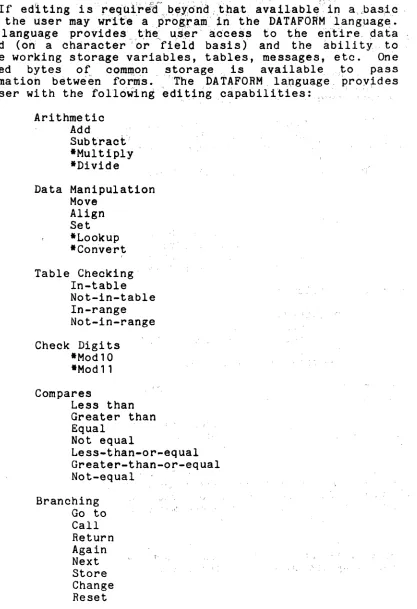
editing 'i s "req(.d.:re1r",Q~,idrid J~~at: a.'v~ilablf{'i'n
a,.bas;!"c ' form, the user may wr'1t'e a ,p'rog,ta,m' ~n the DATAFORM l,ang~ag~.,This language provides, "t:h~:, ~s,!i3r' a,c'ce~s to the e,rit"ire" ,data record (on a character' or field basis) and the ability, to define working storage variables, tables, messages, etc. One hundred bytes of com~on storage, is available, ,~o pass information hetweenforDts.' "The DA TAFORM , language,' proyides the user wi th the following' 'edi
q.ng
,capabili,ties:, ",", ; , ,,\" , ,
Arithmetic Add
Subtract', ·Multiply ·Divide
Data Manipulation Move
Align Set ·Lookup ·Con've'rt Table Checking'
In-table Not-in-table In-range Not-in-range Check Digits
·Modl0 .Mod 11 Compares
Less than Greater than Equal
Not equal
Less-than-or-equal Greater-than-Qr-equal Not-equal' '
Branching Go to Call Return Again Next Store Change Reset
1 '
[image:10.612.101.518.95.704.2]Input/Output Write Close Message Show Beep End Load
The subroutines to execute these commands are divided into two groups: the Interpreter and the Extended Interpreter. The starred (*) commands in the preceeding list require the Extended Interpreter. (See the discussion of user space below. )
Field programs are entered using the Edi tor on DF2PGS. This creates a 'source' tape. When editing is completed, the Compiler automatically compiles the DATAFORM statements and adds a 'relocatable object' file to the end of the source file.
The field programs will be assigned, in a pass of the Form Generator, to particular fields. When the form is written out, the relocatable program will be converted to 'absolute' code and written to the form tape. If, in addition, an extended interpreter is required by a particular field program, the required file is copied from the DF2FGS tape to the form tape.
During data entry (using DF2SYS) the field program is executed after the operator enters data int~ the field where the program assignment was made. The program is executed even if the operator bypasses the field.
1.3 User space and how it's allocated
When a new form is being created, there is 1550 bytes of memory available to the user. This' space' must eventually contain:
keyin data buffer writing data buffer form image
user programs (if required)
extended interpreter (if required) common storage
The Form Generator indicates the amount of free space as soon as the form image has been defined. The user must then determine if his program and, if necessary, the Extended
Interpreter will fit in the remaining space.
1.4 Some DATA ENTRY features / ' , ' j '
Special keys are available which provid,e the operator wi th the folloliot ng functions:
field duplication form data erase data write
forward field tab backward' fiel'dtao field cancel " form load record read
record backspace
Semi-constant data- may be defined in the form and simply accepted by the data entry o~el"~tor.
Forms may be loaded in non-sequential order under either program or operator control.
Operator correction accomplished at any record-by-record, or sri in-place permitted.
of previously generated data may be , time by ei t h e r a manual, automatic search with re-w~itting
Data may be added ,to the ,end of an existing data tape
'1
2. FORM GENERATION
A Dataform 'form' is an image projected on the 2200 screen which contains ~ ~ (explanatory information for the operator, not to be written to the data tape), field defini tions (special characters which define an area to be filled in by the operator and to be written on the data tape) and kevin spage (special characters which define an area to be typed into [but not stored in the data record]). The 2200 screen is 80 characters wide and 12 lines high and any of the 960 positions on the screen may be used in the form.
2.1 Data Field
A data field is part of the form image which starts at a vertical bar (I) and is continued by carets (ft) or underscores (_). A field stops at the first non-caret, non-underscore or the right hand edge of the screen.
Each data field causes a corresponding number of positions to be reserved in the two data areas (one for keying in and one used for writing) and each field generates a six byte edit table entry. Each field defined has a 'field number' corresponding to its relative position in the form (and pointing to it's entry in the edit table). The uppermost, leftmost field is number one. Fields are numbered from left to right, line by line, from the top of the form down.
This construction, '
I ... ',
defines a four posi tion data field;'1'
defines a single position field and'II I'
defines three adjacent single posi tion fields. The di fferences between, one 3-position field and three 1-position fields are:1) only one edit criteria applies to the 3-position field whereas each 1-position field may be assigned a di fferent edi t criteria;
2) since each additional field takes 6 bytes, the three fields use more user space single 3-position field.
definition 1-position than the
Fields defined by carets will be space compressed' in the form image. This means that the carets will be replaced by spaces which will, in turn, be replaced by a space compression character (011) and a count of the number of spaces compressed. (The count will include any spaces trailing the field.) When the form is displayed, space compressed fields will initially appear blank. As the cursor
enters the field, the appropriat~ nu~ber of underscores will be displayed. ',. ".,' "', "
Fields defined by underscores are not compr_es,s~9. The underscore characters. 'are
save'
das'
pal"t of 'the" fQrm':i,ma.ge" , ", " , , ' , ,,', ," ", ';' .,," , , , " " J Constants and semi-consta'ri'ts 'are stored 'in' 'the ,'field description area of t'heform image and therefore" 'c:::l0 'be' defined only for fields' in1 tfally defined by unders,cores, . . " ,
.-, .
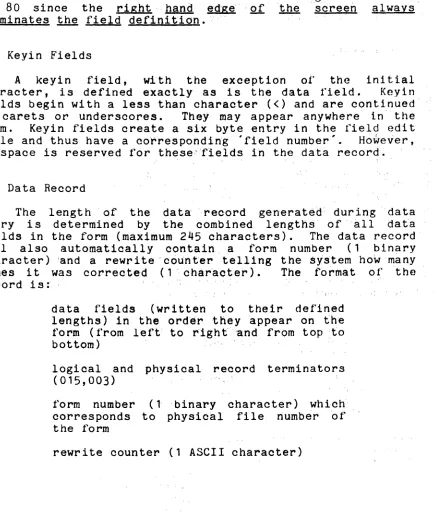
The maximum number ~f ,characters in a single'data 'field' is 80 since the right,
h.i.!:!.9.
~" of the 'screen always' terminates the field def1nit'ion. ','"2.2 Keyin Fields
A keyin field, with the exception ot' the initial character, is defined exactly as 1s the data field. Keyin fields begin with a less than character « ) and are continued' by carets or underscores. They may appear anywhere in" the form. Keyin fields create a six byte entry in the field edit table and thus have a co'r"responding • field number'. However, no space is reserved for these,<'fields in the data record~
'. ,~
2.3 Data Record
The length 'of the data"record generated' during data entry is determined by the combined lengths' of" all da t'a fields in the form (maximum 245 characters). The data record will also automatically contain, a form number (1 binary character) land a rewrite "cou'nter telling the system how many times it was corrected (1' char'acter). The tormat of 'the
record is: " "
, ' ; " " data fields (written to their defined lengths) in the ord'er'they 'appear on the form (from left to r'lght"'and from top ~to
bottom) , '" '
logical and physical record terminators ( 0 1 5 , 0 0 3 ) '
form number (1' binary character) which corresponds to physical file, number 'of" the form
[image:14.612.77.512.191.705.2]2.4 User Space
There is a fixed amount of space available in which to contain the form image, the data input/output areas, the field edit tables and field programs. This variable area is called ~ space. There is no limit (other than the size of the screen) to the amount of text one may include in a form. There is, however, a limit to the number of field definitions
(126) and to the number of data characters (245) which can be defined. The total 'user space' available is 1550 bytes.
The number of data characters, defined in the form image, reserve two areas: the keyin data area and the writing data area. In addition, each field (whether an actual data field or a keyin only field) defined in the ,form image requires a six byte edit table entry. The characters displayed in the form image, both labelling information and field defining characters (excluding carets) reserve user space. Spaces (and carets) in the form image are 'compressed', i.e., they are represented by a space compression character followed by the number of spaces compressed at that point. One terminator character is added to each line of the form image; however, lines which are completely blank require no space at all.
The amount of user space reserved for the data record, edit table and form image is subtracted from the total user space and the amount remaining is indicated at the end of the form image generation pass.
In addi tion to the data record, edit table and form image, the user may allocate user space to field programs (which in turn may require an extended interpreter). The length of a field program is indicated on the listing and on the CRT at the end of program compilation. If an extended interpreter is required, the user should refer to the size table in Section II, Appendix C.
When the form tape is generated (by the OUT command), the amount of user space remaining (or the excess allocated, if any) is indicated.
2.5 Form Worksheet
To aid the user in designing his forms, a • Da taform Worksheet' is available. This worksheet provides space for designing the screen image and for recording the various criteria, constants, etc. which will have to be assigned at form generation time. The worksheet also serves as a record of the form and as a quick reference for Generator commands and function keys.
A printout of completed forms, similar in format to the worksheet, may be obtained using the print utility of the Configurator. (See Appendix F.)
2.6 Generating a Form Image
To generate a new form, load DF 2FGS and type NEW to clear the screen and switch to the image generation mode.
When the DISPLAY key is pressed, the number pad, to the right of the keyboard, or the regular number keys become a set of special function keys enabling the user to move the cursor up, down, left and right, to insert and delete characters, to delete words, to insert lines and to erase lines and portions of the screen.
A
~ b9com~s A function ~if
11
~ presseds~mul tan§Qusly Jd1.h il'l!t DISPLAY k,u, i. e., first press the
DISPLAY key and, while holding it, press the key required to achieve the desired function.
2.6.1 Repeat Key
Holding the KEYBOARD key will many functions) to be repeat§d. first, then, if a function key is then the desired character.
2.6.2 Cursor Movement Keys
cause the character (and Press the KEYBOARD key needed, the DISPLAY key,
There are five cursor movement keys which are non-destructive, i.e. they pass over characters on the screen without erasing them. The number two function key moves the cursor DOWN, the number eight function key moves the cursor UP, the number six function key moves tll~ cursor to the HIGHT
and the number four function key moves it to the LEFT.
The BACKSPACE key also moves the cursor to the LEFT in a non-destructive manner. Backspacing will wrap around from column 1 of a line to column 80 of the preceeding line.
The SPACE bar is destructive, i.e., it erases the characters it passes over, and moves the cursor to the RIGHT.
All cursor movement keys may be repeated. 2.6.3 Character Insert Key
2.6.4 Character Remove Key
The number zero function key, at the lower right of the number pad, causes the character under the cursor to be removed and the remaining characters to be concatenated to the left. Spaces are set in the trailing positions.
2.6.5 Erase Function Keys
There are several keys available to erase all or part of the screen image. The word remove ~, number one function key, causes a word, a group of characters edged by spaces, to be removed and the line to be concatenated.
The period function key, erase ~
2f
~, causes the line to be erased from the cursor to the right hand edge of the screen.The number nine function key, erase ~
2f
frame, causes all characters to be erased from the cursor to the end of the screen, i. e., through line 12 character 80. This key can easily clear the entire screen.The CANCEL key causes the entire line that the cursor is resting on to be erased.
2.6.6 Form Expand Key
The number three function key causes a blank line to be inserted si the line where the cursor is resting. The line under the cursor and all subsequent lines are moved ~ the screen. If there is anything on the twelfth line, it will disappear.
2.6.7 Character Duplication Key
The number five function key causes the character immediately above the cursor to be duplicated in the current cursor position. This function key may be repeated. (It has no effect on the top line of the screen.)
2.6.8 Return to Monitor
When the screen has the desired appearance, press the escape function (DISPLAY/CANCEL) to get back to the Generator's monitor. At this point a message will appear:
nnn DATA
mmm BYTES LEFT
informing the user of the number of characters in the data record and of the number of bytes remaining in the user
space. If the number of characters is greater than 245, the , " ,. , " '~ # : ~, ~ < - ,
message:
MORE THAN 245 DATA
will appear. The form must' immediately be revised to reduc,e the number of characters. ,'If' more 'than' 1'26' fields are defined, an error message:
MORE THAN 126 FIELDS
appears. Again, the form should be'immedia tely" revi g'ad to
reduc e the number of fields. ' " " 1
If the combined space required by the, for.'rI" imap;e" da ta areas and edit tables .xce.~sthe avallabl~' use~ space, thc message:
nnn 13YTES OVER
wi 11 appear. The forIli should be revi sed to l'i t the user space available. (See Appendix D in' Sec'tion II for suggestions on saving space.)
The form is still only 'in memory' and
no
e'di t criteria have been assigned.A 'pass' is a gass ~ ~ form to as'sign isiicr'iteria to it. It is up to the user to request each type, of edi t-defining 'pass '( TY PE, ,':' 'REQUIRED,' 'PROGRAM, CONSTANT, SEMI-CONSTANT, LINK) ahd,finallj, to ~e60rd ~he form ~y use of the OUT 'command. The' edit~defining ~a~ses may be requested in any order.' Any o'r all edi t'-defininp; passes may be omitted, and passes may be repeated to review or to'~harige the criteria.
~" . , I ,~
2.7 Assigning Edit TYPES ," " .
Generally, once the for~imag.has be created;'the use~
will first assign edit types b'y' keying the 'TYPE' command • This command will initiate the TYPE pass over the form causing the form to be redisplayed with the curs'or at the first field definition (i.e., the first vertical bar [I] or less than sign [<]) ~ " The user hIay, then type" one of 'the legal edit types (A,D,N,M,L,R,B), or press the ENTER' key to pass' the field without changing the, criteria, or press the CANCEL key to clear the previously set criteria (no editing will be performed on a cleared field; however, other passes may still be executed to set restrictions such as required or field
program execution). '" "','
If this pass is re-executed,; t,he current edit type's will
be displayed as each field is reached. If no change is needed, just press the ENTER key to proceed.
The 'B' function key may be pressed to position back to the previous field. When the desired edit types have been assigned, the escape function key (DISPLAY/CANCEL) will return control to the monitor.
2.1.1 Alpha
The 'A' edit type indicates the characters keyed in must be uppercase alphabetics (A through Z) or space. The field will be space filled to the right if not completely keyed in. 2.1.2 Numeric Digit
The "D' edit type indicates the characters keyed in must be strictly numeric (0-9). The field is left justified with trailing blank filler.
2.1.3 Nume~ic Field
The 'N' edit type indicates the characters keyed in must be numeric (0-9), a decimal point or a minus sign (plus signs are not allowed). Numeric fields are left justified and blank filled on the right.
When the field is entered, it is checked to contain one decimal point at most. If a minus sign is present, it must be the left most character. And, no more than twelve positions are permitted to the left and four to the right of the decimal point.
2.1.4 Mixed
The 'M' edit type signifies alphanumeric, i.e. characters A through Z, space, 0 through
9,
decimal and minus are permitted. The field is space filled to the right if not completely keyed in.2.1.5 Left Justify and Zero Fill
The 'L' edit type has the same restrictions as type 'N'; however, the input is left justified and zero filled on the right.
2.1.6 Right Justified and Zero Fill
The 'R' edit type has the same restrictions as type 'N'; however, upon completion of data entry, the input is riRht justified in the field and zero filled to the left.
2.1.1 Right Justified and Blank Fill
The ' B ' edit type has the same restrictions as type 'N'; however, upon completion of data entry, the input is right justified in the field and blank filled to the left.
2.8 Assigning Keyin Restrictions
To establish that a field may not be bypassed (tabbing past without entering data) during data entry, or that all characters must be entered, or that the field is not to be keyed-in but is reserved for a field program, use the REQUIRE command.
This command will cause the form to be displayed wi th the cursor at the first field. The user may then type one of the options (R,F,B,P,S) to set the appropriate restriction, or press ENTER to go on to the next field, or press CANCEL to clear a previously set required condition.
The currently set condi tion will be displayed as the field is entered. The ENTER key will tab forward and leave the condition unchanged; the 'B' function key will tab back to the previous field.
2.8.1 Required Field
An 'R' keyed in during this pass indicates a field is required, that is, at least one character must be typed.
2.8.2 Fill Control Field
An 'F' means fill-controlled, that is, all characters must be keyed in. During data entry, fields defined as fill-controlled wi 11 be automa tically entered when the last character is keyed in; however, the ENTER key may not be pressed in such a field. If fill-control is not set, the ENTER key is required, even if the entire field is keyed in.
Fill-control should not be set in fields with edit types R, B or L where action is taken when the ENTER key is struck.
Fill-control fields may be bypassed if the ENTER key is struck in the first column of the field.
2.8.3 Required and Fill Controlled
The 'B' option sets both required (R) and fill-control (F).
2.8.4 Program Reserved - No Keyin
This option may also be set on a 'keyin' field to reserve it as an alternate message display area.
2.8.5 Required and Program Reserved The'S •
required (R). if the program program.
option sets both program reserved (P) and This will prevent writing of the data record reserved field has not been set Qy the field
2.9 CONSTANTS and SEMI-CONSTANTS
The user must consider carefully the implications of 'constant' and 'semi-constant' data. These are characters set into a data field in the form image and, if not overridden, they will become part of the data record during data entry. During actual data entry the operator has the option to accept ~ ~ ~ ~ ~ ~ ~ SEMI-CONSTANT command; whereas, data set by the CONSTANT command will automatically become part of the data record and cannot !2!!
rejected by the operator.
Constants and semi-constants may only be set in fields initially defined, i.e. at image generation time, by underscores.
To initiate the constant pass, type 'CON'. To initiate the semi-constant pass, type ·SEM'. Both commands cause the form to be displayed wi th the cursor in the first field capable of accepting constant type information.
In the constant setup mode, the SPACE bar does not set constant spaces into the field but permits the user to move to a desired position within the data field. If constant spaces are required, the caret key ( .. ) must be used. In addition, neither constant nor semi-constant underscores (_), veritical bars (:) or carets (-) can be set. The CANCEL key will clear any constant field erroneously set, the ENTER tabs forward, and the DISPLAY/B keys tabs backward. The BACKSPACE key pOSitions back one character and erases the last character typed.
!!2.
editingI I
performed 2!l constants enteredn
ill§.time. Illegal constants will cause the Interpreter to .h!m&
beeping during data entry. Illegal semi-constants, although rejected, will be displayed. This feature may be useful for presenting addi tional information to the operator, e. g., a date field may have the illegal semi-constant 'YYMMDD' set to guide the operator.
Also, if an entire form of constant data is prepared, at least one position must be left for the operator - so that
the form may be viewed and/or written to tape.All-con~tant
forms (or forma wi thno 'fields) ',will: ': oaus'e:,,:th~"'~n~terpr-et'er to
hAn& clicking at data'~nery tbiEf~' -J: ,:;:' ",,:1> i:"" ,J- " ',,< ,'" , '
Partial semi-constantsa't ,the'''begfritring:
'or
in"th'e
m1d'dle of a field are meaningless since the operator will haye to type over them to enter'thEf, rema:Hlde'r"'of t:he 'r:i/eld~"i.':' "
Once constants' (of ef'ther 'ty~e) 'have' been' set:~" they will always appear when the form is displayed (e.g., during' the' TYPE pass). Typing over the constants during subsequent edit
definition passes will not disturb them. :' '
, .: H: \' \ , ! \ ~. ~ , : 1 j' ; ~:: \ '
Constants should be cleared before executing the REVISE command since tbeir pres'sUICe"
¥ill,'
ch'ange -'~ "~'~~ :~', fieldd e f i n i t i o n s . ' , ' h : . ' ' ' , -'
, :" l ,\
2.10 Field' Program A~signm.nt
.
.' t , _ ,. ,
, ,
Field Programs are written 1n the DATAFORM2" Lan~uage ' (See Section II).' Each program 1s 'identlfH~~ by' ill s'inp,l'e" alphabetic character (A - Z). ' , ; ' ,: .' ,t_",
When the form, is being' generat"e-d 'the'use'r must' type , PRO' to enter the program assignment' }:1ass. ' ,',The f'orm 'wi'llbe displayed wi th the cursor in the first field. " Type':the appropriate program letter in any field where special processing i s re<lu:fred~.'" " " , ; 'i I '
The same field progt'am :'~ay be aSliigned' t'o. s'everal fields, e.g., a year and 'mont''hrange check' cou'Jd be used' for any date field. Up to twenty-six unique field programs may be assigned in one form~ ":, " , ",', , : : , i " ,
:, ", : . 't .. ·.,,"
,: \ - , " ~ ,
~) <.." . ~
2.11 Form Linking
" '! • J ' , ,
I ( >_
Dataform providestha',i"user" with'; the"abiiity ,to, "11nlt":,
forms so that the operator 'need· :never see' 'a, fo,rm ,'rl'umber. Each form ,on a Dataforllf Sys:temma,y have a,'poHfter'~':.'caJ:led n 'link', to the next form to be,\.ised ~ " This'poirit:er -must be defined at form generation time. When desigfllng' the' ,rorms for a _particular application, the user should plan the numbers that will' be.,; '8.S-;$lgned '"to ::e.ach' rdrm..',l:'clrld :,',plari to arrange the forms for the' m()st:~conventen,t' accessing~' ' . "
2.11.1 Setting the Manual'l.inkage . , ' ,
\ '.': \ j:" ~." '
When :the LINKcomm'and is- typ~'d-,. :'theim'es'sage:,"
'NEXT FORM nnn:
~'" ' ,
'.'
will appear. (where nnn is the number of the current linked form, initially 000). Type the number of the form to be used by the data entry operator after the form currently being generated has been filled in.
2.11.2 Clearing the Linkage
Typing 'LINK', and entering a zero when the 'next-form' message appears, clears the link so that a form load command issued by the operator will have no effect.
The current linkage information may be viewed by typing the LINK command and then simply pressing the ENTER key to leave the values unchanged.
2.11.3 Loading Linked Forms
During data entry, the linked form (set at form generation time by the LINK command) is accessed by the operator, when needed, by a special form-load function key.
2.11.4 Setting Auto Linking
One user form may require several Dataform 'forms', e.g. forms 1, 2 and 3 make up one payroll transaction. In order to fill in form 1 once, then form 2 once, then form 3, the operator would have to use the write function (to write out the data) and then the form-load function (to load the next form). (See also Section II - CHAIN and WRITE.)
To facilitate use of mulitiple page forms (i.e. sets of forms to be completed in sequence and then reused), the next form links can be set at form generation time to auto-load new form whenever data is written.
To set the auto-linking feature use the LINK command. When 'NEXT FORM' is requested, preceed the form number with a minus sign. Thus, when generating form one in the multi-page example above, enter ' -2' as the next form; enter • -3' for form two and '-1' for form three's auto-link.
FORM Scratch
USER
Keyin FORM ---and comm---ands
If Field Program needed
If Extended
Interpreter needed
(load DF2 Generator)
'OUT' .
DF2 Relocator)
I
, FIELD
~rogram
~
FORM
(no-field program)
FORM
(field program)
FORM
(field program and Extended Interpret~r)
FORM GENERATION FLOW
2.12 Writing the Form to Tape
During ~ entire ~ generation ~ ~ fQ£m ~ ~
in
memory. To record the form and its associated edit criteria, place a scratch tape in the front deck and type the command OUT. If no errors have been detected (e.g. too many fields, too long a data record), the Field Program Relocator will be loaded. If no field programs have been specified, the Relocator will automatically write the ~form tape~ on the front deck. If programs have been specified, the question:DO YOU HAVE A PROGRAM TAPE? ,
will appear. If the field program is not yet prepared, type 'NO ~ • This will cause all references to the program to be ignored during data entry.
If, however, a new program is to be used and the operator types 'YES', the message:
PLACE TAPE IN REAR DECK AND PRESS ENTER
wi 11 appear. Remove the OF 2FGS tape and place the field
program tape (source/object created by DF2PGS) in the rear deck and press ENTER. The program tape will be rewound and searched for the required programs, which will be copied to the front deck. If there are still unresolved program references, the program-tape message will be repeated. When all programs have been supplied or the user has answered 'NO' to the program-tape message, the form is written on the front deck. Then the 'extended interpreter flag', set by the compiler for each of the field programs, is examined to determine which, if any, of the extended interpreter functions are required. If no extended interpreter is needed, the form tape is ended. However, if the field programs require an extended interpreter, the message:
REPLACE DF2FGS AND PRESS ENTER
will appear. The user should put the Form Generation System tape back in the rear deck and press ENTER. The appropriate Extended Interpreter (containing only the commands executed by the field programs) will then be copied onto the end of the form tape thus far generated.
At the completion of the form writing process, the message:
nnn BYTES LEFT
DONE - LOAD NEXT SYSTEM
will be displayed and the machine is stopped. If, instead,
the message:
nnn BYTES OVER
'1 ' . '
appears, the use'r ',must':: ~~vi'~~{,bl$,"fo.rm"or ,\i~'~li,~pr;o8:~.am'~"" to; " fit within the availabl~'~u.~er,~p:~,ce,.::~',", ',: ' "J :~r: ';: ", ,
, , ' , : : , ' • ~. , ' . ' • . . . ' ' f :', ;..' , ; ~~~ ' : : . t !(', , I '
The form recorded Qn' tl'\e front ;"d~ck may' now be" tested, by loading the Interpriet;e,r
'anc(
typ,~,n'g: NEW'"" ~o~l,t'
"lIR'Y 'Qe cataloged on the Interpret~~,Sy~tem,tap~i~' ":"'~ ;:}\;:,' ,,' ",.;I ' " ' . ,
, , . ,~,.~.''- , . , ' ,:', !:~' ":i , $ f " ' , , ,!."
If, during one 'of' the p·as .. ~fe~' subs,eque:nt' {t9 : image generation, an error in the i'mage"of 'the form, ':l,~:~is9,qv"ered~" the user may type the:
REVISE , ~ 'i ~,' " .' !
command to return to ,tbe image generation, mO,de . ~ith;,the
current form intact.
All
~'cr1 teria are' cleared which means that l i l passes, executed lUll.,~.t.Q" ~ done, agaio after the form has been',r'evi:secJ;~,,:;,'.',' " ';" ': :,::,,' ,',"" " , . ' " • ( , ' , " . I 1 ,
If constants had ~lre~td.Y b~en, sej;, into}:;pe, form, ::i t j.s best to go into CONSTANT .mod~ apd cl~ar I (u&,ing ~i' CANCEL
knl
l i l constant f~eJ.ds (~,iri,c~ ,c,'onst,aot's d,e~~r'l ,t,he ,fielddefini tion characters). be(ore eXegyting , , ~, 6~V*:?< , ,cQmminc;t.: '
2. 14 Recovering an OLD Form ' , ' I ' "
, ,'0'
Once a form has ,'beerC re/cordecf it'may ~e ret~l~~·~dand~ modified. Typing the: > " " t " :'\1' , " , ; . " , ~'" ",',
'.
' , " " ::,;"', .. ~,', :OLD
command will bring the form from the rroiit d'eck""{nt6 memor~: ' Any pass of the Generator maY be executed; hO~,eve~",note ,tl1.at the REVISE command wi'll b11,~r ~,1:1.,· 'edit;~, '})'~tt~\t;''f:~r~',\,,,~t,,',.i:' , "
When the desired' changes'" 'hav'e: , 'been' made";'; .ith~·\
'f6
ffrft
in,memory is written to 'the' :fr6nt'(~: JuSi~,g ~~e;~,J9~T.·"c~f.t1in~na,>" .. as if it were a new form, i. e. al'I" 'f1eld"'prograrils will' have to be re-attached.
' , 1 I
If the field program associated wi th a form hatr~:' changed, simply type OLD, to reload the form, ",~,nd OUTr~ ~9, attach the new version of the program. Any time"a forril 1s read via the OLD command, all field prog~,m,.requ1re~"must,b~
\' " \ , ; ' ~ , ' , I, '",;".. ',~', \ . • _" ' j , •
reloaded.
". , "'I ' .
3.
Form Library Configuration and UtilitiesOnce the forms have been generated and tested (see Section I, part 4, Data Entry), the user will wish to catalog them on a Dataform System tape. The system Qf forms should
be designed carefully to provide both the simplest and fastest operation for data entry. The Configura tor enables the user to record and manipulate the forms on a Dataform System.
To load the Configurator, place the Dataform System tape in the rear deck and press RESTART. The Configurator is the first program on the tape. However, the system will go automatically to the Interpreter. To override automatic loading of the Interpreter, the operator must press the DISPLAY key during the entire loading process.
3.1 Displaying the Form Catalog
A 'catalog' is maintained on the system tape which identifies the forms available on that particular tape. Each form is identified by a number (1 to 123 are valid form numbers). To see which form numbers have been assigned, type
'CAT'. This command will display the form numbers in use.
3.2 Adding New Forms to the System Catalog
To input a form created by the form generator and assign it a form number, type "IN nnn", where nnn 1s the form number being assigned. The command causes the form 1n the front (deck to be input, in form number sequence, to the system tape, and then adds the new form number to the catalog, rewriting the catalog record also. If errors are encountered while the form 1s being copied t the catalog wi 11 not bo rewritten.
3.3
Deleting Forms from the System CatalogForms may be removed from the system tape, and from the catalog, by use of the delete command (DEL nnn). If the form being deleted is not the last one (i.e., highest number) in the catalog, a scratch tape will be requested for the front deck.
3.4
Deleting Multiple Forms from the System CatalogThere 1s also a command whioh allows the removal of multiple forms. The"gjQf nnn" oommand deletes the specified form and
i l l
subsequent (higher numbered) forms from thesystem tape and from the -catalog'., ,:' ,
I . ,~. "
3.5 Replacing Form~ o,n the Sys:temCatalog
If changes hav,e'
beetl,
made,,~o
"a'r";~m
' already~cat:alo,g'ed ~
i t may be replaced (REP nnn). If the form being,r.:e'p1:aped· i's' not the last one on the system tape" t'he REeLAGE' oommand copies all subsequent forms onto the end of the form tape in the front deck, and then copies the front tape back to the system tape, writing over 1::.he specif-ied form.:: " " c'.' I • • ," >.
, j ' ; " : , '
3.6 Running the Interpreter
In order to procee(1, fr,om ' the 'Configur:~,~or to th,e Interpreter, one may, as mentioned above, simply press RESTART which will cause automatic loading of the Interpreter. There is also a command available, (INT) to cause loading of the Interpreter.
3.7 Tape Ut;ility Features 3.7.1 Duplicating DF2SYS
In addition to building and maintaining the forms catalog, the Configurator, has,severa'l ,utility·comtneuidis
to
assist the user in protecting his system tape. The duplicate (DUP) command generates a Dataform System on the front deck. The new system has DQ forms in its catalog.3.7.2 Duplicating DF2SYS wi th Forms,
, I " ' \ : '
Another command CDUP-ALL) copies, . .th!t entire system,~ onto the tape in the front deck. f
3.7.3 Recovering a Cataloged Form
A single form may be ,transf,erred from the ~ystem. t.ape ,to a scratch tape by using the 'OUT nnn' command. The OUT' ed tape then looks exactly ~ Sl .~ written .Q.:£' ',!t..bJt Form Generator and may be IN' ed~o . anothet:' Dat.aform System ,or, changed using the Generator (the. OLD command )"'" - '.' 3.7.4 Generating a Faste~ Loading interpreter
The LGO command will make a faster loading version of the Interpreter Systell1 and, i ts ,for,~s" by 'Qrni;tti-ng the Configurator. No form manipulation (IN, OUT~ 'REP, etc.) can be performed on the LGO ,v~rsiqn ,pi' t;.h~. s,y.stem.
Da ta tapes may incur tape parity errors or particul ar da ta records may reach the rewri te 1 imi t by being modi fied the maximum number of times. A COpy command in the Configurator enables the user to ~
1h§
~ tape, resetting the rewrite counter in each record back to zero, and, if tape errors are encountered, provides the option of omitting the record, terminating the copy, or attempting to copy the bad data.When the COPY command is executed, the message:
PLACE DATA TAPE IN FRONT DECK, BLANK TAPE IN REAR DECK WHEN TAPE IN PLACE, PRESS ENTER
will appear. Once the ENTER key is pressed, the tape in the front deck will be copied to the rear deck. If errors are encountered on the master data tape, the following message will appear:
PARITY ERROR ON DECK 2 COPY, OMIT OR END?
If '0' is typed, the bad record is bypassed and the copy proceeds. If 'E' is typed, the copy is terminated with end of file markers written on the copy tape. If
'c'
is typed, the bad record will be written on the copy tape (the copied record will have n2 tape error; however, it will probably be missing data or contain erroneous data) and the copy will continue.If end of tape is reached and no end of file detected, the COpy command will automatically backspace twice and write end of file markers on the copy tape. The master tape is not disturbed. Note that if this occurs, the final record count is unreliable.
When the copy is completed, the following message is displayed:
nnn RECORDS COPIED - REPLACE SYSTEM TAPE IN REAR DECK WHEN TAPE IN PLACE, PRESS ENTER
The DF 2SYS tape must then be replaced and the ENTER key pressed. The forms catalog will be reloaded.
3.8
Printing Forms and DataTwo utility commands are available to print, either data or forms, on a local or servo printer. To print a data tape, type 'DPRINT'. This rewinds the data tape in the front deck and prints each record, 80 characters per line, on whichever printer is available.
Forms will be printed twice; once as the total image would appear to the operator and again, one line at a time, followed by the size of the field, the edi t TYPE, REQUIRED, and PROGRAM codes entered.
To print a non-cataloged form, place the tape in the front deck, type 'FPRINT' and press ENTER.
To print cataloged forms type: FPRINT nnn
where nnn is the number of the form to be printed. To print all cataloged forms, type:
FPRINT ALL
This will cause all cataloged forms to be printed in the order they occur on the system tape. When printing is completed, the Configurator is reloaded.
3.9 Replacing Dataform2 Systems Programs
One final command is available to replace the entire catalog and forms of one Dataform System with the catalog and forms of another Dataform System. The RIN command is intended mainly for use in upgrading the users system as new versions of Dataform are released.
4. DATA ENTRY
Data entry involves loading the Interpreter, then loading a form, and finally filling in the data fields defined by the form. When the data has been entered on the screen to the operator~s satisfaction, the data record is wr it ten to tape (by an operator function key or a field program instruction) then the same form is cleared and redisplayed with only ~constant~ type data appearing.
To start data entry, place the DF2SYS tape in the rear deck and press RESTART. The Interpreter is loaded automatically.
The Interpreter will respond to the commands discussed below. The form number is optional in most of these commands; if it is omitted, the current form will be used. An err-or may occur if no form is specified and none is currently in use.
Only the first letter of .t.bJt command ~ is needed, thus, 'START 2~ may also be entered as'S 2'.
4.1 Data Tape Initiation 4.1.1 START New Data Tape
If the operator is preparing a ~ ~~, the: START [n]
command must be excuted to initialize the tape. If a form is already loaded or is specified in the command, the form will be entered (i. e., the form is displayed wi th the cursor at the first non-constant data entry position available). Otherwise, control is returned to the monitor.
4.1.2 ADD to an Existing Data Tape
Similarly, data may be added 1Q ~ ~ of an old data tape by entering the:
ADD [n]
command rewinds the data tape and. This command positions to the end of any data already on the tape. The form will be entered (if one is loaded or specified in the command) at the same time the data tape is being positioned. If there is no form present, control is returned to the monitor.
FORM --_...., Display
Operator Input
'START'
~ _ _ ORM tape
'TEST'
nitialized DATA tape
FORM loaded
'END'
DATA ENTRY FLOW
1-26
DF2SYS
(load INTERPRETER)
'START n"
FORM ---"Ii
Display
Operator Input
"END'
(FORM 'n' loaded)
In tialized DATA tape
A third way to open a data tape is to an old tape to which changes must be made. by executing either the MOD or the FIND described later.
specify that it is This is indicated command which are
4.1.3 CONTINUE adding to an Existing Data Tape
If the data tape is very long and is already positioned at the end or in the midst of the data, the:
CONTINUE
command may be used. This command backspaces the tape once, to insure that it is in front of the end of file marker and then reads forward to the end of the data.
It is primarily intended to enable resumption of data entry mode after error corrections have been performed. 4.2 Loading a Form
4.2.1 Testing NEW Forms
A single form, not yet cataloged on the Dataform System tape, may be loaded using the:
NEW
command. The DF2SYS tape should be removed and replaced with the form tape before typing 'NEW'.
4.2.2 LOADing Catalogued Forms
To initially l2A£
a
~, from the system form library, or to replace the form currently in memory, the:LOAD n
command may be used. Form'n' will be brought into memory and, if the data tape has been initiated, the form is entered; otherwise, the message 'TAPE CLOSED' is displayed and control is returned to the monitor.
New forms may be loaded without disturbing the position of the data tape. Each data record contains the form number on which it was created so that subsequent modi fication or other processing can identify data generated on a particular form.
Note that the form is not reloaded if the number specified is the same as the current form.
Any time
a
form is loaded!a
search.t:2.t
.Ya
f.2.r:m.
specified Qy the
l!nk
~ initiateg (eyen i f ~ linkeg fQtmI I !!.Q.t. .Y.§.l cataloged I ). If the link is set to zero, no search is performed. Other tape operations, such as writing data, reading data, or positioning the data tape, cannot be performed until the linked file is found or all files on the system tape have been searched completely. That is, data may be entered on the form but may not be written to tape until the next form is found. If the form is not on the tape, the message 'BAD FORM' will appear the next time a tape operation
(e.g. writing data) is performed.
Linked forms (and LOAD statements in field programs) are ignored if the form in memory was loaded using the 'TEST' command.
4.3 Entering DATA ENTRY Mode
To switch iQ ~ entry ~ initially or to return to data entry mode from the monitor, the operator may type:
DATA
If no form is in memory or if the data tape is not open, an error message will be displayed and control will return to the monitor. Data currently in. memory will not be disturbed and will be displayed whenever the form is re-entered.
4.4 Revising Existing Data Tape 4.4.1 MODIFY
Any data record on a finished data tape can be accessed for revi§w ~ ~ ~ ohanged. The MODIFY command:
MOD [n]
(where n is an optional form number) enables the operator to manually aocess any data record created by a specified form and to then either bypass or change that reoord on the data tape. When the 'MODIFY' oommand is typed, the operator is asked to place a data tape in the front deok. The tape is searohed for the first data reoord oreated by the ourrent form. Once a reoord has been found, the data tape is in an
, open' mode and may be searched in a forward direction by pressing the read next record function key, or, from the monitor mode, by typing another 'MODIFY' oommand. To access reoords already passed over, use the rewind function key to rewind the data tape (like the initial MOD oommand).
has been found by the MOD command, the contents of all fields will be displayed in the form. Recorded data supercedes constants, thus, the actual data from the tape will be displayed; however, constants H1l.l. Ja .u.i ~ ~
.d.i.Ja
record when the field is entered (as they are for new records).
Data may be changed at this time by retyping the field. Press ENTER in the first column of a field to leave the data unchanged. The edi t criteria and field programs associated with the form are still in effect.
4.4.2 Rewriting Existing Records
Data records are rewritten by the use of the write function key. If the record was fetched using the MODIFY comamnd, the next data record will automatically be read and displayed. If, however, the record was fetched by the FIND command, control is returned to the monitor.
Each data record contains a rewrite number.
.!'lWm
~rewri te number reaches
h
!l2. further modification Q.f. that record is permitted. The COPY command of the Configura tor will reset rewrite counts so that data may be further modified. (The number of rewrites is limited to prevent loss of data due to tape deck positioning errors.)If no field needs to be changed, the next record can be fetched by pressing the read next record function key; note that any modifications made will be destroyed by the read function. The write function mY§l be used to cause updating of the record (unless the write is executed by the field program, in which case the field assigned the program must be entered) .
4.4.3 FINDing a Specified Record
If unique data in the record to be corrected is known, the:
FIND En]
command, where 'n' is an optional form number, may be used. This command loads the specified form (if different from the current form) and displays the form so the operator may type characters into any fields to use as a key 1n searching the tape. No edit criteria or field programs are applied when setting up the match data. Thus, right justification and zero fill will not be performed.
When the data to be matched has been entered, the operator presses the read record function key to start the search. The interpreter will search the data tape forward
looking for the record generated by the specified fo'rm and containing the specified data.
Once the matching data has been found, operation proceeds as in the MOD command. Note that this search may also be aborted by pressing the KEYBOARD and DISPLAY keys which returns control to the monitor.
If a match is not found, the message: END OF DATA
appears and control is returned to the monitor.
4.4.4
Aborting Tape SearchesThe tape search may be aborted by depressing both the KEYBOARD and DISPLAY keys. The operator may want to stop n search if, for example, the wrong data tape is in place, the wrong form is specified, or the wrong match data is given for a FIND. Control will be returned to the monitor.
4.5
Positioning the Data TapeThe data tape may not be positioned as long as it is in the ADD/START mode of data entry. The Read and Rewind function keys will be rejected.
4.5.1
Backspace Record FunctionIf, in the ADD/START mode, the Backspaoe Record function key is pressed, an end of file marker 1s written on the tape and the user 1s automatioally switched to MODIFY mode before the tape 1s baokspaoed.
In the MODIFY mode, the Baokspaoe Reoord funotion key oauses the tape to baokspaoe twice and read forward once under form number control, that is, if the record being read was not created by the current form, subsequent records will be read until a form number match is found.
The backspace record function may also be performed by typing the oommand:
BACKSPACE
This command executes exaotly as does the function key.
4.5.2
Rewinding the Data Tapecommand 'REWIND'. This causes the data tape in the front deck to be rewound and positioned to the first data record created by the form currently loaded.
If, while viewing records during modification, the operator wants to rewind the tape in order to view records already passed, the rewind function key may be used.
4.6
ENDing the Data TapeThe operator cannot switch from the START or ADD mode to the MOD or FIND mode without writing end of file markers on the data tape. Return to the monitor via the System Control function key and use the:
END
command to ' close' ~ tape. If the operator is in the modification mode, the command will be rejected. The END command does not rewind the tape, nor does it clear any totals being accumulated by the current field program.
4.1 Data Entry Action
In the START, ADD, CONTINUE, DATA, MODIFY and FIND modes, the cursor will be positioned at the first free position of the first field. If, as in the modify mode, data is present, the current contents of the data record will be displayed.
Data set by a CONSTANT command at form generation is displayed and the cursor is placed Bt the first non-constant position on the form. However, data set by the SEMI-CONSTANT command when the form was generated will be displayed and the cursor will be placed in the the first pOSition of the field
(over the semi-constant).
If partial constants are set at the right hand end of the field, data must be typed up to the constants; otherwise, the constant data may be omitted in the output record.
During data entry, a CLICK sound is made for each accepted character. If a character fails to pass the edi t criteria for the field (alpha, numeric or mixed) a BEEP is sounded and the cursor does not advance.
When typing data, pressing .the ENTER key (or in fill-controlled fields, typing the last character) will cause the field to be further edited (right justified, zero filled, etc.) and, if no errors are found, the cursor will move to the next field. After the last field of a form is entered,
the cursor will b,(! placed b~ck ",.1:.. the ,be.gJ.nningQf· the first field awaiting a ,wrl'tft fUl)cti:Qn 'or, :otJie:r comm~pas fro~: the operator. ' .. , . '" '. ' .. :, -, '.
'-' ... ,'1 ';, <>:: ... ; ,;:
The ENTER key is use,d, ,as a forwarQ
UJ2.
k.ey ,and the Backspace Field functi.on key' permits· .. · backwardta·bbing. Forward tabbing past .required fi'e·l.ds .is' fl.Ot' pe~mit,tecL Not,e that alpha/numeric ~diting 'ocdu~~ ai th~ fr~ld'ii'6~ing keyed in. When the field is complete, further editing is performed on numeric and right justified fields to .insl,l~e "cQmpliance wi th forma t restrictions (e. g., minus' '. sig'ri' rii't,t'st 'be" 'to the left of the field). User" fi,eld program~ "a,r"e ~ not e,xecuted until all other editing hCi'S: 'bae'n ·'p'e'rformecf. s'ucc'e's's'fullY., " " :,. ,.,' >,; t ,1, '
, ' . ,
4.8 Data Erase Function Key
The erase function clears the data area (without ~~iting it to tape) and redisplays the cleared for~~
·112
indicationa
giyt;!n I I fielg programS ~,:'~ erase" '¥.J\pt'.9,p',tiiAw.n.
executt;!d ~
4.9 Field Duplication Function Key
Once a form has been compl eted, the' :dcH?a "rS='tra'rlsferred to a second buffer from which it is writt,en. to tape. This secondary bu ffer is a~ail~Qle to the Qi:?,era,toF" f,or f,iel,d duplication by means of the tit;!lt;J guplication' furict i 9n
W.
If no previous record has bean ,~r.,i,tten, or' ifth~pr~,ceding
record was cre'ted by a diffe~ent for~, the ~~~~lts of pressing the duplication function key are not determiried.
4. 10 Opera tor Errors Dur ing ria ta Eri.trly , : .
" ,
When errors are detedted in, a field, instel:td'
of
moving to the next field the cursor will be placed at, th.e 'beginning of the field just entered and a beep will' be sounded. The illegal data is not set in thega.ta area .in memO.r,y, but will still appear on the screen. If the operato~:~e~ides to tab past the field, the last ,accepted data (blank if' ('lone has been entered) will be d i s p l a y e d . ' "4.11 Write Function Key
A data record will be written to tape whenever the Write Function key is pressed. The data recP!'d is ,wri,tten. e.ven if no data' or only incompl ete " data
has
i b,eeri.":,,'er.lter.ed,. If, however, required fields ,have ndt b~en compl,.ete,'d; :themacnineBEEPS and the cursor is placed at the first'urifilled requi~ed
field. The data is not wrl tten " to tape. If_ , :~n 'lneornplete
data record is written, it will contain zeros in all fields defined as zero filled (right justified, zero filled and left justified, zero filled) and spaces (or constants, if any) in all other unfilled fields.
After the current data has been written to tape, all data fields will be cleared to null values (or to the form constants or semi-constants if any) and the form will be reentered at the beginning. If, however, the auto-link flag is set (see AUTO LINKING in Section 2), when the write function is executed, the data is written out and the linked form is automatically loaded and displayed.
4.12 Loading Linked Forms
The next form (specified by the linkage information in the current form) will be brought into memory when the Load Form function key is pressed. The opera-tor must record the current data record (using the Write function key) prior to loading the next form, since pressing the Load Form function key does not write and clears any data in memory.
Control can be returned to the monitor from the data entry mode by use of the System Control function key.
4.13 Returning Control to the Monitor
. Whenever, while entering data into a form, it becomes necessary to type one of the Interpreter ~commands' listed in Appendix C, the operator must press the System Control function key to return control to the monitor. Only then may the needed command be typed.
Th~ pr-im~r-y:. t;'ule .. ,-~f,~~st, .. (!:J'l:~~.,seAur..,.1.~it\ ~,~:; kIU'L;,BACKUP
tape~; . ~. e ~, 'copynF~,~dS~;, pF~~YS,);u~.ci, i ~F~~G~ r 11,i~H~ 1 :,~~~
.9Ql'Y
util~ ty pr-o.gr-am,. Opqe' :(~rtTis ,:hav.,er~ ,b~~n:, ,;g~;:~~o~S, c: ~qp'Y, khe
Datafor-m .systemtape~,~~!n~ tqe O~~,~Att.:< iqml1lDa,nP'r 1 t~~s.t·~.r.,f,9r-V1
and program tapes sh04:~,t. ~'~i :::ca,~~f~~.;1:y.';i.~~~·e~!~ii\an,9,,is tor~(t· " If p'ar-i ty e r-r,6,rs'
:~ ~;V;~~'dp:
.';'i
~ ;)~~.~
s¥~~~~'t P£~U~}~,r,J~';: ~~e~
ti'on of the tape, the RIN'com'mand can be used to copy the forms onto another Dataform system., , " 1 " ' - " I .)~.t(j f ; <"4\: t'.¥" ': '. ~.
If err-or-s develop in the form's ·'themselve~ 'it may be possible ,to REPLACE, or p'~J.,E~~
or,
,CHq~~ ,~r,e~r~<?nEj~uj~ Clf~\as.,,~, , . I ~..' ,>: , ., : "' .... ,' , ~ ~ , ", '~/"i" ~ ~ ,
Parity 'errors' "in ~tp~: '," fO,~~~,: ,"9~taj:rog:",~1,t,~;: t'¢~}-ise . ,J:~p~
message : '
to . appear. If CAT. ~s ~yped" t,h~. gumUlY QltalQg .t.QU.. ,.apsumes
.ill.
fOrm§', 1- 1 23 .. ~ , \J;ll;L .. ,b:,: ,.,~i~~l'al,e«('\:<l I( ~~~' ,(~rtris;':lOq,., ~h.etape are conseoutiv~ one" may 'CHO?the last actUal form' + 1.
This will cause the catalog to be rewritten, hopefully elimi nating the previo~J. ~'f.r,l?r~,; pne { ,rnP,-:~:,«~l,s'I?'" ,';~;~~I1lP~, ,to salvage the forms by OUT lh~ th~fu one at a tim~:
5.2 DATA TAPES
Duri'hg data
8rltry
,"'e-ac"h"
rec'Q~rC1. _~~s. ':~r ~t~~p,~:' r":'76,~.~qand oompared to the original data. "'If' a tailur-e oocurs, the oper-ator is informed that the tape has been ended pr-ior- to the record containing the err-or. A new data tape must be initiated (using START) and the last record (which may be retrieved using the field duplication function key) and the one in progr-ess when the failure occur-ed must be r-e-keyed and re-wr-itten.Three types of pr-oblems can arise with data tapes: parity err-ors
missing end of file markers or rewrite limit reaohed.