vCloud Air Advanced Networking
Services Guide
vCloud Air
This document supports the version of each product listed and
supports all subsequent versions until the document is
replaced by a new edition. To check for more recent editions
of this document, see
http://www.vmware.com/support/pubs
.
You can find the most up-to-date technical documentation on the VMware Web site at: http://www.vmware.com/support/
The VMware Web site also provides the latest product updates.
If you have comments about this documentation, submit your feedback to: [email protected]
Copyright © 2015 VMware, Inc. All rights reserved. Copyright and trademark information.
VMware, Inc. 3401 Hillview Ave. Palo Alto, CA 94304 www.vmware.com
Contents
Preface 5
1
Introducing Advanced Networking Services for vCloud Air 7
Upgrade an Edge Gateway to Advanced Networking Services 7 Log In and Navigate to Advanced Networking Services 9 Statistics and Logs for Advanced Networking Services 112
Advanced Routing for vCloud Air 15
Specify Global Configuration 15 Add a Static Route 16
Configure BGP 17 Configure OSPF 18
Configure Route Redistribution 20
3
Certificate and Security Group Management 23
Certificate Management in vCloud Air 23Generate a Certificate Signing Request 23 Configure a CA Signed Certificate 24 Configure a Self-Signed Certificate 25 Add a Certificate 25
Add a Certificate Revocation List 26 Security Objects in vCloud Air 26
Create an IP Address Group 26 Create a Service 27
Create a Service Group 27
4
Network Security and Isolation 29
Types of Firewalls in vCloud Air 29Edge Gateway Firewall 29 Firewall for Trust Groups 30
Manage Edge Gateway Firewall Rules 30 Add an Edge Gateway Firewall Rule 31 Edit an Edge Gateway Firewall Rule 33
Change the Order of a Gateway Firewall Rule 34 Manage Trust Groups Firewall Rules 35
Add a Trust Groups Firewall Rule 35 Edit a Trust Groups Firewall Rule 38
5
Load Balancing 39
Set Up Load Balancing 39
Create an Application Profile 40 Create a Service Monitor 43 Add a Server Pool 45 Add a Virtual Server 46 Add an Application Rule 47
6
Secure Access Using Virtual Private Networks 49
SSL VPN-Plus Overview 49About Configuring SSL VPN-Plus 50 Configure Server Settings 51 Add an IP Pool 52
Add a Private Network 53 Add an Authentication Server 54 Add an Installation Package 56 Add an SSL VPN-Plus User 57
Add a Web Resource for SSL VPN-Plus Access 58 Edit Client Configuration 59
Add a Script 60
Edit the Default SSL VPN-Plus Settings 60 Customize the Portal Design 61
IPsec VPN Overview 61
About Setting up an IPsec VPN Connection 62 Specify Global IPsec VPN Configuration 62
Set up an IPsec VPN Connection to a Remote Site 63
7
IP Service Management: NAT and DHCP 67
Network Address Translation (NAT) 67 Add an SNAT or DNAT Rule 68 DHCP Service 69
Add a DHCP IP Pool 70 Add a DHCP Static Binding 70
Index 73
Preface
The vCloud Air Advanced Networking Services Guide provides information about configuring networking for VMware® vCloud Air Advanced Networking Services, including how to configure dynamic routing, firewall rules, load balancing, and VPN access.
Intended Audience
This guide is intended for network administrators and virtual administrators who will be configuring networking in vCloud Air. The information is written for experienced administrators who are familiar with virtual machine technology and networking concepts.
Related Documentation
Configuring networking for vCloud Air includes configuring basic and advanced networking features. See the vCloud Air Networking Guide for a description of the default network setup, how to add networks to vCloud Air, how to add gateways to your Dedicated Cloud subscription service, and how to add virtual machines to networks.
See also the vCloud Air User's Guide for information about the features available for your vCloud Air Dedicated Cloud subscription service and Virtual Private Cloud subscription service.
VMware Technical Publications Glossary
VMware Technical Publications provides a glossary of terms that might be unfamiliar to you. For definitions of terms as they are used in VMware technical documentation, go to
Introducing
Advanced Networking Services for
vCloud Air
1
VMware vCloud™ Air® Advanced Networking Services, powered by the VMware NSX™ network
virtualization platform, offer enhanced security controls and routing, and network scaling capabilities in the cloud.
vCloud Air Advanced Networking Services allow customers to achieve unprecedented security and isolation in a public cloud. Advanced Networking Services deliver the following benefits:
n Dynamic Routing: Support routing protocols such as Border Gateway Protocol (BGP) and Open Shortest Path First (OSPF) to simplify network integration between on-premises and cloud-based environment, allowing for redundancy and continuity in cloud-hosted application deployment. n Fine-grained network security and isolation: Support the use of object-based rule definitions to provide
stateful network traffic isolation without requiring multiple virtual networks. Unique in the public cloud market, this "zero trust" security model prevents intruders from gaining full network access if an application or virtual machine is compromised. Advanced Networking Services dramatically simplify network configuration by leveraging the same network security policies to protect applications on-premises and in the cloud and extend your zero trust security model for portable security no matter where an application is deployed.
n Additional Advanced Networking Services: Enhanced VPN support for point-to-site (IPsec VPN) and user (SSL VPN) connectivity, enhanced load balancing for HTTPS, and expanded network scalability. This chapter includes the following topics:
n “Upgrade an Edge Gateway to Advanced Networking Services,” on page 7 n “Log In and Navigate to Advanced Networking Services,” on page 9 n “Statistics and Logs for Advanced Networking Services,” on page 11
Upgrade an Edge Gateway to Advanced Networking Services
Upgrade an edge gateway in your vCloud Air deployment to leverage the new Advanced Networking Services features and functionality.
You upgrade to Advanced Networking Services on a gateway-by-gateway basis. Meaning, you select which edge gateways to upgrade and during the upgrade process, you can continue to operate edge gateways leveraging the existing VMware network technology. See the vCloud Air Networking Guide for information.
When you upgrade an edge gateway to Advanced Networking Services, the edge gateway configuration is maintained through the upgrade; for example, if you configured firewall rules or load balancing, the edge gateway will maintain the firewall settings and be configured for load balancing after the upgrade. NOTE After upgrading an edge gateway, you cannot revert the edge gateway to its previous state. Additionally, if you are an API user, the APIs change post-upgrade to enable the new features and functionality.
Prerequisites
To upgrade an edge gateway to Advanced Networking Services, you must meet these prerequisites: n You have a license for Advanced Networking Services. Contact your VMware Customer Success Team
representative for information. If you have not obtained a license, upgrading an edge gateway will not succeed.
n You have subscribed to a vCloud Air Virtual Private Cloud or Dedicated Cloud subscription service and have configured networking using the basic networking features.
Procedure
1 Go to https://vca.vmware.com and log in to vCloud Air using your user name and password. The VMware vCloud Air services page appears.
2 Click the My Subscriptions tile.
The VMware vCloud Air Dashboard appears.
3 Click the Gateways tab and click the tile for the gateway you want to upgrade. 4 Click Manage in vCloud Director.
vCloud Director opens in a new browser tab and the Org VDC Networks tab is displayed. 5 Click the Edge Gateways tab.
The gateways located in the virtual data center appear.
6 Click the gateway that you want to upgrade, right click and select Convert to Advanced Networking. The Convert to advanced networking dialog box appears. The dialog box provides information about upgrading to the new APIs for Advanced Networking Services.
NOTE If the option Convert to Advanced Networking is unavailable, this means that the edge gateway has already been upgraded or you do not have a license for this operation.
7 Click Yes to proceed with the upgrade.
The upgrade can take a few minutes to complete in vCloud Director.
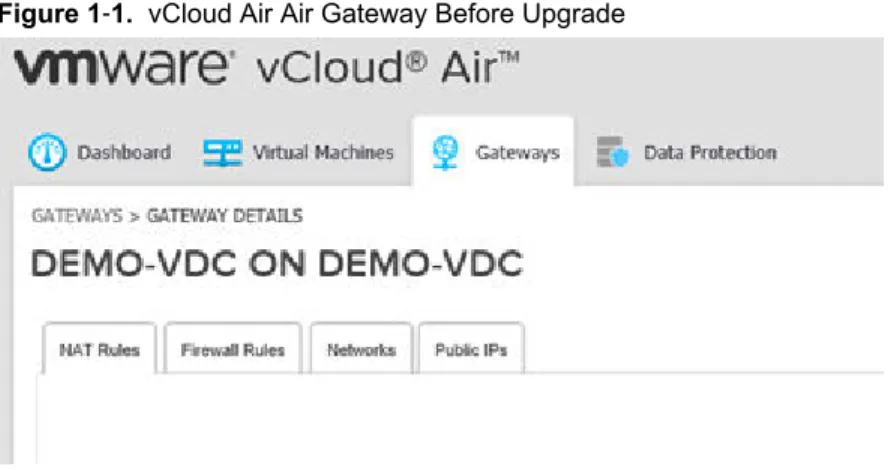
Before you upgrade an edge gateway, the vCloud Air Web UI has the following functionality available for you to configure these basic networking functions:
Figure 1‑1. vCloud Air Air Gateway Before Upgrade
After you upgrade an edge gateway, the networking functionality available in the vCloud Air Web UI changes.
Figure 1‑2. vCloud Air Gateway After Upgrade
After an upgrade, the tabs for configuring NAT and firewall rules are moved to thevCloud Director Web UI to match the NSX user experience. Click Manage in vCloud Director to navigate to the
Advanced Networking Services UI where you configure those functions (and others) for your vCloud Air environment.
vCloud Air maintains your existing, pre-upgrade network configuration after the upgrade.
Log In and Navigate to Advanced Networking Services
You access the Advanced Networking Services Web UI on a per edge gateway basis. After you upgrade an edge gateway to Advanced Networking Services, have access to all the advanced networking features for that edge gateway.
You can still use the VMware vCloud Air Web UI to configure basic networking features for your VMware vCloud Air environment, such as creating networks, assigning virtual machines to networks, and allocating IP addresses to your edge gateways. See the vCloud Air Networking Guide for information about using the basic network features.
Prerequisites
To access Advanced Networking Services for an edge gateway, you must meet these prerequisites:
n Sign into your vCloud Air subscription service by using a supported browser. See Supported Browsers for vCloud Air in the vCloud Air User's Guide for information.
n Have upgraded the edge gateway that you want to access to Advanced Networking Services. See “Upgrade an Edge Gateway to Advanced Networking Services,” on page 7 for information.
Procedure
1 Go to https://vca.vmware.com and log in to vCloud Air using your user name and password.
If you are logging in to vCloud Air for the first time, see Sign In to vCloud Air in the vCloud Air User's
Guide for information.
The VMware vCloud Air services page appears. 2 Click the My Subscriptions tile.
The VMware vCloud Air Dashboard appears.
3 Click the Gateways tab and click the tile for the gateway you want to mange. 4 Click Manage in vCloud Director.
vCloud Director opens in a new browser tab and the Org VDC Networks tab is displayed. 5 Click the Edge Gateways tab.
The gateways located in the virtual data center appear.
6 Select the gateway, right click and select Edge Gateway Services.
VMware vCloud Edge Gateway Services appears in a new browser tab. By default, the Dashboard tab is selected.
NOTE If the edge gateway has not been upgraded, selecting Edge Gateway Services displays the vCloud Director edge gateway UI. Additionally, when you right click and display the edge gateway menu, you see that the option Convert to Advanced Networking is available, indicating that the edge gateway has not been upgraded to Advanced Networking Services.
7 Select a tab to configure that advanced networking feature.
NOTE To access the Trust Group feature, navigate to the virtual data center and manage the firewall settings. See “Add a Trust Groups Firewall Rule,” on page 35 for information.
Statistics and Logs for Advanced Networking Services
You can view statistics and access logs for the edge gateways deployed for Advanced Networking Services.
Statistics
Navigate to an edge gateway in vCloud Director, right click and select Edge Gateway Services. VMware vCloud Edge Gateway Services appears in a new browser tab. By default the Dashboard tab is selected. Statistics and status information are accessible from the following areas of Advanced Networking Services: n Dashboard
n SSL VPN-Plus n IPsec VPN
n Firewall Rules—Edge Gateway and Trust Groups Dashboard
The Dashboard provides operational visibility for Advanced Networking Services. The Dashboard displays graphs for the traffic flowing through the interfaces of the selected edge gateway and connection statistics for the firewall and load balancer services.
NOTE For additional statistics and historical data, you can configure vRealize Operations to query more advanced data and historical metrics.
Select the period for which you want to view the statistics. SSL VPN-Plus Dashboard
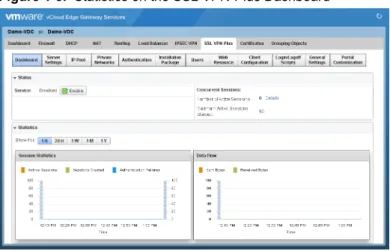
The dashboard displays the status of the service, number of active SSL VPN sessions, and session statistics and data flow details. Click Details next to Number of Active Sessions to view information about the concurrent connections to private networks behind the edge gateway.
Figure 1‑3. Statistics on the SSL VPN-Plus Dashboard
IPsec VPN
Click the IPSEC VPN tab > Show IPsec Statistics to display the status of the tunnel.
Firewall Rules
You can view statistics for edge gateway firewall rules and Trust Group firewall rules in the following ways: 1 Navigate to a Firewall tab:
n For an edge gateway firewall rule, see “Log In and Navigate to Advanced Networking Services,” on page 9.
2
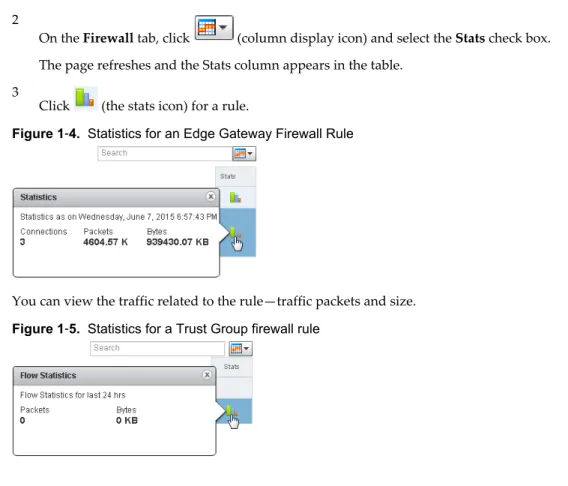
On the Firewall tab, click (column display icon) and select the Stats check box. The page refreshes and the Stats column appears in the table.
3
Click (the stats icon) for a rule.
Figure 1‑4. Statistics for an Edge Gateway Firewall Rule
You can view the traffic related to the rule—traffic packets and size. Figure 1‑5. Statistics for a Trust Group firewall rule
Logs
You can enable logging an edge gateway for all the major features in Advanced Networking Services: Table 1‑1. How To Enable Logging Per Feature
Navigation for Feature Description
Firewall tab > Action cell of a rule and click ] > Log
option
Logs all sessions matching this rule.
DHCP > DHCP Service Status > Enable logging check box NAT > Add ( ) icon > Add DNAT Rule or Add SNAT
Rule > Enable logging check box
Logs the address translation.
Routing tab > Global Configuration > Dynamic Routing
Configuration > Edit > Enable Logging check box
Load Balancer tab > Global Configuration > Edit > Logging
check box
IPSEC VPN tab > Logging Policy section > Enable logging
check box Logs the traffic flow between the local subnet and peersubnet.
SSL VPN-Plus tab > Server Settings > Logging Policy > Change > Enable logging check box
SSL VPN-Plus tab > General Settings > Change > Enable
logging check box Maintains a log of the traffic passing through the SSL VPNgateway.
Collecting log data is a multi-step process:
1 Enable logging for the features for which you need log data as described in the table above.
2 Configure a syslog server to receive the log data. See Capturing vCloud Air Edge Gateway Data with Syslog in the VMware vCloud Blog.
Advanced Routing for vCloud Air
2
You can specify static and dynamic routing for each edge gateway in vCloud Air.
To enable dynamic routing, you can configure an edge gateway using the Border Gateway Protocol (BGP) or the Open Shortest Path First (OSPF) protocol.
This chapter includes the following topics: n “Specify Global Configuration,” on page 15 n “Add a Static Route,” on page 16
n “Configure BGP,” on page 17 n “Configure OSPF,” on page 18
n “Configure Route Redistribution,” on page 20
Specify Global Configuration
You can configure the default edge gateway for static routes and specify dynamic routing details for an edge gateway.
Procedure
1 Log in to vCloud Air and navigate to the vCloud Edge Gateway Services UI.
See “Log In and Navigate to Advanced Networking Services,” on page 9 for information. 2 Click the Routing tab and Global Configuration.
3 To enable Equal-cost multi-path routing (ECMP), click Enable next to ECMP.
ECMP is a routing strategy that allows next-hop packet forwarding to a single destination can occur over multiple best paths. These best paths can be added statically or as a result of metric calculations by dynamic routing protocols like OSPF or BGP. Multiple paths for static routes can be added by
providing multiple next hops separated by commas in the Static Routes dialog box. See “Add a Static Route,” on page 16 for information.
The edge gateway utilizes Linux network stack implementation, a roundrobin algorithm with a randomness component. After a next hop is selected for a particular source and destination IP address pair, the route cache stores the selected next hop. All packets for that flow go to the selected next hop. The default IPv4 route cache timeout is 300 seconds (gc_timeout). When an entry is inactive for this time, it is eligible to be removed from the route cache. The actual removal happens when the garbage collection timer activates (gc_interval = 60 seconds).
4 To specify the default gateway, click Edit next to Default Gateway.
a Select an interface from which the next hop towards the destination network can be reached. b Type the gateway IP address if required.
c Edit the MTU if required and type a description. d Click Save.
5 To configure dynamic routing, click Edit next to Dynamic Routing Configuration.
NOTE If you have IPsec VPN configured in your environment, you should not use dynamic routing. a Select the router ID.
The Router ID list displays the first uplink IP address of the edge gateway that pushes routes to the kernel for dynamic routing.
b Select Enable Logging to save logging information and select the log level. c Click OK.
6 Click Publish Changes. What to do next
To delete routing configuration, click Reset. This deletes all routing configurations (default, static, OSPF, and BGP configurations, as well as route redistribution).
Configure route redistribution. See “Configure Route Redistribution,” on page 20. Configure dynamic routing. See the following topics:
n “Configure BGP,” on page 17 n “Configure OSPF,” on page 18
Add a Static Route
You can add a static route for a destination subnet or host. Procedure
1 Log in to vCloud Air and navigate to the vCloud Edge Gateway Services UI.
See “Log In and Navigate to Advanced Networking Services,” on page 9 for information. 2 Click the Routing tab and Static Routes.
3 Click the Add ( ) icon.
The Add Static Route dialog box appears.
4 Configure the following options for the static route:
Option Description
Network Type the Network in CIDR notation. Next Hop Type the IP address of the Next Hop.
The router must be able to directly reach the next hop.
When ECMP is enabled, you can type multiple next hops. See “Specify Global Configuration,” on page 15 for information.
Option Description
MTU Edit the maximum transmission value for the data packets if required. The MTU value cannot be higher than the MTU value set on the edge gateway interface. See “Specify Global Configuration,” on page 15 for information about he MTU set for the default edge gateway. Description (Optional) Type a description for the static route.
5 Click OK. What to do next
Configure a NAT rule for the static route. See “Add an SNAT or DNAT Rule,” on page 68 . Add a firewall rule to allow traffic to traverse the static route. See the following topics: n “Add an Edge Gateway Firewall Rule,” on page 31
n “Add a Trust Groups Firewall Rule,” on page 35
Configure BGP
You can configure Border Gateway Protocol for vCloud Air to exchange routes between your on-premises border devices and vCloud Air. BGP makes core routing decisions by using a table of IP networks or prefixes, which designate network reachability among multiple autonomous systems.
The BGP border devices established a connection before any routing information is exchanged. After establishing the connection, the border devices exchange routes and synchronize their tables. Each border device sends keepalive messages to keep this relationship alive.
Procedure
1 Log in to vCloud Air and navigate to the vCloud Edge Gateway Services UI.
See “Log In and Navigate to Advanced Networking Services,” on page 9 for information. 2 Click the Routing tab and BGP.
3 In BGP Configuration, complete the BGP options: a Click Edit next to BGP Configuration. b Click Enable BGP.
c For packet forwarding to be uninterrupted during restart of BGP services, select Enable Graceful Restart.
d To allow the edge gateway to advertise itself as a default gateway to its peers, select Enable Default Originate.
e Type a value (a globally unique number between 1-65534) for the Local AS.
vCloud Air assigns the local autonomous system (AS) number to the edge gateway you are configuring and advertises the local AS when the edge gateway peers with routers in other autonomous systems. The path of ASs that a route traverses is used as one metric when selecting the best path to a destination.
f Click OK.
4 In Neighbors, configure the routing neighbors: a Click the Add ( ) icon.
b Type the IP address of your on-premises border device that vCloud Air connect to.
c Type a value (a globally unique number between 1-65534) for the Remote AS.
vCloud Air assigns the remote AS number to the border device you are creating the connection for. d If necessary, edit the default weight for the neighbor connection.
e If necessary, edit the default interval for the Keep Alive Time. f If necessary, edit the default interval for the Hold Down Time.
The edge gateway uses the standard, default values for the keep alive timer (60 seconds) and the hold down timer. The default value for the hold down timer is 3xkeepalive or 180 seconds. Once peering between two neighbors is achieved, the edge gateway starts a hold down timer. Every keep alive message it receives from the neighbor resets the hold down timer to 0. If the edge gateway fails to receive three consecutive keep alive messages, so that the hold down timer reaches 180 seconds, the edge gateway considers the neighbor down and deletes the routes from this neighbor.
g In Password, type the authentication password.
Each segment sent on the connection between the neighbors is verified. MD5 authentication must be configured with the same password on both BGP neighbors, otherwise, the connection between them will not be made.
5 To specify route filtering from a neighbor using an prefix list, click the Add ( ) icon in the BGP Filters area and configure the following options:
CAUTION A "block all" rule is enforced at the end of the filters.
a Select the direction to indicate whether you are filtering traffic to or from the neighbor. b Select the action to indicate whether you are allowing or denying traffic.
c Type the network in CIDR format that you want to filter to or from the neighbor. d Type the IP prefixes that are to be filtered and click OK.
6 Click Publish Changes. What to do next
Add a firewall rule that allows traffic to and from the remote border device in your on-premises data center. See “Add an Edge Gateway Firewall Rule,” on page 31 for information.
Configure BGP in your on-premises data center for the remote border device that vCloud Air is connecting to using the AS values and password you set in vCloud Air. These values must match on both sides of the connection.
Configure OSPF
The edge gateway supports OSPF, an interior gateway protocol that routes IP packets only within a single routing domain. Configure OSPF in vCloud Air to exchange routing information between edge gateways in vCloud Air.
Use OSPF to gather link state information from available routers and construct a topology map of the network. The topology determines the routing table presented to the Internet layer, which makes routing decisions based on the destination IP address found in IP packets.
OSPF routing policies provide a dynamic process of traffic load balancing between routes of equal cost. An OSPF network is divided into routing areas to optimize traffic flow and limit the size of routing tables. An area is a logical collection of OSPF networks, routers, and links that have the same area identification. Areas are identified by an Area ID.
Prerequisites
A Router ID must have been selected. “Specify Global Configuration,” on page 15 Procedure
1 Log in to vCloud Air and navigate to the vCloud Edge Gateway Services UI.
See “Log In and Navigate to Advanced Networking Services,” on page 9 for information. 2 Click the Routing tab and OSPF.
3 In OSPF Configuration, complete the OSPF options: a Click Edit next to OSPF Configuration. b Select Enable OSPF.
c For packet forwarding to be uninterrupted during restart of OSPF services, select Enable Graceful Restart.
d To allow the edge gateway to advertise itself as a default gateway to its peers, select Enable Default Originate.
e Click OK.
4 In Area Definitions, configure the OSPF areas:
a Delete the not-so-stubby area (NSSA) 51 that is configured by default. b Click the Add ( ) icon.
c Type an area ID.
The edge gateway supports an area ID in the form of an IP address or decimal number. d In Type, select Normal or NSSA.
NSSAs prevent the flooding of AS-external link-state advertisements (LSAs) into NSSAs. They rely on default routing to external destinations. Hence, NSSAs must be placed at the edge of an OSPF routing domain. NSSA can import external routes into the OSPF routing domain, thereby providing transit service to small routing domains that are not part of the OSPF routing domain. e In Authentication, select Password or MD5 and type the password or MD5 key, respectively, for
the value.
n Password: In this method of authentication, a password is included in the transmitted packet. n MD5: This authentication method uses MD5 (Message Digest type 5 ) encryption. An MD5
checksum is included in the transmitted packet.
5 In Area to Interface Mapping, map interfaces to areas by completing the following steps: a In Area Definitions, click the Add ( ) icon.
b From the vNIC drop-down list, select the interface that you want to map to the OSPF area. The interface specifies the external network that both edge gateways are connected to.
c Type an Area ID. The edge gateway supports an area ID in the form of an IP address or decimal number.
d (Optional) Select Ignore Interface MTU Settings to disable MTU mismatch detection on received Database Descriptor (DBD) packets.
When configuring OSPF, routers connected to the same shared subnet should have the same MTU setting. However, you can force OSPF neighbors to establish a session even when their interface MTU settings do not match. Use caution when selecting this setting because it can lead to packet drops and cause the adjacency to reset repeatedly.
e (Optional) Expand the Advanced section and complete the following options.
NOTE vCloud Air provides a default value for each option. You can accept these default values or edit them for your environment.
Option Description
Hello Interval Specifies the default interval between hello packets that are sent on the interface.
Dead Interval Specifies the default interval during which at least one hello packet must be received from a neighbor before the router declares that neighbor down.
Priority Specifies the default priority of the interface. The interface with the highest priority is the designated router.
Cost Specifies the default overhead required to send packets across that interface. The cost of an interface is inversely proportional to the bandwidth of that interface. The larger the bandwidth, the smaller the cost.
6 Click Publish Changes. What to do next
Add a firewall rule that allows traffic between the edge gateways in vCloud Air that you are configuring OSPF routing for. See “Add an Edge Gateway Firewall Rule,” on page 31 for information.
Configure OSPF on the other edge gateways in vCloud Air that you want to exchange routing information with.
Configure Route Redistribution
By default, routers share routes with other routers running the same protocol. In a multi-protocol environment, you must configure route redistribution for cross-protocol route sharing.
Procedure
1 Log in to vCloud Air and navigate to the vCloud Edge Gateway Services UI.
See “Log In and Navigate to Advanced Networking Services,” on page 9 for information. 2 Click the Routing tab and Route Redistribution.
3 Click Edit next to Route Redistribution Status.
4 Select the protocols for which you want to enable route redistribution and click OK. 5 To add an IP prefix, perform the following steps:
a Click the Add ( ) icon in IP Prefixes.
b Type a name and the IP address of the network. c Click OK.
6 To specify redistribution criteria for the IP prefix, complete the following steps: a Click the Add ( ) icon in Route Redistribution table.
b In Learner Protocol, select the protocol that learns routes from other protocols.
c In Allow Learning from, select the types of networks from which routes can be learned. d In Action, select whether to permit or deny redistribution from the selected types of networks. e Click OK.
7 Click Publish Changes.
Certificate and Security Group
Management
3
Advanced Networking Services provides functionality to manage certificates for use with SSL VPN-Plus and IPsec VPN tunnels.
Additionally, Advanced Networking Services enables use of grouping objects for use in creating firewall rules and load balancer server pools.
This chapter includes the following topics:
n “Certificate Management in vCloud Air,” on page 23 n “Security Objects in vCloud Air,” on page 26
Certificate Management in vCloud Air
The edge gateway in vCloud Air supports self-signed certificates, certificates signed by a Certification Authority (CA), and certificates generated and signed by a CA.
About Using Certificates with vCloud Air
In Advanced Networking Services, you can manage certificates for the following vCloud Air features: n IPsec VPN tunnels from your on-premises data center to vCloud Air
n SSL VPN-Plus connections to private networks and web resources deployed in vCloud Air n The virtual servers and pools servers configured for load balancing in vCloud Air
How to Use Client Certificates
You can create a client certificate through a CAI command or REST call. You can then distribute this certificate to your remote users, who can install the certificate on their web browser.
The main benefit of implementing client certificates is that a reference client certificate for each remote user can be stored and checked against the client certificate presented by the remote user. To prevent future connections from a certain user, you can delete the reference certificate from the security server's list of client certificates. Deleting the certificate denies connections from that user.
Generate a Certificate Signing Request
Before you can order a signed certificate from a CA or create a self-signed certificate, you must generate a Certificate Signing Request (CSR) for your edge gateway.
A CSR is an encoded file that you need to generate on an edge gateway that needs an SSL certificate. Using a CSR standardizes the way that companies send their public keys along with information that identifies their company names and domain names.
You generate a CSR with a matching private-key file that must remain on the edge gateway. The CSR contains the matching public key and other information such as your organization's name, location, and domain name.
Procedure
1 Log in to vCloud Air and navigate to the vCloud Edge Gateway Services UI.
See “Log In and Navigate to Advanced Networking Services,” on page 9 for information. 2 Click the Certificates tab and Actions > Generate CSR.
The Generate CSR dialog box appears. 3 Configure the following options for the CSR:
Option Description
Common Name Type the fully-qualified domain name (FQDN) for the organization that you will be using the certificate for (for example,
www.exampledomain.com). Do not include the http:// or https://
prefixes in your common name.
Organization Name Type name under which your company is legally registered. The listed organization must be the legal registrant of the domain name in the certificate request.
Organization Unit Use this field to differentiate between divisions within a company; for example, AMEA or East Coast Operations. If applicable, you can enter the DBA (doing business as) name in this field.
Locality Type the city or locality where your company is legally registered. State Type the full name (do not abbreviate) of the state, province, region, or
territory where your company is legally registered. Country Select the country where your company is legally registered.
The drop-down menu displays country names along with their two-letter International Organization for Standardization (ISO-) format country codes.
Message Algorithm (Optional) Select the key type (typically RSA) for the certificate. The key type defines the encryption algorithm for communication between the hosts.
NOTE SSL VPN-Plus supports RSA certificates only.
Key Size (Optional) Type the key size (2048 bit minimum). Description (Optional) Enter a description for the certificate.
4 Click OK.
The CSR is generated and displayed in the certificates list. What to do next
Transmit the CSR to a certificate authority to obtain your signed certificate. Import the signed certificate into Advanced Networking Services. See “Add a Certificate,” on page 25 for information.
Configure a CA Signed Certificate
Before you can order an SSL certificate from a CA, you must generate a CSR for your edge gateway. Procedure
1 Log in to vCloud Air and navigate to the vCloud Edge Gateway Services UI.
2 Generate a CSR. See “Generate a Certificate Signing Request,” on page 23 for information. The CSR is generated and displayed in the certificates list.
3 Have an online CA sign this CSR.
4 Import the signed certificate by performing the following steps: a From the Certificates tab, select Actions > Import Certificate.
b In the Import Certificate dialog box, paste the contents of the signed certificate. c Click OK.
The CA signed certificate appears in the certificates list. What to do next
Attach the CA signed certificate to the SSL VPN-Plus or IPsec VPN tunnels as required. See “Configure Server Settings,” on page 51 and “Specify Global IPsec VPN Configuration,” on page 62 for information.
Configure a Self-Signed Certificate
You can create, install, and manage self-signed server certificates. Prerequisites
Verify that you have a CA certificate so that you can sign your own certificates. Procedure
1 Log in to vCloud Air and navigate to the vCloud Edge Gateway Services UI.
See “Log In and Navigate to Advanced Networking Services,” on page 9 for information. 2 Generate a CSR. See “Generate a Certificate Signing Request,” on page 23 for information.
The CSR is generated and displayed in the certificates list.
3 Select the CSR in the list and select Actions > Self Sign Certificate. 4 Type the number of days that the self-signed certificate is valid for. 5 Click OK.
Add a Certificate
By adding a CA certificate, you can become an interim CA for your company. You then have the authority for signing your own certificates.
Procedure
1 Log in to vCloud Air and navigate to the vCloud Edge Gateway Services UI.
See “Log In and Navigate to Advanced Networking Services,” on page 9 for information. 2 Click the Certificates tab.
3 Click the Add ( ) icon and select one of the following options: n Certificate
n CA Certificate
4 Paste the certificate contents in the Certificate contents text box. 5 (Optional) Type a description for the certificate.
6 If you are adding a Certificate, configure the following options:
n Private Key—required for enabling public key/private key encryption n Password
n Retype Password 7 Click OK.
You can now sign your own certificates.
Add a Certificate Revocation List
A Certificate Revocation List (CRL) is a list of subscribers and their status, which is provided and signed by Microsoft.
The list contains the following items:
n The revoked certificates and the reasons for revocation n The dates that the certificates are issued
n The entities that issued the certificates n A proposed date for the next release
When a potential user attempts to access a server, the server allows or denies access based on the CRL entry for that particular user.
Procedure
1 Log in to vCloud Air and navigate to the vCloud Edge Gateway Services UI. See “Log In and Navigate to Advanced Networking Services,” on page 9 for information.
2 Click the Certificates tab.
3 Click the Add ( ) icon and then CLR. The Add CRL dialog box appears. 4 In Certificate contents, paste the list. 5 (Optional) Type a description. 6 Click OK.
Security Objects in vCloud Air
This section describes custom network and security containers.
Advanced Networking Services includes functionality to create grouping objects for use when configuring the edge gateway firewall and the firewall for Trust Groups. Additionally, you can use grouping objects when configuring the server pool for the load balancer.
Create an IP Address Group
You can create an IP address group and then add this group as the source or destination in a firewall rule. Such a rule can help protect physical machines from virtual machines or vice versa.
Procedure
1 Log in to vCloud Air and navigate to the vCloud Edge Gateway Services UI.
2 Click the Grouping Objects tab and IP Sets. 3 Click the Add ( ) icon.
The Add IP Addresses dialog box appears. 4 Type a name for the group.
5 (Optional) Type a description for the group. 6 Type the IP addresses to be included in the group. 7 Click OK.
Create a Service
You can create a service and then define rules for that service. Procedure
1 Log in to vCloud Air and navigate to the vCloud Edge Gateway Services UI.
See “Log In and Navigate to Advanced Networking Services,” on page 9 for information. 2 Click the Grouping Objects tab and Service.
3 Click the Add ( ) icon. 4 Type a name for the service.
5 (Optional) Type a description for the service.
6 Select a protocol for which you want to add a non-standard port.
Create a Service Group
You can create a service group and then define rules for that service group. Procedure
1 Log in to vCloud Air and navigate to the vCloud Edge Gateway Services UI.
See “Log In and Navigate to Advanced Networking Services,” on page 9 for information. 2 Click the Grouping Objects tab and Service Group.
3 Click the Add ( ) icon.
The Add service group dialog box appears. 4 Type a name for the group.
5 (Optional) Type a description for the group.
6 In Members, select the services or service groups that you want to add to the group. 7 Click OK.
Network Security and Isolation
4
Advanced Networking Services provides functionality to create robust firewalls to protect your virtual machines deployed in vCloud Air from outside network traffic as well as to create internal firewalls to isolate virtual machines from each other.
This chapter includes the following topics:
n “Types of Firewalls in vCloud Air,” on page 29 n “Manage Edge Gateway Firewall Rules,” on page 30 n “Manage Trust Groups Firewall Rules,” on page 35
Types of Firewalls in vCloud Air
You can create firewall rules to establish Trust Groups and firewall rules to apply to an edge gateway to protect your virtual machines from outside network traffic.
Rules defined on the centralized level are referred to as pre rules. Tenants can then add rules at an individual edge gateway level, which are referred to as local rules.
Each traffic session is checked against the top rule in the Firewall table before moving down the subsequent rules in the table. The first rule in the table that matches the traffic parameters is enforced. Rules are displayed in the following order:
1 User-defined pre rules have the highest priority, and are enforced in top-to-bottom ordering with a per-virtual NIC level precedence.
2 Auto-plumbed rules (rules that enable control traffic to flow for edge gateway services). 3 Local rules defined at an edge gateway level.
4 Default Trust Group firewall rule
Edge Gateway Firewall
The firewall for the edge gateway helps you meet key perimeter security requirements, such as building DMZs based on IP/VLAN constructs, tenant-to-tenant isolation in multi-tenant virtual data centers, Network Address Translation (NAT), partner (extranet) VPNs, and user-based SSL VPNs.
The Edge Gateway Firewall monitors North-South traffic to provide perimeter security functionality including firewall, Network Address Translation (NAT) as well as site-to-site IPSec and SSL VPN functionality. This solution is available in the virtual machine form factor and can be deployed in a High Availability mode.
Firewall for Trust Groups
The Trust Group firewall allows you to segment virtual data center entities like virtual machines based on virtual machine names and attributes.
The Trust Groups firewall is a hyper visor kernel-embedded firewall that provides visibility and control for virtualized workloads and networks. You can create access control policies based on objects like data centers and virtual machine names; and network constructs like IP addresses or IP set addresses. Firewall rules are enforced at the vNIC level of each virtual machine to provide consistent access control even when the virtual machine gets motioned. The hyper visor-embedded nature of the firewall delivers close to line rate throughput to enable higher workload consolidation on physical servers. The distributed nature of the firewall provides a scale-out architecture that automatically extends firewall capacity when additional hosts are added to a data center.
For L2 packets, the Trust Groups firewall creates a cache for performance boost. L3 packets are processed in the following sequence:
1 All packets are checked for an existing state. This is done for SANS too so that bogus or retransmitted SANS for existing sessions can be detected.
2 When a state match is found, the packets are processed.
3 When a state match is not found, the packets are processed through the rules until a match is found. n For TCP packets, a state is set only for packets with a SYN flag. However, rules that do not specify a
protocol (service ANY), can match TCP packets with any combination of flags.
n For UDP packets, 5-tuple details are extracted from the packet. When a state does not exist in the state table, a new state is created using the extracted 5-tuple details. Subsequently received packets are matched against the state that was just created.
n For ICMP packets, ICMP type, code, and packet direction are used to create a state.
The Trust Group firewall can help in creating identity-based rules as well. Administrators can enforce access control based on the user's group membership as defined in the enterprise Active Directory. The following scenarios show ways to use identity-based firewall rules:
n User accessing virtual applications using a laptop or mobile device where AD is used for user authentication
n User accessing virtual applications using VDI infrastructure where the virtual machines are Microsoft Windows based
If you have a third-party vendor firewall solution deployed in your environment, see Redirecting Traffic to a Vendor Solution through Logical Firewall in the NSX Administration Guide.
Running open VMware Tools on guest or workload virtual machines has not been validated with the Trust Groups firewall.
Manage Edge Gateway Firewall Rules
You can navigate to an edge gateway to see the rules that apply to it.
Firewall rules applied to an edge gateway router only protect traffic to and from the router. They do not protect traffic traveling between virtual machines within a virtual data center. To protect intra-virtual data center traffic, create Trust Groups firewall rules for East-West protection.
Rules created on the firewall user interface applicable to an edge gateway are displayed in a read-only mode.
Rules are displayed and enforced in the following order:
2 Auto-plumbed rules (rules that enable control traffic to flow for edge gateway services). 3 User-defined rules on Firewall user interface.
4 Default rule.
Add an Edge Gateway Firewall Rule
The Firewall tab displays rules created on the centralized Firewall tab in a read-only mode. Any rules that you add here are not displayed on the centralized Firewall tab. You can add multiple edge gateway interfaces and IP address groups as the source and destination for firewall rules.
When you select vNIC Group and vse as an object for a source or destination, the rule applies to traffic generated by the edge gateway. When you select internal or external, the rule applies to traffic coming from any internal or uplink interface of the selected edge gateway instance.
NOTE Edge gateway firewall rules on internal interfaces do not work when you configure dynamic routing for the edge gateway.
Procedure
1 Log in to vCloud Air and navigate to the vCloud Edge Gateway Services UI.
See “Log In and Navigate to Advanced Networking Services,” on page 9 for information. 2 Click the Firewall tab.
3 Perform one of the following actions:
Option Description
To add a rule at a specific place in the firewall table
a Select a rule. b
In the No. column, click and select Add Above or Add Below. A new any any allow rule is added below the selected rule. When the system defined rule is the only rule in the firewall table, the new rule is added above the default rule.
To add a rule by copying a rule a Select a rule. b
Click the Copy ( ) icon. c Select a rule.
d
In the No. column, click and select Paste Above or Paste Below. To add a rule anywhere in the
firewall table
a Click the Add ( ) icon.
A new any any allow rule is added below the selected rule. When the system defined rule is the only rule in the firewall table, the new rule is added above the default rule.
The new rule is enabled by default.
4 Point to the Name cell of the new rule and click . Enter a name for the rule.
5 Point to the Source cell of the new rule. Perform one of the following options:
Option Description
Click Type the source IP address. The firewall supports both IPv4 and IPv6formats. Click To specify the source as an object other than a specific IP address:
a
Select one or more objects and click .
You can create a new IP Set. Once you create the new object, it is added to the source column by default.
b To exclude a source from the rule, click Advance options. c Select Negate Source to exclude this source from the rule.
When Negate Source is selected, the rule is applied to traffic coming from all sources except for the source you specified in the previous step.
When Negate Source is not selected, the rule applies to traffic coming from the source you specified in the previous step.
d Click OK.
6 Point to the Destination cell of the new rule. Perform one of the following options:
Option Description
Click Type the destination IP address. The firewall supports both IPv4 and IPv6formats. Click To specify the destination as an object other than a specific IP address:
a
Select one or more objects and click .
You can create a new IP Set. Once you create the new object, it is added to the Destination column by default.
b To exclude a destination port, click Advance options.
c Select Negate Destination to exclude this destination from the rule. When Negate Destination is selected, the rule is applied to traffic going to all destinations except for the destination you specified in the previous step.
When Negate Destination is not selected, the rule applies to traffic going to the destination you specified in the previous step. d Click OK.
7 Point to the Service cell of the new rule. Perform one of the following options:
Option Description
Click To specify the service as a port–protocol combination: a Select the service protocol.
NOTE The edge gateway supports ALG for FTP only.
b Under Advanced options, type the port number. c Click OK.
Click To select a pre-defined service or service group, or define a new one: a
Select one or more objects and click .
You can create a new service or service group. Once you create the new object, it is added to the Selected Objects column by default. b Click OK.
In order to protect your network from ACK or SYN floods, you can set the service to TCP-all_ports or UDP-all_ports and set the action to Block for the default rule.
8 Point to the Action cell of the new rule and click . Select the required actions and click OK.
Action Results in
Accept Allows traffic from or to the specified sources, destinations, and services. Deny Blocks traffic from or to the specified sources, destinations, and services. Reject Sends reject message for unaccepted packets.
RST packets are sent for TCP connections.
ICMP messages with administratively prohibited code are sent for UDP, ICMP, and other IP connections.
Log Logs all sessions matching this rule. Enabling logging can affect performance.
Do not log Does not log sessions. Advanced options > Match on
Translated
Applies the rule to the translated IP address and services for a NAT rule Enable Rule Direction Indicates whether the rule is incoming or outgoing.
NOTE VMware does not recommend specifying the direction for firewall
rules.
9 Click Publish.
After a few moments, a message indicating whether the publish operation was successful appears. In case of any failures, the hosts on which the rule was not applied are listed. When you click Publish, the firewall configuration is automatically saved.
Edit an Edge Gateway Firewall Rule
You can edit and delete only the user-defined firewall rules that were added to an edge gateway. You cannot edit or delete an auto-generated rule or the default rule.
Procedure
1 Log in to vCloud Air and navigate to the vCloud Edge Gateway Services UI.
See “Log In and Navigate to Advanced Networking Services,” on page 9 for information.
2 Click the Firewall tab.
The table of configured rules for the edge gateway firewall appears. n
Disable a rule by clicking , or enable a rule by clicking . n
Edit a rule by clicking .
NOTE The default firewall rule for an edge gateway blocks all incoming traffic. You can change the default action and logging settings. Default firewall settings apply to traffic that does not match any of the user-defined firewall rules.
n
Delete a rule by clicking .
n Move a rule up or down in the Firewall table. See “Change the Order of a Gateway Firewall Rule,” on page 34.
n Hide generated rules or pre rules (rules added on the centralized Firewall tab) by clicking Hide Generated rules or Hide Pre rules.
n Search for rules by typing text in the Search field. n
Display additional columns in the rule table by clicking and selecting the appropriate columns.
Column Name Information Displayed
Rule Tag Unique system generated ID for each rule Log Whether traffic for this rule is being logged Stats
Clicking shows the traffic related to this rule (traffic packets and size) Comments Comments for the rule
3 Click Publish Changes.
Change the Order of a Gateway Firewall Rule
You can move a custom rule up or down in the table. The default rule is always at the bottom of the table and cannot be moved.
Rules are displayed (and enforced) in the following order:
1 User-defined pre rules have the highest priority and are enforced in top-to-bottom ordering with a per-virtual NIC level precedence.
2 Auto-plumbed rules.
3 Local rules defined at an edge gateway level. 4 Default firewall rule for Trust Groups. Procedure
1 Log in to vCloud Air and navigate to the vCloud Edge Gateway Services UI.
See “Log In and Navigate to Advanced Networking Services,” on page 9 for information. 2 In the Firewall tab, select the rule that you want to move.
3
Move a rule up or down in the Firewall table by clicking Move rule up ( ) or Move rule down ( ) icon.
4 Click Publish Changes.
Manage Trust Groups Firewall Rules
Default firewall settings apply to traffic that does not match any of the user-defined firewall rules. The default firewall rule for Trust Groups is displayed on the centralized firewall user interface, and the default rule for each edge gateway is displayed at the edge gateway level.
The default Trust Group rule allows all L3 and L2 traffic to pass through all prepared clusters in your infrastructure. The default rule is always at the bottom of the rules table and cannot be deleted or added to. However, you can change the Action element of the rule from Allow to Block or Reject, add comments for the rule, and indicate whether traffic for that rule should be logged.
Add a Trust Groups Firewall Rule
You add firewall rules at the global scope. Using the Applied To field, you can then narrow down the scope at which you want to apply the rule. The firewall allows you to add multiple objects at the source and destination levels for each rule, which helps reduce the total number of firewall rules to be added. Procedure
1 From the Dashboard tab in the vCloud Air Web UI, click the virtual data center to configure a Trust Groups firewall rule.
The Virtual Data Center Details page appears.
2 Click the Gateways tab > Manage in vCloud Director.
vCloud Director opens in a new browser tab and displays the Administration page for the gateways in the selected virtual data center.
3 Under Cloud Resources in the left navigation panel, click Virtual Datacenters. The page refreshes and displays the virtual data center in the table.
4 Select the virtual data center, right-click and select Manage Firewall. The vCloud Security Services page appears.
5 Select the type of rule you want to create. You have the option to create a general rule or an Ethernet rule.
To add an L3 rule, click the General tab. To add an L2 rule, click the Ethernet tab. 6 Expand the section where you want to add a rule.
By default, the edge gateway is provisioned with the section Default Section Layer3.
7 To add a rule at a specific place in the firewall table, in the No. column, click and select Add Above or Add Below.
A new any any allow rule is added above or below the selected rule. When the system defined rule is the only rule in the firewall table, the new rule is added above the default rule.
8 Point to the Name cell, click and enter a name.
9 Point to the Source cell and perform one of the following options:
Option Description
Click Type the source IP address. The Trust Groups firewall supports IPv4format only. Click To specify the source as an object other than a specific IP address:
a
Select one or more objects and click .
You can create a new IP Set. Once you create the new object, it is added to the source column by default.
b To exclude a source from the rule, click Advance options. c Select Negate Source to exclude this source from the rule.
When Negate Source is selected, the rule is applied to traffic coming from all sources except for the source you specified in the previous step.
When Negate Source is not selected, the rule applies to traffic coming from the source you specified in the previous step.
d Click OK.
10 Point to the Destination cell and perform one of the following options:
Option Description
Click Type the destination IP address. The Trust Groups firewall supports IPv4format only. Click To specify destination as an object other than a specific IP address:
a
Select one or more objects and click .
You can create a new IP Set. Once you create the new object, it is added to the Destination column by default.
b To exclude a destination port, click Advance options.
c Select Negate Destination to exclude this destination from the rule. When Negate Destination is selected, the rule is applied to traffic going to all destinations except for the destination you specified in the previous step.
When Negate Destination is not selected, the rule applies to traffic going to the destination you specified in the previous step. d Click OK.
11 Point to the Service cell of the new rule and perform one of the following options:
Option Description
Click To specify the service as a port–protocol combination: a Select the service protocol.
NOTE The Trust Groups firewall supports Application Level Gateway
(ALG) for the following protocols: FTP, CIFS, ORACLE TNS, MS-RPC, and SUN-RPC.
b Type the port number and click OK.
Click To select a pre-defined service or service group, or define a new one: a
Select one or more objects and click .
You can create a new service or service group. Once you create the new object, it is added to the Selected Objects column by default. b Click OK.
NOTE To protect your network from ACK or SYN floods, set the service to TCP-all_ports or UDP-all_ports and set the action to Block for the default rule.
12 Point to the Action cell, click to configure the action for the rule, and click OK.
Action Results in
Accept Allows traffic from or to the specified sources, destinations, and services. Deny Blocks traffic from or to the specified sources, destinations, and services. Reject Sends a reject message for unaccepted packets.
RST packets are sent for TCP connections.
ICMP messages with administratively prohibited codes are sent for UDP, ICMP, and other IP connections.
Log Logs all sessions matching this rule. Enabling logging can affect performance.
Do not log Does not log sessions. Advanced options > Match on
Translated
Applies the rule to the translated IP address and services for a NAT rule. Enable Rule Direction Indicates whether the rule is incoming or outgoing.
VMware does not recommend specifying the direction for Trust Groups firewall rules.
13 Point to the Applied To cell, click to define the scope at which this rule is applicable, then click OK.
To apply a rule to Do this
All edge gateways in your environment Select Apply this rule on all Edge gateways. After you click OK, the Applied To column for this rule displays
All Edges.
When the option for all edge gateways in the virtual data center is selected, the Applied To column displays Any. One or more data centers, edge gateways, networks, or
virtual machines 1 In Container type, select the appropriate object.2 In the Available list, select one or more objects and click .
NOTE When the rule contains virtual machines in the source and destination fields, you must add both the source and destination virtual machines to Applied To for the rule to work correctly.
14 Click Publish Changes.
Edit a Trust Groups Firewall Rule
Firewall rules for Trust Groups are added to a virtual data center in vCloud Air.
You can edit and delete only the user-defined firewall rules that were added to a virtual data center. You cannot edit or delete an auto-generated rule or the default rule.
Procedure
1 To edit a Trust Groups firewall rule, navigate to the virtual data center in vCloud Director where a Trust Groups firewall is configured.
See “Add a Trust Groups Firewall Rule,” on page 35 for information.
The table of configured Trust Groups firewall rules for the virtual data center appears. 2 Perform any of the following actions to manage the Trust Groups firewall rule:
n Disable a rule by clicking , or enable a rule by clicking . n
Edit a rule by clicking . n Delete a rule by clicking . n
Move a rule up or down in the Firewall table by clicking ) or .
NOTE You can move a custom rule up or down in the table. The default rule is always at the bottom of the table and cannot be moved.
n Search for rules by typing text in the Search field. n
Display additional columns in the rule table by clicking and selecting the appropriate columns.
Column Name Information Displayed
Rule Tag Unique system generated ID for each rule Log Whether traffic for this rule is being logged Stats
Clicking shows the traffic related to this rule (traffic packets and size) Comments Comments for the rule
Load Balancing
5
The load balancer enables network traffic to follow multiple paths to a specific destination. It distributes incoming service requests evenly among multiple servers in such a way that the load distribution is transparent to users. Load balancing helps achieve optimal resource utilization, maximizing throughput, minimizing response time, and avoiding overload.
Set Up Load Balancing
The load balancer distributes network traffic across multiple servers to achieve optimal resource utilization. You map an external, or public, IP address to a set of internal servers for load balancing. The load balancer accepts TCP, HTTP, or HTTPS requests on the external IP address and decides which internal server to use. The edge gateway provides load balancing up to Layer 7.
Setting up load balancing in vCloud Air consists of the following workflow: 1 You begin by setting global options for the load balancer.
2 You then create an application profile to define the behavior of a particular type of network traffic. 3 Next, you create a service monitor to define health check parameters for the load balancer.
4 You now create a server pool consisting of backend server members and associate a service monitor with the pool to manage and share the backend servers flexibly and efficiently.
When the virtual server receives a request, it chooses the appropriate pool to distribute the traffic comprising one or more members based on the associated algorithm. Each pool is monitored by the associated service monitor. When the load balancer detects a problem with a pool member, it is marked as down.
5 Finally, create a firewall rule to permit traffic to the new virtual server (the destination IP address). See “Add an Edge Gateway Firewall Rule,” on page 31 for information.
Port 8090 is the default listening port for TCP, port 80 is the default port for HTTP, and port 443 is the default port for HTTPs.
Load balancing for an edge gateway is configured on the external interface because the edge gateway load balances incoming traffic from the external network. When configuring the virtual server for load balancing, specify one of the available IP addresses you have in your vCloud Air service. See Allocation of Public IP Addresses in the vCloud Air Networking Guide.
Configure the Load Balancer Service
You can specify global load balancer configuration parameters. Procedure
1 Log in to vCloud Air and navigate to the vCloud Edge Gateway Services UI.
See “Log In and Navigate to Advanced Networking Services,” on page 9 for information. 2 Click the Load Balancer tab and Global Configuration.
3 Click Edit next to Load balancer global configuration. 4 Select the options you want to enable:
Option Description
Enable Load Balancer Allows the load balancer to distribute traffic to internal servers for load balancing.
Acceleration Enabled When enabled, the load balancer uses the faster L4 engine rather than L7 engine. The L4 TCP VIP is processed before the edge gateway firewall so no Allow firewall rule is required.
L7 HTTP/HTTPS VIPs are processed after the firewall. Therefore, when
Acceleration Enabled is not selected, an edge gateway firewall rule must
exist to allow access to the L7 HTTP/HTTPS VIP.
When Acceleration Enabled is selected and the server pool is in non-transparent mode, an SNAT rule is added. Therefore, ensure that the firewall is enabled on the edge gateway.
Logging The edge gateway load balancer collects traffic logs. You can choose the log level.
5 Click OK. What to do next
Configure application profiles for the load balancer. See “Create an Application Profile,” on page 40.
Create an Application Profile
You create an application profile to define the behavior of a particular type of network traffic. After configuring a profile, you associate the profile with a virtual server. The virtual server then processes traffic according to the values specified in the profile. Using profiles enhances your control over managing network traffic, and makes traffic-management tasks easier and more efficient.
When you create a profile for HTTPS traffic, the following HTTPS traffic patterns are allowed: n Client -> HTTPS -> LB (terminate SSL) -> HTTP -> servers
n Client -> HTTPS -> LB (terminate SSL) -> HTTPS -> servers n Client -> HTTPS-> LB (SSL passthrough) -> HTTPS -> servers n Client -> HTTP-> LB -> HTTP -> servers
Procedure
1 Log in to vCloud Air and navigate to the vCloud Edge Gateway Services UI.
See “Log In and Navigate to Advanced Networking Services,” on page 9 for information. 2 Click the Load Balancer tab and Application Profiles.
3 Click the Add ( ) icon.
The New Profile dialog box appears. 4 Type a name for the profile.
5 (Optional) Configure the following options for the application profile:
Option Description
Type Select the way in which you want to send requests to the server—HTTP, HTTPS, TCP, or UDP.
By default, HTTP is selected for the traffic type.
Depending on the type selected, the remaining options in the New Profile dialog are enabled or disabled.
HTTP Redirect URL (HTTP and HTTPS) Type the URL to which you want to re-direct HTTP traffic. For example, you can direct traffic from http://myweb.com to
https://myweb.com.
Persistence Specify persistence for the profile. Persistence tracks and stores session data, such as the specific pool member that serviced a client request. This ensures that client requests are directed to the same pool member throughout the life of a session or during subsequent sessions.
NOTE The persistence options refresh depending on the type selected.
SOURCEIP persistence tracks sessions based on the source IP address.
When a client requests a connection to a virtual server that supports source address affinity persistence, the load balancer checks to see if that client previously connected, and if so, returns the client to the same pool member.
(TPC Only) Microsoft Remote Desktop Protocol (MSRDP) persistence
maintains persistent sessions between Windows clients and servers that are running the Microsoft Remote Desktop Protocol (RDP) service. The recommended scenario for enabling MSRDP persistence is to create a load balancing pool that consists of members running Windows Server 2003 or Windows Server 2008, where all members belong to a Windows cluster and participate in a Windows session directory.
Cookie Name (HTTP and HTTPS) Type the cookie name. Cookie persistence inserts a cookie to uniquely identify the session the first time a client accessed the site and then refers to that cookie in subsequent requests to persist the connection to the appropriate server.
NOTE A cookie name is required when you select cookie persistence. Chapter 5 Load Balancing