Reference Architecture
vRealize Automation 7.0.1
This document supports the version of each product listed and
supports all subsequent versions until the document is
replaced by a new edition. To check for more recent editions
of this document, see
http://www.vmware.com/support/pubs
.
You can find the most up-to-date technical documentation on the VMware Web site at:
http://www.vmware.com/support/
The VMware Web site also provides the latest product updates.
If you have comments about this documentation, submit your feedback to:
Copyright © 2016 VMware, Inc. All rights reserved. Copyright and trademark information.
VMware, Inc.
3401 Hillview Ave. Palo Alto, CA 94304 www.vmware.com
Contents
vRealize Automation Reference Architecture Guide 5
Updated Information 7
1
New Features in vRealize Automation Since Release 6.2 9
2
Initial Deployment and Configuration Recommendations 11
3
vRealize Automation Deployment 13
4
vRealize Business Standard Edition Deployment Considerations 17
5
vRealize Automation Scalability 19
Configure Manager Service for High Data Volume 20
Distributed Execution Manager Performance Analysis and Tuning 21
6
vRealize Business Standard Edition Scalability 23
7
vRealize Automation High Availability Configuration Considerations 25
8
vRealize Business Standard Edition High Availability Considerations 27
9
vRealize Automation Hardware Specifications 29
10
vRealize Automation Small Deployment Requirements 31
11
vRealize Automation Medium Deployment Requirements 37
12
vRealize Automation Large Deployment Requirements 43
vRealize Automation Reference Architecture
Guide
The vRealize Automation Reference Architecture Guide describes the structure and configuration of typical vRealize Automation deployments. In addition, it provides information about high availability, scalability and deployment profiles.
Intended Audience
This information is intended for anyone who wants to configure and manage vRealize Automation. The information is written for experienced Windows or Linux system users and administrators who are familiar with virtual machine technology and datacenter operations.
VMware Technical Publications Glossary
VMware Technical Publications provides a glossary of terms that might be unfamiliar to you. For definitions of terms as they are used in VMware technical documentation, go to
Updated Information
Reference Architecture is updated with each release of the product or when necessary. This table provides the update history of the Reference Architecture publication.
Revision Description
EN-001847-03 Corrections to graphics and text in the following topics:
n Chapter 10, “vRealize Automation Small Deployment Requirements,” on page 31 n Chapter 11, “vRealize Automation Medium Deployment Requirements,” on page 37 n Chapter 12, “vRealize Automation Large Deployment Requirements,” on page 43
EN-001847-02 Added Directories Management considerations for high availability deployments. See Chapter 7, “vRealize Automation High Availability Configuration Considerations,” on page 25.
EN-001847-01 Added Chapter 9, “vRealize Automation Hardware Specifications,” on page 29 with hardware specifications for typical vRealize Automation deployments.
New Features in vRealize Automation
Since Release 6.2
1
vRealize Automation 7.0 and later includes several architectural changes that simplify configuration and deployment.
Architectural Changes
n The appliance database is now clustered automatically within the appliance. There is no longer any
need for an external database load balancer or DNS entry. Detection of the master database server is handled internally within the appliance. Manual failover is still required and can be performed from the Virtual Appliance Management Console.
n The instance of vRealize Orchestrator is now clustered automatically within the appliance. In 7.0 and
later, you can use the instance of vRealize Orchestrator within the vRealize Automation appliances when they are configured in a highly-available manner.
n Authentication is now handled by an embedded instance of VMware Identity Manager, known as
Directories Management, within vRealize Automation. There is no longer a requirement to deploy an Identity Appliance, vCenter SSO or Platform Services Controller.
n vRealize Application Services functionality has been merged into vRealize Automation. The vRealize
Application Services appliance no longer exists.
Deployment Changes
n vRealize Automation deployments require two less load balanced endpoints as there is no need to
balance the appliance database and an external SSO provider.
n Four virtual machines can potentially be removed from the footprint for most deployments, though an
Initial Deployment and Configuration
Recommendations
2
Deploy and configure all VMware vRealize Automation components in accordance with VMware recommendations.
Keep your vRealize Automation, vRealize Business Standard Edition, and vRealize Orchestrator in the same time zone with their clocks synchronized. Otherwise, data synchronization might be delayed.
Install vRealize Automation, vRealize Business Standard Edition, and vRealize Orchestrator on the same management cluster. Provision machines to a cluster that is separate from the management cluster so that user workload and server workload can be isolated.
Deploy Proxy Agents in the same data center as the Endpoint with which they communicate. VMware does not recommended placing DEM Workers in Remote Data Centers unless there is an express workflow skill based use case that requires it. All components except the Proxy Agents and DEM Workers must be deployed in the same Data Center or Data Centers within a Metro Area Network. Latency must be less than 5 milliseconds, and bandwidth must not be less than 1 GB/s between the Data Centers in the Metro Area Network.
For more information including a support statement, see the VMware Knowledge Base article Installing the VMware vRealize Automation on a distributed multi-site instance available at
http://kb.vmware.com/selfservice/microsites/search.do? language=en_US&cmd=displayKC&externalId=2134842
vRealize Automation Deployment
3
Use the VMware resource recommendations as a starting point for vRealize Automation deployment planning.
After initial testing and deployment to production, continue to monitor performance and allocate additional resources if necessary, as described in Chapter 5, “vRealize Automation Scalability,” on page 19.
Authentication
When configuring vRealize Automation, you can use the default Directories Management connector for user authentication, or you can specify a pre-existing SAML based identity provider to support a single-sign on experience.
If two-factor authentication is required vRealize Automation supports integration with RSASecurID. When this integration point is configured, users are prompted for their user ID and passcode.
Load Balancer Considerations
Use the Least Response Time or round-robin method to balance traffic to the vRealize Automation appliances and infrastructure Web servers. Enable session affinity or the sticky session feature to direct subsequent requests from each unique session to the same Web server in the load balancer pool. You can use a load balancer to manage failover for the Manager Service, but do not use a load-balancing algorithm, because only one Manager Service is active at a time. Also, do not use session affinity when managing failover with a load balancer.
Use ports 443 and 8444 when load balancing the vRealize Automation Appliance. For the Infrastructure Website and Infrastructure Manager Service, only port 443 should be load balanced.
Although you can use other load balancers, NSX, F5 BIG-IP hardware, and F5 BIG-IP Virtual Edition are tested and are recommended for use.
See the vRealize Automation documentation for more information on configuring load balancers.
Database Deployment
vRealize Automation automatically clusters the appliance database in 7.0 and later releases. All new 7.0 and later deployments must use the internal appliance database. vRealize Automation 6.2.x instances which are upgrading can use an external appliance database but it is recommended that these databases be migrated internally. See the vRealize Automation 7.0 product documentation for more information on the upgrade process.
For production deployments of the Infrastructure components, use a dedicated database server to host the Microsoft SQL Server (MSSQL) databases. vRealize Automation requires machines that communicate with the database server to be configured to use Microsoft Distributed Transaction Coordinator (MSDTC). By default, MSDTC requires port 135 and ports 1024 through 65535.
For more information about changing the default MSDTC ports, see the Microsoft Knowledge Base article Configuring Microsoft Distributed Transaction Coordinator (DTC) to work through a firewall available at
https://support.microsoft.com/en-us/kb/250367
vRealize Automation does not support using SQL AlwaysOn groups due to its dependency on MSDTC. Where possible, use an SQL Failover Cluster instance using a shared disk.
Data Collection Configuration
The default data collection settings provide a good starting point for most implementations. After deploying to production, continue to monitor the performance of data collection to determine whether you must make any adjustments.
Proxy Agents
For maximum performance, deploy agents in the same data center as the endpoint to which they are associated. You can install additional agents to increase system throughput and concurrency. Distributed deployments can have multiple agent servers that are distributed around the globe.
When agents are installed in the same data center as their associated endpoint, you can see an increase in data collection performance of 200 percent, on average. The collection time measured includes only the time spent transferring data between the proxy agent and the manager service. It does not include the time it takes for the manager service to process the data.
For example, you currently deploy the product to a data center in Palo Alto and you have vSphere
endpoints in Palo Alto, Boston, and London. In this configuration, the vSphere proxy agents are deployed in Palo Alto, Boston, and London for their respective endpoints. If instead, agents are deployed only in Palo Alto, you might see a 200 percent increase in data collection time for Boston and London.
Distributed Execution Manager Configuration
In general, locate distributed execution managers (DEMs) as close as possible to the model manager host. The DEM Orchestrator must have strong network connectivity to the model manager at all times. Create two DEM Orchestrator instances, one for failover, and two DEM Worker instances in your primary data center.
If a DEM Worker instance must run a location-specific workflow, install the instance in that location. Assign skills to the relevant workflows and DEMs so that those workflows are always run by DEMs in the correct location. For information about assigning skills to workflows and DEMs by using the
vRealize Automation designer console, see the vRealize Automation Extensibility documentation. Because this function is advanced, you must design your solution so that WAN communication is not required between the running DEM and remote services, for example, vRealize Orchestrator.
For the best performance, install DEMs and agents on separate machines. For additional information about installing vRealize Automation agents, see the vRealize Automation Installing vRealize Automation 7.0 documentation.
vRealize Orchestrator
Use an external vCenter Orchestrator system for each tenant to enforce tenant isolation. If tenant isolation is not a requirement, you can use the internal instance of vRealize Orchestrator
The internal vRealize Orchestrator instance is a good starting point for deployments. If the internal instance cannot handle the required workload, VMware recommends use of an external vRealize Orchestrator cluster.
vRealize Business Standard Edition
Deployment Considerations
4
Deploy vRealize Business Standard Edition in accordance with VMware guidelines.
Load Balancer Considerations
Load balancing is not supported for data collection connections. For more information, see Chapter 5, “vRealize Automation Scalability,” on page 19. In the vRealize Business Standard Edition appliance for UI and API client connections, you can use the vRealize Automation load balancer.
vRealize Automation Scalability
5
Consider all applicable scalability factors when configuring your vRealize Automation system.
Users
The vRealize Automation appliance is configured for syncing less than 100,000 users. If you need to sync more than 100,000 users, increase the appliance memory by 2 GB.
Concurrent Provisions Scalability
By default, vRealize Automation processes only two concurrent provisions per endpoint. For information about increasing this limit, see Configuring vRealize Automation.
VMware recommends that all deployments start with at least two DEM-Workers. In 6.x each DEM-Worker could process 15 workflows concurrently. This has been increased to 30 in 7.0.
If machines are being customized through Workflow Stubs, you should have 1 DEM-Worker per 20 Machines that will be provisioned concurrently. For example, a system supporting 100 concurrent provisions should have a minimum of 5 DEM-Workers.
For more information on DEM-Workers and scalability see “Distributed Execution Manager Performance Analysis and Tuning,” on page 21
Data Collection Scalability
Data collection completion time depends on the compute resource capacity, the number of machines on the compute resource or endpoint, the current system, and network load, among other variables. The
performance scales at a different rate for different types of data collection.
Each type of data collection has a default interval that you can override or modify. Infrastructure administrators can manually initiate data collection for infrastructure source endpoints. Fabric
administrators can manually initiate data collection for compute resources. The following values are the default intervals for data collection.
Table 5‑1. Data Collection Default Intervals
Data Collection Type Default Interval
Inventory Every 24 hours (daily)
State Every 15 minutes
Performance Analysis and Tuning
As the number of resources collecting data increases, data collection completion times might become longer than the interval between data collection intervals, particularly for state data collection. To determine whether data collection for a compute resource or endpoint is completing in time or is being queued, see the Data Collection page. The Last Completed field value might show In queue or In progress instead of a
timestamp when data collection last finished. If this problem occurs, you can increase the interval between data collections to decrease the data collection frequency.
Alternatively, you can increase the concurrent data collection limit per agent. By default,
vRealize Automation limits concurrent data collection activities to two per agent and queues requests that exceed this limit. This limitation allows data collection activities to finish quickly without affecting overall performance. You can raise the limit to take advantage of concurrent data collection, but you must weigh this option against overall performance degradation.
If you increase the configured vRealize Automation per-agent limit, you might want to increase one or more of these execution timeout intervals. For more information about how to configure data collection
concurrency and timeout intervals, see the vRealize Automation System Administration documentation. Manager Service data collection is CPU-intensive. Increasing the processing power of the Manager Service host can decrease the time required for overall data collection.
Data collection for Amazon Elastic Compute Cloud (Amazon AWS), in particular, can be CPU intensive, especially if your system collects data on multiple regions concurrently and if data was not previously collected on those regions. This type of data collection can cause an overall degradation in Web site performance. Decrease the frequency of Amazon AWS inventory data collection if it is having a noticeable effect on performance.
Workflow Processing Scalability
The average workflow processing time, from when the DEM Orchestrator starts preprocessing the workflow to when the workflow finishes executing, increases with the number of concurrent workflows. Workflow volume is a function of the amount of vRealize Automation activity, including machine requests and some data collection activities.
This chapter includes the following topics:
n “Configure Manager Service for High Data Volume,” on page 20
n “Distributed Execution Manager Performance Analysis and Tuning,” on page 21
Configure Manager Service for High Data Volume
If you expect to use a VMware vSphere cluster that contains a large number of objects, for example, 3000 or more virtual machines, modify the manager service config file with larger values. If you do not modify this setting, large inventory data collections might fail.
Modify the default value of the ProxyAgentServiceBinding and maxStringContentLength settings in the ManagerService.exe.config file.
Procedure
1 Open the ManagerService.exe.config file in a text editor.
2 Locate the binding name and readerQuotas lines in the file.
<binding name=”ProxyAgentServiceBinding” maxReceivedMessageSize=”13107200”> <readerQuotas maxStringContentLength=”13107200” />
NOTE Do not confuse these two lines with the similar lines that contain the following string: binding name = "ProvisionServiceBinding".
3 Replace the number values assigned to the maxReceivedMessageSize and maxStringContentLength
attributes with a larger value.
The optimal size depends on how many more objects you expect your VMware vSphere cluster to contain in the future. For example, you can increase these numbers by a factor of 10 for testing. 4 Save your changes and close the file.
5 Restart the vRealize Automation manager service.
Distributed Execution Manager Performance Analysis and Tuning
You can view the total number of in progress or pending workflows at any time on the Distributed Execution Status page, and you can use the Workflow History page to determine how long it takes to run a given workflow.If you have a large number of pending workflows, or if workflows are taking longer than expected to finish, add more Distributed Execution Manager (DEM) Worker instances to pick up the workflows. Each DEM Worker instance can process 30 concurrent workflows. Excess workflows are queued for execution. You can adjust workflow schedules to minimize the number of workflows that start simultaneously. For example, rather than scheduling all hourly workflows to run at the beginning of the hour, you can stagger their run times so that they do not compete for DEM resources. For more information about workflows, see the vRealize Automation Extensibility documentation.
Some workflows, particularly certain custom workflows, can be CPU intensive. If the CPU load on the DEM Worker machines is high, consider increasing the processing power of the DEM machine or adding more DEM machines to your environment.
vRealize Business Standard Edition
Scalability
6
Configure your vRealize Business Standard Edition installation for scalability in accordance with VMware guidelines.
vRealize Business Standard Edition can scale up to 20,000 virtual machines across four VMware vCenter Server instances. The first synchronization of the inventory data collection takes approximately three hours to synchronize 20,000 virtual machines across three VMwarevCenter Server instances.
Synchronization of statistics from VMware vCenter Server takes approximately one hour for 20,000 virtual machines. By default, the cost calculation job runs every day and takes approximately two hours for each run for 20,000 virtual machines.
NOTE In vRealize Business Standard Edition 1.0, the default virtual appliance configuration can support up to 20,000 virtual machines. Increasing the limits of the virtual appliance beyond its default configuration does not increase the number of virtual machines that it can support.
vRealize Automation High Availability
Configuration Considerations
7
If you require maximum system robustness, configure your vRealize Automation system for high availability in accordance with VMware guidelines.
vRealize Automation Appliance
The vRealize Automation appliance supports active-active high availability. To enable high availability for these appliances, place them under a load balancer. For more information, see Installing vRealize Automation 7.0. Beginning with the 7.0 release, the appliance database, and vRealize Orchestrator are automatically clustered and available for use.
vRealize Automation Directories Management
Each vRealize Automation appliance includes a connector that supports user authentication, although only one connector is typically configured to perform directory synchronization. It does not matter which connector you choose to serve as the sync connector. To support Directories Management high availability, you must configure a second connector that corresponds to your second vRealize Automation appliance, which connects to your Identity Provider and points to the same Active Directory. With this configuration, if one appliance fails, the other takes over management of user authentication.
In a high availability environment, all nodes must serve the same set of Active Directories, users,
authentication methods, etc. The most direct method to accomplish this is to promote the Identity Provider to the cluster by setting the load balancer host as the Identity Provider host. With this configuration, all authentication requests are directed to the load balancer, which forwards the request to either connector as appropriate.
For more information about configuring Directories Management for high availability, see Configuring vRealize Automation.
Infrastructure Web Server
The Infrastructure Web server components all support active-active high availability. To enable high availability for these components, place them under a load balancer.
Infrastructure Manager Service
The manager service component supports active-passive high availability. To enable high availability for this component, place two manager services under a load balancer. Because two manager services cannot be active simultaneously, disable the passive manager service in the cluster and stop the Windows service.
Agents
Agents support active-active high availability. For information about configuring agents for high availability, see the vRealize Automation configuration documentation. Check the target service for high availability.
Distributed Execution Manager Worker
A Distributed Execution Manager (DEM) running under the Worker role supports active-active high availability. If a DEM Worker instance fails, the DEM Orchestrator detects the failure and cancels workflows that the DEM Worker instance is running. When the DEM Worker instance comes back online, it detects that the DEM Orchestrator has canceled the workflows of the instance and stops running them. To prevent workflows from being canceled prematurely, leave a DEM Worker instance offline for several minutes before you cancel its workflows.
Distributed Execution Manager Orchestrator
DEMs running under the Orchestrator role support active-active high availability. When a DEM Orchestrator starts, it searches for another running DEM Orchestrator.
n If it finds no DEM Orchestrator instances running, it starts running as the primary DEM Orchestrator. n If it does find another running DEM Orchestrator, it monitors the other primary DEM Orchestrator to
detect an outage.
n If it detects an outage, it takes over as the primary instance.
When the previous primary instance comes online again, it detects that another DEM Orchestrator has taken over its role as primary and monitors for failure of the primary Orchestrator instance.
vRealize Automation Appliance Database Server
The appliance database is automatically clustered within the vRealize Automation appliance. In the event of a failure, you must promote a node to be the new master on the Virtual Appliance Management Console
vRA Settings > Database tab.
Prior versions of the product that use an external database are still supported. If a deployment has been upgraded from 6.2 and uses an external database, VMware recommends migrating the database to an internal configuration. For more information about migrating the database and setting up appliance database replication, see the vRealize Automation 6.2 product documentation.
MSSQL Database Server for Infrastructure Components
Use an SQL Server Failover Cluster instance for high availability. vRealize Automation does not support AlwaysOn Availability Groups because the Microsoft Distributed Transactions Coordinator is used.
vRealize Orchestrator
An internal highly-available instance of vRealize Orchestrator is supplied as part of the vRealize Automation appliance. If you require an external instance of vRealize Orchestrator, you can configure vRealize Orchestrator in an active-active mode under a load balancer. See the vRealize Orchestrator documentation.
vRealize Business Standard Edition
High Availability Considerations
8
Use the VMware vSphere HA feature for the vRealize Business Standard Edition Edition appliance. To configure the VMware vSphere HA feature on the VMware ESXi host, see the vCenter Server and Host Management documentation.
vRealize Automation Hardware
Specifications
9
Install appropriate components for your configuration on each vRealize Automation server profile in your environment.
Server Role Components
Required Hardware Specifications
Recommended Hardware Specifications
vRealize Automation
Appliance vRealize AutomationServices, vRealize Orchestrator, vRealize Automation Appliance Database
CPU: 4 vCPU RAM: 18 GB (See Chapter 5, “vRealize Automation Scalability,” on page 19 for more information.) Disk: 108 GB Network: 1 GB/s
Same as required hardware specifications.
Infrastructure Core Server Web site, Manager Service, DEM Orchestrator, DEM Worker, Proxy Agent
CPU: 4 vCPU RAM: 8 GB Disk: 40 GB Network: 1 GB/s
Same as required hardware specifications.
Infrastructure Web Server Web site CPU: 2 vCPU RAM: 2 GB Disk: 40 GB Network: 1 GB/s
CPU: 2 vCPU RAM: 4 GB Disk: 40 GB Network: 1 GB/s Infrastructure Manager
Server Manager Service, DEMOrchestrator CPU: 2 vCPURAM: 2 GB Disk: 40 GB Network: 1 GB/s
CPU: 2 vCPU RAM: 4 GB Disk: 40 GB Network: 1 GB/s Infrastructure Web/Manager
Server InfrastructureWeb/Manager Server CPU: 2 vCPURAM: 4 GB Disk: 40 GB Network: 1 GB/s
CPU: 2 vCPU RAM: 8 GB Disk: 40 GB Network: 1 GB/s Infrastructure DEM Server (One or more) DEM
Workers CPU: 2 vCPURAM: 2 GB Disk: 40 GB
Network: 1 GB/s Per DEM Worker
CPU: 2 vCPU RAM: 6 GB Disk: 40 GB
Network: 1 GB/s Per DEM Worker
Infrastructure Agent Server (One or more) Proxy Agent CPU: 2 vCPU RAM: 4 GB
Same as required hardware specifications
Server Role Components
Required Hardware Specifications
Recommended Hardware Specifications
MSSQL Database Server Infrastructure Database CPU: 2 vCPU RAM: 8 GB Disk: 40 GB Network: 1 GB/s
CPU: 8 vCPU RAM: 16 GB Disk: 80 GB Network: 1 GB/s vRealize Orchestrator
Appliance CPU: 2vCPURAM: 3 GB
Disk 12 GB Network: 1 GB/s
Same as required hardware specifications
vRealize Business Standard
Appliance vRealize Business StandardAppliance services vRealize Business Database Server
CPU: 2 vCPU RAM: 4 GB Disk: 50 GB Network: 1 GB/s
Same as required hardware specifications
vRealize Automation Small
Deployment Requirements
10
A vRealize Automation small deployment comprises systems of 10,000 managed machines or fewer and includes the appropriate virtual machines, load balancers, and port configurations. The small deployment serves as a starting point for a vRealize Automation deployment that enables you to scale in a supported manner to a medium or large deployment.
When deploying vRealize Automation, use the Enterprise deployment process to provide a separate infrastructure web site and Manager Service address.
Support
A small deployment can support the following items.
n 10,000 managed machines n 500 catalog items
n 10 concurrent machine provisions
Requirements
A small deployment must be configured with the appropriate components.
n vRealize Automation Appliance: vrava-1.ra.local n Infrastructure Core server: inf-1.ra.local.
n MSSQL Database Server: mssql.ra.local
n vRealize Business Standard EditionAppliance: vrb.ra.local
DNS Entries
DNS Entry Points To
vrava.ra.local vrava-1.ra.local
web.ra.local inf.ra.local
manager.ra.local inf.ra.local
Server Role CN or SAN
vRealize Automation Appliance SAN contains vra.va.sqa.local and vra.va-1.sqa.local Infrastructure Core Server SAN contains web.ra.local, managers.ra.local and
inf-1.ra.local vRealize Business Standard Edition Server CN = vrb.ra.local
Ports
Users require access to certain ports. All ports listed are default ports.
Server Role Port
vRealize Automation Appliance 443, 8444. Port 8444 is required for the Virtual Machine Remote Console.
Administrators require access to certain ports, in addition to the ports that users require.
Server Role Port
vRealize Automation Appliance 5480, 8443. Port 8443 is user for advanced identity management configuration.
Server Role Inbound Ports
Service/System Outbound Ports
vRealize Automation Appliance HTTPS: 443
Adapter Configuration: 8443
Remote Console Proxy: 8444 SSH: 22 Virtual Appliance Management Console: 5480 LDAP: 389 LDAPS:636 VMware ESXi: 902 Infrastructure Core requires access to vSphere Endpoint Port 443 to obtain a ticket for Virtual Machine Remote Console. The vRealize Appliance requires access to ESXi host Port 902 to proxy traffic to the consumer. Infrastructure Core Server: 443
Infrastructure Core Server HTTPS: 443
MSDTC: 135, 1024 -65535. For information about how to narrow this range, see the Database Deployment section of Chapter 3, “vRealize Automation Deployment,” on page 13.
vRealize Automation virtual appliance: 443, 5480
vSphere Endpoint: 443 Infrastructure Core requires access to vSphere Endpoint Port 443 to obtain a ticket for Virtual Machine Remote Console. The vRealize Appliance requires access to ESXi host Port 902 to proxy traffic to the consumer.
MSSQL: 135, 1433, 1024 -65535
MSDTC: 135, 1024 -65535. For information about how to narrow this range, see the Database Deployment section of Chapter 3, “vRealize Automation Deployment,” on page 13.
Server Role Inbound Ports
Service/System Outbound Ports
MSSQL Database Server MSSQL: 1433
MSDTC: 135, 1024 -65535. For information about how to narrow this range, see the Database Deployment section of Chapter 3, “vRealize Automation Deployment,” on page 13.
Infrastructure Core Server: 135, 1024 to 65535. For information about how to narrow this range, see the Database Deployment section of Chapter 3, “vRealize Automation Deployment,” on page 13.
MSDTC: 135, 1024 -65535. For information about how to narrow this range, see the Database Deployment section of Chapter 3, “vRealize Automation Deployment,” on page 13. vRealize Business Standard Edition Appliance HTTPS: 443
SSH: 22 Virtual Appliance Management Console: 5480 vRealize Automation virtual appliance:443 Infrastructure Core:443
Graphics
Figure 10‑1. Minimum footprint for small configuration of vRealize Automation
443,8444 SQL Database Server mssql. ra.local User NOT SHOWN
All Infrastructure systems require access to Port 5480 of all vRealize Appliances for Log Collection (vRA Settings > Cluster > Collect Logs on Virtual Appliance:5480) to function. For Virtual Machine Remote Console, vRealize Appliance requires access to VMware ESXi Port 902, and Infrastructure Core Server requires access to vSphere Endpoint Port 443.
vRA Virtual Appliance DNS Entry vrava.ra.local
Fabric
*135 1433 *1024 – 65535 *See Database Deployment
section for information on how to narrow this range
In addition, bidirectional communication is required
vRA Virtual Appliance vrava-1.ra.local Infrastructure Web DNS Entry web.ra.local Infrastructure Manager DNS Entry manager.ra.local Infrastructure Core Inf-1.ra.local
Figure 10‑2. Minimum footprint for small configuration of vRealize Business Standard Edition
vRealize Business Standard Virtual
Appliance vrb.ra.local
vCenter 443
443
Amazon Web Services
vCloud Director
vCenter Operations
Manager vRA Virtual Appliance
DNS Entry
vrava.ra.local 443
Infrastructure Web DNS Entry web.ra.local
443
443
vRealize Automation Medium
Deployment Requirements
11
A vRealize Automation medium deployment comprises systems of 30,000 managed machines or fewer and includes the appropriate virtual machines, load balancers, and port configurations.
Support
A medium deployment can support the following items.
n 30,000 managed machines n 1000 catalog items n 50 machine provisions
Requirements
A medium deployment most meet the appropriate system configuration requirements. Virtual Appliances
n vRealize Automation Appliance 1: vrava-1.ra.local n vRealize Automation Appliance 2: vrava-2.ra.local n vRealize Business Standard Edition Appliance: vrb.ra.local
Windows Server Virtual Machines
n Infrastructure Web/Manager Server 1 (Active Web or DEM-O, Active Manager): inf-1.ra.local n Infrastructure Web/Manager Server 2 (Active Web or DEM-O, Passive Manager): inf-2.ra.local n Infrastructure DEM Server 1: dem-1.ra.local
n Infrastructure DEM Server 2: dem-2.ra.local n Infrastructure Agent Server 1: agent-1.ra.local n Infrastructure Agent Server 2: agent-2.ra.local
Database Servers
n MSSQL Failover Cluster Instance: mssql.ra.local
Load Balancers
Certificates
The host names that are used in this table are examples only.
Server Role CN or SAN
vRealize Automation Appliance SAN contains the following host names:
n vrava.ra.local n vrava-1.ra.local n vrava-2.ra.local
Infrastructure Web or Manager Server SAN contains the following host names:
n web.ra.local n manager.ra.local n inf-1.ra.local n inf-2.ra.local
vRealize Business Standard Edition Appliance CN = vrb.ra.local
Ports
Users require access to certain ports. All ports listed are default ports.
Server Role Port
vRealize Automation Appliance Load Balancer 443, 8444. Port 8444 is required for the Virtual Machine Remote Console.
Administrators require access to certain ports, in addition to the ports that users require.
Server Role Port
vRealize Automation Appliance VAMI 5480, 8443. Port 8443 is for advanced identity management configuration.
vRealize Orchestrator Appliance 8283 vRealize Business Standard Edition Server 5480 The following table shows inter-application communications.
Server Role Inbound Ports
Outbound Ports for Service or System
vRealize Automation Appliance HTTPS: Adapter Configuration: 8443 Remote Console Proxy: 8444 Postgres: 5432 RabbitMQ: 4369, 25672, 5671, 5672 ElasticSearch: 9300, 40002, 40003 Stomp: 61613 SSH: 22 LDAP:389 LDAPS: 636
vRealize AutomationAppliance (All other): 5432, 4369, 25672, 5671, 5672, 9300, 40002, 40003
vRealize Automation Infrastructure Web Load Balancer: 443
vRealize Automation Appliance Database Server Load Balancer: 5432 vRealize Orchestrator Load Balancer: 8281
VMware ESXi: 902. Infrastructure Web or Manager requires access to vSphere Endpoint port 443 to obtain a ticket for Virtual Machine Remote Console. The vRealize Automation appliance requires access to ESXi host port 902 to proxy console data to the user.
Infrastructure Web/Manager Server HTTPS: 443 MSDTC: 135, 1024-65535. For information about how to narrow this range, see the Database
Deployment section of Chapter 3, “vRealize Automation Deployment,” on page 13.
vRealize Automation appliance Load Balancer: 443
vRealize Automation Infrastructure Web Load Balancer: 443
vRealize Automation Appliance (VA): 5480. This port is required only for Log Collection functions. Select vRealize Automation Settings > Cluster > Collect Logs on Virtual Appliance: 5480.
vSphere Endpoint: 443. Infrastructure Web or Manager requires access to vSphere Endpoint port 443 to obtain a ticket for Virtual Machine Remote Console. The vRealize Automation appliance requires access to ESXi host port 902 to proxy console data to the user.
MSSQL: 135, 1433, 1024 to 65535. For information about how to narrow this range, see the Database Deployment section of Chapter 3, “vRealize Automation Deployment,” on page 13.
Infrastructure DEM Server NA vRealize Automation Appliance Load Balancer: 443
vRealize Automation Infrastructure Web Load Balancer: 443
vRealize Automation Infrastructure Manager Load Balancer: 443 vRealize Orchestrator Load Balancer: 8281
vRealize Automation Appliance (VA): 5480. This port is required only for log collection functionality. Select vRealize Automation Settings > Cluster > Collect Logs on Virtual Chapter 11 vRealize Automation Medium Deployment Requirements
Server Role Inbound Ports
Outbound Ports for Service or System
Infrastructure Agent Server NA vRealize Automation Infrastructure Web Load Balancer: 443
vRealize Automation Infrastructure Manager Load Balancer: 443
vRealize Automation Appliance (VA): 5480. This port is required only for Log Collection functions. Select vRealize Automation Settings > Cluster > Collect Logs on Virtual Appliance: 5480.
MSSQL Database Server MSSQL: 1433
MSDTC: 135, 1024 -65535. For information about how to narrow this range, see the Database
Deployment section of Chapter 3, “vRealize Automation Deployment,” on page 13.
Infrastructure Web/Manager Server: 135, 1024 - 65535. For information about how to narrow this range, see the Database Deployment section of Chapter 3, “vRealize Automation Deployment,” on page 13.
vRealize Orchestrator Appliance vRealize
Orchestrator: 8281 vCenter Single Sign-On LoadBalancer: 7444 MSSQL: 1433
vRealize Business Standard Edition Server HTTPS: 443 SSH: 22
Virtual Appliance Management Console: 5480
vRealize Automation Appliance Load Balancer: 443
vRealize Automation Infrastructure Web Load Balancer: 443
Load balancers require access through the following ports.
Load Balancer Ports Balanced
vRealize Automation Appliance Load Balancer 443, 8444 vRealize Automation Infrastructure Web Load Balancer 443 vRealize Automation Infrastructure Manager Service Load
Balancer 443
Graphics
Figure 11‑1. Minimum footprint for vRealize Automation medium configuration
443,8444 Clustered MSSQL Database mssql.ra.local Fabric User Not Shown:
All Infrastructure systems require access to Port 5480 of all vRealize Appliances for Log Collection (vRA Settings > Cluster > Collect Logs on Virtual Appliance:5480) to function.
For Virtual Machine Remote Console, vRealize Appliance requires access to VMware ESXi Port 902, and Infrastructure Core Server requires access to vSphere Endpoint Port 443.
vRA Virtual Appliance Load Balancer (Port 443 & 8444)
vrava.ra.local
Fabric
443 443
vRA Virtual Appliance 1
vrava-1.ra.local vRA Virtual Appliance 2vrava-2.ra.local 5432, 4369, 25672, 5671, 5672 Infrastructure Web Load Balancer (Port 443) web.ra.local Infrastructure Manager Load Balancer (Port 443) manager.ra.local 443
Infrastructure Web / Manager Server
inf-1.ra.local
Infrastructure Web / Manager Server inf-2.ra.local 443 443 443 Infrastructure Agent Server 1 agent-1.ra.local
Infrastructure Agent Server 2 agent-2.ra.local *135
1433 *1024 – 65535
*Please see Database Deployment section for information on how to narrow this range In addition, bi-directional communication is required.
443
443
Infrastructure DEM Server 1
dem-1.ra.local Fabric 443
Figure 11‑2. Minimum footprint for vRealize Business Standard Edition medium deployment
vRealize Business Standard Virtual
Appliance vrb.ra.local
vCenter 443
443
Amazon Web Services
vCloud Director
vCenter Operations
Manager vRA Virtual Appliance
Load Balancer
vrava.ra.local 443
vRA IaaS Web Load Balancer
web.ra.local
443
443
vRealize Automation Large
Deployment Requirements
12
A vRealize Automation large deployment comprises systems of 50,000 managed machines or fewer and includes the appropriate virtual machines, load balancers, and port configurations.
Support
A large deployment can support the following items.
n 50,000 managed machines n 2500 catalog items
n 100 concurrent machine provisions
Requirements
A large deployment must meet the appropriate system configuration requirements. Virtual Appliances
n vRealize Automation Appliance 1: vrava-1.ra.local n vRealize Automation Appliance 2: vrava-2.ra.local n vRealize Orchestrator Appliance 1: lg-vro-1.ra.local n vRealize Orchestrator Appliance 2: lg-vro-2.ra.local n vRealize Business Standard Edition Appliance: vrb.ra.local
Windows Server Virtual Machines
n Infrastructure Web Server 1: web-1.ra.local n Infrastructure Web Server 2: web-2.ra.local
n Infrastructure Manager Server 1: manager-1.ra.local n Infrastructure Manager Server 2: manager-2.ra.local n Infrastructure DEM Server 1: dem-1.ra.local n Infrastructure DEM Server 2: dem-2.ra.local n Infrastructure Agent Server 1: agent-1.ra.local n Infrastructure Agent Server 2: agent-2.ra.local
Load Balancers
n vRealize Automation Appliance Load Balancer: vrava.ra.local n Infrastructure Web Load Balancer: web.ra.local
n Infrastructure Manager Service Load Balancer: manager.ra.local n vRealize Orchestrator Appliance Load Balancer: vro.ra.local
Certificates
The host names that are used in this table are examples only.
Server Role CN or SAN
vRealize Automation Appliance SAN contains the following host names:
n vrava.ra.local n vrava-1.ra.local n vrava-2.ra.local
Infrastructure Web Server SAN contains the following host names:
n web.ra.local n web-1.ra.local n web-2.ra.local
Infrastructure Manager Server SAN contains the following host names:
n manager.ra.local n manager-1.ra.local n manager-2.ra.local
vRealize Orchestrator Appliance SAN contains the following host names:
n vro.ra.local n vro-1.ra.local n vro-2.ra.local
vRealize Business Standard Edition appliance CN = vrb.ra.local
Ports
Users require access to certain ports. All ports listed are default ports.
Server Role Port
vRealize Automation Appliance Load Balancer 443, 8444 Port 88444 is required for the Virtual Machine Remote Console.
Administrators require access to certain ports, in addition to the ports that users require.
Server Role Port
vRealize Automation Appliance 5480, 8443. Port 8443 is used for advanced identity management configuration.
vRealize Orchestrator Appliance 8283 vRealize Business Standard Edition Server 5480
Server Role Inbound Ports
Outbound Ports for Service or System
vRealize Automation
vRealize Automation Appliance HTTPS: 443
Adapter Configuration: 8443 Remote Console Proxy: 8444 Postgres: 5432
Rabbit MQ: 4369, 25672, 5671, 5672
ElasticSearch: 9300, 40002, 40003 Stomp: 61613 SSH: 22 LDAP: 389 LDAPS: 636 vRealize AutomationAppliance: 5432, 4369, 25672, 5671,5672, 9300, 40002, 40003.
vRealize Automation Infrastructure Web Load Balancer: 443
vRealize Orchestrator Load Balancer: 8281
VMware ESXi: 902. Infrastructure Web requires access to vSphere Endpoint Port 443 to obtain a ticket for Virtual Machine Remote Console. The vRealize Automation appliance requires access to ESXi host Port 902 to proxy console data to the user.
Infrastructure Web Server HTTPS: 443
MSDTC: 443, 1024-65535. For information about how to narrow this range, see the Database Deployment section of Chapter 3, “vRealize Automation Deployment,” on page 13.
vRealize Automation Appliance Load Balancer: 443
vRealize Automation Appliance virtual appliance: 5480. This port is required only for Log Collection functions. Use vRealize Automation Settings > Cluster > Collect Logs on Virtual Appliance to configure logs.
vSphere Endpoint: 443.
Infrastructure Web requires access to vSphere Endpoint Port 443 to obtain a ticket for Virtual Machine Remote Console. The vRealize Automation appliance requires access to ESXi host Port 902 to proxy console data to the user. MSSQL: 135, 1433, 1024 to 65535. For information about how to narrow this range, see the Database Deployment section of Chapter 3, “vRealize Automation
Deployment,” on page 13. Infrastructure Manager Server HTTPS: 443
MSDTC: 135,1024-65535. For information about how to narrow this range, see the Database Deployment section of Chapter 3, “vRealize Automation Deployment,” on page 13.
vRealize Automation Appliance Load Balancer: 443
vRealize Automation Infrastructure Web Load Balancer: 443
vRealize Automation Appliance: 443, 5480
MSSQL: 135, 1433, 1024 to 65535. For information about how to narrow this range, see the Database Deployment section of Chapter 3, “vRealize Automation
Deployment,” on page 13.
Server Role Inbound Ports
Outbound Ports for Service or System
Infrastructure DEM Server NA vRealize Automation Appliance
Load Balancer: 443
vRealize Automation Infrastructure Web Load Balancer: 443
vRealize Automation Infrastructure Manager Load Balancer: 443 vRealize Orchestrator Load Balancer: 8281
vRealize Automation Appliance: 5480. This port is required only for Log Collection functions. Use vRealize Automation Settings > Cluster > Collect Logs on Virtual Appliance to configure logs. Infrastructure Agent Server NA vRealize Automation Infrastructure
Web Load Balancer: 443
vRealize Automation Infrastructure Manager Load Balancer: 443 vRealize Automation Appliance: 5480. This port is required only for Log Collection functions. Use vRealize Automation Settings > Cluster > Collect Logs on Virtual Appliance to configure logs.
MSSQL Database Server MSSQL: 1433
MSDTC: 135, 1024-65535. For information about how to narrow this range, see the Database Deployment section of Chapter 3, “vRealize Automation Deployment,” on page 13.
Infrastructure Web Server: 135, 1024-65535. For information about how to narrow this range, see the Database Deployment section of Chapter 3, “vRealize Automation Deployment,” on page 13. Infrastructure Manager Server: 135, 1024-65535. For information about how to narrow this range, see the Database Deployment section of Chapter 3, “vRealize Automation Deployment,” on page 13. vRealize Business Standard Edition Server HTTPS: 443
SSH: 22
Virtual Appliance
Management Console: 5480
vRealize Automation Appliance Load Balancer: 443
vRealize Automation Infrastructure Web Load Balancer: 443
Load balancers require access through the following ports.
Load Balancer Ports Balanced
vRealize Automation Appliance Load Balancer 443, 8444 vRealize Automation Infrastructure Web Load Balancer 443 vRealize Automation Manager Server Load Balancer 443 vRealize Orchestrator Load Balancer 8281
Graphics
Figure 12‑1. Minimum footprint for vRealize Automation large configuration
443,8444
Fabric
User
NOT SHOWN All Infrastructure systems require access to Port 5480 of all vRealize Appliances for Log Collection (vRA Settings > Cluster > Collect Logs on Virtual Appliance:5480) to function. For Virtual Machine Remote Console, vRealize Appliance requires access to VMware ESXi Port 902, and Infrastructure Core Server requires access to vSphere Endpoint Port 443. Virtual Appliances must be able to access the Active Directories which are configured as Directories for Authentication
vRA Virtual Appliance Load Balancer (Port 443, 8444)
vrava.ra.local
Fabric 443, 8444
vRA Virtual Appliance 1
vrava-1.ra.local vRA Virtual Appliance 2vrava-2.ra.local 5432, 4369, 25672, 5671, 5672 443 vRA Infrastructure Proxy Agent 1 agent-1.ra.local
vRA Infrastructure Proxy Agent 2 agent-2.ra.local 443, 8444
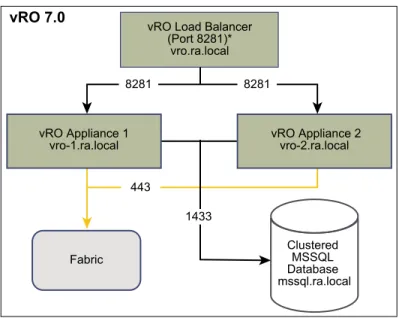
vRO Load Balancer (Port 8281)*
vro.ra.local 8281
443
vRA Infrastructure Web Load Balancer [Port 443] web.ra.local
vRA Infrastructure Web Server 1 web-1.ra.local
vRA Infrastructure Web Server 2 web-2.ra.local
vRA Infrastructure Manager Load Balancer [Port 443] manager.ra.local
vRA Infrastructure Manager Service 1 manager-1.ra.local
vRA Infrastructure Manager Service 2 manager-2.ra.local
443 443
443
443 Infrastructure DEM Server 1 dem-1.ra.local
Infrastructure DEM Server 2 dem-2.ra.local
Fabric
Fabric 443
443
Clustered MSSQL Database mssql.ra.local vRO Load Balancer
(Port 8281)* vro.ra.local
vRO Appliance 1
vro-1.ra.local vRO Appliance 2vro-2.ra.local 8281 8281
1433
Fabric 443
vRO 7.0
Figure 12‑2. Minimum footprint for vRealize Business Standard Edition large configuration
vRealize Business Standard Virtual
Appliance vrb.ra.local
vCenter 443
443
Amazon Web Services
vCloud Director
vCenter Operations
Manager vRA Virtual Appliance
Load Balancer
vrava.ra.local 443
vRA Infrastructure Web Load Balancer
web.ra.local
443
443
Index
A
architectural changes 9
D
DEM, analysis and tuning 21
deploy and configure, recommendations 11
deploying, vRealize Automation 13
deployment large 43
medium 37
deployment considerations, vRealize Business Standard Edition 17
G
glossary 5
H
high availability, vRealize Automation 25
I
intended audience 5
M
machines 29
manager service, configure for high volume 20
medium deployment, vRealize Automation 37
S
scalabilityvRealize Automation 19
vRealize Business Standard Edition 23
small deployment 31
U
updated information 7
V
vRealize Automation, deployment 13
vRealize Automation, large deployment 43
vRealize automation, machine overview 29
vRealize Automation,scalability 19
vRealize Business Standard Edition, scalability 23
vRealize Business Standard Edition, deployment considerations 17
vRealize Business Standard Edition, high availability 27