SB_CustomReport
Documentation V2.4
System Requirements
2
Installation
3
Funktional Description
4
Languages
5
User Configurations
6
Order Data and Licenses
7
PDF Printer
8
Valérie Schmidt
Sophienstrasse 116a
Tel: 0721 9553874
Fax: 0721 9553875
Functional Description
SB_CustomReport1 CONCEPT ... 3
2 SYSTEM REQUIREMENTS ... 4
3 INSTALLATION ... 5
4 FUNKTIONAL DESCRIPTION ... 7
4.1 SELECT XML-FILE ... 7
4.2 GENERATE REPORT ... 8
4.3 CUSTOMIZE REPORT ... 9
4.4 PRINT REPORT ... 11
4.5 WHOLE PAGE ... 11
4.6 HIDE TREE ... 11
4.7 BACK ... 11
4.8 NEXT PAGE ... 11
4.9 DIRECT PAGE ACCESS (COMBO BOX) ... 11
4.10 LOCAL TIME (CHECKBOX) ... 12
4.11 TRENDS/GROUP (LISTCOUNT) ... 13
4.12 INSTALL LICENSE ... 14
5 LANGUAGES ... 15
6 CUSTOM LAYOUTS ... 16
7 ORDER DATA AND LICENSES ... 23
1 Concept
The batch system SIMATIC Batch (Siemens AG) stores the production data of all batches in xml files on the hard disk. All files are stored in a dedicated directory on the batch servers. These files can be printed out via an internal Report Generator. Thus the xml files are transformed into html files using several style sheets. At the moment it isn’t foreseen to allow to customizations oft he reports.
The tool SB_CustomReport.exe. is able to produce such Custom reports. It is an .Net based application which reads the xml files from SIMATIC Batch and produces a report based on a internal control. The contents and layout of the report can be changed by various settings.
Functional Description
SB_CustomReport2 System Requirements
The program SB_RHC has been developed under Microsoft .Net. Therefore the following requirements and restrictions have to be considered:
The target computer needs to have an installation oft he Microsoft .Net Framework version 1.1. The setup of SB_RHC contains a setup for this software, but will not be installed automatically.
The use of .Net – applications is not allowed together with PCS 7 (Siemens AG). To avoid troubles with these systems, SB_RHC must be installed on different computers.
Our software is protected by a soft key. A temporary use without a license is supported (Demo mode). Without any valid key the program will generate up to 10 reports. Beyond this limit no reports will be printed. The program will be activated by installing a valid license only.
3
Installation
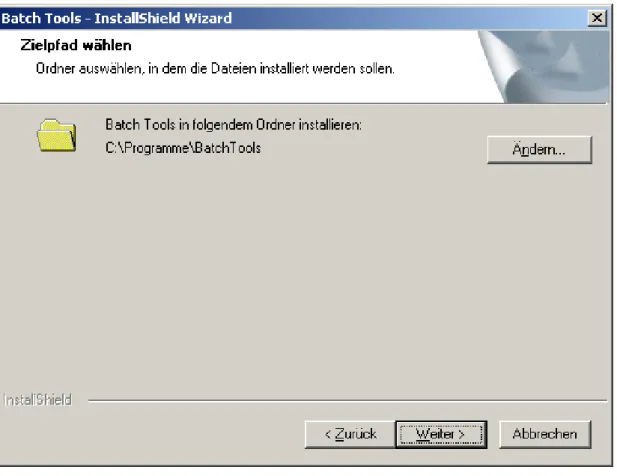
The complete installation is done by a setup program. Manual interactions are not necessary. Merely the selection of the target directory is possible:
Figure 3.1 Selection of the Target Directory
Pushing the „Ändern…“ – Button opens a file browser window and a new target directory can be selected or created.
Functional Description
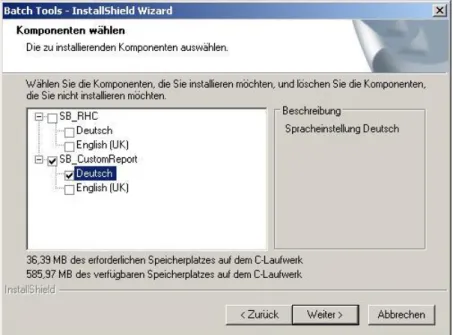
SB_CustomReportFigure 3.2: Auswahl der Sprachvariante
Information:
Only one language must be selected.
During the installation, the Setup will create a subdirectory „dotnet“ containing a Microsoft .Net Framework 1.1.
Information:
Uninstalling „SB_CustomReport“ will not delete this subdirectory. If the .Net Framework isn’t necessary it can be deleted manually by the user.
4
Funktional Description
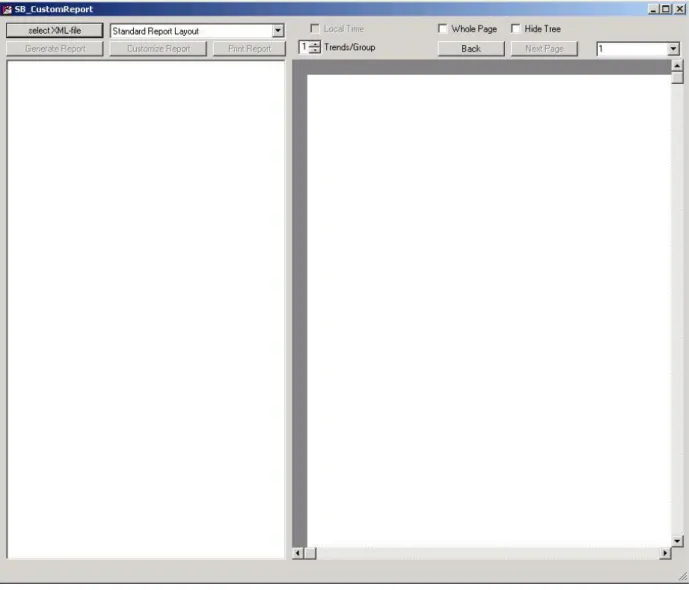
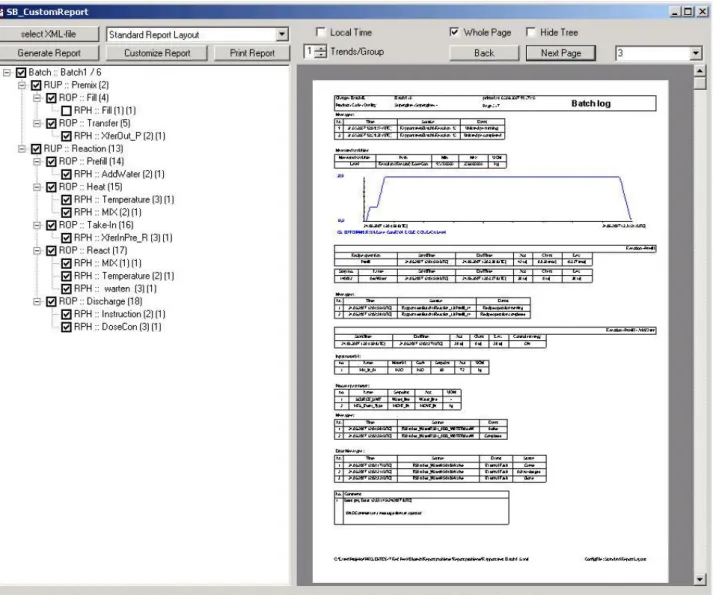
The installed program can be started via the task bar of Windows. The user interfaces contains the following elements:
Figure 4.1 User interface SB_CustomReport
Details of the functions:
4.1 Select XML-File
This button opens a file Browser to select a xml – file as input for the report.
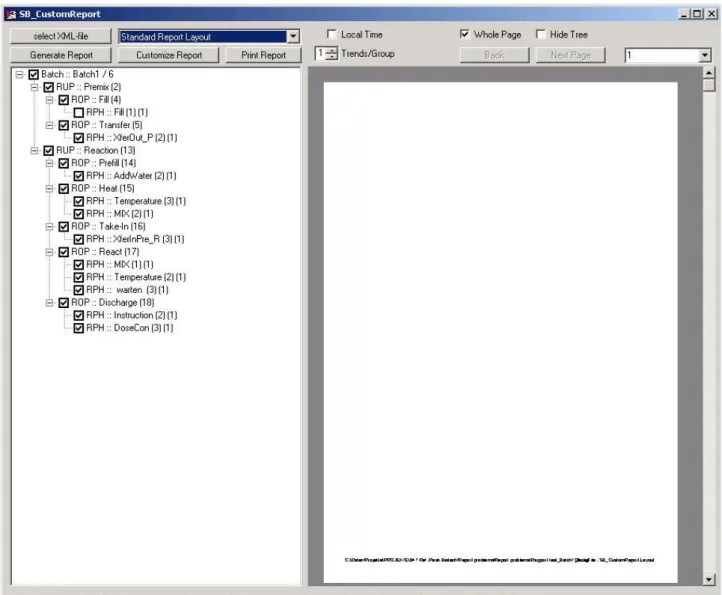
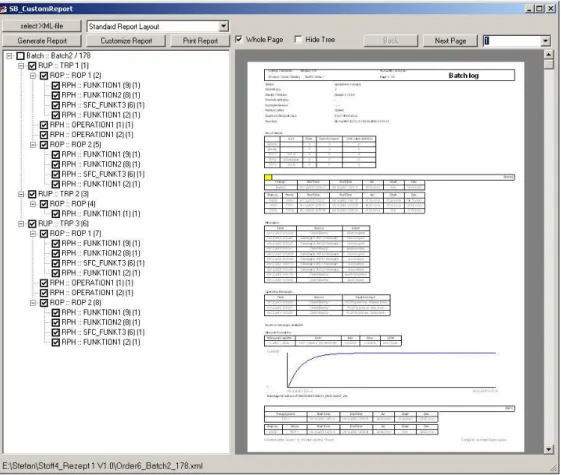
The structure oft he selected batch will be shown as Tree view after opening the file. All checked nodes in the tree will be shown in the Report.
Functional Description
SB_CustomReportFigure 4.2 Structure oft he batch as Treeview
The report will be generated with the button „Generate Report“.
4.2 Generate Report
This button generates the report with respect to the settings in the Tree View.
The report will be shown page by page. The buttons „Back“ and „Next Page“ allow to navigate through the report.
A dedicated page can be accessed with the Combo Box top right.
A dedicated position in the report can be accessed via the nodes of the Tree view. A Click to one node will display the page of the report where the element is located. The element in the report will be marked.
Figure 4.3: Ausgabe des Batchreports
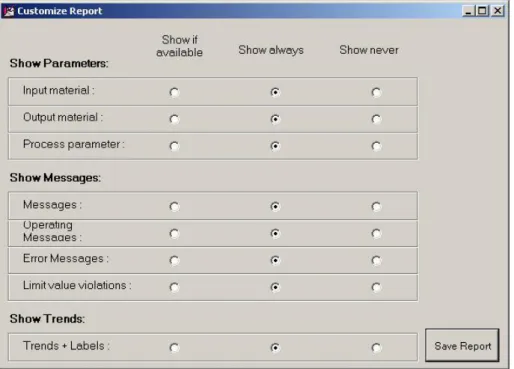
4.3 Customize Report
Functional Description
SB_CustomReportFigure 4.4: Global changes for the Batch Reports
A special feature ist he Option „Show if available“.
This option is useful to suppress unnecessary informations in the report. E.g. if there are no messages available, in the report nothing will be shown. In the report of SIMATIC Batch you will find the text “No Messages”. If this option is not activated, you will find the text “No Messages” in your report.
Information:
All options are stored in the Registry of the computer and valid for all reports.
After a change of one or more of these options you have to activate „GenerateReport“ to store the changes in the Registry.
Another feature to change the contents of the report is the Tree view on the right hand side. Checking or unchecking elements of the tree includes or excludes these elements from the report. As default all elements are checked.
Trends can be displayed in 3 different sizes. As default they are displayed „Small“. The y-axis can be scaled automatically or by fixed values. The options for a trend will be displayed with a right click on a trend in the report:
Information:
All options are stored in the Registry of the computer and valid for all reports.
After a change of one or more of these options you have to activate „GenerateReport“ to store the changes in the Registry.
The settings for the Treeview and fort he Trends are stored in a xml – file automatically. This xml – file is being created on base of the recipe and version of the recipe. All xml – files based on the same recipe and version will load these settings automatically. If no valid file with the settings can be found a new one will be created automatically. The same will happen, if an used recipe is change in SIMATIC Batch.
4.4 Print Report
This button will print the actual report on a printer. A dialog for the desired printer will be shown. The report will not be stored as file in an user-defined format. If this feature is needed, you have to install a printer driver (e.g. pdf) which supports this behavior.
Information:
Such a printer driver is not part of this program, but the setup contains a pdf – printer. The use of this driver is done on your own risk!
To avoid an overload oft he computer, max. 500 pages are processed within one print job. If the report exceeds this amount of pages, the program will generated several print jobs. If a file printer is used several files will be created. They will be numbered serially.
4.5 Whole Page
This checkbox will scale the Report to the width of the window. This feature is usefully, if the Zoom – function was used before. If you make a Double-click with the right Mouse button to the report, it will zoom in, a Double-click with the left Mouse button will perform a zoom out.
After a zoom in the report can be moved in the window with the pressed left Mouse button.
4.6 Hide Tree
The Tree view on the left side of the window will be closed.
4.7 Back
Goes backwards in the Report pages.
4.8 Next Page
Goes forward in the Report pages. .
4.9 Direct Page Access (Combo Box)
The selected page will be shown in the report window.Functional Description
SB_CustomReportFigure 4.6: Direct access to a report page
4.10 Local Time (CheckBox)
Time values can be shown in the Report using two different Time Zones, local Time and UTC. If local Time is checked, in the Report the difference local – UTC will be shown, otherwise „UTC“ is shown.
Information:
Changing the Time zone is enabled in the standard layout only. To take effect, the report has to be generated after changing the Time zone.
If a Custom layout is used, the checkbox is disabled. The desired Time zone has to be defined in the xml-file for the used layout. The item Time local has to be set to “True” or “False”.
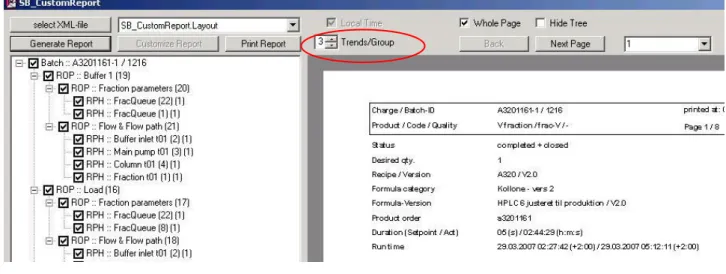
4.11 Trends/Group (ListCount)
Normally all trends are displayed in unique coordinate planes. But sometimes it is interesting to see several trends within one coordinate plane. For this purpose a maximal amount of trends which are combined in a coordinate plane can be defined. The value can be selected between 1…4 trends. Only trends of the same container Batch, RUP, ROP are combined. If there are more trends in that container are available the next coordinate plane will be generated.
Functional Description
SB_CustomReportInformation:
The size of a multiple trend coordinate plane is calculated from the first trend which is processed. (only important if different sizes were defined before.
4.12 Install License
If no valid license key is installed, this button will be visble. The program will work without a valid key in the Demo mode. Only 10 reports can be printed out. Beyond this limit the program will be disabled until a valid license is installed.
The license will be installed with a dedicated dialog.
Figure 4.7 Dialog for License key
If the license key is valid, the dialog will be closed automatically. Otherwise an error message will appear.
5 Languages
The program will be installed using one of the available languages. Language dependent texts are stored in the file SB_RHC.exe.config. If required, these definitions can be changed with an applicable editor.
Figure 5.1 Configuration file for language dependent texts
Information:
Functional Description
SB_CustomReport6 Custom Layouts
As default the layout of this generator is very similar tot he standard Report of SIMATIC Batch. The result are in the most cases very large Reports, which make an quick and easy analysis impossible.
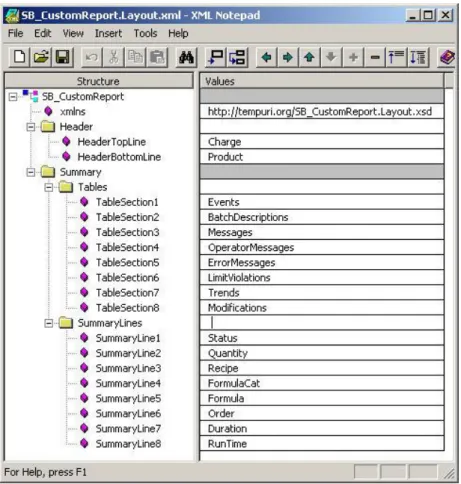
To avoid this behavior the Report Generator can be configured to produce with the most important values as contents only. Layout and contents can be configured based on a xml-file. There is no restriction in the amount of xml-files that can be used with this Report Generator. These xml-files have to be stored in the subdirectory „UserConfigs“ of your SB_CustomReport – Installation. Information:
The name of the xml-file can be chosen freely, but the extension oft he must be „.config.xml“ . The structure oft he file has to be:
Figure 6.1 User Konfiguration
Actually 4 sections are defined in this xml- file:
Header
Informations for the header of the report. These values are shown on all pages.
Tables
Values in table form (e.g. Messages, Trends, usw.)
SummaryLines
Time
Time Zone for Time values
For each section dedicated terms are allowed to use.
The section Header and SummaryLines may have the following terms: Charge Product Status Quantity Recipe FormulaCat Formula Order Duration RunTime
The section Tables may have the following terms: Events
BatchDescriptions
Messages (Meldungen aller Hierarchieelemente Batch, RUP, ROP, RPH) BatchMessages (Meldungen nur für die Hierarchiestufe Batch)
OperatorMessages ErrorMessages LimitViolations Trends
Modifs
If no term is provided for a section, this section will not be included in the Report. The section Time may have the following terms:
True (local Time) False (UTC)
Information:
The xml-file is controlled by a xml schema. If not valid terms or sections are used, a message box will be shown and the Standard layout will be used as default.
A custom layout can be selected with a Combo box. After a change in the selection the Report has to generated again.
Functional Description
SB_CustomReportFigure 6.6.2: Selecting a Layout for a Report
A selected User Configuration can be edited or created within this program.
The Combo Box has an Context menu, which can be activated by a click with the right mouse button:
Changes in the configuration can be done within the following dialogue:
In the tabs Header, Tables und Summary the configuration items are handled by two List Boxes:
The left hand list contains all available items, the list on the right shows used items and their binding to the report items.
Functional Description
SB_CustomReport Marked items in the lists can be moved from one list to the other with the horizontal buttons:All changes are held in the main memory in the first step. To store them in the xml – file you have to use the Save.. button. Before saving the data, a new filename can be assigned to the data.
Functional Description
SB_CustomReport Normally there is a strong link between a Report layout and the recipe that was use to produce the production data. Therefore the program generates a configuration-file automatically when opening a xml-file of SIMATIC Batch. The name of that file is taken from Recipe name and Recipe version. In this file all settings of the Tree view, the trends, Time zone and a used Custom Layout are stored. Thus all xml-files based on the same recipe will be processed with a unique set of settings without any interaction of the user. This feature is important if the tool SB_RHC.exe is operating in Batch Mode and generates the Reports automatically.Information:
The settings will be stored in the xml-file when generating a Report.
The following steps have to be processed, if you want to generate a new layout: 1. Edit a Custom Layout (xml-file) with an editor
2. Open the xml-file of SIMATIC Batch with this program
3. Adjust your settings in the Tree view, Trends and select your Custom layout with the Combo box
4. Generate the Report
5. …go to (1) or Print the Report or Exit from the program
Now all xml-files of SIMATIC Batch, based on the same recipe will be processed with these settings.
7 Order data and Licenses
The program can be ordered at: Valérie Schmidt
Sophienstraße 116a D-76135 Karlsruhe Tel: +49 721 9553874 Fax: +49 721 9553875
Email: [email protected]
Download: www.michaelschmidt-web.de
If required an individual offer will be provided by us. Every Copy of the program requires a separate license.
To generate a valid license the computer name of the target computer is required. For each computer a unique key will be provided. Changing the computer name will cause the loss of the installed licenses. New key will have to be installed.
Functional Description
SB_CustomReport8
Hints for printing as PDF
Often a printout of the Report to a file is desired. A common format for these files are the PDFs of Adobe.
This Report Generator has no function to generate such files.
The problem can be solved by installing a special printer driver, which is able to print the report as pdf-files.
The Setup includes such a printer as example, but will not install it (BullZip Printer) An installation and use of this printer can be done on your own risk.