GE
Security
Copyright © 2009 GE Security, Inc.
This document may not be copied in whole or in part or otherwise reproduced without prior written consent from GE Security, Inc., except where specifically permitted under US and international copyright law.
Disclaimer The information in this document is subject to change without notice. GE Security, Inc.
(“GE Security”) assumes no responsibility for inaccuracies or omissions and specifically disclaims any liabilities, losses, or risks, personal or otherwise, incurred as a consequence, directly or indirectly, of the use or application of any of the contents of this document. For the latest documentation, contact your local supplier or visit us online at www.gesecurity.com.
This publication may contain examples of screen captures and reports used in daily operations. Examples may include fictitious names of individuals and companies. Any similarity to names and addresses of actual businesses or persons is entirely coincidental.
Trademarks and patents GE and the GE monogram are trademarks of General Electric Company. The TruVision DVR 30
name and logo are trademarks of GE Security.
Other trade names used in this document may be trademarks or registered trademarks of the manufacturers or vendors of the respective products.
Intended use Use this product only for the purpose it was designed for; refer to the data sheet and user documentation for details. For the latest product information, contact your local supplier or visit us online at www.gesecurity.com.
FCC compliance This equipment has been tested and found to comply with the limits for a Class A digital device, pursuant to part 15 of the FCC Rules. These limits are designed to provide reasonable protection against harmful interference when the equipment is operated in a commercial environment. This equipment generates, uses, and can radiate radio frequency energy and, if not installed and used in accordance with the instruction manual, may cause harmful interference to radio communications.
Changes or modifications not expressly approved by the party responsible for compliance could void the user’s authority to operate the equipment.
Certification and compliance
European Union directives 2004/108/EC (EMC directive): Non-European manufacturers must designate an authorized representative in the Community. Our authorized manufacturing representative is: GE Security B.V., Kelvinstraat 7,
6003 DH Weert, The Netherlands.
2002/96/EC (WEEE directive): Products marked with this symbol cannot be disposed of as unsorted municipal waste in the European Union. For proper recycling, return this product to your local supplier upon the purchase of equivalent new equipment, or dispose of it at designated collection points. For more information see: www.recyclethis.info.
2006/66/EC (battery directive): This product contains a battery that cannot be disposed of as unsorted municipal waste in the European Union. See the product documentation for specific battery information. The battery is marked with this symbol, which may include lettering to indicate cadmium (Cd), lead (Pb), or mercury (Hg). For proper recycling, return the battery to your supplier or to a designated collection point. For more information see: www.recyclethis.info.
Content
Chapter 1 Product introduction 1 Product overview 2
Chapter 2 Installation 3
Installation environment 4
Unpacking the TVR 30 and its accessories 4 HDD capacity 5
Back panel overview 6
Connecting devices to the unit 7
Chapter 3 Operating instructions 9 Control interfaces 10 Controlling the TVR 30 10 Front panel overview 11 Using the mouse 12
Using the IR remote control 16 Operating modes 17
Main menu overview 18
Chapter 4 Basic operation 23 Turning on the TVR 30 24 Live mode 24
Spot monitor 25 Logging on 26
Controlling a PTZ camera 27 Playing back video 29 Archiving recorded files 34 Logging off 38
Turning off the TVR 30 38
Chapter 5 Using the Web browser 39 Overview 40
Windows Vista and 7 users 41 Browser connections 42
Using the Web browser to configure the device 42 Searching and playing recorded video 43
Chapter 6 Advanced setup 47 Managing users 49 Configuring cameras 52
Configuring recording and schedule settings 56 Alarm settings 60
Network settings 62 Display settings 65
Chapter 7 System settings 69 Overview 70
System date and time 70 Audio and remote 71 RS-485 settings 72 RS-232 settings 72 Hard drive settings 72
Importing and exporting configuration settings 73 Boot log 73
Upgrading the firmware 75
Appendix A Specifications 77
Product specifications 78 Battery removal 79
Appendix B Factory defaults 81 Menu defaults 82 Network defaults 82
Appendix C Warranty and support 83 Warranty information 84 Contacting support 84
Appendix D KTD-405 keyboard mapping 85
TVR 30 to KTD-405 keyboard mapping 86
Chapter 1
Product introduction
Summary
This chapter provides an overview of the TVR 30, including its features and functions. Content
Chapter 1: Product introduction
Product overview
This is the TruVision DVR 30 User Manual for models: • TVR-3008-500
• TVR-3008-1T • TVR-3008-2T • TVR-3016-500 • TVR-3016-1T • TVR-3016-2T • TVR-3016-3T
TruVision DVR 30 is a network digital video recorder developed for digital surveillance. TruVision DVR 30 (TVR 30) uses an embedded microcontroller unit (MCU) and Linux operating system, combining the most advanced technology in video and audio encoding/decoding, hard disk recording, and TCP/IP communication. The DVR’s firmware is stored directly into the memory, making it more stable and reliable. The TruVision DVR 30 (TVR 30) is an integrated digital video recorder that combines the features of a time-lapse audio/video recorder, a multiplexer, and a video server to create a single security solution.
The TVR 30’s pentaplex operation enables users to view live video, search and play back any recorded video by date and time or by event, and back up the configuration and video data, without interrupting the ongoing DVR recording process.
In addition to the new H.264 compression mode, the DVR’s graphical user interface also optimizes the monitoring controls of the unit.
The TVR 30 comes with remote viewing and configuration software already installed. This software includes a Web browser plug-in, allowing users to view live or recorded video images, and enabling remote configuration. The remote software is stored in the TVR 30 and deployed over a LAN, WAN, or Internet connection to remote Windows-based computers. This simplifies the installation and maintenance of the software components because all remote users are using the same software, which comes from the unit.
Chapter 2
Installation
Summary
This chapter provides information on how to install and connect peripherals to your device.
Content
Installation environment 4
Unpacking the TVR 30 and its accessories 4 HDD capacity 5
Back panel overview 6
Connecting devices to the unit 7 Connecting required devices 7 Connecting external devices 8
Chapter 2: Installation
Installation environment
When installing your product, consider these factors: • Ventilation
• Temperature • Moisture • Chassis load
Ventilation: Do not block any ventilation openings. Install in accordance with the manufacturer’s instructions. Ensure that the location planned for the installation of the unit is well ventilated.
Temperature: Consider the TVR 30’s operating temperature (32 to 104°F, 0 to 40°C) and humidity specifications (10 to 90% relative, noncondensing) before choosing an installation location. Extremes of heat or cold beyond the specified operating
temperature limits may reduce the life expectancy of the TVR 30. Do not install the TVR 30 on top of other hot equipment. Leave 1.75 inches (44 mm) of space between rack mounted TVR 30 units.
Moisture: Do not use the unit near water. Moisture can damage the internal
components. To reduce the risk of fire or electric shock, do not expose this unit to rain or moisture.
Chassis: Equipment weighing less than 35 lbs (15.9 kg) may be placed on top of the TVR 30 only if the TVR 30 is placed on a shelf and not rack mounted.
Be sure to power off the unit before making any connections. In order to prevent the unit from losing data and system damage that may be caused by sudden power, use of an uninterruptible power supply is highly recommended.
Note: Do not remove the rubber feet, and always leave a space for air ventilation on the unit’s bottom side.
Unpacking the TVR 30 and its accessories
When you receive the product, check the package and contents for damage, and verify that all items are included. There is an item list included in the package. If any of the items are damaged or missing, please contact your local supplier.
Items shipped with the product include: • TruVision DVR 30
• IR (infrared) remote control
Chapter 2: Installation
• USB mouse • Power cord
• Rack mount kit (left and right brackets, screws) • Terminal blocks
• TruVision DVR 30 Quick Start Guide • TruVision DVR 30 Quick Reference Guide
The support CD includes the following items: • TruVision DVR 30 User Manual
• TruVision DVR 30 Quick Reference Guide
• Video player application • Record duration calculator
HDD capacity
Storage capacity for the TruVision DVR 30 varies depending on the model. Refer to Table 1 below for more information.
Table 1: TruVision DVR 10 model types
Model Model number Description
8 channel model TVR-3008-500 TruVision DVR Model 30, 8 ch, 500 GB TVR-3008-1T TruVision DVR Model 30, 8 ch, 1 TB TVR-3008-2T TruVision DVR Model 30, 8 ch, 2 TB 16 channel model TVR-3016-500 TruVision DVR Model 30, 16ch, 500 GB
TVR-3016-1T TruVision DVR Model 30, 16ch, 1 TB TVR-3016-2T TruVision DVR Model 30, 16ch, 2 TB TVR-3016-3T TruVision DVR Model 30, 16ch, 3 TB
Chapter 2: Installation
Back panel overview
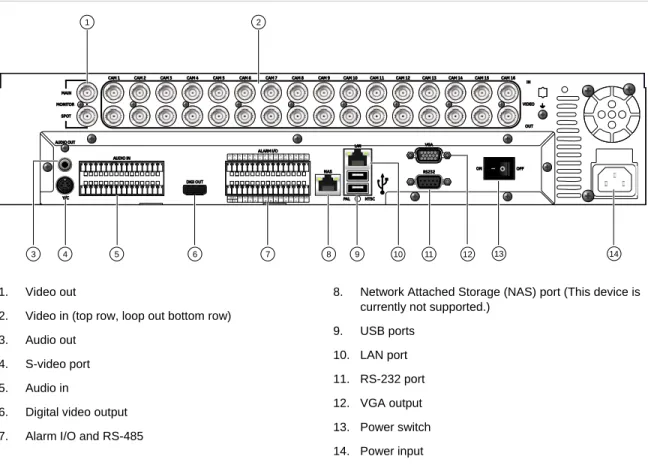
Figure 1 below shows the back panel controls and connectors on a typical TruVision DVR 30.
Figure 1: TVR 30 back panel
1 2
3 4 5 6 7 8 9 10 11 12 13 14
1. Video out
2. Video in (top row, loop out bottom row) 3. Audio out
4. S-video port 5. Audio in 6. Digital video output 7. Alarm I/O and RS-485
8. Network Attached Storage (NAS) port (This device is currently not supported.)
9. USB ports 10. LAN port 11. RS-232 port 12. VGA output 13. Power switch 14. Power input
Chapter 2: Installation
Connecting devices to the unit
Use Figure 2 below as a visual guide to connect the various peripherals to the TVR 30.
Figure 2: Back panel connection diagram
2
3 1
4 5 6 7 8 9 10 12 13
Power Link /Act
100 FD/Col12345678
11 14
1. Connect up to two CCTV monitors (main and spot) and/or Y/C (S-video)
2. Connect up to 16 cameras
3. Connect to speakers for audio output
4. Connect to audio input (available for each camera) 5. Connect to a monitor that displays digital video
(HDMI)
6. Connect to a PTZ control 7. Alarm output
8. Connect to alarm input cables
9. Connect to a network attached storage (NAS) device (This device is currently not supported)
10. Connect to USB devices 11. Connect to a network
12. Connect to a point-of-sale (POS) device 13. Connect to VGA monitor
14. Connect to the power cord
Note: The TVR 30 only supports 800 x 600 resolution in VGA and HDMI. Adjust your monitor accordingly to this resolution. If looping video, ensure that the Termination option (Cameras > Adjust Video) is disabled.
Chapter 2: Installation
Note: You can attach an extension to the RS-485 port on the back panel.
Connecting external devices
When connecting external devices to include as part of the entire system, such as a USB drive or any other USB devices, connect those devices only when the unit
displays live view. The TVR 30 recognizes external devices only after the unit has gone through the initialization process.
Chapter 3
Operating instructions
Summary
This chapter describes the how to control and navigate through the TVR 30’s menus and options.
Content
Control interfaces 10 Controlling the TVR 30 10 Front panel overview 11
Status LEDs 12 Using the mouse 12
Mouse toolbar 13
Using the IR remote control 16
Controlling multiple DVRs with one remote control 17 Operating modes 17
Main menu overview 18 Main menu commands 18 Using the main menu 19
Navigating through dialog screens 19 Using the virtual keyboard 20
Chapter 3: Operating instructions
Control interfaces
The TVR 30 has three control interfaces: • Built-in interface
• Display interface • Web browser interface
Built-in interface. The built-in interface is displayed on the monitor output. It consists of a main menu and several dialog screens that let you configure and control the device. You can invoke the built-in interface using the front panel, remote control, or mouse.
Display interface. The display interface consists of various toolboxes that appear on top of the monitor image. These let you control live or playback video while in PTZ or playback mode. You can invoke the display interface from the built-in interface screens or from the mouse toolbar. The controls in any toolbox can be operated using the front panel, remote control, and mouse.
Web browser. The Web browser interface uses Internet Explorer to simulate the display and control functions of the VGA monitor on a remote PC. The Web browser interface can only be accessed by a PC with Internet access. See Chapter 5 “Using the Web browser” on page 39 for more information on the Web browser interface.
Controlling the TVR 30
You can control the TVR 30 using: • Front panel control
• IR remote control • Mouse control
Front panel control. Use the directional arrow buttons to select a command, option, or button on a screen. Use the Enter button to confirm a selection. Use the Esc button to cancel a selection.
IR remote control. Use the directional arrow buttons to select a command, option, or button on a screen. Use the OK button to confirm a selection. Use the Esc button to cancel a selection.
Mouse. Move the pointer to a command, option, or button on a screen. Click (with the left mouse button) to confirm a selection. Right-click to save and exit a screen.
Chapter 3: Operating instructions
You can use your preferred control method for any procedure, but in most cases we describe procedures using mouse terminology. Optional control methods are given only when they differ substantially from mouse control methods.
Front panel overview
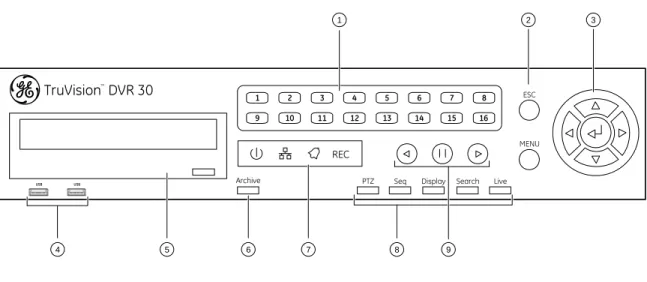
The buttons on the front panel control all TVR 30 functions and set the programmable functions. The LED indicators light up or flash to alert you of various conditions.
Figure 3: Front panel
TM
TruVision DVR 30
e
1 2 3 4 5 6 7 89 10 11 12 13 14 15 16
USB USB
REC
Archive PTZ Seq Display Search Live ESC
MENU
1 2
5 6 7 8 9
3
4
Table 2: Front panel button descriptions
Item Name Description
1 Numeric buttons Display the corresponding video in full screen while in both live and playback mode. The number of the button
corresponds to the camera number. Press and hold a numeric button for two seconds to display the corresponding video on the spot monitor.
While in PTZ mode, press the 1 button to access the Set/Go Preset menu.
2 Menu and Esc controls Press Esc to exit a screen or cancel a selection. Press Menu to display the main menu.
3 Directional Controls And
Enter button Use arrow buttons as directional keys in zoom mode. While in a setup menu, use the Left or Right Arrow keys to navigate through fields. Use the Up or Down Arrow keys to change the value of a selected field. Press Enter to confirm
Chapter 3: Operating instructions
Item Name Description
6 Archive button Begin archiving or displays the Archive screen.
Press once to begin copying a video segment for export while in playback mode. Press again to stop copying. See “Archiving recorded files” on page 34 for more information. 7 Status LEDs Display device status and conditions. See “Status LEDs”
below for more information.
8 Function buttons Change the TVR 30 operating mode. For example, press PTZ to go into PTZ mode. See “Operating modes” on page 17 for more information.
9 Playback controls Control video playback speed.
Status LEDs
The LEDs on the front panel of the DVR are described as follows.
Table 3: Status LED descriptions
LED Name Description
Power Steady indicates that the correct power is connected to the unit. Network Blinking indicates that the DVR is connected to a network. Alarm Steady indicates that an alarm is triggered.
REC Record Blinking indicates that the TVR 30 is recording. Steady indicates hard drive failure.
Using the mouse
Use the USB mouse provided with the TVR 30 to carry out the same operations as the front panel and remote control. Connect the mouse to the TVR 30 by plugging the mouse USB connector into one of the USB ports on the front panel. The mouse is immediately operational and the pointer should appear.
Click the left mouse button to enter or confirm a selection. This is similar to pressing Enter button on the front panel. Click the right mouse button to the exit setup menus and save the settings. Use the scroll wheel to change values.
Chapter 3: Operating instructions
Mouse toolbar
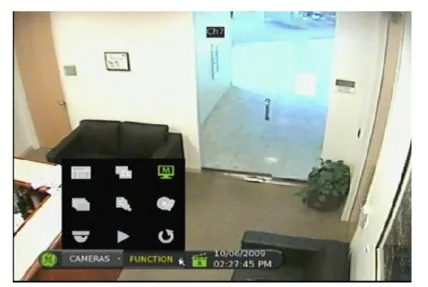
While in live, playback, or sequence mode, point to the date and time to display the mouse toolbar, as shown in Figure 4 below.
Note: To move the mouse toolbar to a different position, click and drag the date and time display.
Figure 4: Mouse toolbar
Mouse toolbar icons
Table 4 below describes the icons that appear on the mouse toolbar.
Table 4: Mouse toolbar icons Icon Description
User is logged in. Numerical value indicates the user’s access level. User icon with a G character indicates that the device requires logon credentials to access the main menu. The device is recording.
The device is recording an alarm event. The device is in sequence mode. The device’s front panel is locked. The device is in archive mode.
Chapter 3: Operating instructions
Icon Description
Indicates the ending point of a video segment for archive while in playback mode. The device is in PTZ mode.
The device is playing video forward.
The device is fast forwarding video playback. The device is playing back video reverse. The device is fast reversing video playback. Video playback is on pause.
Video playback has reached the end of a video segment. Indicates the amount of available hard disk space left. Indicates the hard disk is full.
Camera commands
The camera commands appear when you point to Cameras on the mouse toolbar. Click a camera number to display that camera in live mode.
Function commands
The function commands display when you point to Functions on the mouse toolbar.
Table 5: Mouse toolbar function commands
Icon Name Function
Main menu Displays the main menu
Multiscreen Toggles through the available multiscreen displays including full screen, four-screen, nine-screen, and 16-screen.
Monitor Toggles between main and spot monitor. M indicates the main monitor is currently selected. S indicates the spot monitor is currently selected.
Chapter 3: Operating instructions
Icon Name Function
Sequence Launches the sequence mode. Sequence mode refers to the display of live video in programmed sequence of cameras.
Search Displays the Search screen.
Archive Lets you archive video. Archives the video being played back while in playback mode.
PTZ Launches PTZ mode.
Play Plays back video instantly starting at one minute from the current date and time.
Chapter 3: Operating instructions
Using the IR remote control
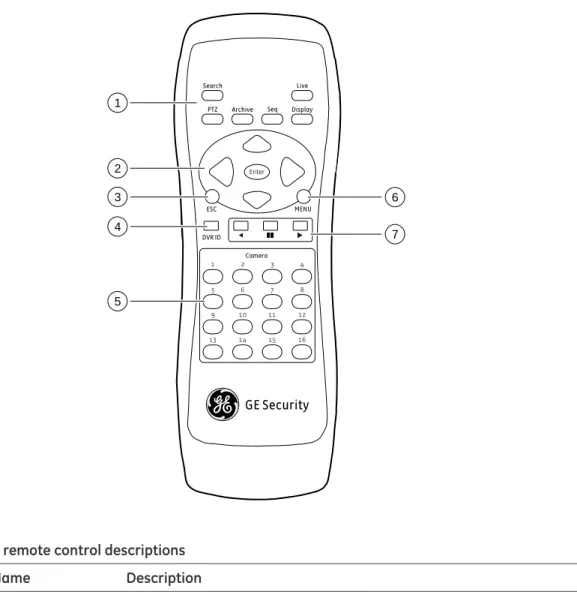
The IR remote control buttons are similar to those on the TVR 30 front panel. You can use the remote control to perform any TVR 30 function.
Figure 5: IR remote control
Live Search Display Seq Archive PTZ Enter ESC MENU DVR ID
1 2 3 4
5 6 7 8
9 10 11 12
13 14 15 16
Camera GE Security 1 2 3 4 5 6 7
Table 6: IR remote control descriptions
Item Name Description
1 Function buttons Change the TVR 30 operating mode. For example, press PTZ to go into PTZ mode. See “Operating modes” on page 17 for more information. 2 Directional controls
and Enter button In menu mode, navigate and select commands. In PTZ mode, use for PTZ controls. While in a setup menu, use the Left or Right Arrow keys to navigate through fields. Use the Up or Down Arrow keys to change the value of a selected field.
3 Esc Exit a screen or cancel a selection.
Chapter 3: Operating instructions
Item Name Description
5 Numeric buttons In live mode, display the corresponding camera. In edit mode, enter numeric characters.
6 Menu Display the main menu. 7 Playback Control video playback speed.
To place batteries into the IR remote control: 1. Remove the battery cover.
2. Insert the batteries (AAA). Make sure that the positive and negative poles are correctly placed.
3. Replace the battery cover.
To connect the remote control to the TVR 30:
1. Turn on the TVR 30 and wait for live video to appear.
2. On the remote control, press the DVR ID button, and then press the 1 button. Note: The numeric button depends on the remote ID assigned to the TVR 30. The remote ID assigned is 1 by default. See “Controlling multiple DVRs with one remote control” below for more information.
3. The remote control is now operational.
Controlling multiple DVRs with one remote control
You can control up to 16 DVRs with one remote control. Each DVR must have a unique remote ID assigned. To connect the remote control to a DVR, press the DVR ID button on the remote control, and then press the numeric button with the desired remote ID. For more information on assigning a remote ID to a DVR, see “Audio and remote” on page 71.
Operating modes
Table 7 below describes the various operating modes for the TVR 30.
Table 7: TVR 30 operating modes
Chapter 3: Operating instructions
Mode Description
Menu Displays menu options for configuration.
PTZ Displays live video from multiple cameras in a programmed sequence. Playback Plays back recorded video.
Freeze Freezes live or playback video. Spot On-screen display for spot monitor.
Main menu overview
The built-in interface of the TVR 30 includes a main menu screen with eight command buttons. Each command displays a dialog screen that lets you edit a group of TVR 30 settings. The main menu screen is shown in Figure 6 below. Access to different option screens varies depending on your access privileges. Most screens are available only to system administrators. The menu icon is highlighted when selected.
Figure 6: Main menu
Main menu commands
Table 8 below describes the commands available for each menu items.
Table 8: Main menu commands
Command Description
Cameras Configures camera settings including motion detection, PTZ, video image adjustments, camera title, and copy settings to other cameras.
Chapter 3: Operating instructions
Command Description
Schedule Configures recording and schedule settings including recording quality, and schedule definitions.
Alarms Configures alarm settings including alarm input, relay output, video loss detection, remote alert, prealarm, and post-alarm seconds.
Users Configures users, passwords, access privileges, and defines privilege levels. Network Configures standard network settings including IP address, e-mail
notifications, DDNS setup, and advanced network settings.
Display Configures display settings including sequence order, dwell time, on-screen alerts, display formats, and transaction overlay.
System Configures system settings including system date and time, audio output, device name, RS-485 settings, RS-232 settings, firmware upgrade, hard drive settings, boot log, and shutdown.
Info Displays the unit’s system information including model ID, network address, firmware version, and MAC addresses.
Using the main menu
Use the mouse or directional arrow keys to navigate through the menu commands and display the configuration screens. To display the main menu, click the Menu button on the mouse toolbar or press the Menu button on the front panel or remote control.
Navigating through dialog screens
Each dialog screen includes various options and buttons as seen in Figure 7 on page 20. The frame surrounding an option or button indicates that this option (or button) is currently selected.
Use the mouse to select any option or button on the screen. You can also use the directional arrow buttons (Up, Down, Left, or Right) to navigate through the options. Changes to screen settings can be entered in various ways as shown in Table 9 on page 20.
Saving your changes
Closing a screen, either by clicking the X button at the top right corner or by right-clicking, automatically saves and applies your changes. You cannot cancel or undo any changes you have entered in a dialog screen.
Chapter 3: Operating instructions
Figure 7: Cameras menu
Table 9: Field entry types
Type Description
List box Provides more than two values for the option. Only one of them can be selected. Click the scroll arrows at the right-hand side of the box to scroll through the possible values. You can also use the Up or Down Arrow buttons to select a value.
Edit box Lets you to enter characters into the settings, such as camera name. Enter characters into an edit box through the virtual keyboard. See “Using the virtual keyboard” below for more information.
Button Triggers a special function or allows you to display a new screen. For example, click the Setup button to display the setup screen.
Using the virtual keyboard
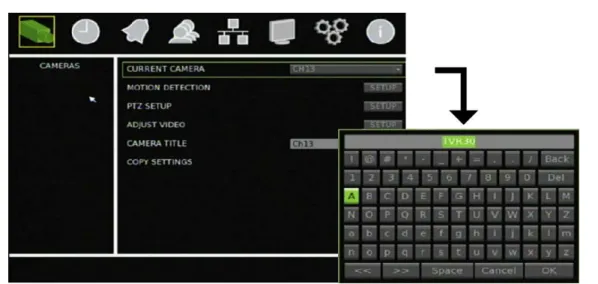
The virtual keyboard allows you to enter a full range of alphanumeric characters, such as camera name, through a virtual keyboard as shown in Figure 8 on page 21. The virtual keyboard automatically displays when entering values in an edit box field. You can use the front panel, IR remote control, or USB mouse to enter characters with the virtual keyboard.
Chapter 3: Operating instructions
Figure 8: Virtual keyboard
To enter characters in an edit box: 1. Highlight the edit box.
2. Click the mouse within the action frame (or press Enter in the front panel or remote control) to display the virtual keyboard.
3. Select the characters required.
4. When finished, click OK on the virtual keyboard to close the keyboard.
Exiting the main menu
Click Esc on the mouse toolbar (or right-click) or press Esc on the front panel or remote control to exit the main menu and return to live mode.
Chapter 4
Basic operation
Summary
This chapter describes the basic operation of the TVR 30 such as how to turn on the unit, log on, control a PTZ camera, play back video, and archive recorded video files. Content
Turning on the TVR 30 24 Live mode 24
Viewing in full screen 25 Viewing in multiscreen 25 Spot monitor 25
Controlling the spot monitor 26 Logging on 26
Controlling a PTZ camera 27 Accessing PTZ mode 27 PTZ control buttons 27
Calling up a preset PTZ point 28 Exiting the PTZ control mode 29 Playing back video 29
Instant video playback 29 Searching video for playback 29 Playback controls 33
Exiting playback mode 33 Archiving recorded files 34
Using Quick Archive in live mode 34 Using the Archive screen in live mode 35
Chapter 4: Basic operation
Turning on the TVR 30
Before turning the TVR 30 power on, connect at least one monitor to the main video out or the VGA interface. Otherwise, you will not be able to see the user interface and operate the device. Use the power switch on the back panel to turn on the unit.
Live mode
The TVR 30 automatically enters into live mode once powered on. Live mode refers to the mode in which the TVR 30 displays live video from cameras. The TVR 30 on-screen display presents information such as the camera title, the current operating mode, and the date and time information as shown in Figure 9 below.
Figure 9: On screen display
1
2
1. Camera title 2. Mouse toolbar
Chapter 4: Basic operation
Note: To the camera title to a different position, right-click the mouse, and then select a new position while in live mode.
Viewing in full screen
Press a numeric button to switch to the corresponding camera display. For example, press 2 to view camera 2.
Viewing in multiscreen
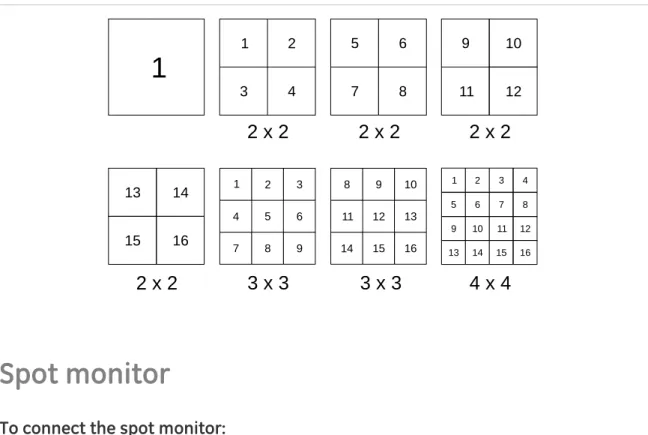
Use the Display button on the front panel to cycle through different display formats. Figure 10 below displays the multiscreen formats available as defaults.
Figure 10: Display formats
1
1 2 3 4 5 6 7 8 9 10 11 12 13 14 15 161 2 3
4 5 6
9 8 7
8 9 10
11 12 13
16 15 14
1 2 3 4
8 7 6 5
9 10 11 12
16 15 14 13
2 x 2 2 x 2 2 x 2
2 x 2 3 x 3 3 x 3 4 x 4
Spot monitor
To connect the spot monitor:
1. Connect the spot monitor to the Spot video out port on the back panel using a composite cable.
2. While in live mode, press and hold a numeric key for two seconds on the front panel or remote control.
Chapter 4: Basic operation
Note: Make sure that there is video signal input. Otherwise the spot monitor will only show a blank screen.
Controlling the spot monitor
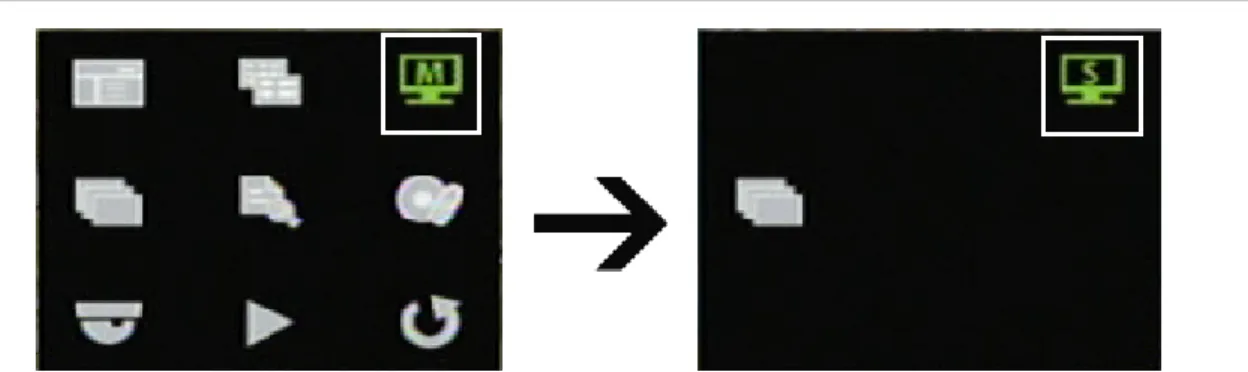
Press and hold a numeric button for two seconds to display the corresponding camera in full screen. Additionally, press and hold the SEQ button (on the front panel or remote control) to initiate sequence mode on the spot monitor. Alternatively, click the Monitor button on the mouse toolbar to toggle to the spot monitor function, and then click the Sequence button to begin sequence, as shown in Figure 11 below.
Figure 11: Spot monitor function
Logging on
The TVR 30 is shipped with a predefined user for the system administrator. The default system administrator logon uses “admin” as a user name with a password of 1234. You can modify the admin password but not the admin user name. GE Security recommends that you change the admin password once you have completed the installation and setup to protect against unauthorized access. The seven predefined standard users are labeled User1 to User7 with a default password of 4321 and level 4 access. The administrator can customize these users and define their privileges. For more information, see “Managing users” on page 49”.
To log on to the TVR 30 user interface: 1. Click Menu.
2. Select a user in the Account field.
3. Use the mouse or the Down Arrow button to select the Password field. 4. Enter the corresponding password.
Chapter 4: Basic operation
Controlling a PTZ camera
PTZ mode lets you to control the PTZ operation of the cameras using a TVR 30 PTZ interface. You can control PTZ cameras using the buttons on the front panel and IR remote control or by using the PTZ control icons on the mouse toolbar. To enter PTZ mode, you must have PTZ control access privileges.
Note: The TVR 30’s support for Digiplex (GE RS-422) is limited. As a result, you may not be able to control Digiplex domes with a multiplexer unless the camera’s output connects to the input of a keypad.
Accessing PTZ mode
To access PTZ mode, select a camera using the numeric buttons (on the front panel, remote control, or the mouse toolbar). Click PTZ in the mouse toolbar or press the PTZ button on the front panel or remote control. The PTZ control interface displays as shown in Figure 12 below.
Note: You can only access the PTZ control interface while in live mode.
Figure 12: PTZ control interface
PTZ control buttons
When you enter PTZ mode, the PTZ control interface displays. In PTZ mode, the numeric buttons control additional PTZ functions. Table 10 on page 28 lists the front panel keys and their PTZ control functions.
Chapter 4: Basic operation
Table 10: Front panel PTZ control function Front panel key PTZ control
8 Zooms out
16 Zooms in
7 Focuses near
15 Focuses far
6 Closes iris
14 Opens iris
Enter Auto focus/iris Esc Exits PTZ mode
Calling up a preset PTZ point
To call up a preset PTZ point:
1. Click on a camera in the mouse toolbar or use the numeric buttons to select a camera.
2. Click the PTZ icon in the mouse toolbar or press the PTZ button to display the PTZ control as shown in the figure below.
3. Click the Preset icon (or press 1 on the front panel or remote control) to access the Set/Go Preset function as shown in the figure below.
Chapter 4: Basic operation
5. Click Go Preset. The selected camera adjusts to the settings of that preset number.
Exiting the PTZ control mode
Press Esc to exit the PTZ control mode and return to live mode.
Playing back video
The TVR 30 allows you to play back recorded video. This section describes the features and methods in playing back video.
There are several ways to play back recorded video:
Instant playback. Play back instantly, starting from the last recorded minute in live mode.
Searched video playback. Play back video starting from a specific date and time.
Instant video playback
To play back video instantly, press the Play button on the front panel, remote control, or mouse toolbar. The TVR 30 plays back recorded video from the selected camera starting from the last recorded minute in live mode.
Searching video for playback
The TVR 30 lets you search and play back recorded video based on the following search criteria:
• Date and time • Events
• Text (if a POS machine is connected)
While in live or playback mode, click Search to display the Search menu as shown in Figure 13 on page 30.
Chapter 4: Basic operation
Figure 13: Search menu
To search for recorded video by date and time: 1. Click Search to display the Search screen. 2. Enter a start date and time in the Go To field.
3. Click Play Data. Recorded video will begin to play back starting from the specified date and time.
To search for recorded video using the Calendar Mode: 1. Click Search to display the Search screen.
2. Click Calendar Mode. The Calendar Mode screen displays as shown in the figure below.
Chapter 4: Basic operation
Click on a date or use directional arrow keys to select a date. Dates that appear in italics and underlined indicate recorded video available for that day. Days
highlighted in gray indicate that the days are within the start and end time of the database. Days not highlighted indicate that the days are beyond the start and end time of the database.
4. Select a start time using the timeline.
The timeline displays a 24-hour period for the specified date. Yellow areas
indicate normal recorded video. Red areas indicate events that occurred that day. You can click anywhere in the timeline to specify a start time for the video you want to play back. If you are using the front panel or remote control keys,
highlight the From/End option and press Enter to move the marker at the start or end points of the video segment.
If using the front panel or the remote control to navigate through the Calendar Mode, use the Select fields to specify a start date and time.
5. Click Play Data to begin playback. To search for recorded video by events: 1. Click Search to display the Search screen.
2. In the Choose Camera box, select the cameras you want to use in your search. You can select more than one camera or all cameras.
3. Click Event List to display the Event List screen. 4. Click an event from the Event List to play video. Searching for recorded video by POS text
The TVR 30 lets you to search for video based on text data from a point-of-sale (POS) device connected to the unit. You can search using any of these methods:
• By text
• By numeric value • By date and time • By camera
Text. When searching by text, you can search for video with data containing the exception string defined using the setup menu. You can also enter two word strings and search for video with data containing either one of the word strings or both of the word strings. Alternatively, you can specify only one word string.
Chapter 4: Basic operation
specified range. Additionally, you can enter a single value and search for videos with data containing values less than, equal to, or greater than that value.
Date/Time. When searching for video based on POS data, you can narrow your search by specifying a date and time range.
Camera. When searching for video based on POS data, you can narrow your search by specifying a camera.
To search for recorded video by POS text: 1. Click Search to display the Search screen.
2. Click POS Data Search. The POS Data Search screen displays as shown in the figure below.
3. Specify your search criteria.
Before entering any search criteria, highlight the search type field and specify how you want the search criteria to be handled. For example, if searching for data containing the text words “sale” and “charge,” highlight the Text Search field and select the AND option. Then enter the search words in the Text fields, one word for each field. When specifying a numeric value range, enter the lower number in the Lower Bound field and the higher number in the Upper Bound field.
4. Click POS Search Result to display your search results. 5. Click a search result to play back the resulting video.
Note: Make sure the Transaction Overlay (POS) box in the Display screen is set to include playback.
Chapter 4: Basic operation
Playback controls
When viewing recorded video, several options are available to control playback. You can control playback using the front panel, the mouse toolbar (as shown in Figure 14 below), or the remote control.
Note: Playback control on the mouse toolbar automatically hides if there is no mouse activity for more than five seconds. The playback toolbar reappears when you move the pointer over the toolbar.
Figure 14: Playback controls
Playback control options
Option Description
Play reverse Plays video backwards at a speed based on how many times you press the key. Press once to play video 1x, twice for 2x, etc. Speeds include: 1x, 2x, 4x, 8x, 16x, and 32x.
Pause Pauses the video playback.
Play forward Plays video forward at a speed based on how many times you press the key. Press once to play video 1x, twice for 2x, etc. Speeds include: 1x, 2x, 4x, 8x, 16x, and 32x.
When video is paused, use the left or right button to jump back to the previous frame or forward to the next frame.
Chapter 4: Basic operation
Archiving recorded files
Archive recorded files using an external device. There are two ways to archive recorded files:
Quick Archive. Quick archive lets you archive recorded files quickly by using the Archive button on the front panel and remote control.
Archive screen. Use the Archive screen (shown in Figure 15 below) to specify archiving settings such as date range, events, and data type.
Figure 15: Archive screen
Using Quick Archive in live mode
To archive recorded video using Quick Archive while in live mode: 1. Insert the backup device.
If using a USB memory drive, insert the device into the USB port on the front panel. If using a digital video disc (DVD), insert the disc into the DVD drive. If both media are found in the TVR 30, the USB device takes precedence over the DVD. 2. Press the Archive button on the front panel or the remote control. The Quick
Chapter 4: Basic operation
3. Click Quick Archive to begin archiving.
The TVR 30 archives the latest recorded video onto the backup device until the medium is filled to its capacity or all video found in the unit have been exported.
Using the Archive screen in live mode
To archive recorded video using the Archive screen in live mode: 1. Insert the backup device.
If using a USB memory drive, insert the device into the USB port on the front panel. If using a digital video disc (DVD), insert the disc into the DVD drive. If both media are found in the TVR 30, the USB device takes precedence over the DVD. 2. Press the Archive button on the front panel, or remote control, or click Archive in
the mouse toolbar.
3. Press Enter to display the Archive screen. 4. Select the cameras you want for archive.
5. Specify a date and time range you want for archive. 6. Select a data type.
Use the Data Type option to select one of the following:
Normal. Archive normal video only.
Event. Archive event video only.
Both. Archive both normal and event video types. 7. Select the events you want to archive, if required.
Chapter 4: Basic operation
This option is only enabled if you select Event as the data type. A list of events displays on the Event List screen.
b. Click an event in this screen to be archived.
You can click additional events you want to archive.
Note: When archiving a motion event, the DVR archives the motion event for the selected camera as well as post-event video from all other cameras. The duration of the post-event video is based on the value you specified on the Post-Alarm Seconds option in the Alarms screen.
8. Select a file format.
Use the Format option to specify whether to export to an original, DRV or AVI file type. Selecting the original format results in faster archiving of large amounts of video compared to the DRV format.
Although selecting the original format results in faster archiving, you cannot select which camera to archive. The system archives all the data in the DVR. In addition, when specifying a time range to archive, selecting the original file format results in the exporting of video clips that include the specified time range, but may not be contained in a single file.
The DVR identifies a video clip when the clip reaches 20 MB in size. If you select the original file format and specify a time range with both the start and end times falling in the middle of two video files, both video files are archived.
9. Select Yes for the Begin Export option to start archiving. Note: The Watermark box is always set to On.
Archiving a video segment in playback mode
While playing back recorded video, you can mark a video segment to archive. To mark and archive a video segment:
1. Play back recorded video.
See “Playing back video” on page 29 for more information.
2. Press Archive to mark the start time of the video segment you want to archive. 3. Press Archive again to mark the end time of the video segment you want to
archive.
Chapter 4: Basic operation
Using the DVR player
Use the DVR player to view video clips archived from the TVR 30 on any PC. The DVR player is automatically included when archiving data from the device. When you insert the backup media into the PC, the DVR player automatically runs.
Note: If your PC is running on Windows Vista or Windows 7, the DVR player may not automatically launch. If so, open the backup media by double-clicking the device drive letter, and then launching the DVR_Player file located in the Player folder.
Figure 16: DVR player
To view archived video using the DVR player: 1. Launch the DVR player.
2. Click Play to display the Data List dialog box.
The Data List dialog box displays a list of all archived video. If you don’t see a list, click Open and browse for the folder containing your archived video.
3. Select an event, and then click Playback to display the Playback screen. You can select the start time and cameras from which to play video. 4. Click OK to play back video.
To verify that the video has not been altered, select an event, and then click Verify in the Data List dialog box. The Playback screen displays. If the Status Log reports a value of Good Signature, then the video has not been altered.
Chapter 4: Basic operation
Logging off
There are two ways to log off. You can:
• Log off manually by pressing Esc while in live mode — or —
• Automatically log off from live or menu mode when no buttons are pressed for five minutes
Turning off the TVR 30
To avoiding potentially damaging the TVR 30, use the proper method to turn off the unit.
To turn off or restart the unit: 1. Display the main menu.
2. Select System to display the System screen. 3. Select Shutdown. The Shutdown screen displays.
Chapter 5
Using the Web browser
Summary
This chapter describes how you can use the Web browser interface to configure the device, search and play back recorded video, and control a PTZ camera. You can also specify settings on the Web browser interface to optimize video playback and
recording performance when operating in a low or limited bandwidth environment. Content
Overview 40
Windows Vista and 7 users 41 Browser connections 42
Using the Web browser to configure the device 42 Searching and playing recorded video 43
Using the mouse to zoom in or out 43 Live dual streaming 43
Bandwidth throttle management 44
Chapter 5: Using the Web browser
Overview
The TVR 30 Web browser lets you view, record, and play back videos as well as manage all aspects of the TVR 30 from any PC with Internet access. The browser’s easy-to-use controls give you quick access to all TVR 30 functions.
To access the TVR 30, open a Web browser and enter the IP address assigned to the TVR 30 as a Web address. In the log on screen, enter the default user ID and
password. User ID: admin Password: 1234
The Web browser uses HTTP Port 80.
Figure 17: Web browser interface
1
2
3
4
5
6 7 8
Table 11: Web browser interface features and controls
Item Name Description
1 Display and audio settings Enable audio. Record live video. Specify viewer layout. 2 Camera View video from the selected camera.
Chapter 5: Using the Web browser
Item Name Description
3 Bandwidth control switch (Dual
Streaming) Toggle between Bandwidth settings and Live Dual Streaming. By default the Bandwidth settings are enabled. Bandwidth settings refer to the number of video frames sent across the network. For example, select High for all data or select Low for partial data. Switching to Live Dual Streaming uses a second video data stream (less data size) that is sent over the network. This is ideal for lower
bandwidth networks. For more information, see “Live dual streaming” on page 43.
4 PTZ controls Control PTZ for the currently selected camera. Only displays if PTZ control is available for the selected camera (indicated by a PTZ icon). You can drag this panel
anywhere on the screen. 5 Viewer View live or playback video. 6 Zoom Zoom in or out on video. 7 Download DVR player Download the DVR player. 8 Function Lets you do the following:
• View live video • Play back video
• Display the configuration screen • Search for recorded video • Take an image snapshot • Set the aspect ratio
• Check the hard drive health status
Windows Vista and 7 users
Internet Explorer for Windows Vista and Windows 7 operating systems has increased security measures to protect your PC from any malicious software being installed. When using the TVR 30 Web browser interface, you can install ActiveX controls to connect and view video using Internet Explorer. However, you cannot download data, such as video, images, and the DVR player due to the increased security measure. To have complete functionality of the Web browser interface and the DVR player with Windows Vista and Windows 7, do the following:
Chapter 5: Using the Web browser
To add the DVR’s IP address to Internet Explorer’s list of trusted sites: 1. Open Internet Explorer.
2. Click Tools, and then Internet Options.
3. Click the Security tab, and then select the Trusted sites icon. 4. Click the Sites button.
5. Clear the “Require server verification (https:) for all sites in this zone” box. 6. Enter the IP address in the “Add this website to the zone” field.
7. Click Add, and then click Close.
8. Click OK in the Internet Options dialog screen. 9. Connect to the TVR 30 for full browser functionality.
Browser connections
The Web browser interface lets you connect to the TVR 30 up to five times
simultaneously. With each connection, you can view up to 16 cameras (streams). You can only view video from one camera for any additional connection to the device.
Using the Web browser to configure the device
Click the Configuration button to display the configuration screen. The configuration screen lets you configure:
• Camera settings including motion detection, PTZ controls, video image, and camera title
• Recording settings including recording schedule and recording quality
• Alarm settings including alert notifications, audio alerts, prealarm, and post-alarm seconds
• Network settings including bandwidth throttle, e-mail, DDNS, and UPnP setup • System settings including system date and time, audio, unit name, 485,
RS-232, language, and hard drive setup
Chapter 5: Using the Web browser
Searching and playing recorded video
To search for and play back recorded video, click the Playback button. The Playback screen displays. Select the camera, date and time from which you want to play back video, and then click Start. Video is played back at the viewer. Use the playback control bar to forward, reverse, or pause playback video.
You can also search for video by events or text. Click the Search button to display the Event List screen. Select the appropriate tab and enter your search criteria. The Event List screen also lets you download results to your PC as DRV files.
Using the mouse to zoom in or out
During live or playback mode, you can use the mouse to quickly zoom in on a video image. To zoom in, right-click on a video tile, then use the scroll wheel to zoom in or out. When a video image is zoomed in, you can drag the video image to pan out to different areas.
Live dual streaming
The Live Dual Streaming function lets you view video from up to 16 cameras on the Web browser interface while on a lower bandwidth network. This feature utilizes a second and smaller video data stream that is sent over the network. Click on the Bandwidth Control Switch button (shown in Figure 18 on page 44) in the Web browser interface and select the appropriate bandwidth setting to enable dual streaming. Predefined bandwidth settings (for the second stream) in the browser include: • 768 kbps
• 576 kbps • 384 kbps • 192 kbps
Chapter 5: Using the Web browser
Figure 18: Bandwidth control switch
Bandwidth throttle management
The Bandwidth Throttle Management function lets you throttle the amount of network data sent from the DVR to a client. This function is helpful for networks that have predefined bandwidth limits. This feature lets you control the TVR 30 in a network-sensitive environment and prohibits the TVR 30 from sending a large amount of network data that can potentially disrupt the network. To configure bandwidth throttle, see “Advanced IP settings” on page 63.
Both live dual streaming and bandwidth throttle management can be used simultaneously or individually. For example, if you display live video in the Web browser with the bandwidth throttle management feature enabled, the video update rate is lower, as network video data is sent in shorter, controlled amounts. However, if live dual streaming is enabled, then the video quality increases, since the second stream can be reduced to meet the bandwidth throttle settings, which results in a higher video update rate.
Controlling a PTZ camera in the Web browser
The Web browser interface lets you control the PTZ functions of a camera. Cameras with PTZ capabilities are marked with a PTZ icon (as shown in Figure 19 on page 45). Click on a PTZ camera to display the PTZ controls.
Chapter 5: Using the Web browser
Chapter 6
Advanced setup
Summary
This chapter covers the advanced setup of your TVR 30. Advanced setup lets you define your users and access privileges, specify display options, and network configuration. Only users with appropriate access privileges can define and modify advanced configurations.
Content
Managing users 49 Customizing a user 49 Enabling password 51
Defining access privileges 51 Configuring cameras 52
Motion detection alarm 53 Assigning PTZ protocol 54 Adjusting video image 55 Assigning a camera name 56
Configuring recording and schedule settings 56 Defining a recording schedule 57
Configuring recording compression 57 Defining recording quality 58
Rec wizard 58 Expert modes 59 Alarm settings 60
Configuring remote alert 61 Enabling the alarm buzzer 61 Camera alarm settings 61
Chapter 6: Advanced setup
Advanced IP settings 63 E-mail settings 64 DDNS settings 65 UPnP 65
Display settings 65 Display format 66 Camera title display 66 Unit name display 66 Dwell time 66
Sequence order 67 Event display 67
Chapter 6: Advanced setup
Managing users
The TVR 30 is shipped with one predefined user for the system administrator and seven predefined standard users. The default system administrator logon uses admin as the account name with a default password of 1234. You can modify the admin password but not the admin user name. The seven predefined standard users are labeled User1 to User7 with a default password of 4321 and level 4 access. The administrator can customize the seven standard users and define their privileges. Use the Users screen (shown in Figure 20 below) to manage users.
Note: When accessing the main menu for the first time, the system lets you pick either an admin user or a regular user (User 4) by default. If you select User 4, enter the initial default password of 4321.
Figure 20: Users screen
Customizing a user
Only the system administrator can customize a user. Customizing a user includes changing the user name, password, and access privileges on the User screen (shown in Figure 21 on page 50). All seven standard users can be customized for the TVR 30.
Chapter 6: Advanced setup
Figure 21: User screen
To customize a user:
1. Select Users on the main menu to display the Users screen. 2. Click the User Setup button to display the User screen. 3. Select the user you want to customize in the Account box. 4. Click Mod in the Account box to display the virtual keyboard.
5. Enter a new user name and click OK to return to the User screen. User names are case-sensitive.
6. Click Mod in the Password box to display the virtual keyboard as shown in the figure below.
7. Enter a new password for the account.
Note: You can only enter numerals for passwords. 8. Click OK to return to the User screen.
Chapter 6: Advanced setup
9. Select an access privilege for the user in the Privilege box. 10. Click Confirm to save your changes.
Enabling password
The Enable Password option determines whether or not users must enter their passwords to display the main menu and functions. To enable this option, click Users on the main menu to display the Users screen. Select On in the Enable Password box.
Defining access privileges
The Privileges screen (shown in Figure 22 on page 52) lets you assign access levels to various functions or privileges of the TVR 30. Access levels range from level 1 (lowest) to level 8 (highest). Additionally, setting an access level to "Anyone" allows anyone to access the function, regardless of their assigned access privileges. Table 12 below provides a list of functions and privileges available in the TVR 30.
Note: You cannot change the access level of the admin account.
Table 12: Function or privilege descriptions Privilege Description
PLAY/SEARCH Search and play back recorded video PTZ CONTROL Display and use the PTZ controls of a camera SPOT MONITOR Access the spot monitor
ARCHIVE Archive recorded video MAIN MENU Display the main menu CAMERA Configure camera settings RECORDING Configure recording settings EVENT Configure event settings
USERS Specify user settings NETWORK Configure network settings
DISPLAY Configure display settings SYSTEM Configure system settings INFORMATION Display system information
Chapter 6: Advanced setup
Figure 22: Privileges screen
To assign access levels to privileges:
1. Click Users on the main menu to display the Users screen. 2. Click the Privileges Setup button to display the Privileges screen.
The Privileges screen displays a list of all privileges or operating functions for the TVR 30 and the current access level of each.
3. Select an access level for each of the privilege using the drop-down list.
Configuring cameras
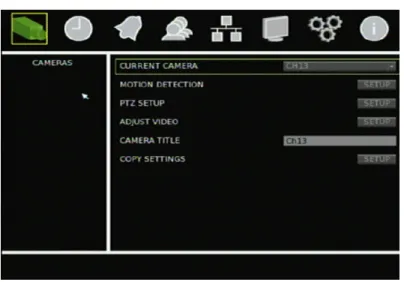
This section describes how to configure your cameras using the Cameras screen (shown in Figure 23 on page 53). For each camera, you can configure the following camera settings:
• Motion detection alarm • PTZ controls
• Display properties • Camera title (name)
Changes made in the Cameras screen apply only to the selected camera in the Current Camera box. To copy a camera’s configuration settings to another camera, click Copy Settings. Settings copied include motion, PTZ, and video adjustment settings. Copied settings do not include the camera title.
Chapter 6: Advanced setup
Figure 23: Cameras screen
Motion detection alarm
A motion detection alarm is an alarm that is triggered when a camera detects motion. The TVR 30 can be configured to display an on-screen alert message and sound an alarm tone. The TVR 30 lets you define the area on screen where the motion is detected, the level of sensitivity to motion, and the target size.
To define a motion detection alarm:
1. Click Cameras on the main menu to display the Cameras screen.
2. In the Current Camera box, select the camera for which you want to define a motion detection alarm .
3. Click the Motion Detection Setup button to display the Motion Detection screen. 4. In the Motion Detection box, select the schedule of when you want motion
detection to be enabled.
5. Click the Detection Area Setup button to define the motion detection area. The system displays a grid covering the entire live view screen of the currently selected camera as shown in the figure below. By default, motion detection is set for the entire screen. Each green square represents a motion detection area. Click on an area (or press Enter) to stop motion detection in that area. When only the desired detection areas remain, right-click, and then click Confirm to save your settings. Press Esc to return to the main menu.
Chapter 6: Advanced setup
Alternatively, you can select the entire area by right-clicking, and then clicking Select All. A grid covers the entire display screen. Click Deselect All to clear the screen from motion detection. Click Block Rect Mode to select or deselect an entire area block.
6. Select a sensitivity level in the Sensitivity box.
Sensitivity level refers to the degree of pixel change in the specified area before a motion detection alarm triggers.
Note: The Motion Detection screen also includes a motion sensitivity indicator that lets you test (by making motions on the camera) how much motion is required to trigger an alarm at the selected sensitivity level. A buzzer sounds off when an alarm is triggered.
7. Select the target size in the Target Size box.
Target size refers to the minimum size of an area in which motion is detected thus triggering a motion detection alarm.
Assigning PTZ protocol
Assign a PTZ protocol and ID to a camera to allow PTZ control of the camera while in PTZ mode. The PTZ Setup screen lets you assign a PTZ protocol and ID to a camera. To assign PTZ protocol and ID to a camera:
1. Click Cameras on the main menu to display the Cameras screen. 2. Click the PTZ Setup button to display the PTZ Setup screen. 3. Select a protocol in the PTZ Protocol box.
Chapter 6: Advanced setup
• None • DSCP • AD422 • Pelco D • Pelco P • Hitron
• JVC
• Panasonic C • Panasonic N • GE RS-485 • GE RS-422
4. Select an ID in the PTZ ID box.
Adjusting video image
In order to get the best image quality when capturing video, you may need to adjust the video image settings, including brightness, contrast, saturation, and hue. Use the Adjust Video screen (shown in Figure 24 below) to modify these settings.
Figure 24: Adjust Video screen
To adjust video image:
1. Click Cameras on the main menu to display the Cameras screen. 2. Click the Adjust Video Setup button to display the Adjust Video screen. 3. Make the appropriate video image adjustments.
Chapter 6: Advanced setup
Assigning a camera name
Each camera can be assigned a unique camera name. If you do not assign a camera name, a default, prenumbered camera name is applied.
To assign a camera name:
1. Click Cameras on the main menu to display the Cameras screen. 2. Click the Camera Title edit box.
A virtual keyboard displays. 3. Enter the new camera name.
You can enter up to 11 characters.
4. Click OK to exit the virtual keyboard and return to the Cameras screen. The new camera name is displayed.
Configuring recording and schedule settings
Use the Schedule screen (shown in Figure 25 below) to define how and when the TVR 30 records video. The following options can be configured:
• Recording schedule • Video compression • Recording quality
Note: If video loss is detected on a camera, the unit will stop recording from that camera.
Chapter 6: Advanced setup
Defining a recording schedule
The Scheduling screen (shown in Figure 26 below) lets you define the elements of a schedule, such as the daytime, nighttime, and weekend ranges.
Figure 26: Scheduling screen
To define schedule ranges:
1. Click Schedule on the main menu to display the Schedule screen. 2. Click Scheduling Setup to display the Scheduling screen.
3. Select the daytime range using the Daytime Begin and Daytime End boxes. 4. Select the nighttime range using the Nighttime Begin and Nighttime End boxes. 5. Select On in the Weekend Schedule box to enable weekend schedule.
6. Select the weekend range using the Weekend Begin and Weekend End boxes. Note: Weekend schedule takes precedence if overlapping on a weekday.
Configuring recording compression
To configure recording compression:
1. Click Schedule on the main menu to display the Schedule screen. 2. Click Compression Setup to display the Compression screen.
Chapter 6: Advanced setup
The resulting recording frame rate is automatically populated based on what you selected in the Resolution and Format box in the Total Rec FPS box.
5. Close the screen to save your settings.
Defining recording quality
To define the quality of your recording, click Schedule on the main menu to display the Schedule screen. Then select a recording quality in the Quality/FPS box. The quality is set to Normal Quality by default. Each camera’s FPS is calculated using the total PPS divided by the total number of cameras.
Recording quality values include: Expert Mode
• Best Quality • Normal Quality • Low Quality • Event Only
Rec Wizard • 512K ADSL • 256K ADSL • 128K ADSL
Rec wizard
The Rec Wizard screen (show in Figure 27 below) provides a faster method of determining the recording resolution and quality based on the number of recording days and the recording schedule. Alternatively, you can select the recording
resolution and quality to determine the recording schedule.
Note: The Record At Weekend command is unavailable if the Weekend Schedule box in the Schedule screen is set to No.
Chapter 6: Advanced setup
To use the Rec Wizard screen:
1. Click Schedule on the main menu to display the Schedule screen. 2. Select Rec Wizard in the Quality/FPS box.
The Rec Wizard command becomes available. 3. Click Rec Wizard to display the Rec Wizard screen. 4. Select your recording settings.
5. Close the screen to save your settings.
In the Rec Wizard screen, select the number of recording days in the Recording Days box and whether to enable recording in daytime, nighttime, and weekends in the corresponding boxes. The Average FPS and Average Quality boxes are automatically populated based on the settings you specified and on the hard drive capacity. You can also select a frame rate and recording quality at which the screen automatically populates the number of recording days and scheduling commands.
Expert modes
The Expert Modes screen (shown in Figure 28 below) lets you customize the resolution and recording quality based on the schedule and event conditions on a per camera basis. You can set the resolution and recording quality in normal and event
conditions based on the recording schedule.