http://www.3com.com/ Part No. DUA1730-0AAA04 Published July 2005
SuperStack
®3
Switch 4200 Family
Getting Started Guide
Switch 4226T (3C17300) Switch 4250T (3C17302) Switch 4228G (3C17304)
3Com Corporation 350 Campus Drive Marlborough, MA 01752-3064
Copyright © 2002, 2005 3Com Corporation. All rights reserved. No part of this documentation may be reproduced in any form or by any means or used to make any derivative work (such as translation, transformation, or adaptation) without written permission from 3Com Technologies.
3Com Technologies reserves the right to revise this documentation and to make changes in content from time to time without obligation on the part of 3Com Technologies to provide notification of such revision or change.
3Com Technologies provides this documentation without warranty, term, or condition of any kind, either implied or expressed, including, but not limited to, the implied warranties, terms or conditions of merchantability, satisfactory quality, and fitness for a particular purpose. 3Com may make improvements or changes in the product(s) and/or the program(s) described in this documentation at any time.
If there is any software on removable media described in this documentation, it is furnished under a license agreement included with the product as a separate document, in the hard copy documentation, or on the removable media in a directory file named LICENSE.TXT or !LICENSE.TXT. If you are unable to locate a copy, please contact 3Com and a copy will be provided to you.
UNITED STATES GOVERNMENT LEGEND
If you are a United States government agency, then this documentation and the software described herein are provided to you subject to the following:
All technical data and computer software are commercial in nature and developed solely at private expense. Software is delivered as “Commercial Computer Software” as defined in DFARS 252.227-7014 (June 1995) or as a “commercial item” as defined in FAR 2.101(a) and as such is provided with only such rights as are provided in 3Com’s standard commercial license for the Software. Technical data is provided with limited rights only as provided in DFAR 252.227-7015 (Nov 1995) or FAR 52.227-14 (June 1987), whichever is applicable. You agree not to remove or deface any portion of any legend provided on any licensed program or documentation contained in, or delivered to you in conjunction with, this User Guide.
Unless otherwise indicated, 3Com registered trademarks are registered in the United States and may or may not be registered in other countries.
3Com, the 3Com logo and SuperStack are all registered trademarks of 3Com Corporation. Novell and NetWare are registered trademarks of Novell Incorporated.
Adobe and Acrobat are registered trademarks of Adobe Systems Incorporated.
All other company and product names may be trademarks of the respective companies with which they are associated.
Environmental Statement
It is a 3Com policy to be environmentally friendly in all operations. This manual is printed on paper that comes from sustainable, managed European forests. The production process for making the pulp has a reduced AOX level (adsorbable organic halogen) resulting in elemental chlorine-free paper.
C
ONTENTS
A
BOUTT
HISG
UIDEConventions 8
Related Documentation 9
Accessing Online Documentation 10
1
I
NTRODUCING THES
UPERS
TACK3 S
WITCH4200 F
AMILYAbout the Switch 4200 Family 12 Summary of Hardware Features 12 Switch 4200 Family — Front View Detail 13
10BASE-T/ 100BASE-TX Ports 14 10/100/1000BASE-T Ports 14 GBIC Ports 14
LEDs 15
Switch 4200 Family — Rear View Detail 17 Power Socket 17
Redundant Power System Socket 17 Console Port 17
Default Settings 18
2
I
NSTALLING THES
WITCHPackage Contents 20 Choosing a Suitable Site 20 Rack-mounting 21
Placing Units On Top of Each Other 23 Stacking Units 23
The Power-up Sequence 24
Powering-up the Switch 4200 Family 24 Checking for Correct Operation of LEDs 24 Connecting a Redundant Power System 25
Choosing the Correct Cables 25 Choosing the correct Fiber cables 26 GBIC Operation 27
Approved GBIC Transceivers 27 Inserting a GBIC Transceiver 27
3
S
ETTINGU
P FORM
ANAGEMENTSetting Up Overview 32 IP Configuration 33
Preparing for Management 34 Manually Configuring IP Information 35
Connecting to a Front Panel Port 35 Connecting to the Console Port 38
Viewing Automatically Configured IP Information 42 Using 3Com Network Supervisor 42
Connecting to the Console Port 42 Methods of Managing a Switch 45
Command Line Interface Management 45 Web Interface Management 46
SNMP Management 46
Setting Up Command Line Interface Management 47 CLI Management via the Console Port 47
CLI Management over the Network 47 Setting Up Web Interface Management 48
Pre-requisites 48
Web Management Over the Network 49 Setting Up SNMP Management 49
Pre-requisites 50
Default Users and Passwords 50 Changing Default Passwords 50
4
P
ROBLEMS
OLVINGSolving Problems Indicated by LEDs 54 Solving Hardware Problems 55
Solving Communication Problems 55 Solving Stack Formation Problems 56 Solving Software Upgrade Problems 57
A
S
AFETYI
NFORMATIONImportant Safety Information 60 L’information de Sécurité Importante 62 Wichtige Sicherheitsinformationen 64
B
P
IN-
OUTSNull Modem Cable 67 PC-AT Serial Cable 67 Modem Cable 68
RJ-45 Pin Assignments 68
C
T
ECHNICALS
PECIFICATIONSSwitch 4226T (3C17300) 71 Switch 4250T (3C17302) 73 Switch 4228G (3C17304) 74
D
O
BTAININGS
UPPORT FOR YOURP
RODUCTRegister Your Product 75
Purchase Value-Added Services 75 Troubleshoot Online 76
Access Software Downloads 76
Telephone Technical Support and Repair 76 Contact Us 77
I
NDEXA
BOUT
T
HIS
G
UIDE
This guide provides all the information you need to install and use a SuperStack® 3 Switch 4200 in its default state.
This guide is intended for use with the following Switch 4200 Family models:
■ Switch 4226T (3C17300) — 24 10BASE-T/100BASE-TX ports,
2 10/100/1000BASE-T ports
■ Switch 4250T (3C17302) — 48 10BASE-T/100BASE-TX ports,
2 10/100/1000BASE-T ports
■ Switch 4228G (3C17304) — 24 10BASE-T/100BASE-TX ports,
2 10/100/1000BASE-T ports and 2 GBIC ports
All procedures described in this guide apply to all models except where stated.
For details on the Switch 4200 26-Port (3C17300A), Switch 4200 50-Port (3C17302A) and Switch 4200 28-Port (3C17304A), refer to the following document:
■ SuperStack 3 Switch 4200 Family Getting Started Guide (part number
DUA1730-0AAA03)
available for download from the 3Com Web site, www.3Com.com.
The guide is intended for use by network administrators who are responsible for installing and setting up network equipment;
consequently, it assumes a basic working knowledge of LANs (Local Area Networks).
If the information in the release notes that are shipped with your product differ from the information in this guide, follow the instructions in the release notes.
Most user guides and release notes are available in Adobe Acrobat Reader Portable Document Format (PDF) or HTML on the 3Com World Wide Web site:
http://www.3com.com/
Conventions
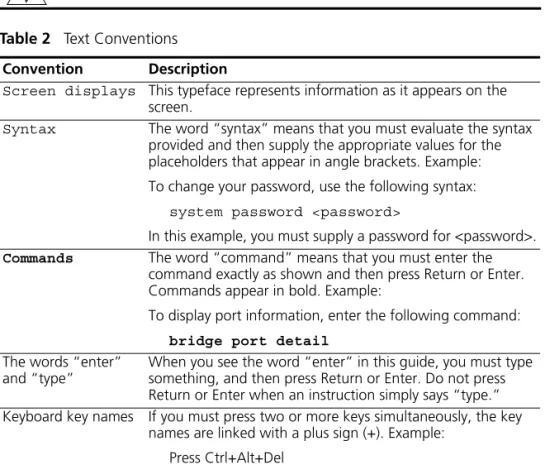
Table 1 and Table 2 list conventions that are used throughout this guide.Table 1 Notice Icons
Icon Notice Type Description
Information note Information that describes important features or instructions
Caution Information that alerts you to potential loss of data or potential damage to an application, system, or device Warning Information that alerts you to potential personal injury
Table 2 Text Conventions
Convention Description
Screen displays This typeface represents information as it appears on the
screen.
Syntax The word “syntax” means that you must evaluate the syntax
provided and then supply the appropriate values for the placeholders that appear in angle brackets. Example: To change your password, use the following syntax:
system password <password>
In this example, you must supply a password for <password>.
Commands The word “command” means that you must enter the
command exactly as shown and then press Return or Enter. Commands appear in bold. Example:
To display port information, enter the following command:
bridge port detail
The words “enter” and “type”
When you see the word “enter” in this guide, you must type something, and then press Return or Enter. Do not press Return or Enter when an instruction simply says “type.” Keyboard key names If you must press two or more keys simultaneously, the key
names are linked with a plus sign (+). Example: Press Ctrl+Alt+Del
Related Documentation 9
Related
Documentation
In addition to this guide, each Switch documentation set includes the following:
■ SuperStack 3 Switch Implementation Guide
This guide contains information on the features supported by your Switch and how they can be used to optimize your network. It is supplied in PDF format on the CD-ROM that accompanies the Switch.
■ SuperStack 3 Switch Management Quick Reference Guide
This guide contains:
■ a list of the software features supported by the Switch. ■ a summary of the web interface and command line interface
commands for the Switch.
■ SuperStack 3 Switch Management Interface Reference Guide
This guide provides detailed information about the web interface and command line interface that enable you to manage the Switch. It is supplied in HTML format on the CD-ROM that accompanies the Switch.
■ Release Notes
These notes provide information about the current software release, including new features, modifications, and known problems.
There are other publications you may find useful, such as:
■ Documentation accompanying the Advanced Redundant Power system.
Words in italics Italics are used to: ■ Emphasize a point.
■ Denote a new term at the place where it is defined in the text.
■ Identify menu names, menu commands, and software button names. Examples:
From the Help menu, select Contents. Click OK.
Table 2 Text Conventions (continued)
■ Documentation accompanying 3Com Network Supervisor. This is supplied on the CD-ROM that accompanies the Switch.
Accessing Online Documentation
The CD-ROM supplied with your Switch contains the following online documentation:
■ SuperStack 3 Switch Management Quick Reference Guide (PDF
format)
■ SuperStack 3 Switch Implementation Guide (PDF format)
■ SuperStack 3 Switch Management Interface Reference Guide (HTML
format)
1 To access the documentation insert the CD-ROM into your CD-ROM drive. If your PC has auto-run enabled, a splash screen will be displayed automatically.
2 Select the Documentation section from the contents page.
If the online documentation is to be accessed from a local drive or server, you will need to access the CD-ROM contents via the root directory and copy the files from the CD-ROM to a suitable directory.
■ The HTML Reference Guide is stored in the Docs/reference directory on the CD-ROM. The documentation is accessed using the
contents.htm file.
■ The PDF Implementation Guide is stored in the Docs/implementation directory of the CD-ROM.
3Com recommends that you copy the Docs/reference directory as a
1
I
NTRODUCING
THE
S
UPER
S
TACK
3 S
WITCH
4200
F
AMILY
This chapter contains introductory information about the Switch 4200 Family and how it can be used in your network. It covers summaries of hardware and software features and also the following topics:
■ About the Switch 4200 Family
■ Switch 4200 Family — Front View Detail ■ Switch 4200 Family — Rear View Detail ■ Default Settings
This Getting Started Guide describes the following units in the Switch 4200 Family:
■ Switch 4226T (3C17300)
■ Switch 4250T (3C17302)
■ Switch 4228G (3C17304)
For details on the Switch 26-Port (3C17300A), Switch 50-Port (3C17302A) and Switch 28-Port (3C17304A), refer to the following document:
■ SuperStack 3 Switch 4200 Family Getting Started Guide (part number
DUA1730-0AAA03)
About the Switch
4200 Family
The Switch 4200 Family are stackable 10/100/1000 Mbps devices which consists of:
■ 24 or 48 10BASE-T/100BASE-TX ports ■ 2 10/100/1000BASE-T ports
■ 2 GBIC ports (Switch 4228G only)
The Switch provides high-performance workgroups with a backbone to server connection. You can also add the Switch 4200 Family to any SuperStack® system as your network grows.
Summary of Hardware Features
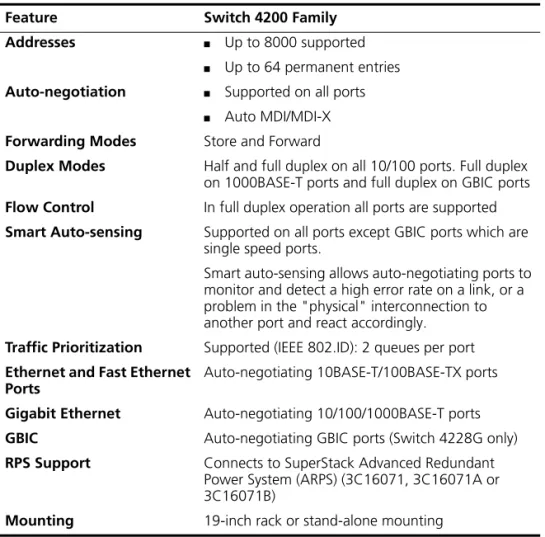
Table 3 summarizes the hardware features that are supported by the Switch 4200 Family.
Table 3 Hardware features
Feature Switch 4200 Family
Addresses ■ Up to 8000 supported
■ Up to 64 permanent entries Auto-negotiation ■ Supported on all ports
■ Auto MDI/MDI-X
Forwarding Modes Store and Forward
Duplex Modes Half and full duplex on all 10/100 ports. Full duplex on 1000BASE-T ports and full duplex on GBIC ports Flow Control In full duplex operation all ports are supported Smart Auto-sensing Supported on all ports except GBIC ports which are
single speed ports.
Smart auto-sensing allows auto-negotiating ports to monitor and detect a high error rate on a link, or a problem in the "physical" interconnection to another port and react accordingly.
Traffic Prioritization Supported (IEEE 802.ID): 2 queues per port Ethernet and Fast Ethernet
Ports
Auto-negotiating 10BASE-T/100BASE-TX ports Gigabit Ethernet Auto-negotiating 10/100/1000BASE-T ports
GBIC Auto-negotiating GBIC ports (Switch 4228G only)
RPS Support Connects to SuperStack Advanced Redundant Power System (ARPS) (3C16071, 3C16071A or 3C16071B)
About the Switch 4200 Series 13
Switch 4200 Family
— Front View
Detail
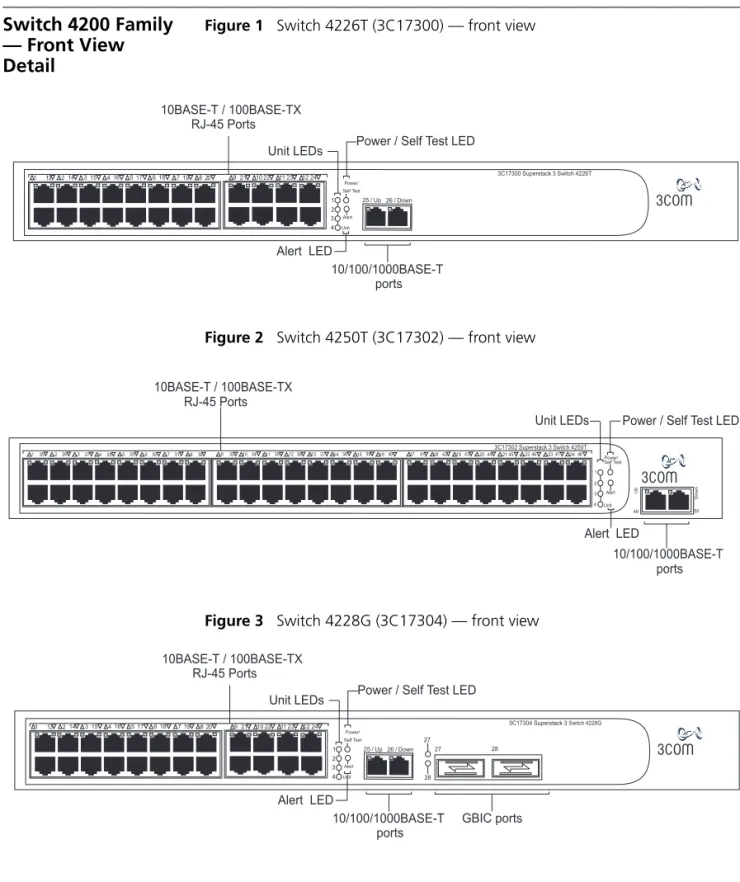
Figure 1 Switch 4226T (3C17300) — front view
Figure 2 Switch 4250T (3C17302) — front view
Figure 3 Switch 4228G (3C17304) — front view
3C17300 Superstack 3 Switch 4226T 10BASE-T / 100BASE-TX
RJ-45 Ports Power/ Self Test Alert Alert LED 21
9 10 22 11 23 12 24 8 20
1 13 214 315 416 517 618 719
10/100/1000BASE-T ports
26 / Down 25 / Up
Power / Self Test LED Unit LEDs
1 2 3 4 Unit
3C17302 Superstack 3 Switch 4250T 10BASE-T / 100BASE-TX
RJ-45 Ports
Power / Self Test LED
Alert LED
832 125 226 327 428 529 630 731
49 50
16 40
933 1034 1135 1236 1337 1438 1539 1741 1842 1943 2044 2145 2246 2347 24 48
10/100/1000BASE-T ports Unit LEDs Up Down Alert Power/ Self Test Unit 1 2 3 4
3C17304 Superstack 3 Switch 4228G 10BASE-T / 100BASE-TX
RJ-45 Ports Power/ Self Test Alert Alert LED 21
9 10 22 11 23 12 24 8 20
1 13 214 315 416 517 618 719
10/100/1000BASE-T ports
26 / Down 25 / Up
Power / Self Test LED Unit LEDs 1 2 3 4 Unit GBIC ports 27 28 27 28
WARNING: RJ-45 Ports. These are shielded RJ-45 data sockets. They cannot be used as standard traditional telephone sockets, or to connect the unit to a traditional PBX or public telephone network. Only connect RJ-45 data connectors, network telephony systems, or network telephones to these sockets.
Either shielded or unshielded data cables with shielded or unshielded jacks can be connected to these data sockets.
10BASE-T/ 100BASE-TX Ports
The Switch has 24 or 48 auto-negotiating 10BASE-T/100BASE-TX ports configured as Auto MDIX (cross-over). While auto-negotiation is enabled, these ports can automatically detect whether they need to operate in MDI or MDIX mode. Alternatively, you can manually set these ports to 10BASE-T half duplex, 10BASE-T full duplex, 100BASE-TX half duplex or 100BASE-TX full duplex. The maximum segment length is 100 m (328 ft) over Category 5 twisted pair cable.
10/100/1000BASE-T Ports
The Switch has two auto-negotiating 10/100/1000BASE-T ports
configured as Auto MDIX (cross-over). While auto-negotiation is enabled, these ports can automatically detect whether they need to operate in MDI or MDIX mode. These ports provide 10/100/1000 Mbps full duplex connections to other Gigabit Ethernet devices. Full duplex allows packets to be transmitted and received simultaneously which, in effect, doubles the potential throughput of a link. These ports require either
straight-through or cross-over Category 5 cables with RJ-45 connectors at both ends. The maximum UTP cable length is 100 m (328 ft) over Category 5 cable.
The 10/100/1000BASE-T ports will auto-negotiate to the appropriate speed.
GBIC Ports This section applies to the SuperStack 3 Switch 4228G only.
The two GBIC ports support Category 5 twisted pair cable and fiber Gigabit Ethernet short-wave (SX), long-wave (LX) and long-haul (LH70) GBIC transceivers in any combination. This offers you the flexibility of using GBIC transceivers to provide connectivity between the Switch and remote 1000 Mbps workgroups or to create a high capacity aggregated link backbone connection.
About the Switch 4200 Series 15
Fiber GBIC's.
The default state for these ports is auto-negotiation enabled, where speed, duplex and flow control modes are negotiated. Because the speed and duplex modes are fixed by the media type, only the flow control is negotiated with the link partner. Alternatively, auto-negotiation can be disabled and the flow control setting can be manually configured.
1000BASE-T GBIC's
These ports will auto-negotiate to 1000BASE-T, full duplex only. Although it is not possible to disable auto-negotiation it is possible to change the advertised capabilities for flow control support, effectively enabling or disabling flow control.
LEDs Table 4 lists LEDs visible on the front of the Switch, and how to read their status according to color. For information on using the LEDs for problem solving, see “Solving Problems Indicated by LEDs” on page 54.
It is not possible to determine the duplex mode from the LEDs. For more
detailed information, refer to the “SuperStack3 Switch Management
Interface Reference Guide” on the CD-ROM that is supplied with the Switch.
Table 4 LED behavior
LED Color Indicates
Port Status LEDs 10BASE-T/100BASE-TX ports
Green A 100 Mbps link is present and the port is enabled. Green flashing Packets are being transmitted/received on the port. Yellow A 10 Mbps link is present and the port is enabled. Yellow flashing Packets are being transmitted/received on the port. Green / Yellow
alternating
A 10 or 100 Mbps link is present, but the port is disabled.
Off No link is present.
Port Status LEDs GBIC ports
Green A 1000 Mbps link is present and the port is enabled. Green flashing Packets are being transmitted/received on the port. Port Status LEDs 10/100/1000BASE-T ports
Green A 1000 Mbps link is present and the port is enabled. (continued)
Green flashing Packets are being transmitted/received on the port. Yellow A 10 or 100 Mbps link is present and the port is enabled. Yellow flashing Packets are being transmitted/received on the port. Green / Yellow
alternating
A 10, 100 or 1000 Mbps link present but disabled.
Off No link is present.
Unit LEDs
1–4 Green When the Switch forms a stack with other Switch 4200
Family units the LED indicates the position of the unit in the stack and that a link is present. Unit LED number 1 can also indicate a stand-alone Switch.
Off The Switch initialization process is not complete. Power/Self Test LED
Green The Switch is powered-up and operating normally.
Green flashing The Switch is either downloading software or is initializing (which includes running a Power On Self Test).
Yellow The Switch has failed its Power On Self Test.
Refer to Chapter 4 Solving Problems Indicated by LEDs. Off The Switch is not receiving power or there is a fault with the
Power Supply Unit. Alert LED
Green flashing The Switch Alert LED has been configured via the CLI or Web Interface to flash.
Off The Switch Alert LED has been configured via the CLI or Web Interface to be off (Default state).
About the Switch 4200 Series 17
Switch 4200 Family
— Rear View Detail
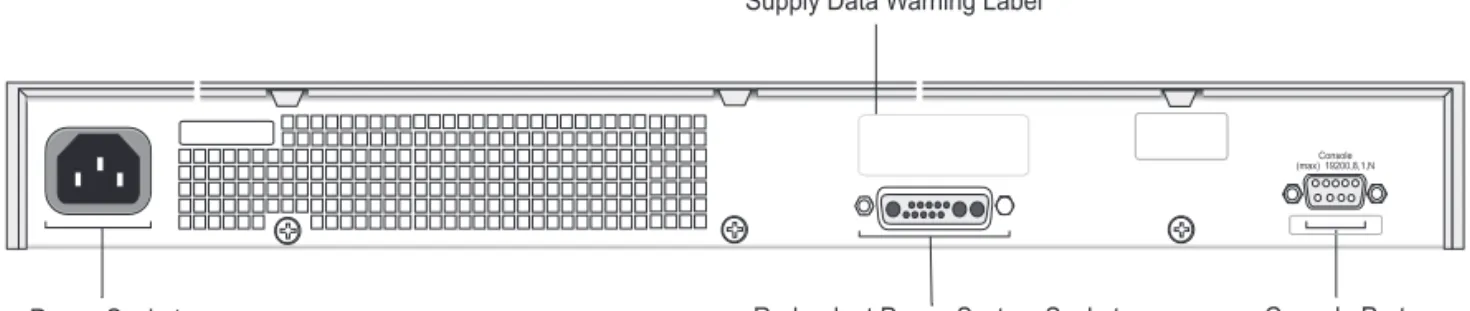
Figure 4 Switch 4200 Family — rear view
Power Socket The Switch automatically adjusts its power setting to any supply voltage
in the range 90-240 VAC.
Redundant Power System Socket
To protect against internal power supply failure, you can use this socket to connect a Switch 4200 to a SuperStack Advanced Redundant Power System (RPS). See “Connecting a Redundant Power System” on page 25.
Console Port The console port allows you to connect a terminal and perform remote or
local out-of-band management. The console port uses a standard null modem cable and is set to auto-baud, 8 data bits, no parity and 1 stop bit.
Power Socket
Console (max) 19200,8,1,N
Console Port Supply Data Warning Label
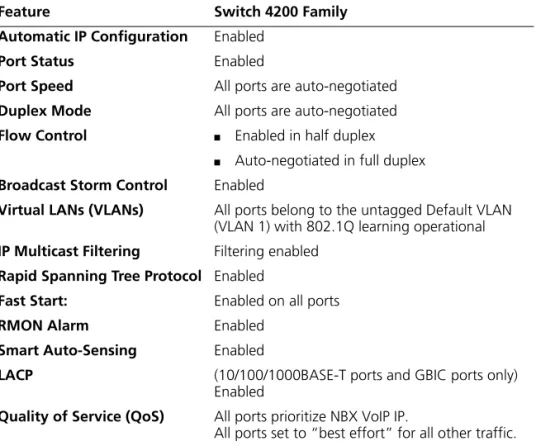
Default Settings
Table 5 shows the default settings for the Switch 4200 Family:Table 5 Default Settings
If you initialize a Switch unit by selecting System > Control > Initialize in the Web interface or by entering system control initialize in the Command Line Interface, the following settings are retained to allow you to connect to and manage the Switch:
■ IP Address ■ Subnet Mask ■ Default Router
Feature Switch 4200 Family
Automatic IP Configuration Enabled
Port Status Enabled
Port Speed All ports are auto-negotiated Duplex Mode All ports are auto-negotiated Flow Control ■ Enabled in half duplex
■ Auto-negotiated in full duplex Broadcast Storm Control Enabled
Virtual LANs (VLANs) All ports belong to the untagged Default VLAN (VLAN 1) with 802.1Q learning operational IP Multicast Filtering Filtering enabled
Rapid Spanning Tree Protocol Fast Start:
Enabled
Enabled on all ports
RMON Alarm Enabled
Smart Auto-Sensing Enabled
LACP (10/100/1000BASE-T ports and GBIC ports only)
Enabled
Quality of Service (QoS) All ports prioritize NBX VoIP IP.
2
I
NSTALLING
THE
S
WITCH
This chapter contains the information you need to install and set up the Switch 4200 Family. It covers the following topics:
■ Package Contents ■ Choosing a Suitable Site ■ Rack-mounting
■ Placing Units On Top of Each Other ■ The Power-up Sequence
■ GBIC Operation
WARNING: Safety Information. Before installing or removing any components from the Switch 4200 Family or carrying out any
maintenance procedures, you must read the safety information provided in Appendix A of this guide.
AVERTISSEMENT:Consignes de sécurité. Avant d'installer ou d'enlever tout composant du Switch 4200 ou d'entamer une procédure de
maintenance, lisez les informations relatives à la sécurité qui se trouvent dans l'Appendice A de ce guide.
VORSICHT: Sicherheitsinformationen. Bevor Sie Komponenten aus dem Switch 4200 entfernen oder dem Switch 4200 hinzufuegen oder Instandhaltungsarbeiten verrichten, lesen Sie die Sicherheitsanweisungen, die in Appendix A (Anhang A) in diesem Handbuch aufgefuehrt sind.
Package Contents
■ Switch unit ■ CD-ROM■ Getting Started Guide (this guide) ■ Release Notes
■ Unit Information Labels ■ Warranty Information ■ Power Cord
■ 2 x Mounting brackets ■ 4 x Screws
■ 4 x Rubber feet
Choosing a Suitable
Site
The Switch is suited for use on a desktop, either free standing or
mounted in a standard 19-inch equipment rack. Alternatively, the Switch can be mounted in a wiring closet or equipment room, as an aggregator for other Hubs and Switches. A rack-mounting kit containing two mounting brackets is supplied with the Switch.
CAUTION: Ensure that the ventilation holes are not obstructed.
When deciding where to position the Switch, ensure that: ■ Cabling is located away from:
■ sources of electrical noise such as radios, transmitters and
broadband amplifiers.
■ power lines and fluorescent lighting fixtures
■ The Switch is accessible and cables can be connected easily. ■ Water or moisture cannot enter the case of the Switch.
■ Air-flow is not restricted around the Switch or through the vents in the side of the Switch. 3Com recommends that you provide a minimum of 25mm (1in.) clearance.
■ Air temperature around the Switch does not exceed 40 °C (104 °F).
If the Switch is installed in a 19-inch rack or closed assembly its local air temperature may be greater than room ambient temperature.
Rack-mounting 21
■ The switch is situated away from sources of conductive (electrical) dust, for example, laser printers.
■ The unit is installed in a clean, air conditioned environment. ■ The AC supply used by the switch is separate to that used by units
that generate high levels of AC noise, for example, air-conditioning units and laser printers.
■ No more than eight Switch units are placed on top of one another, if the units are free-standing.
Rack-mounting
The Switch 4200 Family are 1U high and will fit in most standard 19-inch racks.CAUTION: Disconnect all cables from the Switch before continuing. Remove all self adhesive pads from the underside of the Switch if they have been fitted.
To rack-mount your Switch:
1 Place the Switch the right way up on a hard flat surface, with the front facing towards you.
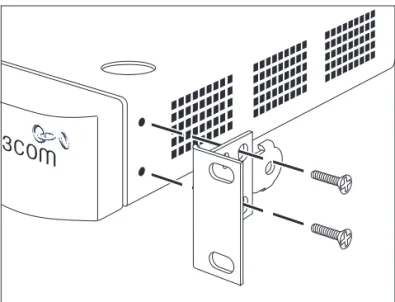
2 Locate a mounting bracket over the mounting holes on one side of the Switch, as shown in Figure 5.
Figure 5 Fitting a bracket for rack-mounting
3 Insert the two screws and tighten with a suitable screwdriver.
You must use the screws supplied with the mounting brackets. Damage caused to the unit by using incorrect screws invalidates your warranty. 4 Repeat steps 2 and 3 for the other side of the Switch.
5 Insert the Switch into the 19-inch rack and secure with suitable screws (not provided). Ensure that ventilation holes are not obstructed.
6 Connect network cabling.
7 Finally place a unit information label on the unit in an easily accessible position. The unit information label shows the following:
■ The 3Com product name of the Switch ■ The 3Com 3C number of the Switch
■ The unique MAC address (Ethernet address) of the Switch ■ The serial number of the Switch
Placing Units On Top of Each Other 23
Placing Units On
Top of Each Other
If the Switch units are free-standing, up to eight units can be placed one on top of the other. If you are mixing a variety of SuperStack® 3 Switch and Hub units, the smaller units must be positioned at the top.
If you are placing Switch units one on top of the other, you must use the self-adhesive rubber pads supplied. Apply the pads to the underside of each Switch, sticking one in the marked area at each corner. Place the Switch units on top of each other, ensuring that the pads of the upper unit line up with the recesses of the lower unit.
Stacking Units
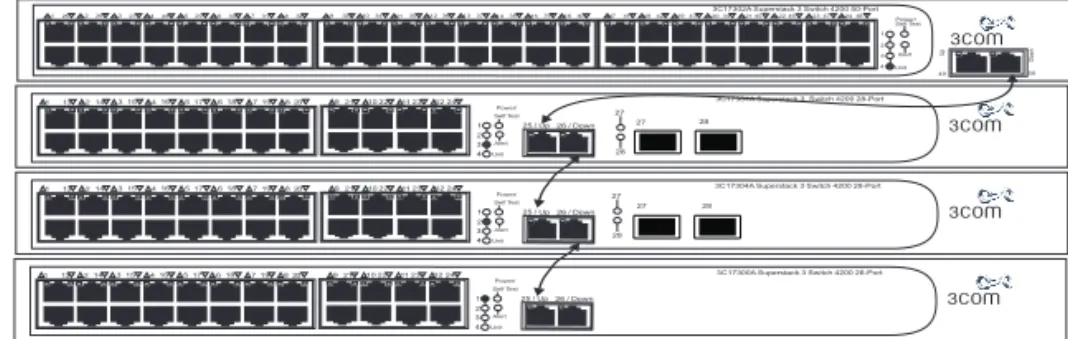
Up to four Switch 4200 Family units can be stacked together and then treated as a single manageable unit with one IP address. Anycombination of Switch 4200 Family units is allowed in a single stack. The units are connected together via the 10/100/1000BASE-T ports on the front of the unit as shown in Figure 6. Starting from the base of the stack, the port marked with ‘up’ is connected to the port marked with ‘down’ on the unit above. Cable lengths of between 14 cm (5.5 in) and
100 m (328 ft) can be used for stacking.
Figure 6 Stacking example
The unit LEDs will display the unit number in the stack, from 1 at the bottom to 4 at the top.
3Com recommends that when you add a new unit to a stack, you should first initialize it to factory default settings.
Any Switch 4200 unit can be added to the stack, including the Switch 26-Port (3C17300A), the Switch 50-Port (3C17302A) and the Switch 28-Port (3C17304A). You must install the latest software version on all units in the stack.
Power/ Self Test Alert 21
9 10 22 11 23 12 24 8 20
1 13 214 315 416 517 618 719
26 / Down 25 / Up 1 2 3 4Unit Power/ Self Test Alert 21
9 10 22 11 23 12 24 8 20
1 13 214 315 416 517 618 719
26 / Down 25 / Up 1 2 3 4Unit
3C17304A Superstack 3 Switch 4200 28-Port Power/
Self Test Alert 21
9 10 22 11 23 12 24 8 20
1 13 214 315 416 517 618 719
26 / Down 25 / Up 1 2 3 4Unit
3C17302A Superstack 3 Switch 4200 50-Port 832
125 226 327 428 529 630 731
49 50 1640
933 1034 1135 1236 1337 1438 1539 1741 1842 1943 2044 2145 2246 2347 24 48
Up Down Alert Power/ Self Test Unit 1 2 3 4 27 28 27 28 27 28 27 28
3C17304A Superstack 3 Switch 4200 28-Port
Stack renumbering occurs when another Switch 4200 Family unit is added to the bottom of an established stackexceptwhen the stack is already 4 units high. In this instance the ‘down’ port on the bottom unit of the existing stack will be disabled and its LED will flash green. You will then not be able to use that port again until the link is lost on that port. When another Switch 4200 Family unit is added to the top of an
established stack, no stack renumbering occurs. If however the unit being added takes the stack height above 4 then the ‘up’ port on the top unit of the existing stack will be disabled and its LED will flash green. You will then not be able to use that port again until the link is lost on that port. When removing a Switch from a stack, note the following:
■ Removing a Switch 4200 Family unit from the bottom of an existing stack will cause the remaining stack to renumber.
■ Removing a Switch 4200 Family unit from the middle of an existing stack will cause the other Switches in the stack to divide into two stacks. Units below the unit removed will not renumber, units above will renumber.
■ Removing a Switch 4200 Family unit from the top of an existing stack will have no effect on the remaining stack.
If you are having problems, refer to “Solving Stack Formation Problems” on page 56.
The Power-up
Sequence
The following sections describe how to get your Switch 4200 Family powered-up and ready for operation.
Powering-up the Switch 4200 Family
Use the following sequence of steps to power-up the Switch.
1 Plug the power cord into the power socket at the rear of the Switch.
2 Plug the other end of the power cord into your power outlet.
The Switch powers-up and runs through its Power On SelfTest (POST), which takes approximately 10 seconds.
Checking for Correct Operation of LEDs
During the Power On SelfTest, all ports on the Switch are disabled and the LEDs light in a set sequence.
The Power-up Sequence 25
When the POST has completed, check the Power On SelfTest LED to make sure that your Switch is operating correctly. Table 6 shows possible colors for the LED.
Table 6 Power/Self Test LED colors
In addition, check the Unit LEDs on all Switches in the stack. If a Unit LED is off, initialization is not complete. 3Com recommends that you do not use the Switch's management interface until the Unit LED is green. If there is evidence of a problem, see “Solving Problems Indicated by LEDs” on page 54.
Connecting a Redundant Power System
You can connect a SuperStack Advanced Redundant Power System (3C16071, 3C16071A or 3C16071B) to the Switch. This unit, which is also known as an RPS, is designed to maintain the power to your Switch if a power supply failure occurs.
For normal redundancy, the unit requires one Type 2A Power Module (part number 3C16074A). For full redundancy, the unit requires two type 2A Power Modules combined using a Type 2 Y-Cable (part number 3C16078).
CAUTION: The Switch has no ON/OFF switch; the only method of connecting or disconnecting mains power is by connecting or disconnecting the power cord.
CAUTION: The Switch can only use a SuperStack Advanced Redundant Power System output.
Choosing the Correct Cables
All of the ports on the front of the Switch 4200 Family are Auto-MDIX, that is they have a cross-over capability. The port can automatically detect whether it needs to operate in MDI or MDIX mode. Therefore you can make a connection to a port with a straight-through (MDI) or a cross-over cable (MDIX).
The Auto-MDIX feature only operates when auto-negotiation is enabled.
Color State
Green The Switch is powered-up and operating normally.
Yellow The Switch has failed its Power On Self Test.
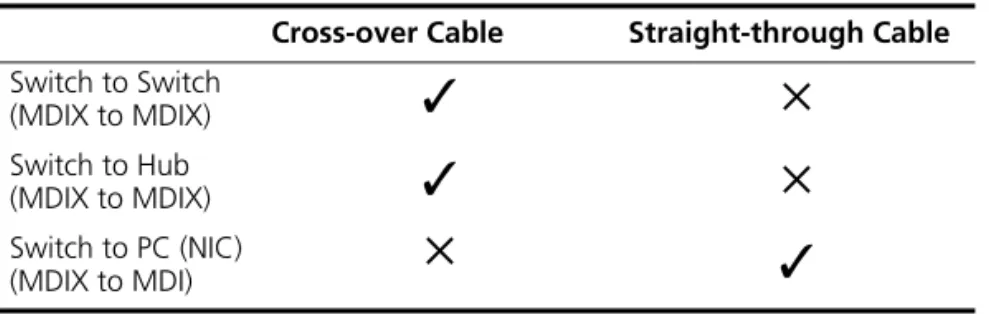
If auto-negotiation is disabled, all the Switch ports are configured as MDIX (cross-over). If you want to make a connection to another MDIX port, you need a cross-over cable. Many ports on workstations and servers are configured as MDI (straight-through). If you want to make a connection to an MDI port, you need to use a standard straight-through
cable. See Table 7.
3Com recommends that you use Category 5 twisted pair cable — the maximum segment length for this type of cable is 100 m (328 ft). CAUTION: If you want to install the Switch using a Category 5E or Category 6 cable, 3Com recommends that you briefly connect the cable to a grounded port before connecting network equipment. If you do not, the cables Electrostatic Discharge (ESD) may damage the Switch's port. You can create a grounded port by connecting all wires at one end of a UTP cable to an earth ground point, and the other end to a female RJ-45 connector located, for example, on a Switch rack or patch panel. The RJ-45 connector is now a grounded port.
Table 7 Cables required to connect the Switch 4200 Family to other devices if auto-negotiation is disabled
Choosing the correct Fiber cables
Choose from the following cable options:
■ The 1000BASE-SX ports can be connected to multimode fiber cables only.
■ The 1000BASE-LX and LH70 GBIC ports use multimode or single-mode fiber optic cables.
For detailed information on fiber cable specifications, refer to the SuperStack 3 Implementation Guide that accompanies your Switch.
Cross-over Cable Straight-through Cable Switch to Switch
(MDIX to MDIX)
✓
✕
Switch to Hub
(MDIX to MDIX)
✓
✕
Switch to PC (NIC)
GBIC Operation 27
If you wish to connect a 1000BASE-SX MT-RJ port to a fiber port with a different type of connector, for example, SC or ST please contact your network supplier for a suitable patch cable.
GBIC Operation
The following section describes how to insert a GBIC transceiver into a GBIC port. This section applies to the SuperStack 3 Switch 4228G only.GBIC transceivers are hot-insertable and hot-swappable. You can remove them from and insert them into any GBIC port without having to power down the Switch.
Approved GBIC Transceivers
The 3Com approved GBIC transceivers are: ■ 1000BASE-SX GBIC (3CGBIC91) ■ 1000BASE-LX GBIC (3CGBIC92) ■ 1000BASE-T GBIC (3CGBIC93) ■ 1000BASE-LH70 GBIC (3CGBIC97) These are correct at the time of publication.
To access the latest list of approved GBIC transceivers for the Switch on the 3Com Corporation World Wide Web site, enter this URL into your internet browser:
http://www.3com.com
The URL is case sensitive. Inserting a GBIC
Transceiver
To be recognised as valid, the GBIC transceiver must have the following characteristics:
■ 1000BASE-SX, 1000BASE-LX, 1000BASE-T or 1000BASE-LH70 media type:
■ 1000BASE-SX GBIC transceiver
Use this transceiver to connect the Switch directly to a multimode fiber-optic cable.
■ 1000BASE-T GBIC transceiver
Use this transceiver to connect the Switch directly to Category 5 twisted-pair cable.
■ 1000BASE-LX GBIC transceiver
Use this transceiver to connect the Switch directly to a single-mode fiber-optic cable or to multimode fiber using a conditioned launch cable.
■ 1000BASE-LH70 GBIC transceiver
Use this transceiver to connect the Switch directly to a single-mode fiber-optic cable or to multimode fiber using a conditioned launch cable.
■ Fiber SC connector
■ Type 4 GBIC with internal EEPROM fitted.
If the GBIC transceiver is faulty, it will not operate within the Switch. See
“Solving Hardware Problems” on page 55.
Do not use non-3Com GBICs. If the GBIC transceiver is invalid it will not be recognised by the Switch.
Use the following sequence of steps to activate the GBIC ports.
1 To insert one of the transceivers into a GBIC expansion port on the Switch:
a Orient the transceiver so that the fiber-optic duplex subscriber connector (SC) is toward you, as shown in Figure 7.
b Gently slide the transceiver into the GBIC port until it clicks into place.
2 If you wish to remove the transceiver, compress the side tabs and gently pull the transceiver out of the port.
CAUTION: GBIC transceivers are keyed and can be properly inserted only one way. If the transceiver does not click when you insert it, remove it, turn it over, and reinsert it.
GBIC Operation 29
Figure 7 Inserting a GBIC Transceiver
3 The transceiver connects to the network using a duplex SC connector. Attach a male duplex SC connector on the network cable into the duplex SC connector on the transceiver.
4 Connect the other end of the cable to a device fitted with an appropriate Gigabit Ethernet connection.
5 Check the LEDs on the front of the Switch to ensure that it is operating correctly. Refer to “LEDs” on page 15 for more information.
GBIC Ports
GBIC Transceiver
3
S
ETTING
U
P
FOR
M
ANAGEMENT
Your Switch can operate in its default state, that is, you can install it and it will work straight away (plug-and-play). However, to make full use of the features offered by the Switch, and to change and monitor the way it works, you have to access the management software that resides on the Switch. This is known as managing the Switch.
Managing the Switch can help you to improve the efficiency of the Switch and therefore the overall performance of your network. This chapter explains the initial set up of the Switch and the different methods of accessing the management software to manage a Switch. It covers the following topics:
■ Setting Up Overview
■ Manually Configuring IP Information
■ Viewing Automatically Configured IP Information ■ Methods of Managing a Switch
■ Setting Up Command Line Interface Management ■ Setting Up Web Interface Management
■ Setting Up SNMP Management ■ Default Users and Passwords
Setting Up
Overview
This section gives an overview of what you need to do to get your Switch set up and ready for management when it is in its default state. The whole setup process is summarised in Figure 8. Detailed procedural steps are contained in the sections that follow. In brief, you need to:
■ Configure IP information manually for your Switch or view the automatically configured IP information
■ Prepare for your chosen method of management
Figure 8 Initial Switch Setup and Management Flow diagram
CAUTION:To protect your Switch from unauthorized access, you must change all three default passwords as soon as possible, even if you do not intend to actively manage your Switch. For more information on default
users and changing default passwords, see “Default Users and
Passwords” on page 50.
Plug and Play Setup
Initial IP Information Setup
Featur
e Management
Power up the Switch.
IP information is automatically configured. Page 31.
Do you want to configure the IP information?
manually No
Connect to a front panel port and use the Web Interface or Command
Line Interface. Page 33.
How do you want to connect to the Switch?
Connect to the console port and use the Command Line Interface.
Page 36.
Use 3Com Network Supervisor (3NS).
Page 40.
Connect to a console port and use the Command Line Interface.
Page 40.
How do you want to Manage your Switch? Page 45.
Command Line Interface
Connect over the network via Telnet.
Page 45. Connect via the
console port. Page 45.
Connect over the network.
Page 47.
How do you want to view the automatically configured IP information?
SNMP
Page 47. Web Interface
Setting Up Overview 33
IP Configuration You can use one of the following methods to allocate IP information to
your Switch (essential if you wish to manage your Switch across the network).
Manual IP Configuration
You can choose to configure the IP information yourself. The Switch remembers the information that you enter until you change it again or set the configuration method to Automatic.
You should use the Manual IP configuration method if:
■ you do not have a DHCP or BootP server on your network, or ■ you want to remove the risk of the IP address ever changing, or ■ your DHCP or BootP server does not allow you to allocate static IP
addresses. (Static IP addresses are necessary to ensure that the Switch is always allocated the same IP information.)
For most installations, 3Com recommends that you configure the Switch IP information manually. This makes management simpler and more reliable as it is not dependent on a DHCP or BootP server, and eliminates the risk of the IP address changing.
If you wish to manually enter IP information for your Switch, work through the “Manually Configuring IP Information” section on page 35.
Automatic IP Configuration
By default the Switch tries to configure itself with IP information without requesting user intervention. It tries to obtain an IP address from a DHCP or BootP server on the network.
If neither server is found, the Switch will configure itself with its default IP address 169.254.100.100 if it is operating in a standalone mode, and/or no other Switches on the network have this IP address. If this default IP address is already in use on the network then the Switch detects this and configures itself with an IP address in the range 169.254.1.0 to
169.254.254.255.
This process is known as Auto-IP and is the same mechanism used by Windows 98 and Windows 2000. IP addresses configured by Auto-IP are temporary as they cannot be routed but are useful for small networks which are not connected to other networks, or for initial configuration.
However, as soon as a DHCP or BootP server is detected, the Switch will configure itself with the IP address allocated by that server.
When using automatic IP configuration it is important that the IP address of the Switch is static, otherwise you will not know what the IP address is and it will be difficult to manage. Most DHCP and BootP servers allow static IP addresses to be configured so that you know what IP address will be allocated to the Switch. Refer to the documentation that accompanies your DHCP/BootP server.
For a detailed description of how automatic IP configuration operates, please refer to the Implementation Guide on the CD-ROM that accompanies your Switch or on the 3Com Web site.
You should use the automatic IP configuration method if:
■ your network uses DHCP or BootP to allocate IP information, or ■ flexibility is needed. If the Switch is re-deployed onto a different
subnet, it will automatically reconfigure itself with an appropriate IP address, instead of you having to manually reconfigure the Switch. If you use the automatic IP configuration method, you need to discover the automatically allocated IP information before you can begin
management. Work through the “Viewing Automatically Configured IP Information” section on page 42.
Preparing for Management
Once your Switch’s initial set up is complete you can set up your chosen management method as described in “Methods of Managing a Switch” on page 45.
For detailed information about the specific web interface operations and command line interface commands and problem solving, refer to the
“SuperStack3 Switch Management Interface Reference Guide” on the
Manually Configuring IP Information 35
Manually
Configuring IP
Information
You can manually configure the Switch IP information in the following ways:
■ Connecting to a front panel port — Connect a workstation using an Ethernet cable to a front panel port of the Switch. You can then manually enter IP information using the web interface or the command line interface (CLI).
■ Connecting to the console port — Connect a workstation using a console cable to the console port of the Switch. You can then manually enter IP information using the command line interface (CLI).
Connecting to a Front Panel Port
To set up your Switch manually you can make a connection to a front panel port. You must do this whilst the Switch is offline, that is, before you connect the Switch to a network.
The procedure described in this section assumes the unit has been powered up in standalone mode and has the default IP address of 169.254.100.100.
Pre-requisites
■ A workstation running Windows 2000, Windows XP or Windows Server 2003, Red Hat Linux 9, Solaris 7 or Solaris 9.
■ A Network Interface Card (NIC).
■ A Category 5 twisted pair Ethernet cable with RJ-45 connectors. ■ A suitable Web browser — refer to “Choosing a Browser”on page 48. ■ You need to have the following so that you can manually set up the
Switch with IP information:
■ IP address ■ subnet mask ■ default gateway
Connecting the Workstation to the Switch
1 Connect the workstation to a front panel port using an Ethernet cable as shown in Figure 9.
Figure 9 Connecting a workstation to the Switch via a front panel port
To connect the cable:
a Attach an RJ-45 connector at one end of the Ethernet cable to the Network Interface Card (NIC) in the workstation.
b Connect the RJ-45 connector at the other end of the cable to one of the front panel ports on the Switch.
Do not interconnect the Switch to any other unconfigured Switch. Configuring the Workstation with IP Information
You need to change the IP address and subnet mask of the workstation that you have connected to the Switch. Make a note of the existing settings so you can return to them later. Change the workstation to the following settings:
■ IP address — 169.254.100.99 ■ Subnet mask — 255.255.0.0
Setting Up the Switch with IP Information
You are now ready to manually set up the Switch with IP information. You can do this using the Web interface or the command line interface (CLI) via telnet.
Using the Web Interface
1 Power-up the Switch. This takes approximately one minute.
2 Open a suitable Web browser and enter 169.254.100.100 in the
Location Address field. This is the default IP address that is automatically
Manually Configuring IP Information 37
If there is no response, wait for one minute then re-enter the default IP address.
3 At the login and password prompts, enter admin as your user name and
press Return at the password prompt (default user name and password). If you have logged on correctly, a set of Getting Started pages are displayed.
4 The Getting Started pages allow you to enter basic setup information for the Switch. Select Manual and then enter the IP address, subnet mask, and default gateway that you want the Switch to use when it is
connected to the network. The final page displays a summary of the information entered.
The initial set up of your Switch is now complete and the Switch is ready for you to set up your chosen management method. See “Methods of Managing a Switch” on page 45.
Using Command Line Interface via Telnet
Accessing the Command Line Interface via Telnet or Windows
HyperTerminal using TCP/IP may not work correctly on some platforms unless it has been configured to send line feeds with carriage returns. To set this for telnet enter set crlf when in command mode. To set this for HyperTerminal click on the Settings tab in the Properties screen, click on ASCII Setup.. and ensure that Send line ends with line feeds is checked within the ASCII Sending section. You should not configure HyperTerminal in this way if you are using a console cable to make a direct connection to the Switch.
1 To start a Telnet session to the unit, click Start in Microsoft Windows 2000/XP.
a Click Run.
b In the dialogue box that appears type the default IP address of the unit, that is: Telnet 169.254.100.100
c Click OK.
2 Press Enter to open a login prompt.
If the login prompt does not begin immediately, press Return a few times until it starts.
3 At the login and password prompts, enter admin as your user name and
top-level menu of the command line interface is displayed as shown in the example in Figure 10.
Figure 10 Example top-level command line interface menu
4 At the Select menu option prompt you can either:
■ enter the protocol ip basicConfig command. At the Enter configuration method prompt enter manual. The screen prompts you to enter IP information.
or
■ enter the gettingStarted command. At the Enter configuration method prompt enter manual. The screen prompts you to enter IP information.
5 Enter the IP address, subnet mask, and gateway IP address for the Switch. The screen displays a summary of the information entered.
The initial set up of your Switch is now complete and the Switch is ready for you to set up your chosen management method. See “Methods of Managing a Switch” on page 45.
Connecting to the Console Port
To set up your Switch manually you can alternatively make a connection to the console port (this example describes a local connection to the console port, rather than a remote one via a modem). You can do this whilst the Switch is offline, that is, before you connect the Switch to a network, or whilst the Switch is online, that is, connected to a network.
Menu options: ---3Com Superstack 3 Switch 4200---bridge - Administer 4200---bridge-wide parameters
gettingStarted - Basic device configuration
logout - Logout of the Command Line Interface physicalInterface - Administer physical interfaces protocol - Administer protocols
security - Administer security
system - Administer sytem-level functions trafficManagement - Administer traffic management
Type ? For help
---(1)---Select menu option:
Manually Configuring IP Information 39
Pre-requisites
■ A workstation with terminal emulation software installed, such as Microsoft Hyperterminal. This software allows you to communicate with the Switch via the console port directly, or through a modem. ■ Documentation supplied with the terminal emulation software. ■ A suitable cable:
■ A standard null modem cable — if you are connecting directly to
the console port, or
■ A standard modem cable — if you are connecting to the console
port using a modem.
You can find pin-out diagrams for both cables in Appendix B on page 67.
■ You need to have the following so that you can manually set up the Switch with IP information:
■ IP address ■ subnet mask ■ default gateway
Connecting the Workstation to the Switch
1 Connect the workstation to the console port using a standard null modem cable as shown in Figure 11.
Figure 11 Connecting a workstation to the Switch via the console port
To connect the cable:
a Attach the female connector on the cable to the male connector on the console port of the Switch.
b Tighten the retaining screws on the cable to prevent it from being loosened.
c Connect the other end of the cable to one of the serial ports (also known as a COM port) on your workstation.
2 Open your terminal emulation software and configure the COM port settings to which you have connected the cable. The settings should be set to match the default settings for the Switch, which are:
■ 19,200 baud ■ 8 data bits ■ no parity ■ 1 stop bit
■ no hardware flow control
Refer to the documentation that accompanies the terminal emulation software for more information.
Setting Up the Switch with IP Information
You are now ready to manually set up the Switch with IP information using the command line interface.
1 The command line interface login sequence begins as soon as the Switch detects a connection to its console port.
If the login prompt does not begin immediately, press Return a few times until it starts.
2 At the login and password prompts, enter admin as your user name and
press Return at the password prompt. If you have logged on correctly, the top-level menu of the command line interface is displayed as shown in the example in Figure 12.
Manually Configuring IP Information 41
Figure 12 Example top-level command line interface menu
3 At the Select menu option prompt you can either:
■ enter the protocol ip basicConfig command. At the Enter configuration method prompt enter manual. The screen prompts you to enter IP information.
or
■ enter the gettingStarted command. At the Enter configuration method prompt enter manual. The screen prompts you to enter IP information.
4 Enter the IP address, subnet mask, and gateway IP address for the Switch. The screen displays a summary of the information entered.
The initial set up of your Switch is now complete and the Switch is ready for you to set up your chosen management method. See “Methods of Managing a Switch” on page 45.
If you do not intend to use the command line interface via the console port to manage the Switch, you can disconnect the serial cable and close the terminal emulator software.
Menu options: ---3Com Superstack 3 Switch 4200---bridge - Administer 4200---bridge-wide parameters
gettingStarted - Basic device configuration
logout - Logout of the Command Line Interface physicalInterface - Administer physical interfaces protocol - Administer protocols
security - Administer security
system - Administer sytem-level functions trafficManagement - Administer traffic management
Type ? For help
---(1)---Select menu option:
Viewing
Automatically
Configured IP
Information
If you allow the Switch to automatically configure its own IP information you need to discover and view the IP information before you can begin to manage the Switch. You can discover the IP information in two ways: ■ Using 3Com Network Supervisor — This application will auto-discover
the Switch and display the automatically allocated IP information assigned to the Switch.
■ Connecting to the Console Port — Connect a workstation using a console cable to the console port of the Switch. You can then view the IP information automatically assigned to the Switch using the
command line interface (CLI).
Using 3Com Network Supervisor
You can use the 3Com Network Supervisor applicationprovided on the CD-ROM that accompanies your Switch to discover the automatically allocated IP information.
1 Connect your Switch to the network.
2 Power-up the Switch and wait for two minutes.
3 Launch 3Com Network Supervisor and run the Auto-discovery wizard. 3Com Network Supervisor will auto-discover the new Switch and display the IP information that has been automatically allocated to the Switch.
Most DHCP and BootP servers allow static IP addresses to be configured so that you know what IP address the Switch will be given. Refer to the documentation that accompanies your DHCP or BootP server.
If your network does not have a DHCP or BootP server, the workstation running 3Com Network Supervisor must be on the same subnet as the Switch, because Auto-IP addresses are non-routable.
Connecting to the Console Port
Alternatively, you can view the automatically configured IP information via the command line interface (CLI) through a connection to the console port. (This example describes a local connection to the console port, rather than a remote one via a modem.)
Pre-requisites
■ A workstation with terminal emulation software installed, such as Microsoft Hyperterminal. This software allows you to communicate with the Switch via the console port directly, or through a modem. ■ Documentation supplied with the terminal emulation software.
Viewing Automatically Configured IP Information 43
■ A suitable cable:
■ A standard null modem cable — if you are connecting directly to
the console port, or
■ A standard modem cable — if you are connecting to the console
port using a modem.
You can find pin-out diagrams for both cables in Appendix B on page 67.
■ A Category 5 twisted pair Ethernet cable with RJ-45 connectors to connect your Switch to the network.
Connecting the Workstation to the Switch
1 Connect the workstation to the console port using a standard null modem cable as shown in Figure 13.
Figure 13 Connecting a workstation to the Switch via the console port
To connect the cable:
a Attach the female connector on the cable to the male connector on the console port of the Switch.
b Tighten the retaining screws on the cable to prevent it from being loosened.
c Connect the other end of the cable to one of the serial ports (also known as a COM port) on your workstation.
2 Open your terminal emulation software and configure the COM port settings to which you have connected the cable. The settings should be set to match the default settings for the Switch, which are:
■ 19,200 baud ■ 8 data bits ■ no parity ■ 1 stop bit
■ no hardware flow control
Refer to the documentation that accompanies the terminal emulation software for more information.
Viewing IP Information via the Console Port
You are now ready to view the automatically allocated IP information using the command line interface.
1 Connect your Switch to the network using an Ethernet cable. As soon as a network connection is made the Switch begins the automatic IP configuration process.
The automatic IP configuration process usually completes within one minute.
If there is no response from a DHCP server within 30 seconds, the Auto-IP configuration mechanism attempts to allocate the default IP address 169.254.100.100. If this address is not available, it then allocates an IP address in the range of 169.254.x.y (where x is in the range 1 to 254, and y is in the range 0 to 255).
2 The command line interface login sequence begins as soon as the Switch detects a connection to its console port.
If the login prompt does not begin immediately, press Return a few times until it starts.
3 At the login and password prompts, enter admin as your user name and
press Return at the password prompt. If you have logged on correctly, the top-level menu of the command line interface is displayed as shown in the example in Figure 14.
Figure 14 Example top-level command line interface menu
4 At the Select menu option prompt enter the protocol ip
interface summary command. At the Select IP interfaces Menu options: ---3Com Superstack 3 Switch 4200---bridge - Administer 4200---bridge-wide parameters
gettingStarted - Basic device configuration
logout - Logout of the Command Line Interface physicalInterface - Administer physical interfaces protocol - Administer protocols
security - Administer security
system - Administer sytem-level functions trafficManagement - Administer traffic management
Type ? For help
---(1)---Select menu option:
Methods of Managing a Switch 45
prompt enter all. A summary of the automatically allocated IP information is displayed. Make a note of the Network IP Address.
The initial set up of your Switch is now complete and the Switch is ready for you to set up your chosen management method. See “Methods of Managing a Switch” on page 45.
If you do not intend to use the command line interface via the console port to manage the Switch, you can disconnect the serial cable and close the terminal emulator software.
Methods of
Managing a Switch
Once you have completed the initial set up of your Switch, you can decide how you wish to manage the Switch. You can use one of the following methods:
■ Command line interface management ■ Web interface management
■ SNMP management
Command Line Interface Management
Each Switch has a command line interface (CLI) that allows you to manage the Switch from a workstation, either locally via a console port connection (see Figure 15), or remotely over the network (see Figure 16).
Figure 15 CLI management via the console port
Figure 16 CLI management over the network
Refer to “Setting Up Command Line Interface Management” on page 47.
Web Interface Management
Each Switch has an internal set of web pages that allow you to manage the Switch using a Web browser remotely over an IP network (see Figure 17).
Figure 17 Web interface management over the network
Refer to “Setting Up Web Interface Management” on page 48.
SNMP Management You can manage a Switch using any network management workstation
running the Simple Network Management Protocol (SNMP) as shown in Figure 18. For example, you can use the 3Com Network Supervisor software that is provided on the CD-ROM that accompanies your Switch.
Connect over Network
via web browser Switch
Setting Up Command Line Interface Management 47
Figure 18 SNMP management over the network
Refer to “Setting Up SNMP Management” on page 49.
Setting Up
Command Line
Interface
Management
This section describes how you can set up command line interface management using a local console port connection or over the network.
CLI Management via the Console Port
To manage a Switch using the command line interface via the local console port connection:
1 Ensure you have connected your workstation to the console port correctly as described in “Connecting to the Console Port” on page 38.
2 Your Switch is now ready to continue being managed and/or configured through the CLI via its console port.
CLI Management over the Network
To manage a Switch using the command line interface over a network using Telnet:
1 Ensure you have already set up the Switch with IP information as described in “Setting Up Overview” on page 32.
2 Check that you have the IP protocol correctly installed on your
management workstation. You can check this by trying to browse the World Wide Web. If you can browse, the IP protocol is installed.
3 Check you can communicate with the Switch by entering a ping
command at the DOS prompt in the following format:
c:\ ping xxx.xxx.xxx.xxx
(where xxx.xxx.xxx.xxx is the IP address of the Switch)
If you get an error message, check that your IP information has been entered correctly and the Switch is powered up.
SNMP Network Management Workstation
Switch Connect over Network
4 To open a Telnet session via the DOS prompt, enter the IP address of the Switch that you wish to manage in the following format:
>telnet xxx.xxx.xxx.xxx
(where xxx.xxx.xxx.xxx is the IP address of the Switch)
If opening a Telnet session via third party software you will need to enter the IP address in the format suitable for that software.
5 At the login and password prompts, enter admin as your user name and
press Return at the password prompt (or the password of your choice if you have already modified the default passwords).
If the login prompt does not display immediately, press Return a few times until it starts.
6 If you have logged on correctly, the top-level menu of the command line interface for the Switch you wish to manage is displayed as shown in Figure 12 on page 41.
Setting Up Web
Interface
Management
This section describes how you can set up web interface management over the network.
Pre-requisites ■ Ensure you have already set up the Switch with IP information as
described in “Setting Up Overview” on page 32.
■ Ensure that the Switch is connected to the network using a Category 5 twisted pair Ethernet cable with RJ-45 connectors.
■ A suitable Web browser.
Choosing a Browser
To display the web interface correctly, use one of the following Web browser and platform combinations:
Table 8 Supported Web Browsers and Platforms
Windows
2000 Windows XP
Windows Server 2003
Red Hat Linux 9
Solaris 2.6
Netscape 7.1
✓
✓
✕
✓
✓
Internet Explorer 5.5
and 6.0