Learn How to Think with
Karel the Robot
Dr. Pavel Solin is Professor of Applied and Computational Mathematics at the Uni-versity of Nevada, Reno. He has been programming computers for 25 years, using computing to solve major projects for U.S. Departments of Energy and Defense, and directing several major open source software projects. He is the author of six mono-graphs and many research articles in international journals. Besides this, Dr. Solin en-joys working with K-12 teachers and students. For more information, visit Dr. Solin’s home pagehttp://nclab.com/pavel/.
Acknowledgment
We would like to thank many teachers and instructors for providing feedback that is helping us to improve the textbook, the self-paced Karel course, and the Karel lan-guage itself.
Graphics Design:
TR-Designhttp://tr-design.cz
Copyright:
Computer programming is fun. Telling a machine what to do and watch it actually perform the task is amazing. Interacting with the computer will teach youhow to think and how to solve problems. These are the two most important skills in computer pro-gramming. Programming is all about breaking complex problems into simpler ones, and solving them, which is very useful in real life as well.
Now, why lose time with an educational programming language if you could learn right away with a real programming language such as C++ or Java? Indeed, these languages are much more powerful than Karel the Robot. But they are not visual, have complicated syntax, and you will end up doing boring math problems in no time. In contrast to that, Karel the Robot is visual, has very simple syntax that allows you to focus on the programming logic that you need to learn in the first place, and it does not contain complicated math (really - there is no arithmetics in Karel since math and programming are two very different things).
Karel the Robot was created at the Stanford University by R.E. Pattis who also wrote the original textbook Karel the Robot: A Gentle Introduction to the Art of Programmingin the 1980s. His Karel was aimed at university-level students and the syntax was influ-enced by Pascal, a major programming language of that era. We updated the language while preserving Pattis’ original ideas. Our implementation is more oriented towards K-12 students.
The syntax and programming style of our Karel is similar to Python, a major pro-gramming language of modern engineering, science, and business applications. After you get used to computational thinking with Karel, learning any new programming language will be much easier for you. NCLab has a follow-up Turtle programming course where you will draw beautiful patterns and even export them for 3D printing. The Turtle has full Python syntax, which you will learn effortlessly in a fun and visual environment. Last, NCLab also has a full Python programming course which exposes you to the reality of problem solving with a powerful programming language. Taking both Karel and Turtle before Python is strongly recommended. For now, have fun with Karel and make sure that you complete at least Karel 1 and Karel 2 (70 game levels).
1 Earn Black Belt in Computer Programming! . . . 1
1.1 White Belt . . . 1
1.2 Yellow Belt . . . 2
1.3 Purple Belt . . . 5
1.4 Black Belt . . . 6
1.5 Extras and Bonuses . . . 7
2 Introduction . . . 8
2.1 Objectives . . . 8
2.2 Brief history . . . 8
2.3 Who is Karel? . . . 10
2.4 What will you learn in this course? . . . 10
2.5 Is Karel a toy language? . . . 11
2.6 How does Karel differ from other programming languages? . . . 11
3 Launching Karel . . . 12
3.1 Objectives . . . 12
3.2 Main menu . . . 12
3.3 Karel modes . . . 13
4 First Steps . . . 14
4.1 Objectives . . . 14
4.2 Compass . . . 14
4.3 Control buttons . . . 14
4.4 Error messages . . . 15
4.5 Robot’s view . . . 15
5 Programming . . . 16
5.1 Objectives . . . 16
5.2 Typing commands . . . 16
5.3 Algorithm . . . 16
5.4 Program . . . 17
5.5 Logical and syntax errors . . . 18
6 Counting Loop . . . 19
7 Working with Code and HTML Cells . . . 25
7.1 Objectives . . . 25
7.2 Code cells . . . 25
7.3 HTML cells . . . 26
8 Conditions . . . 28
8.1 Objectives . . . 28
8.2 Thewallsensor . . . 28
8.3 The keywordnot . . . 29
8.4 Thegemsensor . . . 29
8.5 Thetraysensor . . . 30
8.6 Repairing pavement . . . 31
8.7 Making the robot face any direction . . . 34
9 Conditional Loop . . . 35
9.1 Objectives . . . 35
9.2 Finding a lost gem . . . 35
9.3 Writing programs in steps . . . 36
9.4 Rock climbing . . . 36
10 Custom Commands . . . 38
10.1 Objectives . . . 38
10.2 Defining new commands . . . 38
10.3 Arcade game . . . 38
11 Variables . . . 42
11.1 Objectives . . . 42
11.2 Karel grows up . . . 42
11.3 Purpose of variables . . . 42
11.4 Types of variables . . . 42
11.5 Using the GPS device and theprintcommand . . . 43
11.6 Defining custom functions . . . 45
11.7 Measuring the length of a wall . . . 46
11.8 Creating and initializing numerical variables . . . 47
11.9 Changing values of numerical variables . . . 48
11.10 Using functionsinc()anddec() . . . 48
11.11 Comparison operations . . . 48
11.12 Text strings . . . 49
11.13 Local and global variables . . . 50
12 Lists . . . 52
12.1 Objectives . . . 52
12.4 Accessing list items by their indices . . . 53
12.5 Appending items to a list . . . 54
12.6 Removing items via thepop()function . . . 54
12.7 Deleting items via thedelcommand . . . . 55
12.8 Length of a list . . . 55
12.9 Parsing lists . . . 56
12.10 Recording robot’s path . . . 56
12.11 Replaying robot’s path from a list . . . 58
12.12 Recording positions of gems . . . 60
12.13 Remark on lists containing lists . . . 62
13 Tour of Logic . . . 63
13.1 Objectives . . . 63
13.2 Simple logical expressions . . . 63
13.3 More complex logical expressions . . . 63
13.4 Truth tables . . . 64
14 Randomness . . . 66
14.1 Objectives . . . 66
14.2 Using random moves to search entire maze . . . 66
15 Recursion . . . 67
15.1 Objectives . . . 67
15.2 How it works . . . 67
15.3 The base case . . . 70
15.4 Diamond staircase revisited . . . 70
15.5 Mutually recursive commands . . . 71
16 Appendix - Overview of Functionality by Mode . . . 73
16.1 First Steps (Section 4) . . . 73
16.2 Programming Mode (Sections 5 – 15) . . . 73
1
Earn Black Belt in Computer Programming!
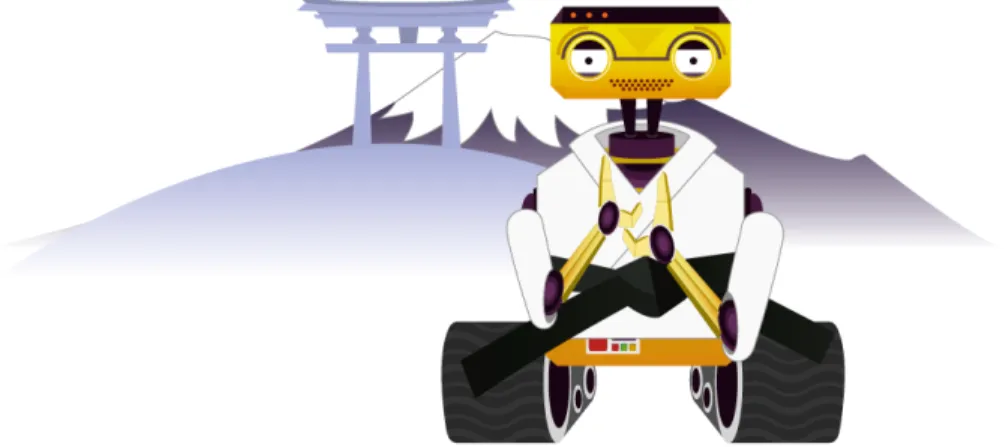
The best way to learn with Karel is to go through the self-paced and self-graded Karel programming course in NCLab, using this textbook as a reference. Karel (shown in Fig. 1) is a determined robot who embarks on a quest to find his missing friend.
Fig. 1: Karel the Robot.
The course comes with many examples and tutorial videos that ensure that every stu-dent can progress at his or her own pace. Lesson plans and stustu-dent journals are avail-able. The instructor does not have to be an expert in computer programming by any means. The course has over 70 engaging game levels that ensure an exciting and ful-filling learning experience for all students.
Recommended minimum age of students is 10 years because of keyboarding skills, and there is no upper age limit. In fact, many teachers use the Karel course to learn computational thinking skills themselves, and adult learners in general enjoy the course as much as do K-12 students.
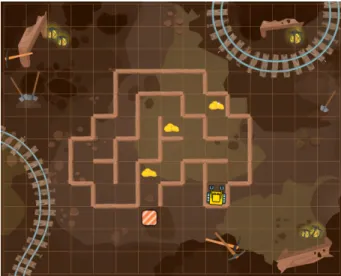
the five basic commands Go, Right, Left, Get, and Put for the robot, with the four directions on the compass, with various game goals and limitations, as well as with the relative right and left (as seen from the point of view of the robot). Fig. 2 shows a sample level Goldmine from this section. Here, Karel’s task is to collect three gold nuggets and return to his home square, using at most 20 steps. Students guide the robot by clicking on buttons.
Fig. 2: Sample levelGoldminein the White Belt section.
1.2 Yellow Belt
Fig. 3: Sample levelPhonein Yellow Belt 1.
In Degree 3, students learn about if-else conditions. Fig. 5 shows a sample levelStorm where Karel needs to pick up a medkit, and return home by following a trace of coins and gears.
Fig. 5: Sample levelStormin Yellow Belt 3.
In the last Degree 4, students learn about the while loop. Fig. 6 shows a sample level Tunnelwhere Karel must collect all keys and reach his home square.
1.3 Purple Belt
The Purple Belt section has 21 game levels that are split into three Degrees. In Degree 1, students learn about custom commands. Fig. 7 shows a sample level Water where Karel must collect all water bottles in order to survive in the desert.
Fig. 7: Sample levelWaterin Purple Belt 1.
In the last Degree 3 students learn about Python lists. Fig. 9 shows a sample levelRugs where Karel needs to move all rugs from one house to another, remembering their ex-act positions.
Fig. 9: Sample levelRugsin Purple Belt 3. 1.4 Black Belt
The Black Belt has 14 levels that are split into two Degrees. In Degree 1 students learn about recursion. Fig. 10 shows a sample level Bakerywhere Karel needs to eat all pies without using loops.
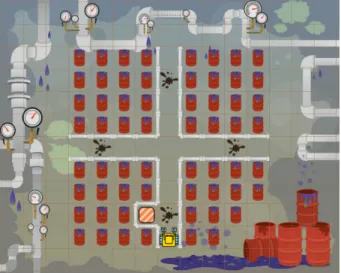
Finally, in Black Belt 2 students apply the techniques and concepts they learned previously, to solve challenging problems. In Fig. 11 Karel needs to clean four oil blots using only 10 lines of code (this leads to three levels of nested loops).
Fig. 11: Sample levelHazardin Black Belt 2.
1.5 Extras and Bonuses
2
Introduction
2.1 Objectives
– Learn basic facts about the Karel language and its history. – Learn how Karel differs from other programming languages. – Learn what skills this course will give you.
2.2 Brief history
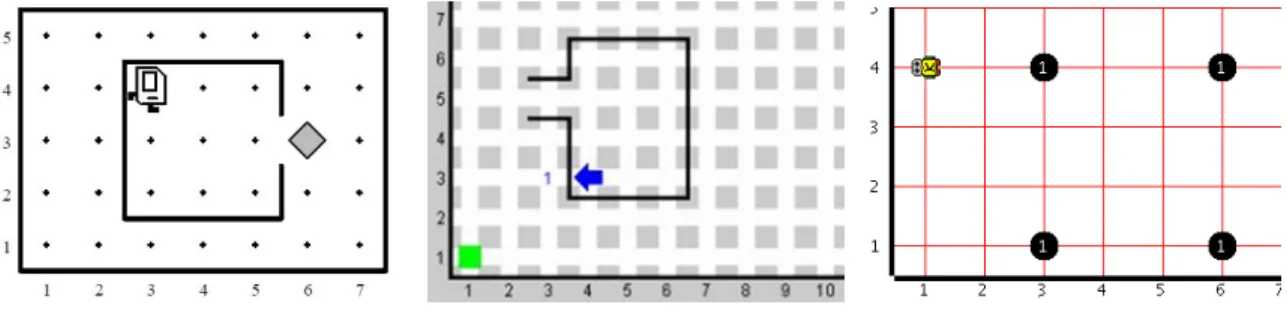
The educational programming language Karel the Robot was introduced by Richard E. Pattis in his bookKarel The Robot: A Gentle Introduction to the Art of Programmingin 1981. Pattis first used the language in his courses at Stanford University, and nowadays Karel is used at countless schools in the world. The language is named after Karel ˇCapek, a Czech writer who invented the word "robot" in his 1921 science fiction play R.U.R. (Rossum’s Universal Robots). Various implementations of the language that can be downloaded from the web are shown in Fig. 13.
Fig. 13: Various implementations.
BEGINNING-OF-PROGRAM
DEFINE turnright AS BEGIN
turnleft turnleft turnleft END
BEGINNING-OF-EXECUTION ITERATE 3 TIMES BEGIN
turnright move
END turnoff
END-OF-EXECUTION
END-OF-PROGRAM
with its exact NCLab’s Karel equivalent
def turnright repeat 3
left
repeat 3
turnright
go
In fact, NCLab’s Karel has a built-in commandrightfor the right turn, so the above program can be written using just three lines:
repeat 3
more pleasant to watch as he moves through the maze. Without this command, any right turn took three left turns, and as a result, Karel resembled a raging tornado. Of course, orthodox Karel fans can still define and use their own rightturncommand. We made a few additional changes to the language in order to make it more accessible to kids – beepers were replaced with gems, Karel has ahomein the maze, and there is a new object traythat makes it clear where the robot should put gems. Longer com-mands were replaced with shorter ones, such asleftturnwithleft,movewithgo, pickbeeperwith get, and putbeeperwith put. Karel’s syntax is virtually identi-cal to Python, with the exception of colons in conditions, loops, and new commands – they were left out since our youngest programmers had difficulty typing them.
2.3 Who is Karel?
Karel is a little robot that lives in a maze and loves to collect gems. He was manufac-tured with only five simple commands in his memory:
– go... make one step forward.
– get... pick up a gem from the ground. – left... turn left.
– right... turn right.
– put... put a gem on the ground.
He also has six built-in sensors that allow him to check his immediate surroundings: – wall... helps the robot detect a wall right ahead of him.
– gem... helps the robot detect a gem beneath him.
– tray... helps the robot detect an empty tray beneath him.
– north... helps the robot detect that he is facing North. – home... helps the robot detect that he is at home.
– empty... helps the robot detect that his bag with gems is empty.
2.4 What will you learn in this course?
2.5 Is Karel a toy language?
Absolutely not! Despite its playful appearance, Karel features all key concepts of mod-ern procedural programming. Technically speaking, it is a complete Turing machine. As a matter of fact, the complexity of algorithms that you will encounter in this text-book ranges from very simple to very hard.
2.6 How does Karel differ from other programming languages?
3
Launching Karel
3.1 Objectives
– Learn to launch Karel and work with the graphical application. – Learn that Karel has several modes and how they differ.
The simplest way to launch Karel is to double click on the Programming icon on Desk-top and select Karel in the menu. This will launch the module in Programming Mode with a demo program, as shown in Fig. 14.
Fig. 14: The Karel module launches with a demo program.
From Programming Mode, one can switch to First Steps, Designer, and Games. These modes will be discussed in more detail in Paragraph 3.3.
3.2 Main menu
The application window contains the main menu on top, work area on the left, maze on the right, and status bar on the bottom. The menus are fairly intuitive, so let us explain just a few selected functions. In theFilemenu:
– Under Learning materials you will find this textbook, interactive exercises, and in-structors have access to solution programs.
– Save in NCLabwill save your file in your NCLab account.
– Publish to the webwill create a static HTML link for your project.
The Maze menu facilitates operation with mazes, including creating a new random one, duplicating an existing maze, restoring maze to its saved version, and save and remove maze. TheEditmenu enables operation with code cells and HTML cells (to be discussed in Section 7). InSettingsone can change Karel’s speed, adjust sound prefer-ences, etc.
The green and red buttons are used to run and stop programs, respectively, and the two buttons next to them on the right can be used to increase and decrease font size. The triplet of icons on far right are the operations counter, step counter, and gem counter.
3.3 Karel modes
The module operates in four modes:
– InFirst Steps, Karel is controlled using the mouse. Watch out and do not crash! – InProgramming Mode, the robot is controlled using written commands.
4
First Steps
4.1 Objectives
– Review directions on the compass.
– Learn to guide the robot by clicking on buttons. – Learn about error messages.
– Learn to work withleftandrightfrom the robot’s point of view. – Learn to plan your actions ahead of time.
4.2 Compass
Fig. 15 shows the four directions on the compass: North, South, West, and East.
Fig. 15: Four directions on the compass.
4.3 Control buttons
After launching Karel, switch to First Steps. The following five buttons will appear in the left panel:
Pressingleftwill turn the robot 90 degrees to the left, pressingrightwill turn him 90 degrees to the right. These two buttons never can cause an error, but the others can.
4.4 Error messages
Pressinggowill advance the robot one step forward. If he crashes into a wall, he will throw an error message:
Fig. 17: Error messages appear in the bottom-left corner.
Upon pressingput, the robot will reach into his bag and put a gem on the ground. If his bag is empty, he will throw an error message as well. An indicator showing how many gems are in the bag can be found in the upper right corner of the window. Last, pressing get makes the robot pick up a gem from the ground. If there is no gem to collect, he will throw an error message.
4.5 Robot’s view
When the robot turns, the arrows on the buttons adjust automatically to reflect his view of things. This is illustrated in Fig. 18.
5
Programming
5.1 Objectives
– Write your first computer program.
– Learn the difference betweenalgorithmandprogram. – Learn the difference betweenlogicalandsyntaxerrors.
– Learn thatdebuggingis an indivisible part of computer programming.
5.2 Typing commands
Commands are entered into acode cellthat is located in the left panel. In Programming Mode, we can use the commands left, right, go, get, put, repeat, and many more. One or more commands form acomputer programorcomputer code. There are two simple rules to remember:
1. Always type one command per line.
2. Indentation matters - every command starts at the beginning of line.
Following these rules will make your code clean and well readable.
5.3 Algorithm
Karel always follows your commands exactly. No exceptions. If the robot does some-thing wrong, such as crashing into a wall, then most likely it was not his mistake but yours. Youralgorithmwas wrong.
Algorithm is a sequence of logical steps that leads to the solution of the given task.
Algorithms are written using common human language. Consider a maze shown in Fig. 19. Karel’s task is to pick up the gem and return to his home square.
This task can be solved using the following algorithm:
Make two steps forward Collect the gem
Turn around
Make three steps forward
In the next paragraph, we will convert this algorithm into acomputer program.
5.4 Program
Translating an algorithm to a particular programming language yields acomputer program.
In our case this is the Karel language of course. One possible program corresponding to the above algoritm is:
go go get left left go go go
Often there is more than one way to translate an algorithm to a computer program. For example, the above algorithm can be also translated to
5.5 Logical and syntax errors
Mistakes in algorithms are calledlogical errors.
Let’s return to the setting shown in Fig. 19 and consider the algorithm Make three steps forward
Collect the gem Turn around
Make three steps forward
This makes the robot crash! We made a mistake in the planning – alogical error. Mistakes in programs, such as misspelling a command, writing "1O" instead of "10",
or forgetting indentation are calledsyntax errors.
Find three syntax errors in the following program!
go go got r1ght night go go go
Mistakes or either kind are calledbugsand the procedure of eliminating them is called debugging. Depending on how careful we were while preparing our algorithm and writing the program, debugging takes either a short time or a long time. It does not happen often that a program works correctly right away.
Of logical and syntax errors, the former are harder to find. Therefore, always make sure to design a good algorithm and to think it through, before you start coding.
6
Counting Loop
6.1 Objectives
– Learn to make the robot repeat something a given number of times. – Learn whatbody of loopmeans and that indentation matters.
Counting loops are present in all procedural programming languages and they allow us to repeat some command, or a sequence of commands, a given number of times.
In Karel, counting loops are written using the command repeat. Some other lan-guages use different commands, but the idea is always the same.
6.2 Elegant way to walk
Look at the following maze where Karel needs to collect a gem and return to his home square.
Fig. 20: Repeating an action a given number of times.
Of course we could type
go go go go go go go go go go go
But such program would not get you hired as a computer programmer! Namely, the same goal can be accomplished much more elegantly, by telling Karel to repeatthe gocommand10times, get the gem, turn back, andrepeatthegocommand another 11times: repeat 10 go get repeat 2 left repeat 11 go
That’s it! Are you wondering why some commands are indented? We will explain this right now.
6.3 Body of loop
Commands to be repeated are called thebody of the loop. In Karel, the body of the loop is defined by indentation. This is the same as in Python. Some other languages
use other ways, for example C/C++ use curly braces.
6.4 Mistakes in indentation
A mistake in indentation can change the body of a loop, and consequently the entire program may end up doing something unexpected. For illustration, assume the maze shown in Fig. 21. Karel’s task is to walk around the block and stop in the upper left corner, facing South.
Fig. 21: Karel walks around the block.
This can be done using the following four lines of code:
repeat 3
go go left
repeat 3
go go left
Now the robot is told to make six steps forward and then turn to the left – which makes him crash right into the wall!
Fig. 23: Mistake in indentation causes the robot to crash.
There is an error message telling where in the code the problem occurred:
Ouch, you crashed me! Line 2: go
6.5 Nested loops
Fig. 24: Walk around a larger block.
Writing thegocommand inside therepeatloop on five consecutive lines would not be OK – the code would be much longer than necessary. The following code does the job elegantly:
repeat 4 repeat 5
go left
When a loop is used within another loop’s body, we say that the loops are nested. Notice that the same indentation scheme applies to each of the two loops.
6.6 Walking around four blocks
Fig. 25: Standing on an intersection. This can be done using the following program:
repeat 4 repeat 4
repeat 5
go left right
7
Working with Code and HTML Cells
7.1 Objectives
– Learn how to add and use new code cells and HTML cells. – Learn how to change the order of cells.
– Learn how to run all code cells at once, and how to run them individually. – Learn how to clear, collapse, remove and merge cells.
7.2 Code cells
So far we have worked with a single code cell, but having multiple code cells can be useful when we want to run different parts of our program separately. While the green arrow button in the main menu runs all code cells (one after another), each code cell also has its own green arrow button beneath it, that runs just that cell and nothing else. It is also possible to insert descriptive HTML cells between code cells. Fig. 26 shows a sample code cell including its bottom menubar.
Fig. 26: Sample code cell.
Left to right, the icons under the code cell have the following meaning: – Run the program in this particular code cell.
– Stop the code cell (this icon becomes active when the program is running).
– Move the cell under the one below it (changes the order of cells in the worksheet). – Move the cell above the one above it (changes the order of cells in the worksheet). – Duplicate the cell (new code cell with the same contents is created).
7.3 HTML cells
HTML cells use a WYSIWYG text and HTML editor to add descriptions and illustra-tions to the worksheet. Fig. 27 shows a sample HTML cell.
Fig. 27: Sample HTML cell.
This cell has two menus. The top one is related to text editing and inclusion of images, the bottom one is analogous to the menu of code cells. Let us begin with the top menu: Left to right, the buttons and icons have the following meaning:
– Select text font.
– Make selected text boldface. – Make selected text italics. – Underline selected text.
– Increase font size for selected text. – Decrease font size for selected text. – Choose foreground text color – Choose background text color – Align text left
– Center text – Align text right – Add a hyperlink. – Create enumerated list. – Create bullet list.
– Edit source HTML code. This is also how images can be added via external links. The bottom menu, left to right:
– Edit the HTML cell.
– Move the cell under the one below it (changes the order of cells in the worksheet). – Move the cell above the one above it (changes the order of cells in the worksheet). – Duplicate the cell (new HTML cell with the same contents is created).
– Clear the cell (erase all contents). – Add empty code cell under the cell. – Add empty HTML cell under the cell. – Remove the cell.
– Collapse the cell.
8
Conditions
8.1 Objectives
– Understand the role of conditions in programming.
– Learn to use Karel’s sensors in conjunction with conditions to help the robot check his surroundings and react accordingly.
Conditions are present in every programming language. Their purpose is to make de-cisions while the program is running, and handle various unexpected situations. In Karel’s case, conditions will usually be related to checking his surroundings via the sensorswall,gem,tray,empty,northandhome.
8.2 Thewallsensor
Thewallsensor helps the robot determine whether or not there is a wall right in front of him. The usage of this sensor can be illustrated using a simple program "Careful step": If there is wall in front of you, turn back, else make one step forward. Note the user comment following the hash symbol #. Comments are not part of the program -in other words, the program below has five l-ines:
# Program "Careful step".
if wall
repeat 2
left
else
go
Imagine that Karel stands in front of a gem as shown in Fig. 28.
Fig. 28: Karel’s initial position.
Fig. 29: Left to right – Karel’s positions after executing the program "Careful step" one, two, and three times.
8.3 The keywordnot
Karel can utilize the keyword not (negation) in conditions. For illustration, the last program can be rewritten as follows, without changing its function:
# Program "Careful step".
if not wall go
else
repeat 2
left
8.4 Thegemsensor
Let’s extend the program "Careful step" in such a way that Karel picks up the gem on the way:
# Program "Careful step II".
if gem get
if wall
repeat 2
left
else
go
The sequence of Karel’s positions after each evaluation is shown in Fig. 31.
Fig. 31: Left to right – Karel’s positions after executing the program "Careful step II" one, two, and three times.
8.5 Thetraysensor
Thetraysensor allows Karel to detect anemptytray beneath him. A tray that is filled with a gem will not be detected. As with gems, there may be more than one tray in a square. Let’s consider the situation shown in Fig. 32 where the home square is 10 steps ahead of Karel. The positions of the gem and of the tray are random but Karel knows that the gem comes first. It is his task to find the gem, move it on the tray, and enter the home square.
The program looks as follows:
repeat 10 go
if gem get
if tray put
8.6 Repairing pavement
We can use the program from Subsection 6.6 as the basis for our new program. First let’s adjust the numbers of repetitions in the loops to match the current layout of the maze. In fact just the deepest one needs to be changed from five to four since the new blocks are only three units long. The other two loops remain unchanged since each square has still four edges and there are four squares as before. So the new program is:
repeat 4 repeat 4
repeat 4
go left right
This will work, but Karel will not be doing any repairs, just walk all pavements and return to his initial position. To repair the pavement, we need to insert an additional condition in front of eachgocommand:
repeat 4 repeat 4
repeat 4
if not gem put go
left right
repeat 4 repeat 4
repeat 4
if not gem
if not empty put
go left right
Good job! Fig. 34 shows the pavement after the program is execured. Before running the program, we inserted 15 gems into Karel’s bag in Designer.
8.7 Making the robot face any direction
This sensor can be used not only to check if the robot faces North, but also to make him face any given direction. For this, we always must make him face North first, because this is the only direction he can verify. Let’s write a program that makes the robot face South no matter which direction he is currently facing!
Fig. 35: Karel faces a random direction.
The program uses the fact that in any situation, at most three left turns are enough to make the robot face North:
# First turn North:
repeat 3
if not north left
# Then turn South:
repeat 2
9
Conditional Loop
9.1 Objectives
– Learn to repeat a command or a sequence of commands until some goal is achieved, not knowing in advance how many repetitions will be needed.
Theconditional loop(whileloop) is present in all procedural programming languages. It allows us to repeat some action without knowing in advance how many repetitions will be needed. This can be the case, for example, when Karel needs to walk straight to the nearest wall. He cannot measure the distance to a wall that is farther ahead, so this task cannot be accomplished using therepeatloop.
9.2 Finding a lost gem
while not gem
while not wall go
left get
9.3 Writing programs in steps
Is it difficult to write a program like the one above? Not at all! But it is important to build it in several steps, rather than trying to write it all at once. That’s how even the most experienced computer programmers do it. As Step 1, write a loop that brings the robot to the outer wall. Clearly, this needs to be done as that’s where the gem is. And, we also turn the robot left (could be right), because facing the wall would not get us anywhere:
while not wall go
left
Looking at this loop, we realize that it also can be used to bring the robot to the next corner, where he will turn left again. This is great, because he can just repeat this loop until he finds the gem! Hence as Step 2, we include an outer loop:
while not gem
while not wall go
left
As the last Step 3, Karel needs to collect the gem that he found. Hence we arrive at the original program from above:
while not gem
while not wall go
left get
9.4 Rock climbing
Fig. 37: Karel is climbing rocks.
He knows that there is a gem up there, and wants it, but he does not know how high the cliff is, or the exact position of the gem. Let’s help the robot climb the cliff and collect the gem!
This can be done using seven lines of code:
while wall left go right
while not gem go
get
10
Custom Commands
10.1 Objectives
– Learn to split complex tasks into smaller ones.
– Learn to use custom commands as it makes programs simpler.
When writing a new program, it is a good idea to check whether it contains simpler tasks that can be solved first. If so, solve them, and create a custom commands (sub-programs) for them. Then, suddenly, the original task does not appear that difficult anymore! We will give an example after showing how new commands are defined:
10.2 Defining new commands
New commands are defined using the reserved worddef. For example, in a program where the robot needs to turn back in various situations, it is a good idea to define a new commandturnback:
def turnback repeat 2
left
Note that the body of a new command needs to be indented analogously to the body of loops and conditions.
In another program, the robot may need to frequently collect all gems that lie on the ground beneath him. For that we can define a new commandgetall:
def getall while gem
get
The newly defined commands can be used as any other commands in our programs.
10.3 Arcade game
Fig. 38: Karel is playing an arcade game.
Clearly, this problem is more complex than anything we solved before. So, let us first look for smaller tasks that the robot will be doing in each floor. For sure, he will need to turn around from time to time, so let’s start with introducing theturnbackcommand:
# New command to turn back:
def turnback repeat 2
left
Since the robot does not know the exact positions of gems, he will always need to sweep the entire floor. Let’s introduce a new command for this. We will assume that the robot stands at the West end of the floor, facing East:
# Sweep one floor from left to right. # Assumes that robot stands at the # West end, facing East:
def sweep
while not wall
Next we need a new command that will move the robot to the West end of the floor and make him face East, as required by the commandsweep. Let us call this new com-mandgowest
# Reach West end of the current floor # and turn around to face East:
def gowest
# Turn West:
while not north left
left
# Go to West end:
while not wall go
# Turn around:
turnback
Almost there! The last new command we need is to get to the next floor. Let us call it moveup:
# Find the opening and move one # floor up. Assumes that robot is # at the East end of a floor, # facing East:
def moveup
if not home
# Face North:
left
# Find opening:
while wall left go right
# Pass through opening:
go
# Main procedure:
def arcade
while not home
gowest sweep moveup
The main program includes just the commandarcade:
# Main program:
arcade
Fig. 39 shows the arcade after the program has finished:
11
Variables
11.1 Objectives
– Learn the purpose of variables in computer programming.
– Learn to work with numerical and logical variables and text strings. – Learn to define and use functions that return values.
– Learn the difference between global and local variables.
11.2 Karel grows up
Karel grew up and left the home of his parents to experience life on his own. Therefore, the robot’s home square usually will not be present in the maze. There are additional changes that reflect Karel’s growing up – there is a GPS device that he can use to de-termine his position in the maze, he can print messages, work with variables and lists, employ functions that return values, use complex logical operations, make random de-cisions, and more. A compact overview of all programming functionality can be found in Section 16.
11.3 Purpose of variables
In programming, variables are used to store useful information for later use. To give a few examples, this information can be a number, word, sentence, or a logical value (TrueorFalse). Variables can be rather complex - we will encounterlistswhere mul-tiple values can be stored, such as the robot’s path, positions of gems in the maze, etc.
11.4 Types of variables
All of us use variables in our lives. One of the first ones is our own name.
Text strings
Say that your name is "Melissa". When you were about two years old, you saved your own name in your memory. Using computer language, you defined a new variable my_nameas follows:
my_name = "Melissa"
Numbers
Later in life we learn about various important numbers such as
seconds_per_minute = 60
or minutes_per_hour whose value is 60 as well, hours_per_daywhose value is 24, and so on. But we also use variables whose values change, such asdays_per_year, number_of_my_pets, etc. In Karel, we will only use integers (not general real num-bers) as the purpose of the language is not to do math.
Logical variables
Logical variables can only store two possible values, either True or False. We use many of them in our lives:
I_have_a_dog = True I_own_a_car = False
Of course, for someone else these variables will have different values. Logical variables and operations will be discussed in more detail in Section 13.
11.5 Using the GPS device and theprintcommand
Karel can retrieve his coordinates at any time via the commandsgpsx andgpsy. He also has a new ability to output text messages via the printcommand. The usage of these commands can be illustrated using a short program where Karel determines his coordinates in the maze and prints them:
print "Horizontal position:", gpsx
print "Vertical position:", gpsy
For the maze shown below,
Fig. 40: South-west corner of the maze has GPS coordinates [0, 0].
Fig. 41: North-east corner of the maze has GPS coordinates [14, 11].
then the output of the program is
Horizontal position: 14 Vertical position: 11
The printcommand can be used to display more complicated sentences where text and variables are separated by commas:
print "My GPS coordinates are", gpsx, "and", gpsy
Which, for the above maze, produces the output:
My GPS coordinates are 14 and 11
11.6 Defining custom functions
We can use the keyword returnin the body of a command to return a value. Such commands are calledfunctions. They are also defined using the keyworddef. For ex-ample, with the following functioncountstepsthe robot will walk straight towards the closest wall and return the number of steps he needed to reach it:
def countsteps n = 0
while not wall go
inc(n) return n
Notice couple of things here:
– The variablenwas created and initialized by 0usingn = 0. In Karel, we do not have to state the type of a variable in advance – the interpreter will figure it out from the type of value that is first assigned to it.
– Theinc()function increases the value of an integer variable by one. There is also a functiondec(), not used in the above program, that decreases the value of an integer variable by one. More about these two functions will be said in Paragraph 11.10.
shown in Fig. 41, the output is
I reached wall in 11 steps!
11.7 Measuring the length of a wall
Here, Karel’s task is to measure and print the length of an arbitrary wall. The wall has a beginning and an end, does not contain loops, the robot faces the first wall segment, and the wall continues to the robot’s left as shown in Fig. 42:
Fig. 42: Measuring the length of an arbitrary wall.
# Function to measure the length # of an arbitrary wall:
def measurewall l = 0
while wall inc(l)
left
if not wall go
right
if not wall go
right
if not wall
return l
# Call the function:
print "Length of wall is", measurewall
Running the program with the maze from Fig. 42, we obtain:
Length of wall is: 53
This example is available in Learning resources to the Karel module. Change the wall and see if the program still works correctly!
11.8 Creating and initializing numerical variables
In Karel, numerical variables can be created and initialized in several different ways: 1. By setting them to an integer number. For example, a new variableais created and
set to zero as follows:
3. By setting them togpsy. New variableposyis created and set togpsyvia
posy = gpsy
4. Initialize them with an existing value. If there already is an integer variable var1, then a new variablevar2can be created as follows:
var2 = var1
5. Initialize them with value returned by an existing function. Using the function countstepsfrom the previous paragraph, we can type:
num = countsteps
11.9 Changing values of numerical variables
The value of a numerical variable can be updated at any time by redefining it via one of the five options described in the previous paragraph.
11.10 Using functionsinc()anddec()
Karel does not know mathematical symbols ’+’ and ’-’. But for counting purposes, he can increase and decrease the value of an integer variable by one using the functions inc()anddec(), respectively. He can also increase and decrease the value of a vari-able by more than one viainc(n, num)and dec(n, num), wherenis the name of the variable andnumis an integer number.
11.11 Comparison operations
Integer numbers and numerical variables can be compared using the standard op-erators >, <, >=, <=, ==, !=, <>. In this order, they read "greater than", "less than", "greater than or equal to", "less than or equal to", "equal to", "not equal to" and "not equal to" (the last two operations have the same meaning). The result of each such operation is a logical valueTrueorFalse, and it can be either used in a condition or conditional loop, or assigned to a variable. For example,
a = 1 b = 5
yields the output
True
The code
a = 1 b = 5 c = a > b print c
yields
False
The code
a = 0
while a <= 5 print a
inc(a)
yields
0 1 2 3 4 5
They can be printed as usual. The code
print "Robot’s name is", robots_name
yields
Robot’s name is Karel
A text string variable can be used to initialize a new one. Let’s say that someone wants to rename the robot to "Carlos" (which is the Spanish version of "Karel"), and store his original name in the variablerobots_name_orig. This is done as follows:
robots_name_orig = robots_name robots_name = "Carlos"
11.13 Local and global variables
A variable that is created within a function islocal to that function, meaning that it can be used in the function only. If we attempt to use it outside of that function, an er-ror is thrown. The following code creates a local variable a within a function called myfunction:
def myfunction a = 1
return
myfunction print a
When run, the code throws an error message:
Unknown variable/procedure "a"
def myfunction print "b =", b
return
b = 5
myfunction
The output of this program is:
b = 5
12
Lists
12.1 Objectives
– Understand the concept of a list. – Learn basic operations with lists. – Learn to work with indices.
Lists are useful data structures that can be used to store multiple integer values, GPS coordinates, logical values, and/or text strings at the same time. Values of different types can be combined and lists can even contain other lists. For example, a list can store the robot’s path, positions of all gems in the maze, positions and shapes of obsta-cles that the robot encounters, and much more. Objects in a list are ordered and they can be added to the end of a list, accessed by their index, and deleted from any position of the list.
12.2 Compatibility with Python
Karel lists are a “subset” of lists in the Python programming language. In other words, everything that you learn here will work in Python, but Python provides additional functionality for lists which is not present in Karel.
12.3 Creating a list
We use square brackets when creating lists. An empty listUis created as follows:
U = []
Lists can be also created non-empty:
V = [1, 2, 3, 4, 5]
We can use variables when creating a list:
c = 100
W = [0, 50, c] print W
[0, 50, 100]
Integer numbers can be combined with text strings:
X = [1, "Hello", 2]
Lists can contain other lists as their elements:
Y = [1, "Hello", 2, [1, 2, 3]]
We can print a list:
print "This is the list Y:", Y
The output of this code is:
This is the list Y: [1, "Hello", 2, [1, 2, 3]]
12.4 Accessing list items by their indices
List items can be accessed and either printed, assigned to other variables, or used in some other way, via their indices. Indices always start from zero. In other words,L[0] is the first item in the listL, L[1]is the second item, etc. Working with indices can be illustrated using the following simple code
L = [8, 12, 16, 20]
print "First item:", L[0]
print "Second item:", L[1] print "Third item:", L[2]
print "Fourth item:", L[3]
12.5 Appending items to a list
An arbitrary object obj(integer, text string, logical value, another list, etc.) can be ap-pended to the end of an existing list using the append() function. For a list L this would be
L.append(obj)
For illustration, the code
K = [1, 11] K.append(21) print K
has the output
[1, 11, 21]
12.6 Removing items via thepop()function
Theith item (where indices start from zero) can be deleted from a listLand assigned to a variablexvia
x = L.pop(i)
For illustration, let us create a listXcontaining three text strings "Monday", "Tuesday" and "Wednesday", and then delete the second item:
X = ["Monday", "Tuesday", "Wednesday"] day = X.pop(1)
print day print X
The output of this code is
Tuesday
If thepop()function is used without an index, it removes and returns the last object of the list:
day = X.pop() print day print X
Output:
Wednesday [’Monday’]
12.7 Deleting items via thedelcommand
The purpose of the del command is similar to the pop() function except that the deleted object is destroyed (it cannot be assigned to a variable). The ith item can be deleted from a listLvia
del L[i]
For illustration, the output of the code
L = ["Monday", "Tuesday", "Wednesday"]
del L[0] print L
del L[0] print L
is
M = ["John", "Josh", "Jim", "Jane"] n = len(M)
print "Length of the list is", n
has the output
Length of the list is 4
12.9 Parsing lists
In Karel, lists can be parsed via theforcommand that is the same as the correspond-ing command in Python. For illustration, the followcorrespond-ing code defines a listMconsisting of four numbers1, 2, 3, 4and prints each of them, increased by two:
M = [1, 3, 5, 7] for n in M
print inc(n, 2)
The output is:
3 5 7 9
12.10 Recording robot’s path
# Function to record robot’s path:
def recordpath
L = [[gpsx, gpsy]] while wall
left
if not wall go
L.append([gpsx, gpsy])
right
if not wall go
L.append([gpsx, gpsy])
right
if not wall
return L
# Record the path and print it:
print recordpath
[[5, 4], [5, 5], [5, 6], [5, 7], [5, 8], [5, 9], [6, 9], [7, 9], [8, 9], [9, 9], [9, 8], [9, 7], [8, 7], [7, 7], [8, 7], [9, 7], [9, 6], [9, 5], [8, 5], [7, 5], [8, 5], [9, 5], [9, 4], [9, 3], [8, 3], [7, 3], [6, 3], [6, 4]]
This is just as it should be – recall that the coordinates start with[0, 0]which is the bottom-left corner square.
12.11 Replaying robot’s path from a list
Now we will teach Karel to move according to a path that is stored as a list of GPS coor-dinates. More precisely, the path will be given in terms of[gpsx, gpsy]pairs stored in a listL. As a first step, we need to implement four functions that will turn the robot to face North, East, South and West. We also implement a proceduregotoposition that moves the robot from any initial position to a positionNEWX, NEWY:
# Turn North:
def turnnorth
while not north left
# Turn East:
def turneast turnnorth
right
# Turn South:
def turnsouth turneast
right
# Turn West:
def turnwest turnnorth
# Move from the current position to # a new position [NEWX, NEWY]:
def gotoposition
# Horizontal direction first:
posx = gpsx if posx < NEWX
turneast
repeat dec(NEWX, posx)
go
else
turnwest
repeat dec(posx, NEWX)
go
# Vertical direction:
posy = gpsy if posy < NEWY
turnnorth
repeat dec(NEWY, posy)
go
else
turnsouth
repeat dec(posy, NEWY)
go
As you can see, we are not assuming that the new position is adjacent to the current one – this makes the proceduregotopositionmore generally usable. The last step is easy, we just need to parse the listL, and make the robot go to every new position:
# Parse list L, always go to the # next position:
def playlist n = len(L) i = 0
repeat n
The variablenewpair is there because Karel does not allow double indices. What re-mains to be done now is to just run the program with a sample listL:
# Sample list L:
L = [[3, 10], [5, 5], [10, 10], [1, 1]]
# We need these two global variables:
NEWX = gpsx NEWY = gpsy
# Go!
playlist
The reader can notice usage of global variablesNEWX,NEWYandLhere. This is not the best programming practice but the Karel language does not allow functions to accept parameters, so it needs to be done this way for the moment. We plan to implement passing parameters into functions soon.
12.12 Recording positions of gems
Gems are distributed randomly along the maze perimeter. The squares may contain more than one gem. The robot should walk the maze perimeter and record the posi-tions and counts of all gems into a list. Each list entry should have the form [gpsx, gpsy, number]. At the end, the robot should print the list.
One possible program to do this looks as follows. First we write a functioncountgems that will count the number of gems in a square and return their number:
def countgems num = 0
# Collect all gems:
while gem get
inc(num)
# Put the gems back:
repeat num put
return num
Then we can use this function to obtain the desired list:
# Locate all gems:
def locategems repeat 4
while not wall
go
if gem
L.append([gpsx, gpsy, countgems]) left
return L
# Call the main function:
L = []
listofgems = locategems print "Here is the report:"
print listofgems
For the maze shown in Fig. 44, the output of the program is
12.13 Lists contained in other lists
In some of the latest programs we encountered lists that were contained in other lists. In other programming languages, items of embedded lists are accessed via multiple indices. This is not allowed in Karel, but it can be done without multiple indices as well. Look, for example, at the following code that goes through the list L from the last program, and creates another list L2that only contains the counts of gems (their coordinates are left out):
L2 = [] for x in L
L2.append(x[2])
13
Tour of Logic
13.1 Objectives
– Review elementary logic.
– Practice working with logical expressions. – Learn about truth tables.
13.2 Simple logical expressions
As we already know, logical expressions are expressions that are eitherTrueorFalse. We say that True or False is their value. Here are some real-life examples, try to answer them withTrueorFalse:
– "I am 12 years old." – "My dad is a teacher."
– "My school is a STEM Academy." And here are some Karel examples:
– wall...Trueif the robot is facing a wall,Falseotherwise. – gem...Trueif a gem is beneath the robot,Falseotherwise. – tray...Trueif a tray is beneath the robot,Falseotherwise. – north...Trueif the robot is facing North,Falseotherwise. – home...Trueif the robot is home,Falseotherwise.
– empty...Trueif the robot’s bag is empty,Falseotherwise.
13.3 Complex logical expressions
In programming as well as in real life we often deal with logical expressions that are more complex. Often we use two or more simple logical expressions in one sentence, and moreover we combine them with logical operationsand,orornot.
For example, the sentence "I will go skiing on Saturday if weather is good and if Michael joins me." includes three simple logical expressions. Let’s call them for brevity
A= "I will go skiing on Saturday." B= "The weather is good."
ifB and CthenA
We love this kind of brevity in programming because it makes the code short. Let’s say that we can predict the future and we know that the weather will be good and that Michael will go as well. Then we can translate the above condition into computer code. We also print the resulting value ofAat the end:
# Let’s say that weather will be good # and Michael will join you:
B = True
C = True
# This is how you decide:
if B and C A = True
else
A = False
# Print the result:
if A
print "I will go ski on Sunday." else
print "I will not go ski on Sunday."
Output:
I will go ski on Sunday.
13.4 Truth tables
Each of these three logical operations comes with its owntruth table that summarizes its results for different values of operands. The truth table for the logicalandis:
A B A and B
True True True
True False False
False True False
False False False
A B A or B
True True True
True False True False True True False False False
The truth table for logicalnotis:
A not A
True False False True
And finally, the truth table forif A then Bis:
A B ifAthenB
True True True
True False False
False True True
False False True
14
Randomness
14.1 Objectives
– Learn how to make random decisions using therandcommand. – Learn to simulate random processes.
Karel can make random decisions via the commandrandthat returns with equal prob-ability eitherTrueorFalse. Typical usage of this command is
if rand
do_something else
do_something_else
14.2 Using random moves to search entire maze
As a first example, here is a nice short program that makes Karel walk randomly through the maze and look for gems:
# This is a simple way to # create an infinite loop:
while True
# Make a random number of steps forward:
while rand
if not wall go
if gem get
# Turn either right or left:
if rand right
else
left
15
Recursion
15.1 Objectives
– Understand what recursion is and when it can be useful. – Learn to write good recursive algorithms.
By a recursivealgorithm we mean an algorithm that makes a call to itself. How does it sound? In our life we use recursion all the time. For example, when we descend a staircase, our algorithm is:
Descend_staircase Descend_one_step
If this_was_not_the_last_step Descend_staircase
Recursion is not applicable to all types of problems, but it can be very helpful, espe-cially when:
– The problem can be reduced to the same one, just smaller in size. – The same algorithm can be applied to solve the smaller problem.
In the program, this means that some command calls itself, either directly or through other commands.
15.2 How it works
Consider the following program:
def reach_wall if not wall
go
reach_wall
reach_wall
Initial position of the robot is shown in Fig. 45:
Fig. 45: Robot’s initial position.
Fig. 46: Robot’s position after making the first step forward.
with its own body. So the corresponding code would look as follows:
if not wall go
if not wall go
reach_wall
Since the robot is two steps away from the wall, the secondif not wall condition passes and he makes a second step forward. His new position is shown in Fig. 47.
Fig. 47: Robot’s position after making the second step forward.
if not wall go
if not wall go
if not wall go
reach_wall
Since the robot is one step away from the wall, the third if not wall condition passes and he makes a third step forward. His new position is shown in Fig. 48.
Fig. 48: Robot’s position after making the third step forward.
Now the robot stands in front of the wall. Thereach_wallcommand is executed one more time, so we can imagine that its body is pasted into the code one last time:
if not wall go
if not wall go
if not wall go
if not wall go
reach_wall
pro-15.3 The base case
In the last example, to prevent infinite recursion, we used anifstatement. The else statement can be omitted which means "else do nothing". In recursive algorithms, we always need aniforif-elsestatement of some sort, where one branch makes a re-cursive call while the other one does not. The branch without a rere-cursive call is called thebase case. A bad example of a recursive command without a base case would be
def turn_forever
left
turn_forever
turn_forever
This program is an infinite recursion that needs to be stopped using the red stop button.
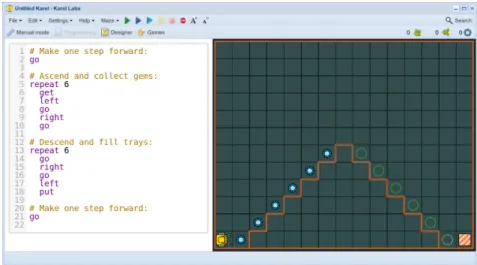
15.4 Diamond staircase revisited
Recall the Staircase example from Section 10:
Fig. 49: The Staircase problem.
def climb_stairs if not home
left go right go
if gem get
climb_stairs
climb_stairs
If an algorithm comes in both a recursive and a non-recursive version, then the follow-ing should be taken into account:
– The recursive version will be slightly slower than a non-recursive one. The reason is the overhead related to creating a new instance of the recursive command and calling it.
– The recursive version will also require more memory – when a recursive command is called 1000 times, then it actually exists in 1000 copies in the memory. Hence, recursion is not recommended with very large numbers of repetitions.
Recursive algorithms are used mainly where non-recursive ones are cumbersome to design. For example, much code written for traversing tree-like data structures is re-cursive. Also certain sorting algorithms are more naturally written in recursive form. We will discuss these subjects in more detail later.
15.5 Mutually recursive commands
def climb_step
left go right go get
def odd
if not home climb_step even
def even
if not home climb_step odd
16
Appendix - Overview of Functionality by Mode
16.1 First Steps (Section 4)
In First Steps, Karel can be guided by clicking on buttons: – go... make one step forward.
– left... turn left. – right... turn right.
– put... put a gem on the ground.
– get... pick up a gem from the ground.
16.2 Programming Mode (Sections 5 – 15)
In Programming Mode, Karel has the following functionality: – go... make one step forward.
– left... turn left. – right... turn right.
– put... put a gem on the ground.
– get... pick up a gem from the ground.
– repeat... counting loop (repeat an action a given number of times). – if - else... condition.
– while... conditional loop (repeat an action while a condition is satisfied). – def... define a new command.
– wall... sensor that checks if the robot faces a wall.
– gem... sensor that checks if there is a gem beneath the robot. – tray... sensor that checks if there is a tray beneath the robot. – empty... sensor that checks if the robot’s bag with gems is empty. – home... sensor that checks if the robot is in the home square. – north... sensor that checks if the robot faces North.
– print... print strings and variables.
– gpsx... GPS coordinate in the horizontal direction. – gpsy... GPS coordinate in the vertical direction.
– return... returns a value, to be used in functions. – and... binary logicaland.
– or... binary logicalor. – not... unary logicalnot. – L[]... create an empty listL. – len(L)... length of listL.
– L[i]... object at positioniin listL. Note:L[0]is the first item in the list. – L.append(x)... appendsxto the end of listL.
– x = L.pop()... removes the last item of listLand assigns it tox. – del L[i]... removes from listLobject at positioni.
– for x in L... Python way to parse lists. – Numerical and logical (Boolean) variables. – Complex logical expressions.
– Functions that return values. – Lists.
– Recursion.
17
What next?
Congratulations, you made it through Karel the Robot! We hope that you enjoyed the course. If you can think of any way to improve the application Karel the Robot or this textbook, we would like to hear from you. If you have an interesting new game or ex-ercise for Karel, please let us know as well.
You are now ready to learn a next programming language! We would recommend Python which is a modern dynamic programming language that is used in many ap-plications in business, science, engineering, and other areas. NCLab provides a Python course.
In any case, our team wishes you good luck, and keep us in your favorite bookmarks!