MadCap Software
Import Guide
Flare 11
Copyright 2015 MadCap Software. All rights reserved.
Information in this document is subject to change without notice. The software described in this document is furnished under a license agreement or nondisclosure agreement. The software may be used or copied only in accordance with the terms of those agreements. No part of this publication may be reproduced, stored in a retrieval system, or transmitted in any form or any means electronic or mechanical, including photocopying and recording for any purpose other than the purchaser's personal use without the written per-mission of MadCap Software.
MadCap Software 7777 Fay Avenue La Jolla, California 92037 858-320-0387
www.madcapsoftware.com
C
O
N
TE
N
TS
CHAPTER 1 Introduction
5
CHAPTER 2 Importing CHM Files
7
CHAPTER 3 Importing DITA Files
9
Additional DITA Tasks
22
CHAPTER 4 Importing FrameMaker Files
25
Additional FrameMaker Tasks
75
CHAPTER 5 Importing HTML Files
91
Additional HTML Tasks
101
CHAPTER 6 Importing Word Files
105
Additional Word Tasks
153
CHAPTER 7 Importing a RoboHelp Project
159
CHAPTER 8 Importing a Doc-To-Help Project
161
CHAPTER 9 Importing an HTML Help Project
167
CHAPTER 10 Importing a Project from Source Control
169
iv
Importing from Microsoft SourceSafe
178
Importing from Perforce
179
Importing from a Third-Party Provider
181
CHAPTER 11 Importing Other Files
183
Importing Alias Files
184
Importing Browse Sequences
185
Importing Condition Tag Sets
186
Importing Destinations
187
Importing Glossaries
188
Importing Header Files
189
Importing Page Layouts
190
Importing Search Filter Sets
191
Importing Skins
192
Importing Snippets
193
Importing Stylesheets
194
Importing Styles
195
Importing Tables of Contents
197
Importing Targets
198
Importing Topics
199
Importing Variable Sets
201
CHAPTER 12 Additional Importing Tasks
203
Adding Project Import Files
204
Disabling Auto-Sync of Import Files
206
Overwriting Imported Documents
207
H
A
P
TE
R
1
Introduction
You can import files into Flare in several ways. This includes importing from other Help authoring projects, popular applications like Word, and many kinds of individual files.
WAYS TO IMPORT
Following are the different ways to import content into Flare:
CHM You can create a new project by importing an HTML Help (CHM) file. See "Importing CHM Files" on page 7.
DITA You can create a new project or topics by importing DITA files. See "Importing DITA Files" on page 9.
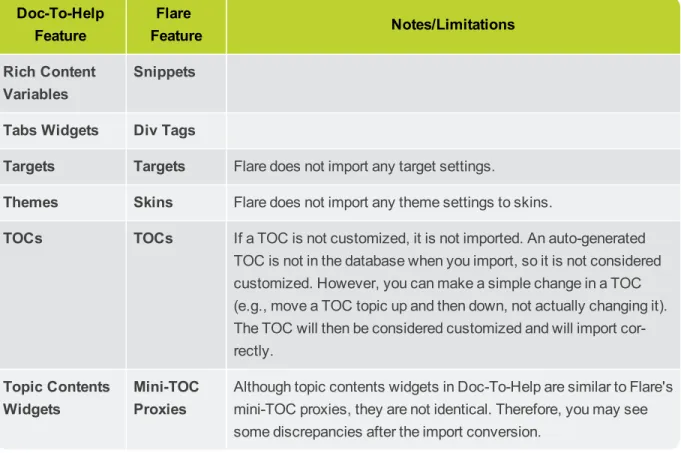
Doc-To-Help You can create a new project by importing a Doc-To-Help project. See "Importing a Doc-To-Help Project" on page 161.
FrameMaker You can create a new project or topics by importing Adobe FrameMaker files. See "Importing FrameMaker Files" on page 25.
Global Project LinkingYou can import content and project files contained in another Flare project, thus allowing you to maintain the information in one location but reuse it in any other project. When you use this feature to import files, you can include or exclude particular types of files (e.g., topics, snippets, stylesheets, glossaries, tar-gets), specific individual files, or files that have certain condition tags applied. Simply use the include/exclude methods that work best for you. For more information about
6
HTML Help Projects You can create a new project by importing an HTML Help project (HHP) file. See "Importing an HTML Help Project" on page 167.
Individual FilesYou can import a wide variety of individual files into an existing Flare project. See "Importing Other Files" on page 183.
Source Control You can create a new project by importing one located in source control. See "Importing a Project from Source Control" on page 169.
Word You can create a new project or topics by importing Microsoft Word files. See "Importing Word Files" on page 105.
H
A
P
TE
R
2
Importing CHM Files
Following are the steps for creating a project by importing an HTML Help (CHM) file.
HOW TO IMPORT AN HTML HELP (CHM) FILE
1. Do one of the following, depending on the part of the user interface you are using: RibbonSelectFile>New Project>HTML Help File (CHM).
Tool StripSelectFile>Import Project>HTML Help File (CHM).
2. In the dialog that opens, browse for and double-click the CHM file to be imported. The Import Project Wizard opens.
3. ClickNext.
4. In theProject namefield, type a name for the new Flare project that will be created after you import the CHM file.
5. In theProject folderfield, either accept the default location for the new project or click to find and select a folder.
6. ClickNext.
7. (Optional) SelectConvert all topics at onceif you want Flare to immediately con-vert all of your topic files to XHTML.
If you remove the check mark from the box, Flare imports the topic files as they are. When you try to open an imported topic in Flare, a message asks if you want to
con-8
8. (Optional) SelectConvert inline formatting to CSS stylesif you want Flare to create new styles based on any "local" formatting that exists in the HTML Help file.
E X A M P L E
If you have applied bold and italic formatting to some text (without using a style), Flare will create a new style based on that formatting.
9. ClickNext.
10. Select a language for the project.
11. ClickFinish. A message tells you that the project was converted successfully and will be opened. 12. ClickOK.
H
A
P
TE
R
3
Importing DITA Files
Darwin Information Typing Architecture (DITA) file content is supported in Flare. DITA is an XML-based markup language with its own schema for authoring, producing, and delivering technical information. It is a standard of the Organization for the Advancement of Structured Information Standards (OASIS), and it consists of a set of design principles for creating "information-typed" modules at a topic level and for using that content in various delivery modes.
You can import DITA files in the following ways: Import Into a New Project
Import Into an Existing Project (From the Wizard) Import Into an Existing Project (From the Import Editor)
10
HOW TO IMPORT DITA FILES INTO A NEW PROJECT
1. Do one of the following, depending on the part of the user interface you are using:
RibbonSelectFile>New Project>DITA Document SetorProject>Import>DITA Docu-ment Set.
Tool StripSelectFile>Import Project>DITA Document Set. The Import DITA Wizard opens.
2. SelectImport into a new project.
3. In theProject namefield, type a name for the new Flare project that will be created after you per-form the import.
4. In theProject folderfield, either accept the default location for the new project or click to find and select a folder.
5. From theOutput Typefield, select the primary target for your project. 6. ClickNext.
7. Click .
8. In the dialog that opens, find and select the files you want to import. You can hold theSHIFTkey to select a range, or you can hold theCTRLkey to select individual items. When you are finished, clickOpen.
You can select DITA or DITAMAP files.
Note:You cannot select multiple DITAMAP files from different folders during the same import process. You must first import the DITAMAP file(s) from one folder. Then in the pro-ject that is created as a result, you can import the DITAMAP file(s) from a second folder.
9. You can use the following options as necessary:
This opens the file that is selected in the list. Link
Gen-erated Files to Source Files
This creates a connection between the original DITA files and the files that are cre-ated as a result of the import. This is useful if you want to continue editing the con-tent in the original DITA files, instead of editing in the Flare project. Flare recognizes when changes have been made to the source documents and reminds you to re-import the documents to ensure the Flare project also reflects the changes. If you use this option, a link icon is added to the top of a linked file in the Flare interface. This lets you know that you need to edit the source file, rather than editing this file. If you remove the connection to the source file, this icon no longer displays on the file. Please note that if you have bound the project to source control, the icons used for source control take precedence over the link icon.
This removes the selected document(s) from the list.
This moves the selected document higher in the list (if you have more than one doc-ument to import). The docdoc-ument at the top is used for the name of the content folder holding the imported topics in Flare. Also, the order determines how the imported doc-uments are arranged in the Flare TOC that is created as a result.
This moves the selected document lower in the list (if you have more than one doc-ument to import).
10. ClickNext.
11. You can use the following options as necessary:
Import all Content files to one folderSelect this option if you want all of the imported DITA file content to be placed in just one folder in the Content Explorer.
Auto-reimport before 'Generate Output'This is also known as "Easy Sync." If you created a connection between your DITA source files and the Flare project earlier in the wizard, you
12
You have the option of re-importing the files manually. However, you can also tell Flare to do this for you automatically, so that you do not have to. Select this option if you want Flare to automatically re-import DITA files when you attempt to build output.
Preserve ID attributes for elementsEvery element inside a DITA file has an ID. This ID is not needed in Flare. However, if you intend to send your output back out to DITA at any point, you can select this option to make sure the ID is preserved.
12. ClickNext.
13. Use this page to specify whether the imported topics should be associated with a stylesheet and/or styles from your DITA files.
Conversion StylesThis opens the DITA Import Styles Editor, which lets you specify how to convert each property of the DITA elements. If you do not enter a property value, the value from the DITA file is used. If you enter a property value, it overrides the value from the DITA file. You can also use the dialog to import and export styles.
Note:When you import content from DITA files, there is a one-to-one conversion that occurs. For each DITA element in your file, a style class is created in Flare. For example, let's say you have a paragraph-level DITA element called "topictitle," after you import the file, a style class called "h1.topictitle" might be created in Flare. Or if you have a character-level DITA element called "cmdname," after you import the file, a style class called "span.cmdname" might be created as a result in Flare. If neces-sary, you can later edit those style classes in Flare. If you generate DITA output from your project, the style classes are converted back to DITA elements.
StylesheetIf you already have a CSS file that you want to associate with the imported files, click theStylesheetbutton. Then navigate to the stylesheet and select it.
14. ClickNext.
15. ClickFinish. The Accept Imported Documents dialog opens. The files that will be created as a res-ult of the import are listed on the left. A preview of each file can be seen to the right when you click the file.
16. When you are finished previewing the files to be created, clickAccept. The files are imported and the project is created.
14
HOW TO DITA FILES INTO AN EXISTING PROJECT—VIA THE WIZARD
1. Do one of the following, depending on the part of the user interface you are using:
RibbonSelectProject>Import>DITA Document Set.
Tool StripSelectFile>Import Project>DITA Document Set. The Import DITA Wizard opens.
2. SelectImport into this project. 3. ClickNext.
4. Click .
5. In the dialog that opens, find and select the files you want to import. You can hold theSHIFTkey to select a range, or you can hold theCTRLkey to select individual items. When you are finished, clickOpen.
You can select DITA or DITAMAP files.
Note:You cannot select multiple DITAMAP files from different folders during the same import process. You must first import the DITAMAP file(s) from one folder. Then in the pro-ject that is created as a result, you can import the DITAMAP file(s) from a second folder.
6. You can use the following options as necessary:
This opens the file that is selected in the list. Link
Gen-erated Files to Source Files
This creates a connection between the original DITA files and the files that are cre-ated as a result of the import. This is useful if you want to continue editing the con-tent in the original DITA files, instead of editing in the Flare project. Flare recognizes when changes have been made to the source documents and reminds you to re-import the documents to ensure the Flare project also reflects the changes. If you use this option, a link icon is added to the top of a linked file in the Flare interface. This lets you know that you need to edit the source file, rather than editing this file. If you remove the connection to the source file, this icon no longer displays on the file. Please note that if you have bound the project to source control, the icons used for source control take precedence over the link icon.
This removes the selected document(s) from the list.
This moves the selected document higher in the list (if you have more than one doc-ument to import). The docdoc-ument at the top is used for the name of the content folder holding the imported topics in Flare. Also, the order determines how the imported doc-uments are arranged in the Flare TOC that is created as a result.
This moves the selected document lower in the list (if you have more than one doc-ument to import).
16
8. You can use the following options as necessary:
Import all Content files to one folderSelect this option if you want all of the imported DITA file content to be placed in just one folder in the Content Explorer.
Auto-reimport before 'Generate Output'This is also known as "Easy Sync." If you created a connection between your DITA source files and the Flare project earlier in the wizard, you will likely make future content changes in the source files. When you make such changes, the source files need to be re-imported into the project so that they can be included in the output. You have the option of re-importing the files manually. However, you can also tell Flare to do this for you automatically, so that you do not have to. Select this option if you want Flare to automatically re-import DITA files when you attempt to build output.
Preserve ID attributes for elementsEvery element inside a DITA file has an ID. This ID is not needed in Flare. However, if you intend to send your output back out to DITA at any point, you can select this option to make sure the ID is preserved.
9. ClickNext.
10. Use this page to specify whether the imported topics should be associated with a stylesheet and/or styles from your DITA files.
Conversion StylesThis opens the DITA Import Styles Editor, which lets you specify how to convert each property of the DITA elements. If you do not enter a property value, the value from the DITA file is used. If you enter a property value, it overrides the value from the DITA file. You can also use the dialog to import and export styles.
Note:When you import content from DITA files, there is a one-to-one conversion that occurs. For each DITA element in your file, a style class is created in Flare. For example, let's say you have a paragraph-level DITA element called "topictitle," after you import the file, a style class called "h1.topictitle" might be created in Flare. Or if you have a character-level DITA element called "cmdname," after you import the file, a style class called "span.cmdname" might be created as a result in Flare. If neces-sary, you can later edit those style classes in Flare. If you generate DITA output from your project, the style classes are converted back to DITA elements.
StylesheetIf you already have a CSS file that you want to associate with the imported files, click theStylesheetbutton. Then navigate to the stylesheet and select it.
11. ClickFinish. The Accept Imported Documents dialog opens. The files that will be created as a res-ult of the import are listed on the left. A preview of each file can be seen to the right when you click the file.
18
HOW TO IMPORT DITA FILES INTO AN EXISTING PROJECT—VIA THE IMPORT EDITOR
1. Do one of the following:
IF YOU DO NOT YET HAVE A DITA IMPORT FILE
a. Complete the steps for adding an import file. See "Additional DITA Tasks" on page 22. b. Open the file in the DITA Import Editor.
IF YOU ALREADY HAVE A DITA IMPORT FILE
a. In the Project Organizer, expand theImportssubfolder.
b. Double-click the appropriate import file. The file opens in the DITA Import Editor to the right. 2. Select theSource Filestab.
3. Click .
4. In the dialog that opens, find and select the files you want to import. You can hold theSHIFTkey to select a range, or you can hold theCTRLkey to select individual items. When you are finished, clickOpen.
You can select DITA or DITAMAP files.
Note:You cannot select multiple DITAMAP files from different folders during the same import process. You must first import the DITAMAP file(s) from one folder. Then in the pro-ject that is created as a result, you can import the DITAMAP file(s) from a second folder.
5. You can use the following options as necessary:
This opens the file that is selected in the list. Link
Gen-erated Files to Source Files
This creates a connection between the original DITA files and the files that are cre-ated as a result of the import. This is useful if you want to continue editing the con-tent in the original DITA files, instead of editing in the Flare project. Flare recognizes when changes have been made to the source documents and reminds you to re-import the documents to ensure the Flare project also reflects the changes. If you use this option, a link icon is added to the top of a linked file in the Flare interface. This lets you know that you need to edit the source file, rather than editing this file. If you remove the connection to the source file, this icon no longer displays on the file. Please note that if you have bound the project to source control, the icons used for source control take precedence over the link icon.
This removes the selected document(s) from the list.
This moves the selected document higher in the list (if you have more than one doc-ument to import). The docdoc-ument at the top is used for the name of the content folder holding the imported topics in Flare. Also, the order determines how the imported doc-uments are arranged in the Flare TOC that is created as a result.
This moves the selected document lower in the list (if you have more than one doc-ument to import).
20
7. You can use the following options as necessary:
Import all Content files to one folderSelect this option if you want all of the imported DITA file content to be placed in just one folder in the Content Explorer.
Auto-reimport before 'Generate Output'This is also known as "Easy Sync." If you created a connection between your DITA source files and the Flare project earlier in the wizard, you will likely make future content changes in the source files. When you make such changes, the source files need to be re-imported into the project so that they can be included in the output. You have the option of re-importing the files manually. However, you can also tell Flare to do this for you automatically, so that you do not have to. Select this option if you want Flare to automatically re-import DITA files when you attempt to build output.
Preserve ID attributes for elementsEvery element inside a DITA file has an ID. This ID is not needed in Flare. However, if you intend to send your output back out to DITA at any point, you can select this option to make sure the ID is preserved.
8. Select theStylesheettab.
9. Use this page to specify whether the imported topics should be associated with a stylesheet and/or styles from your DITA files.
Conversion StylesThis opens the DITA Import Styles Editor, which lets you specify how to convert each property of the DITA elements. If you do not enter a property value, the value from the DITA file is used. If you enter a property value, it overrides the value from the DITA file. You can also use the dialog to import and export styles.
Note:When you import content from DITA files, there is a one-to-one conversion that occurs. For each DITA element in your file, a style class is created in Flare. For example, let's say you have a paragraph-level DITA element called "topictitle," after you import the file, a style class called "h1.topictitle" might be created in Flare. Or if you have a character-level DITA element called "cmdname," after you import the file, a style class called "span.cmdname" might be created as a result in Flare. If neces-sary, you can later edit those style classes in Flare. If you generate DITA output from your project, the style classes are converted back to DITA elements.
StylesheetIf you already have a CSS file that you want to associate with the imported files, click theStylesheetbutton. Then navigate to the stylesheet and select it.
10. In the local toolbar clickImport(if this is the first time importing files) orReimport(if files have been imported previously). The Accept Imported Documents dialog opens. The files that will be created as a result of the import are listed on the left. A preview of each file can be seen to the right when you click the file.
11. When you are finished previewing the files to be created, clickAccept.
Note:The Imported Files tab displays the files that have been imported previously.
Note:A link icon displays on tabs in the XML Editor next to file names that are imported from and linked to another file or Flare project. However, if you are also using the built-in source control technology, the source control icons have a higher precedence and will therefore be displayed instead.
22
Additional DITA Tasks
Following are some other DITA-related tasks that you can perform in Flare when it comes to importing.
Add DITA Import FileSee "Adding a DITA Import File" below.
Open DITA Import FileSee "Opening a DITA Import File" on page 24.
Adding a DITA Import File
The following steps show you how to add a DITA import file, which is used to import DITA file content into a project.
HOW TO ADD A DITA IMPORT FILE TO A PROJECT
1. Do one of the following, depending on the part of the user interface you are using:
RibbonSelect theProjectribbon. In theContentsection selectNew>Import File>Add DITA Import File.
Tool StripSelectProject>Import File>Add DITA Import File.
Right-ClickIn the Project Organizer, right-click on theImportsfolder and from the context menu selectAdd DITA Import File.
The Add File dialog opens.
2. In theFile Typefield at the top, make sureDITA Import Fileis selected. 3. In theSourcearea select one of the following:
New from template This lets you choose either the factory template file or one of your own customized template files as a starting point. The new file will take on all of the settings con-tained in the template. If you want to use the factory template provided by Flare, expand the Factory Templatesfolder and click on a template file. If you want to use your own customized template file, expand the appropriate folder and click on a file. For more information about tem-plates, see the online Help.
New from existing This lets you choose an existing file of the same type as a starting point for your new file. As with template files, your new file will take on all of the settings contained in the file you select. To use this option, click the browse button , use the Open File dialog to find a file, and double-click it.
4. (Optional) If you want to place the file into a subfolder that you previously created in the Project Organizer, in theFolderfield click and select the subfolder. Otherwise, keep the default loc-ation.
5. In theFile Namefield, type a new name for the import file.
6. ClickAdd. The import file is added to the Imports folder in the Project Organizer.
After you add the new import file, you can import DITA file content into the project. See "Importing DITA Files" on page 9.
24
Opening a DITA Import File
The following steps show you how to open a DITA import file that you have added to a project. You can then use this file to import DITA file content into the project. See "Importing DITA Files" on page 9.
HOW TO OPEN A DITA IMPORT FILE FROM THE QUICK LAUNCH BAR
The Quick Launch bar allows you to search for any Flare file or command. It is located in the upper-right corner of the interface. You can pressCTRL+Qon your keyboard to move focus to the Quick Launch bar so you can begin typing.
1. In the Quick Launch bar, type a few letters of the name of the file you want to open. Any available results appear in a drop-down list.
2. From the list, click the name of the file.
HOW TO OPEN A DITA IMPORT FILE FROM THE PROJECT ORGANIZER
1. Open the Project Organizer.
2. Double-click theImportsfolder. The DITA import files in your project are displayed.
H
A
P
TE
R
4
Importing FrameMaker Files
You can import Adobe FrameMaker files in the following ways: Import Into a New Project
Import Into an Existing Project (From the Wizard) Import Into an Existing Project (From the Import Editor)
26
HOW TO IMPORT FRAMEMAKER FILES INTO A NEW PROJECT
1. Do one of the following, depending on the part of the user interface you are using:
RibbonSelectFile>New Project>FrameMaker Documentsor Pro-ject>Import>FrameMaker Documents.
Tool StripSelectFile>Import Project>FrameMaker Documents. The Import FrameMaker Documents Wizard opens.
2. SelectImport into a new project.
3. In theProject namefield, type a name for the new Flare project that will be created after you per-form the import.
4. In theProject folderfield, either accept the default location for the new project or click to find and select a folder.
5. From theOutput Typefield, select the primary target for your project. 6. ClickNext.
7. Click .
8. In the dialog that opens, find and select the files you want to import. You can hold theSHIFTkey to select a range, or you can hold theCTRLkey to select individual items. When you are finished, clickOpen.
You can select BOOK, FM, or MIF files.
Tip:When possible, it is recommended that you select a Adobe FrameMaker BOOK file
for import and let Flare locate and import all the associated document files within the Adobe FrameMaker book.
9. You can use the following options as necessary:
This opens the file that is selected in the list. Link
Gen-erated Files to Source Files
This creates a connection between the original FrameMaker documents and the files that are created as a result of the import. This is useful if you want to continue editing the content in the original FrameMaker documents, instead of editing in the Flare pro-ject. Flare recognizes when changes have been made to the source documents and reminds you to re-import the documents to ensure the Flare project also reflects the changes. If you use this option, a link icon is added to the top of a linked file in the Flare interface. This lets you know that you need to edit the source file, rather than editing this file. If you remove the connection to the source file, this icon no longer displays on the file. Please note that if you have bound the project to source control, the icons used for source control take precedence over the link icon.
This removes the selected document(s) from the list.
This moves the selected document higher in the list (if you have more than one doc-ument to import). The docdoc-ument at the top is used for the name of the content folder holding the imported topics in Flare. Also, the order determines how the imported doc-uments are arranged in the Flare TOC that is created as a result.
This moves the selected document lower in the list (if you have more than one doc-ument to import).
10. ClickNext. The FrameMaker documents are scanned and the next page of the wizard opens. The paragraph styles used in the FrameMaker documents are shown on the left side of the wizard page ("Used FrameMaker Styles").
28
11. If you want Flare to split the FrameMaker documents into smaller topics based on any of the styles shown on the left side of the page ("Used FrameMaker Styles"), double-click that style to move it to the right side of the page ("New Topic Styles").
E X A M P L E
If you have a style called "Heading 2" in your FrameMaker documents, you might want new topics to be created whenever Flare finds a Heading 2 style in a document. So you would double-click Heading 2 and move it to the right side of the page.
12. ClickNext.
13. You can use the following options as necessary:
Add "Topic Continued" links when appropriateSelect this option to place a "Topic Contin-ued" link at the bottom of pages when a long topic has been split into multiple ones.
Add "Topic Continued From" links when appropriateSelect this option to place a "Topic Continued From" link at the top of continued pages when a long topic has been split into mul-tiple ones.
Cross-Reference FormatUse this field to specify the format for the "Topic Continued" and "Topic Continued From" links. Flare provides a cross-reference format for you—(continued in {title}) or (continued from {title}). With this cross-reference format, the link contains the words "continued in" or "continued from" within parentheses, followed by the text of the first para-graph in the connected topic. If you do not want the link to use that particular text, you have a couple of options. First, in Flare, you could manually enter a heading in each topic that is con-nected to another topic included in the split. That text will be used in the link instead (after you update the cross-references in Flare). Another option is to modify the format by clicking the Editbutton.
EditIf you want to modify the cross-reference format provided, click this button, which opens the Cross-Reference Format dialog.
Split Long Topics Select this option if you have long sections in your source documents and want to make sure that they are converted to multiple topics (rather than one very long topic).
ThresholdEnter the maximum number of characters to be converted to a topic before a new topic is created. Flare will break the topic at the nearest paragraph to the threshold value. That way, a new topic will not start in the middle of a sentence or word, but at the beginning of a paragraph.
Avoid Creating 'Empty' TopicsSelect this option if you want to ensure that new topics are not created when large sections are found in the FrameMaker documents without any content.
ThresholdEnter the maximum number of empty character spaces allowed in a topic. If this number is exceeded, Flare will not create a new topic from that empty space.
Anchored Frames With ImagesYou can use this area to specify how Flare should handle anchored frames that contain images as well as other content (e.g., text callouts).
Generate Images Without CalloutsIf the anchored frame contains an image along with callout text, the original image is importedwithoutthe callout text. You might select this option if you have resized the image in FrameMaker. With this option, the imported image is likely to be of a higher quality than it would be otherwise. You can then add a callout to the image once it is inside Flare.
Generate Images With CalloutsIf the anchored frame contains an image along with cal-lout text, Flare creates a PROPS (i.e., properties) file along with the image file when that document is imported. This means that you can open those image files in MadCap Cap-ture to edit those callouts after the import process is completed.
E X A M P L E
If you import anchored frame images and tell Flare not to include the callouts, your imported image files will look something like this in Windows Explorer.
30
On the other hand, if you import the same images and tell Flare to include the cal-louts, it will look something like this in Windows Explorer.
Note:Some FrameMaker elements—such as arcs and nested frames—are not supported with this option.
Generate Flattened ImagesIf the anchored frame contains an image along with callout text, a new flattened image will be created as a result. The callout is included, but you can-not edit it.
Preserve Image SizeThis option affects how the size of imported images are handled.
Option SelectedThe original image is imported. However, the <img> tag is modified in the imported file to closely reflect the height and width of the image in the FrameMaker document. This is done regardless of whether you are importing linked or embedded images from FrameMaker documents.
Option NOT SelectedThe <img> tag is not modified in the imported file. Instead, the image is referenced at 100% of its original value.
Auto-reimport before 'Generate Output'This is also known as "Easy Sync." If you created a connection between your FrameMaker source files and the Flare project earlier in the wizard, you will likely make future content changes in the source files. When you make such changes, the source files need to be re-imported into the project so that they can be included in the out-put. You have the option of re-importing the files manually. However, you can also tell Flare to do this for you automatically, so that you do not have to. Select this option if you want Flare to
automatically re-import FrameMaker files when you attempt to build output.
Approximate Filename LengthEnter the maximum number of characters to use for naming new topic files that are automatically created after splitting a long topic. The default is 24.
Enable 'Passthrough' MarkersSelect this check box to include a check mark if you have cre-ated passthrough markers in your FrameMaker source documents.A passthrough marker is a special marker that you can insert into your FrameMaker source content when you have inform-ation or code that you plan to import to Flare and want left alone (or "passed through," leaving it exactly as you have authored it, rather than processing it). A passthrough marker can be just about anything, as long as supports it in the XHTML code. You can specify how the marker content should be treated when the FrameMaker document is imported. The first option is that you can import the marker content as regular text (which is the default setting). The second option is that you can import the marker content as an XML fragment (e.g., the first part of a bold tag—<b>—but not the second part). The third option is that you can import the marker con-tent as a complete XML tag. You might use a passthrough marker for various reasons, such as for importing a marker as XHTML or JavaScript code.
E X A M P L E
Let's say you plan to import some FrameMaker documents to Flare and you have loc-ations in those documents where you want to link to CHM files. The problem is that FrameMaker does not allow you to create links to CHM files in such a way that those links can then be imported into another software application.
Therefore, you create a passthrough marker in the FrameMaker document, providing the beginning "href" tag and path to the CHM file. Like this:
32
Then you create a second passthrough marker, providing the end tag for the link. Like this:
When you import the FrameMaker document(s), you can specify that the passthrough markers should be imported as XML fragments. In Flare, the link to the CHM file will look and work as it should.
Passthrough Marker FormatAfter you enable passthrough markers, click the down arrow in this field and select the type of format that you want to use for the import.
fragmentThe marker content is imported as an XML fragment (e.g., the first part of a bold tag—<b>—but not the second part). If you select this option, you will probably need a second marker in the FrameMaker document to complete the XML tag.
xmlThe marker content is imported as a complete XML tag.
Convert equations to MathMLSelect this option to convert MathFullForm equations (the FrameMaker-specific format) to MathML (the web standard and Flare format). If you disable this option, equations from FrameMaker are converted to images.
Reimport Table StylesThis option displays only if you are working in the Import Editor, rather than the wizard. This option is useful after you have already imported FrameMaker documents and converted the formatting in your tables into at least one table stylesheet in Flare. You can use this option to determine whether tables should be imported again as table styles when you re-import. You might want to keep this check box selected for some re-imports, but other times you might want to deselect it when re-importing.
E X A M P L E
Let’s say you want the formatted tables in your FrameMaker documents to be con-verted to table styles when you perform the initial import into a Flare project. Therefore, in the import wizard, you turn on the "Convert Table Styles" option. As a result, let's say that Flare creates a new table style and calls it "FormatA.css."
After the initial import, you realize you want the tables to look a little different. There-fore, in the Flare project, you modify the properties of the FormatA.css table stylesheet. Awhile later, let's say you want to re-import the FrameMaker documents. The problem is that you've already changed the table stylesheet in Flare. You probably want to keep the tweaked table style so that you don’t have to modify it again after the import. This is where the new "re-import" option comes into play. It determines whether or not a second new table stylesheet will be created, based on the old look from the tables in the FrameMaker documents.
34
Here's one scenario. Let's say that before you re-imported the FrameMaker doc-uments, you selected the "Reimport Table Styles" option in the Frame Import Editor. And during the import when you were prompted, you selected not to overwrite the exist-ing FormatA.css table stylesheet. In that case, Flare keeps your tweaked stylesheet in the project, but it also creates another table stylesheet called "FormatA1.css" that has the old look and feel. All of the re-imported content now links to the FormatA1.css stylesheet instead of FormatA.css.
Here's a different scenario. Let's say that you perform the same steps described above, except this time you deselected the "Reimport Table Styles" option in the Frame Import Editor. In that case, the second FormatA1.css file is not created. The imported content is linked to the FormatA.css table stylesheet that you previously mod-ified, since it already exists in the project.
14. ClickNext.
15. Use this page to specify whether the imported topics should be associated with a stylesheet and/or styles from your FrameMaker files.
StylesheetIf you already have a CSS file that you want to associate with the imported files, click theStylesheetbutton. Then navigate to the stylesheet and select it.
Preserve FrameMaker StylesThis retains any style formatting from your FrameMaker doc-uments so that you can continue to use that look and feel in Flare. For example, if you use a style called "Heading 1" in your source documents and that style is blue, it remains blue after you finish the import to Flare and the new style is created. Also, selecting this option affects which mapping styles are available as you continue to make your import selections. If you select this option, you can map the FrameMaker styles to new Flare styles that keep the name of the FrameMaker style (e.g.,Heading 1becomesh1.Heading 1in Flare).
Don't Preserve FrameMaker StylesThis does not keep the style formatting used in the FrameMaker documents. For example, if you use a style called "Heading 1" in your source doc-uments and that style is blue, that color (and any other settings for that style) are not kept after you finish the import to Flare. You will still have styles associated with your content, but it will not look like it did in the source documents. Also, selecting this option affects which mapping styles are available as you continue to make your import selections. If you select this option,
you can map the FrameMaker styles to new Flare styles that either keep the name of the FrameMaker style (e.g.,Heading 1becomesh1.Heading 1in Flare) or do not (e.g.,Heading 1 becomesh1in Flare).
Conversion StylesThis opens the Import Styles Editor, which lets you specify how to con-vert each property of the FrameMaker styles. If you do not enter a property value, the value from the FrameMaker document is used. If you enter a property value, it overrides the value from the FrameMaker document. This button is used only if you have selected "Preserve FrameMaker Styles."
E X A M P L E
You might use this button, for example, if you need to change a cross-reference format coming from FrameMaker into something more meaningful in Flare. There are some cross-reference building blocks in FrameMaker that do not have an equivalent in Flare. In cases such as these, the formats are preserved after conversion to Flare. However, the formats may therefore appear to be broken, but they are preserved to let you know that there was some formatting in a cross-reference style that Flare did not understand; you can then make changes to the cross-reference style in the stylesheet. Therefore, if you already know ahead of time that you have a cross-reference style that will need to be modified for use in Flare, you can use the Conversion Styles button and change the cross-reference format to something that Flare understands.
16. ClickNext.
17. Use this page to map paragraph styles from the FrameMaker documents to Flare's paragraph styles, including those from the stylesheet you may have selected. Your FrameMaker style will adopt the name of that style. To map a style, click the style in theFrameMaker Stylescolumn on the left, click a style in the Flare Stylessection on the far right, and then click theMapbutton. If you previously elected not to preserve the FrameMaker styles, it is recommended that you map to a standard CSS parent style—e.g., map your first-level heading style to h1, not to h1.(FrameMaker Style).
36
The style is added to the Flare Styles column. When you are finished importing the documents and the new Flare project is loaded, the content that had been associated with the style in the
FrameMaker document will now be associated with a new style that you mapped it to.
E X A M P L E — P R E S E R V E S T Y L E S
Let's say you have a style in your FrameMaker source document called "Heading1" that is using Arial 14 pt and is red, like this.
Hello
During the process of importing your FrameMaker document using the Import FrameMaker Wizard, you select the option topreserveyour FrameMaker styles.
The next page of the wizard looks something like this.
When you finish importing, the content that was associated with Heading1 in the source doc-ument is still using Arial 14 pt and is red, just like it was before in FrameMaker. However, the style is now called "h1.Heading1." In the world of cascading style sheets (CSS)—which is what Flare uses for controlling the look of content—you've created a class of the h1 style (h1 is the standard style for first-level headings). But because you wanted to keep the look of the FrameMaker style, Flare added it as a child under its parent, h1.
If you make any future changes in Flare to the h1 style, they will trickle down to the h1.Head-ing1 child (unless the child style has explicit settings that conflict with the parent). You can also apply style properties directly to the h1.Heading1 child. So while it is generally a good idea to use standard CSS parent styles (such as h1) when possible in Flare, the mapping per-formed in this import process—and the subsequent creation of a child style—lets you keep the Arial 14 pt red look.
38
E X A M P L E — D O N O T P R E S E R V E S T Y L E S
Let's say you have a style in your FrameMaker source document called "Heading1" that is using Arial 14 pt and is red, like this.
Hello
During the process of importing your FrameMaker document using the Import FrameMaker Wizard, you select the option tonot preserveyour FrameMaker styles.
40
When you finish importing, the content that was associated with Heading1 in the source doc-ument is no longer using Arial 14 pt, red. Instead, it looks something like this.
Hello
Also, the style is now called "h1." (Keep in mind that, even if you had mapped the style to "h1.(FrameMaker Style) in this case, the formatting would still be removed.)
So although the formatting was not retained, you were able to map to the standard CSS style for first-level headings—h1 .
18. ClickNext.
19. Use this page to map character styles from the source documents to Flare's character styles, includ-ing those from the stylesheet you may have selected. Your FrameMaker style will adopt the name of that style. This works the same as the feature for mapping paragraph styles, except it has to do with
character-level styles. To map a style, click the style in theFrameMaker Stylecolumn, click a style in theFlare Stylessection, and then click theMapbutton.
The style is added to the Flare Styles column. When you are finished importing the documents and the new Flare project is loaded, the content that had been associated with the style in the
FrameMaker document will now be associated with a new style that you mapped it to. 20. ClickNext.
21. Use this page to map cross-reference (x-ref) styles from the FrameMaker documents to Flare's cross-reference styles, including those from the stylesheet you may have selected. In this way, you can have your FrameMaker style take on the appearance of the Flare style that you map it to. To map a style, click the style in theFrameMaker Stylecolumn on the left, click a style in the Flare Stylessection on the far right, and then click theMapbutton.
The style is added to the Flare Style column. When you are finished importing the documents and the new Flare project is loaded, the content that had been associated with the FrameMaker style in the FrameMaker document will now be associated with a new style that has the appearance of the style that you mapped it to.
What happens if you do not map a style? In the case of cross-reference styles, they are auto-matically added as style classes under the MadCap|xref style. For example, let's say you import a style called "PageOnly" from your source document and do not map it to anything. In that case, it will be called "MadCap|xref.PageOnly" in the resulting project.
22. ClickFinish. The Accept Imported Documents dialog opens. The files that will be created as a res-ult of the import are listed on the left. A preview of each file can be seen to the right when you click the file.
23. When you are finished previewing the files to be created, clickAccept. The files are imported and the project is created.
42
HOW TO IMPORT FRAMEMAKER FILES INTO AN EXISTING PROJECT—VIA THE WIZARD
1. Do one of the following, depending on the part of the user interface you are using:
RibbonSelectProject>Import>FrameMaker Documents.
Tool StripSelectFile>Import Project>FrameMaker Documents. The Import FrameMaker Documents Wizard opens.
2. SelectImport into this project. 3. ClickNext.
4. Click .
5. In the dialog that opens, find and select the files you want to import. You can hold theSHIFTkey to select a range, or you can hold theCTRLkey to select individual items. When you are finished, clickOpen.
You can select BOOK, FM, or MIF files.
Tip:When possible, it is recommended that you select a Adobe FrameMaker BOOK file
for import and let Flare locate and import all the associated document files within the Adobe FrameMaker book.
6. You can use the following options as necessary:
This opens the file that is selected in the list. Link
Gen-erated Files to Source Files
This creates a connection between the original FrameMaker documents and the files that are created as a result of the import. This is useful if you want to continue editing the content in the original FrameMaker documents, instead of editing in the Flare pro-ject. Flare recognizes when changes have been made to the source documents and reminds you to re-import the documents to ensure the Flare project also reflects the changes. If you use this option, a link icon is added to the top of a linked file in the Flare interface. This lets you know that you need to edit the source file, rather than editing this file. If you remove the connection to the source file, this icon no longer displays on the file. Please note that if you have bound the project to source control, the icons used for source control take precedence over the link icon.
This removes the selected document(s) from the list.
This moves the selected document higher in the list (if you have more than one doc-ument to import). The docdoc-ument at the top is used for the name of the content folder holding the imported topics in Flare. Also, the order determines how the imported doc-uments are arranged in the Flare TOC that is created as a result.
This moves the selected document lower in the list (if you have more than one doc-ument to import).
7. ClickNext. The FrameMaker documents are scanned and the next page of the wizard opens. The paragraph styles used in the FrameMaker documents are shown on the left side of the wizard page ("Used FrameMaker Styles").
Note:You can skip the rest of the wizard pages by clickingFinish.
8. If you want Flare to split the FrameMaker documents into smaller topics based on any of the styles shown on the left side of the page ("Used FrameMaker Styles"), double-click that style to move it to
44
E X A M P L E
If you have a style called "Heading 2" in your FrameMaker documents, you might want new topics to be created whenever Flare finds a Heading 2 style in a document. So you would double-click Heading 2 and move it to the right side of the page.
9. ClickNext.
10. You can use the following options as necessary:
Add "Topic Continued" links when appropriateSelect this option to place a "Topic Contin-ued" link at the bottom of pages when a long topic has been split into multiple ones.
Add "Topic Continued From" links when appropriateSelect this option to place a "Topic Continued From" link at the top of continued pages when a long topic has been split into mul-tiple ones.
Cross-Reference FormatUse this field to specify the format for the "Topic Continued" and "Topic Continued From" links. Flare provides a cross-reference format for you—(continued in {title}) or (continued from {title}). With this cross-reference format, the link contains the words "continued in" or "continued from" within parentheses, followed by the text of the first para-graph in the connected topic. If you do not want the link to use that particular text, you have a couple of options. First, in Flare, you could manually enter a heading in each topic that is con-nected to another topic included in the split. That text will be used in the link instead (after you update the cross-references in Flare). Another option is to modify the format by clicking the Editbutton.
EditIf you want to modify the cross-reference format provided, click this button, which opens the Cross-Reference Format dialog.
Split Long Topics Select this option if you have long sections in your source documents and want to make sure that they are converted to multiple topics (rather than one very long topic).
ThresholdEnter the maximum number of characters to be converted to a topic before a new topic is created. Flare will break the topic at the nearest paragraph to the threshold value. That way, a new topic will not start in the middle of a sentence or word, but at the beginning of a paragraph.
Avoid Creating 'Empty' TopicsSelect this option if you want to ensure that new topics are not created when large sections are found in the FrameMaker documents without any content.
ThresholdEnter the maximum number of empty character spaces allowed in a topic. If this number is exceeded, Flare will not create a new topic from that empty space.
Anchored Frames With ImagesYou can use this area to specify how Flare should handle anchored frames that contain images as well as other content (e.g., text callouts).
Generate Images Without CalloutsIf the anchored frame contains an image along with callout text, the original image is importedwithoutthe callout text. You might select this option if you have resized the image in FrameMaker. With this option, the imported image is likely to be of a higher quality than it would be otherwise. You can then add a callout to the image once it is inside Flare.
Generate Images With CalloutsIf the anchored frame contains an image along with cal-lout text, Flare creates a PROPS (i.e., properties) file along with the image file when that document is imported. This means that you can open those image files in MadCap Cap-ture to edit those callouts after the import process is completed.
E X A M P L E
If you import anchored frame images and tell Flare not to include the callouts, your imported image files will look something like this in Windows Explorer.
On the other hand, if you import the same images and tell Flare to include the cal-louts, it will look something like this in Windows Explorer.
46
Note:Some FrameMaker elements—such as arcs and nested frames—are not supported with this option.
Generate Flattened ImagesIf the anchored frame contains an image along with callout text, a new flattened image will be created as a result. The callout is included, but you can-not edit it.
Preserve Image SizeThis option affects how the size of imported images are handled.
Option SelectedThe original image is imported. However, the <img> tag is modified in the imported file to closely reflect the height and width of the image in the FrameMaker document. This is done regardless of whether you are importing linked or embedded images from FrameMaker documents.
Option NOT SelectedThe <img> tag is not modified in the imported file. Instead, the image is referenced at 100% of its original value.
Auto-reimport before 'Generate Output'This is also known as "Easy Sync." If you created a connection between your FrameMaker source files and the Flare project earlier in the wizard, you will likely make future content changes in the source files. When you make such changes, the source files need to be re-imported into the project so that they can be included in the out-put. You have the option of re-importing the files manually. However, you can also tell Flare to do this for you automatically, so that you do not have to. Select this option if you want Flare to automatically re-import FrameMaker files when you attempt to build output.
Approximate Filename LengthEnter the maximum number of characters to use for naming new topic files that are automatically created after splitting a long topic. The default is 24.
Enable 'Passthrough' MarkersSelect this check box to include a check mark if you have cre-ated passthrough markers in your FrameMaker source documents.A passthrough marker is a special marker that you can insert into your FrameMaker source content when you have inform-ation or code that you plan to import to Flare and want left alone (or "passed through," leaving it exactly as you have authored it, rather than processing it). A passthrough marker can be just about anything, as long as supports it in the XHTML code. You can specify how the marker content should be treated when the FrameMaker document is imported. The first option is that you can import the marker content as regular text (which is the default setting). The second option is that you can import the marker content as an XML fragment (e.g., the first part of a bold tag—<b>—but not the second part). The third option is that you can import the marker con-tent as a complete XML tag. You might use a passthrough marker for various reasons, such as for importing a marker as XHTML or JavaScript code.
E X A M P L E
Let's say you plan to import some FrameMaker documents to Flare and you have loc-ations in those documents where you want to link to CHM files. The problem is that FrameMaker does not allow you to create links to CHM files in such a way that those links can then be imported into another software application.
Therefore, you create a passthrough marker in the FrameMaker document, providing the beginning "href" tag and path to the CHM file. Like this:
48
Then you create a second passthrough marker, providing the end tag for the link. Like this:
When you import the FrameMaker document(s), you can specify that the passthrough markers should be imported as XML fragments. In Flare, the link to the CHM file will look and work as it should.
Passthrough Marker FormatAfter you enable passthrough markers, click the down arrow in this field and select the type of format that you want to use for the import.
fragmentThe marker content is imported as an XML fragment (e.g., the first part of a bold tag—<b>—but not the second part). If you select this option, you will probably need a second marker in the FrameMaker document to complete the XML tag.
xmlThe marker content is imported as a complete XML tag.
Convert equations to MathMLSelect this option to convert MathFullForm equations (the FrameMaker-specific format) to MathML (the web standard and Flare format). If you disable this option, equations from FrameMaker are converted to images.
Reimport Table StylesThis option displays only if you are working in the Import Editor, rather than the wizard. This option is useful after you have already imported FrameMaker documents and converted the formatting in your tables into at least one table stylesheet in Flare. You can use this option to determine whether tables should be imported again as table styles when you re-import. You might want to keep this check box selected for some re-imports, but other times you might want to deselect it when re-importing.
E X A M P L E
Let’s say you want the formatted tables in your FrameMaker documents to be con-verted to table styles when you perform the initial import into a Flare project. Therefore, in the import wizard, you turn on the "Convert Table Styles" option. As a result, let's say that Flare creates a new table style and calls it "FormatA.css."
After the initial import, you realize you want the tables to look a little different. There-fore, in the Flare project, you modify the properties of the FormatA.css table stylesheet. Awhile later, let's say you want to re-import the FrameMaker documents. The problem is that you've already changed the table stylesheet in Flare. You probably want to keep the tweaked table style so that you don’t have to modify it again after the import. This is where the new "re-import" option comes into play. It determines whether or not a second new table stylesheet will be created, based on the old look from the tables in the FrameMaker documents.
50
Here's one scenario. Let's say that before you re-imported the FrameMaker doc-uments, you selected the "Reimport Table Styles" option in the Frame Import Editor. And during the import when you were prompted, you selected not to overwrite the exist-ing FormatA.css table stylesheet. In that case, Flare keeps your tweaked stylesheet in the project, but it also creates another table stylesheet called "FormatA1.css" that has the old look and feel. All of the re-imported content now links to the FormatA1.css stylesheet instead of FormatA.css.
Here's a different scenario. Let's say that you perform the same steps described above, except this time you deselected the "Reimport Table Styles" option in the Frame Import Editor. In that case, the second FormatA1.css file is not created. The imported content is linked to the FormatA.css table stylesheet that you previously mod-ified, since it already exists in the project.
11. ClickNext.
12. Use this page to specify whether the imported topics should be associated with a stylesheet and/or styles from your FrameMaker files.
StylesheetIf you already have a CSS file that you want to associate with the imported files, click theStylesheetbutton. Then navigate to the stylesheet and select it.
Preserve FrameMaker StylesThis retains any style formatting from your FrameMaker doc-uments so that you can continue to use that look and feel in Flare. For example, if you use a style called "Heading 1" in your source documents and that style is blue, it remains blue after you finish the import to Flare and the new style is created. Also, selecting this option affects which mapping styles are available as you continue to make your import selections. If you select this option, you can map the FrameMaker styles to new Flare styles that keep the name of the FrameMaker style (e.g.,Heading 1becomesh1.Heading 1in Flare).
Don't Preserve FrameMaker StylesThis does not keep the style formatting used in the FrameMaker documents. For example, if you use a style called "Heading 1" in your source doc-uments and that style is blue, that color (and any other settings for that style) are not kept after you finish the import to Flare. You will still have styles associated with your content, but it will not look like it did in the source documents. Also, selecting this option affects which mapping styles are available as you continue to make your import selections. If you select this option,
you can map the FrameMaker styles to new Flare styles that either keep the name of the FrameMaker style (e.g.,Heading 1becomesh1.Heading 1in Flare) or do not (e.g.,Heading 1 becomesh1in Flare).
Conversion StylesThis opens the Import Styles Editor, which lets you specify how to con-vert each property of the FrameMaker styles. If you do not enter a property value, the value from the FrameMaker document is used. If you enter a property value, it overrides the value from the FrameMaker document. This button is used only if you have selected "Preserve FrameMaker Styles."
E X A M P L E
You might use this button, for example, if you need to change a cross-reference format coming from FrameMaker into something more meaningful in Flare. There are some cross-reference building blocks in FrameMaker that do not have an equivalent in Flare. In cases such as these, the formats are preserved after conversion to Flare. However, the formats may therefore appear to be broken, but they are preserved to let you know that there was some formatting in a cross-reference style that Flare did not understand; you can then make changes to the cross-reference style in the stylesheet. Therefore, if you already know ahead of time that you have a cross-reference style that will need to be modified for use in Flare, you can use the Conversion Styles button and change the cross-reference format to something that Flare understands.
13. ClickNext.
14. Use this page to map paragraph styles from the FrameMaker documents to Flare's paragraph styles, including those from the stylesheet you may have selected. Your FrameMaker style will adopt the name of that style. To map a style, click the style in theFrameMaker Stylescolumn on the left, click a style in the Flare Stylessection on the far right, and then click theMapbutton. If you previously elected not to preserve the FrameMaker styles, it is recommended that you map to a standard CSS parent style—e.g., map your first-level heading style to h1, not to h1.(FrameMaker Style).
52
The style is added to the Flare Styles column. When you are finished importing the documents and the new Flare project is loaded, the content that had been associated with the style in the
FrameMaker document will now be associated with a new style that you mapped it to.
E X A M P L E — P R E S E R V E S T Y L E S
Let's say you have a style in your FrameMaker source document called "Heading1" that is using Arial 14 pt and is red, like this.
Hello
During the process of importing your FrameMaker document using the Import FrameMaker Wizard, you select the option topreserveyour FrameMaker styles.
The next page of the wizard looks something like this.
When you finish importing, the content that was associated with Heading1 in the source doc-ument is still using Arial 14 pt and is red, just like it was before in FrameMaker. However, the style is now called "h1.Heading1." In the world of cascading style sheets (CSS)—which is what Flare uses for controlling the look of content—you've created a class of the h1 style (h1 is the standard style for first-level headings). But because you wanted to keep the look of the FrameMaker style, Flare added it as a child under its parent, h1.
If you make any future changes in Flare to the h1 style, they will trickle down to the h1.Head-ing1 child (unless the child style has explicit settings that conflict with the parent). You can also apply style properties directly to the h1.Heading1 child. So while it is generally a good idea to use standard CSS parent styles (such as h1) when possible in Flare, the mapping per-formed in this import process—and the subsequent creation of a child style—lets you keep the Arial 14 pt red look.
54
E X A M P L E — D O N O T P R E S E R V E S T Y L E S
Let's say you have a style in your FrameMaker source document called "Heading1" that is using Arial 14 pt and is red, like this.
Hello
During the process of importing your FrameMaker document using the Import FrameMaker Wizard, you select the option tonot preserveyour FrameMaker styles.
56
When you finish importing, the content that was associated with Heading1 in the source doc-ument is no longer using Arial 14 pt, red. Instead, it looks something like this.
Hello
Also, the style is now called "h1." (Keep in mind that, even if you had mapped the style to "h1.(FrameMaker Style) in this case, the formatting would still be removed.)
So although the formatting was not retained, you were able to map to the standard CSS style for first-level headings—h1 .
15. ClickNext.
16. Use this page to map character styles from the source documents to Flare's character styles, includ-ing those from the stylesheet you may have selected. Your FrameMaker style will adopt the name of that style. This works the same as the feature for mapping paragraph styles, except it has to do with