PUBLIC
SAP Adaptive Server Enterprise 16.0 SP02
Document Version: 1.2 – 2016-06-30
Content
1 Conventions. . . .6
2 Installation Task Overview. . . .7
2.1 Download SAP ASE Software. . . .7
2.2 Installation Workflows. . . .8
3 SAP ASE Components. . . . 9
3.1 SAP ASE Editions. . . .9
Determining the Edition You Have. . . .10
3.2 SAP ASE Options. . . 10
3.3 Managing SAP ASE with SAP ASE Cockpit. . . .11
System Requirements for SAP ASE Cockpit. . . .12
Network Ports for SAP ASE Cockpit. . . .13
3.4 Client Components and Utilities. . . .14
3.5 Running SAP ASE on VMware vSphere 5.0. . . 16
4 Requirements. . . .17
4.1 SAP Java Runtime Environment Requirements. . . 17
4.2 Memory Requirements. . . 18
4.3 System Requirements for Clients. . . .18
5 Planning Your SAP ASE Installation. . . . 19
5.1 SAP ASE Release Bulletin. . . 19
5.2 Licensing Your Software. . . 19
Product Licensing. . . 21
SySAM License Server. . . .21
Determining Host IDs. . . .22
Generating Licenses. . . 24
Knowing the Product License Type. . . .25
5.3 Installation Directory Contents and Layout. . . .27
5.4 Creating the SAP ASE User Account. . . .29
5.5 Preparing to Install SAP ASE. . . .30
Adjusting the Operating System Shared Memory Parameters. . . 31
Multipathing. . . .32
VMware vSphere 5.0. . . .35
6 Installing SAP ASE. . . .40
6.1 Installing SAP ASE in GUI Mode. . . .40
2
P U B L I C
© 2016 SAP SE or an SAP affiliate company. All rights reserved.
Installation Guide for Linux
6.2 Installing SAP ASE in Console Mode. . . .44
6.3 Installing SAP ASE Using a Response File. . . .45
Creating a Response File. . . 45
Installing in Silent Mode. . . .47
Command Line Options. . . .48
6.4 Configuration Options. . . .48
6.5 Uninstalling SAP ASE. . . 56
Removing an Existing SAP ASE Server. . . .57
7 Postinstallation Tasks. . . . 58
7.1 Verifying That Servers are Running. . . 58
7.2 Verifying Your Connection to the Servers. . . 59
7.3 Test the Installation and Network Connections. . . 59
7.4 The System Administrator Account. . . .60
7.5 Installing Sample Databases. . . 61
Default Devices for Sample Databases. . . 62
Running the Database Scripts. . . .62
Installing the interpubs Database. . . 63
Installing the jpubs Database. . . 64
Maintaining Sample Databases. . . .65
7.6 Raw Partitions on Linux. . . .65
Choosing a Raw Partition. . . .66
Examples for Creating Raw Partitions. . . .66
Administering Raw Devices. . . 68
Accessing Raw Devices from the Server. . . 69
7.7 Starting and Stopping SAP ASE Cockpit. . . .70
8 SAP ASE Upgrades. . . .72
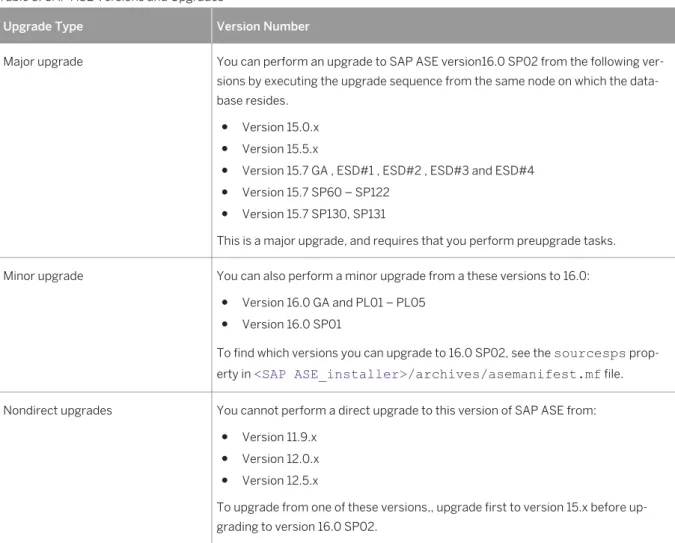
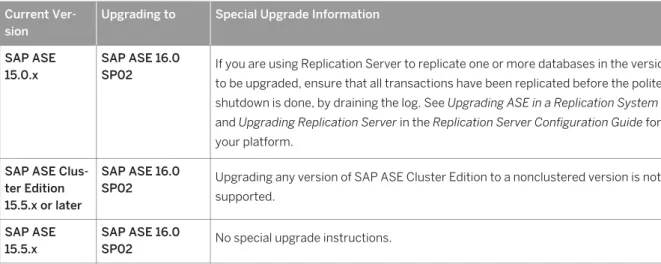
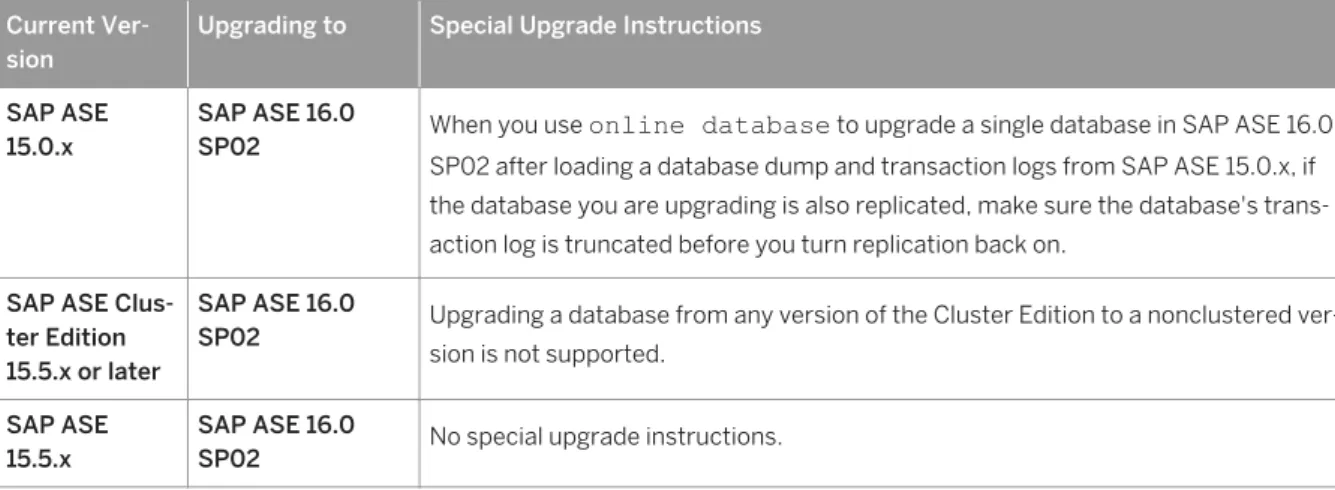
8.1 Considerations When Upgrading from SAP ASE 15.0.x. . . .73
Considerations for Component Integration Services. . . .74
Considerations for Moving from SCC to SAP ASE Cockpit. . . .74
8.2 Upgrade Java in the Database. . . .76
8.3 Preparing to Upgrade. . . 77
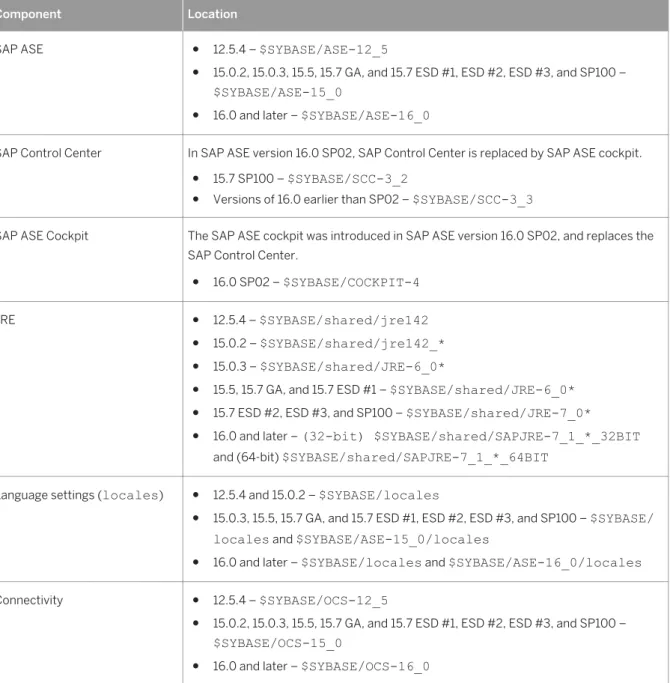
8.4 Changes in SAP ASE Directories. . . 78
8.5 Preupgrade Tasks. . . .79
Upgrade Stored Procedures. . . .81
Reserved Words. . . 81
Preparing the Database and Devices. . . .83
The sybprocsdev device. . . .85
8.6 Upgrade to SAP ASE 16.0 SP02. . . .89
Upgrading Interactively Using sqlupgrade. . . 89
Upgrading Noninteractively Using sqlupgraderes. . . 91
Installation Guide for Linux
Content
P U B L I C © 2016 SAP SE or an SAP affiliate company. All rights reserved. 3
Manually Upgrading SAP ASE. . . .93
Install and Upgrade an Existing Installation. . . 93
8.7 Upgrading in Silent Mode. . . 97
8.8 Postupgrade Tasks. . . .99
Running the instmsgs.ebf Script. . . .100
Restoring Functionality in SAP ASE After Upgrading. . . .100
Reenabling Auditing. . . .101
Restoring Permissions on System Stored Procedures. . . .103
8.9 Migrate. . . 103
Migrating Data Using a Dump-and-Load Method. . . .103
Migrating Data Using bcp. . . .104
Migrating Data by Replacing the Binary. . . 104
8.10 SAP ASE Components and Related Products. . . .105
Upgrading Job Scheduler. . . .105
Upgrading High Availability and Cluster Support. . . .110
Upgrading Java in the Database. . . .111
Upgrading Backup Server. . . 112
Upgrading Databases Using Dump and Load. . . .112
How Compiled Objects Are Handled When Upgrading SAP ASE. . . 113
9 SAP ASE Downgrades. . . .120
9.1 Downgrading from SAP ASE Version 16.0 SP02. . . .120
9.2 Dumping a 16.0 SP02 Database to Load Into an Older Version of SAP ASE 16.0. . . 122
9.3 Downgrading Job Scheduler. . . .123
9.4 Post-downgrade Tasks for SAP ASE. . . .124
10 Troubleshooting SySAM Errors. . . .125
10.1 Where to Find License Error Information. . . .125
10.2 SySAM Problems and Solutions. . . .125
Installing for the First Time. . . .130
Possible Causes of a License Server Failure. . . 131
Solution for Problem: Product Cannot Find License for Optional Features . . . .131
Unserved License Deployment Models. . . .132
Served License Deployment Models. . . .134
10.3 Contacting SySAM Technical Support. . . .135
11 Troubleshoot the Server. . . .136
11.1 Error Logs for Installation Utilities. . . .136
11.2 Error Logs for SAP ASE Servers. . . .137
11.3 Troubleshooting Common Installation Problems. . . 137
If the Installation Quits While You Are Configuring an SAP ASE Server. . . 140
11.4 Stopping an SAP ASE Server After a Failure. . . .140
4
P U B L I C
© 2016 SAP SE or an SAP affiliate company. All rights reserved.
Installation Guide for Linux
11.5 If SAP ASE Fails the Preupgrade Eligibility Test. . . .141
11.6 When an Upgrade Fails. . . .141
If You Can Identify the Cause of the Upgrade Failure. . . 141
Restoring Databases After a Failed Upgrade. . . .142
Recovering from a Failed Upgrade. . . .142
If You Cannot Identify the Cause of an Upgrade Failure. . . 144
Installation Guide for Linux
Content
P U B L I C © 2016 SAP SE or an SAP affiliate company. All rights reserved. 5
1
Conventions
These style and syntax conventions are used in SAP Adaptive Server Enterprise (SAP ASE) documentation.
● In a sample window display, commands to be entered exactly as shown appear in:
this font
● In a sample window display, words that you should replace with the appropriate value for your installation are shown in:
<this font>
● In the regular text of this document, the names of files and directories appear in this font: /usr/u/ home_dir.
● The names of programs, utilities, procedures, and commands appear in this font: sqlupgrade.
● Commands for both the C shell and the Bourne shell are provided, when they differ. The initialization file for the C shell is called .cshrc. The initialization file for the Bourne shell is called .profile. If you are using a different shell, such as the Korn shell, refer to your shell-specific documentation for the correct command syntax.
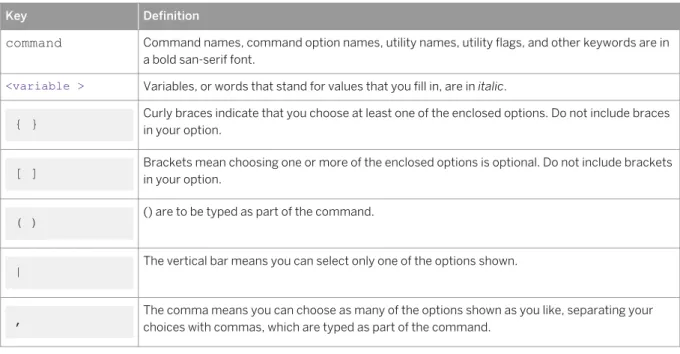
Table 1: SQL Syntax Conventions
Key Definition
command Command names, command option names, utility names, utility flags, and other keywords are in a bold san-serif font.
<variable > Variables, or words that stand for values that you fill in, are in italic.
{ } Curly braces indicate that you choose at least one of the enclosed options. Do not include braces in your option.
[ ] Brackets mean choosing one or more of the enclosed options is optional. Do not include brackets in your option.
( ) () are to be typed as part of the command.
| The vertical bar means you can select only one of the options shown.
, The comma means you can choose as many of the options shown as you like, separating your choices with commas, which are typed as part of the command.
6
P U B L I C
© 2016 SAP SE or an SAP affiliate company. All rights reserved.
Installation Guide for Linux
2
Installation Task Overview
To successfully install and configure SAP ASE, use the configuration guide along with this installation guide. The SAP ASE installation guide explains how to unload the SAP ASE software from the distribution media to your hard disk, and perform the minimal set of additional tasks so that you can start SAP ASE on your machine.
The configuration guide provides instructions for:
● Reconfiguring certain attributes of your existing SAP ASE, Backup Server™, and XP Server™ to meet your specific needs.
● Creating network connections.
● Configuring optional functionality.
● Performing operating system administrative tasks.
● Working with system administration issues that are relevant to SAP ASE running on UNIX platforms. This manual supplements the System Administration Guide and the Performance and Tuning Series.
2.1
Download SAP ASE Software
The SAP ASE installation and update packages are available on the SAP Software Download Center.
Procedure
1. To download the installation media for SAP ASE, go to:
SAP Software Download Center .
2. Go to the following:
Option Description
For a major re lease
Installations and Upgrades A-Z Index Installations and Upgrades - A SAP ADAPTIVE SERVER ENTERPRISE SAP ASE 16.0 Installation
Select your operating system, then choose the installation package from the bottom of the page.
For support packages an patches
Support Packages and Patches A-Z Index Support Packages and Patches - A SAP ADAPTIVE SERVER ENTERPRISE SAP ASE 16.0 SAP ASE SERVER 16.0
Select your operating system, then choose the support package or patch from the bottom of the page.
Installation Guide for Linux
Installation Task Overview
P U B L I C © 2016 SAP SE or an SAP affiliate company. All rights reserved. 7
2.2 Installation Workflows
Workflows define a complete path for planning, installing, and upgrading.
Whether you plan to install or upgrade SAP ASE, identify the components and options to install or upgrade, and obtain a license.
Installing SAP ASE for the First Time
1. Plan your installation and review system requirements. 2. Install SAP ASE.
3. Perform postinstallation tasks.
Upgrading to a New Version of SAP ASE
1. Determine your upgrade eligibility, plan your installation, and review system requirements. 2. Install the new SAP ASE.
3. Run the preupgrade utility to test upgrade eligibility. 4. Upgrade SAP ASE.
5. Perform postinstallation (postupgrade) tasks.
Uninstalling SAP ASE
See Uninstalling SAP ASE [page 56].
8
P U B L I C
© 2016 SAP SE or an SAP affiliate company. All rights reserved.
Installation Guide for Linux
3
SAP ASE Components
SAP ASE is based on a client/server model, communicating with its clients over the network via the Tabular Data Stream™ (TDS) protocol. Each client process may execute on one machine and communicate with a database server on the same or a different machine.
SAP ASE runs as an application on top of an operating system. The hardware that the operating system runs on is completely transparent to SAP ASE, which sees only the operating system's user interfaces. To enhance performance on multiprocessor systems, configure multiple processes (engines).
SAP ASE is divided into a DBMS component and a kernel component. The kernel component uses the
operating system services for process creation and manipulation, device and file processing, and interprocess communication. The DBMS component manages SQL statement processing, accesses data in a database, and manages different types of server resources.
3.1
SAP ASE Editions
Analyze your system and scalability requirements to determine which edition of SAP ASE is appropriate for your enterprise.
● Enterprise edition – has no limit on scalability and supports all of the options that can be purchased or licensed separately.
● Small business edition – has limited scalability, and supports a limited set of the options that are purchased or licensed separately.
● Developer edition – has limited scalability and includes many of the options that are included in the enterprise edition.
● Express edtion - (Linux Power and x86-64 platforms) has limited scalability, memory, and database size. Includes many of the options that are included in the enterprise edition.
See the SySAM Users Guide for information about unlocking editions and optional features.
The SAP ASE installer automatically installs a SySAM license server if you choose the full installation option or enter a served license when prompted for the SySAM license key. You can also install the license server using the installer's custom installation option. See the SySAM Users Guide to generate licenses.
Installation Guide for Linux
SAP ASE Components
P U B L I C © 2016 SAP SE or an SAP affiliate company. All rights reserved. 9
3.1.1 Determining the Edition You Have
If you already use SAP ASE, use the sp_lmconfig system procedure to identify the version.
Procedure
Enter:
sp_lmconfig 'edition'
SAP ASE returns a value of EE, SE, or DE based on the edition that is currently running. See the Reference Manual for more information about sp_lmconfig.
3.2 SAP ASE Options
SAP offers various optional features for SAP ASE, such as data compression, partitions, and encrypted columns.
Option Description Database
MemScale
The MemScale option is a licensed option introduced in SAP ASE version 16.0 SP02 as part of the SQL Server Administration group. This option includes various features, including:
● Compiled queries (simplified native access plans)
● Transactional memory
● Latch-free indexes
If you have a license for the SAP ASE In Memory Database feature, MemScale includes this functionality.
Enable all of the features included in the ASE_MEMSCALE license by turning the
sp_config enable mem scale option on.
Note
When you enable an individual feature that is part of the MemScale option, the license manager verifies that you have the ASE_MEMSCALE license, and that you have enabled the enable mem scale configuration option.
In Memory Database
Fully integrated within SAP ASE, this option equips applications with instant
responsiveness and very high throughput. SAP ASE in-memory databases have zero-disk footprint and reside completely in memory.
Always-on Enables enterprises to recover from adverse events by restoring operations as quickly as possible and recovering as much information as possible, reducing the return to
10
P U B L I C
© 2016 SAP SE or an SAP affiliate company. All rights reserved.
Installation Guide for Linux
Option Description
operations and mitigating data loss. Integrated “zero data loss” support is via
synchronous replication for custom applications, using sync rep technology. See HADR Users Guide for information.
Workload Analyzer Enables the capture, analysis, and replay of a production workload non-disruptively and enables the user to utilize the captured workload to diagnose problems and understand and manage configuration changes proactively. See Workload Analyzer Users Guide for information.
Security and Directory Services
Provides lightweight directory services and network-based authentication and encryption using SSL and Kerberos.
Encrypted Columns
Increases security parameters and allows for addition of datatypes.
Partitions Enables semantic partitioning for table row data.
Active Messaging Provides a cost-effective solution for eliminating delays in information as it flows through the enterprise, providing immediate insight into business events as they occur. Compression Enables compression for regular and large object data, which uses less storage space
for the same amount of data, reduces cache memory consumption, and improves performance due to lower I/O demands.
Tivoli Storage Manager (TSM)
Enables the database to back up and restore operations to IBM Tivoli Storage Manager.
SAP ASE editions and optional features are unlocked by SySAM licenses. See the SySAM Users Guide. To install any of these optional features to an existing SAP ASE installation, use the same steps as you used to install SAP ASE.
3.3 Managing SAP ASE with SAP ASE Cockpit
SAP ASE cockpit provides a single, comprehensive, Web-administration console for real-time performance, status, and availability monitoring of large-scale SAP enterprise servers.
SAP ASE version 16.0 SP02 uses SAP ASE cockpit to managing and monitor SAP ASE servers. SAP ASE cockpit includes historical monitoring, threshold-based alerts and notifications, alert-based script execution, and intelligent tools for identifying performance and usage trends. SAP ASE cockpit replaces the SAP Control Center for SAP ASE. Unlike SAP Control Center, SAP ASE cockpit is designed as an onboard management solution, where you install the cockpit on each SAP ASE host to manage and monitor that system.
SAP ASE cockpit is installed as part of an SAP ASE server installation. The SAP ASE cockpit agent continually broadcasts information about the server to subscribing clients via the SAP ASE cockpit framework. Messages from the Web client pass through the SAP ASE cockpit framework to the agent, which in turn, processes the request on the SAP ASE server.
SAP ASE cockpit is licensed free of charge to customers who have a paid license for SAP ASE.
For detailed SAP ASE cockpit information, see theSAP Adaptive Server Enterprise Cockpit documentation, which includes SAP ASE configuration procedures, user assistance, and troubleshooting information.
Installation Guide for Linux
SAP ASE Components
P U B L I C © 2016 SAP SE or an SAP affiliate company. All rights reserved. 11
Related Information
Starting and Stopping SAP ASE Cockpit [page 70] SAP ASE Upgrades [page 72]
Installing SAP ASE in GUI Mode [page 40] Configuration Options [page 48]
3.3.1 System Requirements for SAP ASE Cockpit
Make sure your system meets all requirements before you install SAP ASE cockpit. If you install SAP ASE cockpit on the same host as a managed server, the host must meet the requirements outlined here in addition to the requirements for the managed server.
SAP recommends the following minimum specifications for the SAP ASE cockpit server machine:
● 4GB of RAM
Server Platform Operating System
x86 32-bit and 64-bit ● Windows 7
● Windows 8
● Windows Server 2008 R2 ● Windows Server 2012 ● Red Hat Enterprise Linux 5, 6 ● SUSE Linux Enterprise 10, 11 SP1
Solaris-64 (x64) Solaris 10, 11
Solaris SPARC 64-bit Solaris 10, 11
PowerPC ● IBM AIX 6.1, 7.1
● Red Hat Enterprise Linux 5, 6 ● SUSE Linux Enterprise 10, 11 SP1
Itanium 2 HP-UX 11i31
OS Patch Requirements for Java
Before you run the installer, install any patches for your operating system that are required for SAP Java Runtime Environment (JRE) 7.1. (You need not install or upgrade the JRE; it is included in the installer.) For SAP JRE requirements, see SAP Note 1367498: SAP JVM Installation Prerequisites.
For Windows, install the patch:
Microsoft Visual C++ 2005 Service Pack 1 Redistributable Package ATL Security Update, available at http:// www.microsoft.com/en-us/download/details.aspx?id=14431.
12
P U B L I C
© 2016 SAP SE or an SAP affiliate company. All rights reserved.
Installation Guide for Linux
Browser Requirements
SAP ASE cockpit supports these browsers with Flash Player 10 or greater:
● Internet Explorer 9 or greater
● Firefox 3.6 or greater
3.3.2 Network Ports for SAP ASE Cockpit
Check the ports used on the installation machine for conflicts with the ports SAP ASE cockpit uses.
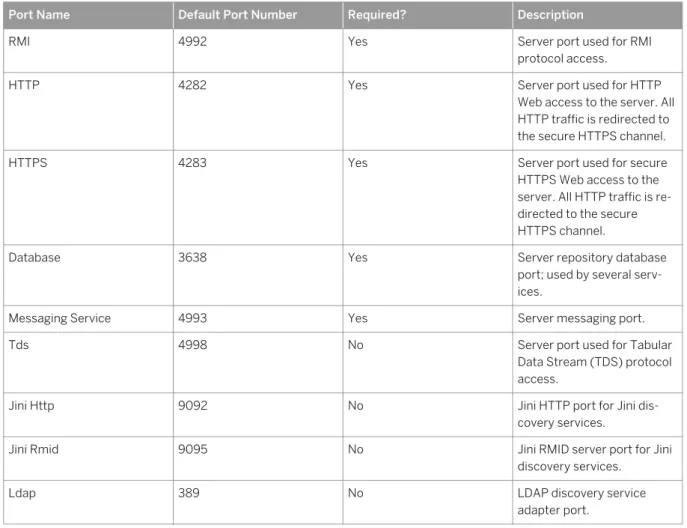
SAP SE cockpit uses TCP ports for a variety of services. If another application is using one of the ports listed here, the cockpit may fail to start, or its services might not work properly. You can use cockpit.sh --info
ports to list ports currently in use (by any application or server).
Table 2: Network Port Requirements for SAP ASE Cockpit
Port Name Default Port Number Required? Description
RMI 4992 Yes Server port used for RMI
protocol access.
HTTP 4282 Yes Server port used for HTTP
Web access to the server. All HTTP traffic is redirected to the secure HTTPS channel.
HTTPS 4283 Yes Server port used for secure
HTTPS Web access to the server. All HTTP traffic is re directed to the secure HTTPS channel.
Database 3638 Yes Server repository database
port; used by several serv ices.
Messaging Service 4993 Yes Server messaging port.
Tds 4998 No Server port used for Tabular
Data Stream (TDS) protocol access.
Jini Http 9092 No Jini HTTP port for Jini dis
covery services.
Jini Rmid 9095 No Jini RMID server port for Jini
discovery services.
Ldap 389 No LDAP discovery service
adapter port.
Installation Guide for Linux
SAP ASE Components
P U B L I C © 2016 SAP SE or an SAP affiliate company. All rights reserved. 13
3.4 Client Components and Utilities
There are several components that you can install onto a PC client to support the SAP ASE server, which are downloaded from the SAP Community Network. The previous PC-Client installer is replaced in SAP ASE 16.0 SP02 by separately downloadable installers that provide many of the same components.
SDK for SAP ASE
The SAP Community Network provides both 32-bit and 64-bit SDK for SAP ASE images. Download the software development kit (SDK) that matches your version of Windows (32- or 64-bit).
Included in the SDK are:
Product Description
Open Client In addition to Open Client (Client Library, dblib), the following, which are all installed into the OCS-16_0 directory:
● ESQL/C ● ESQL/COBOL ● XA
● SAP ASE extension module for Python ● SAP ASE database driver for Perl ● SAP ASE extension module for PHP
DataAccess Installed into the DataAccess64 directories:
● ODBC – a driver used that connects to SAP ASE from ODBC-based applications.
● ADO.NET – a provider used that connects to SAP ASE from .NET-based applications.
Java Runtime Environment (JRE) Installed into the shared directory, JRE is a runtime Java virtual machine used to execute Java-based programs, such as Interactive SQL, and which is shared by several other components.
Language Modules Installed into the locales directory. Provides system messages and date/time formats.
Character Sets Installed into the charsets directory. Provides character sets that are available for use with SAP ASE.
14
P U B L I C
© 2016 SAP SE or an SAP affiliate company. All rights reserved.
Installation Guide for Linux
Product Description
jConnect Installed into the jConnect-16_0 directory, jConnect
provides a Java Database Connectivity (JDBC) driver for SAP ASE.
Interactive SQL Installed into the DBISQL-16_0 directory, Interactive SQL is a GUI tool that allows you to execute SQL statements, build scripts, and display data from SAP ASE.
jutils-3_0 utilities ribo is an SAP ASE utility program that is used to trace
TDS traffic between a client program and SAP ASE.
For download and installation instructions, see 2093510 – How to Download Free SDK for SAP ASE [Windows, Linux, Unix].
PowerDesigner Physical Modeler
The modeler is available in the ASE SAP 16.0 SP02 section of the SAP Service Marketplace, and is installed from its own image.
To install the modeler, download and extract the 16.0 SP02 file, then run setup.exe in your root directory.
SySAM Utilities
Available from the SAP ASE installation image and installed in the SAP ASE top level directory. You can also access these utilities by searching for sysam 2.3 in the SAP Service Marketplace.
See the SySAM 2 Users Guide.
QP-Tune
Run this components from the SAP ASE server image directly.
Related Information
Installation Directory Contents and Layout [page 27]
Installation Guide for Linux
SAP ASE Components
P U B L I C © 2016 SAP SE or an SAP affiliate company. All rights reserved. 15
3.5 Running SAP ASE on VMware vSphere 5.0
You can install and run SAP ASE on VMware vSphere 5.0.Refer to the VMware Compatibility Guide to view hardware supported by VMware. The performance of SAP ASE may depend on the vSphere configurations for the hardware you choose. Refer to VMware published best practices for running vSphere on the hardware.
16
P U B L I C
© 2016 SAP SE or an SAP affiliate company. All rights reserved.
Installation Guide for Linux
4 Requirements
Before installing SAP ASE version 16.0 SP02, install the latest patches and system requirements. Do not use a patch that is earlier than the version suggested for your operating system. Use the patch recommended by the operating system vendor, even if it supersedes the patch listed.
For information about platform support for SAP ASE and other products, see SAP Product Availability Matrix
(PAM) .
The following information is published regularly on PAM:
● Release type (for example, standard release, early adoption release, or custom development project release)
● Planned availability
● Maintenance durations
● Upgrade paths
● Platform availability, including database platforms and operating systems
To list all currently installed patches and display the operating system version level, enter:
rpm -q -a
4.1 SAP Java Runtime Environment Requirements
Ensure that you have the required operating system patches for the SAP Java Runtime Environment (JRE). The SAP ASE installer includes JRE versions 7.1 and 8.
For JRE requirements, see 1367498 – SAP JVM installation prerequisites. Log in with your SAP support account to view the SAP note.
Java applications, such as sybdiag, sybmigrate, and dbisql, which run using SAP JRE, may encounter the following error:
A fatal exception has occurred.
This error is caused by exceeding the number of possible semaphores on the machine running the Java application.
To avoid this error, use the ipcrm utility to terminate semaphores, for example, ipcrm –s <semid>, or restart the machine.
Installation Guide for Linux
Requirements
P U B L I C © 2016 SAP SE or an SAP affiliate company. All rights reserved. 17
4.2 Memory Requirements
Each operating system has a default maximum shared-memory segment. Configure your operating system to allow the allocation of a shared-memory segment at least as large as the maximum memory value.
The amount of memory SAP ASE can use on a Linux system is chip-dependent.
4.3 System Requirements for Clients
Check the system requirements for the machine on which you plan to install the client applications and utilities.
Type Requirement
Product Programs and utilities installed onto the PC client Hardware X86 or X64 system running Xeon or AMD 1.5 GHz or faster Operating system Windows Server 2012, Windows 2008 R2 SP1, Windows 2008 x86,
Windows 8, Windows 7 SP1
Suggested minimum RAM 512 MB
Note
If you are using ODBC or ADO.NET drivers, make sure that Microsoft .NET Framework 2.0 Service Pack 1 is installed on your Windows machine. To confirm that it is installed, select Control Panel Add or Remove Programs and verify that .NET Framework appears in the list of currently installed programs.
18
P U B L I C
© 2016 SAP SE or an SAP affiliate company. All rights reserved.
Installation Guide for Linux
5
Planning Your SAP ASE Installation
Before you install or upgrade, prepare your environment.
Procedure
● Identify the components and options to install or upgrade.
● Obtain a license.
Note
If you are using a served license, you must install the SySAM license server version 2.3 or later.
● Make sure your system meets all requirements for your installation scenario and planned use.
5.1
SAP ASE Release Bulletin
The release bulletin contains last-minute information about installing and upgrading SAP ASE software. The latest release bulletins are available at the SAP ASE Help Portal.
5.2 Licensing Your Software
When you purchase an SAP product, you receive an e-mail message that tells you how to generate SQP ASE license keys on the Web. The e-mail message also provides specific product and licensing information. Use this information when you generate your licenses.
Context
Before installing your product, choose a SySAM license model, and obtain license files from the SAP Service
Marketplace (SMP) .
Note
If you purchased your product from Sybase or an authorized Sybase reseller and have not been migrated to SAP Service Marketplace (SMP), go to the Sybase Product Download Center (SPDC) to generate license keys.
Installation Guide for Linux
Planning Your SAP ASE Installation
P U B L I C © 2016 SAP SE or an SAP affiliate company. All rights reserved. 19
Procedure
1. Choose a SySAM license model.
License Model Description
Unserved license model Licenses are obtained directly from the license file. If you are using an unserved license, save the license file to the machine on which you install the product.
Served license model A license server manages the allocation of licenses among multiple machines.
Note
The SAP ASE installer automatically installs a SySAM license server if you choose the full installation option or enter a served license when prompted for the SySAM license key. You can also install the license server using the installer's custom installation option. See the SySAM Users Guide to generate licenses.
2. For the served license model, decide whether to use an existing or new license server.
The license server and your product installation need not share the same machine, operating system, or architecture.
Note
There can be only one instance of a SySAM license server running on a given machine. To set up a SySAM 2 license server on a machine that is already running a SySAM 1.0 license server, follow the migration instructions in the SySAM Users Guide. A migrated license server can serve licenses for both SySAM 1.0 and SySAM 2-enabled products.
3. Get your host IDs.
When you generate licenses, you must specify the host ID of the machine where the licenses will be deployed.
○ For unserved licenses – the host ID of the machine where the product will run. If you are running a product with per-CPU or per-chip licensing that supports SySAM sub-capacity and want to run the product in a virtualized environment, see SySAM Users Guide > SySAM Sub-capacity Licensing.
○ For served licenses – the host ID of the machine where the license server will run.
4. Before installing your product, obtain license files from SMP or from SPDC using the access information in your welcome e-mail message.
If you plan to use sub-capacity licensing, see the SySAM Users Guide for information on how to configure using the sysamcap utility.
Use sp_lmconfig to configure and show license management-related information in SAP ASE. See
sp_lmconfig in Reference Manual: Procedures.
20
P U B L I C
© 2016 SAP SE or an SAP affiliate company. All rights reserved.
Installation Guide for Linux
5.2.1 Product Licensing
Available licenses are determined by product edition. Optional features are sold and licensed separately. Whether you install a licensed or evaluation edition, you have 30-day access to all features and options. To use an option beyond the 30-day evaluation period, you must purchase and install an appropriate SAP Software Asset Management (SySAM) license.
The e-mail message you receive when you purchase an SAP product provides specific product and licensing information. Before installing and configuring any product edition, know which features you are licensed to use.
5.2.2 SySAM License Server
If you choose to use the served licensed model, make sure you have installed the required SySAM license server version.
The license server is a lightweight application that serves licenses to products running on any operating system.
A license server can run on a low-end machine or a machine with spare cycles. For example, a license server running on a Solaris UltraSparc-60 serving 100 different licenses to 200 product instances, used 50MB of memory, 5 minutes of CPU time per week, and 100MB of disk space per year.
SAP ASE 16.0 SP02 requires SySAM 2.3 or later. To determine the current license server version, use the
sysam version command.
Note
This command is not available in SySAM version 2.0 and earlier.
Download the latest SySAM version from https://support.sap.com/patches . SAP ASE 16.0 SP02 and SySAM 2.3 use FlexNet Publisher version 11.11.
To check the version of FlexNet Publisher used by your license server, examine the license server log or execute the lmgrd -v command.
The license server installer is available in the <ASE_installer>/sysam_setup directory.
Note
You cannot start the license server until there is at least one served license saved to the licenses
directory on the license server host machine.
Installation Guide for Linux
Planning Your SAP ASE Installation
P U B L I C © 2016 SAP SE or an SAP affiliate company. All rights reserved. 21
5.2.3 Determining Host IDs
When you generate licenses at SMP, you must specify the host ID of the machine where the licenses will be deployed.
Context
● For unserved licenses, specify the host ID of the machine where the product will run. If you are running a product with per-CPU or per-CHIP licensing that supports SySAM sub-capacity, and you want to run the product in a virtualized environment, see SySAM Sub-capacity Licensing in the SySAM Users Guide for information about determining the host ID for unserved licenses.
● For served licenses, specify the host ID of the machine where the license server will run.
SMP remembers the host information so that you can select the same license server when generating additional licenses.
To determine the host ID of the machine, run the lmutil utility from a terminal window or the Windows command prompt. For example:
lmutil lmhostid
Note
You can download the lmutil utility from either:
● The SAP ASE installer image, under the sysam_utilities directory; or,
● The Flexera Software Web site .
You can also determine the host ID using native operating system commands. See the Frequently Asked Questions topic "What is my Host ID? " (requires login)
.
22
P U B L I C
© 2016 SAP SE or an SAP affiliate company. All rights reserved.
Installation Guide for Linux
5.2.3.1
Determining Host IDs for Machines with Multiple
Network Adapters
On some platforms, the host ID is derived from the network adapter address.
Context
If the machine where your product is installed or where the license server is hosted has multiple network adapters, running lmutil lmhostid returns one host ID for each network adapter, and returns output similar to this:
The FLEXlm host ID of this machine is ""0013023c8251 0015c507ea90"" Only use ONE from the list of hostids.
It is important that you:
● Choose only one host ID to enter during license generation.
● Use the value associated with the primary wired Ethernet adapter.
● Do not use values associated with internal loopback or virtual adapters.
If you cannot determine the host ID using the lmutil lmhostid output, use the native operating system commands to get additional details.
5.2.3.2 Using Alternate Host IDs on Windows
If your Windows machine does not have a network adapter, SySAM allows you to use an alternate host ID based on the hard disk serial number.
Procedure
1. At a Windows command prompt on the machine where you will deploy your license, enter:
lmutil lmhostid -vsn
This returns output similar to:
The FLEXlm host ID of this machine is "DISK_SERIAL_NUM=70ba7a9d"
2. Use the complete output (DISK_SERIAL_NUM=70ba7a9d) for the host ID value requested during license generation.
Installation Guide for Linux
Planning Your SAP ASE Installation
P U B L I C © 2016 SAP SE or an SAP affiliate company. All rights reserved. 23
5.2.4 Generating Licenses
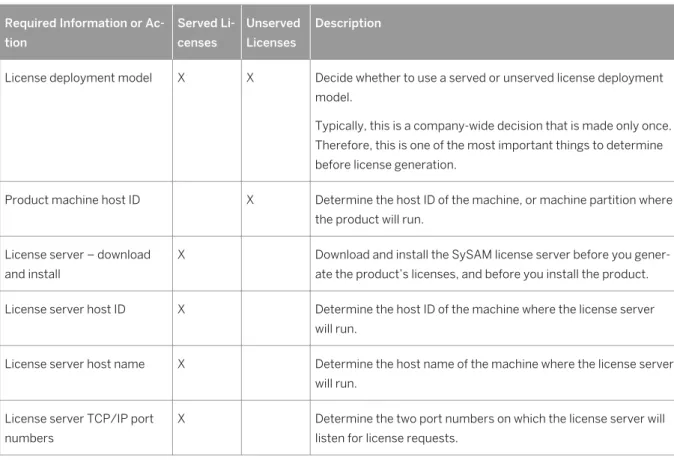
Before you generate licenses, gather the necessary information and complete these tasks.
Table 3: Information Needed Before Generating Licenses Required Information or Ac
tion Served Li censes Unserved Licenses Description
License deployment model X X Decide whether to use a served or unserved license deployment model.
Typically, this is a company-wide decision that is made only once. Therefore, this is one of the most important things to determine before license generation.
Product machine host ID X Determine the host ID of the machine, or machine partition where the product will run.
License server – download and install
X Download and install the SySAM license server before you gener ate the product’s licenses, and before you install the product. License server host ID X Determine the host ID of the machine where the license server
will run.
License server host name X Determine the host name of the machine where the license server will run.
License server TCP/IP port numbers
X Determine the two port numbers on which the license server will listen for license requests.
5.2.4.1
Generating a SySAM License
Generate a license key for SAP products that use SySAM 2-based licenses. Refer to the e-mail message you received for information about your account.
Context
When you purchase SySAM 2-enabled SAP products, you must generate, download, and deploy SySAM product licenses.
● Before you generate your license, you need the host ID and host name of the server where you plan to install SAP ASE.
● Served licenses require a license server. If you do not plan to use an existing license server, you must install one before you install SAP ASE.
24
P U B L I C
© 2016 SAP SE or an SAP affiliate company. All rights reserved.
Installation Guide for Linux
Procedure
1. Log into the SAP Support Portal . 2. Go to the License Keys page . 3. Follow the online instructions.
4. Save your license to a temporary location on the local file system. You must save the license file with a .lic extension.
5.2.5 Knowing the Product License Type
SAP sells products under different license types, which entitle the customer to different rights of use. For example, whether a product is entitled to be used in production, or standby, or development and test environments.
The license type determines the quantity of licenses required; dictating, for example, whether a license is required for each machine; or for each CPU, or CPU chip; or per terabyte of storage.
For example, a product purchased under the CPU License (CP) type requires one license per CPU on the machine, partition, or resource set where it will run. The same product purchased under the Server License (SR) type requires a single license for the machine, partition, or resource set.
Your account can have the same product licensed under multiple license types. Make sure you select the correct license type when you generate your SySAM license file.
When you generate licenses, each license type is presented on the License Information screen in bold font. For example:
License Type: CPU License (CP)
5.2.5.1
Optional Feature Licenses
Some SAP ASE applications are offered as base products with optional features that require a separate license.
Customers can mix license types. For example, customers can order SAP ASE under the Server License (SR) license type and order an optional feature (for example, High Availability or Enhanced Full Text Search) under the CPU License (CP) type.
Optional features are licensed only with the base product of the same product edition. For example, if you order SAP ASE, you cannot use a Small Business Edition optional feature license with the Enterprise Edition base product. In addition, the entitled use of the license types must be compatible; for example, both types should allow use in a production environment.
Installation Guide for Linux
Planning Your SAP ASE Installation
P U B L I C © 2016 SAP SE or an SAP affiliate company. All rights reserved. 25
5.2.5.2 SySAM Licensing Checkout
If SAP ASE is licensed using a per-processor license type, it checks out a license quantity equal to the number of processors, or, if insufficient licenses are available, allows a 30-day grace period.
If the number of processors is dynamically increased while running and the software cannot check out additional licenses, the software permits a 30-day grace period. If sufficient licenses are not made available within the grace period, the software shuts down. Decreasing the number of processors that the software can use while it is running does not reduce the required license quantity. You must restart the SAP ASE server on the correct number of processors.
See the SySAM Users Guide.
5.2.5.3 Sub-capacity Licensing
Sub-capacity licensing allows you to license a subset of the CPUs available on a physical machine using the SySAM sub-capacity license functionality.
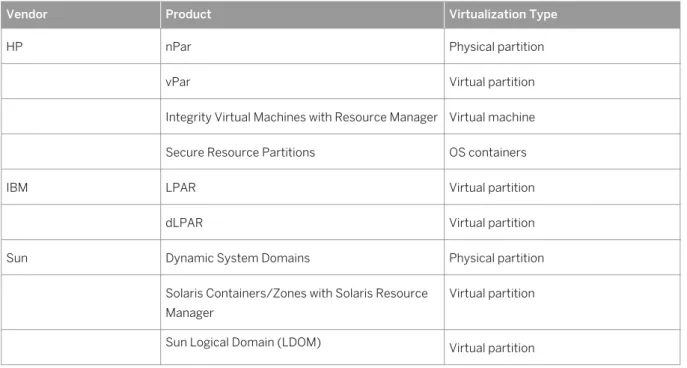
Virtualization Technology Support
Platform information is not listed in the following table, as SAP ASE support for subcapacity on these
virtualization technologies is not confined to specified version. As long as a release of SAP ASE is certified on a version of an operating system, it supports subcapacity for that platform. For example, SAP ASE version 16.0 SP02 is certified on AIX 6.1 and 7.1. LPAR on AIX 6.1 and 7.1 is covered.
Table 4: SySAM Virtualization Sub-Capacity Compatibility
Vendor Product Virtualization Type
HP nPar Physical partition
vPar Virtual partition
Integrity Virtual Machines with Resource Manager Virtual machine Secure Resource Partitions OS containers
IBM LPAR Virtual partition
dLPAR Virtual partition
Sun Dynamic System Domains Physical partition
Solaris Containers/Zones with Solaris Resource Manager
Virtual partition
Sun Logical Domain (LDOM) Virtual partition
26
P U B L I C
© 2016 SAP SE or an SAP affiliate company. All rights reserved.
Installation Guide for Linux
Vendor Product Virtualization Type
Intel, AMD VMWare ESX Server Guest O/S: Windows
Note
VMWare ESX Server excludes VMWare Work station, and VMWare Server.
Virtual machine
VMWare ESX Server Guest OS: Linux, Sun Solaris x64
Virtual machine
Xen, KVM, DomainU: Windows
Note
Xen excludes Sun Solaris x64.
Virtual machine
Xen, KVM, DomainU: Linux Virtual machine
Hyper-V Virtual machine
Enabling SAP ASE Sub-Capacity Licensing
If you purchased your product from Sybase or an authorized reseller, you must have a sub-capacity licensing agreement with SAP or Sybase before you can enable sub-capacity licensing.
Note
Keep your license server up-to-date.Although the installation media includes a copy of the most recent SySAM license server, we recommend that you periodically check for updates at https://support.sap.com/
patches .
When using SySAM sub-capacity licensing, set the SYBASE_SAM_CAPACITY environment variable before installing, or copy in the license key after installation.
5.3 Installation Directory Contents and Layout
SAP ASE includes server components that are installed into specific directories.Product Description
SAP ASE Installed into the ASE-16_0/bin directory:
Installation Guide for Linux
Planning Your SAP ASE Installation
P U B L I C © 2016 SAP SE or an SAP affiliate company. All rights reserved. 27
Product Description
● SAP ASE – the database server.
● Backup Server – an application based on SAP Open Server that manages all database backup (dump) and restore (load) operations.
● XP Server – an Open Server application that manages and executes extended stored procedures (ESPs) from within SAP ASE.
● Job Scheduler – provides a job scheduler for SAP ASE. Job Scheduler components are located in ASE-16_0/jobscheduler/.
Connectivity Installed into the OCS-16_0 directory:
● Open Client (<Client Library>, <dblib>) ● ESQL/C
● ESQL/COBOL ● XA
Installed into the DataAccess and DataAccess64 directories: ● ODBC (Windows, Solaris SPARC, Solaris x64, Linux Power, HP-UX
Itanium, IBM AIX) – a driver used to connect to SAP ASE from ODBC-based applications.
● ADO.NET (Windows only) – a provider used to connect to SAP ASE from .NET based applications.
Shared Directory The shared directory contains components and libraries that are shared by several other components. In earlier versions, this directory was named shared-1_0.
● Java Runtime Environment (JRE) – is a runtime Java virtual machine used to execute Java-based programs, such as SAP ASE Cockpit. SAP ASE includes the JRE. In typical installations, by default, the JRE is fully installed. In custom installations, if you select a component for
installation that requires the JRE, the JRE is also automatically selected. It is located in the shared/SAPJRE-7_1 * directory.
SAP ASE Cockpit SAP ASE cockpit logs and utilities – files related to the Web-based tool for monitoring the status and availability of SAP ASE servers. They are installed into the $SYBASE/COCKPIT-4 directory.
Language Modules Installed into the locales directory. Provides system messages and date/ time formats.
Character Sets Installed into the charsets directory. Provides character sets that are available for use with SAP ASE.
Collation Sequences Installed into the collate directory. Provides the collation sequences that are available for use with SAP ASE.
Sybase Software Asset Management (SySAM)
Installed into the SYSAM-2_0 directory. Provides asset management of SAP ASE servers and optional features.
28
P U B L I C
© 2016 SAP SE or an SAP affiliate company. All rights reserved.
Installation Guide for Linux
Product Description
Web Services Installed into the WS-16_0 directory. An optional product that provides access to SAP ASE using HTTP/SOAP and WSDL.
Interactive SQL Interactive SQL is a GUI tool that allows you to execute SQL statements, build scripts, and display data from SAP ASE. It is installed into the DBISQL-16_0 directory.
jutils-3_0 Utilities ribo is a tool used to trace TDS traffic between a client program and SAP ASE.
SAP jConnect for JDBC Installed into the jConnect-16_0 directory. Provides a Java Database Connectivity (JDBC) driver for SAP ASE.
OData Server Installed into the ODATA-16_0 directory when you install OData Server as part of a full or custom installation, OData (Open Data Protocol) enables data services over RESTful HTTP, allowing you to perform operations through URIs (Universal Resource Identifiers) to access and modify information.
Note
We strongly recommend that you install the ECDA DirectConnect option or MainframeConnect DirectConnect for z/OS, including DirectConnect Manager, into its own directory.
Related Information
Client Components and Utilities [page 14]
5.4 Creating the SAP ASE User Account
To ensure that SAP ASE product files and directories are created with consistent ownership and privileges, create a system administrator account.
Context
One user—typically the system administrator, who has read, write, and execute privileges—should perform all installation, configuration, and upgrade tasks.
Installation Guide for Linux
Planning Your SAP ASE Installation
P U B L I C © 2016 SAP SE or an SAP affiliate company. All rights reserved. 29
Procedure
1. To create a system administrator account, choose an existing account, or create a new account and assign a user ID, group ID, and password for it.
This account is sometimes called the “sybase” user account. See your operating system documentation for instructions on creating a new user account.
Installation of the database always-on option requires sudo permission. See the Database Always-On Users Guide for more information.
If you have installed other SAP software, the "sybase" user should already exist. 2. Verify that you can log in to the machine using this account.
5.5 Preparing to Install SAP ASE
Before you start the installer, prepare your system.Procedure
1. Back up your current system.
2. Verify that you can uncompress files on your UNIX machine. To uncompress:
Option Description
.zip files Use the unzip command .tgz files Use gzip or GNU Tar
3. Ensure that the account used to start the server has read and write permissions for the directory in which you are installing the server. You may need to create nonadministrative logins to install the server into personal directories.
4. Unset the LD_ASSUME_KERNEL variable.
5. Review the SySAM licensing procedures, and plan your server configuration using the configuration guide for your platform.
6. Create an account that has administrative privileges with which to perform all installation and device-creation tasks. This user account could be "sap" or any other user name, as long as you use the same name so that the installer and products have permission to read and write the files.
This user must have permission privileges from the top (or root) of the disk partition or operating system directory, down to the specific physical device or operating system file. Maintain consistent ownership and privileges for all files and directories. A single user—the system administrator with read, write, and execute permissions—should perform all installation, upgrade, and setup tasks.
If you are installing SAP ASE on more than one computer, create the "sap" user account on each machine. 7. Log in to the machine as "sap".
30
P U B L I C
© 2016 SAP SE or an SAP affiliate company. All rights reserved.
Installation Guide for Linux
8. Decide where to install SAP ASE:
○ Make sure there is sufficient disk space and temporary directory space available.
○ Ensure there are no spaces in the path name of the directory. 9. Verify that your network software is configured.
SAP ASE and client applications use network software even when they are installed on a machine that is not connected to a network.
If you are having connection problems, or to verify your network configuration, ping the host. 10. Adjust the shared memory for your operating system.
Related Information
Preupgrade Tasks [page 79] Reenabling Auditing [page 101]
Upgrade Java in the Database [page 76]
5.5.1 Adjusting the Operating System Shared Memory
Parameters
Adjust shared memory segments if SAP ASE cannot obtain large memory as a single segment, or if Backup Server stripes fail due to insufficient segments.
Context
Depending on the number and types of devices used for backup (dump) and recovery (load), you may need to adjust the shared memory segment parameter in the operating system configuration file to accommodate concurrent Backup Server processes. There are six default shared memory segments available for process attachments.
If any reconfiguration through sp_configure requires additional memory, SAP ASE allocates shared memory segments after start-up. To account for these additional segments, allocate the maximum memory that is available to SAP ASE by using the allocate max shared memory configuration parameter. See the System Administration Guide.
Procedure
1. The operating system shared memory default, for most Linux releases, is 32MB. The minimum required by SAP ASE is 64MB for a default server that uses 2K pages. A higher value is required if you plan to increase the SAP ASE server’s total memory. Set the stack size to unlimited to avoid shared memory
Installation Guide for Linux
Planning Your SAP ASE Installation
P U B L I C © 2016 SAP SE or an SAP affiliate company. All rights reserved. 31
attachment problems. Set this using ulimit -s unlimited on the Bourne shell, or limit stacksize unlimited on the C shell.
2. To check and adjust the operating system shared memory parameter, use the sysctl(8) method: To check the current shared memory size, enter:
# /sbin/sysctl kernel.shmmax
To adjust the shared memory size at runtime, enter the following, where <nnn> is 1073741824 for 1GB of shared memory:
# /sbin/sysctl -w kernel.shmmax=nnn
Note
The default operating system shared memory for some older Linux releases is 32MB. The minimum required by SAP ASE is 64MB for a default server with 2K pages. A higher value is required if you plan to increase the SAP ASE max setting.
3. To guarantee that the minimum operating shared value is applied every time the system is started, edit the /etc/sysctl.conf file.
4. For larger configurations, it may also be necessary to adjust the shmall parameter.
The default on RHEL5 is 8GB (2097152 4K pages). SuSE 11 and RHEL6 have a default high enough that no adjustment should be necessary.
5. By default, SAP ASE starts in threaded mode. If you need to switch to process mode, you must adjust the Linux kernel parameters to maintain compatibility:
a. Add the following in /etc/sysctl.conf:
○ In Linux RHEL 5 and later:
kernel.exec-shield=0
kernel.randomize_va_space=0 ○ In SLES 11 and later:
kernel.randomize_va_space=0
b. As super user (root), for the action to take effect, enter:
/sbin/sysctl -P
For information about
○ Kernel modes, see SAP ASE System Administration Guide Volume 2 > Managing Multiprocessor Servers.
○ Exec-Shield, see http://www.redhat.com/f/pdf/rhel/WHP0006US_Execshield.pdf .
5.5.2 Multipathing
Multipathing is the ability of a server to communicate with the same physical or logical block storage device across multiple physical paths between the host bus adapters (HBAs) in the server and the storage controllers
32
P U B L I C
© 2016 SAP SE or an SAP affiliate company. All rights reserved.
Installation Guide for Linux
for the device, typically in Fibre Channel (FC) or iSCSI SAN environments. You can also achieve multiple connections with direct attached storage when multiple channels are available.
Multipathing provides connection fault tolerance, failover, redundancy, high availability, load balancing, and increased bandwidth and throughput across the active connections. Multipathing automatically isolates and identifies device connection failures, and reroutes I/O to alternate connections.
Typical connection problems involve faulty adapters, cables, or controllers. When you configure multipathing for a device, the multipath driver monitors the active connection between devices. Because multipathing is managed at the device level, when the multipath driver detects I/O errors for an active path, it fails over the traffic to the device’s designated secondary path. When the preferred path becomes healthy again, control can be returned to the preferred path. Multipathing prevents single points of failure in any highly available system. A common example of multipath connectivity is a SAN-connected storage device. Usually one or more Fibre Channel HBAs from the host are connected to the fabric switch and the storage controllers are connected to the same switch. A simple example of multipath connectivity is: two HBAs connected to a switch to which the storage controllers are connected. In this case, the storage controller can be accessed from either of the HBAs that are providing multipath connectivity.
All OS platforms provide their own solutions to support multipathing. There are numerous other vendors that also provide multipathing applications for all available platforms, such as:
● AIX – Multiple Path I/O (MPIO)
● HP-UX 11.31 – Native MultiPathing (nMP)
● Linux – Device-Mapper (DM) Multipath
● Solaris – Multiplexed I/O (MPxIO)
● AntemetA Multipathing Software for HP EVA Disk Arrays
● Bull StoreWay Multipath
● NEC PathManager
● EMC PowerPath
● FalconStor IPStor DynaPath
● Fujitsu Siemens MultiPath
● Fujitsu ETERNUS Multipath Driver
● Hitachi HiCommand Dynamic Link Manager (HDLM)
● HP StorageWorks Secure Path
● NCR UNIX MP-RAS EMPATH for EMC Disk Arrays
● NCR UNIX MP-RAS RDAC for Engenio Disk Arrays
● ONStor SDM multipath
● IBM System Storage Multipath Subsystem Device Driver (SDD)
● Accusys PathGuard
● Infortrend EonPath
● OpenVMS
● FreeBSD - GEOM_MULTIPATH and GEOM_FOX modules
● Novell NetWare
● Sun StorEdge Traffic Manager Software
● ATTO Technology multipath driver Fibreutils package for QLogic HBAs
● RDAC package for LSI disk controllers
● lpfcdriver package for Emulex HBAs
● Veritas Dynamic Multi Pathing (DMP)
Installation Guide for Linux
Planning Your SAP ASE Installation
P U B L I C © 2016 SAP SE or an SAP affiliate company. All rights reserved. 33
● Pillar Data Systems
● Axiom Path
● iQstor MPA
5.5.2.1
Setting Up Multipathing
If you choose to use it, set up multipathing before you install SAP ASE.
Context
There are several multipath applications are available. Native Linux Device-Mapper (DM) Multipath support has been added to the Linux 2.6 kernel tree with the release of 2.6.13, and has been backported into Red Hat Enterprise Linux 4 in Update 2 and into Novell SUSE Linux Enterprise Server 9 in Service Pack 2. To setup multipathing on Linux:
Procedure
1. Edit the /etc/multipath.conf file:
○ Comment out the following lines at the top of the file. This section of the configuration file, in its initial state, blacklists all devices. You must comment it out to enable multipathing:
blacklist { devnode "*" }
○ Add configuration information. For example:
multipath { wwid 360060e80056fb70000006fb700000816 alias TEST_DATA path_grouping_policy failover mode 660 uid 8205 gid 471 }
2. Run these commands:
Option Description
modprobe dm-multipath Adds multipathing module to Linux kernel
modprobe dm-round-robin Adds multipathing round-robin module to Linux kernel /etc/init.d/multipathd
start
Starts multipath service
multipath Automatically detects multiple paths to devices and configure multipathing
34
P U B L I C
© 2016 SAP SE or an SAP affiliate company. All rights reserved.
Installation Guide for Linux
Option Description
chkconfig multipathd on Turns on multipath service
multipath -l Displays all paths to devices
The /dev/mapper/mpath<N> devices are persistent and are created early in the boot process. Use these device names to access the multipathed devices.
For example:
○ /usr2/sybase/ASE1503/dev/wdb_data – is a symbolic link pointing to /dev/raw/raw73.
○ /dev/raw/raw73 – is a raw character device mapped to /dev/mapper/mp_wdb_data.
○ /dev/mapper/mp_wdb_data – is a multipath device that contains two paths:
○ /dev/sdbf – is a block device that corresponds to SCSI generic raw character device /dev/sg61.
○ /dev/sds – is a block device that corresponds to SCSI generic raw character device /dev/sg20.
5.5.3 VMware vSphere 5.0
Configure your VM before you install SAP ASE.5.5.3.1
BIOS Settings
Change some BIOS settings before you install and run SAP ASE on the VMware guest operating system. Enable or Disable Settings
Enable ● Virtualization technology
● Turbo mode
● Hardware-based virtualization support
● Hyperthreading (workload dependent)
● Wake on LAN (required for VMware vSphere Distributed Power Management)
● Execute Disable (required for vMotion and DRS)
● Static high performance and balanced policies Disable ● Node interleaving
● C1E halt state
● Power saving
● Any unused features, such as:
○ Video BIOS shadowable
○ Video RAM cacheable
○ On-board audio
Installation Guide for Linux
Planning Your SAP ASE Installation
P U B L I C © 2016 SAP SE or an SAP affiliate company. All rights reserved. 35
Enable or Disable Settings
○ On-board modem
○ On-board serial ports
○ On-board parallel ports
○ On-board game port
○ Floppy disk drive
○ CD-ROM drive
○ USB port
5.5.3.2 The Guest Operating System
Disable unnecessary foreground and background processes.Note
You should install the VMware Tools on the guest operating system. VMware Tools includes utilities that enhance the performance of the virtual machine's guest operating system and improve management of the virtual machine.
5.5.3.3 CPU Considerations
To improve performance for latency-sensitive applications running on guest operating systems, schedule all virtual machines on the same Non-Uniform Memory Access (NUMA) node. Allocate all virtual memory from the local physical memory attached to that NUMA node.
When you schedule processor affinity for vCPUs on a specific NUMA node, use the vSphere Client to set the processor affinity:
● To change the VM settings for processor affinity – in the vSphere Client, select Resources Advanced CPU Scheduling Affinity .
● To change the virtual machine settings for memory affinity – in the vSphere Client, select Resources
Advanced Memory NUMA Memory Affinity .
5.5.3.3.1
Virtual CPUs
In a production environment, verify that the total virtual CPU resources for the virtual machines do not exceed the CPU capacity of the host machine. That is, the total number of CPUs for the virtual machine cannot exceed the CPU capacity of the physical machine.
You should undercommit CPU resources on the host machine; if the host CPU capacity is overloaded, the virtual database performance may degrade. Never overcommit CPU resources in a production environment.
36
P U B L I C
© 2016 SAP SE or an SAP affiliate company. All rights reserved.
Installation Guide for Linux
A reasonable upper limit for CPU resources is about 80 percent of consumption. Consider creating an alert to be sent to the virtual infrastructure administrator when CPU resources reach 90 percent of consumption. Multithreaded applications like SAP ASE may benefit from using multiple CPUs. To ensure that the physical CPUs are not oversubscribed, limit the total number of virtual CPUs to the total number of physical CPUs minus 1.
Configuring virtual SAP ASE with excess virtual CPUs can impose a small resource requirement on vSphere because unused virtual CPUs continue to consume timer interrupts. vSphere coschedules virtual CPUs and attempts to run the virtual CPUs in parallel whenever possible. Unused virtual CPUs impose scheduling constraints on the used virtual CPUs and might degrade performance.
5.5.3.3.2 CPU Scheduling
You may see improved performance if you ensure that the virtual machine remains scheduled when the vCPU is idle.
To determine whether a scheduled virtual machine is providing optimal database performance:
● Set monitor_control.halt_desched to false.
● vCenter (the VMware management utility) should normally monitor performance. However, periodically use the vSphere Client to collect additional statistical measurements, or use the esxtop or resxtop
vSphere command line utilities.
esxtop provides performance insight concerning CPU resource contention. Database administrators should work with their VMware administrator to interpret esxtop statistics.
Generally, the system is overloaded if the load average listed on the first line of the esxtop CPU Panel is greater than or equal to the number of physical processors on the system.
The "usage percentage of physical CPUs" on the PCPU line may indicate an overloaded system. A reasonable upper limit in production environments is 80 percent usage; 90 percent usage should be used as an alert to the VMware administrator that the CPUs are approaching an overloaded condition. However, make decisions concerning usage levels based on the criticality of the database you are virtualizing and the desired load percentage.
The critical statistics are: Statistic Description
%RUN The percentage of total time the processes on the VMkernel are running on the processor; a high value for %RUN does not necessarily indicate that the virtual machine is resource constrained. %RDY The percentage of time the processes on the VMkernel are ready to run, but are not scheduled to a
core. A process on the VMKernel in a run queue is waiting for the CPU scheduler to let it run on a PCPU. A value of greater than 10 percent may indicate resource contention.
%CSTP The percentage of time the processes on the VMkernel are stopped to allow other virtual CPUs on the virtual machine to catch up (this is the unscheduled state). A value greater than 5 percent typically indicates that the virtual machine's workload is not balanced.
Installation Guide for Linux
Planning Your SAP ASE Installation
P U B L I C © 2016 SAP SE or an SAP affiliate company. All rights reserved. 37
5.5.3.4 Memory Considerations
Configure the value for virtual memory equal to the value of the SAP ASE server max memory configuration parameter.
When consolidating SAP ASE instances, vSphere allows you to share memory across virtual machines that may be running the same operating systems, applications, or components. In this situation, vSphere uses a proprietary transparent page-sharing technique to reclaim memory, and allows databases to run with less virtual memory than physical memory (see your VSphere documentation). You can use transparent page sharing for consolidation purposes in a test or development environment. However, never overcommit on production environments.
5.5.3.5 Resource Management
vSphere advanced workload management features, such as VMware vMotion and VMware DRS, free SAP ASE from the resource limitations of a single host.
You can use vMotion to move running SAP ASE virtual machines from one physical vSphere to another to balance available resources. DRS can dynamically allocate and balance computing resources by continuously monitoring the resource pools associated with virtual machines in a VMware cluster.
You can safely overcommit virtual resources for SAP ASE in nonproduction environments where predictable and consistent performance is not critical.
5.5.3.6 Hardware-Assisted Memory Virtualization
Some processors address memory management unit (MMU) virtualization overhead by providing hardware support that virtualizes the MMU.
Without hardware-assisted MMU virtualization, VMware ESX maintains "shadow page tables" that directly map a guest's virtual memory to a host's physical memory address.
These shadow page tables are maintained for the processor, and are kept synchronized with the guest page tables. This allows ordinary memory references to execute without additional overhead, since the hardware translation lookaside buffer (TLB) caches direct guest virtual memory to a host's physical memory address translations that are read from shadow page tables. However, extra work is required to maintain the shadow page tables.
Hardware assistance eliminates software memory virtualization overhead. In particular, it eliminates the overhead required to keep shadow page tables synchronized with guest page tables, although the TLB miss latency is significantly higher than without hardware assistance. This means that hardware assistance provides workload benefits that depend primarily on the memory virtualization overhead that is caused when using software memory virtualization.
If a workload involves a small amount of page table activity (for example, process creation, mapping the memory, or context switches), software virtualization does not cause significant overhead. However, workloads that include a large amount of page table activity, such as workloads from a database, are likely to benefit from hardware assistance.
38
P U B L I C
© 2016 SAP SE or an SAP affiliate company. All rights reserved.
Installation Guide for Linux