Clusterpoint Network Traffic Security System
User manual
User manual revision 2.1
Table of Contents
Clusterpoint Network Traffic Security System
... 4
How it works
... 4
How NTSS connects to the network
... 5
Information Capture and Storage Features
... 5
Information Search and Monitoring Features
... 5
Alerting Functionality
... 6
Setting up an alert ... 6
Modifying an existing alert ... 7
List of analyzed and re-‐engineered protocols:
... 7
User Interface
... 8
Front page ... 8
Index status ... 8
Processing ... 8
Hardware ... 8
Search Interface ... 8
Keyword search syntax ... 9
Search categories menu options ... 9
menu: All ... 9
menu: WEB ... 9
menu: Email ... 10
menu: IM ... 11
menu: Documents & Files ... 11
menu: Images ... 11
menu: Video ... 12
menu: Audio ... 12
menu: Events ... 12
menu: Other ... 12
Search result list details ... 13
Search result view details ... 13
Statistics reports ... 14
Daily statistics by users or IP ... 14
Document count ... 14
All traffic on interface ... 14
Most active IP addresses ... 14
Most active web domains ... 14
Most active web users ... 14
Most active mail users ... 15
CPU load / Memory usage / Free disk space ... 15
Data analysis and queue status ... 15
Disk space changes ... 15
System Settings ... 15
Enable/Disable Traffic Monitoring, Queue ... 15
VIP addresses ... 15
NTS System Usage Audit ... 16
Log Files ... 16
User Tracking ... 16
Local IP addresses / local e-‐mail addresses ... 16
Reboot/Shutdown ... 16
Network configuration ... 16
Software upgrade ... 16
Backup and Restore ... 17
Clusterpoint Network Traffic Security System
Clusterpoint Network Traffic Security System (NTSS) is an Internet data traffic recording and archiving system, which captures IP (TCP and UDP) packets from an Ethernet network, re-‐ engineers relevant traffic back to the application level content (Web pages, e-‐mails, downloaded and uploaded files, DNS requests, etc.) and stores it into the Clusterpoint scalable and searchable database system for long term archiving and records management needs.
In essence, NTSS operates similarly to the video surveillance systems commonly used for monitoring of people movements into/out of the building. Yet NTSS is radically different and much more powerful tool.
Unlike video surveillance systems providing just camera recordings and their playback for specific time frames, NTSS system can retrieve any suspicious traffic by any content or
parameters within IP packets it has captured. In this way it is possible to ask the system queries, for example:
• who posted a comment with known keywords on an Internet portal some months ago; • who sent or received emails with some attachments or texts which could indicate fraud
or other dishonest activities etc.
Clusterpoint NTSS is built on the innovative, totally searchable and scalable Clusterpoint Database Management System (DBMS) that can store any data in XML format.
All the data stored are indexed for full content access.
This database technology allows to store large amounts data captured by the NTSS in a cost effective manner and to provide full text and structured search results from those data in sub-‐ second times.
In case of upgrades, every next appliance plugs into the network to operate as a distributed system that shares the workload of processing data, and increases the storage size for the collected data.
No need for box replacement when undertaking capacity upgrades or expansion.
How it works
1. All IP (TCP and UDP) traffic between customer and Internet gets forwarded to NTSS.
2. IP packets are reengineered back to application level information units (web pages viewed, e-‐mails sent, documents transferred).
3. All reengineered and analyzed information is fully indexed and stored in Clusterpoint Server database .
4. Easy to use WEB interface provides necessary tools, to:
a. get a quick situation overview in the system dashboard,
b. search through the collected data,
c. follow up on network user activities,
How NTSS connects to the network
Any NTSS appliance can be connected to the network either: • by itself as a transparent bridge,
• or with the use of switch or router, that will copy all traffic to a port where NTSS appliance is connected to.
For further details on installation procedures – please see the Installation Manual.
Information Capture and Storage Features
• NTSS can record all specified network traffic flows;
• With the use of clustering – NTSS can record traffic from several interfaces at once; • It analyses and re-‐engineers the following protocols:
o TCP and UDP -‐ shows chosen TCP and UDP connection data in text or hex formats;
o HTTP -‐ shows Web pages accessed by users, with all of their content and exactly the same visual way when the user accessed them and maintains database of stored URLs for Web traffic;
o HTTP POST/GET -‐ information that users wrote into Web forms or posted over the internet;
o SMTP, POP3 and MAPI-‐ shows incoming and outgoing emails with all attachments;
o DNS requests – provides detailed and searchable information about Domain Name System requests.
o Exact recorded data flow can be specified by IP addresses and ports; • Centralized system management using WEB interface;
• Tools for performance tuning;
• User security and group security based administration tool;
• VIP addresses – specify IP addresses or subnets that will not be monitored; • NTSS can be plugged into existing computer network as a transparent bridge, or
connected to a specific computer/server. It can be as well connected to a specific part of a computer network, or the common Internet gateway segment to capture and record all traffic;
• NTSS can be connected to the monitoring (broadcasting) port of Ethernet switch; • It is totally undetectable to the users of the computer network (does not show IP address
on the network, does not require network configuration changes). • Multiple languages content -‐ all data are stored as UTF-‐8.
Information Search and Monitoring Features
• Role-‐based user access;
• Access to full system usage audit log;
• Simple or Advanced search interface options; • Search filtering by virtually any parameter; • WEB friendly navigation;
• WEB page previews – view reengineered WEB pages the same way as network users last saw them;
• Highlighted query terms in full text search results; • Reporting tools.
Alerting Functionality
Clusterpoint NTSS includes functionality that allows administrator to set up and receive alerts once certain criteria are met in the traffic that is being monitored. Those alerts are sent out by e-‐ mail, and recorded in a log file for redundancy reasons.
Setting up an alert
Setting up an alert consists of two steps: • Defining the alert triggering criteria;
• Setting up the actual Alert, by specifying when and how often the defined criteria should be met, before the system sends out the actual Alert.
The criteria that will trigger the alert should be defined using the Advanced Search interface within the NTSS. The criteria can include content of the traffic to watch for, information about communication type, source, destination, etc.
Once the criteria are set up, you can create a new alert by pressing the Create button in the
Alerts section of the interface. This will bring you to the Alerts setup screen where you can
specify on what conditions the administrator should be notified.
Alerts setup screen allows you to name the new alert, and then set up how the system should check the traffic against the defined criteria.
User can specify on what days of the week the criteria should be monitored, and specify at what times the system should check the incoming traffic data against the criteria defined for this particular Alert.
In Hit count field user can specify after how many matches against the criteria, since the last criteria check, user should be alerted by mail. This parameter allows to avoid scenarios, when the Alert is triggered by a single criteria match (that could be a mistake, or just a coincidence). In Send to email field user can specify on what address he should be alerted should the Alert trigger (that can be a direct e-‐mail address, or e-‐mail address provided by mobile operator – so that all information sent to it would be resent to users mobile phone by SMS)
And not to get overwhelmed by repeating e-‐mail notifications by the system, user can specify a time out before system will send another warning e-‐mail about the same reoccurring Alert in
Example: if the administrator wants to be alerted if a user on particular IP address starts sending out of local network a number of files – he/she can set up an Alert to check every hour on weekdays from 08:00 until 18:00, if any files are being sent out from the users IP address. Since this user might due to his job specifics send single files during the day (e-‐mail attachments, or uploads to web), administrator can set up Hit count parameter to 3 – so he/she will be alerted as soon the user in question sends out 3 or more documents per hour.
The finished Alert would look like this:
Modifying an existing alert
Existing alerts can be modified (or removed) in Settings – Alerts section.
Clicking individual alert in from the list opens Alert setup screen where user can modify alert triggering and notification settings.
Clicking Edit filter link opens up Advanced search window, where user then can modify the existing criteria for the Alert. Once all modifications are done – changes can be saved by clicking
Save button in the Alerts section of the screen.
List of analyzed and re-‐engineered protocols:
• TCP -‐ stores and shows any TCP connection data along with source and destination IP and MAC addresses;
• HTTP -‐ shows Web pages accessed by users, with all of their content and exactly the same visual way when the user accessed them and maintains database of stored URLs for Web traffic;
• HTTPS – shows un-‐encoded and readable text in the connections (such as security certificate provider data);
• HTTP POST/GET -‐ information that users wrote into Web forms or posted over the internet;
• Images – shows previews of and full size images that have been transferred over the network;
• SMTP, POP3 and MAPI -‐ shows incoming and outgoing emails with all attachments; • Google Mail – shows incoming and outgoing email with all attachments;
• Office documents – Microsoft Office Word, Excel, PowerPoint, as well as Adobe Acrobat reader .pdf files are recognized at the time of capture, their contents are indexed and made available for full content search;
• Instant Messaging – Microsoft Messenger – recognizes and re-‐engineers chat sessions and stores them along with message timestamps;
• Audio/visual data – all popular video and audio data streams are recognized and stored for later search and playback;
• DNS requests – provides detailed and searchable information about Domain Name System requests;
• exact recorded data flow can be specified by IP addresses and ports;
User Interface
Front page
Front page contains general information about the status of the NTSS system itself and data capture status, latest analysed documents and quick links to users saved searches.
Index status
Shows the number of documents captured today, and total number of documents stored in the system
Processing
Shows system performance status, and indicates if there are any delays with data analysis (data in the Queue)
Hardware
Shows general system health, combined disk space and memory status.
Search Interface
On the top of the screen you will find search interface that consists of the search categories menu and a panel for entering search keywords and specifying output options for search results.
Settings on the keyword entry panel let you sort the search results either by Relevancy or by Time.
Group option enables grouping of the similar results (for example -‐ one user visiting various webpages on the same website). All grouped documents can be viewed later by hitting Similar Documents link in the search results.
Stemming option enables searches in word forms. Besides exact keyword matches – all documents with keyword(s) in other word forms will be displayed as well.
Keyword search syntax
Clusterpoint NTSS search queries follow the commonly accepted syntax rules. Here is an overview of the syntaxes that can be used while entering keywords.
Search type Query example Returns
General search:
• Exact keyword search may documents containing exact word may;
• Wildcard usage geo* documents with either george, geology, geometry, etc.;
ma? documents containing may, map, max, mat, etc.;
ma[py] only documents containing may, map;
• Unwanted keywords -apple documents that do not contain word apple.
Multiple keyword searches:
• Search all keywords (AND) George Brown documents with all search words;
• Search either keyword (OR) {George Brown} documents with either search word;
• Search exact phrase “George Brown” documents with exact phrase.
Advanced search options
• Boolean expressions
{(George Brown) (Mary Green)} returns documents that either contain the word "George" and the word "Brown", or the word "Mary" and the word "Green".
• Multiple keyword proximity search
@ x George Brown @ returns all documents in which word "George" and the word "Brown" are within x words from each other.
• Mandatory keywords
By default, NTSS ignores common words and characters such as "and", "where", and "how", as well as certain single characters (letters). To force inclusion of those words in the search results – a special syntax is used.
George +and Brown returns all documents that contain all three
words: "George", “and” and "Brown"
Search categories menu options
menu: All
searches for any information with the given keyword. Available sub-‐menu options include:
• Unfinished – searches in unfinished connections;
• Internal/Incoming/Outgoing – searches only in appropriate connection types.
Connection sources and destinations are compared against user specified list in Settings-‐ Local IP addresses for accounting;
• Tiny/Small/Medium/Large – searches only for documents of the appropriate size; • Encrypted traffic – searches only in encrypted connections.
menu: WEB
searches for any WEB-‐related information with the given keyword. Available sub-‐menu options include:
• WEB pages – searches in all HTML and text pages; • WEB posts – searches in user submitted WEB data;
• XML -‐ searches in XML documents transferred to/from web servers;
• Flash -‐ searches in Adobe Flash documents transferred to/from web servers; • JavaScript -‐ searches in JavaScript documents transferred to/from web servers; • Error pages – searches in non-‐existent web pages or error reply pages;
• Regular WEB pages – searches in potentially readable web pages (web pages of size over 1KB)
• Tiny/Small/Medium/Large – searches only for documents of the appropriate size (see tooltips in the interface for further details);
• Encrypted traffic – searches only in encrypted traffic over port 443.
menu: Email
searches in e-‐mails and documents transferred over the e-‐mail. Available sub-‐menu options include:
• All – searches in all e-‐mail related data;
• SMTP – searches in e-‐mails sent over Simple Mail Transfer Protocol; • POP3 – searches in e-‐mails received over POP3 protocol;
• Webmail -‐ searches in all recognizable web-‐mail traffic; • GMail -‐ searches in Google Mail e-‐mails;
• Inbox.lv -‐ searches in www.inbox.lv webmail service e-‐mails; • Attachments – searches in e-‐mail containing attachments;
• Spam-‐free – searches in e-‐mails without word SPAM in their headers;
• Spam – searches in e-‐mails with word SPAM in their headers (often used method of marking potentially unwanted mail);
• Received/Sent -‐ searches only in received or sent e-‐mails. Connection sources and destinations are compared against user specified list in Settings-‐Local IP addresses for accounting;
• Internal/Incoming/Outgoing – searches only in appropriate e-‐mail messages. Connection sources and destinations are compared against user specified list in Settings-‐Local IP addresses for accounting;
• Tiny/Small/Medium/Large – searches only for e-‐mails of the appropriate size (see tooltips in the interface for further details);
menu: IM
searches for any Instant Messaging (IM) sessions with the given keyword. Available sub-‐menu options include:
• All – searches in all IM data;
• MSN – searches in all Microsoft Messenger generated data; • IRC – searches in Internet Relay Chat data;
• Conference -‐ searches in IM sessions with more than two participants;
menu: Documents & Files
searches in any recognized documents and files. Available sub-‐menu options include:
• All – searches in all recognized documents and files;
• Office Documents – searches in all Microsoft Office, OpenOffice, etc. files (.doc, .xls, .ppt, .access, .rtf, etc.);
• PDF – searches in captured Adobe PDF documents;
• Archives -‐ searches in captured file archives and its contents; • Executable -‐ searches for any captured executable files;
• Email attachments -‐ searches documents and files received or sent as e-‐mail attachments;
• Uploaded – searches in documents and files uploaded to WEB;
• Tiny/Small/Medium/Large – searches only for documents of the appropriate size (see tooltips in the interface for further details);
menu: Images
searches in any recognized image files. Available sub-‐menu options include:
• All – searches in all recognized image files;
• Regular – searches in all image files larger than 4KB (this option should exclude from search results most of the web page ‘spacers’ and other very small image files); • Web images – searches images found in web pages;
• Uploaded – searches in image files uploaded to WEB;
• Tiny/Small/Medium/Large – searches only for images of the appropriate size (see tooltips in the interface for further details);
menu: Video
searches in any recognized video files. Found files then can be saved or viewed using an appropriate external viewer application.
Available sub-‐menu options include:
• All – searches in all recognized video files;
• YouTube – searches in captured and recognized YouTube streamed videos;
• Tiny/Small/Medium/Large – searches only for video files of the appropriate size (see tooltips in the interface for further details);
menu: Audio
searches in any recognized audio files and streams. Found files then can be saved or viewed using an appropriate external viewer application.
Available sub-‐menu options include:
• All – searches in all recognized audio files;
• Audio files – searches in captured and recognized audio files (.mp3, .wma, .ogg, .flac, etc.); • Internet radio – searches in captured and recognized audio streams (usually Internet
radio casts);
• Tiny/Small/Medium/Large – searches only for video files of the appropriate size (see tooltips in the interface for further details);
menu: Events
searches in any recognized authorization events (HTTP, POP3, etc. logins). Available sub-‐menu options include:
• All – searches in all recognized events;
• HTTP – searches in captured HTTP authorization events; • POP3 – searches in captured POP3 authorization events;
menu: Other
This menu category provides shortcuts to search for traffic through ports used by popular protocols (such as: FTP, FTPS, Telnet, LDAM, VNC, Remote Desktop, etc.)
Available sub-‐menu options include one-‐click shortcuts to searches for traffic on mentioned above ports. Most of those data streams are unencrypted and therefore are available for immediate preview.
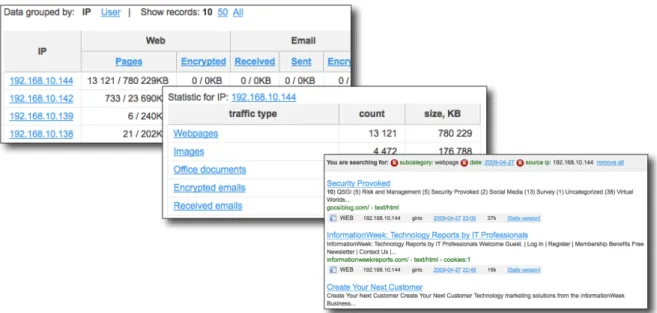
Search result list details
All search results in NTSS share a common layout, design and functionality:
The result starts with heading (or file name, where appropriate) of the document, followed with text snippet from the document, to better demonstrate use of the keyword in the document. Below the document snippet URL of the document is shown in green.
Each result ends with information bar showing: • type of the document,
• IP address and user name (if available) of the viewer of this document,
• Date and time when the document was captured (clicking on minutes, hours, day, etc. will show all other documents containing given keyword captured during that particular minute, hour, day, etc.),
• Size of the document,
• Link to Safe version of the document – clicking this link will open the document (web page) with all active scripts disabled.
Search result view details
Clicking on the search result in the results list opens detailed result view. Top of the page displays various details about the selected document, such as:
• Date and time when this document was captured, • Name of the user who transferred it,
• Size of the document,
• IP and MAC addresses of source and destination of the connection,
The lower part of the page shows a preview of the document, reconstructed form the captured data in the NTSS database.
Depending on the document type, the view options above the preview allow you to see the document in various formats, view client or server traffic separately, save the document, and check WHOIS lookup information for source and destination IP addresses, etc.
Statistics reports
Daily statistics by users or IP
This report provides overview of all daily network activities of all users or IP addresses in a customizable table.
Table shows statistics on Web pages, e-‐mails, IM sessions, Images and documents transferred on particular day, and can be sorted by any information type. Clicking on particular user allows security operator to do a drill down on particular user activities by document types, and from there -‐ choosing particular document type will display all documents transferred by the user on that day, sorted in chronological order.
Document count
This report shows daily statistics on how many Web pages, e-‐mails, images the NTSS has captured every hour.
All traffic on interface
Shows statistics comparing amount of traffic detected by the NTSS appliance vs. amount of traffic actually analyzed by the NTSS.
Most active IP addresses
Shows most active local IP addresses based on connection count and amount of transferred information. Such reports help to spot anomalies in network user traffic patterns.
Most active web domains
Shows top lists of web domains most visited by local network users, sorted by connection count and amount of transferred information. This report is good for getting an overview of WEB usage trends in the local network.
Most active web users
Shows top lists of local users (by IP addresses) who have been most active WEB users. Lists are sorted by connection count and amount of transferred information.
Most active mail users
Shows most active e-mail senders and receivers, based on number of e-mails sent or received during the particular day.
CPU load / Memory usage / Free disk space
This is a technical report for NTSS system administrators, showing graphs with hourly statistics of NTSS appliance CPU load, Memory usage and free disk space.
Data analysis and queue status Shows graphs showing:
• Amount of information NTSS has processed per hour; • Amount of information stored in queue for later analysis; • Average wait time for documents in the queue, to be processed. Disk space changes
Shows a graph displaying appliance disk space changes per hour.
System Settings
Enable/Disable Traffic Monitoring, Queue
This page allows NTSS administrator to pause/stop Traffic monitoring, traffic analyzing without switching off the appliance itself.
VIP addresses
This feature allows NTSS administrator to create a list of IP addresses that should be excluded from monitoring (either for personal reasons of the user of particular IP address, or to exclude from monitoring some technical servers generating traffic).
NTS System User Configuration
This feature allows NTSS administrator to add new users to the system.
NTSS features role based user access control. All new users are assigned to groups with certain access level to the system. Available groups are:
• Investigator – users in this group have access to all captured and stored data and statistics reports, but do not have access to NTSS Settings section;
• Administrator – users in this group have access to NTSS Settings section, to be able to maintain the system (system upgrades, log file monitoring, etc.), but do not have access to captured Internet data, statistics, or User Creation interface;
• Owner – users in this group have full, unrestricted access to the system;
• Developer – this group has similar privileges to Owner group, but output screens feature additional debugging information (feature is useful to IT security specialists, to have more control over search queries in the collected data).
NTS System Usage Audit
NTSS Usage Audit log shows daily log files on user activity within the NTS System. Every user login/logout, query entered, and results displayed and previewed are logged along with the user name, time stamp, IP address of the users computer.
Log Files
This settings page provides system administrators with access to OS level Log files. User Tracking
Local user tracking feature of the NTSS allows system administrator to assign user names to local network users (based on their IP, MAC, e-‐mail addresses or POP3 user authorization data). Local IP addresses / local e-‐mail addresses
This page features lists, where NTSS administrator can specify IP addresses and e-‐mail addresses of local network users. Populating those lists is mandatory for certain NTSS search filters to work correctly.
Reboot/Shutdown
Interface provides means to properly reboot, or shutdown the NTSS. Network configuration
This page lists all available network interfaces detected in particular NTSS appliance, and provides necessary configuration options for them.
Table shows Network interface ID, vendor, model name, interface type and interface status. Each NTSS appliance features a virtual bridge interface. Any number of physical interfaces can be assigned to this bridge interface (by checking the checkbox in Bridge column), and they will act as ‘switch ports’ and all traffic on them will be monitored and captured.
To specify an interface to be monitored without adding it to virtual bridge interface – simply check Monitor checkbox for the appropriate interface.
If any one interface will be used for clustering – it should be specified by checking the Cluster checkbox.
For the interface, that will be used to access the NTSS interface, IP address and network mask should be specified.
Required settings include as well: • Default gateway IP address; • Name server IP address;
• Time server IP address (to make sure all NTSS appliances have synchronized clocks); In Monitor Ports field administrator can specify what ports NTSS should monitor (list separated by commas or spaces). Leaving this field empty will mean that NTSS will monitor traffic on all available TCP ports.
Software upgrade
Backup and Restore
Backup and Restore (B&R) Interface shows active (monthly) data storages and allows Backup and Restore operations on them.
When a Backup is performed on a storage – it is disconnected from the active database structure, and copied into the shared directory on the NTSS hard disk. Access to this shared directory is provided as Samba share on the server, with the username: backup, and password specified
by the NTSS user.
Once the backup is complete – the folder (files) in the shared directory can be freely copied off the system and/or erased.
To Restore any previously backed up storage – it should be uploaded to the shared directory on the server. Once there – it will show up in Backup and Restore interface with an option to Restore it. Once restored – the storage will remain in the shared folder, but will be accessible within the NTSS for searching.
Note: Any backed up Storage in the shared directory will show up as a folder with its date in the folders name. It contains all information the NTSS has stored for that month. Please do not change any of the files or directory structure within that folder!