Published: December 2008
Microsoft Office
Communicator 2007 R2
Getting Started Guide
change without notice. Unless otherwise noted, the companies, organizations, products, domain names, e-mail addresses, logos, people, places, and events depicted in examples herein are fictitious. No association with any real company, organization, product, domain name, e-mail address, logo, person, place, or event is intended or should be inferred. Complying with all applicable copyright laws is the responsibility of the user. Without limiting the rights under copyright, no part of this document may be reproduced, stored in or introduced into a retrieval system, or transmitted in any form or by any means (electronic, mechanical, photocopying, recording, or otherwise), or for any purpose, without the express written permission of Microsoft Corporation.
Microsoft may have patents, patent applications, trademarks, copyrights, or other intellectual property rights covering subject matter in this document. Except as expressly provided in any written license agreement from Microsoft, the furnishing of this document does not give you any license to these patents, trademarks, copyrights, or other intellectual property.
©2008 Microsoft Corporation. All rights reserved.
Microsoft, Active Directory, DirectX, Internet Explorer, MS-DOS, Outlook, PowerPoint, RoundTable, SharePoint, Windows, Windows Media, Windows Server, Windows NT, and Windows Vistaare trademarks of the Microsoft group of companies.
All other trademarks are property of their respective owners.
Chapter 1: What’s New with Office Communicator 2007 R2 1
New Calling Features ... 1
Meet Now Conferencing ... 2
New Contact List Features ... 2
Dial-in Audio Conferencing ... 2
Voice Mail Enhancements ... 3
Desktop Sharing ... 3
Call Delegation ... 3
Team Call ... 4
Response Groups ... 4
Voice and Video Enhancements ... 4
Desk Phone Integration ... 5
Instant Messaging Enhancements ... 5
Automatic Updates ... 6
Chapter 2: Getting Started 7 Office Communicator 2007 R2 Documentation... 7
Software Requirements ... 7
Office Communications Server 2007 R2 Prerequisites ... 8
Audio/Video Requirements ... 8
Installing Office Communicator 2007 R2 ... 8
Starting Communicator and Signing In ... 9
Audio and Video Setup ... 9
Automatic Updates ... 10
Part 2 Contact Management, Presence and Instant Messaging 11 Chapter 3: Manage Your Contact List 13 Add a Contact or Distribution Group to your Contact List... 13
Create a Contact Group ... 15
Use the Current Conversations Group ... 15
View the Groups for Delegates and Team-Call Group ... 16
Add Public Instant Messaging Contacts ... 17
Add Federated Contacts ... 17
Add Phone Number Contacts ... 18
View a Person’s Contact Card ... 18
Change the Way that You View Contacts ... 19
Chapter 4: Customize Your Presence Information 23 Customize and Publish your Presence Information ... 23
Manually Change Your Presence Information ... 27
Chapter 5: How to Contact Others 29 Know If and When a Contact is Available... 29
Get Additional Contact Details ... 31
View Calling Options ... 31
Receive Notification When a Contact’s Status Changes ... 32
Chapter 6: Send and Receive Instant Messages 33 Start an Instant Messaging Session... 33
Add Emoticons to Instant Messages ... 34
Format Instant Messages ... 35
Invite Someone to an Instant Messaging Session ... 35
Receive an Instant Message Invitation ... 36
Part 3 Conferencing and Collaboration 37 Chapter 7: Getting Started with Unified Communications Conferencing 39 When to Use Communicator and When to Use Live Meeting ... 39
Automatic Set Up of Audio and Video ... 40
Installing the Live Meeting Console ... 40
Installing the Conferencing Add-in for Microsoft Office Outlook ... 40
Where to Find More Conferencing information ... 41
Chapter 8: Conferencing with Communicator 43 Start an IM Conference from the Contact List ... 43
Start a Conference with Contacts Inside or Outside your Organization ... 44
Place a Conference Call ... 45
Join a Conference Call ... 46
Chapter 9: Use Desktop Sharing 47 Sharing Your Desktop... 47
Viewing a Shared Desktop ... 49
Chapter 10: Move Seamlessly Between Communication Modes 50 Add Audio and Video to an IM Conference ... 50
Escalate a Conference Call to a Live Meeting Web Conference ... 51
Chapter 11: Schedule a Communicator Conference Call or a Live Meeting Conference 55 Schedule an Office Communicator Conference Call ... 55
Chapter 12: Add a Dial-In Number to a Conference Call 57 Part 4 Phone and Video 61 Chapter 13: Getting Started with Office Communicator Phone and Video Capabilities 63 About Phone and Video Capabilities ... 63
About Setting up Voice Mail... 64
Where Is the Dial Pad? ... 65
Connect Communicator with Your Desk Phone ... 67
Chapter 14: Make and Receive Phone Calls 67 Make a One-Click Phone Call ... 67
Call Additional Numbers ... 68
Type a New Number to Call ... 69
Answer a Phone Call... 69
Using Call Controls ... 70
Chapter 15: Place and Receive Video Calls 71 Place a Video Call ... 71
Receive a Video Call ... 71
Chapter 16: Call Forwarding and Voice Mail 73 Forwarding Calls ... 73
Cancel Call Forwarding ... 74
Check Voice Mail ... 74
Call a Contact’s Voice Mailbox ... 74
Change your Voice Mail Greeting ... 75
Chapter 17: Team Call 75
Chapter 18: Delegating your Calls to One or More Assistants 76 Chapter 19: Signing In to Your Response Group Service Agent Groups 78
Overview
In this Part:
Chapter 1: What’s New with Office Communicator 2007 R2 Chapter 2: Getting Started
2007 R2
This chapter covers the following new features in Microsoft® Office Communicator 2007 R2: New calling features
Meet now conferencing New Contact List features Dial-in audio conferencing Voice mail enhancements Desktop sharing
Call delegation Team call Response groups
Voice and video enhancements Desk phone integration
Instant messaging enhancements Automatic updates
New Calling Features
Office Communicator 2007 R2 contains several new features that can be used when initiating a phone call or during a conversation.
Inviting participants by using alternate phone numbers. When adding a participant to a conference, the conference leader can select any of a user's published phone numbers. When you click Invite from within the conference, a View more options for calling this contact button is available next to each contact in the Invite Someone list. You can click this button and select any of the phone numbers listed for the contact. This feature is especially useful if the conference leader knows that a contact is available by mobile phone only.
Receiving an alert for incoming calls while you are in an IM session. When you are participating in an instant messaging (IM) session and you receive another call, an alert for the incoming call appears in the lower-right corner of your desktop. In the previous release, the IM conversation window would blink to indicate an incoming call.
Using the keyboard during a call. If you are prompted to press a key during a Communicator call, you can use your keyboard instead of the Communicator dial pad. Communicator reflects your actions by automatically opening the dial pad and displaying the keys that you pressed. Copying and pasting numbers into the dial pad. If you need to type a long number into the
Communicator dial pad, you can copy the code from another source and paste it into the dial pad. For example, if you are joining a Communicator conference, and you need to enter a long participant code, you can copy it from the e-mail invitation and paste it into the dial pad.
Connecting Communicator with your desk phone. Communicator pairs with your Microsoft® Office Communicator 2007 R2 Phone Edition desk phone. When you use a USB cable to connect an Office Communicator 2007 R2 Phone Edition desk phone to your computer, your desk phone becomes your preferred audio device for calls, conferences, and Microsoft® Office Live Meeting 2007 sessions. See “Desk Phone Integration” later in this section.
Meet Now Conferencing
In Office Communicator 2007 R2, there is a new Meet Now option that lets you quickly start a new conference and invite people who are either inside or outside your organization. In earlier versions of Communicator, you could invite people to your Communicator conferences only if they were members of your organization or a federated organization. With the Meet Now option, you can start a new conference, and then use one of two options to invite people. You can use the Invite a Contact option to invite contacts from within your organization and federated organizations, or you can use the Invite by Email option to send out an e-mail invitation, which creates an Outlook e-mail message that contains links to the conference. The recipient can join the conference by using either Communicator or a Web browser. You can also use the Invite by Phone option to call someone and add them to the conference.
New Contact List Features
The Contact List in Office Communicator 2007 R2 contains the following new features for managing your phone contacts, call-forwarding groups, and current conversations.
Sort by Display Name in any view. Whether you choose the Contact List, Access Levels, or Tagged Contacts view, you now have the option of sorting the contacts alphabetically by display name instead of presence state so that your Contact List can be used as an address book.
Phone number contacts. You can add outside phone numbers to your Contact List so that you can conveniently call people, such as friends and family members, who do not have
Communicator. You can type a phone number in the search box and then move it to your Contact List. Or, if you have recently dialed a phone number, the phone number appears in your Contact List under Recent Contacts and you can move it to your Contact List.
New Groups in the Contact List for Delegates and Team-Call Group. In Communicator, you can display a Team-Call Group or a Delegates group in your Contact List. These two groups are determined by how you have configured your Call Forwarding settings. If you have set up a team-call group for the Team Call feature, you can display your Team-Call Group in the Contact List (See “Team call” later in this section). If you have configured delegates who will be using Microsoft Office Communications Server 2007 R2 Attendant to answer your calls and make calls on your behalf, you can display your Delegates group in the Contact List (See “Call Delegation” later in this section.). Be aware that you cannot add contacts to these groups in the Contact List by dragging and dropping contacts into them. Because these features must be configured in your call-forwarding settings, if you try to drag a contact into one of these groups, a message is displayed that asks whether you want to open the Call-Forwarding Settings dialog box.
New Current Conversations group. When you have one or more active Communicator
conversations, a new group called Current Conversations appears in Communicator at the top of your Contact List. You can use this group to scan your active conversations. You can also navigate quickly to one of the conversations in the list by double-clicking it.
“Last active” presence information is available to Company Access Level. Contacts who are assigned an access level of Company can see how long you have been away when your status is Offline, Away, or Out of Office. Previously, only contacts who had access levels of Personal or Team could see this information.
Dial-in Audio Conferencing
Users without access to a computer who want to join an Office Communicator 2007 R2 audio conference can now call into the conference using a regular mobile, desk, or home phone. Previously, the only way for the organizer to include a user who only had access to a phone was to call the user from within Office Communicator.
Now, when you schedule an audio conference by using the Conferencing Add-in for Microsoft Office Outlook, you can add a conference call number to the conference. The Outlook invitation contains the dial-in information. Participants can use any phone to dial in to the conference and enter the
conference ID and PIN when prompted. After the participant joins the audio conference, he or she appears in the conference roster.
The dial-in audio conferencing option is provided by the Conferencing Attendant application, which is a feature of the new Application Server in Office Communications Server 2007 R2.
Voice Mail Enhancements
Voice mail enhancements in Office Communicator 2007 R2 offer convenient ways to manage your voice mail and leave messages for others:
In organizations that have Microsoft® Exchange Server 2007 with the Unified Messaging server role, Office Communicator users can now directly call a contact's voice mailbox to leave a message.
A new option enables you to quickly access your voice mail greeting so that you can update it if necessary.
When you click a voice mail indicator in Office Communicator, the voice mail indicator resets so that you can easily distinguish new voice mails from those that you have already handled.
Desktop Sharing
With desktop sharing in Office Communicator, a participant in a Communicator conversation can share his or her entire computer desktop with the other participants. If you have a document, slide deck, or application that you want to present to others in the conversation, you can start a desktop sharing session. After you start desktop sharing, you can also share control so that other participants can provide mouse and keyboard input into your desktop.
Call Delegation
New call forwarding options allow a manager or executive to select one or more assistants (delegates) to receive his or her phone calls. Delegates are contacts who can answer the manager's calls, and make and transfer calls on the manager's behalf.
The manager specifies delegates in Office Communicator in the Call-Forwarding Settings dialog box. The manager can configure the call-forwarding settings to do the following:
Simultaneously send all incoming phone calls to the manager and the delegates. Send all incoming phone calls directly to the delegates.
When using call delegation, it is important for all parties involved to be able to determine how a call is being handled. The following features help callers, assistants, and managers understand who will receive the call:
When a caller uses Office Communicator to try to contact the manager, the status region shows that the call is also ringing the delegates. The caller then knows that there is a possibility that a delegate will answer the call.
Note
Delegates must use Office Communications Server 2007 R2 Attendant instead of Office Communicator 2007 R2 so that they can access all the call delegation features.
If a delegate answers the phone call, the manager's invitation shows the name of the delegate who has answered the call. Other delegates will see that the call has already been answered and by whom.
In the Conversation window, the Transfer menu now contains the list of the manager’s delegates so that he or she can easily transfer any phone call to a delegate for follow-up.
Team Call
In the Office Communicator Call Forwarding Settings, you can set up a group of contacts, known as a team-call group, who can answer your incoming calls. This feature emulates the group pickup feature in traditional PBX systems, and is especially useful if you are part of a group of people who share responsibility for a particular area and any one of you can field incoming calls. You can set up this feature to ring you and your team-call group simultaneously, or you can set a delay so that your calls ring you first and then your team-call group after a specified number of seconds. This feature requires that Enterprise Voice capabilities are enabled for you and the members of your team-call group.
Response Groups
The Response Group is a concept that is new in Office Communications Server 2007 R2. With a Response Group, incoming calls are queued and routed to designated agents based on predefined routing rules. This functionality is provided by the Response Group Service, which is a feature of the new Application Server in Office Communications Server 2007 R2. This feature is similar to the “hunt group” and “automatic call distribution” functionality in PBX systems.
As an Office Communicator 2007 R2 user, you can search for a response group and initiate a call to a response group just as you would any other distribution group. You can also add a response group to your Contact List. Communicator uses an automated service icon to differentiate response groups from other distribution groups.
Users who are designated as agents of a Response Group can receive calls by using a telephone or Office Communicator 2007 R2. Users are designated either as informal agents or formal agents, depending on whether they are required to formally sign in to the response group to begin receiving calls.
Informal agents do not sign in to and out of the group. If you are an informal agent, you can receive calls routed to your group by using a standard telephone or Office Communicator 2007 R2.
Formal agents are required to sign in to and out of the group. If you are a formal agent, you will see a tab at the bottom of your Communicator window, labeled Response Group. You use this tab to sign in to and out of your group.
Voice and Video Enhancements
In Office Communicator 2007 R2, the following voice and video enhancements improve the experience during an Office Communicator voice or video conversation.
Video call controls. The video call controls have been updated for easier use. During a video call, double-clicking the video automatically resizes the video to full screen.
High Definition and Video Graphics Array (VGA) video. Previously, Communicator
supported the Common Intermediate Format (CIF) video format, which has a resolution of 352 by 288. Now, both VGA display (resolution 640 x 480, ratio 4:3) and High Definition (resolution 1280 x 720, ratio 16:9) are available to Communicator users. VGA is the default format. Your administrator determines whether to enable High Definition through a policy setting. In
Communicator, when you select the video size, the appropriate format is selected. In Large mode, the video format is VGA. In Full-screen mode, the video format is High Definition (if it is enabled by your administrator).
Video policy setting for conference rooms. With the new policy setting
EnableFullScreenVideoPreviewDisabled, administrators can enable Office Communicator to show video in full screen with the preview disabled for all Office Communicator video calls This policy is typically used in conference room settings.
Reduced call setup time. Updates to the implementation of the protocols that support early media negotiation help reduce call setup time and reduce delays when a call is established. Improved connectivity. Peer-to-peer voice conversations remain connected even when the SIP
signaling channel is lost. Participants can continue the voice call while Office Communicator attempts to reestablish the signaling channel.
Voice and video quality indicators. New indicators in the Conversation window indicate situations that may be affecting the quality of the voice or video call, including poor network conditions, low bandwidth network connections, or poor audio quality from a particular device.
Desk Phone Integration
If you connect an Office Communicator 2007 R2 Phone Edition desk phone to your computer with a USB cable, Communicator pairs with your desk phone, and the desk phone becomes your preferred audio device for calls, conferences, and Live Meeting sessions. The following activities occur: You can sign in to the desk phone from Communicator. When you connect your desk phone with
your computer, Communicator detects the connection and provides a sign-in screen. You can enter your credentials in this screen to sign in to the desk phone.
When you receive an incoming call, clicking the notification on your computer automatically connects your desk phone to the call.
If you are using Outlook or Communicator and you click a contact to call them, the call is placed from your desk phone. During a call, any call control actions that you take (for example, putting the call on hold or transferring the call) are reflected both in Communicator and on your desk phone.
If you are participating in an IM session and you add audio, your desk phone rings while it sends the audio invite to other participants.
If your desk phone is the only audio device that you have connected to your computer and you are participating in a Live Meeting session, incoming calls will interrupt your Live Meeting audio and enable you to answer the desk phone.
When you plug the Communicator Desk Phone into your computer with a USB cable, a
Communicator sign-in window appears on your computer. This enables you to sign in to the desk phone from your computer.
Instant Messaging Enhancements
A new option, Change the background color when the writer changes, makes the instant messaging window easier to read. When you select this option, every time that the writer changes, the background color changes so that you can more easily differentiate messages from different writers.
Previously, when IM conversations were saved in the Outlook Conversation History folder, emoticons were removed. In Communicator 2007 R2, the text equivalents for emoticons are retained in the conversation history, and if you restart the conversation, the emoticons are restored.
Automatic Updates
Communicator can be configured to receive automatic updates. You can configure updates to occur as soon as they become available, or you can schedule them for a specific hour of the day. The
Chapter 2: Getting Started
In this chapter, we will cover: Office Communicator 2007 R2 Documentation
Software and hardware requirements for Office Communicator 2007 R2. Office Communications Server 2007 R2 prerequisites.
Audio and video requirements.
Installing Office Communicator 2007 R2.
Starting Office Communicator 2007 R2 and signing in. Audio and video setup.
Automatic updates.
Office Communicator 2007 R2 Documentation
The following documentation is available for Office Communicator 2007 R2. You can obtain this document from the Office Communications Server 2007 R2 documentation installer file
(UCDocumentation.msi).
Office Communicator 2007 R2 Quick Reference Cards Provides a visual reference to the tasks most commonly performed with Communicator 2007 R2. The following cards are provided:
Office Communicator 2007R2 Contact Management, Presence, and Instant Messaging Quick
Reference Card
Office Communicator 2007 R2 Conferencing with Communicator Quick Reference Card
Office Communicator 2007 R2 Phone and Video Quick Reference Card
Office Communicator 2007 R2 Keyboard Shortcuts Quick Reference Card
Office Communicator 2007 R2 Testing and Troubleshooting Guide Intended for system administrators, this document explains how to install, configure, and test Office Communicator 2007 R2 in a laboratory environment.
Office Communicator 2007 R2 Deployment Guide Covers upgrade and interoperability issues, new features and required server roles, installation procedures for IT-managed and user-managed environments, integration with Office Outlook 2007, and implementing custom tabs. In addition, there is information about Group Policy settings.
Office Communicator 2007 R2 Group Policy Settings Covers Group Policy settings for Office Communicator 2007 R2.
Software Requirements
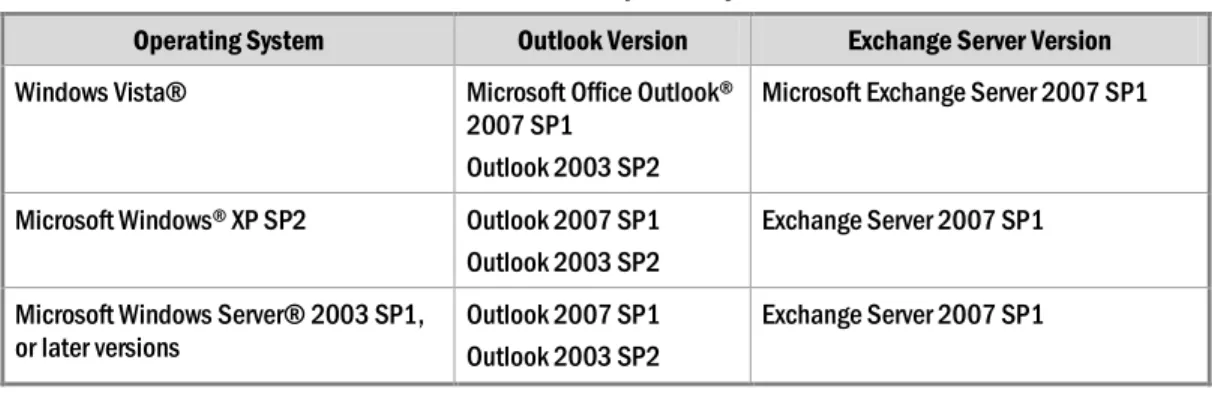
This release of Office Communicator 2007 R2 is compatible with the following environments, as shown in Table 2.1.
Table 2.1. Office Communicator 2007 R2 Compatibility List
Operating System Outlook Version Exchange Server Version
Windows Vista® Microsoft Office Outlook®
2007 SP1 Outlook 2003 SP2
Microsoft Exchange Server 2007 SP1
Microsoft Windows® XP SP2 Outlook 2007 SP1
Outlook 2003 SP2
Exchange Server 2007 SP1 Microsoft Windows Server® 2003 SP1,
or later versions
Outlook 2007 SP1 Outlook 2003 SP2
Exchange Server 2007 SP1
Office Communications Server 2007 R2 Prerequisites
To take advantage of the features of Office Communicator 2007 R2, you must have Office Communications Server 2007 R2 Standard Edition Server or Enterprise pool deployed in your organization. For more information, contact your system administrator or refer to Office
Communications Server 2007R2 Planning Guide and Office Communications Server 2007 R2
Standard Edition Deployment Guide or Office Communications Server 2007 R2 Enterprise Edition
Deployment Guide.
Audio/Video Requirements
Office Communicator 2007 R2 supports several hardware devices for audio/video communications, as described in the following sections.
Audio Requirements
To make and receive phone calls with Office Communicator, you must have one of the following: A headset or other universal serial bus (USB) audio device, or speakers and a microphone. A half-duplex or full-duplex sound card. Half-duplex audio enables only one person to speak at a
time. Full-duplex audio enables two people to speak simultaneously.
Video Requirements
To make video calls, you must have a webcam connected to your computer. Be aware that you can receive video calls without a webcam and view the caller’s video stream.
To send and receive VGA quality video, your webcam must support VGA video. Computer and processor requirements for video formats are as follows:
Intel Pentium 4
Single Core 1.5 GHz or higher for CIF Dual Core 1.9 GHz or higher for VGA
Quad Core 2.0 GHz or higher for High Definition
Installing Office Communicator 2007 R2
Before you install the latest version of Communicator 2007 R2, you may have to remove earlier versions of Office Communicator.
To remove earlier versions of Communicator
1. Exit the Microsoft® Internet Explorer® Internet browser and any Microsoft Office programs that are currently running.
2. Click Start, click Control Panel, and then click Add or Remove Programs.
3. Click Microsoft Office Communicator 2005, or Microsoft Office Communicator 2007 if present, and then click Remove.
4. Follow the instructions to remove all Communicator files.
5. Restart your computer. To install Communicator
1. Exit any Microsoft Office programs that are currently running.
2. Click Start, and then click Run.
3. In the Run dialog box, click Browse, locate the Communicator.msi file, and then click Open.
4. In the Run dialog box, click OK.
5. In the Microsoft Office Communicator 2007 R2 Setup window, click Next.
6. Review the license agreement. If you agree with the terms, select the I accept the terms in the License Agreement check box, and then click Next.
7. On the Configure Microsoft Office Communicator page, either accept the default location or select an alternative location for the product files to be installed. We recommend that you accept the default location.
8. Click Next to begin the installation process.
9. When the installation is complete, click Finish.
Starting Communicator and Signing In
Typically, Communicator is configured for you by your system administrator. The administrator may have configured Communicator to start automatically when you log on to Windows, so we will cover this option in this section.
To start Communicator
1. Click Start, point to All Programs, and then click Microsoft Office Communicator 2007 R2.
2. In the Microsoft Office Communicator 2007 R2 Setup window, enter your password, and then click Sign In.
3. In the Office Communicator title bar, click the Menu button .
4. Click Tools, click Options, and select Automatically start Communicator when I log into Windows.
5. Click OK.
Office Communicator starts automatically the next time that you log on to Windows.
Audio and Video Setup
Office Communicator 2007 R2 provides a Set Up Audio and Video option that automatically detects and selects the preferred audio and video devices for you. Your audio and video devices, such as headsets, speaker and microphone, and webcam should work with Office Communicator without any special setup. However, you may want to run the Set Up Audio and Video to test or adjust devices before conducting any important communications with others.
To test or configure audio and video devices
1. In the Office Communicator title bar, click the Menu button .
2. Point to Tools, click Set up Audio and Video, and then follow the instructions in Set Up Audio and Video.
Automatic Updates
You can configure Communicator 2007 R2 to receive automatic updates. You can request that updates occur as soon as they become available, or you can schedule them for a specific hour of the day. The Automatic Updates option is available on the Alerts options page.
To configure automatic updates
1. In the Office Communicator title bar, click the Menu button , click Tools, and then click Options.
2. Click Alerts.
3. Under Automatic Updates, select the Automatically update Communicator when newer versions are available check box.
Part 2
Contact Management, Presence and
Instant Messaging
In this Part:
Chapter 3: Manage Your Contact List
Chapter 4: Customize Your Presence Information Chapter 5: How to Contact Others
Chapter 3: Manage Your Contact List
Your Contact List is a list of co-workers, family, friends, and associates with whom you communicate most often. The Communicator Contact List shows the availability of your contacts and the ways in which your contacts can be reached, and lets you view additional contact details by clicking the contact’s Presence button. The Contact List is your starting point for communicating with your contacts. With a mouse-click or two, you can place a phone or video call, start an instant messaging session, or start an audio/video conference.
In this chapter, we will show how to do the following tasks:
Add contacts and distribution groups from your corporate directory to your Contact List. Create contact groups.
Use the Current Conversations group.
View the groups for Delegates and Team-Call group. Add public instant messenger contacts to your Contact List. Add federated contacts to your Contact List.
Add phone number contacts. View a person’s contact card.
Change the way that you view contacts.
Add a Contact or Distribution Group to your Contact List
When you first start to use Communicator, you need to build your Contact List to suit your needs. You can add individual contacts and distribution groups to your Contact List, and you can create custom groups. If your company’s Office Communications Server supports Public Internet Connectivity, you can even add contacts from AOL Instant Messenger AIM®, Yahoo!® Messenger, MSN® network of Internet services, and Windows Live™ network of Internet services. If you are not sure if your company supports Public Internet Connectivity, contact your system administrator.
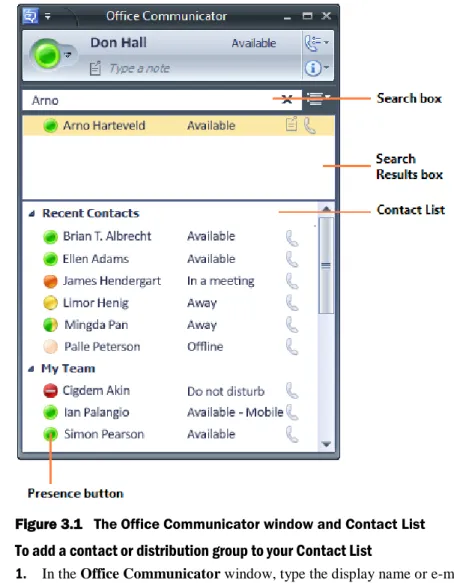
Figure 3.1 shows the Office Communicator window, and points out the portions of the user interface that you use most often when managing your contacts and Contact List.
Figure 3.1 The Office Communicator window and Contact List
To add a contact or distribution group to your Contact List
1. In the Office Communicator window, type the display name or e-mail address of a person or distribution group in the Search box. By default, Communicator lists all matching users and groups from the Active Directory® Domain Services and the Microsoft Outlook Contact folder.
2. Drag the name from the Search Results pane into the Contact List. You can drag individual names into an existing group in the Contact List. You can also drag a distribution group into the Contact List. However, you cannot drag a distribution group into an existing group.
Note
You can also add a response group to your Contact List. A response group is a predefined group of people who have been assigned to handle incoming calls for a particular team or department. Communicator displays a presence icon and an automated service icon next to response groups to differentiate them from distribution groups. If your organization has set up response groups, you can search for them in the Contact List and initiate a call to them.
Create a Contact Group
You can create contact groups to organize the people in your Contact List. After you create a group, you can right-click the group name in your Contact List, and then communicate with the group in many ways, including an IM conference or conference call.
To create a contact group
1. In the Office Communicator window, right-click an existing group name, and then click Create New Group.
2. In the New Group box, type a name for the group, and then press ENTER.
3. You can drag existing contacts from the Contact List into the group or use the Communicator Search feature to find users and add them to the group.
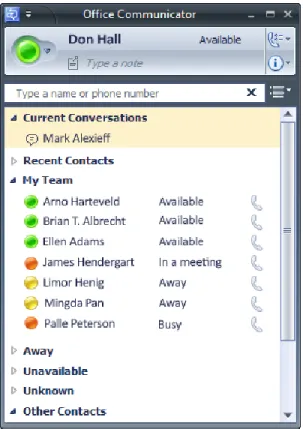
Use the Current Conversations Group
When you have one or more active Communicator conversations, a new group called Current Conversations appears in Communicator at the top of your Contact List. You can use this group to quickly scan your active conversations. You can also navigate quickly to one of the conversations in the list by double-clicking it.
Figure 3.2 The Current Conversations Group in the Contact List
To navigate to a conversation
In the Contact List, under the Current Conversations group, double-click a conversation in the list. The conversation window for the selected conversation appears in the foreground.
View the Groups for Delegates and Team-Call Group
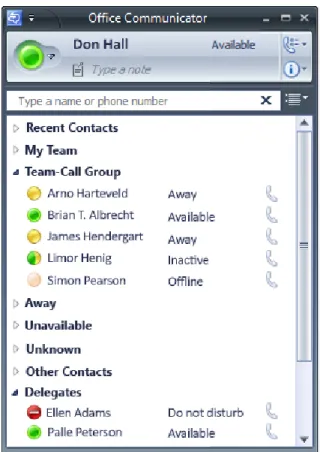
In Communicator 2007 R2, you can display a Team-Call Group or a Delegates group in your Contact List. These two groups are determined by how you have configured your call-forwarding settings. If you have set up a team-call group for the Team call feature, you can display your Team-Call Group in the Contact List (See “Team Call” later in this document). If you have configured delegates who will be using Office Communications Server 2007 R2 Attendant to answer your calls and make calls on your behalf, you can display your Delegates group in the Contact List (See “Delegating your Calls to One or More Assistants” later in this document.).
Be aware that you cannot add contacts to these groups in the Contact List by dragging and dropping contacts into them. Because these features must be configured in your call-forwarding settings, if you try to drag a contact into one of these groups, a message is displayed that asks if you want to open the Call -Forwarding Settings dialog box.
By default, the Team-Call Group and Delegates groups are not displayed. You can select to display them in the Contact List view.
To display your Team-Call Group and Delegates groups
1. Click the Change View button , and then click Contact List.
2. Click the Change View button , and then click the groups that you want to display:
Show Delegates. Click Show Delegates to hide or show a list of the delegates you have set up in your call-forwarding settings.
Show Team-Call Group. Click Show Team-Call Group to hide or show a list of the members of the team-call group that you have set up in your call-forwarding settings.
Add Public Instant Messaging Contacts
If your organization is configured to support public instant messaging (IM) connectivity, you can add instant messaging contacts from AOL, Yahoo, MSN, and the Windows Live network of Internet services to your Office Communicator Contact List. When you add a public instant messaging contact, you can communicate with the contact by using instant messaging. However, Communicator Calls, Video Calls, Audio/Video conferencing, and desktop sharing, are not supported with public instant messaging contacts.
The best practice for adding a public instant messaging contact is to add the contact by using the Outlook Contacts folder. When you add a public instant messaging contact by using the Outlook Contacts folder, you can add home, mobile, and other phone numbers for the contact so that you can use Communicator’s click-to-call feature to call the contact on his or her home, mobile, or work phone number.
To add a public instant messaging contact to your Contact List
1. If you do not know the IM address of the contact that you want to add, contact them by phone or e-mail to obtain the address.
2. Open the Contacts folder in Office Outlook, and then click the New button.
3. Enter a name for the contact in the Full Name box. The Company, Job title, and File as boxes are optional.
4. Fill in at least one of the following boxes:
Phone numbers. In the Business, Home, Business Fax, or Mobile box, type the contact’s phone number.
E-mail. In this box, type the contact’s e-mail address. IM address. In this box, type the IM address of the contact.
5. Enter phone numbers for the contact. Use the E.164 format to make sure that the number will work. The E.164 format includes the country code, area code, the local number, and optionally the + symbol. You do not have to format the number. A number in the U.S. for example, might look like this: 14255555555 or +14255555555, where 1 is the country code, 425 is the area code, and 5555555 is the local number. An international number dialed from the U.S. might look like: +441223479818 or 011441223479818
6. Save the contact.
7. Open Office Communicator and type the name that you entered in the Display as box in Office Outlook into the Search box. The contact name appears in the Search Results pane.
8. Drag the contact from the Search Results pane into a group in the Contact List. You can now have IM conversations with the contact. You can also click the phone button to the right of the contact’s name. Communicator calls are not supported for public IM contacts. However, you can make calls to the contact’s home, business, and or mobile phone numbers.
For more information about how to add public IM contacts to your Contact List, see the Communicator online Help.
Add Federated Contacts
Office Communicator 2007 R2 and Office Communications Server 2007 R2 support the ability to federate (connect) with other organizations, enabling you to add contacts from those organizations. When you add a federated contact to your Contact List, you can communicate with the contact by using any of the communication modes that are supported by both organizations. For example, if both organizations support Communicator calls, video calls, and audio/video conferencing, you can make
Communicator calls and video calls, and conduct audio/video conferences with contacts from that organization.
To add a federated contact to your Contact List
1. Open Office Communicator, and then type the name that you entered in the Display as field in Office Outlook into the Search box. The contact name appears in the Search Results box.
2. Drag the contact from the Search Results pane into a group in the Contact List. You can now have IM conversations with the contact. You can also click the phone button to the right of the contact’s name.
For more information about how to add federated contacts outside your company to your Contact List, see the Communicator online Help.
Add Phone Number Contacts
In Office Communicator 2007 R2, you can add a phone number to your Contact List, even if the phone number is not associated with someone at your organization, a federated organization, or a public IM provider. If you primarily make phone calls using Communicator, for convenience, you may want to add outside phone numbers (for example, numbers for friends and family members) to your Contact List.
In earlier versions, Communicator would allow you to add only people who had an Office
Communications Server account or sign-in address. The workaround was to create a new contact in Outlook, assign a phone number and IM address (or a fictitious placeholder), and then search for the new Outlook contact from Communicator.
In Office Communicator 2007 R2, if you have recently dialed a phone number, the phone number appears in your Contact List under Recent Contacts. To save the phone number for future calling, you can drag-and-drop the phone number into one of the groups in your Contact List. Or, you can right-click the phone number, right-click Add to Contact List, and then click a group.
You can also add an Outlook contact to your Contact List even if the contact has only a phone number and no IM address. In Communicator, search for the Outlook contact, and then add the contact to your Contact List.
After a phone number is added to your Contact List, you can take the same actions that are available for regular contacts. For example, you can move the phone-only contact to a different group. You can also view the contact's properties by right-clicking and selecting Properties. An Outlook contact card will open, where you can view or update the contact's information. Phone number contacts are designated by a phone icon . Double-clicking the Call button to the right of the phone number starts a phone conversation with the contact.
To add a phone number as a contact Do one of the following:
Type the phone number in the search box, and then click the phone number and drag it into one of the groups in your Contact List.
If you have recently used Communicator to call the phone number, under Recent Contacts, click the phone number and drag it into one of the groups in your Contact List.
Right-click the phone number, click Add to Contact List, and then click a group.
View a Person’s Contact Card
A person’s contact card provides details about the contact’s availability and activity. Depending on the access level that a contact granted you, you can see a contact’s schedule, in addition to any personal notes that the contact has written. The contact card also provides a starting point for connecting with a
contact, including the ability to start an instant messaging session, call the contact, schedule a meeting, or e-mail the contact, as shown in Figure 3.4.
Figure 3.4. The Contact Card is opened by clicking a contact’s Presence button
To view a person’s contact card
In the Office Communicator window, click the Presence button in the Contact List to the left of the contact name.
You can open a user’s contact card in multiple places in the Office Communicator 2007 R2 user interface. For example, to view a person’s contact card, you can click the user’s Presence button in the Contact List, the Search Results pane, or in the Communicator Conversation window.
Change the Way that You View Contacts
Office Communicator 2007 R2 provides several views that you apply to the Contact List to see contacts organized differently from the default view. You can use the Communicator Change View button to view contacts grouped by Access Levels or by Tagged Contacts.
To change the way that you view contacts
Click the Change View button , as shown in Figure 3.5, and then select a view from the menu.
Contact List. This view is the default view that you see when you start Office Communicator.
Access Levels. This view shows contacts grouped by access levels. Access levels are permission levels that you assign to contacts to determine their access to your presence information.
Sort Contacts by Availability. In the Office Communicator window, click the Change the way that you view your contacts button, make sure that the Contact List view is selected, and then click Sort Contacts by Availability.
Sort Contacts by Display Name. In the Office Communicator window, click the Change the way you view your contacts button. Any view can be selected. Click Sort Contacts by Display Name.
Show Recent Contacts. In the Office Communicator window, click the Change the way you view your contacts button, make sure that the Contact List view is selected, and then click Show Recent Contacts to hide or show a list of your most recent contacts.
Show Delegates. In the Office Communicator window, click the Change the way you view your contacts button, make sure that the Contact List view is selected, and then click Show Delegates to hide or show a list of the delegates you have set up in your call
forwarding settings.
Show Team-Call Group. In the Office Communicator window, click the Change the way you view your contacts button, make sure that the Contact List view is selected, and then click Show Team-Call Group to hide or show a list of the members of the team-call group that you have set up in your call-forwarding settings.
Figure 3.5. The Office Communicator window and Contact List
For more information about access levels, see Chapter 3, “Manage Your Contact List.” For more information about tagging contacts, see Chapter 5, “How to Contact Others.”
How contacts are sorted in the Contact List
By default, Communicator sorts contacts in each group in the Contact List first by availability, and then alphabetically. Available contacts (those that can be contacted) have either the Available or Busy presence status. The Recent Contacts group is an exception, and sorts contacts top-to-bottom according to those contacts with whom you’ve most recently communicated. To change the way contacts are sorted in the Contact List, click the Change View button in the Office Communicator window, and then select Sort Contacts by Availability. This option moves contacts with Away, Unavailable, and Unknown status into groups, leaves contacts with Busy or Available status in their groups, and then sorts the contacts alphabetically.
In any view, you can sort contacts alphabetically by display name. Click the Change View button in the Office Communicator window, and then select Sort Contacts by Display Name. This option sorts contacts alphabetically within the displayed groups.
Chapter 4: Customize Your Presence Information
Office Communicator 2007 R2 provides a full set of personal presence attributes that you can make available to other contacts to help them get in touch with you. Presence attributes include information about you, such as your work phone, mobile phone, and home phone, together with additional information, such as your work schedule and personal notes. When you first start to useCommunicator, it is generally best to customize and publish your presence information, and then set access levels for your contacts to control the type and amount of presence information that they see. In this way, you can make presence information, such as your home or mobile phone numbers, available to your closest contacts, but not available to everyone in your company.
In this chapter, we will show how to do the following tasks: Customize and publish your presence information.
Set access levels for contacts to control the presence information available to them. Manually change your presence information.
Customize and Publish your Presence Information
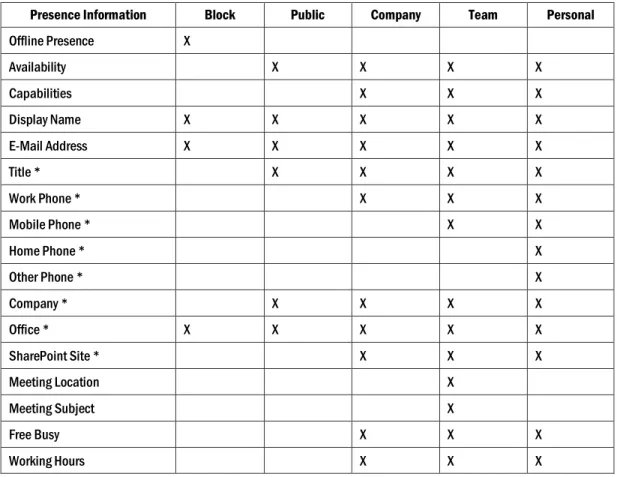
Your presence information includes a diverse set of attributes that describe your availability, activity, contact information, schedule, location, and notes, both Personal and Out of Office. Table 4.1 provides a full list of Communicator presence attributes that others can potentially see. The left column of the table shows the presence information attributes, whereas the remaining columns of the table show whether the attribute is available for a given access level, which we will cover later in this chapter.
Table 4.1. Presence Information and Access Levels
Presence Information Block Public Company Team Personal
Offline Presence X
Availability X X X X
Capabilities X X X
Display Name X X X X X
E-Mail Address X X X X X
Title * X X X X
Work Phone * X X X
Mobile Phone * X X
Home Phone * X
Other Phone * X
Company * X X X X
Office * X X X X X
SharePoint Site * X X X
Meeting Location X
Meeting Subject X
Free Busy X X X
Endpoint Location X X
Notes (Out of Office Note) X X X
Notes (Personal) X X X
Last Active X X X
*If these attributes are defined in Active Directory, they are visible to all contacts in your company, regardless of access level. They are also visible to federated contacts, depending on the assigned access level. They are not visible to public instant messaging contacts.
Most of your presence information is automatically supplied to Communicator by Office
Communications Server, so you do not need to supply much additional information. However, there are a few presence attributes, most importantly your alternate phone numbers, that are not
automatically supplied to Communicator. You may want to make available these available to others.
Add and publish alternate phone numbers
As a best practice, you should add alternate phone numbers, such as your Mobile number, to your presence information.
To add and publish alternate phone numbers
1. In the Office Communicator window, click the Menu button , and then click Tools.
2. Click Options, and then click the Phones tab.
3. Click the button for the phone number that you want to add.
4. In the Phone number text box, enter the number that you want to add and then click OK. Use the International Phone Number format. Enter the country code, followed by the local phone number. For example, for a United States number: 15555555555. Phone numbers should contain only the digits 0123456789. Communicator removes parentheses and additional characters. Do not include the international dialing prefix. For example, (011) in the United States and (00) in Europe. See the Communicator online Help for examples.
5. To make the number available as part of your presence information, select the Publish this phone number check box next to the phone number.
6. To accept your changes, click OK in the Options dialog box.
Remember that as soon as you publish your phone numbers, it is important to set access levels for your contacts to control who has access to those numbers. For example, if you publish your mobile phone number but do not grant a Personal or Team access level to a contact that you want to have access to your number, that contact will be unable to see your mobile phone number. Setting access levels is covered in the following section.
Control Access to Your Presence Information with Access Levels
With Communicator, you use Access Levels to control the level of your presence information that others see. For example, you probably have a short list of co-workers who you want to have access to your mobile and home phone numbers. To expose these alternate phone numbers to a contact, you need to assign that contact to the Personal or Team access level. Setting access levels is generally done in one of three ways:
You set an access level for a contact when you add them to your Contact List. By default, when you add a contact inside your company to your Contact List, they are given the Company access level. Contacts outside your company, such as contacts from AOL, MSN, Windows Live, and Yahoo Messenger IM services, are assigned the Public access level by default.
After you add a contact to your Contact List, you can easily change his or her access level to increase or reduce how much information you want them to see.
When a contact adds you to his or her list, you receive an alert that enables you to accept or reject the request. From this alert, you can set the access level for the contact and add them to your Contact List.
To view contacts by Access Levels
In the Communicator window, click the Change View button , and then click Access Levels. (To understand what presence information is exposed for each access level, see Table 4.1 above.)
To change an Access Level for a contact in your Contact List
Right-click a contact, point to Change Level of Access, and then select an access level for the contact. If you have the Access Levels view applied in the Contact List, you can also assign a contact to an access level by dragging the contact into an Access Level Group. To understand how access levels ontrol what other see, see “Access Levels and Phone Numbers Example” later in this chapter.
Note
If you designate a contact as your delegate, that contact is automatically granted the Team access level. You cannot change a delegate’s access level. For more information, see “Chapter 18: Delegating your Calls to One or More Assistants.”
Assign Access Levels when someone adds you to their Contact List
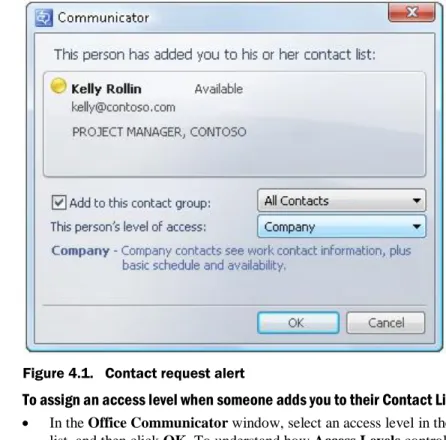
When a person adds you to his or her Contact List, you receive an alert, as shown in Figure 4.1. The alert enables you to add the contact to your Contact List and allows you to set the person’s level of access to your presence information.
Figure 4.1. Contact request alert
To assign an access level when someone adds you to their Contact List
In the Office Communicator window, select an access level in the This person’s level of access list, and then click OK.To understand how Access Levels control what others see, see the following “Access Levels and Phone Numbers Example” section.
Access Levels and Phone Numbers Example
One of the most important aspects of access levels is to control the exposure of your mobile and home phone numbers to others. After all, you will want your closest co-workers to have your mobile number, but not the entire company. In addition, you will want to make you home phone number available only to a selected list of people.
If you want to make your mobile phone number available to a contact, you assign that contact to the Team access level. If you want to make all your phone numbers available to a contact, you assign that contact to the Personal access level. Table 4.2 provides an example of how access levels assigned to a contact affect the phone numbers that they see.
Table 4.2. Access Levels and Phone Numbers Example
If Kelly Rollin assigns Lola Jacobsen this access level:
Lola Jacobsen can see these phone numbers for Kelly Rollin in her Communicator user interface:
Personal Work Phone number
Mobile Phone number Home Phone number Other Phone number
Mobile Phone number
Company Work Phone number
Public None
Blocked None
Manually Change Your Presence Information
Your presence information is constantly being updated by Communicator and Office Communications Server, based on several factors, including your Outlook Calendar, whether you are in a call, an instant messaging session, or conference. However, there may be times when you want to manually change your presence status. For example, if you are working on something that is time critical, you may want to change your status to Do Not Disturb to avoid being interrupted.
To set your status to Do Not Disturb
In the Office Communicator window, click your Presence button and change your presence status to Do Not Disturb in the Status area. When you change your presence status to Do Not Disturb, as shown in Figure 4.2, by default, only those people who you have assigned the Team access level can contact you.
For example, a person with a Team access level to your presence information can interrupt you and sees this status in their Contact List:
A person with a Company or lower access level to your presence information cannot interrupt you with an instant message or phone call and sees this status in their Contact List:
For more information about how to set Access Levels to control interruptions, see the Office Communicator online Help.
Chapter 5: How to Contact Others
Each contact in your Contact List has a Presence button that reflects his or her current state of availability. You can use a contact’s presence status to decide which mode of communication is best suited for successful communication with that contact. For example, if a contact’s status is Available, you can send her an instant message or place a call to her. If a contact’s status is Busy, you might want to send an e-mail message or check the contact card to determine when the person will be free for a conversation.
In this chapter, we will show how to do the following tasks: Determine whether a contact is available for a conversation.
Find additional contact details, such as a schedule, to determine when a contact will be available. Find alternate contact phone numbers, such as mobile phone or other phone numbers.
Tag a contact so you are notified when the contact becomes available.
Know If and When a Contact is Available
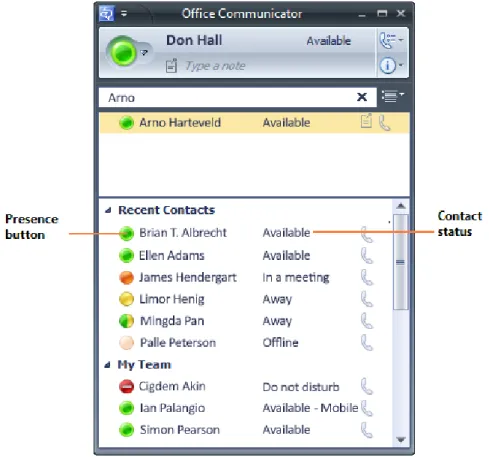
The presence information that is displayed for each contact in your Contact List reflects the availability of the contact, as shown in Figure 5.1. Presence status is indicated graphically by a Presence button to the left of the contact’s name, and by a text string to the right of the contact’s name. Some presence states, such as Available, can be set either by the user or by Office Communicator; other presence states, such as Inactive, can be set only by Office Communicator.
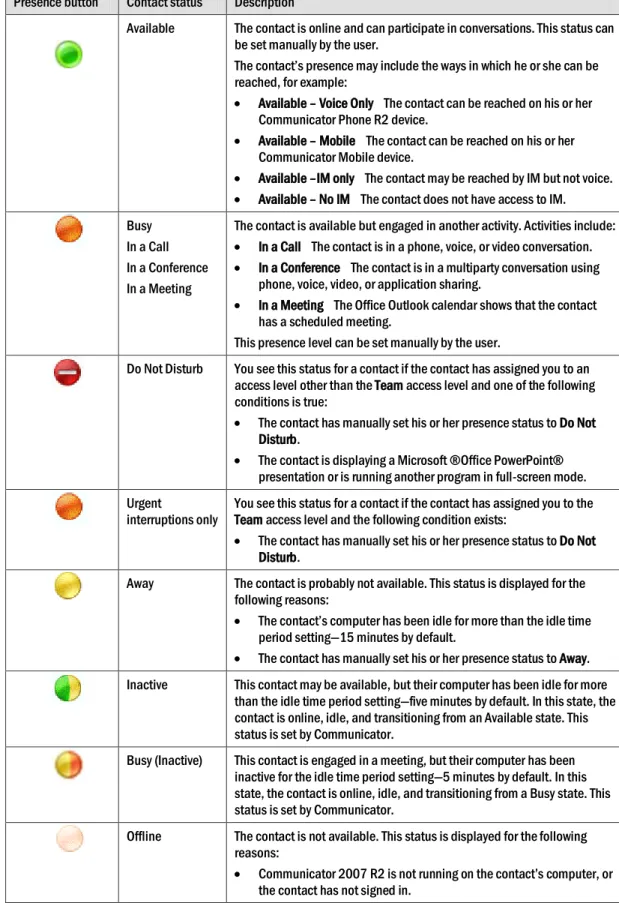
Table 5.1 describes each Presence button and the accompanying status text.
Table 5.1. Presence states set by the user or by Communicator
Presence button Contact status Description
Available The contact is online and can participate in conversations. This status can
be set manually by the user.
The contact’s presence may include the ways in which he or she can be reached, for example:
Available – Voice Only The contact can be reached on his or her
Communicator Phone R2 device.
Available – Mobile The contact can be reached on his or her
Communicator Mobile device.
Available –IM only The contact may be reached by IM but not voice.
Available – No IM The contact does not have access to IM.
Busy In a Call In a Conference In a Meeting
The contact is available but engaged in another activity. Activities include:
In a Call The contact is in a phone, voice, or video conversation.
In a Conference The contact is in a multiparty conversation using
phone, voice, video, or application sharing.
In a Meeting The Office Outlook calendar shows that the contact
has a scheduled meeting.
This presence level can be set manually by the user.
Do Not Disturb You see this status for a contact if the contact has assigned you to an
access level other than the Team access level and one of the following conditions is true:
The contact has manually set his or her presence status to Do Not
Disturb.
The contact is displaying a Microsoft ®Office PowerPoint®
presentation or is running another program in full-screen mode. Urgent
interruptions only
You see this status for a contact if the contact has assigned you to the Team access level and the following condition exists:
The contact has manually set his or her presence status to Do Not
Disturb.
Away The contact is probably not available. This status is displayed for the
following reasons:
The contact’s computer has been idle for more than the idle time
period setting—15 minutes by default.
The contact has manually set his or her presence status to Away.
Inactive This contact may be available, but their computer has been idle for more
than the idle time period setting—five minutes by default. In this state, the contact is online, idle, and transitioning from an Available state. This status is set by Communicator.
Busy (Inactive) This contact is engaged in a meeting, but their computer has been
inactive for the idle time period setting—5 minutes by default. In this state, the contact is online, idle, and transitioning from a Busy state. This status is set by Communicator.
Offline The contact is not available. This status is displayed for the following
reasons:
Communicator 2007 R2 is not running on the contact’s computer, or
Presence button Contact status Description
The contact has blocked you from seeing his or her presence status.
Presence unknown
Communicator 2007 R2 cannot determine the status of the contact. This status is usually displayed because the contact’s presence status is stored in another computer system, such as that of an organization that is not a federated partner.
Blocked This indicator is displayed in your Contact List next to the name that you
have blocked. To the person that you have blocked, you appear to be offline.
Get Additional Contact Details
If a contact’s status is not available, you can open his or her Contact Card to get additional details to determine when the contact will be available, assuming that you have been granted Company access level or higher.
To view a contact’s schedule information
In the Office Communicator window, click the contact’s Presence button in the Contact List. If a contact has granted you the default Company access level or higher, you can click the contact’s Presence button to view his or her schedule and determine when the contact will be available.
View Calling Options
Sometimes you have to contact a person on their cell phone or at an alternate number. In Office Communicator, you can view a contact’s alternate phone numbers by clicking the arrow to the right of the Call button. In the previous chapter, we looked at how you publish your alternate phone numbers. But how do you find alternate phone numbers for your contacts?
To view calling options for a contact
1. In the Contact List, click the arrow to the right of the Call button that is associated with the contact, as shown in the following illustration.
2. The phone numbers that you see for a contact are determined by the access level the contact has granted you. For example, if the contact has granted you a Team or Personal access level, you will see his or her mobile phone number. If a contact’s mobile number is not available to you, you can contact that person and ask them to raise your access level to Team or Personal.
What Is a Communicator call?
One of the menu items in the Call option menu is Communicator call. A Communicator call is a Voice over IP (VoIP) call that is routed to all a contact’s devices that are running Office
Communicator 2007 R2. A contact can receive a Communicator call on his or her computer, or on a telephony device that is configured for Office Communicator 2007 R2.
Note
You can only make Communicator calls to Office Communicator contacts within your company and to federated contacts outside your company. Communicator calls to public IM contacts or non-federated contacts outside your company are not supported.
Receive Notification When a Contact’s Status Changes
Communicator can notify you of changes in a contact’s status by displaying an alert when the contact’s status changes to Available or Offline. The alert shows the contact’s name, title, instant messaging address, and new presence status. You can click the alert to start an instant messaging session with that person. Configuring Communicator to display this alert for a given contact is called tagging.
To tag a contact for status change alerts
In the Contact List, right-click a contact, and then click Tag for Status Change Alerts. To view tagged contacts in the Contact List
In the Office Communicator window, click the Change View button , and then click Tagged Contacts. This view shows all your currently tagged contacts.
Chapter 6: Send and Receive Instant Messages
With Office Communicator 2007 R2, you can start an instant messaging session with a single contact or multiple contacts. After you start an instant messaging session, you can invite other contacts to the session and seamlessly add audio and video to the session without opening a new Conversation window.
In this chapter we will show how to do the following tasks: Start an instant messaging session.
Add emoticons to instant messages. Format instant messages.
Invite another person to an instant messaging session. Accept or decline an instant message invitation.
Start an Instant Messaging Session
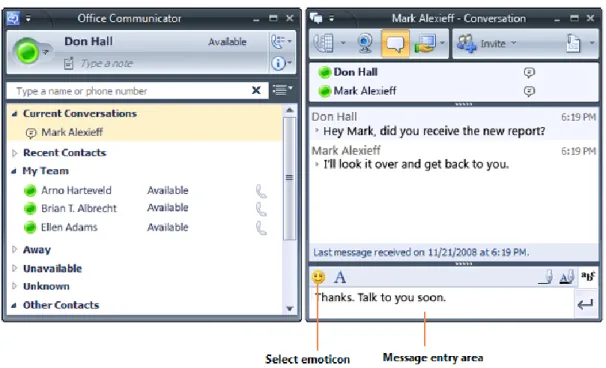
You typically start an instant messaging session by double-clicking a contact name in the Contact List. Double-clicking a contact name opens the Conversation window where you enter your instant message and view responses from others, as shown in Figure 6.1.
Figure 6.1. The Office Communicator window and the Conversation window
To start an instant messaging session with a single contact
Note
Instant messaging is supported only with your organization’s Communicator contacts, public IM contacts, and federated contacts.
In the Contact List, double-click a contact name, type a message, and then press ENTER. If the contact is not in the Contact List, type the person’s name in the Search box, and then double-click the name in the Search Results box.
To start an instant messaging session with a group Do one of the following:
To send an instant message to a distribution group or contact group, right-click a group name, click Send an Instant Message or pressENTER, type a message and then press ENTER. To send an instant message to multiple contacts, hold the CTRL key to select the contacts,
right-click the last contact, and then click Send an Instant Message or pressENTER, type a message and then press ENTER.
Add Emoticons to Instant Messages
Emoticons are graphic images that you can use in your instant messages to convey feelings and emotions, as shown in Figure 6.2.