HP NonStop SSH
Reference Manual
HP Part Number: 544701-007 Published: March 2009 Edition: HP NonStop SSH 3.2a G06.21 and subsequent G-series RVUs H06.03 and subsequent H-series RVUs J06.03 and subsequent J-series RVUs
Hewlett Packard Company 19333 Vallco Parkway
Cupertino, CA 95014 © 2009 HP All rights reserved
© Copyright 2009 Hewlett-Packard Development Company, L.P.
Confidential computer software. Valid license from HP required for possession, use or copying. Consistent with FAR 12.211 and 12.212, Commercial Computer Software, Computer Software Documentation, and Technical Data for Commercial Items are licensed to the U.S. Government under vendor’s standard commercial license.
The information contained herein is subject to change without notice. The only warranties for HP products and services are set forth in the express warranty statements accompanying such products and services. Nothing herein should be construed as constituting an additional warranty. HP shall not be liable for technical or editorial errors or omissions contained herein. Export of the information contained in this publication may require authorization from the U.S. Department of Commerce. Microsoft, Windows, and Windows NT are U.S. registered trademarks of Microsoft Corporation.
Intel, Pentium, and Celeron are trademarks or registered trademarks of Intel Corporation or its subsidiaries in the United States and other countries.
Java is a U.S. trademark of Sun Microsystems, Inc.
Motif, OSF/1, UNIX, X/Open, and the "X" device are registered trademarks, and IT DialTone and The Open Group are trademarks of The Open Group in the U.S. and other countries.
Open Software Foundation, OSF, the OSF logo, OSF/1, OSF/Motif, and Motif are trademarks of the Open Software Foundation, Inc. OSF MAKES NO WARRANTY OF ANY KIND WITH REGARD TO THE OSF MATERIAL PROVIDED HEREIN, INCLUDING, BUT NOT LIMITED TO, THE IMPLIED WARRANTIES OF MERCHANTABILITY AND FITNESS FOR A PARTICULAR PURPOSE. OSF shall not be liable for errors contained herein or for incidental consequential damages in connection with the furnishing, performance, or use of this material.
© 1990, 1991, 1992, 1993 Open Software Foundation, Inc. The OSF documentation and the OSF software to which it relates are derived in part from materials supplied by the following:© 1987, 1988, 1989 Carnegie-Mellon University. © 1989, 1990, 1991 Digital Equipment Corporation. ©
1985, 1988, 1989, 1990 Encore Computer Corporation. © 1988 Free Software Foundation, Inc. © 1987, 1988, 1989, 1990, 1991 Hewlett-Packard Company. © 1985, 1987, 1988, 1989, 1990, 1991, 1992 International Business Machines Corporation. © 1988, 1989 Massachusetts Institute of Technology. © 1988, 1989, 1990 Mentat Inc. © 1988 Microsoft Corporation. © 1987, 1988, 1989, 1990, 1991, 1992 SecureWare, Inc. © 1990, 1991 Siemens Nixdorf Informationssysteme AG. © 1986, 1989, 1996, 1997 Sun Microsystems, Inc. © 1989, 1990, 1991 Transarc Corporation.OSF software and documentation are based in part on the Fourth Berkeley Software Distribution under license from The Regents of the University of California.
OSF acknowledges the following individuals and institutions for their role in its development: Kenneth C.R.C. Arnold, Gregory S. Couch, Conrad C. Huang, Ed James, Symmetric Computer Systems, Robert Elz. © 1980, 1981, 1982, 1983, 1985, 1986, 1987, 1988, 1989 Regents of the University of California.
Contents
Preface 9
Who Should Read This Guide ... 9
Related Reading ... 9
Document History ... 9
Introduction 15
The SSH2 Solution ... 15Fully Compliant with the SSH Protocol Specification ... 15
Strong Authentication and Multiple Cipher Suites ... 15
Support of Full Screen Terminal Access ... 15
Built-in User Base ... 16
Central Key Store ... 16
Secure SFTP Transfer ... 16
TCP and FTP Port Forwarding ... 16
The SSH Protocol ... 16
Components of the SSH2 Software Package ... 17
Architecture Overview ... 18
SSH2 Running as SSH Daemon (Server) ... 18
SSH2 Running as SSH Client ... 18
Installation & Quickstart
21
System Requirements ... 21Acquiring the Product Archives ... 21
Installation on the NonStop Server ... 21
Installing the SSH Components on the NonStop System ... 22
Unlocking the Product with a License File ... 22
Updating to a new version of the SSH2 file set ... 23
Download of the object file set ... 23
Installation of the new version ... 23
Where configuration data is stored ... 23
Quick Start and Guided Tour ... 24
Quick-Starting the SSH2 System ... 24
Secure Shell Access to the NonStop Server ... 26
Secure Shell Access from NonStop to Remote Systems ... 27
Encrypted File Transfer ... 29
Using Public Keys to Authenticate Remote Users ... 31
Using Public Keys to Logon to Remote Systems ... 32
Configuring and Running SSH2
35
Configuration Overview ... 35The Configuration File ... 36
PARAM Commands ... 36
Startup Line Parameters ... 36
Starting SSH2 ... 37
SSH2 Parameter Reference ... 37
Parameter Overview ... 37
ALLOWPASSWORDSTORE ... 40 ALLOWTCPFORWARDING ... 40 AUDITCONSOLE ... 41 AUDITFILE ... 41 AUDITFILERETENTION ... 42 AUDITFORMAT ... 42 AUDITMAXFILELENGTH ... 43 AUTOADDSYSTEMUSERS ... 43 AUTOADDSYSTEMUSERSLIKE ... 44 BACKUPCPU ... 44 BANNER ... 45 CIPHERS ... 45 COMPRESSION ... 46 CONFIG ... 46 CONFIG2 ... 47 DISCONNECTIFUSERUNKNOWN ... 47 GUARDIANATTRIBUTESEPARATOR ... 47 HOSTKEY ... 48 INTERFACE ... 49 KEEPALIVE ... 49 LICENSE ... 49 LOGCONSOLE ... 50 LOGEMS ... 50 LOGFILE ... 51 LOGFILERETENTION ... 51 LOGFORMAT ... 52 LOGFORMATCONSOLE ... 53 LOGFORMATEMS ... 53 LOGFORMATFILE ... 54 LOGLEVEL ... 54 LOGLEVELCONSOLE ... 55 LOGLEVELEMS ... 55 LOGLEVELFILE ... 56 LOGMAXFILELENGTH ... 56 LOGMEMORY ... 57 MACS ... 57 PORT ... 58 PTCPIPFILTERKEY ... 58 PTYSERVER ... 58 RECORDDELIMITER ... 59 RESTRICTIONCHECKFAILEDDEFAULT ... 59 SAFEGUARD-PASSWORD-REQUIRED ... 60 SFTPALLOWGUARDIANCD ... 60 SFTPIDLETIMEOUT ... 61 SFTPMAXEXTENTS ... 61 SFTPPRIMARYEXTENTSIZE ... 62 SFTPSECONDARYEXTENTSIZE ... 62 SSHCTL ... 62 SSHCTLAUDIT ... 63 STRICTHOSTKEYCHECKING ... 64 SSHAUTOKEXBYTES ... 64 SSHAUTOKEXTIME ... 64 SSHKEEPALIVETIME ... 65 SUBNET ... 65 TCPIPHOSTFILE ... 66 TCPIPNODEFILE ... 66 TCPIPRESOLVERNAME ... 66 USETEMPLATESYSTEMUSER ... 67
Enabling Full TTY Access ... 68
Configuring an Alternate Command Interpreter ... 69
Configuring a Service Menu... 69
Configuring an STN Service or Window ... 69
Using TELSERV as Service Provider ... 70
Granting Access without SSH Authentication ... 70
Restricting Incoming and Outgoing Connections ... 71
Rejecting Gateway Ports ... 71
Restricting External Access to SSH2 Process ... 71
Restricting Internal Access to Remote SSH2 Hosts ... 72
Restricting Local Ports used for Port Forwarding ... 72
Restricting Remote Hosts/Ports for Port Forwarding ... 72
Restricting access to forwarding tunnels ... 72
Load Balancing ... 73
Load-Balancing Outbound SSH Sessions ... 73
Load-Balancing Inbound SSH Sessions ... 73
Fault Tolerance ... 74
Configuring SSH2 as a NonStop Process Pair... 74
Configuring SSH2 as a Generic Process ... 74
Choosing a Persistence Mechanism ... 75
Processing of DEFINEs ... 75
Setting of Environment Variables ... 75
The SSH User Database
77
Overview of SSH Operation Modes ... 77Database for Daemon Mode ... 78
Database for Client Mode ... 78
Creating and Accessing the Database ... 79
Exporting the Database ... 79
SSHCOM Command Reference
81
SSHCOM Overview ... 81Standard NonStop Commands and Features ... 82
Startup Values for the MODE and ASSUME USER Commands ... 82
Security within SSHCOM ... 82
Miscellaneous commands in SSHCOM ... 83
MODE ... 83
SET ... 83
INFO SSH2 ... 83
EXPORT SSHCTL ... 85
Daemon Mode Commands ... 85
ADD USER ... 86 ALTER USER ... 90 DELETE USER ... 95 FREEZE USER ... 95 INFO USER ... 95 RENAME USER ... 97 THAW USER ... 97 ADD RESTRICTION-PROFILE ... 97 ALTER RESTRICTON-PROFILE ... 99 DELETE RESTRICTION-PROFILE ... 101 INFO RESTRICTION-PROFILE ... 101 RENAME RESTRICTION-PROFILE ... 101
Client Mode Commands - Introduction ... 101
ASSUME USER ... 102
Client Mode Commands Operating on the KEY Entity ... 103
ALTER KEY ... 103
DELETE KEY ... 103
EXPORT KEY ... 103
GENERATE KEY ... 104
IMPORT KEY ... 105
INFO KEY ... 105
RENAME KEY ... 107
THAW KEY ... 107
Client Mode Commands Operating on the PASSWORD Entity ... 108
ADD PASSWORD ... 108 ALTER PASSWORD ... 108 DELETE PASSWORD ... 108 FREEZE PASSWORD ... 109 INFO PASSWORD ... 109 THAW PASSWORD ... 110
Client Mode Commands Operating on the KNOWNHOST Entity ... 110
ADD KNOWNHOST ... 110 ALTER KNOWNHOST ... 111 DELETE KNOWNHOST ... 111 FREEZE KNOWNHOST ... 112 INFO KNOWNHOST ... 112 THAW KNOWNHOST ... 114
SSH and SFTP Client Reference
115
Introduction ... 115Starting the Guardian Client Programs ... 115
Starting the OSS Client Programs... 116
Configuring the SSH2 Process to Use ... 117
Inquiring User Name If Not Supplied ... 117
SSH Client Command Reference... 117
Command-Line Reference ... 118
Using the SSH client to create a shell controlling a remote system ... 120
Using the SSH client to create a port forwarding daemon ... 121
Using the SSH client to create an FTP port forwarding daemon ... 122
SFTP Client Command Reference ... 124
Command-Line Reference ... 124
SFTP Commands ... 127
Specifying File Names on the NonStop System ... 129
Extended Syntax for Creation of New Guardian Files ... 129
Transferring ASCII files ... 130
SSH Protocol Reference
131
The SSH Protocol ... 131Implementation Overview ... 131
Supported versions ... 131
Cipher Suites ... 131
Implementation of the SSH protocol ... 131
Authentication using User Names and Passwords ... 132
Public Key Authentication ... 132
Introduction to Public Key Authentication, Terminology ... 132
Public Key Authentication and SSH ... 132
Assuring Host Authenticity ... 133
Client logon ... 133
STN Reference
135
Introduction ... 135Running STN as Pseudo TTY Server for SSH2 ... 135
Starting STN from TACL ... 135
Running STN as Persistent Process ... 137
STNCOM ... 137
ABEND ... 138 ABORT SERVICE ... 138 ABORT SESSION ... 138 ABORT WINDOW ... 138 ADD IPRANGE ... 138 ADD SCRIPT ... 139 ADD SERVICE ... 139 ADD WINDOW ... 145 AUDITCOLL ... 146 AUDITMSG ... 147
AUTO_ADD_WIN DYNAMIC | STATIC | OFF ... 147
AUTODEL_WAIT ... 147 BACKUP / BACKUPCPU ... 147 BANNER ... 148 BANNER_TIMEOUT <minutes> ... 148 BLAST <message> ... 149 BREAK_ON_DISCON Y|N ... 149 BUFFER_SIZE ... 149 CHOICE_PROMPT <Y/N> ... 149 COMMENT... 149 DEFAULT SERVICE ... 149 DELETE IPRANGE ... 149
DELETE LISTENER listener-name | * ... 149
DELETE SCRIPT Script-Name | * ... 150
DELETE SERVICE Service-Name | * ... 150
DELETE WINDOW ... 150 DYNAMIC_PRI Command ... 150 EXIT ... 150 FC ... 150 HELP ... 150 IDLE_WARNING <0 to 14400> ... 151 INFO IPRANGE ... 151 INFO PROCESS ... 151 INFO SCRIPT ... 152 INFO SERVICE ... 152 INFO STN ... 152 INFO WINDOW ... 152 INPUT_TIMEOUT <minutes> ... 154 KILL_DYNAMIC Y|N ... 154 LICENSE_MONITOR ... 155 LICENSE_REFRESH ... 155 LISTOPENS ... 155 MAX_OPENERS <n> ... 155 NEGOT_TIMEOUT <seconds>... 155 OBEY ... 155 OPEN ... 156 OUTPUT_RESET <Y | N> ... 156 PAUSE ... 156 POOL ... 156 RECV_SIZE command ... 156
RESET SERVICE <name>|<"*"> ... 157
SECURITY ... 157
SHUTDOWN ... 157
SSH_DEFAULT_SVC <service-name> | *NONE* ... 157
START SERVICE <service-name> | * ... 157
STATUS SERVICE <service-name> | * ... 158
START WINDOW <#window-name> | * ... 158
STATUS WINDOW <#window-name> | * ... 158
STATUS SESSION ... 158
STNLOG ... 160
STOP SERVICE <service-name> | * ... 160
STOP SESSION <#session-name> | * ... 160
STOP WINDOW <#window-name> | * ... 160
TRACE ... 160
VERSION ... 160
WIN_AVAIL_C11 Y | N ... 161
WSINFO <none|query|required|match> ... 161
EMS Events ... 162
Client Messages at the Remote Workstation ... 173
STN Application I/O Handling ... 179
Monitoring and Auditing
181
Introduction ... 181Log Messages ... 182
Content of Log Messages ... 182
Log Level ... 182
Destinations for Log Messages ... 183
Customizing the Log Format ... 183
Audit Messages ... 184
Content of Audit Messages ... 184
Destinations for Audit Messages ... 185
Customizing the Audit Format ... 185
Audit Reports ... 185
Log File/Audit File Rollover ... 185
Viewing File Contents from Guardian with SHOWLOG ... 186
Viewing File Contents from OSS ... 188
Performance Considerations
189
Introduction ... 189Performance Analysis of SSH Session Establishment ... 190
Performance Running as SSH Daemon ... 190
Performance Analysis of SFTP Traffic ... 190
Performance When Running as SSH Client ... 191
Summary ... 191
Troubleshooting 193
Introduction ... 193General SSH2 Error Messages ... 193
Session Related SSH2 Errors ... 194
Session Related Error Messages of SSH2 Daemon ... 194
Session Related Messages of SSH2 in Client Mode ... 199
Client Error Messages ... 201
Appendix 205
Copyright Statements ... 205OpenSSL Copyright Statement ... 206
OpenSSH Copyright Statement ... 207
Preface
Who Should Read This Guide
This document is for system administrators who are responsible for installing, configuring and maintaining SSH2 components, including those delivered with the HP NonStop SSH product (T0801), and those that come with comForte's SecurSH or SecurFTP/SSH product.
Related Reading
This documentation is intended as a reference for the configuration and use of SSH components. Please also refer to additional documentation for the other products that come with the SSH2 package:
• For HP NonStop SSH: T0801 SOFTDOC, README or Support Notes as appropriate • For SecurFTP: SecurFTP Quickstart Guide
Document History
Version 3.2
Describes changes in SSH2 release 0085.
Documentation for the following new features has been added: • New SSH2 parameter RECORDDELIMITER
Version 3.1
Describes changes in SSH2 release 0084.
Documentation for the following new features has been added:
• New environment variable INQUIREUSERNAMEIFNOTSUPPLIED checked by ssh/sftp clients.
• New ADD USER option LIKE.
• New SSH2 parameter DISCONNECTIFUSERUNKNOWN.
Version 3.0
Describes changes in SSH2 release 0083.
Documentation for the following new features has been added: • New database object RESTRICTION-PROFILE.
• New SSHCOM commands for manipulating of RESTRICTION-PROFILE records. • Support for EXPORT of RESTRICTION-PROFILE records.
• New SSH2 parameter RESTRICTIONCHECKFAILEDDEFAULT.
• New USER attributes RESTRICTION-PROFILE, ALLOW-GATEWAY-PORTS, PRIORITY, COMMENT, CPU-SET and SFTP-CPU-SET.
• New attribute WIDTH for SSHCOM command EXPORT SSHCTL.
• New option FORCE for USER attributes CI-PROGRAM and SHELL-PROGRAM. • New SSH2 parameter USETEMPLATESYSTEMUSER.
Version 2.9
Describes changes in SSH2 release 0082.
Documentation for the following new features has been added: • Newly supported scp server functionality.
• Propagation of defines from SSH2 to shell/TACL processes started by SSH2. • New define =SSH2^PROCESS^NAME added to shell/TACL processes started by
SSH2.
• New parameter <service> after *MENU* property of USER attribute SHELL-PROGRAM.
• New USER attribute SHELL-ENVIRONMENT controlling environment for non-login shells.
• New SSH2 parameter GUARDIANATTRIBUTESEPARATOR.
A topic has been added listing the environment variables set by SSH2 when a shell is started.
Version 2.8
Describes changes in SSH2 release 0081.
Documentation for the following new features has been added:
• Documentation for new STN features: PARAM LICENSE, commands ABEND, BANNER_TIMEOUT, INPUT_TIMEOUT, IDLE_WARNING, OUTPUT_RESET, BLAST, BUFFER_SIZE, and ADD SCRIPT, and ADD SERVICE parameters RESILIENT, LIMIT, HOME, USER, LOGON, DEBUGOPT, LOGAUDIT, and SCRIPT.
• New SSHCOM commands SET AUDITFILE
• New parameter <service> after *MENU* property of USER attribute CI-PROGRAM
Version 2.7
Manual has been revised to correctly reflect the way HP NonStop SSH is delivered.
Version 2.6
Describes changes in SSH2 release 0080.
Documentation for the following new features has been added:
• Configuration of an alternate command interpreter or a service menu for USERs working with a 6530 SSH sessions
• Granting access without SSH user authentication
The chapter "SFTP Client Reference" has been renamed to "SSH and SFTP Client Reference", reflecting that the chapter does now also document the SSH client program.
Version 2.5
Describes changes in SSH2 release 0074.
• Added documentation for several new SSH2 parameters: BANNER, SAFEGUARD-PASSWORD-REQUIRED, SSHAUTOKEXBYTES, SSHAUTOKEXTIME and SSHKEEPALIVETIME.
• Changes reflecting support of keyboard-interactive authentication in SSH2 DAEMON run mode.
The documentation now reflects that HP NonStop SSH is is also delivered as an independent product for G-Series.
Version 2.4
The documentation now reflects that SSH2 is also delivered with the HP NonStop H-series release version updates (RVU) for HP Integrity NonStop servers (beginning with H06.11), under the product name HP NonStop SSH.
Version 2.3
Describes changes in SSH2 release 0070.
• Added section "Enabling 6530 Terminal Access" in chapter “Configuring and Running SSH2”.
• Updated Guardian SSH description in section "Secure Shell access from NonStop to Remote Systems" to reflect new capabilities.
Version 2.1
Describes changes in SSH2 releases 0062 and later.
The manual now reflects the additional functionality implemented for the SecurSH product, a complete SSH suite including shell client and server capabilities with full pseudo TTY support, as well as port forwarding. The manual contains the following major changes and additions:
• The "Installation & Quickstart" chapter has been rewritten.
• The "Configuring and Running SSH2" chapter describes additional SSH2 parameters. • Sections for "Enabling PTY Access" and "Load Balancing" have been added. • The "SSHCOM reference" now describes some additional USER attributes. The following additional new features are also described:
• Running SSH2 as a nonstop process pair.
• The new mechanism for rolling over log and audit files.
Version 1.8
The new SFTP-PRIORITY attribute of user entity allows administrators to specify the priority of the SFTPSERV process started by SSH2. This feature enables SSH2 to run at a high priority, while SFTPSERV runs at a priority below other critical application or system processes. This will minimize the impact SFTP transfers have on overall system performance, while ensuring fast response times of SSH2 during SSH session establishment.
The same effect can be achieved with SFTP clients by setting the SFTP [OSS] process priority to an appropriate value.
Version 1.7
The SFTP client now supports passwords as means as authentication. This is reflected in the following changes:
• The new entity "PASSWORD" has been added to the SSH2 user database in client mode. This is documented in the sections "SSH User Database" and "SSHCOM Command Reference".
• The Quickstart section has been updated to reflect an easier way to configure the SFTP client for a new remote host.
Version 1.6
Added description of new parameters, which allow setting of DEFINES per config file to enable configuration as a generic process:
• TCPIPHOSTFILE (sets =TCPIP^HOST^FILE) • TCPIPNODEFILE (sets =TCPIP^NODE^FILE)
• TCPIPRESOLVERNAME (sets =TCPIP^RESOLVER^NAME)
Version 1.5
Added documentation for the PTCPIPFILTERKEY parameter.
Version 1.4
Describes changes in SSH2, release 0040. This release has the following new features: • OSS is no longer required to run the SSH2 process.
• New SSH2 configuration parameters: SFTPPRIMARYEXTENTSIZE,
SFTPSECONDARYEXTENTSIZE, SFTPMAXEXTENTS (see section "SSH2 Parameter Reference" in chapter "Configuring and Running SSH2").
• The "touch" command has been added to SFTP client commands.
• Guardian filename syntax is supported in commands working on NonStop files or subvolumes residing in the Guardian file system (see chapter "SFTP Client Reference", section "Specifying Filenames on the NonStop System").
• The attributes of files created on the NonStop system can be specified using an extended syntax in the get or put commands (see chapter "SFTP client reference", section "Extended syntax for creation of new Guardian files").
Version 1.3
Describes changes in SSH2 release 0038. This release has the following new features: • An SFTP client to run under Guardian is supplied (see chapter "SFTP Client
Reference").
• The new property SFTP-GUARDIAN-FILESET has been added to the USER property of the daemon mode database (see chapter "SSHCOM Reference"). • New commands FREEZE KEY, THAW KEY and EXPORT SSHCTL have been
added to SSHCOM (see chapter "SSHCOM Reference").
Version 1.2a
• Some general improvements in layout have been implemented. • The heading structure has been slightly revised in various places. • Two parameters, ALLOWIP and DENYIP, have been deleted.
Describes changes in SSH2 release 0036. Starting with this release, SecurFTP also supports running as an SFTP client under OSS. Documenting this new capability resulted in changes throughout the manual.
Version 1.1
Describes changes in SSH2 release 0025.
• One user now can have multiple public keys (see SSHCOM) • New SSH2 configuration parameter: COMPRESSION
• USERBASE and USERBASEAUDIT parameters have been renamed to SSHTCL and SSHCTLAUDIT
• INFO USER command in SSHCOM now supports brief and DETAILED version of the command
Version 1.0
Introduction
The SSH2 Solution
SSH2 is a set of programs delivered with the following products:
• HP NonStop SSH. HP NonStop SSH is a comprehensive, enterprise Secure Shell
solution for HP NonStop servers. It is part of the HP NonStop H-and J series release version update (RVU) for HP Integrity NonStop servers, beginning with release H06.11 and J06.03. This product provides SSH server capabilities for MR-Win6530 running on the NonStop system Console (NSC), as well as other HP tools such as HP Systems Insight Manager (SIM). The product is pre-installed on default TCP/IP stacks and on the systems to which the NSC is connected. The default installation can be used with HP tools only. A license can be obtained from HP to unlock the product for general customer use. For G-series prior to G06.32, HP NonStop SSH was available as an independent product. Customers on releases earlier than G06.32 can now obtain NonStop SSH via SCOUT.
HP NonStop SSH is identical to the comForte SecurSH product.
• comForte SecurSH. SecurSH includes a remote shell and SFTP client and a shell
server with full pseudo terminal support. It also offers SFTP, TCP and FTP port forwarding capabilities. The complete functionality is delivered by SSH2 programs.
• comForte SecurFTP. SecurFTP provides secure file transfer for HP NonStop
systems. To protect data confidentiality across the network, it supports FTP session encryption, either via the SSL/TLS protocol (SecurFTP/SSL) or via the SSH/SFTP protocol (SecurFTP/SSH). For SecurFTP, SSH2 delivers the SFTP functionality. The functionality delivered by SSH2 is controlled by the license file, corresponding to the product with which SSH2 is packaged.
Fully Compliant with the SSH Protocol Specification
SSH2 is fully compliant with version 2 of the SSH (Secure Shell) protocol standard as described in various Internet draft documents (see www.ietf.org). It can be integrated with any SSH solution on UNIX, Windows or other platforms.
Strong Authentication and Multiple Cipher Suites
SSH2 supports public key authentication with key sizes of up to 2048 bits. Various ciphers, including AES and 3DES, and MACing algorithms can be selected.
Support of Full Screen Terminal Access
SSH2 supports pseudo terminals on the NonStop platform, allowing SSH clients to execute full screen applications, such as Emacs or vi within Secure Shell.
Built-in User Base
A built-in user base allows administrators to flexibly control who can access a system. Remote users can logon with virtual user names instead of a Guardian UserID, eliminating the potential exposure of system credentials to file transfer clients. Access can be limited to a part of the file system and to a specific set of operations (e.g. only download).
Central Key Store
Instead of storing keys in the file system, SSH2 includes a key and password store with central access control, providing maximum security for user credentials. This enables the easy and secure implementation of batch processes without requiring the use of passwords in batch files.
Secure SFTP Transfer
SSH2 includes an OSS and a Guardian SFTP client, as well as an SFTP server that provides remote SFTP client access to both Guardian and OSS files. All components allow users to navigate the Guardian file system and specify files using the OSS or Guardian file name syntax, regardless of whether OSS is running. Additionally, just as with standard NonStop FTP, attributes for target files can be specified, allowing direct transfers of structured Guardian files.
TCP and FTP Port Forwarding
TCP port forwarding allows secure tunneling of Telnet sessions, as well as other connections. SSH2 also tunnels FTP sessions, securing existing FTP procedures with minimal changes. Both local and remote forwarding are supported.
The SSH Protocol
A suite of secure network connectivity protocols, SSH (Secure Shell) is especially popular in UNIX environments.
SSH2 supports version 2 of the Secure Shell protocol. This version also includes specifications for a file transfer protocol. Although the name implies otherwise, this standard bears no relationship to the popular file transfer protocol known as FTP.
Components of the SSH2 Software Package
The SSH2 software package consists of the following components:• The SSH2 component is the central component of the implementation. Depending on the mode it is started in, it can serve different purposes:
o It implements a server process for the SSH2 protocol. It listens for incoming connections on a specific TCP/IP port (typically port 22), authenticates the user and the service and then spawns other processes it communicates with.
o It is opened by the SSHCOM component to maintain the SSH configuration database.
o It is opened by the SFTP or SSH client components to initiate Shell or SFTP-based file transfers to other platforms running an SSH daemon.
The SSH2 component accesses a user database that contains the following entries for incoming SFTP connections:
o remote user names
o the mapping of remote user names to Guardian system users o user’s public keys
o user’s credentials on the system
o selected status information, such as the last time a user accessed the system • The SSHOSS component implements a Secure Shell client running under OSS to
connect to a remote SSH daemon. It provides Secure Shell sessions as well as TCP and FTP port forwarding capabilities.
• The SSH component implements a Secure Shell client running under Guardian to connect to a remote SSH daemon. It provides Secure Shell sessions as well as TCP and FTP port forwarding capabilities.
• The SFTPSERV component is started by SSH2 for each SFTP client that connects to SSH2 components. The SFTPSERV component then handles the file I/O associated with the file transfers initiated by the SFTP client. Because SFTPSERV is started by the SSH2 component, configuration of SFTPSERV is implicit by the configuration of the SSH2 component.
• The SFTPOSS component implements an SFTP client running under the OSS personality.
• The SFTP component implements an SFTP client running under the Guardian personality.
• The SSHCOM component allows the maintenance of the SSH user database. To do so, it communicates with the SSH2 component.
• The PAUTH component is used by SSH2 for authenticating user passwords against the system user base.
• The STN component is a pseudo TTY server providing full screen shell access to remote SSH clients.
• The SCPOSS component is the scp server implementation. It is started on request of a remote scp client via shell command. The scp client on Guardian/OSS has not been added yet.
Architecture Overview
This section shows how the various components work together in different usage scenarios.
SSH2 Running as SSH Daemon (Server)
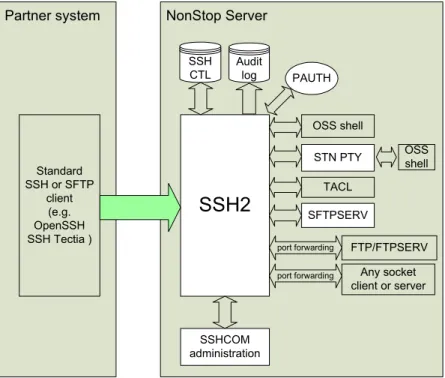
The following figure shows how the components of SSH2 work together to implement SSH server processes (often referred to as a “daemon” in UNIX environments) on the NonStop system. These SSH processes provide shell, file transfer and port forwarding access to remote SSH clients, such as OpenSSH on UNIX:
Partner system NonStop Server
SSH2
Standard SSH or SFTP client (e.g. OpenSSH SSH Tectia ) SFTPSERV TACL OSS shell SSHCOM administration SSH CTL Audit log FTP/FTPSERV Any socket client or server OSS shell STN PTY port forwarding port forwarding PAUTHFigure 1: SSH2 running as SSH daemon
The SSH2 component accepts the incoming TCP/IP session and authenticates the remote user against the user database, optionally verifying user passwords with the PAUTH process. Upon request it …
• spawns an OSS shell, TACL or SFTPSERV process.
• allocates a PTY (a pseudo terminal) by communicating to an STN process acting as a PTY server.
• forwards TCP/IP or FTP connections from the remote SSH client to a local server process or vice versa.
The SSHCOM component is used to maintain the user database, allowing administrators to configure remote user's public keys and control access rights to server functionality and the file system for file transfer.
SSH2 Running as SSH Client
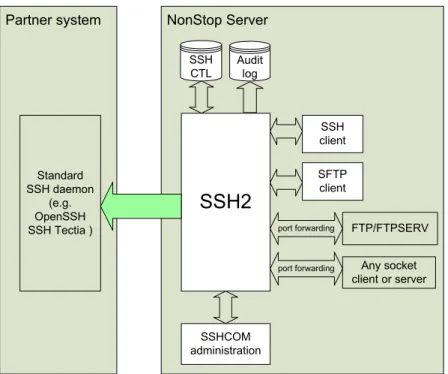
The following figure shows how the components of SSH2 work together to implement an SSH client running on the NonStop platform:
Partner system NonStop Server
SSH2
Standard SSH daemon (e.g. OpenSSH SSH Tectia ) SFTP client SSH client SSHCOM administration SSH CTL Audit log FTP/FTPSERV Any socket client or server port forwarding port forwardingFigure 2: SSH2 running as SSH client
SSH2 can interface with a range of client components, including SSH, SFTP or the equivalent OSS programs, such as SSHOSS or SFTPOSS. With SSH2, a client component opens the SSH2 component and forwards the user commands and the startup configuration.
The SSH2 component connects to the remote system via TCP/IP and does the setup of the SSH session. The client component and the SSH2 component keep exchanging messages via $RECEIVE until the client is terminated by the user.
Additionally, a client can establish port forwarding to forward TCP/IP or FTP connections from local socket programs to the remote SSH server or vice versa.
The SSHCOM component is used to maintain the key store containing the local system user's key pairs, remote passwords and remote SSH host's public keys.
Installation & Quickstart
System Requirements
To run SSH2 components, associated systems must meet the following requirements:
HP NonStop host:
• G-Series: G06.21 or later. • H-Series: H06.07 or later. • J-Series: J06.03 or later
• OSS is not required. If present, OSS is fully supported.
Partner systems:
• An SSH client and/or daemon supporting version 2 of the SSH protocol.
Acquiring the Product Archives
SSH2 is bundled with HP NonStop SSH when delivered with the HP NonStop H-series release version update (RVU, H06.11 and later), J-series RVU (J06.03 and later), or G-series RVU (G06.32 or later). For G-series prior to G06.32, HP NonStop SSH was available as an independent product. Customers on releases earlier than G06.32 can now obtain NonStop SSH via SCOUT. SSH2 also comes with the comForte SecurSH or SecurFTP/SSH product packages. These
products require the SSH2 installation archive (SSHINST.100 or SSHINST.800, depending on the NonStop Server type) to be unpacked on the NonStop server.
Installation on the NonStop Server
Note: For SSH2 as part of HP NonStop SSH, the installation procedures are different and the steps outlined in sections "Installing the SSH Components on the NonStop System" and "Quick-starting the SSH2 System" should be skipped.
HP NonStop SSH will be pre-installed with your H-series RVU, J-series RVU, or G-series RVU (G06.32 or later). This enables SSH connectivity on the default TCP/IP stacks. Please refer to the SOFTDOC and support notes details for information on enabling SSH on additional TCP/IP stacks.
For G-Series prior to G06.32, perform the standard independent product installation procedure and refer to the README file for post-installation instructions.
Both for H-Series and G-Series, the installation subvolume of HP NonStop SSH is
Installing the SSH Components on the NonStop System
After you have downloaded the files to your workstation, transfer the SSH2 installation archive (SSH2INS.100 or SSHINSTI.800, depending on the NonStop Server type) to your NonStop system, alter the file code and run the installation program.
1. Using your favorite file transfer program, transfer the SSH installation archive (SSHINST.100 or SSHINST.800) in binary mode to your NonStop system. Copy the file to the subvolume on which you want to install the components.
2. Alter the installation archive file code. On G-series: FUP ALTER SSHINST, CODE 100
On H- and J-Series
FUP ALTER SSHINST, CODE 800
3. Extract the archive by issuing the following command: RUN SSHINST
The SSH program files will now be copied to the assigned subvolume.
4. For safeguard versions T9750G07^AFO/T9750H04^AFJ and later set the PRIV-LOGON bit for objects SSH2 and SFTPSERV (required if aliases are used), e.g.: 0.
SAFECOM ADD DISKFILE $SYSTEM.ZSSH.SSH2, PRIV-LOGON ON
SAFECOM ADD DISKFILE $SYSTEM.ZSSH.SFTPSERV, PRIV-LOGON ON
Unlocking the Product with a License File
To use SSH components, you need a license file. The license file is tied to your system number. The license file should be called LICENSE (which is the default name if not otherwise specified using the license parameter) and should reside on the same subvolume as the SSH2 component. If you need to put the license file in a different location you must use the PARAMETER LICENSE to specify the location. If there is a problem with the license file, the SSH2 component will issue a message on startup and terminate.
If the license file is valid you will see the expiration date in a log message during startup.
Note: For HP NonStop SSH, SSH2 is delivered with a license restricting the use of the product in conjunction with the MR-Win6530 terminal emulator client running on a NonStop System Console. This license also restricts the use of the product in conjunction with other HP tools, such as HP Systems Insight Manager. To unlock the product for these uses, you will need to replace the default license file with the license file received for the HP NonStop SSH product.
Updating to a new version of the SSH2 file set
The following describes how to upgrade to a new version of SSH2 and its related object files. It assumes that an older version of the product is already running successfully and configured correctly.
Download of the object file set
1. Download from the comForte web site:
As first step please download the PAK archive containing the new files from the comForte web site. This will be a single file with an extension ".100" for S-Series and extension ".800" for H-Series.
2. Transfer file to NonStop system and unPAK in scratch subvolume: 0.
Transfer the file to the NonStop system in binary and FUP ALTER it to the file code 100/800 as indicated by the extension. RUN the file and the new object files will be placed on the scratch subvolume.
Installation of the new version
1. Backup your existing object files. 2. Stop all SSH2 instances.
It is assumed that you have a standard way to STOP all running SSH2 instances. 3. FUP DUP the new object files from the scratch subvolume to your production
subvolume.
4. Restart the SSH2 instances with the new version.
It is assumed that you have a standard way to restart the SSH2 processes. This is the time to check that the new version of SSH2 is running properly in your environment.
5. Backing out the new version. 0.
In case the new version of SSH2 creates unexpected problems, revert to the old object files.
Where configuration data is stored
Other than any macros you have created, there are two data files which you want to keep in order to keep your existing database/configuration entries: HOSTKEY stores the host key SSHCTL stores all users and configuration done through SSHCOM.
Quick Start and Guided Tour
This section offers a brief example illustrating how to start SSH2. In addition, we will provide a guided tour that illustrates how to perform various SSH related tasks with a remote SSH system. As SSH2 is delivered with multiple products, the set of enabled functions (controlled by the license file) may differ. Each section in the product tour will specify which products offer the demonstrated functionality.
We will base this section on some assumptions:
• OpenSSH is installed on the remote system, with sshd listening on port 22. • The IP address of the NonStop system is 10.0.0.199.
• The IP address of the remote system is 10.0.0.201. • The SSH2 server will listen on port 22
Some of the steps illustrated here are only covered briefly; however these steps are covered in detail in subsequent sections of this documentation.
Quick-Starting the SSH2 System
This section illustrates how to quickly start the SSH2 system and provides an overview of the functionality available. For production installation, you will need to consider availability, load balancing and security related issues. Please refer to the "Configuring and Running SSH2" chapter for details.
►
To start the STN Pseudo Terminal Server
To enable remote SSH clients to allocate a pseudo terminal for full screen access, you will need to start an STN process to act as a PTY server for SSH2. You may omit this step if full screen access is not required.
1. At the TACL prompt, issue the following commands: CLEAR ALL PARAM
PARAM BACKUPCPU ANY
RUN STN/NAME $PTY, NOWAIT/
2. Verify if the process started successfully by checking its status and EMS for any error messages. 0.
Note: For productive use of the STN component, it is recommended that you install the EMS template file ZSTNTMPL using standard installation procedures. This will ensure that STN EMS messages will be displayed correctly.
►
To Start the SSH2 Component
Note: The SSH2 process must be started and run under the SUPER.SUPER logon. When started
using a different user ID, the process will issue a warning message and terminate.
1. SSH2 can be started easily. At the TACL prompt, issue the following commands: CLEAR ALL PARAM
RUN SSH2/NAME $SSH01, CPU 1, TERM $ZHOME, OUT $ZHOME/ ALL; & PORT 22; &
AUTOADDSYSTEMUSERS true; & ALLOWTCPFORWARDING true; & STRICTHOSTKEYCHECKING false
Following are details on these instructions:
• "$SSH01" is the process name of the SSH2 process. Setting the process name to "$SSHnn"—with nn being the number of the CPU in which SSH2 is started—
will allow the NonStop SSH and SFTP clients to automatically find the SSH2 process handling the SSH protocol layer for them.
• "$ZHOME" is your virtual home terminal. (Please replace with $VHS or other process name as needed.)
• The keyword "ALL" designates that the SSH2 component will be allowing all supported functionality. (For more information, see chapter "Configuring and Running SSH2” for details on the run modes of the SSH2 process.)
• The parameter "PORT" reflects the port number SSH2 will listen on for incoming SSH connections.
• The parameter "AUTOADDSYSTEMUSERS" controls whether remote users can log on via SSH using a Guardian user ID, without configuring them explicitly via SSHCOM in the SSHCTL.
• The parameter "ALLOWTCPFORWARDING" controls whether port forwarding is generally allowed.
• The parameter "STRICTHOSTKEYCHECKING" controls whether client access to remote systems is limited to hosts with their public key explicitly configured as a KNOWNHOST entity in the SSHCTL. With this parameter set to false, users will be prompted if they want to continue a connection to an unknown host. 2. SSH2 will now start with the parameters specified in the command line. It will output initialization messages to your terminal. Please check these messages for any errors.
0.
Note: Set the DEFINE =TCPIP^PROCESS^NAME or the parameter SUBNET accordingly if you
want to run SSH2 over a TCP/IP process other than $ZTC0.
Upon first startup, SSH2 will create a HOSTKEY for the DAEMON mode, which may take a few seconds, depending on the speed of your system. SSH2 will also create the SSHCTL configuration data base.
Note: If you have installed SSH2 on a non-audited disk volume, SSH2 will fail to open the SSHCTL with error 80 (Invalid operation on audited file or non-audited disk volume). For testing, you may add SSHCTLAUDIT FALSE to the startup parameters to work around this problem. For a production installation, however, it is strongly recommended that you have SSHCTL audited. Use the SSHCTL parameter to specify a filename on an audited disk volume, if required. A normal startup output looks similar to the following screen shot:
$SSH01|09Feb06 08:33:16.14|20|--- ---
$SSH01|09Feb06 08:33:16.14|10|comForte SSH2 version T9999G06_07Feb2006_comForte_SSH2_A01_0060 $SSH01|09Feb06 08:33:16.14|10|config file: '(none)'
$SSH01|09Feb06 08:33:16.14|10|object filename is '\NPS76.$DATA1.MHSSH.SSH2'
$SSH01|09Feb06 08:33:16.14|10|object subvolume is '\NPS76.$DATA1.MHSSH', priority is 148 $SSH01|09Feb06 08:33:16.24|50|license file has standard format
$SSH01|09Feb06 08:33:16.24|10|your system number is <053139> $SSH01|09Feb06 08:33:16.24|50|customer name is 'comForte' $SSH01|09Feb06 08:33:16.24|50|valid system numbers are <53139 >
$SSH01|09Feb06 08:33:16.24|50|license file '\NPS76.$DATA1.MHSSH.LICENSE' is valid, expiration is unlimited $SSH01|09Feb06 08:33:16.24|20|dumping configuration:
[run ] ALLOWTCPFORWARDING <true> [def ] AUDITCONSOLE <*> [def ] AUDITFILE <*> [def ] AUDITFORMAT <21> [def ] AUDITMAXFILELENGTH <5000> [run ] AUTOADDSYSTEMUSERS <true> [def ] BACKUPCPU <NONE>
[def ] CIPHERS <aes256-cbc,twofish256-cbc,twofish-cbc,aes128-cbc,twofish128-cbc,blowfish-cbc,3des-cbc,arcfour,cast128- cbc>
[def ] COMPRESSION <TRUE> [def ] HOSTKEY <HOSTKEY>
[def ] LICENSE <\NPS76.$DATA1.MHSSH.LICENSE> [def ] LOGCONSOLE <%>
[def ] LOGFILE <*> [def ] LOGFORMAT <93> [def ] LOGLEVEL <50> [def ] LOGMAXFILELENGTH <20000>
[def ] MACS <hmac-sha1,hmac-md5,hmac-sha1-96,hmac-md5-96> [def ] PORT <22>
[def ] PTCPIPFILTERKEY <*> [def ] PTYSERVER <$PTY> [def ] SSHCTL <SSHCTL> [def ] SSHCTLAUDIT <TRUE> [run ] STRICTHOSTKEYCHECKING <false> [def ] SUBNET <$ZTC0> [def ] TCPIPHOSTFILE <*> [def ] TCPIPNODEFILE <*> [def ] TCPIPRESOLVERNAME <*>
$SSH01|09Feb06 08:33:16.28|10|SSH config database file SSHCTL does not exist, creating. $SSH01|09Feb06 08:33:16.39|10|SSH config database SSHCTL opened.
$SSH01|09Feb06 08:33:16.40|10|DEFINE =TCPIP^PROCESS^NAME has value '\NPS76.$ZSAM3'
$SSH01|09Feb06 08:33:16.40|10|parameter SUBNET will be ignored and the define value will be used $SSH01|09Feb06 08:33:16.40|20|TCP/IP process is \NPS76.$ZSAM3
$SSH01|09Feb06 08:33:16.40|10|Initializing SSH2 ADMIN run mode. $SSH01|09Feb06 08:33:16.40|10|Initializing SSH2 CLIENT run mode. $SSH01|09Feb06 08:33:16.40|10|Initializing SSH2 DEAMON run mode.
$SSH01|09Feb06 08:33:16.62|10|Private key file HOSTKEY does not exist, creating 1024 bits key. $SSH01|09Feb06 08:33:35.59|30|Host key algorithm: ssh-dss
$SSH01|09Feb06 08:33:35.59|30|Host key MD5 fingerprint: 26:b8:77:fb:2f:22:81:3b:f6:44:4f:19:66:67:9a:be
$SSH01|09Feb06 08:33:35.59|30|Host key Bubble-Babble: xupez-sunok-komel-pufel-movul-kilyd-hacit-savep-tyvuf-mikev-cexix $SSH01|09Feb06 08:33:35.60|10|SSH2 Server listening on interface 0.0.0.0, port 22
Secure Shell Access to the NonStop Server
Note: This functionality might not be available depending on the specific license you purchased.
SSH2 allows remote SSH clients to establish fully functional OSS shell sessions. SSH2 will also support the allocation of pseudo terminals (PTYs), which allow the remote users to execute full screen applications, such as vi or Emacs.
►
To Open an OSS Shell Using a Remote SSH Client
Note: This functionality requires OSS to be installed and running on your system.After the STN and SSH2 processes have started successfully, you can now connect using an SSH client on a remote system. In the SSH command, you have to specify the Guardian userid and the IP address or host name that SSH2 is listening on:
m.horst@np-dev02:~> ssh [email protected]
The authenticity of host '10.0.0.199 (10.0.0.199)' can't be established. DSA key fingerprint is 26:b8:77:fb:2f:22:81:3b:f6:44:4f:19:66:67:9a:be. Are you sure you want to continue connecting (yes/no)? yes
Warning: Permanently added '10.0.0.199' (DSA) to the list of known hosts. [email protected]'s password:
$ ls
a1000 emsacstm secret t10mio trace2 zrand1m auditlog ftps sftpserv taclcstm tracecap zz10mio bashhist fupcstm shhistor test z1000000 zz1mio bench osstest stna48 test101 z1mio zzsa1894 benchcpu osstzip t1000 testbin z1mio2 zzsa7884 benchs2k rand1mio t10000 testbin2 z1mio3 zzz10m benchs3k rs120157 t100000 testbin3 z1mioftp zzz1mio cryptand scfcstm t1000000 testbin4 z50mio
$
Please note that the Guardian userid is specified on the SSH command line.
Note: The very first time you connect, you will have to verify the authenticity of the host by adding the fingerprint of the host's public key to the trust list.
►
To Get a TACL Prompt Using a Remote SSH Client
You can also directly establish a connection to a TACL process, without involving any OSS functionality. Direct TACL access is provided by SSH2 as an SSH2 subsystem. You may connect to the TACL subsystem by specifying starting the remote SSH client with the –s option and "tacl" as subsystem name. Like with an ordinary shell session, you have to specify the Guardian userid and the IP address or host name, where SSH2 is listening on as parameters for the SSH command: m.horst@np-dev02:~> ssh -s [email protected] tacl
[email protected]'s password:
TACL (T9205D46 - 19OCT2004), Operating System G06, Release G06.25.00 (C)1985 Tandem (C)2004 Hewlett-Packard Development Company, L.P. CPU 1, process has no backup
February 10, 2006 13:09:41
(Invoking $SYSTEM.SYSTEM.TACLLOCL) (Invoking $DATA1.MHHOME.TACLCSTM) Current volume is $DATA1.MHHOME 1>
Note: Standard SSH clients will only support line mode interaction. You will not be able to invoke any block mode applications or applications that use advanced 6530 terminal features, unless using a SSH client supporting 6530 terminal sessions over SSH, such as comForte's MR-Win6530.
Secure Shell Access from NonStop to Remote Systems
Note: This functionality will be not be available with the SecurFTP/SSH and SecurTN products.
SSH2 includes two SSH clients, which allow the creation of secure shell sessions with a remote SSH daemon:
• SSHOSS is the OSS version of the SSH client. It provides fully functional terminal access to remote systems and, like SSH2 as a daemon, supports execution of full screen applications such as vi or Emacs, with the NonStop terminal as input and output device. It also allows establishing TCP and FTP port forwarding channels. • SSH is the Guardian version of the SSH client. It allows you to create remote shells
and execute remote commands and it supports port forwarding channels.
Note: SSH and SSHOSS will connect to a remote SSH daemon via a SSH2 process, which handles the SSH protocol layer.
►
To Connect to a Remote SSH Daemon with the NonStop SSH
Client
You can create shell sessions with a remote SSH daemon both with the OSS SSH client (via SSHOSS) and the Guardian SSH client ( via SSH).
From an OSS shell, run the SSHOSS client to create a secure shell session with a remote system as follows:
/home/mh: /G/data1/mhssh/sshoss [email protected]
comForte SSH client version T9999G06_28Dec2007_comForte_SSHOSS_ 0077 WARNING: REMOTE HOST IDENTIFICATION UNKNOWN!
The host public key fingerprint is
babble: xelol-vifez-cefis-gimiv-nepof-zemid-latut-zahoz-hyrun-hipop-hixex MD5: 04:bb:3c:a0:66:d4:bf:e3:60:b8:f3:31:49:d9:86:a6
Continue and add the host to the knownhost store(yes/no)? yes
Trying password authentication. Enter [email protected]'s password:
Add password for [email protected] to the password store (yes/no)? no
Have a lot of fun... m.horst@np-dev:~>
Note: For a production installation you may want to copy the SSHOSS program to an OSS
standard bin directory, renaming it to "ssh". Alternatively, you may also create a symbolic link. At the TACL prompt, run the SSH client to execute a command on a remote system as follows: $DATA1 MHSSH 286> run ssh [email protected] whoami
comForte SSH client version T9999H06_28Dec2007_comForte_SSH_0077 You have no private keys in the key store.
Trying password authentication. Enter [email protected]'s password:
Add password for [email protected] to the password store (yes/no)? no
m.horst
$SYSTEM ZSSH 287>
►
To Establish a Port Forwarding Tunnel with the NonStop SSH
Client
You can create port forwarding channels for both the OSS SSH client (SSHOSS) and the Guardian SSH client (SSH). The following example illustrates how to establish a port forwarding tunnel for telnet sessions over SSH, using the Guardian SSH client:
Run SSH as follows:
$DATA1 MHSSH 5> run ssh -N -L 5021:localhost:23 [email protected]
comForte SSH client version T9999G06_27Jan2006_comForte_SSH_A01_0060 You have no private keys in the key store.
Trying password authentication. Enter [email protected]'s password:
Add password for [email protected] to the password store (yes/no)? no
The –N option suppresses the start of a remote shell. The –L option tells SSH2 to listen on port 5021 and forward any incoming connection to the remote SSH daemon and further to a telnet server on the same host, listening on port 23.
After the SSH session is successfully established, the SSH process will wait until the SSH session is terminated or it is stopped. Thus, if you hit <break>, you can get the TACL prompt back and try to connect a telnet session over the SSH tunnel:
<break>
$DATA1 MHSSH 13> telnet
TELNET Client - T9558G06 - (11JUL03) - (IPMAAE) Copyright Tandem Computers Incorporated 1992-1997 \nps76.$system.sys01.telnet> open 127.0.0.1 5021 Trying...Connected to 127.0.0.1
Escape character is '^]'.
Welcome to SuSE Linux 8.2 (i586) - Kernel 2.4.20-4GB (0).
np-dev login:
Encrypted File Transfer
You can implement encrypted file transfers over SSH in various ways:
• Use the SFTP or SFTPOSS clients to initiate and control SFTP sessions from the NonStop server
• Use an SFTP client on a remote system to initiate and control SFTP sessions to the NonStop server from a remote system.
• Forward FTP connections over an SSH session.
►
To Connect a Remote SFTP Client to the NonStop Server
You can connect with an SFTP client on a remote system to SSH2 listening on the NonStop server as follows:
m.horst@np-dev02:~> sftp [email protected]
Connecting to 10.0.0.199... [email protected]'s password: sftp> dir
a1000 auditlog bashhist bench benchcpu benchs2k benchs3k cryptand emsacstm ftps fupcstm osstest osstzip rand1mio rs120157 scfcstm secret sftpserv shhistor ssh stna48 t1000 t10000 t100000 t1000000 t10mio taclcstm test test101 testbin testbin2 testbin3 testbin4 trace2 tracecap z1000000 z1mio z1mio2 z1mio3 z1mioftp z50mio zrand1m zz10mio zz1mio zzsa1894 zzsa7884 zzshgd zzz10m zzz1mio
sftp>
►
To Connect to a Remote SSH Daemon from the NonStop Server
Using a NonStop SFTP Client
At the TACL prompt, run the SFTP client to create an SFTP session with a remote system as follows:
$DATA1 MHSSH 20> run sftp [email protected]
comForte SFTP client version T9999G06_27Jan2006_comForte_SFTP_A01_0060 Connecting to 10.0.0.201...
You have no private keys in the key store. Trying password authentication.
Enter [email protected]'s password:
Add password for [email protected] to the password store (yes/no)? no sftp> ls -l drwxr-xr-x 0 509 100 824 Jan 19 15:03 . drwxr-xr-x 0 0 0 688 Nov 24 19:57 .. -rw-r--r-- 0 509 100 6340 Jun 19 2003 .Xdefaults drwxr-xr-x 0 509 100 168 Jun 19 2003 Documents -rw-r--r-- 0 509 100 990000 Jan 19 15:00 ktest2 -rwxr-xr-x 0 509 100 1000000 Jan 19 14:58 ktestbig drwxr-xr-x 0 509 100 80 Jun 19 2003 public_html drwxr-xr-x 0 509 100 192 Nov 23 08:13 sshtest sftp>
►
To Create an FTP Port Forwarding Tunnel with a NonStop SSH
Client
You can establish FTP port forwarding channels for both the OSS SSH client (SSHOSS) and the Guardian SSH client (SSH). The following example illustrates this using the Guardian SSH client: Run SSH as follows:
$DATA1 MHSSH 5> run ssh -N -L ftp/5021:localhost:21 [email protected]
comForte SSH client version T9999G06_27Jan2006_comForte_SSH_A01_0060 You have no private keys in the key store.
Trying password authentication. Enter [email protected]'s password:
Add password for [email protected] to the password store (yes/no)? no
The –N option suppresses the start of a remote shell. The -L ftp/5021:localhost:21 option tells SSH2 to listen on port 5021 and forward any incoming FTP connection to the remote SSH daemon and further to an FTP server on the same host, listening on port 21.
After the SSH session is successfully established, the SSH process will quietly wait until the SSH session is terminated or it is stopped. Thus, if you hit <break>, you can get the TACL prompt back and try to connect an FTP session over the SSH tunnel:
<break>
$DATA1 MHSSH 19> ftp
FTP Client - T9552G07 - (29JUL2005) - COPYRIGHT TANDEM COMPUTERS INCORPORATED 20 05
ftp> open 127.0.0.1 5021
Connecting to 127.0.0.1...Established.
220 np-dev.np-comforte.de FTP server (Version 6.5/OpenBSD, Linux port 0.3.3) rea dy.
Name (127.0.0.1:user): m.horst
331 Password required for m.horst. Password:
230- Have a lot of fun... 230 User m.horst logged in. ftp> dir
200 PORT command successful.
150 Opening BINARY mode data connection for '/bin/ls'. total 2062
-rw-r--r-- 1 m.horst users 6340 Jun 19 2003 .Xdefaults drwxr-xr-x 5 m.horst users 168 Jun 19 2003 Documents -rw-r--r-- 1 m.horst users 990000 Jan 19 15:00 ktest2 -rwxr-xr-x 1 m.horst users 1000000 Jan 19 14:58 ktestbig drwxr-xr-x 2 m.horst users 80 Jun 19 2003 public_html drwxr-xr-x 3 m.horst users 192 Nov 23 08:13 sshtest 226 Transfer complete.
1766 bytes received in 0.05 seconds (34.49 Kbytes/s) ftp>
►
To Connect a Remote SCP Client to the NonStop Server
The SCPOSS object must be available in OSS name space under the name scp and must be found via the PATH environment variable. This can be achieved by creating a symbolic link to the installation location, e.g.
ln -s /G/system/zssh/scposs /usr/bin/scp
The environment variable ENV must be set via user attribute SHELL-ENVIRONMENT to ensure the PATH environment variable gets set appropriately. This can be achieved, e.g. by altering the user as follows (/etc/profile is just an example and often not a good choice):
ALTER USER test.us, SHELL-ENVIRONMENT /etc/profile
Ensure that shell scripts executed via ENV do not produce any output on stdout.
After the preparation is done you can connect with an SCP client on a remote system to SSH2 listening on the NonStop server as follows:
test@np-dev02:~/testsftp> rm bigtxt test@np-dev02:~/testsftp> scp [email protected]:bigtxt . [email protected]'s password: bigtxt 100% 640KB 640.0KB/s 00:00 test@np-dev02:~/testsftp> ls bigtxt bigtxt
Using Public Keys to Authenticate Remote Users
This section describes how SSH2 can authenticate remote users using public keys. This involves creating a public key for the user on the remote system, and making the public key known to SSH2 on the NonStop server. After performing the steps described below, you should be able to connect to the NonStop server with your remote SSH or SFTP client using only the public key, without entering the NonStop user's password (you may still be prompted for the private key passphrase, though).
For additional information on public key authentication, please refer to the "Public Key" section in the "SSH Protocol Reference" chapter.
►
To Generate a Key Pair on an OpenSSH System
On the remote system, use the following command of OpenSSH (for details of key generation, please refer to the OpenSSH documentation):
>ssh-keygen -t dsa -C "[email protected]"
Generating public/private dsa key pair.
Enter file in which to save the key (/home/m.horst/.ssh/id_dsa): Enter passphrase (empty for no passphrase):
Enter same passphrase again:
Your identification has been saved in /home/m.horst/.ssh/id_dsa. Your public key has been saved in /home/m.horst/.ssh/id_dsa.pub. The key fingerprint is:
87:34:41:65:e5:df:e3:30:f6:46:22:02:19:24:1e:f2 [email protected]
>
Now the SFTP client will use this key whenever it connects to 10.0.0.199.
►
To Add the Public Key to the NonStop SSH2 User Database
Before a user can connect using public key authentication, the public key needs to be added to the user database. Using the SSHCOM component on the NonStop server, add the public key to the user as shown in the following example (note that the fingerprint was copied from the output of the previous step):
$DATA1 SSH2 12> sshcom $ssh01
SSHCOM^H16^06FEB03 OPEN $ssh01
% ALTER USER comf.mh, publickey key1 fingerprint
87:34:41:65:e5:df:e3:30:f6:46:22:02:19:24:1e:f2, initial-directory /home/mh
OK, user comf.mh altered % exit
exit
$DATA1 SSH2 13>
Note: The ALTER USER command will only work if the user already exists in the SSH2 userbase. This will be the case if you followed the other quick tour steps. You may also create a new user with the SSHCOM ADD USER command.
After this step you can now retry the step "To connect to a remote SSH daemon with the NonStop SSH client ". You will not be prompted for the NonStop user's password. Instead, SSH2 will authenticate the user with the public key configured for the remote user.
Using Public Keys to Logon to Remote Systems
This section explains the steps required to use public keys to authenticate to the remote system with a NonStop SSH or SFTP client. This involves generating a key pair for the NonStop user and configuring the public key on the remote system.
For additional information on public key authentication, please refer to the "Public Key" section in the "SSH Protocol Reference" chapter.
Note: The commands illustrated in the following steps will implicitly depend on the user issuing the commands. It is assumed all commands executed under the same user ID.
►
To Generate a Key Pair for a NonStop User
First, we will generate the key pair and store the private key in the SSH2 user database using SSHCOM from a TACL prompt:
$DATA1 SSH2 7> run sshcom $ssh01
SSHCOM^H16^20DEC04 OPEN $ssh01
% mode client
mode client
OK, switched to client mode
% generate key test1, type rsa, comment "Thomas key"
generate key comf.tb:test1, type rsa, comment "Thomas key" OK, key comf.tb:test1 successfully generated
%
Now the key has been generated and stored in the database. The next step will export that key and configure it on the remote system.
►
To Export the Public Key and Configure it on the Remote
System
The following command within SSHCOM will export the public part of the key just generated and write it into a file:
$DATA1 SSH2 7> run sshcom $ssh01
SSHCOM^H16^20DEC04 OPEN $ssh01
% export key comf.tb:test1, file $data1.tbtmp.tbkey, format openssh
export key comf.tb:test1, file $data1.tbtmp.tbkey, format openssh OK, key comf.tb:test1 exported
%
Note: If you are executing SSHCOM as SUPER.SUPER, you will need to switch to CLIENT mode before exporting the key. Please issue following command before the EXPORT KEY command:
MODE CLIENT
The file $data1.tbtmp.tbkey now needs to be transferred to the remote system in BINARY mode. Note that the file contains only the public key and therefore contains no sensitive information. The public key exported to the tbkey file can now be transferred to the remote system. The next step will configure the public key for the remote user.
►
To Configure the Public Key on the Remote System
The OpenSSH implementation keeps a directory called ".ssh" for each user. A file named
"authorized keys" is located in the .ssh directory that contains the public key of each trusted key of a remote system. In order to add the public key contained in the file created in the prior step, the UNIX command "cat" can be used to add the content to the existing content in the file. The following commands are again executed on the remote system, this time using "normal user" logon credentials.
burgt@np-dev:~> pwd
/home/burgt
burgt@np-dev:~> cd .ssh
burgt@np-dev:~/.ssh> more pubkey
ssh-rsa
AAAAB3NzaC1yc2EAAAABEQAAAIEAkdR/ncHRVEJteOC1EMSkMgrrXpdcc6Lkejp7mcFKYNa0tMqP4eknTy FXUX2jm1K7AKDh1Je52aqNJTBAIPIM
Bt+HboBKwjuZtb2+f1HG4LEA71NymoVcuABVyr1DvWPtpNzCNjaD0qdkR9yMlDZH/DCD/OqdneLJQ8B3RX bKl1U= TB's RSA key
burgt@np-dev:~/.ssh> cat pubkey >> authorized_keys
burgt@np-dev:~/.ssh>
In the commands above
• The user's home directory is /home/burgt .
• The public key was transferred to the remote system under the location /home/burgt/.ssh/pubkey .
• The final command adds pubkey to authorized_keys. Please note the double '>>'; if you use only one '>', you will overwrite authorized_keys with the content of pubkey. After this step you can now retry the step "To connect with a remote SSH client". You will not be prompted for the remote user's password. Instead, SSH2 will use the key pair configured for your NonStop user ID.
Configuring and Running SSH2
Configuration Overview
Administrators can specify configuration parameters of SSH2 processes through each of the following means:
• A configuration file • PARAM commands
• Startup command line parameters
These different options enable system administrators to easily manage installations with multiple SSH2 processes, including those running on multiple TCP/IP processes and ports as well as in different modes. For example, several SSH2 secure proxy processes that have identical SSH configurations can share the same configuration file, which streamlines administration. On the other hand, process-unique parameters, such as the port to listen on, can be specified on the command line.
On startup, SSH2 parses the sources of configuration parameter. A single parameter may be specified in multiple sources, e.g. in the configuration file and on the startup command line. In this case, SSH2 will process parameters with the following precedence (highest to lowest):
1. PARAM parameter
2. Configuration file parameter 3. Startup line parameter 0.
This means that a parameter given in the configuration file will override the value given for the same parameter on the startup line. Likewise, a parameter value given as a PARAM command will override any value specified in the configuration file.
All SSH2 parameters can be specified in any of the configuration parameter sources, except in the following instances:
• The run mode of an SSH2 process is specified explicitly on the command line as the first startup line parameter. This parameter defines the general functionality the SSH2 process will provide. (See the "Starting SSH2" section for details.)
• The configuration file to be used as a parameter source can only be specified as a PARAM or startup line parameter, not in a configuration file.
It is important to note that parameter names are case sensitive, regardless of the manner in which way they are specified.
The Configuration File
Configuration files can be modified with a standard NonStop editor, such as TEDIT. The name of the file that a SSH2 process should use as the configuration source is passed to the program during startup. (See the "Starting SSH2" section for details.)
The file contains entries in the following form:
parameter-name parameter-value
Like in the standard TCP/IP configuration files, any lines starting with a "#" character are interpreted as comments. Following is a sample configuration file for running SSH2 as a server that provides SFTP functionality:
# sample configuration file for a SSH2 server
#--- # general settings
# TCP/IP process the server runs on SUBNET $ZTC1
# port where SSH2 listens for incoming SSH connections # we use the well-known SSH port
PORT 22
# file name of host key file HOSTKEY hostkey
# file name of user database file SSHCTL SSHCTL
#--- # log configuration
# set the level LOGLEVEL 50
# enable console logging to $0 LOGCONSOLE $0
# additionally log to file LOGFILE $data1.ssh2.ssh2log
PARAM Commands
The following PARAM command can be used to set SSH2 configuration parameters: PARAM <parameter name> <parameter value>
All available SSH2 parameters can be specified using PARAM commands.
The following example demonstrates how to use a PARAM command to start an SSH2 server listening on $ZTC03, port 22:
> PARAM PORT 22 > PARAM SUBNET $ZTC03
> RUN SSH2/ NAME $SSH02 / SERVER
Startup Line Parameters
SSH2 configuration parameters can be passed on the startup line as follows:
<parameter name> <parameter value>; <parameter name> <parameter value>; ...
The following example demonstrates how to start multiple SSH2 instances that share the same SSHCONF configuration file listening on different subnets within the same port:
> PARAM CONFIG SSHCONF
> RUN SSH2 /NAME $SSH00, CPU 0, NOWAIT/ SERVER; SUBNET $ZTC0; PORT 22 > RUN SSH2 /NAME $SSH01, CPU 1, NOWAIT/ SERVER; SUBNET $ZTC1; PORT 22 > RUN SSH2 /NAME $SSH02, CPU 2, NOWAIT/ SERVER; SUBNET $ZTC2; PORT 22 > RUN SSH2 /NAME $SSH03, CPU 3, NOWAIT/ SERVER; SUBNET $ZTC3; PORT 22