PLAN SPONSOR
ADMINISTRATIVE
MANUAL
Version 1.2
05202013
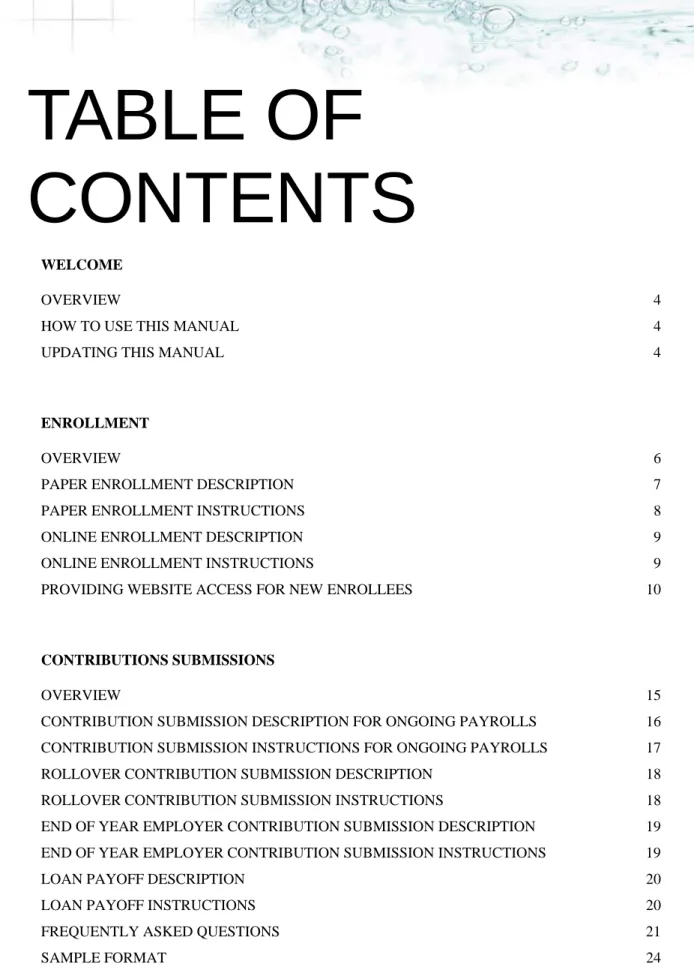
TABLE OF
CONTENTS
WELCOME
OVERVIEW 4
HOW TO USE THIS MANUAL 4 UPDATING THIS MANUAL 4
ENROLLMENT
OVERVIEW 6
PAPER ENROLLMENT DESCRIPTION 7
PAPER ENROLLMENT INSTRUCTIONS 8
ONLINE ENROLLMENT DESCRIPTION 9
ONLINE ENROLLMENT INSTRUCTIONS 9 PROVIDING WEBSITE ACCESS FOR NEW ENROLLEES 10
CONTRIBUTIONS SUBMISSIONS
OVERVIEW 15
CONTRIBUTION SUBMISSION DESCRIPTION FOR ONGOING PAYROLLS 16
CONTRIBUTION SUBMISSION INSTRUCTIONS FOR ONGOING PAYROLLS 17
ROLLOVER CONTRIBUTION SUBMISSION DESCRIPTION 18
ROLLOVER CONTRIBUTION SUBMISSION INSTRUCTIONS 18
END OF YEAR EMPLOYER CONTRIBUTION SUBMISSION DESCRIPTION 19
END OF YEAR EMPLOYER CONTRIBUTION SUBMISSION INSTRUCTIONS 19
LOAN PAYOFF DESCRIPTION 20
LOAN PAYOFF INSTRUCTIONS 20 FREQUENTLY ASKED QUESTIONS 21
1 | P a g e
DISTRIBUTION UPON SEPARATION FROM SERVICE
OVERVIEW 28
TERMINATION DISTRIBUTION DESCRIPTION 29
TERMINATION DISTRIBUTION INSTRUCTIONS 30
RETIREMENT DISTRIBUTION DESCRIPTION 31 RETIREMENT DISTRIBUTION INSTRUCTIONS 31
DISABILITY DISTRIBUTION DESCRIPTION 32
DISABILITY DISTRIBUTION INSTRUCTIONS 32
DEATH DISTRIBUTION DESCRIPTION 33
DEATH DISTRIBUTION INSTRUCTIONS 33
ONLINE DISTRIBUTIONS DESCRIPTION 34
ONLINE DISTRIBUTION INSTRUCTIONS 34
OUTSTANDING LOAN ISSUES UPON SEPARATION FROM SERVICE 35 REPORTING DISTRIBUTIONS ON FORM 1099-R 35
FREQUENTLY ASKED QUESTIONS 36
IN-SERVICE DISTRIBUTION AND LOANS
OVERVIEW 39
PAPER PARTICIPANT LOAN DESCRIPTION 40
PAPER PARTICIPANT LOAN INSTRUCTIONS 41
ONLINE LOAN DESCRIPTION 42
ONLINE LOAN INSTRUCTIONS 43
HARDSHIP DISTRIBUTION DESCRIPTION 44
HARDSHIP DISTRIBUTION INSTRUCTIONS 45
PRE-RETIREMENT DISTRIBUTION DESCRIPTION 46 PRE-RETIREMENT DISTRIBUTION INSTRUCTIONS 46
MINIMUM DISTRIBUTION AT AGE 70½ DESCRIPTION 47
MINIMUM DISTRIBUTION AT AGE 70½ INSTRUCTIONS 47
QUALIFIED DOMESTIC RELATIONS ORDER & JOINDER DESCRIPTION 48
QUALIFIED DOMESTIC RELATIONS ORDER & JOINDER INSTRUCTIONS 48
REPORTING IN-SERVICE DISTRIBUTIONS ON FORM 1099R 49
2 | P a g e
QUARTERLY REPORTS
OVERVIEW 54
PARTICIPANT STATEMENT DESCRIPTION 55
SAMPLE PARTICIPANT STATEMENT 55
FREQUENTLY ASKED QUESTIONS 59
PARTICIPANT ACCOUNT ACCESS
OVERVIEW 61
WWW.VERISIGHTGROUP.COM WEBSITE DESCRIPTION 62
WWW.VERISIGHTGROUP.COM ACCESS INSTRUCTIONS – FIRST TIME USERS 62
WWW.VERISIGHTGROUP.COM ACCESS INSTRUCTIONS – SUBSEQUENT USERS 63
INTERACTIVE VOICE RESPONSE SYSTEM DESCRIPTION 64
INTERACTIVE VOICE RESPONSE SYSTEM INSTRUCTIONS 64 FREQUENTLY ASKED QUESTIONS 65
PLAN SPONSOR WEB TOOLS
OVERVIEW 67
ACCESSING PLAN SPONSOR WEB TOOLS 68
PLAN SPONSOR WEB FEATURES 69
ONLINE ENROLLMENT REPORTS 70
WELCOME
OVERVIEW 4
HOW TO USE THIS MANUAL 4
4 | P a g e
OVERVIEW
Verisight is an independent national service provider of bundled retirement plan services. With over 25 years of experience providing comprehensive retirement plan services, we work exclusively for our clients rather than sell investments. Our bundled product provides clients with a truly open-architecture investment solution for their plans. Our core values are based upon investment independence, expertise and outstanding service. It is our pleasure to welcome you as a client and we look forward to a long lasting working relationship.
This manual is intended to help our clients understand various operational components of plan administration using the Verisight recordkeeping system. This manual is not intended, however, to replace your personal contact with your designated Relationship Manager. Please feel free to e-mail or call this person if you have questions or need assistance. Please take a few moments to review the sections included in this manual. We believe that you will find that the manual is an excellent reference tool for obtaining important information about your retirement plan operations.
HOW TO USE THIS MANUAL
We have organized this manual into several sections that relate to a variety of distinct operational functions. Each section is then broken down into several subsections. The subsections include some or all of the following:
Overview Description
Step-by-Step Instructions Frequently Asked Questions
When you have a question about a specific topic, refer to the Table of Contents to find the general subject matter in question. More specific information about the subject matter will be found in the subsections.
If you need an administrative form of any kind (i.e. Rollover Acceptance Form, Distribution Package, Loan Application, etc.), you may download this information from a plan specific, secure location at our website at www.verisightgroup.com. More detailed instructions on obtaining these forms may be found in each section of the manual.
UPDATING THIS MANUAL
Verisight may update this manual from time to time. So that you can easily obtain the most up-to-date information, we will post a copy of the manual on our website at www.verisightgroup.com and notify you when significant changes have been made. Please feel free to provide us feedback for future enhancements to the manual.
ENROLLMENT
OVERVIEW 6
PAPER ENROLLMENT DESCRIPTION 7 PAPER ENROLLMENT INSTRUCTIONS 8
ONLINE ENROLLMENT DESCRIPTION 9
ONLINE ENROLLMENT INSTRUCTIONS 9
PROVIDING WEBSITE ACCESS FOR NEW ENROLLEES 10 FREQUENTLY ASKED QUESTIONS 11
6 | P a g e
OVERVIEW
After an employee has met the eligibility and entry date requirements as provided in your plan document, the employee may enroll in the plan.
There are two ways in which an employee can enroll in the plan: Paper Enrollment or Online (paperless) Enrollment. Paper Enrollment involves the completion of several hard copy forms. Online Enrollment is a quick and easy way for employees in your company to enroll in your plan using the Internet. Reports are made available on our website for you to retrieve deferral election changes that were made online. The Online Enrollment option is available to any plan provided the Plan Sponsor has properly established Online Enrollment protocol with Verisight.
This section provides detailed instructions on the steps to take for each type of enrollment (paper and online) and how to provide website access for new employees who use Online Enrollment.
7 | P a g e
PAPER ENROLLMENT DESCRIPTION
If you need the paper forms necessary to enroll an employee, please contact your Relationship Manager to arrange for the delivery of enrollment kits. You may choose to receive hard copy enrollment kits or a link to an electronic version of the same kit. If you wish to receive hard copy enrollment kits, please keep in mind that you should allow for at least 13 business days for delivery. Both hard copy and electronic enrollment kits will include the following information:
Retirement savings & asset allocation information – Educational materials are provided to employees about the benefits of participating in the plan, how much they might want to contribute, and sample asset allocation modeling.
Plan Detail/Plan Highlight Sheet – This information outlines the general specifications of your plan. Payroll Authorization Form – This form allows a participant to select the dollar or percentage (if
applicable in the plan) of his or her contributions.
Beneficiary Form – This form allows a participant to select primary and secondary beneficiaries. A participant should complete the Beneficiary Form and return it to your Human Resources Department. Verisight does not need a copy of this form but you should file the original in the employee’s personnel file. Please note: if a participant is married at the time of death, the spouse will automatically receive the death benefit unless another beneficiary has been selected and the spouse consents to that choice on the Beneficiary Form. A Notary Public or Plan Representative must witness the spouse’s signature ensuring the waiver is properly executed.
Fund Information Sheets – An information sheet for each mutual fund offered in the plan will be included in each enrollment kit.
Participant Disclosure Document (PDD) – Annual Summary of expenses associated with investing in the Plan.
Information on Accessing Plan Accounts – The Anytime Access Sheet provides account access information for participants to utilize either the online features at www.verisightgroup.com or the toll-free phone feature.
8 | P a g e
PAPER ENROLLMENT INSTRUCTIONS
STEP 1: Include all new employees’ census data on your contribution file submission to Verisight.
STEP 2: Distribute an enrollment kit or provide the link to the enrollment educational information to the eligible employee.
STEP 3: Instruct the employee to complete the Payroll Authorization Form** and the Beneficiary Form**. These forms are found in the enrollment kit or the electronic link. If you need additional copies of any of these forms, or if you prefer to have an electronic version of either form, please follow the steps below:
A. Go to www.verisightgroup.com and login as Plan Sponsor by selecting the role of “Plan Sponsor”. If you do not know whether you are set up with Plan Sponsor access to www.verisightgroup.com, please contact your Relationship Manager.
B. Click on Plan Information, then Notices, Forms, and Plan Information.
C. Choose the requested form (Payroll Authorization Form or Beneficiary Form) from the list of forms. D. You can either Print or Save the form to your desktop.
**To ensure that you have the most current form, please be sure to download a new form each time.
Note: Participants login as Participant on www.verisightgroup.com and may obtain the form following the same process (B through D) above.
STEP 4: It is recommended that participants enter their own investment elections either online at
www.verisightgroup.com or through the automated 24 hour Voice Response System at 888-401-5629. Other options include contacting a call center representative at 888-401-5629 or to have the paper form input by the plan sponsor.
STEP 5: After Payroll Authorization and Beneficiary Form(s) are completed by the participant, please instruct the employee to return these forms to you so that you may review the forms for accuracy and completeness.
STEP 6: Photocopy the forms and distribute copies as indicated:
Payroll Authorization Form:
Original to Human Resources for personnel file of employee Copy 1 to Payroll Department
Copy 2 to Employee for his or her personal records
Beneficiary Form:
Original to Human Resources for personnel file of employee Copy 1 to Employee
9 | P a g e
ONLINE ENROLLMENT DESCRIPTION
Online Enrollment is a quick and easy way for employees in your company to enroll in your plan using the Internet. During the Online Enrollment process, the employee will be asked to verify personal information, fill in specific elections pertaining to the amount of his or her deferral, the investment elections of these contributions into the funds offered in your plan, and the designation of his or her beneficiary. This enrollment process takes about 10 minutes. The designated Plan Administrator on your staff will be able to access this information using the Plan Sponsor Web function (please see section entitled Plan Sponsor Web Tools). It will be very important for your company to establish in-house procedures for obtaining, utilizing and storing this enrollment information on a periodic basis to ensure that all employees are properly enrolled in the plan. Please feel free to call your Relationship Manager if you have any
questions about Online Enrollment or if you need any help with these procedures.
It is important to remember that an employee can complete the enrollment steps outlined prior to reaching their eligibility/plan entry date. During this time the employee will not have access to the full website.
ONLINE ENROLLMENT INSTRUCTIONS
STEP 1: Include all new employees’ census data on your contribution file submission to Verisight.
STEP 2: Distribute an enrollment kit or provide the link to the enrollment educational information to the eligible employee. Website access information to enroll in the plan will be included in this kit or link, provided your plan has requested this service.
STEP 3: Employee should be instructed to go to www.verisightgroup.com. To login, the employee inputs his or her social security number as the User Name and his or her date of birth (MMDDYYYY) as the default
Password.
STEP 4: Employee should complete the Enrollment Steps to verify personal information, assign a beneficiary, complete his/her retirement goals, establish an amount of his or her salary to contribute into the plan, and make initial investment elections into specific options offered in the plan.
STEP 5: After the employee has approved all information, his or her information will be stored on the Verisight system and made available to the Plan Administrator for eligibility determination and payroll coordination.
STEP 6: The designated Plan Administrator on your staff should retrieve the enrollment information from the
www.verisightgroup.com website so that the contribution amounts can be coordinated with your payroll department or payroll provider. This should occur prior to preparing each payroll cycle to ensure that all eligible participants are enrolled properly.
Your designated Administrator may view a list of current enrollments when they login as Plan Sponsor on
www.verisightgroup.com. Please refer to the Plan Sponsor Web Tools section for complete instructions on how to use this feature.
10 | P a g e
PROVIDING WEBSITE ACCESS FOR NEW
ENROLLEES
Certain personal information is required to be input to our system before a participant can have access to the website. There are two ways to populate our system with the employee’s personal information: through contribution file submission or using the Add New Participant feature on www.verisightgroup.com. You may need to add an employee to www.verisightgroup.com before they are included on a contribution submission if your plan allows for immediate eligibility. See the steps below on how to establish the employee on our website and allow them to login as a first time user.
STEP 1: Go to www.verisightgroup.com and login as Plan Sponsor by selecting the role of “Plan Sponsor”. If you do not know whether you are set up with Plan Sponsor access to www.verisightgroup.com, please contact your Relationship Manager.
STEP 2: Click the Home button then Plan Administration.
STEP 3: Click Participants on the horizontal tool bar then the Add New Participant button found just below the tool bar.
STEP 4: If adding only a few participants, click Manual in the drop down box. If adding a list of participants, you may upload a file with the pertinent data by clicking on Import.
STEP 5: Input all required data for the new employee including the Social Security Number, Name, date of birth, date of hire, current address, and loan payment frequency (payroll frequency). Click Add Participant.
STEP 6: Receive message that “Success. You have added a participant!” Click “Done”.
STEP 7: Employee should be instructed to go to www.verisightgroup.com and login using his or her social security number as the initial User Name and his or her date of birth (MMDDYYYY) as the default Password.
A note about participant status:
For most plans, our recordkeeping system is set to determine the eligibility of your participants using the plan’s eligibility requirements. A new employee would begin with a participant status of “Not Eligible”, after meeting the eligibility requirements status would change to “Eligible” and after his/her first contribution would become “Active.” For plans with immediate eligibility, a new participant’s status should be marked as “Eligible”.
11 | P a g e
FREQUENTLY ASKED QUESTIONS
Question 1: What forms must a participant complete in order to enroll in the plan (paper enrollment)? The participant will need to complete two forms: the Payroll Authorization Form and the Beneficiary Form. Both of these forms are available in the enrollment kit (or link) and at the www.verisightgroup.com website. Please refer to the subsection entitled Paper Enrollment Instructions for step-by-step instructions on obtaining these forms.
Question 2: How does a participant make investment elections (paper enrollment)?
A participant makes investment election decisions online by visiting www.verisightgroup.com or by calling the toll-free automated telephone system at 888-401-5629.
Question 3: What if a participant fails to make investment elections online or by phone? How will contributions be allocated?
If a participant fails to make investment elections online or by phone, contributions allocated to his or her account will be deposited into the plan’s default investment fund. Your plan’s default investment fund may be found on the Plan Detail/Plan Highlight Sheet which is included in the enrollment kit or link. See Question 19 for additional information related to investment into the plan’s default fund.
Question 4: What do I do if I run out of enrollment kits?
If you run out of enrollment kits, please contact your Relationship Manager to arrange for the delivery of additional kits or ask about obtaining a link to an electronic version of our enrollment kits. Please keep in mind that it can take up to 13 business days for delivery of hard copy enrollment kits.
Question 5: What is the electronic link for enrollment?
The electronic link provides enrollment/education information to your employees in an electronic format. All of the same information otherwise found in a hard copy enrollment/education kit is included in this link. You may email this link to all eligible employees or post the link to your intranet so that participants can receive necessary enrollment information about your plan. One of the benefits of the electronic link is that fund fact sheets for each publicly traded fund in your investment menu will be automatically updated each quarter with new performance data. Please contact your Relationship Manager if you are interested in obtaining this electronic link for future enrollments into your plan.
Question 6: How does a participant change the amount they defer into the 401(k)/403(b) plan?
A participant changes the amount that he or she contributes into the plan using the internal procedures your company has developed or, if your plan has Online Enrollment, via www.verisightgroup.com. The frequency that participants are allowed to change this amount will depend on your plan document. A participant can request the change online at any time but the employer should not implement the election outside of the plan defined frequency.
Question 7: What happens when forms are updated? How do I know that I have received the current version of the Payroll Authorization Form, Beneficiary Form, or Plan Detail/Plan Highlight Sheet?
If there are any changes to your plan, all forms will be updated and available on the
www.verisightgroup.com website as they become effective. To ensure that you have the most current form, please be sure to download a new form each time a form is needed.
Question 8: Can a participant defer from a non-regularly scheduled payroll cycle (i.e. commission or bonus payroll cycle)?
Provided your plan document allows for deferrals from such compensation (for example, some plans exclude bonus pay), a participant may be allowed to make a deferral from this non-regularly scheduled compensation. At the time your plan was set up with Verisight, a specific election was made as to whether participants could
12 | P a g e defer from non-regular payroll cycles (i.e. bonuses). Please contact your Relationship Manager to determine
which election was made, if necessary.
Question 9: Is there a minimum salary deferral amount that a participant must elect on the Payroll Authorization Form?
Your plan document may require a minimum salary deferral amount. Please refer to the Plan Document or contact your Relationship Manager to determine if your plan has this requirement.
Question 10: Is there a maximum salary deferral amount that a participant is able to elect on the Payroll Authorization Form?
The Internal Revenue Service imposes a maximum dollar amount on deferrals each year. This maximum is included in your plan’s Plan Detail/Plan Highlight Sheet which can be found on the
www.verisightgroup.com website under Plan Information (Notices, Forms, and Plan Information). The maximum a participant can defer is based on a calendar year period per individual. Any employee who has deferred into another employer’s 401(k)/403(b) plan must adjust the amount he or she contributes into your plan by the amount he or she has already contributed during the current calendar year.
Your plan document may place a limit on the maximum salary deferral amount. Please refer to the Plan Document or contact your Relationship Manager to determine if your plan has this requirement. Question 11: Who is a “beneficiary” to the plan?
A beneficiary to the plan is a person designated by the participant to receive a benefit under the plan upon the death of the participant.
Question 12: Can a participant designate a non-spouse primary beneficiary if he or she is married? A participant may designate a non-spouse beneficiary if he or she is married provided his or her spouse signs the Spousal Consent of the BeneficiaryForm and the spouse’s signature is witnessed by a notary public or Plan Representative.
Question 13: What if a participant was single at the time of initial enrollment?
As long as the participant was married at the time of death, the participant’s spouse will be the automatic beneficiary under the plan and will receive the death benefit.
Question 14: What if a participant does not complete a BeneficiaryForm? Will this hold up the enrollment process of the participant if no beneficiary information is received?
If no BeneficiaryForm is received from the participant, the enrollment into the plan will not be delayed. Every effort should be made to encourage participants to designate a beneficiary by completing the Beneficiary Form or by making the designation online at www.verisightgroup.com. If no Beneficiary Form is completed or input online, the death benefit will generally be paid in the following order: to the participant’s surviving spouse, the participant’s children, the participant’s surviving parents, or the participant’s estate.
Question 15: Does Verisight need a copy of the Beneficiary and/or Payroll Authorization Form(s)?
Verisight does not need a copy of the Beneficiary and/or Payroll Authorization Form(s). The original forms should be kept in each participant’s personnel file with a copy to the participant for his or her personal records. If a participant completes beneficiary information online as well as a paper Beneficiary Form and both are properly executed, the plan can rely on the most current information.
Question 16: How do I implement Online Enrollment for my plan participants?
If you are interested in implementing Online Enrollment for your employees, please contact your Relationship Manager. He or she will make arrangements to have this service added to your agreement with Verisight at no extra cost to you.
13 | P a g e
Question 17: How does a participant enrolling in the plan online establish their own User Name and password? Part of the Online Enrollment process is establishing a User Name and password. After a participant has
completed the Online Enrollment process, in future visits he or she will login to www.verisightgroup.com using the User Name and password they have chosen during the enrollment process.
Question 18: How do participants account for catch-up contributions when enrolling online? In plans that allow for catch-up contributions, participants who are age 50 or older can choose to make contributions in excess of the annual dollar limit imposed on elective deferrals. The “extra” salary deferral contributions are not considered “catch-up” until after the annual limit or a plan imposed limit has been reached. When enrolling online, catch-up eligible participants should indicate the total amount of salary deferral contributions, including catch-up contributions, to be deducted from participant’s pay. Our recordkeeping software will automatically characterize any “extra” salary deferral contributions as catch-up.
Question 19: How can I identify if an employee has failed to make affirmative investment elections and, as a result, had funds invested in the plan’s default investment?
The Defaulted Participant Report will identify all participants that had contributions defaulted into the plan’s default investment. This report is available on the plan sponsor website. Please refer to the Plan Sponsor Web Tools section for complete instructions on how to use this report.
Question 20: If a participant failed to make investment elections and subsequently had funds deposited into the default investment, how does the participant move his or her money into designated investments?
A participant can transfer between accounts using the change investments link on the Participant website or by using the toll-free automated telephone system at 888-401-5629.
14 | P a g e
CONTRIBUTION
SUBMISSIONS
OVERVIEW 15
CONTRIBUTION SUBMISSION DESCRIPTION FOR ONGOING PAYROLLS 16
CONTRIBUTION SUBMISSION INSTRUCTIONS FOR ONGOING PAYROLLS 17 ROLLOVER CONTRIBUTION SUBMISSION DESCRIPTION 18
ROLLOVER CONTRIBUTION SUBMISSION INSTRUCTIONS 18
END OF YEAR EMPLOYER CONTRIBUTION SUBMISSION DESCRIPTION 19
END OF YEAR EMPLOYER CONTRIBUTION SUBMISSION INSTRUCTIONS 19
LOAN PAYOFF DESCRIPTION 20
LOAN PAYOFF INSTRUCTIONS 20
FREQUENTLY ASKED QUESTIONS 21
15 | P a g e
OVERVIEW
Generally, there are four types of contribution submissions in most retirement plans:
Contribution submissions of on-going salary deferral, matching contributions (if applicable) and loan repayments
Rollover contribution submissions of direct rollovers coming from other retirement plans or Individual Retirement Accounts (IRAs)
End of the year employer contribution submissions such as profit sharing or safe harbor contributions, and Loan payoff submissions of participant loan payments in full
Each of these submissions to the plan has similar but unique processes associated with it. This section outlines each contribution submission type and provides detailed instructions to ensure proper processing.
16 | P a g e
CONTRIBUTION SUBMISSION DESCRIPTION
FOR ONGOING PAYROLLS
Whether you process your payroll in-house or have a payroll service provider, we want to make payroll contribution submissions as simple as possible. Payroll contribution submissions will be the most frequent transactions processed in your retirement plan. How often these contributions are submitted will depend upon the frequency of your pay periods (monthly, semi-monthly, bi-weekly or weekly).
The Department of Labor (DOL) has stated that the contributions for audited plans (those with 100 or more participants) should be made as soon as administratively possible. The DOL typically interprets “as soon as
administratively possible” to mean as soon as the contributions can reasonably be separated from the general assets of the employer. Generally, this separation should occur at the same time as other payroll withholding (i.e. payroll taxes or social security withholding). Therefore, we strongly recommend depositing your payroll contribution as soon as possible at the end of each payroll period. For plans that are not audited (those with less than 100 participants), there is a safe harbor rule where employee contributions must be made to the plan by no later than the seventh business day following the time the employee could have otherwise received cash.
An adjustment made to contributions that result in a negative entry for any participant should not be included on the contribution file. These “negative contributions” require special processing. Please refer to Frequently Asked Question #5 later in this section for proper processing of these “negative contributions.”
17 | P a g e
CONTRIBUTION SUBMISSION INSTRUCTIONS
FOR ONGOING PAYROLLS
STEP 1: Prepare the contribution file in the required file format (see Exhibit A).
STEP 2: Login as Plan Sponsor at www.verisightgroup.com . Click on Home, Plan Administration then Payroll. Click Add New Payroll.
STEP 3: Click Import using the drop down box then Select Import File by browsing for the payroll file on your computer. Click Use Existing Format. Using your sample Payroll File Format that you provided to Verisight, a prepared format will be available for you to select. Click Continue.
STEP 4: Verify the participants ready for loading. Click Continue to Payroll.
STEP 5: View/Edit a Payroll - Select your payroll date (the system will default to today’s date) then select the payment type (ACH, Check, Wire or N/A). Make any necessary edits to the contribution information shown. Once done, click Continue.
STEP 6: Fund your Payroll – Indicate if you will be using forfeiture dollars to fund any part of your employer contributions. Click Continue. This section should be completed only if your plan document allows for forfeitures to fund employer contributions. Please contact your Relationship Manager if you are unsure of how forfeitures are to be used in your plan.
STEP 7: Verify and Submit your Changes – Add an email address for notification (this is a required field) and add any comments in the section provided. Click Submit. “Success. The payroll batch ###### has been submitted” will appear at the top of the screen.
STEP 8: After Verisight has received the contribution file and you receive a payroll batch # from the website, your payroll will be in “Held” status. Status changes to “Confirmed” once Verisight places trades and allocates the money to participant’s accounts. Participants may view contributions posted to their accounts within 2 business days of the deposit when they login to www.verisightgroup.com.
18 | P a g e
ROLLOVER CONTRIBUTION SUBMISSION
DESCRIPTION
Rollovers can come from a variety of sources including other qualified plans, Individual Retirement Accounts (IRAs), 403(b) plans, or other retirement plans. Please refer to your plan document or check with your Relationship Manager to determine if your plan allows for rollovers and which types of rollovers are accepted into your plan.
ROLLOVER CONTRIBUTION SUBMISSION
INSTRUCTIONS
STEP 1: Forward the form entitled Rollover Acceptance Form to the participant. Plan Sponsor instructions to obtain a Rollover Acceptance Form**:
A. Go to www.verisightgroup.com and login as Plan Sponsor by selecting the role of “Plan Sponsor”. If you do not know whether you are set up with Plan Sponsor access to www.verisightgroup.com, please contact your Relationship Manager.
B. Click on Plan Information, then Notices, Forms, & Plan Information.
C. Choose the requested form (Rollover Acceptance Form) from the list of forms. D. You can either Print or Save the form to your desktop.
**To ensure that you have the most current form, please be sure to download a new form each time. Note: Participants login as Participant on www.verisightgroup.com and may obtain the form following the same process (B through D) above.
STEP 2: The participant should be instructed to complete the form and return it along with the rollover check to your office. The rollover check must be made payable using instructions found on the Rollover Acceptance Form.
STEP 3: Upon receipt of the form and the check from the participant, review the form for completeness, and sign and date the bottom of the Rollover Acceptance Form as the Accepting Employer.
STEP 4: Instructions on where to forward the Rollover Acceptance Form and the rollover check are found on the form.
STEP 5: The rollover check will be deposited and proceeds posted to the participant’s account within seven (7) business days after the check is received.
19 | P a g e
END OF YEAR EMPLOYER CONTRIBUTION
SUBMISSION DESCRIPTION
Your plan may provide for profit sharing, top-heavy minimums, Qualified Non-Elective Contributions (QNEC) or safe harbor contributions to participant accounts. These contributions are generally deposited after the end of the plan year. Your Relationship Manager will work with you to determine the correct amount and allocation of these types of contributions.
End of plan year employer contributions will need to be remitted to Verisight by secure upload and not by following the same steps that you used to remit your ongoing payroll contribution files. Your Relationship Manager will provide you with instructions on how to upload the contribution file for these year-end employer contributions to a secure website.
END OF YEAR EMPLOYER CONTRIBUTION
SUBMISSION INSTRUCTIONS
STEP 1: Contact your Relationship Manager to upload the contribution file to a Verisight secure website.
STEP 2: After Verisight has received the contribution file, your Relationship Manager will provide you with a confirmation email that the contributions are in process. If your plan is set up with ACH Authorization and Verisight will be initiating the debit, please ensure that the funds are available for this transfer.
STEP 3: Provided you are not otherwise set up with ACH authorization, you may initiate the wire/deposit of your contributions to the plan custodian upon receipt of this confirmation email from your Relationship Manager.
STEP 4: Verisight will place trades and allocate the money to participants’ accounts.
20 | P a g e
LOAN PAYOFF DESCRIPTION
Participants with outstanding loan balances may wish to pay off their entire loan early. There is no prepayment penalty associated with this loan payoff. Loan payoffs may be made to the plan in the form of a personal check from the participant. The Plan Sponsor may calculate and freeze the outstanding loan balance through the website. Note that the loan payoff amount shown on the website does not include loan repayments that have not been traded or are in transit (pending). Please contact your Relationship Manager if you need help in calculating and/or freezing the loan payoff amount. Participants that call Customer Service to obtain loan payoff amounts will be instructed to contact their employer so that the employer may freeze the loan and stop future loan repayments.
LOAN PAYOFF INSTRUCTIONS
STEP 1: Plan Sponsor may calculate the outstanding loan balance through the website. 1. Confirm there are no loan payments in transit (pending).
2. Select loan(s) to freeze 3. Enter payoff date
a. Calculator will not account for payments in transit (pending)
b. Once ALL pending payments have settled, please enter CURRENT date 4. Calculate payoff amount and, if desired, freeze loan
5. Send loan payoff amount within specified freeze period
STEP 2: Communicate the loan payoff amount to the participant so that a check can be written immediately. The check should be made payable to: Verisight Trust FBO 'plan name' FBO 'participant's name'. Have the participant submit the check to you as soon as possible. If the loan payoff is not processed in two weeks, a new payoff amount will need to be recalculated.
STEP 3: After the payoff check has been received, contact your Payroll Department or payroll provider to stop any future loan repayment deductions for this participant.
STEP 4: Submit the loan payoff proceeds based on the instructions provided by your Relationship Manager.
STEP 5: Upon receipt of the loan payoff, Verisight will place trades and allocate the money to the participant’s account. The participant can expect to see this transaction posted within seven (7) business days after receipt of the check.
21 | P a g e
FREQUENTLY ASKED QUESTIONS
Payroll Processing:
Question 1: Does the Contribution Information file need to include all the information listed on the File Format instruction sheet (Exhibit A)?
Generally, yes. There may be some fields that are not applicable to your plan but generally, Verisight will need all fields included to process contributions. A representative of Verisight will provide you with the applicable fields that apply to your plan when your plan is set up on the recordkeeping system.
Question 2: Can I fax you the contribution file?
The contribution file must be provided to us electronically. Please refer to the section entitled Contribution Submission Instructions for step-by-step instructions.
Question 3: Why do I have to provide dates on each contribution file?
There are several reasons why Verisight requires you to provide dates (birth dates, hire dates, rehire dates, and termination dates). Participant’s dates of birth are used as an initial identifier for new users to our website. If we are not provided the correct date of birth, a participant will not be able to login at
www.verisightgroup.com. As part of our compliance service to your plan, we verify employee eligibility. We require dates of birth and dates of hire on each contribution file because these dates will help us determine if a new employee listed is in fact eligible to participate in the plan. Dates of birth are important for plans that utilize a target date fund as the plan’s default investment. In many cases, participants default into the target date fund that most closely corresponds to their normal retirement age. Dates of termination are needed in order to determine eligibility for distributions.
Question 4: Can the contributions be made in a form other than a wire transfer?
The preferred method for submitting contributions is through ACH debit transfer. ACH debit transfer is an easy and reliable way to remit contributions. Generally, ACH transfer is less expensive than a wire transfer. If this is not already set up for your plan, please contact your Relationship Manager to obtain the appropriate paperwork to authorize ACH debit transfers from your bank account.
Question 5: What if my contribution file includes adjustments to an individual participant’s contribution that results in a negative contribution? Are these contributions processed differently?
“Negative contributions” cannot be included in a contribution file and must be processed on an individual basis outside of normal payroll processing. Download a “Negative Contribution Request Form” from the Plan Information tab (Notices, Forms, and Plan Information) at www.verisightgroup.com to request for the return of funds for a specified pay period. Verisight will review the request and process the appropriate trades to complete the return of contribution. Any negative contributions listed on your contribution file will result in the rejection of your file upload when using the website.
Question 6: When do salary reduction contributions need to be made?
The Department of Labor (DOL) has stated that for small plans, the current safe harbor rule is for employee contributions to be deposited into the trusts within seven (7) business days of the check date. For larger plans (those with 100 or more participants), the rule is for payroll contributions to be deposited as soon as administratively feasible and may be viewed as late if the deposit is made after a consistent pattern of other payroll deposit timing. For example, if you consistently deposit your payroll contributions within three business days of a check date but deviate from this pattern one or more times during the year, the Department of Labor could construe those contributions made to your plan after the three business days as late.
22 | P a g e It is important that the information provided to us in the contribution file is accurate. If it is determined that
some information is incorrect, Verisight will work with you to correct the error. You will need to contact your Relationship Manager to provide them with: the reason the contribution was incorrect, the date of the incorrect contribution(s), and the amount of the incorrect contribution(s).
Question 8: What happens to contributions for plan participants who have not made an investment election? If a participant is listed on your contribution file and this participant has not made investment elections, these contributions will be allocated into the default fund under your plan. If a participant’s contributions have been invested into the plan’s default fund, the participant should be encouraged to enter his or her investment elections online if they do not want to remain invested in the plan’s default fund. Contributions for the following pay cycle will be allocated to the investments selected. The participant may also initiate a transfer of any default contributions once these have been processed.
Rollovers:
Question 9: Does an employee need to provide the plan with any documentation relating to the type of plan and the qualified status of his or her former employer’s plan in order to facilitate a direct rollover into our plan?
Your plan may not accept all sources of rollover contributions (401(a) plans, 403(b) plans, 457(b) government plans, IRAs). The Rollover Acceptance Form includes a section that indicates the source of the rollover. If the employee signs this section, he or she is representing that the transferor plan is a certain type of plan and that he or she believes that this rollover contribution is eligible for acceptance into your plan. This representation will be sufficient to allow a direct rollover into your plan.
Question 10: Does an employee have to be eligible to participate in the plan before he or she is allowed to roll over his or her other retirement accounts into our plan?
You will need to check your plan document or contact your Relationship Manager to determine if an employee must meet the eligibility requirements prior to being allowed to roll over his or her other retirement accounts into your plan.
Question 11: Will a rollover check that is made payable to the plan be accepted for deposit into the participant’s account?
Instructions for how the rollover check should be made payable are found on the Rollover Acceptance Form. If the rollover check is not made payable using these instructions, generally an officer of the Employer can endorse the back of the check to the Plan’s custodian.
Question 12: Can Verisight initiate a rollover distribution on behalf of a participant? No, the participant must request the rollover distribution from his or her prior plan or IRA.
Loan Processing:
Question 13: Can the participant obtain loan payoff amounts on the www.verisightgroup.com website? The account information on the website does not include any loan payments in transit. To ensure that correct loan payoff amounts are provided to the participant, please contact your Relationship Manager or have the participant call Customer Service's toll-free phone number at 888-401-5629.
Question 14: How should the loan payoff check be made payable?
Loan payoff checks should be made payable to the same entity that is listed on the Rollover Acceptance Form
(Verisight Trust FBO 'plan name' FBO 'participant's name'). Please refer to the section entitled Rollover Contribution Submission Instructions on how to obtain this form from the www.verisightgroup.com website.
23 | P a g e
Question 15: If my plan allows for only one outstanding loan, how soon after paying off his or her first loan can a participant take a new loan?
A participant who has paid off an original loan will have to wait until the check has cleared his or her bank and the funds are made available in the investments prior to taking out another loan. The participant can view the posting of these funds when they login to the www.verisightgroup.com website.
24 | P a g e
SAMPLE FORMAT
Contribution Information
Fixed Length Sequential File Format (Exhibit A)
Contribution and census information must be provided to Verisight electronically using our payroll upload feature on the website. Employee data needs to be provided with one line of data per employee and should not contain any blank rows or formulas. This format should remain the same for all future contribution submissions. All applicable data must be provided for each employee employed at any time during the plan year.
Required Information
Census and contribution information must be updated and reported to Verisight to process the contribution allocations and to keep records accurate and current. The contribution file must have the following fields (as applicable) and should be updated with each contribution submission. A record layout must be provided to Verisight before the first contribution submission with a list of the field titles, starting positions, and field lengths.
Header Record Data Description Field Length Acceptable Formats
SSNUM Social Security Number 11 555-55-5555 or 555555555 LASTNAME Employee Name 25 Alpha
FIRSTNAME Employee Name 15 Alpha
MIDDLENAME Employee Name 15 Alpha
GENDER Male (M), Female(F) or Other 1 Alpha MARITALSTATUS Marital Status 1 Alpha PPNSTATUS Participant Status 1 Alpha
BIRTHDATE Date of Birth 10 mm/dd/yyyy 01/01/2000 01012000 HIREDATE Original Date of Hire 10 mm/dd/yyyy 01/01/2000 01012000 TERMDATE Most Recent Date of Termination 10
mm/dd/yyyy
01/01/2000 01012000 REHIREDATE Most Recent Rehire Date 10
mm/dd/yyyy
01/01/2000 01012000 HOURS Hours of Service for current period 4 Numeric – No Commas, 2 decimal
places
PLANCOMP Plan Compensation as defined by the
Plan Document 14
Numeric – Dollars or Cents, No Commas or $, 2 decimal places 1000.00
GROSSCOMP Current Period Gross Compensation 14
Numeric - Dollars or Cents, No Commas or $, 2 decimal places 1000.00
EXCLDCOMP
Current Period Compensation Excluded From Plan – Separately Report Each Type of Excluded Compensation
14
Numeric - Dollars or Cents, No Commas or $, 2 decimal places 1000.00
25 | P a g e
SEVERANCE Current Period Compensation due to
Severance (if applicable) 14
Numeric - Dollars or Cents, No Commas or $, 2 decimal places 1000.00
CONT401K
Current Period Salary Reduction
Contributions 14
Numeric - Dollars or Cents, No Commas or $, 2 decimal places 1000.00
CONTMATCH
Current Period Employer Matching
Contributions (if applicable) 14
Numeric - Dollars or Cents, No Commas or $, 2 decimal places 1000.00
CONTROTH Current Period Salary Reduction Roth Contributions (if applicable) 14
Numeric - Dollars or Cents, No Commas or $, 2 decimal places 1000.00
SAFEHARBOR Current Period Employer Safe
Harbor Contributions (if applicable) 14
Numeric - Dollars or Cents, No Commas or $, 2 decimal places 1000.00
AFFILIATE TAX CODE Tax code for purposes of setting up
divisions 9 Numeric ADDRESS1 Participant’s Mailing Address line 1 35 Alpha ADDRESS2 Participant’s Mailing Address line 2 35 Text CITY Participant’s Mailing Address City 35 Text STATE Participant’s Mailing Address State 2 Text
ZIP Participant’s Mailing Address Zip
code 9
Text (must have a lead-in zero) 5 digits
YTDPLANCOMP Year-to-Date Plan Compensation 14
Numeric - Dollars or Cents, No Commas or $, 2 decimal places 1000.00
YTDGROSSCOMP Year-to-Date Gross Compensation 14
Numeric - Dollars or Cents, No Commas or $, 2 decimal places 1000.00
YTDEXCLDCOMP Year-to-Date Excluded
Compensation (if applicable) 14
Numeric - Dollars or Cents, No Commas or $, 2 decimal places 1000.00
YTDSEVERANCE Year-to-Date Severance
Compensation (if applicable) 14
Numeric - Dollars or Cents, No Commas or $, 2 decimal places 1000.00
YTDHOURS Year-to-Date Hours Worked 4 Numeric – No Commas, 2 decimal places
LOAN NUMBER Loan number as assigned by
Verisight 2 Numeric
LOANPAY Current Period Loan Payment (if
applicable) 14
Numeric - Dollars or Cents, No Commas or $, 2 decimal places 1000.00
DISTRIBUTIONS
UPON
SEPARATION
FROM SERVICE
OVERVIEW 28
TERMINATION DISTRIBUTION DESCRIPTION 29
TERMINATION DISTRIBUTION INSTRUCTIONS 30
RETIREMENT DISTRIBUTION DESCRIPTION 31
RETIREMENT DISTRIBUTION INSTRUCTIONS 31
DISABILITY DISTRIBUTION DESCRIPTION 32
DISABILITY DISTRIBUTION INSTRUCTIONS 32
DEATH DISTRIBUTION DESCRIPTION 33
DEATH DISTRIBUTION INSTRUCTIONS 33
ONLINE DISTRIBUTIONS DESCRIPTION 34
ONLINE DISTRIBUTION INSTRUCTIONS 34
OUTSTANDING LOAN ISSUES UPON SEPARATION FROM SERVICE 35
REPORTING DISTRIBUTIONS ON FORM 1099-R 35
28 | P a g e
OVERVIEW
Generally, a participant can take a distribution of his or her account balance in the plan if the participant leaves the employer due to:
Termination of employment, Normal retirement,
Early retirement (if allowed in your plan), Disability
Death
In this section, you will find step-by-step instructions on the preparation and completion of distribution paperwork for an employee with an account balance in the plan that separates from service due to normal or early retirement, disability or death. You’ll also find instructions in this section on our paperless option “Online Distributions” to process distributions due to separation from service. If this is an option that you might be interested in setting up for your plan, please contact your Relationship Manager for more details.
A participant qualifies for normal or early retirement (if applicable under the terms of your plan) if the conditions of age and/or service are met as outlined in your Plan Document. In the event a participant qualifies for a retirement distribution, please refer to the Retirement Distribution subsection for step-by-step instructions on the preparation and completion of retirement distribution paperwork.
You should refer to the plan document for the definition of “total and permanent disability” before concluding that a participant qualifies for a disability distribution under the plan. If a participant is considered to be disabled as defined in the plan document, please refer to the Disability Distribution subsection for step-by-step instructions on disability distribution procedures.
Finally, if a participant passes away, the beneficiary will have to be confirmed by either reviewing the Beneficiary Form stored in the employee’s personnel file or by looking up the beneficiary on the www.verisightgroup.com website. The participant would have completed the beneficiary information when first enrolling in the plan or if the participant updated the beneficiary. Please refer to the Death Distributions subsection for step-by-step instructions on death distribution procedures.
29 | P a g e
TERMINATION DISTRIBUTION DESCRIPTION
A participant is eligible to receive a distribution due to termination of employment. If you are unclear about whether a participant is terminated, please check with your Relationship Manager. For example, an extended leave of absence does not constitute a termination of service. Therefore, a distribution under the plan would not be warranted in the event of a leave of absence.
Each participant will need to complete distribution paperwork prior to the release of his or her account balance from the plan. Many of our clients establish an “Exit Package” that includes plan distribution paperwork along with other important information. This “Exit Package” would be provided to the terminated employee at the time he or she leaves your employment. By including the distribution paperwork in this package, you are assured the terminated participant has received the necessary paperwork in a timely manner.
Participants and Plan Sponsors can obtain distribution paperwork from the www.verisightgroup.com website. Reports are posted on the website for Plan Sponsors to view as distributions are processed and participants may visit www.verisightgroup.com to see that the liquidation of their account has occurred.
Depending on your plan document’s provisions, but in general, a participant may choose to keep his or her account balance in the plan provided the vested account balance is at least $5,000. If a participant has a vested balance of at least $1,000 but no more than $5,000, with proper notification, the Plan Administrator may choose to initiate an Automatic Rollover to an Individual Retirement Account (IRA) on behalf of the participant without the participant’s consent. Please contact your Relationship Manager for more information about your plan’s Automatic Rollover options. If your policy is to “force” a cash distribution from the plan for those terminated participants with less than a $1,000 vested balance, please contact your Relationship Manager to determine the necessary steps to take. Please refer to Frequently Asked Question #4 in this section for more information on forced distributions.
30 | P a g e
TERMINATION DISTRIBUTION INSTRUCTIONS
STEP 1: Participants and Plan Sponsors can download the distribution paperwork from
www.verisightgroup.com.
Plan Sponsor instructions to obtain distribution paperwork**:
A. Go to www.verisightgroup.com and login as Plan Sponsor by selecting the role of “Plan Sponsor”. If you do not know whether you are set up with Plan Sponsor access to www.verisightgroup.com, please contact your Relationship Manager.
B. Click on Plan Information, then Notices, Forms, and Plan Information. C. Choose the requested form (Distribution) from the list of forms. D. You can either Print or Save the form to your desktop.
**To ensure that you have the most current application, please be sure to download a new form each time. Note: Most plans also have elected to allow participants to download this form on www.verisightgroup.com. Provided this was your plan set up, the participant may obtain the form following the same process (B through D) above.
STEP 2: The participant should be instructed to check the “Severance of Employment” box as the Reason for Payment on the distribution application. Once this form is completed, the participant should return it to either their employer or Verisight. Our contact information is below:
Verisight, Inc.
Attn: Distribution Department 35 Iron Point Circle, Suite 100 Folsom, CA 95630
(888) 401-5629
Fax number: (816) 701-7501 [email protected]
STEP 3: After Verisight receives a distribution request, we will liquidate the participant’s account. The standard processing time is ten (10) business days after Verisight receives completed distribution paperwork.
31 | P a g e
RETIREMENT DISTRIBUTION DESCRIPTION
A participant will be eligible to receive a retirement distribution provided he or she meets the conditions of retirement as specified in your plan document. In addition, your plan may also include a provision for early retirement. Please refer to the plan document or your Summary Plan Description online to confirm the conditions a participant must meet before he or she can take a retirement distribution and whether or not your plan allows for early retirement.
RETIREMENT DISTRIBUTION INSTRUCTIONS
STEP 1: Participants and Plan Sponsors can download the distribution paperwork from
www.verisightgroup.com.
Plan Sponsor instructions to obtain distribution paperwork**:
A. Go to www.verisightgroup.com and login as Plan Sponsor by selecting the role of “Plan Sponsor”. If you do not know whether you are set up with Plan Sponsor access to www.verisightgroup.com, please contact your Relationship Manager.
B. Click on Plan Information, then Notices, Forms, and Plan Information. C. Choose the requested form (Distribution) from the list of forms. D. You can either Print or Save the form to your desktop.
**To ensure that you have the most current application, please be sure to download a new form each time. Note: Most plans also have elected to allow participants to download this form on www.verisightgroup.com. Provided this was your plan set up, the participant may obtain the form following the same process (B through D) above.
STEP 2: The participant should be instructed to check the “Retirement” box as the Reason for Payment on the distribution application. Once this form is completed, the participant should return it to either their employer or Verisight. Our contact information is below:
Verisight, Inc.
Attn: Distribution Department 35 Iron Point Circle, Suite 100 Folsom, CA 95630
(888) 401-5629
Fax number: (816) 701-7501 [email protected]
STEP 3: After Verisight receives a distribution request, we will liquidate the participant’s account. The standard processing time is ten (10) business days after Verisight receives completed distribution paperwork.
32 | P a g e
DISABILITY DISTRIBUTION DESCRIPTION
Disability under the plan is defined as “total and permanent” wherein the employee is not expected to recover from his or her illness or injury. Please refer to your plan document or contact your Relationship Manager for more
information on the determination of a participant’s disability status.
Periodically, a participant may become disabled for a short period of time (i.e. maternity leave or other leave of absence). Generally, these short-term periods of disability do not qualify a participant to receive a disability distribution under the terms of the plan.
DISABILITY DISTRIBUTION INSTRUCTIONS
STEP 1: Participants and Plan Sponsors can download the distribution paperwork from
www.verisightgroup.com.
Plan Sponsor instructions to obtain distribution paperwork**:
A. Go to www.verisightgroup.com and login as Plan Sponsor by selecting the role of “Plan Sponsor”. If you do not know whether you are set up with Plan Sponsor access to www.verisightgroup.com, please contact your Relationship Manager.
B. Click on Plan Information, then Notices, Forms, and Plan Information. C. Choose the requested form (Distribution) from the list of forms. D. You can either Print or Save the form to your desktop.
**To ensure that you have the most current application, please be sure to download a new form each time. Note: Most plans also have elected to allow participants to download this form on www.verisightgroup.com. Provided this was your plan set up, the participant may obtain the form following the same process (B through D) above.
STEP 2: The participant should be instructed to check the “Other” box as the Reason for Payment on the distribution application and indicate “Disability” in the explanation. Once this form is completed, the participant should return it to either their employer or Verisight. Our contact information is below:
Verisight, Inc.
Attn: Distribution Department 35 Iron Point Circle, Suite 100 Folsom, CA 95630
(888) 401-5629
Fax number: (816) 701-7501
STEP 3: After Verisight receives a distribution request, we will liquidate the participant’s account. The standard processing time is ten (10) business days after Verisight receives completed distribution paperwork.
33 | P a g e
DEATH DISTRIBUTION DESCRIPTION
The death of an employee can be a difficult time for your company. We appreciate that distributions due to death will require additional guidance. Please contact your Relationship Manager to thoroughly discuss these types of distributions before you proceed. Death distributions require gathering additional information including determination of the beneficiary(ies) and a Death Certificate.
DEATH DISTRIBUTION INSTRUCTIONS
STEP 1: Obtain the name of the primary beneficiary(ies). This can be determined from either the Beneficiary Form located in the personnel file of the deceased employee or if the participant designated their beneficiary online, you may view the named beneficiary when logged in as Plan Sponsor on www.verisightgroup.com and entering in the social security number for the participant in the Participants section.
STEP 2: Forward the Distribution Death Benefit package along with a letter of instruction to the primary beneficiary(ies) of the deceased employee.
Plan Sponsor instructions to obtain a Distribution Death Benefit package**:
A. Go to www.verisightgroup.com and login as Plan Sponsor by selecting the role of “Plan Sponsor”. If you do not know whether you are set up with Plan Sponsor access to www.verisightgroup.com, please contact your Relationship Manager.
B. Click on Plan Information, then Notices, Forms, and Plan Information. C. Choose the requested form (Distribution Death Benefit) from the list of forms. D. You can either Print or Save the form to your desktop.
**To ensure that you have the most current form, please be sure to download a new form each time.
STEP 3: The beneficiary should be instructed to check the “Death” box as the Reason for Payment on the distribution application. Once this form is completed, the beneficiary should return it along with a copy of the Death Certificate, to either their employer or Verisight. Our contact information is below:
Verisight, Inc.
Attn: Distribution Department 35 Iron Point Circle, Suite 100 Folsom, CA 95630
(888) 401-5629
Fax number: (816) 701-7501
STEP 4: After Verisight receives a distribution request, we will liquidate the participant’s account. The standard processing time is ten (10) business days after Verisight receives completed distribution paperwork.
34 | P a g e
ONLINE DISTRIBUTIONS DESCRIPTION
Many Plan Sponsors prefer to be less involved with distribution processing. Online Distributions is a quick and easy way for employees in your company to request a distribution from the plan using the Internet without the direct involvement of anyone on your staff. For plans that meet certain criteria, participants who request a distribution simply visit www.verisightgroup.com and follow the online instructions. Check with your Relationship Manager to see if your plan qualifies for Online Distributions.
The criterion to implement Online Distributions is listed below: Accurate vesting data must be provided.
Eliminates paper forms for all distributions due to separation from service (paper forms available for in-service withdrawals).
No changes to standard federal tax withholding allowed.
Not available for plans that require spousal consent for distributions.
The participant should be instructed to login in to his or her account at www.verisightgroup.com and follow the instructions provided online. After Verisight receives a distribution request, we will process the distribution. Plan Sponsors may view the initiation and processing of distributions online and participants may visit
www.verisightgroup.com to see that the liquidation of their account has occurred.
ONLINE DISTRIBUTION INSTRUCTIONS
STEP 1: Provided you have indicated a termination date on the payroll file, the terminated participant may follow instructions at www.verisightgroup.com to request a distribution from the plan.
Participant instructions to request a distribution:
A. Go to www.verisightgroup.com and login as Plan Participant.
B. Click Loans & Withdrawals then Request a Withdrawal under the Actions next to Withdrawal Information. C. The step by step instructions will then be presented to the participant including:
i. Overview
ii. Select a Reason for the Withdrawal (i.e. Leaving the Plan) iii. What to do with the proceeds (i.e. rollover to an IRA) iv. Confirm your choices & Submit
STEP 2: The participant can contact Verisight with any questions or special requests:
Verisight, Inc.
Attn: Distributions Department 35 Iron Point Circle, Suite 100 Folsom, CA 95630
Phone: (888) 401-5629
STEP 3: If your plan is set up for sponsor approval of Online Distributions, the employer will receive an email from Verisight notifying them that a participant has requested a distribution online. The employer goes to
www.verisightgroup.com to approve the request.
STEP 4: We will liquidate the participant’s account as soon as administratively possible. The standard processing time is ten (10) business days after Verisight receives an Online Distribution request.
35 | P a g e
OUTSTANDING LOAN ISSUES UPON
SEPARATION FROM SERVICE
If a participant separates from service with an unpaid loan balance, he or she will need to know how the loan will be treated. The participant should reference the Summary Plan Description for details related to the treatment of loans following separation from service. If the plan requires that the loan is due and payable on the date of separation, the amount owed will be treated as a taxable distribution if the participant does not pay the loan in full within the timeframe outlined in the Plan’s Loan Policy. Early withdrawal penalties may apply.
If the participant wishes to pay the loan off in full, he or she should be instructed to write a personal check for the outstanding principal. The participant can calculate the loan payoff online through the participant website or by calling our Customer Services toll-free phone number at (888) 401-5629. Alternatively, you, as Plan Sponsor, can calculate a loan payoff through the plan sponsor website or contact your Relationship Manager to obtain the correct loan payoff amount.