Installation and Setup Guide
Products: SYRF204B, SYRF204BLCD, SYRF204BHRSYRF204BLCD System
PLEASE READ THIS MANUAL BEFORE USING YOUR SYSTEM, and always follow the instructions for safety and proper use. Save this manual for future reference.
CAUTION
Operate this device only in environments where the temperature or humidity is within the recommended range. Operation at extreme temperatures or in very high or low humidity levels may cause electric shock and shorten the life of the product.
CAUTION
Installation and servicing should be performed by qualified and experienced personnel only. DVR should always remain OFF during any installation process.
CAUTION
Do not use the camera if fumes, smoke or a strange odor is emitted from the unit, or if it seems to function incorrectly. Disconnect the power source immediately, and consult your dealer.
LEGAL NOTICE
Supercircuits products are designed to meet safety and performance standards with the use of specific Supercircuits authorized accessories. Supercircuits disclaims liability associated with the use of non-Supercircuits authorized accessories.
The recording, transmission, or broadcast of any person’s voice without their consent or a court order is strictly prohibited by law.
Supercircuits makes no representations concerning the legality of certain product applications such as the making, transmission, or recording of video and/or audio signals of others without their knowledge and/or consent. We encourage you to check and comply with all applicable local, state, and federal laws and regulations before engaging in any form of surveillance or any transmission of radio frequencies.
Microsoft, Windows, and Internet Explorer are either registered trademarks or trademarks of Microsoft Corporation in the United States and/or other countries. Android is a trademark of Google Inc. Use of this trademark is subject to Google Permissions. Apple, iPhone, iPod touch, andiPadare registered trademarks of Apple Inc.
Other trademarks and trade names may be used in this document to refer to either the entities claiming the marks and names or their products. Supercircuits, Inc. disclaims any proprietary interest in trademarks and trade names other than its own.
No part of this document may be reproduced or distributed in any form or by any means without the express written permission of Supercircuits, Inc.
© 2011 Supercircuits, Inc. All rights reserved.
11000 N. Mopac Expressway, Building 300, Austin, TX 78759 Sales/Support: 1.800.335.9777 | Fax: 1.866.267.9777
SECTION 1 Systems Overview . . . . 1
1.1 About this document . . . .1
SECTION 2 Getting Started: Unpacking the Equipment . . . . 2
SECTION 3 Installing Your System . . . . 4
3.1.1 Camera placement . . . .4
3.1.2 Mounting . . . .5
3.1 DVR installation . . . .6
3.1.1 Placement . . . .6
3.1.2 Controls and connectors . . . .7
3.2 Install and setup a monitor . . . .8
3.3 Connecting the system together. . . .9
3.4 Adjusting the camera . . . .11
3.5 Using the remote control and mouse . . . .11
SECTION 4 DVR Setup . . . . 13
4.1 Login to the DVR . . . .13
4.2 Configuring the system . . . .14
4.2.1 Setting the screen language and video system format . . . .15
4.2.1 Setting the system time . . . .15
4.2.2 Change the Admin and user1 passwords . . . .17
4.2.3 Add users to the system . . . .18
4.2.4 Set HDD overwrite option . . . .19
4.3 Record configuration settings . . . .20
4.4 Video configuration settings . . . .22
4.4.1 Video setup . . . .23
4.5 Network configuration settings . . . .25
4.6 Alarm configuration settings . . . .25
4.6.1 Motion detection setup . . . .27
SECTION 5 Networking Your DVR . . . . 30
5.1 Configure the DVR for access on your home network. . . .31
5.1.1 Verify local network connectability with IE . . . .36
5.2 Accessing your DVR from the Internet . . . .40
SECTION 6 Accessing Your DVR With a Web Browser . . . . 42
6.2 Live screen . . . .43
6.3 Replay window . . . .44
6.4 Remote window . . . .44
6.5 Local setting . . . .45
6.6 Logout . . . .46
SECTION 7 KWeye Smartphone App . . . . 47
7.1 Installing KWeye . . . .47
7.1.1 Installing KWeye in iPhone . . . .47
7.1.2 Installing KWeye in Android . . . .49
7.2 Set up access to a DVR . . . .49
7.3 Using KWeye . . . .50
SECTION 8 DVR System Menus Reference . . . . 52
8.1 Menu tree . . . .52 8.1.1 Tool Bar . . . .53 8.1.2 Menu options . . . .54 8.2 System menu. . . .55 8.2.1 Language . . . .55 8.2.2 Video System . . . .55 8.2.3 Time Setup . . . .55 8.2.4 User management . . . .56 8 .2 .5 VOLUME . . . . 59 8 .2 .6 HDD . . . . 59 8.2.7 Maintenance . . . .60 8.2.8 Information. . . .61 8.3 Record . . . .61 8.3.1 Record Channel . . . .62 8.3.2 Record . . . .62 8.3.3 Bit-rate . . . .62 8.3.4 Resolution . . . .62 8.3.5 Frame Rate . . . .62 8.3.6 Audio . . . .63 8.3.7 Packtime . . . .63 8.3.8 Record Mode . . . .63 8.4 Video . . . .64 8.4.1 Video Channel . . . .64 8.4.2 Name . . . .64
8.4.3 Position . . . .65 8.4.4 Live . . . .65 8.4.5 Audio . . . .65 8.4.6 Color . . . .65 8.4.7 Record Time . . . .65 8.4.8 Margin . . . .65 8.4.9 Video Setup . . . .66 8.5 Network . . . .66 8.5.1 Network Setup . . . .67 8.5.2 DDNS Setup. . . .69 8.5.3 Email Setup . . . .69 8.5.4 Mobile Monitor . . . .70 8.6 Alarm . . . .71 8.6.1 OUTPUT . . . .72 8.6.2 DURATION . . . .72 8.6.3 BUZZER . . . .72 8.6.4 PRERECORD . . . .72 8.6.5 EXCEPTION . . . .72 8.6.6 I/O Alarm . . . .73 8.6.7 Motion Detection . . . .74 8.7 PTZ . . . .75 8.7.1 Channel . . . .76 8.7.2 Protocol . . . .76 8.7.3 Baud Rate . . . .76 8.7.4 Data Bit . . . .76 8.7.5 Stop Bit . . . .76 8.7.6 Parity . . . .76 8.7.7 Address . . . .76 SECTION 9 Cleaning . . . . 77
APPENDIX A Off-loaded Video Files . . . . 78
APPENDIX B Troubleshooting . . . . 79
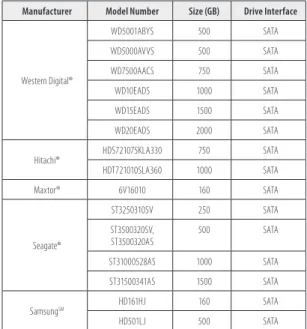
APPENDIX C DVR Compatible HDDs . . . . 83
SECTION 1
Systems Overview
Congratulations on purchasing your 4-Camera H.264 Security System! Your system includes:
• 4–camera networkable digital video recorder (DVR). The DVR can be configured and controlled locally, using the operator
control panel and mouse or remote control, or across the Internet through the Microsoft® Internet Explorer® (IE) browse.
• The DVR uses state-of-the-art H.264 compression technology to maximize your recording time and optimize your video
quality. H.264 compression saves hard drive space and supports faster data transfer. Data stored in the DVR can easily be off-loaded via USB or across your network. (See the User Manual for more information.)
• Up to 4 cameras. Features of these cameras depend on the models selected.
• Apple® iPhone®, iPad®, and iPod Touch®, Google Android™, Symbian™, Windows® Mobile, and Blackberry® smartphones apps
that let you monitor your home or business on the go from anywhere
• LCD 17” monitor (with SYRF204BLCD, SYRF204BHR systems only)
1.1 About this document
This document is a simplified guide to setting up a basic system. For detailed information about your DVR and camera system, refer to the DVR User Manual.
SECTION 2
Getting Started: Unpacking the Equipment
Your system includes:
• 4 channel H.264 networkable DVR
• Cameras (camera type(s) depend on system model and options) • 4 – 60’ video/power extension cables
• Power adapter with 5-way splitter
• This manual, mini-CD with smart phone applications, user guides for cameras (on CD), and monitor (if included) • USB mouse and remote control
• LCD Monitor (with SYRF204BLCD, SYRF204BHR systems, not shown)
Remove the equipment from its packaging and place it on a flat, clean surface. Inspect each item. If any visible damage is present, contact your supplier or Supercircuits for a replacement. Verify that your order is complete.
Cameras 5-way Splitter Mouse Remote Control Video/Power Extension Cables DVR Power Adapter
What you need
Although each security system installation is different, most require the following items not included with your system components:
• Tools to install the cameras and route power and video cables • Fasteners to attach the cameras to the mounting surfaces
• A display device and cabling to connect to monitor the DVR. The DVR will connect directly to a VGA video monitor, or to a TV
with a BNC to RCA adapter and RCA cable. The display device is usually needed only for system setup. It can be disconnected when the DVR is networked for access across a LAN or Internet.
• Uninterruptible power supply (UPS). This device is used to ensure system stability during voltage surges, sags, and outages. If a
SECTION 3
Installing Your System
Your PC177IR series camera is a precision instrument that will provide years of quality service when used properly. Included with each camera is:
• An adjustable mounting bracket that can be attached to either the bottom or back of the camera. • 60’ video and power extension cable
Adjustable Sun Shield Lens Mounting Bracket Assembly Lock Nuts IR Array Light Level Sensor Mounting Plate
3.1.1 Camera placement
Plan your camera installation carefully. Identify the locations where cameras will provide the best coverage, considering:
• Field of view – Cameras must be positioned so they can effectively view the entire area that must be monitored, and in a
location that makes tampering with it difficult.
• Lighting – Direct sunlight shining on the camera lens or bright reflections from shiny objects in the field of view can diminish
video quality and camera performance. Mount the camera in shaded areas, if possible, or where these influences can be minimized.
• Ease of installation – Must be able to install the camera at the location, considering mounting hardware requirements,
About weatherproof cameras
Weatherproof cameras can be mounted in any open area, such as on a telephone pole or on the side of a building. However, for best results, we recommend you mount your cameras in a sheltered area, such as under the eave or roof of a building. Point the camera in the direction you wish to observe. When routing cable near the camera, allow enough slack to form a U-shaped “drip loop” to help direct moisture or rain water, that accumulates on the cable, away from the camera.
Drip Loop Drop Cable
NOTE Cable connections are not weatherproof.
Video/power cables can be run almost anywhere, and are frequently routed through attics or above drop/acoustic ceilings because of the ease of installation. For added security, we recommend you run your cables in areas with limited access to prevent tampering. Avoid running the cable near high voltage appliances such as fluorescent lighting. Electrical noise and magnetic fields produced by these devices may affect video signal quality.
A 60’ video/power extension cable is shipped with every camera in your system. 100’ and custom-length cables are also available from Supercircuits.
3.1.2 Mounting
1. Using the camera bracket mounting assembly plate as a template, mark the location of the holes for the mounting screws on the mounting surface.
2. Drill holes into the mounting surface for the mounting screws, wall inserts, or other attachment hardware as needed. 3. If you are routing the video/power drop cable through the mounting surface, drill a ¾” hole near the mounting plate for the
drop cable.
4. Attach the mounting bracket to the mounting surface using appropriate fasteners. 5. Attach the camera with the mounting bracket.
6. Point the camera at your surveillance target, then tighten the lock nuts to hold it in place. (Note: The direction the camera is pointing may need correction when video from the camera is observed.)
7. Route the camera drop cable through the hole drilled for it in the mounting surface, if used. If the camera is installed where moisture may accumulate on it, leave a “drip loop” in the cable so that beads of water on the cable slide away from the camera and the drop cable connectors.
8. Attach a video/power extension cable to the camera drop cable (see diagram below). Note: When connecting the video cables, fully rotate the lock ring to hold them together.
Extension Cable Camera Drop Cable Power Video Lock Ring
If the connectors might be exposed to moisture or other contaminants, seal them with electrical tape or use an equivalent method.
9. Route the other end of the video/power extension cable to the DVR backpanel. 10. Repeat this procedure for all of the cameras you are installing.
3.1 DVR installation
3.1.1 Placement
Your monitoring and recording equipment is central to constant surveillance and the reliable capture of video evidence. Supercircuits strongly suggests that it be installed in a secure location with access limited to authorized personnel.
DVRs generate heat and should be placed in a ventilated area. A high temperature environment will reduce the life span and reliability of the equipment. Additionally, the DVR is not weatherproof, so avoid exposure to liquids and excessive dust. Do not place objects along the sides or behind the DVR that will block airflow through the unit.
Uninterruptible power supplies
It is strongly suggested that power to the system be routed through an uninterruptible power supply (UPS). These devices will keep your security system running through most power outages, in addition to providing excellent surge and sag protection. The UPS should support your video recorder and all cameras to ensure normal operation during abnormal power conditions.
3.1.2 Controls and connectors
DVR Front Panel
Single/Multi Camera Display Toggle tqpu Menu Navigation Buttons Enter Escape Menu Play/Pause Record CH1 .. CH4Camera Select Infrared Sensor
Pan/Tilt/Zoom Control Backup
Button Usage
o
/ Toggles between single camera, multi-camera display.CH1 .. CH4 Used to select the camera on channel 1, 2, 3, or 4. Enter Press to confirm a menu choice.
Infrared Sensor Sensor for the remote control.
MENU Opens the main menu window
ESC Press to exit any active window.
REC Use to start and stop manual recording.
BACKUP Opens a video search and playback menu. (See Appendix A)
u/II When a recorded file is selected, press this button to play. then press it again to pause playback.
PTZ Used for pan/tilt/zoom control of cameras with this feature.
tqpu Use these buttons to navigate through the menu system. Generally, use the tu buttons to move to
DVR Backpanel
IN1 - IN4Audio In CH1 - CH4 Video In
Audio Out Main Out LAN
(BNC) Power Alarm In/Out, RS422/RS485 Connections Main Out (VGA) USB Power DC 12V Connector Usage
USB - MOUSE Use these USB ports to connect a mouse, or a backup device such as a flash drive or DVD recorder.
AUDIO OUT Audio output from channel AUDIO IN channels 1, 2, 3, or 4.
IN1 . . IN4 AUDIO IN RCA audio input to audio channels 1, 2, 3, and 4.
CH1 . . CH4 VIDEO IN BNC video input to video channels 1, 2, 3, and 4.
MAIN OUT BNC composite video output to display device (75Ω, 1V p-p).
MAIN OUT VGA Standard VGA output to a display device, such as a computer monitor.
LAN Standard RJ45 Ethernet 10BaseT, 100BaseT port with auto detect.
ALARM IN, ALARM OUT, RS422 RS485
Use these connectors to attach external sensor devices, alarm reporting devices, and devices with an RS422 or RS485 control interface, such as PTZ cameras. See the DVR Uer Manual for more information.
DC 12V Connect to 12 VDC power adapter.
POWER Power switch to turn the unit on and off.
3.2 Install and setup a monitor
1. Install and setup your monitor in accordance with the instructions provided with the monitor. Do not power it on at this time. 2. Cable the DVR Monitor Out (VGA) connector to your monitor’s VGA input. You can also use the monitor out BNC interface, but
the signal quality is better through the VGA interface.
NOTE Some monitors have multiple inputs such including VGA ,HDMI, BNC, etc. If you are using this kind of monitor, configure your monitor to display the input from your DVR.
Monitor Out
(BNC) Monitor Out (VGA)
3.3 Connecting the system together
All connections to the DVR are made on the back of the unit.Video/Power Extension Cables
VGA Cable
5-Way Power
Splitter Monitor PowerTo 120 VAC
Power Adapter Mouse Camera Drop Cable To UPS/ 120 VAC
* NOTE: Power cabling shown in the previous diagram is recommended for systems with PC177IR series cameras. If you are not installing PC177IR series cameras, power requirements for your cameras may be different. Refer to the documentation provided with your camera for specific recommendations.
1. Connect the system mouse to the USB connector labeled MOUSE.
2. Connect the camera video signal cables (BNC connectors) to the VIDEO IN CH1 to CH4 connectors
3. Connect a display device to the DVR. If using a VGA monitor for a display, connect it to the VGA MAIN OUT connector. If using the BNC MAIN OUT connector to drive a display such as a TV, attach the appropriate cables between the BNC MAIN OUT and your display device.
4. Connect the 5-way power splitter to the power adapter, then:
a. Connect the lead marked DVR POWER to the DC 12V connector on the DVR backpanel. Ensure that the POWER switch on the DVR is off.
b. Connect the other leads of the splitter to the mating connectors on the video/power extension cables routed to the cameras.
5. Connect the power cord to the power adapter and plug it into a standard grounded 120 VAC power source through a UPS or surge protector.
6. Power on your system monitor.
7. Power on the DVR using the POWER switch on the backpanel. A startup “Loading” screen will appear on the display. After a few seconds, the screen will change to the camera view screen.
..
3.4 Adjusting the camera
Adjust your camera to produce the best performance:• While observing video from your camera, use the documentation provided to aim the camera at the surveillance target. • Depending on the features of your cameras, other adjustments, such as focus, zoom, aperture, IR level, etc. may also be
available. Make these adjustments under various lighting conditions, if necessary, to yield the best video image overall.
3.5 Using the remote control and mouse
The enter key on the remote control or the front panel has the same function as a mouse left click. The IR Range of the remote control is 10 meters. The buttons on the remote control correspond with the buttons on the front panel.
2 3 1 8 9 7 5 6 4 11 12 13 10 Item Function
1 Stop: Stop playback
2 Play/Pause: Opens video search and playback menu. In playback mode, press this button to play/pause playback. 3 tqpu Move selected item in menu.
4 ENTER: This button is used as the “enter” key for most operations. 5 Menu (MENU/ESC): Displays/exits the main menu. 6 Lock: If the password is enabled, press it to logout the system. 7 Numerical Button: Use buttons 1, 2, 3, or 4 to select the channel to display. 8 REC: Start or Stop manual recording.
9 Quad: Press this button to switch display modes from single channel display to a multi-channel display. 10 Mute: Not used.
11 Spot View: Press to enable auto sequencing. 12 Fast Forward: Fast forward video during playback. 13 Rewind: Rewind video during playback.
Mouse control
The mouse operates just like a mouse on a Windows PC. Connect the mouse to the USB connector in the back panel.
Action Effect
Right click In live display mode, right click to either display or hide the tool bar.
In main menu or sub menu mode, right click to exit the current menu. Note that the settings will not be saved after right clicking.
Left click
On menu unlock mode, in the tool bar left click on the SYSTEM SETTINGS icon, , to enter into the main menu. After entering main menu, left click to enter sub menus.
In menu mode, left click the PLAY icon, , to review video files.
Left click to select values in edit boxes or pull-down menus. The system supports special symbols, numbers and letters.
Left click the PLAY icon, , to enter playback mode. Left click >> to control the forward function, << reverse function, >>I Slow play function, I> frame play function, > Play function, and X exit function.
In the VIDEO | VIDEO SETUP | COLOR SETUP configuration window, you can left click to adjust color control bar and screen control bar. In the main menu, sub menu or playback view, left click “x” to exit/close the current menu.
In the ALARM |MOTION | MD AREA configuration window, left click an area segment to select/deselect it for motion sensing. Double click In live view or during video playback, double-click to maximize channel on the screen.
Mouse drag In the ALARM |MOTION | MD AREA configuration window, press the left mouse button and drag to frame an area to sense for motion detection. Use the mouse to select menu items.
SECTION 4
DVR Setup
Setting up your DVR includes logging into your DVR, setting the clock, setting administrator and user account passwords, and setting up scheduled and/or automated motion recording.
4.1 Login to the DVR
Two access accounts are preset in your system: Admin and user1. With the Admin login, you can make configuration changes to the system, create user accounts and passwords, and control the privileges allotted to each account. With the factory default user1
account login you cannot make configuration changes or create accounts, but can change your own password. The factory default
Admin and user1 account passwords are:
Admin: 888888 user1: 666666 To log into the system:
1. Power on the DVR and wait until it advances to the camera view screen. A typical camera view screen is shown below.
NOTE During initial startup of the system, no password is required. Image from
Channel 1 Camera
2. Press the MENU button on the front panel twice, or right-click the mouse twice anywhere on the screen. An Input
Confirm entry
3. Click the q icons to the right of the User Name field parameter field and select Admin. To make configuration changes to the system, you must login to the Admin account.
4. Using the mouse, click the entry field on the PASSWORD line, then click the number buttons that appear to enter the account password. For example, to enter the default Admin password, 888888, click the “8” button six times.
5. Click the a (check mark) icon in the lower right corner of the window to confirm your entry and enter the login information. A tool bar icon strip will appear at the bottom of the screen.
4.2 Configuring the system
Basic system configuration settings include setting the screen language, video system format, system time, creating users, initializing the hard disk drive (HDD), and setting up automated recording.
1. If the system is not running, power on the DVR and wait until it completes initialization. 2. Right-click anywhere on the desktop, or press the MENU button. A status bar will appear. 3. Compare the DVR system date and time shown on the Status Bar with an accurate clock.
System Date and Time Remaining HDD Recording TIme
Status Bar
Note: To see an accurate clock, access a reliable Internet time server, such as tf .nist .gov
4. Right-click the mouse anywhere on the screen again. The Status bar will change to a Tools Bar or a login window. If a LOGIN window opens, log in to the system as an Admin (see above).
System Settings
EZoom PTZ
Play
Manual Record /
Stop Manual Record Keylock SequenceAuto Advance
Mute On/Off Tool Bar
5. Click the Settings button on the Tool Bar.
4.2.1 Setting the screen language and video system format
1. In the Settings window SYSTEM tab, click the q icon at the right end of the LANGUAGE line. Select (click) the screen language you prefer from the dropdown list.
2. If the VIDEO SYSTEM option does not indicate NTSC, click the q icon at the right end of the VIDEO SYSTEM line, then select
NTSC from the dropdown list.
4.2.1 Setting the system time
2. Click the q icon at the right end of the DATE FORMAT line. Select the format you prefer: MM/DD/YY, YY-MM-DD, or DD-MM-YY.
3. Click the entry on the DATE line. Click the t or u icons to highlight a digit of the date, then click the number value of the digit To complete the entry and close the virtual keyboard, click the = button.
4. Click the q icon at the right end of the TIME FORMAT line. Select the format you prefer: 12 hour or 24 hour.
5. Click the entry on the TIME line. Click the t or u icons to highlight a digit of the current time, then click the number value of the digit. To complete the entry, click the = button.
6. If you selected a 12 hour time format, click the q icon on the line below the TIME entry, then select either AM or PM. 7. On the DST line, click the >> icon to open the DST (ON/OFF) option window. If you select ON, a DST setup window will open.
Use the method like that detailed above to setup the DST start and end time, then click the confirm entry check (
a
) in the lower right corner to confirm your entries.4.2.2 Change the Admin and user1 passwords
Changing the default Admin and user1 account passwords from their initial (default) value adds security to your system. The factory default account names and their passwords are:
Admin: 888888 user1: 666666 To change these passwords:
1. With the system powered on, right click twice on the desktop or press the menu button on the front panel twice, then log into the system as the Admin (if a password login is required).
2. Click the Settings icon on the Tool Bar. The SYSTEM tab window will open.
2. On the CHANGE PASSWORD line, click the >> icon to open the CHANGE PASSWORD window. 3. Click the q icon at the right end of the USER NAME line. From the dropdown list, select Admin .
4. Click the OLD PASSWORD entry field, then enter the current Admin password using the virtual keyboard.
5. Enter both the NEW PASSWORD and CONFIRM PASSWORD fields with a different password. Passwords cannot be more than 6 digits in length.
6. Click the confirm icon (
a
) in the lower right corner of the screen, then click the Confirm button in the Note window. 7. Repeat steps 3, 4, 5, and 6 above to change the user1 password.4.2.3 Add users to the system
1. On the SYSTEM tab USER line, click the >> icon to open the USER MANAGEMENT window. 2. In the USER MANAGEMENT window, click the >> icon on the ADDUSER line.
3. Click the entry field on the USER NAME line to open a virtual keyboard. Click the letters and numbers to enter a username, then click the = icon to close the keyboard.
4. Enter both the PASSWORD and CONFIRM PASSWORD fields with a password for the user. Passwords cannot be more than 6 digits in length.
5. Click the confirm icon (
a
) in the lower right corner of the screen, then click the Confirm button in the Note window. 6. Press the MENU button on the front panel or right click on the desktop to return to the USER MANAGEMENT window.7. In the USER MANAGEMENT window, click the >> icon on the SET PERMISSIONS line.
8. Click the q icon at the right end of the USERS line. From the dropdown list, select the name of the user you just created. 9. Click the OPT checkboxes to assign permissions to the new user.
10. Click the confirm icon (
a
) in the lower right corner of the screen, then click the Confirm button in the Note window. 11. Press the MENU button on the front panel to return to the USER MANAGEMENT window, then press the MENU button againto return to the SETTINGS window SYSTEM tab.
4.2.4 Set HDD overwrite option
1. On the SYSTEM tab HDD line, click the >> icon to open the HDD MANAGEMENT window.
— Close: When the HDD becomes full, no additional recordings are written to the HDD
— Overwrite: Recordings on the HDD are overwritten when the HDD becomes full. The oldest recording is overwritten
first.
— 1 HOUR . . 90 DAYS: Recordings are overwritten when older than the time selected.
3. Click the confirm icon (
a
) in the lower right corner of the screen, then click the Confirm button in the Note window. 4. Press the MENU button on the front panel or click on the desktop to return to the SYSTEM tab.4.3 Record configuration settings
The recording settings of each camera channel can be specified separately or collectively. These settings, including the recording schedule for each channel, are setup through the Record tab.
1. Click the Settings icon on the Tool Bar. The SYSTEM tab window will open. 2. Click RECORD to open the RECORD settings menu.
3. Click the q icon at the right end of the CHANNEL line. From the dropdown list, select the number of the camera channel you want to setup, or select ALL to configure all channels with the same settings.
4. Click the q icon at the right end of the RECORD line. From the dropdown list, select DISABLE, or ENABLE to record video from the channel.
5. Click the q icon at the right end of the BITRATE line. Select GOOD, NORMAL, or LOW. A GOOD bitrate produces the best recording quality, but uses more processing power and hard disk space.
6. Click the q icon at the right end of the RESOLUTION line. From the dropdown list, select D1 (720 × 486), HD1 (720 × 240), or CIF (352 × 288).
7. Click the q icon at the right end of the FRAME RATE line. From the dropdown list, select a number between 1 and 30 (frames per second). The higher the frame rate (30 fps), the smoother the video motion. However, higher frame rates consume storage space faster.
8. Click the q icon at the right end of the PACKTIME line. From the dropdown list, select either 15, 30, 45, or 60 (minutes). Packtime is the time length of video file segments that are off-loaded (backed up).
9. Click the q icon at the right end of the RECORD MODE line. From the dropdown list, select either ALWAYS or SCHEDULE. ALWAYS causes the DVR to record continuously. Selecting SCHEDULE allows you to open a window to configure the DVR to record by the hour of the day and day of the week, either by motion sensing, continuous recording, or not recording. See Scheduled recording below.
10. If you are configuring the camera channels differently, repeat this procedure for the other camera channels.
Scheduled recording
If the RECORD MODE -SCHEDULE is selected:
11. Click the >> icon on the RECORD tab to open the RECORD SCHEDULE SETUP window.
12. Click the q icon at the right end of the CHANNEL line. From the dropdown list, select the channel number to apply the recording schedule to, or select ALL to apply the schedule to all cameras.
13. At the bottom of the window, click either the MD (motion detection) or NORMAL (continuous recording) checkbox, then click a box in the time array to apply that method of recording to that timeslot.
In the example above, NORMAL recording was scheduled for Monday through Friday between 7 AM and 6 PM. MD recording was scheduled for Monday through Friday between 4 AM and 7 AM and between 6 PM and 9 PM, and on Saturday and Sunday between 4 AM and 9 PM.
14. Click the confirm icon (
a
) in the lower right corner of the screen, then click the Confirm button in the Note window. 15. If you setup the record schedule for a single channel, repeat this procedure to setup the other camera channels. 16. Press the MENU button on the front panel to return to the RECORD tab.4.4 Video configuration settings
The video configuration settings affect the appearance of the camera video on the monitor. The configuration can be se setup for each individual camera, or the same settings can be applied to all cameras.
1. Click the Settings icon on the Tool Bar. The SYSTEM tab window will open. 2. Click VIDEO to open the VIDEO settings menu.
3. Click the q icon at the right end of the CHANNEL line. From the dropdown list, select the number of the camera channel you want to setup, or select ALL to configure all channels.
4. Initially, camera channels are named CH1 .. CH4. You can change the name of the channel by clicking on the entry field on the NAME line to open a virtual keyboard. Use the keyboard to enter a new name, if needed, then click the = button to close the keyboard.
5. Click the q icon at the right end of the POSITION line. The position option selects where the camera channel NAME appears on the live display. Choose one of the flowing: U-L (upper left), D-L (lower left), U-R (upper right), or D-R (lower right).
6. Click the q icon at the right end of the LIVE line. In the dropdown list, select ON (to view video from the camera on the Live screen), or OFF.
7. On the COLOR line, click the >> icon to open the COLOR SETUP window.
The COLOR SETUP window is superimposed on the video image from the camera channel you selected. Adjust the markers for the HUE, BRIGHTNESS, CONTRAST, and SATURATION to produce the best picture from the camera.
8. Click the confirm icon (
a
) in the lower right corner of the screen, then click the Confirm button in the Note window. 9. If you setup the record schedule for a single channel, repeat this procedure to setup the record schedule for other channels.4.4.1 Video setup
The VIDEO SETUP menu provides configuration settings for the monitor screen resolution, sequential live view settings, and video blocking.
1. Click the Settings icon on the Tool Bar. The SYSTEM tab window will open. 2. Click VIDEO to open the VIDEO settings menu.
4. Click the q icon at the right end of the VGA line. Select one of the options: 1024 x 768 or 1280 x 1024. NOTE: Changing this setting from the current value will cause a DVR restart.
5. Click the entry field on the SEQUENTIAL TIME line, then enter a number between 1 and 300 (seconds). This option sets the pause duration when sequentially displaying the live video from each camera in full screen.
Video blocking
For security or privacy reasons, some areas of the video fields of view are blocked. To setup the blocking:
1. In the VIDEO SETUP menu, click the q icon at the right end of the CHANNEL line, then select a video channel number from the dropdown list.
2. On the VIDEO SETUP / AREA COVERED line, click the >> icon. Video from the camera will appear in full screen mode.
3. Block areas of the video image by pressing the left mouse button and dragging to create a box over the areas you want to block. In the following image, two block boxes cover windows for privacy.
Privacy Blocks
After the block is created, it can be repositioned by dragging it with a mouse. To remove a block, double click on it.
4. Right click anywhere on the desktop to return to the VIDEO SETUP menu.
5. Click the confirm icon (
a
) in the lower right corner of the screen, then click the Confirm button in the Note window. 6. Repeat this procedure for the other camera channels, if necessary.4.5 Network configuration settings
Use the NETWORK menu to configure your DVR for use on a LAN, for access through the Internet, for access from a smartphone, and for issuing automated email when alarm conditions occur.
Refer to the Chapter 4, Networking your DVR for configuring your system for local LAN and Internet access. For other network settings, including DDNS, EMAIL, MOBILE, and OTHER SETTINGS, refer to the chapter DVR System Menus.
NOTE The default IP addresses and port settings of your DVR may be different from those shown in this document. Always use network settings that are compatible with your network(s).
4.6 Alarm configuration settings
Use the ALARM menu to configure your DVR for behavior when the hard disk drive becomes full, and for motion detection sensitivity of each channel.
2. Click the ALARM tab to open the ALARM settings menu.
3. Click the q icon at the right end of the DURATION line. From the dropdown list, select either 30 SEC .. 5 MIN. This option sets the recording time length after an alarm recording is activated.
4. Click the q icon at the right end of the BUZZER line. From the dropdown list, select either OFF, or 5 SEC .. 60 SEC. This option sets the buzzer sounding time when the alarm is triggered.
5. Click the q icon at the right end of the PRERECORD line. From the dropdown list, select either OFF or 5 SEC. This option disables or enables recording 5 seconds of video before the alarm occurred.
6. Click the >> icon on the EXCEPTION line to open the EXCEPTION ALARM menu.
7. Click the >> icon at the right end of the HDD FULL line. This feature enables the buzzer sound when the HDD is nearly full. Select either OFF, 1 G (remaining), 5 G ,10 G, 1 HOUR, 5 HOUR , 10 HOUR, or 20 HOUR.
8. Click the checkbox to the right of the HDD LOSS label to enable this alarm. When the HDD is not available, this feature will sound the buzzer and place the on the desktop.
9. Click the checkbox to the right of the VIDEO LOSS label to enable this alarm. When a video signal from a channel is not detected, this feature will sound the buzzer and place the Video Loss label in the channel LIVE view window.
10. After configuring your network settings, click the confirm icon (
a
) in the lower right corner of the screen, click the Confirmbutton in the Note window.
11. Press the MENU button on the front panel, or right click anywhere to return to the ALARM menu.
4.6.1 Motion detection setup
Motion detection can be configured for each channel individually, or you can apply the same settings to all channels at one time. 1. On the ALARM tab menu, click the >> icon on the MOTION line to open the MOTION DETECTION menu.
2. Click the q icon at the right end of the CHANNEL line. From the dropdown list, select the camera channel number you want to setup, or select ALL to configure all channels.
3. Click the q icon at the right end of the SWITCH line. From the dropdown list, select ON or OFF to enable or disable motion detection on the channel(s).
4. Click the q icon at the right end of the SENSITIVITY line. From the dropdown list, select 1 .. 8 to set the level of sensitivity. 1 is highest, 8 is lowest. High sensitivity may cause an alarm when a small object, such as a bird or mouse, passes through the field of view, whereas the lowest sensitivity level may be appropriate for detecting only cars that pass by. This setting is dependent on the what you want to detect, and usually requires testing to find the best value.
5. Click the >> icon on the MD AREA line to specify the areas where of the screen where motion should be sensed. Defining only these areas (and ignoring other areas) of the field of view improves the performance of the DVR.
The Motion Detection setup screen is partitioned into a grid of 10 x 15 blocks. Motion sensing in each block can be toggled on and off by clicking the block area. Initially, all blocks are shaded purple, indicating that motion sensing is disabled everywhere.
To enable blocks (areas) for motion sensing, click the block, or use the mouse to drag a rectangle over areas you want to enable. The shading will disappear for areas selected for motion detection. To disable an area selected, click on it.
Motion Sensing Disabled Motion Sensing Enabled
6. After the motion sensing areas are selected (unshaded), right click to return to the MOTION DETECTION SETUP menu. 7. Check the box to right of the RECORD label to enable recording when motion is detected.
8. Check the box to right of the BUZZER label to sound the buzzer when motion is detected.
9. Check the box to right of the PRERECORD label to add the previous 5 seconds of video from the camera to the motion detection recording.
10. Check the box to right of the EMAIL label to send an email when motion is sensed. To use this feature, the EMAIL configuration settings in the NETWORK tab must be configured.
11. After configuring your motion detection settings, click the confirm icon (
a
) in the lower right corner of the screen, then click the Confirm button in the Note window.SECTION 5
Networking Your DVR
Your DVR supports highly flexible networking configurations including an Ethernet connection, such as to a home network with a broadband router and modem, and a PPPOE connection. In this section, only general guidelines for the setup of a DVR on a simple Ethernet broadband home network are included. If you encounter problems you cannot resolve, contact the Supercircuits Support team at 1.800.335.9777.
Home networks
A typical home network includes router, one or more computers, and a broadband modem for access to an internet service provider (ISP) and the internet. The DVR attaches to the network like a computer, except that it has preset IP address settings that must be configured for your network.
DVR Router Broadband Modem Home Network Computer Web Connected Computer DVR Monitor Home Network
Setting up the DVR on the home network requires configuring it with IP address settings that are compatible with your network, and connecting an Ethernet cable between the DVR and the router. Once setup, your security system can be monitored and controlled from any computer on the network with the Microsoft® Internet Explorer (IE) browser.
After the DVR is setup on your home network, usually the router can be configured so that the DVR is accessible from a computer on the Internet or from a smartphone. Although most routers perform similar functions, the specific procedures to configure them vary widely. However, the documentation provided with your router, with the general guidelines included here, should enable you to setup your DVR for web access.
5.1 Configure the DVR for access on your home network
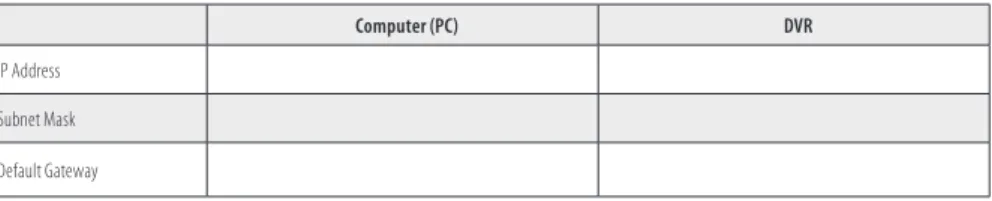
To setup your DVR on the network without conflicting with other devices, configure the network settings of your DVR before physically connecting it to the network. Network conflicts occur when two devices on the network have the same IP address. The screens shown here were taken from a Windows XP system:1. Determine the IP address, subnet mask, and default gateway of your home computer (PC) and record it in Table 1. To get this information, do the following at the Windows desktop:
a. Open the Windows Start menu and click Run to open the Run dialog box.
b. Type cmd in the entry field and then click OK to open the DOS command window.
c. At the command prompt, enter ipconfig . The PC will display Ethernet data associated with your Ethernet adapter local area network (LAN) connection.
d. Enter the IP Address, Subnet Mask, and Default Gateway for your PC’s Ethernet adapter into Table 1.
NOTE The Ethernet adapter data you see by using ipconfig will probably be different from that shown in the example above. If you are using Windows Vista or Windows 7, the IP address is identified as the “IPv4 Address.”
Table 1. PC/DVR network settings
Computer (PC) DVR
IP Address Subnet Mask Default Gateway
2. At your PC, find an IP address on your network that is not in use:
a. Write down the EXACT IP address of your PC up to the third/last period. Using the example shown above in the screen capture of ipconfig, this number would be: 192.168.1.
b. After the third period, choose any number between 1 and 255 that is different from the one in your PC’s IP address, 168. As a first try, let’s choose 100, which will form the IP address 192.168.1.100.
c. Next, use the ping command in the DOS window to see if that IP address is in use on your network. The format of the ping command is:
ping <IP address> For this example here, we entered: ping 192 .168 .1 .100
To test your IP address, enter ping 192 .168 .1 .100. Any reply received from the ping indicates that a device on the network is already using this IP address and you can connect to it.
d. Examine the screen capture shown above. If the response to the ping command was “Request timed out .” like that shown above, use this IP address for your DVR IP address, enter into Table 1, skip step 2.e and continue at step 2.f. If the response to the ping command was “Reply from 192 .168 .1 .100: ..” as shown below, a device exists on the network that is using this IP address. If so, continue at step 2.e.
e. Since the response to ping test returned a reply as shown above, try the ping with another number between 1 and 255 until one is found that responds with the “Request timed out .” message. Use this IP address with your DVR and enter it into Table 1.
f. In table 1, copy the PC’s Subnet Mask and Default Gateway entries into the DVR’s Subnet Mask and Default Gateway
cells.
3. At your DVR, click the System Settings icon on the Tool Bar. The SYSTEM tab window will open.
System Settings
4. Click NETWORK to open the NETWORK settings menu.
NOTE The default IP addresses and port settings of your DVR may be different from those shown in this document. Always use network settings that are compatible with your network(s).
5. On the NETWORK line, click the >> icon to open the NETWORK SETUP menu.
6. Click the q icon at the right end of the TYPE line. From the dropdown list, select either DHCP, PPPOE, or STATIC for the IP network setup. If you select DHCP or PPPOE, the DVR will acquire its network settings automatically. If you select STATIC, you can configure your network settings manually by clicking on the entry field and using the virtual keyboard to enter data. See the following screen capture.
NOTE The MEDIA PORT, WEB PORT, and SETUP PORT numbers do not need to be changed unless these ports are used by other devices on your network.
7. Use the values in Table 1 to configure your DVR with a DNS address, IP ADDRESS. SUBNET MASK, and GATEWAY address. You can also use any other values that are compatible with your local network.
8. After configuring your network settings, click the confirm icon (
a
) in the lower right corner of the screen, then click theConfirm button in the Note window.
9. Press the MENU button on the front panel, or right click anywhere to return to the SETTINGS menu. 10. At the SETTINGS menu, click the SYSTEM tab, then click the >> icon on the MAINTENANCE line. 11. Click the >> icon on the REBOOT line, then follow the on-screen prompts to reboot your DVR.
12. Connect an Ethernet cable between the LAN port on the back of your DVR and any open port on your router.
13. At your PC, use the ping command with your DVR’s IP address to confirm that you can connect to your DVR from your PC. At the DOS prompt in the Command window, enter:
ping <IP address>
where <IP address> is the new DVR IP address. For example, if your DVR’s IP address is now 192.168.1.100, enter
ping 192 .168 .1 .100
14. Examine the response to the ping command. If the response is “Reply from . . .” and NOT “Request timed out .” as before, your DVR is now configured on the network.
5.1.1 Verify local network connectability with IE
After your DVR is setup on a local network, Microsoft Internet Explorer (IE) is used to verify connectability across the LAN. It also increases flexibility for monitoring and configuring your security system.
Before you can connect to the DVR with IE, the (default) security settings in IE are modified and an additional software is installed. 1. At your PC, load IE.
3. Click the Custom Level . . . button. In the Settings list, change the following settings to Enable: — Automatic prompting for ActiveX controls
— Initialize and script ActiveX controls not marked as safe for scripting — Script ActiveX controls marked safe for scripting
— Binary and script behaviors — Download signed ActiveX controls — Download unsigned ActiveX controls — Run ActiveX controls and plug-ins
In the Internet Options window, click Apply, then click OK to close the window.
NOTE If your computer operating system is Windows Vista or Windows 7, User Account Control can interfere with the normal operation of the DVR user interface. To disable UAC, open the Control Panel > User Account > User Account window, clear the Use User Account Control (UAC) to help protect your computer check box, then click OK. A computer restart may be required.
4. In the IE URL field, enter the IP address assigned to your DVR with the WEB PORT number configured in your DVR (in the example above, the default WEB PORT is 8090). Using the example shown above, enter:
192 .168 .1 .100:8090
NOTE After sending the URL, IE may prompt you to load the Chinese Simplified language pack. You can click Install or Cancel. If you click Cancel, the message will reappear again when you logout and login.
5. During the first connection to an ECO4 series DVR, a security warning to install software appears. Click Install and follow the on-screen instructions to complete the installation.
6. When the Login screen opens in the browser, enter the administrator USER ID and PASSWORD, then click Login. The default values for the administrator account are Admin and 888888.
7. After login, the DVR web display will appear. To see images from the cameras connected to your DVR, click the Open All
NOTE When viewing the DVR network browser interface, if the webpage appears normal but the camera images are scrambled, check your computer’s video adapter settings, or call Supercircuits Support at 1.800.335.97777 for assistance.
5.2 Accessing your DVR from the Internet
The remote viewing capabilities of your DVR allow you to access and control it from anywhere in the world via the Internet. Your DVR must be setup on a LAN before this capability can be enabled, and the LAN must have a high-speed connection to the Internet for efficient data transfer to occur. This procedure requires that the network router be configured for port forwarding to your DVR. Only general instructions for setting up this capability are included here.
NOTE Supercircuits provides complete technical support for viewing your DVR within your LAN. However our support team cannot assure complete technical assistance for products from other manufacturers, such as routers and modems. Refer to your product documentation, or contact your service provider for support on setting up port forwarding.
1. Configure your router for port forwarding to the DVR using the network information included in Table 1. For instructions, refer to the user documentation for your router and/or the information and service provided at http://portforward .com.
Port forwarded for the DVR:
CAUTION
By default, your DVR uses port 8090 for the web port, 9000 for the Media port, 10510 for the Mobile server port, and 8000 for the Setup port. If any of these ports are used by to another device on your network, configure your DVR to use a different port. Do not assign the ports used by your DVR for Web, Media, Setup or Mobile to any other device on your local network. Also, when choosing a port for port forwarding an Internet connection to your DVR, do not use any of these ports, or other ports on your
2. Determine if your router/modem has a dynamic IP address (one that can change arbitrarily, often used by internet service providers (ISPs) for cable/DSL modems) or static IP address (unchanging). If you are unsure, contact your ISP for this information. If you use a dynamic IP address for your modem, go to step 4.
3. To find the static IP address assigned to your LAN, go to http://www .whatismyip .com/ from a PC on the same network (LAN) as your DVR. The IP address displayed is the IP address you will use to log in remotely. Keep this in your records. Skip to step 6.
Static IP Address:
4. If you have a dynamic IP address, it is convenient and recommended to use a dynamic name server service, such as http://
www .dyn .com/ (a free service), to setup a remote connection with a fixed hostname to your DVR. To setup an account,
follow the instructions on the website.
5. Whether you have a static IP address, or you set up a Dyn account for a dynamic IP address, the following are different ways to view your DVR from a PC on the Internet:
a. In the URL field of your Internet browser, enter the current IP address of your modem with router port number (port forwarded for your DVR) assigned to your DVR in the format: http://<IP address:port> For example, if the IP address of your modem is 190.180.170.32 and the port forward number is 85, enter: http://190 .180 .170 .32:85
SECTION 6
Accessing Your DVR With a Web Browser
After your DVR is “networked” for LAN and Internet access, it can be monitored and configured remotely. Also, you can search for and download video clips to your remote computer. The examples presented herein access the DVR through the Microsoft Internet Explorer (IE) browser.
6.1 Connecting to your DVR with IE
There are different ways to connect to your DVR, depending on how it is networked.• If the computer you are using to access your DVR is on the same local network as your DVR, you can access it with Microsoft
Internet Explorer (IE ) using placing the IP address and Webport of the DVR in the IE URL field. For example, the URL address HTTP://192.168.1.100:8090 uses an IP address of 192.168.1.100 and a webport number of 8090.
• If you are accessing your DVR from the internet, the network modem/router where your DVR is installed is 77. 67.214.84, and
your DVR is configured on the router port of 2000, the URL for your DVR would be HTTP:// 77. 67.214.84:2000.
• If the Internet Service Provider you are using assigns a dynamic (changing) IP address to your modem/router (typical), you
can establish a fixed URL for your modem/router using a web-based service such as DynDNS.com. With that service, your DVR might be addressed as HTTP://JDSmithDVR.dyndns.com.
In the Login window, enter a USER ID and PASSWORD, then click LOGIN. The USER ID “Admin” has complete privileges to manage the DVR remotely. The default password for USER ID Admin is “888888”.
6.2 Live screen
After logging in to your DVR, the Live screen will appear. The Live screen displays real-time video from the DVR.
Stop View 1-Channel View 4-Channel View Full Screen Snap Record
Using the buttons in the right frame, you can stop viewing live video, snap a photo of one of the video channels, or record video from all channels. You can also view all four channels at the same time (see above screen capture), only one channel on the screen, or expand one channel to fill your monitor screen.
• Stop View: Click the Stop View icon to stop viewing live video.
• Snap: Click the Snap icon to capture a photo of the selected video channel. To select a video channel on a multi-channel
display, click the image. The selected channel is framed with a blue border. The photo is saved in JPG format at the location shown in the pop-up window.
• Record: Click the Record icon to record the channels displayed. Each channel is recorded individually. Recordings are saved
in the location shown in the pop-up window. These video files are saved in AVI format, and can be played with any AVI compatible player such as HsPlayer (provided on the mini-CD with your DVR), VLC Media Player, or Windows Media Player.
6.3 Replay window
The Replay window enables you to play and download recorded video. To use this feature:
1. In the calendar frame, click the date when the video was recorded. In the following example, September 15, 2011 was selected.
2. From the list that appears, click the label for video file you want to play or download. The labels indicate the time of day when the video was recorded, the channel that was recorded, and the size of the video clip.
3. Click the PLAY button at the bottom of the screen. Use the play control buttons below the view window to control the playback.
To download the video clip to your computer, click DOWNLOAD. The clip will be saved in the location specified in the LOCAL SETTING screen, the download progress will appear at the bottom of the view window, and the path and name to the video file will be displayed with the download is complete.
4. Click on another file to play, or click the
T
icon in the upper-right corner to close the Replay window before selecting another screen or window.6.4 Remote window
The Remote window allows you to configure your DVR from your local computer if you logged in with the Admin USER ID. To expand the menu tree and open a configuration menu, click the “plus” box to expand the tree, then click the menu you want to see.
The options on these screens are identical to those in the DVR menu system. Refer to the chapters Installing the System and
DVR Menu System in this document for more information. After making changes to a Remote setting menu, click the SETUP
button at the bottom of the window to commit the changes.
Click the
T
icon in the upper-right corner to close the Remote Setting window before selecting another screen or window.6.5 Local setting
In the Local Setting window, you can specify the locations on your computer where you want to save the recordings, frames, and files from your DVR.
Click the
T
icon in the upper-right corner to close the Remote Setting window before selecting another screen or window.6.6 Logout
SECTION 7
KWeye Smartphone App
KWeye is a free smartphone app for use with your Supercircuits model DMR90 series DVRs (SYRF204B series systems). Its features
include:
• Compatible with most models of these phones: Apple iPhone, iPad, and iPod Touch, Google Android, Symbian, Windows
Mobile, Blackberry
• Unlimited video on cellular and WiFi networks
• Supports multi-channel video encoders and Pan, Tilt, and Zoom (PTZ) controlled cameras • Support for authentication
• Direct stream connection (video does not pass through a 3rd party server) • Snapshot capability (while viewing live stream) to save to your local photo gallery • Support for landscape and portrait views
• Ability to change IP address and port as needed for internal and remote users
This guide includes installation and use of KWeye with the Apple and Google smartphones. For more information, go to:
• iPhone, iPad, and iPod touch: http://itunes.apple.com/us/app/kweye/id412413785 • Android phones: https://market.android.com/details?id=com.KWeye • For other smartphones, contact Supercircuits Support at: 1.800.335.9777
To use this application, your DVR network must be setup to allow access from the Internet.
7.1 Installing KWeye
7.1.1 Installing KWeye in iPhone
KWeye can be acquired from the iTunes App Store > Productivity group. It can be downloaded and installed directly to your
iPhone, or downloaded into a computer with iTunes, then installed on your iPhone. Before downloading applications from the App Store you must create a store account.
• To download and install KWeye directly to your iPhone:
— Connect your iPhone to a high-speed network, such as a WiFi network (to shorten download time). — Open the App Store application on your iPhone, then search for kweye.
App Found Ready to Install Installed
• To download KWeye to your computer then install it on your iPhone:
— Download and Install the latest version of Apple iTunes if not already installed. You can download iTunes from
ww .apple .com/itunes/ A computer restart may be required.
— Open iTunes.
— Click the iTunes Store item in the list on the left, then login to your iTunes Store account. If you don’t have an iTunes Store account, follow the on-screen instructions to create one.
— In the Search Store field in the upper right corner of the screen, enter kweye .
— After KWeye is found, click the Free App button, then click Buy in the popup window to download the application.
— After downloading the app, attach your iPhone to your computer, sync the application to your phone.
7.1.2 Installing KWeye in Android
To install applications using Android Market perform the following steps:
— With your Android phone, go to the Applications menu and open Android Market. — Search for the application kweye
— When the application is found, click on the KWeye icon to display details of the app. — To install KWeye, click Install and follow the on-screen instructions.
7.2 Set up access to a DVR
Usage and functionality of the KWeye app is the same on both iPhone and Android phones. However, the screens vary slightly between the two systems. To use KWeye:
• Tap the KWeye icon to open the app. The KWeye splash screen will appear.
(NOTE: The following images were captured from an Android smartphone. iPhone screens are functionally identical.)
Settings iPhone KWeye Initial Screen Android KWeye Initial Screen
• Tap the Settings icon. The splash screen will change to the Settings
screen.
• In the Device Info fields, enter the appropriate information for your
DVR:
— Address: IP address used to connect to your DVR modem from
the Internet, or the URL of the DynDNS server you use. — Port: Mobile monitor server port number configured in the DVR’s
network mobile submenu. The default port number is 10510.
— DeviceName: A name you use to identify your DVR.
— UserName and Password: Enter the username and password
you use to log into your DVR. NOTE: You may have to slide the screen up to display the UserName and Password fields.
• After completing the entries in the Settings menu, tap the Back button to test the settings and connect to your DVR. When
connecting to your DVR, the Device Info settings will be logged in the History screen for easy retrieval.
7.3 Using KWeye
• If KWeye is not running, tap the KWeye icon to open the app. The KWeyeHistory screen will appear. • In the History screen, tap the entry for the DVR you want to connect to open. The Settings screen will open. • To use the Device Info in the Settings screen to access your DVR, tap the Back button in the upper left corner. • Tap the Play button to start watching video from the DVR.
PTZ Controls: Direction, Zoom, Iris, Focus Play/Stop Select Channel Switch Channel Group SW Information Snapshot Settings
• To view a particular camera, tap the Select Channel button for the camera channel. If you are connected to an 8- and
16-channel system and the channel button is not shown, tap a Switch Channel Group icon (next group, , or previous group ), to change the Select Channel buttons until the channel number is shown, then tap the button for the channel.
• Rotate the phone 1/4 turn for a landscape view of the channel.
• To restore the app control buttons, orient the phone for a portrait view. • To exit the application, press the smartphone Home or Back button.
SECTION 8
DVR System Menus Reference
This section includes a detailed description of the DVR menu system. It is included for reference only.
8.1 Menu tree
Record Tool Bar Channel Record Bitrate Resolution Framerate Packtime Audio Record Mode Video Channel Name Position Live Audio Color Record Time Margin Video Setup Device ID Password Add Users Change Password Delete User Set Permissions Remote View Network Network DDNS Email Mobile IP Address Other Settings Alarm PTZ Output Duration Buzzer Prerecord Exception Motion I/O Alarm Motion Channel Protocol Baud Rate Data Bit Stop Bit Motion Parity Address System Settings Play Manual Record Keylock Mute On/Off Auto Sequence PTZ Ezoom Advanced VGA / BNC Switch PIP 1x1 PIP 1x2 Language Video System Time User HDD Volume Maintenance Information System8.1.1 Tool Bar
The Tool Bar provides icons for accessing menu features.
System Settings
EZoom PTZ
Play
Manual Record /
Stop Manual Record Keylock SequenceAuto Advance
Mute On/Off Tool Bar
Tool bar icon functions:
System Settings: Opens the system configuration menu system.
Play: Search, playback and backup recorded files.
Manual Record / Stop Manual Record: Click to start or stop manual recording.
Mute On/OFF: Controls audio mute.
Keylock: If the password is enabled, click “KEYLOCK” to logout of the system.
Auto Sequence: Click to enable auto-sequencing, the channels with images will be in sequence: channel 1, channel 2,
channel 3, channel 4, channel 1. Channels without images won’t appear in the sequence. To interrupt auto sequencing, press any button or click the mouse while in auto sequence mode.
EZoom: Click to enter zoom mode, then click left key and drag to select the area that you want to magnify. Right click to exit.
Advance: Click to open the Advance tool bar.
PIP 1x2 Hide
Advance
PIP 1x1 VGA / BNC