WIA
DRVS Software
Version 6.0
User’s Guide
July 2006
2
Table of Contents
Chapter Page
I. OVERVIEW ...3
A. User’s Guide...3
B. Overview of Data Directories ...5
II. INSTALLATION ...6 III. TUTORIAL ...18 A. Signing In ...19 B. Importing Records...28 C. Reporting ...41 D. Database Management ...49
IV. REFERENCE GUIDE...54
A. File Menu ...54
B. Import Menu...55
C. Reporting Options Menu...56
D. Report Validation Menu...56
E. Admin Menu...57
F. Utilities Menu...57
G. Help Menu...58
APPENDIX A. REPORTING SCHEDULE...59
APPENDIX B. RECORD LAYOUT AND EDITS...64
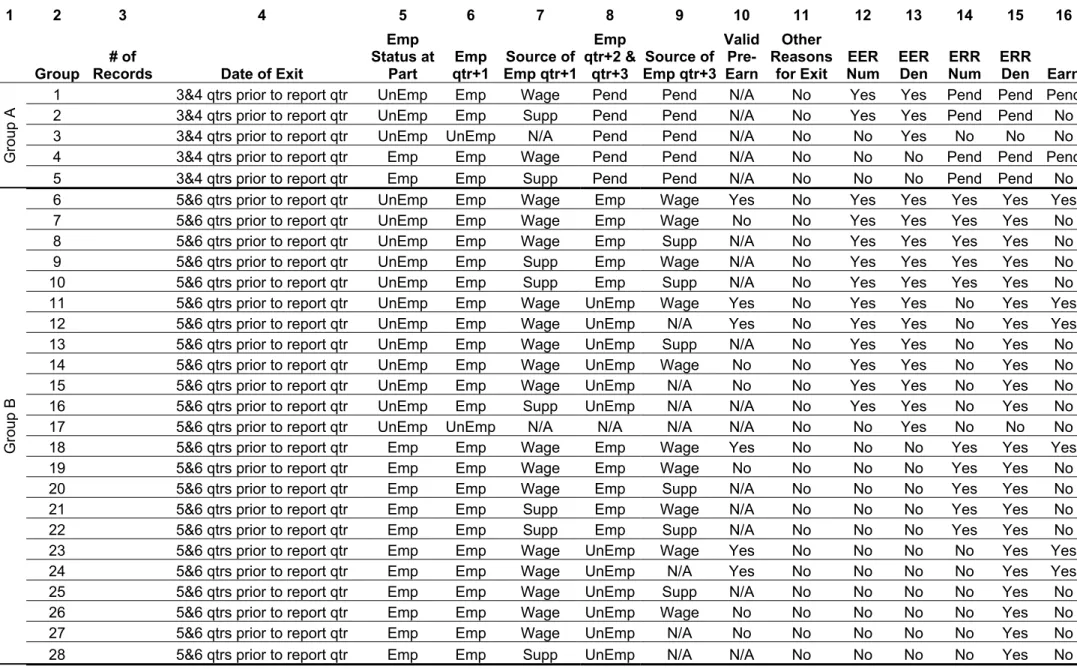
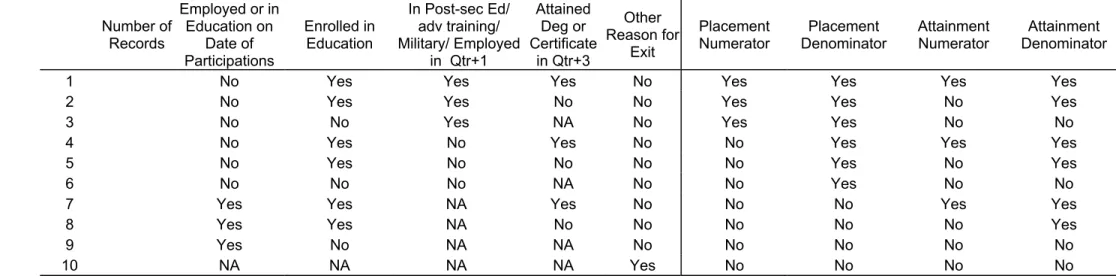
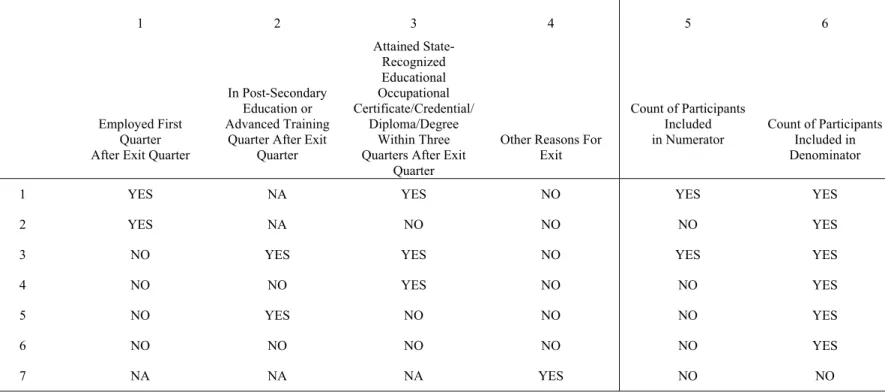
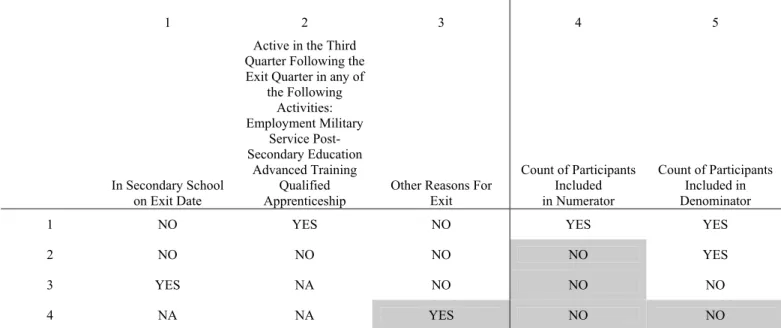
APPENDIX C. PERFORMANCE GROUPS ...85
I. OVERVIEW
A. User’s Guide
This User’s Guide explains the process of using the ETA Data Reporting and Validation System (DRVS) Version 6.0 to produce the Workforce Investment Act (WIA) 9090 quarterly report and 9091 annual report for submission to ETA. DRVS 6.0 incorporates ETA’s common measures reporting requirements specified in TEGL 28-04 and approved under OMB Control Number 1205-0420. DRVS 6.0 covers both WIA and Labor Exchange (LX) reporting as specified in these guidance documents. For WIA, future versions of this software will include functionality to produce local level reports, Table O, and the Option B Literacy and Numeracy Rate. Future versions will also include the functionality to conduct report validation and data element validation, and to upload validation results to ETA.
This User’s Guide contains the following sections:
II. Installation: Provides a step-by-step description of how to install the software on your PC, or in a limited client/server setup, for both MSDE and SQL Server users. Also includes instructions for logging on.
III. Tutorial: Provides information on the menus and functions of the software. Describes how to build a WIASRD-formatted extract file, import data, generate quarterly and annual reports, and data enter these reports on ETA’s Enterprise Business Support System (EBSS). Also describes the DRVS database management functions.
IV. Reference Guide: Provides a condensed list of all the menus and functions for quick reference.
Appendix A. Reporting Schedule: Provides the quarterly and annual report due dates and the participant and exiter cohorts to be included on each quarterly and annual report.
I. OVERVIEW
Appendix B. Record Layout: Provides the record layout for the participant records. This record layout provides a list of field level and cross field edit checks and the accompanying error messages that may occur during a data import.
Appendix C. Performance Outcome Groups: Specifies the performance outcome groups used in calculating the entered employment, retention, earnings, credential, and youth performance measures.
Appendix D. Client Server Setup: Provides instructions for installing the DRVS using a client/server setup.
Please contact Mathematica Policy Research, Inc. at [email protected] for information about application installation, WIA data files, performance reports, or any other issues related to DRVS 6.0 .
I. OVERVIEW
B. Overview of Data Directories
The DRVS uses a number of data directories. The following table provides a list of the data directories that the user is most likely to access.
Application Folder or File Directory Location Application default directory C:\ Program Files\DRVS (user can install in another location or with a different directory name)
Database default C:\ProgramFiles\DRVS\User Data\ (user can create and name additional databases)
Error log default C:\Program Files\DRVS\Logs Exported numerators
and denominators default
C:\Program Files\DRVS\Performance Groups Export\
DRVS User Guides C:\Program Files\DRVS\Help Documents\
II. INSTALLATION
This chapter provides DRVS system requirements and installation instructions.
Step 1—Minimum System Requirements
Following are the minimum system requirements. Recommendations for greater than minimum requirements are indicated in parentheses where applicable.
Item Requirement
Processor Pentium 4 CPU 1.80GHZ (more is recommended)
Operating System Windows 2000 or Windows XP
Memory 1GB (more is recommended)
Application Hard Disk Space
350 MB (more is recommended)
Database Hard Disk Space
Varies by state.
Database Varies by state. States that exceed MSDE maximum per database must install SQL Server.
Display 1024x768 or higher-resolution display with 256 colors
Other MSDE or SQL Server must be installed prior to installing DRVS 6.0.
Latest Windows service packs and critical updates should also be installed.
II. INSTALLATION
Hard disk requirements will vary depending on the state’s database size. For example, some states may exceed the current MSDE 2000 2 GB per database size limit. If any database exceeds the MSDE limit, users will need to license, install, and set up Microsoft SQL Server to run the DRVS. Any licensed version of SQL Server should allow the user to install and run the DRVS. SQL Express (MSDE 2005) has not yet been fully tested for compatibility with the DRVS. The DRVS will install all required .Net and Crystal Reports components.
DRVS installation requires Read/Write access to the system registry, Program Files folder, Windows\System32 folder and the Global Assembly Cache. Registry entries are made in HKEY_LOCAL_MACHINE\SOFTWARE\DRVS and in
HKEY_LOCAL_MACHINE\SOFTWARE\Microsoft uninstall areas. DRVS users will need Read access to the registry and Read/Write access to the Program File folders, as well as Read/Write/Delete access to the SQL database.
Step 2—Uninstalling Prior Versions
Users should uninstall previous versions of the software before installing the DRVS 6.0. Following are instructions for uninstalling WIA versions 2.0 through 3.1.2 and DRVS versions 5.0, 5.1 or 5.2 on a Windows 2000 or Windows XP machine. Procedures for uninstalling may differ slightly on different machines, but are generally self-explanatory. On any machine, users should be sure to uninstall through the Control Panel rather than by deleting the installation directory for the prior version; uninstalling by deleting the installation directory may cause problems with the subsequent installation. DRVS versions 5.0, 5.1, or 5.2 will automatically uninstall during the 6.0 installation process, but the recommended method is to uninstall the prior version through the Control Panel before installing 6.0.
• Click the Start button, then select Settings, Control Panel.
• Click on Add/Remove Programs.
• Click on the WIA or DRVS icon to uninstall any prior version.
• Click on the Change/Remove button.
II. INSTALLATION
• On the Select Uninstall Method screen, select Automatic and then click on Next.
• On the Perform Rollback screen, click on No and then click on Next.
• On the Perform Uninstall screen click on Finish.
• If a Remove Shared Component message displays, click on Yes to All.
• Close the Add/Remove Programs window.
Because DRVS 6.0 reflects substantial changes to the WIA reporting requirements, states must use WIA version 3.1.2 or prior to analyze or amend reports for Program Year 2004 and earlier. The participant counts and performance measures generated by DRVS are in general not comparable to those generated by prior versions of the WIA software.
Users may need to contact their system administrator to uninstall the application.
Step 3—Download from the Internet
To download DRVS 6.0 from the Internet: 1. Open your Internet browser and go to
www.doleta.gov/performance/reporting/tools_datavalidation.cfm. 2. Click on the DRVS 6.0 link from the "In this section" side bar. 3. If a file download message displays, click on Save.
4. Select the location where you want to store the installation file. Suggestion: C:\Temp. Click on Save.
5. A dialog box will chart the progress of the download of the installation file. When the “Download Complete” message box appears, click on Open. (If “close this dialog box when download completes” is checked, when download is complete, you should go to C:\Temp or wherever you stored the installation file to open it.)
6. A “WinZip Wizard – Unsupported Archive Type” message box may display. Choose “Open the archive using the classic interface” and then click on OK.
II. INSTALLATION
7. Click on the DRVS.exe file and then click on Extract from the tool bar at the top of the WinZip application screen.
8. Select a location for the extraction of the zip file. C:\Temp is the default. 9. Click on the Extract button.
10. If a Confirm File Overwrite message displays, click Yes. 11. Close the WinZip window.
Step 4—Application Installation
Based on the size of the state’s DRVS import file, either Microsoft SQL Server 2000 Desktop Engine (MSDE) or Microsoft SQL Server 2000 must be installed prior to installing the DRVS. MSDE is a free version of SQL Server that can be used with client applications. Users should go to http://www.microsoft.com/sql/msde/default.mspx for more information and to download MSDE. SQL Express (MSDE 2005) has not been fully tested for compatibility with the DRVS.
If the user’s estimated database size exceeds the MSDE limit, then Microsoft SQL Server will need to be installed prior to installing the DRVS. Users can find more information about SQL Server at http://www.microsoft.com/sql/default.mspx.
Users may need to contact their system administrator to install MSDE or SQL Server. Installation procedures may differ slightly on different machines, but are generally self-explanatory.
II. INSTALLATION
Users who prefer a client/server setup should review Appendix D in conjunction with the instructions in this section. Only users with full SQL Server with Enterprise Manager should use a client/server setup.
Before starting installation of the DRVS, close all applications and programs that are open.
1. Open Windows Explorer and go to C:\Temp (or wherever you stored the application files).
2. Double click on DRVS.exe.
3. If you haven’t uninstalled prior versions of the DRVS, the DRVS will display a window asking if you would like to.
4. Click on Yes to automatically uninstall prior versions. A progress bar will show the status of the uninstall process.
II. INSTALLATION
5. At the Welcome to the DRVS Installation Wizard window click on Next. If you are installing the DRVS for the first time, you may be prompted to reboot prior to beginning the installation routine.
II. INSTALLATION
6. Read the License Agreement and, if you accept, click on the “I accept the license agreement” button.
7. Read the Readme Information screen and click on Next.
8. On the User Information screen, make any necessary modifications to the user information. Then click on Next.
II. INSTALLATION
9. On the Destination Folder screen, the destination location will default to C:\Program Files\DRVS.
10. If you prefer a different destination location, click on Browse on the Destination Folder screen to navigate to a different location. Click on Next.
11. In the “SQL Server Connection” window, enter your server name in the SQL Server Name box. If you did not name your database instance, your server name is “(local)”. If you don’t know the name of your database instance, contact your system administrator.
II. INSTALLATION
12. For Database Authentication, click on Windows NT Authentication. If you can’t use Windows Authentication (e.g. Win 98 or ME users), click on SQL Authentication and complete the SQL User Name and SQL Password boxes. Click on Next.
If the DRVS Installation Wizard does not progress beyond this point, the user must determine if an incorrect or inactive server name has been entered in the SQL Server Name field. If a name that does not match any of the state’s servers is entered, there will be a delay or a failure to progress to the next screen.
II. INSTALLATION
If a name is entered that matches one of the servers, but the server is inactive, the Installation Wizard may also stop at this point. To find out if the server is active go to Start/Settings/Control Panel/Administrative Tools/Services. Microsoft SQL Server should be on the list of services and the task/service should be started. If it is on the list but not started, start it and reboot. If it is not on the list, SQL Server was not installed. There should also be a SQL Service icon on the bottom part of your screen, on the desk tray as a little box with a green arrow or red square. The green arrow indicates the service is started and the red square indicates it is not. Right click on the icon to open the SQL Service manager, then start the service.
13. On the “Install the DRVS Database Screen” check “I want to create a DRVS database.” If the user instead checks “I DO NOT want to create a DRVS database” the DRVS will continue to use the database from the prior version of the DRVS, yielding performance results that appear valid but in fact may not be. However, states using a client/server setup should check “I DO NOT want to create a DRVS database”, and refer to the instructions in Appendix D of this guide.
II. INSTALLATION
14. Click on Next on the “Ready to Install the Application” screen. This screen also allows you to exit the installation wizard or, if necessary, to return to the previous screen to change server connection information.
15. The “Updating System” screen will display, showing installation progress. However, this screen may display for several minutes with no indication of progress.
16. Click on Finish on the “DRVS has been successfully installed.” screen to exit the DRVS Installation Wizard.
17. Reboot your computer after completing the DRVS installation. You may delete the DRVS.exe used to install the application once the installation process is successfully completed.
18. There are no further installation steps for a PC setup.
II. INSTALLATION
Step 5 – Client/Server Setup
To create a client server setup please refer to instructions in Appendix D of this user’s guide.
III. TUTORIAL
This chapter provides information on the various functions of the DRVS software. Users can navigate between functions using the menu bar at the top of the active DRVS window, or by using the side bar at the left of the active DRVS window. Users are encouraged to click on WIA on the side bar at the left to leave the active window, before selecting a new function.
Following are brief summaries of each section of the tutorial.
A. Signing In
Section A describes how to open and sign in to the DRVS for specified reporting periods, and how to change reporting options.
B. Importing Records
Section B describes how to build and import files of participant records so the application can produce the ETA 9090 quarterly report and ETA 9091 annual report. This section also describes how to access and review duplicate detection and error reports of records rejected by the DRVS during the import process.
C. Reporting
Section C describes how to access and review the ETA 9090 quarterly report and 9091 annual report facsimiles, which can be used for data entering the reports into EBSS to fulfill ETA’s quarterly and annual reporting requirements. This section also describes how to access and analyze records by performance outcome group and by the numerators and denominators of the performance measures.
D. Database Management
Section D describes how to create new databases to use with the DRVS, how to open existing databases, and how to save databases in alternate locations. This section also describes how to maintain database security.
III. TUTORIAL
A. Signing In
Step 1—Opening the Application
The installation wizard places a DRVS icon on your desktop. Double click on the icon to open the application. Alternatively, click on the Start button, click on
Programs, select DRVS, and click on the DRVS icon to open the application. The DRVS Log In screen will display. This is your indication that the application has installed properly. Log on using the default User ID and Password:
WIAAdmin, WIAAdmin. The User ID is not case sensitive, but the Password is
case sensitive. Click Login.
III. TUTORIAL
This default User ID and Password will provide access to the WIA component of the DRVS. For access to the LX component of the DRVS, the defaults are LXAdmin4, LXAdmin4. As described in the database management section of this chapter, the user may change his or her own password to ensure database security. Below are three problems that users may find when signing in:
1. If the default User ID and Password are properly entered, but the DRVS generates a critical error with the message: “Object reference not set to an instance of an object”, then the user may have entered the wrong server name in the SQL Server Connection screen/SQL Server Name box during the installation. The Installation Wizard would have finished if any one of the state’s correct server names was entered in that field. However, if the appropriate server name for the DRVS installation was not entered, the problem would appear at log in. To correct the problem, uninstall the DRVS and then repeat the installation, ensuring that the correct server name is entered. The “Object reference not set to an instance of an object” error may also appear if the user does not have read/write access to the DRVS installation folder. The user must have these rights to log in to the DRVS. 2. If the default User ID and Password are properly entered, but the DRVS generates the message: “Event Log is Full” and quits, the user needs to clear the event logs in the following way:
• Click on Start - Settings - Control Panel.
• Double click Administrative Tools, then Event Viewer.
• On the left side of the Event Viewer window, you will see three logs listed.
• Right click on each of these logs separately and click on “Clear all events.”
III. TUTORIAL
• As you clear these logs, the system may ask if you want to save them. Click “No.”
3. If the default User ID and Password are properly entered, but the DRVS generates the message: "Login failed for user 'DRVS User'. Reason: not associated with a trusted SQL Server connection.", then the user needs to update the registry setting. The error message will appear in red on the Login screen.
The system will also register the following critical error in the error log: Event ID: STOREDPROCEDURE_EXECUTION_ERROR
Error Message: System.Data.SqlClient.SqlException: Login failed for user 'DRVSUser'. Reason: Not associated with a trusted SQL Server connection. at System.Data.SqlClient.ConnectionPool.GetConnection(Boolean& isInTransaction)
at System.Data.SqlClient.SqlConnectionPoolManager.GetPooledConnection (SqlConnectionString options, Boolean& isInTransaction)
at System.Data.SqlClient.SqlConnection.Open()
at Microsoft.Practices.EnterpriseLibrary.Data.Database.OpenConnection()
III. TUTORIAL
at Microsoft.Practices.EnterpriseLibrary.Data.Database.ExecuteReader (DBCommandWrapper command)
at WIAnLXControlLib.frmLogon.btnLogin_Click(Object sender, EventArgs e) Error executing the stored procedure. Stored Procedure Name =
spGetApplicationUser
MSDE users must update the registry setting as follows:
Select Start, Run, and in the Open box in the Run window type "regedit". Click OK. This opens the Registry Editor. Drill down to the following folder:
HKEY_LOCAL_MACHINE/SOFTWARE/Microsoft/MSSQLServer/MSSQLServ er
Double click on the LoginMode file. This opens the Edit DWORD Value box. In the Value data box change the value from 1 to 2. Confirm that Hexadecimal is selected in the Base box. Then click OK.
III. TUTORIAL
Reboot the PC and then reopen the DRVS. If the Login fails again, then the user does not have the proper administrative rights to run the DRVS.
SQL Server users must update the registry setting as follows:
Open SQL Server Enterprise Manager and drill down to the SQL Server Group, then right click the server name entered in step 11 of the installation. Choose
Properties from the menu displayed. This will open the SQL Server Properties (Configure) window for the selected server. Click on the Security tab. Under Authentication, select SQL Server and Windows. Click OK.
III. TUTORIAL
A message box will appear, asking users to confirm restarting the server. Click Yes.
Reboot the PC and then reopen the DRVS. If the Login fails again, then the user does not have the proper administrative rights to run the DRVS.
III. TUTORIAL
Step 2—Reporting Options Screen
After the user logs in with an acceptable User ID and Password, the Reporting Options screen appears. The user should maximize the screen to ensure that all DRVS screens can be viewed in their entirety. The screen is maximized when the user can see “Database: (name of database)” in the lower left corner.
The Reporting Options screen provides several blank fields that the user must complete so that the DRVS will produce the correct ETA 9090 and 9091 reports.
• Select the applicable State name from the drop down menu.
• Click on Annual or Quarterly in the Report box to produce the ETA 9091 Annual Report or 9090 Quarterly Report.
• Select the appropriate Program Year from the drop down menu.
• For the Quarterly Report, select the report due date from the drop down menu labeled “Report Quarter Due.” The Program Start and End Date fields will automatically fill on the Participant Counts, Entered Employment, Exiters/Youth, and Retention and Earnings Rates tabs. The auto-filled dates are the participant and exiter cohort date ranges for the program year and report due date that were selected. If dates are not filled in automatically, click on the Refresh button.
• For the Annual Report, the Program Start and End Date fields will automatically fill on the above tabs once Program Year is selected.
• Users may overwrite these auto-filled date ranges to analyze performance for specific time periods as long as these time periods are within the auto-filled date ranges. If the user manually changes the program/performance year date ranges, clicking on the Restore to Default button will automatically reset the program/performance year date ranges to the default date ranges for the program year or report quarter due date
III. TUTORIAL
entered. Manually entered date ranges cannot be used to obtain accurate counts or performance outcomes when start dates are earlier or end dates are later than those selected for the original import, because edit checks have not been applied to the new date ranges.
Below is a sample Reporting Options screen. Users should note that for the 9090 Quarterly Report that is due on August 15, the Program Start Date and Program End Date correspond to the fourth quarter of the program year, but the software makes calculations for the full program year.
III. TUTORIAL
After all options are selected, click on Save. “Reporting options saved successfully” will then appear in red type at the bottom left of the screen. The
Refresh button resets the screen if the user makes a change. After changing
reporting options, users should click Refresh and then Save before loading a file or using the Re-Calculate functionality.
The Refresh Menu button on the upper right corner refreshes the report when either the wrong report displays or an incomplete report displays.
The Re-Calculate button will recalculate the reported values based on changes on the Reporting Options screen (e.g. changes in date range, report type, or report due date). After changes are made, click Save, then Recalculate. A message box will appear, asking users to confirm recalculation. Click Yes. “Re-Calculation Successful” will appear in red type at the bottom left of the screen. Then click the Refresh Menu on the upper right corner to complete the recalculation process. Users must click Save, then Re-Calculate, and then the Refresh Menu to ensure that the correct recalculation is done.
DRVS 6.0 has the functionality to filter file imports based on WIB Name, Office Name, Case Manager, User Field 1, and User Field 2. To use this functionality, the state extract file must first be loaded into the software. After the file has been successfully processed, proceed to the Change Reporting Options menu and select the Other tab above the Program Start and End Date displays. The Other tab allows users to select WIB Name, Office Name, Case Manager, and/or User Field filters by clicking on the dropdown arrow(s) and selecting the desired filter(s). After selecting the filter(s), click on Save and then Re-Calculate to calculate performance results for the selected filter(s) only. Click the Refresh Menu after recalculation is complete. Whenever a filter is used, the report facsimile will display the selected filter(s) on the last page of the report facsimile.
III. TUTORIAL
B. Importing Records
After signing in, states must import an extract file containing the participant and exiter records for all individuals included in the ETA 9090 quarterly report or 9091 annual report selected on the Reporting Options screen. See Appendix A for a reporting schedule which specifies the participant and exiter cohorts included on each quarterly 9090 report and annual 9091 report.
Step 1—Create a File Based on the Record Layout
The WIA participant record layout is in Appendix B of this User’s Guide, together with the field level and cross-field edit checks. Users should also download the WIA conversion rules from
http://www.doleta.gov/performance/reporting/reporting_requirements.cfm. This document cross-references each field on the current record layout to the corresponding field(s) on the record layout used prior to the DRVS. Both the Appendix B record layout and the conversion rules should be used in building the import file. The import file should include a separate record for each spell of participation that falls within the reporting schedule parameters in Appendix A. Therefore, for some participants there will be multiple records in the import file. The extract file type is ASCII, comma-delimited. Files can be in *.txt or *.csv format, but *.dat or other file types are not accepted. Fields must be in the order listed on the record layout. Two hundred and three (203) fields are accepted by the application. If the exact number of fields or columns listed in the record layout is not included, all the records will be rejected.
The record layout is in the WIASRD format with the addition of six fields. The additional six fields are observation number at the beginning of the file, and WIB name, office name, case manager, and two user fields at the end of the file. The user fields are for any additional data (e.g. participant's name or SSN) that the state wishes to include.
III. TUTORIAL
Data Element Issues
The observation number (field 1), individual identifier (field 2), and date of program participation (field 34) are mandatory fields and, if left blank, will result in the record being rejected. The date of birth (field 3) is mandatory for youth records. Additionally, at least one of the funding stream classifications (fields 36-38, 40, 42, and 44-45) must have a value that would enable the application to assign the records to a funding stream. If possible, states should include the participant’s Social Security Number (SSN) as the individual identifier (field 2) or in one of the user fields, because SSNs are required to obtain wage records and to measure performance outcomes.
In addition, users should pay special attention to how their participant and exiter files are saved and resaved. There are two fields in the record layout that require two digit numerical codes—field 23/Highest School Grade Completed and field 61/Other Reasons for Exit—and some of the codes have lead zeros. Various file management programs (including .csv) may drop the lead zeros in these two fields as the files are saved and resaved. The DRVS will reject records when codes in these two fields are missing lead zeros. States can treat these two fields as text fields to preserve the lead zeros.
Several fields in the record layout relate to the participant’s status as an eligible veteran (field 12), campaign veteran (field 13), disabled or special disabled veteran (field 14), and recently separated veteran (field 15). Appendix B details a number of edit checks that are applied to these fields to ensure that the veteran status data values are consistent within a participant record. If the participant is a disabled or special disabled veteran as indicated in field 14, then the participant’s record should have a code of 2=Yes, Eligible Veteran in field 12 even if the participant served in the military for 180 days or less.
Data Values in Post-Exit Fields
Regardless of the participant's exit and employment status, there must be consistency across the post-exit fields in the file. Appendix B details the numerous
III. TUTORIAL
edit checks that are applied to the post-exit employed fields. These are summarized below.
There are four sequences of post-exit employed fields:
• 1st quarter after exit—fields 84, 85, 98
• 2nd quarter after exit—fields 89, 90, 99
• 3rd quarter after exit—fields 91, 92, 100
• 4th quarter after exit—fields 93, 94, 101
The first field in each sequence (84, 89, 91, 93) indicates the participant’s employment status in the relevant quarter after the exit quarter. There must be a value of 1 (employed), 2 (not employed), or 3 (information not yet available) in each of these four fields. These fields cannot be left blank or the record will be rejected by the DRVS (except younger youth 2nd and 4th quarters after exit).
If the participant exited and was employed in a post-exit quarter, place a 1 in field 84, 89, 91, or 93 respectively. Place a 1, 2, 3, 4, or 5 as appropriate in the corresponding field 85, 90, 92, or 94 (type of employment match). If the type of employment match field has a value of 1, 2, 3, or 4, there should be wages greater than zero in field 98, 99, 100, or 101. If the type of employment match field has a value of 5, then the wages should be 0 or blank in field 98, 99, 100, or 101.
If the participant exited and was unemployed in a post-exit quarter, place a 2 in field 84, 89, 91, or 93 respectively. Place a 0 or blank in the corresponding field 85, 90, 92, or 94 (type of employment match). Place a 0 or blank in field 98, 99, 100, or 101 (wages).
If the participant has not yet exited, or if the participant exited so recently that employment status and wage data are not yet available, place a 3 in field 84, 89, 91, or 93 respectively. Place a 6 in the corresponding field 85, 90, 92, or 94 (type of employment match). Place 999999.99 in field 98, 99, 100, or 101 to indicate that wages are pending.
III. TUTORIAL
If the data in each sequence of post-exit quarters are not consistent as described above, the DRVS will reject the record.
In addition, if the participant exited and the post-exit fields indicate that employment status and wage data are not yet available, yet sufficient time has passed that these data should be available, the DRVS will change the data values to indicate that the participant was unemployed in the relevant post-exit quarter. The DRVS will generate a warning message for each record where these data values have been changed.
III. TUTORIAL
Step 2—Load Extract Data
Once the data are formatted according to the record layout, click on Import on the menu bar and select Import File. The Load File to Database screen will appear.
Click on Extract. DRVS 6.0 should be preset to Extract. Then select the file to be imported using the Browse button.
III. TUTORIAL
Click Open and navigate to find the correct file. Click Add File to move the file into the Load File box, then click Load File. Although the Load File box allows users to select more than one file, users may load only one extract file at a time. The functionality to load more than one file will be added in a future version of the software to accommodate the need to load multiple files for Report Validation. A message box will appear, asking users to confirm that reporting options have been set. Click on Yes if appropriate, or No to return to the Reporting Options screen.
To terminate the import process, click on the X in the upper right corner of the Load File to Database screen.
III. TUTORIAL
During import, the Load File to Database screen will display a progress bar and status messages. The status messages appear from bottom to top.
When the import is complete, the progress bar will disappear and the following message will appear at the top of the status message section: “DONE. File processed. Please review Error report.”
The file import time will vary based on system capabilities, the number of records in the extract file, and the density of the records. If the MSDE database has reached its maximum capacity, or if there are a significant number of edit check failures, the software may generate a critical error. If the import fails, the progress
III. TUTORIAL
bar will stop before reaching completion and an error message will appear in the status window.
Common File Errors
As described in Chapter III, section B, each record in the state extract file for WIA must have 203 fields corresponding to the WIA Record Layout specified in Appendix B. Files that contain records with too many or too few fields will cause a critical error during file processing. In such cases, the DRVS log file will contain an error message similar to the following:
Event ID: STOREDPROCEDURE_EXECUTION_ERROR
Error Message: System.Data.SqlClient.SqlException: Bulk Insert: Unexpected end-of-file (EOF) encountered in data file.
…
Cannot Load. Error in file or error executing the stored procedure. Stored Procedure Name = spBCPFile
Records that contain improper values in date fields due to typographical or other date format errors (e.g., 22040112, 2004112, or 011204) may cause a critical error during file processing. In such cases, the DRVS log file will contain an error message similar to the following:
Event ID: STOREDPROCEDURE_EXECUTION_ERROR
Error Message: System.Data.SqlClient.SqlException: The conversion of char data type to smalldatetime data type resulted in an out-of-range smalldatetime value.
…
Cannot Load. Error in file or error executing the stored procedure. Stored Procedure Name = spBCPFile
In each case listed above, the data error must be corrected in the file before the file will be accepted by the software.
III. TUTORIAL
Step 3—View Imported File
To view the imported file click on Import from the menu bar and select View Source Table. This is a read-only screen and records are displayed in the order in which they appeared in the import file. The source table displays all records that passed the import edit checks or received only “warning” errors. Rejected records are not displayed in the source table or included in any report calculations.
Users can sort on any column in the source table by clicking once on the relevant column header. Note however that the source table does not assume lead zeros because fields are recognized as text in the source table. So, for example, resorting on OBSNumber will cause records to appear out of order.
III. TUTORIAL
Step 4—Review Error Reports
When the extract file is loaded, the application reads each record to ensure that all field values are valid based on the record layout and the edit check specifications in Appendix B of the User's Guide. The edit checks ensure that data are in the proper format, values are within the specified range of values, and data are consistent across fields. Duplicate records and any records with missing or invalid data in mandatory fields are rejected. Other types of data errors will generate warning messages.
Import Errors can be viewed by clicking Import from the menu bar and selecting
Import Errors Report. The Import Errors report will display with a separate row for each error identified in the import file. Reject errors appear first, followed by warnings.
DRVS 6.0 sorts the errors by WIB Name, Office Name, and Case Manager. If the state wants an unsorted error report, load an extract file with blanks in these three fields (199-201).
Up to 15,000 records with reject conditions and 50,000 records with warning conditions will be reported. If the number of errors in the file exceeds these limits, the import will abort. Excessive errors may be indicated in the status messages if the processing stalls at the “Checking the data for errors” or “Checking the data for warnings” messages. Excessive errors may also be indicated by a critical error message. If the import aborts due to excessive errors, an error report is still produced and may be used to obtain information for correcting errors in the data. Additional errors will be reported on the next import of the file, as long as errors from the first import are corrected.
III. TUTORIAL
Click on the printer icon at the top of the report to print a paper copy. Users will have the option to change the printer name, paper source and layout.
Click on the envelope icon to display an Export popup where users can select a name, format and location for the report. For example, the Error Report can be exported to an Excel file, so that the user can sort and organize the errors for analysis. This feature is very helpful when there are a large number of errors. The Import Error report is not automatically saved to the DRVS install location folder. To save an error report, the user must export the error report using the envelope icon.
After reviewing error reports generated by the application, users should determine if the extract must be regenerated or reformatted and reloaded. Note that rejected records do not appear in the source table or in any report calculations.
However, records that receive warning errors are displayed in the source table and included in all report calculations. Because warning errors may indicate data problems that impact the calculations, users are strongly encouraged to review and correct warning errors in addition to rejected records. If only a small number of records are rejected, it may not be necessary to re-import the file.
III. TUTORIAL
Step 5—View Duplicates
This step allows the user to view the duplicate records identified and rejected by the application. No data entry is required; this option is for analytical purposes only. The duplicate detection criteria are specified in Appendix B as cross-field edit checks.
Click on Import from the menu bar and select View Duplicates.
A report will display the duplicate records from the import file. DRVS rejects records with duplicate observation numbers and records with the same Individual Identifier that have overlapping periods of program participation based on the Date of Program Participation and Date of Exit.
If the user determines it is necessary to fix the import file, the duplicate records must be removed and the file reimported.
III. TUTORIAL
Click on the printer icon at the top of the report to print a paper copy. Users will have the option to change the printer name, paper source and layout.
Click on the envelope icon to display an Export popup where users can select a name, format and location for the report. For example, the duplicates report can be exported to an Excel file, so that the user can sort on and organize the errors for analysis. This feature is very helpful when there are a large number of duplicates. The Duplicate Detection report is not automatically saved to the DRVS install location folder. To save a duplicate detection report, the user must export the report using the envelope icon.
III. TUTORIAL
C. Reporting
The DRVS produces the ETA 9090 quarterly report and 9091 annual report from the WIASRD formatted import file of participants and exiters from the WIA program. Prior to submitting the ETA 9090 and 9091 to ETA, states may analyze the ETA 9090 and 9091 counts and performance rates by viewing the performance outcome groups and the numerators and denominators as described in steps 1 and 2 below.
Step 1—View Report Validation Table
This function allows the user to view the performance outcome groups for the Adults, Dislocated Workers, NEGs, Older Youth, Younger Youth, and Youth, and the specific records assigned to each group. Information about the performance outcome groups is in Appendix C of this user’s guide. No data entry is required; this function is for analytical purposes only.
To view the performance outcome groups, click Report Validation on the menu bar. Select View Validation Tables and then select the appropriate funding stream from the submenu: Adults, Dislocated Workers, NEG, Older Youth, Younger Youth, or Youth.
For all funding streams, the summary tabs show the total number of records and group characteristics for each performance outcome group. The Performance column on the summary tabs provides the group number (in parentheses) corresponding to the performance outcome group numbers in Appendix C. For example, performance group A-1(3) on the screen below corresponds to performance outcome group 3 in Table C-1 of Appendix C.
III. TUTORIAL
Depending on the funding stream selected, two or three tabs will be displayed.
• Adult, Dislocated Worker, and Older Youth funding streams: three tabs will display. The tab on the left provides a summary of each entered employment, retention and earnings performance outcome group for the selected funding stream. The tab in the middle displays the performance outcome groups for the employment and credential measure. The tab on the right will display detailed records when the user selects an outcome group on the left or middle tabs.
• NEG funding stream: two tabs will display. The tab on the left provides a summary of each entered employment, retention and earnings NEG performance outcome group. The tab on the right will display detailed records when the user selects an NEG outcome group on the left tab.
• Younger Youth funding stream: three tabs will display. The tab on the left provides a summary of each diploma measure outcome group, the middle tab provides a summary of each retention measure outcome group, and the tab on the right will display detailed records for each outcome group selected from the left or middle tabs.
• Youth funding stream: three tabs will display. The tab on the left provides a summary of each placement and attainment measure outcome group, the middle tab provides a summary of each youth literacy and numeracy outcome group, and the tab on the right will display detailed records for each outcome group selected from the left or middle tabs.
III. TUTORIAL
For all funding streams, click on the far left column to highlight a performance outcome group row on the left or middle tabs. The detailed records for the highlighted group will then be displayed on the WIA Participant Detail tab, which is always the right-most tab in this function.
The participant detail table can be sorted by clicking once on the header of the column to sort by. Note however that the table does not assume lead zeros because fields are recognized as text in the report validation table. So, for example, resorting on OBSNumber will cause records to appear out of order.
To increase the width of a column, click the mouse on the intersection of the relevant column heading and drag to the desired width.
The DRVS only assigns records to performance measure cohorts if sufficient time has passed for the state to determine the outcomes for the cohort. If sufficient time has passed and the post exit employment fields in a record are still coded as pending, the application will change the employment status to unemployed and
III. TUTORIAL
assign the record accordingly. This default edit is specified in more detail in Appendix B.
It is important to note that if the user decides to change the report due date or program year after the file has been imported, and clicks on the Re-Calculate button, the counts displayed in each performance outcome group in the report validation table may not accurately reflect the report period selected. The user must change the program year or the report due date and then re-import the file to obtain the correct performance outcomes.
Step 2—Export Numerators, Denominators, and Counts
This function will create individual files of participant records (with the addition of age and performance outcome group at the end of each record) for the numerators and denominators of each core performance measure. These export files can be used for analytical purposes, or they can be used to generate files to match against wage records. The export file will retain the format of the participant/exiter import file. Functionality to create files of records included in the participant and exiter counts will be provided in a future release.
Click on Report Validation from the menu bar. Then click on Export Numerators, Denominators, and Counts. A message box will ask the user to confirm that the performance groups should be exported. Click on Yes to export.
III. TUTORIAL
The application will indicate when the files have been exported by displaying an Export Completed message that specifies the location in which the exported files have been saved. The export files are saved to a subfolder titled “Performance Groups Export” in the DRVS install location. If the DRVS is installed in the default location, the export files will be saved to a C:\Program Files\DRVS\Performance Groups Export\<export date and time> subfolder.
Each export creates its own subfolder indicated by the date and time of the export, so that the export files will not be overwritten by subsequent exports.
Following is a sample of the Adult_EER_Denominator.txt export file.
III. TUTORIAL
Step 3—View Facsimiles
The Facsimile function displays the values generated by the DRVS in the format of the ETA 9090 report and 9091 report.
Click on Report Validation from the menu bar and select Facsimiles. The reports that are available on the Facsimile submenu depend on which report type was selected on the Reporting Options screen. Select Quarterly Report Form or Annual Report Form from the Facsimile submenu.
Sample Quarterly Report Facsimile
III. TUTORIAL
The header of the facsimile indicates the pertinent information from the sign in screen including the type of report, the state name and the report due date. Users may note that in DRVS 6.0, some dates may display incorrectly. For example, the expiration date on the 9090 quarterly report should be 2009 but it may display as 2005. These labeling errors do not impact calculations and will be corrected in a future release, together with other facsimile formatting issues.
Sample Annual Report Facsimile
III. TUTORIAL
In DRVS 6.0, Table A of the Annual Report facsimile displays the Negotiated Performance Level column twice. This display error does not affect report calculations and will be corrected in a future release.
Click on the printer icon at the top of the report to print a paper copy. Users will have the option to change the printer name, paper source and layout.
Click on the envelope icon to display an Export popup where users can select a name, format and location for the report. For example, the facsimile report can be exported to a PDF.
The facsimile is not automatically saved by the software, so the user must export the facsimile report to retain it for future use.
The state can data enter the values from the ETA 9090 report facsimile onto ETA’s Enterprise Business Support System (EBSS) to fulfill the state’s quarterly ETA 9090 filing requirements. States should contact their regional office or the ETA performance website at www.doleta.gov/performance for more information about procedures for submitting quarterly reports.
For 9091 annual report, DRVS 6.0 calculates and displays results on annual report facsimile. A future release will provide the capability to validate the annual report and to export the validation results in the EBSS format for submission to ETA.
III. TUTORIAL
D. Database Management
When using DRVS for the first time, users are provided access using the default User ID and Password and a blank database (WIA.mdf) is automatically created. This section describes how the user can change his or her own password to maintain database security, and how to create additional databases, open existing databases, and save databases in alternate locations.
Step 1—Database Security
After the initial log in using the default User ID and Password, users can change their own password by selecting the Utilities menu and the Change Password submenu. In the Change Password window, the user should enter old and new passwords, and click on Change Password.
Future versions of the DRVS will allow database administrators to set up and modify multiple DRVS user profiles, each with a unique User ID and Password and access to specified databases.
III. TUTORIAL
Step 2—Create a New Database
To create a new database, go to the File menu and select New DB. This opens the Enter a New Database Name dialog box where you can create a new DRVS database in the User Data folder. Type in the name of your new database in the File Name field. Database names must start with a letter, although numbers can be included in the name. Database names cannot include spaces or non-alphanumeric symbols. The DRVS blocks data entry of invalid database names, and provides an error message when improper names are entered.
Click on Open.
A message box will appear indicating that the new database was successfully created. Click OK.
III. TUTORIAL
The DRVS Login box will display. Enter your User ID and Password (or the default User ID and Password) and click on Login. The new database name should display in the footer of the application screen when the screen size is maximized. If it does not, check the source table to confirm that you are in the new database. The new database will be created in the User Data subfolder of the DRVS install location (default install location is C:\Program Files\DRVS).
Step 3—Open An Existing Database
The DRVS will automatically default to the database you were using the last time you logged out of the application. That database name is displayed in the bottom left footer of the application screen. To open a different database, go to the File menu and select Open DB. This opens a dialog box where you can select an existing database to open from the drop down menu.
III. TUTORIAL
Click on the drop down menu to access the list of databases that can be selected. If no new databases have been created, a message will display saying that only the default database exists. Choose a database and then click on the open database button on the left of this screen. Click on the X button to exit this function and return to the existing database.
Click on the open folder button. The following message will display.
Click OK. The Login box will then display. Enter your User ID and Password and click Login. You will now be in the selected database. The new database name should display in the footer of the application screen when the screen size is maximized. If it does not, check the source table to confirm that you are in the new database.
The open database functionality may be helpful if you:
• Have archived prior quarterly file imports but still want to easily access them through the application.
• Have split the import file into two databases to keep the size manageable in large states.
III. TUTORIAL
Step 4—Save a Database
To save an existing database go to the File menu and select Save As. This opens the Save As dialog box where you can save a database and give the database a new name or location.
Enter the new file name for the database and then click on Save. A message box will indicate that the newly named database was successfully saved. Click OK. The DRVS Login box will display. Enter your User ID and Password and click on Login. The new database name should display in the footer of the application screen. If it does not, check the source table to confirm that you are in the new database. The newly named database will be saved in the User Data subfolder of the DRVS install location (default install location is C:\Program Files\DRVS).
IV. REFERENCE GUIDE
This chapter of the User’s Guide provides a condensed list of all the application menus and functions for quick reference.
A. File Menu
Options in this menu include:
1. New DB – Opens a dialog box where users can create a new database. 2. Open DB – Opens a dialog box where users can select another database
to open.
3. Save As - Opens a dialog box where users can save a database or file and give the database a new name.
4. Link to Server—Opens a window where users can switch servers. 5. e-Submit – This function will be provided in a future release. 6. Exit - Select this to exit the DRVS.
IV. REFERENCE GUIDE
B. Import Menu
Options in this menu include:
1. Import File—Select this option to import data into the application. See the source table record layout for the appropriate data record format.
2. Re-Sample After Import—This function will be provided in a future
release.
3. Skip Sampling After Import—This function will be provided in a
future release.
4. View Duplicates—This selection displays a report that lists the duplicate records identified and rejected by the DRVS when importing the extract file.
5. View Source Table—This selection displays all of the records from the extract file that were successfully imported by the DRVS.
6. Source Table Record Layout—This selection will be available in a
future release. It will display the record layout to be used in developing the state’s extract file. The record layout can currently be found in Appendix B of this User’s Guide.
7. Reported Values Record Layout—This function will be provided in a
future release.
8. Quarterly/Reported Values Record Layout—This function will be
provided in a future release.
IV. REFERENCE GUIDE
9. Import Errors Report—This selection displays the Import Errors
Report displaying the field level and cross-field edit check errors. Appendix B includes the import error messages for each edit check.
C. Reporting Options Menu
The only option in this menu is Change. This selection opens an expanded version of the Reporting Options screen that allows the user to change the program year, report quarter, due date, state postal abbreviation, program year start and end dates, and to select subsets of participant records for analytical and management purposes.
D. Report Validation Menu
Options in this menu are:
1. View Validation Tables
This selection provides a window to view a summary of each performance outcome group and totals of records assigned to each group. Highlight a performance outcome group row to view the detailed records for that group.
2. Report Validation—This function will be provided in a future release.
3. Export Numerators, Denominators, and Counts
This selection creates an export file for the numerator and denominator of each core performance measure. These export files are saved to the installation directory, and can be used for analyzing the state’s performance. Functionality to export participant and exiter counts will be included in a future version of the DRVS.
IV. REFERENCE GUIDE
4. Export Validation Counts—This function will be provided in a future
release.
5. Facsimiles— The Facsimile selection produces both the quarterly report in the format of the ETA 9090 report and the annual report in the format of the ETA 9091 report.
6. EBSS Export— This function will be provided in a future release.
E. Admin Menu
1. Add User—This function will be provided in a future release.
2. Modify User Details—This function will be provided in a future release.
3. Delete/Deactivate User—This function will be provided in a future
release.
F. Utilities Menu
The only function in this menu is Change Password. This allows the user to change his or her own password.
IV. REFERENCE GUIDE
G. Help Menu
Options in this menu include:
WIA User’s Guide—This feature provides the DRVS 6.0 version of this user’s guide on-line. To make the latest version of the user’s guide accessible through the software, copy the guide from the ETA website into C:\Program Files\DRVS\Help Documents with the title file name DRVS WIA Users Guide.pdf, and replace the existing guide.
Contacts—This feature provides contact information for users who
would like additional assistance using the application. For questions on installing the software, WIA data files, or performance reports users should e-mail [email protected] by clicking on the email link. Specify the version of the application being used, the question, and the user’s contact information.
About—This feature provides the application version number and
version release date for the application.
APPENDIX A. REPORTING SCHEDULE
The following tables provide the program participation and exiter date ranges for each ETA 9090 quarterly report for program years 2005 through 2007.
Note: For Skill Attainment, the date ranges apply to dates of measurable outcomes (i.e., goal attainment dates, exit dates, or one-year anniversary dates). For Literacy and Numeracy Gains, only participants with Dates of First Youth Service in the date range who have achieved a measurable outcome will be included in the measure.
APPENDIX A. REPORTING SCHEDULE
APPENDIX A. REPORTING SCHEDULE
APPENDIX A. REPORTING SCHEDULE
The following tables provide the program participation and exiter date ranges for each ETA 9091 annual report for program years 2005 through 2007.
APPENDIX A. REPORTING SCHEDULE
APPENDIX B. RECORD LAYOUT AND EDITS
The following table lists the field number, field name, valid values, edit checks, and error messages for every field in the DRVS record layout. See Chapter III for detailed instructions for preparing the import file using the record layout. Also see Appendix A for the reporting schedule and the date ranges of participants and exiters to be included in each quarterly import file.
Duplicate Record Detection Logic A. If multiple records have the same Individual Identifier (WIASRD 101), then no record can have a Date of Program Participation (WIASRD 302) or a Date or Exit (WIASRD 303) between the Date of Program Participation and the Date of Exit.
B. If multiple records have the same Individual Identifier (WIASRD 101), then no record can have a Date of Program Participation (WIASRD 302) or a Date or Exit (WIASRD 303) between the Date of Program Participation and the Date of Exit plus 90 days (inclusive) of any other record with the same Individual Identifier.
Important Note: Edit check B will become effective for all participants who exit on or after July 1, 2006.
C. If multiple records have the same Individual Identifier, then only the record with the most recent Date of Program Participation can have a blank Date of Exit.
Reject
Required Program Funding Stream Edit Logic
A. WIASRD 304 (Adult (local formula) ) must be 1 or WIASRD 305 (Dislocated Worker (local formula)) must be 1 or WIASRD 306 (Date of First Youth Service)) must have a valid date or WIASRD 308 (Dislocated Worker (Statewide 15% Activities)) must be 1 or WIASRD 310 (Adult (Statewide 15% Activities)) must be 1 or WIASRD 312 (Rapid Response (Additional Assistance)) must be 1 or WIASRD 313a (NEG Project ID) must not be null.
Reject A. No funding stream is specified.
Required Services Received Edit Logic
A. [WIASRD 331 (Received Core Self-Services and Informational Activities) must be 1 or WIASRD 332 (Date of First Staff Assisted Core Service) must not be null or WIASRD 334 (Date of First Intensive Service) must not be null or WIASRD 335 (Date Entered Training) must not be null] if [WIASRD 304 (Adult (local formula)) = 1 or WIASRD 305 (Dislocated Worker (local formula)) = 1 or WIASRD 308 (Dislocated Worker (Statewide 15% Activities)) = 1 or WIASRD 310 (Adult (Statewide 15% Activities)) = 1 or WIASRD 312 (Rapid Response (Additional Assistance)) = 1].
B. [WIASRD 330 (Received Disaster Relief Assistance) must be 1 or WIASRD 331 (Received Core Self-Services and Informational Activities) must be 1 or WIASRD 332 (Date of First Staff Assisted Core Service) must not be null or WIASRD 334 (Date of First Intensive Service) must not be null or WIASRD 335 (Date Entered Training) must not be null] if WIASRD 313a (NEG Project ID) is not null.
Reject A. No service listed. Adults and Dislocated Workers
must have Received Core Self-Services and Informational Activities, Date of First Staff Assisted Core Service, Date of First Intensive Service, or Date Entered Training.
B. No service listed. NEG records must have Received Disaster Relief Assistance, Received Core Self-Services and Informational Activities, Date of First Staff Assisted Core Service, Date of First Intensive Service, or Date Entered Training.
C. WIASRD 343 (Enrolled in Education) must be 1 or WIASRD 344 (Received Educational Achievement Services) must be 1 or WIASRD 345 (Received Employment Services) must be 1 or WIASRD 346 (Received Summer Employment Opportunities) must be 1 or WIASRD 347 (Received Additional Support for Youth Services) must be 1 or WIASRD 348 (Received Leadership Development Opportunities) must be 1] if WIASRD 306 (Date of First Youth Service) is not null.
C. No service listed. Youth records must have received Enrolled in Education, Received Educational Achievement Services, Received Employment Services, Received Summer Employment Opportunities, Received Additional Support for Youth Services , or Received Leadership Development Opportunities.
ERROR MESSAGES New DRVS Release 5.0 Field No. Data Element Name
Additional Global Edit Rules
New WIASRD
No.
Error Type Edit Check Logic
(all references refer to new DRVS field numbers)
IMPORTANT NOTE: This document contains data element specifications and edit checks that will be used to support implementation of the Employment and Training Administration's (ETA) Data Reporting and Validation Software (DRVS) Release 5.0 for WIA Adult, Dislocated Worker (including NEGs), and Youth programs. DRVS for WIA programs is being upgraded to support state implementation of common performance measures and other revised reporting requirements approved by the United States Office of Management and Budget (OMB) beginning PY2005. A crosswalk of the data element numbers, where applicable, from the old WIASRD to the new WIASRD format is also provided. Some of the old WIASRD elements have been eliminated from the WIA program reporting system and are not displayed.
Data Reporting and Validation Software (DRVS) Release 5.0 WORKFORCE INVESTMENT ACT PROGRAMS
Import File Specifications & Edit Checks
Edit Checks - Valid Values
(DRVS will identify invalid codes and display, where appropriate, warning errors for each field.)
Additional Edit Checks