November 11, 1998
_____________________________________________________
Research Report
_____________________________________________________________
The Virtual Book
David Chaiken, Mark Hayter, Jay Kistler, Dave Redell
_____________________________________________________________
Systems Research Center
130 Lytton AvenuePalo Alto, CA 94301
http://www.research.digital.com/SRC/
The charter of SRC is to advance both the state of knowledge and the state of the art in computer systems. From our establishment in 1984, we have performed basic and applied research to support Digital’s business objectives. Our current work includes exploring distributed personal computing on multiple platforms, networking, programming technology, system modeling and management techniques, and selected applications.
Our strategy is to test the technical and practical value of our ideas by building hardware and software prototypes and using them as daily tools. Interesting systems are too complex to be evaluated solely in the abstract; extended use allows us to investigate their properties in depth. This experience is useful in the short term in refining our designs, and invaluable in the long term in advancing our knowledge. Most of the major advances in information systems have come through this strategy, including personal computing, distributed systems, and the Internet.
We also perform complementary work of a more mathematical flavor. Some of it is in established fields of theoretical computer science, such as the analysis of algorithms, computational geometry, and logics of programming. Other work explores new ground motivated by problems that arise in our systems research.
The Virtual Book
David Chaiken
Mark Hayter
Jay Kistler
Dave Redell
This work may not be copied or reproduced in whole or in part for any commercial purpose. Permission to copy in whole or in part without payment of fee is granted for nonprofit educational and research purposes provided that all such whole or partial copies include the following: a notice that such copying is by permission of the Systems Research Center of Digital Equipment Corporation in Palo Alto,
Authors’ Abstract
The Virtual Book Project explored the use of a prototype electronic reading appliance to replace paper as the medium for reading and browsing a wide variety of material. The research hypothesis was that the relevant technologies for high-resolution flat panel displays and the associated storage, processing and communication components were reaching thresholds that enabled them to compete successfully with paper for sustained reading. Our research strategy was to build and deploy a dozen prototype units, gaining hands-on experience with the issues involved in their use.
The Virtual Book
David Chaiken, Mark Hayter, Jay Kistler, and Dave Redell
1 INTRODUCTION... ... 1
2 LECTRICE: THE PROTOTYPE VIRTUAL BOOK ... . 2
2.1 OVERVIEW... 3
2.2 SPECIFICATIONS... 4
2.2.1 Hardware ... 4
2.2.2 Software ... 5
2.2.3 Packaging ... 6
2.3 USING LECTRICE... 8
2.3.1 Operating modes ... 8
2.3.2 User Studies ... 10
2.4 USER INPUT DEVICES... 12
2.4.1 Buttons ... 12
2.4.2 Pen ... 15
2.5 COMMON APPLICATIONS... 19
2.5.1 Lectk – the Virtual Paper viewer... 19
2.5.2 Acrobat Reader ... 24
2.5.3 Browser ... 24
3 COMPETING WITH PAPER ... 25
3.1 A BETTER DEFINITION OF THE TARGET... 25
3.2 LEGIBILITY... 26
3.2.1 Display Size... 26
3.2.2 Display Density ... 27
3.2.3 Display Examples... 28
3.2.4 Other Factors ... 39
3.3 ERGONOMICS... 39
3.3.1 Physical Characteristics ... 39
3.3.2 User Interface Characteristics ... 40
3.4 MARKUP... 41
4 SURPASSING PAPER ... 41
4.1 NAVIGATING ELECTRONIC DOCUMENTS... 42
4.2 TRANSPORTING ELECTRONIC DOCUMENTS... 43
4.3 PUBLICATION OF ELECTRONIC DOCUMENTS... 45
4.4 BEYOND PRINT... 46
5 RELATED WORK ... 48
6 CONCLUSIONS ... 51
6.1 DISPLAYS FOR VIRTUAL BOOKS... 51
6.2 IMPORTANT FEATURES OF VIRTUAL BOOKS... 51
6.3 THE GLOBAL LIBRARY: THE FUTURE OF VIRTUAL BOOKS... 52
7 ACKNOWLEDGEMENTS... 53
1
1
Introduction
Computers are machines that you can’t write without, and can’t read with.1 Challenged by this observation, the Virtual Book project set out to use emerging technology to build a platform to
investigate aspects of on-line reading. The principal goal was to produce a device that would provide as many of the conveniences of paper as possible, supplemented with features that could be provided only by electronic documents. Our hope was to make on-line reading an attractive activity for books,
magazines, papers, and other documents that are read today primarily on paper. It was our belief that flat panel displays were passing thresholds in both size and resolution that would allow comfortable reading for extended periods. The displays that passed these thresholds were novel and expensive at the start of the project in 1994, but they are now produced in volume. Once we had built our prototype, we carried out informal studies of its use. These convinced us that reading and browsing on-line is not only possible on the sort of device we had built, but it is often the preferred way of accessing and reading the
documents we use in our everyday work.
Reading text on stationary computer screens is generally too unpleasant to be acceptable for documents of even moderate length. Most people print out documents longer than a page or two, rather than
struggling to read them on-line. A preceding project, called Virtual Paper [Birrell95], started addressing this problem by designing software that would improve on-line reading on a desktop computer. This project used four key approaches. Gray-scale and sub-pixel character positioning were used to enhance the on-screen appearance of text. The speed at which new pages are displayed was increased. The user-interface was intuitive, and conserved screen real estate. Finally, the system provided new and improved capabilities over paper-based reading, such as easy and fast searching and support for document
annotation.
These techniques showed the promise of on-line reading, as did Adobe’s Acrobat Reader, which was developed contemporaneously. The emergence of the Web has further increased the importance of on-line information access. However, software solutions alone are not sufficient for competing with real paper for most reading tasks because they fail to address important ergonomic issues.
To convert users to reading documents on-line, rather than printing hardcopy, the design of the reading device must also be addressed. The ergonomics of current desktop reading environments are poor largely because the display is immobile. The only degrees of freedom that on-line readers typically have are limited movement in their chairs and turning their necks. Compare this to reading a real book: the reader can sit anywhere, can move easily from one place to another, and can change reading positions
arbitrarily. The absence of such flexibility causes users to avoid on-line reading systems despite their potential advantages over the plain paper alternative. Even the most popular portable devices — so-called “laptop” personal computers — are not packaged to allow comfortable reading positions.
The reading appliance built during the Virtual Book project is called Lectrice, it features a high-resolution display, button and pen input, audio input and output, and both wired and wireless network options. Lectrice runs software derived from the Virtual Paper system allowing convenient and
comfortable reading. A standalone mode allows complete freedom of use, at the expense of limiting the amount of reading material that is available. In networked modes, a virtual book gets access to much
1
larger document repositories and can serve as a portable web browser. As of 1998, this networked configuration is still an excellent way to read documents on the Web, and it is still in use by researchers at SRC.
The Virtual Book project started in early 1994. By the end of the year the first demonstrations of the system were given. During 1995 the case and final hardware were designed, the bulk of the software was written and the system was made robust. The majority of the observations of users of the prototype were made during the last quarter of 1995 and first half of 1996.
The rest of this report is organized as follows. Section 2 presents an overview of Lectrice, motivating the key design decisions and highlighting the main characteristics of the software, hardware, and packaging. Section 3 compares Lectrice with paper documents and comments on the trade-offs made in its design. Section 4 describes areas where the electronic format improves upon paper. Finally, Section 5 describes some related work and Section 6 reflects on the future of virtual books.
There are a number of pictures in this document. Those that show the Lectrice case are digitized photographs, those that show applications but no case were captured using a screen dump. A few of the pictures were captured and scaled to exact size to demonstrate quality observations These will be degraded in photocopies or by low-resolution printers. Where two photographs are shown side-by-side their resolution has been reduced.
2
Lectrice: The prototype Virtual Book
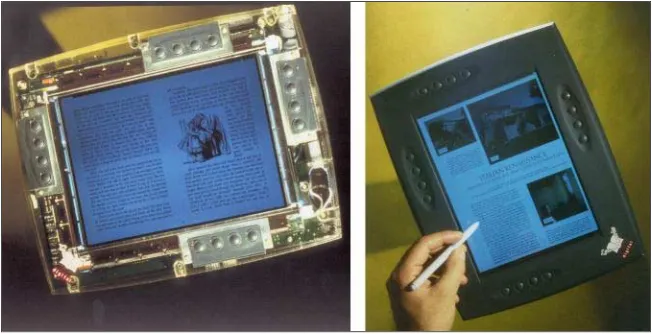
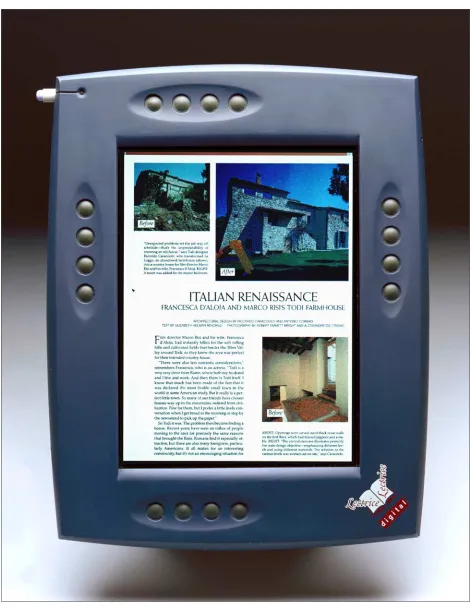
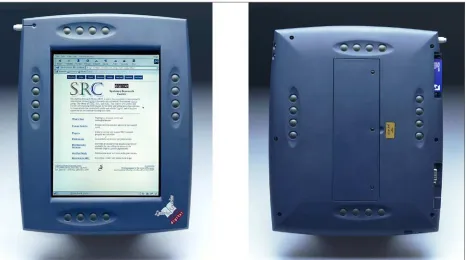
The primary deliverable of the Virtual Book project was Lectrice — a tablet computer tuned for on-line reading. A total of fifteen of these units were built, deployed at a number of sites within Digital,
[image:10.612.143.469.427.594.2]presented to select customers, used in focus groups, and shown in public forums.
Figure 1: Lectrice (photos by Studio Red).
3
To leverage the previous software work at SRC, the initial thrust of the project was to allow Lectern (the Virtual Paper viewer) to be used on portable hardware. A reading appliance being designed today should support the common document formats that have emerged as a result of progress in commercial reading and information access products. These advances have widespread public visibility on the World Wide Web. The most notable new standard is the HyperText Markup Language (HTML), the primary
document format used by Web browsers. Next in importance is Adobe Portable Document Format (PDF) and the Adobe Acrobat Reader, which are appropriate for statically formatted documents.
Given our central goal, the most obvious software strategy would have been to program the Lectrice as a single-function device, dedicated to running the Lectern viewer software. However, it was intended that Lectrice would be suitable for uses besides sustained reading — for example, as a Web browser, as a news and mail reader, or as an audio/video conferencing terminal. To ease exploration of these various uses, the base software transforms Lectrice into a mobile, keyboardless X-terminal. This approach allows Lectrice to function as a prototype of a variety of devices. A two-stage process can then be used; first an existing application is run remotely displaying on Lectrice, and then if warranted a native port can be done. The core reading application followed this pattern; initially the standard Lectern viewer was run remotely and later a native port (Lectk) was developed. In other cases, the source code was not available for the port so remote operation was the only option. For example, a portable Web browser was created by running Netscape Navigator2 on a remote server and displaying its window zoomed to full screen on the Lectrice. This combination is a very persuasive demonstration of the benefits of a mobile reading appliance.
2.1
Overview
The project’s goals, available technology, and physical constraints shaped the design of Lectrice. As far as possible, the design integrated existing technology, saving innovation for areas directly related to the core research on sustained reading. The initial goal was to build a prototype that would be usable for periods of continuous reading. Instead of displaying documents designed for computer screens, the prototype would have to allow readers to view a variety of existing documents, most designed for high-resolution printing on paper. Examples include technical and business documents, novels, journals, and newspapers.
The main hypothesis of the project was that LCD size and resolution were crossing thresholds that would allow users to read for long periods. A survey of tablet computers available in mid-1994 showed that none were suitable for this task (they typically had VGA displays of insufficient quality). However, the display manufacturers were able to supply small quantities of the new LCDs. This, along with a brief study of the state of pen and wireless technologies, led us to the conclusion that by using emerging (and therefore expensive) components, it was feasible to build a suitable hardware and software prototype to test the hypothesis.
Another goal was to ensure mobility for Lectrice users. Readers want to be able to shift positions in their immediate environment, for example, while sitting at a desk, relaxing in a living room, or even lying in bed. Readers should also be able to move between locations within a building and ideally would be able to use the device when they are travelling.
2
To be a persuasive information appliance, Lectrice needed to be comfortable to hold. Two of the most important factors are weight and power dissipation. Initial experiments with a weighted clipboard showed that the ideal weight for the device was less than three pounds (a goal considered unachievable with 1994 technology), but that the subjective difference between three and four pounds was small. It was important the device not get too warm since readers would be likely to use it in their laps for long periods. This requirement implies a power dissipation of less than 10 watts3. Other factors required careful thought, including the Lectrice’s size and shape, placement of buttons, case material, and even the type of exterior paint.
To some extent, the prototype needed to be able to emulate the experience of using paper. For example, it is very common to mark up paper documents, particularly business and technical ones. A general-purpose virtual book should provide an electronic analog, allowing readers to annotate documents. Extrapolation of the price trends for high resolution LCDs suggested that even if the prototype were successful, products would not be economically viable until 1997 or later. The prototype was therefore designed to be a research platform rather than an immediate candidate for a product. This tradeoff meant that there would be some areas where the prototype would be inferior to a product. For example, small-run plastic cases are almost always heavier and more delicate than production-tooled ones.
2.2
Specifications
2.2.1
Hardware
Lectrice has been described as “a really nice display connected to a really boring computer”. For the purposes of the research goals, the details of the hardware are secondary. In summary, the Lectrice hardware includes:
• LSI Logic LR33120 processor (clocked at 25MHz) — a version of the MIPS R3000 processor with a built-in graphics core. It is designed to run the X server.
• Memory: 16MB of DRAM, 1MB of VRAM, up to 8.5MB of Flash.
• Liquid crystal display (LCD) interface, with support for two 3.5W backlights. • Wacom pen-input subassembly.
• National Semiconductor’s Sonic Ethernet chip to give a 10baseT connection. The spare pairs of wire on the 10baseT connector can be used to supply power, so a single cable can be used to provide network access and power.
• PC-Card (PCMCIA 2.1) connector with 2 slots. The slots were used for a wireless local area network card (the Digital RoamAbout™ product), or for document storage on up to 20-megabyte Flash (non-volatile) memory cards.
• A NiMH battery that supports about 1.5 hours of operation.
• Power supply that generates +5V and +12V from either the battery or a tether.
• Audio I/O using a Crystal Semiconductor CS4231 codec, built-in or external microphone and external stereo headphones.
• PS/2 port for experimenting with other input devices. • RS-232 serial port for debugging.
3
5
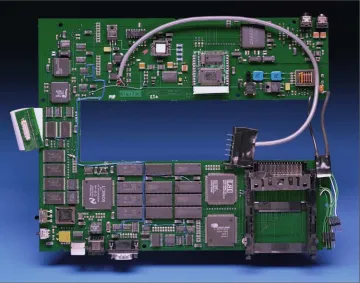
Figure 2: The Lectrice circuit board.
Lectrices were built with 10.4 inch diagonal TFT LCDs in three different screen resolutions:
• 122 pixels per inch using a Sharp LQ10DX01 XGA (1024 x 768) screen, with two 3.5W backlights. • 96 pixels per inch using a Sharp LQ10DS01 SVGA (800 x 600) screen, with a single 2.5W backlight. • 77 pixels per inch using a Sharp LQ10D321 VGA (640 x 480) screen, with a single 2W backlight. With the XGA display, the total power consumption was approximately 15 watts, almost half of which was consumed by 7 watts of backlight power. Nonetheless, the XGA display was the standard for Lectrice due to the need for high resolution. When the device was designed, this display was in the pre-product stage of development, but it is now a standard part and was manufactured in volume during 1996. The lower resolution displays were a generation later in technology. The new technology requires only a single backlight, rather than two. This improvement results in part from the larger pixel size, but more from advances in the optical system that spreads the light across the display and in better techniques for forming the pixels.
2.2.2
Software
The software for Lectrice provides a comfortable environment for sustained reading. It allowed
investigation of both the user interface for reading and the system resources (memory, processing power, I/O bandwidth) needed to support such a system. The project also used Lectrice to investigate alternative forms of input and output (pen, voice and button input for control and simple audio output).
associated device drivers. ELX is a derivative of VxWorks™, a real-time kernel by Wind River Systems. The display functionality is provided by an X Windows System (X11R6) server [SG1992] and the FVWM window manager, both of which were extended to allow switching between portrait and landscape orientations. An AudioFile server [AF1993] allows audio input and output. (AudioFile is the audio equivalent of the X Windows server.) Pen control software converts pen events into mouse events and provides input for a handwriting recognition engine. A Graffiti [Palm1994] single stroke handwriting recognizer (similar to the one on the PalmPilot™) allows text and gesture input. A button manager senses the user pressing and releasing Lectrice’s buttons (see below) and converts the actions into commands for visible applications. Finally, the Tcl/Tk [Oust1991] runtime provides a toolkit for building applications for the prototype.
Lectk, a derivative of the Virtual Paper viewer, is the flagship application built specifically for Lectrice. Other applications — most notably the Netscape Navigator Web browser — run on a remote server and use the X Server to display on Lectrice’s screen. Later sections of this report describe these applications in detail.
2.2.3
Packaging
One of the keys to making the Lectrice easy and pleasant to use was the case design. A design team at Studio Red [www.studiored.com] helped evaluate different case shapes and layouts, and eventually produced the packaging for Lectrice. One constraint was the short-run process that used rubber molds, which are suitable for manufacturing prototypes but are not cost-effective for products.
Accepting the constraints of the prototyping process, we identified a number of requirements for making a virtual book easy to use. First and foremost, the unit needs to be as thin and light as possible. To accommodate a variety of documents, both portrait and landscape orientations need to be comfortable to use. The unit needs to be inviting to pick up and to hold.
To satisfy the requests of various researchers, buttons had to be mounted on each side of the display and on the back. One compromise that was made was to require a screwdriver to open the battery
compartment, since plastic catches are hard to manufacture in the prototype process.
Foam models helped us investigate various shapes for Lectrice. These models had to be weighted
realistically to allow accurate evaluation, since the way they were held depended on the weight. To allow portrait and landscape operation, the center of mass needs to be near the center of the unit. If Lectrice were used only in a single orientation, the ideal center of mass would be slightly below the centerline. The final case has curved edges and is 13.5 x 10.5 x 1.75 FPx 27cm x 4.5cm) measuring across the widest points. The thickness is the sum of the thickness of the rear wall, plus the battery, the battery box wall, the LCD, and the front plastic.
7
Lectrice did not meet its weight goal. The final weight of the XGA-based Lectrice in standalone mode is 5.75 pounds (92oz = 2.6kg). A breakdown of the weight is shown in Table 1.
Weight
Item oz g
Case 31 875
Liquid Crystal Display (LCD) 26 725
Battery 17 475
Printed Circuit Board (PCB) 13 375 Pen Sensor and Digitizer 4 125
Flash card 1 25
[image:16.612.197.416.107.275.2]Total 92 2600
Table 1: Weight of Lectrice components.
When connected to a wireless local area network (LAN) the 1oz Flash card is replaced by the PCMCIA interface card and antenna, which weigh 6oz (175g). If both LAN and power come from a tether, then the Flash card and battery can be removed, making the total weight slightly over four and a half pounds (2kg).
The case could be reduced in weight by using production rather than prototype techniques. In particular, the plastic is thicker than would be required for production injection molding. In addition, the buttons are all mounted on small metal plates that could be replaced by plastic ribbing. These plates contribute over 8oz (225g) — over 10% of the weight of the tethered device! Even during the design stage, display technology advanced. It is reasonable to expect that the weight of a product’s screen would be half of Lectrice’s, due to thinner glass and a single backlight.
2.3
Using Lectrice
A total of fifteen Lectrices were made. Two were fitted with VGA screens and were used only for experiments in comparing screen resolutions. Two were fitted with SVGA screens. These were
acceptable for Web browsing, but were not used for continuous reading. The other units were fitted with XGA screens and have been in use for several years for Web browsing and reading.
2.3.1
Operating modes
9
Figure 4: View showing the pen in its holder, a Flash card in a slot and the Ethernet/power tether
2.3.1.1
Office use: Tethered mode
One of the primary areas for information access is in an office. In this setting, Lectrice can get power and an Ethernet connection using a single cable. The standard 10baseT-ethernet connection uses two twisted pairs (one in each direction), but the RJ-45 connector supports four pairs. Lectrice uses the extra two pairs to carry power (12-18V DC) and automatically switches between the battery and wired power. The tether is the blue cable shown in Figure 4. It is positioned to be on the top edge when in landscape mode, and on the bottom left when in the more usual portrait mode. Users preferred the tether to the uncertainty of battery life, but it is hard to say how much this was due to the limited life of Lectrice batteries and the extra weight they add. Using Ethernet gives a high quality network connection and allows access to both server-based Virtual Paper document repositories and the Web.
The advantage that a tethered Lectrice has over using a desktop computer is to allow the user local mobility. Sitting in front of the computer screen forces users to adjust their body position to screen placement. With a Lectrice (even when a thin cable is attached), readers sit in comfortable positions and occasionally shift positions. Conventional computers force users to adapt to them, while Lectrice adapts to the physical needs of the reader.
2.3.1.2
Campus use: Wireless mode
A wireless LAN card can be installed in one of the PCMCIA slots on the Lectrice. Experiments during the Virtual Book project used the Digital RoamAbout™ product (this is based on the WaveLAN™ system). This configuration gives up to 2Mbits per second connection on to a campus LAN. With typical use, Lectrice batteries last between 1 and 1.5 hours. This length of time is sufficient for experiments, but not satisfactory for everyday use. The network bandwidth proved adequate for accessing server-based material.
The wireless mode was also used in a home experiment, including reading in bed. The Lectrice used a wireless connection to access documents on a personal computer located on a different floor of the house. While this configuration was too complex for “real” users, advances in network management should address most of the problems. Lectrice makes an agreeable bed companion: it provides its own light and turns pages almost silently.
2.3.1.3
Remote use: Standalone mode
[image:18.612.199.415.353.490.2]There are many environments where a network connection is not available. Lectrice supports this situation by using a Flash memory card. The Flash card can be seen in the PCMCIA slot in Figure 4. Material is loaded on to the card while the device is still connected to a network and can be accessed later. Only Lectern documents can be read in this mode, because no browser runs natively on Lectrice; however, Web pages can be (inefficiently) converted to Lectern format.
Figure 5: Standalone mode in use.
The standalone mode was common for use at home, as well as on trips. When reviewing technical papers or long drafts users find it is much more comfortable to sit back on a couch than in a desk chair. Indeed, on one occasion a user was seen coiled up on the couch deeply engrossed in a thesis!
2.3.2
User Studies
The results generated by the Virtual Book project came from informal observations of people using the Lectrice. The three main forums for the observations were day-to-day use, focus groups and a series of intensive interviews. Subsequent sections of this report describe the subjective results and their impact on the final design of the system. Section 6.2 summarizes the results.
11
was powered using a tether, but had no network connection) was used for reading and reviewing thesis drafts, and doing peer-review of conference papers (typically done away from the desk at work or in an easy chair at home). The wireless version was used in meetings on a number of occasions, though the poor battery life led to use of the tethered version during the week-long series of meetings mentioned above.
Four focus groups were conducted. Each of these consisted of a discussion between eight people who described themselves as “mobile information users” but who did not work in the computer industry. A facilitator started the discussion by asking the subjects to describe their information needs. Then specification sheets for fictitious devices were presented to gauge their interest in reading appliances. Towards the end of the session a demonstration of the Lectrice was given and the group’s reaction to the device and changes in attitude were noted. The team members watched the sessions from behind a one-way mirror and reviewed them from a video.
The intensive interviews gave us a better understanding of how users might benefit from having a virtual book to help them in their work. Five general areas were studied: healthcare, complex manufacturing, field service/maintenance, field sales force and knowledge-workers4. In each area between five and ten people were interviewed to understand the requirements they would have for a mobile information device and the environment they would be using it in. As in the focus groups, the Lectrice was demonstrated towards the end of the discussion. In each interview one team member acted as interviewer and one as scribe. Following the interviews the team met to combine their observations into a common
understanding of the requirements from each of the user communities and their reactions to the Lectrice. To aid processing the interview information we followed a modified version of the Concept Engineering process from CQM [www.cqm.com].
In addition, we conducted several customer visits and the device was demonstrated at a number of trade-shows. These events elicited reactions from potential customers and feedback on potential uses for the device.
4
2.4
User Input devices
Two atypical input devices are used during normal operation of the Lectrice. The first of these is a set of case-mounted buttons, and the second a pen. Audio input is also supported by the hardware.
[image:20.612.76.542.193.453.2]2.4.1
Buttons
Figure 6: Lectrice has 32 buttons.
An initial hypothesis of the project was that case-mounted buttons would be ideal for control functions. This later proved to contrast with the approach taken by Knight-Ridder, for their electronic newspaper design study one of their tenets was that there should be no buttons [Martin1995]. For the Lectrice there was no a priori way to determine the right number of buttons, so the design intentionally erred on the side of too many rather than too few. This approach allowed the buttons to be integrated into the case design. If the case had been built with only a few buttons, then some experiments would involve attaching the extra buttons to the Lectrice. We suspected that this would bias results as users reacted to the physical rather than functional characteristics5. Since the unit was to be used in both portrait and landscape modes, the button functions needed to be symmetric under a 90-degree rotation. The case was also designed to be symmetric about the horizontal and vertical axes in both orientations, in order to support left and right handed users equally well. Testing showed that the symmetry was required, but for a different reason; all users found that sometimes the left hand buttons were more convenient and sometimes the right, depending on their current reading position.
5
This assumption proved correct: later experiments using touch pads and button mice proved
13
The buttons on the back of the case did not prove useful. Initially, they were intended for both control functions and for chording (one-handed) keyboards. There were three (related) reasons that the rear buttons failed. Primarily, users did not keep their hands in one place on Lectrice during sustained use, so chording would not be a useful interface. Second, it was hard to locate fingers on the rear buttons, even with extra details sculpted in to the case to help users find the buttons. In addition, the difference in people’s hand sizes meant that no single position for the rear buttons would to allow comfortable use for everyone. The last two reasons seemed true for models of different case designs, so we believe that we were not just seeing an effect caused by the particular case design used for the Lectrice.
One contentious issue in the design was the “feel” of the buttons. The eventual selection used a rubber cover over a metal dome, which pushed onto a membrane switch with a metal backing-plate. The button design balanced the need for low activation force (page turning should not be a strenuous activity!), with the need for tactile feedback. Initially, 12.5mm diagonal, round 170g activation force domes were used, but these proved too soft. Following experiments with a selection of domes, they were replaced by 12mm cross-shaped domes with 200g activation force.
There are two user interface challenges associated with using buttons. The first is how to integrate them into applications — particularly how to experiment with existing applications without requiring
modifications. The second is how to label them in a way that will support multiple applications and both orientations.
Our button-input approach is based on the observation that an event stream is used to pass inputs to the application. For most applications, there are keyboard or mouse shortcuts for common actions6. For each application, the button manager keeps a binding between each button and the event sequence that is needed to perform the associated action. The binding mechanism is implemented using the X resource database. When a reader presses a button, the manager process determines what application has the input focus, translates according to the current screen orientation, looks up the mapping for the
(button, application) pair, and injects the required event sequence.
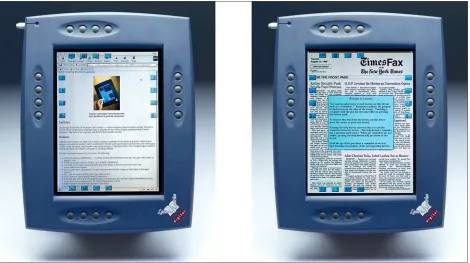
Button help is provided by a similar mechanism. When the reader presses a designated help button, the button manager looks up application-dependent “reminders” for labeling each of the buttons. Reminders are small icons displayed on the screen adjacent to the buttons on the case. In an ideal device, the reminders might be shown on a small display in each button. It is a little hard to see, but the right hand top icon is an upward pointing arrow (scrollbar operation) in the Netscape picture in Figure 7 and a right pointing button (advance forward) in the Lectk application shown on the right. If the pen is held above a reminder expanded help information pops up in the center of the screen, as shown in the photo on the right. Touching a reminder with the pen performs the same action as the associated button.
6
Figure 7: Reminders line up with the buttons.
The pictures also show the problem with this style of labeling — and with virtual buttons in general. When the expanded help information is not present, the reminders still use up space on the screen, often obscuring the material being read. Even in the case where the reminders are not covering any text, they almost always distract the eye of the reader. These observations are a strong argument against
implementing virtual buttons, which permanently occupy some part of the display. The reminders have proved a reasonable solution. Users quickly became accustomed to the positions of the most common buttons and would work with reminders disabled, only displaying them to remind themselves of the position of less common functions.
On a virtual book product, there should be one physically distinguished button that is always used to request more help. If placed appropriately (probably in a corner), the same physical button could be used in both landscape and portrait mode. By convention, Lectrice software always uses the top-right button (relative to the current screen orientation) for the extended help function.
15
2.4.2
Pen
Pen input is used in three ways. The main use is as a selection device for driving the user interface. In this mode, the pen generates mouse events for applications. The second use is for control gestures as an alternative to using the buttons, and in this mode it generates key events (sending the key sequence for the “keyboard shortcut” the application uses for that function). The third mode is for entering text without using a keyboard.
A variety of sensors for capturing pen input are available. Ideally, such sensors should be integrated with the display, but integration is not economically feasible when building only a small number of research prototypes. Many of the simplest and least expensive pen technologies involve putting a sensor on the front of the LCD. For the purpose of late integration, these products come mounted on a glass sheet (typically a tenth or an eighth of an inch thick). Unfortunately, even the best front-mounted systems have a light transmissivity of only 80%, and the separator particles on the standard membrane systems produce bad interference patterns on a high-resolution display. Lectrice therefore uses an electromagnetic system from Wacom [http://www.wacom.com/].
The Wacom system has an antenna array which mounts behind the display. (This is a very thin PCB with a thinner metal sheet behind it.) The antenna array alternates between transmission and reception. The pen has an LC-tuned circuit that resonates with the transmitted signal, and continues to radiate for long enough to be received. When the pen tip is pressed it deforms a capacitor plate causing the resonance frequency to shift a small measurable amount. Buttons on the barrel of the pen make a large change in the resonant frequency. One advantage of this system is its ability to detect the pen position even when the pen is not in contact with the screen (the pen is detected when its tip is about ½” above the screen). It can also report both the position and the pressure applied when the pen is in contact. A major disadvantage is interference between the pen system and the display drive electronics and mounting points. Again, full integration in a product would allow correction factors to be made. The prototypes used shielding tape and calibration software to remove much of the error.
In mouse-replacement mode, the pen position is used to send mouse position events. The pen tip is used as one mouse button, the first barrel button represents another, and the second barrel button or ’eraser’ end of the pen represents a third.
Research in handwriting recognition was not a goal of this project. However, the project needed to be able to test its use in the interface of a reading appliance. To this end, Lectrice’s software includes a home-grown single stroke recognizer based on the Graffiti™ alphabet. The initial implementation was based on the single stroke recognition engine from Carnegie Mellon University [Rubine1991]. Later, after a study of the literature, a more accurate and efficient recognition engine was implemented based on the work of Li and Yeung [Li1993,Li1995,Li1997]. The recognition rates were not as high as commercial implementations, but they were high enough to prove the utility of the pen for short textual input (search expressions, URLs and simple form filling).
2.4.2.1
Application integration
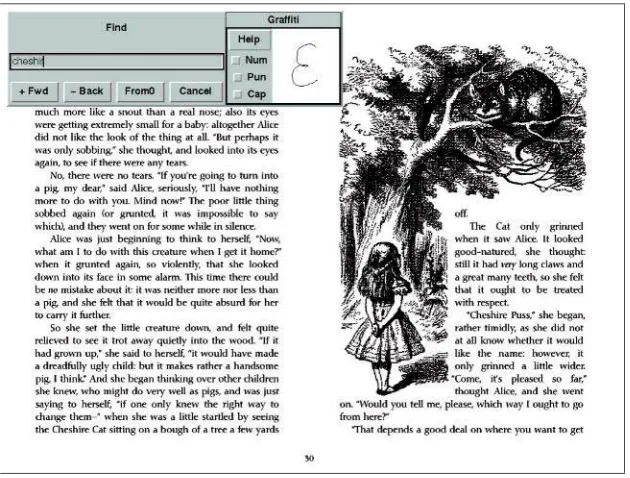
[image:24.612.150.465.230.469.2]The simplest way to enable the pen for text input is to modify the dialog boxes in an application to include an area for pen input. This was done by providing a standard Graffiti input widget that displays the stroke drawn by the pen, calls the recognition engine to convert the stroke to a character and inserts the character into a specified text input area. Figure 8 shows the modified “Find” dialog in the Virtual Paper viewer. The Graffiti widget has been added to the right end of the original dialog box and is shown just as the user lifts the pen after writing the letter ‘e’ in the Graffiti alphabet. A fraction of a second later the recognized character will be added to the input area on the left (changing it to read ‘cheshire’). The “ink” from the pen stroke continues to be displayed for a short time, or until the pen is brought back to write the next stroke.
Figure 8: Pen input integrated with Find dialog box.
This approach is possible only if all the text input dialog boxes in the application can be modified to include the Graffiti widget. This requires access to the source of the application and involves extra work in both doing the initial modifications and in supporting the modified version. An advantage of doing the integration is that the recognizer can be configured to match the expected input. For example, a numeric input field will only enable number recognition, and will therefore have a smoother user interface and potentially a higher recognition rate.
2.4.2.2
Input box
17
some part of the screen. Therefore, the input box must be moveable when it is needed, and hidden when it is not required. If the button on the barrel of the pen is pressed and the pen is tapped on the screen then the input box will appear at (or move to) the point tapped. A “hide” button on the box causes it to disappear.
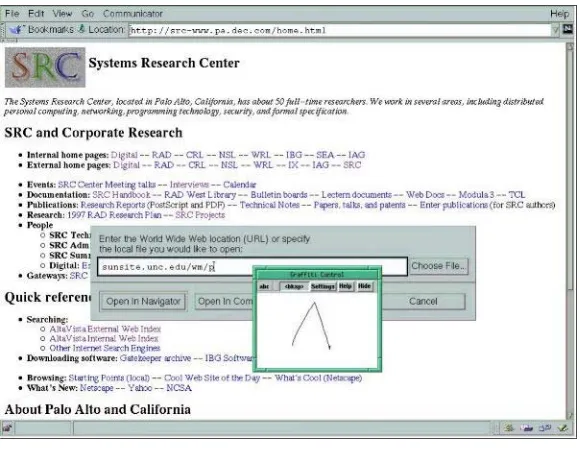
[image:25.612.162.452.238.464.2]The input box, which was implemented as a Tcl/Tk application, has the blue border in Figure 9. Netscape Navigator’s URL (uniform resource locator) entry box has the keyboard focus (its cursor flashes to indicate this status). As in the previous example in Figure 8, this screenshot shows the situation just after the user has lifted the pen. The Graffiti letter ‘a’ has been entered and will be sent to the URL box. The row of buttons that can bee seen at the top of the input box show the state of the Graffiti recognizer (it is modal – gestures are used to switch between lower case, upper case, numeric and symbol input) and the last character recognized.
Figure 9: Graffiti input box above Netscape.
In addition to providing Graffiti input, the input box can be switched to displaying an on-screen keyboard and characters are entered by tapping them with the pen. Most users found this to be more clumsy than using Graffiti but it was useful occasionally, for example when the input needed to be a key like “Escape” which has no equivalent in the recognized alphabet.
2.4.2.3
Writing on the window
The most natural way to enter text is to write directly on the window to which input is directed. This method is similar to using the input box described in the previous section, without having the box
A more serious problem involves giving feedback to the user. Graffiti is a modal system, the same stroke represents a zero, a lower case letter o, an upper case letter O and an at sign (@) depending on the preceding strokes. We observed several occasions where users were accidentally in numeric mode (or shift or control lock). In this situation, users were unable to understand why letters were not entered correctly. For this reason, many users preferred using the input box for complicated strings of text, like URLs.
Figure 10: Writing on the window to compose email.
Figure 10 shows an email message being composed by writing on the window. As with the other examples it shows the state of the screen just after the user has lifted the pen, but before the character is inserted in the composition (in this case the ‘n’ will complete the name ‘Sharon’). If the input box had been used, it would have covered some of the mail message being composed and the user would have had to keep on moving it out of the way. Particularly when editing something like an email message, the ability to position the cursor by tapping with the pen and then just start writing proved highly useable.
2.4.3
Audio
The Lectrice hardware was designed with audio input. The original intention was to support experiments with spoken control of the device. Therefore care was taken to ensure noise was not picked up in the cable connecting the built-in microphone to the main board, and the codec was selected to support the 11.25kHz 16-bit sample rate the speech recognition community recommend. We performed a few experiments passing audio samples to a remote speech recognition engine, but it was not used enough to draw conclusions. The lack of progress on audio input was partially due to the fact that relevant speech recognition technology was not sufficiently mature until after the end of the project.
19
2.5
Common Applications
Three applications are commonly used with Lectrice. The first, the Lectk Virtual Paper document viewer, is the main application for experimentation. The second is Adobe’s Acrobat Reader for PDF documents, the publicly available application that most closely resembles Lectk. The third application is Web browsing, using Netscape Navigator or Communicator, one of the most persuasive uses of this class of device. Lectk can be used in any of Lectrice’s operating modes, including standalone. Acrobat and Netscape have not been ported to run natively on the Lectrice, so they run on a server and remote their display. This configuration limits them to the networked modes: wireless and tethered. A more complete software suite would include these two applications in native mode on the virtual book, along with support for web downloading and caching to enable off-line browsing.
2.5.1
Lectk – the Virtual Paper viewer
Previous research had shown that standard computer interfaces are poorly suited for long reading sessions. For this reason, sequential reading of sizable on-line documents is uncommon, even though sequential reading is the usual mode for printed material.
The Virtual Paper project had developed the Lectern viewer, designed for on-line reading on a desktop screen. This technology was a natural starting-point for the Lectrice system. A repository of Virtual Paper documents already existed, and it was easy to add documents both from electronic formats
[image:27.612.126.489.402.674.2](PostScript and later PDF) and by scanning from paper. Lectern is written in Modula-3, which requires a large runtime system. Rather than running the Modula-3 runtime, Lectrice uses the smaller Tcl/Tk scripting system with C extensions to give the required performance. The Lectk application remains faithful to the original user interface, while including extensions for the mobile platform.
Figure 11 shows the Lectk application. This picture shows an uncommon situation: most of the user interface elements are visible. In typical use, only the material being read would be showing. On the left at the top is the menu anchor, which displays the current page number and a triangular tag to pop up the main menu. This menu is just below, and has buttons for all the viewer functions, together with the keyboard shortcuts used on the desktop version. On the right side of the screen, the “links bar” shows bookmarks (mainly automatically generated) in recent documents, a diary of favorite bookmarks, the table of contents for the current document, and thumbnail views of the pages in the current document. Each of these controls can be revealed or dismissed with a pen stroke or button press. Even with all these controls displayed, the majority of the screen is given to the material being read. Lectrice and Lectk are designed to operate with these controls hidden almost all of the time.
One of the goals of the Virtual Paper project was to support both computer-generated documents and scanned ones. With all scanned documents and many other electronic formats, it is not possible to reformat the document to match the screen; scaling is the only option. Newer electronic representations — HTML, for example — allow dynamic reformatting, but a large body of technical and business documentation is still formatted for paper. In order to allow fast page turning on slow microprocessors (such as Lectrice’s 25MHz R3000), Virtual Paper documents are stored in pre-rendered (and anti-aliased) format using a simple compression. Using current microprocessors and a format like PDF, on-the-fly rendering, scaling and anti-aliasing is possible, but the page layout is still fixed.
Comparing the use of Lectk on a desktop to its use on Lectrice indicates that the on-line reading
experience is improved if neither a keyboard nor a pen need be used. Lectrice’s buttons are sufficient for activating common functions, such as moving forward and backward through the material. The pen is reserved for less common activities.
During normal reading, a single button is used to advance through the material. Since typical page sizes are relatively large, readers do not usually keep their hand hovering over the button, preferring to relax into a natural pose. To go backwards, the reader presses a different button. This page-turning process is analogous to the same activity on a paper book. Depending on how they sit, people use either their left or right hand for controlling Lectrice. This reader behavior indicates that button functions should be
identical on the left and right sides of any virtual book.
One problem with buttons, compared to page flipping in a standard book, is that the action for moving forward and backwards is so similar. Even when deeply engrossed in a real book, a reader is unlikely to make a mistake and flip backwards rather than forwards. On Lectrice, the page-flipping buttons are positioned for single-handed operation, and readers occasionally hit the wrong button. The solution to this problem is to use visual cues in the user interface. When going forward to the next page, Lectk draws the page from the top right corner down. The underlying algorithm first paints a rectangle in the top right corner then progressively fills in L-shaped sections. For going back to the previous page, the paint is done from the top left. These animations mimic a reader turning book pages by pulling from the top corner.
21
turn before finishing the current page (as is often done when reading from paper), permitting a smooth reading flow.
Navigation of the document needs to be fast to prevent the reader rejecting online reading because it seems slower than finding pages in a book. (We did not do any formal tests, but formed the impression that users have higher standards for computer based systems than paper ones.) When flipping through pages, or jumping between sections of a document, the device must have the fastest page turn rate it can. Since the page turning animations take more time than simple screen updates, they should be disabled while navigating, but enabled during sustained reading.
After more experience with the Lectrice, a second problem became evident. There is no feedback to indicate the position within a document. When using paper documents, thickness gives readers an indication of the size of their document and how far through it they are. Again a visual cue seems ideal, but pixels are precious: the 122 dot per inch, 10.4 inch screen is barely sufficient to display full size letter documents (with margins cropped).
[image:29.612.84.524.394.589.2]The first attempt at providing positional feedback added a thin-as-possible bar at the top of the screen. As can be seen from Figure 12, the bar consists of a central red region with indicators on each end. The size of the indicators is set based on the number of pages in the complete document (one pixel width per page, which works for documents up to a few hundred pages). At the beginning of the document, the right side indicator is dark gray, indicating all the pages are ahead. As pages are turned, the thickness is transferred to the left, indicating that pages are moving behind the current point. This visual cue represents the thickness of book pages on each side. The small size of the bar made it hard to use this information, and it never seemed intuitive.
Figure 12: Top part of Lectk window, showing the position bar.
Figure 13: Lectk with position margins.
23
screen so that they just touch the paint area when the marked page is displayed. The goal of the marks is twofold. First, they enable the reader to estimate the distance to the next chapter (feedback from users indicates that this feature is important). Second, the marks can be used like thumb indexes: tapping them with the pen causes Lectk to jump to the associated chapter. “Floating” the cursor in a mark will cause the chapter title to pop-up.
In Figure 13 the page being displayed is positioned at the start of Chapter 6 of the document. The page marker with the number ‘6’ in it indicates this by just touching the edge of the white page display area. Moving forward in the document would cause this marker to jump from the right margin to the left one (since the page starting Chapter 6 is earlier in the document), moving backwards will result in the gray border being visible between this marker and the page. Previous chapters are on the left and subsequent chapters are on the right. The pen is hovering over the “9” mark and has caused the title of Chapter 9 to pop-up.
The future of this kind of mechanism is uncertain. If virtual books have the ability to scale images dynamically, the page can be drawn so the indicator margin never covers any words. On the other hand, the image is reduced in size compared to the printed version, so users are likely to choose the larger image over the visual cue. A potential solution is to use a larger screen, so both the image at normal scale and the margin can be displayed.
[image:31.612.197.415.418.681.2]One other navigational feature is built into the Lectk application: a slow HTML rendering engine. This was designed for experimentation to understand how Web pages could fit into the Lectk paginated model, since they are designed for a scrolling screen. In practice it is used mainly in standalone mode, displaying an index page that is placed on the Flash card by a download utility. The document titles on this simple HTML index are links that can be tapped with the pen. The HTML feature was also used when connected to the network to display the index pages in the Virtual Paper document repository.
2.5.2
Acrobat Reader
Adobe Portable Document Format (PDF) is replacing the less portable PostScript as the standard way to encode paginated documents for distribution. Running the Acrobat Reader on a Unix machine and using the X protocol to display its windows remotely on the Lectrice allowed experiments with this application. In spirit, Acrobat has many of the same properties as the Lectern viewer. However, the normal mode of its user interface has considerably more visible elements, wasting many pixels. The full screen mode removes all the clutter and acts much like Lectk. The button manager maps buttons to the same function in Acrobat that they have in Lectk.
One experiment with this configuration tried to determine if the Acrobat scrollbar provides an adequate method for indicating progress through a document. In practice, the scrollbar proved little better than any of the other methods, though it was acceptable to frequent computer users.
Unlike Lectk, Acrobat renders pages on-the-fly, which works well on systems with a fast processor. As with Lectk, anti-aliasing improves the effective screen resolution (See Section 3.2.) Unfortunately, the Acrobat anti-aliasing algorithm tends to make the characters lighter. With certain fonts, this effect causes text to be harder to read. Experience reading these fonts suggests that making “light” typefaces darker improves the legibility on a backlit LCD.
2.5.3
Browser
The third major application used with Lectrice was the Netscape Navigator/Communicator Web browser. The application runs on a remote Unix machine and uses X to display its windows on the Lectrice. This configuration allowed the browser to be used on Lectrice without needing to port it. The document model used by the Web is different from printed material in several ways. HTML documents are formatted at display time to match the display in use (although a number of Web sites confound this functionality by hard-coding sizes in the page layout). Web browsers (and hence designers) use a scrollbar-based model rather than a paginated one. In addition, the use of multiple colors is common in the Web and relatively uncommon in traditional documents (other than magazines).
The activity of browsing has some differences from reading. In particular, the pen comes into its own as a navigation device, and the buttons become less important. Using the pen to tap on links is far more natural than clicking on them with a mouse. The links can be anywhere on the page, so it is hard to find a convenient way to select them using the buttons. The user therefore is likely to be holding the pen all of the time (in contrast to the reading case). The buttons become clumsy when holding the pen, but a gesture-based interface becomes compelling. A left-to-right stroke of the pen causes the page to scroll forwards and a right-to-left causes a backward movement. When reading a long document with little or no hypertext, most users eventually put down the pen and return to using the buttons.
25
Figure 15: Two screenshots of Netscape on Lectrice.
The pen, normally in the write-on-window mode, proved acceptable for entering URLs and filling out the forms encountered on the Web.
3
Competing with Paper
The key question explored by the Virtual Book project was how well electronic media can compete with paper documents. When we began the project in mid-1994, we accepted that digital information
appliances could not yet do as well as paper along many dimensions, but believed that an electronic system could sometimes be superior. The task, then, was two-fold: come as close to paper as possible in the dimensions of legibility, ergonomics, robustness, and similar attributes; then, surpass it in other attributes such as searchability, flexibility, and interactivity. This section reports the findings on the first half of the challenge; Section 4 discusses the second half of the challenge.
3.1
A Better Definition of the Target
Within the chosen size range, a critical assumption was that the source material could not necessarily be re-formatted. This assumption accommodates both scanned material and documents provided in
“compiled” formats such as PostScript and PDF, where layout decisions have been fixed and are not practically changeable. Section 4.4 relaxes this assumption to include content available in a markup language such as HTML. Documents that can be formatted dynamically make the task of an electronic device much easier. It is reasonable to believe that eventually, most interesting content will be available in such a format. For the near- and medium-term future, however, fixed-format documents will be quite common. General-purpose electronic reading devices will therefore need to accommodate them.
3.2
Legibility
The most obvious point of comparison between paper and any alternative is legibility. How “readable” are text and figures on the screen? Unfortunately, the answer to this question is complicated and highly subjective. It depends on very qualitative factors such as font design, ambient lighting conditions, and the health of the reader's eyes, in addition to more quantitative factors such as resolution and contrast. While acknowledging the subjective nature of legibility, the Virtual Book project attempted to gauge the importance of measurable features like dot density and screen size. A key objective was to try to
discover acceptability thresholds or ranges; such information could usefully serve display makers as well as product design and planning groups.
The analysis in this section focuses on two factors of the display that affect legibility: physical size and dot density. These are the physical properties behind the parameters that are important to the user: how many symbols per page, how many dots in each symbol and how clear each symbol is. In order to make fair comparisons across combinations of parameters, this discussion will use a “canonical” page and show examples of its appearance in different cases. This page is representative of the target content: formatted for printing on 8.5 x 11 SDSHUQRWHDVLO\UHIRUPDWWDEOHDQGZLWKW\SLFDOPDUJLQVIRQWVW\OH and font size.
3.2.1
Display Size
The controlling factor for the size of a virtual book display is the source material size. An 8.5 x 11 SDJH must be scaled to fit on the screen. This section describes the factors that suggested the 10.4 GLVSOD\ would work for Lectrice.
27
[image:35.612.177.434.160.344.2]An alternative is to consider the effects of scaling on the text of the page. One metric for measuring this effect is the x-height (or body height) of the text in the resulting image. The x-height is the height in printer’s points of a lower case “x”. Typography texts recommend that x-height be a minimum of about 5 points, requiring fonts to be approximately 9 points or larger. On paper, characters smaller than this size are legible, but are not good for sustained reading.
Table 2: x-height (points) for various screen diagonals (inches).
The chart above is generated by measuring the x-height of the characters in a printed copy of the
canonical page and computing the new x-height that would result from scaling it (regardless of resolution of the display) to fit on a given display7. (For the sizes of the examples to be correct the surround box of this figure should be 3.5 x 2.5
Rendered on paper, the samples in the chart have higher dot density and better contrast than on any current electronic display device. Hence, this chart can be used to confirm the lower bound for the size needed to display a full page of text with acceptable quality. This methodology is subjective, and there is no single value that would be correct for all readers. Nonetheless, the samples, the literature and our own experience suggest that an x-height of at least 5 points is necessary for sustained reading on an LCD. This observation indicates that a display with diagonal at least 10 inches is required for the class of content represented by the canonical page.
3.2.2
Display Density
Once the physical size of a character has been set the next factor that determines its legibility is the number of dots used to form its shape. After the arguments of the previous section have been used to select a display size, and therefore character size, the number of dots per character is directly related to the pixel density of the display. The examples given in the next section will demonstrate that characters must have sufficient dots to be formed for legibility.
7
The formula for computing x-height from display diagonal is x-height = 72 * display-diagonal * .8 *.95 / 108: 72 is (roughly) the number of points per inch;
.8 converts diagonal to height (assuming 3 x 4 aspect ratio); .95 allows 5% for margin;
The case of the Lectrice was designed for a 10.4 GLDJRQDOGLVSOD\$YDLODEOHGLVSOD\VSURYLGHGWKUHH possible dot densities, measured in dots per inch (dpi): a 640 x 480 VGA display gives 77dpi; an 800 x 600 SVGA display gives 96dpi; and the 1024 x 768 XGA display gives 122dpi. Lectrices with all three resolutions were built to enable comparison. The XGA display was one generation earlier
technology than the lower resolution displays, and therefore had lower contrast, less brightness, worse color, and more reflections than the other displays. Nonetheless, it was still the best for sustained reading.
These pixel resolutions seem very low compared to the 300 to 600dpi found on typical printers. However, all three displays permit gray-scale rendering, as opposed to the black and white dots on printers. Gray-scale allows anti-aliasing to be used to increase effective density.
Anti-aliasing works by relying on blurring of color between pixels. This can be demonstrated with a simple experiment. Make a copy of Page 32 and hang it at eye-level. Stand back about 10 to 15 meters, and look at the page. Notice that the pixels blend together. Slowly walk towards the page, and watch the pixels resolve into discrete squares. The eye can only resolve objects if the angle subtended between their edges is above a threshold (that varies from person to person). From a long distance the black and gray squares subtend an angle below this minimum and the eye sees an averaged color; up close the squares can be uniquely resolved.
It is worth commenting that anti-aliasing is somewhat more of a challenge on LCDs compared to CRTs. The LCD pixels have very sharp edges, whereas the brightness from a pixel on a CRT falls off with a Gaussian distribution at the pixel edge. Thus the CRT has some blending of the pixels as a result of its physical properties, in addition to that caused by the angle subtended at the eye. With an LCD all the blending must be done by the eye, so the anti-aliasing becomes more effective as the angle subtended at the eye becomes small enough for it to be impossible to resolve a single pixel width. Thus in an appliance for reading it is preferable to have the pixel spacing small enough that pixel wide lines cannot be
resolved. This desire conflicts with the expectations set by current laptop computers which (for historical reasons) use system fonts that require the user be able to resolve single pixel wide lines (consider an “m” in a menu).
3.2.3
Display Examples
This section illustrates the display tradeoffs. While the examples can only really be seen on an actual device, the printed versions shown are a close (but not an exact) match. The canonical page is used in each case to allow easy comparisons. The text selected is a page out of a computer science Ph.D.
dissertation. It is a good example of material formatted by the author for printing on 8.5 x 11 SDSHUEXW subsequently made available on-line. The next three pages show the full text as rendered on a Lectrice with each of the screen resolutions (VGA, SVGA and XGA). They should print at the exact size they appear on the screen with the diagonal of the bounding box being 10.4
29
31
The previous three examples show the appearance of the page when rendered to be the same size on each of the Lectrice displays. Since the characters are the same size, the differences in legibility arise from the change in the number of pixels per character as can be seen from the magnified words. These words also show how two gray levels are used to anti-alias the character edges. First at the full 122dpi:
Then at 96dpi:
33
It is instructive to consider the case where reformatting the material is possible. In this case the number of pixels per character (i.e. the screen font size) can be adjusted to fit the same amount of material on each of the screen sizes, or the number of pixels per character can be kept constant and the amount of material reduced. To generate screenshots for all these cases the Netscape browser was used to render an HTML version of the example page. Netscape did not use the same font as Lectk, and it was
monochrome rather than anti-aliased. Nonetheless, since the same information was displayed, these magnified words can be compared with the previous page. At 122dpi:
And at 96dpi, using fewer dots per character to keep the same information content:
35
37
39
3.2.4
Other Factors
Other factors such as brightness and contrast affect legibility. Increased brightness and sharper contrast make for a better display. However, it was hard to design experiments to measure these factors because none of the displays used with Lectrice allows much variation in contrast, and the backlight could be set to only two brightness levels. Newer generations of backlit displays have improved contrast and
brightness compared to the displays used in Lectrice, so they would certainly be suitable for a reading appliance. It would be good to establish the minimum acceptable contrast and brightness because these would allow assessment of the usability new display technologies. For example, the reflective displays that are now becoming available seem compelling for virtual books, since they consume about a tenth the power of traditional TFT displays because they have no backlight. Unfortunately, they also have much lower contrast.
One significant difference between Lectrice’s XGA screen and the lower resolution ones is in the glare – the reflection of surrounding light from the display. The lower resolution displays were one generation newer, and the significant reduction in glare made them easier to read. However, the reduction in glare did not make up for the lack of resolution, and readers preferred the XGA units.
The field of view of the display has less impact on the Lectrice than it does on a laptop, mainly because on Lectrice the natural reading position is directly in front of the screen. Many readers commented about the lack of uniformity in the viewing angle. In landscape orientation, the Lectrice has equal viewing angles to the sides. In portrait mode, the viewing angle is asymmetric on the left and right sides, because Lectrice’s LCDs are designed for laptop use. The keyboard limits the angle the user can see from below on a laptop. As a result, LCDs designed for this market are biased towards viewing from above. This property of the display is more of a quirk than a problem and shows up in practice only when several people are trying to see the same book.
The example illustrations on the previous pages show the improvements from using anti-aliased fonts rather than black and white. In practice, smoothing the fonts makes long reading sessions more pleasant. Therefore, it is essential that the display support a few gray levels — experience from the Virtual Paper project suggest that between four and sixteen levels are sufficient. It is important that either the range of gray levels are uniformly spaced (this is not always the case on LCDs), or the algorithm should be tuned to the available levels.
3.3
Ergonomics
One of the major goals of a virtual book is to make on-line reading more comfortable. As discussed earlier in this document, using a monitor on a desktop to read electronic documents forces readers to sit in a fixed position. One of the main benefits of the virtual book device is to free readers to be able to make small adjustments to their posture. This capability allows readers to relax and to focus on documents, rather than on the delivery technology.