~~I
VERE
The
Everex Scheduler
TMProgram
OWNER'S MANUAL AND REFERENCE GUIDEThe Everex Scheduler
™
Program
Notice
Everex Systems, Inc. reserves the right to make improvements in the product described in this manual at any time and without notice.
This manual is copyrighted. All rights are reserved. No portion of this document may be copied, photocopied, reproduced, translated or reduced to any electronic medium or machine form without prior consent in writing from Everex Systems, Inc.
Table of Contents
INTRODUCTION
2GETTING STARTED
4EXAMPLES OF SCHEDULES
8 ~A~U~T~O~E~X=E~C~O~F~T~H=E~S~C~H~E=D~U~L=E=R~_____________ 14
=SE~T~T~I~N~G~T~H~E~C~L~O~C=K~
_____________________ 16
SETTING THE SCHEDULER
20
Changing The Schedule ... 25
~A.::...Pp~E=N~D=-I~X~I:...::S~U~M:.::.::M~A~R~Y-..;O~F~IN~P:....;U~T~C=O=D=E=S:...-
_____ 28
Introduction
This is a general purpose scheduler that can be used to prepare an operation to be performed automatically at a specified time. This program will save you time by allowing you to perform a utility operation at night, or some other time, when your system is not regularly in use. You can also use it to repeatedly perform a function. For example, you can schedule your computer to use a modem to dial up and retrieve stock information every hour.
The Scheduler
The operation to be performed is specified in terms of key stroke sequences. In other words, the operation' will be performed as if someone were sitting at the computer inputting the commands. This provides extreme flexibility as anything that an operator can do can be scheduled!
If you happen to be working on the computer at the time when a scheduled event is to occur, you will be signaled by either a visual or an audio alarm.
Whenever the computer is started up, the scheduler can be automatically reloaded.
The Clock Display
The scheduler also allows you to display a clock on the screen during your every day operations. The location of this clock can be specified by the scheduler.
Getting Started
This chapter will guide you through the first time use of the scheduler. You will learn how to set the clock and then schedule a simple operation to be performed at a specified time.
1. a. For A Hard Disk User:
Copy all the files on the scheduler diskette to the hard disk. To do this type:
COpy A:*.
*
C:where your scheduler diskette is in drive A and your hard disk is drive C.
Keep the original diskette in a safe place.
h. For A Diskette User:
Copy all of the files on the scheduler diskette to another diskette. To do this type:
COpy A:*.
*
B:Keep the original diskette in a safe place. 2. Start the scheduler by entering:
schedule
3. Two menus will appear on the screen. The menu on the top is for setting the date and time of your clock. The menu on the bottom is for setting up a schedule. Also notice the- date and time display at the upper right hand corner of the screen.
4. Check the date and time display at the upper right corner of the screen. Are the date and time correct? If they are, go to step 10. If they are not, continue with the next step to set the correct date and time.
5. Press the F2 key to move the cursor to the clock menu. 6. Enter the correct date and time in the appropriate places. 7. Remember, if you have any questions, just hit Fl to get
8. Press F8. A message will appear indicating that the correct time and date have been set into the computer. You should notice the date and time display at the upper right corner of the screen now shows the correct date and time. If the date and time entries are left filled with zeros, the system clock will not be changed.
9. Press F2 to move the cursor to the schedule menu.
10. Let us set a schedule to instruct the computer to list the disk directory at a specified time.
11. The blinking cursor should be in the area labeled Input. Enter the following into the highlighted area.
dir;M
These five characters represent the exact keystrokes you normally press on the keyboard when you want to list the directory of the disk. The ;M represents pressing the <enter> key on the keyboard. Notice that the M must be capitalized.
13. Press the <enter> key (.-I) to move the blinking cursor to the areas where you enter the date and time for the event to occur. A good value to enter is the current date and time plus one minute. This will give you time to set up the schedule and wait for the event to occur. Enter the date and time now.
14. Check that all the values you entered are correct.
15. Press F8. A message will show up indicating that the schedule has been set into the computer.
16. Press FlO and then press <enter>. You have now left the scheduler program.
Examples
oj
Schedules
Example 1:
In this example, you will set a schedule to instruct the computer to run the CHKDSK program every weekday evening at 5:00PM for a month.
1. Start the scheduler by entering: schedule
2. Two menus will appear on the screen. Check the date and time display at the upper right corner of the screen. In this example, we will assume they are correct and do not need to be changed.
3. The blinking cursor should be in the area labeled Input. Enter the following into the highlighted area.
ckhdsk;M
4. Press the <enter> key (.,J) to move the blinking cursor to
the next area labelled Activate Schedule. Enter a Y to activate this schedule.
5. Press the <enter> key (.,J) to move the blinking cursor to
the areas where you enter the date and time for the event to occur. Enter the current date in the date slot and 05:00:00PM in the time slot. This will set your schedule to run for the first time this evening at 5:00.
6. Press the <enter> key (.,J) to move the blinking cursor to
the areas where you enter the date and time for the event to end. Enter the date as one month from today. This will cause the schedule to be in effect until that date. You do not need to enter anything in the "time" slot. Simply press the <enter> key four times. The cursor should now be positioned at the "years" entry.
8. Move the cursor to set the days of the week that you want the scheduler to activate automatically. For example, you can exclude Saturday and Sunday by entering "N" for "Sun" and "Sat".
9. Check that all the values you entered are correct.
10. Press F8. A message will show up indicating that the schedule has been set into the computer.
11. Press FlO and then press <enter>. You have now left the scheduler program.
The CHKDSK program will now operate every weekday evening at 5:00.
Example 2:
In this example, you will change the above schedule to operate once a week, on Fridays, for six years.
1. Start the scheduler by entering:
2. Two menus will appear on the screen. Check the date and time display at the upper right corner of the screen. In this example, they are not correct; you will need to enter the Clock Menu and change the settings.
3. Press the F2 key to move the cursor to the Clock Menu. 4. Enter the correct date and time in the appropriate places. 5. Remember, if you have any questions, hit Fl to get help.
Check that your date and time entries are correct.
6. Press F8. A message will appear indicating that the correct date and time have been set into the computer. You should notice the date and time display at the upper right corner of the screen now shows the correct date and time.
7. Press F2 to move the cursor to the schedule menu.
The program will remember eight different schedules. To see a schedule that was created prior to the one displayed on the screen, press the PgUp key. Repeat this action until the desired schedule appears on the screen.
Note: Any schedule which appears on the screen will be overwritten when you press the F8 key. If you want to maintain all of your previous schedules and create a new schedule, press the PgDn key until a blank page (or previously unset schedule) appears on the screen.
9. Press the <enter> key until the cursor is positioned in the ending date space. Since you wish the schedule to run for six years, rather than one, you will need to add five years to the ending date. Do so now.
10. Press the <enter> key until the cursor is positioned in front of the word "days". Enter a "7" and delete any other characters in the highlighted area.
12. Check that all the values you entered are correct.
13. Press F8. A message will appear indicating that the schedule has been set into the computer.
14. Press FlO and <enter>. You have now left the scheduler program.
Autoexec
oj
the Scheduler
If you turn off or reset your computer, you will need to put the scheduler into the AUTOEXEC.BAT file so that the schedules you have established will be active again when you restart the computer. AUTOEXEC.BAT is a batch file which DOS will automatically run whenever the computer is turned on or reset. By putting the schedule program into the autoexec.bat file, you automatically load the schedule each time your computer is turned on.
To edit the AUTOEXEC.BAT you will need to use an editor or word processor.
1. After having entered your editor or word processor, access the AUTOEXEC.BAT file. If one does not already exist, create it.
2. Add the following line to the bottom of your file.
If you have the scheduler in a subdirectory named EVTAPE, you will need to enter:
CD\EVTAPE SCHEDULE/L
Substitute your specific subdirectory name for EVTAPE if it is different.
Setting the Clock
This chapter will give you detailed information on how to set the clock. The clock serves two purposes. First, the clock is used as a reference for the schedule so that the scheduled event knows when to occur. Second, the clock can be displayed any time your computer is on. (Note that programs, such as Microsoft Word, which use graphics mode, may cause the clock to disappear.)
1. Enter the schedule program by typing:
schedule
Two menus will appear on the screen. The menu on the top is for setting the date and the time of the clock. This menu is discussed in detail on the following pages. The menu on the bottom is for setting the schedule. (Please refer to the chapter on "Setting The Schedule" for a more detailed explanation of this menu.) Also, notice the date and thne display at the upper right hand corner of the screen.
2. The cursor will be positioned at the Set Date position. If the date which is displayed in the upper right hand corner of the screen is not correct, you will need to change this entry.
Enter the date. For example, if the day was May 5th, 2000, you would enter 05, 05, 2000. (To move between the space in the highlighted area, use the .... and~keys.)
3. Once you have entered the correct date, the cursor will move so that you may enter the time. Follow the same procedure for entering the time as you did for the date. If you do not know a value, such as what second it is, press the <enter> key and this selection will be skipped.
Note: Do not forget to correct the AM/PM if it is wrong.
Display Clock
4. Press the <enter> key to move the cursor to the display clock option. If you wish to have the clock displayed on the screen at all times, enter a "Y"; if not, enter an "N".
Long Format
5. There are two options. The clock can either display both the time and the date or just the time. If you would like for both the time and date to be displayed, enter "Y". If you want the time only to be displayed enter "N".
At Row IColumn
6. It is possible to display the clock any place on the screen. The clock is automatically displayed at the far upper right hand corner. This is at row 00 and column 59. To display the clock any lower on the screen, you need to change the "at Row" value. The greater the value, the lower the clock will be positioned on the screen. You may move the clock any place between the top row (row 00) and the bottom row (row 24). Enter the appropriate value.
Set The Clock
Setting the Scheduler
This chapter will give you a detailed explanation of how to set the schedule program.
1. Enter the schedule program by typing: schedule
Two menus will appear on the screen. The menu on the top is for setting the date and the time of the clock. (Please, refer to the chapter on Setting The Clock for a more detailed explanation on this menu.) The menu on the bottom is for setting the schedule. This menu will be discussed in detail in the following pages. Notice the date and time display in the upper right hand corner of the screen.
Input Sequences
2. The blinking cursor will be in the area labeled "Input". Enter the key strokes directly as if you were actually performing the operation that you are scheduling. Do not forget to include carriage returns ...
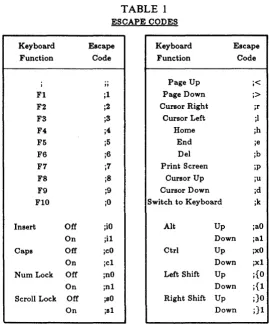
Note: For non-alphanumeric entries, such as the <enter> key, you will need to use special escape codes. If you were to press <enter>, instead of entering its escape code: ;M, the cursor would move, and you would be unable to complete your entry. Refer to the table in Appendix I for the correct escape codes.
If you make a mistake or want to make any changes, use the delete key to remove the unwanted characters.
Once you have entered the desired keystroke sequence, press the <enter> key (.-J) to move the blinking cursor to the next area labeled "Activate Schedule".
Activate Schedule
Wait System Idle
4. If the system is in use when an event is scheduled to occur, normally, the program will wait until the computer system is idle before commencing. This postponement is the default in the scheduler. Sometimes, the event may be part of an on-going task that is already active in the system. In this case, the scheduler can be instructed not to wait for the system to be idle.
If you wish for the scheduler to wait until the computer system is idle before initiating the desired operation, enter Y; if you prefer the operation to occur, even if the computer is in use, enter N.
Starting Date/Time
5. Move the blinking cursor to the areas where you enter the date and time for the event to occur.
Ending Date/Time
6. If the schedule which you are setting is to be activated more than once, you will need to enter information in the area labeled ending date/time. The schedule that you set will be in effect until this date and time are reached.
Repeat Interval
7. You may set the schedule to operate once a week, once a month, etc. by filling in the spaces under "Repeat Interval". For example, if you wish the operation to execute once every other day, position the cursor after "Days", and type in 2. (You can use the delete key to remove the "O"'s that fill the highlighted area.)
Days Included In The Interval
Set Schedule
9. Check that all the values you entered are correct.
If there is a mistake it should be changed now, before the schedule is activated. There are two ways to return to an entry: you may press <enter> as you have been doing all along, or you may use the ~ and
f
keys.If the information is correct, press F8. A message will appear indicating that the schedule has been set into the computer.
10. Now, check the clock at the upper right hand corner of the screen. If the time and/or date are not correct, you will need to reset the clock. Press the F2 key to move the cursor into the clock menu and turn to the chapter on Setting The Clock for a detailed explanation on this menu.
Each of the eight schedules are controlled by a file named SCHEDULE. XXX with XXX being equal to a number between 001 and 008. This file contains information about when the operation is to occur, how often it is to occur (if it is to be repeated), as well as the key stroke sequences that control the operation when it is updated after the scheduler is run. This file is created when the scheduler is used to set a scheduled operation.
There are two ways to change the key stroke sequence in the file. You may either use an editor or a word processor to make changes to the file directly (once this is done, you must run the scheduler program to set the schedule into the system), or you can run the scheduler program and enter a new input key stroke sequence from the menu. The input menu displays the first line of keystrokes in the file. This sequence will replace the string in the file. The keystroke sequence allows up to 512 characters to be stored.
Setting the operation using the schedule program
appears on the screen. Note that ap.y changes you make on this schedule by pressing F8 will overwrite the preexisting information.
Enter any changes which you wish to make to the schedule. Once all of the information is correct, press F8 to activate the schedule.
Setting the operation using an editor
After having entered your editor/word processor, choose the SCHEDULE.XXX program which you wish to edit. The first line of the file is a series of numbers which contain the information about when the schedule is to occur; the second is a line identical to the data which you typed into the input line. To alter the operation that is to be performed, you will need to change the second line or add more lines to the file. Do not change the first line. The total keystroke sequence cannot exceed 512 characters.
The special function keys that are normally available from the keyboard, but which do not have printable ASCII codes, can be generated by special escape codes. The escape codes consist of a ";" followed by an ASCII character.
Appendix
1·
Summary
of
Input Codes
TABLE 1
ESCAPE CODES
Keyboard Escape Keyboard Escape
Function Code Function Code
" Page Up ;<
Fl ;1 Page Down ;>
F2 ;2 Cursor Right ;r
F3 ;3 Cursor Left ;1
F4 ;4 Home ;h
F5 ;5 End ;e
F6 ;6 Del ;b
F7 ;7 Print Screen ;p
F8 ;8 Cursor Up ;u
F9 ;9 Cursor Down ;d
FlO ;0 Switch to Keyboard ;k
Insert Off ;iO Alt Up ;aO
On ;il Down ;al
Caps Off ;cO Ctrl Up jXO
On ;ct Down ;xl
Num Lock Off ;nO Left Shift Up ;{O
On inl Down i{l
Scroll Lock Off iSO Right Shift Up i}O
[image:31.398.45.315.112.436.2]Keyboard Function
Qualifiers
Omit Characters
Ignore to end of line
Key Delay
ESCAPE CODES (continued)
Escape Code jqOOOOOOOO JOOO jtOOOOOOOO.OO Explanation
where 00000000 are the 8 bits defining the 0 or I status of above 8 keys in the order listed
above.
where 00 is a 2 digit decimal value of the number of characters to omit next. Ignore all characters up to and including the next CR or LF. where 00000000.00 is a decimal number specifying the number of seconds delay between each key input. The first seven digits are optional while the digit before the decimal and the 2 digits after the decimal are required.
The following are standard ASCII control codes:
Keyboard Escape Keyboard Escape
Function Code Function Code
BEL jG BS jH
HT jI LF jJ
Appendix
II·
Window operations
Some Hints On Moving In And Between The Windows • To move between entries in a window, use the
t
and+
keys.• To move between positions within an entry, use the .. and~
keys.
• To move the windows, activate the scroll lock by pushing the Scroll Lock key, and use the arrow keys to move the windows. The window where the cursor is positioned will move.
• To move a window away from the top of another window, press the Ctrl and P keys simultaneously.
EVEREX SYSTEMS, INC. 48431 MILMONT DRIVE FREMONT, CA 94538