Avanti 3000D set
User Guide
76-110-0923/0 Issue 2
Pr
in
76-110-0923/0 Issue 2
Avanti 3000D set
User Guide
NOTICE
This publication refers to Telrad Connegy's Avanti 3000D set connected to the UNITe IP system, as of May, 2004. Telrad Connegy reserves the right to modify the equip-ment and the software described herein without prior notice. However, changes made to the equipment or to the software described herein do not necessarily render this publication invalid.
CONTENTS
ABOUT YOUR AVANTI TELEPHONE ... 1
TELEPHONE SET BUTTONS ... 2
DISTINCTIVE RINGING ... 4
MUTE ... 4
HOT DIALPAD ... 5
INTERNAL CALLS ... 5
TO PLACE A NON-RINGING CALL ... 5
TO PLACE A RINGING CALL ... 5
IF THE EXTENSION YOU CALLED IS BUSY (CALLBACK) ... 6
TO BARGE INTO A CONVERSATION... 6
PAGE CALLS ... 6
ANSWERING CALLS ... 7
CALL WAITING ... 7
OUTSIDE CALLS ... 8
WAITING FOR AN AVAILABLE OUTSIDE LINE ... 8
CIRCUMVENTING EXTENSION RESTRICTIONS ... 9
OBTAINING SPECIAL SERVICES VIA LINES DEFINED
AS BEHIND AN EXCHANGE (CENTREX OR PBX) ... 9
HOLD ... 10
TRANSFERRING CALLS ... 11
CONFERENCE CALLS ... 11
MESSAGES ... 12
SENDING MESSAGES ... 13
RECEIVING MESSAGES ... 13
DELETING ALL MESSAGES... 13
DO NOT DISTURB (DND) ... 14
DND MESSAGES... 14
FORWARDING CALLS ... 15
TO PROGRAM CALL FORWARDING ... 15
TO CANCEL CALL FORWARDING ... 16
CANCELING CALL FORWARD TO ME ... 16
BROWSING THROUGH HISTORY (Call Log) ... 17
ABBREVIATED DIALING ... 18
SPEED DIAL ... 18
PHONE BOOK ... 19
ALARM ... 21
TELEPHONE LOCK ... 22
ADVANCED FEATURES ... 22
ABOUT YOUR AVANTI TELEPHONE
The Avanti 3000D set is equipped with onhook dialing and hot dial-pad capability, which enable you to dial or operate any feature by pressing the dialpad buttons. Only when you speak it is necessary to lift the handset.
NOTE
This guide describes the regular operation of the tele-phone. The configuration of your particular system and telephone may introduce differences in operation. For more information, ask your System Administrator.
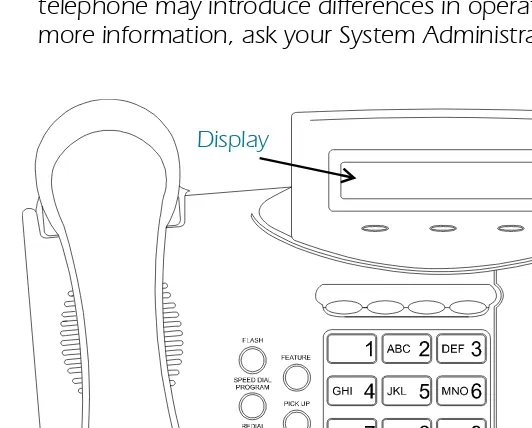
Figure 1 Avanti 3000D faceplate layout
TELEPHONE SET BUTTONS
The Avanti 3000 set has eight fixed feature buttons plus four pro-grammable buttons above the dialpad.
NOTE
In this guide, fixed buttons appear in bold type, in capital lett6ers, within brackets, e.g., [HOLD].
Fixed feature buttons
The following fixed feature buttons appear on your telephone set:
[HOLD]
This button places a call on hold.
[FEATURE]
Press [FEATURE] and then dial a feature access code to activate fea-tures (see the Feature codes table at the end of this guide).
[PICK UP]
Press this button to pick up calls.
[TRANSFER/CONFERENCE]
Press this button to transfer calls and when establishing and exiting conference calls.
NOTE
The [TRANSFER/CONFERENCE] button is referred to as [TRANSFER] or [CONFERENCE], depending on the operation being described.
[SPEED DIAL/PROGRAM]
This button is used for speed dialing and for programming various features.
[REDIAL/PAUSE]
This buttons lets you automatically redial the last outside number you dialed, after first accessing an outside line.
[LO HI]
This button adjusts the volume of the speaker, handset, headset, ringer and background music when any of these is active.
[FLASH]
Depending on system programming, this button is used to discon-nect or to send Flash Signal to the condiscon-nected remote exchange.
Pre-programmed buttons
The following buttons on your set have already been programmed to perform specific functions. The System Administrator can program these buttons to perform other functions. If the function of certain buttons does not match those appearing in Figure 1 at the begin-ning of this guide, consult your System Administrator.
NOTE
With the default configuration, the following features are programmed on the four buttons above the dialpad: [MSG], [DND], [MUTE] and [SPKR].
[MSG]
This button is used to send messages to other extensions and to reply to messages left at your extension.
[DND]
This button activates and deactivates Do Not Disturb.
[MUTE]
This button disables/enables your telephone microphones.
[SPKR]
For handsfree operation, press [SPKR] instead of lifting or replacing the handset.
Softkeys
Softkeys have several functions, which change according to the state of your telephone. A softkey's function, at any particular moment, is indicated on the telephone display.
DISTINCTIVE RINGING
You can program telephone sets located close to each other with dis-tinctive rings, to enable you to identify which telephone is ringing. Nine different rings are available.
To change the ring for your telephone set
2. Press [*] and [#] simultaneously.3. Press the {RING} softkey under the display. 4. Press one of the dialpad buttons ([1] - [9]). When you hear the ring that you want:
5. Press [#].
6. Lift and replace the handset.
Your telephone set reinitializes and all telephone rings (internal, external, recall, etc.) sound with the distinctive ring selected.
MUTE
If you want to talk to someone in your office during a call, without the connected party hearing, you can disable the handset or tele-phone set microtele-phone.
To enable or disable the microphone (MUTE)
• Press [MUTE] during a conversation.ALLOWING OTHER PEOPLE TO HEAR
YOUR CONVERSATION (SPEAKER MONITOR)
be directed through your telephone speaker, so that people in your vicinity can hear the other end of the conversation.
• Press [SPKR].
The [SPKR] indicator turns on.
The other party is heard via the speaker.
HOT DIALPAD
The hot dialpad enables you to dial and activate features without lift-ing the handset or presslift-ing [SPKR] first.
NOTE
The instructions in this guide assume that you have hot dialpad capability.
INTERNAL CALLS
TO PLACE A NON-RINGING CALL
1. Dial the extension number. When the called party answers: 2. Lift the handset to talk.
TO PLACE A RINGING CALL
2. Dial the extension number.
IF THE EXTENSION YOU CALLED IS BUSY (CALLBACK)
When you dial an extension and hear busy tone, you can activate the Callback feature:
1. Press {CLLBCK}.
When the called extension becomes available, your telephone rings. Then:
2. Press [SPKR] or lift the handset. You hear the called extension ringing.
To cancel Callback
•
Press{CL CBK}.TO BARGE INTO A CONVERSATION
Depending on system programming you may be able to break into another conversation.When you dial an extension and hear busy tone:
• Press {BRG IN}.
A warning tone is heard by all parties, depending on system pro-gramming.
PAGE CALLS
You can make announcements through an external page unit, or through the speakers of all UNITe extensions in a page zone.
1. Lift the handset. 2. Press [FEATURE].
3. Dial the PAGE zone access code ([4][1] - [4][8]). 4. After the double tone burst, make your announcement.
To speak directly with a page initiator (MEET ME PAGE)
You can call a page initiator during a page call:1. Lift the handset. 2. Press [FEATURE].
ANSWERING CALLS
To answer a call
• Press [SPKR]To answer an intercom call
(coming through your telephone speaker) • Talk through the microphone.
If you prefer, you may lift the handset instead.
NOTE
On outside line calls, the system supports Caller Name and Caller Identification display.
CALL WAITING
You may hear a beep, indicating a second call, while already engaged in a conversation.
You can answer the call without disconnecting the first call.
To answer a second call
When you hear a call waiting tone during your conversation: 1. Press [FLASH]..
2. Dial [7][3][3].
You are now connected to the second caller and the first call is placed on hold.
NOTE
If the first call is internal, it is disconnected (not placed on hold).
currently on hold.
To return to the first call
To disconnect the current call and return to the previous one:
1. Press [PICK UP]. 2. Press [HOLD].
OUTSIDE CALLS
To access an outside line, you may:
• Dial an outside line or outside line group number; • Dial the LCR access code (usually [9]).
To place an outside call
1. Access an outside line. 2. Dial the desired number.See also Abbreviated dialing, below. When the called party answers:
3. Talk.
To redial the last outside number you dialed
Press [REDIAL].WAITING FOR AN AVAILABLE OUTSIDE LINE
(TRUNK QUEUE)
When you try to select an outside line and hear busy tone: 1. Press{TKQUE}.
2. Press [SPKR] or lift the handset.
3. Listen for outside dial tone and dial the desired number.
To cancel trunk queue
Press {CL TKQ}
CIRCUMVENTING EXTENSION RESTRICTIONS
(TRAVELING CLASS OF SERVICE)
You can dial an outside number from a toll-restricted telephone by temporarily assigning it your own extension's Class Of Service (COS) or a system-wide (Global) COS, accessible only to privileged users.
1. Dial the TRAVEL COS (Class Of Service) access code.
2. Dial your extension number - to apply your extension's COS, or Press [
*
] for a Global COS.3. Dial your ECC authorization code or a Global COS code. The [TC] indicator (if defined) lights.
The Travel COS feature is active for a predefined period. 4. Access an outside line and place a call.
OBTAINING SPECIAL SERVICES
VIA LINES DEFINED AS BEHIND AN EXCHANGE
(CENTREX OR PBX)
You may be able to access special services provided by a CENTREX or PBX exchange.
To access services while connected to the outside line
1. Press [FEATURE].HOLD
There are two types of hold:
• Exclusive hold: the call can be retrieved only from your
extension.
• Inclusive hold: the call can also be retrieved by other sets
with a button for the ringing line.
You cannot transfer a call that is on hold.
When you place a call on hold, you automatically receive dial tone and can make a page call or dial to another extension.
To place a call on exclusive hold
• Press [HOLD] once.The indicator flashes green on your set and red on other sets with a button for that line.
To place a call on inclusive hold
• Press [HOLD] twice.Depending on the programming of your extension, the first press of hold may activate Inclusive hold, and the second press, Exclusive hold. Ask your System Administrator for details about the Hold set-tings in your extension.
To pick up a call from hold
1. Press [PICK UP].TRANSFERRING CALLS
To transfer a call to another extension:
1. Press [TRANSFER].
2. Dial the extension number.
3. Announce the call when the other party answers and then hang-up.
To retrieve a transferred call
If you have not yet hung up and the other party has not yet answered the transferred call, you may retrieve the transferred call.
• Press the line button associated with the call.
CONFERENCE CALLS
A total of eight parties, any of which may be on outside lines, can participate in a conference.
To establish a conference
1. Make the first call.If there are more conference participants a {NEXT} softkey appears. Press it to view the rest of the list of participants. After pressing
{NEXT} you can return to the previous display by pressing {PREV}.
PICKUP
You can answer a call at another extension without leaving your desk.
To pick up a call on hold or ringing at another extension
1. Press [PICK UP].2. Dial the number of the extension at which the call is ringing or on hold.
To pick up a call ringing in your pickup group
1. Press [PICK UP].2. Press [
*
].MESSAGES
If, after dialing an extension, there is no answer or you hear busy tone, you can send a basic message or a message from a predefined list, which appears on the display of the extension you called.
SENDING MESSAGES
To send a basic message
After dialing an extension: 1. Press [MSG].2. Hang up
The message is sent.
To select and send a defined message
You can select a message from a defined list (see a list of system mes-sages at the end of this guide).
After dialing an extension:
1. Press [MSG].
2. Enter a message number (two digits; e.g. 08).
Alternatively, you can scroll through the message list with [LO HI]. If the message includes asterisks (*), you may edit it using the dialpad. Enter the digits on the dialpad; they appear on the screen in place of the asterisks.
3. Press {SND MG}.
4. Hang up. The message is sent.
RECEIVING MESSAGES
When messages have been left at your extension, your [MSG] indica-tor lights and you hear a broken dial tone when you lift the handset or press [SPKR]. If your set has a display, it informs you of messages waiting for you.
To call the message sender
1. Press [SPKR].2. Press [MSG].
DELETING ALL MESSAGES
To delete all messages left at your telephone
1. Press [#].DO NOT DISTURB (DND)
If you do not want calls to ring at your telephone, temporarily, you can activate the DND feature.
NOTE
If your telephone set is not programmed with DN buttons, the DND indication is slightly different.
If the [DND] button flashes red, this indicates that your set is programmed for Call forward. You can deactivate Call forward by pressing the flashing [DND] button.
To place your telephone in do not disturb mode
• Press [DND].The DND indicator lights steady red, and no calls ring at your telephone. Internal callers hear busy tone and see your DND message, if programmed. If your set is programmed for DND call forwarding or for Call Forward, calls are forwarded.
To cancel DND mode
• Press [DND].The DND indicator goes off and calls ring at your set.
DND MESSAGES
You can select a predefined message that appears on the display of telephones that call your extension, while it is in DND mode. You can also ask the System Administrator to program additional messages.
To program a DND message
1. Press [FEATURE].2. Press [PROGRAM].
3. Press [DND] or {DND MG}.
4. Enter a message number (two digits; e.g. 08. See the DND mes-sages table at the end of this guide for a complete list of available messages),
or,
mes-sages (see the DND Mesmes-sages table at the end of this guide for a complete list of available messages).
If the message includes asterisks (*), you may edit the message by pressing the desired digits on the dialpad. The numbers you dial appear in the message, in place of the asterisks.
5. Press {SAVE}.
To cancel your DND message
1. Press [#].2. Press [PROGRAM].
3. Press [DND] or {DND MG}. 4. Hang up.
FORWARDING CALLS
You may program your telephone set to forward your calls to another extension.
TO PROGRAM CALL FORWARDING
1. Press [FEATURE] and dial the code that designates in which situ-ation you want your calls forwarded:
2. Dial the code designating the calls you want forwarded:
In order to program Dial
Call forward always [F][L] or [3][5]
Call forward busy [F][B] or [3][2]
Call forward no answer [F][N] or [3][6]
In order to program Dial
3. Enter the new destination for call forwarding. 4. Hang up.
TO CANCEL CALL FORWARDING
1. Press [#].
2. Press [FEATURE].
3. Dial the code that designates in which situation you want your call forwarding canceled:
4. Dial the code designating the type of call forwarding that you want to cancel:
5. Hang up.
CANCELING CALL FORWARD TO ME
If another set has programmed your telephone set as its forwarding destination and you do not wish to be disturbed by those calls, you can cancel your status as a call forwarding destination.
To cancel Call Forward to me
1. Press [#].2. Press {FL 2ME}.
3. Dial the extension number whose calls you no longer want for-warded to your set.
or
External calls [E] or [3]
Internal calls [I] or [4]
In order to program Dial
Call forward always [F][L] or [3][5]
Call forward busy [F][B] or [3][2]
Call forward no answer [F][N] or [3][6]
In order to program Dial
All calls [A] or [2]
External calls [E] or [3]
Press [
*
] if you wish to cancel all Call Forward to me, from all sets.BROWSING THROUGH HISTORY
(Call Log)
Your telephone enables you to view details of your external call his-tory. Information about up to 90 calls (30 for eachof the categories: Outgoing, Incoming and Missed calls) is stored and can be displayed and dialed back.
To access the Call Log press the {CALLS} softkey (the leftmost soft-key).
NOTE
Only incoming calls with Caller ID will be displayed under
{INCOMING} or {MISSED}.
The displays shows
{INCOM}
,
{OUTGO}
,
{MISSED}
.
Press-ing each of these will display details of a call:
On the top left of the display are shown the ordinal number in
the list, caller ID, time and date of the call. The following
soft-keys appear on the bottom side of the display:
• {DETAIL} Swaps between the date and time of call and the
name of the caller, if available.
• {CALL} Enables you to call back the calling party.
NOTE
It is also possible to navigate through the calls in the list using the [LO HI] button.
To delete a call, press the [#] button.
ABBREVIATED DIALING
This section describes several ways of abbreviating dialing. Save/ Repeat and Redial are described in Outside Calls, above.
SPEED DIAL
Speed dial shortens the procedure of dialing outside numbers by using speed dial buttons and speed dial memories (called “bins”).
To speed dial an outside number
• Press [SPEED DIAL] and dial the speed dial bin code (three dig-its),
or
Press the appropriate SPEED DIAL button.
To program a speed dial memory code
1. Press [FEATURE].2. Press [SPEED DIAL/PROGRAM]. 3. Do one of the following:
Dial a speed dial bin code (three digits; e.g. 003)
4. Dial an outside line access code followed by the number you want to store.
5. Hang up.
NOTE
PHONE BOOK
You can use the Phone Book feature to dial a number from your pri-vate Phone Book list (which you program), or from one of the ten Phone Book lists your System Administrator may have programmed.
The Phone Book entries are stored in speed dial bins in alphabetical order. When you program a Phone Book entry, it is stored in an avail-able speed dial number and may have a name associated with it. If you change the number stored by the method described on the pre-vious page (“To program a speed dial memory code”), you also change the number for the Phone Book entry.
You can use the Phone Book feature to dial a number only when your telephone set is in idle state. You can make entries into the Phone Book when the telephone is idle or during a conversation, by programming a speed dial bin with the number and name.
General key functions
Use the [LO HI] button to scroll through the menu of lists and through the entries in the Phone Book lists. If you only see the name, press the [LO HI] button to view the number.
• Press [FEATURE]to return to the previous display. • Press {EXIT} to exit from the Phone Book feature. • Press [MUTE] to delete the last character(s) you entered.
• Press [HOLD] to save your programming and continue program-ming another entry.
To save your programming and exit from the Phone Book feature: Press [PROGRAM].
To dial a number from the Phone Book
(from idle state only)1. Press [FEATURE] and the feature access code for the desired Phone Book list (see your System Administrator).
2. Press [HI] to view the list
3. Use the [LO HI] button to scroll through the list or use the dial-pad to enter appropriate characters until the name appears on the display.
The Phone Book feature automatically dials the number. Press [TRANSFER]. The display shows the name for the entry, the number of the speed dial bin (e.g. 003) where the entry is stored, and the telephone number for the entry.
You can then press {DIAL} to dial the number, {UPDATE} to change the name or number for the entry, or {REMOVE} to delete the entry from the Phone Book.
To program your private Phone Book list
For each entry in your private Phone Book list, you enter both a name and a telephone number.
1. Press the programmed button for the private Phone Book list, or press [FEATURE] and the feature access code for the private Phone Book list.
2. Press {ADD}.
3. Enter the characters in the name (up to 16) by using the dialpad. The table at the end of this section shows the dialpad equiva-lents of each character.
4. Press {NUMBER}.
5. Enter up to 16 digits for the telephone number. 6. Press [HOLD].
The previous display returns so that you can continue program-ming the next available speed dial bin.
7. After programming all the entries for the list: Press {EXIT}.
To delete an entry from your private Phone Book
1. Access Phone Book as if you are going to dial a number (steps 1-4 in “To dial a number from the Phone Book” above) for the entry you want to delete.
2. Press [TRANSFER]. 3. Press {REMOVE}.
To edit an entry in your private Phone Book
1. Access the entry you want to edit.Enter the correct characters for the name. Use [MUTE] for backspacing.
4. If you want to change the number:
Press {NUMBER}, or skip to step 6 to leave the number unchanged.
5. Enter the correct number. 6. Press [PROGRAM].
ALARM
Your telephone can sound an alarm ring at a pre-programmed time.
To program an alarm time
1. Press {PROG}.2. Press {TIME}.
3. Dial the four-digit alarm time (HH:MM) using the 24 hour format (e.g. 1530 for 3:30 pm).
4. Press {SAVE}.
To cancel the alarm setting
Before the alarm rings:1. Press [#].
2. Press [FEATURE].
3. Dial the TIME ALARM access code ([8][2]). 4. Hang up.
To stop the alarm ring
TELEPHONE LOCK
You can prevent people from making outside calls from your tele-phone.
To lock your telephone
1. Dial the LOCK access code..The display shows ENTER CODE:
2. Dial your Executive Credit Code (see your System Administrator). 3. Hang up. The telephone lock dialing restrictions are in effect.
To unlock your telephone
• Repeat the above procedure.ADVANCED FEATURES
This section lists some advanced features which you can activate from your telephone. Details concerning the operation of these fea-tures can be found in the DIGITAL Systems Operating Instructions manual.
• Account code (voluntary, reminder, forced); • Answering a second incoming call;
• Background music; • Camp on;
• Executive Credit Code (ECC) programming; • Executive intercom;
• External Call Forward; • Hot line;
• Intrusion;
• Meet me conference; • Pick up;
• Last hold; • Page transfer; • System speed dial;
• Trunk patch - Retrieve trunk patch.
FEATURE CODES
Features can be activated by pressing the [FEATURE] button and then dialing a feature access code.
The default feature codes (see next page) reflect the feature initials, using the letters on the dialpad buttons.
For example:
To access Barge In
• Press [FEATURE] followed by the dialpad buttons corresponding to the letters BI (Barge In).
That is,
The feature codes in your system may have been changed. If so, enter the updated feature access codes in the “Access method” col-umn of the Feature codes table.
FEATURE
2
ABC
Feature codes
Feature name Abbreviation Access method
ACCOUNT CODE AT [FEATURE][2][8]
ACD LOGIN (1) -
-ACD LOGOUT (1) -
-ALL/GROUP - [*]
ATTENDANT - [0]
BACKGROUND MUSIC 1 BM [FEATURE][2][6]
BACKGROUND MUSIC 2-4 (1) (3) -
-BARGE IN BI [FEATURE][2][4]
CALL ACCOUNT MONITOR (1) -
-CALLBACK/QUEUE CB [FEATURE][2][2]
CALL FORWARD-ALWAYS FL [FEATURE][3][5]
CALL FORWARD-BUSY FB [FEATURE][3][2]
CALL FORWARD-NO ANSWER FN [FEATURE][3][6]
CANCEL - [#]
CLIR (1) (2) -
-CONFERENCE LOOP 1-10 (1) -
-DIRECTORY 1 THROUGH 9 (1) -
-DIRECTORY 10 (HELP) (1) -
-DROP (from conference) (1) -
-END OF DIALING/S-END - [FEATURE][#]
EXECUTIVE CREDIT CODE EX [FEATURE][3][9]
FEATURE - [7]
FLASH SIGNAL(1) FS [FEATURE][3][7]
FLIP FLOP FF [FEATURE][3][3]
GROUP PICKUP (1) -
-INTRUSION - [6]
LAST HOLD LH [FEATURE][5][4]
LEAST COST ROUTING (1) -
-LOCK (1) -
-MEET ME CONFERENCE 1-5 (1) -
-(1) Access method not assigned by default.
(2) Only available on ISDN PRI calls.
MEET ME PAGE MM [FEATURE][6][6]
MESSAGE ME [FEATURE][6][3]
NIGHT SERVICE (1) -
-PAGE - INTERNAL
1 through 8 I1 through I8 [FEATURE][4][1] through [4][8]
PAGE - EXTERNAL 1 through 8 (1)
X1 through X8
-PICKUP PU [FEATURE][7][8]
PROGRAM PM [FEATURE][7][6]
REDIAL RL [FEATURE][7][5]
SAVE/REPEAT SR [FEATURE][7][7]
SPEED DIAL SD [FEATURE][7][3]
TIME ALARM TA [FEATURE][8][2]
TONE - [1]
TONE DIAL (DTMF) (1) -
-TRAVEL COS(1) -
-TRUNK PATCH TP [FEATURE][8][7]
TRUNK SPEED DIAL (1) -
-VOICE MESSAGE (1) -
-Feature codes (Continued)
Feature name Abbreviation Access method
(1) Access method not assigned by default.
(2) Only available on ISDN PRI calls.
DND messages
Message number Default message Updated message
01 BE BACK SOON
02 BE BACK AT * * : * * (1)
03 BE BACK ON * * - * * (1)
04 OUT UNTIL * * : * * (1)
05 OUT FOR THE DAY
06 OUT OF OFFICE
07 OUT OF TOWN
08 OUT ON A CALL
09 OUT FOR LUNCH
10 ON VACATION
11 ON A TRIP
12 ON BREAK
13 AWAY FROM DESK
14 GONE HOME
15 BUSY UNTIL * * : * * (1)
16 CALL * * * * * (1)
17 CALL ME AT * * * * * (1)
18 CALL LATER
19 CALL TOMORROW
20 DO NOT DISTURB
21 IN A MEETING
22 IN CONFERENCE
23 WITH A CLIENT
24 WITH A GUEST
25 WITH A PATIENT
26 UNAVAILABLE
27 LEAVE MSG AT * * * (1)
28 TAKE MSG AT * * * * (1)
29 30
System messages
(1) When editing messages, enter digits in place of the asterisks.
(2) Messages 22 to 30 are to be defined by the customer.
Message number Default message Updated message
01 CALL_ (Basic message)
02 CALL * * * * * (1)
03 CALL HOME
04 CALL ME
05 GONE OUT
06 READ MAIL
07 VOICE MAIL
08 CALL BOSS
09 TAKE MSGS
10 GONE HOME
11 JOB DONE
12 IN TROUBLE
13 CLIENT
14 BRING WORK
15 ANY NEWS?
16 REPORT DUE
17 COME HERE
18 MEET. NOW
19 MEMO READY
20 TYPE LETTR
21 WELL DONE
22 (2)
Your speed dial codes