Network Load Balancing Software
Administrator’s Guide
CONTRIBUTORS
Written by Carolyn Curtis, with material by Carlin Otto and Susan Thomas and updated by Terry Schultz
Illustrated by Dan Young Production by Terry Schultz
Engineering contributions by James Yarbrough, John Becker, and Ken Robinson
COPYRIGHT
© 1999, 2004, 2005, Silicon Graphics, Inc. All rights reserved; provided portions may be copyright in third parties, as indicated elsewhere herein. No permission is granted to copy, distribute, or create derivative works from the contents of this electronic documentation in any manner, in whole or in part, without the prior written permission of Silicon Graphics, Inc.
LIMITED RIGHTS LEGEND
The software described in this document is “commercial computer software” provided with restricted rights (except as to included open/free source) as specified in the FAR 52.227-19 and/or the DFAR 227.7202, or successive sections. Use beyond license provisions is a violation of worldwide intellectual property laws, treaties and conventions. This document is provided with limited rights as defined in 52.227-14.
TRADEMARKS AND ATTRIBUTIONS
Silicon Graphics, SGI, the SGI logo, CHALLENGE, Indy, IRIS, and IRIX are registered trademarks and Indigo2, O2, OCTANE, Onyx2, Origin2000, Origin200, and Origin200 GIGAchannel are trademarks of Silicon Graphics, Inc., in the United States and/or other countries worldwide. ACEswitch is a trademark of Alteon Networks, Inc. EtherChannel and Catalyst are registered trademarks of Cisco Systems, Inc. Foundry is a trademark and Foundry Networks is a registered trademark of Foundry Networks, Inc. Macintosh is a registered trademark of Apple Computer, Inc. Windows NT is a registered trademark of Microsoft Corporation. SMC is a registered trademark of SMC Networks. All other trademarks mentioned herein are the property of their respective owners.
What’s New in This Guide
This rewrite of theNetworking Load Balancing Software Administrationls Guidesupports the 6.5.27 release (or later) of the IRIX operating system.
Major Documentation Changes
This manual provides information about the following:
• Added information about static trunking in “Network Load Balancing Software Features” on page 1.
• Added information about static trunking in “Supported Switches and Ethernets” on page 4.
• Added information about how to configure Network Load Balancing Software to operate with static trunking in Configuring Network Load Balancing Software for Static Trunking on page 25.
• Added information about configuring switch ports in Initial Remedies on page 33. • Added information about new switches supported in Appendix A.
Record of Revision
Version Description
001 March 1999
Original publication.
002 August 2004
Updated to support the Network Load Balancing Software 2.0 release (IRIX 6.5.24 or later).
003 January 2005
Updated to support the Network Load Balancing Software 2.1 release (IRIX 6.5.27 or later).
004 November 2005
Updated to support the Network Load Balancing Software 2.2 release (IRIX 6.5.27 or later).
Contents
Figures . . . . ix
Tables . . . . xi
Audience . . . . xiii
Structure of This Document . . . . xiii
Other Required Documentation . . . . xiv
Conventions . . . . xv
Obtaining Publications . . . . xv
Reader Comments . . . . xvi
1. Network Load Balancing Software and the Ethernet . . . . 1
Network Load Balancing Software Features . . . . 1
Compatibility . . . . 3
Supported Platforms . . . . 3
Supported Switches and Ethernets . . . . 4
Network Load Balancing Driver and System Resources . . . . 7
2. Network Load Balancing Software Installation and Configuration . . . . 9
Installing the Software . . . . 9
IP Addresses and the Network Load Balancing Software . . . . 10
Preparing for Network Load Balancing Software Configuration . . . . 12
Network Load Balancing Software and the Shell Command File/etc/init.d/network. . 14
Configuring the Network Load Balancing Software and Driver . . . . 15
Adding Network Load Balancing to a System . . . . 16
Making the Network Load Balancing Interface the Primary Interface . . . . 20
Configuring Multiple Network Load Balancing Software Interfaces . . . . 23
Configuring Network Load Balancing Software for Failure Detection Only . . . . 24
Configuring Network Load Balancing Software for Static Trunking . . . . 25
Contents
3. Performance Tuning . . . . 27
Tuning Parameters . . . . 27
Tuning Parameters for Failure Detection and Recovery . . . . 29
Changing Input Load Balancing . . . . 30
Adjusting the Balance Period. . . . 31
Adjusting the Balance Threshold Value. . . . 31
Adjusting the Average Weight . . . . 32
4. Troubleshooting . . . . 33
Initial Remedies. . . . 33
Connection Has Not Been Functional Since Last Boot . . . . 34
Connection Has Been Functional in the Recent Past . . . . 35
High Rate of Packet Loss Occurs . . . . 36
System Cannot Communicate With Other Systems . . . . 37
System Does Not Load Miniroot or Boot From the Network . . . . 37
Figures
Figure 1-1 Network Load Balancing Software Example . . . . 6
Figure 2-1 Network Load Balancing Device as Secondary Interface Example (netstat -in) . . . . 20
Figure 2-2 NetworkLoadBalancingDeviceasPrimaryInterfaceExample(netstat-in) 23
Tables
Table 1-1 Network Load Balancing Software Subsystems . . . . 7
Table 2-1 Default Network Interface Parameters . . . . 13
About This Guide
This guide describes the Network Load Balancing Software 2.2 release that lets you consolidate Ethernet ports into a single IP address. It also optimizes performance by determining and setting the load balance for input and output packets. The Network Load Balancing Software runs on CHALLENGE, SGI Origin 200, SGI Origin 2000, Silicon Graphics Onyx2, SGI Origin 300, Origin 350, and SGI Origin 3000 system, and SGI Origin 3900 systems running IRIX 6.5 or later.
Audience
This manual is your guide to configuring, testing, and monitoring your Network Load Balancing Software network connection. This guide has been written so you can perform all the basic Network Load Balancing Software administration tasks.
This guide is written for network system administrators. It presumes general knowledge of the Ethernet and of the Silicon Graphics system in which it is installed.
Note: This guide is not an in-depth network administration guide; it does not provide information for planning, managing, and maintaining an Ethernet network.
Structure of This Document
This guide consists of the following chapters and appendixes:
• Chapter 1, “Network Load Balancing Software and the Ethernet,” describes the software’s features.
• Chapter 2, “Network Load Balancing Software Installation and Configuration,” explains how to install the software and how to associate Ethernet ports with it.
About This Guide
• Chapter 3, “Performance Tuning,” explains how to tune parameters to control how the Network Load Balancing Software distributes outbound packets, and how it balances inbound packets.
• Chapter 4, “Troubleshooting,” describes what to do when your network connection has problems.
• Appendix A, “Validated Ethernet Switches”, summarizes Ethernet switches for which the Network Load Balancing Software has been validated.
• Appendix B, “Error Messages”, lists Network Load Balancing Software error messages and gives suggestions for remedies.
Other Required Documentation
For instructions on configuring a system for networking, see the latest version ofIRIX Admin: Networking and Mail.
For general information about your Silicon Graphics system, see its owner’s guide. If you do not have your owner’s guide handy, you can get it and other Silicon Graphics documentation online in the following locations:
• If you have installed the guide on your system, or if it is installed on a server on the network, you can use the IRIS InSight Library: from the Toolchest, chooseHelp >
Online Books >SGI EndUser orSGI Admin, and select the applicable owner’s or hardware guide.
• If you have access to the Internet, you can use the Technical Publications Library. Enter the following URL in your Web browser location window:
http://docs.sgi.com
Once you are in the library, choose Catalogs > Hardware Catalog > and look under the Owner’s Guides for the applicable owner’s guide.
About This Guide
Conventions
The following conventions are used throughout this document: Convention Meaning
command This fixed-space font denotes literal items such as commands, files, routines, path names, signals, messages, and programming language structures.
variable Italic typeface denotes variable entries and words or concepts being defined.
user input This bold, fixed-space font denotes literal items that the user enters in interactive sessions. Output is shown in nonbold, fixed-space font. [] Brackets enclose optional portions of a command or directive line. ... Ellipses indicate that a preceding element can be repeated.
manpage(x) Man page section identifiers appear in parentheses after man page names.
Obtaining Publications
You can obtain SGI documentation in the following ways:
See the SGI Technical Publications Library at http://docs.sgi.com. Various formats are available. This library contains the most recent and most comprehensive set of online books, release notes, man pages, and other information.
If it is installed on your SGI system, you can use InfoSearch, an online tool that provides a more limited set of online books, release notes, and man pages. With an IRIX system, selectHelp from the Toolchest, and then select InfoSearch. Or you can type infosearch on a command line.
You can also view release notes by typing eithergrelnotes orrelnotes on a command line.
About This Guide
Reader Comments
If you have comments about the technical accuracy, content, or organization of this document, contact SGI. Be sure to include the title and document number of the manual with your comments. (Online, the document number is located in the front matter of the manual. In printed manuals, the document number is located at the bottom of each page.).
You can contact SGI in any of the following ways: • Send e-mail to the following address:
• Use the Feedback option on the Technical Publications Library web page: http://docs.sgi.com
• Contact your customer service representative and ask that an incident be filed in the SGI incident tracking system.
• Send mail to the following address: Technical Publications
SGI
1500 Crittenden Lane, M/S 535 Mountain View, California 94043-1351
Chapter 1
1.
Network Load Balancing Software and the Ethernet
The Network Load Balancing Software lets you consolidate as many as 40 Ethernet ports into a single IP address, and balance the load on the ports.
This chapter consists of these sections:
• “Network Load Balancing Software Features” on page 1 • “Compatibility” on page 3
• “Network Load Balancing Driver and System Resources” on page 7
Network Load Balancing Software Features
The Network Load Balancing Software acts as a virtual network device, with its own IP address.
You associate real devices—the actual Ethernet ports—with the Network Load Balancing Software; instead of using and advertising the ports’ IP addresses, you use the Network Load Balancing Software’s IP address. The Network Load Balancing Software and its ports look like a single device to the clients.
The method of assigning a single IP address to a group of Ethernet devices is to collect the Ethernets under a new network device, theload-balancing device. Each Ethernet device must have its own IP address, and this address cannot be identical to that of any other network device on the system. Only the IP address of the load-balancing device is advertised, typically through the name assigned to the IP address; the IP addresses of the individual Ethernets are not.
Besides offering the efficiency of a single IP address for several ports, the Network Load Balancing Software automatically optimizes load sharing:
• The Network Load Balancing Software distributes outbound packets on a per-connection basis. (Packets with the same source and destination IP addresses
1: Network Load Balancing Software and the Ethernet
and port numbers are considered to belong to the same connection.) It guarantees that all packets for a single connection are sent out on the same Ethernet device. • The Network Load Balancing Software balances input on a per-client basis. Input
balancing is dynamic and requires no special configuration.
Each client is given a MAC address to use for the IP address belonging to the load-balancing device. The clients do not all have the same IP-to-MAC address mapping; thus they send all of the packets they transmit to the MAC address they were given without regard to connection.
You can adjust parameters to fine-tune the load balancing; this process is explained in Chapter 3, “Performance Tuning.”
The Network Load Balancing Software can detect link failure and can reconfigure the load-balancing device in real time to adapt for the failed link. The software can detect interface and cable failure between the server and the switch; it automatically redirects inbound and outbound traffic to an active adapter port, thus eliminating a single point of network failure. It is completely transparent to the application, regardless of the protocol it uses with the exception that user datagram protocol (UDP) applications which may encounter a packet drop. As packet dropping is to be expected for UDP in this case, the failure of a link does not alter the expected behavior of UDP.
In the event of link failure, no administration action is required. The time it takes for Network Load Balancing Software to recover depends upon network activity and the settings of the tuning parmeters for Network Load Balancing Software detection and recovery. These primary tuning parmeters are described in “Tuning Parameters for Failure Detection and Recovery” on page 29 and thenlb(7) man page and
/var/sysgen/mtune/if_lb file.
Starting with the Network Load Balancing Software 2.1 release, you can configure Network Load Balancing Software devices with load balancing disabled, allowing only the failure detection and recovery feature to be used. For more information, see
“Configuring Network Load Balancing Software for Failure Detection Only” on page 24. The Network Load Balancing Software 2.2 release adds support for static trunking that allows it to interoperate with switches that support static trunking.
Switches that support static trunking require that the ports on the other end all have the same MAC address. This is handled transparently by Network Load Balancing Software and is not meant to be controlled by the administrator. Network Load Balancing
Compatibility
Software uses the MAC address from the first Ethernet in the list provided tolbconfig. Normally, this is from the device list in the/etc/config/nlb.options file.
When using static trunking, the output load balance is still managed by Network Load Balancing Software. The input balance, however, is managed by the switch, so Network Load Balancing Software does not have control over it. Also, the Network Load
Balancing Software does not have control over all of the failure detection and recovery features. The switch shares in this responsibility.
For more information, see “Configuring Network Load Balancing Software for Static Trunking” on page 25.
Note: IP version 6 (IPv6) is not supported on Network Load Balancing Software. That is, no output load balancing is done. You can still use with Network Load Balancing Software with IPv6 protocol. It just treats IPv6 as a protocol it does not know. Input balancing does not work either, but packet transmission and reception should still occur. The failure detection and recovery features also work.
Compatibility
This section discusses compatibility in the following subsections: • “Supported Platforms” on page 3
• “Supported Switches and Ethernets” on page 4
The Network Load Balancing Software provides IP alias support and dynamic session shifting. As you can with any network device, you can set up aliases for the Network Load Balancing Software; follow instructions in the latest version ofIRIX Admin: Networking and Mail. However, you cannot assign aliases to the physical devices.
Supported Platforms
The Network Load Balancing Software runs on the following Silicon Graphics systems: • Challenge DM, L, and XL system with at least one two-port Fast Ethernet VME
adapter board installed
1: Network Load Balancing Software and the Ethernet
• Origin 200 GIGAchannel two-module system with two Gigabit Ethernet PCI adapter boards or with up to five 4-port XIO Fast Ethernet adapter boards
• Origin 2000 or Onyx2 system with up to six 4-port Fast Ethernet adapter boards per module, or with two to six Gigabit Ethernet adapter boards per module
• Orgin 300 system with up to three PCI Fast Ethernet adapter boards per module • Orgin 350 system with up to three PCI Fast Ethernet adapter boards per module • Origin 300 or Origin 350 systems runnning Gigabit Ethernet
• Orgin 3000 system with up to six 4-port Fast Ethernet adapter boards per module, or with two to six Gigabit Ethernet adapter boards per module
• Orgin 3900 system with up to six 4-port Fast Ethernet adapter boards per module, or with two to six Gigabit Ethernet adapter boards per module
• SGI 10-Gigabit (Gbit) Ethernet network adapters are supported on SGI Origin 350, SGI Origin 3000 with IX brick or PX brick, Silicon Graphics Onyx 350, Silicon Graphics Onyx 3000 with IX brick or PX brick, and Silicon Graphics Onyx 4
systems. The number of the 10-Gbit Ethernet network adapters supported varies by system. For more information, see theSGI 10-Gigabit Ethernet Network Adapter User’s Guide.
In addition, the Network Load Balancing Software is interoperable with OCTANE, O2, Indy, Indigo2, Fuel, Tezro and any other client that supports gratuitous ARP.
Supported Switches and Ethernets
The Network Load Balancing Software supports load distribution and bandwidth aggregation for mixed IP traffic, that is, multiple connections, or connections to multiple hosts.
A network switch is required as an interface between the client Ethernet ports and the host system running the Network Load Balancing Software. The Ethernets used with the load-balancing device must be connected to a Layer 2 switch and must be on the same virtual local area network (VLAN). There are no additional requirements for the switch, nor are there any requirements for any other systems connected to the switch to send packets to the load-balancing device. No special switch configuration is required for Layer 2 devices.
Compatibility
Starting with the Network Load Balancing Software 2.2 release, Network Load Balancing Software interoperates with any switch supporting static trunking without the Layer 2 restriction. For more information, see “Configuring Network Load Balancing Software for Static Trunking” on page 25.
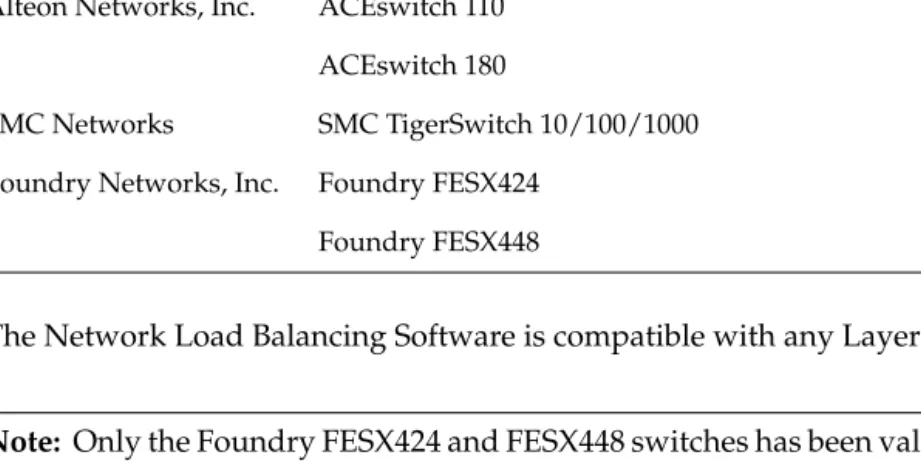
The software is compatible with Ethernet 10-Base-T, 100-Base-T, gigabit Ethernet and 10 gigabit Ethernet. The Network Load Balancing Software supports 2 to 40 Ethernet ports per subnet, and 1 to 20 load-balancing devices per system, assuming two ports minimum per group. Appendix A, “,” summarizes Ethernet switches with which the Network Load Balancing Software has been validated.
Note: No speed information is made available by the Ethernet driver, so the device does not distinguish between 10-Base-T, 100-Base-T, Gigabit Ethernet, and 10-Gbit Ethernet. Because the load-balancing device does not take maximum line bandwidth into account (that is, bandwidth differences between attached devices), mixing 10-Base-T, 100-Base-T, and gigabit Ethernet might not give the expected results.
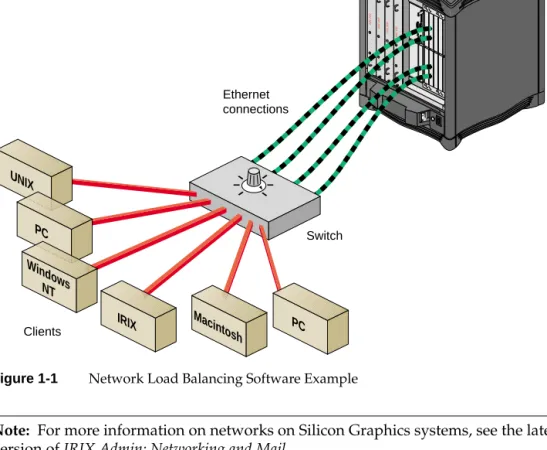
Figure 1-1 diagrams an example of Network Load Balancing Software and switch topology.
1: Network Load Balancing Software and the Ethernet
Figure 1-1 Network Load Balancing Software Example
Note: For more information on networks on Silicon Graphics systems, see the latest version ofIRIX Admin: Networking and Mail.
Switch Host Ethernet connections Ethernet connections Clients PC UNIX PC Windows NT IRIX Macintosh
Network Load Balancing Driver and System Resources
Network Load Balancing Driver and System Resources
The Network Load Balancing driver includes the subsystems summarized in Table 1-1.
The Network Load Balancing Software places an additional memory usage load of 40 bytes per client on the kernel: each client communicating with the server via the server's load-balancing interface causes the server to allocate 40 bytes of memory. This amount remains allocated as long as the route entry exists. When the client is no longer sending packets, the route entry is eventually removed due to an ARP entry expiration.
The worst-case cost of balancing the input load is three ARP packets (one request, one reply, and one gratuitous request) per balance period. By default, this period is one second, so the cost for the default would be three packets per second. This overhead does not appear to have any measurable effect.
Table 1-1 Network Load Balancing Software Subsystems
Subsystem Description Approximate Size (1K Blocks)
nlb_eoe.sw.nlb Network Load Balancing
driver software
126.5
nlb_eoe.man.nlb Man pages 12.5
nlb_eoe.man.relnotes Release notes 18.5
nlb_eoe.books Network Load Balancing
Software Administrator’s Guide (accessible online if Insight books are loaded)
Chapter 2
2.
Network Load Balancing Software Installation and
Configuration
This chapter describes how to configure the Network Load Balancing Software, in these sections:
• “Installing the Software” on page 9
• “IP Addresses and the Network Load Balancing Software” on page 10 • “Preparing for Network Load Balancing Software Configuration” on page 12 • “Network Load Balancing Software and the Shell Command File
/etc/init.d/network” on page 14
• “Configuring the Network Load Balancing Software and Driver” on page 15 • “Adding Network Load Balancing to a System” on page 16
• “Making the Network Load Balancing Interface the Primary Interface” on page 20 • “Configuring Multiple Network Load Balancing Software Interfaces” on page 23 • “Configuring Network Load Balancing Software for Failure Detection Only” on
page 24
• “Configuring Network Load Balancing Software for Static Trunking” on page 25 • “Verifying the Network Load Balancing Software Connection” on page 26
Installing the Software
Use theinst(1M) command to install the Network Load Balancing Software. (For information on usinginst, seeIRIX Admin: Software Installation and Licensing in the Technical Publications Library.)
2: Network Load Balancing Software Installation and Configuration
If you are installing the Network Load Balancing Software for the first time, the subsystems markeddefault are the ones that are installed if you use thego command from the Inst menu.
To install a different set of subsystems, use theinstall,remove,keep, andstep commands ininst to customize the list of subsystems to be installed, then choosego.
IP Addresses and the Network Load Balancing Software
Your system must have anIP address and anetwork connection name for each Network Load Balancing Software network interface and for each device to be assigned to the Network Load Balancing Software.
• IP addresses are usually assigned by a site’s network administrator, who obtains them from the Network Information Center.
• The network connection name is entered in the/etc/hosts file1. This name is paired with an IP address. Each network interface must have one network
connection name that is unique to the domain and one globally unique IP address. The following example line that might appear in an/etc/hosts file shows an IP address (from the test network, 192.2.0) and a network connection name, followed by its short form (or alias).
192.0.2.5 sys2.mrktg.group1.com sys2
Generally, network interface IP addresses must always be unique and cannot share a subnet on the same system. (For more information, see information on IP addresses in the latest version ofIRIX Admin: Networking and Mail.)
However, network devices assigned to a Network Load Balancing Software device can share a subnet address with the Network Load Balancing Software device or the other network devices assigned to it. For Network Load Balancing Software, these addresses must be unique only within the subnet.
1 For more information about the/etc/hostsfile, see thehosts(4) man page andIRIX Admin:
IP Addresses and the Network Load Balancing Software
The IP addresses for network devices assigned to a Network Load Balancing Software device must be addresses that can legally appear on the wire. Although these addresses are not used or advertised, they appear in ARP packets.
These addresses need not be on the same network or subnet as the Network Load Balancing Software; you can reuse addresses currently in use on other subnets. The IP addresses of the devices configured for load balancing and that of the Network Load Balancing Software need not be related, however, if there are multiple systems with Network Load Balancing Software interfaces on the same subnet, all of the attached Ethernet devices for all of these Network Load Balancing Software systems must also have IP addresses on the same subnet as the Network Load Balancing Software devices for the systems to be able to communicate with each other using Network Load
Balancing Software.
If there are multiple systems with Network Load Balancing Software interfaces on the same subnet, all of the attached Ethernet devices for these systems must also have IP addresses on the same subnet as the Network Load Balancing Software devices for the systems to be able to communicate with each other using Network Load Balancing Software. When properly configured, the systems will be able to communicate with each other, but there will be no effective increase in the bandwidth between them.
The network portion of the IP address for each local area network must be unique; you cannot use the same network address for your system’s Ethernet and Network Load Balancing connections.
To get IP addresses for the Network Load Balancing Software and the devices you are associating with it, follow these steps:
1. Determine which real devices you are associating with the Network Load Balancing Software.
2. Obtain an IP address for the Network Load Balancing Software. This address must be unique.
3. Obtain IP addresses for the real (Ethernet) devices if they have not already been assigned.
4. If necessary, configure the Ethernet devices withifconfig. For information on this command, see its man page,ifconfig(1M).
2: Network Load Balancing Software Installation and Configuration
Note: For specifics, see the sections on planning and setting up a network in the latest version ofIRIX Admin: Networking and Mail.
Preparing for Network Load Balancing Software Configuration
Before starting Network Load Balancing Software configuration, collect the necessary information and perform housekeeping so that the process goes smoothly. Follow these steps:
1. Determine the number of networks to which your system will be connected after the Network Load Balancing Software is installed.
2. If the system is to have more than one network connection, decide which will be the primary network. The primary network interface should be the one where all or most of the system’s network services or clients reside.
Note: If your system must boot over the network, the Network Load Balancing Software connection cannot be the primary network interface. You can not use DHCP to define/create the Network Load Balancing Software interface, it has to be statically configured
3. For each network connection, select a network connection name and IP address. The network connection name of the primary network connection must be the same as the system’s hostname. You can display your system’s hostname by using the hostname command within a shell window:
% /usr/bsd/hostname
You can display the current IP address associated with the network connection namehostname by typing one of the following commands in a shell window:
% /sbin/grep hostname /etc/hosts
% /usr/bin/ypmatch hostname hosts
The names you create for non-primary network interfaces can be anything you want. To facilitate recognition, the names usually include both the hostname and an indication of the protocol (for example,nlb-mars ornlb2-mars).
4. Determine if any of your system’s network interfaces require special configuration for thesubnetwork mask (netmask),broadcast address, androute metric.
Preparing for Network Load Balancing Software Configuration
Table 2-1 summarizes the default operational parameters for the network interfaces.
If any of these operational parameters needs special configuration, you must create or edit an/etc/config/ifconfig-#.options file, where the pound sign (#) matches the network interface’s order in thenetif.optionsfile. For example, for thenetif.options lineif3name=lb0, create or edit the file
/etc/config/ifconfig-3.options.
Table 2-1 Default Network Interface Parameters
Parameter Default Description
Netmask No subnet.
That is, the bits in the standard network portion of the Internet address are set to 1; the bits in the standard host portion of the Internet address are set to 0 (for class B addresses, 0xFFFF0000; for class C, 0xFFFFFF00).
The netmasks for all of the Ethernet devices to be attached to Network Load Balancing Software devices should be set to 0xffffffff to avoid routing problems.
32-bit value used to create two or more subnetworks from a single Internet address, by increasing the number of bits used as the network portion and decreasing the number of bits used as the host portion. When creating the mask, assign 1 to each network bit and 0 to each host bit.
Broadcast address
For the Internet address family, the host portion of the IP address is set to 1s (for class B addresses,x.x.255.255; for class C addresses,x.x.x.255).
Address used by this interface for contacting all systems on the local area network.
Route metric
0 Hop count value advertised by the routing daemon (routed) to other routers. Higher numbers make the route less desirable and less likely to be selected as a route. Settings range from 0 (most favorable) to 16 (least favorable, infinite).
arp Address Resolution Protocol (ARP) is enabled and used by the interface.
Address Resolution Protocol translates IP addresses to link-layer (hardware) addresses. When this parameter is disabled, the interface does not use ARP.
debug Disabled When debugging is enabled, a wider
variety of error messages is displayed when errors occur.
2: Network Load Balancing Software Installation and Configuration
Insure that the proper/etc/config/ifconfig-#.options file specifies the correct subnetwork mask for the associated network.
For complete instructions for configuring operational parameters, see the device configuration instructions inIRIX Admin: Networking and Mail.
5. Update the site’s hosts and ethers databases to include the correct information about this system.
Network Load Balancing Software and the Shell Command File
/etc/init.d/network
During system startup and any time it is invoked specifically, the shell command file /etc/init.d/networkconfigures and initializes the network interfaces and software. Some of the script’s procedures are accomplished by calling other utilities and reading configuration files. Among other tasks,/etc/init.d/network performs the following:
• Determines the system’s hostname, as defined in the/etc/sys_id file.
• Determines the network hardware and interfaces available in the operating system. This information can be viewed with thehinv command.
• Determines the ordering for the network interfaces.
This information is defined in the/etc/config/netif.options file. If the netif.options file has not been altered, the default ordering is configured (as defined in thenetwork script).
• Determines the network connection name for each network interface. This information is defined by the if#name lines in the
/etc/config/netif.options file. If thenetif.options file has not been altered, the default names (as defined in thenetwork script) are used.
• Determines the IP address for each interface by looking up each network connection name in the/etc/hosts file.
• Determines the settings for each network interface’s operational parameters. This information is defined in the/etc/config/ifconfig-#.options. If an
ifconfig-#.options file does not exist for the interface, the default settings are assigned.
Configuring the Network Load Balancing Software and Driver
• Configures and starts (enables) the number of network interfaces specified by the if_num variable in the network script.
• Invokes/etc/init.d/network.ls, which handles the device-specific configuration of the load-balancing devices.
The results of thenetwork script’s configuration can be viewed with the /usr/etc/netstat -i and/usr/etc/ifconfig commands.
Configuring the Network Load Balancing Software and Driver
This section describes how to configure a new network load-balancing network connection for a system with multiple functional Ethernet connections. Configuration consists of assigning Ethernet devices to the network load-balancing device and performing the normal network device configuration for it. Follow these steps:
Note: You may want to define the lb0 interface BEFORE any of the physical interfaces that make it up. For example, if lb0 is made up of ef0,ef1 and ef2, define lb0 first, ef0, then ef1 and so on. If you do this, Network Load Balancing Software comes up with no incorrect or extra routes that can degrade performance.
1. Edit/etc/config/nlb.options to assign the Ethernet devices for which load balancing is to be performed. This file initially contains the following lines:
lb1name=lb0 lb1devs= lb_num=1
2. To configure one network load-balancing device on the system, set the shell variable lb1devs to a comma-separated list of Ethernet devices to be attached to the network load-balancing device lb0. For example, if four Ethernet devices in the system, ef1, ef2, ef2, and ef4 are to be assigned to the network load-balancing device,
nlb.options looks like the following:
lb1name=lb0
lb1devs=ef1,ef2,ef3,ef4 lb_num=1
2: Network Load Balancing Software Installation and Configuration
Note:Thelb1devsshell variable comma-separated listcannotcontain leading spaces, tabs, or white spaces. If it does, on start up the circuits will not aggregate and an error message similar to the following appears:Configuring Network Load
Balancing devices /etc/init.d/network[587]: ef2,: not found
Adding Network Load Balancing to a System
This section provides instructions for adding a Network Load Balancing device to a system with previously configured Ethernet devices. In these instructions, one of the existing Ethernet interfaces serves as the primary network interface; the Network Load Balancing interface serves as the secondary network interface.
Note: If your site uses an NIS service, the changes described in this section must also be made to the database on the NIS server.
Follow these steps:
1. Make sure you have completed preliminary steps:
• Obtain network connection names and IP addresses for each Network Load Balancing Software network interface, as described in “IP Addresses and the Network Load Balancing Software” on page 10.
• Prepare for configuration, as described in “Preparing for Network Load Balancing Software Configuration” on page 12.
• Configure the software and driver, as described in “Network Load Balancing Software and the Shell Command File /etc/init.d/network” on page 14. 2. If necessary, determine your system’s hostname:
# /usr/bsd/hostname
3. As superuser, open the/etc/hostsfile and find the line containing your system’s hostname. This line configures your system’s Ethernet network interface. For multiport Ethernet configuration, see step 4.
If you find the Network Load Balancing Software name or address, verify that the IP address and the name are correct for the Network Load Balancing Software connection.
Adding Network Load Balancing to a System
If you do not find an entry for this name, search for the Network Load Balancing Software IP address. Searching for all instances of the system’s hostname usually identifies all the network connection names for the system.
If the line is not correct or is missing, edit the file so that there is a line containing the IP address and network connection name for the Network Load Balancing Software network interface.
A typical format for an entry in/etc/hosts file is as shown: IPaddress full_network_connectionname alias
For example, a portion of an/etc/hosts file might look like this, where the host sys2 has two entries andsys3 has one:
192.0.2.1 sys3.mrktg.group1.com sys3 192.0.2.5 sys2.mrktg.group1.com sys2
192.0.2.8 nlb-sys2.engr.group1.com nlb-sys2
4. To configure your system for multiple Ethernet ports, edit the/etc/hostssimilar to the following example:
# Default IP address for a new IRIS. It should be changed immediately to
# the address appropriate for your network.
# (The ’192.0.2’ network number is the officially blessed ’test’ network.)
134.16.229.48 sqns3.engr.sgi.com sqns3
# This entry must be present or the system will not work. 127.0.0.1 localhost # # lb0: interfaces # 165.154.216.30 nlb-sqns3.engr.sgi.com nlb-sqns3 165.154.216.31 nlb1-sqns3.engr.sgi.com nlb1-sqns3 165.154.216.32 nlb2-sqns3.engr.sgi.com nlb2-sqns3 165.154.216.33 nlb3-sqns3.engr.sgi.com nlb3-sqns3 165.154.216.34 nlb4-sqns3.engr.sgi.com nlb4-sqns3
Edit the/etc/config/netif.options similar to the following example:
if1name=ef0 if1addr=$HOSTNAME if5name=ef1
2: Network Load Balancing Software Installation and Configuration if5addr=nlb1-$HOSTNAME if6name=ef2 if6addr=nlb2-$HOSTNAME if7name=ef3 if7addr=nlb3-$HOSTNAME if8name=ef4 if8addr=nlb4-$HOSTNAME if9addr=nlb-$HOSTNAME
Edit the/etc/config/nlb.options similar to the following example:
lb1name=lb0
lb1devs=ef1,ef2,ef3,ef4 lb_num=4
5. If your system uses more than one network connection, for each one (in addition to Network Load Balancing Software), verify that the name and IP address are the correct; follow instructions in step 3.
6. Copy the line containing your system’s hostname and place the copy immediately below the original in the/etc/hosts file. This new line configures your system’s Network Load Balancing network interface.
7. On the new line, change each instance of your system’s hostname tonlb-hostname. That is, precede your system’s hostname withnlb-.
8. On the same (new) line, change the address (digits on the left) to the Network Load Balancing IP address.
For example, the lines for a system with a hostname of sys3 in the domain group1.com looks like this:
x.x.x.x sys3.group1.com sys3 #Ether primary
x.x.x.x nlb-sys3.group1.com nlb-sys3 #Load Bal. secondary
In these entries, eachx represents one to three digits. 9. Save and close/etc/hosts.
10. Edit/etc/config/netif.options so that the network startup script can configure the load-balancing devices. Find the first two pairs of lines showing interface names that are not currently occupied.
In the following example, the first two pairs are in use:
if1name= ef0 if1addr=$HOSTNAME if2name= ef1
Adding Network Load Balancing to a System
: if3name=
: if3addr=gate2-$HOSTNAME : if4name=
: if4addr=gate3-$HOSTNAME
In this case, you change
: if3name=
: if3addr=gate2-$HOSTNAME
to
if3name= lb0
if3addr=nlb-$HOSTNAME
Note: Make sure the names or name formats you enter correspond to entries in the /etc/hosts file.
If this file has, for example, five pairs of entries for five Ethernets already configured on the system, you would add the following two lines below those entries:
if6name=lb0
if6addr=nlb-$HOSTNAME
Note: You do not need to edit the entries for the existing Ethernet interfaces. Each Ethernet to be attached to the Network Load Balancing device must have an IP address assigned, even though these addresses are not actually used. You might need to change the addresses of client systems previously on the subnets accessed via the Ethernets that are being assigned to the Network Load Balancing interface. 11. Save and close /etc/config/netif.options.
12. If applicable, edit/etc/config/nlb.options to attach additional Ethernets to the Network Load Balancing device. (See “Configuring the Network Load Balancing Software and Driver” on page 15 for information on this file.) 13. Build your changes into the operating system:
# /etc/autoconfig
Automatically reconfiguring the operating system.
Note: When setting up Network Load Balancing software, you can edit
etc/config/nlb.options or/etc/config/netif.options as appropriate and then apply all of your changes using theautoconfig command.
2: Network Load Balancing Software Installation and Configuration
14. Turn on the Network Load Balancing Software usingchkconfig. 15. Reboot the system to start using the reconfigured kernel.
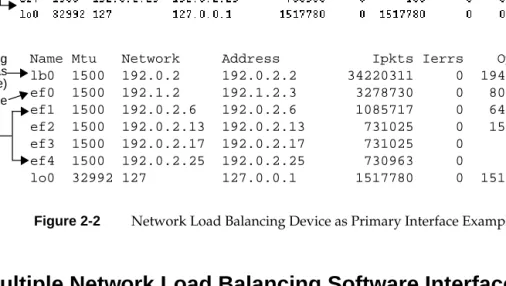
Once the system is rebooted, output fromnetstat -in might look like that in Figure 2-2.
Figure 2-1 Network Load Balancing Device as Secondary Interface Example (netstat -in)
Making the Network Load Balancing Interface the Primary Interface
This section provides instructions for configuring a system so that the Network Load Balancing connection serves as the primary network interface and an Ethernet interface serves as the secondary one.
Follow these steps:
1. Open a shell window and log in as superuser. 2. If necessary, determine your system’s hostname:
# /usr/bsd/hostname
3. Open the/etc/hosts file and find the line containing your system’s hostname. Ethernet interface
Network Load Balancing interface (configured as secondary interface) Devices attached
to lb0
Ethernet interface Network Load Balancing interface (configured as
Name Mtu Network Address Ipkts Ierrs Opkts Oerrs Col ef0 1500 192.1.2 192.1.2.1 34220311 0 1945959 0 lb0 1500 192.0.2 192.0.2.3 3278730 0 801457 0 ef1 1500 192.0.2.6 192.0.2.6 1085717 0 645275 0 ef2 1500 192.0.2.13 192.0.2.13 731025 0 155986 0 ef3 1500 192.0.2.17 192.0.2.17 731025 0 66 0 ef4 1500 192.0.2.25 192.0.2.25 730963 0 130 0 lo0 32992 127 127.0.0.1 1517780 0 1517780 0 secondary interface) Devices attached to lb0
Making the Network Load Balancing Interface the Primary Interface
If the file does not contain a line for your hostname, enter it; for example:
192.0.2.1 sys3.mrktg.group1.com sys3
4. Copy the line and place the copy immediately below the original.
5. On the original line, change the address (the digits on the left) to the IP address for the Network Load Balancing network. This line configures your system’s Network Load Balancing network interface. Do not change the hostname.
6. On the new line, change the hostname to the new connection name, which is used for the original primary Ethernet (such as gate5-sys3 in the example below). On this new line, do not change the IP address (which represents the Ethernet connection).
The following example shows entries in/etc/hostsfor a system with a hostname of sys3 in the domain group1.com:
x.x.x.x sys3.group1.com sys3 #NLBS primary
x.x.x.x gate5-sys3.group1.com gate5-sys3 #Ether secondary
x.x.x.x gate1-sys3.group1.com gate1-sys3 #NLBS attached to lb0
x.x.x.x gate2-sys3.group1.com gate2-sys3 #NLBS attached to lb0
x.x.x.x gate3-sys3.group1.com gate3-sys3 #NLBS attached to lb0
x.x.x.x gate4-sys3.group1.com gate4-sys3 #NLBS attached to lb0
In this example, each x represents one to three decimal digits. 7. Save and close/etc/hosts.
If your site uses an NIS service, the changes described above must also be made to the database on the NIS server.
8. Open the/etc/config/netif.options file. Any Network Load Balancing Software device listed in
/etc/config/netif.options must appear after the Ethernets that are to be attached to it. For example, you might be attaching ef1 and ef2 to lb0, so they might appear as follows: if2name=ef1 if2addr=gate-$HOSTNAME if3name=ef2 if3addr=gate2-$HOSTNAME if4name=lb0 if4addr=nlb-$HOSTNAME
whereNLBinterface is the name of the Network Load Balancing interface. For example:
2: Network Load Balancing Software Installation and Configuration
if4name=lb0
if4addr=nlb-$HOSTNAME
9. To make an Network Load Balancing Software device be the primary, you have to use the appropriate/etc/config/ifconfig-*.options file. In the example above, you can make lb0 the primary interface by adding the ifconfig(1M) keywordprimary to/etc/config/ifconfig-4.options. For example, the ifconfig-4.options file might contain the following:
netmask 0xffffff00 primary
10. Save and close/etc/config/netif.options.
11. If applicable, edit/etc/config/nlb.options to attach additional Ethernets to the Network Load Balancing device. (See “Configuring the Network Load Balancing Software and Driver” on page 15 for information on this file.) 12. Build your changes into the operating system:
# /etc/autoconfig
Automatically reconfiguing the operating system.
13. Turn on the Network Load Balancing Software usingchkconfig. 14. Reboot the system to start using the reconfigured kernel.
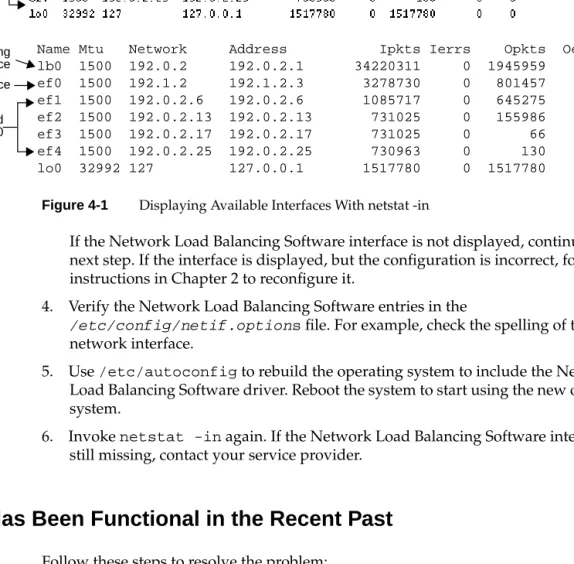
Figure 2-2 showsnetstat -in output with a load-balancing device as the primary Ethernet interface.
Configuring Multiple Network Load Balancing Software Interfaces
Figure 2-2 Network Load Balancing Device as Primary Interface Example (netstat -in)
Configuring Multiple Network Load Balancing Software Interfaces
To configure multiple network load-balancing devices, follow these steps:
1. Follow instructions for configuring and adding the load-balancing device to the system, as described in this chapter.
2. Usesystune to change the tunable parameter,lb_devices. Enter systune lb_devices numberofdevices
For example, this command sets the number of load-balancing devices to 2:
systune lb_devices 2
For information on this command, see its man page,systune(1M). 3. Edit/etc/config/nlb_options:
• Setlb1name andlb2name to the load-balancing device names you are using. • Set the shell variablelb1devsto a comma-separated list of Ethernet devices to
be attached to the network load-balancing device lb0. Ethernet interface
Network Load Balancing interface (configured as
Devices attached primary interface)
to lb0
Ethernet interface Network Load Balancing interface (configured as
Name Mtu Network Address Ipkts Ierrs Opkts Oerrs Col lb0 1500 192.0.2 192.0.2.2 34220311 0 1945959 0 ef0 1500 192.1.2 192.1.2.3 3278730 0 801457 0 ef1 1500 192.0.2.6 192.0.2.6 1085717 0 645275 0 ef2 1500 192.0.2.13 192.0.2.13 731025 0 155986 0 ef3 1500 192.0.2.17 192.0.2.17 731025 0 66 0 ef4 1500 192.0.2.25 192.0.2.25 730963 0 130 0 lo0 32992 127 127.0.0.1 1517780 0 1517780 0 Devices attached primary interface) to lb0
2: Network Load Balancing Software Installation and Configuration
• Change the shell variablelb_num from the default of 1 to the number of network load-balancing devices configurable on the system.
• Save and close the file.
The following example shows entries for two network load-balancing devices:
lb1name=lb0 lb1devs=ef1,ef2 lb2name=lb1 lb2devs=ef3,ef4 lb_num=2
4. For changes in thesystune lb_devices parameter to take effect, build your changes into the operating system:
# /etc/autoconfig
Automatically reconfiguring the operating system.
5. Turn on the Network Load Balancing Software usingchkconfig. 6. Reboot the system to start using the reconfigured kernel.
Configuring Network Load Balancing Software for Failure Detection Only
Network Load Balancing Software can be configured with the load balancing features disabled, leaving only the failure detection and recovery operational. You can do this by setting the appropriatelbXoptvalue in the /etc/config/nlb.optionfile, whereX is the unit number. For example, the/etc/config/nlb.optionsfile may contain the following:
lb1name=lb0 lb1devs=ef1,ef2 lb1opt=-F lb_num=1
Configuring Network Load Balancing Software for Static Trunking
This will configure the Network Load Balancing Software device with load balancing disabled. For a system with multiple Network Load Balancing Software devices, the nlb.options file may contain the following:
lb1name=lb0 lb1devs=ef1,ef2 lb1opt=-F lb2name=lb1 lb2devs=ef3,ef4 lb_num=2
In the example above,lb0 is configured with load balancing disabled whilelb1 is configured normally (load balancing enabled). By default, Network Load Balancing Software devices will be configured with load balancing enabled. In the above example, the absence oflb2opt results in a default configuration forlb1.
Configuring Network Load Balancing Software for Static Trunking
Network Load Balancing Software can be configured for static trunking. You can do this by setting the appropriatelbXoptvalue in the/etc/config/nlb.optionfile, where X is the unit number. For example, the/etc/config/nlb.optionsfile could contain the following:
lb1name=lb0 lb1devs=ef1,ef2 lb1opt=-t lb_num=1
This example configures the Network Load Balancing Software device for static trunking operation. For a system with multiple Network Load Balancing Software devices, the nlb.options file could contain the following:
lb1name=lb0 lb1devs=ef1,ef2 lb1opt=-t lb2name=lb1 lb2devs=ef3,ef4 lb_num=2
In the above example,lb0 is configured for static trunking operation whilelb1 is configured normally (load balancing enabled). By default, Network Load Balancing
2: Network Load Balancing Software Installation and Configuration
Software devices will be configured with load balancing enabled. In the above example, the absence oflb2opt results in a default configuration forlb1.
Verifying the Network Load Balancing Software Connection
To verify that the system’s Network Load Balancing Software connection is working, follow these steps:
1. List all network interfaces on the system. A Network Load Balancing Software interface, such aslb#, must be listed.
% /usr/etc/netstat -in
If the listing does not include a Network Load Balancing Software interface, the Network Load Balancing Software may not have been installed, may not be configured, or may not be built into the operating system. Fix the problem before continuing.
2. Check that the load-balancing configuration is correct by entering
% /usr/etc/lbconfig interfacename
whereinterfacename is the name of a load-balancing interface, such as lb0. For example:
# lbconfig lb0
Interfaces configured for lb0: ef1,ef2,ef3,ef4
Compare the output of this command to the configuration in
/etc/config/nlb.options. If it does not correspond, reboot and check again. If it still does not correspond, contact your service provider.
3. Useifconfig to get the broadcast address:
% /etc/ifconfig interfacename
4. Use the broadcast address in aping command, as follows:
% /usr/etc/ping broadcastaddress
5. Verify that all clients on the subnet respond.
6. You can uselbstat -Cto further evaluate the state of the load-balancing device(s) on the system. In particular, the state for each Ethernet port attached to the
load-balancing device should be LINK_GOOD. If a port does not show this status, check its cabling.
Chapter 3
3.
Performance Tuning
Tunable parameters control how well the Network Load Balancing Software distributes outbound packets and how it balances inbound packets. This chapter describes these parameters in these sections:
• “Tuning Parameters” on page 27
• “Changing Input Load Balancing” on page 30
Tuning Parameters
Network Load Balancing Software interface names are as follows:
nlb# lb0 lb1 ...
The Network Load Balancing Software takes a rolling average of source and destination IP addresses and port numbers: after taking the first average, subsequent averages can be tuned, as explained in “Adjusting the Average Weight” on page 32. The software then applies a hash function and collapses the result to a 32-bit number so that it can send related packets out on the same interface.
The Network Load Balancing Software has tunable parameters for adjusting the hash function multiplier, number of devices to configure, and load balancing. Reset these parameters withsystune; for information, see its man page,systune(1M). All of the tuning parameters are dynamic except the oflb_devices parameter. The Network Load Balancing Software tunable parameters are as follows: lb_hash_multiplier
Hash function multiplier, which selects the output interface. The default multiplier is 612542337. For example:
3: Performance Tuning
lb_devices Maximum number of load-balancing devices to be configured when the system is booted. The default is 1; range is 1 to 10. This example configures the software for three active devices:
systune lb_devices 3
For the new setting to take effect, reconfigure the kernel and reboot. See “Network Load Balancing Software and the Shell Command File /etc/init.d/network” in Chapter 2 for information on setting the number of load-balancing devices.
lb_balance_period
Period in milliseconds used for input load balancing. This variable determines how often the input-balancing algorithm is executed. The default is 1000 ms (that is, one second); the range is 100 to 600,000 ms. See “Adjusting the Balance Period” on page 31 for instructions on adjusting this parameter.
lb_balance_thresh
Threshold for mean deviation in input byte counts above which input load balancing is triggered. The balance period is set in milliseconds. See “Adjusting the Balance Threshold Value” on page 31 for instructions on adjusting this parameter.
lb_average_weight
Weighting in units of 100 used to calculate the rolling load averages for the interfaces. See “Adjusting the Average Weight” on page 32 for instructions on adjusting this parameter
lb_ failure_interval
The interval in milliseconds that Network Load Balancing Software uses detect link failures. This determines how often the failure detection process will check the status of the underlying links on an Network Load Balancing Software device for failure. By default, the value of this parameter is 10000. The minimum is 100. The maximum is 60000. In general, this value should be greater thanlb_balance_period. lb_aggressive_failure
Use an aggressive failure detection method. This method consists of probing each interface attached to each load balancing device on each failure detection round. This parameter can be either 0 (off) or 1 (on). By default it is 0.
Tuning Parameters for Failure Detection and Recovery
lb_fail_thresh
This is a threshold for the number of hosts which must be assigned to an interface for input before a link failure will be triggered by anything other than an ENETDOWN error from the interface or an
EHOSTDOWN withIFF_UP not set in the interface flags. The default value for this is 1.
lb_check_count
This is the number of failure detection rounds in which an interface must have an input load and input load average of 0 before the link is probed for failure. The default value is 3. Setting this to 0 will cause the link to be probed each time the load average drops to 0.
lb_debug Set the debugging level for load balancing devices. lb_use_linkdown
Use the absence of theIFF_LINKDOWN flag on an interface as an indicator that the interface can be enabled after having been identified as failing. This is for compatibility with older IRIX releases where IFF_LINKDOWN was not implemented for all Ethernet interfaces.
Tuning Parameters for Failure Detection and Recovery
In the event of an error, the time it takes for Network Load Balancing Software to recover depends upon network activity and the settings of the tuning parameters for Network Load Balancing Software detection and recovery. These primary tuning parameters are described in this section. For more detail information, see thenlb(7) man page and /var/sysgen/mtune/if_lb file.
The primary tuning parameters are, as follows: lb_failure_interval
Failure detection interval in milliseconds. lb_aggressive_failure
Use the aggressive failure detection method of probing each interface on each failure detection round.
3: Performance Tuning
lb_fail_thresh
This is a threshold for the number of hosts which must be assigned to an interface for input before a link failure will be triggered by anything other than an ENETDOWN error from the interface or an
EHOSTDOWN withIFF_UP not set in the interface flags. lb_check_count
The number of failure detection rounds that an interface must have an input load and input load average of 0 before the link is probed for failure.
lb_debug
Set Network Load Balancing Software debugging to the desired level the valid settings are defined in thebsd/sys/if_lb.h file. This parameter has only a default setting, no maximum or minimum, lb_use_linkdown
Use the absence of theIFF_LINKDOWN flag on an interface as an indicator that the interface can be enabled (this is for compatibility with older IRIX releases whereIFF_LINKDOWNwas not implemented for all Ethernet interfaces). Off by default; set to 1 to turn this on.
In addition, the failure detection time when thelb_aggressive_failureparameter is not set is affected by the following tuning paramaters for input balancing:
lb_average_weight
The weighting in units of 100 used to calculate the rolling load averages for the interfaces. The averages are calculated from the input packet counts for each interface.
lb_balance_thresh
Threshold for mean deviation in input byte counts above which input load balancing is triggered. The default value is 1, the minimum is 1, and the maximum is 100000. To disable input balancing, set the lb_balance_thresh parameter to anything over 100.
Changing Input Load Balancing
The Network Load Balancing Software monitors packet count on the physical interfaces and reassigns clients depending on the load. The averages are calculated from the input packet counts for each interface. You can control this process by adjusting these
Changing Input Load Balancing
Note: These tuning parameters donot apply when using static trunking.
• the balance period, which determines when the snapshot is taken for the rolling average
• the threshold for mean deviation in input byte counts: this parameter determines when load balancing is triggered
• the average weight used for calculating the rolling load averages for the interfaces The rest of this section explains how to adjust these parameters.
Adjusting the Balance Period
The balance period determines how often the input-balancing algorithm is executed. More frequent execution increases overhead proportionally. The default is 1000 ms (that is, one second).
To reset the balance period,set lb_balance_periodto the desired number of milliseconds (100 to 600,000); for example:
systune lb_balance_period 100000
Adjusting the Balance Threshold Value
The balance threshold value determines when load balancing is triggered; it is the threshold for mean deviation in input packet counts above which input load balancing is triggered. The Network Load Balancing Software calculates mean deviation, which should be less than the balance threshold.
When the mean absolute deviation, expressed as a percentage of the mean input load, exceeds this threshold, the Network Load Balancing Software attempts to balance the load by assigning a client another MAC address.
Setting the balance threshold value to a low number can result in a better input balance. However, such input balance might be impossible to achieve because the software continually moves clients from one MAC address to another.
3: Performance Tuning
systune lb_balance_threshold 100
Adjusting the Average Weight
The Network Load Balancing Software uses the following formula to calculate the rolling average:
where
and
S(n) The approximate average ofn samples. l(n) Thenth sample.
k The tunable parameter, an integer that is the average weight. Default is 50; range is 0 to 99.
For example:
systune lb_average_weight 35
Ifkis 0,S(n)is alwaysl(n), the instantaneous load. As k increases,l(n)provides less and S(n-1) provides more of the value ofS(n). The calculation usesk% ofS(n-1) and 100-k% ofl(n). S n( ) k 100 ---×S n( –1) 1 k 100 ---– ×l n( ) + = 0 k 100 ---<0 ≤
Chapter 4
4.
Troubleshooting
This chapter describes what to do when your load-balancing network connection has problems. The chapter describes the following topics:
• “Initial Remedies” on page 33
• “Connection Has Not Been Functional Since Last Boot” on page 34 • “Connection Has Been Functional in the Recent Past” on page 35 • “High Rate of Packet Loss Occurs” on page 36
• “System Cannot Communicate With Other Systems” on page 37
• “System Does Not Load Miniroot or Boot From the Network” on page 37 • “snoop command and Network Load Balancing Software Devices” on page 38
Initial Remedies
When you experience difficulty with the load-balancing network connection at a particular system, you can do the following:
1. Check the physical connections at the system; consult the owner’s guides for the equipment.
2. Search or read the/var/adm/SYSLOGfile and console window for error messages. If you find any Network Load Balancing Software driver messages, read about them in Appendix B.
3. Uselbstat -Cto evaluate the state of the load-balancing device(s) on the system. In particular, the state for each Ethernet port attached to the load-balancing device should be LINK_GOOD. If a port does not show this status, check its cabling. 4. If the Network Load Balancing Software device isnotconfigured for static trunking,
make sure configured switch ports are not setup for load balancing, trunking, or link aggregation using the IEEE 802.3ad standard.
4: Troubleshooting
5. If the Network Load Balancing Software device has been configured for static trunking, make sure the switch has also been so configured and isnotconfigured to use LACP (Link Aggregation Protocol) or 802.3ad.
Connection Has Not Been Functional Since Last Boot
If the Network Load Balancing Software connection has not been working since the last time the system was booted, or if this is an initial installation of a Network Load Balancing Software product, one or more of the following could be occurring: • The operating system has not been rebuilt to include the driver.
• The Network Load Balancing Software interface or the aggregated Ethernets have not been configured properly.
Follow the instructions below to determine the cause of the problem:
1. Verify that the installed IRIX operating system and Network Load Balancing Software software are the correct versions by doing the following:
• Determine the correct versions of IRIX and of the Network Load Balancing Software. The Network Load Balancing Software release notes indicate the correct IRIX and Network Load Balancing Software versions.
• Use theversions command to display the installed release identifications:
% /usr/sbin/versions eoe.sw.base
eoe1 date Execution Only Environment 1, 6.5
If the version is not correct, install the correct version.
Note: Theeoe.sw.basesubsystem must be 6.5 or later for the Network Load Balancing Software to work.
2. View /etc/config/nlb.options; uselbconfig to check for Ethernets attached to the load-balancing devices.
3. Usenetstat, as shown below, to display the currently configured network interfaces.
% /usr/etc/netstat -in
Connection Has Been Functional in the Recent Past
Figure 4-1 Displaying Available Interfaces With netstat -in
If the Network Load Balancing Software interface is not displayed, continue to the next step. If the interface is displayed, but the configuration is incorrect, follow the instructions in Chapter 2 to reconfigure it.
4. Verify the Network Load Balancing Software entries in the
/etc/config/netif.options file. For example, check the spelling of the network interface.
5. Use/etc/autoconfig to rebuild the operating system to include the Network Load Balancing Software driver. Reboot the system to start using the new operating system.
6. Invokenetstat -in again. If the Network Load Balancing Software interface is still missing, contact your service provider.
Connection Has Been Functional in the Recent Past
Follow these steps to resolve the problem: Ethernet interface
Network Load Balancing interface
Devices attached to lb0
Ethernet interface Network Load Balancing interface
Name Mtu Network Address Ipkts Ierrs Opkts Oerrs Coll lb0 1500 192.0.2 192.0.2.1 34220311 0 1945959 0 0 ef0 1500 192.1.2 192.1.2.3 3278730 0 801457 0 0 ef1 1500 192.0.2.6 192.0.2.6 1085717 0 645275 0 0 ef2 1500 192.0.2.13 192.0.2.13 731025 0 155986 0 0 ef3 1500 192.0.2.17 192.0.2.17 731025 0 66 0 0 ef4 1500 192.0.2.25 192.0.2.25 730963 0 130 0 0 lo0 32992 127 127.0.0.1 1517780 0 1517780 0 0 Devices attached to lb0
4: Troubleshooting
1. Ensure that the system is using the operating system that was built most recently. Use/etc/autoconfig to rebuild the operating system, and then reboot to start using it.
2. Watch the messages on the terminal during restart to verify that each network interface is configured correctly. The messages should look similar to these examples:
Configuring lb0 as sys3 Configuring ec0 as gate-sys3
If the load-balancing driver is not mentioned on the terminal during startup, there is a problem with the software.
3. Usenetstat to display the currently configured network interfaces.
% /usr/etc/netstat -in
If the interface is displayed, but the configuration is incorrect, follow the instructions in Chapter 2 to reconfigure it.
The/etc/config/netif.options file may have an incorrect entry (for example, a misspelled network interface); verify all file contents carefully.
If the interface does not display, the software may be dysfunctional. Contact your service provider.
High Rate of Packet Loss Occurs
If high packet loss is displayed by theping command, follow these steps:
1. Confirm that the source and destination IP addresses are on the same subnet. If there was any doubt that they are, enterping -R, ortraceroute to check the route. (For information on the latter command, see its manpage,
traceroute(1M).)
2. If the source and destination IP addresses are attached to the same switch andping still drops packets:
• Enternetstat -C on the source and destination systems.
• Enterping -f on the source and destination systems to make the problem more obvious.