ii
Copyright © 2005-2007 by RidgeSoft, LLC. All rights reserved.
RidgeSoft , RoboJDE and IntelliBrain are trademarks of RidgeSoft, LLC.
Java and all Java-based marks are trademarks or registered trademarks of Sun Microsystems, Inc. in the United States and other countries. All other brand or product names are trademarks of their respective owners.
RidgeSoft, LLC PO Box 482 Pleasanton, CA 94566 www.ridgesoft.com
Revision 2
Table of Contents
INTRODUCING THE INTELLIBRAIN-BOT... 1
INTELLIBRAIN-BOT EDUCATIONAL ROBOT DESIGN... 2
A HANDS-ON DEMONSTRATION... 5
SUMMARY... 12
EXERCISES... 12
PROGRAMMING THE INTELLIBRAIN-BOT... 19
CREATING A NEW PROJECT... 19
CONNECTING THE ROBOT TO YOUR COMPUTER... 21
RUNNING YOUR FIRST PROGRAM... 22
PROGRAMMING CONCEPTS... 23
DEBUGGING YOUR PROGRAMS... 26
SUMMARY... 32
EXERCISES... 32
MANEUVERING THE INTELLIBRAIN-BOT ... 33
DIFFERENTIAL DRIVE ROBOTS... 33
PROGRAMMING SIMPLE MANEUVERS... 34
COMBINING SIMPLE MANEUVERS... 38
SUMMARY... 45
EXERCISES... 46
INTERACTING WITH THE INTELLIBRAIN-BOT ... 49
USING TEXT OUTPUT... 49
USING LEDS... 51
USING THE THUMBWHEEL... 55
ARITHMETIC OPERATIONS... 56
USING PUSH BUTTONS... 59
LOGICAL OPERATORS AND BOOLEAN VARIABLES... 60
TEACHING THE ROBOT NEW TRICKS... 61
SWITCH STATEMENTS... 63
USING THE BUZZER... 66
PLAYING A TUNE... 66
USING A UNIVERSAL REMOTE CONTROL... 68
SUMMARY... 74
EXERCISES... 74
INTRODUCTION TO SENSING ... 77
SONAR RANGE SENSING... 77
USING THE PING))) SENSOR... 82
SUMMARY... 90
EXERCISES... 90
LINE FOLLOWING ... 91
LINE SENSING... 91
FOLLOWING A LINE USING ONE SENSOR... 94
FOLLOWING A LINE USING TWO SENSORS... 97
SUMMARY... 106
CHAPTER 1
Introducing the IntelliBrain-Bot
Throughout this book we will be using the IntelliBrain -Bot Deluxe educational robot to learn about the emerging field of robotics. The IntelliBrain-Bot educational robot is a pre-designed mobile robot, which will allow us to focus our discussion primarily on robotics programming, using the companion Java -enabled robotics software
development environment, RoboJDE . Before we get started programming the robot, let s first take a look at the mechanical and electronics components which make up the IntelliBrain-Bot educational robot.
Figure 1-1 - IntelliBrain-Bot Deluxe Educational Robot IntelliBrain 2 robotics controller Aluminum chassis Drive wheel Servo motor Infrared wheel encoder sensor Infrared line sensor Infrared range sensor Ultrasonic range sensor LCD
2 IntelliBrain-Bot Educational Robot Design
IntelliBrain-Bot Educational Robot Design
Figure 1-1 shows a fully assembled IntelliBrain-Bot Deluxe educational robot. As you can see in the figure, the robot is made up of the following major parts:
IntelliBrain 2 robotics controller with LCD display aluminum chassis
servo motors wheels
assorted hardware sensors
battery holder (not visible, under chassis) batteries (not visible, under chassis)
Mechanics
The IntelliBrain-Bot educational robot employs a simple mechanical design. An
aluminum chassis fabricated from a single piece of sheet metal provides a sturdy central structure for the robot. Two motors mounted on the underside of the chassis drive the two large wheels, enabling the robot to move under its own power. A ball tail wheel supports the back end of the robot. The robotics controller, sensors, motors, tail wheel and battery holder mount directly on the chassis.
Figure 1-2 - IntelliBrain 2 Robotics Controller
START STOP RoboJDE v1.5.0r1 Ready Atmel ATmega128 Microcontroller - 14.7MHz
- 128K flash program memory
- 132K RAM - 4K bytes EEPROM Java Programmable Thumbwheel COM1 Port - RS-232, 115.2K baud
- Host interface or general purpose - Bluetooth ready (5V pin 9 power) Buzzer 2 Push Buttons Power Switch Battery Power - 4-6 alkaline, NiCd, or NiMH batteries 16x2 LCD Display 8 Servo Ports - 5 with power - 3 signal only COM2 Port - RS-232, 115.2K baud - CMUcam ready (6V regulated power)
7 Analog / Digital Inputs
5 I2C Ports 13 Digital Inputs/Outputs Infrared Receiver - Sony/Universal TV remote compatible Mounting Holes - IntelliBrain-Bot
- Your custom robot
- Lego grid compatible 6 Programmable LEDs
Wall Brick Power Connector 2 DC Motor Ports
IntelliBrain 2 Robotics Controller
The IntelliBrain 2 robotics controller, depicted in Figure 1-2, is the IntelliBrain-Bot educational robot s brain. A Java program executing on the IntelliBrain robotics controller enables the robot to function independently, analyzing input from the robot s sensors and by controlling the robot s motors to achieve desired results. By creating and loading different programs you can program the robot to perform a wide range of
functions. A program can be very simple or quite complex. A program may be as trivial as displaying your name on the LCD screen or as complex as a program that controls a search and rescue robot.
Sensor and Motor Ports
Sensors and motors connect to the IntelliBrain 2 robotics controller via input and output ports. As you can see in Figure 1-1 and Figure 1-2, most of these ports consist of
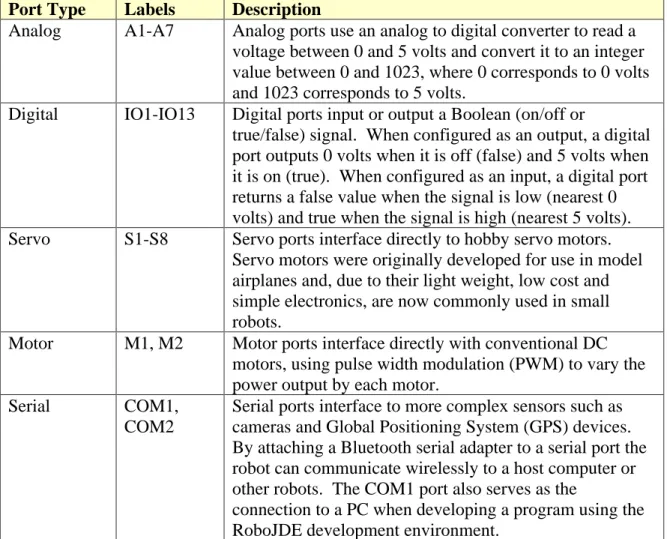
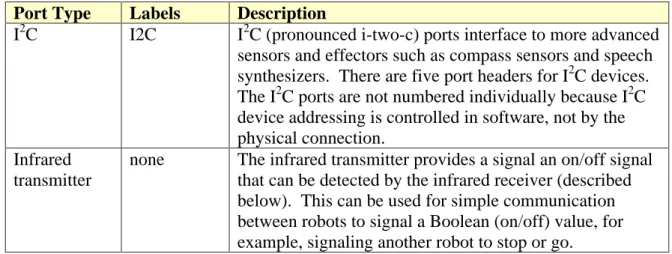
connector pins along the front edge (top edge in Figure 1-2) of the controller board. Each port has three or four pins: ground, power and signal pins. The ports are arranged side-by-side across the forward edge of the controller s circuit board. Each port is marked by a label on the controller board, which indicates the type of port and the number of the port. Table 1-1describes the ports available on the IntelliBrain 2 robotics controller.
Table 1-1 - IntelliBrain 2 Robotics Controller Ports
Port Type Labels Description
Analog A1-A7 Analog ports use an analog to digital converter to read a voltage between 0 and 5 volts and convert it to an integer value between 0 and 1023, where 0 corresponds to 0 volts and 1023 corresponds to 5 volts.
Digital IO1-IO13 Digital ports input or output a Boolean (on/off or
true/false) signal. When configured as an output, a digital port outputs 0 volts when it is off (false) and 5 volts when it is on (true). When configured as an input, a digital port returns a false value when the signal is low (nearest 0 volts) and true when the signal is high (nearest 5 volts). Servo S1-S8 Servo ports interface directly to hobby servo motors.
Servo motors were originally developed for use in model airplanes and, due to their light weight, low cost and simple electronics, are now commonly used in small robots.
Motor M1, M2 Motor ports interface directly with conventional DC motors, using pulse width modulation (PWM) to vary the power output by each motor.
Serial COM1,
COM2
Serial ports interface to more complex sensors such as cameras and Global Positioning System (GPS) devices. By attaching a Bluetooth serial adapter to a serial port the robot can communicate wirelessly to a host computer or other robots. The COM1 port also serves as the
connection to a PC when developing a program using the RoboJDE development environment.
4 IntelliBrain-Bot Educational Robot Design
Port Type Labels Description
I2C I2C I2C (pronounced i-two-c) ports interface to more advanced sensors and effectors such as compass sensors and speech synthesizers. There are five port headers for I2C devices. The I2C ports are not numbered individually because I2C device addressing is controlled in software, not by the physical connection.
Infrared transmitter
none The infrared transmitter provides a signal an on/off signal that can be detected by the infrared receiver (described below). This can be used for simple communication between robots to signal a Boolean (on/off) value, for example, signaling another robot to stop or go.
Human Interface Features
In addition to providing the ability to execute a Java program and to interface to sensors and motors, the IntelliBrain 2 robotics controller provides a number of features which make it easy to program the robot to interact with people. Table 1-2 lists these features.
Table 1-2 - Human Interface Features
Device Description
Liquid Crystal Display
The Liquid Crystal Display (LCD) screen provides two, sixteen character lines of output. The LCD is useful to directly display sensor readings, providing an easy way to learn about and diagnose problems with sensors. The display is also useful for providing a simple menu-based user interface.
Push Button Two push buttons, labeled START and STOP may be used like the buttons on a mouse, allowing a human to indicate choices. By default the buttons start and stop the Java program, but your program can use them for other purposes.
Thumbwheel The thumbwheel works like a volume control knob on a car stereo. It provides a means for users to vary the setting of an analog value, such as motor speed, or a way to scroll through screens of output on the LCD display.
Buzzer The buzzer can be programmed to beep, click or play a tune. Universal remote
control receiver
The universal remote control receiver allows the program to take input from a universal remote control, giving a human the ability to remotely control the robot or provide a keyboard type input for a more sophisticated human interface.
Light Emitting Diodes (LEDs)
Seven LEDs provide visual indications to humans. Six of these can be turned on, off or blinked under program control to provide a visual indication to the user. Three of the program controlled LEDs are green and three are red. The left most LED is a power indicator, which illuminates green when power is on. It cannot be controlled by the program. The LEDs are numbered 1 through 6, starting with the LED to the right of the power LED.
Sensors
The IntelliBrain-Bot Deluxe educational robot comes with seven sensors described in Table 1-3.
Table 1-3 IntelliBrain-Bot Deluxe Educational Robot Sensors
Sensor Description
Wheel Encoder Sensor (2)
Two wheel encoder sensors sense movement of the robot s wheels. These sensors use reflected infrared light to sense if a hole or a spoke is in front of the sensor.
Line Sensor (2) Two line sensors mounted on the underside of the robot sense the presence of a non-reflective line. These sensors use infrared light to sense the reflectivity of the surface below the robot, allowing it to follow the course of a non-reflective, black line over a highly reflective, white background.
Infrared Range Sensor (2)
Two infrared range sensors sense the distance to objects between 4 and 30 inches in front of the robot. These sensors measure the angle of reflection of a narrow beam of infrared light to determine the distance to objects within their range. They can be used to detect and avoid obstacles in the robot s path.
Ultrasonic Range Sensor
One ultrasonic range sensor senses the distance to an object between 1.2 and 118 inches in front of the robot. This sensor measures distance by issuing a brief pulse of high frequency sound, a ping, and precisely measuring the time until the first echo returns. Using speed-of-sound calculations the distance to an object can be
precisely determined. This sensor can be used to identify far off objects, walls and hallways. It is also can be used to create an invisible tractor beam, as you will observe later in this lesson.
Batteries
Chemical energy in the four AA batteries mounted in the battery holder, on the underside of the chassis, provides the energy to power the motors and electronics.
A Hands-on Demonstration
Now for some fun, let s take a few minutes to see what the IntelliBrain-Bot educational robot can do.
Note: Your lab instructor should have loaded the IntelliBrain-Bot demo program into the flash memory of your robot and made sure the batteries are fully charged prior to this exercise.
The demo program provides examples of the robot using various sensors to perform different behaviors. It also provides a simple user interface, demonstrating the use of the IntelliBrain 2 robotics controller s human interface features, as well as a Sony compatible universal remote control. Finally, it provides a simple means to verify that each sensor is properly connected and functioning correctly.
6 A Hands-on Demonstration
Using the IntelliBrain-Bot Demo Program
The user interface of the IntelliBrain-Bot demo program enables you to toggle through a list of pre-programmed functions (behaviors) the robot can perform to select the function you want the robot to demonstrate. Try this by completing the following steps:
1. Switch the power on.
The power switch is located toward the left side of the rear edge of the
IntelliBrain 2 robotics controller, just left of the push buttons labeled START and STOP. Slide it toward the front of the robot.
2. Press the button labeled START.
This will start the demo program. You should see the following displayed on the LCD screen:
Select Function Do Nothing
The first line of text is telling you to select a function for the robot to perform. The second line is the name of the function.
3. Press the button labeled STOP.
The stop button is typically used to stop your Java program. However, it can also be used for other purposes. The demo program uses it to allow you to scroll through the list of functions.
You should see the following displayed on the LCD screen:
Select Function Play Tune
4. Press the STOP button repeatedly, observing the various functions which are available.
The available functions are described in Table 1-4.
5. Continue to press the STOP button until the Play Tune function is displayed.
6. Press the START button.
The robot will play Beethoven s tune, Ode to Joy, using the buzzer.
Table 1-4 IntelliBrain-Bot Demo Program Functions
Function Description
Do Nothing The robot does not attempt to move. This allows you to test the sensors. You will find this is extremely useful for debugging sensor problems.
Play Tune Plays Beethoven s tune, Ode to Joy, using the buzzer.
Remote Control Allows you to remotely control the robot using a Sony compatible infrared remote control. Use the channel up button to move the robot forward, the channel down button to move it backward, the volume up button to rotate right and the volume down button to rotate left. (Requires a Sony compatible infrared remote control. Most universal remote controls will work if programmed for a Sony television.)
Navigate Forward Uses wheel encoder sensors and navigation classes (provided in the RoboJDE class library) to navigate the robot straight ahead 24 inches.
Rotate 180 Uses wheel encoder sensors and navigation classes to rotate the robot in place 180 degrees.
Navigate Square Uses wheel encoder sensors and navigation classes to navigate the robot around a 16 inch square.
Random Dance Uses software generated random numbers to perform a dance made up of random steps.
Follow Line Uses line sensors to enable your robot to follow a black line on a white surface.
Avoid Obstacles Uses wheel encoder sensors, navigation classes, and infrared range sensors to navigate your robot 24 inches forward and back to where it started, avoiding obstacles along the way.
Follow Object Uses the ultrasonic range sensor to maintain a distance of 6 inches from an object in front of your robot, creating a tractor beam effect.
Testing Sensors
Once you have selected a function in the demo program and started it running, the LCD screen switches to displaying screens which give you a glimpse into the robot s view of the world. This will allow you to verify that all of the sensors are functioning properly.
Let s peer into the robot s brain to verify each sensor is operating properly.
1. Switch the power on.
2. Press START.
Do Nothing should appear on the second line of the display. If it doesn t, press STOP repeatedly until it displays.
8 A Hands-on Demonstration
3. Press START again.
4. Use your finger to rotate the thumbwheel, observing the different screens which display as you move the wheel.
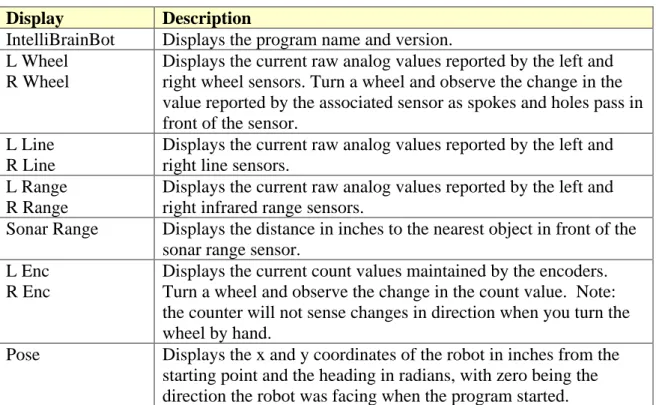
The screens are described in Table 1-5.
Table 1-5 IntelliBrain-Bot Demo Program Screens
Display Description
IntelliBrainBot Displays the program name and version. L Wheel
R Wheel
Displays the current raw analog values reported by the left and right wheel sensors. Turn a wheel and observe the change in the value reported by the associated sensor as spokes and holes pass in front of the sensor.
L Line R Line
Displays the current raw analog values reported by the left and right line sensors.
L Range R Range
Displays the current raw analog values reported by the left and right infrared range sensors.
Sonar Range Displays the distance in inches to the nearest object in front of the sonar range sensor.
L Enc R Enc
Displays the current count values maintained by the encoders. Turn a wheel and observe the change in the count value. Note: the counter will not sense changes in direction when you turn the wheel by hand.
Pose Displays the x and y coordinates of the robot in inches from the starting point and the heading in radians, with zero being the direction the robot was facing when the program started.
Wheel Encoder Sensors
5. Rotate the thumbwheel until you see the display referring to the wheel sensors.
6. Hold the robot in your right hand and use your left hand to slowly rotate the left wheel.
Observe that the sensor reading displayed to the right of L Wheel varies
between a low value of approximately 40 and a high value of approximately 1000 as you rotate the wheel. (The numbers are the readings of the sensors. In later chapters you will learn about how the IntelliBrain 2 controller uses its analog-to-digital converter to sample sensor readings.)
Line Sensors
8. Rotate the thumbwheel until you see the display referring to the line sensors.
9. Set the robot down with the sensors over a bright white surface. For example, the white area of the line following poster.
Observe that both line sensors report a reading, below 300.
10.Set the robot down with the sensors over a non-reflective black surface. For example, the black line on the line following poser.
Observe that both line sensors report a high reading, above 300.
11.Set the robot down with one sensor over a bright white surface and the other sensor over a non-reflective black surface. For example, straddling the line on the line following poster.
Observe that the sensor over the white surface reads low, while the sensor of the black surface reads high.
Ultrasonic Range Sensor
12.Rotate the thumbwheel until you see the display referring to the left and right range sensors.
13.Hold the robot up such that there are no objects within four feet of the robot.
Observe that both sensors read a very low value, typically less than 10.
14.Hold your hand approximately 3 inches in front of the left range sensor.
Observe the left sensor reading is approximately 500.
15.Repeat the previous step for the right range sensor.
Sonar Range Sensor
16.Rotate the thumbwheel until you see the display referring to the sonar sensor.
17.Hold your hand in front of the sonar sensor.
Observe as you move your hand the distance value displayed on the screen tracks the distance your hand is from the sensor.
10 A Hands-on Demonstration
18.Switch the power off.
Tractor Beam Demonstration
The Follow Object function of the demo program implements an invisible tractor beam by using the sonar range sensor to maintain a fixed distance of 6 inches between the robot and an object ahead of it.
1. Set the robot on the floor with a few feet of clear space around it.
2. Start the demo program and select the Follow Object function.
3. Place your hand approximately six inches in front of the robot.
4. Slowly move your hand away from the robot.
Observe the robot follows your hand forward.
5. Slowly move your hand toward the robot.
Observe the robot backs away from you hand.
6. Switch the power off.
Navigation Demonstration
The demo program includes three functions which demonstrate the IntelliBrain-Bot educational robot s ability to navigate, Navigate Forward, Rotate 180, and Navigate Square. These functions use the wheel sensors to keep track of the robot s position. If it drifts off course, the program quickly compensates by adjusting power to the motors to steer it back on course.
1. Set the robot on the floor with at least 3 feet of clear space in front of it.
2. Start the demo program and select the Navigate Forward function.
Observe the robot drives straight ahead for 2 feet, then stops.
3. Press STOP.
4. Set the robot on the floor and select the Rotate 180 function.
Observe the robot turns in place approximately 180 degrees.
5. Press STOP.
7. Select the Navigate Square function.
Observe the robot drives in a 16 inch square pattern.
8. Switch the power off.
Random Dance Demonstration
The Random Dance function of the demo moves the robot in a never ending series of small random moves. Because the robot has equal probability to move any direction, it will not drift far from where it started as it performs this unusual dance.
1. Set the robot on the floor with a few feet of clear space around it.
2. Start the demo program and select the Random Dance function.
Observe the robot dances about randomly, but doesn t drift far from where it started.
3. Switch the power off.
Collision Avoidance Demonstration
One of the primary uses of the infrared range sensor is to avoid collisions with objects in the robots path. The Avoid Obstacles function of the demo program demonstrates how the robot can steer around obstacles in its way.
1. Set the robot on the floor with three feet of clear space in front of it.
2. Place an object approximately the same size as the robot roughly one foot in front of the robot.
3. Start the demo program and select the Avoid Obstacles function.
Observe the robot will drive to a point 2 feet ahead of it, detecting and steering around the obstacle in its path and then return to where it started.
4. Switch the power off.
Line Following Demonstration
In case you haven t guessed it already, the line sensors enable the robot to follow a line on the floor. You will need either a line following poster or a one inch wide strip of non-reflective black electrical tape on a white surface to complete this demonstration.
1. Set the robot on the floor over the black line.
12 Exercises
Observe the robot follows the line.
3. Switch the power off.
Remote Control Demonstration
The IntelliBrain-Bot educational robot can receive input from a universal remote control. You will need a universal remote control configured to control a Sony television to complete this demonstration.
1. Set the robot on the floor with several feet of clear space around it.
2. Start the demo program and select the Remote Control function.
3. Press and hold the next channel button for a moment.
Observe the robot moves forward while you hold the button down.
4. Press and hold the previous channel button for a moment.
Observe the robot moves backward while you hold the button down.
5. Press and hold the increase volume button for a moment.
Observe the robot rotates clockwise while you hold the button down.
6. Press and hold the decrease volume button for a moment.
Observe the robot rotates counter clockwise while you hold the button down.
7. Steer the robot around the room using these four control buttons.
8. Switch power off.
Summary
You should now be familiar with the features of the IntelliBrain-Bot educational robot and its construction. Through the hands-on demonstration you have seen many of the capabilities you will learn to program yourself in subsequent chapters.
Exercises
1. Complete the parts list in Table 1-6 by inspecting the robot and filling in the missing information.
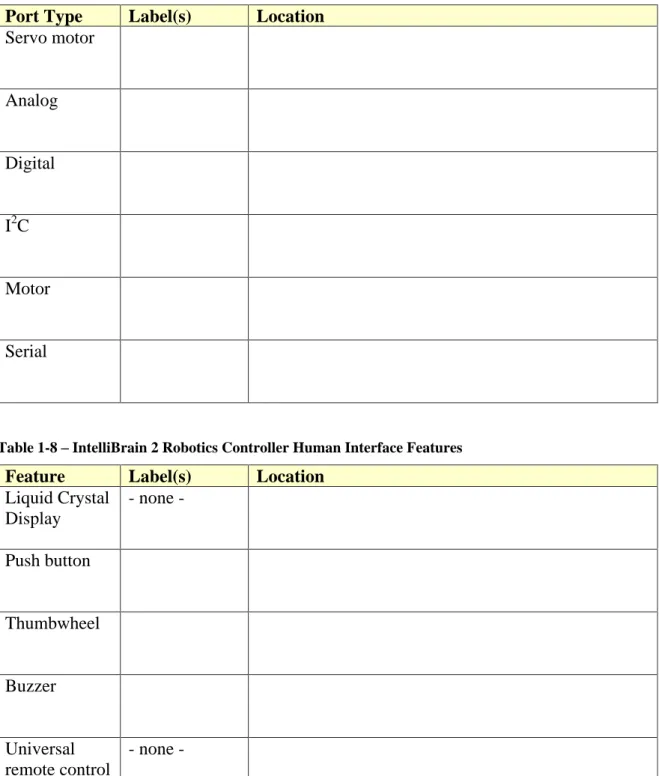
3. Locate the human interface features of the IntelliBrain 2 robotics controller and fill in Table 1-8.
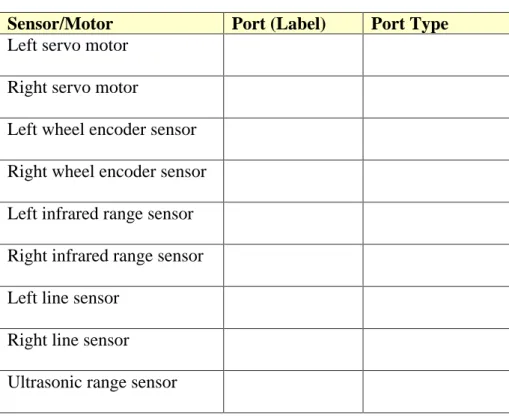
4. Trace wires from each sensor and motor to the port on the IntelliBrain 2 robotics controller it connects to. Record the label and type of the port in Table 1-9.
5. Using the demo program experiment with each sensor and record the minimum and maximum reading you observe as you experiment with the sensor in Table 1-10. Note the circumstances when you observed the minimum and maximum readings for each sensor.
14 Exercises
Table 1-6 - IntelliBrain-Bot Deluxe Educational Robot Parts List
Qty Part Description
1 Acts as the robot s brain by executing a Java programs and interfacing to sensors, motors and humans.
1 Aluminum chassis
2 Servo motor
2 Coverts torque of from the motor shaft to force to move the robot forward or back.
1 Ball tail wheel
Tire Provides traction (friction) so the wheels don t slip.
2 Uses reflected infrared light to enable the robot to sense and follow a line on the floor.
2 Uses reflected infrared light to enable the robot to sense the distance to an object between 4 and 30 inches away.
1 Measures the time between high frequency sound pulses and their echoes to sense the distance to an object between 1.8 and 118 inches away.
2 Uses reflected infrared light to sense rotation of a wheel, enabling the robot to track its position monitoring wheel movement.
Battery holder Holds the batteries on the underside of the chassis. 4 Batteries
Aluminum standoff
Used to mount the robotics controller, line sensors and ultrasonic range sensor.
1 corner bracket Used to mount infrared range sensors.
Right angle bracket Used to mount line sensors and ultrasonic range sensor. Screws Used to fasten parts together.
Nuts Used to fasten parts together.
Washer Aluminum or nylon washer used in mounting sensors. Cotter pin Used to attach tail wheel.
Table 1-7 IntelliBrain 2 Robotics Controller Ports
Port Type Label(s) Location
Servo motor Analog Digital I2C Motor Serial
Table 1-8 IntelliBrain 2 Robotics Controller Human Interface Features
Feature Label(s) Location
Liquid Crystal Display - none - Push button Thumbwheel Buzzer Universal remote control receiver - none -
16 Exercises
Table 1-9 IntelliBrain-Bot Deluxe Educational Robot Sensor and Motor Connections
Sensor/Motor Port (Label) Port Type
Left servo motor
Right servo motor
Left wheel encoder sensor
Right wheel encoder sensor
Left infrared range sensor
Right infrared range sensor
Left line sensor
Right line sensor
Table 1-10 Sensor Readings
Sensor Min Max Notes
Left wheel encoder sensor
Right wheel
encoder sensor
Left infrared range sensor
Right infrared range sensor
Left line sensor
Right line sensor
Ultrasonic range sensor
CHAPTER 2
Programming the IntelliBrain-Bot
In the previous chapter you became familiar with the hardware features of IntelliBrain -Bot Deluxe educational robot. You also observed the robot in action by working with the demo program. In this chapter you will begin to learn about the software features of the robot, as well as robotics programming concepts, the focus of this book. You will use the RoboJDE Java -enabled robotics software development environment to create, build, load and run your first program. You will also learn debugging techniques which will help you quickly resolve problems with your program.
Note: The RoboJDE development environment should be installed on the computer you will be using prior to proceeding with the hands-on activities in this chapter. Your lab instructor has most likely already taken care of this. However, if you are working on your own, follow the instructions in the RoboJDE User Guide to install the RoboJDE software.
Creating a New Project
To begin a new project you must create a new RoboJDE project file to store the project s properties. RoboJDE uses project files to make it easy for you to switch between
different robotics software projects. Use the following procedure to create a project named MyBot:
1. Start the RoboJDE development environment from the Windows start menu. The default location on the start menu is start->All Programs->RoboJDE->RoboJDE.
The RoboJDE Graphical User Interface (GUI) will appear.
2. Select File->New Project menu item in the RoboJDE GUI.
The Project Properties dialog will appear.
3. Click the browse button to the right of the Project folder field.
20 Creating a New Project
4. Browse to and select the folder in which you want to create your project.
Note: You can create a new folder by browsing to the location where you want to create a new folder then clicking on the create folder button. A folder titled New Folder will appear. Click on the new folder s name and change it to a name you choose. Then click on the folder icon to the left of the name to select it. Click OK.
5. Enter the name MyBot in the Main class field.
6. Click OK.
The MyBot class will be created, as shown in Figure 2-1.
Figure 2-1 - MyBot Project in RoboJDE
7. Using the mouse, select the text // Add your code here and replace it with System.out.println( YourName ); replacing YourName with your name, so your program looks similar to the following:
public class MyBot {
public static void main(String args[]) { System.out.println("Mr. Roboto"); }
}
and punctuation. Paying careful attention to these details will save you a lot of time and frustration debugging subtle errors in your programs!
8. Click the Save all button (see Figure 2-2) or select the File->Save All menu item.
The Save dialog will appear with MyBot as the proposed file name.
9. Click the Save button to save your project.
Figure 2-2 - RoboJDE Tool Bar
Your first program is now ready to try out. First you must connect the robot to your computer. This will enable you to download your program into the IntelliBrain 2 robotics controller s memory.
Connecting the Robot to Your Computer
RoboJDE communicates with the IntelliBrain-Bot educational robot via a serial port on your computer. All you need to do to establish a connection is connect a cable between the port labeled COM1 on the IntelliBrain 2 robotics controller and the serial port you will be using on your computer.
Note: Your lab instructor should have already attached the cable to the serial port on your computer and configured appropriate settings in RoboJDE. However, if this is not the case, please consult the IntelliBrain 2 User Guide and RoboJDE User Guide for further instructions.
Connect the robot to your computer by doing the following:
1. Locate the load button on the RoboJDE tool bar (see Figure 2-2) and note its state.
When the RoboJDE GUI is unable to communicate with the robot the load button will appear gray, as it does in Figure 2-1. Since the robot is not currently
connected to your computer the button is gray.
2. Gently attach the free end of the serial cable to the port labeled COM1 on the IntelliBrain 2 robotics controller.
Save all Build Load Run Stop
User Guide API Doc. Save
Load location Open project Properties
22 Running Your First Program
Note: The cable will slide on to the connector more easily if you gently rock the cable left and right as you press it on to the connector. Although the connector on the robot is quite sturdy, be careful not to apply excessive force, which may damage the robot.
3. Switch the power on.
If the cable is connected properly and the RoboJDE communication settings are correct, the Load button will go from gray to green.
If the Load button did not turn green, request help from your lab instructor to ensure the settings in RoboJDE (Tools->Settings) and the baud rate setting in the IntelliBrain 2 robotics controller are correct. In most cases the baud rate should be set to 115.2K in both the RoboJDE GUI and on the IntelliBrain 2 robotics controller. Also check to be sure the Serial Port setting in the RoboJDE GUI is the port the cable connects to on your computer. Finally, be sure the Board Type setting in the RoboJDE GUI is set to IntelliBrain.
4. Switch the power off.
Running Your First Program
Everything is now set to give your program a try. You will need to build it, download it and run it. Fortunately, this is much easier than it sounds only two mouse clicks!
Do the following to give your program a try:
1. Switch the power on.
2. Click the Load button in the RoboJDE GUI.
This will compile, link and load your program. You will see messages from the compiler and linker in the output window at the bottom of the RoboJDE GUI window. If you typed everything correctly, there will be no errors and the Load progress window will display briefly. If you made a mistake, you will see error messages in the output window.
Once the Load progress window disappears, the LCD screen on the robot will display the following message on the second line:
Ready RAM
This indicates there is now a program loaded in Random Access Memory (RAM) which is ready to run.
Your program will run very quickly. If you watch the LCD screen you will see your name appear momentarily. Click the Run button again if you missed it.
Also notice the RoboJDE GUI switched to its Run window, where your name was also output by your program. By default, any output to System.out goes to both the LCD screen and the RoboJDE Run window if the serial cable is connected.
4. Press the START button.
This also runs your program, but without clearing the output in the RoboJDE Run window. Each time you press the START button another line displaying your name will appear.
5. Switch power off.
Congratulations! You have now created and run your first robotics program!
Programming Concepts
If this is the first program you ve ever created or you are new to Java, you are probably a little vague on many of the concepts we ve covered so far. If you don t fully understand your program, rest assured, as you work through the hands-on lessons in this book your understanding will become clearer.
What is a Program?
A program is a series of instructions a computer executes in steps. The computer
executes one step then proceeds on to the next step, executing it and proceeding on to the next step, and so on, repeating this process until it reaches the end of your program.
Another way to think of a program is as a recipe. With a recipe, the chef is the computer. He or she executes the recipe by starting at the beginning and following the steps in order. Likewise, a computer executes your recipe (program) step by step.
The Method Named main
In the case of the IntelliBrain-Bot educational robot, the IntelliBrain 2 robotics controller is a small computer. It executes the steps of your program. It begins executing your program in the method named main.
Look for the word main on the second line of the program you just created. This is the start of the main method. Your program begins executing on the line after this the line that contains your name. Your program is very simple. It has only one step, which prints your name. Once the robotics controller executes this step, it reaches the end of the main method and exits your program, which explains why your name was only displayed on the LCD screen for a split second.
24 Programming Concepts
You can change this behavior by adding one more step to your program that will wait for the STOP button to be pressed. This will cause your program to display your name then wait for you to press the STOP button before exiting. Do this as follows:
1. Add the following import statement as the first line of your program
import com.ridgesoft.intellibrain.IntelliBrain;
This tells he compiler your program will be using the IntelliBrain class from the class library.
2. Add a statement to wait for the STOP button to be pressed after your name has been printed, so your program looks similar to the following:
import com.ridgesoft.intellibrain.IntelliBrain; public class MyBot {
public static void main(String args[]) { System.out.println("Mr. Roboto");
IntelliBrain.getStopButton().waitPressed(); }
}
3. Switch power on.
4. Click the load button.
5. Click the run button in the RoboJDE GUI or press the START button on the robot.
Observe your name does not disappear from the LCD screen. This is because your program is waiting for the STOP button to be pressed.
6. Press the STOP button.
Observe your program has stopped running and your name is no longer displayed on the LCD screen.
7. Switch power off.
Your program now includes two steps, one which tells the computer to display your name and another which tells the computer to wait for someone to press the STOP button.
Your programming Process
As you develop programs for your robot you will become very familiar with your programming process, which is illustrated in Figure 2-3. You will use this process over and over to program the IntelliBrain-Bot educational robot. Each time you create a new program or make a change to an existing program, you will complete the following steps:
1. Edit add, modify or delete steps in your program (use the RoboJDE edit window).
2. Build compile, link and download your program to the robot (click the load button).
3. Test test your program (click the run button on the RoboJDE tool bar or press the START button on the robot).
Figure 2-3 The IntelliBrain-Bot Educational Robot Programming Process
You have now completed this process twice, once when you created your first program, and again when you added a step to it. You will repeat it many more times as you develop larger and more sophisticated programs.
Most seasoned programmers develop programs iteratively, making only one small change at a time, testing it, then moving on to the next small change, and so on, until they have completed their project. Making and testing many small changes has an advantage over making fewer large changes. It is much easier to thoroughly test your changes, as well as find and fix problems, when you haven t made large changes. By keeping changes small, you focus your attention one very small area. If your program doesn t work after you have changed it, it will be easier to resolve the problem if you haven t made a large change. We recommend you follow this approach whenever possible, making and testing small changes, rather than attempting large changes.
Behind the Scenes
Let s take a close look at Figure 2-3 to examine what goes on behind the scenes. If you browse to the folder where you created your program you will see the following files:
1. MyBot.java the Java source file
2. MyBot.class the Java class file generated by the compiler 3. MyBot$.hex the executable file generated by the linker 4. MyBot.rjp a file containing the project s properties
Test Edit MyBot.java Edit Build 010110 110100 100110 011111 001011 MyBot.class 010110 110100 100110 011111 001011 MyBot$.hex
Compile Link Load
010110 110100 100110
26 Debugging Your Programs
The text you entered into the RoboJDE edit window to define the MyBot Java class was saved in the file named MyBot.java. This is the Java source file for your main Java class, MyBot.
When you clicked the load button, three things took place. The MyBot program was compiled, linked and loaded, as depicted in the block labeled Build in Figure 2-3. In the first step, the MyBot class was compiled from its source file, MyBot.java. This generated the Java class file, MyBot.class. In the second step, the MyBot.class file was linked with other classes MyBot references, which are included in the class library. The class named System, is a class from the class library which is referenced by your program. The linked program was stored in the executable file, MyBot$.hex. Finally, the executable file was transferred via the serial cable and loaded into the memory of the IntelliBrain 2 robotics controller, which allowed it to be run and tested.
The compiler parses and analyzes the text in a Java source file and produces binary byte codes, which the RoboJDE Java virtual machine can execute. The virtual machine resides on the IntelliBrain 2 robotics controller and enables it to execute Java code rather than native machine code particular to the microcontroller chip at the core of the
IntelliBrain 2 robotics controller.
The linker assembles all of the classes that are needed to execute your program into a single file. While doing this, the linker also creates the necessary linkages between the classes. These linkages provide the virtual machine with the information it needs to understand how the classes interact to form your program. You only had to create one very small Java class to create your program, but your program cannot execute without including many more classes from the class library. You can see how many classes are included in the executable by reviewing the output from the linker at the bottom of the RoboJDE edit window. Surprisingly, your simple program references approximately fifty other classes from the class library! The classes in the library provide a rich foundation on which you create your programs. This allows you to focus your effort on the algorithms that control your robot, rather than getting bogged down in low level details.
Debugging Your Programs
If you are like most programmers, your programs will rarely work on the first try. Typically, once you finish making edits, you will find you are faced with one or more compilation errors. You will need to make further edits to your program to correct your errors. Once your program compiles and links successfully, you will be able to download it to the robot and run it, but you will frequently find it doesn t do what you expect. When this happens, you will need to analyze what your program is doing and determine what changes are necessary to make it do what you intend.
The ability to debug problems is an essential programming skill. You will be able to complete your programming projects faster and your programs will often work better if you take the time to develop and apply debugging skills. In contrast, if you try to program without learning how to debug effectively, you will likely find programming a
frustrating experience. Take the time to analyze and understand problems. It will make you a better programmer and you will find programming more enjoyable!
Compilation Errors
In order to convert your programs from the text you enter, which is called source code, into Java byte codes the RoboJDE Java virtual machine can execute, the compiler needs to read your source code, understand it, and translate it to a form the virtual machine understands. Conceptually, this is similar to translating a document from a foreign language to your native language. In order to translate such a document you would apply your knowledge of the vocabulary and grammar of the foreign language to understand the source document. Once you understood it you could then express it s meaning using the vocabulary and grammar of your native language.
Imagine if you were given the task of translating a document that was full of spelling errors, slang, poor grammar, punctuation errors and ambiguities. This would make your translation job much more difficult. It s likely you wouldn t have a lot of confidence that you could accurately communicate the thoughts and emotions of the author in your translated version.
Similarly, the Java compiler isn t able to reliably convert your Java source code to executable code if it contains misspellings, incorrect grammar, words the compiler doesn t know, poor punctuation and ambiguities. Rather than trying to guess what you intended the Java compiler outputs an error message for each problem it encounters. Each error message indicates where in your source code the compiler encountered a problem followed by a message describing the problem.
Let s run some experiments to see what the compiler does when you introduce errors into your program. Try the following:
1. Edit the fifth line of your program to replace the period between out and println with a comma so it looks like this:
System.out,println("Mr. Roboto");
2. Click the build button (wrench icon) on the RoboJDE tool bar.
Observe the compilation error reported in the output pane at the bottom of the edit window. You will see an error message similar to the following:
Found 1 syntax error in "MyBot.java":
5. System.out,println("Mr. Roboto"); ^
*** Syntax: . expected instead of this token
The first line of the message indicates there is a syntax error in MyBot.java. The second line shows the problem line from your program and the number of the
28 Debugging Your Programs
line, to the left. The third line indicates the location of the error in the problem line using a carat (^) character. The fourth line tells you what the problem is. In this case, the compiler expected a period instead of the token pointed to by the carat, a comma.
3. Select the menu item Edit->Go to Line in the RoboJDE GUI or enter Ctrl-G using the keyboard.
The Go to Line dialog will appear.
4. Enter the number of the line with the error, 5 and click OK.
RoboJDE will scroll to the line and highlight it. Since your program is very short, this may not seem necessary. When your programs get larger you will find this feature very useful. For example, if you had an error on line 327 of a 500 line program, you would really appreciate being able to jump right to the line rather than having to scroll around looking for it!
5. Correct the error and click the build button, again.
There are too many possible compilation errors to discuss them all here. The key to debugging them is to carefully read the messages from the compiler and understand what they are telling you. Always scroll up to the first error message and try to fix it first. Subsequent error messages are often due the first problem. When you fix the first problem, it is often best to re-compile immediately because the fix may eliminate subsequent errors. Re-compiling is quick and easy, so don t hesitate to do it often. Just click the build button or load button on the RoboJDE tool bar.
Exceptions and Stack Traces
In addition to encountering errors when you compile your programs, the virtual machine, which executes your program on the robot, is able to catch many errors that can only be detected while your program is running. For example, if your program attempts to use more memory than is available, the virtual machine will detect the problem and throw an exception. There are many other types of exceptions, such as attempting to divide by zero, or attempting to use a reference to an object when the reference is null (not referring to any object).
Without going into all of the details of exceptions, let s take a quick look at what you will see when an exception gets thrown. We make a small change in your program to switch to using a variable to keep track of your name, but we will introduce a bug while making this change. Do the following:
1. Insert the following line into your program as the second line:
This line creates a variable to keep track of you name.
2. Modify the printing statement in your program, replacing the quoted string containing your name with name of the new variable, so your program looks like this:
import com.ridgesoft.intellibrain.IntelliBrain; public class MyBot {
private static String myName;
public static void main(String args[]) { System.out.println(myName);
IntelliBrain.getStopButton().waitPressed(); }
}
3. Switch the power on.
4. Click the load button to build and download your program.
Click the run button.
You will see the following in the run window:
NullPointerException
at java.io.PrintStream.print(PrintStream.java:44) at java.io.PrintStream.println(PrintStream.java:96) at MyBot.main(MyBot.java:5)
at com.ridgesoft.intellibrain.StartupThread.run(StartupThread.java:31)
This is the type of output you will see when your program causes an exception to be thrown. In this case, the exception is a NullPointerException. The lines that follow indicate exactly which statements in your program resulted in the
exception being thrown. This is a stack trace. This stack trace shows your program was executing the PrintStream class s print method at line 44 of a file named PrintStream.java when an attempt to use a null reference (pointer) occurred. This class happens to be in the RoboJDE class library and is most likely not the source of problem, it s just where the problem showed up. The next line of the stack trace shows the print method was called by the println method, again in the PrintStream class. The third line of the stack trace indicates line 5 of the MyBot class called the println method.
5. Click the Edit tab in the lower left corner of the RoboJDE GUI.
6. Type Ctrl-G at the keyboard.
7. Enter 5, the line indicated in the stack trace, in the Go to Line dialog and click OK.
30 Debugging Your Programs
NullPointerException occurred. Examining this line you will see it does indeed cause the println method to execute, as the stack trace indicated. This is the line you just modified to switch to using the new variable you added. The
NullPointerException must be due to this change.
When you added the new variable to your program, we neglected to tell you to initialize the variable with your name, therefore, the variable is null. This is a bug.
8. Correct the bug by initializing the variable with a text string containing your name, similar to the following:
private static String myName = "Mr. Roboto";
9. Click the load button.
10.Click the run button.
Observe your program once again works correctly!
11.Switch the power off.
Debugging Using Print Statements
Frequently your programs will compile and run just fine but still not work the way you expect. Often, the best way to solve these types of problems is to add print statements to your program. This will enable you to better understand what your program is doing. Being able to peer into your robot s mind is such a valuable debugging and test tool that it is a good idea to start by implementing these features first, knowing they will come in handy as you develop the main features of your program. For example, when working with a new sensor, a great place to start is by displaying the sensor s reading on the LCD screen. This allows you to check that the sensor is connected and functioning properly.
Let s add a print statement to your program to indicate when the STOP button has been pressed.
1. Add the following print statement to your program immediately after the statement to wait for the button to be pressed.
System.out.println("STOP pressed!");
2. Click the load button to build and download your program.
3. Click the run button.
4. Press the STOP button.
Notice, unfortunately, the new message you just added did not display. Your program is not working quite the way you may have expected!
5. Add another print statement just before the statement to wait for the button to be pressed.
System.out.println("Waiting for STOP");
6. Build and run your program again.
Observe your new message does show up in the RoboJDE run window and on the LCD screen, but the message indicating the STOP button has been pressed still does not display.
It turns out your program has a minor bug in it. The virtual machine, which executes your program, assumes by default it is responsible for monitoring the STOP button. When the button is pressed the virtual machine immediately stops your program rather than letting it continue. In this case, the new print statement never executed because the virtual machine stopped your program before it got to the print statement.
This problem is easy to fix.
7. Insert the following statement just before the statement that prints Waiting for STOP:
IntelliBrain.setTerminateOnStop(false);
This tells the virtual machine it should not terminate your program when the STOP button is pressed.
Your program should now be similar to the following:
import com.ridgesoft.intellibrain.IntelliBrain; public class MyBot {
private static String myName = "Mr. Roboto"; public static void main(String args[]) { System.out.println(myName);
IntelliBrain.setTerminateOnStop(false); System.out.println("Waiting for STOP"); IntelliBrain.getStopButton().waitPressed(); System.out.println("STOP pressed!");
} }
32 Exercises
Observe, your program now prints all of the messages, as expected. You have debugged the problem!
Other Methods of Debugging
There are many other ways to debug your programs. In later chapters you will learn about programming the IntelliBrain controller s Light Emitting Diodes (LEDs) and its buzzer. These provide additional means of indicating what your program is doing.
Summary
Now that you have created your first program and made a number of modifications to it, you should be familiar with the process of programming the IntelliBrain-Bot educational robot. You should also be familiar with the types of errors you are likely to encounter as you continue to learn about programming the robot. If you encounter problems you are unable to resolve, refer back to this chapter to remind yourself of the debugging
techniques you have learned.
Exercises
1. Create a new project and program to output the message: Testing 1 2 3. 2. Briefly describe what a computer program is.
3. Describe the differences between a Java source file, a Java class file and an executable file. If you created a program with the main class named Test what would be the names of the source file, class file and executable file.
4. List the three main steps that comprise the programming process. 5. Describe what the compiler does.
6. Describe what the linker does.
7. Describe the purpose of the class library.
8. Describe what happens when you download a program to your robot.
9. Modify your program to introduce a compilation error. Write down the error message you receive. Describe how the message relates to the actual error in your program. Fix this error and introduce a different error, repeating this process until you have caused at least three different error messages to be emitted from the compiler.
10.If you were to receive an exception from a program with a stack trace containing the following line of text: at Test.main(Test.java:173), what does this tell you? How could you further investigate the source code that relates to this message?
CHAPTER 3
Maneuvering the IntelliBrain-Bot
Now that you are familiar with how to create, build and test programs for the
IntelliBrain -Bot educational robot, you are probably eager to program your robot to do more than just display your name. We will now do just that, by learning how to program the robot to maneuver. In addition, you will also learn how to use the RoboJDE API documentation and other documentation to help you accomplish your programming tasks. You will also use a few more features the Java programming language.
Differential Drive Robots
The IntelliBrain-Bot educational robot uses a differential-drive system to enable it to move and steer. This may sound complicated, but it is really very simple. There are two wheels, powered by two independently controlled motors. Your program will control the speed and direction of the robot by controlling the power delivered to each of the motors. As illustrated in Figure 3-1, your program can make the robot perform a few basic
maneuvers simply by controlling the direction of rotation of each of the motors. The robot will move forward when your program applies the same amount of power to both motors. The robot will rotate in place if your program applies the same amount of power to the motors but in the opposite direction. Applying reverse power to the left wheel and forward power to the right wheel will cause the robot to rotate counter-clockwise. Likewise, applying forward power to the left wheel and reverse power to the right wheel will cause the robot to rotate counter-clockwise.
Figure 3-1 - Maneuvering a Differential Drive Robot
Rotate Counter-clockwise Drive Forward Rotate Clockwise
34 Programming Simple Maneuvers
Programming Simple Maneuvers
The IntelliBrain-Bot educational robot uses continuous rotation hobby servos for its motors. These motors are based on hobby servos, which were originally designed for use in model airplanes. Standard hobby servos have built-in control circuitry and mechanics designed to rotate the servo s output shaft to a specific position and hold that position. This works well for controlling a model airplane, but it isn t suitable for driving the wheels on a robot.
Robotics researchers discovered hobby servers could be easily modified for continuous rotation, to provide inexpensive motors to drive the wheels of their robots. They did this by removing the mechanical stops and disabling the position sensing circuitry in the servos. Fortunately, this became so common that you can now buy servos manufactured for continuous rotation, eliminating the need to modify them yourself. The servos included in the IntelliBrain-Bot educational robot were manufactured as continuous rotation servos.
While continuous rotation servos can power your robot s wheels just like conventional DC motors, they must be controlled using their built-in control circuitry. This circuitry includes a position input signal intended to communicate the desired position of the servo s output shaft. For continuous rotation servos the position signal actually controls the direction of rotation and amount of power applied to the motor. Rather than working directly with control signals of the servos, the RoboJDE class library provides a class, ContinuousRotationServo, which provides a wrapper, which enables your program to control the servos as if they were conventional motors.
Before we get started writing a program to control the servos, let s first investigate the classes we will use from the class library.
Using the Programming Documentation
Before you embark on any programming project you first need to understand how to accomplish the task at hand. A good way to do this is to consult the programming documentation. The following documents that will help you understand how to program the IntelliBrain-Bot educational robot: the IntelliBrain 2 API Quick Reference, the IntelliBrain 2 User Guide and the RoboJDE Application Programming Interface (API) Documentation.
The quickest way to learn about programming IntelliBrain 2 features is to consult the IntelliBrain 2 API Quick Reference. This can be found on the inside of the back cover of this book, or in the file IntelliBrain2API.pdf in docs folder where RoboJDE is installed. It is also available online at www.ridgesoft.com. Take a moment to locate the quick reference document and identify information regarding programming the servo ports.
Further details regarding the many features of the IntelliBrain 2 robotics controller are provided in the IntelliBrain 2 User Guide. Take a moment to locate this document and read the section regarding the servo ports. The IntelliBrain 2 User Guide is available at
The RoboJDE API Documentation contains the most detailed programming information. It is essential that you become familiar with using the API documentation. You will refer to it frequently as you program the IntelliBrain-Bot educational robot. The RoboJDE API Documentation is in Javadoc format. This is the format used to document most Java APIs. Becoming proficient at using the RoboJDE API documentation will help you become proficient at using similar documentation for other Java programming projects.
Figure 3-2 - API Documentation Button on RoboJDE Tool Bar
Click the API documentation button on the RoboJDE tool bar (shown in Figure 3-2) to display the API documentation in your web browser. This will launch your web browser and display the documentation, as shown in Figure 3-3.
Figure 3-3 - IntelliBrain API Documentation
The documentation for the IntelliBrain class is the best place to start when you are learning about a feature you have not used before. You can display the documentation for the IntelliBrain class by scrolling to and clicking on the class name in the list of classes, as indicated by reference 1 in Figure 3-3. This will display documentation for the class in the pane on the right hand side. By browsing through the class documentation, you can find the methods to access various features of the IntelliBrain or IntelliBrain 2 robotics controller.
Complete the following steps to learn about the programming interface you will be using to control the servo motors:
1. Locate the API documentation for the IntelliBrain class.
API Doc.
1
36 Programming Simple Maneuvers
2. Locate the documentation for the getServo method of the IntelliBrain class.
3. Locate and review the documentation for the ContinuousRotationServo class.
4. Locate and review the documentation for the Motor interface.
Programming the Robot to Drive Forward
You should now have a general idea of how you can maneuver write a program to
maneuver the robot. The robot will perform maneuvers determined by how your program applies power to the motors. Your program can control the motors via the RoboJDE API. Let s put this information to use by programming the robot to drive forward.
The IntelliBrain-Bot educational robot uses servo port 1 for the left servo and servo port 2 for the right servo. In order to control the power applied to the motors your program will need to get the Servo objects for these ports and wrap them in
ContinuousRotationServo wrappers, which give them Motor interfaces. This will enable your program to control the motors using the setPower method.
Completing the following steps to program the robot to drive forward:
1. Create a new project named Maneuver.
2. Add import statements for the classes and interfaces your program will be using: IntelliBrain, Motor and ContinuousRotationServo.
import com.ridgesoft.intellibrain.IntelliBrain; import com.ridgesoft.robotics.Motor;
import com.ridgesoft.robotics.ContinuousRotationServo;
Note: Import statements refer to pre-built classes your program imports from the class library, which is where all of the classes referred to in the API
documentation exist. The import statements refer to the full name of each class, which includes the name of the package to which the class belongs. The package name appears immediately above the class name at the top of the API
documentation for each class.
3. Add line at the beginning of the main method to output a message identifying your program.
System.out.println("Maneuver");
4. Create left and right motor objects by retrieving the objects for servo ports 1 and 2 from the IntelliBrain class and using them to create a ContinuousRotationServo object for each servo. The sense of direction of the right servo is opposite that of the left servo, so it must be reversed by specifying true for the reverse
parameter. A range value of 14 works well for the servos used on the IntelliBrain-Bot educational robot.
Motor leftMotor =
new ContinuousRotationServo(IntelliBrain.getServo(1), false, 14); Motor rightMotor =
new ContinuousRotationServo(IntelliBrain.getServo(2), true, 14);
5. Add two steps to use the setPower method to set both motors to maximum forward power.
leftMotor.setPower(Motor.MAX_FORWARD); rightMotor.setPower(Motor.MAX_FORWARD);
6. Place a step at the end of the main method to wait for the STOP button to be pressed so your program will not terminate until the STOP button is pressed.
IntelliBrain.getStopButton().waitPressed();
7. Connect the serial cable to the robot and switch power on.
8. Build and download your program to the robot.
9. Disconnect the serial cable.
10.Place the robot on the floor in an open area.
11.Press the START button.
12.Follow the robot and pick it up or press the STOP button before it crashes into anything.
Programming the Robot to Rotate in Place
Referring back to Figure 3-1, all that you need to do to make the robot rotate in place instead of driving straight ahead is reverse the direction your program applies power to one of the wheels.
Complete the following steps to make the robot rotate in place:
1. Modify the setPower step for the left motor to apply reverse power.
leftMotor.setPower(Motor.MAX_REVERSE);
2. Connect the serial cable to the robot and switch power on.
3. Build and download your program to the robot.
38 Combining Simple Maneuvers
5. Place the robot on the floor in an open area.
6. Press the START button.
Observe the robot will rotate in place counter-clockwise.
7. Press the STOP button and switch power off.
8. Change your program such that the left motor is powered forward and the right motor is powered in reverse.
leftMotor.setPower(Motor.MAX_FORWARD); rightMotor.setPower(Motor.MAX_REVERSE);
9. Download and run your program.
Observe the robot will rotate in place clockwise.
Programming the Robot to Drive in a Circle
Your first guess might be that it has got to be very difficult to program the robot to drive in a circle. However, it is surprisingly easy! All that you have to do is apply more power to one motor than to the other. This will make one wheel rotate faster than the other and the robot with follow an arced path and drive in circles.
Program the robot to drive in a circle by completing the following steps:
1. Change your program to provide full power to the left motor and half power to the right motor. Consulting the API documentation for the Motor interface you will see that the value for full power forward is 16, which is the value of the constant Motor.MAX_FORWARD you ve been using thus far.
leftMotor.setPower(16); rightMotor.setPower(8);
2. Download and run your program.
Observe the robot will drive in a circle.
Combining Simple Maneuvers
You can program the robot to perform more advanced maneuvers by executing
combinations of simple maneuvers. For example, you can program it to drive in a square by programming it to drive forward briefly then rotate 90 degrees then drive forward again, repeating the sequence four times in a row.
You ve programmed the robot to drive forward forever and rotate in place forever. In order to drive in a square you ll have to limit how long it does each of these simple maneuvers. You can do this by having your program issue commands to the motor then