NetBeans Tutorial
For Introduction to Java Programming By Y. Daniel Liang
This tutorial applies to NetBeans 6 and 7.
This supplement covers the following topics:
Getting Started with NetBeans (§1)
Creating a Project (§2)
Creating a Class (§3)
Compiling a Class (§4)
Running a Java Application (§5)
Running Book Examples (§6)
Getting Help in NetBeans (§7)
Forcing a Program to Terminate (§8)
Using Packages (§9)
Run Java Applications from the Command Line (§10)
Debugging in NetBeans (§11)
Creating and Testing Java Applets (§12)
NOTE: To use this supplement with the text, you may cover Sections 1 – 9 in this supplement after Chapter 1 in the text, cover Sections 10-11 in this supplement after Chapter 2 in the text, and cover Section 12 along with Chapter 17.
0 Introduction
This tutorial is for students who are currently taking a Java course using NetBeans with Introduction to Java Programming.
You can use the JDK command line utility to write Java
programs. The JDK command line utility consists of a set of separate programs, such as compiler and interpreter, each of which is invoked from a command line. Besides the JDK
command line utility, there are more than a dozen Java development tools on the market today, including NetBeans, JBuilder, and Eclipse. These tools support an integrated
development environment (IDE) for rapidly developing Java
programs. Editing, compiling, building, debugging, and
This brief tutorial will help you to become familiar with NetBeans 6. Specifically, you will learn how to create projects, create programs, compile, run, and debug programs.
NOTE: NetBeans can run on any platform with a Java Virtual Machine. The screen shots in the tutorial are taken from Windows using NetBeans 6.1. You can download NetBeans 6.1 from
www.netbeans.org.
1 Getting Started with NetBeans
Assume that you have successfully installed NetBeans on your machine. Start NetBeans from Windows, Linux, Mac OS X, or Solaris. The NetBeans main window appears, as shown in Figure 1.
Figure 1
The NetBeans main window is the command center for the IDE.
The NetBeans main window contains menus, toolbars, project pane, files pane, runtime pane, navigator pane, and other panes.
1.1 The Main Menu
The main menu is similar to that of other Windows
applications and provides most of the commands you need to use NetBeans, including those for creating, editing,
compiling, running, and debugging programs. The menu items are enabled and disabled in response to the current context.
1.2 The Toolbar
toolbar is faster than using the menu bar. For many commands, you also can use function keys or keyboard
shortcuts. For example, you can save a file in three ways:
Select File, Save from the menu bar.
Click the "save" toolbar button ( ).
Use the keyboard shortcut Ctrl+S.
TIP: You can display a label known as ToolTip
for a toolbar button by pointing the mouse to the button without clicking.
1.3 Workspaces
A workspace is a collection of windows that are pertinent to performing certain types of operations, such as editing, execution, output, or debugging. The workspace windows can be displayed from the Window menu.
2 Creating a Project
A project contains information about programs and their dependent files, and it also stores and maintains the
properties of the IDE. To create and run a program, you have to first create a project.
Here are the steps to create a demo project:
1. Choose File, New Project to display the New Project dialog box, as shown in Figure 2.
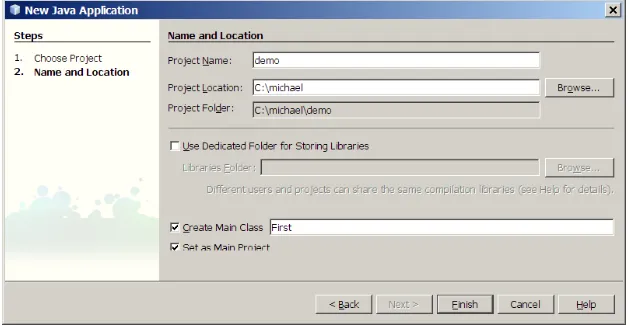
2. Select General in the Categories section and Java Application in the Projects section and click Next to display the New Java Application dialog box, as shown in Figure 3.
3. Type demo in the Project Name field and c:\michael in Project Location field.
4. (Optional) You can create classes after a project is created. Optionally you may also create the first
class when creating a new project. To do so, check the
Create Main Class box and type a class name, say
First, as the Main Class name.
Figure 2
The New Project dialog box enables you to specify a project type.
Figure 3
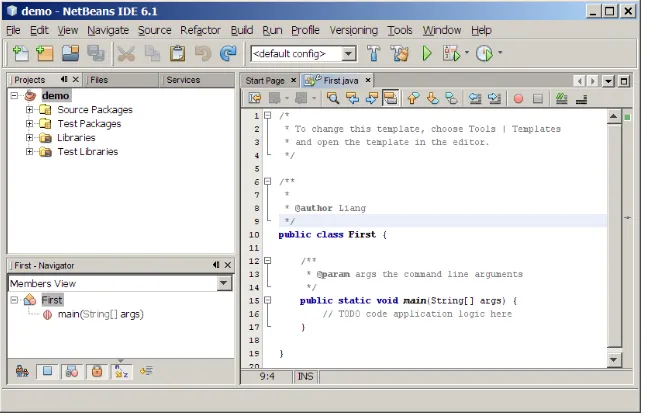
Figure 4
A new demo project is created.
3 Creating a Class
You can create any number of classes in a project. Here are the steps to create Welcome.java in Listing 1.1 from Chapter 1 of the text in the demo project.
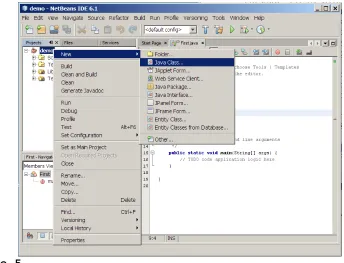
1. Right-click the top demo node in the project pane to display a context menu, as shown in Figure 5. Choose
New, Java Class to display the New Java Class dialog
box, as shown in Figure 6.
2. Type Welcome in the Class Name field and select the Source Packages in the Location field. Leave the Package field blank. This will create a class in the default package. (Note that it is not recommended to use the default package, but it is fine to use the default package to match the code in the book. Using default package is appropriate for new Java students. Section 10, “Using Packages,” will introduce how to create a class in a non-default package.)
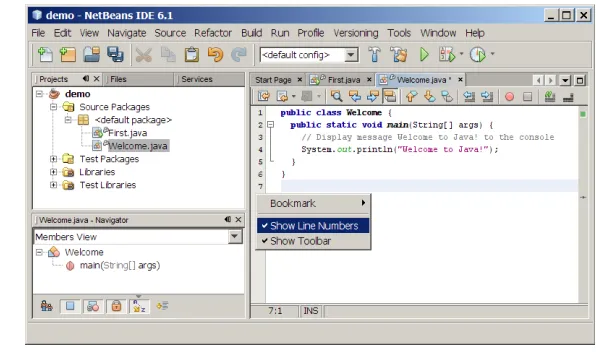
3. Click Finish to create the Welcome class, as shown in Figure 7. The source code file Welcome.java is placed under the <default package> node, because you did not specify a package name for the class in Figure 6. 4. Modify the code in the Welcome class to match Listing
Figure 5
You can create a new class in a project.
Figure 6
[image:6.612.112.463.358.506.2]Figure 7
A new Java class is created in the project.
Figure 8
The source code for Welcome.java is entered.
TIP
You can show line numbers in the Source Editor by choosing View, Show Line Numbers from the main menu.
NOTE
The source file Welcome.java is stored in c:\michael\demo\src.
4 Compiling a Class
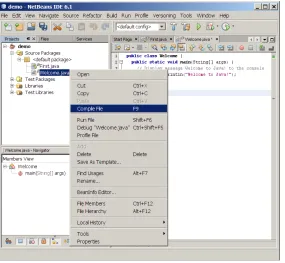
[image:7.612.151.449.274.452.2]The compilation status is displayed in the Output pane, as shown in Figure 10. If there are no syntax errors, the
compiler generates a file named Welcome.class, which is
[image:8.612.167.452.118.381.2]stored in c:\michael\demo\build\classes.
Figure 9
The Compile File command in the context menu compiles a source file.
Figure 10
NOTE: When you compile the file, it will be automatically saved.
NOTE: The icon for Java source code is . A Java source code may have an additional icon , which indicates that the file is not compiled. If the class has a main method, the icon is after the class is compiled.
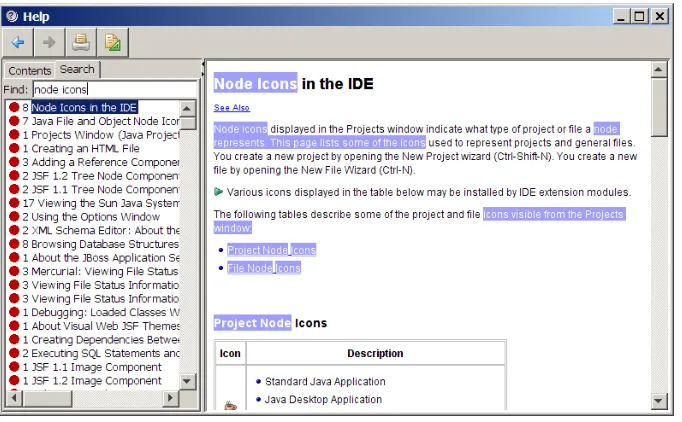
TIP: You can get descriptions of the node icons from NetBeans Help. Choose Help, Help Contents
[image:9.612.138.479.244.455.2]from the main window, and type Node Icons under the Search tab to display the descriptions for the icons, as shown in Figure 11.
Figure 11
You can get descriptions of the node icons in the project pane from NetBeans Help.
5 Running a Java Application
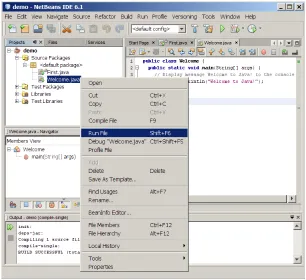
Figure 12
[image:10.612.153.459.53.333.2]The Run File command in the context menu runs a Java program.
Figure 13
NOTE: The Run File command invokes the Compile File command if the program is not compiled or was modified after the last compilation.
6 Running Book Examples
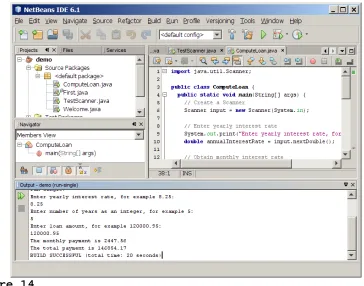
All the examples in the text can be downloaded from the book’s Web site. To run them, copy the source code files into c:\michael\demo\src. You will see the Java source code files appearing under the <default package> node, as shown in Figure 14. For example, to run ComputeLoan.java in
Listing 2.6 in Chapter 2, “Primitive Data Types and
[image:11.612.120.484.244.530.2]Operations,” select ComputeLoan.java in the project pane and press Shift + F6.
Figure 14
You can run the examples in the text from the demo project.
If the program (e.g., ImageAudioAnimation.java in Listing 17.13 in Chapter 17, “Applets and Multimedia”) uses
resources (e.g., image, audio, text), you have to set the project working directory to the resource directories. Suppose you place the image files under
c:\michael\demo\build\classes, here are the steps to set the working directory:
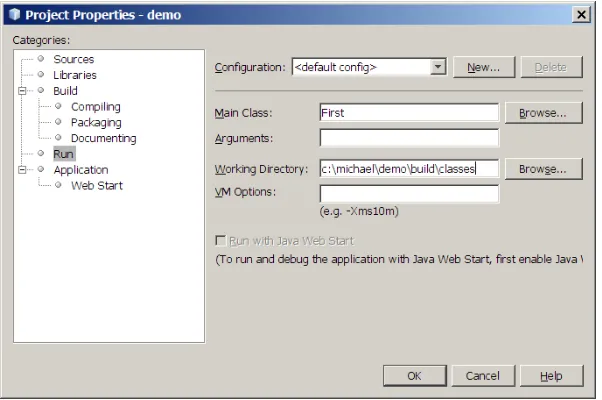
project properties dialog box, as shown in Figure 16. Enter C:\michael\demo\build\classes in the Working Directory field.
[image:12.612.157.458.491.691.2]3. Copy the image and audio folders to c:\michael\demo\build\classes. Run ImageAudioAnimation.java.
Figure 15
You can display Project Properties from the context menu of the project node.
You can set properties for the project in the project properties dialog box.
7 NetBeans's Online Help
NetBeans provides a large number of documents online, giving you a great deal of information on a variety of topics
pertaining to the use of NetBeans.
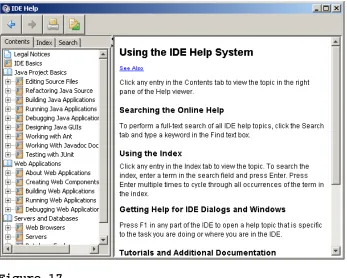
[image:13.612.92.439.206.484.2]To access online help, choose Help, Help Contents to display NetBeans Help, as shown in Figure 17.
Figure 17
All help documents are displayed in NetBeans Help.
NetBeans Help behaves like a Web browser and contains the toolbar buttons, navigation window, and content window. The toolbar buttons contain four buttons: Previous, Next, Print,
and Print Setup. The Previous and Next buttons let you go to
the previous and next topics in the history list. The Print button prints the document in the content window. The Print Setup button enables you to set up the print layout.
The navigation window contains three tabs: Contents, Index, and Search. The Contents tab displays available documents. The table of contents of the document is displayed in a tree-like list in the navigation window. To view a given topic, select the node in the tree associated with the
the content window.
The Index tab shows the index entries for the current document. The Search tab shows the combined index entries for all the available documents in NetBeans.
8 Forcing a Program to Terminate
[image:14.612.153.461.209.455.2]If a program does not terminate due to a logic error, you can force it to terminate by clicking the Stop icon, as shown in Figure 18.
Figure 18
You can force a program to terminate from the runtime pane.
9 Using Packages (Optional)
The Welcome class created in Section 3, “Creating a Class,” does not have the package statement. If you want to create classes with the package statement, you need to enter a package name in the New Java Class wizard. Here are the steps to create a new class Welcome in the package named chapter1:
1. In the context menu of the demo project, choose New,
Java Class to display the New Java Class wizard, as
shown in Figure 19.
2. Type chapter1 in the Package field and click Finish to create the template for the Welcome class, as shown in Figure 20.
first statement in the source code is
package chapter1;
Modify Welcome.java to match the code in Listing 1.1, as shown in Figure 21.
[image:15.612.158.455.169.373.2]4. Choose Run File from the context menu of Welcome.java in the project pane to run the program.
Figure 19
You can enter a package name to create a class.
Figure 20
The new Welcome class is created under package chapter1. Package
chapter1
[image:15.612.120.477.435.591.2]Figure 21
The modified Welcome.java is shown in the Source Editor.
NOTE: The package in Java corresponds to the directory in the file system. chapter1 is also a directory. Welcome.java is stored in
c:\michael\demo\src\chapter1 and Welcome.class is stored in
c:\michael\demo\build\classes\chapter1.
10 Run Java Applications from the Command Line
So far you have run programs in the NetBeans IDE. You can also run program standalone directly from the operating system. Here are the steps in running the Welcome
application with the default package created in Section 3 from the DOS prompt.
1. Start a DOS window by clicking the Windows Start button, Programs, MS-DOS Prompt in Windows.
2. Type the following commands to set up the proper environment variables for running Java programs in the DOS environment in Windows:
set path=%path%;c:\Program Files\java\jdk1.6.0\bin set classpath=.;%classpath%
3. Type cd c:\michael\demo\build\classes to change the directory to c:\michael\demo\build\classes
4. Type java Welcome to run the program. A sample run of the output is shown in Figure 22.
[image:16.612.185.424.637.693.2]You can run the Java program from the DOS prompt using the java command.
NOTE: To run Welcome in the chapter1 package created in Section 11, type java
chapter1.Welcome from the
[image:17.612.136.450.89.258.2]c:\michael\demo\build\classes directory, as shown in Figure 23.
Figure 23
If a class has the package statement, you have to specify its full path, including the package name.
11 Debugging in NetBeans
The debugger utility is integrated in NetBeans. You can pinpoint bugs in your program with the help of the NetBeans debugger without leaving the IDE. The NetBeans debugger enables you to set breakpoints and execute programs line by line. As your program executes, you can watch the values stored in variables, observe which methods are being called, and know what events have occurred in the program.
The debugger is an indispensable, powerful tool that boosts your programming productivity. It is also a valuable tool for learning Java. It helps you understand how a program is executed.
11.1 Setting Breakpoints
You can execute a program line by line to trace it, but this is time-consuming if you are debugging a large program.
Often, you know that some parts of the program work fine. It makes no sense to trace these parts when you only need to trace the lines of code that are likely to have bugs. In cases of this kind, you can use breakpoints.
A breakpoint is a stop sign placed on a line of source code
that tells the debugger to pause when this line is encountered. The debugger executes every line until it
problems.
There are several ways to set a breakpoint. One quick way is to click the cutter of the line on which you want to put a breakpoint. You will see the line highlighted. You also can set breakpoints by choosing Run, New Breakpoint. To remove a breakpoint, simply click the cutter of the line.
When debugging a program, you can set as many breakpoints as you want, and can remove breakpoints at any time during
debugging. The project retains the breakpoints when you exit the project. They are restored when you reopen it.
11.2 Starting the Debugger
[image:18.612.166.450.309.459.2]Let us use Listing 2.8, ShowCurrentTime.java, to demonstrate debugging. Create a new class named ShowCurrentTime in the default package in the demo project, as shown in Figure 24.
Figure 24
ShowCurrentTime.java is created in the project.
There are several ways to start the debugger. A simple way is as follows:
1. Activate ShowCurrentTime.java in the editor pane.
2. Set a breakpoint at where you want your program to pause, say Line 6. A breakpoint can be set by
clicking the cutter of the line, as shown in Figure 25. You can remove it by clicking on the cutter of line again.
3. In the context menu of ShowCurrentTime.java in the project pane, choose Debug File. If the program
pane is not shown, choose Window, Debugging, Local
[image:19.612.147.464.88.258.2]Variables to display it.
Figure 25
Clicking the line number sets/removes a breakpoint at the line in the source code.
Figure 26
The debugger starts to run ShowCurrentTime.java.
11.3 Controlling Program Execution
The program pauses at the breakpoint. The paused line is highlighted in green. This line is also called the current
execution point, which points to next statement to be
executed by the debugger.
When the program pauses, you can issue debugging commands to control the execution of the program. You also can inspect
Debugging toolbar buttons
[image:19.612.119.545.332.523.2]or modify the values of variables in the program.
When NetBeans is in the debugging mode, the toolbar buttons for debugging are displayed, as shown in Figure 26. The toolbar button commands also appear in the Run menu (see Figure 27). Here are the commands for controlling program execution:
Start begins to debug the current program.
Finish ends the current debugging session.
Attach opens a dialog box in which you can connect the debugger to an application on another virtual machine. This is useful for remote debugging in distributed systems.
Pause temporarily stops execution of a program.
Run to Cursor runs the program, starting from the current execution point, and pauses and places the execution point either on the line of code containing the cursor or at a breakpoint.
Step Over executes a single statement. If the statement contains a call to a method, the entire method is
executed without stepping through it.
Step Into executes a single statement or steps into a method.
Step Out executes all the statements in the current method and returns to its caller.
[image:20.612.118.486.535.716.2]Figure 27
The debugging commands appear under the Run menu.
11.4 The Debugger Window
The Debugger window has tabbed panes for Local Variables, Watches, and Call Stack, as shown in Figure 26. Other tabbed such as Breakpoints, Sessions, and Threads can be added by choosing Window, Debugging from the main menu. These panes can be selected or deselected. The Sessions pane lists the current debug sessions. The Breakpoints pane lists all the breakpoints you have set. The Threads pane lists threads and thread groups in the current debugging process. The Call
Stack pane lists the method calls that the process has made
since it began running. The Watches pane lists the variables and expressions that are under continuous watch. The Local
Variables pane shows all the variables before the current
execution point in a local method. The Classes pane lists all the classes that have been loaded by the process being debugged.
11.5 Examining and Modifying Data Values
Among the most powerful features of an integrated debugger is its capability to reveal current data values and enable programmers to modify values during debugging. You can examine the values of variables, array items, and objects, or the values of the parameters passed in a method call. You also can modify a variable value if you want to try a new value to continue debugging without restarting the program.
The Local Variables pane lists all variables accessible at the current execution point. The Watches pane lists the selected variables.
12.5.1 The Add Watch Command
NetBeans provides the Add Watch command to enable you to add variables to the Watches pane in the Debugger window. To add the variable totalMilliseconds to the Watch view, perform the following steps:
1. Suppose the execution point is currently at the first line in the main method. Highlight totalMilliseconds in the Source Editor and right-click the mouse to reveal a context menu.
2. Choose New Watch in the context menu to bring up a dialog box, as shown in Figure 28. Click OK to add totalMilliseconds to the Watch list.
variable along with its content is shown in Figure 29.
[image:22.612.158.457.245.400.2]4. Choose Debug, Step Over to observe the changing value of totalMilliseconds in the Watches pane.
Figure 28
The New Watch dialog box enables you to add a variable or an expression to the Watch view.
Figure 29
The variable totalMilliseconds was added to the Watches tab.
NOTE:
You can also add expressions such as i > 0 to the Watches tab from the Add New Watch dialog box.
11.5.2 Modifying Variables
You can modify variables from the Watches pane or the Variables pane. For instance, to change the value for
Figure 30
The value for variable totalMilliseconds is changed to 1000.
12 Creating and Testing Java Applets
In the preceding section, you learned how to create, compile, and execute a Java program. Applets are special type of Java program. NetBeans provides the Applet wizard to create Java applets.
12.1 Creating a Java Applet
Let us use WelcomeApplet.java in Listing 16.1 in the text to demonstrate how to create an applet:
1. In the context menu of the demo project, choose New,
File/Folder (See Figure 31) to display the New File
wizard, as shown in Figure 32.
2. Select JApplet under the Java Classes node and click Next to display the Applet wizard, as shown in Figure 33.
3. Type WelcomeApplet in the Class Name field, and click
Finish to create the template for the applet, as
shown in Figure 34.
4. Modify the code in the WelcomeApplet class to display a text on a label, and place the label in the center of the applet, as shown in Figure 35. The code is the same as Listing 16.1 in the text.
5. Choose Run File in the context menu of
WelcomeApplet.java to run the applet. NetBeans automatically generates WelcomeApplet.html in
C:\michael\demo\build and runs the applet using the applet viewer, as shown in Figure 36.
Figure 31
You can create an applet from the File/Folder menu.
Figure 32
[image:24.612.109.468.340.568.2]Figure 33
[image:25.612.153.461.269.419.2]You can create an applet from the Applet wizard.
Figure 34
The Applet wizard generates the template for the applet.
Figure 35
[image:25.612.168.448.482.618.2]Figure 36
The WelcomeApplet program runs from the applet viewer.
12.2 Viewing Applets from a Web Browser
Applets are eventually displayed in a Web browser. Using the applet viewer, you do not need to start a Web browser. The applet viewer functions as a browser. It is convenient for testing applets during development. However, you should also test the applets from a Web browser before deploying them on a Web site. To display an applet from a Web browser, open the applet’s HTML file (i.e., WelcomeApplet.html). Its output is shown in Figure 37.
Figure 37
[image:26.612.155.456.329.585.2]