Microsoft
SQL Server
2005
Developer’s Guide
Michael Otey
Denielle Otey
McGraw-Hill/Osborne
0-07-148348-9
The material in this eBook also appears in the print version of this title: 0-07-226099-8.
All trademarks are trademarks of their respective owners. Rather than put a trademark symbol after every occurrence of a trademarked name, we use names in an editorial fashion only, and to the benefit of the trademark owner, with no intention of infringement of the trademark. Where such designations appear in this book, they have been printed with initial caps.
McGraw-Hill eBooks are available at special quantity discounts to use as premiums and sales promotions, or for use in corporate training pro-grams. For more information, please contact George Hoare, Special Sales, at [email protected] or (212) 904-4069.
TERMS OF USE
This is a copyrighted work and The McGraw-Hill Companies, Inc. (“McGraw-Hill”) and its licensors reserve all rights in and to the work. Use of this work is subject to these terms. Except as permitted under the Copyright Act of 1976 and the right to store and retrieve one copy of the work, you may not decompile, disassemble, reverse engineer, reproduce, modify, create derivative works based upon, transmit, distribute, dis-seminate, sell, publish or sublicense the work or any part of it without McGraw-Hill’s prior consent. You may use the work for your own non-commercial and personal use; any other use of the work is strictly prohibited. Your right to use the work may be terminated if you fail to com-ply with these terms.
THE WORK IS PROVIDED “AS IS.” McGRAW-HILL AND ITS LICENSORS MAKE NO GUARANTEES OR WARRANTIES AS TO THE ACCURACY, ADEQUACY OR COMPLETENESS OF OR RESULTS TO BE OBTAINED FROM USING THE WORK, INCLUDING ANY INFORMATION THAT CAN BE ACCESSED THROUGH THE WORK VIA HYPERLINK OR OTHERWISE, AND EXPRESSLY DIS-CLAIM ANY WARRANTY, EXPRESS OR IMPLIED, INCLUDING BUT NOT LIMITED TO IMPLIED WARRANTIES OF MER-CHANTABILITY OR FITNESS FOR A PARTICULAR PURPOSE. McGraw-Hill and its licensors do not warrant or guarantee that the func-tions contained in the work will meet your requirements or that its operation will be uninterrupted or error free. Neither McGraw-Hill nor its licensors shall be liable to you or anyone else for any inaccuracy, error or omission, regardless of cause, in the work or for any damages result-ing therefrom. McGraw-Hill has no responsibility for the content of any information accessed through the work. Under no circumstances shall McGraw-Hill and/or its licensors be liable for any indirect, incidental, special, punitive, consequential or similar damages that result from the use of or inability to use the work, even if any of them has been advised of the possibility of such damages. This limitation of liability shall apply to any claim or cause whatsoever whether such claim or cause arises in contract, tort or otherwise.
We hope you enjoy this
McGraw-Hill eBook! If
you’d like more information about this book,
its author, or related books and websites,
please
click here.
Professional
Michael Otey is Senior Technical Editor of SQL Server Magazine and co-author ofSQL Server 2000 Developer’s Guide,SQL Server 7 Developer’s Guide, and
ADO.NET: The Complete Reference. He is the president of TECA, Inc., a software development and consulting firm.
Denielle Otey is vice president of TECA, Inc. She has extensive experience developing commercial software products, and is the co-author of ADO.NET: The Complete Reference.
v
Contents
Acknowledgments . . . xiii
Introduction . . . xiv
Chapter 1 The Development Environment . . . 1
SQL Server Management Studio . . . 2
The SQL Server Management Studio User Interface . . . 3
SQL Server Management Studio User Interface Windows . . . 4
SQL Server 2005 Administrative Tools . . . 14
BI Development Studio . . . 14
The Business Intelligence Development Studio User Interface . . . 16
BI Development Studio User Interface Windows . . . 16
Summary . . . 20
Chapter 2 Developing with T-SQL . . . 21
T-SQL Development Tools . . . 22
SQL Server Management Studio . . . 22
Visual Studio 2005 . . . 27
Creating Database Objects Using T-SQL DDL . . . 34
Databases . . . 35
Tables . . . 36
Views . . . 40
Synonyms . . . 41
Stored Procedures . . . 41
Functions . . . 43
Triggers . . . 45
Security . . . 46
Querying and Updating with T-SQL DML . . . 49
Select and Joins . . . 49
Modifying Data . . . 65
Error Handling . . . 74
Summary . . . 75
Chapter 3 Developing CLR Database Objects . . . 77
Understanding CLR and SQL Server 2005 Database Engine . . . 78
CLR Architecture . . . 79
Enabling CLR Support . . . 80
CLR Database Object Components . . . 80
Creating CLR Database Objects . . . 83
CLR Stored Procedures . . . 83
User-Defined Functions . . . 90
Triggers . . . 94
User-Defined Types . . . 99
Aggregates . . . 105
Debugging CLR Database Objects . . . 110
.NET Database Object Security . . . 112
Managing CLR Database Objects . . . 115
Summary . . . 115
Chapter 4 SQL Server Service Broker . . . 117
SQL Server Service Broker Architecture . . . 118
Messages . . . 119
Queues . . . 120
Contracts . . . 120
Services . . . 120
Dialogs . . . 120
Developing SQL Service Broker Applications . . . 122
SQL Server Service Broker DDL and DML . . . 122
T-SQL DDL . . . 122
T-SQL DML . . . 122
Enabling SQL Server Broker . . . 122
Using Queues . . . 124
SQL Server Service Broker Activation . . . 131
Dialog Security . . . 132
System Views . . . 132
Summary . . . 133
Chapter 5 Developing with Notification Services . . . . 135
Notification Services Overview . . . 136
Events . . . 136
Subscriptions . . . 138
Notifications . . . 138
Developing Notification Services Applications . . . 139
Defining the Application . . . 139
Compiling the Application . . . 139
Building the Notification Subscription Management Application . . . 140
Adding Custom Components . . . 140
Notification Services Application Sample . . . 140
Creating the ICF File . . . 140
Defining the ADF File . . . 144
Building the Notification Services Application . . . 152
Updating Notification Services Applications . . . 157
Building a .NET Subscription/Event Application . . . 158
Listing Subscriptions . . . 159
Adding Subscriptions . . . 160
Deleting Subscriptions . . . 163
Firing the Data Event Using .NET . . . 163
Firing the Data Event Using T-SQL . . . 166
Summary . . . 167
Chapter 6 Developing Database Applications with ADO.NET . . . 169
The ADO.NET Architecture . . . 170
ADO.NET Namespaces . . . 172
.NET Data Providers . . . 172
Namespaces for the .NET Data Providers . . . 173
Core Classes for the .NET Data Providers . . . 175
Core Classes in the ADO.NET System.Data Namespace . . . 177
DataSet . . . 178
DataColumn . . . 179
DataRow . . . 180
DataView . . . 180
DataViewManager . . . 180
DataRelation . . . 181
Constraint . . . 181
ForeignKeyConstraint . . . 181
UniqueConstraint . . . 181
DataException . . . 182
Using the .NET Framework Data Provider for SQL Server . . . 182
Adding the System.Data.SqlClient Namespace . . . 182
Using the SqlConnection Object . . . 183
The .NET Framework Data Provider for SQL Server Connection String Keywords . . . 184
Opening a Trusted Connection . . . 186
Using Connection Pooling . . . 187
Using the SqlCommand Object . . . 190
Executing Dynamic SQL Statements . . . 191
Executing Parameterized SQL Statements . . . 193
Executing Stored Procedures with Return Values . . . 196
Executing Transactions . . . 198
Using the SqlDependency Object . . . 201
Using the SqlDataReader Object . . . 204
Retrieving a Fast Forward–Only Result Set . . . 205
Reading Schema-Only Information . . . 208
Asynchronous Support . . . 209
Multiple Active Result Sets (MARS) . . . 210
Retrieving BLOB Data . . . 212
Using the SqlDataAdapter Object . . . 215
Populating the DataSet . . . 215
Using the CommandBuilder Class . . . 216
Summary . . . 220
Chapter 7 Developing with XML . . . . 221
The XML Data Type . . . 222
Data Validation Using an XSD Schema . . . 223
XQuery Support . . . 227
XML Data Type Methods . . . 231
Exist(XQuery) . . . 231
Modify(XML DML) . . . 232
Query(XQuery) . . . 233
Value(XQuery, [node ref]) . . . 234
XML Indexes . . . 235
Primary XML Indexes . . . 235
Secondary XML Indexes . . . 235
Using the For XML Clause . . . 236
For XML Raw . . . 236
For XML Auto . . . 237
For XML Explicit . . . 237
Type Mode . . . 239
FOR XML Path . . . 240
Nested FOR XML Queries . . . 242
Inline XSD Schema Generation . . . 242
OPENXML . . . 244
XML Bulk Load . . . 245
Native HTTP SOAP Access . . . 247
Creating SOAP Endpoints . . . 247
Using SOAP Endpoints . . . 249
Summary . . . 253
Chapter 8 Developing Database Applications with ADO . . . . 255
An Overview of OLE DB . . . 256
OLE DB Architecture Overview . . . 256
ADO (ActiveX Data Objects) . . . 258
OLE DB and ADO Files . . . 260
ADO Architecture . . . 260
An Overview of Using ADO . . . 262
Adding the ADO Reference to Visual Basic . . . 263
Using ADO Objects with Visual Basic . . . 264
Connecting to SQL Server . . . 265
Retrieving Data with the ADO Recordset . . . 281
Executing Dynamic SQL with the ADO Connection Object . . . 305
Modifying Data with ADO . . . 307
Executing Stored Procedures with Command Objects . . . 316
Advanced Database Functions Using ADO . . . 320
Batch Updates . . . 320
Using Transactions . . . 322
Summary . . . 324
Chapter 9 Reporting Services . . . . 325
Reporting Services Architecture . . . 326
Reporting Services Components . . . 327
Installing Reporting Services . . . 329
Report Server . . . 336
Report Server Processors . . . 337
Report Server Extensions . . . 338
Report Manager . . . 340
Reporting Services Configuration and Management Tools . . . 341
Reporting Services Configuration Tool . . . 342
Report Server Command-Prompt Utilities . . . 344
Report Authoring Tools . . . 348
Report Designer . . . 348
Report Model Designer . . . 353
Report Builder . . . 357
Programmability . . . 359
Using URL Access in a Window Form . . . 359
Integrating Reporting Services Using SOAP . . . 361
Extensions . . . 361
RDL . . . 362
Accessing Reports . . . 362
Using URL Access . . . 362
URL Access Through a Form POST Method . . . 363
Report Authoring . . . 363
Development Stages . . . 363
Creating a Reporting Services Report . . . 364
Deploying a Reporting Services Report . . . 369
Running a Reporting Services Report . . . 369
Summary . . . 371
Chapter 10 SQL Server Integration Services . . . 373
An Overview of SQL Server Integration Services . . . 374
Data Transformation Pipeline (DTP) . . . 375
Creating Packages . . . 377
Using the SSIS Import and Export Wizard . . . 377
Using the SSIS Designer . . . 378
Using Breakpoints . . . 395
Using Checkpoints . . . 397
Using Transactions . . . 398
Package Security . . . 399
Deploying Packages . . . 399
Creating Configurations . . . 400
Using the Package Deployment Utility . . . 403
Programming with the SQL Server Integration Services APIs . . . 404
Summary . . . 412
Chapter 11 Developing BI Applications with ADOMD.NET . . . 415
Analysis Services Overview . . . 416
XML for Analysis . . . 417
Analysis Management Objects (AMO) Overview . . . 417
ADOMD.NET Overview . . . 418
AMO Hierarchy . . . 418
ADOMD.NET Object Model . . . 419
Building a BI Application with ADOMD.NET . . . 421
Adding a Reference for ADOMD.NET . . . 422
Using the AdomdConnection Object . . . 423
Using the AdomdCommand Object . . . 427
Using the AdomdDataAdapter Object . . . 434
Using the CubeDef Object . . . 436
Summary . . . 437
Chapter 12 Developing with SMO . . . . 439
Using SMO . . . 440
Adding SMO Objects to Visual Studio . . . 441
Creating the Server Object . . . 442
Using SMO Properties . . . 444
SMO Property Collections . . . 445
SMO Hierarchy . . . 449
Building the SMO Sample Application . . . 459
Creating the Server Object . . . 460
Listing the Registered SQL Systems . . . 461
Listing Databases . . . 463
Listing Tables . . . 464
Listing Columns . . . 465
Retrieving Column Attributes . . . 467
Creating Databases . . . 468
Transferring Tables . . . 469
Showing T-SQL Script for Tables . . . 472
SMO Error Handling . . . 474
Summary . . . 475
Chapter 13 Using sqlcmd . . . . 477
sqlcmd Components . . . 478
Command Shell . . . 478
Command-Line Parameters . . . 479
sqlcmd Extended Commands . . . 484
sqlcmd Variables . . . 484
Developing sqlcmd Scripts . . . 485
Developing sqlcmd Scripts with Query Editor . . . 485
Using sqlcmd Variables . . . 487
Using sqlcmd Script Nesting . . . 488
Using sqlcmd Variables and T-SQL Statements . . . 489
Summary . . . 490
Appendix SQL Profiler . . . . 491
Starting SQL Profiler . . . 491
Starting, Pausing, and Stopping a Trace . . . 496
Replaying a Trace . . . 497
Showplan Events . . . 497
xiii
Acknowledgments
T
his book is the successor to the SQL Server 2000 Developer’s Guide, which was extremely successful thanks to all of the supportive SQL Server developers who bought that edition of the book. Our first thanks go to all of the people who encouraged us to write another book about Microsoft’s incredible new relational database server: SQL Server 2005.Making a book is definitely a team effort, and this book is the epitome of that. We’d like to extend our deepest gratitude to the team at McGraw-Hill/Osborne, who helped to guide and shape this book as it progressed through its many stages. First, we’d like to thank Wendy Rinaldi, editorial director, for her encouragement in getting this project launched and her on-going support. We’d also like to thank acquisitions coordinator Alex McDonald for spearheading the effort to bring this project home. The book’s content benefited immensely from the efforts of project editor Carolyn Welch, technical reviewer Karl Hilsmann, and copy editor Bob Campbell.
We’d also like to thank Tom Rizzo and Bill Baker from Microsoft for helping us to understand better where the product is headed and the emerging importance of BI and SQL Server 2005.
Introduction
S
QL Server 2005 is a feature-rich release that provides a host of new tools and technologies for the database developer. This book is written to help database developers and DBAs become productive immediately with the new features and capabilities found in SQL Server 2005. This book covers the entire range of SQL Server 2005 development technologies from server side development using T-SQL to client side development using ADO, ADO.Net, and ADOMD.NET. In addition, it shows how to develop applications using the new SQL Server 2005 Notification Services, SQL Server Service Broker, Reporting Services, and SQL Server Integration Services subsystems.The development management landscape for SQL Server 2005 has changed
tremendously in SQL Server 2005, so Chapter 1 starts off by providing a guided tour of the new development and management tools in SQL Server 2005. Although SQL Server 2005 certainly embodies a huge number of significant changes, some things have stayed the same and one of those things is the fact that T-SQL is still the native development language for SQL Server 2005 and is the core for all SQL Server 2005 database
development. Chapter 2 shows you how to use the new T-SQL development tools found in both SQL Server 2005 and Visual Studio 2005 as well as how to create both T-SQL DDL and DML solutions. Chapter 3 dives into the new SQL CLR integration capabilities of SQL Server 2005. The integration of the .NET CLR runtime with SQL Server 2005 is one of the biggest new changes in SQL Server 2005. This chapter shows you how to create and use all of the new SQL CLR database objects, including stored procedures, functions, triggers, user-defined types, and user-defined aggregates. Chapter 4 introduces the new SQL Server Service Broker subsystem that provides the basis for building asynchronous applications. Both the SQL Service Broker chapter and the Notification Services chapter (Chapter 5) provide an overview of the new subsystem and then go on to show how they are used in a sample application. ADO.NET is Microsoft’s core data access technology, and Chapter 6 illustrates how to use all the primary ADO.NET objects to create robust data applications. The integration of XML with the relational database engine is another one of the big enhancements in SQL Server 2005. Chapter 7 shows how to use the new XML data type for both typed and untyped data as well as
xiv
how to create Web Services that expose SQL Server stored procedures for heterogeneous platform integration. While most of this book concentrates on the newest .NET and XML-based technologies, the majority of SQL Server client applications are written in ADO and VB6. Chapter 8 illustrates all of the primary ADO techniques for building SQL Server database applications. Two of the hottest technologies in SQL Server 2005 are Reporting Services and the end-user oriented Report Builder report designer application. Chapter 9 dives into both of these new features, showing you how to build reports using Reporting Services as well as how to set up data models for use with Report Builder. Chapter 10 introduces the new SQL Server Integration Services subsystem. SQL Server Integration Services completely replaces the older DTS subsystem, and this chapter shows you how to build and deploy SSIS packages using the designer and the SSIS API. Chapter 11 illustrates building client Business Intelligence applications for Analysis Services using the new ADOMD.NET data access programming framework. SQL Server 2005 also introduces another completely new management framework called System Management Objects (SMO), which replaces the older Distributed Management Objects (DMO) object framework that was used in earlier versions of SQL Server. In Chapter 12 you can see how SMO can be used to build your own customized SQL Server
management applications. SQL Server 2005 also provides an entirely new command line interface called sqlcmd that replaces the older isql and osql utilities. In Chapter 13 you can see how to develop management and data access scripts using the sqlcmd tool. Finally, this book concludes with an introduction to using SQL Profiler. SQL Profiler is key tool for both troubleshooting application performance as well as fine-tuning your data access queries.
All of the code presented in this book is available for download from McGraw-Hill/ Osborne’s web site at www.osborne.com, and from our web site at www.teca.com.
SQL Server 2005’s Design Goals
Scalability
Scalability used to be an area where Microsoft SQL Server was criticized. With its roots as a departmental system and the limitations found in the Microsoft SQL Server 6.5 and earlier releases, many businesses didn’t view SQL Server as a legitimate player in the enterprise database market. However, all that has changed. Beginning with the release of SQL Server 7, Microsoft made great strides in the scalability of the SQL Server platform. Using distributed partitioned views, SQL Server 7 jumped to the top of the TPC-C, and, in fact, its scores were so overwhelming that SQL Server 7 was a contributing factor to the TPC (Transaction Processing Councils) decision to break the transactional TPC-C test into clustered and nonclustered divisions. Although Microsoft and SQL Server 7 owned the clustered TPC-C score, demonstrating its ability to scale out across multiple systems, there was still some doubt about the platform’s ability to scale up on a single platform. That too changed with the launch of Windows Server 2003 and the announcement of SQL Server 2000 Enterprise Edition 64-bit where Microsoft announced that for the first time Microsoft SQL Server reached the top of the nonclustered TPC-C scores. Today, with the predominance of web-based applications, scalability is more important than ever. Unlike traditional client/server and intranet applications, where you can easily predict the number of application users, web applications open up the door for very large numbers of users and rapid changes in resource requirements. SQL Server 2005 embodies the accumulation of Microsoft’s scalability efforts, and builds on both the ability to scale out using distributed partitioned views as well as the ability to scale up using its 64-bit edition. Its TPC-C scores clearly demonstrate that SQL Server 2005 can deal with the very largest of database challenges—even up to the mainframe level. And the SQL Server 2005’s self-tuning ability enables the database to quickly optimize its own resources to match usage requirements.
Security
In the first case, SQL Server essentially had the answer to this issue, supporting both standard security as well as Windows authentication; the users simply didn’t take some very basic security steps. In the second case, Microsoft had generated a fix to a known problem but that fix wasn’t widely applied. Plus, there was another basic security issue with this incident in which one of the ports on the firewall that should have been closed was left open by the businesses that were stricken by this virus.
To address these types of security challenges, SQL Sever 2005 has been designed following Microsoft’s new security framework, sometimes called SD3 where the product is secure by design, secure by default, and secure by deployment. What this means for SQL Server 2005 is that the product is initially designed with an emphasis on security. Following up on their Trustworthy Computing initiative, Microsoft embarked on extensive security training for all of their developers and conducted code reviews and performed a comprehensive thread analysis for SQL Server 2005. In addition, all of the security fixes that were incorporated into the SP3 of SQL Server 2000 were rolled into SQL Server 2005. Next, secure by default means that when the product is installed Microsoft provides secure default values in the installation process whereby if you just follow the defaults you will end up with a secure implementation. For example, in the case of the sa password, the installation process prompts you to provide a strong password for the sa account. While you can select to continue the installation with a blank password, you have to explicitly select this path as well as respond to the Microsoft dialogs warning you about the dangers of using a blank password. Finally, SQL Server 2005 is secure by deployment, which means that Microsoft is providing tools and training for customers to help create secure deployments for SQL Server 2005. Here, Microsoft provides tools like the Microsoft Baseline Security Analysis, which can scan for known security vulnerabilities, in addition to a collection of white papers that are designed to educate customers on the best practices for creating secure implementations for a variety of different deployment scenarios.
Integration
JDBC driver, allowing SQL Server to be used as a back-end database for Java applications. For platform interoperability, SQL Server 2005 sports an all-new redesigned Integration Services as well as heterogeneous database replication to Access, Oracle, and IBM DB2 UDB systems.
Productivity
Productivity is one of the other primary ingredients that enterprises require, and this is probably the area where SQL Server 2005 has made the biggest strides. The new release of SQL Server 2005 integrates the .NET Framework CLR into the SQL Server database engine. This new integration allows database objects like stored procedures, triggers, and user-defined functions to be created using any .NET compliant language including C#, VB.NET managed C++, and J#. Prior to this release SQL Server only supported the procedural T-SQL language for database programmability. The integration of the .NET Framework brings with it a fully object-oriented programming model that can be used to develop sophisticated data access and business logic routines. Being able to write database objects using the .NET languages also facilitates the ability to easily move those database objects between the database and the data access layer of an n-tiered web application.
Although the big news with this release is the .NET Framework, Microsoft has continued to enhance T-SQL, as well as bring several new capabilities to their procedural language and the reassurance to developers and DBAs that they have no plans for dropping support for T-SQL in the future. In addition, SQL Server 2005 answers the question of productivity from the DBA’s perspective as well. The management console has been redesigned and integrated into a Visual Studio .NET integrated development environment. All of the dialogs are now fully modal, allowing the DBA to easily switch between multiple management tasks.
Return on Investment
Overall, the new features in SQL Server 2005 give it a very high return on investment. Features like web services provide better connectivity to customers, paving the way to improved profitability. Likewise, XML integration enables better integration with business partners for improved profitability. Additionally, the inclusion of the .NET Framework, improved management tools, and Report Services empower employees, enabling them to be more productive.
A Brief History of Microsoft SQL Server
all the features introduced with SQL Server 2000 and its web releases in conjunction with the integration of the .NET CLR and an array of powerful new BI functions. The following timeline summarizes the development history of SQL Server:
䉴 1987 Sybase releases SQL Server for UNIX.
䉴 1988 Microsoft, Sybase, and Aston-Tate port SQL Server to OS/2.
䉴 1989 Microsoft, Sybase, and Aston-Tate release SQL Server 1.0 for OS/2.
䉴 1990 SQL Server 1.1 is released with support for Windows 3.0 clients.
䉴 Aston-Tate drops out of SQL Server development.
䉴 1991 Microsoft and IBM end joint development of OS/2.
䉴 1992 Microsoft SQL Server 4.2 for 16-bit OS/2 1.3 is released.
䉴 1992 Microsoft and Sybase port SQL Server to Windows NT.
䉴 1993 Windows NT 3.1 is released.
䉴 1993 Microsoft and Sybase release version 4.2 of SQL Server for Windows NT.
䉴 1994 Microsoft and Sybase co-development of SQL Server offi cially ends.
䉴 Microsoft continues to develop the Windows version of SQL Server.
䉴 Sybase continues to develop the UNIX version of SQL Server.
䉴 1995 Microsoft releases version 6.0 of SQL Server.
䉴 1996 Microsoft releases version 6.5 of SQL Server.
䉴 1998 Microsoft releases version 7.0 of SQL Server.
䉴 2000 Microsoft releases SQL Server 2000.
䉴 2001 Microsoft releases XML for SQL Server Web Release 1 (download).
䉴 2002 Microsoft releases SQLXML 2.0 (renamed from XML for SQL Server).
䉴 2002 Microsoft releases SQLXML 3.0.
1
1
The Development
Environment
IN THIS CHAPTER
SQL Server Management Studio BI Development StudioW
hen it comes to server management, a lot has changed for the DBA in SQL Server 2005. The administrative tools that were used to manage the previous versions of SQL Server have been replaced, and new management tools have been added to help the DBA interact more efficiently with the database server. In this chapter, we’ll first take a look at the new SQL Server Management Studio, which combines, into one integrated environment, the four previous tools: Enterprise Manager, Query Analyzer, Profiler, and Analysis Manager. While each of these tools allowed the DBA to perform their specific tasks, switching between the tools and remembering different interfaces and syntax could create unneeded headaches. By having one management environment, the DBA can focus on managing the server objects more efficiently. The second part of this chapter will explore the new Business Intelligence (BI) Development Studio. The BI Development Studio is an integrated development environment used to create Analysis Services databases, DTS packages, and Reporting Services reports. You can organize components into projects and solutions in the BI Development Studio in a disconnected mode, and then deploy the solutions at a later time.SQL Server Management Studio
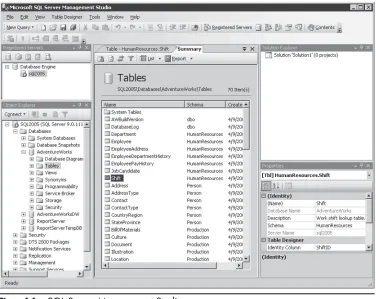
The SQL Server Enterprise Manager, which was the primary management tool for SQL Server versions 7 and 2000, has been replaced by the new SQL Server Management Studio, which also replaces the Query Analyzer tool, which was the core T-SQL development tool in SQL Server versions 7 and 2000. SQL Server 2005 also includes several other administrative tools, such as the new Administration Console, the Database Tuning Adviser, and the Profiler. The SQL Server Management Studio is accessed using the Start | Programs | Microsoft SQL Server | SQL Server Management Studio menu option. You can see the SQL Server Management Studio in Figure 1-1.
The SQL Server Management Studio can be used to manage SQL Server 2005 systems as well as SQL Server 2000 and SQL Server 7 systems; however, it cannot be used on SQL Server 6.5 or older systems. You can use the previous SQL Server 7/2000 Enterprise Manager to manage a new SQL Server 2005 system, but this isn’t supported or recommended because of some architectural changes between the two releases. Likewise, the older management tools cannot access any of the new features that have been added to SQL Server 2005. The SQL Server Management Studio is the best choice for managing mixed SQL Server 2005 and SQL Server 7/2000 systems.
This allows you to write, edit, run, and debug code, and it supports the creation of solution projects. It is also integrated with Visual SourceSafe for source code version control. It doesn’t allow you to compile VB.NET, C#, J#, or VC++, like the Visual Studio 2005 development environment; instead, SQL Server Management Studio works with T-SQL, MDX, and DTS.
The SQL Server Management Studio User Interface
[image:25.524.75.451.70.369.2]problem and make it possible for the DBA to perform other management tasks while one of the dialogs is displayed.
Another important enhancement in the SQL Server Management Studio is how it deals with large numbers of database objects. In the previous versions of SQL Server, the SQL Server Enterprise Manager always enumerated all of the database objects when it connected to a registered server. This wasn’t a problem for most small and medium-sized businesses, as their databases tended to be smaller in size. However, for companies with very large databases, which could contain thousands of database objects, the SQL Server Enterprise Manager could take a very long time listing all of the database objects and their properties. This basically left the SQL Server Enterprise Manager unusable until all of the objects were listed. With SQL Server 2005, the SQL Server Management Studio loads objects asynchronously, allowing the user to start to expand a database item that has many children, while at the same time performing other activities in the user interface.
SQL Server Management Studio User Interface Windows
This section gives you an overview of the SQL Server Management Studio user interface windows, including:
䉴 The Registered Servers window
䉴 The Object Explorer window
䉴 The Solutions Explorer window
䉴 The Properties window
䉴 The Query Editor window
䉴 The Results window
Registered Servers
You register a new SQL Server system in the Registered Servers window by right-clicking the window and selecting the New | Server Registration option from the context menu. Likewise, you can create a new server group by right-clicking in the Registered Servers window and selecting the New | Server Group option from the context menu. The Registered Servers window also allows you to export or import registered servers information. This enables you to quickly populate the Registered Servers windows of other SQL Server Management Studios without having to manually reregister all of the managed servers.
Object Explorer
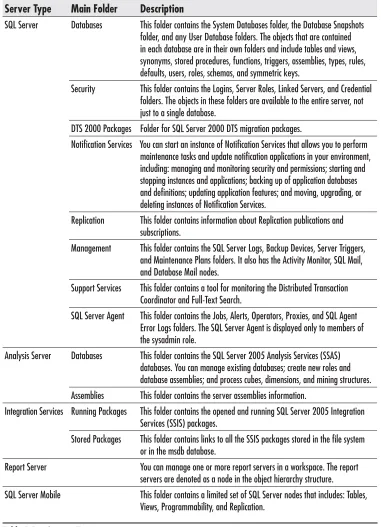
The Object Explorer window of SQL Server Management Studio allows you to connect to any of the SQL Server components. The Object Explorer window, shown in the lower left-hand corner of Figure 1-1, provides a tree-structured folder view of all the objects in the server and displays a user interface to manage the objects. The folders displayed under each server connection type are specific to the functions of the server. Table 1-1 describes the server types and their respective main folders.
The first thing you need to do in order to use Object Explorer is connect to a server type. You click the Connect button on the Object Explorer toolbar and choose the type of server from the drop-down list, which opens the Connect To Server dialog box as shown in Figure 1-2.
You must provide at least the name of the server and the correct authentication information to connect to the server. You can optionally specify additional connections in the Connect To Server dialog, and the dialog will retain the last used settings.
To work with the objects that are displayed in the Object Explorer, you right-click the desired object in the Object Explorer tree to display the object’s context menu. The context menu provides a unique set of options for each of the different objects. For instance, the SQL Server | Databases folder displays a context menu that allows you to create, attach, back up, restore, copy, and generate scripts for a database; while the SQL Server | Databases | Tables | table context menu allows you to create, modify, open, rename, delete, or generate a script; to define a full-text index; and to view dependencies for a table.
Generating Scripts A very useful enhancement in SQL Server Management Studio is the ability to generate scripts for database objects. You can create scripts using Object Explorer or by using the Generate SQL Server Scripts Wizard.
Server Type Main Folder Description
SQL Server Databases This folder contains the System Databases folder, the Database Snapshots folder, and any User Database folders. The objects that are contained in each database are in their own folders and include tables and views, synonyms, stored procedures, functions, triggers, assemblies, types, rules, defaults, users, roles, schemas, and symmetric keys.
Security This folder contains the Logins, Server Roles, Linked Servers, and Credential folders. The objects in these folders are available to the entire server, not just to a single database.
DTS 2000 Packages Folder for SQL Server 2000 DTS migration packages.
Notification Services You can start an instance of Notification Services that allows you to perform maintenance tasks and update notification applications in your environment, including: managing and monitoring security and permissions; starting and stopping instances and applications; backing up of application databases and definitions; updating application features; and moving, upgrading, or deleting instances of Notification Services.
Replication This folder contains information about Replication publications and subscriptions.
Management This folder contains the SQL Server Logs, Backup Devices, Server Triggers, and Maintenance Plans folders. It also has the Activity Monitor, SQL Mail, and Database Mail nodes.
Support Services This folder contains a tool for monitoring the Distributed Transaction Coordinator and Full-Text Search.
SQL Server Agent This folder contains the Jobs, Alerts, Operators, Proxies, and SQL Agent Error Logs folders. The SQL Server Agent is displayed only to members of the sysadmin role.
Analysis Server Databases This folder contains the SQL Server 2005 Analysis Services (SSAS) databases. You can manage existing databases; create new roles and database assemblies; and process cubes, dimensions, and mining structures. Assemblies This folder contains the server assemblies information.
Integration Services Running Packages This folder contains the opened and running SQL Server 2005 Integration Services (SSIS) packages.
Stored Packages This folder contains links to all the SSIS packages stored in the file system or in the msdb database.
Report Server You can manage one or more report servers in a workspace. The report servers are denoted as a node in the object hierarchy structure.
[image:28.524.72.453.72.599.2]SQL Server Mobile This folder contains a limited set of SQL Server nodes that includes: Tables, Views, Programmability, and Replication.
choose to script an entire database, the CREATE and DROP scripting options are available. However, if you choose to script a view, the CREATE and DROP scripting options are available, as well as ALTER, SELECT, INSERT, UPDATE, and DELETE. To script an object using Object Explorer, right-click the object and then select Script <object type> as an option from the context menu.
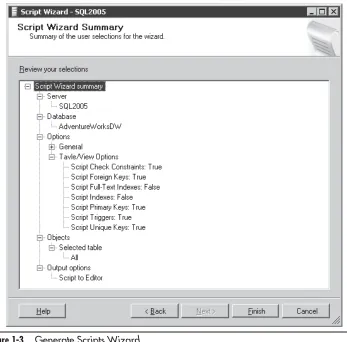
The Generate Scripts Wizard can be used and will walk you through the process of creating scripts. The wizard allows you to select a variety of objects to be scripted at once instead of selecting each object individually. It contains a variety of options for generating scripts, including permissions, collation, and constraints. The wizard is useful when you need to create scripts for a large number of objects. There are two ways to launch the Generate Scripts Wizard. The first way to open the Generate Scripts Wizard is by right-clicking an instance of a SQL Server Database Engine and selecting the Launch Wizard option. Then select the Generate Scripts option from the next context menu displayed. The second way is to expand the Databases folder in Object Explorer and right-click a database. Select the Tasks option from the context menu, and then select Generate Scripts. The Summary screen of the Generate Scripts Wizard is shown in Figure 1-3.
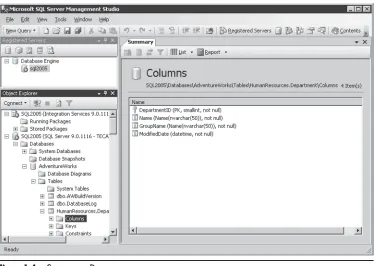
SQL Server Management Studio opens. Any other choice from the drop-down box will set the Summary Page to not be displayed automatically. The Summary Page displays information about the currently selected object of the Object Explorer window. The Summary Page for the columns of a table in a database can be seen in Figure 1-4.
Solution Explorer
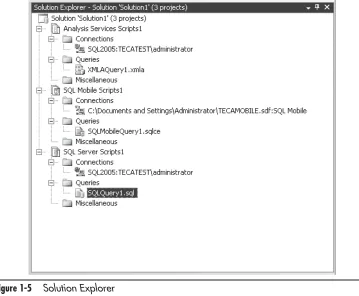
[image:30.524.88.435.69.411.2]can include one or more projects, in addition to files and metadata that help define the solution as a whole. A project is a set of files that contain connection information, query files, or other miscellaneous and related metadata files. Figure 1-5 shows the Solutions Explorer window.
The types of projects you can have in your solution include: SQL Server Scripts, SQL Mobile Scripts, and Analysis Services Scripts.
SQL Server Scripts The SQL Server Scripts projects are used to group together related SQL Server connections and T-SQL scripts. A common use for this type of project is to group together Data Definition Language (DDL) queries that define the objects in your database.
[image:31.524.76.450.69.335.2]Analysis Server Scripts Analysis Server Scripts projects are intended to contain Analysis Server connections as well as MDX, DMX, and XMLA scripts. One way you can use this type of project is to have one project contain the scripts that create your data warehouse and another project contain the scripts to load your data warehouse.
SQL Mobile Scripts SQL Mobile Scripts projects are used to group together the connections and queries for a SQL Server CE database. For a SQL Server CE project, a connection object represents the connection to the CE database.
The top item listed in the Solution Explorer is the name of the SQL Server Management Studio solution. By default this name is Solution 1, but you can change this to whatever name you want by right-clicking the solution and selecting Rename from the context menu. The files that are listed in the Solution Explorer can be associated with a project, or else they can be associated with the SQL Server Management Studio solution itself without an intermediate project.
Properties Window
[image:32.524.80.439.73.369.2]editing fields, depending on the type of object selected. Properties shown in gray are read-only.
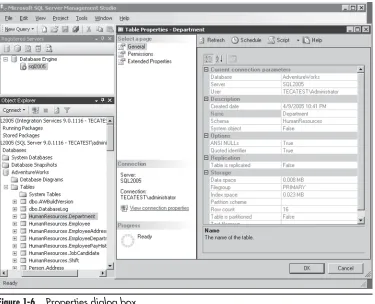
A Properties dialog is also available that permits you to view the properties of database objects. To display the Properties dialog, right-click a database object and select Properties from the context menu. An example of a Properties dialog is shown in Figure 1-6.
Query Editor
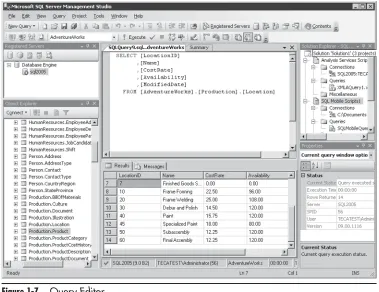
The Query Editor is the replacement for Query Analyzer found in previous versions of SQL Server. It allows you to write and run T-SQL scripts, MDX, DMX, XMLA queries, or mobile queries. You can see the Query Editor in the upper-middle portion of Figure 1-7.
[image:33.524.77.452.273.577.2]You start the Query Editor from the SQL Server Management Studio by selecting the New Query option on the Management Studio main page and choosing the query
type to create. Unlike the Query Analyzer, which always worked in connected mode, the new Query Editor has the option of working in either connected or disconnected mode from the server. By default it automatically connects to the server as soon as you opt to create a new query.
[image:34.524.73.452.71.363.2]and then checked back in, giving you a central location to store your database code. Using version control with your database creation scripts provides a valuable method for isolating the source code associated with each release of your database schema. This can also act as a basis for comparing the schema of a deployed database to the expected schema that’s been saved using version control.
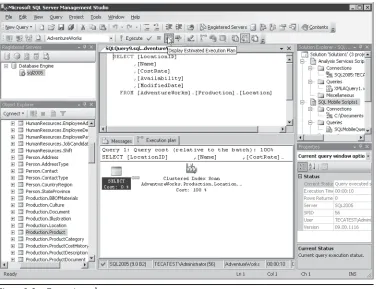
Query Editor also has the capability to graphically represent a query’s execution plan. The Execution Plan option graphically displays the data retrieval methods chosen by the Query Optimizer. Figure 1-8 shows the execution plan for the query shown in Figure 1-7.
Results Window
[image:35.524.76.452.286.575.2]The results of the queries that are executed in the Query Editor are displayed in the SQL Server Management Studio’s Results window. You can see the Results window in the lower-middle portion of Figure 1-7. You can set the Results window to display query results either in text format or in a grid.
SQL Server 2005 Administrative Tools
This section gives you an overview of the SQL Server 2005 administrative tools, including:
䉴 Profi ler enhancements
䉴 Database Tuning Advisor
䉴 Assisted editors
Profiler Enhancements
With SQL Server 2005, Profiler gets an overhaul as well. The new Profiler now supports the ability to trace both SSIS and Analysis Services commands. SQL Server 2000 was limited to tracing relational database calls only. By having these capabilities, you can use these traces to debug any problems you have in these additional components of SQL Server. Also, Performance Monitor correlation works with these new trace types.
Profiler allows you to save the trace file as XML. Furthermore, a traced ShowPlan result can be saved as XML and then loaded into Management Studio for analysis. The Profiler is described in detail in Appendix A.
Database Tuning Advisor
Profiler also integrates with the new Database Tuning Advisor, which replaces the Index Tuning Wizard. The DTA has a rich, new interface and works with the newer features in SQL Server 2005; for instance, it will recommend partitioning your tables using the new table partitioning features in the database engine.
Assisted Editors
Management Studio contains new capabilities, called assisted editors, to make writing stored procedures, views, and functions easier. Instead of having to manually create the header information for these types of objects, you can use the assisted editors to quickly point and click to set information.
BI Development Studio
Unlike the SQL Server Management Studio, the BI Development Studio is not really designed to be an administrative tool. You use the BI Development Studio to work with Analysis Services projects, to develop and deploy Reporting Services reports, and to design Integration Services (SSIS) packages.
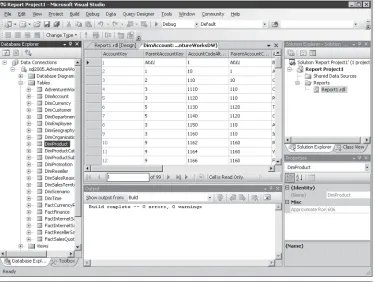
[image:37.524.77.452.288.570.2]The BI Development Studio is accessed using the Start | Programs | Microsoft SQL Server | Business Intelligence Development Studio menu option. You can see the BI Development Studio in Figure 1-9.
The BI Development Studio, like the SQL Server Management Studio, is built on the Visual Studio 2005 IDE. It provides a solution-oriented development environment and contains one or more projects in a solution. BI Development Studio enhances the development of business intelligence applications by allowing project development in a source-controlled, multiuser environment without requiring an active connection to a server. Each of the project types will contain the specific object definitions for those projects. For example, a Reporting Services project will contain Report definitions, while an SSIS project will contain SSIS package objects. Like the SQL Server
Management Studio, the BI Development Studio doesn’t allow you to compile VB.NET, C#, J#, or VC++. Instead, the BI Development Studio is designed expressly for working with BI projects like SSIS and Reporting Services. The BI Development Studio is also integrated with Visual SourceSafe for source code version control.
The Business Intelligence Development Studio User Interface
The Business Intelligence Development Studio user interface is an excellent environment for developing business intelligence solutions, including cubes, data sources, data views, reports, and data transformation packages.
BI Development Studio User Interface Windows
This section gives you an overview of the BI Development Studio user interface main windows, including:
䉴 The Designer window
䉴 The Solutions Explorer window
䉴 The Properties window
䉴 The Toolbox window
䉴 The Output window
The Designer Window
The Designer window provides a graphical view of an object and is the central window in the BI Development Studio. A different designer type inhabits the designer window in response to the current BI Development Studio object type. For example, if you are developing an SSIS package, the Designer window provides the design surface to drag and drop objects from the Control Flow toolbox to the project, while the Report Designer provides the design surface to create and preview reports.
Solution Explorer
Import Analysis Services 9.0 Database, Report Project, Report Project Wizard, and Report Model Project. As in the SQL Server Management Studio, BI Development Studio solutions are not restricted to one project. You can create solutions that are made up of any of the supported project types. You can see the Business Intelligence Development Studio’s New Project dialog in Figure 1-10.
Analysis Services Project Analysis Services projects contain the definitions for the objects in an Analysis Services database. These include designing and creating Analysis Services databases, data source views, cubes, and dimensions, as well as working with the data mining features.
䉴 Analysis Services database An Analysis Services database created using BI Development Studio includes the XML defi nitions for the database and its objects for later deployment to a specifi c instance of Analysis Services. To create an Analysis Services database, you select the File | New | Project option from the main BI Development Studio menu. Then from the dialog displayed, select the Analysis Services Project template from the Business Intelligence project type.
䉴 Data source views A data source view is a document that describes the schema of an underlying data source. Such a view contains names and descriptions of selected database objects, such as tables, views, and relationships, that online analytical processing (OLAP) and data mining objects in Analysis Services reference. These objects can be organized and confi gured to provide a complete schema. You can develop an Analysis Services project without having to have an active connection to the data source, because the data source view caches the metadata from the data source it is built upon. Using a data source view, you can defi ne a subset of data from a larger data warehouse.
䉴 Cube Wizard A cube is a multidimensional structure that contains dimensions and measures; where dimensions defi ne the structure of the cube, and measures provide the numerical values that the end user is interested in. The Cube Wizard is a visual tool that you can use to quickly create OLAP cubes. It is started by double-clicking the Cube node shown under an Analysis Services project or by right-clicking the Cube node and selecting View Designer.
䉴 Dimension Wizard A dimension is a collection of objects that describe the data that is provided by the tables in a data source view. You can organize these dimensions into hierarchies that allow you to navigate paths to the data in a cube. Typically, users will base their analyses on the description attributes contained in the dimensions, such as time, customers, or products. A Dimension Wizard is provided in the BI Development Studio to guide you through the steps for specifying the structure of a dimension.
䉴 Data Mining Designer A Data Mining Designer is provided as a primary environment, which allows you to work with mining models in Analysis
Services. You can access the Data Mining Designer by selecting an existing item in a mining structure project, or you can use the Data Mining Wizard to create a new item. Using the Data Mining Designer, you can modify a mining structure, create new mining models, compare models, or create prediction queries.
Integration Services Project Integration Services projects contain folders and files that allow you to manage the object definitions of data sources, data source views, and packages for SSIS solutions. Data sources are defined as project-level, which means you can have multiple projects in your solution that reference a single data source object. Data source views can be referenced by sources, transformations, and destinations in your project, and packages contain a collection of connections, control flow elements, data flow elements, event handlers, variables, and configurations.
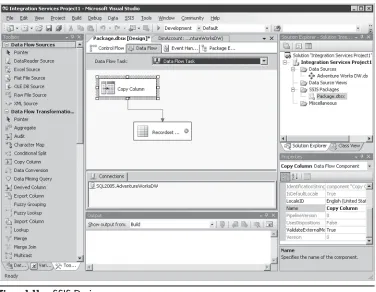
event handlers, and one tab for viewing the contents of a package. A fifth tab that appears at run time allows you to view the execution progress of a package. After the package completes its run, the execution results can be viewed. The SSIS Designer is shown in Figure 1-11.
Separate design surfaces exist for building the control flow, data flows, and event handler elements in packages. Dialog boxes and windows, such as the variable window and the breakpoint window, are also included to help you add and configure variables and to troubleshoot your project. Wizards are included to add functionality and advanced features.
Import Analysis Services 9.0 Database The Import Analysis Service 9.0 Database project enables you to create a new SQL Server 2005 Analysis Services project by importing the definitions for an existing SQL Server 2000 Analysis Services or SQL Server 7 OLAP Server database.
[image:41.524.75.451.308.600.2]Report Project, Report Project Wizard, and Report Model Project The BI Development Studio contains the Report Project template, the Report Project Wizard template,
and the Report Model Project template to create Reporting Services projects. These reporting templates are used to design reports and control their deployment. Reporting Services project templates start the Reporting Services Designer, where you can select data sources and visually lay out reports. Reporting Services projects, the Report Designer, and the Report Project Wizard are covered in more detail in Chapter 9.
Properties
Like the Properties window in SQL Server Management Studio, the BI Development Studio Properties window allows you to view the properties of files, projects, or solutions. The Properties window shown in the bottom-right corner of Figure 1-9 is used at design time to set the properties of the objects selected in the Solution Explorer. If the Properties window is not already displayed, you can show it by selecting the View | Properties Window option from the BI Development Studio menu. The Properties window displays different types of editing fields, depending on the type of object selected.
Toolbox
The Toolbox window in the BI Development Studio is shown on the left side of the screen in Figure 1-11. The Toolbox is used by the SSIS Designer and the Reporting Services Designer to drag and drop components onto their respective design surfaces.
Output Window
The Output window displays the results when a solution is built. You can see the Output window in the lower-middle portion of Figure 1-9.
Summary
21
2
Developing with T-SQL
IN THIS CHAPTER
T-SQL Development Tools Creating Database Objects Using T-SQL DDL Querying and Updating with T-SQL DMLS
QL (Structured Query Language) is the standard language for relational database management systems (RDBMSs), and T-SQL is Microsoft’s version of the SQL language. T-SQL includes Data Definition Language (DDL) statements to create databases as well as database objects such as tables, views, indexes, and stored procedures. In addition, T-SQL also includes Data Manipulation Language (DML) statements that are used to query and update relational data stored.In the first part of this chapter you’ll learn about the tools that Microsoft provides for developing, debugging, and deploying T-SQL scripts. Next, with an understanding of the tools under your belt, you’ll learn in the second part of this chapter how T-SQL can be used to create database objects as well as how you can build T-SQL statements to query and update data.
T-SQL Development Tools
Microsoft provides two primary tools for developing T-SQL scripts. First, as a part of SQL Server 2005’s SQL Server Management Studio (SSMS), there’s the Query Editor, which provides a basic T-SQL development environment and is primarily intended to develop T-SQL DDL statements, perform performance tuning with graphical showplans, and run ad hoc queries. Next, to create more sophisticated T-SQL projects such as stored procedures and functions, Microsoft provides the new Database Project that’s part of Visual Studio 2005 Professional Edition and higher. The Database Project takes up where the Query Editor leaves off. In addition to the ability to create and execute T-SQL, the Database Project also offers the ability to debug T-SQL, where you can single-step through the code in your T-SQL projects. In the next section of this chapter you’ll see how to develop T-SQL management scripts using the SSMS Query Editor and then Visual Studio 2005’s Database Project to develop and debug a T-SQL stored procedure.
NOTE
In addition to these two tools, you can also develop T-SQL scripts using a text editor like Notepad and then execute the scripts using the command-line SqlCmd or osql utilities. However, this basic level of development doesn’t offer any of the more advanced development features, such as project management, color-coded syntax, or source control, that are available in the Query Editor or Visual Studio.
SQL Server Management Studio
the Query Editor by selecting the New Query option from the SSMS toolbar to display an editing window like the one shown in Figure 2-1.
SSMS and the Query Editor are built on the Visual Studio 2005 IDE and have a similar look and feel. The editor is very capable, providing color-coded syntax and cut-and-paste capabilities. It provides support for source control via SourceSafe as well as organizing your projects into solutions. However, it does not support IntelliSense or code snippets.
To use the Query Editor, you enter your T-SQL code into the Query Editor and then press f5 or click the green arrow in the toolbar. For query operation the results will be displayed in the Results window that you can see in the lower half of Figure 2-1. By default the Results window displays the results in a grid format, but you can also choose to display the results as text output or write the results to a file. The output options are set using the Query | Options menu option.
TIP
SSMS is quite different from the Enterprise Manager or Query Analyzer that were provided in the previous releases of SQL Server. You might not notice it at first, but the SSMS menus dynamically change depending on the window that has focus. For instance, if the focus is on the Object Explorer, the menu options will show the basic management options. If the focus moves to the Query Editor, then the Query And Community menu option will appear.
In addition to outputting the result data, the Query Editor can also display the execution plan that the SQL Server engine uses for a given query. By examining a query’s execution plan, you can see how long the query is taking to execute, as well as if the query is using the appropriate indexes. To display the execution plan for a query, select the Query | Include Actual Execution Plan and then run the query. This will display a window like the one shown in Figure 2-2.
A graphical representation of the query’s execution plan is shown in the Results window. In this example, you can see that the simple select * query is satisfied using the clustered index built over the Person.Address table. You can also output the showplan data in XML format.
Using the Query Builder
[image:46.524.75.451.73.313.2]When the Query Builder first starts, it displays an Add Table dialog that enables you to select the tables that you want to query. Multiple tabs enable you to include views, functions, and synonyms. You add objects by selecting them and clicking Add. After you’ve selected the database objects that you want to include in the query, click Close.
Clicking the check box in front of each column name includes that column in the query. You indicate the desired join conditions by dragging and dropping column names from one table or view onto like columns from another table or view. The included tables and joins are used as a basis for building a T-SQL Select statement. Sort conditions are indicated by right-clicking the column names in the Table pane and then selecting the Sort Ascending or Sort Descending options from the pop-up menu.
Using the Columns pane, you can apply filters to the row selection criteria by putting a value in the filter column. Filters are translated into a T-SQL Where clause. You can also reorder the result set columns by dragging them up or down to a new location in the Columns pane.
As you graphically build the query, the generated T-SQL statement is continually updated in the SQL pane that you can see at the bottom of Figure 2-3. Clicking OK completes the Query Builder, and the T-SQL query is written into the Query Editor, where it can be further edited or executed. The Query Builder is a two-way tool in that it enables you to graphically build a query by selecting database objects, plus it allows you to go the other way. By highlighting an existing text-based query in the Query Editor and then selecting the Design Query In Editor option, you can view a graphical representation of the text-based query in Query Builder—even if you didn’t originally build the query using Query Builder. Unlike most of the other dialogs in SSM, the Query Builder dialog is modal, and you can’t leave it until you’ve finished designing your query.
Using Projects
Another capability that SSMS derives from its Visual Studio roots is the ability to organize related source files into projects. For instance, you might use a project to group together all of the related T-SQL scripts to build a database and its objects. SSMS projects are particularly useful for grouping together related code from different sorts of source files, such as you might find in a Notification Services project, where a combination of T-SQL and XML files combine to form a single application. You can create a new project in SSMS by selecting the File | New | Project option, which allows you to select a SQL Server, Analysis Services, or SQL Mobile project template from the New Project dialog. You can also manually build a project by selecting the View | Solution Explorer option and then right-clicking in Solution Explorer to add files. You can see an example of the SSMS Solution Explorer in Figure 2-4.
SSMS projects are organized into Connections, Queries, and Miscellaneous. Connections defines the database connection properties, Queries generally contain T-SQL scripts, and Miscellaneous contains other types of source files, including XML and XSD files. SSMS projects are saved using the extension of .ssmssln (SQL Server Management Studio Solution).
Source Control
SSMS is also fully integrated with Microsoft’s Visual SourceSafe version control system. Using version control enables you to ensure that multiple developers are not working on the same piece of source code at the same time—thus eliminating the possibility of overwriting one another’s changes. Using source control also enables you to create and track database release versions, clearly separating all of the code that’s used to create each given version of the database.
In order to use Visual SourceSafe with SSMS and SQL Server, a Visual SourceSafe server system must be installed and configured. In addition, the SourceSafe client code must be installed on the computer that’s running SSMS. You install the Visual SourceSafe client code by running the netsetup program, which will display an installation wizard to step you through the client installation process. After the client code has been installed, a Visual SourceSafe snap-in will be available to SSMS. You can view the source control snap-in using the Tools | Options | Source Control Plug-in Selection option.
Visual Studio 2005
The SSMS Query Editor is most useful for developing administrative scripts and running ad hoc queries. However, its lack of debugging capabilities limits its use for developing more complex T-SQL functions and stored procedures. Fortunately, Visual Studio 2005 extends its support for database development by including a new Database Project type that fully supports T-SQL development and debugging. The Database project stores database references; can develop, run, and debug T-SQL scripts; and can be used to create batch files to run multiple scripts. Like SSMS, Visual Studio 2005 provides integrated source control via Visual SourceSafe and is able to organize multiple related files into projects that you can manage using the Solution Explorer. To create a new Database project, open Visual Studio 2005 and select the File | New | Project option, which will display a New Project dialog like the one shown in Figure 2-5.
Figure 2-5 New Database Project
If you have created previous database projects or SQLCLR solutions that connect to SQL Server, you’ll have existing connections as shown in Figure 2-6. You can either choose an existing connection or click Add New Reference to create a new database reference. In the example shown in Figure 2-6 you can see that an existing connection to the AdventureWorks database on a SQL Server system named SQL2005-2 has been selected. Clicking OK creates a new Visual Studio solution. The Visual Studio 2005 Solution Explorer will be shown on the right side of the screen; it provides an overview of the connections, projects, and files inside a solution. To get an SSMS-like view of the SQL Server databases and their objects, you can open the Server Explorer by selecting the View | Server Explorer option from Visual Studio 2005’s IDE. A Visual Studio project will appear like the one shown in Figure 2-7.
The Solution Explorer shown on the right-hand portion of Figure 2-7 is divided into four sections: Change Scripts, Create Scripts, Queries, and Database References. When a project is first created, all of these items will be empty, except for Database References, where you can see the database connection that you selected earlier.
The Server Explorer window enables you to browse through the objects in the SQL Server database. In addition, you can right-click the different objects shown in the Server Explorer to display a context menu that allows you to work with the objects. For instance, right-clicking a stored procedure will display a context menu that enables you to work with stored procedures. The available options are: Add New Stored Procedure, Open, Execute, Step Into Stored Procedure, Generate Create Script to Project, Copy, Delete, Refresh, and Properties.
To create a new stored procedure, click Add New Item from the Project menu or right-click a stored procedure in the Server Explorer and select the Add New Stored Procedure option to display the Add New Item dialog you can see in Figure 2-8.
Visual Studio 2005 has a number of different database project templates that you can see in Figure 2-8. These templates essentially supply you with the starter code for your project. The existing templates can be customized, or you can also add your own custom templates if you’ve developed your own set of starter code. To create a stored procedure, select the Stored Procedure Script template, name the script, and click OK. In Figure 2-8 you can see that the example stored procedure script will be named MyStoredProcedure.sql.
After you click OK, Visual Studio 2005 will generate the stub code to drop and create a stored procedure. However, the generated code is just a shell. It is up to you to name the stored procedure and fill in the required logic. You can see the complete example stored procedure in Figure 2-9.
NOTE
Visual Studio supports the same Query Builder that was presented earlier in this chapter in the section “SQL Server Management Studio.” To open the Query Builder in Visual Studio 2005, right-click in the editing window and select the Insert SQL option from the context menu.
In Figure 2-9 you can see that the stored procedure has been named uspRead PersonContactName. This example stored procedure reads through the Person .Contacts table on the AdventureWorks database. The complete code to create the uspReadPersonContactInfo stored procedure is shown in the following code listing:
IF EXISTS (SELECT * FROM sysobjects WHERE type = 'P' AND name = 'uspReadEmpMgrs')
BEGIN
DROP Procedure 'uspReadEmpMgrs' END
[image:53.524.75.450.72.344.2]GO