by Nancy Muir
Microsoft
®
Office
Project 2007
FOR
Microsoft®Project 2007 For Dummies® Published by
Wiley Publishing, Inc.
111 River Street Hoboken, NJ 07030-5774
www.wiley.com
Copyright © 2007 by Wiley Publishing, Inc., Indianapolis, Indiana
Published by Wiley Publishing, Inc., Indianapolis, Indiana
Published simultaneously in Canada
No part of this publication may be reproduced, stored in a retrieval system or transmitted in any form or by any means, electronic, mechanical, photocopying, recording, scanning or otherwise, except as permit-ted under Sections 107 or 108 of the 1976 Unipermit-ted States Copyright Act, without either the prior written permission of the Publisher, or authorization through payment of the appropriate per-copy fee to the Copyright Clearance Center, 222 Rosewood Drive, Danvers, MA 01923, (978) 750-8400, fax (978) 646-8600. Requests to the Publisher for permission should be addressed to the Legal Department, Wiley Publishing, Inc., 10475 Crosspoint Blvd., Indianapolis, IN 46256, (317) 572-3447, fax (317) 572-4355, or online at
http://www.wiley.com/go/permissions.
Trademarks:Wiley, the Wiley Publishing logo, For Dummies, the Dummies Man logo, A Reference for the Rest of Us!, The Dummies Way, Dummies Daily, The Fun and Easy Way, Dummies.com, and related trade dress are trademarks or registered trademarks of John Wiley & Sons, Inc. and/or its affiliates in the United States and other countries, and may not be used without written permission. Microsoft is a registered trademark of Microsoft Corporation in the United States and/or other countries. All other trademarks are the property of their respective owners. Wiley Publishing, Inc., is not associated with any product or vendor mentioned in this book.
LIMIT OF LIABILITY/DISCLAIMER OF WARRANTY: THE PUBLISHER AND THE AUTHOR MAKE NO REP-RESENTATIONS OR WARRANTIES WITH RESPECT TO THE ACCURACY OR COMPLETENESS OF THE CONTENTS OF THIS WORK AND SPECIFICALLY DISCLAIM ALL WARRANTIES, INCLUDING WITHOUT LIMITATION WARRANTIES OF FITNESS FOR A PARTICULAR PURPOSE. NO WARRANTY MAY BE CRE-ATED OR EXTENDED BY SALES OR PROMOTIONAL MATERIALS. THE ADVICE AND STRATEGIES CON-TAINED HEREIN MAY NOT BE SUITABLE FOR EVERY SITUATION. THIS WORK IS SOLD WITH THE UNDERSTANDING THAT THE PUBLISHER IS NOT ENGAGED IN RENDERING LEGAL, ACCOUNTING, OR OTHER PROFESSIONAL SERVICES. IF PROFESSIONAL ASSISTANCE IS REQUIRED, THE SERVICES OF A COMPETENT PROFESSIONAL PERSON SHOULD BE SOUGHT. NEITHER THE PUBLISHER NOR THE AUTHOR SHALL BE LIABLE FOR DAMAGES ARISING HEREFROM. THE FACT THAT AN ORGANIZATION OR WEBSITE IS REFERRED TO IN THIS WORK AS A CITATION AND/OR A POTENTIAL SOURCE OF FUR-THER INFORMATION DOES NOT MEAN THAT THE AUTHOR OR THE PUBLISHER ENDORSES THE INFORMATION THE ORGANIZATION OR WEBSITE MAY PROVIDE OR RECOMMENDATIONS IT MAY MAKE. FURTHER, READERS SHOULD BE AWARE THAT INTERNET WEBSITES LISTED IN THIS WORK MAY HAVE CHANGED OR DISAPPEARED BETWEEN WHEN THIS WORK WAS WRITTEN AND WHEN IT IS READ.
For general information on our other products and services, please contact our Customer Care Department within the U.S. at 800-762-2974, outside the U.S. at 317-572-3993, or fax 317-572-4002.
For technical support, please visit www.wiley.com/techsupport.
Wiley also publishes its books in a variety of electronic formats. Some content that appears in print may not be available in electronic books.
Library of Congress Control Number: 2006934842
ISBN-10: 0-470-03651-6
ISBN-13: 978-0-470-03651-8
Manufactured in the United States of America
10 9 8 7 6 5 4 3 2 1
About the Author
Dedication
To Earl for putting up with my hectic book schedule in our first year of mar-riage. You’re the best! That long-promised cutting back on work time is almost here, my love.
Author’s Acknowledgments
First, many thanks to my friend Elaine Marmel, author of the Microsoft Project Bible from Wiley. Her advice and insight into the workings of Project always help me see the forest for the trees. Did the chocolate arrive okay, Elaine?
Publisher’s Acknowledgments
We’re proud of this book; please send us your comments through our online registration form located at www.dummies.com/register/.
Some of the people who helped bring this book to market include the following:
Acquisitions, Editorial, and Media Development
Project Editor:Blair J. Pottenger
Development Editor:Linda Morris
Acquisitions Editor:Kyle Looper
Senior Copy Editor:Teresa Artman
Copy Editor: Becky Whitney
Technical Editor:Jennifer Pendleton
Editorial Manager:Kevin Kirschner
Media Development Specialist:Steven Kudirka
Media Project Supervisor:Laura Moss
Media Development Manager:
Laura VanWinkle
Editorial Assistant:Amanda Foxworth
Senior Editorial Assistant:Cherie Case
Cartoons:Rich Tennant (www.the5thwave.com)
Composition Services
Project Coordinator:Ryan Steffen
Layout and Graphics: Carl Byers, Denny Hager, Stephanie D. Jumper, Barry Offringa, Lynsey Osborn, Alicia South
Proofreaders:Jessica Kramer, Techbooks
Indexer:Techbooks
Anniversary Logo Design:Richard Pacifico
Special Help
Jodi Jensen
Publishing and Editorial for Technology Dummies
Richard Swadley,Vice President and Executive Group Publisher
Andy Cummings,Vice President and Publisher
Mary Bednarek,Executive Acquisitions Director
Mary C. Corder,Editorial Director
Publishing for Consumer Dummies
Diane Graves Steele,Vice President and Publisher
Joyce Pepple,Acquisitions Director
Composition Services
Gerry Fahey,Vice President of Production Services
Contents at a Glance
Introduction ...1
Part I: Setting the Stage for Project ...7
Chapter 1: Project Management: What Is It, and Why Should You Care?...9
Chapter 2: The Best-Laid Plans...35
Chapter 3: Mark It on Your Calendar ...51
Chapter 4: A Tisket, a Task Kit...69
Chapter 5: Getting Your Outline in Line...93
Chapter 6: Timing Is Everything ...113
Part II: People Who Need People ...127
Chapter 7: Using Your Natural Resources ...129
Chapter 8: What’s All This Gonna Cost?...147
Chapter 9: Assigning Resources to Get Things Done ...161
Part III: Well, It Looks Good on Paper ...177
Chapter 10: Fine-Tuning Your Plan...179
Chapter 11: Making Your Project Look Good...203
Part IV: Avoiding Disaster: Staying On Track...215
Chapter 12: It All Begins with a Baseline ...217
Chapter 13: On the Right Track ...227
Chapter 14: A Project with a View: Observing Progress ...249
Chapter 15: You’re Behind: Now What?...263
Chapter 16: Spreading the News: Reporting ...279
Chapter 17: Getting Better All the Time ...303
Part V: Working with Enterprise Projects ...317
Chapter 18: Project Web Access for the Project Manager ...319
Chapter 19: Project Web Access for the End User ...335
Part VI: The Part of Tens ...345
Chapter 20: Ten Golden Rules of Project Management ...347
Part VII: Appendixes ...363
Appendix A: On the CD ...365
Appendix B: Glossary ...371
Table of Contents
Introduction...1
About This Book...1
Foolish Assumptions ...1
Conventions Used in This Book ...2
How This Book Is Organized...2
Part I: Setting the Stage for Project ...2
Part II: People Who Need People...3
Part III: Well, It Looks Good on Paper ...3
Part IV: Avoiding Disaster: Staying on Track ...3
Part V: Working with Enterprise Projects...3
Part VI: The Part of Tens ...4
Part VII: Appendixes...4
What You’re Not to Read ...4
Icons Used in This Book...4
Where to Go from Here...5
Part I: Setting the Stage for Project ...7
Chapter 1: Project Management: What Is It,
and Why Should You Care? . . . .9
The ABCs of Project Management ...10
The three Ts: Tasks, timing, and dependencies (well, two Ts and a D)...10
Lining up your resources...14
Spreading the news ...16
Planning to keep things on track...17
The Role of the Project Manager...18
What exactly does a project manager do? ...18
Understanding the dreaded triple constraint...19
Applying tried-and-true methodologies ...19
From To-Do List to Hard Drive...22
Getting up to speed with Project...22
Collaborating with your project team online...23
Getting Started ...23
Getting going with help from Project Guide...24
Starting from scratch ...25
Starting with templates ...30
Saving a Project for Posterity ...32
Chapter 2: The Best-Laid Plans . . . .35
Navigating Project...35
Changing views ...35
Scrolling around ...37
Getting to a specific spot in your plan...39
A Project with a View...39
Home base: Gantt Chart view ...40
Going with the flow: Network Diagram view...41
Calling up Calendar view ...42
Customizing Views ...43
Working with view panes...44
Modifying the contents of the Network Diagram boxes...48
Chapter 3: Mark It on Your Calendar . . . .51
Mastering Base, Project, Resource, and Task Calendars ...52
How calendars work ...52
How one calendar relates to another ...54
Calendar Options and Working Times...54
Setting calendar options...55
Setting exceptions to working times...57
Setting the Project calendar ...58
Using Project Guide to Make Calendar Settings...60
Modifying Task Calendars ...62
Making Resource Calendar Settings ...63
Which resources get calendars?...63
Making the change to a resource’s calendar ...63
Do It Yourself: Creating a Custom Calendar Template ...65
Sharing Copies of Calendars...67
Chapter 4: A Tisket, a Task Kit . . . .69
Tackling Your First Task ...69
Identifying what makes up a task ...70
Creating a task ...71
You’re in It for the Duration ...78
Tasks come in all flavors: Identifying task type...78
Setting task duration...80
Setting tasks with no duration: Milestones...81
Showing up again and again: Recurring tasks ...81
Starting and Pausing Tasks ...83
Entering the task start date ...84
Taking a break: Splitting tasks ...84
It’s Such an Effort: Effort-Driven Tasks...85
Constraints You Can Live With...86
Understanding how constraints work ...86
Establishing constraints ...87
Setting a deadline ...88
Microsoft Project 2007 For Dummies
Making a Task Note ...88
Saving Your Project — and Your Tasks ...89
Task Information in Action: Planning Your Next Space Launch ...91
Chapter 5: Getting Your Outline in Line . . . .93
Summary Tasks and Subtasks ...93
Project phases ...94
How many levels can you go? ...95
The One-and-Only Project Summary Task ...95
Structuring the Project’s Outline ...97
Everything but the kitchen sink: What to include ...98
Building the outline...100
Moving Tasks All around Your Outline...101
The outdent-and-indent shuffle ...101
Moving tasks up and down ...102
Now You See It, Now You Don’t: Collapsing and Expanding Tasks ...104
Cracking the WBS Code...107
Displaying a WBS code ...108
Customizing the code ...109
Chapter 6: Timing Is Everything . . . .113
How Tasks Become Codependent...114
Dependent tasks: Which comes first?...114
Dependency types...115
Allowing for Murphy’s Law: Lag and lead time...118
Making the Dependency Connection...118
Adding the missing (dependency) link...119
Extending your reach with external dependencies ...121
Understanding that things change: Deleting dependencies ...122
Just Look at All These Task Dependencies! ...124
Part II: People Who Need People ...127
Chapter 7: Using Your Natural Resources . . . .129
Resources: People, Places, and Things ...130
Becoming Resource-full...130
Understanding resources ...131
Resource types: Work, material, and cost...133
How resources affect task timing ...134
Estimating resource requirements...135
Committed versus proposed resources ...135
The Birth of a Resource...136
Creating one at a time ...136
Identifying resources before you know their names ...137
Resources that hang out in groups ...138
xi
Sharing Resources...138
In the swim: Drawing on resource pools ...139
Importing resources from Outlook ...140
Say, When Do These Guys Work? ...142
Now That I’ve Got ’Em, How Do I Manage ’Em? ...144
Acquiring the right resources...144
Balancing workload...145
Managing conflict gracefully ...146
Chapter 8: What’s All This Gonna Cost? . . . .147
Mary, Mary, How Do Your Costs Accrue? ...147
It all adds up...148
When will this hit the bottom line? ...149
Pay Day: Assigning Resources to Your Project ...149
There’s no avoiding fixed costs ...149
When resources get paid per hour...151
If you use ten gallons at $2 per gallon . . . ...151
Making allowances for overtime ...152
It’s an Availability Thing...153
Setting availability ...153
When a resource comes and goes...154
Adding It Up: How Your Settings Affect Your Budget ...155
Customizing Cost Fields ...156
Working with Budgets...159
Chapter 9: Assigning Resources to Get Things Done . . . .161
You’d Be Surprised What Assignments Can Do to Your Timing...162
Pinning down your type ...162
When effort is in the driver’s seat ...163
Suppose task calendars prevail? ...164
Finding the Right Resource...165
Needed: One good resource willing to work...165
Custom fields: It’s a skill ...167
A Useful Assignation ...168
Determining work material and cost-resource assignment units...168
Making your assignments...168
Getting the contour that’s right for you ...171
Communicating an Assignment to Your Team ...173
It’s in the e-mail...173
Report your findings ...174
Microsoft Project 2007 For Dummies
Part III: Well, It Looks Good on Paper...177
Chapter 10: Fine-Tuning Your Plan . . . .179
Everything Filters to the Bottom Line ...179
Predesigned filters ...180
Putting AutoFilters to work...181
Do-it-yourself filters ...182
Hanging Out in Groups ...184
Applying predefined groups...184
Devising your own groups...185
Figuring Out What’s Driving Your Project ...187
Spotting Task Drivers...188
Undo, undo, undo...188
Highlighting changes...189
It’s About Time ...191
Giving yourself some slack...191
Doing it in less time...194
Getting It for Less ...195
Your Resource Recourse ...196
Checking resource availability...196
Deleting or modifying a resource assignment ...198
Getting some help ...199
Getting your resources level ...200
Mixing Solutions Up ...202
Chapter 11: Making Your Project Look Good . . . .203
Putting Your Best Foot Forward...203
Formatting Taskbars ...204
Formatting Task Boxes ...207
Adjusting the Layout ...208
Modifying Gridlines...212
When a Picture Can Say It All ...213
Part IV: Avoiding Disaster: Staying On Track ...215
Chapter 12: It All Begins with a Baseline . . . .217
All about Baselines...217
What does a baseline look like?...218
How do I save a baseline?...218
What if I want more than one baseline? ...220
How do I clear and reset a baseline? ...221
In the Interim ...222
Saving an interim plan ...223
Clearing and resetting a plan ...224
xiii
Chapter 13: On the Right Track . . . .227
Gathering Your Data ...227
A method to your tracking madness ...228
Going door to door...229
Where Does All This Information Go? ...230
Doing things with the Tracking toolbar...230
For everything there is a view ...231
Tracking your work for the record ...233
Progress as of when?...233
Percentage complete: How to tell?...234
When did you start? When did you finish? ...236
John worked three hours, Maisie worked ten ...237
Uh-oh, we’re into overtime...239
Specifying remaining durations ...239
Entering fixed-cost updates ...240
Update Project: Sweeping Changes for Dummies ...241
Tracking Materials Usage ...243
Tracking More Than One: Consolidated Projects ...244
Consolidating projects...244
Updating consolidated projects ...246
Changing linking settings ...246
Chapter 14: A Project with a View: Observing Progress . . . .249
Look at What Tracking Did!...250
Getting an indication...250
Lines of progress ...251
When worlds collide: Baseline versus actual ...255
Learn by the Numbers...256
Acronym Soup: BCWP, ACWP, EAC, and CV...257
Calculations behind the Scenes ...258
Going automatic or manual...258
Earned-value options ...260
How many critical paths are enough? ...261
Chapter 15: You’re Behind: Now What? . . . .263
Justifying Yourself: Notes, Baselines, and Interim Plans...263
What If?...265
Sorting things out ...265
Filtering...266
Examining the critical path ...268
Use resource leveling one more time...268
What’s driving the timing of this task? ...268
Using the Analysis Toolbar ...270
How Adding People or Time Affects Your Project ...272
Hurry up! ...272
Throwing people at the problem...272
Shifting dependencies and task timing...274
Microsoft Project 2007 For Dummies
When All Else Fails ...275
All the time in the world ...275
And now for something completely different ...276
What Does Project Have to Say About This? ...277
Chapter 16: Spreading the News: Reporting . . . .279
Off the Rack: Standard Reports ...279
What’s available...280
Going with the standard ...280
A standard report, with a twist...281
Crosstabs: A different animal...285
A Custom Job...285
Get a New Perspective on Data with Visual Reports ...286
Getting an overview of what’s available...287
Creating a Visual Report...287
Spiffing Things Up ...289
Using graphics in Project ...289
Formatting reports ...292
Call the Printer!...294
Working with Page Setup ...294
Get a preview ...299
So Let’s Print! ...300
Chapter 17: Getting Better All the Time . . . .303
Learning from Your Mistakes...303
It was only an estimate ...304
Debrief your team...305
Building on Your Success...306
Create a template ...306
Master the Organizer ...308
Handy little timesavers: Macros...310
Customizing Project Guide ...314
Part V: Working with Enterprise Projects...317
Chapter 18: Project Web Access for the Project Manager . . . .319
Figuring Out Whether Project Web Access Is for You ...320
Getting a Handle on What You Can Do with Project Web Access ...322
Planning to Use Project Server and Project Web Access...323
Get a team together...323
Gather information...324
Standardize processes ...324
Coordinate with IT...325
Planning for problems ...325
xv
Looking Over the Project Web Access Tools...325
Make assignments and delegate tasks...326
Track your progress...327
Figure out what’s going on with status reports...328
Working with the Gang Online...329
Check resource availability and assignments...329
Build a project team...330
Request a status report ...332
Share documents...332
Chapter 19: Project Web Access for the End User . . . .335
Seeing Project Web Access from the User’s Perspective ...335
Reporting Work Completed ...336
Viewing Project Information ...339
Setting Up Alerts and Reminders ...340
Viewing Information about Other Users ...341
Part VI: The Part of Tens ...345
Chapter 20: Ten Golden Rules of Project Management . . . .347
Don’t Bite Off More Than You Can Manage ...347
Get Your Ducks in a Row ...348
Plan for Murphy ...349
Don’t Put Off Until Tomorrow...350
Delegate, Delegate, Delegate!...350
CYA (Document!) ...351
Keep Your Team in the Loop ...352
Measure Success ...352
Have a Flexible Strategy ...354
Learn from Your Mistakes ...355
Chapter 21: Ten Project Management Software Products
to Explore . . . .357
DecisionEdge Chart and Report Products Enhance Project’s Own Tools ...358
Cobra Squeezes the Most from Cost/Earned Value ...358
MindManuals Helps You Visualize Project Information ...359
Innate Integrates Projects Large and Small ...359
PlanView Models Your Workforce Capacity...360
Tenrox Streamlines Business Processes ...360
Project KickStart Gives Your Project a Head Start...361
Project Manager’s Assistant Organizes Drawings for Construction Projects ...361
TeamTrack Solves Mission-Critical Issues ...362
EPK-Suite Eases Portfolio Mangement Chores ...362
Microsoft Project 2007 For Dummies
Part VII: Appendixes...363
Appendix A: On the CD . . . .365
System Requirements ...365
Using the CD ...365
What You’ll Find on the CD ...366
Empire Suite, from WSG System Corp. ...366
EPK Suite 4.1, from EPK GROUP, LLC ...367
Milestones Professional, from Kidasa Software ...367
Milestones Project Companion 2006, from Kidasa Software ...367
MindManager Pro 6, from Mindjet Corporation ...368
PERT Chart Expert, from Critical Tools, Inc...368
PertMaster Project Risk, from PertMaster ...368
PlanView Project Portfolio, from PlanView ...368
Project KickStart, from Experience in Software ...369
WBS Chart Pro, from Critical Tools, Inc. ...369
Troubleshooting ...369
Customer Care ...370
Appendix B: Glossary . . . .371
Index . . . .379
xvii
Microsoft Project 2007 For Dummies
Introduction
P
roject management probably started back when a few cave dwellers got together and figured out how to work as a team to bag a wooly mam-moth for their Sunday dinner. Some fellow — I’ll call him Ogg — probably took the lead as the very first project manager. He drew things in the dirt with a stick to help his team members understand the strategy of the hunt, and communicated with them in ughs and grunts. Unlike you, he had no boss to report to, no budget, and no deadlines (lucky Ogg), but the fundamental spirit of a project was there.Over the years, project management has evolved as a discipline that involves sophisticated analyses and techniques, projections, tracking of time and money, and reporting. Project management software — which has been around only about 25 years or so — has brought a new face and functionality to project management that would have left our friend Ogg ughless.
About This Book
Microsoft Office Project 2007, the most recent incarnation of the world’s most popular project management software, offers a tremendous wealth of function-ality to users. However, it’s probably not like any other software you’ve ever used, so mastering it can seem a daunting process. One trick is to understand how its features relate to what you do every day as a project manager. Another is to get someone like me to tell you all about its features and how to use them. In Microsoft Office Project 2007 For Dummies,my goal is to help you explore all that Project offers, providing information on relevant project management concepts while also offering specific procedures to build and track your Project plans. But more importantly, I offer advice on how to make all these features and procedures mesh with what you already know as a project man-ager to make the transition easier.
Foolish Assumptions
and toolbars. I assume you know how to use most common Windows func-tions (such as the Clipboard) as well as many basic software funcfunc-tions (such as selecting text and dragging and dropping things with your mouse). I do not assume that you’ve used Project or any other project management software before. If you’re new to Project, you’ll find what you need to get up to speed, including information on how Project works, finding your way around, and building your first Project plan. If you’ve used an earlier version of Project, you’ll find out about Project 2007 and all the new features it provides.
Conventions Used in This Book
I should explain a few odds and ends to make using this book easier:
Web site addresses, known as URLs, are highlighted like this:
www.microsoft.com.
Menu commands are given in the order in which you select them, for example, “Choose Tools➪Resource Sharing➪Share Resources.”
Options in dialog boxes use initial caps even if they aren’t capitalized on your screen to make it easier to identify them in sentences. For example, what appears as Show summary tasksin the Options dialog box will appear as Show Summary Tasks in this book.
How This Book Is Organized
This book is designed to help you begin to use Microsoft Office Project 2007 to plan, build, and track progress on projects, keeping in mind tried-and-true project management practices and principles. I divided the book into logical parts that follow the process of building and tracking a typical project plan.
Part I: Setting the Stage for Project
Part I explains what Project 2007 can do for you as well as what types of input you have to provide to use it successfully on your projects. You’ll get your first glimpse of Project views and discover how to navigate around them. You’ll begin to build Project plans by making calendar settings, building a task outline, and then entering timing and timing relationships for those tasks.
Part II: People Who Need People
Part II is the Project resources section: You discover all you need to know about creating and assigning work resources, material resources, and fixed costs to tasks in a project. You also discover how using resources on your project relates to the costs you accrue over time.
Part III: Well, It Looks Good on Paper
Up to now, you’ve been mapping out your project plan. Now it’s time to see whether that plan meets your needs in terms of budget and timing. Project offers a whole toolbox to help you modify resource assignments and task timing to trim your costs and meet your deadlines so you can finalize your plan. You also get briefed on how to modify the format of items in your project to make your plan look as polished as possible, both on-screen and in print.
Part IV: Avoiding Disaster:
Staying on Track
As any experienced project manager knows, projects just about never happen the way you thought they would. In this part, you save a picture of your plan — a baseline— and then begin to track actual activity against your plan. You also take a look at methods of reporting your progress, and how to get back on track when you find yourself derailed. In the final chapter, I pro-vide advice on how to use what you glean from your projects to make better planning choices going forward.
Part V: Working with Enterprise Projects
With all that Project Professional has to offer the enterprise via its Project Server and Project Web Access functionalities and SharePoint online ser-vices, you can share documents online with your project team, have your human resources report their work time, and even integrate Project informa-tion with Outlook. This part shows you the basics of what Project Server can do, and how to use Project Web Access from both the manager and users’ perspective.
3
Part VI: The Part of Tens
Ten seems to be a handy number of items for humans to put into lists, so this part gives you two such lists: Ten Golden Rules of Project Management and Ten Project Management Software Products to Explore. The first of these chapters tells you about some dos and don’ts that can save you a lot of grief when you’re using Project for the first time (or the fifth time, for that matter). The second offers a look at some add-on products and complementary soft-ware products that bring even more functionality to Microsoft Office Project.
Part VII: Appendixes
This book is accompanied by a handy CD filled with project management goodies, including project management add-on software and Microsoft Project templates. Appendix A is where I explain how to work with the CD and exactly what you can find there.
Earned value? Budgeted cost of work performed? Work breakdown structure? I’m telling you, project management has more terminology than a medical textbook. That’s why I provide a Glossary that contains a lot of terms, some from the discipline of project management and some project-specific. Definitions of key terms are included throughout this book, but when you need a refresher course, look here.
What You’re Not to Read
First, you don’t have to read this book from front to back unless you really want to. If you want to just get information about a certain topic, you can open this book to any chapter and get the information you need.
That said, I have structured the book to move from some basic concepts that equip you to understand how Project works through the steps involved in building a typical project. If you have an overpowering need to find out the whole shebang, you can start at the beginning and work your way through the book to build your first Project plan.
Icons Used in This Book
One picture is worth . . . well, you know. That’s why For Dummiesbooks use icons to give you a visual clue as to what’s going on. Essentially, icons call
your attention to bits of special information that might very well make your life easier. Following are the icons used in this book.
Remember icons signal either a pertinent fact that relates to what you’re reading at the time (but is also mentioned elsewhere in the book), or a reiter-ation of a particularly important piece of informreiter-ation that’s, well, worth repeating.
Tips are the advice columns of computer books: They offer sage advice, a bit more information about a topic under discussion that might be of interest, or ways to do things a bit more efficiently.
Warning icons spell trouble with a capital T:When you see a Warning, read it. If you’re not careful, you might do something at this point that could cause disaster.
Where to Go from Here
Time to take what you’ve learned in the project management school of hard knocks and jump into the world of Microsoft Office Project 2007. When you do, you’ll be rewarded with a wealth of tools and information that help you to manage your projects much more efficiently.
Here’s where you step out of the world of cave-dweller project management and into the brave, new world of Microsoft Office Project 2007.
5
Part I
In this part . . .
Chapter 1
Project Management: What Is It,
and Why Should You Care?
In This Chapter
Discovering how traditional project management makes the move to software
Understanding what elements of a project are managed in Project
Understanding the project manager’s role
Exploring the role of the Internet in project management
Getting started using Project Guide
Using a template to start a new project
Saving a project file
Finding help in Project
W
elcome to the world of computerized project management with Microsoft Project. If you’ve never used project management software, you’re entering a brave, new world. It’s like walking from the office of 25 years ago — with no fax, voicemail, or e-mail — into the office of today with its wealth of high-tech devices.The ABCs of Project Management
You probably handle projects day in and day out. Some are obvious, because your boss named them so that any fool would know that they’re projects: the Acme Drilling Project or the Network Expansion IT Project, for example. Others are less obvious, such as that speech thing you have to do on Saturday for your professional association or washing the dog.
If you need to organize a company holiday party, it’s a project. If you were handed a three-year Earth-exploration initiative to find oil in Iowa, coordinate subcontractors and government permits, and work with a team of 300 people, that’s definitely a project. Yes, even that speech you have to present is a project because it has certain characteristics.
Understanding what your projects, large or small, have in common is the basis of understanding what Project can do for you. All projects have
An overall goal
A project manager
Individual tasks to be performed
Timing for those tasks to be completed (such as three hours, three days, or three months)
Timing relationships between those tasks (For example, you can’t put a new manufacturing process in place until you train people in how to use the process.)
Resources(people, equipment, facilities, and supplies, for example) to accomplish the work
A budget(the costs associated with those people, equipment, facilities, and supplies)
Project managementis simply the process of managing all the elements of a project, whether that project is large or small.
The three Ts: Tasks, timing, and
dependencies (well, two Ts and a D)
As Lewis Carroll said, “If you don’t know where you’re going, any road will get you there.” So, first things first: You have to understand the goal of your project so you can begin to build the tasks that have to be performed to get you there.
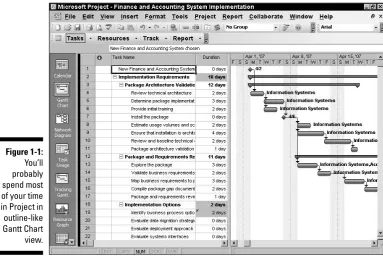
A taskis simply one of those items you used to scribble on your handwritten to-do lists, such as Write final reportor Apply for permits.Tasks are typically organized into phases(appropriate stages) in Project, arranged in an outline-like structure, as you can see in the project shown in Figure 1-1. Because timing is essential in any project, Project helps you set up and view the timing rela-tionships among tasks.
Becoming a task master
A task can be as broad or as detailed as you like. For example, you can create a single task to research your competition, or you can create a project phase that consists of a summary taskand subtasksbelow it. For example, the sum-mary task might be Competitive Research, with the subtasks Researching Online Business Databases, Assembling Company Annual Reports, and Reviewing Competitive Product Lines.
[image:30.531.74.458.334.591.2]Adding tasks to a Project file doesn’t cost you a thing (except a nanobit of memory), so a project can have as many tasks and as many phases as you like. You simply use the outlining structure in Project to indent various levels of tasks. The more deeply indented in an outline a task is, the more detailed the task.
Figure 1-1:
You’ll probably spend most of your time in Project in outline-like Gantt Chart view.
11
One handy thing about this outlining structure is that you can roll up all the timing and cost data from the subtasks within your phases into summary-level tasks. Three sequential subtasks that take a day each to complete and cost you $200 apiece result in a summary task that spans three days and costs $600. You can view your project at various levels of detail or get auto-matic tallies of timing and costs if you prefer to simply view the summary level of tasks.
For more about defining and creating tasks, check out Chapter 4.
All in the timing
They say that timing is everything: Rome wasn’t built in a day, a stitch in time saves nine, and don’t even ask me about choosing exactly when to sell your high-tech stocks. The importance of timing applies to Project tasks, too. Almost all tasks have timing — referred to as duration— which is the amount of time needed to complete the task.
The only tasks without duration are milestones. A milestoneis a task of zero duration; in essence, it simply marks a moment in time that must be reflected in your Project outline. Typical milestones are the approval of a brochure design and an assembly line startup.
Project doesn’t provide magic formulas for duration: You assign duration based on your own experience and judgment. Does designing a product pack-age take three days or three weeks? Will obtaining a building permit happen in a day or a month? (Remember that you’re dealing with city hall, so think before you answer!) Project isn’t an oracle: You have to provide facts, figures, and educated guesses to build your Project schedule. After that information is entered, though, Project can do some wonderful things to help you main-tain your schedule and monitor your progress.
Task co-dependencies
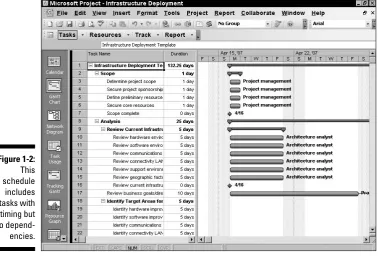
The final piece in the puzzle of how long your project will take is the concept of dependencies,or the timing relationships among tasks. If you have a sched-ule that includes ten tasks that all begin at the same time, your entire project will take as long as the longest task (see Figure 1-2).
After you define and implement timing relationships among tasks, your schedule can stretch over time like a long rubber band. For example, one task might begin only after another is finished. Another task can start halfway through the preceding task. The second task cannot start until a week after the first task is finished. Only after you start to assign these relationships can you begin to see a project’s timing as related to not just each task’s duration but also the specific ways in which the tasks relate to each other.
Here are some examples of dependencies:
You can’t begin to use a new piece of equipment until you install it.
You must wait for a freshly poured concrete foundation to dry before you can begin to build on it.
You can’t start to ship a new drug product until the FDA approves it.
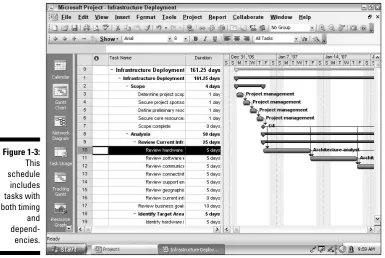
Figure 1-3 shows a project plan where each task’s duration and the dependen-cies among tasks have been established, and the resulting overall timing of the project.
[image:32.531.82.461.91.347.2]One other brief note about the timing of tasks: In addition to applying depen-dencies to tasks, you can apply constraints.For example, say that you don’t want to start shipping your new cake flavor until you get the ad for it in your Christmas catalog, so you set a dependency between those two events. You can also set a constraint which says that you must start producing the cakes no later than November 3. In this case, if you don’t make the catalog deadline, the product will still ship on November 3; that task will not be allowed to slip its constraint because of this dependency relationship.
Figure 1-2:
This schedule includes tasks with timing but no depend-encies.
13
You can find out more about constraints in Chapter 4 and about the fine art of managing dependencies in Chapter 6.
Lining up your resources
When people first use Project, some get a bit confused about resources. Resources aren’t just people: A resourcecan be a piece of equipment you rent, a meeting room that you have to pay an hourly fee to use, or a box of nails or a software program you have to buy.
Project allows for three kinds of resources: work resources, material resources, and cost resources. Awork resourceis charged by how many hours or days the resource (often human) works on a task. A material resource,such as sewing supplies or steel, is charged by a per-use cost or by a unit of measurement (such as square yards or linear feet or tons). A cost resourcehas a set cost, such as a conference fee of $250; this cost doesn’t vary by how much time you spend at the conference or how many people attend.
[image:33.531.77.463.87.345.2]Some resources, such as people, perform their work according to a working calendar. If a person works an 8-hour day and you assign him to a task that takes 24 hours to complete, that person has to put in three workdays to
Figure 1-3:
This schedule includes tasks with both timing and depend-encies.
complete the task. In comparison, someone with a 12-hour workday takes only two days to complete the same task. In addition, you can set working and nonworking days for your human resources, which accommodates varia-tions such as 4-day weeks or shift work.
You can set different rates for resources, such as a standard hourly rate and an overtime rate. Project applies the appropriate rate based on each resource’s cal-endar and work assigned. For more about resources and costs, see Chapter 7.
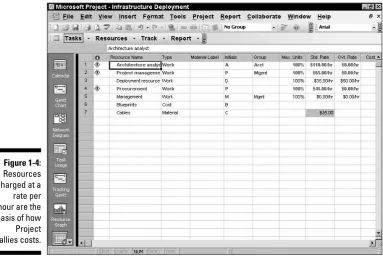
Several views in Project let you see information about resources and how their assignment to tasks has an effect on project costs. Figure 1-4 shows you the Resource sheet which has columns of information about resources and their costs.
[image:34.531.76.460.349.605.2]Here’s one other important thing you should know about resources: They tend to have conflicts. No, I’m not talking about conference room brawls (although that happens). These conflicts have to do with assigned resources that become overallocated for their available work time. For example, if you assign one poor soul to three 8-hour tasks that must all happen on the same day — and in the same eight hours — Project has features that do everything but jump up on your desk and turn on an alarm to warn you of the conflict. (Luckily, Project also provides tools that help you resolve those conflicts.)
Figure 1-4:
Resources charged at a rate per hour are the basis of how Project tallies costs.
15
Spreading the news
I’m one of those people who need instant gratification. One of the first things I ask about learning to use any new software product is, “What’s in it for me?” Until now, I’ve told you about the type of information you have to put into Project: information about tasks, task dependencies, and resources. But isn’t it about time you got something back from Project? Of course it is.
You finally reached one of the big payoffs for entering all that information: reporting. After you enter your information, Project offers a wealth of report-ing options to help you view your project and communicate your progress to your project team, clients, and management.
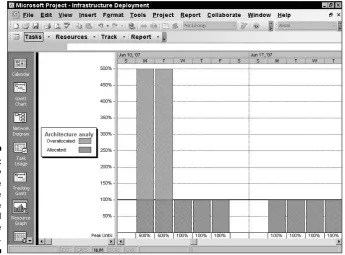
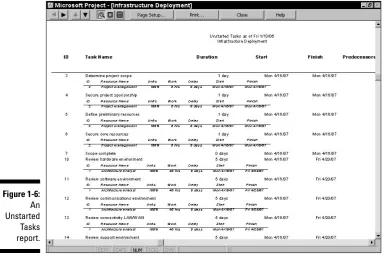
[image:35.531.116.462.325.580.2]You can generate predesigned reports based on information in your schedule or simply print any of the views you can display in Project. Project 2007 offers a set of Basic Reports and Visual Reports. (You must have the Microsoft .NET Framework installed in order to use Visual Reports, which is free and down-loadable from www.microsoft.com/downloads.) Figures 1-5 and 1-6 show you just two of the reporting options available in Project.
Figure 1-5:
Study resource usage with the graphical Resource Graph view.
Planning to keep things on track
Projects aren’t frozen in amber like some organizational mosquito: They go through more changes than a politician’s platform in a campaign year. That’s where Project’s capability to make changes to your project data comes in handy.
After you build all your tasks, give them durations and dependencies, and assign all your resources and costs, you set a baseline. A baselineis a snap-shot of your project at the moment you feel your plan is final and you’re ready to proceed with the project. After you set a baseline, you record some activity on your tasks. Then you can compare that actual activity with your baseline because Project saves both sets of data in your schedule.
[image:36.531.77.462.89.345.2]Trackingactivity in your project involves recording the actual timing of tasks and recording the time that your resources have spent on those tasks, as well as entering any actual costs that accrue. You can then display Project views that show you how far off you are at any time (compared with your baseline) in terms of the actual timing of tasks and cost of your project.
Figure 1-6:
An Unstarted Tasks report.
17
Whether you have good news or bad, you can use reports to show your boss how things are going compared with how you thought they would go. Then, after you peel your boss off the ceiling, you can use many more Project tools to make adjustments to get everything back on track.
The Role of the Project Manager
Although understanding the role (let alone the usefulness) of some managers isn’t always easy, it’s always easy to spot the value of a project manager.This person creates the master plan for a project and tries to ensure that it gets implemented successfully. Along the way, this key person uses skills and methods that have evolved over time, always seeking to manage how things get done and generally keeping schedules on track.
What exactly does a project manager do?
A project manager isn’t always the highest authority in a project; often that role belongs to whomever manages the project manager, up to and including members of senior management. Rather, the project manager is the person on the front lines who makes sure that the parts of the project come together and assumes hands-on responsibility for successes as well as failures. In project management parlance, the person who champions (and has the ultimate responsibility for) a project is the project sponsor.
A project manager manages these essential pieces of a project:
The project plan or schedule:This is what you create with Microsoft Project. It includes the estimated steps and associated timing and costs involved in reaching the project goal.
Resources:Managing resources involves resolving resource conflicts and building consensus as well as assigning resources and tracking their activities on the project. This part of the job also involves managing nonhuman resources, such as materials and equipment.
Communication with the project team, management, and customers:
Communicating the project’s status to everyone who has a legitimate stake in its success (stakeholders)is a key responsibility.
Although a project manager might work for a project sponsor, the project often also has a customerfor whom the end product is produced. That cus-tomer can be outside the project manager’s own company, or within.
Understanding the dreaded
triple constraint
You’ve seen the signs at the copy store or the auto repair place: You can have it fast, cheap, or right; pick two. That, my friend, is the triple constraint of project management in a nutshell.
In a project, you have timing, resources (which are essentially costs), and quality of the product or service produced at the end of the project. Microsoft Project helps you manage the resources and timing of your project. The qual-ity of your project is often affected directly by how well you manage them. If you add time, costs increase because resources are working longer hours at a certain wage. If you take away resources, you save money, but this can affect quality — and so on.
Coming to a logical balance of time, money, and quality is at the core of what a good project manager does throughout the life of a project.
Applying tried-and-true methodologies
Microsoft Project incorporates some scheduling and tracking tools that are the result of many years of developing project management methods. A few of these are worth noting:
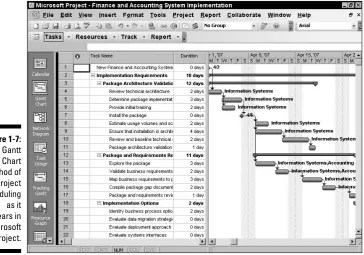
The Gantt Chart(shown in Gantt Chart view of Figure 1-7), which is the main view of Project, shows you a spreadsheet with columns of data along with a graphical representation of the tasks in the project arranged along a horizontal timeline. By using the data in the columns (such as task name, start date, finish date, and resources assigned to tasks), you can understand the parameters of each task and see its timing in the graphical area. Being able to view all this information on one page helps you understand what’s happening in your project in terms of time and costs.
The Network Diagram (also called a logic diagram), shown in Figure 1-8, is essentially the Microsoft version of a PERT chart. PERT (Program Evaluation and Review Technique) was developed during the construc-tion of the Polaris submarine in the 1950s. This mostly graphical repre-sentation of the tasks in your project reflects the flow of work in your project rather than the literal timing of tasks. This view helps you to see how one task flows into another and to get a sense of where you are — not so much in time, but rather in terms of the work you have to accomplish.
19
Figure 1-8:
[image:39.531.71.462.103.545.2]A kissin’ cousin to the original PERT chart, the Network Diagram focuses on work, not on time.
Figure 1-7:
The Gantt Chart method of project scheduling as it appears in Microsoft Project.
Risk managementis a central part of project management because, frankly, projects are chock-full of risk. You run the risk that your resources won’t perform, that materials will arrive late, that your cus-tomer will change all the parameters of the project halfway through — well, you get the picture.
Risk managementis the art of anticipating risks, ranking them from most to least likely, and determining strategies to prevent the most likely ones from occurring. Project helps you with risk management by allowing you to try out what-if scenarios:You can change the start date or length of a task or phase of tasks (for example) and see just what that change does to your schedule, such as the delays, cost overruns, and resource conflicts that might occur in such a scenario, down to the last hour and penny. Having this kind of information at your fingertips makes risk man-agement easier and (almost) painless.
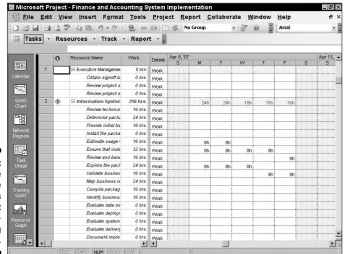
[image:40.531.116.461.360.614.2]Resource managementconsists of using resources wisely. A good pro-ject manager finds the right resource for the job, assigns that person a reasonable workload, stays alert for shifts in the schedule that cause that resource to be overbooked, and during the life of the project makes adjustments that keep all resources most productive. In Project, tools are available, such as a resource graph (traditionally called a histogram) and the resource usage chart (shown in Figure 1-9), which reflects resource workload.
Figure 1-9:
A resource usage chart helps
you spot resource-scheduling problems.
21
Figure 1-9 also shows resource leveling(a calculation that automatically reschedules resources to resolve overbooking), which can enable you to manage resources much more effectively. You can see how overbooked the Information Systems Analyst is on this date.
You can use codes for resources that designate skill levels or abilities so that finding the right resource for each job is as simple as performing a search.
From To-Do List to Hard Drive
If you’re reading from start to finish in this chapter, you’re probably shaking your head and saying, “Boy, handwritten to-do lists look pretty good right now. Beats creating hundreds of tasks, assigning them durations, establishing dependencies among them, creating resources, entering resource calendar and rate information, assigning resources and costs to tasks, entering activity performed on tasks . . .” and so on.
Well, you’re right andwrong about that. You do have to enter a lot of informa-tion into Project to get the benefit of its features. But you can also get a lot out of Project.
Getting up to speed with Project
Take a moment to look at some of the wonderful things Project can do for you. This list describes why you (or your company) bought it and why you’re investing your time to read this book.
With Project, you enjoy the following benefits:
Project automatically calculates costs and timing for you based on your input. You can quickly recalculate what-if scenarios to solve resource conflicts, get your costs within budget, or meet your final deadline.
Project offers views and reports that, with the click of a button, make a wealth of information available to you and those you report to. No more manually building a report on total-costs-to-date to meet a last-minute request from your boss. If she wants to know total-costs-to-date, you can just print your Tracking Gantt view with the Tracking table displayed. See Chapter 16 for information about reporting.
You can use built-in templates to get a head start on your project. Project
templatesare prebuilt plans for a typical business project, such as com-mercial construction, an engineering project, a new product rollout,
software development, or an office move. See “Starting with templates” later in this chapter for more about this time-saving feature.
You likely do similar types of projects all the time. After you create one project, you use it as a template for future projects.
You can create resources for your project according to information you already created in your Outlook Address Book. You can even create one set of company resources and give access to every project manager in the company (see Chapters 18 and 19 for how to set up centralized enterprise resources).
A number of tools in Project employ complex algorithms (that you couldn’t even begin to figure out) to do such tasks as level resource assignments to solve resource conflicts, filter tasks by various criteria, model what-if sce-narios, and calculate in dollars the value of work performed to date.
Collaborating with your
project team online
You can take advantage of all the Internet has to offer by using Project fea-tures to collaborate with others. In fact, Project 2007 begins to step into the world of Enterprise Project Management (EPM), where easily sharing ideas, information, and documents across your enterprise becomes possible. For example, Project allows you to request updates on a task’s progress from team members via e-mail. You can post documents and ask for team input. You can even publish your project on the Web.
The Professional version of Project includes Project Server and Project Web Access, which enhance workgroup collaboration. You can take advantage of an online project center and resource center with areas for discussions, progress tracking, document exchange, and more.
Part V of this book, “Working with Enterprise Projects,” looks at how to take advantage of the enterprise-wide features of Project Server and Project Web Access.
Getting Started
As Shakespeare said, “In delay there lies no plenty.” I don’t know about you, but I need all the plenty I can get, so it’s time to jump in and start using Project.
23
You have three choices when starting a new project. You can use Project Guide to get Project’s assistance creating a project, you can build a project on your own from scratch by entering individual task and resource details, or you can use a project template that already contains data related to your industry or the type of project you’re doing.
Getting going with help
from Project Guide
Project Guide is like some of those wizards you see in Microsoft products: It walks you through a series of steps that ask you to enter some information and then automates a process for you. However, in many ways, Project Guide is like no wizard you’ve ever seen.
Taking a first look at the Guide
Project Guide has four different sections: Tasks, Resources, Track, and Report. Within each of those categories might be ten or so links for you to click to initiate an action. When you do so, you might have to choose a vari-ety of subactions, depending on your particular project. Also, the sections of Project Guide span the entire life of your project, from the time you first enter task information to the time you generate your final report.
If you’ve never used project management software (or Project itself), you might find it helpful to run through Project Guide to set up your first schedule, enter resources, track activities on tasks, or generate reports. However, to know how to make intelligent choices in Project Guide, you have to have some basic understanding of how a project is built, which I provide in the next few chapters. My advice is to walk with me through many of the steps in this book and then use Project Guide to practice building your first project. Then you can see whether its structure works the way your mind does — or not.
Using Project Guide
A Project Guide toolbar displays by default in the toolbar area at the top of your Project screen. The toolbar has an icon you click to show or hide the Project Guide, so if the Project Guide doesn’t appear on the left side of your screen, just click the Show/Hide Project Guide button.
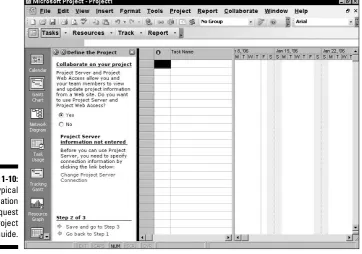
To use the Project Guide, you click a category (such as Tasks) and then click a link (such as List the Tasks in the Project) in that category. This action dis-plays additional information in the Project Guide pane (see Figure 1-10) asking you to enter data or choose or accept a setting and move through a series of screens. When you finish working through one set of screens, you return to the Project Guide pane and can click another task or category to proceed.
Microsoft laid out these categories and tasks in the logical order in which you should tackle them to build most projects. Thus, when you start to use Project Guide, just click the categories and the tasks within them in sequence. They should remind you of all the things you should consider, even if you choose to skip a few steps here and there for your particular project.
Starting from scratch
Although you can use Project Guide to start a project, you don’t have to. You can enter information on your own at any time.
When you open Project 2007, you see a blank project file on-screen along with the Project Guide task pane. You can start building your new project directly in this blank schedule. Starting to create a new project usually involves enter-ing some general project information and then addenter-ing some task information. You can open a new, blank project schedule at any time by choosing File➪
[image:44.531.99.462.93.347.2]New and clicking the Blank Project link in the New Project task pane.
Figure 1-10:
A typical information request from Project Guide.
25
You need to enter much more information in addition to general project infor-mation and tasks in order to build a complete project, as you discover in the next few chapters. Entering general project information and task information is your usual starting point, however.
Tell Project about your project
With a blank project open, a logical first step is to enter some general project information, such as the project start date. To do so, you choose Project➪
Project Information. The Project Information dialog box appears, as shown in Figure 1-11.
Here’s what you can do in this dialog box:
Set the start date for the project.If you’re not sure when the project will start, set the start date about a month from today. Then, after you build some tasks and have a better handle on the entire length of your project, you can come back and set a real start date. Project automatically recal-culates all dates when you do.
Set the finish date for the project.Especially if you have a drop-dead date(an attention-getting term!) beyond which the project cannot wander and still reach completion, you can set the finish date. In such a case, be sure to look at the next setting in this list — and change it accordingly.
Schedule from the start or finish of the project.Most projects work for-ward from the start date. However, if you have an absolute drop-dead
Figure 1-11:
Use the Project Information dialog box for some basic project settings.
date for the end of your project (for example, if you’re organizing a sports event that must occur on New Year’s Day next year), you might want to set the finish date and then work backward to fit all your tasks into the allotted length of time. If you change this setting to Project Finish Date, the Finish Date field becomes available.
Set the current date.You can fill in the current date according to your computer calendar. Or, you can choose another date if you like, but that usually doesn’t make much sense unless you’re in a different time zone from where the project will occur.
Set a status date.By default there is no status date set for the project. You use a status datewhen you’re tracking the progress of your project at regular intervals. If you set a status date, your computer assumes that any activity you record in your project is being tracked as of this date. You can find out more about this feature in Chapters 12, 13, and 14.
Set the working calendar for your project.You have three choices: Standard, Night Shift, and 24 Hours. Base your choice on the working habits of your organization. For example, if your company uses
resources in three shifts per day — a total of 24 hours of straight work-ing time — and all those shifts would contribute work to your project, choose 24 Hours. If you use a day shift and a night shift, choose Night Shift. If you work a standard 8-hour day, choose Standard. (Most projects use a standard calendar with a typical 8-hour workday.)
Calendars can get a little confusing. A project calendar that you set in this dialog box indicates what the usual workday is like in your com-pany, but you can set up individual calendars for each resource you create. You can then more easily accommodate both shift workers and nine-to-fivers in the same schedule. See Chapter 3 for more about resource calendars.
Assign a priority to your project.Assigning a priority (such as 500 for high priority or 100 for a lower priority) can be especially useful if you use the same resources across several projects. With your priorities set on all projects, Project tools can then automatically reallocate
resources.
You can also create custom project information fields for your organization in the Enterprise Custom Fields section of this dialog box. For example, you might want a field that explains which department in the company is running the project.
Clicking the Statistics button in this dialog box presents an overview of your project, as shown in Figure 1-12.
27
Perusing the project schedule
After you choose settings in the Project Information dialog box and then click OK, you’re faced with a blank Project schedule, as shown in Figure 1-13. As a writer, I can tell you that nothing is as daunting — or as inspiring — as facing a blank page. It’s the canvas on which you create your Project plan. Note the Project Guide pane to the left of the spreadsheet section.
Project Guide
View bar Sheet Chart area
Figure 1-13:
[image:47.531.73.463.346.622.2]Begin with a new Project schedule.
Figure 1-12:
You can review a summary of the information you entered.
In Figure 1-13 you see Gantt Chart view. You can discover more about various views in Chapter 2. For now, note the following:
View bar:To go to different views, click the bar of icons on the far left: the View bar.If this bar isn’t displayed, choose View➪View Bar to do so.
Project Guide:To the right of the View bar is the Project Guide task pane,which is an informational area with step-by-step guidance on how to build your project. If Project Guide isn’t displayed, click the Show/ Hide Project Guide button on the Project Guide toolbar to display it.
Sheet:In the middle of the view is the sheet section. You can use this spreadsheet interface to enter, edit, and view information about your project.
Chart area:Finally, the chart areaon the far right reflects your task information graphically as soon as you begin to add tasks.
•Taskbarsin this area indicate the duration and timing of tasks in addition to the progress you record on them.
• The timescale— the indications of time increments across the top of the chart area — helps you interpret the timing of each taskbar. You can adjust the increments to show your project in larger or smaller increments of time. Figure 1-12, for example, shows incre-ments in days.
You start building a project by entering tasks. Simply click a cell in the Task Name column of the sheet section and then type the name. You can enter and edit details of a task by entering information directly into various columns (which you can display in many views) or by double-clicking the task name in the sheet to access the Task Information dialog box (see Figure 1-14). I get into more detail about entering task information in Chapter 2.
Figure 1-14:
The various tabs in this dialog box hold a wealth of information about a single task in your project.
29
Starting with templates
Reinventing the wheel has never been one of my favorite sports, so I’m grate-ful that Microsoft provides some convenient project templates. These include projects by type: for example, an engineering project or office move. Templates already have many tasks appropriate to the task type created for you.
Figure 1-15 shows the Project Office template. Templates typically contain sample tasks broken into logical phases, with task durations and dependencies in place. The templates from Microsoft often include resources, but you can create your own resources as well as use, edit, or delete the ones provided. You can open a template from the New Project task pane. To do so, follow these steps:
1. Choose File➪New.
The New Project task pane appears, as shown in Figure 1-16.
Figure 1-15:
Templates provide a great head start in building common business projects.
2. Click the On My Computer link.
The Templates dialog box opens. You can also use the On My Web Sites and Templates on Office Online links to access online templates.
3. Click the Project Templates tab, which is shown in Figure 1-17. 4. Click a template to display a preview.
5. When you find the template you want to use, click OK.
The template opens in Project document format (MPP). You can then save the file with a new name. You can also delete tasks, move them around, or add tasks as necessary for your project.
After opening a template, be sure to check its Project Information (choose Project➪Project Information) to make sure that the Start Date and Calendar options are set as you want.
If you modify a template and think that you might use that set of tasks again for future projects, consider saving the file as a custom template. Just choose File➪Save As, and then select Template in the Save As Type list.
Figure 1-16:
Open a template from the New Project task pane.
31
Saving a Project for Posterity
Saving Project files works just as saving does in most other software you’ve used. Here’s a reminder.
To save a Project file that you haven’t saved before, follow these steps:
1. Choose File➪Save As.
2. Use the Save In list to locate the folder where you want to save the file; then click to select it.
3. In the File Name text box, type a name for the project. 4. Click Save.
It’s good organizational practice to create a folder for your project where you save in one place not only your Project files but also supporting documents, e-mails, and other items. You can create a new folder from within the Save As dialog box by clicking the Create New Folder button.
Getting Help from Project
If you can get to work without mishap and turn on your computer, you proba-bly know how to use a help system in software, too. Table 1-1 offers a rundown of the type of help you can find in Project 2007 when you click the Help button on the Standard toolbar.
Figure 1-17:
Business and personal templates, such as Home Move, are included here.