Rochester Institute of Technology
RIT Scholar Works
Theses
Thesis/Dissertation Collections
11-2015
Wireless Sensor Platform for Pulse Oximetry
Anusha Aithal
Follow this and additional works at:
http://scholarworks.rit.edu/theses
This Thesis is brought to you for free and open access by the Thesis/Dissertation Collections at RIT Scholar Works. It has been accepted for inclusion in Theses by an authorized administrator of RIT Scholar Works. For more information, please [email protected].
Recommended Citation
1
Wireless Sensor Platform for Pulse
Oximetry
By
Anusha Aithal
A Thesis Submitted in Partial Fulfillment of the requirements for the Degree of
Master of Science in Microelectronic Engineering
Approved by:
Dr. Lynn Fuller, Professor
Thesis Advisor, Department of Electrical and Microelectronic Engineering
Dr. David Borkholder, Professor
Committee Member, Department of Microsystems Engineering
Dr. Robert Pearson, Professor
Committee Member, Department of Electrical and Microelectronic Engineering
Dr. Sohail Dianat, Professor
Department Head, Department of Electrical and Microelectronic Engineering
DEPARTMENT OF ELECTRICAL AND MICROELECTRONIC ENGINEERING
KATE GLEASON COLLEGE OF ENGINEERING
ROCHESTER INSTITUTE OF TECHNOLOGY
2
Acknowledgements
I would like to express my sincere gratitude to the following people:
Dr. Lynn Fuller, for his constant encouragement and for giving me the opportunity to work on this project.
Members of my committee, Dr. Robert Pearson and Dr. David Borkholder, for their insightful input.
Dr. Daniel Phillips and Ms. Michelle Horan for letting me borrow their equipment. My fellow students Kavya Duggimpudi and Karine Florent for their support.
3
Abstract
Pulse rate and oxygen saturation are two important clinical measurements that indicate the state of a person’s essential body functions. Oxygen saturation is the measurement of oxygenated hemoglobin in arterial blood i.e. it indicates the level of oxygen in the blood. Pulse oximeters, consisting of LEDs and photodetectors, offer a simple and low cost means of monitoring both pulse rate and blood oxygen saturation non-invasively.
4
Table of contents
1. LITERATURE REVIEW 9
1.1. Introduction 9
1.2. Historical Review 10
1.3. Theory 12
1.3.1. Oxygen Transport in the Body 12 1.3.2. Photoplethysmography 15 1.3.3. Oxygen Saturation 16 1.3.4. Transmittance and reflectance pulse oximetry 19 1.3.5. Calibrating a pulse oximeter 19 2. HARDWARE DESIGN AND CIRCUITRY 21 2.1. Design specifications 21 2.2. LED driving circuit 22 2.3. Current – voltage converter 23 2.4. Filtering and amplification 24 2.5. Electrical simulation 25
3. ARDUINO PROGRAMMING 28
3.1. Introduction to Bluetooth 28 3.2. Bluetooth module 29 3.3. Serial Communication 30 3.4. Setting up the Bluetooth module 31
3.5. Arduino code 35
4. BUILDING AND IMPLEMENTING AN ANDROID APPLICATION 38 4.1. Android Programming Fundamentals 38 4.1.1. Application components 39
5
4.2. Android Studio 40
4.2.1. Creating a project 41 4.2.2. Layout XML file 42 4.2.3. The Manifest file 44
4.2.4. Gradle 45
4.3. Bluetooth 47
4.3.1. Setting up Bluetooth 47 4.3.2. Finding and connecting with other devices 48 4.4. Plotting data in real time 49 4.5. Saving the oximeter data 51 4.5.1. Getting date and time 51 4.5.2. Creating and saving to file 52 4.6. Receiving and sorting data 54 5. RESULTS AND CONCLUSIONS 58
5.1. Results 59
5.2. Conclusion and future work 65
APPENDIX A 68
6
List of figures
Figure 1.1. The lung 13
Figure 1.2. Oxygen transport in the body 14 Figure 1.3. Oxygen bound to hemoglobin 15
Figure 1.4. PPG trace 16
Figure 1.5. Absorption spectrum of Hb and HbO2 18
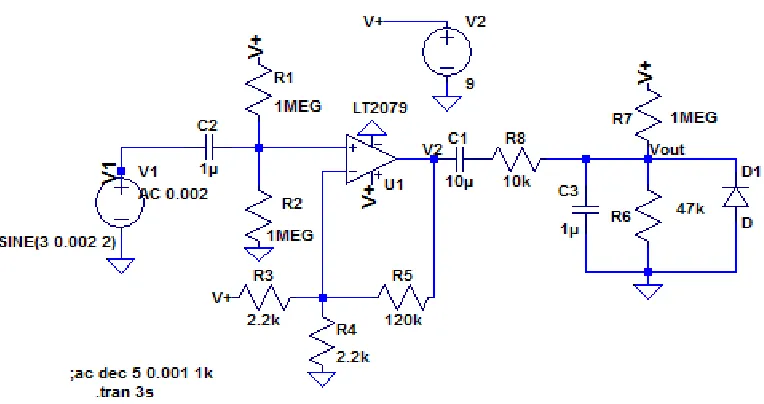
Figure 1.6. Transmittance and reflectance pulse oximetry 19 Figure 2.1. LED driving circuit and photodetector unit 23 Figure 2.2. Filtering and amplification 24 Figure 2.3. Schematic of simulated circuit 25 Figure 2.4. Simulated waveforms 26 Figure 2.5. Simulated frequency response 26 Figure 2.6. Screen capture of the output PPG waveform from the sensor 27 Figure 3.1. SparkFun’s BlueSMiRF 30 Figure 3.2. Bluetooth COM ports 33 Figure 3.3. Bluetooth device information extracted using command mode 34 Figure 4.1. Configuring a new Android Studio project 41 Figure 4.2. Example of an Activity layout 42 Figure 4.3. Enable Bluetooth dialogue 48 Figure 5.1. Calibration Curve 60 Figure 5.2. Comparison of the pulse rate measured by the reference device
and the prototype device 60
Figure 5.3. Comparison of the oxygen saturation measured by the reference
device and the prototype device 61 Figure 5.4. Comparison of the pulse rate measured by the reference device
and the prototype device after exercise 62
7
and the prototype device for hyperventilation test 63 Figure 5.6. List of paired devices on the Android application 64 Figure 5.7. Data display screen on the Android application 64
List of tables
8
List of Abbreviations
HbO2 - Oxygenated hemoglobin
SpO2 - Oxygen Saturation
IDE - Integrated Development Environment PPG - Photoplethysmogram
SPP - Serial Port Profile
9
Chapter 1
Literature Review
Oxygen is one of the most important elements needed to sustain life. It is important to almost every single cell in the body. It is involved in the process of cellular respiration, where carbohydrates, fats and proteins are broken down to retrieve energy. A decline in the levels of oxygen could affect metabolism significantly. A protein in the red blood cells called hemoglobin (Hb) is responsible for most (about 98%) of the oxygen transport in the body. Oxygen binds to the protein, together forming oxyhemoglobin or HbO2. Oxygen saturation
(SpO2) is a measure of the percentage of HbO2 in arterial blood.
1.1 Introduction
A pulse oximeter is a device that can measure oxygen saturation non-invasively. Prior to the invention of the pulse oximeter, SpO2 was measured by performing a blood gas analysis on
samples of blood drawn from the patient. This method does not provide real time feedback and is an invasive procedure. For a healthy individual with sufficient oxygen in their blood stream, the tongue and lips appear pink. However, when the oxygen levels are low, they appear blue. This bluish appearance of skin and mucus membranes is cyanosis. Hypoxemia, or abnormally low concentrations of oxygen in the blood, used to be assessed primarily by looking for cyanosis. Using cyanosis for the clinical assessment of hypoxemia is extremely unreliable because several factors including skin color and room lighting can affect the detection of cyanosis. Additionally, cyanosis is only visible when the concentration of deoxygenated hemoglobin is above a certain limit. So a severely anemic patient may never show signs of cyanosis even when extremely hypoxic. Thus, a tool to constantly monitor oxygen saturation levels is very important.
10
in 1937. He gave it the term “plethysmos”, derived from the Greek work for fullness, since he believed he was measuring the fullness of the tissue when he measured the amount of light it absorbed [1,2]. Most pulse oximeters display the plethysmograph trace in addition to the arterial oxygen saturation and the heart rate. The most important function of the trace is to judge if the oximeters is functioning correctly. However, a normal plethysmograph trace does not imply that the SpO2 value is correct [3].
A pulse oximeter consists of a red LED (~650 nm), infrared LED (~940nm) and a photodetector. The PPG is obtained by measuring the change in the light absorbed by the blood and the ratio of absorption of red to infrared light is used to calculate the SpO2. Pulse
oximeters are used extensively in ICUs, and during surgeries and other procedures involving sedation.
1.2. Historical Review
The relationship between the absorption of light and the concentration of the absorbent was first described by Johann Heinrich Lambert in 1760. This was further investigated by August Beer, who published the Beer-Lambert law in 1851 [3]. The Beer-Lambert law is the linear relationship between the absorbance of light and the amount of absorbing material. Following the invention of the spectrometer in1860 by Kirchhoff and Bunsen, Hoppe-Seyler showed that oxygen changes the color of a component in blood. He coined the term “hemoglobin” and later showed that oxygen and hemoglobin form a loose, dissociable compound he called oxyhemoglobin. Stokes showed that this colored substance was the carrier of oxygen in the blood [4-6].
11
for aviation. The Hewlett-Packard ear oximeter, developed in the early 1970’s, was the forerunner of pulse oximetry. It used eight different wavelengths derived from an incandescent source. The different wavelengths were for different absorbing substance (skin, oxygenated hemoglobin, deoxygenated hemoglobin etc.) and the model assumed that each absorbing substance acted independent of the others. Again, this model did not differentiate between arterial and venous blood. While it was a remarkable advance in oxygen saturation monitoring, the device had several disadvantages including the large, bulky earpiece and the need for regular recalibration [3,4,6,7].
12
1.3. Theory
1.3.1. Oxygen Transport in the Body
Oxygen is vital for survival. The absence of oxygen for a prolonged period of time will cause cells to die. Thus, oxygen circulation is an important indicator of a person’s health. The respiratory system and the circulatory system are responsible for the oxygen supplied to the cells. Ventilation is the process by which air moves into and out of the lungs. Ventilation is based on the principle that air flows from a region of higher pressure to a region of lower pressure. During inspiration, the muscles between the ribs contract and pull upwards, while the diaphragm contracts and pulls downward, causing the thoracic cavity to expand. At this point, the atmospheric pressure is greater than the pressure inside the lungs, causing air to flow in. During expiration, the muscles relax, causing the volume to decrease and the pressure in the lungs to increase. As the pressure inside the lungs increases beyond the atmosphere pressure, the air flows out of the lungs [11, 12].
The nasal passage warms, filters and moistens the inhaled air before it reaches the lungs. The nasal passage has microscopic hair called cilia which, together with the mucus, filters dust particles out of the inhaled air. The mucus also moistens the air, while the capillaries under the mucus layer warm it. The air then passes through the pharynx (or the throat) to the larynx, which is also referred to as the voice box. Both air and food go through the pharynx. When food is swallowed, a part of the larynx called the epiglottis closes the entrance to the trachea, hence preventing the entry of food particles into the lungs.
13
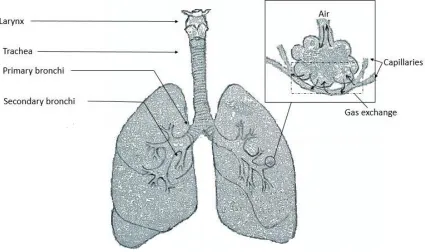
Figure 1.1. The lungs
The alveoli are surrounded by capillaries and the walls of the alveoli are very thin, allowing the exchange of oxygen and carbon dioxide between the alveoli and the capillaries. The partial pressure of oxygen is higher, and that of carbon dioxide is lower in the alveoli than the blood, causing oxygen to diffuse into the blood while the carbon dioxide moves into the alveoli. Most of the oxygen that enters the bloodstream binds to the hemoglobin in the blood, while a small amount dissolves in the plasma. The blood from the capillary then enters the heart through the pulmonary vein and is circulated throughout the body.
14
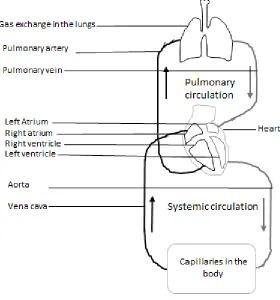
[image:15.612.184.464.231.531.2]In the systematic circulation, oxygen rich blood is pumped out of the left ventricle via the systemic arteries. The artery branches out into smaller arteries and finally into capillaries. The oxygen diffuses through the walls of the capillaries to the oxygen depleted tissues, while the waste substances and carbon dioxide diffuses into the blood from the tissues. This blood, which is now low in oxygen, is collected in veins and transported back to the heart [11, 13, 15]. Figure 1.2 shows this entire process.
Figure 1.2. Oxygen transport in the blood
15
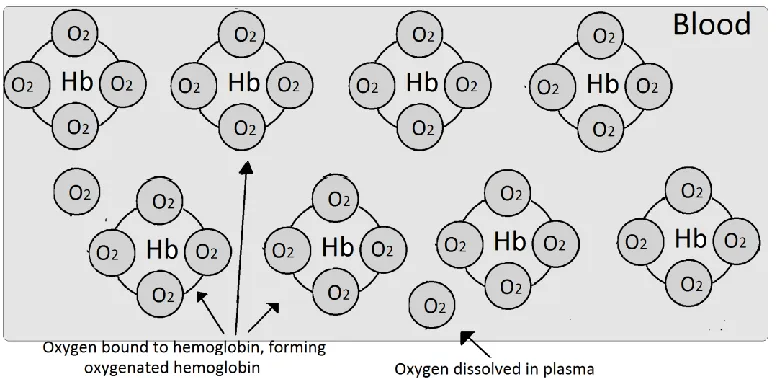
[image:16.612.131.519.165.354.2]molecules. A saturated hemoglobin molecules has four oxygen molecules bound to it. Every 100 ml of blood contains about 15g of hemoglobin and each gram of hemoglobin can bind to up to 1.39ml of oxygen so 100 ml of blood can contain up to 20.4ml of oxygen [16, 17].
Figure 1.3. Oxygen bound to hemoglobin
1.3.2. Photoplethysmography
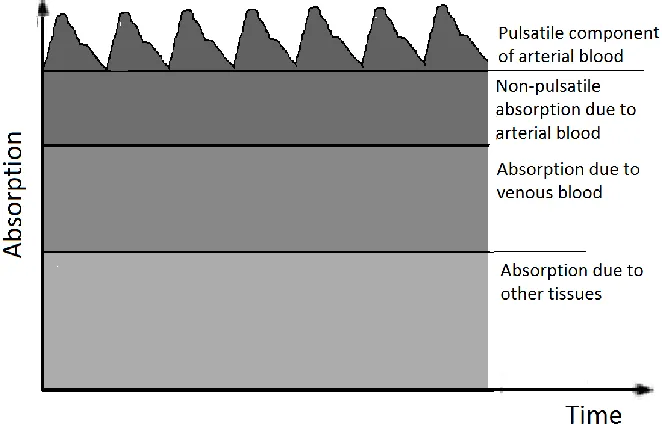
16
Figure 1.4. Variation in attenuation due to arterial blood
1.3.3. Oxygen Saturation
Oxygen saturation can be defined as the ratio of oxygenated hemoglobin to the total hemoglobin (oxygenated and deoxygenated) in the blood. If all the binding sites on the hemoglobin have oxygen molecules attached to them, the hemoglobin is said to have 100% saturation.
SpO2(%) =
HbO2
HbO2+ Hb
∗ 100
Oxygen saturation is the fifth most important vital sign after pulse rate, body temperature, blood pressure, and respiration. Most healthy individuals have an arterial oxygen saturation level of 95%-100% at sea level. Since the saturation levels depend on partial pressure of gases, extreme altitude can affect the saturation levels. Venous blood normally has a saturation of around 75%. The oxygen saturations level remains roughly constant in time but health problems like lung diseases or smoking can cause a decrease in these levels. For
17
(1.2)
(1.3)
example, 94% can be considered normal for a heavy smoker. If the arterial oxygen saturation level is below 90%, it is considered low and requires treatment [17, 19].
Hemoglobin forms reversible and unstable bonds with oxygen to form HbO2. In its
oxygenated state, it appears a bright red color and in its reduced state, it appears a darker purplish in color. Beer-Lambert’s law can be used to calculate the absorbance of monochromatic light by a transparent substance through which it passes as shown in the equation below [3].
𝐼𝑡 = 𝐼𝑜∗ 10−𝜀𝑐𝑑
Where It is the intensity of transmitted light, Io is the intensity of incident light, ε is the
extinction coefficient (the fraction of light absorbed at a certain wavelength), c is the concentration of the absorbing substance, and d is the length of the path through the sample.
Two independent equations can be derived to describe the absorption of Hb and HbO2 at two
different wavelengths, i.e. red and infrared. These equations can then be solved to find the oxygen saturation, as this depends on the Hb – HbO2 ratio. Hence, upon solving these
equations, the SpO 2 can be calculated using the following equation [20].
𝑆𝑝𝑂2= 𝐴 + 𝐵 ∗ 𝑅
Where A and B are constants and R is the ratio of the optical density (log (𝐼𝑜⁄ )) of the 𝐼𝑡
oxygenated and the deoxygenated hemoglobin.
18
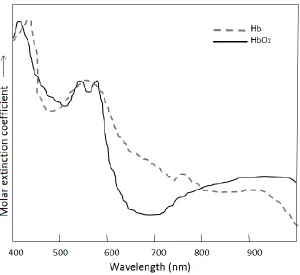
Figure 1.5. Example absorption spectrum of Hb and HbO2
A pulse oximeter consists of a red LED, an infrared LED, and a photodetector. In order to get the SpO2, the red and the infrared LEDs must be at a wavelength where the extinction
coefficients of Hb and HbO2 are different. Figure 1.5 shows the absorption spectrum of
oxygenated and deoxygenated hemoglobin in the visible – near infrared region. The isobestic points are the wavelengths at which the extinction coefficients of the two substances are equal. Typically, pulse oximeters used a red LED at around 660 nm and an infrared LED at 880 nm – 940 nm. The range of wavelengths that can be used in 600 nm -1300nm. At wavelengths shorter than 600 nm, the skin pigment, melanin, absorbs strongly and at wavelengths longer than 1300 nm, the water present in the tissues absorbs strongly [3].
19
1.3.4. Transmittance and reflectance pulse oximetry
[image:20.612.129.515.329.493.2]In reflectance mode pulse oximetry, the LEDs and the photodetector are on the same side of the probe. These sensors can be placed at the fingertip or at the ear lobe. The photodiode measures the light back-scattered by the bone, tissues and blood vessels. In transmission mode pulse oximetry, the detector is placed on the opposite side of the sensor from the LEDs. These sensors can be placed at the fingertip, wrist, chest, forehead, etc. While a device using transmission mode can provide good measurements, the number of sites where it can be placed is limited. It must be placed at a point through which light can easily be transmitted. The reflectance based device, however, does not have this problem and can be placed in areas where light cannot easily transmit through as well.
Figure 1.6. Transmittance pulse oximetry and reflectance pulse oximetry
1.3.5. Calibrating a pulse oximeter
20
(1.4)
𝑅 = ( (𝐴𝐶𝐷𝐶)
𝑅𝐸𝐷
(𝐷𝐶)𝐴𝐶
𝐼𝑅
)
Traditionally, pulse oximeters were calibrated by the in vivo method. This method used a CO-oximeter for comparison. There are four common types of hemoglobin: oxygenated hemoglobin (HbO2), reduced hemoglobin (Hb), carboxyhemoglobin (COHb), and
methemoglobin (MetHb). The CO-oximeter analyzes the concentration of the different types of hemoglobin using as few as four wavelengths of light [11].
The procedure involved drawing blood samples from the radial artery and then analyzing these samples to ascertain the levels of COHb and MetHb. This is then used to calculate the oxygen/air mixture required to bring the oxygen saturation to 100%. Then they breathe an oxygen/air combination with progressively less oxygen and more nitrogen, making the patient progressively more hypoxic and at each stage, samples of arterial blood is collected from the patient and analyzed using the CO-oximeter, creating a calibration curve for oxygen saturation [3, 11].
The in vivo method was used to calibrate pulse oximeters until 1993 [11]. There are several problems associated with this method, the biggest being that the methods involves deliberately desaturating a healthy volunteer. The range over which the device is calibrated is limited. The volunteer cannot be desaturated below 85% without risking hypoxic brain damage, so the calibration curve must be extrapolated for SpO2 values below 85%.
21
Chapter 2
Hardware Design and Circuitry
The pulse oximeter design is comprised of 5 parts: the LED driving circuit, the photodiode and a current to voltage converter, filtering and amplification, a low pass filter, and microcontroller with Bluetooth module. This chapter discusses the design and implementation of the electronic circuitry, while the next chapter discusses the microcontroller and the Bluetooth module.
2.1. Design Specification
22
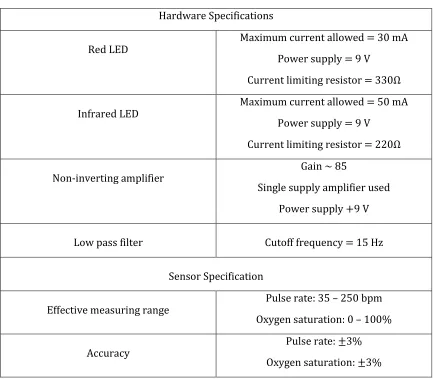
Table 2.1. Design Specifications Hardware Specifications
Red LED
Maximum current allowed = 30 mA Power supply = 9 V
Current limiting resistor = 330Ω
Infrared LED
Maximum current allowed = 50 mA Power supply = 9 V
Current limiting resistor = 220Ω
Non-inverting amplifier
Gain ~ 85
Single supply amplifier used Power supply +9 V
Low pass filter Cutoff frequency = 15 Hz
Sensor Specification
Effective measuring range
Pulse rate: 35 – 250 bpm Oxygen saturation: 0 – 100%
Accuracy
Pulse rate: ±3% Oxygen saturation: ±3%
2.2. LED deriving circuit
23
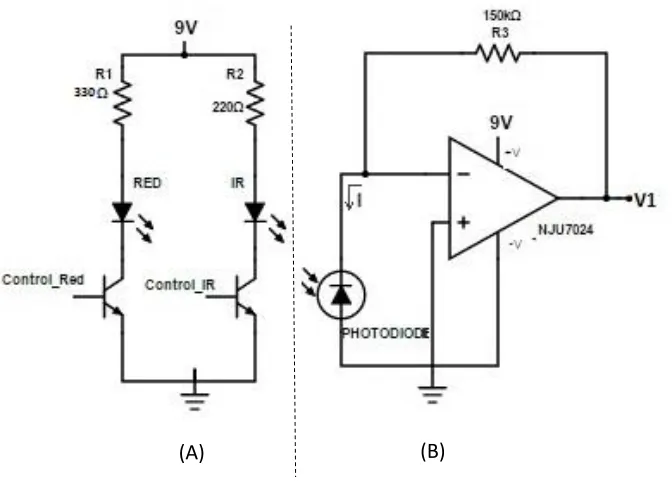
[image:24.612.159.495.149.395.2]and R2 are used to control the current through the LEDs and ensure that this is under the maximum allowed.
Figure 2.1. LED driving circuit and photodetector unit
2.3. Current – voltage converter
Part “B” comprises of the photodiode followed by a current-to-voltage converter. This circuit simply converts and amplifies the current output of the photodiode to a voltage. The resulting output voltage, V1 is as expressed in equation 2.1. Resistor R3 determines the gain of this stage. The DC voltage required for the oxygen saturation calculation is obtained from the end of this stage, so V1 is also an input to the Arduino.
𝑉1 = 𝐼 (𝑅3) (2.1)
24
2.4. Filtering and amplification
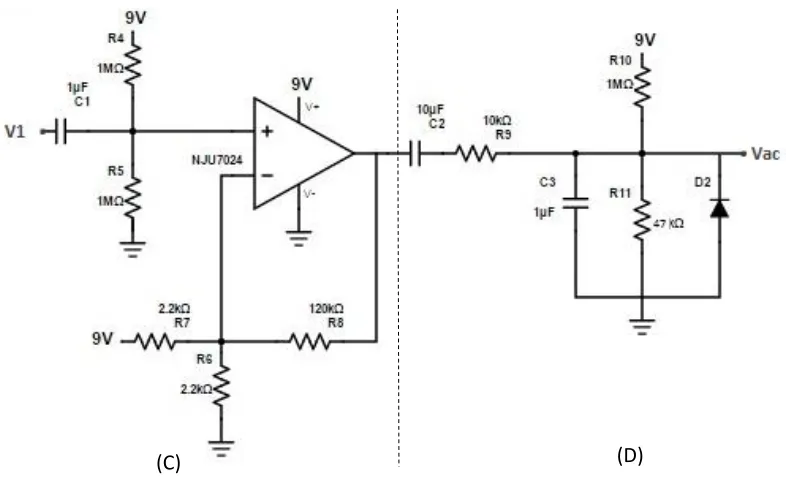
[image:25.612.120.513.346.590.2]Part “C” passes the output of the current-voltage converter through a 1μF capacitor to filter out the DC voltage. Resistors R4 and R5 are then used to offset the ac signal halfway between ground and 9V. The signal is amplified by a single supply amplifier (NJU7024) in the non-inverting configuration and then passed through capacitor C2, which is a coupling capacitor that is used to block DC. This is followed by a low pass filter with a cutoff frequency of 15Hz to filter out any noise from the sensor. The waveform out of the amplifier is centered at 4.5 V, and since the maximum allowed input voltage to the Arduino is 5 V, this DC is eliminated and resistors R10 and R11 are used to provide a lower DC offset to the AC waveform such that the waveform is always below 5 V. Finally, the diode D2 is used to limit the negative voltage input to the microcontroller to a maximum of -0.7 V.
Figure 2.2. Filtering and amplification
The microcontroller and Bluetooth module are used to calculate the pulse rate and the oxygen saturation level and transmit the data to the smartphone will be discussed in the following chapter.
25
2.5. Electrical Simulation
[image:26.612.132.514.281.483.2]LT Spice IV was used to simulate the circuitry in figure 2.2. A voltage source was used to simulate the output of the current to voltage converter. Below are the images showing the schematic and the simulated waveforms and the frequency response. Signal V1 from figures 2.1 and 2.2 was modeled as a 2mV sine wave at 2Hz with a DC offset of 3V. A single supply operational amplifier was used to simulate the performance of the NJU7024. As desired, the final waveform (Vout in figure 2.4) is centered at 0.4 V.
26
Figure 2.4. Simulated waveforms at V1, V2 and Vout
[image:27.612.117.538.454.616.2]27
Figure 2.6. Screen capture of the output PPG waveform from the sensor
28
Chapter 3
Arduino Programming
Arduino is an open source platform that consists of a programmable microcontroller on a board with I/O pins, and a software or an IDE (Integrated Development Environment) that can be used to write the program, upload it to the board and even view the results using a serial monitor. The Arduino Uno is the most used and most documented board in the Arduino family. It is also the most robust board made by Arduino [21]. An Arduino program is called a sketch. The Arduino IDE comes with several example sketches which can directly be compiled and uploaded to the board. In addition to the several websites and blogs that discuss projects on the Arduino, there are forums on the Arduino website itself that help answer questions and solve problems, making it a great tool for people of all skill levels.
For this project, the Arduino is used to receive data from the sensor, calculate the pulse rate and the oxygen saturation values and then send this data to the Android application using a Bluetooth module. An Arduino Uno board was used with a SparkFun BlueSMiRF Bluetooth module. This chapter discusses how to use the BlueSMiRF module and briefly explains the Arduino program.
3.1. Introduction to Bluetooth
29
The technology gets its name from the 10th century Danish king, Harold Bluetooth. The
standard for Bluetooth is maintained by the Bluetooth Special Interests Group (SIG). The Bluetooth technology is built into several devices, including smartphones, laptops, tablets, cars, medical devices and even toothbrushes. The development of this technology was instrumental in reducing the requirement for wired connections, and allows users to share data, music, pictures and other information wirelessly between paired devices [22].
3.2. Bluetooth Module
SparkFun makes several different Bluetooth modems including Bluetooth Mate and BlueSMiRF. For this project, the BlueSMiRF Gold modem was used. The SparkFun Bluetooth modems can be used to communicate with any other Bluetooth device that supports SPP, including a computer or a smartphone that supports Bluetooth. If the Bluetooth module is being used with a computer that does not already have Bluetooth, a Bluetooth USB module can be plugged into the USB slot of the computer.
Bluetooth modules can have a range of 1m – 100m depending on the type of device. A class 3 Bluetooth module typically has a range of 1 meter, while a class 2 has a range of 10 m and a class 1 has a range of 100 meters. The BlueSMiRF used is a class 1 device.
30
[image:31.612.183.459.177.334.2]serial interfaces and will be shorted together for this project. Figure 3.1 shows the different parts of the Bluetooth modem. The figure shows that there are two LEDs on the board. The stat LED is red and the connect LED is green.
Figure 3.1. Parts of the SparkFun BlueSMiRF
3.3. Serial Communication
31
In addition to the built-in serial pins, the Arduino also supports the SoftwareSerial library that can allow serial communication on any other digital pins on the Arduino board. For this project, pins 2 and 3 of the Arduino board are used for serial communication. Pin D2 of the Arduino is connected to the TX-O pin of the Bluetooth modem and the pin D3 of the Arduino board is connected to the RX-I pin of the Bluetooth modem. This means that pin D2 must be declared as the receive pin and pin D3 must be declared as the transmit pin in the Arduino code. Additionally, the VCC pin of the Bluetooth modem is connected to 5V pin and GND pin goes to the GND pin on the Arduino board.
3.4. Setting up the Bluetooth modem
The Bluetooth modem can be powered up by powering the Arduino it is connected to. Once the modem is powered, it can be used to wirelessly connect with any other Bluetooth device that supports SPP (most Bluetooth devices do). Once the two devices are paired, the Bluetooth modem can be configured to operate at the desired baud rate. The default baud rate of the BlueSMiRF Bluetooth modem is 115200 bps.
The Bluetooth modem can operate in two modes – command mode and data mode. The command mode is used to configure the Bluetooth module. The device must be in command mode if the name, pin code or the baud rate of the device is to be changed. In command mode, the module can also scan for and connect to available devices within its range. In the data mode, the module is simply used to transmit and receive data.
32
command mode. If it blinks at one blink per second, the configuration timer has run out and the command mode can only be entered when the device is powered up again.
33
Figure 3.2. Bluetooth COM ports
Once the connection between the two devices is set up and the COM port is identified, the Arduino can be programmed to assist the user to enter the command mode. The SparkFun website has a tutorial on how to use the BlueSMiRF, which includes an Arduino sketch to enter the command mode (available at learn.sparkfun.com/tutorials/using-the-bluesmirf). The code uses the SoftwareSerial library to assign serial transmit and receive functions to two digital pins and then calls the begin() function with the baud rate of 115200 since this is the default rate.
34
[image:35.612.111.539.228.509.2]by typing in ‘$$$’ into the serial monitor. If the module successfully enters the command mode, it responds with CMD and the stat LED starts blinking much faster. Once it is in the command mode, you can view or change the settings. Settings can be viewed or changed after setting the line ending dropdown to “Newline”. Typing in “D” and then “E” in the serial monitor returns some basic information on the device including its name, address and baud rate.
Figure 3.3. Device information extracted using command mode
35
3.5. Arduino Code
The Arduino code is quite simple. First, the SoftwareSerial library must be included so that the Bluetooth device can use any (assigned) digital pins to exchange data with the Arduino. The pins used to transmit and receive data must then be declared along with the serial object. In this case, the serial object has been named “bluetooth”.
36
The loop() function is used to alternatively switch between the red and the infrared LEDs, measure the AC and DC voltages, calculate the pulse rate and the oxygen saturation and transmit this along with the AC waveform from the infrared LED to the smartphone. Equation 3.1 is used to calculate the oxygen saturation value.
𝑆𝑝𝑂2= 𝐴 + 𝐵 ∗ (
(𝐴𝐶𝐷𝐶)
𝑅𝐸𝐷
(𝐴𝐶𝐷𝐶)
𝐼𝑅
)
Where A is 104.86 and B is -23.288. The device was calibrated to obtain this relationship. The calibration is discussed in the results section.
The pulse rate was calculated from the AC waveform of the infrared LED. Since this waveform is centered at 0.40V (set using R6 and R7 in figure 2.2), the Arduino was used to check for the when the waveform increased beyond 0.40 V. The function millis() returns the number of milliseconds since the Arduino board began running the current program. This was used to save a time stamp at each crossing and the time stamps were then used to calculate the period of the waveform.
37
38
Chapter 4
Building and Implementing an Android Application
The aim of the android application is to receive the sensor data via Bluetooth and display it. So, the application should be able to check if the device has a Bluetooth module that can be used, turn this module on, connect with the Arduino, receive the data, and finally display and plot the data. The following chapter briefly explains the Android programming fundamentals and explains the objectives that were implemented. Reference [25] was used to understand the theory explained in this chapter.
4.1. Android Programming Fundamentals
Android applications are written in Java programming language. The Android SDK or the Android Software Development Kit is a set of software development tools that compiles the Java code along with any data and resource files like libraries, pictures, audio clips, etc., to generate a single .apk file. The .apk (Android Package) is the file format that is used to distribute or install the application onto Android devices.
39
4.1.1. Application Components
a. Activity
An activity is a single screen with a user interface. In the app written for this project, for example, one activity displays the home screen, another displays the Bluetooth paired devices and yet another activity displays the results from the sensor. Even though the activities run in a sequence in the app, they can function independently of each other. A different app can also access these activities, if the app allows it. For example, the camera or the microphone app could open any messaging app to share pictures or recordings.
b. Services
A service does not provide any user interface. It runs in the background without blocking user interaction with another activity. For example, the media player app allows music to continue playing even after the user opens a different app.
c. Content Provider
The content provider allows the app to store data. If the content provider allows it, other apps can view or even modify this data. For example, the Android system has a content provider that manages the user’s contact list information. With the appropriate permissions, other apps can view, edit or add to the list.
d. Broadcast Receivers
40
4.1.2. Intent
An intent is an asynchronous message that is used to start three of the four android components, namely, activities, services and broadcast receivers. At runtime, an intent can bind various components to each other, even components that are not a part of your app. There are separate methods for starting each component. An activity can be started by passing an Intent (a messaging object) to startActivity() or startActivityForResult() (when you want the activity to return a result). To start a service, the Intent must be passed to startService() and a broadcast can be initiated by passing an Intent to sendBroadcast(), sendOrderedBroadcast(), or sendStickyBroadcast().
4.2. Android Studio
41
4.2.1. Creating a Project
[image:42.612.132.515.408.666.2]Every application has an application name, a domain name and a package name. The application name is the name that appears to the users. The company domain name is a qualifier that will be appended to the package name. It has to have at least two identifiers. Android Studio typically remembers this domain name for every project you create. The package name needs to be unique if the application is to be released to the market. For example, if the application name is “My Application” and the company domain name is “companyname.com”, then the package name defaults to “com.companyname.myapplication” but this can be edited independent of the domain and application name. Once the application, domain and package names are set, you need to select the form factors your applications can run on and the minimum SDK. Since we require this application to run only on phones, the Phone and Tablet option was selected and API level 8 was set as the minimum SDK. The minimum SDK is the earliest version of Android that can run the application. By targeting API level 8, the app will run on almost all the devices active on Google Play.
42
4.2.2. Layout XML File
[image:43.612.107.539.261.525.2]A layout file can be used to define the visual structure for the user interface of the activity. The layout file can be found in the “res” folder and it can be edited either using the graphical design assistant, where items can be dragged and placed as required, or by typing it out in XML (Extensible Markup Language). The application could also include code to modify the screen objects at runtime. The figure below shows the layout of an activity called “activity_example” and it includes a linear layout with a TextView and a Button.
Figure 4.2. Example of an Activity Layout
43
The layout file can be loaded on to the application code in the Activity.onCreate() implementation. Since we named our layout activity_example, this can be done be calling setContentView() and passing the reference R.layout.activity_example to it.
44
While the user interface can be set using in layout XML file, the application itself is primarily written in java. The java files are located in the “src” or “java” folder. The sections below provide more details on how the java file was written to reach the objectives of the application.
4.2.3. The Manifest File
Every app has a manifest file. All the components of the application have to be declared in this file. The manifest file includes a lot of information on the app including the minimum API level, the API libraries used, all the permissions the app needs and the hardware and software features required by the app like Bluetooth services or the camera.
45
The Manifest file uses <activity>, <service>, <receiver> and <provider> to declare the activity, service, broadcast receiver and content provider components respectively. When declaring an activity, android:name attribute specifies the fully qualified class name of the activity subclass and the android:label attributes specifies a string to use as the user-visible label for the activity. An intent filter can also be optionally included during the activity declaration that declare the capabilities of the app so it can also respond to intents from other apps. The intent filter is declared by including an <intent-filter> element as a child of the component declaration element as shown above. The <action> element declares the intent action accepted, in the name attribute. The <category> element declares the intent category accepted, in the name attribute. If the category is launcher, the activity is the initial activity. So in this case, when the app is first opened, the activity called “OpeningActivity” is launched first.
4.2.4. Gradle
46
The build.gradle file lists the version of the SDK the project is compiled against. This is typically the latest version available, unless changed by the user. It should be Android 4.1 or greater. The application ID is the full package name. The minimum SDK version is the earliest Android version that the app supports. The target SDK version is the highest Android version the app has been tested against.
47
discussed later in this chapter. To include this library, the .jar file was downloaded and included in the libs folder of the project (C:\Users\Username\AndroidStudioProjects\Appname\app\libs). Additionally, the .jar file should be included in the dependencies element. Whenever any changes are made to the build.gradle file, Android Studio requires a project sync to import the configuration changes.
4.3. Bluetooth
4.3.1. Setting up Bluetooth
In order to use any of the Bluetooth functions, the Bluetooth permissions must be set up as mentioned earlier and the android.bluetooth package must be included in the Java code. Once this is included, the first step would be to check if the device supports Bluetooth. If it does not support Bluetooth, then all features will be disabled and the app cannot be used. If the device does support Bluetooth, the next step would be to check if the Bluetooth is on/enabled. If Bluetooth is supported but disabled, the user can be prompted to enable it without leaving the application.
48
[image:49.612.236.413.249.352.2]application can interact with the Bluetooth adapter using this object. If the function returns a null, it means that the system does not support Bluetooth and the app can’t proceed any further. Once we have the Bluetooth adapter, we can check if it is enabled by calling the isEnabled() function. If it returns false, the Bluetooth adapter is disabled. To request that the Bluetooth be enabled, startActivityForResult() must be called with an ACTION_REQUEST_ENABLE action intent. This causes a dialog box to appear that requests the user to enable Bluetooth as shown in figure 4.3.
Figure 4.3. Enable Bluetooth dialogue
4.3.2. Finding and connecting with other devices
BluetoothAdapter can be used to find new devices or query the list of paired devices. The device discovery or inquiry is a procedure when the device scans the area for other Bluetooth devices within its range and requests information about each one of them. If the device is discoverable, that is, if the device settings enable it to be visible/discoverable, it responds to this request by sending its Bluetooth name, class and unique MAC address back to the device that is currently scanning. Using this information, the first device can initiate a connection with the second. When a connection is made for the first time, a pairing request is automatically sent. Once the devices are paired, the basic Bluetooth information is saved and a scan would not have to be performed to connect with this device at a later time.
49
address, and it allows you to connect to a device. If there are no paired devices, then the app displays a message that says “No devices paired. Pair with device and try again”.
Once the list of paired devices has been displayed, the user can select any of the devices listed and the app attempts to connect to the device. If the device is within range and discoverable, the app connects the two devices and moves on to the next screen where the received data is displayed. If the device chosen is not available, the app displays a message to let the user know that the connection was not successful.
To scan for new devices, startDiscovery() can be called. This process first returns with a Boolean indicating if the process has been started successfully, and then it retrieves the names of the Bluetooth devices found. The application must have a BroadcastReceiver for the ACTION_FOUND event to receive information about the devices discovered.
4.4. Plotting data in real time
50
To create a plot in the application using AndroidPlot, the widget must first be declared in the Manifest file and the Gradle. It must also be defined in the XML file, where the size of the plot and the tags are set as shown below.
51
4.5. Saving the Oximeter Data
The sensor data is stored on the external memory of the phone. The purpose of this file is to have a record of all the values measured by the sensor, to be viewed at a later point if necessary. The app saves it as a .txt file but it can easily be opened in Microsoft Excel, making it easier to go through. Any irregularity in the pulse rate or oxygen saturation levels can be identified using this document if the sensor was on when the event occurred. To save the file, the app first creates a folder called “PulseOximeter” if it does not already exist and then it creates a file called “OximeterData” followed by the date. The data is then saved on this file.
4.5.1. Getting date and time
52
The time gets saved in the hh:mm:ss format. The date is saved in two different formats because the file name cannot have special characters in it.
4.5.2. Creating and saving to file
Before creating a file, we need to make sure that the required permissions are listed in the Android Manifest file. WRITE_EXTERNAL_STORAGE and READ_EXTERNAL_STORAGE are the permissions required to write to and read files on the external storage respectively. Since we will only be writing to the file, we do not need to list the permission required to read from external storage. Next, we need to check if the external storage is available to read/write.
53
To save as a public file, two methods can be used. GetExternalStoragePublicDirectory() returns the top level public external storage directory for shoving files of a particular type based on the argument passed. The method takes an argument depending on the type of file you want to save. For example, if the app were to save a picture, the argument DIRECTORY_PICTURES would need to be included so that the file can be logically sorted in the appropriate directory. Since this app is not saving pictures, music or videos, it uses the method getexternalStorageDirectory(). This method is also used to save public files, but it returns the root external directory and not a sub-folder within the external storage.
The following few lines of code first checks if the external storage is available to write. It then checks if the folder “PulseOximeter” exists in the root external storage directory. If it does not exist, it creates a folder by that name. It then checks if a .txt file with the name “OximeterData” followed by the current date exists in this directory. If it doesn’t, it creates a new file with this name.
54
the saved function. The content of this string will be discussed later in this chapter. Finally, if there was any error in saving the data, i.e. if for some reason the path name is incorrect or the folder or file could not be created, the “Error! Cannot save file” message is displayed on the screen.
4.6. Receiving and sorting data
55
56
58
Chapter 5
Results and Conclusions
The pulse oximeter was used to measure data continuously in 2-3 minute time spans and the corresponding data measured by a Contec pulse oximeter (model number CMS50D) was recorded simultaneously. Pulse and oxygen saturation measurements were taken in multiple sittings over several days. The measurements were also preformed when the subject was hyperventilating and after vigorous exercise to try to induce a change in the pulse rate and to see how well the device responds to changing pulse rates. Additionally, the oxygen saturation levels were measured as the subject was holding their breath for 35-45 seconds after a forced expulsion. The changing oxygen saturation levels were used to calibrate and test the response of the device.
59
5.1. Results
Table 5.1 shows the average pulse rate and oxygen saturation measured using both devices, the reference pulse oximeter and the device designed for this project. The table also shows the percentage error for the oxygen saturation which was calculated using equation 5.1. The percentage error was calculated for each data point and the absolute values were then averages to get the values displayed in table 5.1.
[image:60.612.108.542.323.448.2]𝑃𝑒𝑟𝑐𝑒𝑛𝑡𝑎𝑔𝑒 𝐸𝑟𝑟𝑜𝑟 = 𝑅𝑒𝑓𝑒𝑟𝑒𝑛𝑐𝑒 𝑣𝑎𝑙𝑢𝑒 − 𝑀𝑒𝑎𝑠𝑢𝑟𝑒𝑑 𝑣𝑎𝑙𝑢𝑒 𝑅𝑒𝑓𝑒𝑟𝑒𝑛𝑐𝑒 𝑣𝑎𝑙𝑢𝑒 ∗ 100
Table 5.1. Accuracy of average pulse rate and oxygen saturation
Reference Pulse Oximeter Prototype Pulse Oximeter Percentage Error
SpO2 (%) Pulse Rate
(bpm)
SpO2 (%) Pulse Rate
(bpm)
SpO2 Pulse Rate
98.67 88.75 99.46 88.19 1.08 2.86
To calibrate the pulse oximeter, the subject held their breath for 35-45 seconds after a forceful expulsion. This was repeated several times and the R (equation 5.2) value for the device was plotted against the oxygen saturation reading from the reference oximeter. The linear fit of this plot was used to calculate the oxygen saturation reported in the following plots. Ideally, to calibrate and test the device, the oxygen saturation levels must be measured over a much wider range (as explained in section 1.3.5), say 70 – 100%, but since neither the breath-holding process not the hyperventilating lowered the oxygen saturation below 95%, the accuracy of the device cannot be tested properly.
𝑅 = ( (𝐷𝐶)𝐴𝐶
𝑅𝐸𝐷
(𝐴𝐶𝐷𝐶)
𝐼𝑅
)
(5.1)
60
Figure 5.1. Calibration curve
[image:61.612.142.506.420.644.2]Figure 5.2 shows the comparison of the pulse rates measured by the prototype device and the reference pulse oximeter. As mentioned in table 5.1, the total percentage error for the pulse oximeter measurements is 2.86%. The solid line in the plot is the linear regression line.
Figure 5.2. Comparison of the pulse rate measured by the reference device and the prototype device
y = -23.288x + 104.86 94.5 95 95.5 96 96.5 97 97.5 98 98.5 99 99.5 100
0.2 0.25 0.3 0.35 0.4 0.45
Oxy ge n Sa tu ra tio n (% ) R
Calibration Curve
y = 1.1678x - 15.452 R² = 0.6812
60 70 80 90 100 110 120
60 65 70 75 80 85 90 95 100 105
Pro to ty p e Dev ice
61
[image:62.612.140.507.89.309.2]*
Figure 5.3. Comparison of the oxygen saturation measured by the reference device and the prototype device
Figure 5.3 shows the comparison of the oxygen saturation data measured by the prototype device and the reference pulse oximeter. The solid line represents the linear regression line. The R2 value is 0.42, indicating that the data measured by the prototype device does not
correlate very well with the reference device. However, the resolution of the reference device is single digit, and this could have some impact on the percentage error calculation of the prototype device. A better resolution could possibly give better results.
Figure 5.4 shows the comparison of the pulse rates after exercise. These measurements were made after the subject performed squats and jumping jacks. The measurements were taken over a 3 minute period after the exercise. The R2 value of the plot is much higher than the
previous pulse rate plot. This is most likely because the measurements for figure 5.4 were all made over a short time period and the dataset is much smaller, while the dataset plotted in figure 5.2 is much larger and was measured over several days. The pulse rate ranges from 98 to 132 beats per second.
y = 2.5x - 147.2 R² = 0.4189
96 97 98 99 100 101 102 103 104 105
97 97.5 98 98.5 99 99.5 100
Pro to ty p e P u ls e O xim eter Dat a (% )
62
Figure 5.4. Comparison of the pulse rate measured by the reference device and the prototype device after exercise.
Figure 5.5 shows the comparison of the pulse rates during hyperventilation. As the measurements were started, the subject was to hyperventilate by breathing into a paper bag. The device is quite sensitive to motion and since the subject was attempting to hyperventilate during the measurement, the correlation between the measured value and the reference value is lower than expected even though this is a small dataset and was also measured over a short interval of time.
y = 1.1127x - 12.046 R² = 0.7669
80 90 100 110 120 130 140
80 90 100 110 120 130 140
P ro to ty p e P u lse Oxim et er
Reference Pulse Oximeter
63
Figure 5.5. Comparison of the pulse rate measured by the reference device and the prototype device for hyperventilation test
Figure 5.6 shows the first page of the Android application after the Bluetooth has been turned on and the required device has been selected. If the connection was not successful, it goes displays a “Connection failure” notification at the bottom of the screen. If the connection was successful, it starts to display the data it receives as shown in figure 5.7.
y = 1.2357x - 35.24 R² = 0.5911
60 70 80 90 100 110 120 130
60 70 80 90 100 110 120 130
P ro to ty p e P u lse Oxim et er
Reference Pulse Oximeter
64
Figure 5.6. List of paired devices on the Android application
[image:65.612.248.401.386.640.2]65
A pulse oximeter is very sensitive to motion and there are several factors that can influence the performance of the device. For a pulse oximeter that attaches at the finger, the size of the finger, the skin and the presence or absence or scar tissue are some of the factors at effect the signal received by the photodiode. Additionally, if the sensor is attached with too much or too little pressure, the strength of the signal received changes and if the strength of the signal changes constantly, both the pulse rate and the oxygen saturation calculations will be effected. If the sensor is clamped on too tight, this could even cut off the circulation at the finger, so both the sensor placement and the pressure are very important.
5.2. Conclusion and future work
To summarize, the aim of the project was to make a wireless platform and to develop a pulse oximeter to test the wireless platform. A pulse oximeter was designed and built to measure the pulse rate and oxygen saturation at the fingertip. The design consisted of a modified clothespin with a red and an infrared LED on one side and a photodiode on the other, to make a transmission-mode pulse oximeter. An electronic circuit was designed to convert the photocurrent to a voltage, and then filter and amplify this voltage to get the required pulsatile signal. This signal was then processed using an Arduino Uno microcontroller and then sent to a Bluetooth module to be transmitted to a smartphone. An Android application was written to turn on the Bluetooth on the smartphone and connect to a paired device. The app then receives the data transmitted by the Bluetooth module attached to the Arduino and displays, plots and saves the data in a text file.
66
The average percentage error for the pulse rate is ±2.86% and for the oxygen saturation, the average percentage error is ±1.08%. The required accuracy was ± 3 for both the pulse rate as well as the oxygen saturation but this, unfortunately, was not achieved. While the average error percentage is below 3%, not all the data points measured by the prototype device are within 3 bpm or 3% of the data points measured by the reference device. Hence, the device does not have an accuracy of 3 bpm or 3% for pulse rate and oxygen saturation respectively. The device still needs some improvement to improve the accuracy of both the pulse rate and the oxygen saturation. To correctly calibrate and test the device, both the pulse rate and the SpO2 would need to change over a much wider range, such a 40 - 120 bpm and 70 - 100%.
Since neither the breath-holding process not the hyperventilating lowered the oxygen saturation below 95%, with most of the data points at 98% or 99%, the accuracy of the device cannot be tested properly.
While the hardware and software components of this project have achieved the goals of measuring the pulse rate and oxygen saturation and wirelessly transmitting and displaying this data on a smartphone, there are several improvements that could be made to bring the device up to industry standards. The sensor is mounted on a modified clothespin, making the sensor uncomfortably tight for people with bigger fingers. It also starts to cut off the blood flow when clipped on for several minutes, making it impossible to measure data continuously over a large time interval. The sensor can be redesigned to be more comfortable for people of different sizes and so that it can be used to continuously monitor a subject for any duration of time. It can also be redesigned to be more aesthetically pleasing.
67
size of the entire design. The calibration process for the oxygen saturation curve must also be improved to get a wider range for oxygen saturation.
68
Appendix A
Data Sets
Table A.1. Pulse rate data
Pulse Rate Pulse Rate Reference Device Prototype Device Reference Device Prototype Device
98 95 90 91
79 75 88 88
74 75 88 87
75 75 88 86
77 79 90 90
91 94 90 91
93 94 91 94
94 94 102 101
96 94 95 96
95 97 95 95
89 88 92 95
90 88 92 91
91 88 90 90
84 85 85 86
91 95 80 77
82 56 80 73
85 71 86 86
85 85 80 80
89 88 80 79
69
90 90 95 95
95 98 95 93
95 95 95 98
90 109 85 86
100 98 90 90
[image:70.612.166.486.89.224.2]80 79 95 95
Table A.2. Oxygen Saturation Data Reference
Device
70
Table A.3. Pulse Rate Data after Exercise Pulse Rate Pulse Rate Reference Device Prototype Device Reference Device Prototype Device 132 131 109 108 125 131 108 115 119 119 105 105 116 116 104 105 115 128 107 105 110 116 102 100 105 100 100 100
104 96 99 97
106 100 98 97
107 108 99 108
108 108 99 97
109 97 98 99
Table A.4. Pulse Rate Data after Hyperventilation Pulse Rate
Reference Device
[image:71.612.244.405.509.684.2]71
72
References
[1]J. Allen, 'Photoplethysmography and its application in clinical physiological measurement',Physiol. Meas., vol. 28, no. 3, pp. R1-R39, 2007.
[2]A. Alian and K. Shelley, 'Photoplethysmography', Best Practice & Research Clinical Anaesthesiology, vol. 28, no. 4, pp. 395-406, 2014.
[3]J. Moyle, Pulse Oximetry, 2nd ed. London: BMJ Books, 2002, pp. 1-35.
[4]J. Severinghaus and P. Astrup, 'History of blood gas analysis. VI. Oximetry', Journal of Clinical Monitoring, vol. 2, no. 4, pp. 270-288, 1986.
[5]E. Eger, L. Saidman and R. Westhorpe, The wondrous story of anesthesia. .
[6]Y. Pole, 'Evolution of the pulse oximeter', International Congress Series, vol. 1242, pp. 137-144, 2002.
[7]N. Townsend, ‘Pulse Oximetry’, Medical Electronics, Michaelmas term, pp. 32-36, 2001 [8]J. Severinghaus and Y. Honda, 'History of blood gas analysis. VII. Pulse Oximetry', Journal
of Clinical Monitoring, vol. 3, pp. 135-138, 1987.
[9]J. Goldman, M. Petterson, R. Kopotic and S. Barker, 'Masimo Signal Extraction Technology Pulse Oximetry', Journal of Clinical Monitoring and Computing, vol. 16, no. 7, pp. 475-483, 2000.
[10]T. Aoyagi, 'Pulse oximetry: its invention, theory, and future', Journal of Anesthesia, vol. 17, no. 4, pp. 259-266, 2003.
[11]J. Webster, Design of pulse oximeters. Bristol: Institute of Physics Pub., 1997.
73
[13]'How does the blood circulatory system work?', Institute for Quality and Efficiency in Health Care (IQWiG), 2012.
[14] Wikipedia, 'Lung', 2015. [Online]. Available: https://en.wikipedia.org/wiki/Lung. [15]Breath2000.org, 'Breathing', 2015. [Online]. Available:
http://www.breath2000.org/physiology.html.
[16]Konica Minolta Sensing, Inc., 'How to read SpO2', 2006.
[17]Who.int, 'WHO | Pulse oximetry: training manual', 2015. [Online]. Available: http://www.who.int/patientsafety/safesurgery/pulse_oximetry/tr_material/en/. [18]T. Tamura, Y. Maeda, M. Sekine and M. Yoshida, 'Wearable Photoplethysmographic
Sensors—Past and Present',Electronics, vol. 3, no. 2, pp. 282-302, 2014.
[19]N. Stubán and N. Masatsugu, 'Non-invasive calibration method for pulse oximeters',Periodica Polytechnica Electrical Engineering, vol. 52, no. 1-2, p. 91, 2008. [20]S. Duun, R. Haahr, K. Birkelund and E. Thomsen, 'A Ring-Shaped Photodiode Designed for
Use in a Reflectance Pulse Oximetry Sensor in Wireless Health Monitoring Applications',IEEE Sensors J., vol. 10, no. 2, pp. 261-268, 2010.
[21]Arduino.cc, 'Arduino - ArduinoBoardUno', 2015. [Online]. Available: https://www.arduino.cc/en/Main/ArduinoBoardUno.
[22]Bluetooth.com, 'How it Works | Bluetooth Technology Website', 2015. [Online]. Available: http://www.bluetooth.com/Pages/How-It-Works.aspx.
[23]Learn.sparkfun.com, 'Using the BlueSMiRF - learn.sparkfun.com', 2015. [Online]. Available: https://learn.sparkfun.com/tutorials/using-the-bluesmirf.
74
[25]Developer.android.com, 'Android Developers', 2015. [Online]. Available: http://developer.android.com/.