Microsoft Press
A Division of Microsoft Corporation One Microsoft Way
Redmond, Washington 98052-6399
Copyright © 2004 by Microsoft Corporation
All rights reserved. No part of the contents of this book may be reproduced or transmitted in any form or by any means without the written permission of the publisher.
Library of Congress Cataloging-in-Publication Data Holme, Dan.
MCSA/MCSE Self-Paced Training Kit (Exam 70-290): Managing and Maintaining a Microsoft Windows Server 2003 Environment / Dan Holme, Orin Thomas.
p. cm. Includes index. ISBN 0-7356-1437-7
1. Electronic data processing personnel--Certification. 2. Microsoft
software--Examinations--Study guides. 3. Microsoft Windows Server I. Thomas, Orin. II. Title
QA76.3.H668 2003
005.7'13769--dc21 2003053990
Printed and bound in the United States of America. 1 2 3 4 5 6 7 8 9 QWT 8 7 6 5 4 3 Distributed in Canada by H.B. Fenn and Company Ltd.
A CIP catalogue record for this book is available from the British Library.
Microsoft Press books are available through booksellers and distributors worldwide. For further information about international editions, contact your local Microsoft Corporation office or contact Microsoft Press International directly at fax (425) 936-7329. Visit our Web site at www.microsoft.com/mspress. Send comments to [email protected].
Active Directory, Microsoft, Microsoft Press, MS-DOS, Windows, the Windows logo, Windows NT, and Windows Server are either registered trademarks or trademarks of Microsoft Corporation in the United States and/or other countries. Other product and company names mentioned herein may be the trademarks of their respective owners.
The example companies, organizations, products, domain names, e-mail addresses, logos, people, places, and events depicted herein are fictitious. No association with any real company, organization, product, domain name, e-mail address, logo, person, place, or event is intended or should be inferred.
“Three Views of Share Permissions” reprinted by permission from Intelliem, Inc. For Microsoft Press: For nSight Publishing Services: Acquisitions Editor: Kathy Harding Project Manager: Susan H. McClung Project Editor: Karen Szall Copyeditor: Peter Tietjen
Technical Editor: Bob Hogan
Desktop Publishing Specialist: Patty Fagan Proofreaders: Jan Cocker, Jolene Lehr, Katie
About This Book
Welcome to MCSA/MCSE Self-Paced Training Kit (Exam 70-290): Managing and Main taining a Microsoft Windows Server 2003 Environment. We have designed this book to prepare you effectively for the MCSE examination, and, along the way, to share with you knowledge about what it takes to implement Windows Server 2003 in your enter prise network. We hope that by helping you understand the underlying technologies, the variety of options for configuring feature sets, and the complex interaction among components, you are better equipped to tackle the challenges that you face in the information technology (IT) trenches. We also hope to serve the community at large— to elevate the worth of the MCSE moniker—so that behind each certification is a knowledgeable, experienced, capable professional.
Note For more information about becoming a Microsoft Certified Professional, see the sec tion titled “The Microsoft Certified Professional Program,” later in this introduction.
Intended Audience
This book was developed for IT professionals who plan to take the related Microsoft Certified Professional exam 70-290, Managing and Maintaining a Microsoft Windows Server 2003 Environment, as well as IT professionals who administer computers run ning Microsoft Windows Server 2003.
Note Exam skills are subject to change without prior notice and at the sole discretion of Microsoft.
Prerequisites
This training kit requires that students meet the following prerequisites:
■ A minimum of 12 to 18 months of experience administering Windows technolo
gies in a network environment.
■ An understanding of Microsoft Active Directory directory service and related tech nologies, including Group Policy.
About the CD-ROM
For your use, this book includes a Supplemental Course Materials CD-ROM, which contains a variety of informational aids to complement the book content:
■ The Microsoft Press Readiness Review Suite Powered by MeasureUp. This suite of practice tests and objective reviews contains questions of varying degrees of com plexity and offers multiple testing modes. You can assess your understanding of the concepts presented in this book and use the results to develop a learning plan that meets your needs.
■ An electronic version of this book (eBook). For information about using the
eBook, see the section “The eBook,” later in this introduction.
■ An eBook of the Microsoft Encyclopedia of Networking, Second Editon, and of the Microsoft Encyclopedia of Security provide complete and up-to-date reference materials for networking and security.
■ Sample chapters from several Microsoft Press books give you additional informa tion about Windows Server 2003 and introduce you to other resources that are available from Microsoft Press.
A second CD-ROM contains a 180-day evaluation edition of Microsoft Windows Server 2003, Enterprise Edition.
Note The 180-day Evaluation Edition provided with this training kit is not the full retail prod uct and is provided only for the purposes of training and evaluation. Microsoft Technical Sup-port does not supSup-port this evaluation edition.
For additional support information regarding this book and the CD-ROM (including answers to commonly asked questions about installation and use), visit the Microsoft Press Technical Support Web site at http://www.microsoft.com/mspress/support/. You can also e-mail [email protected] or send a letter to Microsoft Press, Attention: Microsoft Press Technical Support, One Microsoft Way, Redmond, WA 98052-6399.
Features of This Book
About This Book xxvii
Part 1: Learn at Your Own Pace
Each chapter identifies the exam objectives that are covered within the chapter, pro vides an overview of why the topics matter by identifying how the information applies in the real world, and lists any prerequisites that must be met to complete the lessons presented in the chapter.
The chapters contain a set of lessons. Lessons contain practices that include one or more hands-on exercises. These exercises give you an opportunity to use the skills being presented or explore the part of the application being described. Each lesson also has a set of review questions to test your knowledge of the material covered in that lesson.
After the lessons, you are given an opportunity to apply what you’ve learned in a case-scenario exercise. In this exercise, you work through a multistep solution for a realistic case scenario. You are also given an opportunity to work through a troubleshooting lab that explores difficulties you might encounter when applying what you’ve learned on the job.
Each chapter ends with a summary of key concepts and a short section listing key top ics and terms that you need to know before taking the exam, summarizing the key learnings with a focus on the exam.
Real World
Helpful Information
You will find sidebars like this one that contain related information you might find helpful. “Real World” sidebars contain specific information gained through the experience of IT professionals just like you.
Part 2: Prepare for the Exam
Part 2 helps to familiarize you with the types of questions that you will encounter on the MCP exam. By reviewing the objectives and the sample questions, you can focus on the specific skills that you need to improve before taking the exam.
See Also For a complete list of MCP exams and their related objectives, go to http: //www.microsoft.com/traincert/mcp.
Within each Objective Domain, you will find the related objectives that are covered on the exam. Each objective provides you with the several practice exam questions. The answers are accompanied by explanations of each correct and incorrect answer.
Note These questions are also available on the companion CD as a practice test.
Informational Notes
Several types of reader aids appear throughout the training kit:
■ Tip contains methods of performing a task more quickly or in a not-so-obvious way.
■ Important contains information that is essential to completing a task.
■ Note contains supplemental information.
■ Caution contains valuable information about possible loss of data; be sure to read this information carefully.
■ Warning contains critical information about possible physical injury; be sure to read this information carefully.
■ See Also contains references to other sources of information.
■ Planning contains hints and useful information that should help you to plan the implementation.
■ Security Alert highlights information you need to know to maximize security in your work environment.
■ Exam Tip flags information you should know before taking the certification exam.
■ Off the Record contains practical advice about the real-world implications of information presented in the lesson.
Notational Conventions
The following conventions are used throughout this book. ■ Characters or commands that you type appear in bold type.
■ Italic in syntax statements indicates placeholders for variable information. Italic is also used for book titles.
■ Names of files and folders appear in Title caps, except when you are to type them directly. Unless otherwise indicated, you can use all lowercase letters when you type a file name in a dialog box or at a command prompt.
About This Book xxix ■ Acronyms appear in all uppercase.
■ Monospace type represents code samples, examples of screen text, or entries that you might type at a command prompt or in initialization files.
■ Square brackets [ ] are used in syntax statements to enclose optional items. For example, [filename] in command syntax indicates that you can choose to type a file name with the command. Type only the information within the brackets, not the brackets themselves.
■ Braces { } are used in syntax statements to enclose required items. Type only the information within the braces, not the braces themselves.
Keyboard Conventions
■ A plus sign (+) between two key names means that you must press those keys at the same time. For example, “Press Alt+Tab” means that you hold down Alt while you press Tab.
■ A comma ( , ) between two or more key names means that you must press each
of the keys consecutively, not together. For example, “Press Alt, F, X” means that you press and release each key in sequence. “Press Alt+W, L” means that you first press Alt and W at the same time, and then release them and press L.
Getting Started
This training kit contains hands-on exercises to help you learn about implementing, supporting, and troubleshooting Windows Server 2003 technologies. Use this section to prepare your self-paced training environment. Most of the exercises can be completed on a single test computer in a lab environment. Several optional exercises require a second computer running Microsoft Windows XP, which must be connected to each other on a network.
Caution Exercises, as well as the changes you make to your test computer, may have undesirable results if you are connected to a larger network. Check with your network admin istrator before attempting these exercises.
Hardware Requirements
■ Minimum CPU: 133 MHz for x86-based computers (733 MHz is recommended) and 733 MHz for Itanium-based computers
■ Minimum RAM: 128 MB (256 MB is recommended)
■ Disk space for setup: 1.5 GB for x86-based computers and 2.0 GB for Itanium based computers
■ Display monitor capable of 800 × 600 resolution or higher
■ CD-ROM drive
■ Microsoft Mouse or compatible pointing device
Software Requirements
The following software is required to complete the procedures in this training kit: ■ Windows Server 2003, Enterprise Edition (A 180-day evaluation edition of Windows
Server 2003, Enterprise Edition, is included on the CD-ROM.)
■ Windows XP Professional (Not included on the CD-ROM. Required in optional
hands-on exercises only.)
Caution The 180-day Evaluation Edition provided with this training is not the full retail prod uct and is provided only for the purposes of training and evaluation. Microsoft Technical Support does not support evaluation editions. For additional support information regarding this book and the CD-ROMs (including answers to commonly asked questions about installation and use), visit the Microsoft Press Technical Support Web site at http://mspress.microsoft.com /mspress/support/. You can also e-mail [email protected] or send a letter to Microsoft Press, Attn: Microsoft Press Technical Support, One Microsoft Way, Redmond, Wash. 98052-6399.
Setup Instructions
Set up your computer according to the manufacturer’s instructions. The server should be configured as follows:
■ Windows Server 2003, Enterprise Edition
■ Computer name: Server01
■ Domain controller in the domain contoso.com
■ 1 GB of unpartitioned disk drive space
About This Book xxxi
The second computer will act as a Windows XP client for the optional hands-on exer cises in the course.
Caution If your computers are connected to a larger network, you must verify with your net-work administrator that the computer names, domain name, and other information used in setting up Windows Server 2003 as described above and in Chapter 1 do not conflict with network operations. If they conflict, ask your network administrator to provide alternative val ues and use those values throughout all the exercises in this book.
The Readiness Review Suite
The CD-ROM includes a practice test of 300 sample exam questions and an objective review with an additional 125 questions. Use these tools to reinforce your learning and to identify any areas in which you need to gain more experience before taking the exam.
To install the practice test and objective review
1. Insert the Supplemental Materials CD-ROM into your CD-ROM drive.
Note If AutoRun is disabled on your machine, refer to the Readme.txt file on the CD-ROM.
2. Click Readiness Review Suite on the user interface menu and follow the prompts.
The eBooks
The CD-ROM includes an electronic version of this training kit, as well as eBooks for both the Microsoft Encyclopedia of Security and the Microsoft Encyclopedia of Network ing, Second Edition. The eBooks are in portable document format (PDF) and can be viewed using Adobe Acrobat Reader.
To use the eBooks
1. Insert the Supplemental Materials CD-ROM into your CD-ROM drive.
Note If AutoRun is disabled on your machine, refer to the Readme.txt file on the CD-ROM.
The Microsoft Certified Professional Program
The Microsoft Certified Professional (MCP) program provides the best method to prove your command of current Microsoft products and technologies. The exams and corre sponding certifications are developed to validate your mastery of critical competencies as you design and develop, or implement and support, solutions with Microsoft prod ucts and technologies. Computer professionals who become Microsoft certified are rec ognized as experts and are sought after industrywide. Certification brings a variety of benefits to the individual and to employers and organizations.
See Also For a full list of MCP benefits, go to http://www.Microsoft.com/traincert/start /itpro.asp.
Certifications
The Microsoft Certified Professional program offers multiple certifications, based on specific areas of technical expertise:
■ Microsoft Certified Professional (MCP). Demonstrated in-depth knowledge of at least one Microsoft Windows operating system or architecturally significant plat-form. An MCP is qualified to implement a Microsoft product or technology as part of a business solution for an organization.
■ Microsoft Certified Solution Developer (MCSD). Professional developers qualified to analyze, design, and develop enterprise business solutions with Microsoft development tools and technologies including the Microsoft .NET Framework. ■ Microsoft Certified Application Developer (MCAD). Professional developers quali
fied to develop, test, deploy, and maintain powerful applications using Microsoft tools and technologies including Microsoft Visual Studio .NET and XML Web services. ■ Microsoft Certified Systems Engineer (MCSE). Qualified to effectively analyze the business requirements, and design and implement the infrastructure for business solutions based on the Microsoft Windows and Microsoft Server 2003 operating system.
■ Microsoft Certified Systems Administrator (MCSA). Individuals with the skills to manage and troubleshoot existing network and system environments based on the Microsoft Windows and Microsoft Server 2003 operating systems.
■ Microsoft Certified Database Administrator (MCDBA). Individuals who design, implement, and administer Microsoft SQL Server databases.
About This Book xxxiii
Requirements for Becoming a Microsoft Certified Professional
The certification requirements differ for each certification and are specific to the prod ucts and job functions addressed by the certification.
To become a Microsoft Certified Professional, you must pass rigorous certification exams that provide a valid and reliable measure of technical proficiency and expertise. These exams are designed to test your expertise and ability to perform a role or task with a product, and are developed with the input of professionals in the industry. Questions in the exams reflect how Microsoft products are used in actual organizations, giving them “real-world” relevance.
■ Microsoft Certified Product (MCP) candidates are required to pass one current Microsoft certification exam. Candidates can pass additional Microsoft certification exams to further qualify their skills with other Microsoft products, development tools, or desktop applications.
■ Microsoft Certified Solution Developers (MCSDs) are required to pass three core exams and one elective exam. (MCSD for Microsoft .NET candidates are required to pass four core exams and one elective.)
■ Microsoft Certified Application Developers (MCADs) are required to pass two core exams and one elective exam in an area of specialization.
■ Microsoft Certified Systems Engineers (MCSEs) are required to pass five core exams and two elective exams.
■ Microsoft Certified Systems Administrators (MCSAs) are required to pass three core exams and one elective exam that provide a valid and reliable measure of techni cal proficiency and expertise.
■ Microsoft Certified Database Administrators (MCDBAs) are required to pass three core exams and one elective exam that provide a valid and reliable measure of technical proficiency and expertise.
Technical Support
Every effort has been made to ensure the accuracy of this book and the contents of the companion disc. If you have comments, questions, or ideas regarding this book or the companion disc, please send them to Microsoft Press using either of the following methods:
E-mail: [email protected]
Postal Mail: Microsoft Press
Attn: MCSA/MCSE Self-Paced Training Kit (Exam 70-290): Managing and Maintaining a Microsoft Windows Server 2003 Environment, Editor
One Microsoft Way Redmond, WA 98052-6399
For additional support information regarding this book and the CD-ROM (including answers to commonly asked questions about installation and use), visit the Microsoft Press Technical Support Web site at http://www.microsoft.com/mspress/support/. To connect directly to the Microsoft Press Knowledge Base and enter a query, visit http: //www.microsoft.com/mspress/support/search.asp. For support information regard ing Microsoft software, please connect to http://support.microsoft.com/.
Evaluation Edition Software Support
The 180-day Evaluation Edition provided with this training is not the full retail product and is provided only for the purposes of training and evaluation. Microsoft and Microsoft Technical Support do not support this evaluation edition.
Caution The Evaluation Edition of Windows Server 2003, Enterprise Edition, included with this book should not be used on a primary work computer. The evaluation edition is unsup ported. For online support information relating to the full version of Windows Server 2003, Enterprise Edition, that might also apply to the Evaluation Edition, you can connect to http://support.microsoft.com/.
1
1
2
2
3
3
4
4
5
5
6
6
7
7
8
8
9
9
10
11
12
13
Contents at a Glance
Part I
Learn at Your Own Pace
Introducing Microsoft Windows Server 2003 . . . -3
Administering Microsoft Windows Server 2003 . . . -1
User Accounts . . . -1
Group Accounts. . . -1
Computer Accounts . . . -1
Files and Folders. . . -1
Backing Up Data . . . -1
Printers . . . -1
Maintaining the Operating System . . . -1
Managing Hardware Devices and Drivers . . . 10-1
Managing Microsoft Windows Server 2003 Disk Storage . . . 11-1
Monitoring Microsoft Windows Server 2003 . . . 12-1
Recovering from System Failure. . . 13-1
Part II
Prepare for the Exam
14
Managing and Maintaining Physical and Logical Devices (1.0) . . . 14-3
15
Managing Users, Computers, and Groups (2.0) . . . 15-1
16
Managing and Maintaining Access to Resources (3.0) . . . 16-1
17
Managing and Maintaining a Server Environment (4.0). . . 17-1
18
Managing and Implementing Disaster Recovery (5.0) . . . 18-1
Part III
Appendix
Terminal Server. . . A-1
Practices
Installing Windows Server 2003 . . . .1-14 Building and Saving Consoles . . . .2-7 Adding a Remote Computer for Management (Optional) . . . .2-10 Installing Terminal Services and Using Remote Assistance through
Windows Messenger . . . .2-24 Creating and Managing User Objects . . . .3-10 Creating Multiple User Objects . . . .3-24 Managing User Profiles . . . .3-33 Securing and Troubleshooting Authentication . . . .3-45 Changing the Group Type and Scope . . . .4-7 Modifying Group Membership . . . .4-11 Using LDIFDE to Manage Group Accounts . . . .4-17 Joining a Computer to an Active Directory Domain . . . .5-9 Managing Computer Accounts . . . .5-15 Troubleshooting Computer Accounts . . . .5-22 Setting Up Shared Folders. . . .6-9 Configuring File System Permissions . . . .6-25 Auditing File System Access . . . .6-35 Administering IIS . . . .6-45 Performing Different Backup Types . . . .7-8 Restoring Data . . . .7-16 Advanced Backup and Restore . . . .7-33 Installing and Configuring a Printer . . . .8-9 Advanced Printer Configuration and Management. . . .8-25 Troubleshooting a Printer . . . .8-35 Installing Device Drivers . . . .10-7 Configuring Devices. . . 10-14 Configuring Disks and Volumes . . . 11-19 Implementing Disk Quotas . . . 11-29 Planning RAID Configuration . . . 11-40 Event Monitor . . . .12-6 Using the Performance Console . . . 12-16 Task Manager . . . 12-23 WMI Data from Event Viewer . . . 12-29 Recovering from System Failure . . . 13-11
Tables
Contents at a Glance vii
Table 2-4: Remote Desktop Settings . . . 2-14 Table 3-1: User Properties in the First Page of
the New Object–User Dialog Box . . . 3-4 Table 3-2: User Properties in the Second Page of
the New Object–User Dialog Box . . . 3-6 Table 3-3: User Account Properties . . . 3-9 Table 3-4: Parameters for the DSQUERY Command . . . 3-19 Table 3-5: Password Policies . . . 3-39 Table 3-6: Account Lockout Policies. . . 3-40 Table 4-1: Group Scope and Allowed Objects. . . 4-6 Table 4-2: Special Identities and Their Representation . . . 4-6 Table 4-3: Membership Configuration . . . 4-10 Table 4-4: LDIFDE Commands (Primary) . . . 4-14 Table 6-1: Share Permissions . . . 6-6 Table 6-2: IIS Directory Permissions . . . 6-44 Table 6-3: Application Execute Permissions. . . 6-44 Table 8-1: Sales Printer . . . 8-38 Table 8-2: Marketing Printer. . . 8-39 Table 9-1: CAL Licensing Modes. . . 9-27 Table 9-2: Licensing Status Symbols . . . 9-31 Table 10-1: Device Manager Tasks. . . 10-4 Table 10-2: Driverquery Command Parameters. . . 10-5 Table 10-3: Driver Recovery Tools . . . 10-16 Table 10-4: Device Failure Troubleshooting . . . 10-17 Table 11-1: How to Complete Common Disk Management Tasks from
the Command Prompt . . . 11-18 Table 11-2: RAID Performance and Costs . . . 11-38 Table 12-1: Server Roles and Objects To Be Monitored . . . 12-13 Table 12-2: WMIC Aliases. . . 12-27 Table 12-3: WMIC Verbs . . . 12-28
Troubleshooting Labs
Case Scenario Exercises
Contents
About This Book . . . xxv
Intended Audience . . . xxv
Prerequisites . . . xxv
About the CD-ROM . . . xxvi
Features of This Book . . . xxvi
Part 1: Learn at Your Own Pace . . . xxvii
Part 2: Prepare for the Exam . . . xxvii
Informational Notes. . . xxviii
Notational Conventions . . . xxviii
Getting Started . . . xxix
Hardware Requirements . . . xxix
Software Requirements . . . xxx
Setup Instructions . . . xxx
The Microsoft Certified Professional Program . . . xxxii
Certifications . . . xxxii
Requirements for Becoming a Microsoft Certified Professional . . . xxxiii
Technical Support . . . xxxiv
Evaluation Edition Software Support . . . xxxiv
Part I
Learn at Your Own Pace
1
Introducing Microsoft Windows Server 2003
1-3
Why This Chapter Matters . . . 1-3 Before You Begin . . . 1-3 Lesson 1: The Windows Server 2003 Family . . . 1-4 Windows Server 2003 Editions . . . 1-4 Lesson Review . . . 1-6 Lesson Summary . . . 1-7 Lesson 2: Installation and Configuration of Windows Server 2003
and Active Directory . . . 1-8 Installing and Configuring Windows Server 2003 . . . 1-8 Active Directory . . . 1-11 Practice: Installing Windows Server 2003 . . . 1-14 Lesson Review . . . 1-20 Lesson Summary . . . 1-20 Questions and Answers . . . 1-21
2
Administering Microsoft Windows Server 2003
2-1
Why This Chapter Matters . . . 2-1 Before You Begin . . . 2-2 Lesson 1: The Microsoft Management Console . . . 2-3 The MMC . . . 2-3 Building a Customized MMC . . . 2-5 Console Options . . . 2-6 Practice: Building and Saving Consoles . . . 2-7 Lesson Review . . . 2-8 Lesson Summary . . . 2-8 Lesson 2: Managing Computers Remotely with the MMC . . . 2-9 Setting Up the Snap-In for Remote Use . . . 2-9 Practice: Adding a Remote Computer for Management (Optional) . . . 2-10 Lesson Review . . . 2-11 Lesson Summary . . . 2-11 Lesson 3: Managing Servers with Remote Desktop for Administration . . . 2-12 Enabling and Configuring Remote Desktop for Administration . . . 2-12 Remote Desktop Connection . . . 2-13 Configuring the Remote Desktop Client . . . 2-14 Terminal Services Troubleshooting . . . 2-15 Practice: Installing Terminal Services andRunning Remote Administration . . . 2-16 Lesson Review . . . 2-18 Lesson Summary . . . 2-18 Lesson 4: Using Remote Assistance . . . 2-19 Making the Request for Assistance . . . 2-19 Using Remote Assistance . . . 2-20 Practice: Using Remote Assistance through Windows Messenger . . . 2-24 Lesson Review . . . 2-24 Lesson Summary . . . 2-25 Case Scenario Exercise . . . 2-25 Troubleshooting Lab . . . 2-26 Chapter Summary . . . 2-27 Exam Highlights . . . 2-27 Key Points . . . 2-27 Key Terms . . . 2-28 Questions and Answers . . . 2-29
3
User Accounts
3-1
Table of Contents xi
4
Group Accounts
4-1
Why This Chapter Matters . . . 4-1 Before You Begin. . . 4-2 Lesson 1: Understanding Group Types and Scopes . . . 4-3 Group Scope. . . 4-4 Group Conversion . . . 4-5 Special Identities . . . 4-6 Practice: Changing the Group Type and Scope . . . 4-7 Lesson Review . . . 4-8 Lesson Summary . . . 4-8 Lesson 2: Managing Group Accounts . . . 4-9 Creating a Security Group . . . 4-9 Modifying Group Membership . . . 4-10 Finding the Domain Groups to Which a User Belongs . . . 4-11 Practice: Modifying Group Membership . . . 4-11 Lesson Review . . . 4-12 Lesson Summary . . . 4-12 Lesson 3: Using Automation to Manage Group Accounts . . . 4-13 Using LDIFDE . . . 4-13 Creating Groups with DSADD . . . 4-15 Modifying Groups with DSMOD . . . 4-16 Practice: Using LDIFDE to Manage Group Accounts . . . 4-17 Lesson Review . . . 4-18 Lesson Summary . . . 4-19 Case Scenario Exercise . . . 4-19 Troubleshooting Lab . . . 4-20 Chapter Summary . . . 4-20 Exam Highlights . . . 4-21 Key Points . . . 4-21 Key Terms. . . 4-21 Questions and Answers . . . 4-225
Computer Accounts
5-1
Table of Contents xiii
Lesson Review . . . 5-11 Lesson Summary . . . 5-12 Lesson 2: Managing Computer Accounts . . . 5-13 Managing Computer Object Permissions . . . 5-13 Configuring Computer Properties . . . 5-14 Finding and Connecting to Objects in Active Directory. . . 5-14 Practice: Managing Computer Accounts . . . 5-15 Lesson Review . . . 5-16 Lesson Summary . . . 5-17 Lesson 3: Troubleshooting Computer Accounts . . . 5-18 Deleting and Disabling and Resetting Computer Accounts . . . 5-18 Recognizing Computer Account Problems . . . 5-20 Practice: Troubleshooting Computer Accounts . . . 5-22 Lesson Review . . . 5-23 Lesson Summary . . . 5-24 Case Scenario Exercise . . . 5-24 Troubleshooting Lab . . . 5-25 Exercise 1 (Optional): Simulation of the Problem . . . 5-26 Exercise 2: Reset All East Branch Computer Accounts . . . 5-26 Exercise 3 (Optional): Rejoin the Domain . . . 5-27 Chapter Summary . . . 5-27 Exam Highlights . . . 5-27 Key Points . . . 5-28 Key Terms. . . 5-28 Questions and Answers . . . 5-29
6
Files and Folders
6-1
Resource Ownership . . . 6-23 Practice: Configuring File System Permissions . . . 6-25 Lesson Review . . . 6-29 Lesson Summary . . . 6-30 Lesson 3: Auditing File System Access . . . 6-31 Configuring Audit Settings . . . 6-31 Enabling Auditing. . . 6-33 Examining the Security Log . . . 6-33 Practice: Auditing File System Access . . . 6-35 Lesson Review . . . 6-36 Lesson Summary . . . 6-37 Lesson 4: Administering Internet Information Services . . . 6-38 Installing IIS 6.0 . . . 6-38 Administering the Web Environment . . . 6-38 Configuring and Managing Web and FTP Sites . . . 6-40 Securing Files on IIS . . . 6-43 Practice: Administering IIS . . . 6-45 Lesson Review . . . 6-46 Lesson Summary . . . 6-47 Case Scenario Exercise . . . 6-48 Exercise 1: Create Shared Folders and Sample Web Content . . . 6-48 Exercise 2: Optimize Intranet Access . . . 6-49 Exercise 3: Confirm That Managers Can Modify Intranet Contents. . . 6-49 Troubleshooting Lab . . . 6-50 Step 1: Confirm Group Membership . . . 6-50 Step 2: Examine Effective Permissions . . . 6-51 Step 3: Evaluate the Situation . . . 6-51 Step 4: Solve the Problem . . . 6-52 Chapter Summary . . . 6-52 Exam Highlights . . . 6-53 Key Points . . . 6-53 Key Terms. . . 6-54 Questions and Answers . . . 6-55
7
Backing Up Data
7-1
Table of Contents xv
Combining Backup Types . . . 7-7 Practice: Performing Different Backup Types . . . 7-8 Lesson Review . . . 7-11 Lesson Summary . . . 7-12 Lesson 2: Restoring Data . . . 7-14 Restoring with the Backup Utility . . . 7-14 Restore Options . . . 7-15 Practice: Restoring Data . . . 7-16 Lesson Review . . . 7-18 Lesson Summary . . . 7-19 Lesson 3: Advanced Backup and Restore . . . 7-20 Understanding VSS . . . 7-20 Backup Security . . . 7-20 Managing Media . . . 7-21 Backup Options. . . 7-23 The Ntbackup Command . . . 7-25 Scheduling Backup Jobs . . . 7-28 Shadow Copies of Shared Folders . . . 7-29 Practice: Advanced Backup and Restore . . . 7-33 Lesson Review . . . 7-35 Lesson Summary . . . 7-36 Case Scenario Exercise . . . 7-37 Troubleshooting Lab . . . 7-39 Chapter Summary . . . 7-40 Exam Highlights . . . 7-41 Key Points . . . 7-41 Key Terms. . . 7-41 Questions and Answers . . . 7-42
8
Printers
8-1
Lesson 2: Advanced Printer Configuration and Management . . . 8-16 Managing Printer Properties . . . 8-16 Setting Up a Printer Pool . . . 8-20 Configuring Multiple Logical Printers for a Single Printer . . . 8-21 Windows Server 2003 Printer Integration with Active Directory . . . 8-21 Internet Printing . . . 8-24 Practice: Advanced Printer Configuration and Management . . . 8-25 Lesson Review . . . 8-27 Lesson Summary . . . 8-28 Lesson 3: Maintaining, Monitoring, and Troubleshooting Printers . . . 8-29 Maintaining Printers . . . 8-29 Monitoring Printers . . . 8-30 Troubleshooting Printers . . . 8-33 Practice: Troubleshooting a Printer . . . 8-35 Lesson Review . . . 8-36 Lesson Summary . . . 8-37 Case Scenario Exercise . . . 8-38 Think Through Your Solution . . . 8-38 Set Up the Printers . . . 8-38 Create Printer Users Groups . . . 8-39 Assign Permissions to the Printers . . . 8-39 Configure a Performance Log . . . 8-40 Troubleshooting Lab . . . 8-41 Analyze the Solution . . . 8-41 Change the Printer Driver . . . 8-41 Chapter Summary . . . 8-42 Exam Highlights . . . 8-43 Key Points . . . 8-43 Key Terms. . . 8-43 Questions and Answers . . . 8-44
9
Maintaining the Operating System
9-1
Table of Contents xvii
SUS Troubleshooting . . . 9-16 SUS Backup and Recovery . . . 9-18 Lesson Review . . . 9-20 Lesson Summary . . . 9-21 Lesson 2: Service Packs . . . 9-22 Downloading and Extracting Service Packs . . . 9-22 Deploying Service Packs with Group Policy . . . 9-23 Lesson Review . . . 9-24 Lesson Summary . . . 9-24 Lesson 3: Administering Software Licenses. . . 9-25 Obtaining a Client Access License . . . 9-25 Per-Server Licensing . . . 9-26 Per-Device or Per-User Licensing . . . 9-26 Administering Site Licensing . . . 9-28 Lesson Review . . . 9-32 Lesson Summary . . . 9-33 Case Scenario Exercise . . . 9-34 Exercise 1: Download and Extract the Service Pack . . . 9-34 Exercise 2: Deploy the Service Pack with Group Policy . . . 9-35 Exercise 3: Install SUS . . . 9-35 Exercise 4: Synchronize SUS . . . 9-36 Exercise 5: Configure Automatic Updates . . . 9-37 Chapter Summary . . . 9-38 Exam Highlights . . . 9-39 Key Points . . . 9-39 Key Terms. . . 9-39 Questions and Answers . . . 9-40
10
Managing Hardware Devices and Drivers
10-1
Lesson 2: Configuring Hardware Devices and Drivers . . . 10-10 Updating Drivers . . . 10-10 Rolling Back Drivers . . . 10-11 Uninstalling Drivers . . . 10-12 Resource Configuration . . . 10-13 Control Panel and Device Configuration . . . 10-14 Practice: Configuring Devices . . . 10-14 Lesson Review . . . 10-14 Lesson Summary . . . 10-15 Lesson 3: Troubleshooting Hardware Devices and Drivers. . . 10-16 Recovering from Device Disaster . . . 10-16 Device Manager Status Codes . . . 10-17 Lesson Review . . . 10-18 Lesson Summary . . . 10-19 Case Scenario Exercise . . . 10-19 Troubleshooting Lab . . . 10-20 Chapter Summary . . . 10-21 Exam Highlights . . . 10-21 Key Points . . . 10-22 Key Terms. . . 10-22 Questions and Answers . . . 10-23
11
Managing Microsoft Windows Server 2003 Disk Storage
11-1
Why This Chapter Matters . . . 11-1 Before You Begin. . . 11-2
Table of Contents xix
Performing Disk Management Tasks from the Command Prompt . . . 11-17 Practice: Configuring Disks and Volumes. . . 11-19 Lesson Review . . . 11-22 Lesson Summary . . . 11-23 Lesson 3: Maintaining Disk Storage Volumes . . . 11-24 CHKDSK . . . 11-24 Disk Defragmenter . . . 11-25 Disk Quotas . . . 11-27 Practice: Implementing Disk Quotas . . . 11-29 Lesson Review . . . 11-31 Lesson Summary . . . 11-32 Lesson 4: Implementing RAID . . . 11-33 Implementing Disk Fault Tolerance . . . 11-33 Striped Volumes . . . 11-34 Mirrored Volumes . . . 11-35 RAID-5 Volumes . . . 11-37 Mirrored Volumes versus RAID-5 Volumes . . . 11-38 Creating Fault Tolerance for the System Volume. . . 11-39 Practice: Planning RAID Configuration . . . 11-40 Lesson Review . . . 11-41 Lesson Summary . . . 11-43 Case Scenario Exercise . . . 11-43 Exercise 1: Consider Windows Server 2003 Fault-Tolerant Volumes. . . 11-44 Exercise 2: Consider Hardware RAID . . . 11-44 Troubleshooting Lab . . . 11-45 Exercise . . . 11-46 Chapter Summary . . . 11-48 Exam Highlights . . . 11-48 Key Points . . . 11-48 Key Terms. . . 11-49 Questions and Answers . . . 11-50
12
Monitoring Microsoft Windows Server 2003
12-1
Lesson 2: Using the Performance Console . . . 12-9 Configuring System Monitor . . . 12-9 Decisions About Objects and Counters . . . 12-13 Practice: Using the Performance Console . . . 12-16 Lesson Review . . . 12-17 Lesson Summary . . . 12-18 Lesson 3: Using Task Manager. . . 12-19 Task Manager Overview . . . 12-19 Applications Tab . . . 12-19 Processes Tab . . . 12-20 Performance Tab . . . 12-21 Networking Tab . . . 12-21 Users Tab . . . 12-22 Practice: Task Manager . . . 12-23 Lesson Review . . . 12-23 Lesson Summary . . . 12-24 Lesson 4: Using the WMI Event Logging Provider . . . 12-25 How WMI Works . . . 12-25 Using WMIC in Monitoring . . . 12-28 Practice: WMI Data from Event Viewer. . . 12-29 Lesson Review . . . 12-29 Lesson Summary . . . 12-30 Case Scenario Exercise . . . 12-30 Troubleshooting Lab . . . 12-31 Chapter Summary . . . 12-32 Exam Highlights . . . 12-33 Key Points . . . 12-33 Key Terms. . . 12-33 Questions and Answers . . . 12-34
13
Recovering from System Failure
13-1
Table of Contents xxi
Lesson Review . . . 13-14 Lesson Summary . . . 13-15 Exam Highlights . . . 13-15 Key Points . . . 13-15 Key Terms. . . 13-16 Questions and Answers . . . 13-17
Part II
Prepare for the Exam
14
Managing and Maintaining Physical and Logical Devices (1.0)
14-3
Testing Skills and Suggested Practices . . . 14-4 Further Reading . . . 14-5 Manage Basic Disks and Dynamic Disks . . . 14-7 Objective 1.1 Questions . . . 14-8 Objective 1.1 Answers . . . 14-12 Monitor Server Hardware . . . 14-15 Objective 1.2 Questions . . . 14-16 Objective 1.2 Answers . . . 14-20 Optimize Server Disk Performance . . . 14-23 Objective 1.3 Questions . . . 14-24 Objective 1.3 Answers . . . 14-29 Install and Configure Server Hardware Devices . . . 14-33 Objective 1.4 Questions . . . 14-34 Objective 1.4 Answers . . . 14-39
15
Managing Users, Computers, and Groups (2.0)
15-1
Troubleshoot Computer Accounts . . . 15-26 Objective 2.5 Questions . . . 15-27 Objective 2.5 Answers . . . 15-29 Troubleshoot User Accounts . . . 15-31 Objective 2.6 Questions . . . 15-32 Objective 2.6 Answers . . . 15-34 Troubleshoot User Authentication . . . 15-35 Objective 2.7 Questions . . . 15-36 Objective 2.7 Answers . . . 15-38
16
Managing and Maintaining Access to Resources (3.0)
16-1
Testing Skills and Suggested Practices . . . 16-1 Further Reading . . . 16-3 Configure Access to Shared Folders . . . 16-4 Objective 3.1 Questions . . . 16-5 Objective 3.1 Answers . . . 16-8 Troubleshoot Terminal Services . . . 16-10 Objective 3.2 Questions . . . 16-11 Objective 3.2 Answers . . . 16-14 Configure File System Permissions . . . 16-16 Objective 3.3 Questions . . . 16-17 Objective 3.3 Answers . . . 16-20 Troubleshoot Access to Files and Shared Folders. . . 16-22 Objective 3.4 Questions . . . 16-23 Objective 3.4 Answers . . . 16-25
17
Managing and Maintaining a Server Environment (4.0)
17-1
Table of Contents xxiii
Troubleshooting Issues Related to Print Queues . . . 17-32 Objective 4.5 Questions . . . 17-33 Objective 4.5 Answers . . . 17-36 Monitor Events . . . 17-38 Objective 4.6 Questions . . . 17-39 Objective 4.6 Answers . . . 17-41 Monitor Current System Performance . . . 17-43 Objective 4.7 Questions . . . 17-44 Objective 4.7 Answers . . . 17-46 Monitor File and Print Servers . . . 17-47 Objective 4.8 Questions . . . 17-48 Objective 4.8 Answers . . . 17-52 Manage a Web Server . . . 17-54 Objective 4.9 Questions . . . 17-55 Objective 4.9 Answers . . . 17-58
18
Managing and Implementing Disaster Recovery (5.0)
18-1
Testing Skills and Suggested Practices . . . 18-2 Further Reading . . . 18-3 Perform Server System Recovery . . . 18-4 Objective 5.1 Questions . . . 18-5 Objective 5.1 Answers . . . 18-10 Manage Backup Procedures . . . 18-14 Objective 5.2 Questions . . . 18-15 Objective 5.2 Answers . . . 18-17
Part III
Appendix—Terminal Server
Installing and Configuring a Terminal Server Environment . . . A-3 The Terminal Server Component . . . A-3 Applications . . . A-3 Licensing . . . A-5 Managing and Troubleshooting Terminal Server . . . A-6 Points of Administration. . . A-6 Connection Configuration . . . A-9 Device Redirection . . . A-12 Managing Sessions and Processes . . . A-15 Managing User Sessions . . . A-15 Load-Balancing Terminal Servers . . . A-15 Remote Control . . . A-17 Review . . . A-18
Glossary. . . G-1
Part I
1
Introducing Microsoft
Windows Server 2003
This chapter does not cover specific exam objectives. After introducing the Microsoft Windows Server 2003 family of products, this chapter covers some installation and con-figuration considerations with a focus on what you need to know for the 70-290 certi fication exam.
Why This Chapter Matters
The purpose of this book is to empower you to manage and maintain a Microsoft Windows Server 2003 environment, and to prepare you effectively for the 70-290 certification examination. Although it is assumed that you have experience with Microsoft Windows technologies, the Windows Server 2003 family and Microsoft Active Directory directory service itself may be new to you. The goal of this chapter, therefore, is to introduce you to the multiple versions and editions of Windows Server 2003, so that you can identify the key distinctions among them and deter-mine the mix of versions that will most effectively meet the needs of your orga nization. You will then be guided through the process of installing and configuring a Windows Server 2003 computer that functions as a domain control ler in an Active Directory domain.
Lessons in this Chapter:
■ Lesson 1: The Windows Server 2003 Family . . . 1-4 ■ Lesson 2: Installation and Configuration of Windows Server 2003
and Active Directory . . . 1-8
Before You Begin
This chapter will guide you through the steps required to configure a computer run ning Windows Server 2003. You will be able to use that computer for the hands-on exercises throughout this training kit. The computer should have at least one disk drive that can be erased and used to install Windows Server 2003.
Lesson 1: The Windows Server 2003 Family
Windows Server 2003 is, of course, more secure, more reliable, more available, and easier to administer than any previous version of Windows. Let’s take a close look at the platform and how it compares to Microsoft Windows 2000. This lesson provides a brief overview of the Windows Server 2003 family, focusing on the differences among the product editions: Web Edition, Standard Edition, Enterprise Edition, and Datacenter Edition.
After this lesson, you will be able to
■ Identify the key differences among the Windows Server 2003 versions Estimated lesson time: 5 minutes
Windows Server 2003 Editions
Windows Server 2003 is an incremental update to the platform and technologies intro duced in Windows 2000. If you are coming to Windows Server 2003 with experience from Windows 2000 servers, you will find the transition a relatively easy one. If your experience is with Windows NT 4, welcome to the new world!
But don’t let the incremental nature of the updates mislead you; behind the upgrades are significant and long-awaited improvements to the security and reliability of the operating system and to the administrative toolset. In many books, this would be the place where you would get a laundry list of new features. Actually, the Windows Server 2003 list is extensive and there are features that make upgrading to Windows Server 2003 an obvious choice for almost any administrator. However, the particular features that appeal to you may be different from those that appeal to another IT pro fessional.
You may be drawn to the significant features and improvements added to Active Direc tory, the new tools to support popular but complex GPOs, the enhancements to enter prise security, the improvements to Terminal Services, or a number of other enhanced capabilities of the new operating system. If you are considering a move to Windows Server 2003, take a good look through the Microsoft Web site for the platform, at http: //www.microsoft.com/windowsserver2003 and judge for yourself which improvements are, in your environment, truly significant.
distinc-Lesson 1 The Windows Server 2003 Family 1-5
tions are those among the four product editions, listed here in order of available fea tures and functionality, as well as by price:
■ Windows Server 2003, Web Edition
■ Windows Server 2003, Standard Edition ■ Windows Server 2003, Enterprise Edition ■ Windows Server 2003, Datacenter Edition
Web Edition
To position Windows Server 2003 more competitively against other Web servers, Microsoft has released a stripped-down-yet-impressive edition of Windows Server 2003 designed specifically for Web services. The feature set and licensing allows customers easy deployment of Web pages, Web sites, Web applications, and Web services. Web Edition supports 2 gigabytes (GB) of RAM and a two-way symmetric multiproces sor (SMP). It provides unlimited anonymous Web connections but only 10 inbound server message block (SMB) connections, which should be more than enough for con-tent publishing. The server cannot be an Internet gateway, DHCP or fax server. Although you can remotely administer the server with Remote Desktop, the server can-not be a terminal server in the traditional sense. The server can belong to a domain, but cannot be a domain controller. The included version of the Microsoft SQL Server Data-base Engine can support as many as 25 concurrent connections.
Standard Edition
Windows Server 2003, Standard Edition, is a robust, multipurpose server capable of providing directory, file, print, application, multimedia, and Web services for small to medium-sized businesses. Its comprehensive feature set is expanded, compared to Windows 2000, with Microsoft SQL Server Database Engine (MSDE), a version of SQL Server that supports five concurrent connections to databases up to 2 GB in size; a free, out-of-the-box Post Office Protocol version 3 (POP3) service which, combined with the included Simple Mail Transfer Protocol (SMTP) service, allows a server to function as a small, stand-alone mail server; and Network Load Balancing (NLB), a useful tool that was only included with the Advanced Server edition of Windows 2000.
The Standard Edition of Windows Server 2003 supports up to 4 GB of RAM and four-way SMP.
Enterprise Edition
The Enterprise Edition of Windows Server 2003 is designed to be a powerful server platform for medium- to large-sized businesses. Its enterprise-class features include support for eight processors, 32 GB of RAM, eight-node clustering (including clustering based on a Storage Area Network (SAN) and geographically dispersed clustering) and availability for 64-bit Intel Itanium-based computers, on which scalability increases to 64 GB of RAM and 8-way SMP.
Other features that distinguish the Enterprise Edition from the Standard Edition include: ■ Support for Microsoft Metadirectory Services (MMS), which enables the integration
of multiple directories, databases, and files with Active Directory.
■ Hot Add Memory, so that you can add memory to supported hardware systems
without downtime or reboot.
■ Windows System Resource Manager (WSRM), which supports the allocation of
CPU and memory resources on a per-application basis.
Datacenter Edition
The Datacenter Edition, which is available only as an OEM version as part of a high-end server hardware package, provides almost unfathomable scalability, with support on 32-bit platforms for 32-way SMP with 64 GB of RAM and on bit platforms for 64-way SMP with 512 GB of RAM. There is also a 128-64-way SMP version that supports two 64-way SMP partitions.
64-Bit Editions
The 64-bit editions of Windows Server 2003, which run on Intel Itanium-based com puters, provide for higher CPU clock speeds and faster floating-point processor opera tions than the 32-bit editions of Windows. CPU coding improvements and processing enhancements yield significantly faster computational operations. Increased access speed to an enormous memory address space allows for smooth operation of complex, resource-intensive applications, such as massive database applications, scientific anal ysis applications, and heavily accessed Web servers.
Some features of the 32-bit editions are not available in the 64-bit editions. Most nota bly, the 64-bit editions do not support 16-bit Windows application, real-mode applica tions, POSIX applications, or print services for Apple Macintosh clients.
Lesson Review
Lesson 1 The Windows Server 2003 Family 1-7
question again. You can find answers to the questions in the “Questions and Answers” section at the end of this chapter.
1. You are planning the deployment of Windows Server 2003 computers for a depart ment of 250 employees. The server will host the home directories and shared fold ers for the department, and it will serve several printers to which departmental documents are sent. Which edition of Windows Server 2003 will provide the most cost-effective solution for the department?
2. You are planning the deployment of Windows Server 2003 computers for a new Active Directory domain in a large corporation that includes multiple separate Active Directories maintained by each of the corporation’s subsidiaries. The com pany has decided to roll out Exchange Server 2003 as a unified messaging plat-form for all the subsidiaries, and plans to use Microsoft Metadirectory Services (MMS) to synchronize appropriate properties of objects throughout the organiza tion. Which edition of Windows Server 2003 will provide the most cost-effective solution for this deployment?
3. You are rolling out servers to provide Internet access to your company’s e-com merce application. You anticipate four servers dedicated to the front-end Web application and one server for a robust, active SQL database. Which editions will provide the most cost-effective solution?
Lesson Summary
■ Windows Server 2003 is available in 64-bit as well as 32-bit versions.
■ The primary distinctions among versions of Windows Server 2003 are the product editions: Web Edition, Standard Edition, Enterprise Edition, and Datacenter Edi tion, each of which supports a subset of features honed to a specific purpose.
■ Taken as a whole, Windows Server 2003 is an upgrade to Windows 2000.
Lesson 2: Installation and Configuration of Windows
Server 2003 and Active Directory
The 70-290 examination focuses on the management and maintenance of a Windows Server 2003 environment. The objectives of the exam focus very little attention on Active Directory itself; some of the objectives, however, relate to the administration of Active Directory objects: users, groups, computers, printers, and shared folders in par ticular. The chapters that follow will explain the examination objectives in detail, and hands-on exercises will be an important component of your learning experience. Those exercises require you to have configured a domain controller running Windows Server 2003. If you are comfortable configuring a domain controller and creating basic user, group, and computer accounts, you can skip this lesson. If you are less familiar with Active Directory, this lesson will provide sufficient foundation for you to embark on a full exploration of Windows Server 2003.
After this lesson, you will be able to ■ Install Windows Server 2003
■ Identify the key structures and concepts of Active Directory ■ Create a domain controller
■ Create Active Directory objects including users, groups, and organizational units (OUs) Estimated lesson time: 60 minutes
Installing and Configuring Windows Server 2003
As an experienced IT professional, you have no doubt spent considerable time install ing Windows platforms. Some of the important and enhanced considerations when installing Windows Server 2003 are
■ Bootable CD-ROM installation Most administrators first became accustomed to installing an operating system by booting from the CD-ROM in the late 1990s. Windows Server 2003 continues the trend, and can be installed directly from the CD-ROM. But Windows Server 2003 adds a twist: there is no support for starting installation from floppy disks.
■ Improved graphical user interface (GUI) during setup Windows Server 2003 uses a GUI during setup that resembles that of Windows XP. It communicates more clearly the current state of the installation and the amount of time required to complete installation.
Lesson 2 Installation and Configuration of Windows Server 2003 and Active Directory 1-9
After installing and activating Windows, you can configure the server using a well-thought-out Manage Your Server page, as shown in Figure 1-1, that launches automat ically at logon. The page facilitates the installation of specific services, tools, and configurations based on server roles. Click Add Or Remove A Role and the Configure Your Server Wizard appears.
Figure 1-1 The Manage Your Server page
If you select Typical Configuration For A First Server, the Configure Your Server Wizard promotes the server to a domain controller in a new domain, installs Active Directory services, and, if needed, Domain Name Service (DNS), Dynamic Host Configuration Protocol (DHCP), and Routing And Remote Access (RRAS) service.
If you select Custom Configuration, the Configure Your Server Wizard can configure the following roles:
■ File Server Provides convenient, centralized access to files and directories for individual users, departments, and entire organizations. Choosing this option allows you to manage user disk space by enabling and configuring disk quota management and to provide improved file system search performance by enabling the Indexing service.
■ Application Server (IIS, ASP.NET) Provides infrastructure components required to support the hosting of Web applications. This role installs and config ures IIS 6.0 as well as ASP.NET and COM+.
■ Mail Server (POP3, SMTP) Installs POP3 and SMTP so that the server can act as an e-mail server for POP3 clients.
■ Terminal Server Provides applications and server resources, such as printers and storage, to multiple users as if those applications and resources were installed on their own computers. Users connect with the Terminal Services or Remote Desktop clients. Unlike Windows 2000, Windows Server 2003 provides Remote Desktop for Administration automatically. Terminal Server roles are required only when hosting applications for users on a terminal server.
■ Remote Access/VPN Server Provides multiple-protocol routing and remote access services for dial-in, local area networks (LANs) and wide area networks (WANs). Virtual private network (VPN) connections allow remote sites and users to connect securely to the network using standard Internet connections.
■ Domain Controller (Active Directory) Provides directory services to clients in the network. This option configures a domain controller for a new or existing domain and installs DNS. Choosing this option runs the Active Directory Installa tion Wizard.
■ DNS Server Provides host name resolution by translating host names to IP addresses (forward lookups) and IP addresses to host names (reverse lookups). Choosing this option installs the DNS service, and then starts the Configure A DNS Server Wizard.
■ DHCP Server Provides automatic IP addressing services to clients configured to use dynamic IP addressing. Choosing this option installs DHCP services and then starts the New Scope Wizard to define one or more IP address scopes in the network.
■ Streaming Media Server Provides Windows Media Services (WMS). WMS enables the server to stream multimedia content over an intranet or the Internet. Content can be stored and delivered on demand or delivered in real time. Choos ing this option installs WMS.
Lesson 2 Installation and Configuration of Windows Server 2003 and Active Directory 1-11
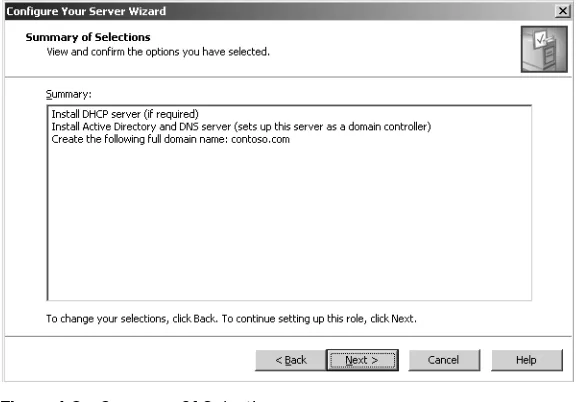
To complete the hands-on exercises in this book, you will configure a computer as Server01, acting as a domain controller in the domain contoso.com. The steps for con-figuring the server as a domain controller using the Configure Your Server Wizard are listed in Exercise 2 at the end of this lesson.
Active Directory
Many books have been devoted to the planning, implementation, and support of Active Directory. If you’re experienced with Active Directory, you will recognize that the following discussion has been simplified solely because it would take many books to discuss all the detail. The goal of this section is to distill that information to what you should know to approach the 70-290 exam.
Networks, Directory Services, and Domain Controllers
Networks were created on the day when the first user decided he or she didn’t want to walk down the hall to get something from another user. In the end, networks are all about providing resources remotely. Those resources are often files, folders, and printers. Over time those resources have come to include many things, most signifi cantly, e-mail, databases, and applications. There has to be some mechanism to keep track of these resources, providing, at a minimum, a directory of users and groups so that the resources can be secured against undesired access.
Microsoft Windows networks support two directory service models: the workgroup and the domain. The domain model is by far the more common in organizations imple menting Windows Server 2003. The domain model is characterized by a single direc tory of enterprise resources—Active Directory—that is trusted by all secure systems that belong to the domain. Those systems can therefore use the security principals (user, group, and computer accounts) in the directory to secure their resources. Active Directory thus acts as an identity store, providing a single trusted list of Who’s Who in the domain.
Domains, Trees and Forests
Active Directory cannot exist without at least one domain, and vice versa. A domain is the core administrative unit of the Windows Server 2003 directory service. However, an enterprise may have more than one domain in its Active Directory. Multiple domain models create logical structures called trees when they share contiguous DNS names. For example contoso.com, us.contoso.com, and europe.contoso.com share contiguous DNS namespace, and would therefore be referred to as a tree.
If domains in an Active Directory do not share a common root domain, they create multiple trees. That leads you to the largest structure in an Active Directory: the forest. An Active Directory forest includes all domains within that Active Directory. A forest may contain multiple domains in multiple trees, or just one domain. When more than one domain exists, a component of Active Directory called the Global Catalog becomes important because it provides information about objects that are located in other domains in the forest.
Objects and Organizational Units (OUs)
Enterprise resources are represented in Active Directory as objects, or records in the database. Each object has numerous attributes, or properties, that define it. For exam ple, a user object includes the user name and password; a group object includes the group name and a list of its members.
To create an object in Active Directory, open the Active Directory Users And Comput ers console from the Administrative Tools program group. Expand the domain to reveal its containers and OUs. Right-click a container or OU and select New object_type.
Active Directory is capable of hosting millions of objects, including users, groups, com puters, printers, shared folders, sites, site links, Group Policy Objects (GPOs), and even DNS zones and host records. You can imagine that without some kind of structure, accessing and administering the directory would be a nightmare.
Structure is the function of a specific object type called an organizational unit, or OU. OUs are containers within a domain that allow you to group objects that share com mon administration or configuration. But they do more than just organize Active Direc tory objects. They provide important administrative capabilities, as they provide a point at which administrative functions can be delegated and to which group policies can be linked.
Delegation
Lesson 2 Installation and Configuration of Windows Server 2003 and Active Directory 1-13
object in Active Directory (in this case, the user objects) includes an access control list (ACL) that defines permissions for that object, just as files on a disk volume have ACLs that define access for those files. So, for example, a user object’s ACL will define what groups are allowed to reset its password. It would get complicated to assign the front-line administrator permissions to change each individual user’s password, so instead you can put all of those users in a single OU and assign that administrator the reset password permission on the OU. That permission will be inherited by all user objects in the OU, thereby allowing that administrator to modify permissions for all users. Resetting user passwords is just one example of administrative delegation. There are thousands of combinations of permissions that could be assigned to groups adminis tering and supporting Active Directory. OUs allow an enterprise to create an active rep resentation of its administrative model, and to specify who can do what to objects in the domain.
Group Policy
OUs are also used to collect objects—computers and users—that are configured simi larly. Just about any configuration you can make to a system can be managed centrally through a feature of Active Directory called Group Policy. Group Policy allows you to specify security settings, deploy software, and configure operating system and applica tion behavior without ever touching a machine. You simply implement your configu ration within a GPO.
GPOs are collections of hundreds of possible configuration settings, from user logon rights and privileges to the software that is allowed to be run on a system. A GPO is linked to a container within Active Directory—typically to an OU, but can also be domains, or even sites—and all the users and computers beneath that container are affected by the settings contained in the GPO.
You will likely see Group Policy referred to on the 70-290 exam. The important things to remember about Group Policy are that it is a tool that can centrally implement con-figuration; that some settings apply to computers only and some settings apply to users only; and that the only computers or users that will be affected by a policy are those that are beneath the OU to which the policy is linked.
Learning More
As suggested earlier in this section, Active Directory is a large and complex topic that deserves significant examination if you are going to implement Windows Server 2003 as a domain controller. The following Microsoft Press titles are recommended reading:
■ Active Directory for Microsoft Windows Server 2003 Technical Reference
Practice: Installing Windows Server 2003
In this practice, you will configure a computer to run Windows Server 2003. You will then promote the server to become a domain controller in the contoso.com domain.
Exercise 1: Installing Windows Server 2003
This exercise should be performed on a computer compatible with Windows Server 2003. It assumes that the primary hard drive is completely empty. If your disk already has partitions configured, you can modify the exercise to match the configuration of your system.
1. Configure the computer’s BIOS or the disk controller BIOS to boot from CD-ROM. If you are not sure how to configure your computer or disk controller to boot from CD-ROM, consult your hardware documentation.
2. Insert the Windows Server 2003 installation CD-ROM into the CD-ROM drive and restart the computer.
3. If the primary disk is not empty, a message appears prompting you to press any key to boot from CD. If you see this message, press any key.
After the computer starts, a brief message appears explaining that your system configuration is being inspected, and then the Windows Setup screen appears. 4. If your computer requires special mass storage drivers that are not part of the Windows
Server 2003 driver set, press F6 when prompted and provide the appropriate drivers. 5. The system prompts you to press F2 to perform an Automated System Recovery (ASR). Automated System Recovery is a new feature in Windows Server 2003 that replaces the Emergency Repair Disk feature of previous versions of Windows, and is described in Chapter 13. Do not press F2 at this time. Setup will continue. Notice that the gray status bar at the bottom of the screen indicates that the com puter is being inspected and that files are loading. This is required to start a min imal version of the operating system.
6. If you are installing an evaluation version of Windows Server 2003, the Setup Noti fication screen appears informing you of this. Read the Setup Notification mes sage, and then press Enter to continue.
Setup displays the Welcome To Setup screen.
Notice that, in addition to the initial installation of the operating system, you can use Windows Server 2003 Setup to repair a damaged Windows installation. The Recovery Console is described in Chapter 13.
7. Read the Welcome To Setup message, and then press Enter to continue. Setup dis plays the License Agreement screen.
Lesson 2 Installation and Configuration of Windows Server 2003 and Active Directory 1-15
9. Press F8 to accept the agreement.
Setup displays the Windows Server 2003 Setup screen, prompting you to select an area of free space or an existing partition on which to install the operating system. This stage of setup provides a way for you to create and delete partitions on your hard disk.
To complete the exercises in this book, you will need to configure a partition large enough to host the operating system installation (recommended minimum size is 3 GB) and unallocated space of at least 1 GB. The following steps assume your disk is at least 4 GB in size and is currently empty. You may make adjustments to accommodate your situation.
10. Press C to create a partition.
11. To create a 3 GB partition type 3072 in the Create Partition Of Size (In MB) box and press Enter.
12. Confirm that your partitioning is similar to that shown in Figure 1-2. Again, the rec ommendations for the hands-on exercises is a C: partition of at least 3 GB and 1 GB of unpartitioned space.
Figure 1-2 Partitioning the hard drive for setup
13. Select C: Partition1 [New (Raw)] and press Enter to install. You are prompted to select a file system for the partition.
14. Verify that the Format The Partition Using The NTFS File System option is selected, and press Enter to continue.
Setup formats the partition with NTFS, examines the hard disk for physical errors that might cause the installation to fail, copies files to the hard disk, and initializes the installation. This process takes several minutes.
15. After the text mode of setup has completed, the system restarts. Do not, when prompted, press a key to boot to the CD-ROM.
Windows Setup launches and produces a graphical user interface that tracks the progress of installation in the left pane. Collecting Information, Dynamic Update, and Preparing Installation options are selected. Collecting Information was com pleted before the GUI appeared, and Dynamic Update is not used when starting from the CD-ROM. The system is now Preparing Installation by copying files to the local disk drive.
16. On the Regional And Language Options page, choose settings that are appropriate for your language and text input requirements, and then click Next.
Tip You can modify regional settings after you install the operating system using Regional And Language Options in Control Panel.
Setup displays the Personalize Your Software page, prompting you for your name and organization name.
17. In the Name text box, type your name; in the Organization text box, type the name of an organization, and then click Next.
Setup displays the Your Product Key page.
18. Enter the product key included with your Windows Server 2003 installation CD-ROM, and then click Next.
Setup displays the Licensing Modes dialog box, prompting you to select a licens ing mode.
19. Verify that the Per Server Number Of Concurrent Connections option is 5, and then click Next.
Important Per Server Number Of Concurrent Connections and 5 concurrent connections are suggested values to be used to complete your self-study. You should use a legal number of concurrent connections based on the actual licenses that you own. You can also choose to use Per Device Or Per User option instead of Per Server.
Setup displays the Computer Name And Administrator Password page.
Notice that Setup uses your organization name to generate a suggested name for the computer. If you didn’t enter an organization name earlier in the installation process, Setup uses your name to generate part of the computer name.
20. In the Computer Name text box, type Server01.