Other resources from O’Reilly
Related titles MCSE Core Required
Exams in a Nutshell MCSE Core Elective
Exams in a Nutshell MCSA on Windows Server
2003 Core Exams in a Nutshell
Security Warrior Network Security
Assessment
Internet Core Protocols: The Definitive Guide TCP/IP Network
Administration 802.11 Wireless Networks:
The Definitive Guide PC Hardware in a Nutshell Linux in a Nutshell Windows Vista in a
Nutshell Unix in a Nutshell
oreilly.com oreilly.comis more than a complete catalog of O’Reilly books. You’ll also find links to news, events, articles, weblogs, sample chapters, and code examples.
oreillynet.comis the essential portal for developers inter-ested in open and emerging technologies, including new platforms, programming languages, and operating systems.
Conferences O’Reilly brings diverse innovators together to nurture the ideas that sparkrevolutionary industries. We specialize in documenting the latest tools and systems, translating the innovator’s knowledge into useful skills for those in the trenches. Visit conferences.oreilly.com for our upcoming events.
A+, NETWORK+,
SECURITY+ EXAMS
IN A NUTSHELL
A+, Network+, Security+ Exams in a Nutshell by Pawan K. Bhardwaj
Copyright © 2007 Pawan K. Bhardwaj. All rights reserved. Printed in the United States of America.
Published by O’Reilly Media, Inc., 1005 Gravenstein Highway North, Sebastopol, CA 95472. O’Reilly books may be purchased for educational, business, or sales promotional use. Online editions are also available for most titles (safari.oreilly.com). For more information, contact our corporate/institutional sales department: (800) 998-9938 or[email protected].
Editors: Jeff Pepper and Colleen Gorman Production Editor: Mary Brady
Copyeditor: Mary Brady
Proofreader: Tolman Creek Design
Indexer: Tolman Creek Design Cover Designer: Karen Montgomery Interior Designer: David Futato
Illustrators: Robert Romano and Jessamyn Read
Printing History:
March 2007: First Edition.
Nutshell Handbook, the Nutshell Handbook logo, and the O’Reilly logo are registered trademarks of O’Reilly Media, Inc. TheIn a Nutshell series designations,A+, Network+, Security+ Exams in a Nutshell, the image of a Goliath beetle, and related trade dress are trademarks of O’Reilly Media, Inc.
Many of the designations used by manufacturers and sellers to distinguish their products are claimed as trademarks. Where those designations appear in this book, and O’Reilly Media, Inc. was aware of a trademark claim, the designations have been printed in caps or initial caps.
While every precaution has been taken in the preparation of this book, the publisher and author assume no responsibility for errors or omissions, or for damages resulting from the use of the information contained herein.
This book uses RepKover™, a durable and flexible lay-flat binding.
Chapter 1
Table of Contents
Preface
. . . .ix
Part I. A+ Essentials
1. Overview of A+ Essentials Exam
. . .3
Areas of Study for the A+ Essentials Exam 5
2. A+ Essentials Study Guide
. . .16
Personal Computer Components 18
Laptops and Portable Devices 50
Operating Systems 65
Printers and Scanners 111
Networks 129
Security 149
Safety and Environmental Issues 165
Communications and Professionalism 172
3. Prep and Practice for the A+ Essentials Exam
. . . .181
Preparing for the A+ Essentials Exam 182
Suggested Exercises for the A+ Essentials Exam 182
Highlighters Index 191
Part II. A+ Exams 220-602, 220-603, and 220-604
4. Overview of the A+ Exams 220-602, 220-603, and 220-604
. . . . .245
Areas of Study for A+ Exams 220-602, 220-603,and 220-604 247
5. Study Guide for A+ Exams 220-602, 220-603, and 220-604
. . . . .251
Personal Computer Components 252
Laptops and Portable Devices 268
Operating Systems 276
Printers and Scanners 307
Networks 328
Security 358
6. Prep and Practice for the A+ Exams 220-602, 220-603,
and 220-604
. . . .373
Preparing for the A+ Exams 374
Suggested Exercises for the Exams 374
Highlighters Index 383
Practice Questions for the A+ Exams 404
Part III. Network+
7. Overview of the Network+ Exam
. . . .417
Areas of Study for the Network+ Exam 419
8. Network+ Exam Study Guide
. . . .424
Media and Topologies 425
Protocols and Standards 457
Network Implementation 489
Network Support 514
9. Network+ Exam Prep and Practice
. . . .540
Preparing for the Network+ Exam 541
Network+ Exam Suggested Exercises 541
Network+ Exam Highlighters Index 546
Part IV. Security+
10. Overview of Security+ Exam
. . . .585
Areas of Study for Security+ Exam 587
11. Security+ Exam Study Guide
. . . .593
General Security Concepts 594
Communication Security 617
Infrastructure Security 648
Basics of Cryptography 672
Operational and Organizational Security 685
12. Security+ Exam Prep
and Practice
. . . .702
Preparing for the Security+ Exam 703
Security+ Exam Suggested Exercises 703
Security+ Exam Highlighters Index 707
Security+ Exam Practice Questions 734
Chapter 2
Preface
Welcome to CompTIA:A+, Network+ and Security+ Exams in a Nutshell. I designed this bookfor the IT professional who wants to complete his Computer Technology Industry Association (CompTIA) certifications. CompTIA offers multiple entry-level certification exams for various fields of the IT industry. These certifications are platform-independent and are endorsed by several leaders in the IT industry such as Microsoft, IBM, Hewlett Packard, etc. If you are looking to enter the exciting field of IT support, the certifications you will be most interested in are as follows:
A+
The A+ certification is entry-level and is meant for those individuals who want to get into the exciting field of computer hardware and software support. You will need to pass two exams to complete the A+ certification track. The first is A+ Essentials, and it is required. The second exam can be chosen from one of the three exams leading to three different certifications. Exam 220-602 is intended for those individuals who workin a mobile or corporate environment, which calls for a high level of face-to-face client inter-action. Candidates who pass the A+ Essentials and the 220-602 exams receive the IT Technician certification. The second exam, 220-603, is for those individuals who workremotely to interact with clients. The combina-tion of A+ Essentials and the 220-603 exam leads to the Remote Support Technician certification. The third exam, 220-604, is for those individuals who workin repair houses that call for high level of hardware-related trouble-shooting, and who seldom interact directly with the client. The combination of A+ Essentials and the 220-604 exam leads to the Depot Technician
certification.
Network+
CompTIA also recommends that the candidate get the A+ certification before getting the Network+ certification. This certification can be achieved by passing only one exam: N10-003.
Security+
The Security+ certification is entry-level and is for those individuals who wish to pursue a career in computer security. Although it is not a requirement, CompTIA does recommend that the candidate has at least two years of hands-on experience in computer networking with emphasis on security. It also recommends that the candidate get the Network+ certification before getting the Security+ certification. Like the Network+ certification, the Secu-rity+ certification can also be attained by passing only one exam: SYO-101. Each of these CompTIA certifications is covered in this book, and if taken appro-priately, each trackcan get you an entry-level job in the IT field of your choice. These exams just give a head start to your IT career. You can further enhance your career in any of the IT fields by pursuing more advanced certifications from other vendors. Several IT industry leaders, such as Microsoft, IBM, or Hewlett Packard, recognize the CompTIA certifications. For example, Microsoft recognizes the combination of A+ and Network+ certifications as one of the elective exams in its MCSA and MCSE tracks.
The focus of this bookis on providing the core knowledge to prepare you for the two A+ exams—the Network+ exam and the Security+ exam. This book is meant to be used as part of your final preparation, and not as your only preparation. Thinkof this as the notes you’d have written down if you were to highlight and then record every essential nugget of information related to the skills being measured in the A+, the Network+, and the Security+ exams.
Basically, what I did was to boil the required knowledge down to its finest core. Thus, rather than having 500 to 700 pages covering each exam, there’s just approximately 150 pages for each. With this in mind, the best way to use this bookis as part of your final review. So after you’ve built sufficient hands-on expertise and studied all the relevant texts, grab this bookand study it cover to cover as part of your final exam cram.
Most of the individuals start their IT support career with the A+ certification, and then move on to the Network+ certification to prove their skills in computer network support. The Security+ certi-fication is basically meant for those individuals who either workin a secure computing environment or wish to attain more advanced security-related certifications. It is highly recommended that if you are just starting your IT career, you should start with the A+ certifi-cation, choosing an appropriate A+ track.
Conventions Used in This Book
Each part within this bookcorresponds to a single Microsoft exam and consists of the following sections:
Exam Overview
Provides a brief introduction to the exam’s topic, a list of objectives, and a cross reference to where the objectives are covered.
Study Guide
Provides a comprehensive study guide for the skills being measured on the exam. You should read through and and study this section extensively. If you encounter topics you haven’t practiced with and studied extensively prior to reading this text, you should do more hands-on workwith the related area of study and refer to an expanded discussion in a relevant text. Once you’ve built the real-world know-how and developed the essential background needed to succeed, you can resume your studies and move forward.
Prep and Practice
Provides exercises that we suggest to supplement your studies, highlights from all the topics covered for the exam, and practice questions to help test your knowledge. Sample questions are followed by answers with explana-tions where necessary.
The following font conventions are used in this book:
Constant width
Used for code terms, command-line text, command-line options, and values that should be typed literally.
Italics
Used for URLs, variables, and to introduce new terms. Additionally, we will also use the following elements:
Notes are used to provide additional information or highlight a specific point.
Warnings are used to provide details on potential problems.
Other Study Resources
Throughout your preparations for certification, we recommend that you regularly visit the CompTIA web site athttp://certification.comptia.org. The related pages will help you keep up to date with the certification process and any changes that may occur from time to time.
A wide variety of CompTIA certification study guides, training classes, and learning resources are available. Also, a large number of practice tests and exam simulations are available for purchase and for free on the Web. These tests, like this book, are useful as part of your exam preparation.
How to Contact Us
I have worked with the good folks at O’Reilly to test and verify the information in this bookto the best of my ability, but you may find that features have changed (or even that I have made mistakes!). To make this book better, please let me know about any errors you find, as well as your suggestions for future editions, by writing to:
O’Reilly Media, Inc.
1005 Gravenstein Highway North Sebastopol, CA 95472
800-998-9938 (in the United States or Canada) 707-829-0515 (international/local)
707-829-0104 (fax)
You can also send us messages electronically. To be put on the mailing list or request a catalog, send email to:
O’Reilly has a web page for this book, which lists errata, examples, and any addi-tional information. You can access this page at:
http:///www.oreilly.com/catalog/9780596528249
To asktechnical questions, to comment on the book, or more information about the authors, please send email to:
For more information about O’Reilly, please visit:
http://www.oreilly.com
Acknowledgments
Chapter 1A+ Essentials Overview
1
Overview of A+ Essentials
Exam
The A+ Essentials exam is the first of CompTIA’s two exams required for completing the A+ certification. The A+ certification is an entry-level certification for those individuals who wish to pursue their careers in computer hardware and software support. The candidate must pass two exams in order to get his A+ certi-fication. You can choose one of the other three elective exams—IT Technician Exam 220-602, Remote Support Technician Exam 220-603 or Depot Technician Exam 220-604—to get an appropriate A+ certification. The second part of this book (Chapters 4, 5, and 6) covers the elective exams.
The main focus of the A+ Essentials exam is to test your knowledge on the basics of computer hardware. The exam focuses on your skills to install, build, upgrade, repair, configure, troubleshoot, optimize, diagnose problems, and to perform preventive maintenance of personal computers and the installed operating systems.
Aside from testing your knowledge of computer components and operating systems, this exam also covers networking concepts and printing and scanning devices. It has recently been revised to include newer areas of study, such as computer security, safety and environmental issues, and communications and professionalism. Another new area is the knowledge of laptops and portable devices. In each of the study areas, you are expected to be skilled in identifying individual computer components as well as in installing, upgrading, and config-uring them. You must also have hands-on experience in optimizing performance, using appropriate tools to diagnose problems, and performing preventive maintenance.
CompTIA recommends that in order to be prepared for the A+ Essentials exam, you should have approximately 500 hours of actual active experience with computer hardware, either in the field or in a lab. It is a good idea to have studied an A+ certification exam self-paced study guide or attended a training course before you attempt to write any of the A+ exams. If you have, you should be ready to use this section of the book as your final exam preparation.
A+ Essentials is the first of the two required exams to complete your A+ certification. For the second exam, you can choose from Exams 220-602, 220-603, and 220-604. The combination of A+ Essentials and 220-602 gets you theIT Techniciancertification.A+ Essentials and Exam 220-603 gets you theRemote Support Techni-ciancertification. Similarly, the combination of A+ Essentials and 220-604 gets you theDepot Technician certification.
Table 1-1. A+ Essentials exam domains and percentage of coverage
Domain Percentage of coverage
Personal computer components 21 percent
Laptops and mobile devices 11 percent
Operating systems 21 percent
Printers and scanners 9 percent
Networks 12 percent
Security 11 percent
Safety and environmental issues 10 percent
A+ Essentials
Overview
Areas of Study for the A+ Essentials Exam
Personal Computer Components
• Identify the fundamental principles of using personal computers.
• Identify the names, purposes and characteristics of the following storage devices:
— FDD — HDD
— CD/DVD/RW (e.g., drive speeds and media types)
— Removable storage (e.g., tape drive and solid states such as thumb drive, flash and SD cards, USB, external CD-RW, and hard drives)
• Identify the names, purposes, and characteristics of the following mother-boards:
— Form Factors (e.g., ATX/BTX and micro ATX/NLX) — Components:
• Integrated I/Os (e.g., sound, video, USB, serial, IEEE 1394/firewire, parallel, NIC, and modem)
• Memory slots (e.g., RIMM and DIMM) • Processor sockets
• External cache memory • Bus architecture
• Bus slots (e.g., PCI, AGP, PCIE, AMR, and CNR) • EIDE/PATA
• SATA
• SCSI Technology — Chipsets
— BIOS/CMOS/Firmware — Riser card/daughter board
• Identify the names, purposes, and characteristics of power supplies—for example, AC adapter, ATX, proprietary, and voltage.
• Identify the names, purposes and characteristics of processor/CPUs, such as the following:
— CPU chips (AMD and Intel) — CPU technologies:
• Hyperthreading • Dual core • Throttling
• Cache • VRM
• Speed (real versus actual) • 32-bit versus 64-bit
• Identify the names, purposes, and characteristics of memory, such as the following:
— Types of memory (e.g., DRAM, SRAM, SDRAM, DDR/DDR2, and RAMBUS)
— Operational characteristics: • Memory chips (8,16,32) • Parity versus non-parity • ECC versus non-ECC
• Single-sided versus double-sided
• Identify the names, purposes, and characteristics of display devices—for example, projectors, CRT, and LCD:
— Connector types (e.g., VGA, DVI/HDMi, S-Video, and Component/ RGB)
— Settings (e.g., V-hold, refresh rate, and resolution)
• Identify the names, purposes, and characteristics of input devices—for exam-ple: mouse, keyboard, bar code reader, multimedia (e.g., web and digital cameras, MIDI, and microphones), biometric devices, and touch screens. • Identify the names, purposes, and characteristics of adapter cards:
— Video including PCI/PCI-E and AGP — Multimedia
— I/O (SCSI, serial, USB, and Parallel)
— Communications, including network and modem
• Identify the names, purposes, and characteristics of ports and cables—for example, USB 1.1 and 2.0, parallel, serial, IEEE 1394/Firewire, RJ45 and RJ11, PS2/MINI-DIN, centronics (e.g., mini, and 36), multimedia (e.g.,1/8
connector, MIDSI COAX, and SPDIF).
• Identify the names, purposes, and characteristics of cooling systems—for example: heat sinks, CPU and case fans, liquid cooling systems, and thermal compounds.
• Install, configure, optimize, and upgrade personal computer components. • Add, remove and configure internal and external storage devices:
— Drive preparation of internal and external storage devices, including format/filesystems and imaging technology
• Install display devices.
• Add, remove, and configure basic input and multimedia devices.
A+ Essentials
Overview
• Recognize the basic aspects of troubleshooting theory—for example: — Perform backups before making changes
— Assess a problem systematically and divide large problems into smaller components to be analyzed individually
— Verify even the obvious. Determine whether the problem is something simple or complicated, and make no assumptions
— Research ideas and establish priorities — Document findings, actions, and outcomes
• Identify and apply basic diagnostic procedures and troubleshooting tech-niques—for example:
— Identify the problem using techniques such as questioning the user and identifying any user changes to the computer
— Analyze the problem, including considering potential causes and making an initial determination of software and/or hardware problems
— Test related components using avenues such as inspection, connections, hardware/software configurations, device managers, and consulting vendor documentation
— Evaluate results and take additional steps if needed, such as consulta-tion, use of alternate resources, and manuals
— Document activities and outcomes
• Recognize and isolate issues with display, power, basic input devices, stor-age, memory, thermal, and POST errors (e.g., BIOS and hardware).
• Apply basic troubleshooting techniques to checkfor problems (e.g., thermal issues, error codes, power, connections—including cables and/or pins—com-patibility, functionality, and software/drivers) with components—for example: — Motherboards
— Power supply — Processor/CPUs — Memory — Display devices — Input devices — Adapter cards
• Recognize the names, purposes, characteristics, and appropriate application of tools.
• Perform preventive maintenance on personal computer components.
• Identify and apply basic aspects of preventive maintenance theory—for example:
— Visual/audio inspection — Driver/firmware updates
— Use of appropriate tools and cleaning materials — Ensuring proper environment
• Identify and apply common preventive maintenance techniques for devices such as input devices and batteries.
Laptops and Portable Devices
• Identify the fundamental principles of using laptops and portable devices. • Identify names, purposes, and characteristics of laptop-specific items, such
as:
— Form Factors such as memory and hard drives
— Peripherals (e.g., docking stations, port replicators, and media/accessory bays)
— Expansion slots (e.g., PCMCIA I, II, and III, and card and express bus) — Ports (e.g., mini PCI slot)
— Communication connections (e.g., Bluetooth, infrared, cellular WAN, and Ethernet)
— Power and electrical input devices (e.g., auto-switching and fixed-input power supplies and batteries)
— LCD technologies (e.g., active and passive matrix, resolution, such as XGA, SXGA+, UXGA, WUXGA, contrast radio, and native resolution) — Input devices (e.g., stylus/digitizer, function (Fn) keys, and pointing
devices such as touch pad and point stick/track point)
• Identify and distinguish between mobile and desktop motherboards and pro-cessors, including throttling, power management, and Wi-Fi.
• Install, configure, optimize, and upgrade laptops and portable devices. • Configure power management:
— Identify the features of BIOS-ACPI
— Identify the difference between suspend, hibernate, and standby
• Demonstrate safe removal of laptop-specific hardware such as peripherals, hot-swappable devices, and non-hot-swappable devices.
• Identify tools, basic diagnostic procedures, and troubleshooting techniques for laptops and portable devices.
• Use procedures and techniques to diagnose power conditions, video, key-board, pointer, and wireless card issues—for example:
— Verify AC power (e.g., LEDs and swap AC adapter) — Verify DC power
— Remove unneeded peripherals — Plug in external monitor — Toggle Fn keys
A+ Essentials
Overview
— Verify backlight functionality and pixilation — Stylus issues (e.g., digitizer problems) — Unique laptop keypad issues
— Antenna wires
• Perform preventive maintenance on laptops and portable devices.
• Identify and apply common preventive maintenance techniques for laptops and portable devices—for example, cooling devices, hardware and video cleaning materials and operating environments, including temperature and air quality, storage, and transportation and shipping.
Operating Systems
Identify the fundamentals of using operating systems
• Identify differences between operating systems (e.g., Mac, Windows, and Linux), and describe operating system revision levels, including GIU, system requirements and application and hardware compatibility.
• Identify names, purposes, and characteristics of the primary operating sys-tem components, including registry, virtual memory, and filesyssys-tem.
• Describe features of operating system interfaces—for example: — Windows Explorer
— My Computer — Control Panel — Command Prompt — My Network Places — Taskbar/Systray — Start Menu
• Identify the names, locations, purposes, and characteristics of operating sys-tem files—for example:
— BOOT.INI
— NTLDR
— NTDETECT.COM
— NTBOOTDD.SYS
— Registry data files
• Identify concepts and procedures for creating, viewing, and managing disks, directories, and files in operating systems—for example:
— Disks (e.g., active, primary, extended, and logical partitions) — Filesystems (e.g., FAT 32 and NTFS)
— Directory structures (e.g., create folders, navigate directory structures) — Files (e.g., creation, extensions, attributes, permissions)
• Identify procedures for installing operating systems, including:
— Verification of hardware compatibility and minimum requirements — Installation methods (e.g., boot media—such as CD, floppy, or USB—
network installation, and drive imaging)
— Operating system installation options (e.g., attended/unattended, file-system type, and network configuration)
— Diskpreparation order (e.g., start installation, partition, and format drive)
— Device driver configuration (e.g., install and upload device drivers) — Verification of installation
• Identify procedures for upgrading operating systems, including:
— Upgrade considerations (e.g., hardware and application and/or network compatibility)
— Implementation (e.g., backup data and install additional Windows components)
• Install/add a device, including loading and adding device drivers and required software, and perform the following actions, such as:
— Determine whether permissions are adequate for performing the task — Device driver installation (e.g., automated and/or manual search and
installation of device drivers)
— Using unsigned drivers (e.g., driver signing)
— Verify installation of the driver (e.g., device manager and functionality) • Identify procedures and utilities used to optimize operating systems—for
example, virtual memory, hard drives, temporary files, services, startup, and applications.
• Identify tools, diagnostic procedures, and troubleshooting techniques for operating systems.
• Identify basic boot sequences, methods, and utilities for recovering operating systems:
— Boot methods (e.g., safe mode, recovery console, and boot to restore point)
— Automated System Recovery, aka ASR (e.g., Emergency Repair Disk [ERD])
• Identify and apply diagnostic procedures and troubleshooting techniques— for example:
— Identify the problem by questioning the user and identifying user changes to the computer
— Analyze the problem, including identifying potential causes and making an initial determination of a software and/or hardware problem
A+ Essentials
Overview
— Evaluate results and take additional steps if needed, such as consultation and using alternate resources and manuals
— Document activities and outcomes
• Recognize and resolve common operational issues such as blue screen, sys-tem lock-up, input/output devices, application installs, start or load, and Windows-specific printing problems (e.g., a device/service failed to start or a device/program in registry is not found).
• Explain common error messages and codes—for example:
— Boot (e.g., invalid boot disk, inaccessible boot drive, and missing NTLDR)
— Startup (e.g., a device/service failed to start, a device/program in registry is not found)
— Event Viewer — Registry
— Windows reporting
• Identify the names, locations, purposes, and characteristics of operating sys-tem utilities—for example:
— Diskmanagement tools (e.g., DEFRAG, NTBACKUP, CHKDSK, and Format)
— System management tools (e.g., device and taskmanager, and
MSCONFIG.EXE)
— File management tools (e.g., Windows Explorer andATTRIB.EXE) • Perform preventive maintenance on operating systems.
• Describe common utilities for performing preventive maintenance on operat-ing systems—for example, software and Windows updates (e.g., service packs), scheduled backups/restores, and restore points.
Printers and Scanners
• Identify the fundamental principles of using printers and scanners.
• Identify the differences between types of printer and scanner technologies (e.g., laser, inkjet, thermal, solid ink, and impact).
• Identify names, purposes, and characteristics of printer and scanner compo-nents (e.g., memory, driver, and firmware) and consumables (e.g., toner, ink cartridge, and paper).
• Identify the names, purposes, and characteristics of interfaces used by print-ers and scannprint-ers, including port and cable types—for example:
— Parallel
— Network (e.g., NIC and print servers) — USB
— IEEE 1394/firewire
— Wireless (e.g., Bluetooth, 802.11, and Infrared) — SCSI
• Identify basic concepts of installing, configuring, optimizing, and upgrading printers and scanners.
• Install and configure printers and scanners:
— Power and connect the device using a local or network port — Install and update the device driver and calibrate the device — Configure options and default settings
— Print a test page
• Optimize printer performance—for example, printer settings, such as tray switching, print spool settings, device calibration, media types, and paper ori-entation.
• Identify tools, basic diagnostic procedures, and troubleshooting techniques for printers and scanners.
• Gather information about printer/scanner problems: — Identify the symptom
— Review device error codes, computer error messages, and history (e.g., event log and user reports)
— Print or scan test page
— Use appropriate generic or vendor-specific diagnostic tools, including web-based utilities
• Review and analyze collected data: — Establish probable causes
— Review the service documentation
— Review the knowledge base and define and isolate the problem (e.g., software versus hardware, the driver, connectivity, or the printer) • Identify solutions to identified printer/scanner problems:
— Define the specific cause and apply a fix — Replace consumables as needed
— Verify functionality and get user acceptance of the problem fix
Networks
• Identify the fundamental principles of networks. • Describe basic networking concepts:
— Addressing — Bandwidth — Status indicators
A+ Essentials
Overview
— Full-duplex or half-duplex
— Cabling (e.g., twisted pair, coaxial cable, fiber optic, and RS-232) — Networking models, including peer-to-peer and client/server
• Identify names, purposes, and characteristics of the common network cables: — Plenum/PVC
— UTP (e.g., CAT3, CAT5/5e, and CAT6) — STP
— Fiber (e.g., single-mode and multimode)
• Identify names, purposes, and characteristics of networkconnectors (e.g., RJ45 and RJ11, ST/SC/LC, USB, and IEEE 1394/firewire).
• Identify names, purposes, and characteristics of technologies for establishing connectivity—for example:
— LAN/WAN — ISDN
— Broadband (e.g., DSL, cable, and satellite) — Dial-up
— Wireless (all 802.11) — Infrared
— Bluetooth — Cellular — VoIP
• Install, configure, optimize, and upgrade networks. • Install and configure network cards.
• Install, identify, and obtain wired and wireless connection.
• Identify tools, diagnostic procedures, and troubleshooting techniques for net-works.
• Explain status indicators—for example, speed, connection and activity lights, and wireless signal strength.
Security
• Identify the fundamental principles of security.
• Identify names, purposes, and characteristics of hardware and software secu-rity—for example:
— Hardware deconstruction/recycling
— Smart cards/biometrics (e.g., key fobs, cards, chips, and scans)
— Authentication technologies (e.g., username, password, biometrics, and smart cards)
— Software firewalls
— File system security (e.g., FAT32 and NTFS)
• Identify names, purposes, and characteristics of wireless security—for example: — Wireless encryption (e.g., WEP.x and WPA.x) and client configuration — Access points (e.g., disable DHCP/use static IP, change SSID from the
default, disable SSID broadcast, use MAC filtering, change the default username and password, update firmware, and firewall)
• Identify names, purposes, and characteristics of data and physical security— for example:
— Data access (basic local security policy) — Encryption technologies
— Backups — Data migration — Data/remnant removal — Password management
— Locking workstation (e.g., hardware and operating system) • Describe importance and process of incidence reporting.
• Recognize and respond appropriately to social engineering situations. • Install, configure, upgrade, and optimize security.
• Install, configure, upgrade, and optimize hardware, software, and data secu-rity—for example:
— BIOS — Smart cards
— Authentication technologies — Malicious software protection
— Data access (basic local security policy) — Backup procedures and access to backups — Data migration
— Data/remnant removal
• Identify tools, diagnostic procedures, and troubleshooting techniques for security.
• Diagnose and troubleshoot hardware, software, and data security issues—for example:
— BIOS
— Smart cards and biometrics — Authentication technologies — Malicious software
— File system (e.g., FAT32 and NTFS) — Data access (e.g., basic local security policy) — Backup
A+ Essentials
Overview
• Perform preventive maintenance for computer security.
• Implement software security preventive maintenance techniques such as installing service packs and patches and training users about malicious soft-ware prevention technologies.
Safety and Environmental Issues
• Describe the aspects and importance of safety and environmental issues. • Identify potential safety hazards and take preventive action.
• Use Material Safety Data Sheets (MSDS) or equivalent documentation as well as appropriate equipment documentation.
• Use appropriate repair tools.
• Describe methods to handle environmental and human accidents, including incident reporting.
• Identify potential hazards and implement proper safety procedures, includ-ing ESD precautions and procedures, a safe workenvironment, and equip-ment handling.
• Identify proper disposal procedures for batteries, display devices, and chemi-cal solvents and cans.
Communication and Professionalism
• Use good communication skills—including listening and tact/discretion— when communicating with customers and colleagues.
• Use job-related professional behavior, including notation of privacy, confi-dentiality, and respect for the customer and customers’ property.
• Behavior:
— Use clear, concise, and direct statements.
— Allow the customer to complete statements—avoid interrupting. — Clarify customer statements—ask pertinent questions.
— Avoid using jargon, abbreviations, and acronyms. — Listen to customers.
• Property:
Chapter 2A+ Essentials Study Guide
2
A+ Essentials Study Guide
This chapter provides a study guide for the CompTIA A+ Essentials exam. Various sections in this chapter are organized to cover the related objectives of the exam. Each section identifies the exam objective, provides an overview of the objective, and then discusses the key details that you should master before taking the exam.
An overview of the sections in this chapter is as follows:
Personal Computer Components
This section describes the components of personal computers such as the processor, memory, storage devices (such as hard disks and removable drives), display devices, input/output devices (such as the keyboard and mouse), and various ports and types of cables used to connect these compo-nents. Installing, configuring, upgrading, and troubleshooting these components are also covered in this section.
Laptops and Portable Devices
This section describes the identification of different components of portable computers. Installing, configuring, upgrading, and troubleshooting these portable computers is also covered in this section.
Operating Systems
This section describes requirements and installation procedures for various operating systems used on personal computers such as Mac OS X, Linux, Windows 98, Windows 2000, and Windows XP. Upgrading a previously installed operating system and troubleshooting common problems is also covered in this section.
Printers and Scanners
A+ Essentials
Study Guide
Networks
This section describes the fundamentals of wired and wireless computer networking, including concepts, network topologies, networking compo-nents (such as cables, hubs, switches and routers), and procedures to diagnose and rectify common networking problems.
Security
This section describes basic concepts behind computer security, including the identification of security threats, hardware, software and data security. Main-taining operating system and data security by installing software updates, hot fixes, and service packs is also covered in this section.
Safety and Environmental Issues
This section describes the aspects and importance of various safety issues related to personal computers, including safety hazards and environmental and human-generated accidents. It also covers the implementation of proper precautions and procedures to prevent such accidents. Incident reporting is covered in this section as well.
Communication and Professionalism
This section describes methods of professionalism on the job and communi-cation techniques when interacting with customers. Active listening techniques, customer privacy, and other standard customer service standards are covered in this section.
There is a great deal of overlap between the objectives of the A+ Essentials exam and the A+ exams 220-602, 220-603, and 220-604. Chapter 5 includes a detailed discussion of these topics. I recom-mend that you read Chapter 5 before taking the A+ Essentials exam because it may include questions from either of these chapters.
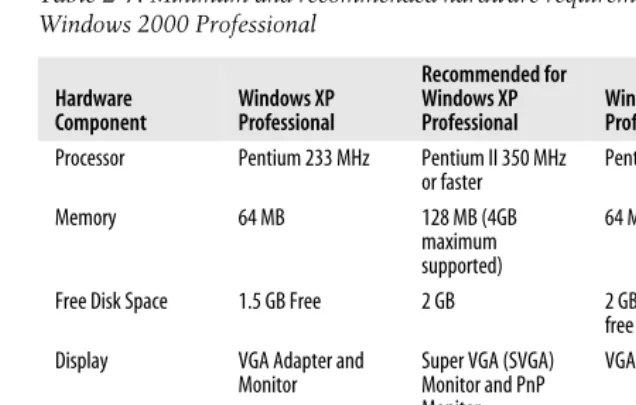
In order to complete the study for the A+ Essentials exam, I suggest that you gain access to a computer that can be opened and, if required, have its parts inspected, uninstalled, reinstalled, or upgraded. The personal computer should preferably have the following hardware configuration:
• An Intel 233 MHz or faster processor (350 MHz recommended) with a CD-ROM or DVD drive
• A minimum of 256 MB RAM (512 MB recommended) • At least 2 GB of free hard disk space
• A Super VGA or higher-resolution monitor • A keyboard and a mouse
The exercises included in this bookshould be part of your prepara-tion for the exams. Do not perform any exercises in a producprepara-tion environment and do not use any PC that you use for your regular work, but instead create a test environment with the recommended hardware.
Personal Computer Components
This part of the A+ Essentials exam deals mainly with the identification, installa-tion, upgrading, and basic troubleshooting of different parts of personal computers. This part of the study guide covers about one-fifth of the exam objec-tives. As a hardware technician, you are expected to have extensive knowledge of different components of personal computers. These components include storage devices, motherboards, processors, memory, power supplies, and adapter cards. It is also necessary to have a good understanding of ports and cable types that are used inside the computer and for connecting external peripherals. This section provides an overview of these components.
Components of Motherboards
The motherboard or the system board is made up of several components such as the central processing unit (CPU), memory slots, video section, and so on. Each component on the motherboard has a specific job. In this section, we will lookat some of the most common motherboard components and their functions. Moth-erboards are mainly divided into the following two categories:
Integrated motherboards
Integrated motherboards have most of the essential components on them, which are otherwise installed as separate adapter cards on expansion slots. The major advantage of this type of motherboard is that all major functions are handled by a single circuit board. On the other hand, the drawbackis that if one of the components fails, you might need to replace the entire mother-board. Most of the new motherboards fall into this category.
Non-integrated motherboards
Non-integrated motherboards do not have all components on them but are installed as adapter cards on expansion slots. These components include video cards, diskcontrollers, networkadapters, and audio circuitry. The main advantage is that if an individual component fails, it can be replaced easily. The disadvantage is that the inside of the computer is full of adapters and wires. Most of the motherboards on older computers fall into this category.
Form Factors
A+ Essentials
Study Guide
ATX
ATX stands for Advanced Technology Extended. This technology was designed by Intel to allow easier expansion. Currently, ATX motherboards are the most popular motherboards. With most of the components inte-grated onto the motherboard, there is still sufficient scope to add additional components. The expansion slots are located at right angles to the processor and memory, which makes it easier to install full-length adapter cards. More-over, the processor and memory are located at the backof the card, in line with the power supply, which makes better air flow for cooling them. It supportssoft power offsupport, meaning that the system can be turned off using the operating system instead of using the power switch. It also supports a 3.3 volt power supply from an ATX power supply. The power supply connector is a single 20-pin connector.
Micro ATX
The Micro ATX Form Factor uses a smaller footprint than its big brother ATX. The maximum motherboard size is 9.6"×9.6". It uses a compact design, which is meant for a lower number of integrated components, lesser expansion slots, and lesser memory slots. This simply means that the power supply can be of lower wattage than the standard ATX motherboard to reduce power consumption. The Micro ATX motherboard can still fit well into a standard ATX case. To compromise with a lesser number of compo-nents, it provides additional USB ports to connect external devices. Another variation of Micro ATX is the Flex ATX, with the size of the motherboard reduced to 9.6"×7.5" (the smallest in the ATX family). Both Micro ATX and Flex ATX offer limited expandability.
BTX
The BTX Form Factor is the latest in motherboard designs. The major concern behind this design is the layout of heat-producing components such as chipsets, processors, and graphics controllers. This design specifies that all heat-producing components can use the primary airflow of the computer thereby reducing the need for additional cooling fans that produce more noise. The BTX Form Factor specifies better placement of components for backpanel I/O controllers. Although it is smaller than the Micro ATX in size, the BTX design is scalable and can be taken to the tower-size cases.
NLX
NLX stands forNew Low Profile ExtendedForm Factor. In this design, most of the expansion slots are placed sideways on specialriser cards. The adapter cards are installed on riser card expansion slots, which ultimately become parallel to the motherboard. Motherboards with this design can use the ATX power supplies. The NLX design did not become very popular and was even-tually replaced by newer advanced technologies such as the Micro ATX.
Components of motherboards
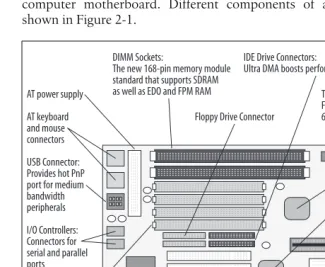
integrated on the motherboard and fewer adapters were required. This section covers a summary of different components that are generally found on the computer motherboard. Different components of a typical motherboard are shown in Figure 2-1.
Chipsets. The chipsetof a motherboard refers to the collection of semiconductor chips that provide interfaces for expansion cards, memory, peripherals, and inter-faces. The make and model of a chipset depends on a particular Original Equipment Manufacturer (OEM).Each chipset is designed to offer certain features such as onboard audio and video functionality. Chipsets are divided into two main categories—Northbridge and Southbridge:
Northbridge
[image:33.612.56.381.96.362.2]TheNorthbridgeis a chipset that does not refer to any brand name but is the technique used to allow communication among high-speed peripherals such as memory, the Peripheral Component Interconnect (PCI) bus, the Acceler-ated Graphics Port (AGP) bus and the Level 2 processor cache (L2 Cache). The Northbridge communicates with the processor using a front side bus (FSB). The actual performance of the motherboard depends on the perfor-mance of the Northbridge chipset. It also manages communication with the Southbridge chipset.
Figure 2-1. Components of a motherboard
DIMM Sockets:
The new 168-pin memory module standard that supports SDRAM as well as EDO and FPM RAM
IDE Drive Connectors:
Ultra DMA boosts performance to 33 MBps
Floppy Drive Connector
TAGRAM: For caching
64MB of RAM Triton chipset
Secondary Cache: 2x256 KB pipeline-burst cache modules Coast Socket: Accomodates “cache-on-a-stick” upgrade module
ZIF Socket 7: For a Pentium or compatible processor Flash BIOS/CMOS Battery: Updateable via a floppy to ensure BIOS stays current and bug-free Lithium backup
battery for the RTC PCI and ISA Slots:
The middle slots usually share the same backplane AT power supply
A+ Essentials
Study Guide
Southbridge
TheSouthbridgechipset controls all of the computer’s onboard Input/Output (I/O) functions such as USB, Firewire, PS/2, parallel, serial, wired, and wire-less LAN ports, and IDE, audio, and so on. Southbridge usually consists of a single semiconductor chip.
BIOS/Firmware. TheBasic Input/Output System (BIOS)orfirmwareof the computer is low-level software stored on a semiconductor chip, which is called theBIOS chip. BIOS controls how the processor and chipsets interact with the installed operating system, and it also helps detect the hardware and to allocate system resources to it. BIOS is activated as soon as the computer is powered on. The BIOS chip is a dual-line chip with 28 or 32 pins and is usually marked as such. Major manufacturers of BIOS chips include AMI, Phoenix/Award, and Winbond. Thecmplementary metal-oxide semiconductor (CMOS)chip, on the other hand, is a memory chip that stores certain computer settings (such as the date and time) even when the computer is powered off. The CMOS chip gets its power from a small cylindrical battery, called theCMOS battery, installed on the motherboard.
Memory slots. The primary memory of the computer is therandom access memory
(RAM),which is used to temporarily store data during normal operation of the computer. The slots for memory on the motherboard are different for each type of memory and for each type of motherboard design. Most motherboards have slots fordual inline memory modules (DIMMs). DIMMs come in different pin configu-rations, such as 168-pin, 184-pin, and 240-pin. Some old motherboards usesingle inline memory modules (SIMMs)that come in 30-pin or 72-pin configurations. It is easy to identify the memory slots on the motherboard, as they are long and located very close to each other. A latch on each side of the slot is used to firmly attach the memory module in place. The pair of memory sockets is also called
memory bank.
External cache memory. Computers use the processor cache memory for improved
performance. Each processor comes with a built-in cache memory, which is known asLevel 1 Cache. Another name for it isinternal cache, which runs at the speed of the CPU. To further enhance the performance of the system, mother-boards have external cache memory, which is called Level 2 Cache orExternal Cache. The External Cache runs at the speed of the system bus.
Processor sockets. Thecentral processing unit (CPU), or simply theprocessor, lies at the heart of a computer motherboard. The type, shape, size, and pin configura-tion of a processor socket depends on the processor itself. Processorsocketsor
Most of the processor sockets are square in shape, and the processor is usually marked with a dot to correctly align it with the socket. This is done to ensure that the processor pins are not damaged during insertion. Some processors use a special socket called thezero insertion force (ZIF) socket that makes it easy to insert and remove the processor.
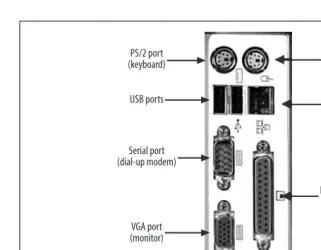
Integrated I/O ports. Many of the standard I/O controllers for peripherals are inte-grated in the motherboard. Their connectors are accessible from the rear of the computer case and are used to connect I/O devices. The most common connec-tors include the following:
The 15-pin SVGA connector
Used to connect a CRT or LCD monitor.
The 6-pin PS/2 connector (mini DIN)
Used to connect the keyboard and mouse. Old motherboards have a 5-pin DIN connector, which is little bigger than the PS/2 connector.
The 9-pin serial connector
Used to connect serial devices such as modems or scanners.
The 25-pin parallel connector
Primarily used to connect printers.
The 8-pin RJ-45 connector
Used to connect network cable.
The 4-pin RJ-11 connector
Used to connect the telephone cable.
USB connector
Used for USB devices.
IEEE 1394 connector
Used to connect devices that support the Firewire interface.
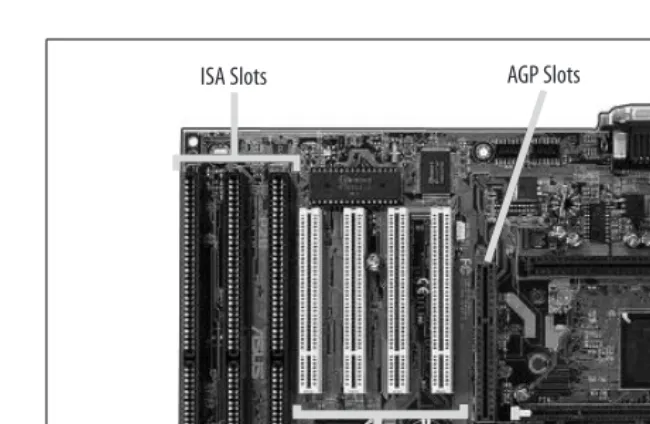
Expansion bus slots. Expansion bus slots on the motherboard can be easily identi-fied, as they are located close to each other and near the rear end of the case. Figure 2-2 shows some common expansion bus slots on the motherboard. Each type of expansion bus slot serves a particular function, as summarized in the following paragraphs:
Peripheral Component Interconnect (PCI)
PCI slots are available in most computers these days. These slots are used to connect PCI compatible cards. They are usually white and are about three inches long.
Accelerated Graphics Port (AGP)
A+ Essentials
Study Guide
PCI Express (PCIe)
PCIe is available on many new motherboards. This slot was designed to replace the PCI and AGP slots. But most motherboards have PCI as well as PCIe slots.
Audio/Modem Riser (AMR)
AMR has 46 pins and is found on some old motherboards. This slot is mainly used to separate analog devices, such as the modem, from other digital circuits on the motherboard.
Communications and Networking Riser (CNR)
CNR has 60 pins and is mainly used to enhance the built-in capabilities of the motherboard by installing additional components.
Industry Standard Architecture (ISA)
ISA is the oldest type of expansion slot on motherboards. This black-colored slot is long in shape and has two parts: one small and the other long. ISA slots are hardly visible in modern motherboards. You might find that some old motherboards have both ISA and PCI slots.
Floppy disk and hard disk connectors. Most of the motherboards have integrated hard diskand floppy diskcontrollers. The floppy diskconnector is used to connect a floppy diskdrive, while the hard diskconnector can be used for connecting hard drives or CD/DVD drives. Depending on the motherboard, these connectors can be any of the following types:
EIDE/PATA
[image:36.612.55.380.44.256.2]The Enhanced Integrated Drive Electronics (EIDE) interface is the term used to describe the Advanced Technology Attachment (ATA) interface. EIDE connectors are found on most motherboards. These connectors have 40 pins
Figure 2-2. Expansion bus slots
ISA Slots AGP Slots
and use a flat ribbon cable. The first pin on the cable is marked with a red lining. Since the data is transferred in parallel fashion from motherboard to the drive, the interface is also called Parallel ATA (PATA). EIDE drives use a 4-pin power connector.
SATA
The Serial Advanced Technology Attachment (SATA) transfers data between the motherboard and the drive in serial fashion. The connectors for SATA interfaces have seven pins. SATA drivesuse a 15-pin power connector.
SCSI
The Small Computer System Interface (SCSI) is rarely built on the mother-board for desktop computers. This interface is integrated more commonly on server motherboards. If you have a SCSI device, you can obtain a SCSI card to connect the device.
Power supply connectors. There is only one main power supply connector on the
motherboard. There is also a small 4-pin connector for the CPU/fan assembly. It is rectangular in shape and white in color. ATX motherboards use a 20-pin power supply connector in which the holes are polarized to prevent incorrect connection.
Power supplies
The purpose of the power supply is to convert 110-volt or 220-volt AC voltage into DC voltage for different parts of the computer. The power supply unit for the computer has its own case. These DC voltages include 3.3 volts, +5 volts, –5 volts, +12 volts, and –12 volts. The rating of the power supply unit is given in watts, which is a measure of power. The higher the rating, the more power it can supply to different parts of the computer.
Most common power supplies come in the range of a 250- to 500-watt rating. The +3.3 volts and +5 volts DC supply was first used in ATX motherboards that supportedsoft power off functions.
Power supply connectors. There are several different types of power supply connec-tors used on computer motherboards and peripherals. Some of the common connector types are listed in the following paragraphs:
Floppy drive power connector
This is a small, flat connector with four pins. This connector has 4 wires and supplies 5 volts (red wire) and 12 volts (yellow wire) DC to the floppy drive. The connector is polarized and cannot be connected in wrong orientation.
Molex connectors for peripherals
A+ Essentials
Study Guide
AT motherboard power connector
This is a pair of two connectors with six pins each. The connectors have small tabs on them so that they can be securely attached to the motherboard connector. You need to place the connectors side by side with black-colored wires in the center, align the connectors in correct orientation, and then slightly push them together onto the motherboard connector.
ATX power connector
This is used for supplying power to ATX motherboards. It is also known as ATX System Connector. This is a single 20-pin connector that supplies six different types of voltages to the ATX motherboard. The connector is rectan-gular in shape and has a small plastic lockthat secures the connector in place. Another variation of the ATX power connector is the ATX12V standard connector, which requires two additional power connectors for the mother-board. One of these is a 6-pin connector that supplies additional +5 volts and +3.3 volts. The other is a 4-pin connector that supplies two +12 volt supplies.
SATA power connector
Serial ATA (SATA) devices use a 15-pin power supply connector. This connector supplies three sets of DC power, for +3.3 volts, +5 volts, and +12 volts.
Remember the number of pins, wire colors, and voltages for power supply connectors of standard peripherals such as the floppy drive and the hard diskdrive? These connectors have four pins and the red wire carries +5 volts while the yellow wire carries +12 volts of DC supply. The blackwires are used for ground connection. The color codes for floppy drives and hard drives or CD/DVD drive connectors are identical.
Processors
The processor, or the central processing unit (CPU), is the heart of the computer. It controls and directs all functions inside the computer. The termmicroprocessor
refers to the semiconductor chip on the motherboard that contains millions of transistors. The CPU is the most important component of the computer so far as the computing power is concerned. The size and packing of old CPUs used to be very large compared to the size and shape we see these days. Old CPUs also had limited capabilities and features. The two main manufacturers of microprocessor chips are Intel and AMD.
Old processors came in a rectangular shape and withDual inline package (DIP),
Characteristics of processors. The following paragraphs summarize some basic charac-teristics of processors:
Hyper-threading Technology (HTT)
HTT is the specialized form of simultaneous multi-threading (SMT)used in Intel’s Pentium 4 microprocessors. This technology improves the perfor-mance of microprocessors by providing useful workto idle execution units and allowing multiple threads to run simultaneously. Processors using the hyper-threading technology appear to the operating system as two proces-sors. If the operating system supports symmetrical multiprocessing (SMP), it can take advantage of this technology by scheduling separate processes on the same HTT-capable microprocessor.
Multicore
A multicore processor integrates two or more processors into a single package. The operating system treats the single multicore processor as two separate processors. The operating system must support symmetrical multi-processing to take full advantage of a multicore processor. Intel’s Dual Core processor is an implementation of the multicore technology that contains two independent processors in a single chip.
Throttling
CPU throttling is the process of controlling the time spent by the processor on each application. The idea behind throttling is to fairly divide the CPU time among various applications. CPU throttling is mainly used on servers that need to distribute even time to all applications running on it.
Microcode and MMX
Microcode (ormicroprogram) is the instruction set of a CPU. The CPU uses the microcode to execute various instructions. Microcode consists of a series of microinstructions that control the CPU at its most fundamental level. Micro-code is designed for the fastest possible execution of instructions, and it resides in a special high-speed memory of the computer called thecontrol store. MMX refers to MultiMedia Extensions, a special microcode developed for Intel’s Pentium MMX processors. MMX microcode takes the load off executing multimedia-related instructions from the processor and acts like a co-processor.
Overclocking
Overclocking is used in microprocessors and other computer components to increase their performance. CPU overclocking forces the processor to run at higher clockrates than that for which it was designed. When the CPU is over-clocked, arrangements must be made to dissipate the additional heat that it will generate due to increased processing.
Cache
A+ Essentials
Study Guide
Voltage Regulator Module (VRM)
A VRM is an electronic device that provides the microprocessor with appro-priate supply voltage. A VRM allows microprocessors requiring different power supply voltages to be used on the same motherboard. At startup, the microprocessor signals the VRM about the correct voltage supply that it needs. The VRM then supplies a consistent correct voltage to the processor.
Speed
The speed of a microprocessor is represented by itsclock frequency, which is measured inMegahertz (MHz)orGigahertz (GHz).Clockrates or frequen-cies can be misleading when the speeds of the microprocessors are compared. This is due to the fact that the amount of worka microprocessor can do in one clock cycle varies from one CPU chip to another.
32-Bit versus 64-Bit Bus
The number of data bits that can be transmitted or processed in parallel is represented by the bus width, which can be 32-bit or 64-bit. The 32-bit bus transmits 32 bits in parallel while the 64-bit bus transmits 64 bits of data in parallel. The width of the data lines that connect the microprocessor to the primary memory of the computer is known as the bus width. The wider the bus, the more data can be processed in a given amount of time. It is impor-tant to note that if you are using a 64-bit operating system, you must ensure that the CPU supports 64-bit bus width.
Memory
Random access memory (RAM)is considered theprimaryormain memoryof the computer, and it allows quickdata storage and access. This memory is used as temporary storage by the system and by applications during normal operation of the computer.Memory modules, ormemory sticks, are small, thin circuit boards that are installed on the motherboard as several rows close to each. In this section, we will lookat some basic characteristics and types of memory, as well as memory packaging.
Error checking in memory. There are two main mechanisms used for error checking in computer memory. These are explained in the following paragraphs:
Parity RAM
Parity RAM uses aparity checkingmechanism to checkthe integrity of digital data stored in memory by detecting errors. Memory modules using parity checking are known as parity RAM. These modules are hardly used these days. A parity bitis used as error-detecting code. The parity bit is a binary digit (0 or 1) that indicates whether the total number of bits with a value of 1 in a given set is even or odd. Two types of parity bits are used:even parity bit
Non-parity RAM
If parity RAM is used, the memory modules need to have more chips for calculation of parity. This not only increases the size of the module but also increases costs. For this reason, non-parity RAM is used on most computers.
Error Checking and Correction RAM (ECC RAM)
ECC RAM automatically detects and corrects errors in memory, without the involvement of the motherboard circuitry. The ECC mechanism generates checksums before storing data in memory. When the data is retrieved from the memory, the checksum is calculated again to determine whether any of the data bits have been corrupted. ECC memory can generally detect 1-bit and 2-bit errors, but can only correct errors that are 1 bit per word.
Types of memory. Computer memory or RAM is used to temporarily store data.
RAM can be dynamic or static. For most common functions, thedynamic random access memory (DRAM)is used as the main memory of the computer, while the
static random access memory (SRAM)is mostly used for the system cache. The following paragraphs summarize different types of memory:
DRAM
DRAM stands fordynamic random access memory. The termdynamicrefers to the requirement of the memory chip to be periodically refreshed in order to retain its contents—if this fails, the stored contents can be lost. DRAM is much cheaper than other types of memory and is most commonly used to expand the computer memory. Popular variations of DRAM include SDRAM, DDR, DDR2, and RAMBUS.
SDRAM
SDRAM stands forsynchronous dynamic random access memory.SDRAM has a synchronous interface, which means that it waits for a clocksignal before it responds to an input. It is synchronized with the computer’s processor. The system bus. SDRAM interfaces with the processor in a parallel 8-byte (64-bit) bus and thus, a 100 MHz clocksignal produces 800 MBps throughput. The 100 MHz SDRAM modules are commonly identified as PC100 chips.
DDR SDRAM
DDR SDRAM refers todouble data rate synchronous dynamic random access memory. These memory modules can double the data transfer rate by using both rising and falling edges of the clockwithout actually increasing the frequency of the system bus. This means that a 100 MHz DDR has an effec-tive clockrate of 200 MHz For a 100 MHz clocksignal, the effeceffec-tive data rate becomes 1600 MBps (2×8×100). DDR SDRAM modules are also referred to as PC1600 chips.
DDR2 SDRAM
A+ Essentials
Study Guide
DRDRAM
DRDRAM stands forDirect Rambus dynamic random access memory, a tech-nology developed by Rambus Corporation. These types of memory modules are no longer really in use. DRDRAM supports the PC800 standard and oper-ates at 400 MHz The effective data transfer rate is 1600 MBps on a 2 byte (16-bit) data bus.
SRAM
SRAM stands forstatic random access memory. The termstaticmeans that the contents of the memory are retained as long as the power is turned on. SRAM is much faster and much more expensive than DRAM. It is mainly used for cache memory.
Mbps stands for megabits per secondand MBps stands for mega-bytes per second. Note the small and capital B in these notations. One byte contains 8 bits.
Memory modules. Memory modules, or memory sticks, are available in a variety of packaging. The most common of them in use as of date are as follows:
SIMM
SIMM stands forsingle inline memory module. There are two main types of SIMMs: 30-pin, which has an 8-bit data bus, and 72-pin, which has a 32-bit data bus. SIMMs do not have a standard pin configuration. SIMM has largely been replaced by DIMM.
DIMM
DIMM stands fordual inline memory module. DIMM is a 64-bit module used for SDRAM, DDR, and DDR2 memory. A standard SDRAM has 84-pins on each side, making it a 168-pin module. DDR DIMM has 184 pins with 1 keying notch, and the DDR2 DIMM has 240 pins with 1 keying notch. The DDR2 DIMM also has an aluminum cover on both sides that is used as a heat sink to prevent overheating.
RIMM
RIMM refers to Rambus inline memory module. It is a custom memory module made by Rambus. RIMM modules come in 16-bit single channel width or in 32-bit dual channel bus width. The 16-bit modules have 184 pins, and the 32-bit modules have 232 pins. Sixteen-bit modules need pairs of slots on the motherboard, while the 32-bit modules require only one. RIMM also has an aluminum cover for dissipation of heat.
SO-DIMM
SO-DIMM stands forsmall outline dual inline memory module. It is mainly used in laptop computers. The old 32-bit SO-DIMM had 72 pins, while the new 64-bit modules come in 144-pin and 200-pin configurations.
Micro DIMM
Storage devices
As noted earlier in this section, the RAM is called the primary memory of the computer. The hard diskdrive remains the main storage device for most personal computers and is called the secondary storage device. Besides hard diskdrives, other secondary storage devices are also frequently used for storing data, but most of these are categorized as removable storage devices. These include floppy disks, zip drives, tape drives, USB drives, and CD and DVD drives. This section summa-rizes the types and characteristics of different styles of storage devices.
Floppy disk drives. A floppy disk, or diskette, consists of a circular piece of thin plastic magnetic sheet encased in a plastic case. These disks are read and written in floppy diskdrives (FDD). Earlier floppy disks were 8 inches in size, later reduced to 5.25 inches, and finally reduced to 3.5 inches. The storage capacity of a normal double-sided floppy diskis usually 1.44 MB. Many new computers do not have a floppy diskdrive at all due to high storage capacity and falling prices of CD and DVD disks and drives.
The 5.25-inch floppy diskwas known asminifloppy diskand had a capacity of 360 KB for a sided density disk, and a capacity of 1.2 MB for a double-sided high-density disk. The capacity of 3.5-inch disks, called the microfloppy disk, is 720 KB for a double-sided disk, 1.44 MB for a high-density disk, and 2.88 MB for an extended density disk.
Hard disk drives. Hard diskdrives are the main storage devices for all personal computers and servers. Data is stored on hard disks in the form of files, which is a collection of bytes. A hard diskis usually 3.5 inches wide, and its capacity is measured ingigabytes (GB). It is not uncommon to see hard disks with capacities ranging from 20 GB to even 250 GB. The hard diskdrive subsystem of the computer consists of the following three components:
Controller board
Operates the drive. It is typically located on the hard diskitself and controls different motors, electrical signals, and sensors located inside the disk.
Disk
Consists of a number of thin disks or platters and read/write heads. The disks are the main medium used to store data. They are placed close to each other inside an enclosure. The disks spin at a speed of 3600 to 7200 (or even 10,000) revolutions per minute (rpm). An arm mechanism holds the read/ write heads and moves them very precisely at a fast speed. The data is stored on disks in sectors and tracks.
Hard disk adapter
Typically built in the motherboard. It converts signals from the diskand the controller so that the motherboard can understand it. In old computers, the hard disk adapter was installed on one of the expansion slots.
CD-ROM drives. Acompact disc read-only memory (CD-ROM)is used for long-term