Website
User’s
Guide
ETS®
Title
II
Reporting
Services
IHE
Pass
Rate
Reports
for
Section
III
of
IHE
Report
Card
For
Institutions
of
Higher
Education
And
Alternate
Route
Organizations
Updated
for
the
2014/15
Reporting
Year
Reporting
on
Students
Enrolled
9/1/2014
through
8/31/2015
Version 6.0 Last Updated 9/4/2015 Copyright © 2015 by Educational Testing Service. All rights reserved. ETS, the ETS logo and LISTENING. LEARNING. LEADING. are registered trademarks of Educational Testing Service (ETS). PRAXIS is a trademark of ETS.
1 Introduction to Title II Reporting ... 6 2 Reporting Timeline — New for 2014/15 Reporting ... 9 3 User Accounts ... 11 3.1 Types of Accounts ... 11 3.2 Responsibilities of a Primary User ... 12 3.3 Secondary User Accounts ... 13 3.4 Create a New Account ... 13 3.5 Confirm Account Information ... 14 3.6 Choose User Name and Password ... 14 3.7 Institution/Agency Agreements ... 15 3.8 Returning User Sign In ... 17 4 User Administrative Options ... 18 4.1 Primary User — Approve and Manage User Accounts ... 18 4.2 Secondary User ... 18 4.3 Profile Maintenance: Change Password and/or Security Question ... 19 4.4 Change Contact Information ... 20 5 Entering Student Data ... 21 5.1 Program Type ... 22 5.2 Certification/License/Program ... 22 5.3 Updating “Rolled Over” Student Records ... 23 5.4 Entering New Students Individually ... 26 5.5 New Student Entry with Spreadsheet Upload ... 27 5.6 Spreadsheet Formatting Tips ... 29 5.7 View the License Names and Codes for your State ... 29 5.8 File Upload Error Messages ... 30 5.9 Two Options to Correct Errors ... 31 6 Match Results and Verification ... 32 6.1 View Licenses ... 38 7 Tests from Other Testing Companies ... 40 8 Export Student List ... 41 9 Follow‐Up Reporting ... 42 10 Pass Rate Reports ... 45
10.1 Downloading Reports ... 45 11 Resolution Period ... 47 12 APPENDIX ... 49 12.1 Terms and Conditions ... 49 12.2 Supervised Clinical Experience and Nonclinical Coursework ... 53
Table of Figures
FIGURE 1 — HEOA WEBSITE ... 6
FIGURE 2 — 2014/15 REPORTING TIMELINE ... 9
FIGURE 3 — STUDENTS AND SCORES INCLUDED IN REPORTS ... 10
FIGURE 4 — LOGIN SCREEN ... 11
FIGURE 5 — CREATE NEW ACCOUNT ... 13
FIGURE 6 — CONFIRM ACCOUNT INFORMATION ... 14
FIGURE 7 — USER NAME AND PASSWORD ... 15
FIGURE 8 — ACCOUNT REQUESTED ... 16
FIGURE 9 — EMAIL RECEIVED BY PRIMARY USER WITH SECONDARY ACCOUNT PENDING ... 16
FIGURE 10 — EMAIL TO SECONDARY APPROVED ACCOUNT ... 17
FIGURE 11 — HOME PAGE: SECONDARY USERS ... 19
FIGURE 12 — CHANGE PASSWORD AND SECURITY QUESTION ... 19
FIGURE 13 — CHANGE CONTACT INFORMATION ... 20
FIGURE 14 – CONTACT YOUR STATE TITLE II COORDINATOR ... 22
FIGURE 15 — ENTER INDIVIDUAL STUDENT ... 26
FIGURE 16 — SPREADSHEET FOR UPLOAD ... 27
FIGURE 17 — UPLOAD FORMAT REQUIREMENTS ... 28
FIGURE 18 ‐ UPLOAD ERROR MESSAGES ... 30
FIGURE 19 — MATCHED TO FAILING SCORE ... 35
FIGURE 20 — STUDENT TEST DETAIL ... 35
FIGURE 21 — VERIFY MATCH RESULTS ... 36
FIGURE 22 ‐ MATCH RESOLUTION CHART ... 37
FIGURE 23 — LICENSE LIST ... 39
FIGURE 24 — DOWNLOAD REPORTS PAGE ... 45
1
Introduction to Title II Reporting
This guide provides instruction and guidance for teacher preparation programs within Institutions of Higher Education (IHEs) and Alternate Route Agencies (AROs) to enter student data in order for ETS® to prepare and make available pass rate reports to satisfy Section III of the Institutional and Program Report Card on the Quality of Teacher Preparation (IHE Report Card). The Higher Education Opportunity Act of 2008 calls for annual reports from states and IHEs on the quality of teacher preparation and state teacher certification and licensure (Pub. L. 110–315, sections 205–208). The purpose of the reports is to provide greater accountability in the preparation of the nation’s teaching forces and to provide information and incentives for its improvement.Sections 205 through 208 of Title II of the Higher Education Act (HEA), as amended in 2008, (PL 110—315) call for accountability for programs that prepare teachers. Section 205 of Title II requires reports from each IHE that conducts a traditional teacher preparation program or an alternative route to state certification or licensure program and that enrolls students receiving federal assistance under HEA (e.g., Title IV). In addition, states must be able to report on alternative routes to teacher certification or licensure that are operated by entities that are not institutions of higher education, referred to as AROs. The law can be accessed at
http://www2.ed.gov/policy/highered/leg/hea08/index.html.
Figure 1 — HEOA Website
A teacher preparation program is a state‐approved course of study, the completion of which signifies that an enrollee has met all the state’s educational and/or training requirements for initial certification or licensure to teach in the state’s elementary, middle, or secondary schools. A teacher preparation program may be either a traditional program or an alternative route to certification program, as defined by the state. Also, it may be within or outside an institution of higher education. For the purposes of Title II reporting, all traditional teacher preparation programs at a single institution of higher education are considered to be a single program. Teacher preparation programs, both traditional and alternative, report to their states, which report to the U.S. Department of Education. Since 2001, the Office of Postsecondary Education at the U.S. Department of Education has collected data from states on teacher preparation programs and their students, as well as states’ assessment and licensing of teacher candidates. State certification requirements and policy—related information have also been collected.
The
Secretary
of
Education
may
impose
a
fine
not
to
exceed
$27,500
on
an
IHE
for
failure
to
provide
the
required
information
in
a
timely
or
accurate
manner
(see
Section
205(a)(3)
of
the
HEA
).
While annual Title II reporting is required by law, the mechanisms IHEs use to report are determined by the state. ETS, as primary test vendor in your state, provides the service of collecting data and preparing pass rate reports for your state’s department of education to satisfy the requirements of Section III of the IHE Report Card as well as Section V of the Title II State Report Card on the Quality of Teacher Preparation.
ETS has developed an online application (ETS Title II website https://tlcs.ets.org) to collect student data and match it to students’ test scores. The test scores are housed in our Praxis Test database, and we need you to tell us who your students are so we can match them to the appropriate scores. The federal regulations require one report to be submitted by each state containing the combined pass rates of all teacher licensure tests offered in the state. ETS’s data collection application was designed with the capability to add the tests and results of secondary vendors where applicable (i.e. ACTFL and ABCTE tests). Section III of the IHE Report Card requires information on the performance of the students in your teacher preparation program on each teacher certification/licensure assessment used by your state. ETS will provide you with reports in a user‐friendly format for your review and records. ETS Title II Reporting Services will also submit the pass rate reports in flat data file format to Westat (the research organization contracted by the U.S. Department of Education to oversee the Title II process) for upload into individual IHE report cards. In cases where a student has taken an assessment more than once, the highest score on all tests taken within the last five years will be used in the pass rate calculations. There must be at least 10 students in each category taking the same assessment in an academic year for data on that assessment to be reported; for summary data, there must also be at least 10 students (although not necessarily taking the same assessment) for data to be reported. In cases where there are less than 10 students taking the same assessment and the assessment pass rate is not reported, those students will be included in the summary data. This is referred to as the “rule of 10.” The production and verification of pass rates, which involves personally identifiable data, will be handled in accordance with all applicable state and federal laws, including privacy laws. In accordance with HEA, pass rates on tests taken by fewer than 10 examinees will not be reported.
In the case of a teacher preparation program with fewer than 10 completers reported in at least two out of the three completer groups for the summary pass rates, the program shall collect and publish information by combining the 3 completer years into Group 6 and calculating statistics based upon the combined data (as long as there are 10 or more completers). Group 6 data is included in the summary pass rate reports only. Your institution or organization is not required by law to publish Title II summary pass rates. Please retain the individual assessment data for each student that will allow you to verify these summary pass rates.
2
Reporting Timeline —
New for 2014/15 Reporting
Sep 8 ‐ Nov 13, 2015 IHEs update and enter student data and verify match results Oct 8 – Oct 20 ETS exchanges data with secondary vendors (round 1) November 13, 2015 ETS Title II Website Closes Nov 16 – Dec 15, 2015 ETS exchanges data files with secondary vendors (final round) Dec 15, 2015 ‐ Jan 31, 2016 ETS compiles data and prepares draft reports Feb 11 ‐ Mar 11, 2016 Resolution period Mar 16 – Apr 6, 2016 ETS prepare final reports April 14, 2016 ETS sends pass rate data files to Westat April 30, 2016 IHEs Certify IHE Report Cards in Westat’s IPRC siteFigure 2 — 2014/15 Reporting Timeline
Figure 3 — Students and Scores Included in Reports
3
User Accounts
To access the ETS Title II website go to https://tlcs.ets.org.
All individuals accessing the ETS Title II web site for the first time must create a new user account. From the ETS Client Services for Educator Licensure homepage, select the Create Accountbutton under New User:
Figure 4 — Login Screen
To create an account, fill in the information requested on the ETS Client Services for Educator Licensure Account screen. Be sure to fill in all required fields noted with a red asterisk *.
3.1
Types of Accounts
There are two types of user accounts: a. State or National Agency — User has the ability to enter/edit tests, enter/edit/accept licenses, activate/deactivate/add new institutions, enter/upload student information on behalf of an institution, monitor institution activity, view student data entered by institutions, view match results, and download all institution reports within their state. b. Institution or Organization — User has the ability to enter/upload student information for both traditional and alternate route students within their institution, view and edit their student data and match results, and download their institution’s pass rate reports. A new user must indicate which role they will have for this service within their organization: Primary User or Secondary User.Each
institution
may
have
only
one
Primary
User
account.
3.2
Responsibilities of a Primary User
A
Primary
User
is the person at each institution who has the responsibility for federal reporting; itis usually the Dean of Education, Interim Dean, Department Chair, Provost, etc. It is the person who the state department of education will contact with questions or issues about the reporting for your institution. The primary user will oversee all secondary user accounts; he/she will be responsible for approving such accounts and removing them from the application when the secondary user no longer needs access to the website (due to employment termination or changing roles and no longer working on Title II reporting). It is also strongly recommended that secondary user accounts be removed during non‐reporting periods (April–August) and then reactivated when necessary. The role and responsibilities of the primary user are important for maintaining the security of your students’ personal identifiable information (PII) contained within the website. The primary user does not necessarily have to perform Title II reporting tasks. However, each institution must have a primary user account registered with ETS in order for secondary users to have access to the data in the website. Primary user accounts are approved by the ETS administrator. If a primary user leaves the institution or is changing roles, he/she must contact ETS by email at [email protected] in order to have his/her account removed. The ETS administrator will remove the old primary user account from the application. Please note: When ETS removes a Title II primary user account, any secondary users approved by that primary will be removed at that time. Therefore, it is very important that the new primary user create his/her account as soon as possible so there is no loss of communications from ETS to your institution. The new primary user will be able to re‐approve the same secondary users through the “manage user accounts” functionality. He/she should also provide the new primary user’s name and contact information. It is the responsibility of the primary user to oversee all secondary user accounts; here is information to assist in managing these accounts.
AddaSecondaryUseraccount‐ Provide your secondary user with a copy of this User’s Guide, also available for download through the “Help” section of the ETS Title II website. When a new secondary user account is created, the primary user will receive a notification email that an account is pending his/her approval with a link to the site.
ApproveaSecondaryUseraccount‐ When a primary user receives the email notification that a secondary account is pending approval, the primary user should follow these steps to approve the account: 1. Navigate to the site https://tlcs.ets.org or use the link provided in the notification email 2. Click “Approve and Manage User Accounts” under the heading Client Services 3. Put a check mark in the box in front of the user to be approved 4. Choose “Approve” from the Action drop‐down menu 5. Click “Apply”
RemoveaSecondaryUseraccount ‐ When a secondary user is no longer employed by the institution, changes roles and no longer works on Title II reporting, or during non‐reporting periods** (April–August), the primary user should follow these steps to remove the account: 1. Navigate to the site https://tlcs.ets.org or use the link provided in the notification email 2. Click “Approve and Manage User Account” under the heading Client Services 3. Put a check mark in the box in front of the user to be removed 4. Choose “Reject” from the Action drop down—menu 5. Click “Apply”
When ETS removes a primary user account, any secondary user approved by that primary will also be removed. Therefore, it is very important that the new primary user create his/her account as soon as possible so there will be no loss of communications from ETS to your institution. The new primary will be able to re— approve the same secondary users through “manage user accounts” functionality. A “rejected” secondary account can easily be reactivated by filtering users by “rejected” and approving them again. There is no action required on the part of the secondary user.
3.3
Secondary User Accounts
A
Secondary
User
is the person who will handle the tasks of student data input and reconciliationfor the institution. Each institution may have up to three secondary users. The secondary user account will be approved by the primary user. Secondary user accounts are not required; it is likely that in smaller institutions the primary user will be responsible for the data input and reconciliation.
3.4
Create a New Account
Figure 5 — Create New Account
1. Choose the appropriate account type; the choices are State or National Agency (ex: CT DOE or ASHA, etc.) OR Institution or Organization (ex: Northern University or Teach for America) 2. From the first dropdown box [State], choose the state in which you are located 3. From the next dropdown box [Institution or Organization], choose your institution or organization by name 4. Provide your job title (ex: Dean of Education) 5. Select Title II Reporting Services 6. Choose your account role, either Primary or Secondary. Please refer to Section 3.1 above for additional information about these two roles.
3.5
Confirm Account Information
After choosing Continue on the Create a Title II Account screen, a confirmation screen will appear allowing you to review your information. To edit the information, choose Edit Information. If no changes are necessary, choose Continue.
Figure 6 — Confirm Account Information
3.6
Choose User Name and Password
You will be asked to create a User Name and Password.
The User Name must be between 6 and 16 characters (letters and/or numbers only). The Password must: Not be one of the 5 previous passwords used in this application Not contain more than two consecutive characters from the user’s account name (user name) or parts of the user’s full name Be at least eight characters in length Contain characters from three of the following four categories: o Uppercase letters (A through Z)
o Lowercase letters (a through z) o Numbers (0 through 9)
o Non‐alphabetic characters (e.g., !, $, #, %)
Re‐enter your password, choose a security question and answer. Then click Continue (Figure 77). Figure 7 — User Name and Password
The password you create will expire in one year from the date you created it; you will be prompted to create a new password at that time by receiving the following message: Your Password has expired. Please change below.
3.7
Institution/Agency Agreements
All users must agree to abide by the terms listed in the Terms and Conditions for use of TLC Services in order to create an account in the Title II website application. Please read the terms of the Agreement that will be presented to you in the web application and check the box to indicate “I understand and agree to the terms of the agreement above” then click Submit. You can read a full copy of the Terms and Conditions in the Appendix, Section 12.1.After agreeing to the terms, you will be advised that your Title II Account has been Requested: Figure 8 — Account Requested
A user will not gain access to the website until the account has been approved. Primary user accounts will be approved by an ETS administrator who will receive automatic notification of the pending account. Secondary user accounts will be approved by their primary user after email notification of the pending account (Figure 99). After approval, the new secondary account holder will receive an email notification of same (Figure 10). User names and passwords should be maintained in a safe place and not be shared. ——————————————————————————————————————————————————————————————————————————————————————
Figure 9 — Email received by Primary User with Secondary Account Pending
A secondary Title II account has been requested for your institution.
George Jones has requested a Title II account. Please go to your home page, and select Approve/Reject
Accounts to view and approve or reject this and any other outstanding account requests.
To access your account, visit https://tlcs.ets.org.
Sincerely,
Title II Services
If you have any questions, please contact Title II Services at [email protected]. Be sure to add @ets.org to
——————————————————————————————————————————————————————————————————————————————————————
Figure 10 — Email to Secondary Approved Account
Thank you for creating your Title II account. Your account has been approved by your institution’s
primary Title II user.
Keep your User Name and Password in a secure place. For security reasons your security answer and
password will not be sent by Email.
You have selected the following User Name: [username]
To access your account, visit https://tlcs.ets.org.
Sincerely,
Title II Services
If you did not create an account, or if you have any questions, please contact Title II Services at
[email protected] . Be sure to add @ets.org to your address book or safe sender list to ensure that you
receive email messages from ETS.
3.8
Returning User Sign In
When your account is approved and the account approval confirmation email is received, you can return to the Title II website and login as a Returning User (Error! Not a valid bookmark self‐reference.). Enter your User Name and Password and click Sign In. You will be taken to the ETS Client Services for Educator Licensure Home page. From there, click Title II Reporting Services to be taken to the Title II Home Page.
Figure 11 — Returning User Sign in
4
User Administrative Options
4.1
Primary User — Approve and Manage User Accounts
This section of the manual provides a brief explanation of the administrative options and links available on the TLCS Home page and other pages throughout the site. Important updates from ETS will be displayed below the Title II Home heading. Be sure to check for new messages and important dates in this section when you log in. The options available on the TLCS Home page for a primary user include functionality to approve and manage secondary user accounts in addition to all the functionality of a secondary user. A primary user account should be established prior to any secondary user account for each institution.
Figure 12 — Home Page: Primary User
4.2
Secondary User
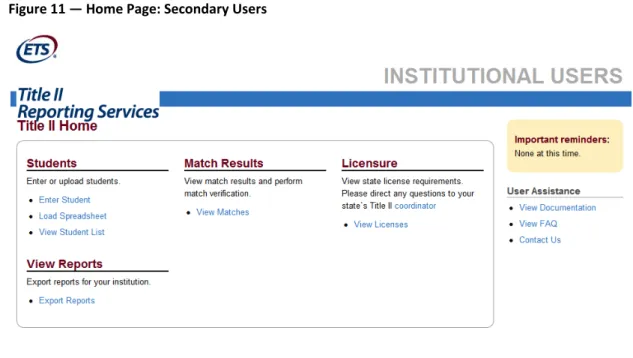
The options available on the Title II Home page for a secondary user (Error! Reference source not found.) include: Entering individual student data Uploading student data via spreadsheet (with no minimum requirement) Viewing the students that have been entered Verifying matches of students to their scores Viewing teacher certification tests and licenses used by your stateFigure 11 — Home Page: Secondary Users
4.3
Profile Maintenance: Change Password and/or Security Question
To change your password or security question at any time, select the Change Password and/or Security Question link in the upper right corner of the screen. User names cannot be changed (Figure ).
Enter changes as necessary and select Submit. Once your changes have been accepted by the system, you will receive an email to confirm that your account has been updated.
Note that changes to User Name is not an option. Figure 12 — Change Password and Security Question
4.4
Change Contact Information
To change your email address, mailing address or phone/fax numbers, choose the Change Contact Information link under Manage Profile in the upper right corner of the screen.
Enter changes as necessary then select Continue (Figure ). Once your changes have been accepted by the application, you will receive an email to confirm that your account has been updated.
Figure 13 — Change Contact Information
5
Entering Student Data
For the current year of reporting, you are required to enter ALL students seeking initial licensure/certification as a classroom teacher who are officially enrolled in your teacher preparation program between 9/1/2014 and 8/31/2015, regardless of their testing activity. Whether you enter your students individually, or by bulk upload (see detailed information in Section 5.5), you will be asked to assign a student to one of three categories: 1) Enrolled All But Clinical, 2) Other Enrolled, or 3) Completed. If they fit into more than one category during the academic year, you should assign whatever category they were/will be in as of 8/31/2015. The definition for each category, provide below, can also be viewed on the website by choosing Student Category. Additional information can be found at:https://title2.ed.gov/Public/TA/Completers_Enrolled.pdf 1. Enrolled All But Clinical are students who have completed all nonclinical courses; nonclinical coursework is: Any course in the teacher preparation program curriculum that focuses on content, such as academic subject matter, and does not require students to participate in the activities of supervised clinical experience as described in the glossary definition may be counted as nonclinical coursework. The curriculum policies of each state and its institutions will identify coursework that is nonclinical or clinical. See Supervised Clinical Experience and Nonclinical Coursework in Section 12.2 of this guide.
NOTE: If your program requires additional coursework during or after student teaching, you will have
no students listed in the Enrolled All But Clinical category.
2. Other Enrolled students have been admitted to a teacher preparation program but have not yet
completed the program.
NOTE: The definition of an enrolled student does not include taking classes or doing an active clinical.
However, if a student withdraws from the program during the academic year, do not include him/her in
the count of enrolled students.
If any of your students consist of teachers who are already licensed and returning to earn additional
endorsements, they should not be included in Title II reporting. Title II reporting is intended only for
those working toward their INITIAL certification. Initial certification is defined as the first teaching
certificate or license issued to an individual. The specific certificates or licenses classified as initial
certification in each state are defined by the state. States are to provide information on degree,
coursework, assessment, supervised clinical experiences, and other requirements.
3. Completed describes a student who has met all the requirements of a state‐approved teacher preparation program. Program completers include all those who are documented as having met such requirements. Documentation may take the form of a degree, institutional certificate, program credential, transcript, or other written proof of having met the program’s requirements. In applying this definition, the fact that an individual has or has not passed all licensure tests and/or has or has not been recommended to the state for initial certification or licensure may not be used as a criterion for determining who is a program completer.
5.1
Program Type
Each institution is assigned a program type by the Title II coordinator in its state. The designations are: Traditional — can enter only traditional route students (R) Alternate — can enter only alternate route students (A) Both — can enter both traditional and alternate route students (R and A) ARO — an alternate route organization outside of an institution able to enter only alternate route students (ex: Teach for America) (O) If you are not sure what your program designation is, or need to have it changed, contact your state Title II Coordinator. To obtain the contact information for your state coordinator, access this website: https://title2.ed.gov/contactsState.asp, or click the link “coordinator” on the Title II homepage (see Figure 14 – Contact Your State Title II Coordinatorbelow). Each student must be assigned a Program Type, either Traditional or Alternate. As noted above, some institutions can enter both Traditional and Alternate student data if they have been designated as “Both” by their state department of education. An Alternate Route Organization (ARO) can enter only Alternate program type student data. Please note that if you attempt to enter a program type for a student other than your own designated type, you will receive an error message: Program Type is invalid for the institution.Figure 14 – Contact Your State Title II Coordinator
5.2
Certification/License/Program
Each student in the Enrolled All But Clinical and Completed categories must be associated with at least one certification or license, and can be associated with up to 10. ETS determines the correct test to use in the pass rate calculation based on the tests required by the license associated with your students. For your students in the Other Enrolled category who may not yet have chosen a certification/licensure area, you may choose “undeclared.” When entering these “undeclared” students on the upload sheet, leave the cell in Column T blank. Please note that a student listed as “undeclared” will be matched to any test they have taken within thepast five years that is required for any teacher license in your state. If a student is working toward a license or certificate for which no test is required, in order to maintain an accurate count of your students for a given academic year, we have created the option of a license titled, “No Test Required (0000).” In order to assign this license to a student, your state would be required to add it to its list of licenses. If you have questions about this license, please contact your state’s Title II coordinator.
5.3
Updating “Rolled Over” Student Records
The student data entered the previous year for the two categories, Other Enrolled and Enrolled All But Clinical, will be rolled over to the current year for updating. Edits to these records can be done on an individual basis within the application or through an upload sheet*. Changes that can be made to rolled over student data: 1) Program Changes a) Alternate Route (A) to Traditional Route (R) if program type designation allows b) Traditional Route (R) to Alternate Route (A) if program type designation allows 2) Category Changes a) Enrolled All But Clinical (1) to Other Enrolled (2) b) Other Enrolled (2) to Enrolled All But Clinical (1) c) Enrolled All But Clinical (1) to Completed d) Other Enrolled (2) to Completed 3) Student Data Changes/Additions a) First name b) Alternate last names (4 fields) c) DOB d) SSN e) ETS Testing ID f) Street Address g) City h) State i) Licenses *Note: If you are updating by upload sheet, it is important that the following fields are an identical match to the record you are updating; if they differ, you will create a new record and have the student on your list in duplicate, which is not allowed: 1) Last Name 2) First Name 3) DOB or SSN Another option you may prefer when entering student data by upload sheet is to delete all “rolled over” student records and upload them all as new records. Choosing this option will allow you to use the most recent
information in your records without having to make sure it matches previously provided data, and you won’t run the risk of any of your students being entered more than once. Please be aware that if you choose to delete the rolled over records, ETS Title II Reporting Services will not be able to reinstate them once they are deleted should you change your mind. We strongly suggest you perform a student export of the rolled‐over student records prior to deleting them so you can retain them for purposes of reference. Duplicate Student Records The federal reporting guidelines are clear on what students should and should not be reported; a student can be reported only once in a given year, and only once in a lifetime as a completer. ETS’s quality control processes include a thorough review of student data entered by each institution to make sure each student is present only once. If a duplicate is discovered, we delete the most recently added record. To avoid this happening to your list, after you have entered all student data, export the list and review it by a variety of sorted fields to make sure each student is entered only once. You can check to make sure no two records have the same data in the following fields: ETS Testing ID, First Name, Last Name, SSN and/or DOB.
From Westat FAQ: The institution where the student last enrolled would report the student for Title II, HEA purposes. Allowing multiple entities to report on a student in a given academic year would provide duplicate counts at the state level yielding inaccurate counts of students in the teacher pipeline. Pass rates would also be attributed to the schools where the student last enrolled regardless of where he/she was studying when he/she took the credentialing example. The entity where the student last enrolled assumes responsibility for that student by accepting him/her into the program.
Please note that if you are attempting to enter a student record and it currently exists on another institution’s list because the record was rolled over and not yet deleted, you will not be able to enter that record until the other school has deleted it. Please don’t try to force entry of a duplicate record by removing SSN or DOB, as we will find it later and require it be removed from the list. For this reason we ask that the first task performed is the deletion of rolled over student records for those students who are no longer enrolled in your program. If you cannot add a student pending deletion from another institution, ETS Title II Reporting Services ([email protected]) can provide you with the contact information for that school so you can request that they delete the record(s). Below is suggested language that you might use in your communication with the other institution:
I am the Title II Coordinator for [institution name] in [state]. I was provided your contact information by Educational Testing Service and am writing to request that the following
student(s) be deleted from your student list for the current reporting year as they [he/she] were [was] officially enrolled in our teacher preparation program between 9/1/2014 and 8/31/2015. [student]
[student]
It would be appreciated if you would let me know when the deletion has been done so I can add the student(s) to my list to finalize this part of my reporting requirements.
Again, if you have student records rolled over from the prior year, and these students are no longer officially enrolled in your program for the current reporting cycle, please delete them expeditiously so that another school will be able to add them and complete this portion of their Title II work.
Please
note
that
if
you
are
entering
a
student
and
receive
the
message
that
the
student
was
reported
as
a
completer
in
a
prior
year,
that
student
cannot
be
deleted
and
you
should
discontinue
your
attempt
to
enter
that
record.
5.4
Entering New Students Individually
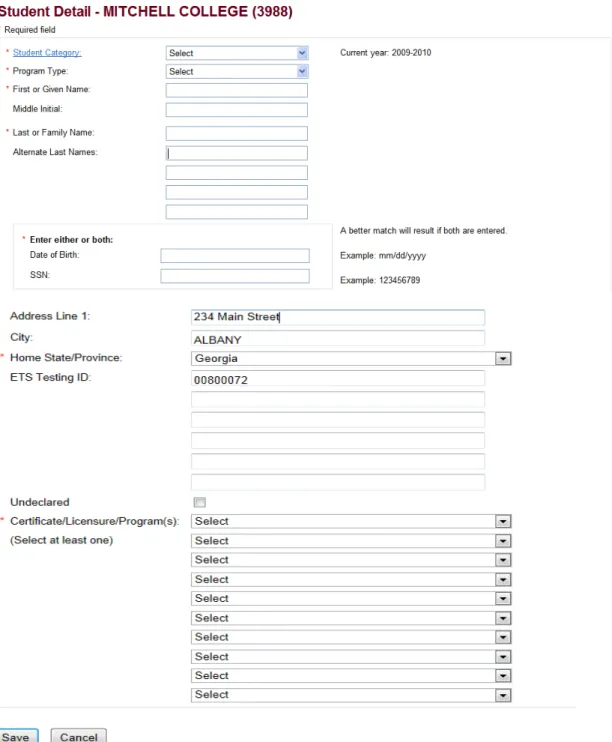
Figure 15 — Enter Individual Student
5.5
New Student Entry with Spreadsheet Upload
A second way to enter your student data is to upload it on a spreadsheet. The spreadsheet which provides the correct field headings, is available by choosing Download a Spreadsheet form (Figure 16 — Spreadsheet for Upload). It is recommended that you save this spreadsheet as a file to your computer, and use the saved version in order to utilize all the functionality of an Excel spreadsheet. Please note that it is important to maintain the formatting in each column as text in order for a successful upload to occur. It is also important that you do not add any additional formatting such as bolding, centering, lines, freeze panes, highlighting, etc. See additional information and formatting tips in Section 0 below0 below.
Figure 16 — Spreadsheet for Upload
IMPORTANT NOTE: After your upload completes, take note of the number of records indicated as successfully loaded. You should always check your student list immediately after loading your sheet (from home page, choose “view student list”) to confirm that all of your records have loaded properly.
save this spreadsheet as a file to your computer to utilize all the functionality of an
Figure provides the formatting layout requirements; careful adherence to these requirements is crucial to a successful upload.
Figure 17 — Upload Format Requirements
5.6
Spreadsheet Formatting Tips
Even if your spreadsheet is formatted as text when empty, it can sometimes adopt the format of the data imported into it. To ensure that your spreadsheet is properly formatted, highlight the entire sheet, right click, choose Format, Number tab, and make sure the word ‘Text’ is highlighted. Numbers cause the biggest issue when changed to text. If a number field drops lead zeroes, or does not format as text, you can follow these steps: Date of Birth, Column K: 1. Highlight Column K 2. Right click and choose Cut 3. Open Notepad (or any other text only program) 4. Right click in Notepad and paste the data cut from Column K 5. Return to the spreadsheet, block Column K 6. Right click, choose Format Cells, choose Text 7. Return to Notepad, copy the list of data (do not copy DOB field heading) 8. Return to Column K on your spreadsheet 9. Click in cell K2, right click and choose Paste Social security number, column L: 1. Highlight Column L 2. Right click, choose Format Cells, Number, Text Pay close attention to the field length requirements for each cell. For example, the field length requirement for the state code in Column S is two; if you put a space after the two‐digit state code, it will be considered three spaces and you will receive a formatting error for that row. If you must list “undeclared” for an Other Enrolled student, you should leave the cell in Column T blank for that student. Note that the only time a cell in Column T can be blank is for a Category 2 (Other Enrolled) student.5.7
View the License Names and Codes for your State
For each student (except “Other Enrolled”), Column T requires a license code, not a license name. Choose View the license names and codes for your statefrom the upload page; you will then be redirected to the Title II Licensure page for your state, which lists the licenses and their codes. If you are entering an undeclared student for whom you are unsure about the teaching certification they are seeking, leave the cell blank. When your file is ready for upload, first save it to your computer. You can type the file path and name in the box under File to Upload or you can choose Browse, then locate and choose the file to add it to the box. IMPORTANT: Be patient after submitting your spreadsheet for upload. Depending on the number of records, it could take a few minutes before you are presented with results. During the upload process, the application is checking on formatting and the validity of your data; in addition, the application must check the names and
identifying information for your students against that of all other students in the current year and all completers submitted by all institutions for all years back to 2000/01 to ensure that there are no duplicate entries. NOTE: If the submit button is pressed a second time before the application completes the first action, it will restart the process and you will receive many duplicate entry errors.
5.8
File Upload Error Messages
Error! Reference source not found.Figure 18 is a list of error messages that can be returned along with the field to which they apply and the reason for the error. Read through this list to better understand the requirements for a successful upload.
Figure 18 ‐ Upload Error Messages
Data entered in [LAST—NAME] field exceeds the maximum field length of [15]; truncate the data in this field to maximum length to resolve error. Data entered in [FIRST—NAME] field contains illegal character(s) [list all illegal characters for all fields]. Remove the character to resolve the error Data entered in cell C14 is improperly formatted. All data must be "text" formatted. Data entered in [PROGRAM] field is incorrect for your institution's program type. Data is required in [AI—CODE] field. Data is required in [CATEGORY] field. Options are: 1)Enrolled All But Clinical, 2) Other Enrolled, 3) Completed. Data is required in [FIRST NAME] field. Data is required in [LAST NAME] field. Data is required in either the [DOB or SSN] field. Data is required in the [LICENSE] field unless student is Undeclared. Data is required in the [PROGRAM TYPE] field. Data is required in the [STATE] field. Additional formatting has been added to your sheet in [field name or cell number] field. Please make sure: the sheet is not password protected; column filters are not in use; there are no frozen header panes, borders, bolding, highlighting, justification, font changes, etc. A record already exists with this student’s last name as an alternate last name. Please contact [email protected] and provide this reference number for assistance: [title 2 id]. Data entered in [DOB] field does not meet the required field length of 8; enter a valid DOB formatted as mmddyyyy to correct the error. Data entered in [SSN] field does not meet the required field length of 9; enter a valid SSN to correct the error.
IMPORTANT NOTE: If even one error message is received, none of the student records on your spreadsheet will be loaded. A spreadsheet has to be completely error free in order for any records to load.
5.9
Two Options to Correct Errors
If, when you upload your file, you receive a screen that indicates Load Errors, you can proceed in one of two ways: 1. Correct all of the errors on the spreadsheet and reload it. 2. Remove the rows that have errors to another worksheet and load the original spreadsheet again, containing just those lines that were error free. If you choose option 2 above, be sure to delete the empty rows left by removing the errors, then correct the errors and load the second worksheet. Note that the first spreadsheet in any Excel workbook is the one that loads, so you may need to move the worksheet with the corrected errors so it is first.
NOTE: Any error on an uploaded spreadsheet will prevent all student data on the sheet from being entered
into the application. A spreadsheet must be formatted properly and be error free in its entirety before the
application will accept a single record.
6
Match Results and Verification
ETS matches student data against its test score database three times weekly — Monday, Wednesday, and Friday — during the time the website is open (see Section 2). This is the process that matches the student records you entered to the tests and scores from ETS’s test database for those students.
Match
verification
is
the
most
important
part
of
the
work
you
perform
to
assure
an
accurate
pass
rate
report.
Therefore,
it
is
where
the
majority
of
your
effort
should
be
focused.
Be certain to allow enough time to accomplish match verification prior to the published date for the close of the website (see Section 2); and keep in mind that match runs occur three times weekly. You should look at each student’s match results in each of the three match status categories returned. It is possible that a student will match to a test record that contains a failing score when there is a second, unmatched, test record with a passing score. To avoid this, review the match results (details below) and provide additional, or edit existing, student data to enable a match to the appropriate score file. Don’t assume that the changes you make will result in a match; you should go back to the application and look at the results after the next match run. If you skip the match verification step, there is a chance that the pass rates for your institution will be lower than anticipated resulting in the need to perform edits to your data during the resolution period. Please read about the fee that is required to edit data during the resolution period in Section 11. Editing during the resolution period can be avoided by carefully reviewing, verifying, and editing your students’ match results. The students on your list will be matched to their test scores by the following match criteria. A. Last Name (or alternate last name), First Name, Praxis ETS Testing ID B. Last Name (or alternate last name), SSN, DOB C. Last Name (or alternate last name), SSN D. Last Name (or alternate last name), First name, DOB E. Last Name (or alternate last name), ETS Testing ID, DOB Each of the criteria listed above includes an exact match to the Last Name or an alternate last name (you can list up to four alternate last names). In addition, if you are matching one of the two first name criteria, it must be an exact match; a student who registers with the name of Elizabeth cannot be matched to scores if your institution enters Beth as the first name. To carefully view your matches, filter your student list and review the students for items as noted above. While reviewing each filtered list, scroll down to note the number of “not pass” in red. These will have an adverse effect on your pass rate reports if the student has not taken another form of that test and passed. For example, if the student shows a “not pass” for a paper test version, and a “pass” for the same test taken on computer, only the computer test score will be used in your pass rate calculations. However, if the record is matched to one format of the test and it has not been passed, it will count against you. Often times, when students reregister to test, they create a new profile instead of linking to their original profile. They may enter a different last name, or a different spelling of their first name (Richard vs. Rick). Therefore, if you have a
passing score on file for a student, but the record is matching to a “not passing” score, you should review the score report information carefully to ensure it matches exactly what you have entered into Title II. Below is an explanation for each Match Status. 1. Match Not Run — This status will appear for students you have either entered or edited since the last match run. 2. Not Found — This result occurs when ETS cannot locate a score file based on the information provided. Check the identifying information you provided to ETS for these students and edit where necessary to obtain a match to a score file, paying close attention to the last name on the student’s score report. It is possible that many of the students in your Other Enrolled category have not yet tested. If you are not positive that these students have tested, and you verify the identifying information you entered, you have given it your best effort and there is nothing more to do. Do not delete these students, however, as they will be rolled over to next year, by which time they may have tested. A student record should be deleted only when it was entered erroneously; e.g., if you entered a student who was reported as a completer in a prior year, or you reported a student who officially withdrew from your program during the academic year. See Figure 22 ‐ Match Resolution Chart, for additional assistance with this match status. 3. Found — There are many possible reasons for students to be assigned to the “Found” category. Refer to the list below when reviewing students in this category to determine the reason. As long as you know the reason that they are included in this category and it is valid, there is nothing more you need to do. However, regardless of their testing activity, these students must be included in your total count and their records must not be deleted. See Figure 22 ‐ Match Resolution Chart, The student took a test not required by the license listed The wrong license is listed for the student The student took the test outside of the testing window (before 9/1/2008 or after 8/31/2014 [current reporting year]) The student took the test before its effective date within your state* The student took the test after its expiration date in your state* The student has registered with ETS but has not yet tested The personal identifying information entered for the student does not match the file in the ETS database containing the passing scores for the license The student has an outstanding balance on his/her account, which would prevent scores from being available to report *Effective and expiration dates for any test can be viewed on the Title II Licensure page for any license that requires that test. From the ETS Title II Reporting Services home page, choose View Licenses, then choose your license from the list by clicking the name. You can also access test and license detail information by clicking the license name from either the student list or the student detail screens. Additional questions about licensure requirements in your state should be directed to your state’s Title II Coordinator. You can access that email address from the home page of the ETS Title II website by clicking
“Coordinator” under the Licensure heading (see Figure ). It will launch an email to the coordinator(s) for your state.
Figure 21 — Contact Your State Title II Coordinator
4. Matched to Scores — the most misunderstood and risky match category which causes the most problems with accuracy in the pass rate reports when not properly verified. The fact that a student is matched does not mean he/she is matched to the best (passing) score (See Figure 19 — Matched to Failing Score). A second test record can be created at re‐registration a student alters personal identifying information. If a student has two files, one containing a passing score and the other containing a failing score, and the student information you provided results in a match to the latter, the student will be placed into the “Matched to Scores” category, but your pass rate will be affected because of the failing score for this student. It is important that you view all your Matched students to make sure the score listed is correct. You can view the details of the tests taken by a student by clicking on the student’s last name (Figure 20 — Student Test Detail). Here you will view the date the test(s) was taken, the score achieved, and the cut score for this test in your state. If you know this student has a passing score for a particular test, you will want to look closely at the score report you have on file and edit the identifying information you provided to ETS to obtain a match to that score file. The information provided in the student record is solely for purposes of Title II reporting. It is used solely to match your students to scores in the ETS database. Therefore, if you see that a student provided an inaccurate DOB or SSN on a score report, you should also use that incorrect information in order to match to the correct score for the student.
Figure 19 — Matched to Failing Score
Figure 20 — Student Test Detail
To edit student data in the current reporting year, choose the student’s last name, then click “update student data” (if the student is matched to scores); if the student has not yet matched to scores, you can edit their data in the first screen you are redirected to. Here you can: If you know you have a passing score on file for a student, check the TEA ID number against the score report in your file. Also view the test date(s) and score achieved.
change the student category make changes to the first name, middle initial, and add a last name add up to four alternate last names add/edit/delete date of birth and/or social security number add/edit Testing Company ID add/change Certificate/Licensure/Program(s) When you return to the match results, you will see today’s date is noted for the update status of that student. Above the list of students on this page is the date of the last match run. This is how you can keep track of when to view your students’ match results for improvements based on your edits (Figure 21 — Verify Match Results).
Figure 21 — Verify Match Results
Figure 22 ‐ Match Resolution Chart
Possible
Reasons
for
Non
‐
Match
to
Test
Scores
Resolution
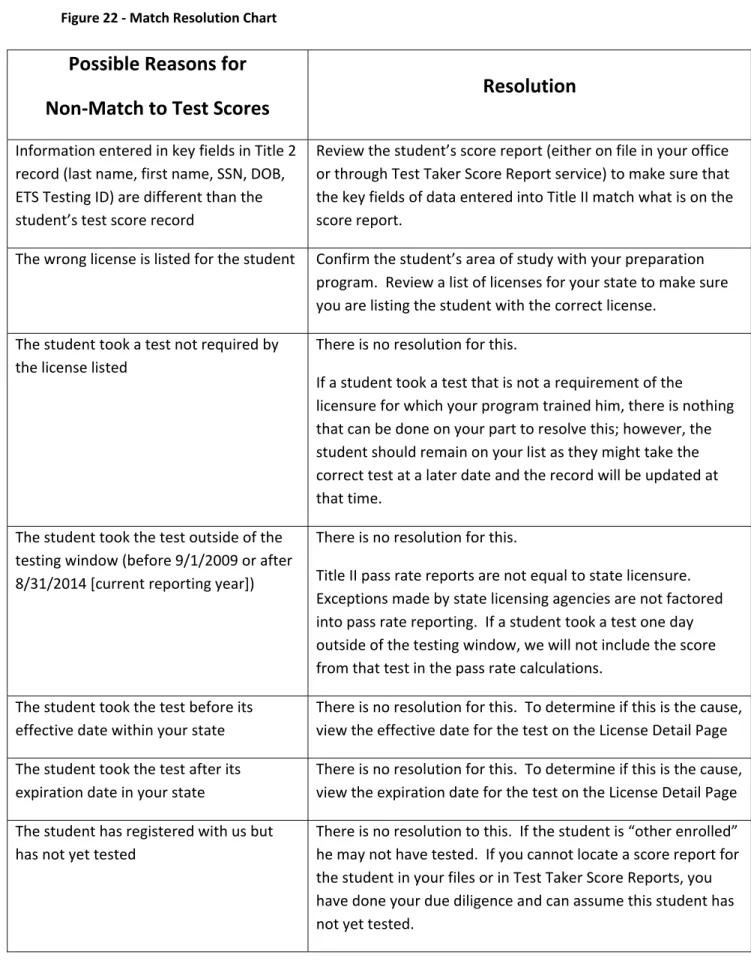
Information entered in key fields in Title 2 record (last name, first name, SSN, DOB, ETS Testing ID) are different than the student’s test score record Review the student’s score report (either on file in your office or through Test Taker Score Report service) to make sure that the key fields of data entered into Title II match what is on the score report. The wrong license is listed for the student Confirm the student’s area of study with your preparation program. Review a list of licenses for your state to make sure you are listing the student with the correct license. The student took a test not required by the license listed There is no resolution for this. If a student took a test that is not a requirement of the licensure for which your program trained him, there is nothing that can be done on your part to resolve this; however, the student should remain on your list as they might take the correct test at a later date and the record will be updated at that time. The student took the test outside of the testing window (before 9/1/2009 or after 8/31/2014 [current reporting year]) There is no resolution for this. Title II pass rate reports are not equal to state licensure. Exceptions made by state licensing agencies are not factored into pass rate reporting. If a student took a test one day outside of the testing window, we will not include the score from that test in the pass rate calculations. The student took the test before its effective date within your state There is no resolution for this. To determine if this is the cause, view the effective date for the test on the License Detail Page The student took the test after its expiration date in your state There is no resolution for this. To determine if this is the cause, view the expiration date for the test on the License Detail Page The student has registered with us but has not yet tested There is no resolution to this. If the student is “other enrolled” he may not have tested. If you cannot locate a score report for the student in your files or in Test Taker Score Reports, you have done your due diligence and can assume this student has not yet tested.
A student has an outstanding balance on his account which would prevent scores from being available to report. We see this reason very seldom. If none of the above reasons fit your student, contact us and we will check this for you. Once edits are made to student data, you should review the data again after the next scheduled match run (Mon/Wed/Fri) to verify the results of your edits. You may need to edit a student’s data multiple times before achieving a successful match. This is why it is important to allow enough time to work on verifying your match results prior to the close of the website as noted in Section 2 above. If you ruled out the reasons noted in Figure 22 ‐ Match Resolution Chart above, and are still unsuccessful at achieving a match to a record, contact us at [email protected] for assistance. Please include the name of your school and your 4‐digit institutional code in the subject line of the email. Do not include personal identifiable information (PII) for your students; i.e., SSN, DOB, address, test score, etc. If available, please include the Test Company ID number from the student’s score report in your file. If you attach a spreadsheet with PII, it must be encrypted (password protected) in order for us to open and review it.
6.1
View Licenses
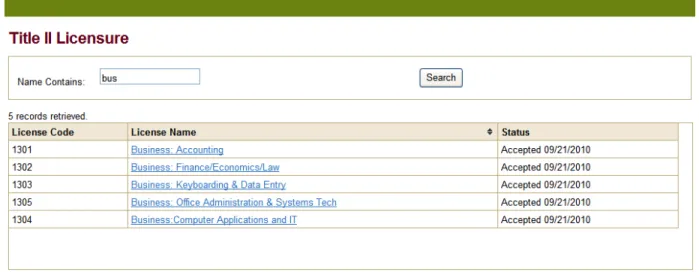
Selecting the View License link directs you to a list of licenses/endorsements used by your state for the cohort year selected, as well as the tests required by each license. To see the tests required by a license, choose the license name to view the license detail. The license detail provides the test(s) required by the license, the cut score and effective date of each test, as well as the license rule. The license rule provides additional information, such as: the option to take one test or another the option to take one group of tests or another group of tests requirement of several different tests If you are performing edits and reviewing student match results for a previous year, be sure to view the license and test information that was in effect for that year. To search for a particular license, enter a portion of the license name in the Name Contains box and choose the Search button. For example, to see all Business Licenses used by your state, type the letters ‘bus.’ Only licenses containing those letters in the name will be returned in the display (Figure 23 — License List).Figure 23 — License List
7
Tests from Other Testing Companies
This section is relevant to institutions in the following states:AR,
CT,
DE,
GA,
HI,
ID,
MD,
MS,
NH,
NJ,
PA,
RI,
SC,
TX,
UT,
and
WI
ETS is responsible for including the scores of your students from secondary vendor tests in the pass rate reports produced. ETS Title II Reporting Services will engage in two rounds of data exchange with secondary test vendors in states where ETS is the primary test vendor. The first round of exchange will occur in late September. Therefore, if you are in one of the states listed above, you should focus on entering students with a certification area that requires a secondary vendor test by the end of September; this will assure that you have an opportunity to review the match results prior to the site closure in November. The second and final round of data exchange will occur after the site closes in November, at which time secondary vendor data becomes final. See Reporting Timeline — New for 2014/15 Reporting, page 9.
In order for each state to submit one report containing test pass rates from all test vendors in a state, where ETS is the primary vendor, the following process has been created: 1. ETS will create files of student data, by state, consisting of those students with a license requiring a secondary vendor test (license information provided by state clients). 2. ETS will send encrypted files to each secondary vendor, for each state in common. 3. The secondary vendor will use the student data provided by ETS, and match it to tests taken by the students as well as the scores achieved. 4. The secondary vendor will return encrypted test/score data files to ETS. The scores will be appended to each student record and included in the pass rate reports. The above will take place in early October and again in mid‐November. In order to review secondary vendor match results while the site is open, and student record editing is still possible, you should have all students with a certification area that requires a secondary vendor test entered into the ETS system before the end of September. If you find discrepancies with, or have questions about, your students’ match results with secondary vendor test scores, they must be addressed directly with the vendor or with your state’s Title II coordinator who manages the relationship with the vendor. ETS sends the student data you enter and loads the scores received by the vendor. ETS cannot investigate secondary vendor issues. A final exchange of data will occur with the secondary vendors after the site closes in November. The results of changes made to the student data after the first exchange (in the ETS system or in the secondary vendor’s system) will not be seen on the ETS site until after t