FX Supervisory Controller Upgrade and Migration
Instructions Technical Bulletin
Code No. LIT-12011441 FX Supervisory Controllers, FX Server
Issued March 2016 Refer to theQuickLIT websitefor the most up-to-date version of this document.
Summary of Changes...3
Document Introduction...3
Related Documentation...3
Concepts...4
FX Supervisory Controllers...4 FX Server...4FX Supervisor Controller Family Software DVD (LP-FXWB-COPY)...4
FX Alarm Portal Client...5
Upgrading...5
Major Upgrades...5
Minor Upgrades...5
Migration...5
Upgrade Pricing Policy...5
Software Revision Numbering...6
Software License Agreement...7
Preventing Unauthorized Software Duplication or Usage...7
License Files...7
Part Numbers...8
Detailed Procedures for Upgrading FX Workbench 6.x and Earlier...15
Backing Up Your FX Supervisory Controller Station...15
Preparing Your FX Supervisory Controller for Upgrading...19
Checking for Minimum Memory Requirements...19
Eliminating Unused Files from the FX40...20
Upgrading the FX Workbench Software...22
Relicensing the FX Supervisory Controller...22
Installing New Software into the FX Supervisory Controller...23
Upgrading an FX20 to FX Supervisor Release 5.0...30
Defining Station Copier Options and Copying the Station...30
Commissioning the FX20...31
Error Messages...40
Using FX 5.0 Graphics on an FX20 ...41
Upgrading a Legacy FX60/70 to use new Graphics in FX 5.0...42
Using Legacy Graphics When Adding Devices to the Station...44
Upgrading FX Server...44
Troubleshooting...45
Troubleshooting the File Too Large Error Message...45
Detailed Procedures for Migrating to FX Supervisory Software 14.x...46
Considering Platform Compatibility...47
Considering Driver, Feature, and Application Compatibility...48
Considering License Compatibility...49
Example of an FX Supervisory Controller Migration ...51
FX Supervisory Software 14 Resource Requirements...52
Checking for FX Supervisory Software 14 Resource Requirements...53
Backing Up Your FX Workbench 6.x Station...58
Running Platform Daemon 14.0...58
Migrating the 6.x Station to Facility Explorer 14.x ...59
Installing the Distribution File...61
Commissioning the Station...66
Installing or Updating Licenses...68
Setting the Enabled Runtime Profiles...72
Specifying a Station to Install...73
Installing Core Distribution Files...77
Configuring TCP/IP Settings...78
Updating the System Passphrase...80
Specifying a Platform User to Replace the Factory-default Platform User...82
Reviewing the Changes...84
Changing the Default Web Profile to Use the HTML5HxProfile...86
Viewing and Updating Metaspace...88
Viewing Metaspace...88
Updating Metaspace...90
Upgrading FX Server to FX Supervisory Software 14 ...93
Reverting a Station from FX Supervisory Software 14.x to FX Supervisory Software 6.x ...94
Running Platform Daemon 6.x...96
Installing a Backup 6.x Station...97
Troubleshooting...100
Appendix...103
Migration Checklist...103
Summary of Changes
The following information is new or revised:• Fixed error inConsidering Platform Compatibility.
• Added a note to the FX30E controller about heap size inConsidering Platform Compatibility.
Document Introduction
This document is intended for persons who upgrade software for FX Supervisory Controllers. This document describes FX Supervisory Controller:
• Related Documentation • Products and Options
• Upgrade and Licensing Policies • Part Numbers and Their Contents
• Upgrade Procedures for the Niagara 4 Migration • Upgrade Procedures for FX Workbench 6.0 and Earlier
Related Documentation
Table 1: Related DocumentationLIT or Part Number See Document
For Information On
LIT-12011406 FX Supervisory Controller Product Bulletin
The Features, Benefits, and Specifications of the FX Supervisory Controller
Part No. 24-10174-115 FX30E/FX60E Supervisory Controller
Installation Instructions
How to Install the FX Supervisory Controller
Part No. 24-10564-17 FX70 Supervisory Controller Installation
Instructions
LIT-12011122 FX Server Product Bulletin
The Features, Benefits, and Specifications of the FX Server
LIT-12011149 FX Workbench User's Guide
The Operation of FX Workbench
LIT-12011965 FX Supervisory Controller Family Software
Products Installation Instructions
Concepts
FX Supervisory Controllers
FX Supervisory Controllers describe a family of hardware products which includes the FX20, FX30E, FX40, FX60, FX60E, FX70, and FX80 models. FX Supervisory Controllers provide the following capabilities:
• field bus, network-level integration of devices (such as HVAC equipment controllers, lighting panels, and variable frequency drives)
• direct integration of inputs and outputs (such as energy meters, alarm indicators, temperature sensors, and actuators)
• field bus, network-level automation and coordination through scheduling, alarming, trending, and customized control logic (such as runtime totalization, energy management, interlocking, staging/sequencing, and PID control) • web-based, graphical user interface that supports both local and remote access
FX Server
The FX Server software product is available for various computer platforms and provides:
• network integration of two or more (Facility Explorer 6.x and earlier) or one or more (for Facility Explorer 14) FX Supervisory Controllers, or IP-based devices (without any FX Supervisory Controllers).
• network-wide automation and coordination for one or more FX Supervisory Controllers through master scheduling, and centralized, long-term, high-capacity storage of alarms and trends
• centralized, network-wide, web-based, graphical user interface for one or more FX Supervisory Controllers supporting both local and remote access
Three versions of FX Server are available:
• LP-FXWS-3: allows integration of up to three FX Supervisory Controllers. Supports 32-bit or 64-bit Microsoft® Windows®computer platforms
• LP-FXWS-100: allows integration of up to 100 FX Supervisory Controllers. Supports 32-bit or 64-bit Windows computer platforms
• LP-FXWS-UNL: allows integration of an unrestricted number of FX Supervisory Controllers limited only by the power of the host computer platform. Supports 32-bit or 64-bit Windows computer platforms
FX Supervisor Controller Family Software DVD (LP-FXWB-COPY)
The FX Supervisor Controller Family Software DVD includes a suite of software tools and applications used to configure, commission, and interact with FX Supervisory Controllers. The FX Supervisory DVD includes:
• FX Workbench and FX Server: this tool is used to configure and commission FX Supervisory Controllers using the Johnson Controls®configuration appliance.
• FX Workbench Pro: this tool is used to configure and commission FX Supervisory Controllers using both the Johnson Controls configuration appliance and the NiagaraAX Workbench.
• FX Alarm Portal: this application provides an alarm monitoring workstation.
• LX Wizards: the Support Pack, Configuration, and LX Smart Installer, are collections of executable files that let you configure a LON network and program LX controllers.
You can license FX Workbench/FX Workbench Pro using one of two ordering codes: • End-User Version (LP-FXWBE-0)
• Engineering/Demo Version (LP-FXWBDEM-0) • Engineering/Demo Version (FX-SL001M1-0)
Table 2: Comparison of FX Tools Supervisory Pro Versions
Engineering/Demo Version
(LP-FXWBDEM-0) End-User Version (LP-FXWBE-0)
Feature
Yes Yes
Allows users to connect to and interact with FX Supervisory Controllers
Yes Yes
Allows users to reconfigure existing stations while online
Yes Yes
Allows users to back up and restore stations
Yes No
Allows users to create new stations while offline
Expires every October 31 Never Expires
Expiration Policy
Installing contractors Facility operations personnel
Intended user type
FX Alarm Portal Client
FX Alarm Portal Client (LP-FXWBALM-0) provides the FX Alarm Portal functionality only. FX Alarm Portal Client includes no FX Workbench or FX Workbench Pro functionality.
Upgrading
Upgrading is the process of installing new software onto your computer, onto an FX Supervisory Controller, or both.
Major Upgrades
Major upgrades typically contain new features, significant enhancements, and bug fixes. Major upgrades are identified by changes to the major revision number of the software. For example, 2.0 is a major upgrade to 1.2.
Minor Upgrades
Minor upgrades typically contain bug fixes or small enhancements. Minor upgrades are identified by changes to the minor revision number of the software. For example, 1.2 is a minor upgrade to 1.1.
Migration
Migration is similar to upgrading, but signifies a larger change in software. Migration typically requires more steps and conversions to move forward.
Upgrade Pricing Policy
You can purchase software new or you can purchase maintenance for software. Maintenance can be purchased in 1, 3, or 5 year increments. With each maintenance plan, you have access to any new software developed during that time. If you let the maintenance lapse, and want it later, you must buy the past maintenance you missed plus the new maintenance.
Software Revision Numbering
All FX Supervisory Controller, FX Server, and FX Tools Supervisor Pro software products incorporate an instance of Niagara software. See Table 3 to find which revision of the Niagara software is used in each FX Supervisory software release.
Table 3: Niagara Version Used
Niagara Software Versions
Key Identifying Features or Changes FX Supervisory Software
Release
3.0.88 Initial release that introduced the FX40 Supervisory Controller, FX Server, and FX Tools Supervisor Pro.
1.0
3.0.99 Minor release that introduced the update to the N2 Device
Manager, corrections to the Variable Air Volume (VAV) Modular Assembly (VMA) occupancy enumerations, and other minor bug fixes.
1.1
3.0.106 Minor release that introduced several enhancements and bug
fixes, including a new tabbed structured system graphic template, new Schedule, Point Group, and Link Managers, and FX Alarm Portal.
1.2
3.3.22 Major release that introduced the FX20 and FX60 Supervisory Controllers and accessories, FX Server Limited, FX Server driver options, FX Alarm Portal client, and bug fixes to the N2 driver.
2.0
3.3.31 Minor release that introduced the Wireless TEC Option card,
LX Series LON Controller configuration wizards, a New Station wizard, and the Global Point Extension Manager.
2.1
3.3.31 Minor release that introduced support for iPhone®interface or a similar sized graphical user interface and the Point Order field to the System Library.
2.2
3.5.25 Major release that introduced the FX22, FX62, and FX70
Supervisory Controllers and accessories, FXRIO Remote Input/Output (I/O) Module, and General Packet Radio Service (GPRS) Modem option card.
3.0
3.5.34 Minor release that introduced the Assisted Device Import
feature, which supports the new FX-PC Programmable Controllers.
3.1
3.6.31 Major release that introduced the FX20, FX60, and FX70
Supervisory Controllers with factory-installed BACnet®MS/TP protocol driver licenses, additional option cards, FX Energy Suite, and FX20/FX60 basic demo supervisory controllers. 4.0
3.6.47 Minor release that introduced FX Server changes, BTL
Certification, and changes to the method of FX Supervisor Controller family software delivery and licensing.
4.1
3.6.407 Patch release
4.1
3.7.106 Major release that introduced revised graphic images and
templates, N2 device convert manager, and new wizard service for LX controllers.
5.0
3.7.106 Minor release that introduced updates to FX Workbench. These
updates include Batch Import, Simple Plant Standard Graphics, Point Summary Manager, Hardware Scan Service, Graphic Sizing Selection for Mobile Devices, and Launch FX-PCT 5.1
3.7.106 Minor release that introduced the FX30E and FX60E
Supervisory Controllers. Also introduced were updates to tuning polices in FX Workbench, N2 Help, and Zoning application graphics.
Table 3: Niagara Version Used
Niagara Software Versions
Key Identifying Features or Changes FX Supervisory Software Release 3.7.108 Patch release 5.3 3.8.38 Major release that allows FX Workbench to run on the Niagara 3.8 platform.
6.0
3.8.38 Minor release that introduced updates to FX Workbench. These updates include Spaces and Equipment, Meters, WT4000, and updates to the Point Summary Manager.
6.1
3.8.41 Patch release
6.2
4.0.22.16 Major release that allows FX Workbench to run on the Niagara
4 platform.
The jump from 6.x to 14.x was intentional to align with Niagara software version moving forward.
14.0
Software License Agreement
All Johnson Controls®software is licensed. During the installation process, you must accept or decline the terms of the software licensing agreement.
Preventing Unauthorized Software Duplication or Usage
Johnson Controls, Inc. uses the following two methods to prevent unauthorized software duplication and usage. • Acceptance of the terms of the software licensing agreement legally prohibits duplicating or using Johnson Controls
Facility Explorer software tools without authorization. This method applies to all Johnson Controls Facility Explorer software.
• A properly formatted and installed license file (FacExp.license) is required to enable the operation of FX Workbench, FX Workbench Pro, FX Alarm Portal, and FX Server.
Note: At Release 14.0, a new Johnson.license is required to enable the operation of the N2 driver.
License Files
License files are required to enable operation of FX Supervisory Controllers, FX Server, and FX Tools Supervisor Pro. License files are keyed to the host ID. A host ID is unique to each hardware platform.
• host IDs that begin withWin-are targeted to computers
• host IDs that begin withQnx-are targeted to FX Supervisory Controller
A license file is a text file (FacExp.license) that you can read but not edit. License files contain a digital signature, and any attempt to edit them renders the files invalid.
Included in each license file is a list of features allowed to operate inside the host device. These features may include network drivers, database drivers, the maximum number of devices allowed, the maximum number of points allowed, tool profiles, and other feature options.
Also included in each license file is the version of Niagara software allowed to operate inside the host device. When upgrading software in a host (computer or FX Supervisory Controller), the license version must be equal to or greater than the software version.
NiagaraAX and Niagara 4 licenses are two different files now. Make sure that you have the correct license for the Niagara version you are using. NiagaraAX licenses do not work on Niagara 4, and Niagara 4 licenses do not work on NiagaraAX.
Part Numbers
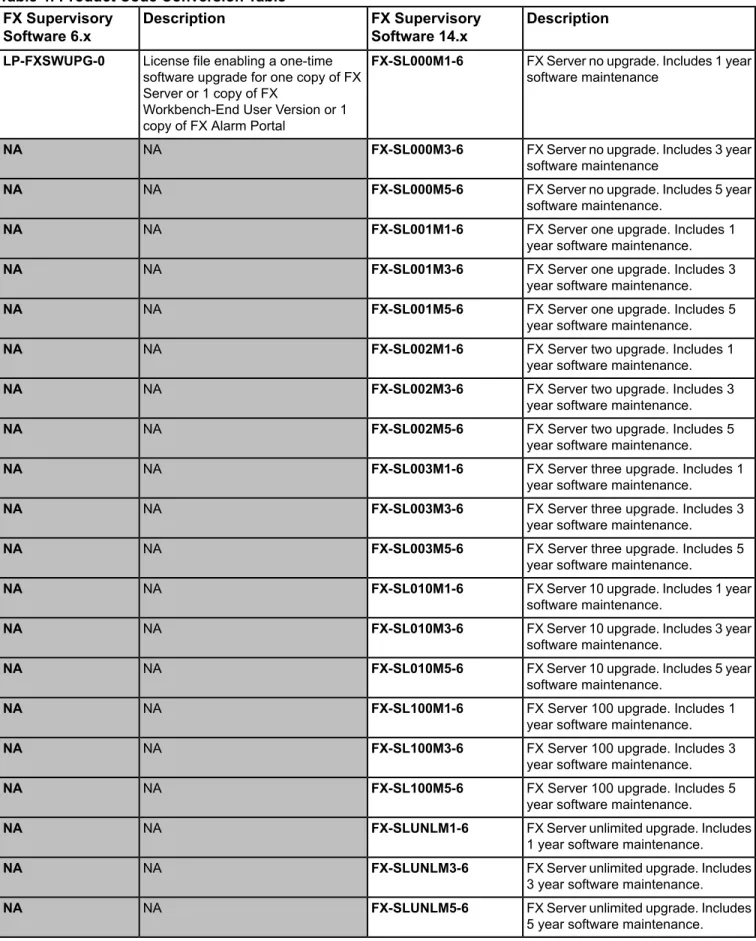
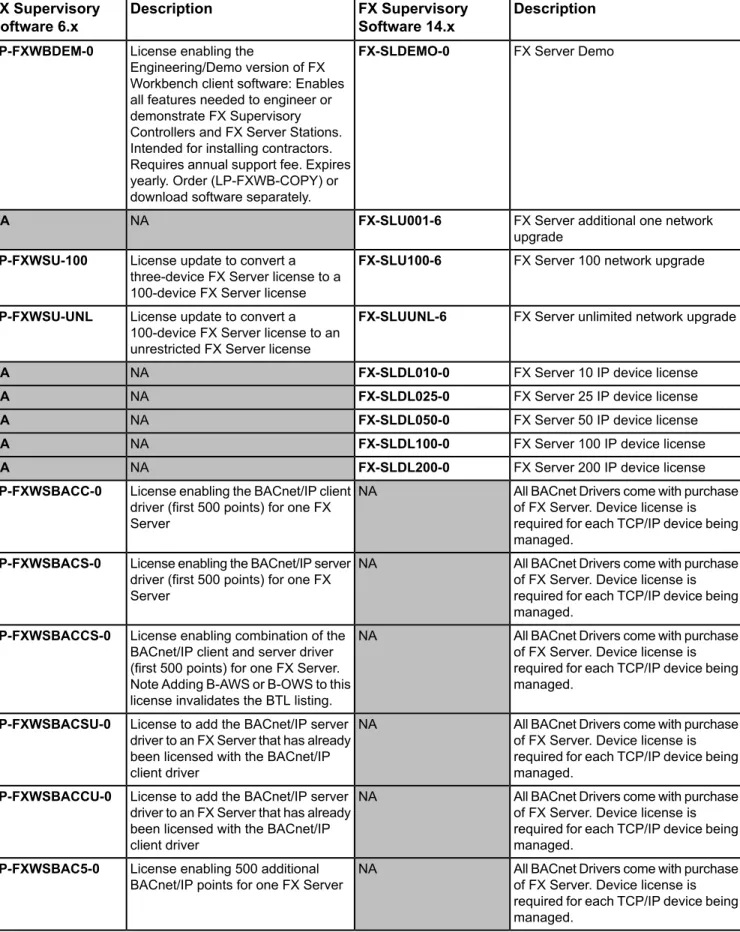
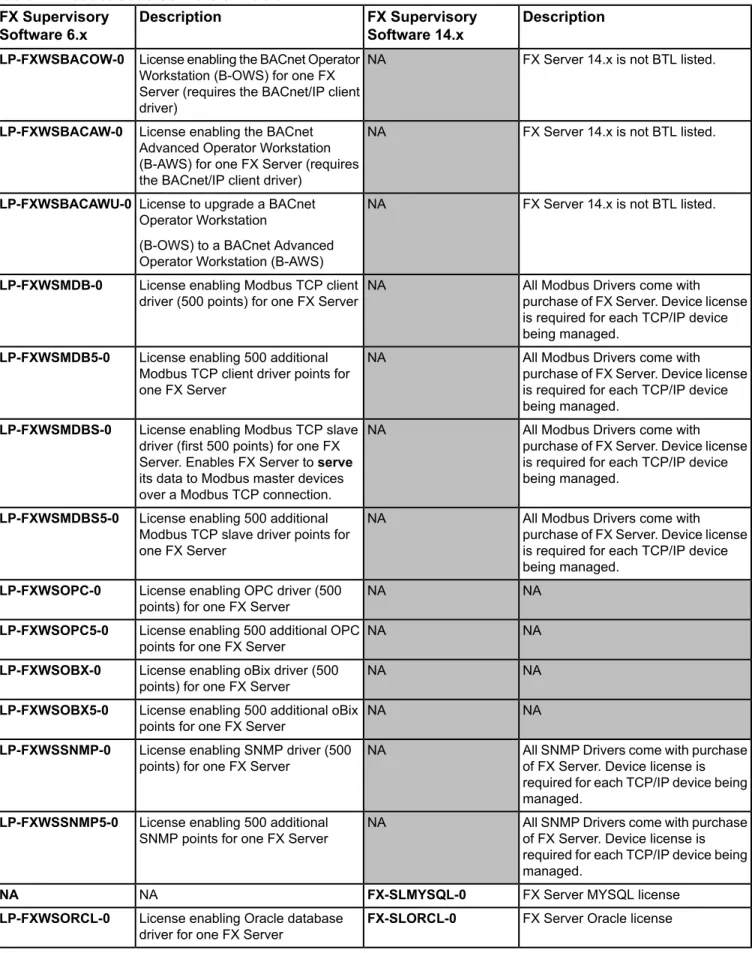
The following table provides and compares the part numbers for both FX Supervisory Software 6.x Product Code and FX Supervisory Software 14.x Product Code.
Table 4: Product Code Conversion Table
Description FX Supervisory Software 14.x Description FX Supervisory Software 6.x
FX Server with no network connection. For use with TCP/IP. Includes 1 year software maintenance.
FX-SL000M1-0 NA
NA
FX Server with no network connection. For use with TCP/IP. Includes 3 year software maintenance.
FX-SL000M3-0 NA
NA
FX Server with no network connection. For use with TCP/IP. Includes 5 year software maintenance.
FX-SL000M5-0 NA
NA
FX Server with one network connection. Client Workbench. Includes 1 year software maintenance. FX-SL001M1-0
License enabling the end user version of FX Workbench client software. Enables those features needed to operate and re-configure FX
Supervisory Controllers and FX Server stations only via an online connection (cannot create new stations offline). Intended for end users (operators). Never expires. Order
(LP-FXWB-COPY) or download software separately.
LP-FXWBE-0
FX Server with one network connection. Client Workbench. Includes 3 year software maintenance. FX-SL001M3-0
NA NA
FX Server with one network connection. Client Workbench. Includes 5 year software maintenance. FX-SL001M5-0
NA NA
FX Server with two network
connections. Includes 1 year software maintenance.
FX-SL002M1-0 NA
NA
FX Server with two network
connections. Includes 3 year software maintenance.
FX-SL002M3-0 NA
NA
FX Server with two network
connections. Includes 5 year software maintenance.
FX-SL002M5-0 NA
NA
FX Server with three network
connections. Includes 1 year software maintenance.
FX-SL003M1-0 License enabling 3-device FX Server.
Allows integration of up to three FX Supervisory Controllers. Supports 32-bit or 64-bit Windows computer platforms. Includes Niagara Historical Database, FX Workbench, Niagara driver, and oBix client/server driver (only for connecting to Niagara-based controllers). Order (LP-FXWB-COPY) or download software separately. LP-FXWS-3
FX Server with three network
connections. Includes 3 year software maintenance.
FX-SL003M3-0 NA
Table 4: Product Code Conversion Table Description FX Supervisory Software 14.x Description FX Supervisory Software 6.x
FX Server with three network
connections. Includes 5 year software maintenance.
FX-SL003M5-0 NA
NA
FX Server with 10 network
connections. Includes 1 year software maintenance.
FX-SL010M1-0 NA
NA
FX Server with 10 network
connections. Includes 3 year software maintenance.
FX-SL010M3-0 NA
NA
FX Server with 10 network
connections. Includes 5 year software maintenance.
FX-SL010M5-0 NA
NA
FX Server with 100 network
connections. Includes 1 year software maintenance.
FX-SL100M1-0 License enabling 100-device FX
Server. Allows integration of up to 100 FX Supervisory Controllers. Supports 32-bit or 64-bit Windows computer platforms. Includes Niagara Historical Database, FX Workbench, Niagara driver, and oBix client/server driver (only for connecting to Niagara-based controllers). Order (LP-FXWB-COPY) or download software separately. LP-FXWS-100
FX Server with 100 network
connections. Includes 3 year software maintenance.
FX-SL100M3-0 NA
NA
FX Server with 100 network
connections. Includes 5 year software maintenance.
FX-SL100M5-0 NA
NA
FX Server with unlimited network connections. Includes 1 year software maintenance.
FX-SLUNLM1-0 License enabling unrestricted FX
Server. Allows integration of an unrestricted number of FX Supervisory Controllers (actual number of FX Supervisory Controllers will be limited only by the power of the host computer platform) Supports 32-bit or 64-bit Windows computer platforms. Includes Niagara Historical Database, FX Workbench, Niagara driver, and oBix client/server driver (only for connecting to Niagara-based controllers). Order (LP-FXWB-COPY) or download software separately. LP-FXWS-UNL
FX Server with unlimited network connections. Includes 3 year software maintenance.
FX-SLUNLM3-0 NA
NA
FX Server with unlimited network connections. Includes 5 year software maintenance.
FX-SLUNLM5-0 NA
Table 4: Product Code Conversion Table Description FX Supervisory Software 14.x Description FX Supervisory Software 6.x
FX Server no upgrade. Includes 1 year software maintenance
FX-SL000M1-6 License file enabling a one-time
software upgrade for one copy of FX Server or 1 copy of FX
Workbench-End User Version or 1 copy of FX Alarm Portal
LP-FXSWUPG-0
FX Server no upgrade. Includes 3 year software maintenance
FX-SL000M3-6 NA
NA
FX Server no upgrade. Includes 5 year software maintenance.
FX-SL000M5-6 NA
NA
FX Server one upgrade. Includes 1 year software maintenance. FX-SL001M1-6
NA NA
FX Server one upgrade. Includes 3 year software maintenance. FX-SL001M3-6
NA NA
FX Server one upgrade. Includes 5 year software maintenance. FX-SL001M5-6
NA NA
FX Server two upgrade. Includes 1 year software maintenance. FX-SL002M1-6
NA NA
FX Server two upgrade. Includes 3 year software maintenance. FX-SL002M3-6
NA NA
FX Server two upgrade. Includes 5 year software maintenance. FX-SL002M5-6
NA NA
FX Server three upgrade. Includes 1 year software maintenance.
FX-SL003M1-6 NA
NA
FX Server three upgrade. Includes 3 year software maintenance.
FX-SL003M3-6 NA
NA
FX Server three upgrade. Includes 5 year software maintenance.
FX-SL003M5-6 NA
NA
FX Server 10 upgrade. Includes 1 year software maintenance.
FX-SL010M1-6 NA
NA
FX Server 10 upgrade. Includes 3 year software maintenance.
FX-SL010M3-6 NA
NA
FX Server 10 upgrade. Includes 5 year software maintenance.
FX-SL010M5-6 NA
NA
FX Server 100 upgrade. Includes 1 year software maintenance. FX-SL100M1-6
NA NA
FX Server 100 upgrade. Includes 3 year software maintenance. FX-SL100M3-6
NA NA
FX Server 100 upgrade. Includes 5 year software maintenance. FX-SL100M5-6
NA NA
FX Server unlimited upgrade. Includes 1 year software maintenance. FX-SLUNLM1-6
NA NA
FX Server unlimited upgrade. Includes 3 year software maintenance. FX-SLUNLM3-6
NA NA
FX Server unlimited upgrade. Includes 5 year software maintenance. FX-SLUNLM5-6
NA NA
Table 4: Product Code Conversion Table Description FX Supervisory Software 14.x Description FX Supervisory Software 6.x FX Server Demo FX-SLDEMO-0
License enabling the
Engineering/Demo version of FX Workbench client software: Enables all features needed to engineer or demonstrate FX Supervisory Controllers and FX Server Stations. Intended for installing contractors. Requires annual support fee. Expires yearly. Order (LP-FXWB-COPY) or download software separately. LP-FXWBDEM-0
FX Server additional one network upgrade
FX-SLU001-6 NA
NA
FX Server 100 network upgrade FX-SLU100-6
License update to convert a three-device FX Server license to a 100-device FX Server license LP-FXWSU-100
FX Server unlimited network upgrade FX-SLUUNL-6
License update to convert a 100-device FX Server license to an unrestricted FX Server license LP-FXWSU-UNL
FX Server 10 IP device license FX-SLDL010-0
NA NA
FX Server 25 IP device license FX-SLDL025-0
NA NA
FX Server 50 IP device license FX-SLDL050-0
NA NA
FX Server 100 IP device license FX-SLDL100-0
NA NA
FX Server 200 IP device license FX-SLDL200-0
NA NA
All BACnet Drivers come with purchase of FX Server. Device license is required for each TCP/IP device being managed.
NA License enabling the BACnet/IP client driver (first 500 points) for one FX Server
LP-FXWSBACC-0
All BACnet Drivers come with purchase of FX Server. Device license is required for each TCP/IP device being managed.
NA License enabling the BACnet/IP server driver (first 500 points) for one FX Server
LP-FXWSBACS-0
All BACnet Drivers come with purchase of FX Server. Device license is required for each TCP/IP device being managed.
NA License enabling combination of the BACnet/IP client and server driver (first 500 points) for one FX Server. Note Adding B-AWS or B-OWS to this license invalidates the BTL listing. LP-FXWSBACCS-0
All BACnet Drivers come with purchase of FX Server. Device license is required for each TCP/IP device being managed.
NA License to add the BACnet/IP server driver to an FX Server that has already been licensed with the BACnet/IP client driver
LP-FXWSBACSU-0
All BACnet Drivers come with purchase of FX Server. Device license is required for each TCP/IP device being managed.
NA License to add the BACnet/IP server driver to an FX Server that has already been licensed with the BACnet/IP client driver
LP-FXWSBACCU-0
All BACnet Drivers come with purchase of FX Server. Device license is required for each TCP/IP device being managed.
NA License enabling 500 additional
BACnet/IP points for one FX Server LP-FXWSBAC5-0
Table 4: Product Code Conversion Table Description FX Supervisory Software 14.x Description FX Supervisory Software 6.x
FX Server 14.x is not BTL listed. NA
License enabling the BACnet Operator Workstation (B-OWS) for one FX Server (requires the BACnet/IP client driver)
LP-FXWSBACOW-0
FX Server 14.x is not BTL listed. NA
License enabling the BACnet Advanced Operator Workstation (B-AWS) for one FX Server (requires the BACnet/IP client driver)
LP-FXWSBACAW-0
FX Server 14.x is not BTL listed. NA
License to upgrade a BACnet Operator Workstation
(B-OWS) to a BACnet Advanced Operator Workstation (B-AWS) LP-FXWSBACAWU-0
All Modbus Drivers come with purchase of FX Server. Device license is required for each TCP/IP device being managed.
NA License enabling Modbus TCP client driver (500 points) for one FX Server LP-FXWSMDB-0
All Modbus Drivers come with purchase of FX Server. Device license is required for each TCP/IP device being managed.
NA License enabling 500 additional
Modbus TCP client driver points for one FX Server
LP-FXWSMDB5-0
All Modbus Drivers come with purchase of FX Server. Device license is required for each TCP/IP device being managed.
NA License enabling Modbus TCP slave driver (first 500 points) for one FX Server. Enables FX Server toserve its data to Modbus master devices over a Modbus TCP connection. LP-FXWSMDBS-0
All Modbus Drivers come with purchase of FX Server. Device license is required for each TCP/IP device being managed.
NA License enabling 500 additional
Modbus TCP slave driver points for one FX Server
LP-FXWSMDBS5-0
NA NA
License enabling OPC driver (500 points) for one FX Server
LP-FXWSOPC-0
NA NA
License enabling 500 additional OPC points for one FX Server
LP-FXWSOPC5-0
NA NA
License enabling oBix driver (500 points) for one FX Server LP-FXWSOBX-0
NA NA
License enabling 500 additional oBix points for one FX Server
LP-FXWSOBX5-0
All SNMP Drivers come with purchase of FX Server. Device license is required for each TCP/IP device being managed.
NA License enabling SNMP driver (500 points) for one FX Server
LP-FXWSSNMP-0
All SNMP Drivers come with purchase of FX Server. Device license is required for each TCP/IP device being managed.
NA License enabling 500 additional
SNMP points for one FX Server LP-FXWSSNMP5-0
FX Server MYSQL license FX-SLMYSQL-0
NA NA
FX Server Oracle license FX-SLORCL-0
License enabling Oracle database driver for one FX Server
Table 4: Product Code Conversion Table Description FX Supervisory Software 14.x Description FX Supervisory Software 6.x FX Server SQL license FX-SLSQL-0
License enabling SQL database driver for one FX Server
LP-FXWSSQL-0
FX Server CSV license FX-SLCSV-0
License enabling *.xls and *.csv file data to be imported into one FX Server
LP-FXWSCSV-0
FX Server OPC client license FX-SLOPCCL-0
License enabling OPC driver (500 points) for one FX Server
LP-FXWSOPC-0
NA NA
License enabling IBM DB2 database driver for one FX Server
LP-FXWSDB2-0
NA NA
License enabling FX Energy to analyze data from one FX Supervisory controller or station. Analyzes as many points as the designated FX
Supervisory controller can support. Can be combined with point licenses (LP-FXEPN) as required to complete a solution.
LP-FXESTA-0
NA NA
License enabling FX Energy to analyze a single point of data. Analyzes a single point from an FX Supervisory controller or station, an instance of Niagara, a meter or a database point. Can be combined with station licenses (LP-FXESTA) as required to complete a solution. LP-FXEPNT-0
NA NA
License enabling the Simple
OpenADR software driver for one FX Server. Allows communication to the Akuacom DRAS. Limited to one DRAS client connection to the DRAS. Includes a CRYPTO license for the SSL connection.
LP-FXWSSADR-0
NA NA
License enabling one additional DRAS client server connection. The FX Server must already contain part number LP-FXWSSADR-0. LP-FXWSSADR1-0
NA NA
License enabling FX Alarm Portal Client software. Enables only FX Alarm Portal and Alarm Console features. Intended for end users. Never expires. Order
(LP-FXWB-COPY) or download software separately.
LP-FXWBALM-0
NA NA
License change fee to transfer end-user license from one computer’s host ID to another.
LP-FXLICCH-0
FX30E software 1 year maintenance upgrade.
FX-SC3EM1-6 License enabling a one-time software
upgrade for one FX20/FX40/FX60/FX70 LP-FX40UPG-0
FX30E software 3 year maintenance upgrade.
FX-SC3EM3-6 NA
Table 4: Product Code Conversion Table Description FX Supervisory Software 14.x Description FX Supervisory Software 6.x
FX30E software 5 year maintenance upgrade.
FX-SC3EM5-6 NA
NA
FX60E software 1 year maintenance upgrade.
FX-SC6EM1-6 License enabling a one-time software
upgrade for one FX20/FX40/FX60/FX70 LP-FX40UPG-0
FX60E software 3 year maintenance upgrade.
FX-SC6EM3-6 NA
NA
FX60E software 5 year maintenance upgrade.
FX-SC6EM5-6 NA
NA
FX70 software 1 year maintenance upgrade.
FX-SC7M1-6 License enabling a one-time software
upgrade for one FX20/FX40/FX60/FX70 LP-FX40UPG-0
FX70 software 3 year maintenance upgrade.
FX-SC7M3-6 NA
NA
FX70 software 5 year maintenance upgrade.
FX-SC7M5-6 NA
NA
FX Supervisory Controller family software, delivered on DVD. Contains latest installation images for FX Server, FX Workbench, and FX Alarm Portal Client. Licenses not included—order licenses separately
FX-DVD-COPY FX Supervisory Controller family
software, delivered on DVD. Contains installation images for FX Server, FX Workbench, and FX Alarm Portal Client. Licenses not included. Order licenses separately.
Detailed Procedures for Upgrading FX Workbench 6.x and Earlier
Note: If you are using Facility Explorer 5.x or earlier and want to migrate to Facility Explorer 14, you must purchasethe upgrade part to move to Facility Explorer 6.x before you move to Facility Explorer 14.0. To migrate to Facility Explorer 14.0, seeDetailed Procedures for Migrating to FX Supervisory Software 14.x.
This section describes how to:
• back up your FX Supervisory Controller station
• prepare your FX Supervisory Controllers for upgrading
• upgrade FX Workbench
• re-license the FX Supervisory Controller
• install new software into the FX Supervisory Controller
Backing Up Your FX Supervisory Controller Station
1. Expand the Nav tree for the station you want to back up.2. In the Nav tree, expandPlatform. 3. Double-clickStation Copier.
Figure 1: Station Copier Window
4. Select the station that you want to copy from theStations onpanel. 5. ClickCopy. The Station Transfer Wizard appears.
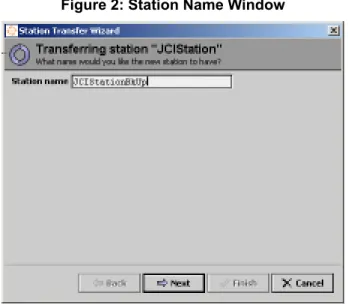
Figure 2: Station Name Window
6. Enter a name for the Station name and clickNext.
Figure 3: Which Station Files Are to Be Copied? Selections
7. SelectCopy every file in the station directory and its subdirectoriesand clickNext. Table 5: Transferring Station Copy Options
Description Feature
Allows you to select individual files to copy and transfer Copy files from selected directories
Copies all files for transfer (recommended for backing up a remote station during this upgrade procedure) Copy every file in the station directory and its subdirectories
Copies the station database only (for example, drivers, devices, and points) and no associated files
Figure 4: Running Station Must Be Stopped Window
8. ClickNext. The station is stopped.
Figure 5: Please Review Your Changes Window
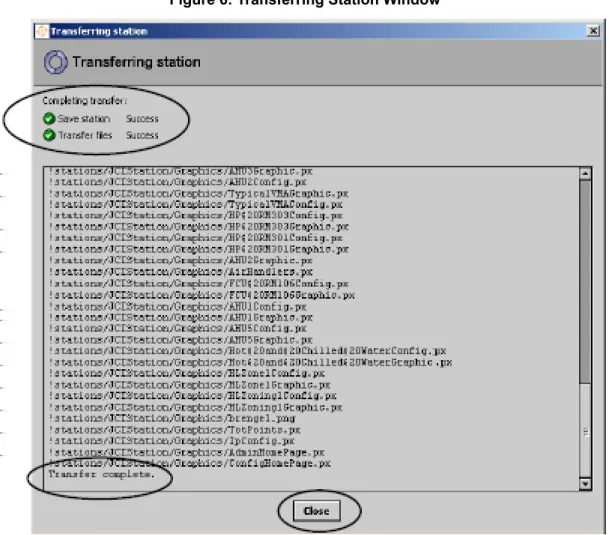
Figure 6: Transferring Station Window
Preparing Your FX Supervisory Controller for Upgrading
Upgrading FX Supervisory Controllers typically requires additional memory.Note: Youmustmake sure your FX Supervisory Controller has an adequate amount of memory before you attempt the upgrade. If you attempt to upgrade an FX Supervisory Controller that does not have enough memory, the upgrade procedure fails and your FX Supervisory Controller may become unrecoverable.
Note: Do notattempt to upgrade an FX40 (with standard memory, 128 MB RAM, 31 MB flash) to version 2.2 or higher. The FX40 does not have enough memory to support this upgrade.
Note: Do notattempt to upgrade an FX20 to Release 5.0 if the/ffs0partition is less than 5.0 MB of file space. To see how much free file space is available, open thePlatform\Platform Administrationview and note how much file space is free. If there is less than 5.0 MB free, we do not recommend that you upgrade to FX20 (1024 KB = 1 MB. 5120 KB = 5 MB). See Upgrading an FX20 to FX Supervisor Release 5.0for instructions.
Checking for Minimum Memory Requirements
1. Start FX Workbench by clickingStart > Programs > FX Tools Supervisor Pro-x.x > FX Workbench.
2. Connect to the FX Supervisory Controller by selectingFile > Open Remote Stationand entering the IP address and platform and station login credentials.
3. In the Navigation sidebar, expandAdministration, double-clickPlatform, and verify the file system (/ffs0) has the minimum memory requirements identified inTable 6. If it does not, seeTroubleshooting the File Too Large Error Messagebefore continuing with this upgrade.
Figure 7: FX Workbench Free Space Verification
Table 6: Approximate Memory Requirements for Upgrading
Description Feature 3072 KB (3.0 MB) From 1.2 to 2.0 Not recommended From 1.2 to 3.0 10,000 KB (10 MB) From 2.0 or 2.1 to 3.0 5,000 KB (5 MB) From 2.2 to 3.0
Table 6: Approximate Memory Requirements for Upgrading Description Feature 5,000 KB (5 MB) From 3.0 to 4.1 5,000 KB (5 MB) From 4.1 to 5.0
4. If your FX Supervisory Controller does not contain the minimum memory requirements, then delete unused files to increase the file space. Some files that are likely unused are the Graphic Templates stored in the
sysGraphicsFile, sysGraphicsFileHx, sysPxFile, and sysPxFileHx folders.
Note: If you delete all the unused files and the minimum required free space is still not available, the FX Supervisory Controller cannot be upgraded.
Eliminating Unused Files from the FX40
Use this procedure if you require additional memory to upgrade your FX40 from 1.2 to 2.0. FX Tools Supervisor Pro 2.0 includes an Upgrade FX Station utility that increases the available memory by removing unused files. The Upgrade FX Station utility removes station backup files from the root directory, deletes the Brengel.png file from the graphics folder, and deletes many of the Library Graphic files found in the sysPxFile directory.
1. Using a text editor, open the file TrimFileList.txt located in the C:\JCI\FXSupervisorPro-x.x\jciStandards\Properties folder.
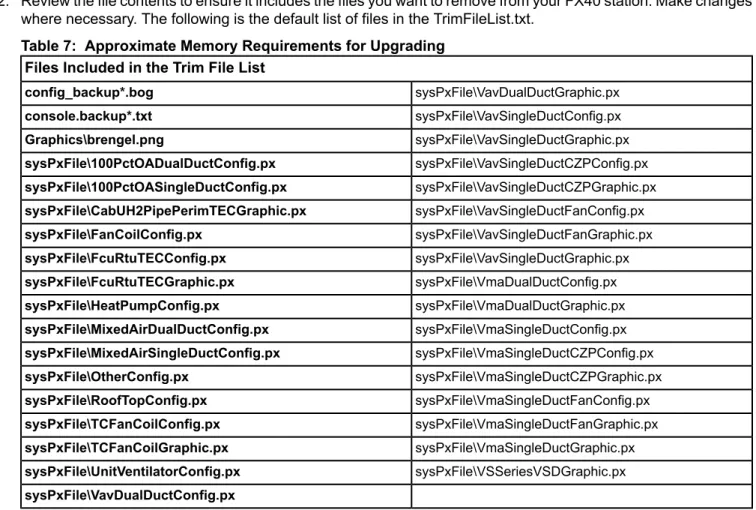
2. Review the file contents to ensure it includes the files you want to remove from your FX40 station. Make changes where necessary. The following is the default list of files in the TrimFileList.txt.
Table 7: Approximate Memory Requirements for Upgrading Files Included in the Trim File List
sysPxFile\VavDualDuctGraphic.px config_backup*.bog sysPxFile\VavSingleDuctConfig.px console.backup*.txt sysPxFile\VavSingleDuctGraphic.px Graphics\brengel.png sysPxFile\VavSingleDuctCZPConfig.px sysPxFile\100PctOADualDuctConfig.px sysPxFile\VavSingleDuctCZPGraphic.px sysPxFile\100PctOASingleDuctConfig.px sysPxFile\VavSingleDuctFanConfig.px sysPxFile\CabUH2PipePerimTECGraphic.px sysPxFile\VavSingleDuctFanGraphic.px sysPxFile\FanCoilConfig.px sysPxFile\VavSingleDuctGraphic.px sysPxFile\FcuRtuTECConfig.px sysPxFile\VmaDualDuctConfig.px sysPxFile\FcuRtuTECGraphic.px sysPxFile\VmaDualDuctGraphic.px sysPxFile\HeatPumpConfig.px sysPxFile\VmaSingleDuctConfig.px sysPxFile\MixedAirDualDuctConfig.px sysPxFile\VmaSingleDuctCZPConfig.px sysPxFile\MixedAirSingleDuctConfig.px sysPxFile\VmaSingleDuctCZPGraphic.px sysPxFile\OtherConfig.px sysPxFile\VmaSingleDuctFanConfig.px sysPxFile\RoofTopConfig.px sysPxFile\VmaSingleDuctFanGraphic.px sysPxFile\TCFanCoilConfig.px sysPxFile\VmaSingleDuctGraphic.px sysPxFile\TCFanCoilGraphic.px sysPxFile\VSSeriesVSDGraphic.px sysPxFile\UnitVentilatorConfig.px sysPxFile\VavDualDuctConfig.px
3. Save your changes to TrimFileList.txt.Do notrename the TrimFileList.txt file.
4. ClickStart > Programs > FX Tools Supervisor Pro > Upgrade FX Station. The Upgrading information window appears.
Figure 8: Upgrade Station Wizard
5. Read the instructions.
6. Click File > Upgrade Remote Station. The platform login dialog box appears. Figure 9: Upgrade Remote Station Option
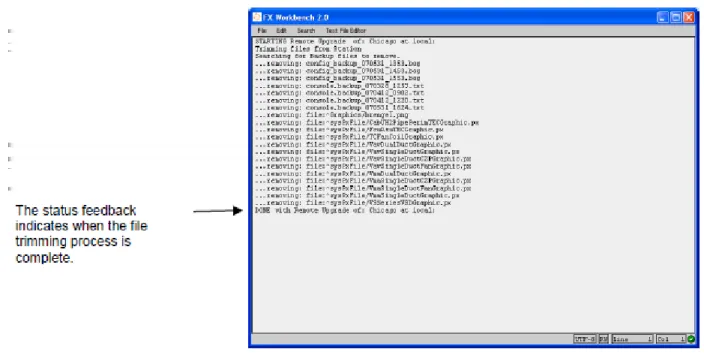
7. Enter the IP address and platform login credentials for the target FX40. The station login dialog box appears. 8. Enter the station login credentials. The FX Upgrade performs its file trimming process, saves the station, and
Figure 10: File Trimming Status Feedback
9. ClickFile > Exitwhen the upgrade is complete.
Upgrading the FX Workbench Software
You use FX Workbench to upgrade the FX Supervisory Controller. Therefore, you must upgrade your FX Workbench software before you can upgrade your FX Supervisory Controller.
1. Email a request [email protected] an upgraded license to your FX Workbench. In your email, please provide your host ID (Win-####).
Note: If your FX Workbench software is not currently part of a software maintenance agreement, you need to order a software upgrade. Include your purchase order number on the same email.
2. Receive the upgraded FX Workbench software license, unzip it, and paste it into the licenses folder (C:\JCI\FXSupervisorPro-x.x\licenses).
3. Obtain the most recent version of FX Workbench by ordering LP-FXWB-COPY or by downloading it from the Pro FX User Connected Community.
4. Receive the CD.
Note: The license file you obtained in Step 2 should be automatically copied from your previous installation directory and pasted into the licenses folder of your new installation directory. If not, copy and paste it there.
5. Run the software by clickingStart > Programs > FX Tools Supervisor Pro > FX Workbench.
Relicensing the FX Supervisory Controller
If your FX Supervisory Controller is not currently part of a software maintenance agreement, you must order a software upgrade license.
1. Email a request [email protected] an upgraded license. Provide your host ID (Qnx-####) and purchase order number (if buying a software upgrade license).
2. Receive the upgraded FX Supervisory Controller license and paste it into the licenses folder of your FX Tools Supervisor Pro installation directory (C:\JCI\FXSupervisorPro-x.x\licenses).
4. Connect to the FX Supervisory Controller by selecting File > Open Remote Station and entering the IP address and platform and station login credentials.
5. Expose the Nav tree.
6. In the Nav tree, double-clickPlatform.
7. Double-clickLicense Manager. The License Manager window appears. 8. ClickImport. The Import License dialog box appears.
9. ClickImport one or more licenses from files. 10. ClickOK. The Select File dialog box appears.
11. Select the location of the new FX Supervisory Controller license file you received in Step 2. Note: Select the license withQnx-in the Host ID number.
12. ClickOK.
13. ClickYeson the Licensing Complete dialog box to reboot the system.
Note: The reboot process can take up to 5 minutes depending on network and computer performance. There is no indicator for the progress of the reboot. If an attempt to reconnect to the FX Supervisory Controller fails, wait for the system to complete the reboot and try again.
14. Reconnect to the FX Supervisory Controller after the reboot process has completed.
Installing New Software into the FX Supervisory Controller
Important: Be certain you want to upgrade an FX40 from version 1.2 to 2.0. Once you upgrade the FX40 from version 1.2 to 2.0, you cannot downgrade back to 1.2.
Note: Go to Upgrading an FX20 to FX Supervisor Release 5.0if you are upgrading an FX20 to FX Supervisor Release 5.0.
1. Start the latest release of FX Workbench by clickingStart > Programs > FX Tools Supervisor Pro > FX Workbench.
2. Connect to the FX Supervisory Controller by selectingFile > Open Remote Stationand entering IP address and platform and station login credentials.
3. ExpandPlatform.
Figure 12: Commissioning Wizard
5. Leave the default selections and clickNext.
Figure 13: Commissioning Wizard - Licensing
7. ClickInstall one or more licenses from filesif the FX Supervisor requires an upgraded license. ClickDon't change any licensesif the installed license supports the FX Supervisory Software revision being added. 8. ClickNext.
Figure 14: Commissioning Wizard - Module Content Filter Level
Figure 15: Commissioning Wizard - Station Installation
10. In the Station list, selectDon't transfer a stationand clickNext.
Figure 17: Commissioning Wizard - Software Installation
11. ClickUpgrade All Out of Date. The system selects the check boxes next to the out-of-date software. Use the scroll bar to locate and add additional .jar files that were added with the new release but may not have been on the FX Supervisory Controller that is being upgraded.
In the Avail. Version column, look for .jar files from Johnson Controls. Select the check box to include a .jar file in the upgrade process. For example, if you select the jciAutoImport .jar file, then the file is included with the upgrade.
You do not need to add .jar files like jciLX, jciLXDevices, or jciLXMain unless you have a LONWORKS®network.
Figure 18: Commissioning Wizard - Distribution File Installation
13. ClickNext.
Figure 19: Commissioning Wizard - TCP/IP Configuration
Figure 20: Commissioning Wizard - Platform Daemon Authentication
15. Keep the current Platform name and password and clickNext.
Figure 21: Commissioning Wizard - Review of Changes
Upgrading an FX20 to FX Supervisor Release 5.0
1. Install the new 5.0 version of FX Workbench to your computer. You can install either the FX Server or the FX Workbench.
2. Start FX Workbench Pro 5.0.
Defining Station Copier Options and Copying the Station
1. In the FX Workbench menu bar, selectTools > Options.2. ClickStation Copier Options.
3. In the Copy Remote Station Alarm Data list, clickTrue. 4. In the Copy Remote Station History Data list, clickTrue. 5. ClickOK.
The alarm and history data is saved as part of a station copy. 6. Close and then restart FX Workbench Pro.
FX Workbench Pro must restart to read the options you set.
Figure 22: Station Copier Options
7. Make a Platform connection to the FX20.
8. In the Nav tree, double-clickStation Copierin the Platform tree. The Station Copier screen appears. 9. Select the FX20 station and copy it to the local computer running FX Workbench 5.0. The Station Transfer
Figure 23: Station Transfer Wizard
10. Click to selectCopy every file in the station directory and its subdirectories, and clickNext.
11. After the FX20 station has been successfully copied to the local computer, select the station from the FX20 in the Station Copier screen and clickDelete.
Deleting the station helps ensure that the FX20 has sufficient memory resources to install all of the updated core software modules and the updated .jar files.
Commissioning the FX20
1. In the Nav tree, double-clickPlatform Administrationin the Platform tree. The Platform Administration screen appears.
Figure 24: Commissioning Screen
3. ClickNext.
4. Do one of the following:
• If the License on the FX20 is at Tridium 3.7, click to selectDon't change any licensesand clickNext. • If the license on the FX20 is prior to Tridium 3.7, you need a new license to be compatible (3.7) with FX WB
5.0. If the license is not on the local computer, make sure your computer is enabled to connect to the Niagara Central licensing portal. Select the optionInstall one or more licenses from filesto install an updated license, and clickNext.
Figure 26: Licensing Screen - Add New License File
5. If you are installing a new license, a License screen appears. ClickAddand select the new license file from the Select File dialog box. The Module Content Filter Level screen appears.
Figure 27: Module Content Filter Level
6. SelectUI+RUNTIME. The Station Installation screen appears.
7. Select the station that was copied to the local computer in the previous steps and click Next. Figure 29: Station Installation Screen - Select Station Files to Copy
8. SelectCopy every file in the station directory and its subdirectoriesto get the entire station contents transferred back to the FX20. Click Next. The Software Installation screen appears.
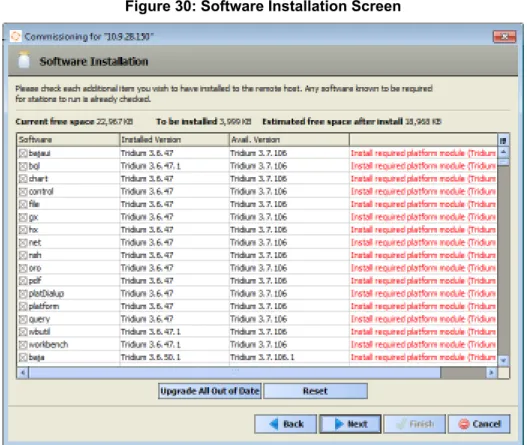
Figure 30: Software Installation Screen
9. ClickUpgrade All Out of Dateand clickNext. The Distribution File Installation screen appears. This screen displays all of thecoresoftware that needs to be installed.
Figure 31: Distribution File Installation Screen
10. ClickNext. The Commissioning wizard displays a confirmation screen that details all of the files to be installed on the FX20.
Figure 32: Confirmation Screen
11. ClickFinish. The progress screen appears as the FX20 commissioning process runs.
After all of the new files have been loaded onto the FX20, the Commissioning Wizard progress screen indicates that the FX20 is rebooting.
Figure 34: Complete Commissioning - Commissioning Complete Screen
12. ClickClose.
13. After the FX20 restarts, open the FX20 Platform in your computer FX Workbench. Ensure that the station is in place and that the Software Manager indicates that all of the modules are up to date.
14. Log in to the station and validate that the station is complete.
Note: If the station used a blank password, you are prompted to enter a strong password the first time you log in.
Error Messages
If you attempt an upgrade of an FX20 with insufficient available file space, the following error may appear in the Serial Shell connected to the FX20:
Using FX 5.0 Graphics on an FX20
FX Workbench 5.0 includes a new set of standard library graphics.
The new library uses a palette of symbols, found in the kitPxGraphics.jar file, that are more photo realistic. The symbols module is almost 20 MB in size and is too large to load onto an FX20. However, it may be possible to make use of these new graphics on an FX20 by loading a local copy of only the images used by the new standard graphics library. Then you can build the FX20 station on a local computer and trim files from the station to allow it to fit in the limited file space on an FX20.
If an existing FX20 station has been successfully upgraded to FX 5.0, we recommend that youdo not upgradethis station's PX graphics to use the new palette.
If you use the FX Workbench 5.0 New JCI Station Wizard, the size of the station before you add any devices or other features increases from 7.5 MB to 16.1 MB. This increase is due to the addition of a new set of library graphic files and a local copy of the images from the new kitPxGraphics palette.
Use the following steps to create a station that uses the new standard graphics library and then load the station in an FX20.
Note: You must create the station using your local computer FX Workbench. You cannot connect to an FX20 through the browser and add devices that use the new graphics. The new graphics symbols and the new graphics libraries are not part of the preloaded JCIStation on a factory-loaded FX20.
After the new station is built and unneeded files are removed, determine the overall size of the station files and compare it to the available file space on the FX20. Perform this step to be sure the new station fits in the FX20 and that there is sufficient available file space for additional data such as trends and alarms.
1. In FX Workbench Pro 5.0, create a new station using theTools > New JCI Station Wizard.
The system creates a new station containing all of the new standard graphics library files and the local copy of the new graphic symbols found in the kitPxGraphics palette.
2. Add your devices to the defined network (or networks) that you want to connect to the FX20. 3. Use the Import Manager to create the points and the graphics for each of the added devices.
The Import Manager has a new Import Graphic Type option that defaults toKitPxGraphics. This option uses the new graphics library with the new graphic symbols.
4. After you add all of the devices, complete the station definition as needed. The more devices you add to the station, the more accurate an overall station size can be determined.
5. Save the station.
6. Delete all unneeded files.
7. Using either Windows Explorer or the FX Workbench My File System in the Nav tree, navigate to the local computer directory that contains your new station.
A typical location might beC:\JCI\FXWorkbench-5.0\stations\<station name>,where<station name>is the name of your station.
8. Delete the following directories:sysGraphicsFile,sysGraphicsFileHx,sysPxFile,and sysPxFileHx. These folders contain the standard library graphic files used by the Import Manager. Once the devices have been added and their graphics created, these library files are no longer needed. Deleting these directories removes approximately 13.1 MB from the station.
Note: Once these Library Graphic file directories have been deleted, you can still add new devices to your station, but the Import Manager cannot create graphics for the added device because the graphic libraries are deleted.
9. Note the size of the entire station directory. The station directory is the content of the new station to be copied to the FX20.
11. In the Nav tree, double-clickStation Copierin the Platform tree.
12. If the station on the FX20 is the factory-default JCIStation and not an existing running station, delete the station. If the station is not the factory-default station, make sure to copy the station from the FX20 to your local computer first before you delete the station.
13. In the Nav tree, double-clickPlatform Administrationin the Platform tree.
Ensure that the /ffs0 partition has sufficient space to hold the new stationplus 3 to 5 additional MBto account for local trends and alarm file space.
14. If there is sufficient space to hold the new station plus 3 to 5 additional MB, copy the new station to the FX20. Click to selectCopy every file in the station and its subdirectoriesto ensure all files are transferred to the FX20.
15. After the FX20 reboots, log in to the FX20.
16. Complete any final station configuration steps, such as setting port names or other network configurations that cannot be set when configuring the station on your computer.
Upgrading a Legacy FX60/70 to use new Graphics in FX 5.0
Use this section to upgrade an FX60 or FX70. Do not use this process to upgrade an FX20. Creating graphics on a station running FX 5.0 differs from previous releases in the following ways: • FX 5.0 adds files to thepxfolder• FX 5.0 adds thesysGraphicsandsysGraphicsFileHxfolders Table 8: File Folders for FX Version 4.1 and FX Version 5.0
Files Folder in FX Version 5.0 Files Folder in FX Version 4.1
If you want to use the new graphical symbols (such as ductwork, fans, or sensors) in a version of FX Workbench prior to Release 5.0, add these folders to the existing station after you upgrade to Release 5.0.
1. In FX Workbench, make a platform connection to the FX20/FX60 Supervisory Controller.
2. Use the Commissioning Wizard in the Platform Administration service to upgrade the FX Supervisor. Likewise, if you are using FX Workbench Pro, select Driver Upgrade Tool in the Tools menu.
3. To add folders, double-click thejciStandardsfolder in the MyHost/MyFileSystem/SysHome location in the FX Workbench 5.0 Nav tree.
Use either of these methods to upgrade the .jar files, operating systems, and other components.
4. To add folders, double-click thejciStandardsfolder in the MyHost/MyFileSystem/SysHome location in the FX Workbench 5.0 Nav tree.
Figure 35: jciStandards Folder
5. Hold down the Ctrl key and click thepx,sysGraphicsFile, andsysGraphicsFileHxfolders. While they are highlighted, right-click and clickCopy.
Figure 36: Copy px, sysGraphicsFile, and sysGraphicsFileHx Folders
Figure 37: Paste px, sysGraphicsFile, and sysGraphicsFileHx Folders
Note: If you already had a file namedpx, make sure the folder just pasted is not namedpx_1. If it is, delete the pxfolder, then rename thepx_1folder topx.
Now if you add a new device using the network Device Manager and associate it with a resource file using the Import Manager, a graphic is created using the new templates and symbols introduced at FX 5.0.
Using Legacy Graphics When Adding Devices to the Station
There are two methods to continue using the legacy graphics when adding devices to the station. Using JCI Options
• In the Tools > Options menu, clickJCI Options.
This option allows you to select the defaults the templates and symbols used for all devices you add.
• ClickkitPxHVACif you want every graphic that is added using the Import Manager to use the legacy symbols. If you select the defaultKitPxGraphics, every graphic that is added using the Import Manager uses the revised 5.0 templates and graphical symbols.
Using the Import Manager
• In the Import Manager, selectKitPxHVACin Import Graphic Type. This option creates a graphic using the legacy templates and symbols for that device only.
SelectingKitPXGraphicscreates a graphic using the updated templates and symbols for that device only.
Upgrading FX Server
1. If your FX Server is not currently part a software maintenance agreement, you must order a software upgrade license. Email a request [email protected] an upgraded FX Server license. Provide your host ID (Win-####) and purchase order number (if buying a software upgrade license).
2. When you receive the upgraded FX Server license, paste it into the licenses folder of your FX Server installation directory (C:\JCI\FXServer-x.x\licenses).
3. To obtain the most recent version of FX Server, order LP-FXWB-COPY or download it from the Pro FX User Connected Community.
4. Install the new FX Server software.
Note: The license file you obtained in Step 1 should be automatically copied from your previous installation directory and pasted into the licenses folder of your new installation directory. If it is not, copy and paste it there.
5. Copy your station files from the old FX Server installation directory (C:\JCI\FXServer-x.x\stations\station name) to the new FX Server installation directory.
6. Run the software by clickingStart > Programs > FX Server.
Troubleshooting
This section describes the most common problem encountered when upgrading an FX40 from Release 1.x to 2.0, and how to resolve the problem.
Troubleshooting the File Too Large Error Message
A minimum of 3,072 KB (3.0 MB) of free file space is required to upgrade the FX40 to 2.0. A File Too Large error message appears if the minimum file space is not available. Delete unused files to increase the file space. Follow this procedure to delete the Graphic Templates on the FX40, which are likely to be unused.
Note: If you delete all the unused files and the minimum required free space is still not available, the FX40 cannot be upgraded.
Table 9: Troubleshooting the File Too Large Error Message Solution Problem
1. Close the File Too Large error message and exit the installation wizard.
2. In the Navigation tree, expand the Administration folder. 3. Double-click the Files folder. The sysPxFile folder
appears in the right window (along with other folders and files).
4. Double-click the sysPxFile folder. The Graphic Templates files appear in the right window.
5. Select all the files: click the top file, scroll to the bottom of the window, hold down the Shift key, and click the bottom file. (Or press the Ctrl key and click individual files to select only those files.)
6. Right-click the selected files and clickDelete. The selected files are deleted from the FX40.
A File Too Large error message appears and the upgrade cannot be completed
Detailed Procedures for Migrating to FX Supervisory Software 14.x
Migration is similar to upgrading, but signifies a larger change in software. Migration typically requires more steps and conversions to move forward.In theAppendixof this document, a high-level migration checklist has been provided to assist with your decision on migration. See theMigration Checklist.
This section describes the following: • considering platform compatibility
• considering driver, feature, and application compatibility
• considering license compatibility
• back up your station
• run Platform Daemon 14.x
• install the distribution file
• migrate the 6.x station to FX Workbench 14.x
• commissioning the controller
• upgrade FX Server to FX Workbench 14.x
• revert a station from FX Workbench 14.x to FX Workbench 6.x
Prerequisites for Migration
If you are not at FX Supervisory Software 6.x, you must upgrade to FX Supervisory Software 6.x before you migrate to FX Supervisory Software 14.x.
Before migrating an FX Supervisory controller, you need to have the following:
• a station running FX Supervisory Software 6.x. To upgrade FX Supervisory Software 6.x, seeDetailed Procedures for Upgrading FX Workbench 6.x and Earlier.
• a licensed version of FX Supervisory Software 14.x on your computer
• new FX Supervisory Software 14.x licenses for the controller that you are migrating FX Supervisory Software 14 Migration Considerations
Many factors should weigh into the decision on whether or not to migrate an FX Supervisory Controller and FX Server. This section provides guidelines for migration of your application.
Considering Platform Compatibility
Determine if the desired platform is compatible with FX Release 14.0. Use the table below as a reference.
The information in the table below does not guarantee that you can migrate the station on that platform; instead, the table explains which platforms are not able to migrate.
Table 10: Platform Compatibility
Not Compatible with FX Release 14 Compatible with FX Release 14
Platform
FX20 FX40 FX30E (only compatible with FX
Release 14 if the heap has been expanded) FX60 FX60E FX70 FX801 FX Supervisory Controllers Windows Vista Windows XP Windows Server 2008 Linux Windows 7 Windows 8.1 Windows Server 2012 FX Server
1 The upcoming FX80 Supervisory Controller isnot supportedwith FX Supervisory Software Release 14.0. The FX80 will be released in a new FX Release and supported from that version on.
Options for dealing with incompatible platforms include:
• Keep incompatible platform at or below FX Workbench Release 6.x. These platforms can interact with platforms at FX Release 14 with some limitations. If an FX Server is on the network, it is required to be at FX Supervisor Controller 14.
• Replace the platform with a compatible platform.
Table 11: FX Supervisory Controller Network Compatibility
Notes Supported To From Limited Yes FX Supervisory Controller 4.x to 6.x (Station) FX Supervisory Controller 14 (Station) With exceptions Yes FX Supervisory Controller 14 (Station) FX Supervisory Controller 4.x to 6.x (Station) Not blocked No FX Server 4.x to 6.x FX Supervisory Controller 14 (Station)
Connection is available for migration process to FX Supervisory Software Release 14 Yes FX Supervisory Controller 4.x to 6.x (Platform) FX Workbench 14 Blocked No FX Supervisory Controller 4.x to 6.x (Station) FX Workbench 14 Blocked No FX Supervisory Controller 14 (Station) FX Workbench 4.x to 6.x Blocked No FX Supervisory Controller 14 (Platform) FX Workbench 4.x to 6.x
For more detailed information on compatibility, in FX Workbench 14 Pro from the Help menu, selectHelp Contents. Click the Search tab and typecompatibility. Refer to theFeatures and compatibility between N4 and AXand theWire compatibility between Niagara 4 and NiagaraAXsections.
Considering Driver, Feature, and Application Compatibility
You must also consider driver, feature, and application compatibility. Facility Explorer Release 14 is a significant code base change. For modules that worked at Facility Explorer Release 6.x and earlier to work at Facility Explorer 14 and later, they must be refactored. All modules developed by Johnson Controls have been refactored for use in Facility Explorer Release 14 with the exception of the Wireless TEC module.
Table 12: Johnson Controls Modules
Refactored FX Release 14 Johnson Controls Module
Yes jciBacnetParser.jar Yes jciBACnetTEC.jar Yes jciCoreParser.jar Yes jciDictionary.jar Yes jciFxDriver.jar Yes jciFxDriverAppliance.jar Yes jciFxDriverHx.jar Yes jciMeters.jar Yes jcin2.jar Yes jciN2Parser.jar Yes jciN2TEC.jar Yes jciSpaces.jar Yes jciSupport.jar Yes jciTools.jar No wirelessStat.jar
Note: The Wireless TEC module is loaded by factory default on all of the FX Supervisory Controllers. The
FX14UpgradeAssessmentTool does alert you that this module has not been refactored for use for Facility Explorer Release 14. If the Wireless TEC is not being used, you may choose to ignore this alert. We recommend, however, that you remove this module if not in use. If the TEC module is being used, then the FX Supervisory Controller should not be migrated to Facility Explorer Release 14.
For Niagara driver and application support, refer to theNiagara 4 driver and application supportsection within the Niagara Help system to determine which drivers have been refactored for Niagara 4 and FX Supervisory Software Release 14.
If the platform, drivers, features, and applications have been determined to be compatible and/or supported for use with FX Supervisory Software Release 14, do the following:
1. If the platform is at a release less than FX Supervisory Software Release 6.x, you must purchase and upgrade that platform to FX Supervisory Software Release 6.x and ensure it is running properly before moving further. Use parts LP-FX40UPG-0 and LP-FXSWUPG-0 as appropriate for the platform.
2. On supported FX Supervisory Controller platforms, run theFX 14 Upgrade Assessment Toolto determine if the required resources are available. SeeFX Supervisory Software 14 Resource Requirements.
3. If the resource requirements are met, purchase the software maintenance parts for the appropriate platform. Software maintenance may be purchased in 1, 3, or 5 year increments. For more information on software maintenance parts, refer to theFX Supervisory Controller Product Bulletin (LIT-12011406)and theFX Server (Release 14) Product Bulletin (LIT-12012250).
Considering License Compatibility
Licensing has been changed for FX Supervisory Software 14 and later. Licensing is moving from a driver and integration model (FX Supervisory Software 6.x and earlier) to a field controller capacity model (FX Supervisory Software 14.0 and later).
FX Workbench, FX Servers, and FX Supervisory Controllers require the appropriate license to match the Facility Explorer Release that it is running. For example, an FX Supervisory Controller running at Release 6.1 requires the Niagara AX license.
Figure 38: FacExp.license in FX Workbench 6.1
InFigure 38, notice the FacExp.license (Niagara AX) in FX Workbench 6.1. The version is3.8and that thejciN2 license is part of the FacExp.license file.
An FX Supervisory Controller running at Release 14.0 requires not only a Niagara 4 license, but also a Johnson Controls license (this is for the N2 protocol which was separated from the overall Niagara AX license).
Figure 39: License in FX Workbench 14.0
InFigure 39, notice the FacExp.license (Niagara 4) in FX Workbench 14.0. Its version is4.0and no jciN2 license is included.
Figure 40: Johnson.license
Figure 40displays theJohnson.license(Niagara 4) in FX Workbench 14.0. This license is required when using the N2 protocol.
In general, a licensing model stays with a product throughout its lifetime. Parts purchased with anLP-prefix follows the FX Supervisory Software 6.x and earlier license models. Parts purchased with anFX-prefix follows the FX Supervisory Software 14.0 and later 4.0 license models.
The only exception to this rule is that to migrate a platform from FX Supervisory Software 6.x to FX Supervisory Software 14.0, you must purchase and apply anFX-software maintenance part to anLP-platform.
Note: Products withLP-prefix do not ship with Facility Explorer Release 14.0 and later. These products must be migrated in the field to use FX Supervisory Software 14.
Example of an FX Supervisory Controller Migration
Using the following flowchart as an example of when to migrate to FX Workbench 14.x. Figure 41: Migrating an FX60 Supervisory Controller