PetExec February 2015 Update
(version 2.9)Table of Contents
Enhanced Modify Owner Screen ...3
Tabbed Interface ...3
Credit Card and Security Changes ...3
Email Opt-Out ...5
Owner Notes ...6
Per Owner Pricing ...7
System Changes ...8
Returning More than 50 Results at a Time ...8
Modify Boarding Changes ...9
Maintain Employee Types ...9
New Preferences: ...9
Added Scheduled Service Reminder Email ...11
Time Card integration ...12
Employee Locations / Tasks ...12
Employee Time Types ...13
Maintaining Schedules ...14
Weekly Schedule (with PDF) ...17
Employee Calendar ...18
Employee Sign-In / Dashboard Component ...19
Associated Preferences ...19
Time Card Payroll Report ...20
Modified Employees ...22
Added a "No Commission" Checkbox In Add / Modify Products and Services ...22
Added Grooming Commission Report ...22
Credit Card Functionality Changes ...24
Added Grooming History to the Modify Pet Screen. ...25
Thank You / Follow Up Email ...26
Additional Changes ...27 Enjoy! Your PetExec Team : ) 28
Copyright 2015 PetExec, Inc. All Rights Reserved 28 www.petexec.net | [email protected] | 1•888•738-3935 28
Table of Figures
Figure 1 - Multiple Credit Cards ...4
Figure 2 - Email Opt-Out Footer ...5
Figure 3 - Email Opt -Out Screen ...5
Figure 4 - Owner Email Settings ...5
Figure 5 - Owner Notes ...6
Figure 6 - Owner Pricing ...7
Figure 7 - Paged Search Results ...8
Figure 8 - Resending Email via Modify Boarding ...9
Figure 9 - Scheduled Services Automated Email Reminder ...11
Figure 10 - Time Clock Menu ...12
Figure 11 - Maintain Employee Locations / Tasks ...12
Figure 12 - Maintain Employees Set Primary Task ...13
Figure 13 - Adding an Employee Schedule ...14
Figure 14 - Modify Schedule ...14
Figure 15 - Modify Employee Schedule ...15
Figure 16 - Time Card Schedule ...16
Figure 17 - Employee Calendar ...17
Figure 18 - Time Clock Dashboard Sign-In ...18
Figure 19 - Timecard Payroll Report ...19
Figure 20 - Modify Employee Schedule Details ...20
Figure 21 - Grooming Commission Report ...21
Figure 22 - Grooming Commission Spreadsheet ...22
Figure 23 - GGe4 Payment Option ...22
Figure 24 - Email Blast ...24
Figure 25 - Grooming History Link ...24
Figure 26 - Grooming History ...25
Figure 27 - Checkout Screen Thank You Email Options ...25
Figure 28 - Thank You / Follow Up Variables ...26
The following changes and enhancements were done in the 2.9 update. Notes:
In order for new menu items to show up, Employee Types will need to be modified to add the new items. This goes for all new menu items including the new Time Card menu options and new reports.
By default, all employees with access to the Grooming Module are marked as Groomers. You will have to modify the employees you want to have access to Grooming but NOT be on the grooming list by unchecking the “Groomer?” checkbox.
Enhanced Modify Owner Screen
• Added a tabbed interface.
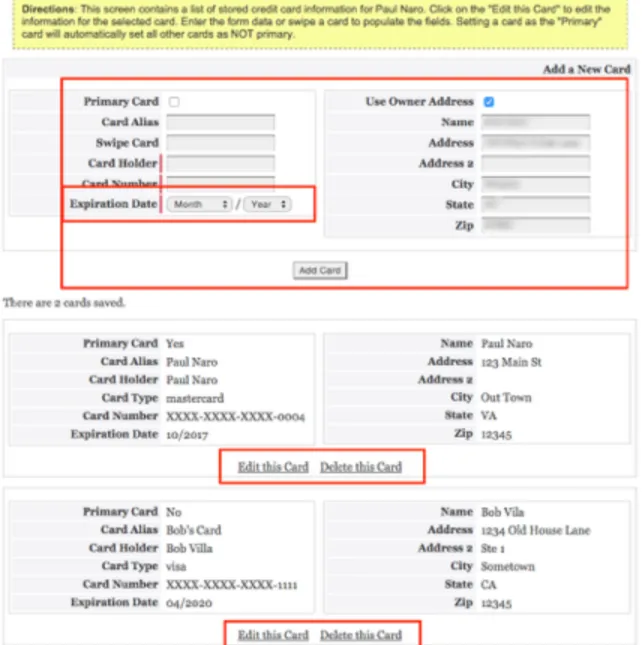
• Removed the ability to view credit cards and meet PCI compliance specifications and added the ability to store multiple credit cards.
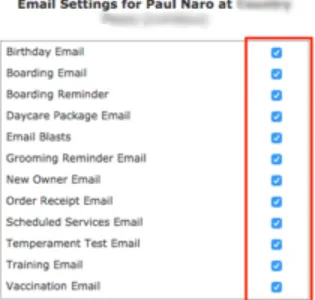
• Added separate email opt-in checkboxes. Owner emails will include a footer section in every message allowing them to unsubscribe from emails.
• Added ability to set per-owner custom pricing
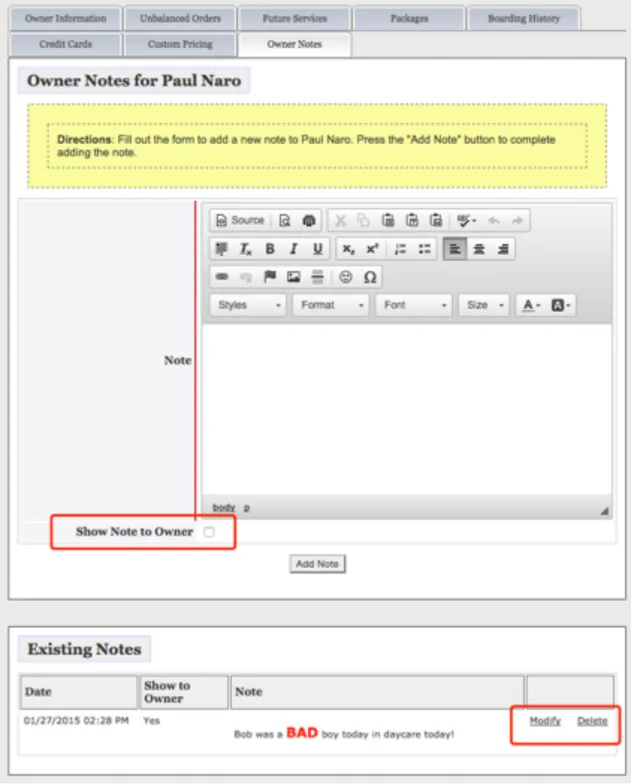
• Additional functionality in the Owner Notes section to allow formatted text and the ability to show notes on an owner’s login screen
Tabbed Interface
The tabbed interface will bring some new functionality and allow up to reorganize the information in an easy-to-use format. Most of the functionality is the same, though we have added some new changes to enhance accessing owner information.
!
Credit Card and Security Changes
In order to meet PCI Compliance and enhance credit card security, we no longer have the option of displaying credit card information directly. In addition, we are offering storing
multiple credit cards and selecting which one to use at checkout in addition to swiping a credit cad and manually adding one. Once entered, credit card numbers will never be shown. We also went to a standard drop-down for month/year selection and now store the billing information for the card in case the card has a different address than the owner.
!
Email Opt-Out
Owners can now opt out of emails they receive. At the bottom of all emails, a footer is added to give them easy access to all email settings across all companies where that email is used.
!
Figure 2 - Email Opt-Out Footer
!
Figure 3 - Email Opt -Out Screen
Inside PetExec, each owner record has a list of emails that can be turned on or off. The owner’s screen has similar functionality.
!
Owner Notes
The Owner Notes section has been expanded to include the WYSIWYG (What You See Is What You Get) graphical user interface to add formatting to notes. Checking the “Show Note to Owner” checkbox will show the top five notes on the Owner’s Dashboard.
!
Per Owner Pricing
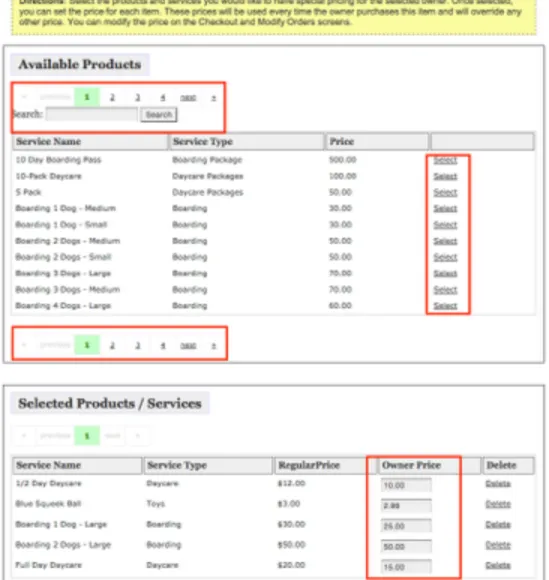
We also added the capability of applying per-owner pricing. Prices defined here will be used as the default price when adding that product or service to the system. The function is broken down into two units.
The first section shows all the active products and services in the system. Page through, or search for the items you want to add to the owner and check on the “Select” link to add it to the owner.
The second section contains a list of all associated products/services. Modify the price and select tab or hit enter to save the price. A history log is maintained for all added or modified products or services. Deleting a product or service from the Modify Products or Services screen will remove those items from the owner pricing.
!
System Changes
Modified the navigation menu system so it saves it with the session on login unless there is a change to the employee, employee type or preferences. It will automatically be reloaded the next screen load if there are changes. This dramatically cuts down on database hits / loops on every screen load across all companies.
Added internal improvements for faster preference lookups and saving.
Changed the way the Statistics Report and Daily Stats Report iterate through services to dramatically speed up reporting in those reports, especially with customers with
thousands of products and services.
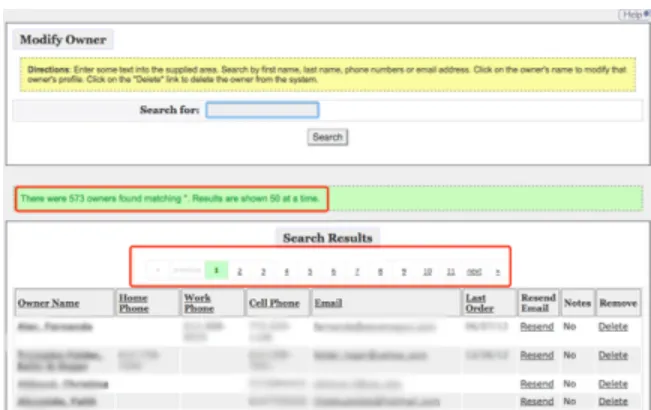
Returning More than 50 Results at a Time
We added ability to page through results 50 at a time in a number of places where it made sense. Page numbers and prior/next links help navigate through the results.
!
Modify Boarding Changes
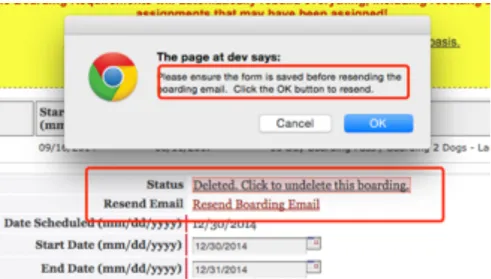
Added a deleted status to Modify Boarding so it can be undeleted via Modify Owner -> Boarding History tab. You can click the link to “undelete” the Boarding in question. We also added the capability of resending a boarding email directly from the Modify Boarding screen. Make sure you save the changes prior to resending the email!
!
Figure 8 - Resending Email via Modify Boarding
We removed the "Logged In" checkbox in Modify Boarding screen to prevent inadvertent checking or unchecking. We do display the status though.
Maintain Employee Types
Modified the Maintain Employee Types functionality to save previous menu item selections. Because of this change, newly added categories do NOT have everything selected as before, but the status of existing selections is saved.
New Preferences:
• Require Pet Birthday - When selected, will require the pet birthday be entered when adding or modifying a pet.
• Disable Owner Modifying / Deleting a Boarding - When selected, disables the owner's ability to modify or delete a boarding.
• Make End Date the Next Day - When selected, will make the end date the next day when scheduling a boarding or modifying a boarding and the end date is less than the start date.
• Enable Scheduled Services Reminder - When selected, enables the automatic sending out an email prior to a scheduled service. If left blank and active, email defaults to the day before scheduled service is scheduled to start.
• Disable Scheduled Services Reminder when Associated with a Boarding - Disables sending out a Scheduled Services Reminder email if the Scheduled Service is associated with a Boarding.
• Disable Grooming Reminder when Associated with a Boarding - Disables sending out a Grooming Reminder email if the Grooming is associated with a Boarding.
• Disable Timecard Logins - When selected, allows signing in and out of the timecard without requiring the employee username / password. Note: When this preference is checked, it will allow any employee to sign in / out another
employee.
• Timecard Calendar - Default View - Sets the default view of the Timecard calendar. If unchecked, the system default is used.
• Show Line Item Start and End Times - When selected, will show all line items start and end date/times in Checkout, Receipt and Modify Order screens.
• Only Show Grooming Notes - When selected, will only show associated grooming notes, not any pet notes of type "Behavioral" or "Grooming" in the Grooming Schedule and Grooming Schedule PDF.
• Show Address on Scheduled Services Schedule - When selected, will include the address on the Scheduled Services Schedule
• Hide Original Prices - When selected will hide the original price in the Checkout, Modify Order and Receipt screens.
• Set Thank You Email Checkbox - When selected will set the "Thank You / Follow Up" email preference on the checkout screen so the email will go out by default.
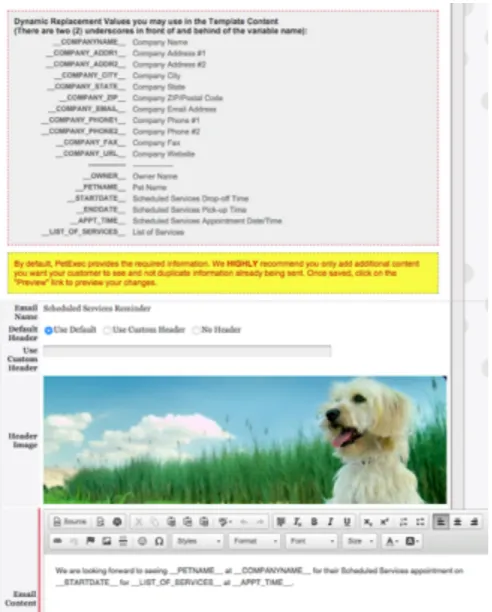
Added Scheduled Service Reminder Email
There are a couple preferences that can affect when the emails go out. The first one enables the preference overall and the second preference can ignore sending out reminders if the Scheduled Service is associated with a Boarding.
• Enable Scheduled Services Reminder
o Company Preferences -> Application Preferences -> Email reminders tab
• Disable Scheduled Services Reminder when Associated with a Boarding
o Company Preferences -> Application Preferences -> Scheduled Services tab
!
Time Card integration
PetExec has basic Time Clock features that are baked in to the PetExec system. There are several areas that can be extended. Below are some of the basic functional areas that make up the Time Clock:
• Employee Locations / Tasks
• Employee Time Types
• Maintaining Schedules
• Weekly Schedule (with PDF)
• Employee Calendar
• Employee Sign-In / Dashboard Component
Most of the admin functions are located in the “Time Clock” Menu. You will have to adjust the Employee Types to gain access and add the menu to each employee type.
!
Figure 10 - Time Clock Menu
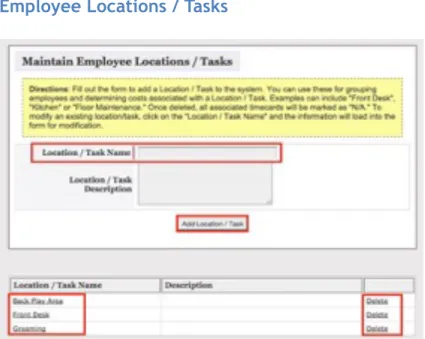
Employee Locations / Tasks
!
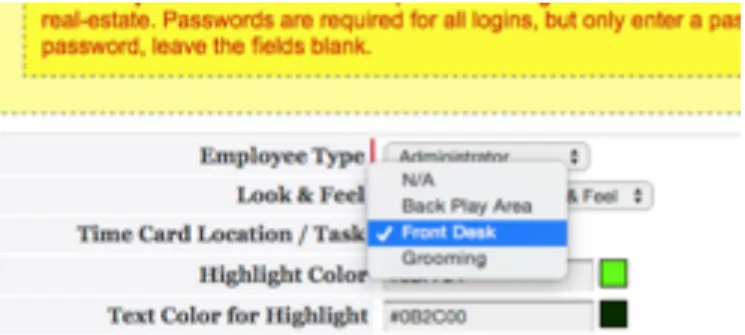
This is an optional area used for primarily grouping employees for reporting purposes. Employees can be assigned an area / primary task via Maintain Employees.
!
Figure 12 - Maintain Employees Set Primary Task
Employee Time Types
!
By default, PetExec ships with a “Sign-In” and “Sign-Out” time types. We also added the ability to create your own and designate if it will be “Payable.” Time Types marked as “Payable” will be used in calculating the number of billable hours.
Maintaining Schedules
!
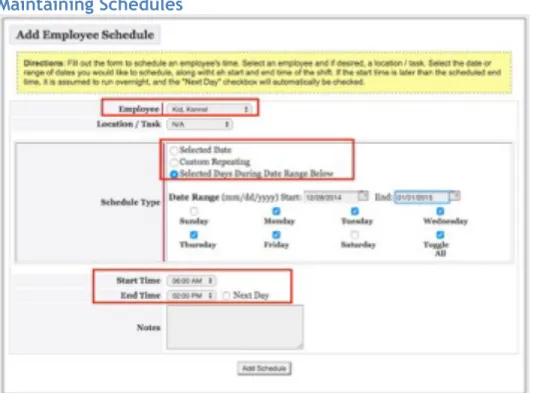
Figure 13 - Adding an Employee Schedule
Adding a schedule is simple and efficient, similar to the way many areas of PetExec work. You can preload extended periods of time or a single date.
!
Figure 14 - Modify Schedule
Once a schedule is made, you can search for and modify it in a number of ways. By default, the current date is shown, but you can extend the range and also search by name.
!
Figure 15 - Modify Employee Schedule
Modifying the schedule is similar to adding one. Simply change the data and click on the “Modify Schedule” to save. A change history is made noting the change.
Weekly Schedule (with PDF)
!
Figure 16 - Time Card Schedule
Schedules start on Sundays and go through the following Saturday. You can view the schedule online and print a PDF version of the schedule. Change the dates by clicking on the “Previous Week” and “Next Week” links.
Employee Calendar
!
Figure 17 - Employee Calendar
The calendar is similar to the other calendars in PetExec. If the signed in user has access to modify schedules, they will be able to drag and drop and click on the schedule to modify it. If they don’t have access, they can only view the schedule.
Employee Sign-In / Dashboard Component
!
Figure 18 - Time Clock Dashboard Sign-In
There is a new Dashboard component that can be added to the Dashboard that will allow the current day’s appointments to be signed in. The same functionality is available via Time Clock -> Employee Sign-In.
Associated Preferences
There are currently a couple new preferences related to the Time Card functionality. Located in Company Preferences -> Application Preferences -> Miscellaneous tab:
• Disable Timecard Logins
o You can toggle the requirement for requiring the employee’s username and password with this preference.
• Timecard Calendar – Default View
o Sets the default view of the Timecard calendar. If unchecked, the system default is used.
Time Card Payroll Report
!
Figure 19 - Timecard Payroll Report
PetExec provides a Time Card Payroll Report that shows scheduled versus worked hours for the selected range for each employee. Clicking on the day of week for the employee will take the Administrator to the Modify Employee Schedule screen.
!
Figure 20 - Modify Employee Schedule Details
Each sign-in / sign-out period is shown, along with the duration and a summary of total billable time. In cases where there is no sign-out, the current date/time is displayed. Times are calculated to the nearest .1-hour (every six minutes). You can modify these date / times to fix employees who forgot to sign out or any other reason.
Modified Employees
• Time Card Location / Task selection
• Mark an employee as a Groomer. Only groomers checked will show up in the groomer menus, although initially, everyone currently having access to the Grooming Module will have access. You must change the employees you don’t want to show up on the Groomer Drop-Down
• Added Grooming Commission percentage
Added a "No Commission" Checkbox In Add / Modify Products and Services Checked services will not have the commission applied.
Added Grooming Commission Report
Based on the commission rate set in Modify Employees, this report shows all
commissions over a given date range. There is also an associated spreadsheet link at the bottom of the results.
!
Figure 22 - Grooming Commission Spreadsheet
Note: The grooming commission is calculated based on the subtotal (unit price * quantity). This number is BEFORE taxes are applied.
Added First Data GGe4 Credit Card Integration to Maintain Payment Options
!
Credit Card Functionality Changes
• Deleted the "IntelliSwipe CC" option from the available credit card types since it is obsolete.
• Changed the functionality of the "Use Credit Card Reader" preference. When checked, PetExec will automatically select the track reader as the default credit card payment method. Unselected, the system will select the default card if available and failing that, the manual payment method.
• Deleted "Disable Credit Card Info on Checkout" preference.
• Deleted "Show Credit Card Number" preference since it is obsolete due to PCI compliance mandates.
• Email Blast Changes
• Added a variety of variables that can be inserted into the email.
• Added ability to email vets.
• Added ability to email owners who have or had not made purchases of any or specific service types from a given date.
• Added ability to send an email to all owners who have expired vaccination records.
Note: Some variables make no sense depending on who is receiving the email. For example, Bonus Points (Paw Points) are not available for vets.
!
Figure 24 - Email Blast
Added Grooming History to the Modify Pet Screen.
!
!
Figure 26 - Grooming History
Thank You / Follow Up Email
We added the ability to send a thank you / follow up email from checkout screen. The email can be modified via Company Preferences -> Modify Email Content and includes several variables (see Figure 28) to customize the email response. There is also an associated preference to automatically select the “Send Thank You” checkbox as a default.
!
!
Figure 28 - Thank You / Follow Up Variables
Additional Changes
Changed the Modify Order screen so changing the Order Date at the top of the order changes all associated line item and payment history records when that date is changed. A history record is also generated annotating the change.
Added Play Area description to Add and Modify Pets
Made Daycare Schedule Report PDF and Spreadsheet links open in new page/tab. Added Training and "Assoc. With Pet Record Only" pet note types.
Added Stats by Service Type Detail Spreadsheet
Added ability to email Combined Invoice via Owner Debits.
Added an Invoice to the checkout page and integration with Epson Receipt printer. Additional small changes….