Uta Hinrichs
Otto-von-Guericke-University Magdeburg
OT T O
-V
O
N-G
UE
RICKE-UNIVERSITÄT M
A
G
D
E B
U
R
G
Faculty of Computer Science
Department of Simulation and Graphics
Diplom Thesis
Interface Currents:
Evaluating a Fluid Interface for Tabletop Collaboration
Author:
Uta Hinrichs
February 3, 2006
Supervisors:
Prof. Dr. Sheelagh Carpendale
Dipl.-Inf. Marcel Götze
Universität Magdeburg Fakultät für Informatik Postfach 4120, D–39016 Magdeburg
Hinrichs, Uta:
Student Number: 157953
Interface Currents: Evaluating a Fluid Interface for Tabletop Collaboration
Diplom Thesis, Otto-von-Guericke University Magdeburg, 2005.
1st Reviewer: Prof. Dr. Sheelagh Carpendale
2nd Reviewer: Prof. Dr. Thomas Strothotte
Abstract
Large screen vertical and horizontal displays provide new opportunities to support indi-vidual and collaborative activities especially in terms of creativity and design tasks. The size of these displays introduces several unique opportunities such as co-located collab-oration but at the same time issues for interface designers such as: potential difficulties of reaching workspace items far away from one’s current position at the display, and the tendency of people to walk around when using a wall display or sit in various posi-tions around a tabletop display. Thus, in contrast to traditional interfaces, large display interfaces need to support access to workspace items from a variety of positions at the display. In order to improve access to workspace items, providing better support for ob-taining and sharing items and for mobility at the display which can be very important to improve creative processes, we propose a novel interaction metaphor, the so-called Interface Current, that allows interface components to play a more active role in the workspace activity.
Publications from this Thesis
The redesign of Interface Currents and Interface Folders that is based on this research’s findings (see Chapter 6) will appear in the following publications.
UTA HINRICHS, SHEELAGH CARPENDALE, and STACEY D. SCOTT. Interface Currents:
Sup-porting fluent face-to-face collaboration. Sketch presentation at the 32nd
Interna-tional Conference on Computer Graphics and Interactive Techniques (SIGGRAPH), Au-gust 2005.
UTA HINRICHS, SHEELAGH CARPENDALE, and STACEY D. SCOTT. Interface Currents:
Sup-porting fluent collaboration on tabletop displays. In: Proceedings of the 5th
Acknowledgement
My studies and the work on this thesis’ research project would not have been possible and as enjoyable without the support and help of many people.
First, I would like to thank my parents who supported my school and university studies in any kind of way. Thank you, for always being there for me!
I would also like to thank Sheelagh Carpendale, my supervisor in Canada, who made this research project possible and always provided me with great ideas and advice. Thank you for giving me the chance to come back to Calgary and continue the work on Interface Currents!
In Magdeburg, I would like to thank my German supervisor, Marcel Götze, for all the helpful comments and suggestions while I was writing this thesis.
Thanks go also to the people from the Interactions Lab in Calgary and the “Diploman-denlabor” in Magdeburg who cared for many amusing activities beside the work. Special thanks go to Kim, Marc, Mike, and Tony for reviewing parts of my thesis from the “native speaker perspective”.
In particular, I would like to thank Stacey D. Scott, who answered all my questions concerning user studies and greatly supported my research. I do not know what I would have done without her.
Thank you, Petra and Floh, for sharing a great time in Calgary with me and preventing me from homesickness.
Many thanks go to Sandra, Anja, Laura, Rene, Bubi, Alexandra, and all my other friends in Magdeburg who made my years of study so enjoyable and valuable.
Thank you, Wolfgang and Renate, for being my “backup family” in Magdeburg. Spending the weekends with you really helped to draw breath and forget about work from time to time.
Contents
1 Introduction 1
1.1 Motivation and Problem Statement . . . 2
1.2 Results . . . 3
1.3 Thesis Organization . . . 3
2 Related Work 5 2.1 Factors Influencing Collaboration . . . 6
2.1.1 Fluidly Changing Tasks and Problems . . . 6
2.1.2 Fluidly Changing Work Strategies . . . 6
2.1.3 Concurrent Interaction . . . 7
2.1.4 Communication . . . 7
2.1.5 Awareness . . . 8
2.1.6 Coordination . . . 9
2.2 Concept of Tabletop Displays . . . 10
2.2.1 Technical Settings . . . 12
2.2.2 Input Devices . . . 13
2.2.3 User Arrangement . . . 15
2.2.4 Interaction Issues on Tabletop Displays . . . 17
2.2.5 Design Implications for Interfaces on Tabletop Displays . . . 26
2.3 Interfaces Supporting Fluid Interaction and/or Collaboration . . . 27
2.3.1 Information Exploration Using The Pond . . . 27
2.3.2 Lazy Susans on Tabletop Displays . . . 28
2.3.3 Conveyer on Tabletop Displays . . . 33
2.3.4 Rapid Serial Visual Presentation . . . 34
2.4 Chapter Summary . . . 35
3 Methodology 37 3.1 The Concept of Interface Currents . . . 37
3.1.1 Properties of Interface Currents . . . 38
3.1.2 Possible Usage of Interface Currents . . . 39
3.2 Problem Statement . . . 40
Contents
3.3.1 Research Goals and Objectives . . . 42
3.3.2 Research Approach . . . 42
3.3.3 Research Method . . . 44
3.3.4 Tasks and Study Scenarios . . . 45
3.4 Chapter Summary . . . 46
4 Workspace Design and Implementation 49 4.1 Interface Objects . . . 51
4.2 Interface Currents . . . 53
4.2.1 Realization of Interface Currents—The General Approach . . . 53
4.2.2 The New Version of Interface Currents . . . 55
4.2.3 Interaction with Interface Currents . . . 60
4.3 Extending Interface Currents to Interface Folders . . . 70
4.3.1 Motivation for Interface Folders . . . 70
4.3.2 The Concept of Interface Folders . . . 71
4.4 Chapter Summary . . . 76
5 Exploratory User Study 79 5.1 Participants . . . 80
5.2 Technical Setup . . . 81
5.2.1 Apparatus . . . 81
5.2.2 User Arrangement . . . 82
5.3 Experimental Design and Task Description . . . 83
5.3.1 Task 1—Building a Photo Story . . . 83
5.3.2 Task 2—Setting Up a Workspace Based on Interface Currents . . . 84
5.4 Procedure . . . 85
5.5 Data Collection . . . 87
5.6 Data Analysis . . . 87
5.7 Chapter Summary . . . 88
6 Usability Issues 89 6.1 Usability Issues of Interface Currents . . . 90
6.1.1 Relocating Interface Currents . . . 90
6.1.2 Manipulating the Flow of an Interface Current . . . 92
6.1.3 Interacting with the Menu . . . 95
6.1.4 General Usability Issues . . . 101
6.2 Usability Issues of Interface Folders . . . 107
6.2.1 Slow Process of Opening and Closing an Interface Folder . . . 108
6.2.2 Interaction Problems . . . 108
6.3 The Redesign of Interface Currents and Interface Folders . . . 109
6.3.1 New Interaction Concepts for Interface Currents . . . 109
6.3.2 New Interaction Concepts for Interface Folders . . . 112
Contents
7 Findings 117
7.1 Findings from Task 1—Building a Photo Story . . . 118
7.1.1 Work Phases . . . 119
7.1.2 Characteristics of Interface Currents . . . 129
7.2 Findings from Task 2—Setting Up a Workspace Based on Currents . . . 135
7.3 Conclusion: Interface Currents and Collaboration . . . 138
8 Conclusion 141 8.1 Summary of Contributions . . . 141
8.2 Future Work . . . 143
8.2.1 Optimizing the Realization of Interface Currents . . . 143
8.2.2 Design Ideas . . . 144
8.2.3 User Studies . . . 144
Bibliography 147 List of Figures 155 List of Tables 159 A Study Materials 161 A.1 Recruitment Notice . . . 161
A.2 Introduction . . . 162
A.3 Consent Form . . . 163
A.4 Prequestionnaire . . . 166
A.5 Semi-structured Interview . . . 168
A.6 Debriefing Form . . . 169
B Transcriptions 171 B.1 Group 1 . . . 171
B.1.1 Task 1 . . . 171
B.1.2 Interview . . . 173
B.1.3 Task 2 . . . 177
CHAPTER 1
Introduction
Many activities, such as planning, organizing, and brainstorming are performed in coop-eration between people. Collaboration is usually supported by traditional media, such as tables, pens, and paper. However, more and more information becomes available in digital form. In addition, computers offer a lot of functionalities that can be beneficial for collaborative work. Thus, within the field of Human Computer Interaction (HCI), one research area focuses in particular on computer-supported collaborative work (CSCW), that is, how the use of computers can support collaborative work between people, in-cluding distributed and co-located collaboration.
This thesis focuses on the area of co-located collaboration, more precisely Single Dis-play Groupware [SBD99], where people are physically located around one single disDis-play. Large displays such as wall and tabletop displays have the potential to support this kind of collaborative work since they offer enough digital space for several people to work in groups and to display large amounts of information. In particular, large tabletop displays are predestined to support collaborative work because people usually have longtime ex-periences with collaborating around traditional tables. Thus, they perceive digital tables as a natural work environment [SGM03].
Chapter 1 Introduction
1.1 Motivation and Problem Statement
While size and angle of tabletop displays are beneficial for activities involving several people, they also cause interaction problems that need to be considered when develop-ing interfaces for such displays. For example, items on large displays are often hard to reach because they are located on the opposite side of the table from a user’s cur-rent position. Reaching across a table into someone else’s personal workspace can also have territoriality issues [SCI04]. In addition, sharing items on a tabletop display is complicated by orientation issues. People collaborating around a tabletop display see the workspace from different perspectives. This can be problematic because orientation dependent items, such as text documents, are hard to read when they are viewed upside down.
Addressing these problems, HINRICHS et al. [HCS05a] have introduced the concept of
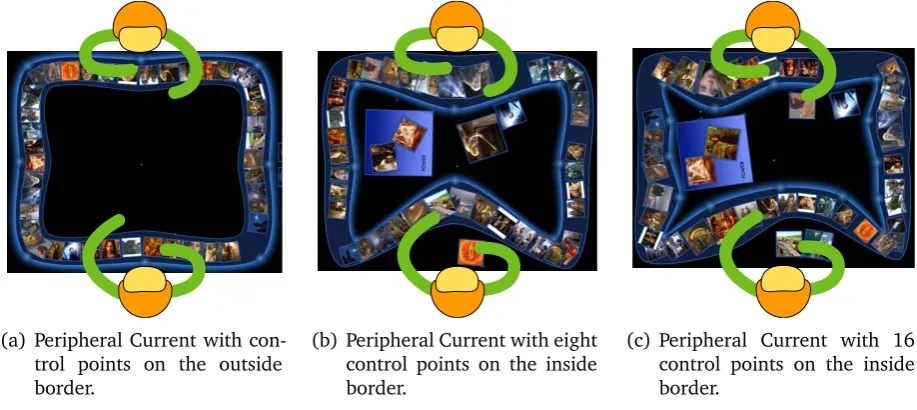
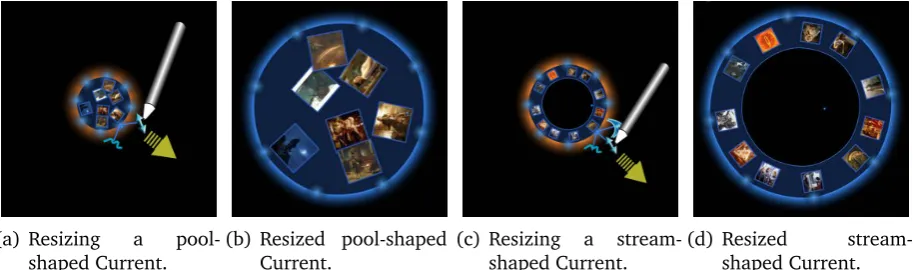
[image:16.595.227.386.416.555.2]Interface Currents. Interface Currents are fixed or mobile interface components that are dominated by an ongoing flow (see Figure 1.1). Information placed on an Interface Cur-rent is continuously moving. A CurCur-rent’s path is flexible in terms of shape and location in the tabletop workspace depending on the purposes it is used for. Interface Currents
Figure 1.1:Interface Current [HCS05a].
have the potential to support fluid and flexible collaboration between users. However, this potential has never been assessed in terms of effectiveness. Thus, the underlying research question of this thesis is:
Do Interface Currents support collaborative work around a tabletop display?
1.2 Results
1.2 Results
For the user study, an interactive workspace was designed that, inter alia, consists of an enhanced version of Interface Currents and Interface Folders, an extension of Interface Currents that enables users to share information that is organized in folders on a tabletop display. All study tasks took place in this interactive workspace.
The exploratory user study revealed that Interface Currents support collaboration around tabletop displays for creative tasks that involve interaction with large amounts of visual information. Large Currents that are installed around the perimeter of the tabletop workspace facilitate browsing through and searching for information. Due to the con-tinuous flow on such peripheral Currents, users are able to quickly gain an overview of information in a convenient and comfortable way.
Smaller stream- and pool-shaped Currents are used for collecting, organizing, and struc-turing information. Users perceive stream-shaped Currents as workspace containers where information can be shared. In contrast, pool-shaped Currents are used as per-sonal storage areas that have a more private character.
In general, Interface Currents help users to structure their tasks and to smoothly transi-tion between different work phases that require collaborative and independent work.
Beside these general findings, the study revealed a number of usability issues concerning the realization of Interface Currents. These usability findings led to the realization of a new, enhanced version of Interface Currents.
The following section describes the structure of this thesis.
1.3 Thesis Organization
Chapter 2
Chapter 1 Introduction
Chapter 3
In Chapter 3 the methodological approach of the conducted user study is discussed. First,
the concept of Interface Currents, as proposed by HINRICHS et al. [HCS05a], is
intro-duced. Based on this, the questions this concept raises are explained. This is followed by a discussion about the appropriate research approach and method to assess the effec-tiveness of Interface Currents with regard to collaborative work.
Chapter 4
A user study requires a workspace setup for the study tasks. Chapter 4 describes the design of the tabletop workspace that was developed for the user study. The components and interaction techniques the workspace contains are explained, among them, Interface Folders, an expansion of Interface Currents.
Chapter 5
Chapter 5 describes the experimental methodology of the exploratory user study, in-cluding, what kind of participants were recruited for the study, the technical setup of the study workspace, a detailed description of the study tasks, and a description of the applied study procedure. Furthermore, it is explained what kind of study data were collected in what way and how these data were analyzed after the study.
Chapter 6
The description of the experimental methodology is followed by the discussion of the study’s findings. Chapter 6 discusses the usability issues that the study revealed. It concludes with the introduction of the redesigned version of Interface Currents and In-terface Folders that was developed in order to solve some of the discovered interaction problems.
Chapter 7
The theoretical findings of the user study concerning the influence of Interface Currents on collaborative work around tabletop displays are presented in Chapter 7.
Chapter 8
CHAPTER 2
Related Work
Many activities in our everyday life are performed in cooperation with other people. In offices, educational, and medical environments people often meet each other in order to discuss and solve different ideas and problems. While some tasks are performed in groups for efficiency, people also engage in group work to produce higher quality or to benefit from comfortable work conditions. Common tasks performed by groups or pairs include project planning, decision making and any form of creative problem solv-ing [OOCS92]. Consultations can also be considered as a form of cooperation [RRHT03].
In particular, solutions for complex tasks requiring creativity, benefit from the
coopera-tion of people because more ideas and more knowledge are brought together [AEF+00].
In medical environments, for instance, physicians meet regularly with colleagues in or-der to discuss specific cases and methods of treatment. Advertising agencies, similarly, use group meetings to get new ideas through techniques such as group brainstorming. Collaborative work usually brings together different points of view, which helps develop-ing alternative solutions and finddevelop-ing new innovative ideas. In contrast, individual work may not always produce satisfactory results, in particular, for ill-defined problems, or problems that require a large amount of creativity and knowledge at the same time.
Chapter 2 Related Work
2.1 Factors Influencing Collaboration
The wordcollaborationdescribes the “action of working with someone to produce or
cre-ate something” [JA01]. Collaboration always involves several people that “work jointly on an activity or project” [Pre05]. The effectiveness of collaboration between people in traditional sense, that is, without electronic support, is influenced by specific factors: Problems and tasks discussed in groups are characterized by the fact that they fluidly change during the collaborative process. So are the work strategies people use when they are collaborating. Furthermore, the ability to interact simultaneously influences the character of cooperative work as well as the ability to communicate and—linked with this—to coordinate the group work. Awareness between group members plays an im-portant role as well. These factors are explained in the following. Although addressed separately, they are closely connected.
2.1.1 Fluidly Changing Tasks and Problems
Real-world problems are often ill-structured and ill-defined. In addition, individuals working together have different points of view due differing backgrounds and motiva-tions. Thus, the focused problem changes fluidly during group work [MO94]. For ex-ample, some arguments that may have seemed crucial first become less important while
others suddenly appear more relevant [AEF+00]. Because the focus on problems shifts
fluidly during group meetings, the work strategies during group work change fluidly as well.
2.1.2 Fluidly Changing Work Strategies
Depending on the task groups do not work cooperatively all the time. People work both, independently and interdependently in groups [RL04]. They switch fluidly from periods
of parallel to collaborative work and vice versa [TFB91, Tan91, MO94, SGM03].
2.1 Factors Influencing Collaboration
2.1.3 Concurrent Interaction
Studies have shown that collaborators using traditional media often interact with one
another at the same time. TANG[Tan91] and SCOTTet al. [SMI03] observed concurrent
interaction when people were working in paper-based settings. They both found that concurrent interaction conveys engagement and participation during collaborative work. In fact, people feel awkward when they cannot interact simultaneously during collabo-ration, in particular during face-to-face collaboration. When concurrent interaction is enabled, enjoyment of the activity increases, because all group members can engage ac-tively into the task. Enabling simultaneous interaction encourages all group members to participate and, thus, fosters the equality of all group members.
However, in office environments whiteboards are often used to jot down ideas during brainstorming sessions or to present results to a group [MIEL99]. In these situations, one person usually stands near the whiteboard interacting with it through a pen while the other group members are sitting in front of it. Being able to interact with the tools— the whiteboard and the pen—the person at the whiteboard often takes over the role of a moderator that leads the group discussion. Such a clear role allocation abolishes the equality between group members. However, this can be useful when a task has time constraints. Having a form of hierarchy within a group, makes it possible to structure the task by only a few people. This can save time that, otherwise, has to be used for discussion concerning task coordination. On the other hand, less discussion can hinder creative thoughts and, therefore, useful solutions of the problem or task. Furthermore, concurrent interaction is a requirement for parallel work which can be part of useful work strategies for groups as mentioned above. It becomes clear that the benefit of concurrent interaction depends strongly on the character of the task or problem a group tries to solve.
2.1.4 Communication
One of the most important elements of collaboration is communication between collabo-rating people. Many studies have shown that communication has a huge impact on the ef-ficiency and the results of collaborative work [Tan91, TFB91, OOCS92, SMI03, BOO95]. Unhampered communication prevents misunderstandings between group members that, otherwise, can have disruptive and distracting impact on collaboration. Furthermore, it
helps to coordinate activities. Communication includes explicit communication such as
spoken and written messages and gestures and implicit communication where
Chapter 2 Related Work
Explicit Communication
Explicit communication [GG00] is characterized by the fact that it is intentional and planned. During collaborative work people communicate verbally to express ideas, to discuss problems, or to explain actions or ideas [OOCS92]. Beside discussing the actual problem a lot of communication takes place to clarify ideas, to coordinate activities within the group, and to summarize new insights or partial results. During collaborative work people often comment about their actions verbally to focus the attention of co-workers on specific actions [Cla96].
Verbal communication is often accompanied by gestures, for instance, pointing to a cer-tain object or a person, indicating size or simulating an interaction [BOO95]—so called
deictic references [GG00]. People naturally use gestures to emphasize their spoken mes-sages. Hand gestures alone are frequently used during collaboration to express ideas and to mediate the group’s interaction [Tan91]. Gestures facilitate communication dur-ing collaboration enormously. Although people are able to replace gestures with words when it is not possible to apply them, for instance, when the other person is not in the same room, this is much more time consuming [BOO95].
Implicit Communication
In contrast to explicit communication, implicit communication happens unintention-ally [GG00]. People communicate implicitly through body language or interaction with artifacts. Co-workers are aware of those interactions and, in that way, they can pick up information about what group members are working on or intent to do. This supports smooth group interaction. For instance, when a group of people is working around a large table and person A tries to reach an artifact close to person B, B is aware of the reaching gesture of A and can easily guess her intention. Without having to explicit communicate, B can hand A the artifact because B is aware of what A was trying to do.
2.1.5 Awareness
2.1 Factors Influencing Collaboration
2.1.6 Coordination
As mentioned above, beside discussing the actual problem, groups spend a lot of time coordinating their activities [OOCS92, Tan91]. Coordination is important when several people are working in the same space with shared tools. It can avoid conflicts, such as interferences between group members that try to access the same tools [GG00]. In particular, when groups switch between collaborative and parallel work mediating inter-action is necessary. As mentioned before, hand gestures and awareness are an important resources for coordinating interaction [Tan91].
The impact of these six factors on collaborative work was discovered in several studies where people doing collaborative activities with traditional media were observed [LHG92, OOCS92, Tan91, BOO95]. In traditional work environments, traditional media and tools such as tables, whiteboards, paper, pens, and erasers for drawing sketches or jotting down ideas are used. Due to lifetime experience people are very skilled to work with these media types and tools [SGM03]. Additionally, paper as a main tool used during collaborative work is very flexible and can be tailored easily depending on the task it is used for [LHG92]. However, in spite of the flexibility of traditional tools in terms of use, these physical tools lack of some very useful functionality, such as saving, retrieving, and modifying content [MIEL99, BFBK00, LHG92], image processing, numerical calculations or spell checking [Wel93]. These functions, in contrast, are offered on electronic work-stations. Furthermore, today, more and more media, for instance, documents, photos or videos, are available in electronic form. The process of transferring the results of a group meeting written down by hand on paper to a computer is very time consuming. Vice versa, printing out several copies of documents and pictures in order to discuss them in a meeting is financially and environmentally expensive [SGM03]. Therefore, it seems appropriate to augment traditional work environments electronically. However, developers of computer systems built for supporting collaborative work need to consider the factors that influence traditional collaboration explained above.
Chapter 2 Related Work
In contrast, large displays, for instance, with the size of 33 inch [MSI02], provide enough space for working comfortably in groups and displaying large amounts of in-formation that is often required during group work. Furthermore, large displays enable smooth transitions between different work strategies. Transitioning between collabora-tive and parallel work is a common work strategy within groups (see Section 2.1.2). While these transitions are naturally accompanied by slight disruptions of the work flow, the disruptions are much more severe for the work progress, if group members have to change the work environment to do parallel work. Working comfortably in parallel requires an appropriate amount of workspace to not interfere with other group mem-ber’s work [RFSM04]. Large displays offer enough room for independent and shared workspace for collaborative work.
Based on their orientation, large displays can be divided into two categories: Vertical
displays, such as electronic whiteboards [MIEL99, SGH+99, IBR+03] (see Figure 2.1),
and horizontal displays, such as digital tables [TPMT+01, AEF+00, SGH+99, dBS01]
(see Figure 2.2). This thesis concentrates on co-located collaborative work around
(a) Dynamo by IZADI[IBR+03]. (b) DynaWall by STREITZ et al.
[SGH+99].
Figure 2.1:Interactive walls.
tabletop displays. The following section will describe the concept of a tabletop display including the technical characteristics, appropriate input devices in order to understand the interaction issues that occur particularly on such a horizontal display.
2.2 Concept of Tabletop Displays
Large horizontal displays represent a rather new technology. In 1993 WELLNER [Wel93]
2.2 Concept of Tabletop Displays
(a) Café Table by
Philips [N.V04]. (b) InteracTable by STREITZal. [SGH+99]. et
(c) Tangible tabletop system by ARIASet al. [AEF+00].
(d) ConnecTables by TANDLER et al.— overview [TPMT+01].
(e) Connecting two ConnecTa-bles [TPMT+01].
(f) The DiamondTouch by DIETZ and LEIGH[DL01].
Figure 2.2: Tabletop systems.
interface. People can sit or stand around a digital table in the same way as on a tradi-tional one. The possibility to sit makes a tabletop display very suitable for longterm work activities [RL04]. In addition, people can place unused artifacts such as input devices or coffee cups on the table surface and do not have to hold them in their hand all the time.
Chapter 2 Related Work
This is why more and more tabletop systems are built that claim to support
coopera-tive work, such as the DiamondTouch [DL01], the InteracTable [SGH+99],
ConnecTa-bles [TPMT+01], the Café Table [dBS01], and the Lumisight Table [MLO+04]. This
section discusses the technical configuration of tabletop displays and explains what kind of input devices are appropriate for such displays. Furthermore, the interaction issues that can occur on tabletop displays are explained in detail. The section closes with a discussion of the resulting design implications for interfaces on tabletop displays.
2.2.1 Technical Settings
Most tabletop systems were prototyped by researchers in order to explore co-located collaboration, that is, they mainly were built for research purposes. Companies selling technology that can be directly used as a digital tabletop are rare. MERL with the Di-amondTouch [DL01] and, for a short time, Hitachi [Hit04] (see Figure 2.3(a)) do sell displays or, respectively, surfaces that can immediately be used as digital tables. Yet, there is no standard technical configuration for digital tables [SGM03]. However, nearly
all of the developed systems can be classified in three categories: top-projected,
bottom-projected, andself-illuminateddisplays. The characteristics of each these categories, their advantages and disadvantages are discussed in the following paragraphs.
(a) Tabletop system by
Hitachi [Hit04] (b) OpTable by SCOTTet al. [SLK02]. (c) Tabletop display of the Uni-versity of Calgary.
Figure 2.3:Tabletop systems.
Top-Projected Digital Tables
2.2 Concept of Tabletop Displays
interaction. However, because lamps are often installed over traditional tables, people are quite used to this problem and know how to deal with it although it has a much higher impact on a digital table. Another problem is that, because the projector has to hang above the table surface, the table cannot be moved easily without having to move the projector as well. Furthermore, although this is given on all large displays that are driven using projection, projectors do not support a very high resolution yet (usually
1024×768pixels). Thus, the digital table used for the evaluation this thesis is about uses
two high-end projectors to gain a better resolution (see Section 2.2.2).
Back-Projected Digital Tables
On bottom-projected digital tables, such as the old version of the InteracTable [SGH+99]
(see Figure 2.2(b)), the projector is installed under the table. This has the advantage that shadows by hands or arms do not obscure items on the table surface. On the other hand, bulky projectors and mirrors force users to stand rather than sit around such a digital table. This is not very comfortable during longterm activities.
Self-Illuminated Digital Tables
More comfortable are self-illuminated horizontal displays as used for the Café Table
[dBS01], The Pond [SWH+02] and the ConnecTables [TPMT+01] (see Figure 2.2).
How-ever, they do not always support simultaneous interaction and, furthermore, they are very expensive, in particular, when they are of large size.
No matter to which of the categories mentioned above a tabletop display belongs to, the problem of how to make the table interactive has to be solved. The next section shortly explains what kind of input devices are appropriate on tabletop displays and why the support of simultaneous user interaction is required and gives some examples of tabletop systems that realize this.
2.2.2 Input Devices
A large variety of input devices can be used on tabletop displays. However, not all of them are appropriate for collaborative tasks. For instance, the cursor of a mouse or a laser pointer appears very small on a large horizontal display and is hard to see and to hard to follow by other co-workers [MSI02, IHMS01]. The interaction with mice or laser pointers on a large display is not very natural because they only provide indirect interaction. In contrast, people use their hands or pens when they are interacting with traditional tables. Thus, using hands or particular styli supports natural interaction as well as fluid collaboration around a tabletop display. Several tabletop system such as The
Pond [SWH+02], ConnecTables [TPMT+01], the InteracTable [SGH+99], and the PDH
Chapter 2 Related Work
Using styli and hands as input devices also gives people the possibility of using gestures to communicate with each other. This facilitates communication within a group in general
as stated in Section 2.1. INKPEN et al. [IHMS01] found that people using styli during
collaborative work around a tabletop display use gestures much more frequently than using mice. In the same study people stated that they would always prefer styli over mice.
Simultaneous User Interaction
Traditionally, people interact simultaneously when they are working together (see Sec-tion 2.1.3). Thus, enabling simultaneous user interacSec-tion is a requirement for fluid co-located collaborative work [SCI04]. Several studies by different researchers have inves-tigated the impact of sharing one input device within a group versus providing one for each group member [SMI03, SBD99]. These studies showed that providing an input device for each participant and, therefore, allowing simultaneous interaction has a very
positive impact on collaboration. SCOTT et al. [SMI03] found that all group members
participated more actively when simultaneous interaction was provided. People were much more engaged in the task and clearly enjoyed the collaborative work more.
Different technologies, for instance, ultrasonic pen trackers such as mimio1, can be used
to enable interactivity on a digital table. However, pen trackers are often too slow to support real-time interaction and can only track one pen at a time which forces users to turn-taking interaction. In contrast, the DiamondTouch [DL01] (see Figure 2.2(f))
by the Mitsubishi Electronic Research Laboratory2(MERL), provides simultaneous
multi-user interaction and in addition, is able to track who is interacting and where. The DiamondTouch is a board where images can be displayed by top-projection. Users work-ing on the DiamondTouch have to hold or sit on receivers. When a user is touchwork-ing the table, signals, transmitted through antennas in the table are coupled through the user to the receivers. In that way, the receivers can identify the parts of the table each user is touching. This information can then be used by a computer in the same way as mouse or tablet data. Unfortunately, due to this technology, the size DiamondTouch is limited to 42.13 inches which is the size of a coffee table. Groups of four or more people would usu-ally not work on such a small table. Additionusu-ally, the technology requires that people are in physical contact with a receiver that is, for instance embedded in a chair. Thus, they cannot move around during collaboration which is often limiting, in particular during creative tasks.
Another way of providing simultaneous multi-user input is to use vision based systems, that is, cameras are tracking the interaction of users on the table surface. The Digital
Vision Touch Technology3 (DViT) by SMART Technologies applies this approach. This
technology is built in a rectangular SMART Board which is placed on a traditional table.
1 http://www.mimio.com
2 http://www.merl.com
2.2 Concept of Tabletop Displays
In each of the four corners of the surface, infrared (IR) cameras are built in (see Fig-ure 2.4(a)) while in its edges arrays of IR LEDs are located. Whenever a user touches the surface with a pen or a finger, a shadow is produced on these LED arrays. Using the four IR cameras, the exact position of the touch point is calculated by triangulation.
(a) Cameras in the corners of
the SMART Board™. (b) Mirrorsabove the digital table.and projectors
Figure 2.4:Tabletop display of the University of Calgary.
The tabletop system at the Interactions Lab of the University of Calgary where this the-sis’ research project took place, uses this technology for their tabletop system (see Fig-ure 2.3(c)). A 4-camera SMART Board™DViT 1810 interactive whiteboard is placed on a traditional table. To achieve an appropriate resolution two projectors are installed above the tabletop surface that project the display on the SMART Board™ using two mir-rors (see Figure 2.4(b)). The technical setting of this tabletop display is explained more detailed in Chapter 5.
Beside the technical setting of a tabletop display, the form of user arrangement can have impact on collaboration as well as explained in the following section.
2.2.3 User Arrangement
On a tabletop display many different user arrangements are possible. For instance, peo-ple can sit across from each other, work shoulder-to-shoulder or sit right-angled to each other. Each of those arrangements have different impacts on the collaboration dynamics.
Shoulder-to-Shoulder Arrangement
People sitting shoulder-to-shoulder on a digital table as shown in Figure 2.5(a) have a shared perspective on the information displayed. In that way, all information can be oriented in the same angle and, in doing so, no participant has to read information in an
awkward angle. MANDRYKet al. [MSI02] found in their study that participants preferred
Chapter 2 Related Work
(a) Shoulder-to-shoulder [RL04]. (b) Right-angled [SCH05]. (c) Face-to-face [IHMS01].
Figure 2.5:Different user arrangements around digital tables.
by users if the tabletop display is not very large. On small digital tables, participants have to sit very close to each other which was found uncomfortable especially by adults,
in particular, if they do not know each other very well [Hal66]. In contrast, RODDEN et
al. found that shoulder-to-shoulder arrangement is comfortable especially for strangers because they can avoid eye contact [RRHT03]. In fact, it is more difficult to make eye contact or monitor co-workers gestures and body movement in shoulder-to-shoulder settings. This has a negative impact on communication within a group [MSI02]. A clear disadvantage is also the restriction of the freedom of movement. Participants can impede each other while interacting in the workspace, in particular, when gesturing and writing with the adjacent arms [MSI02]. Establishing personal spaces (see Section 2.2.4) is problematic as well, because participants have to share the space right in front of them with their neighbors.
Right-Angled Arrangement
Arranging cooperating people right-angled around a table (see Figure 2.5(b)) is a com-promise between the shoulder-to-shoulder arrangement and the face-to-face arrange-ment. Sitting right-angled, both participants have more personal space because they only share one corner of the table. Thus, the workspace can be utilized more effi-ciently [MSI02]. In addition, participants can look at their co-worker easier, which facili-tates the communication within the group. People sitting in a right-angled arrangement do not share the same perspective on the workspace but can find a compromised angle more easily than sitting on opposite sites of the table. Right-angled arrangements are appropriated for tasks that require close collaboration, because people sit close to each other but not too close as in a shoulder-to-shoulder setting and can share information more easier than in a face-to-face arrangement.
Face-to-Face Arrangement
2.2 Concept of Tabletop Displays
visual contact, which was found to be important during conversations [Som69]. Ges-tures, body language and facial expressions can be interpreted easily. During a study participants rated face-to-face collaboration the “most effective” and the “most enjoy-able” [MSI02]. The big issue with face-to-face collaboration, however, is the different perspectives from which co-workers see the workspace. Sharing information on docu-ments, for instance, is difficult because one participant has to read upside-down or at an awkward angle. Different systems have offered more or less successful solutions for this
problem (see Section 2.2.4). Interestingly, KRUGER et al. [KCSG03] found that
orienta-tion is also a resource to communicate and coordinate users interacorienta-tions. The orientaorienta-tion of items in the workspace actually reveals valuable information about it as discussed in the following section.
The three types of user arrangements blur if more than two people are collaborating together which is actually very often the case in reality. A group of three or more people usually works in a mix of right-angled and face-to-face arrangement. It becomes clear that the user arrangement has a huge impact on collaboration and has to be considered when developing interfaces for tabletop displays. The following describes interaction issues such as the orientation problem and territoriality on tabletop displays with respect to work within groups of three people or more.
2.2.4 Interaction Issues on Tabletop Displays
As mentioned before, the physical setting of a tabletop display supports co-located col-laborative work very well due to the longterm experiences that people have gained on collaborating around traditional tables. However, even if intuitive input devices such as styli and simultaneous interaction (see Section 2.2.2) are provided, there are still problems that complicate interaction. Similar to all large displays, interactions such as reaching items can be difficult due to the large size of the workspace. Furthermore, users can easily lose the overview of information spread out over a large horizontal display. In contrast to an interactive wall, it is more difficult to step back from a tabletop display in order to enlarge the visual field. In addition, people working on horizontal displays have to deal with the orientation problem of information. Furthermore, the factors that influ-ence collaboration have to be considered, for example, fluidly changing tasks and work strategies, communication and cooperation, and awareness (see Section 2.1). While these factors were described in Section 2.1, the special issues with regard to collabora-tive work around tabletop displays are discussed in the following sections.
Orientation Problem
upside-Chapter 2 Related Work
down for another participant. Although traditional media such as paper are easy to reorient, this complicates group work. In traditional environments, groups often work with several copies of the same document to provide each participant with a document that is oriented in the right way. However, this overcrowds the workspace very quick and, for instance, deictic references cannot be applied as easily because participants do
not necessarily look at the same document [MLO+04].
Because the technical design of tabletop systems usually is inspired by to traditional tables the orientation problem also arises on digital tables. Several approaches were developed to handle orientation on tabletop displays.
Fixed Orientation The simplest way to deal with the orientation problem is to orient
all items on a table in the same way [KCSG03]. All information displayed on the Café Table [dBS01], for instance, is rotated towards one end of the table. However, fixed orientation of information forces groups to work in shoulder-to-shoulder arrangements, which limits the mobility of the group. Furthermore, shoulder-to-shoulder arrangements, as explained in Section 2.2.3, can be problematic when more than two people want to work together.
(a) Person-based Orientation on
the InfoTable [RS99]. (b) Environment-basedOrientation—the Poetry-Table [RFSM04].
(c) Manual orientation on the Inter-acTable [SGH+99].
Figure 2.6:Different orientation approaches.
Automatic Orientation A few systems were designed that automatically try to find the
best orientation of information depending on either who has most recently accessed the
information item (person-based approach) or where in the workspace the item is located
(environment-based approach).
2.2 Concept of Tabletop Displays
items on the tabletop display can be accessed by people using the pointing device on their laptops that is located on the table as well [RS99]. When the person drags an item on the digital table towards herself, the item automatically orients toward the table edge that is closest to the person’s laptop. This system is limited to special technology such as the DiamondTouch [DL01] because it needs to know the location where the person seated in order to decide the direction to rotate the information. Another example of the person-based approach is the STARS system [MSP03] where all items orient to the player that is currently in turn.
In the environmental-based approach, information is always oriented automatically to the closest edge of the tabletop display [KCST05] (see Figure 2.6(b)). Most systems built on the DiamondSpin toolkit follow this approach [SVFR04, RFSM04, SLV03]. Because information is always oriented to the outside of the tabletop display, items that are lo-cated near a person are always oriented into the person’s direction. Another example of environmental orientation is the “flow zone” on the Café Table [dBS01] that is described more detailed in Section 2.3.
The Lumisight Table by MATSUSHITAet al. [MLO+04] provides another form of automatic
orientation. Its screen material, called “Lumisty”, has specific optical properties that allows users to see images only if they are projected in a range of plus minus 10 degrees from the users’ optical axis. Two sheets of Lumisty film are attached orthogonally to each other to the transparent surface of the Lumisight Table. Thus, the table supports at most four people. Information that is not orientation sensitive, such as maps are displayed in a single orientation, that is, every user sees them from a different view. Orientation
sensitive information such as words is rotated suitable for each user [MLO+04]. In that
way, information can be shared easily. However, moving around the table seems to be difficult because an optimal view on the table is only supported from certain locations. This also makes collaboration between more than four people difficult.
Manual Orientation The most flexible and intuitive approach to the orientation
prob-lem is to support manual orientation. The approach of manual orientation is based on the way orientation is handled in the real world. Participants have the possibility to ro-tate documents by hand the way they want. While this approach offers more flexibility than fixed orientation, rotation is often clumsy in electronic settings compared to the real world. Input devices such as mice and styli only provide few degrees of freedom and of-ten users have to switch into specific “modes” in order to rotate an item [KCSG03].
How-ever, for instance the InteracTable [SGH+99], ConnecTable [TPMT+01], or [SVFR04]
facilitate manual orientation by providing simple gestures that rotate documents (see Figure 2.6(c) and 2.6(b). Usually a “corner to rotate” [KCST05] is provided, whereas a point-and-touch gesture rotates the item.
KRUGER et al. [KCST05] developed a technique that allows both, the translation and the
Chapter 2 Related Work
Figure 2.7:Unbalanced movement resulting an an upward translation and counterclockwise
rota-tion [KCST05].
of Rotate’N Translate (RNT) is that a “current” is continuously acting against an item’s movement vector. When the direction of movement changes, the current acts in opposi-tion to the movement vector which places pressure on the object. As a consequence, the item rotates “until a balanced relationship with the current is achieved”(see Figure 2.7). Once in rotational balance again, the item translates as long as the movement vector remains unchanged. The greater the unbalance between the movement direction of the object and the current, the greater the rotation per unit of movement [KCST05]. Accord-ing to this interaction metaphor, touchAccord-ing the object at its exact center point would only translate it. Because this would be very difficult for people due to accuracy problems, the
“translate-only” center point was expanded to approximately 20%of the object’s width.
KRUGER et al. conducted a user study that compared the RNT technique with the
tra-ditional corner-to-rotate technique [KCST05]. They found that RNT is faster and more efficient, in particular for document passing, than the corner-to-rotate technique while it is equally accurate. Participants found the RNT technique easy to learn and to use. It seems obvious that the approach of fixed orientation is too limiting for a tabletop system that claims to support co-located collaboration in various situations. Although the approaches of automatic orientation seem to be more comfortable for participants because they do not have to orient items by themselves, they are limiting as well, because orientation influences not only the comprehension of information during a group task but also coordination of activities and communication within a group as described in the following.
Roles of Orientation So far, orientation of information was described to be
2.2 Concept of Tabletop Displays
• Comprehension: Documents or pictures on tables are often rotated by people to fa-cilitate reading, writing or drawing. The common upright position of a document is not always the most comfortable for people, which argues more for techniques that allow manual orientation to let the user decide which orientation works best. Comprehension includes also reorienting information in order to change the per-spective, for instance, when looking on a map or during a chess game [KCSG03].
• Coordination: Orientation is used to establish special spaces in order to clarify the ownership and accessibility of items. Studies have shown that people estab-lish personal and group spaces during collaborative work (see Section 2.2.4). The orientation of information can show whether items belong to a person’s personal space and whether the person is currently working with them: If an item is lying close to a participant and is clearly oriented to her, other participants hesitate to move it away without asking—the item belongs to the personal space of the par-ticipant. In contrast, if an item is located in the middle of the workspace and not oriented clearly to any participant, it is perceived as being available for everyone— it belongs to the public space. Items located in the group space are usually oriented in an compromised angle, that is, they can be perceived by all group members in an equal way. While groups are often switching between parallel and collaborative work, establishing spaces and clarifying ownerships over items in an intuitive way facilitates transitioning smoothly between the different collaboration strategies. By reorienting information can be made available to everyone or blocked for public use in a very social and subtle way. Hence, orientation helps groups to coordinate their work.
• Communication: How people orient items in the workspace gives information about their intention to communicate. A person orienting an item directly to another per-son signals, that she wants to discuss something concerning the item or relinquish it. Orienting an item into a compromised angle so that it is equally visible by all group members guides the attention of the whole group to the item, which can raise easily a group discussion or collaboration. Although reorienting informa-tion is sometimes accompanied by other gestures or verbal expressions, it can be
perceived as a stand-alone act. KRUGER et al. found that people actually rarely
commented or gestured directly to other people while reorienting items [KCSG03]. Orientation alone seems to be communicative enough to be understood by other group members.
Based on their findings, KRUGER et al. [KCSG03] suggest that digital tabletop systems
Chapter 2 Related Work
Territoriality
As mentioned above, orientation was found to be helpful to establish group and personal
spaces on a table. Indeed, TANG [Tan91] and KRUGER et al. [KCSG03] found that
parti-tioning the workspace is an important mechanism to coordinate group activities and
me-diate social interactions. SCOTT et al. [SCI04] conducted two studies observing groups
working with traditional media on a tabletop that substantiate these early findings.
Dur-ing the first study three interaction areas were discovered: personal spaces,group spaces
andstorage spaces. These areas seem to help participants to coordinate and perform their activities, similar to how territories in our broader environment that help us to mediate
social interactions. This is why SCOTT et al. [SCI04] talk about territoriality when
ob-serving people establishing spaces on tabletops. According to them, tabletop territories have both, spacial properties and functionality, which is described in the following.
Personal Territories Personal territories are usually established directly in front of
par-ticipants (see Figure 2.8(a)). Hence, the size of the group and the location of
partic-ipants plays in important role to the size and location of personal territories. SCOTT
et al. [SCI04] found in their first study that the personal territory of a person working alone on a table ranges over the whole table. When more people work on a table they are seated closer. Thus, their personal territories are smaller. Furthermore, depending on the size, the amount of task materials, and the task activity, personal territories can con-tract or expand. The general function of personal territories is to ease a person’s actions.
PERSONALSPACE
(a) Personal territories on a table.
PUBLICSPACE
(b) Group territory.
Figure 2.8:Different territories on tables.
2.2 Concept of Tabletop Displays
Group Territories Group territories are located everywhere on the table where no
per-sonal territory has been established. In many cases this is at least the center of a table and the space between participants (see Figure 2.8(b)). In group territories, the main collaborative activities take place [SCI04]. Here, users help each other or transfer task resources to other group members. In tightly coupled tasks, orientation is used to pro-vide context and support for information in the group territory, and people feel free to build on others’ work or to change it. In contrast, during loosely coupled collaboration participants tend to partition the group territory depending on their seating position. For
instance, in the second study SCOTTet al. [SCI04] conducted people were working on a
floor plan that was basically handled as group territory. However, each participant was in charge more or less for the area right in front of her on the floor plan. People obviously had partitioned the group territory in order to facilitate work activities.
Storage Territories Storage territories differ from personal and group territories in
terms of their location. While personal and group territories are basically fixed to a location with flexible size, storage territories are mobile and often moved within the workspace. They cannot be considered as specific spaces on the table because they sit atop on personal or group territories depending on their function. In general, storage territories are used for storing task resources such as sticky notes, pieces for a game or tools such as pens, scissors, or erasers. Furthermore, items are often stored that are not task related, such as coffee cups or goodies.
The location of a storage territory depends on the nature of stored resources and who uses them. A participant, for instance, that is working with puzzle pieces showing heaven and clouds would place the relating storage territories holding all these pieces near or inside his personal territory. Resources that are used by several participants are piled up in shared storage territories near or inside the group space. Whether a storage territory is used exclusively or shared among participants can change easily because of its mobility. Sometimes storage territories are even split, for instance, if several participants want to use them.
Establishing territories happens often at the very beginning of the group work in a very natural way and without explicit negotiation. Territories provide a rich resource for coordinating the actual group task. They facilitate transitioning between parallel and collaborative work, which was in particular observed in larger groups working around a digital table [RFSM04] and, furthermore they support sharing task resources and me-diating social interaction. Thus, it is strongly recommended that interfaces for digital tables support territoriality.
Sharing Information
Chapter 2 Related Work
sharing information around a large surface can be a problem, because not all partici-pants have physically equal access to information, for instance, when they are hard to
reach [Gei98, BCR+03]. Interaction across large displays proves to be difficult, in
particu-lar, on touch/pen operated screens [BCR+03]. For instance, interaction techniques such
as drag-and-drop are difficult to perform. Tabletop displays that are build to support group work should be rather large in order to provide enough space for both, partici-pants and information. Thus, interfaces for tabletop displays should provide interaction
techniques that support easy access to items that are hard to reach. GEISSLER [Gei98]
describes a technique called throwing where items can move across larger distances by
applying small gesture. The throw gesture is similar to the gesture used in the physical world to slide an item over a smooth surface: The user has to touch the desired item, move it shortly in the opposite direction the item should be moving and then into the de-sired direction. The longer the second stroke is performed, the faster the item will move.
While GEISSLER [Gei98] proposed the gesture for wall displays, SCOTT et al. [SCI04]
successfully adopted a similar gesture on a digital table. Although people found the tech-nique very intuitively [SCI04], this techtech-nique was found to be too inaccurate, especially
when the desired target was rather small [BCR+03, SCI04].
(a) Drag-and-pop on a single screen. (b) Drag-and-pop on a large wall accross bezels.
Figure 2.9:Drag-and-pop by BAUDISCHet al. [BCR+03].
BAUDISCH et al. [BCR+03] introduced another interaction technique for large displays,
in particular for walls, that should facilitate accessing content on large touch- and
pen-operated displays. The drag-and-pop technique is an extension of the well known
drag-and-drop technique used on nearly every common single-user workstation. When the user starts dragging an icon, for instance a Word document, all other icons in the workspace that are of compatible type and located in the direction to which the user
drags, pop upright in front of the user’s cursor. This means that a copy of each icon is
created (the so-called tip icon) and moves towards the user’s cursor while still being
vi-sually connected to its “parent” item—the so-calledbase icon(see Figure 2.9) [BCR+03].
2.2 Concept of Tabletop Displays
Drag-and-pick allows users to activate icons such as folders. The user has to perform a dragging gesture on an empty part of the screen. All icons that are located in the direction of the dragging movement, move towards the user’s cursor. The user can select easily the desired icon. This technique provides a possibility to reach icons easily that are located far away from a user. However, it is not clear how this interaction technique could be applied in situations where several people are interacting at the same time. The existence of several tip icons as well as several visual connections between tip and base icons that are crossing each other would overfill the workspace and, even worse, confuse users.
Sharing information on interactive tables is additionally complicated by the fact that the character of a table is generally very public. While simultaneous interaction should be supported by a digital table to encourage cooperation, this can cause several conflicts, for instance, when multiple participants try to access information at the same time or try to
perform incompatible actions [SBD99, MRS+04]. These conflicts complicate cooperative
work between people. Social protocols can prevent or resolve these conflicts to a certain
extent but they are not sufficient. RINGEL et al. [RRS+04] and MORRIS et al. [MRS+04]
found that despite of these social protocols conflicts arise even in small groups of people. They suspect that such conflicts increase the more people interact and the more informa-tion items are involved. Therefore, they have introduced a set of coordinainforma-tion policies that—applied to a tabletop system—could handle such conflicts in different situations. These policies declare rules, for instance, that the global state of an interface can only be changed if it is not selected by any other person. Different policies can be applied
depending on the task or the group size [MRS+04].
RINGEL et al. [RRS+04] have introduced fluid sharing techniques such as release,
relo-cate, reorient, and resize.
• Release: When user A holds a document that user B attempts to take, the program just reacts just like in the real world: User B has to wait till user A releases the document.
• Relocate:While portions of the table are associated to specific users, documents are private or public depending in which region they are located. Flexible partitions by the user is provided.
• Reorient: A document oriented to the center of the table is handled as sharable while an item oriented towards a specific user transitions it back into personal mode.
• Resize: Information scaled down smaller than a specific threshold size are consid-ered as private, while enlarging them makes it accessible by every participant on the table.
RINGEL et al. [RRS+04] found that the relocate and resize techniques had the lowest
Chapter 2 Related Work
Furthermore, users clearly favored the relocated technique although all techniques were easy to learn. However, managing information access automatically by the system can cause problems since group task are changing quite fluidly as described in Section 2.1. Therefore, systems should offer very flexible techniques that do not restrict people’s interactions.
Many factors that influence cooperative work on horizontal displays have been discussed in this section. As already pointed out, all these factors should be considered when the designing of interfaces for horizontal displays. The design implications for interfaces on tabletop displays are concluded in the following.
2.2.5 Design Implications for Interfaces on Tabletop Displays
Technically, tabletop displays should support enough space depending on the size of the group [SCH05]. Furthermore, intuitive input devices, such as styli should be provided as well as simultaneous user interaction. However, due to their size, their orientation and the fact that several people should be able to interact at the same time simultane-ously, the requirements for interfaces on large horizontal displays differ from those for common single-user workstations. A tabletop system should be arranged around the requirements of the users, that is, the support of human-human interaction should be
focused while the computer should step into the background [TPMT+01, SVFR04].
Peo-ple should be able to focus on the interactions with each other and on their task, rather than on their interactions with the computer. Since people successfully use traditional media for collaborative work, computer-supported systems have to prove themselves as at least as easy and comfortable to use [Gru88]. Interfaces for tabletop displays should draw on traditional interaction techniques that people use when working in groups with traditional media. They should provide lightweight interaction techniques for individ-uals, as well as for collaborating people. Furthermore, sharing information plays an important role in collaboration. On tabletop displays this is not only complicated due to their size but also because of the fact that information cannot be seen by all participants from the same perspective. Interfaces for tabletop displays have to provide intuitive and lightweight techniques that facilitate reaching items from a long distance and support free rotation of information. Manual and automatic techniques can be utilized for this purpose although the latter have to be handled carefully in order to prevent intervention with the user’s desired activities that can fluidly change [KCSG03].
2.3 Interfaces Supporting Fluid Interaction and/or Collaboration
be enabled as well since people working in traditional environments do this routinely. Shuffling [Gei98] or storage territories [SCI04] can provide this functionality.
Tools on a tabletop workspace should be generally located where they are used fre-quently. However, tools that are used by more than one group member should be placed in the public space. Local tools that are mobile in the workspace can be beneficial be-cause they can be moved to any position in the workspace and, thus, be shared between
several users easily [BHD+96].
The following section will discuss specific tabletop systems and interfaces that support fluid interaction and/or collaboration.
2.3 Interfaces Supporting Fluid Interaction and/or
Collaboration
As mentioned above, tabletop systems that support collaboration enable users to con-centrate on interaction between each other rather than with the system. Traditional workstations for individual users focus on the interaction between the user and the com-puter. The computer is all present. The system described in the following shows that tabletop displays have the potential to completely hide their computational components by providing an innovative interface based on a ecosystem metaphor.
2.3.1 Information Exploration Using The Pond
The Pond developed by STÅHLet al. [SWH+02] is a touch sensitive tabletop system used
for searching and visualizing information (see Figure 2.10(a)). The interface of The Pond is based on an ecosystem metaphor. The workspace is visualized as a 3D presentation of a virtual pond. Users can start queries concerning information about music, for instance artists or musical genres. The resulting information objects are visualized as shoals of marine creatures. Each creature represents a certain information, such as an album of an artist.
Information creatures that belong together semantically, for instance, albums of the same artist, move together in shoals and try to avoid different shoals as well as the Pond’s walls (see Figure 2.10(b)). This constant moving of shoals gives The Pond a very dynamic ap-pearance. When there was no interaction with particular shoals for a long time, they sink down to the bottom of The Pond and disappear. The same happens if The Pond becomes too crowded. This function provides a natural garbage collection. All interactions with the Pond are done by point-and-touch gestures. Tapping on a creature gives the user additional information about the artist and the album that was selected or allows the
Chapter 2 Related Work
(a) The Pond—overview. (b) Search queries on the Pond.
Figure 2.10:The Pond by STÅHLet al. [SWH+02].
the user to save information creatures. A sound environment supports the immersion into the systems. The user hears constantly low bubbling, splashing and whirling sounds that make the whole systems appear more realistic. These sounds work as functional feedback which was found to be very supporting for the user interaction.
An informal user study revealed that people found the system easy and intuitive to use. Because of the unusual interface that is based on an aquatic environment rather than on a classical user interface The Pond provides an easy access to information, in particular for people that do not have computer skills. The Pond is a good example of how table-top systems can support simple tasks electronically, while the computer system stays in background and is not clearly visible to the user. The user interacts with information rather than with a computer displaying information and, therefore, can concentrate on her purposes. However, the interface was found to be too inflexible for more elaborate queries. Parallel work is not possible because the touch screen does not support multi-ple simultaneous interactions. In addition, it is not clear, how The Pond could support realistic group tasks.
The systems described in the following focus on tools from the real world to support collaboration on tabletop displays.
2.3.2 Lazy Susans on Tabletop Displays
2.3 Interfaces Supporting Fluid Interaction and/or Collaboration
Figure 2.11:Lazy Susan in a Chinese restaurant.
between people. Some tabletop systems have adopted the principle of a lazy Susan in the broadest sense. These systems are described in the following.
Interactive Table
The Interactive Table [OPH+00] was developed in a cooperation between the Museum
of Modern Art 4 (MoMA), New York and the MIT Media Laboratory5. The MoMA was
planning an exhibition that consisted of 26 architectural exhibits. Each of the exhibit was emphasized by lots of electronic information that is usually displayed by computers located apart from the exhibition. The design of the Interactive Table was motivated by the intention of integrating electronic information more into the exhibition and, further-more, to motivate visitors to interactively browse through this information and share
impressions with others [OPH+00].
[image:43.595.205.372.103.228.2](a) Lazy Susan on the Interactive Table. (b) Top-projected displays on each place setting.
Figure 2.12:The Interactive Table at the MoMA [OPH+00].
4 http://www.moma.org
![Figure 1.1: Interface Current [HCS05a].](https://thumb-us.123doks.com/thumbv2/123dok_us/8667734.376289/16.595.227.386.416.555/figure-interface-current-hcs-a.webp)
![Figure 2.12: The Interactive Table at the MoMA [OPH+ 00].](https://thumb-us.123doks.com/thumbv2/123dok_us/8667734.376289/43.595.205.372.103.228/figure-the-interactive-table-the-moma-oph.webp)
![Figure 4.1: Mark-up menu on a storage bin [SCH05].](https://thumb-us.123doks.com/thumbv2/123dok_us/8667734.376289/65.595.226.354.105.228/figure-mark-menu-storage-bin-sch.webp)