Kaspersky Small Office Security 2
Installation Guide
2
Dear User!
Thank you for choosing our product. We hope that this document will help you in your work and will provide answers to most of the questions regarding this software product.
Warning! This document is the property of Kaspersky Lab: all rights to this document are reserved by the copyright laws of the Russian Federation, and by international treaties. Illegal reproduction and distribution of this document or parts hereof shall result in civil, administrative or criminal liability pursuant to the laws of the Russian Federation.
Any type of reproduction or distribution of any materials, including translations, is allowed only with the written permission of Kaspersky Lab.
This document and graphic images related to it may be used exclusively for informational, non-commercial, and personal purposes.
This document may be amended without additional notification. You can find the latest version of this document at the Kaspersky Lab website, at http://www.kaspersky.com/docs.
Kaspersky Lab assumes no liability for the content, quality, relevance, or accuracy of any materials used in this document for which the rights are held by third parties, or for any potential damages associated with the use of such documents.
This document involves the registered trademarks and service marks which are the property of their respective owners.
Revision date: 10.12.2010 © 1997-2011 Kaspersky Lab ZAO. All Rights Reserved.
http://www.kaspersky.com http://support.kaspersky.com/
3
CONTENTS
KASPERSKY LAB END USER LICENSE AGREEMENT ... 5
ABOUT THIS GUIDE ... 11
In this document ... 11
Document conventions ... 12
ADDITIONAL SOURCES OF INFORMATION ... 14
Sources of information to research on your own ... 14
Discussing Kaspersky Lab applications on the web forum ... 15
Contacting the Sales Department ... 15
Contacting the Documentation development group ... 15
KASPERSKY SMALL OFFICE SECURITY 2 ... 16
HARDWARE AND SOFTWARE REQUIREMENTS ... 17
INSTALLING THE APPLICATION ... 19
Step 1. Finding a newer version of the application ... 20
Step 2. Making sure the system meets the installation requirements ... 21
Step 3. Select installation type ... 21
Step 4. Reviewing the license agreement ... 21
Step 5. Kaspersky Security Network Data Collection Statement ... 21
Step 6. Selecting the destination folder ... 22
Step 7. Searching for other anti-virus applications ... 22
Step 8. Disabling Microsoft Windows firewall ... 22
Step 9. Preparing installation ... 23
Step 10. Installing ... 23
Step 11. Activating the application ... 24
Step 12. Data verification... 24
Step 13. Completing the activation ... 24
Step 14. Restricting access to the application ... 24
Step 15. Selecting protection mode ... 25
Step 16. Configuring application update ... 25
Step 17. Selecting threats to be detected ... 26
Step 18. System analysis ... 26
Step 19. Finishing the Configuration Wizard... 26
RESOLVING TYPICAL TASKS ... 27
How to update application databases and modules ... 27
How to scan critical areas of your computer for viruses ... 28
How to perform full scan of your computer for viruses ... 28
How to check the protection status of an office computer network remotely ... 29
How to restrict access to Kaspersky Small Office Security settings ... 30
How to transfer application settings to another computer ... 30
What to do when the application's notifications appear ... 31
RESTORING THE APPLICATION ... 32
Step 1. Installation Wizard start window ... 32
Step 2. Restoring the application ... 32
IN S T A L L A T I O N GU I D E
4
Configuring the application after restoration ... 33
REMOVING THE APPLICATION ... 34
Step 1. Saving data for repeated use ... 34
Step 2. Confirmation of application removal ... 35
Step 3. Removing the application. Completing removal ... 35
CONTACTING THE TECHNICAL SUPPORT SERVICE ... 36
My Kaspersky Account ... 36
Technical support by phone ... 37
Creating a system state report ... 37
Creating a trace file ... 38
Sending data files ... 38
Executing AVZ script ... 39
KASPERSKY LAB ... 40
5
KASPERSKY LAB END USER LICENSE
AGREEMENT
IMPORTANT LEGAL NOTICE TO ALL USERS: CAREFULLY READ THE FOLLOWING LEGAL AGREEMENT BEFORE YOU START USING THE SOFTWARE.
BY CLICKING THE ACCEPT BUTTON IN THE LICENSE AGREEMENT WINDOW OR BY ENTERING CORRESPONDING SYMBOL(-S) YOU CONSENT TO BE BOUND BY THE TERMS AND CONDITIONS OF THIS AGREEMENT. SUCH ACTION IS A SYMBOL OF YOUR SIGNATURE AND YOU ARE CONSENTING TO BE BOUND BY AND ARE BECOMING A PARTY TO THIS AGREEMENT AND AGREE THAT THIS AGREEMENT IS ENFORCEABLE LIKE ANY WRITTEN NEGOTIATED AGREEMENT SIGNED BY YOU.
IF YOU DO NOT AGREE TO ALL OF THE TERMS AND CONDITIONS OF THIS AGREEMENT, CANCEL THE INSTALLATION OF THE SOFTWARE AND DO NOT INSTALL THE SOFTWARE.
IF LICENSE CONTRACT OR SIMILAR DOCUMENT ACCOMPANIES SOFTWARE, TERMS OF THE SOFTWARE USE DEFINED IN SUCH DOCUMENT PREVAIL OVER CURRENT END USER LICENSE AGREEMENT.
AFTER CLICKING THE ACCEPT BUTTON IN THE LICENSE AGREEMENT WINDOW OR AFTER ENTERING CORRESPONDING SYMBOL(-S) YOU HAVE THE RIGHT TO USE THE SOFTWARE IN ACCORDANCE WITH THE TERMS AND CONDITIONS OF THIS AGREEMENT.
1. Definitions
1.1. Software means software including any Updates and related materials.
1.2. Rightholder (owner of all rights, whether exclusive or otherwise to the Software) means Kaspersky Lab ZAO, a company incorporated according to the laws of the Russian Federation.
1.3. Computer(s) means hardware(s), including personal computers, laptops, workstations, personal digital assistants, „smart phones‟, hand-held devices, or other electronic devices for which the Software was designed where the Software will be installed and/or used.
1.4. End User (You/Your) means individual(s) installing or using the Software on his or her own behalf or who is legally using a copy of the Software; or, if the Software is being downloaded or installed on behalf of an organization, such as an employer,
“You”
further means the organization for which the Software is downloaded or installed and it is represented hereby that such organization has authorized the person accepting this agreement to do so on its behalf. For purposes hereof the term“organization,”
without limitation, includes any partnership, limited liability company, corporation, association, joint stock company, trust, joint venture, labor organization, unincorporated organization, or governmental authority.1.5. Partner(s) means organizations or individual(s), who distributes the Software based on an agreement and license with the Rightholder.
1.6. Update(s) means all upgrades, revisions, patches, enhancements, fixes, modifications, copies, additions or maintenance packs etc.
1.7. User Manual means user manual, administrator guide, reference book and related explanatory or other materials.
2. Grant of License
2.1. You are given a non-exclusive license to store, load, install, execute, and display (to “use”) the Software on a specified number of Computers in order to assist in protecting Your Computer on which the Software is installed, from threats described in the User Manual, according to the all technical requirements described in the User Manual and according to the terms and conditions of this Agreement (the “License”) and you accept this License:
Trial Version. If you have received, downloaded and/or installed a trial version of the Software and are hereby granted an evaluation license for the Software, you may use the Software only for evaluation purposes and only during the single applicable evaluation period, unless otherwise indicated, from the date of the initial installation. Any use of the Software for other purposes or beyond the applicable evaluation period is strictly prohibited.
IN S T A L L A T I O N GU I D E
6
Multiple Environment Software; Multiple Language Software; Dual Media Software; Multiple Copies; Bundles. If you use different versions of the Software or different language editions of the Software, if you receive the Software on multiple media, if you otherwise receive multiple copies of the Software, or if you received the Software bundled with other software, the total permitted number of your Computers on which all versions of the Software are installed shall correspond to the number of computers specified in licenses you have obtained
provided
that unless the licensing terms provide otherwise, each acquired license entitles you to install and use the Software on such a number of Computer(s) as is specified in Clauses 2.2 and 2.3. 2.2. If the Software was acquired on a physical medium You have the right to use the Software for protection of such a number of Computer(s) as is specified on the Software package.2.3. If the Software was acquired via the Internet You have the right to use the Software for protection of such a number of Computers that was specified when You acquired the License to the Software.
2.4. You have the right to make a copy of the Software solely for back-up purposes and only to replace the legally owned copy if such copy is lost, destroyed or becomes unusable. This back-up copy cannot be used for other purposes and must be destroyed when you lose the right to use the Software or when Your license expires or is terminated for any other reason according to the legislation in force in the country of your principal residence or in the country where You are using the Software.
2.5. From the time of the Software activation or after license key file installation (with the exception of a trial version of the Software) You have the right to receive the following services for the defined period specified on the Software package (if the Software was acquired on a physical medium) or specified during acquisition (if the Software was acquired via the Internet):
- Updates of the Software via the Internet when and as the Rightholder publishes them on its website or through other online services. Аny Updates that you may receive become part of the Software and the terms and conditions of this Agreement apply to them;
- Technical Support via the Internet and Technical Support telephone hotline.
3. Activation and Term
3.1. If You modify Your Computer or make changes to other vendors‟ software installed on it, You may be required by the Rightholder to repeat activation of the Software or license key file installation. The Rightholder reserves the right to use any means and verification procedures to verify the validity of the License and/or legality of a copy of the Software installed and/or used on Your Computer.
3.2. If the Software was acquired on a physical medium, the Software can be used, upon your acceptance of this Agreement, for the period that is specified on the package commencing upon acceptance of this Agreement.
3.3. If the Software was acquired via the Internet, the Software can be used, upon your acceptance of this Agreement, for the period that was specified during acquisition.
3.4. You have the right to use a trial version of the Software as provided in Clause 2.1 without any charge for the single applicable evaluation period (30 days) from the time of the Software activation according to this Agreement
provided that
the trial version does not entitle You Updates and Technical support via the Internet and Technical support telephone hotline.3.5. Your License to Use the Software is limited to the period of time as specified in Clauses 3.2 or 3.3 (as applicable) and the remaining period can be viewed via means described in User Manual.
3.6. If You have acquired the Software that is intended to be used on more than one Computer then Your License to Use the Software is limited to the period of time starting from the date of activation of the Software or license key file installation on the first Computer.
3.7. Without prejudice to any other remedy in law or in equity that the Rightholder may have, in the event of any breach by You of any of the terms and conditions of this Agreement, the Rightholder shall at any time without notice to You be entitled to terminate this License without refunding the purchase price or any part thereof.
3.8. You agree that in using the Software and in using any report or information derived as a result of using this Software, you will comply with all applicable international, national, state, regional and local laws and regulations, including, without limitation, privacy, copyright, export control and obscenity law.
3.9. Except as otherwise specifically provided herein, you may not transfer or assign any of the rights granted to you under this Agreement or any of your obligations pursuant hereto.
4. Technical Support
4.1. The Technical Support described in Clause 2.5 of this Agreement is provided to You when the latest Update of the Software is installed (except for a trial version of the Software).
CO N T E N T S
7 Technical support service: http://support.kaspersky.com
4.2. User‟s Data, specified in Personal Cabinet/My Kaspersky Account, can be used by Technical Support specialists only during processing User‟s request.
5. Information Collection
5.1. Having agreed with the terms and conditions of this Agreement You consent to provide information to the Rightholder about executable files and their checksums to improve Your security protection level.
5.2. In order to improve security awareness about new threats and their sources and in order to improve Your security protection level the Rightholder, with your consent, that has been explicitly confirmed in the Kaspersky Security Network Data Collection Statement, is expressly entitled to receives such information. You can deactivate the Kaspersky Security Network service during installation. Also, You can activate and deactivate the Kaspersky Security Network service at any time in the Software options page.
You further acknowledge and agree that any information gathered by Rightholder can be used to track and publish reports on security risk trends in the Rightholder‟s sole and exclusive discretion.
5.3. The Software does not process any personally identifiable data and does not combine the processing data with any personal information.
5.4. If you do not wish for the information collected by the Software to be sent to the Rightholder, You should not activate and/or de-activate the Kaspersky Security Network service.
6. Limitations
6.1. You shall not emulate, clone, rent, lend, lease, sell, modify, decompile, or reverse engineer the Software or disassemble or create derivative works based on the Software or any portion thereof with the sole exception of a non-waivable right granted to You by applicable legislation, and you shall not otherwise reduce any part of the Software to human readable form or transfer the licensed Software, or any subset of the licensed Software, nor permit any third party to do so, except to the extent the foregoing restriction is expressly prohibited by applicable law. Neither Software‟s binary code nor source may be used or reverse engineered to re-create the program algorithm, which is proprietary. All rights not expressly granted herein are reserved by Rightholder and/or its suppliers, as applicable. Any such unauthorized use of the Software shall result in immediate and automatic termination of this Agreement and the License granted hereunder and may result in criminal and/or civil prosecution against You.
6.2. You shall not transfer the rights to use the Software to any third party.
6.3. You shall not provide the activation code and/or license key file to third parties or allow third parties access to the activation code and/or license key which are deemed confidential data of Rightholder.
6.4. You shall not rent, lease or lend the Software to any third party.
6.5. You shall not use the Software in the creation of data or software used for detection, blocking or treating threats described in the User Manual.
6.6. Your key file can be blocked in case You breach any of the terms and conditions of this Agreement. 6.7. If You are using the trial version of the Software You do not have the right to receive the Technical Support specified in Clause 4 of this Agreement and You don‟t have the right to transfer the license or the rights to use the Software to any third party.
7. Limited Warranty and Disclaimer
7.1. The Rightholder guarantees that the Software will substantially perform according to the specifications and descriptions set forth in the User Manual
provided however
that such limited warranty shall not apply to the following: (w) Your Computer‟s deficiencies and related infringement for which Rightholder‟s expressly disclaims any warranty responsibility; (x) malfunctions, defects, or failures resulting from misuse; abuse; accident; neglect; improper installation, operation or maintenance; theft; vandalism; acts of God; acts of terrorism; power failures or surges; casualty; alteration, non-permitted modification, or repairs by any party other than Rightholder; or any other third parties‟ or Your actions or causes beyond Rightholder‟s reasonable control; (y) any defect not made known by You to Rightholder as soon as practical after the defect first appears; and (z) incompatibility caused by hardware and/or software components installed on Your Computer.7.2. You acknowledge, accept and agree that no software is error free and You are advised to back-up the Computer, with frequency and reliability suitable for You.
7.3. The Rightholder does not provide any guarantee that the Software will work correctly in case of violations of the terms described in the User Manual or in this Agreement.
IN S T A L L A T I O N GU I D E
8
7.4. The Rightholder does not guarantee that the Software will work correctly if You do not regularly download Updates specified in Clause 2.5 of this Agreement.
7.5. The Rightholder does not guarantee protection from the threats described in the User Manual after the expiration of the period specified in Clauses 3.2 or 3.3 of this Agreement or after the License to use the Software is terminated for any reason.
7.6. THE SOFTWARE IS PROVIDED "AS IS" AND THE RIGHTHOLDER MAKES NO REPRESENTATION AND GIVES NO WARRANTY AS TO ITS USE OR PERFORMANCE. EXCEPT FOR ANY WARRANTY, CONDITION, REPRESENTATION OR TERM THE EXTENT TO WHICH CANNOT BE EXCLUDED OR LIMITED BY APPLICABLE LAW THE RIGHTHOLDER AND ITS PARTNERS MAKE NO WARRANTY, CONDITION, REPRESENTATION, OR TERM (EXPRESSED OR IMPLIED, WHETHER BY STATUTE, COMMON LAW, CUSTOM, USAGE OR OTHERWISE) AS TO ANY MATTER INCLUDING, WITHOUT LIMITATION, NONINFRINGEMENT OF THIRD PARTY RIGHTS, MERCHANTABILITY, SATISFACTORY QUALITY, INTEGRATION, OR APPLICABILITY FOR A PARTICULAR PURPOSE. YOU ASSUME ALL FAULTS, AND THE ENTIRE RISK AS TO PERFORMANCE AND RESPONSIBILITY FOR SELECTING THE SOFTWARE TO ACHIEVE YOUR INTENDED RESULTS, AND FOR THE INSTALLATION OF, USE OF, AND RESULTS OBTAINED FROM THE SOFTWARE. WITHOUT LIMITING THE FOREGOING PROVISIONS, THE RIGHTHOLDER MAKES NO REPRESENTATION AND GIVES NO WARRANTY THAT THE SOFTWARE WILL BE ERROR-FREE OR FREE FROM INTERRUPTIONS OR OTHER FAILURES OR THAT THE SOFTWARE WILL MEET ANY OR ALL YOUR REQUIREMENTS WHETHER OR NOT DISCLOSED TO THE RIGHTHOLDER .
8. Exclusion and Limitation of Liability
8.1. TO THE MAXIMUM EXTENT PERMITTED BY APPLICABLE LAW, IN NO EVENT SHALL THE RIGHTHOLDER OR ITS PARTNERS BE LIABLE FOR ANY SPECIAL, INCIDENTAL, PUNITIVE, INDIRECT, OR CONSEQUENTIAL DAMAGES WHATSOEVER (INCLUDING, BUT NOT LIMITED TO, DAMAGES FOR LOSS OF PROFITS OR CONFIDENTIAL OR OTHER INFORMATION, FOR BUSINESS INTERRUPTION, FOR LOSS OF PRIVACY, FOR CORRUPTION, DAMAGE AND LOSS OF DATA OR PROGRAMS, FOR FAILURE TO MEET ANY DUTY INCLUDING ANY STATUTORY DUTY, DUTY OF GOOD FAITH OR DUTY OF REASONABLE CARE, FOR NEGLIGENCE, FOR ECONOMIC LOSS, AND FOR ANY OTHER PECUNIARY OR OTHER LOSS WHATSOEVER) ARISING OUT OF OR IN ANY WAY RELATED TO THE USE OF OR INABILITY TO USE THE SOFTWARE, THE PROVISION OF OR FAILURE TO PROVIDE SUPPORT OR OTHER SERVICES, INFORMATON, SOFTWARE, AND RELATED CONTENT THROUGH THE SOFTWARE OR OTHERWISE ARISING OUT OF THE USE OF THE SOFTWARE, OR OTHERWISE UNDER OR IN CONNECTION WITH ANY PROVISION OF THIS AGREEMENT, OR ARISING OUT OF ANY BREACH OF CONTRACT OR ANY TORT (INCLUDING NEGLIGENCE, MISREPRESENTATION, ANY STRICT LIABILITY OBLIGATION OR DUTY), OR ANY BREACH OF STATUTORY DUTY, OR ANY BREACH OF WARRANTY OF THE RIGHTHOLDER AND/OR ANY OF ITS PARTNERS, EVEN IF THE RIGHTHOLDER AND/OR ANY PARTNER HAS BEEN ADVISED OF THE POSSIBILITY OF SUCH DAMAGES. YOU AGREE THAT IN THE EVENT THE RIGHTHOLDER AND/OR ITS PARTNERS ARE FOUND LIABILE, THE LIABILITY OF THE RIGHTHOLDER AND/OR ITS PARTNERS SHALL BE LIMITED BY THE COSTS OF THE SOFTWARE. IN NO CASE SHALL THE LIABILITY OF THE RIGHTHOLDER AND/OR ITS PARTNERS EXCEED THE FEES PAID FOR THE SOFTWARE TO THE RIGHTHOLDER OR THE PARTNER (AS MAY BE APPLICABLE). NOTHING IN THIS AGREEMENT EXCLUDES OR LIMITS ANY CLAIM FOR DEATH AND PERSONAL INJURY. FURTHER IN THE EVENT ANY DISCLAIMER, EXCLUSION OR LIMITATION IN THIS AGREEMENT CANNOT BE EXLUDED OR LIMITED ACCORDING TO APPLICABLE LAW THEN ONLY SUCH DISCLAIMER, EXCLUSION OR LIMITATION SHALL NOT APPLY TO YOU AND YOU CONTINUE TO BE BOUND BY ALL THE REMAINING DISCLAIMERS, EXCLUSIONS AND LIMITATIONS.
9. GNU and Other Third Party Licenses
9.1. The Software may include some software programs that are licensed (or sublicensed) to the user under the GNU General Public License (GPL) or other similar free software licenses which, among other rights, permit the user to copy, modify and redistribute certain programs, or portions thereof, and have access to the source code (“Open Source Software”). If such licenses require that for any software, which is distributed to someone in an executable binary format, that the source code also be made available to those users, then the source code should be made available by sending the request to [email protected] or the source code is supplied with the Software. If any Open Source Software licenses require that the Rightholder provide rights to use, copy or modify an Open Source Software program that are broader than
CO N T E N T S
9
the rights granted in this Agreement, then such rights shall take precedence over the rights and restrictions herein.
10. Intellectual Property Ownership
10.1. You agree that the Software and the authorship, systems, ideas, methods of operation, documentation and other information contained in the Software, are proprietary intellectual property and/or the valuable trade secrets of the Rightholder or its partners and that the Rightholder and its partners, as applicable, are protected by civil and criminal law, and by the law of copyright, trade secret, trademark and patent of the Russian Federation, European Union and the United States, as well as other countries and international treaties. This Agreement does not grant to You any rights to the intellectual property including any the Trademarks or Service Marks of the Rightholder and/or its partners (“Trademarks”). You may use the Trademarks only insofar as to identify printed output produced by the Software in accordance with accepted trademark practice, including identification of the Trademark owner‟s name. Such use of any Trademark does not give you any rights of ownership in that Trademark. The Rightholder and/or its partners own and retain all right, title, and interest in and to the Software, including without limitation any error corrections, enhancements, Updates or other modifications to the Software, whether made by the Rightholder or any third party, and all copyrights, patents, trade secret rights, trademarks, and other intellectual property rights therein. Your possession, installation or use of the Software does not transfer to you any title to the intellectual property in the Software, and you will not acquire any rights to the Software except as expressly set forth in this Agreement. All copies of the Software made hereunder must contain the same proprietary notices that appear on and in the Software. Except as stated herein, this Agreement does not grant you any intellectual property rights in the Software and you acknowledge that the License, as further defined herein, granted under this Agreement only provides you with a right of limited use under the terms and conditions of this Agreement. Rightholder reserves all rights not expressly granted to you in this Agreement.
10.2. You agree not to modify or alter the Software in any way. You may not remove or alter any copyright notices or other proprietary notices on any copies of the Software.
11. Governing Law; Arbitration
11.1. This Agreement will be governed by and construed in accordance with the laws of the Russian Federation without reference to conflicts of law rules and principles. This Agreement shall not be governed by the United Nations Convention on Contracts for the International Sale of Goods, the application of which is expressly excluded. Any dispute arising out of the interpretation or application of the terms of this Agreement or any breach thereof shall, unless it is settled by direct negotiation, be settled by in the International Commercial Arbitration Court at the Russian Federation Chamber of Commerce and Industry in Moscow, the Russian Federation. Any award rendered by the arbitrator shall be final and binding on the parties and any judgment on such arbitration award may be enforced in any court of competent jurisdiction. Nothing in this Section 10 shall prevent a Party from seeking or obtaining equitable relief from a court of competent jurisdiction, whether before, during or after arbitration proceedings.
12. Period for Bringing Actions
12.1. No action, regardless of form, arising out of the transactions under this Agreement, may be brought by either party hereto more than one (1) year after the cause of action has occurred, or was discovered to have occurred, except that an action for infringement of intellectual property rights may be brought within the maximum applicable statutory period.
13. Entire Agreement; Severability; No Waiver
13.1. This Agreement is the entire agreement between you and Rightholder and supersedes any other prior agreements, proposals, communications or advertising, oral or written, with respect to the Software or to subject matter of this Agreement. You acknowledge that you have read this Agreement, understand it and agree to be bound by its terms. If any provision of this Agreement is found by a court of competent jurisdiction to be invalid, void, or unenforceable for any reason, in whole or in part, such provision will be more narrowly construed so that it becomes legal and enforceable, and the entire Agreement will not fail on account thereof and the balance of the Agreement will continue in full force and effect to the maximum extent permitted by law or equity while preserving, to the fullest extent possible, its original intent. No waiver of any provision or condition herein shall be valid unless in writing and signed by you and an authorized representative of Rightholder provided that no waiver of any breach of any provisions of this Agreement will constitute a waiver of any prior, concurrent or subsequent breach. Rightholder‟s failure to
IN S T A L L A T I O N GU I D E
10
insist upon or enforce strict performance of any provision of this Agreement or any right shall not be construed as a waiver of any such provision or right.
14. Rightholder Contact Information
Should you have any questions concerning this Agreement, or if you desire to contact the Rightholder for any reason, please contact our Customer Service Department at:
Kaspersky Lab ZAO, 10 build. 1, 1st Volokolamsky Proezd Moscow, 123060
Russian Federation Tel: +7-495-797-8700 Fax: +7-495-645-7939 E-mail: [email protected]
Web site: www.kaspersky.com
© 1997-2011 Kaspersky Lab ZAO. All Rights Reserved. The Software and any accompanying documentation are copyrighted and protected by copyright laws and international copyright treaties, as well as other intellectual property laws and treaties.
11
ABOUT THIS GUIDE
This document is the Guide on how to install Kaspersky Small Office Security 2 for Personal Computer and Kaspersky Small Office Security 2 for File Server.
The basic functions in Kaspersky Small Office Security 2 for Personal Computer and Kaspersky Small Office Security 2 for File Server are identical. The differences between installing and running Kaspersky Small Office Security 2 for Personal Computer and Kaspersky Small Office Security 2 for File Server are each described in the relevant section of the Guide.
Throughout the Guide, the terms "Kaspersky Small Office Security" and the "application" refer to both Kaspersky Small Office Security 2 for Personal Computer and Kaspersky Small Office Security 2 for File Server. Descriptions of functions and procedures to install, restore and remove the application that differ in Kaspersky Small Office Security 2 for Personal Computer and Kaspersky Small Office Security 2 for File Server specify the full name of the application as appropriate. The document is intended for specialists installing and configuring the application for the first time.
The specialist performing the installation should have experience as a Microsoft Windows administrator, and be skilled in installing and configuring software. The specialist should consult this guide before attempting to install the application. The purpose of the document is to assist the specialist to:
install Kaspersky Small Office Security 2 for Personal Computer on a personal computer and perform an initial configuration of the application;
install Kaspersky Small Office Security 2 for File Server on a file server and perform an initial configuration of the application;
resolve standard runtime tasks;
restore the application if a fatal error occurs;
remove the application from the personal computer (file server).
IN THIS SECTION:
In this document ... 11
Document conventions ... 12
I
N THIS DOCUMENT
This document contains the following sections:
Additional sources of information
This section contains a description of the sources of additional information regarding the application, and Internet-resources where you can discuss the application, share ideas, ask questions and receive answers.
Kaspersky Small Office Security 2
IN S T A L L A T I O N GU I D E
12 Hardware and software requirements
This section contains a description of the hardware and software specifications required to install and run Kaspersky Small Office Security on the computer.
Installing the application
This section contains a description of the procedure to install the application on a personal computer or a file server.
Resolving typical tasks
This section contains instructions on the basic tasks encountered by most users when working with the application.
Restoring the application
This section contains instructions on how to restore Kaspersky Small Office Security if a fatal runtime error occurs.
Removing the application
This section contains a description of the procedure to remove the application.
Contacting the Technical Support service
This section contains recommendations with respect for making contact with Kaspersky Lab from My Kaspersky Account on the Technical Support Service website and by phone.
D
OCUMENT CONVENTIONS
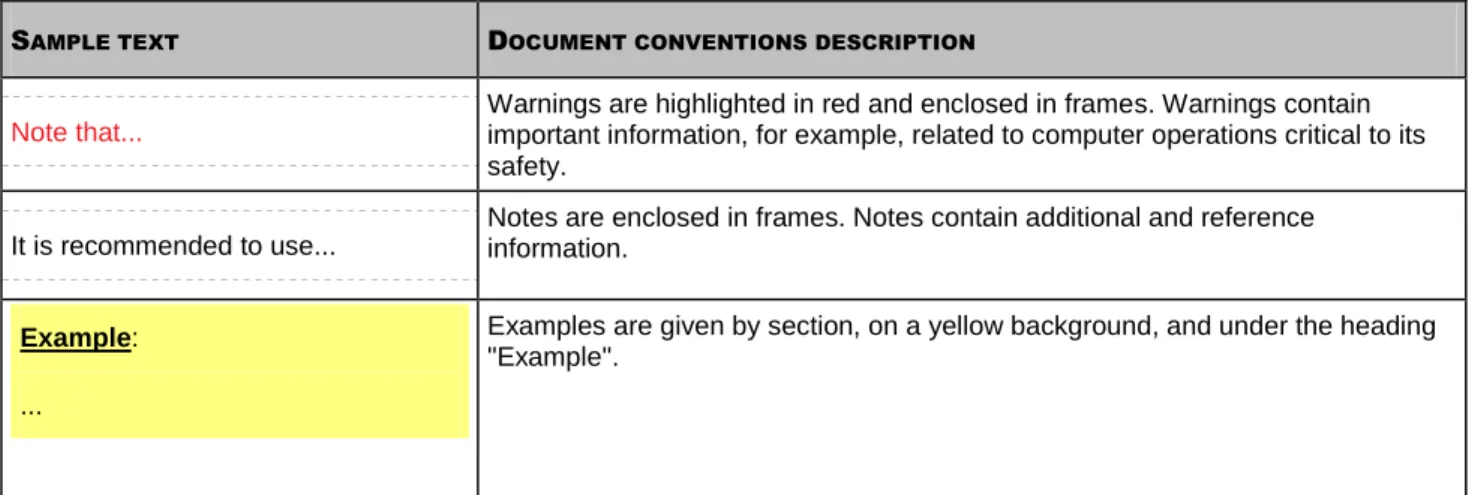
Document conventions used in this guide are described in the table below.
Table 1. Document conventions
SAMPLE TEXT DOCUMENT CONVENTIONS DESCRIPTION
Note that...
Warnings are highlighted in red and enclosed in frames. Warnings contain important information, for example, related to computer operations critical to its safety.
It is recommended to use...
Notes are enclosed in frames. Notes contain additional and reference information.
Example: ...
Examples are given by section, on a yellow background, and under the heading "Example".
AB O U T T H I S GU I D E
13
SAMPLE TEXT DOCUMENT CONVENTIONS DESCRIPTION
Update means... New terms are marked by italics.
ALT+F4 Names of keyboard keys appear in a bold typeface and are capitalized.
Names of the keys followed by a "plus" sign indicate the use of a key combination.
Enable Names of interface elements, for example, input fields, menu commands,
buttons, etc., are marked in a bold typeface.
To configure a task schedule: Instructions' introductory phrases are in italics.
help Texts in the command line or texts of messages displayed on the screen have a
special font.
<IP address of your computer> Variables are enclosed in angle brackets. The corresponding values are placed in each case instead of variables, angle brackets are omitted.
14
ADDITIONAL SOURCES OF INFORMATION
If you have any questions regarding selecting, purchasing, installing or using Kaspersky Small Office Security, various sources of information are available for your convenience. You can choose the most suitable information source, with regard to the question of importance and urgency.
IN THIS SECTION:
Sources of information to research on your own ... 14
Discussing Kaspersky Lab applications on the web forum ... 15
Contacting the Sales Department ... 15
Contacting the Documentation development group ... 15
S
OURCES OF INFORMATION TO RESEARCH ON YOUR OWN
Kaspersky Lab provides the following sources of information about the application: application page on the Kaspersky Lab website;
application page on the Technical Support Service website (in the Knowledge Base); FastTrack Support service page;
help system.
Application page on the Kaspersky Lab website
This page (http://www.kaspersky.com/small_office_security) provides you with general information on the application, its features and options.
Application page on the Technical Support Service website (Knowledge Base)
On this page (http://support.kaspersky.com/ksos) you will find the articles created by Technical Support Service specialists.
These articles contain useful information, advice and FAQs on purchasing, installing and using the application. They are sorted by subject, for example, Managing the product license, Configuring Update, or Eliminating operation failures. The articles may provide answers to the questions that concern not only this application but other Kaspersky Lab products as well. The articles may also contain news from the Technical Support Service.
FastTrack Support service
On this service page, you can find the database of FAQs with answers regarding the application's operation. To use this service, you need an Internet connection.
To go to the service page, in the main application window, click the Support link and in the window that opens click the FastTrack Support button.
Help system
The application installation package includes the file of full and context help that contains information about how to manage computer protection (view protection status, scan various computer areas for viruses, and execute other
AD D I T I O N A L S O U R C E S O F I N F O R M A T I O N
15
tasks). Besides, in the file of full and context help, you can find information on each application window such as the list of its proper settings and their description, and the list of tasks to execute.
To open the help file, click the Help button in the required window, or press the F1 key.
D
ISCUSSING
K
ASPERSKY
L
AB APPLICATIONS ON THE
WEB FORUM
If your question does not require an urgent answer, you can discuss it with Kaspersky Lab's specialists and other users in our forum at http://forum.kaspersky.com.
In this forum you can view existing topics, leave your comments, create new topics and use the search engine.
C
ONTACTING THE
S
ALES
D
EPARTMENT
If you have questions about selecting or purchasing Kaspersky Small Office Security or extending your license, you can contact the Sales Department (http://www.kaspersky.com/contacts).
You can also send your questions to the Sales Department by email at [email protected].
C
ONTACTING THE
D
OCUMENTATION DEVELOPMENT
GROUP
If you have any questions regarding documentation, have found an error or you would like to leave feedback, you can contact the Documentation development group. To contact Documentation development group, send a message to [email protected], Please use "Kaspersky Help Feedback: Kaspersky Small Office Security" as the subject line in your message.
16
KASPERSKY SMALL OFFICE SECURITY 2
Kaspersky Small Office Security 2 is a solution for small organizations with their own local network of no more than ten computers. Kaspersky Small Office Security 2 protects the computer network from viruses and other threats.
Kaspersky Small Office Security 2 consists of two parts:
Kaspersky Small Office Security 2 for Personal Computer is installed on personal computers under the Microsoft Windows operating system. The application provides maximum protection for data on the computer, safe browsing on the Internet, flexible configuration of policies for different users on the computer and the Internet, and tools for the remote management of office network computers.
Kaspersky Small Office Security 2 for File Server is installed on file servers under the Microsoft Windows operating system. The application provides protection for data on the computer and tools for the remote management of office network computers.
Kaspersky Small Office Security 2 for Personal Computer and Kaspersky Small Office Security 2 for File Server are included in the common installation package. When installing the application, the Setup Wizard defines which application should be installed on your computer - Kaspersky Small Office Security 2 for Personal Computer or Kaspersky Small Office Security 2 for File Server - based on the information about the operating system.
The components and functions of Kaspersky Small Office Security 2 for Personal Computer and Kaspersky Small Office Security 2 for File Server are described in detail in the Kaspersky Small Office Security 2 User Guide.
17
HARDWARE AND SOFTWARE
REQUIREMENTS
To run Kaspersky Small Office Security, the computer should meet the following minimum requirements specified in this section:
Common requirements for Kaspersky Small Office Security 2 for File Server and Kaspersky Small Office Security 2 for Personal Computer:
500 MB free hard drive space.
CD-ROM (to install Kaspersky Small Office Security from the distribution CD).
Microsoft Internet Explorer 6.0 or higher (for updating application's databases and software modules via Internet).
Microsoft Windows Installer 2.0. Mouse pointing device.
Internet connection to activate Kaspersky Small Office Security.
The file server on which Kaspersky Small Office Security 2 for File Server is installed should meet the following requirements:
Microsoft Windows Server 2008 R2 Foundation, Microsoft Windows Server 2008 R2 Standard:
Intel Pentium 1.4 GHz 64-bit (x64) or a dual core 1.3 GHz processor or higher (or a compatible equivalent). 512 MB RAM.
Microsoft Windows Small Business Server 2011 Essentials ("Aurora"):
Intel Pentium 2 GHz 64-bit (x64) processor or higher (or a compatible equivalent). 4 GB RAM.
Microsoft Windows Small Business Server 2011 Standard ("SBS 7"):
Intel Pentium 2 GHz 64-bit (x64) processor or higher (or a compatible equivalent). 4 GB RAM.
At the time of release, Kaspersky Small Office Security 2 does not support Microsoft Windows Small Business Server 2011 Essentials ("Aurora") and Microsoft Windows Small Business Server 2011 Standard ("SBS 7") operating systems, because they are not yet officially released by Microsoft. For up-to-date information about the support of these operating systems, refer to the Kaspersky Lab website, the page providing information about Kaspersky Small Office Security (http://www.kaspersky.com/small_office_security).
The personal computer on which Kaspersky Small Office Security 2 for Personal Computer is installed should meet the following requirements:
Microsoft Windows XP Home Edition Service Pack 3, Microsoft Windows XP Professional Service Pack 3, Microsoft Windows XP Professional x64 Edition Service Pack 2:
IN S T A L L A T I O N GU I D E
18
256 MB RAM.
Microsoft Windows Vista Home Basic (32-bit / 64-bit, Service Pack 2), Microsoft Windows Vista Home Premium (32-bit / 64-bit, Service Pack 2), Microsoft Windows Vista Business (32-bit / 64-bit, Service Pack 2), Microsoft Windows Vista Enterprise (32-bit / 64-bit, Service Pack 2), Microsoft Windows Vista Ultimate (32-bit / 64-bit, Service Pack 2):
Intel Pentium 1 GHz 32-bit (x86) / 64-bit (x64) processor or higher (or a compatible equivalent). 1 GB RAM.
Microsoft Windows 7 Home Premium, Microsoft Windows 7 Professional, Microsoft Windows 7 Ultimate: Intel Pentium 1 GHz 32-bit (x86) / 64-bit (x64) processor or higher (or a compatible equivalent). 1 GB RAM (for 32-bit systems); 2 GB RAM (for 64-bit systems).
Restrictions for 64-bit operating systems:
You cannot enable Safe Run when working under a Microsoft Windows XP (64-bit) operating system. Safe Run is restricted when working in Microsoft Windows Vista (64-bit) and Microsoft Windows 7 (64-bit) operating systems.
19
INSTALLING THE APPLICATION
Kaspersky Small Office Security will be installed on your computer in an interactive mode using the Setup Wizard. Running the Installation Wizard on a personal computer installs Kaspersky Small Office Security 2 for Personal Computer; on a file server Kaspersky Small Office Security 2 for File Server is installed.
The instructions in this section relate to the installation of both Kaspersky Small Office Security 2 for Personal Computer and Kaspersky Small Office Security 2 for File Server. The differences in the installation of Kaspersky Small Office Security 2 for Personal Computer and Kaspersky Small Office Security 2 for File Server are minimal; each difference is described separately in the relevant step of the Installation Wizard.
The Wizard consists of a series of screens (steps) navigated using the Back and Next buttons. To close the Wizard once it has completed its task, click the Finish button. To stop the Wizard at any stage, click the Cancel button.
Before beginning the installation, you are advised to close all applications currently running.
To install Kaspersky Small Office Security on your computer,
run the setup file (a file with the *.exe extension) from the CD with the product.
The installation of Kaspersky Small Office Security from the installation package downloaded via Internet is identical to that from the installation CD.
IN S T A L L A T I O N GU I D E
20
IN THIS SECTION:
Step 1. Finding a newer version of the application ... 20
Step 2. Making sure the system meets the installation requirements ... 21
Step 3. Select installation type ... 21
Step 4. Reviewing the license agreement ... 21
Step 5. Kaspersky Security Network Data Collection Statement ... 21
Step 6. Selecting the destination folder ... 22
Step 7. Searching for other anti-virus applications ... 22
Step 8. Disabling Microsoft Windows firewall ... 22
Step 9. Preparing installation ... 23
Step 10. Installing ... 23
Step 11. Activating the application ... 24
Step 12. Data verification ... 24
Step 13. Completing the activation ... 24
Step 14. Restricting access to the application ... 24
Step 15. Selecting protection mode ... 25
Step 16. Configuring application update ... 25
Step 17. Selecting threats to be detected... 26
Step 18. System analysis ... 26
Step 19. Finishing the Configuration Wizard. ... 26
S
TEP
1.
F
INDING A NEWER VERSION OF THE APPLICATION
Before setup, the Setup Wizard checks the update servers of Kaspersky Lab for a newer version of Kaspersky Small Office Security.
If it does not find a newer product version on the Kaspersky Lab update servers, the Setup Wizard for the current version will be started.
If the update servers offer a newer version of Kaspersky Small Office Security, you will see a prompt to download and install it on the computer. It is recommended that you install the new version of the application, because newer versions include more enhancements that allow you to ensure a more reliable protection of your computer. If you cancel
downloading of a newer version, the Setup Wizard for the current version will be started. If you decide to install the newer version, product distribution files will be downloaded to your computer and the Setup Wizard for that new version will be started automatically. For a further description of the installation procedure for the newer version, please refer to its corresponding documentation.
IN S T A L L I N G T H E A P P L I C A T I O N
21
S
TEP
2.
M
AKING SURE THE SYSTEM MEETS THE
INSTALLATION REQUIREMENTS
Before Kaspersky Small Office Security installation on your computer the installer checks the operating system and service packs to make sure they meet the software requirements for product installation. In addition, the installer checks the presence of required software and the credentials necessary to install applications. If any of the above-listed requirements is not met, the corresponding notification will be displayed on the screen.
S
TEP
3.
S
ELECT INSTALLATION TYPE
At this stage, you can choose the type of Kaspersky Small Office Security installation:
Express installation. When this option is selected (the Custom installation box is unchecked), the application will be installed on your computer with protection settings recommended by Kaspersky Lab experts. The Setup Wizard will offer you to view the End User License Agreement and the Kaspersky Security Network Data Collection Statement. After it the program will be installed on your computer.
Custom installation. When this option is selected (the Custom installation box is checked) you can modify installation settings: you can choose the program components to install and select the installation folder. The protection settings recommended by Kaspersky Lab will be specified for each component you have selected.
The custom installation mode is recommended for experienced users only.
Regardless of the installation mode, after installation you can activate Kaspersky Small Office Security and configure the protection settings to prevent unauthorized access.
To proceed with the installation, click the Next button.
S
TEP
4.
R
EVIEWING THE LICENSE AGREEMENT
At this stage, you should review the license agreement made between you and Kaspersky Lab.
Read the agreement carefully and give your consent by clicking the I agree button. The installation will continue. To cancel the application installation, click the Cancel button.
S
TEP
5.
K
ASPERSKY
S
ECURITY
N
ETWORK
D
ATA
C
OLLECTION
S
TATEMENT
At this stage, you will be invited to participate in the Kaspersky Security Network. Participation in the program involves sending information about new threats detected on your computer, running applications, and downloaded signed applications to Kaspersky Lab, along with the unique ID assigned to your copy of Kaspersky Small Office Security and your system information. We guarantee that none of your personal data will be sent.
Review the Kaspersky Security Network Data Collection Statement. To read the complete version of the Statement, click the Full KSN agreement button. If you agree with all points of the statement, check the I accept the terms of
participation in Kaspersky Security Network box.
IN S T A L L A T I O N GU I D E
22
S
TEP
6.
S
ELECTING THE DESTINATION FOLDER
This step in the Installation Wizard is available if the custom installation of Kaspersky Small Office Security is selected (see page 21). When carrying out the standard installation, this step is skipped and the application is installed to the default folder.
At this stage you can select the folder in which to install Kaspersky Small Office Security. The following path is set by default:
<disk>\Program Files\Kaspersky Lab\Kaspersky Small Office Security – for 32-bit systems;
<disk>\Program Files (х86)\Kaspersky Lab\Kaspersky Small Office Security – for 64-bit systems. To install Kaspersky Small Office Security to a different folder, specify the path to the required folder in the input field or click the Browse button and choose a folder in the window that opens.
Keep in mind the following restrictions:
The application cannot be installed on network or removable drives, or on virtual drives (drives created using the
SUBST command).
We recommend that you avoid installing the application in a folder that already contain files or other folders, because access to that folder for editing will soon be blocked.
The path to the installation folder cannot be longer than 200 characters or contain special characters
/, ?, :, *, ", >, < and |.
To find out if there is enough disk space on your computer to install the application, click the Volume button. In the window that opens you can view the disk space information. To close the window, click OK.
To proceed with the installation, click the Next button.
S
TEP
7.
S
EARCHING FOR OTHER ANTI
-
VIRUS
APPLICATIONS
At this step, the wizard searches for other anti-virus programs, including other Kaspersky Lab’s programs, which may conflict with Kaspersky Small Office Security.
If any anti-virus applications were detected on your computer, they will be listed on the screen. You will be asked to uninstall them before you proceed with the installation.
To remove the anti-virus programs that you have detected, use the Remove button. To proceed with the installation, click the Next button.
S
TEP
8.
D
ISABLING
M
ICROSOFT
W
INDOWS FIREWALL
This step in the Installation Wizard is available only for the installation of Kaspersky Small Office Security on a personal computer and only if Microsoft Windows firewall is enabled on the computer. The step is skipped if Kaspersky Small Office Security is being installed on a file server or on a personal computer without Microsoft Windows firewall enabled. In Kaspersky Small Office Security 2 for File Server, the Firewall is disabled by default.
IN S T A L L I N G T H E A P P L I C A T I O N
23
At this step of the application installation, you are offered to disable the firewall integrated into Microsoft Windows. Kaspersky Small Office Security includes the Firewall component, which ensures comprehensive protection of your network activities. So, there is no need to use additional protection provided by the operating system.
The option Disable Microsoft Windows firewall is selected by default for the installation. If you want to use Firewall as the main protection tool for network activity, keep this option selected.
If you want to protect your computer with Microsoft Windows firewall, select the Use Microsoft Windows Firewall enabled option. In this case, the Firewall component will be installed but disabled to avoid conflicts in the applications' operation.
To proceed with the Wizard, click the Next button.
S
TEP
9.
P
REPARING INSTALLATION
This step in the Installation Wizard is available if the custom installation of Kaspersky Small Office Security is selected (see page 21). In standard installation, this step is skipped.
Since your computer may be infected with malicious programs that may impact the installation of Kaspersky Small Office Security, the installation process should be protected.
By default, installation process protection is enabled – the Protect the installation process box is checked in the Wizard window.
You are advised to uncheck this box if the application cannot be installed (for example, when performing remote installation using Windows Remote Desktop). Enabled protection may be the reason.
In this case, you should interrupt the installation, restart it, check the Custom installation box at the "Select installation type" step (see section "Step 3. Select installation type" on page 21) and, when reaching the "Preparing installation" step, uncheck the Protect the installation process box.
To proceed with the installation, click the Install button.
When installing the application on a computer running under Microsoft Windows XP, active network connections are terminated. The majority of terminated connections are restored after a pause.
S
TEP
10.
I
NSTALLING
Installation of the application can take some time. Wait for it to complete. The Activation Wizard starts automatically on completion of the installation.
If an installation error occurs, due to malicious programs that prevent anti-virus applications from being installed on your computer, the Setup Wizard will prompt you to download Kaspersky Virus Removal Tool utility, a special tool for neutralizing an infection.
If you agree to install the utility tool, the Setup Wizard downloads it from Kaspersky Lab servers, after which installation of the utility starts automatically. If the Wizard cannot download the utility, you will be asked to download it on your own by clicking the link provided.
IN S T A L L A T I O N GU I D E
24
S
TEP
11.
A
CTIVATING THE APPLICATION
Activation is the procedure of activating a license that allows you to use a fully functional version of the application until the license expires.
You will need an Internet connection to activate the application.
You will be offered the following options of Kaspersky Small Office Security activation:
Activate commercial version. Select this option and enter the activation code if you have purchased a commercial version of the application.
During the activation of a commercial version of the application, the Activation Wizard may prompt you to register so that you can use Kaspersky Lab's Technical Support Service.
Activate trial version. Use this activation option if you want to install the trial version of the application before making the decision to purchase a commercial version. You will be able to use the fully-functional version of the application for the duration of a term limited by the license for the trial version of the application. When the license expires, it cannot be activated for a second time.
Activate later. If you choose this option, the Kaspersky Small Office Security activation stage is skipped. The application will be installed on your computer, but you will not be able to use certain application functions, for example update (you will be able to update the application only once after its installation), creation of an encrypted container, additional tools, etc. The Activate later option is only available at the first start of the Activation Wizard, immediately after installing the application.
S
TEP
12.
D
ATA VERIFICATION
During this step, the Activation Wizard sends data to the activation server for verification.
In order to verify data, you should be connected to the Internet.
S
TEP
13.
C
OMPLETING THE ACTIVATION
The Activation Wizard informs you that Kaspersky Small Office Security has been successfully activated. Additionally, information about the license is provided: license type (commercial or trial), date of expiry, and number of personal computers or file servers under the license.
If you have activated the subscription, information about the subscription status is displayed instead of the license expiry date.
Click the Next button to continue the installation by starting the Configuration Wizard.
S
TEP
14.
R
ESTRICTING ACCESS TO THE APPLICATION
The purpose of access restriction consists in preventing unauthorized attempts of disabling the protection or modifying the settings of the components integrated into Kaspersky Small Office Security.
Restricting access to Kaspersky Small Office Security with a password may be useful in the following cases: if a personal computer is used by several persons, probably with varying levels of computer literacy;
IN S T A L L I N G T H E A P P L I C A T I O N
25
if Kaspersky Small Office Security ensures security of several computers joined into an office network; if protection is at the risk of being disabled by malware.
To enable password protection, check the Enable protection by administrator password box and fill in the Password
and Confirm password fields.
Specify the area that you want to protect with a password as follows:
Application settings configuration – the password is requested when the user attempts to save changes
made to Kaspersky Small Office Security settings.
Backup management – the password is requested before the backup tasks are run.
Web Policy Management – the password is requested before Web Policy Management is run (only in
Kaspersky Small Office Security 2 for Personal Computer).
Management Console – the password will be requested before modifying the Kaspersky Small Office Security
settings via network.
Exiting the application – the password will be requested when the user attempts to exit the application.
S
TEP
15.
S
ELECTING PROTECTION MODE
This step in the Configuration Wizard is available if the custom installation of Kaspersky Small Office Security is selected (see page 21). In standard installation, this step is skipped, and by default, the application runs in automatic protection mode. You have the option later to select a protection mode manually.
Select the protection mode provided by Kaspersky Small Office Security. Two modes are available:
Automatic. If any important events occur, Kaspersky Small Office Security automatically performs the action recommended by Kaspersky Lab. Once a threat is detected, the application attempts to disinfect the object; if it fails, the application deletes it. Suspicious objects will be skipped without processing. Pop-up messages inform the user about new events. To install this mode, select the I trust Kaspersky Small Office Security and prefer
it to make decisions on computer security itself and not to ask me any questions (recommended) option.
Interactive. In this mode the application reacts to events in the manner you have specified. Once an event requiring your attention occurs, the application displays notifications which offer you to select an action. To install this mode, select the I prefer making decisions on computer security myself. Kaspersky Small
Office Security should ask me every time it is necessary to make a decision option.
Notifications warning about the detection of an active infection are displayed irrespective of the protection mode you have selected.
S
TEP
16.
C
ONFIGURING APPLICATION UPDATE
This step in the Configuration Wizard is available if the custom installation of Kaspersky Small Office Security is selected (see page 21). The step is skipped in standard installation, and by default, an automatic updated is performed. You have the option later to select an update mode manually.
The quality of your computer's protection depends directly on regular updates of the databases and application modules. In this window, the Setup Wizard asks you to select the update mode and to specify the schedule settings.
IN S T A L L A T I O N GU I D E
26
Automatic update. The application checks the update source for update packages at specified intervals. The scanning frequency can be increased during anti-virus outbreaks and decreased when there are none. Having discovered new updates, the program downloads and installs them on the computer. This is the default mode.
Scheduled updates (time interval may change depending on the schedule settings). Updates will run automatically according to the schedule created. You can alter the schedule settings in the window that opens by clicking the Settings button.
Manual updates. If you select this option, you will run application updates on your own.
If you want to switch to editing the update settings (select the resource from which the updates will be downloaded, or the user account used to run the update process, etc.), click the Settings button.
S
TEP
17.
S
ELECTING THREATS TO BE DETECTED
This step in the Configuration Wizard is available if the custom installation of Kaspersky Small Office Security is selected (see page 21). The step is skipped in standard installation and the settings are installed by default. You have the option later to select detected threats manually.
At this step, you can select the threat categories to be detected by Kaspersky Small Office Security. Kaspersky Small Office Security always searches for programs that are capable of damaging your computer, including viruses, worms and Trojans.
S
TEP
18.
S
YSTEM ANALYSIS
At this stage, the Configuration Wizard collects information about applications contained in Microsoft Windows. These applications are added to the list of trusted applications which have no restrictions imposed on the actions they perform in respect of the system.
Other applications are analyzed at the first startup after Kaspersky Small Office Security installation.
S
TEP
19.
F
INISHING THE
C
ONFIGURATION
W
IZARD
.
The last window of the Configuration Wizard will inform you of a successful completion of application installation. To run Kaspersky Small Office Security, make sure that the Run Kaspersky Small Office Security box is checked, and click the Finish button.
In some cases, you may need to reboot your operating system. If you have checked the Run Kaspersky Small Office Security box before closing the Configuration Wizard, the application will run automatically after you reboot your computer. If you have unchecked this box, you will need to start the application manually.
27
RESOLVING TYPICAL TASKS
This section contains instructions on the basic tasks encountered by most users when working with the application. You can find an expanded list of standard tasks and solutions in the Kaspersky Small Office Security User Guide.
IN THIS SECTION:
How to update application databases and modules ... 27
How to scan critical areas of your computer for viruses ... 28
How to perform full scan of your computer for viruses ... 28
How to check the protection status of an office computer network remotely ... 29
How to restrict access to Kaspersky Small Office Security settings ... 30
How to transfer application settings to another computer ... 30
What to do when the application's notifications appear ... 31
H
OW TO UPDATE APPLICATION DATABASES AND
MODULES
By default, Kaspersky Small Office Security automatically checks for updates on the Kaspersky Lab update servers. If the server contains new updates, Kaspersky Small Office Security downloads and installs them in the background mode. You can start a Kaspersky Small Office Security update at any time.
To download updates from Kaspersky Lab servers, you should have an established Internet connection.
To keep your computer's protection up to date, you are advised to update Kaspersky Small Office Security immediately after the installation.
To start the update from the context menu,
select Update from the context menu of the application icon.
To start update from the main application window:
1. Open the main application window.
2. Select the Update Center section in the left part of the window. 3. In the right part of the window, click the Perform update button.
IN S T A L L A T I O N GU I D E
28
H
OW TO SCAN CRITICAL AREAS OF YOUR COMPUTER FOR
VIRUSES
Quick Scan consists of scanning the objects which are loaded at startup of the operating system, scanning the system memory, boot sectors of the disk drive, and the objects that have been added by the user. After Kaspersky Small Office Security has been installed, it automatically performs a quick scan of your computer.
You can start the Quick Scan task using one of the following methods: using the shortcut created earlier;
from the main application window.
To start the Quick Scan task using a shortcut:
1. Open the Microsoft Windows Explorer window and go to the folder where you have created the shortcut. 2. Double-click the shortcut to start the scan.
To start the Quick Scan task from the main application window:
1. Open the main application window.
2. In the left part of the window, select the Scan section.
3. In the right part of the window, click the Start Quick Scan button. Information about the scan in progress is displayed:
in the Scan section in the Stop Quick Scan section;
in the Quick Scan window that opens by clicking the Finish link in the Stop Quick Scan section; in the application icon context menu.
To stop the quick scan:
1. Open the main application window.
2. In the left part of the window, select the Scan section.
3. In the right part of the window, click the Stop Quick Scan button.
H
OW TO PERFORM FULL SCAN OF YOUR COMPUTER FOR
VIRUSES
You can start the Full Scan task using one of the following methods: using the shortcut created earlier;