DSView™ 4 Management Software
Installer/User Guide
DSView™4 Management
Software
Installer/User Guide
Emerson, Emerson Network Power and the Emerson Network Power logo are trademarks or service marks of Emerson Electric Co. Avocent, the Avocent logo, The Power of Being There, Cyclades, DSR, DSView, MergePoint, MergePoint Unity and OSCAR are trademarks or service marks of Avocent Corporation or its affiliates in the U.S. and other countries. All other marks are the property of their respective owners. This document may contain confidential and/or proprietary information of Avocent Corporation, and its receipt or possession does not convey any right to reproduce, disclose its contents, or to manufacture or sell anything that it may describe. Reproduction, disclosure, or use without specific
authorization from Avocent Corporation is strictly prohibited. ©2012 Avocent Corporation. All rights reserved.
T A B L E O F C O N T E N T S
Product Overview 1
Features and Benefits 1
System Components 3
Third party products 4
Partner products 4 Supported Units 4 Target devices 7 Power devices 7 System Configuration 8 Installation 11 About Installation 11
Minimum requirements for the DSView software 11
DSView software and virtual environments 12
Before installing and configuring the DSView software 12
Avocent Customer Express (ACE) Account 13
DSView Software Activation 13
Installing the DSView Software 15
Upgrading the DSView Software 17
Configuring the DSView Software 17
Running the DSView Software 19
Minimum client requirements 19
Opening a client session 20
Regaining access 21
Uninstalling the DSView Software 21
Closing a DSView Software Session 22
Java Installation 22
Avocent Viewer Plug-in Installation 23
Installing the DSR Remote Operations Software 24
DSView Explorer Windows 25
Accessing Target Devices 26
Using the Side Navigation Bar 26
Using Windows 28
Sorting information in a window 28
Filtering information in a window 28
Saving information in a window 30
Using the Customize link in windows 30
Displaying pages 32
Printing a window 32
Refreshing a window 33
Using keyboard commands 33
Basic Operations 35
DSView Help 35
Configuring the DSView help location 35
Installing DSView help on a local server 36
Global System Properties 36
Legal Notice 37
PCI Compliance Configuration 37
Power Settings 38
Profiles 39
Changing user options 39
Changing your password 40
Choosing the serial session application 40
Specifying a user certificate 41
Specifying an SSH key 42
Enabling user credential caching 42
Built-in User Groups Roles 43
Preemption Levels 45
Internet Explorer Considerations 46
Managing ActiveX® controls 46
Security zones 48
Advanced Internet options 50
Certificates 51
System certificate policy and trust store 52
Integrated Windows Authentication 54
Firewalls 55
VPNs 56
NAT Devices 58
Licenses 60
Adding a new license key 62
System Information 62
ISV Partners 63
DSView Servers 65
Server Properties 65
Server certificates 67
Avocent proxy server 72
Server trap destinations 73
Client session information 73
DSView software modem sessions 74
Email 76
Unit status polling 76
Backing up and Restoring Hub Servers Manually 77
Spoke Servers 79
Replication 84
Authentication Services 87
Supported Authentication Services 87
DSView software internal authentication service 88
Active Directory external authentication service 90
Windows NT external authentication service 96
LDAP external authentication service 98
RADIUS external authentication service 104
TACACS+ external authentication service 106
RSA SecurID external authentication service 110
User Authentication Services Window 112
Units View Windows 115
Types of Units View windows 115
Topology view 116
Accessing Units View windows 118
Showing and hiding units 119
Units View windows fields 120
Multiple unit operations from a Units View window 124
Unit Overview Windows 126
Unit Status Window 128
Adding and Deleting Units 129
Adding Units 129
Wizards that add units 130
Adding a single managed appliance 131
Adding a single embedded appliance 133
Adding managed appliances from a range or list of IP addresses 135 Adding a generic appliance or an EVR1500 environmental monitor 137
Adding a target device 137
Deleting Units 138
Automatically deleting attached units 138
Synchronizing the DSView Software Database 141
Name Synchronization 141
Automatic name push 142
Automatic name pull 143
Manual name push 145
Manual name pull 145
Automatic topology synchronization 147
Topology synchronization options in the Add Unit Wizard 148
Topology synchronization options in the Resync Wizard 149
Merging target devices 150
Merging or splitting cascade switches 152
Automatic Discovery 152
Automatic Inheritance for Group Memberships and Properties 153
Managing Units 155
Appliance Configuration Templates 155
Saving appliance configuration templates 155
Modifying appliance configuration template properties 156
Applying appliance configuration templates 157
Unit Properties 158
About Access Rights 163
How access rights can be assigned 165
Assigning Access Rights 165
Managed Appliance Settings 166
Managed Appliance Status 168
Managed Appliance SNMP Settings 168
Target Device Services 169
Target Device Settings 171
Target Device Naming 172
IQ Module Settings 173
KVM Switch and Cascade Switch Settings 174
OSCAR interface settings 176
Local Account Settings 177
Embedded Units 179
Launching embedded unit sessions 180
Changing embedded unit credentials 180
Asset and Usage Reports 182
Asset 182
Usage 183
Power Devices and Power Device Sockets 185
Power Devices 185
Power Device Input Feed 187
Power Device Sockets 189
Power Control of Devices Attached to Power Devices 190
Unit Sessions and Connections 193
Managed Appliance Session Settings 193
Customizing the Appliance Sessions window 193
Active Sessions 198
All active sessions 199
Active sessions on a target device 200
Active modem sessions 202
Connections to Units 204
Connection display format 204
Renaming a managed appliance connection 206
Adding and deleting target device connections 206
Merging virtual and physical target device connections 207
Data Logging 209
Configuring Data Logging 210
Enabling the SSH server 211
Enabling the Syslog server 212
Enabling and disabling data logging on units 212
Verifying the data logging settings for each connection 213
Viewing and customizing the SSH server settings 214
Configuring the buffer warnings events as SNMP 215
Specifying where data log files will be stored 215
Archiving and deleting data log files 216
SSH Passthrough Sessions 221
Configuring SSH Passthrough 221
Enabling SSH Passthrough 222
SSH port sharing 223
SSH Passthrough Sessions 224
Establishing an SSH Passthrough connection to a unit 224
Escape key sequence 227
Break sequences 227
Transferring read/write access 229
Disconnecting a session 229
Displaying session output 230
Supported service processor commands 230
Grouping Units 233
Site, Department and Location Groups 233
Custom Fields 236
Unit Groups 239
Unit group hierarchy 241
Adding or deleting a unit group 244
Changing the unit group properties 245
DS Zones 249
Managing and Accessing Zones 249
Enabling DS Zones 249
Creating zones 249
Accessing zones 250
Transferring units to a zone 251
Managing zone properties 252
Using Zones 254
Units actions in a zone 254
Managing User Accounts 261
User Accounts Windows 261
Adding User Accounts 263
Deleting User Accounts 266
Unlocking User Accounts 266
Resetting a User Account Password 266
Changing User Account Properties 267
Username 267
User certificates 268
User SSH key 268
User password 269
User account restrictions and expiration settings 269
User group membership 270
Preemption level 271
Address 271
Phone contact 271
Email contact 272
User notes 272
Custom field properties 272
User Access Rights 273
User Groups and User Roles 275
Adding User-defined User Groups 277
Deleting User-defined User Groups 280
User Group Properties 280
Changing User Group Members 281
User Group Access Rights 282
Using the Video Viewer 283
About the Video Viewer 283
Window Features 285
Opening a KVM Session 286
Opening an exclusive KVM session 287
Video Viewer session properties 289
Session time-out 290
Closing a Video Viewer Session 290
KVM Session Profiles 290
General profile settings 291
Cursor profile settings 293
Toolbar profile settings 294
Video profile settings 294
Managing KVM session profiles 296
Using Menu Commands to Manage Session Settings 300
General commands 300
Cursor commands 301
Toolbar commands 302
Video commands 303
Mouse scaling command 303
Avocent Mouse Sync 304
Manual Video Adjustment 305
Saving the View 308
Displaying Video Viewer Users 309
Scan Mode 309
About scan mode 309
Thumbnail Viewer features 310
Performing Thumbnail Viewer tasks 312
Macros 313
Macro groups 316
Power Control of Devices Attached to Power Devices 319
Using Virtual Media 319
Virtual Media dialog box 320
Virtual media session settings 321
Opening a virtual media session 322
Closing a virtual media session 324
Using Smart Cards 324
Video Viewer Troubleshooting 325
Using the Telnet Viewer 327
About the Telnet Viewer 327
Telnet Viewer Window Features 328
Telnet Viewer window toolbar 329
Security Property 330
Opening a Session 331
Customizing the Telnet Viewer 331
Customizing Session Properties 332
Login scripts 335
Reviewing Session Data 336
Macros 337
Macro groups 339
Logging 341
Copying, Pasting and Printing Session Data 344
Power Control of Devices Attached to Power Devices 345
Closing a Telnet Viewer Session 346
Using Tools 347
Using Unit Tools 347
Exporting units 347
Exporting access rights 349
Merging target devices 350
Merging target device endpoints 351
Using the Managed Appliance Tools 351
Rebooting 352
Upgrading firmware 353
Resynchronizing units 354
Restoring a managed appliance configuration 355
Saving a managed appliance user database 356
Restoring a managed appliance user database 356
Using Tasks 359
Using the Tasks Window 359
Adding tasks 360
Specifying when to run tasks 360
Adding Tasks Using the Add Task Wizard 363
Task: Backup DSView software database and system files 363
Task: Configure SNMP trap settings on a managed appliance 364
Task: Exporting an event log .csv file 365
Task: Exporting an Asset Report to a .csv file 367
Task: Exporting a Usage Report to a .csv file 368
Task: Sending an IPMI chassis control command to target devices 369
Task: Test modem connections to selected units 370
Task: Updating the firmware of an appliance type 370
Task: Validating user accounts on an external authentication server 371
Task: Pull names from selected units 372
Task: Update topology for selected units 372
Running tasks manually 374
Displaying task results 374
Deleting tasks 375
Changing tasks 375
Firmware Management 376
Events and Event Logs 379
Event Severity and Categories 379
Event severity 379
Event categories 380
Email Notifications 380
Enabling and Disabling Event Logging 383
Displaying the Event Log 384
Event states 386
Using the date filter 387
Changing the Event Log Retention Period 387
Creating an Event Log .csv File 388
Plug-ins 391
Recommended Sequence for Adding/Upgrading Plug-ins 391
Adding Plug-ins 392
Displaying Plug-in Information 393
Managing Plug-ins 395
Upgrading a plug-in 395
Disabling and activating a plug-in 395
Appendix A: Technical Support 397
Appendix B: TCP and UDP Ports 399
KVM switch ports 399
Serial console appliance ports 401
DSView server ports 403
Generic appliance ports 403
External authentication ports 405
SNMP ports 405
Appendix C: DSR Remote Operations Software 409
Before using the DSR Remote Operations software 411
Installing the DSR Remote Operations software 411
Using the DSR Remote Operations software 413
Window features 414
Rebooting a switch 416
Managing servers 417
Power control of devices attached to power device sockets 417
VT terminal emulation 419 VT100+ terminal emulation 420 VT102 terminal emulation 420 VT100 terminal emulation 421 VT220 terminal emulation 427 VT52 terminal emulation 431 VT320 terminal emulation 433 Glossary 437 Access control 437 Active Directory 437
ADSAP (Avocent DS Authentication Protocol) or ADSAP2 437
AIDP (Avocent Install and Discover Protocol) 437
Applet 437
Appliance 437
ASMP (Avocent Secure Management Protocol) 438
Attach device 438
Authentication 438
Authentication server 438
Authorization 438
AVSP (Avocent Video Session Protocol) 438
Browser session 438 Cascade device 438 Cascade switch 439 CCM appliance 439 Certificate authentication 439 Connection 439 CPS appliance 439 Database replication 439
DHCP (Dynamic Host Configuration Protocol) 439
Digital Certificate 440
DSR switch 440
DSView management software 440
DSView server 440
DSView software client 441
DSView software client session 441
DSView software hub server 441
DSView software spoke server 441
DSView software system 442
Embedded appliance 442
Encryption 442
External authentication server 442
Flash 442
FRU (Field Replaceable Unit) 442
Graceful shutdown 443
Hotkey 443
HTML (Hypertext Markup Language) 443
HTTP (Hypertext Transfer Protocol) 443
HTTPS (Secure Hypertext Transfer Protocol) 443
Integrated windows authentication 443
IQ module 444 Java 444 KVM 444 KVM session 444 KVM session profiles 444 KVM switch 444
LDAP (Lightweight Directory Access Protocol) 445
Local port 445
Managed appliance 445
MIB (Management Information Base) 445
NAT device 446
Negative hysteresis 446
OSCAR interface 446
Power device 446
Positive hysteresis 446
PPP (Point to Point Protocol) 446
SDR repository device 447
Serial console appliance 447
Serial session 447
Server 447
Session 447
Site 448
Smart card 448
SNMP (Simple Network Management Protocol) 448
SNMP manager 448
SSH Passthrough session 448
SSL (Secure Sockets Layer) 448
Target device 448
Target device session 448
TCP/IP (Transmission Control Protocol) 449
Telnet session 449
Telnet Viewer 449
Tiered switch 449
UDP (User Datagram Protocol) 449
Unit 449
Video Viewer 449
VPN (Virtual Private Network) 449
(WAN) Wide Area Network 450
(WAS) Web Application Server 450
(Webapp) Web Application 450
Web server 450
Product Overview
1
1
The DSView™4 management software is a secure, web browser-based, centralized enterprise
management solution that allows users to remotely access, manage, monitor and control target devices through Avocent managed appliances. A session may be launched to a target device with a single point of access.
NOTE:All instances of DSView software within this document refer to DSView software version 4 or higher.
Features and Benefits
Network rebooting and troubleshooting
The DSView software uses industry standard IP connections so that you can easily troubleshoot a server, or even reboot it, from the Network Operations Center (NOC), from your desk or from any location in the world. With the DSView software, you can access all of your data center devices from a single screen - making complex network access and control remarkably easy. Using out-of-band management, the software can be used to reach and restart servers or other devices that are not functioning or responding to in-band commands, regardless of the state of the equipment’s operating system.
Web-based access and control
The DSView management software provides secure “point-and-click” browser-based access to control virtually any data center device using managed appliances from DSView software clients located anywhere in the world.
Secure authentication and communication
Secure Socket Layer (SSL) encryption may be used to encrypt data traveling within the DSView software system. Users may be authenticated through internal or external services such as LDAP, Active Directory, NT Domain, TACACS+, RADIUS and RSA SecurID.
Unit and user management
The DSView management software provides centralized network access, control and security for managed appliances. A DSView software administrator may add, remove, delete and change settings for managed appliances and target devices, including assigning permissions and per-device contact information, which are stored on the DSView server. A DSView software administrator may also assign unique permissions which allow individual users or a group of users access to units or groups of units.
Proxy server access
The proxy server feature allows keyboard, video and mouse (KVM) and serial sessions to be proxied through the DSView server. When a session is initiated with a target device, the viewer communicates using the Avocent Proxy Protocol (APP) and the DSView server makes a direct connection to the appliance.
Virtual media
On supported KVM switches, a virtual media capable IQ module and the virtual media feature allow the client workstation user to load files onto USB2-compatible target devices when the usual network resources are unavailable.
Mapping physical drives or image files on the client system as virtual drives on the target device can accommodate critical tasks required on the target device, such as operating system installation or recovery, BIOS updating and configuration backups.
Dual stack support for IPv4 and IPv6
The DSView server is a dual stack host for IPv4 and IPv6 network protocols. Several Avocent appliances support IPv6, including DSR™ switches, ACS advanced console servers, and MergePoint™service processor (SP) managers.
Virtual segregation of resources with DS Zones
DS Zones provide virtual segregation of data center resources, including appliances, target devices and virtual machines. You can manage the users, licenses and authentication services assigned to each zone, and transfer units among zones.
Enhanced security
Federal Information Processing Standard (FIPS) appliance support will support changing the mode of an added appliance from FIPS to non-FIPS. All of the functionalities supported by DSView software on non-FIPS appliances be supported for FIPS mode appliances, too. Support for 2048 Bit SSL encryption for the system and the client provides stronger SSL keys for user access to DSView software and for appliances.
NOTE:FIPS 140-2 compliance is only supported on MergePoint Unity™ KVM over IP and serial console switch and ACS 6000 console server.
System Components
The DSView software system contains the following components. DSView management software
The DSView software resides on the DSView server (host or hub computer) and provides a web gateway and services for managing units (appliances and target devices) using a web browser. The gateway allows for IP-based video, serial management, Telnet Viewer, third party Telnet viewer, web browser and other supported session types.
Users may connect to the DSView server from DSView software clients and use the DSView Explorer windows to communicate with the system.
DSView server
The DSView server contains the DSView management software. The server provides a centralized database for storing configuration, user, unit and system information. It also provides services for authentication, access control, logging events, monitoring and license management.
You may configure one or more spoke (backup) servers in addition to the hub server. The hub server is responsible for maintaining the master copy of the database in a DSView software system. Only one server in a DSView software system may be configured as the hub server. Spoke servers perform database replication with the hub server. The hub server acts as the coordinator for database replication between itself and all of the other spoke servers in a DSView software system. A hub server and a spoke server both offer the same DSView software functionality to a user. The distinction of hub or spoke refers only to the database replication role that the server plays and not with the functionality that the server provides. Adding one or more spoke servers to a DSView software system provides redundancy and the ability to distribute DSView software functionality across multiple sites.
After the hub server and optional spoke server(s) are configured, you may create and configure the type of access levels for users within your network environment. You may also set up event logs to record full details of user access and other events.
DSView software client
A DSView software client is a computer with a web browser that can access the DSView management software installed on the DSView server.
Third party products
Third party products are not a part of the DSView software, but are supported for use with it. External authentication servers- An external authentication server enables the DSView server to broker authentication requests from users requesting access to the DSView software system. SNMP managers- The SNMP (Simple Network Management Protocol) manager monitors the managed appliances and receives SNMP traps from the DSView software on the server. Third party Telnet viewers- A third party Telnet viewer may be used for serial sessions instead of the DSView software Telnet Viewer.
Third party session software- Third party software such as RDP or VNC, when properly installed and configured on the target device, may be enabled for use within the DSView software for initiating sessions with the target device. At the beginning of a session, the RDP viewer allows users to map local resources for use with virtual media.
Partner products
Environmental monitoring with Uptime Devices
DSView software can help you access Uptime Devices SensorHub environmental monitoring equipment so you can quickly detect environmental conditions (equipment to track
temperature, humidity, airflow, water, voltage and contact closures) that could adversely affect operation of servers and other network devices. Visit www.uptimedevices.com for ordering information.
Proactive Network Security with NetClarity Auditor Enterprise
Integrate NetClarity Auditor Enterprise with the DSView software and manage one or more Auditor appliances to alert, block and correct critical IT security and compliance problems in your data center and entire enterprise network. Visit www.netclarity.net for ordering
information.
Supported Units
For management functions, the DSView software client uses HTTPS (Hypertext Transfer Protocol with SSL encryption) to send a request to the DSView server, which then sends a command to the managed appliance. The appliance then performs the requested function. The DSView software supports the managed appliances listed in this section. Other appliances may be supported by ins; see the Avocent web site, www.avocent.com, for a list of plug-ins that may currently ship with the DSView software and/or that can be added to the DSView
software. SeePlug-inson page 391 for information about adding and managing plug-ins in the DSView software system.
Cyclades ACS advanced console server
ACS advanced console servers allow users to access serially attached devices over a standard TCP/IP connection using the Avocent Telnet Viewer, a third party Telnet viewer or a Secure Shell (SSH) client. These serial sessions can be shared among multiple users across multiple DSView servers. For more information, see the ACS console server plug-in documentation. KVM over IP switches
KVM over IP switches allow KVM signals to be transmitted over a standard TCP/IP network connection. Some DSR switches may be connected using a modem, which provides benefits for branch offices such as low cost and dial-up performance.
NOTE:The DSView software supports all DSR and MergePoint Unity switch models.
For DSR switches, a target device is first attached to an IQ module, which is then attached to a DSR switch. DSView software clients communicate with target device ports using a Video Viewer connection between the client and the managed appliance.
The DSR switches allow the cascading of legacy analog KVM switches from DSR switch ports, which may be managed in a DSView software system. Certain DSR switch models also allow the cascading of another switch. For more information, see the DSR Switch Installer/User Guide.
NOTE:PEM cascade devices are not supported.
MergePoint service processor (SP) manager
The MergePoint service processor manager is a secure, centralized enterprise management solution for target devices equipped with IPMI, HP iLO and Dell DRAC service processors. You can use the DSView software to access, monitor and control the MergePoint SP manager and attached target devices.
The MergePoint SP manager provides a standardized interface independent of the management protocols used to manage each target device. Management operations can be performed either by using commands or scripts over a Telnet or SSH version 2 session or by using the
appliance’s web interface from a standard web browser.
For more information, see the MergePoint appliance plug-in documentation. Cyclades OnSite branch office appliance
OnSite branch office appliances may be used to access multiple traditional or headless servers, networking devices, infrastructure components or any other device with a serial console or
KVM port. You can use the DSView software to access, monitor and control the OnSite appliance and attached target devices. For more information, see the OnSite appliance plug-in documentation.
Virtual environments
The DSView management software plug-in for Virtualization allows you to access and control virtual machines from the DSView software. Supported unit types include Microsoft® Hyper-V, VMware®VirtualCenters, ESX Servers and virtual machines, as well as Citrix®XenServersTM
and virtual machines. You can launch a Virtual Network Computing (VNC), Remote Desktop (RDP), Secure Shell 2 (SSH) or VMware viewer session to supported virtual machines from a single point of access. For more information, see the Virtualization plug-in documentation. Licenses may be required; see your Avocent representative or www.avocent.com for more information.
Blade chassis
The DSView software plug-in for Blade Chassis allows you to access multi-vendor blade chassis and blades from the DSView software. You can launch a KVM session to any managed blade from a single point of access. For a list of supported blade chassis and other information, see the Blade Chassis plug-in documentation.
Generic appliances
Generic appliances manage data center devices such as routers. These devices may be managed within a DSView software system by launching a standard web browser to the device URL or by opening a Telnet session.
Embedded units
Using the DSView software, you may add/delete, configure/display properties, and launch video sessions to the following versions of third party embedded units:
• IBM®ASM (Advanced System Management) RSA II (Remote Supervisor Adapter II) -Version 5, Build GRE132AUS
• DRAC 4 (Dell™ Remote Access Controller) - Version 1.0, Build 06.14 • HP iLO (Integrated Lights-Out) - Version 1.20
• NEC IPF (Itanium Processor Family) - Version 0.5.1.20
For management functions (other than launching video sessions) that are not performed by the DSView software, see the documentation for the unit.
Legacy units
• DSI5100 IPMI proxy appliances • EVR1500 environmental monitors • DS1800 digital switches
• Cyclades KVM/net KVM over IP switches • Cyclades KVM/net Plus KVM over IP switches • Cyclades TS appliances
• CCM console management appliances
• CPS810 and 1610 serial over IP network appliances
Target devices
Target devices encompass a wide range of data center components such as servers and routers that a DSView software administrator may manage virtually through the DSView software system. A target device is added automatically to your DSView software system when the supported managed appliance is added. A target device may also be added individually.
Power devices
A power device is a type of target device that can be cascaded from a managed appliance. When a DSView software client sends a power control request to a target device, an HTTPS request is sent to the DSView server, which then sends a command to the managed appliance. The command is converted and serially sent to the power device. The power device then performs the requested action (for example, turning a power outlet on or off).
The DSView software supports the following power devices: • Avocent SPC power control devices
• Server Technologies Sentry Switched CDU CW-8H1, CW-8H2, CW-16V1, CW-16V2, CW-24V2, CW-24V3, CW-32VD1 and CW-32VD2 (supported models may change; contact Avocent Technical Support for current information)
• Cyclades™Power Distribution Units
• Liebert MPH and MPX rack PDUs (only supported through ethernet) • APC AP71xx, 78xx and 79xx series PDUs (only supported through ethernet) All of the above power devices, unless otherwise noted, are supported on KVM over IP switches that contain one or more SPC ports. Avocent and Server Technologies power devices are also supported on CCM and CPS appliances.
System Configuration
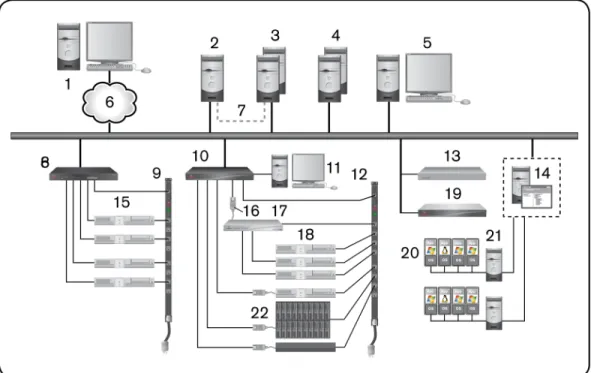
Figure 1.1 illustrates an example system configuration using the DSView management software. For information about the TCP ports that the DSView software uses, seeTCP and UDP Ports on page 1.
Figure 1.1: Example System Configuration
Number Description Number Description 1 DSView Software Client 12 Power Device 2 Hub DSView Software Server 13 Generic Appliance
3 Spoke DSView Servers (Optional) 14 Hypervisor Manager
4 External Authentication Servers (Optional) 15 Target Device
Number Description Number Description 5 SNMP Manager (Optional) 16 IQ Module
6 TCP/IP 17 Cascade Switch
7 Replication 18 Target Devices
8 ACS Advanced Console Server 19 MergePoint SP Manager
9 Power Device 20 Hypervisor Server
10 KVM over IP Switch 21 Virtual Machines
11 OSCAR™ Interface 22 Blade Chassis
Installation
2
11
This chapter describes the following installation sequence for the DSView software: • What you should do before installing the DSView software
• Installing the DSView software
• Configuring the DSView software, plus considerations when upgrading • Running the DSView software, that is, start a client session
Final sections describe how to change your password, uninstall the software, end a DSView software session and install Java.
About Installation
When the DSView management software is installed, the DSView software database and a hub server are also installed on the dedicated server.
Rebooting the dedicated server is not required prior to using the DSView software.
Once the DSView software is installed and you have configured the hub server, users may log in at another computer as a DSView software client, using a supported web browser.
You may also install the DSView software on additional computers and configure them as spoke servers. SeeSpoke Serverson page 79 andInstalling the DSR Remote Operations Softwareon page 24.
NOTE:A license key permits the operation of the DSView software on the dedicated server. The license key also specifies the number of clients that may use the software and the number of spoke servers allowed on a system. See
Licenseson page 60.
Minimum requirements for the DSView software
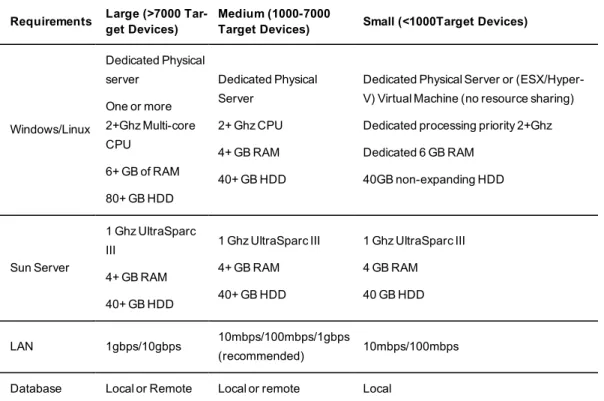
Please refer to the latest release notes for operating system and browser requirements. The table below lists the hardware requirements based on the number of target devices.
Requirements Large (>7000 Tar-get Devices)
Medium (1000-7000
Target Devices) Small (<1000Target Devices)
Windows/Linux Dedicated Physical server One or more 2+Ghz Multi-core CPU 6+ GB of RAM 80+ GB HDD Dedicated Physical Server 2+ Ghz CPU 4+ GB RAM 40+ GB HDD
Dedicated Physical Server or (ESX/Hyper-V) Virtual Machine (no resource sharing) Dedicated processing priority 2+Ghz Dedicated 6 GB RAM 40GB non-expanding HDD Sun Server 1 Ghz UltraSparc III 4+ GB RAM 40+ GB HDD 1 Ghz UltraSparc III 4+ GB RAM 40+ GB HDD 1 Ghz UltraSparc III 4 GB RAM 40 GB HDD LAN 1gbps/10gbps 10mbps/100mbps/1gbps (recommended) 10mbps/100mbps Database Local or Remote Local or remote Local
Table 2.1: Hardware Requirements
For more information visit http://www.avocent.com/software-requirements.
DSView software and virtual environments
DSView software running in a virtual environment is not a recommended configuration. DSView software is designed to incorporate a Java Virtual Machine within which the services reside. As a result of this architecture, DSView software will fully utilize the CPU and memory allocated to it. Installing DSView software on a virtual machine where CPU and memory are competing with other virtual machines increases processing latency and reduces the
responsiveness of the DSView software service. The latencies can cause database request time-outs, plug-in request time-time-outs, appliance lost connection events and database corruption. Therefore, running DSView software in a virtual environment is not recommended.
NOTE:Virtual environments include those provided by Microsoft®, Xen® and VMware®.
Before installing and configuring the DSView software
If the computer will be a hub server, you will need the license key obtained from Avocent and provide a username and password to use for initial log in.
If the computer will be a spoke server, you will need to identify the associated hub server and provide the name/password of the hub server’s DSView software administrator.
Avocent Customer Express (ACE) Account
The ACE (Avocent Customer Express) account is used for activating the DSView software. This will also allow you to interact with technical services agents who will have a full history of your account, including past support calls. You will also find easy access to the most commonly requested documents, including technical documentation, product bulletins, recent upgrades and other online resources to provide you with up-to-date information on your Avocent products.
DSView Software Activation
In order to use DSView software, it must be activated. For each license (or block of licenses), purchased, you will receive an Activation Token. The activation token is an alpha-numeric string of 21 characters. You should have the activation token available when registering your license.
To register the activation token, visit http://support.avocent.com. To save time during the installation process, register your token prior to starting installation.
Based on the Master License/Child License model, there are two methods to activate your software. The installation license (the initial license for the hub), is activated independently. It then becomes a Master License Key.
The Add-on Component License is activated using a specific master license key. It then becomes a Component (or Child) License Key.
To register the installation license:
1. Using a web browser, navigate to http://support.avocent.com. 2. ClickSoftware Activation link.
3. You will be asked to create or enter your Avocent Customer Express (ACE) account information.
NOTE:If this is the first time you have registered a product (software or hardware) with Avocent, you will see a message that you have no components registered.
4. If this is the first time you are logging in, clickClick here for your registered products. Chapter 2: Installation 13
5. Enter the activation token in the field at the bottom of the screen. Ensure that you use all capital letters, and include the dashes in the token.
6. ClickSubmit.
7. Your Master License Key will be displayed on screen. Print this page for your records.
NOTE:Once logged into your ACE account, you can see a list of your registered products by clicking on the registered products link.
8. Return to the DSView installation and enter the license key when prompted. To register an add-on component license:
1. In the DSView software, selectSystem - Licenses - License Keys.
2. Find the Master License Key and write it down or copy it to the clipboard. 3. Using a web browser, navigate to http://support.avocent.com.
4. ClickSoftware Activation link.
5. You will be asked to create or enter your Avocent Customer Express (ACE) account information. Depending on how many licenses you have registered, you will see one or more licenses listed.
6. Carefully match the license from DSView that you copied earlier with one the licenses displayed on Avocent¹s registration page.
NOTE:Add-on component licenses which are activated against the wrong master license key cannot be corrected. 7. The first part of each license listed is a hyperlink. Click on that link to choose which
DSView master license key to register your add-on component to.
8. A new page will display, similar to the first, which shows the license information for the master license key you¹re registering to, and another field at the bottom.
9. Enter the add-on component activation token in the field. Ensure that you use all capital letters, and include the dashes in the token.
10. ClickSubmit.
11. The Component License Key will be displayed on screen.
12. Print this page for your records. Return to DSView software and if necessary selectSystem -Licenses - License Keys.
NOTE:Once logged into your ACE account, you can see a list of your registered products by clicking on the
Registered Productslink. 13. Click theAddbutton.
14. Enter the license key in the fields provided.
15. Ensure that you use all capital letters, but do not include the dashes. 16. Your add-on component license is now entered in DSView software. Before software installation
When installing a hub server, you will need the license key obtained from the ACE account, and you will create an initial DSView administrator account. A hub server must be installed before spoke servers can be added to it. When installing a spoke server, you will need to provide the hub server address and a valid username/password for the DSView hub server.
Installing the DSView Software
The DSView management software may be installed using the DSView software DVD or by downloading the software in a self-extracting .zip file from the Avocent web site. DSView does not support network drive installations. The software must be installed on a hard drive
partition. In addition, the installation is not supported on a domain controller. As a recommendation, install DSView on a server with a properly configured hostname, which resolves to the IP address of the server where the application is installed. The IP address of the DSView server should never be changed.
NOTE:If you are upgrading the DSView software from a previous version, it is strongly recommended that you perform a database synchronization between the hub and spoke servers; seeReplicationon page 84. You should also back up the hub server prior to upgrading the DSView software; seeBacking up and Restoring Hub Servers Manuallyon page 77. Failure to perform synchronization and backup may have detrimental effects. A backup should be performed both before the upgrade and immediately following the upgrade.
NOTE:If you are upgrading from DSView 3 software, see the DSView Transition Guide for more information. To install the DSView software:
1. Log on to the dedicated server as local administrator.
2. Using your web browser, download the DSView software from the Avocent web site. Go to www.avocent.com/download and chooseDSView Software Upgrades.
3. ClickClick here to download Installers, Plug-ins and Utilities.
4. After download is complete, double-click on the downloaded installation package (setup.exe). ClickNext.
5. The Introduction window will open. ClickNext. 6. The License Agreement window will open.
• If you accept the terms, clickI accept the terms of the License Agreementand then clickNext. Go to step 8.
• If you do not accept the terms, clickI do NOT accept the terms of the License Agreement. A License Agreement Warning message box will appear.
• If you clickQuit, the installation will exit without installing the DSView software. • If you clickResume, you will be returned to the License Agreement window. The DSView software license agreement may also be viewed from the User Login window by clicking theAvocent DSView End User License Agreementlink. The agreement will appear in a separate web browser window.
7. ClickNexton the Installation Settings dialog box. 8. Choose the DSView installation folder and clickNext.
9. Review the default DSView software TCP Port Settings screen, make any changes needed and clickNext.
10. On the PostgreSQL Installation screen, clickNextto install a new instance.
-or-Check the box to Use Existing Database, if connecting to an existing database, and clickNext.
11. The PostgreSQL Installation screen allows you to make changes to the installation folder location and Port. Enter the password twice and clickNext.
NOTE:Ensure the password you choose also adheres to the password complexity group policy in effect on the server being installed on.
-or-For an existing PostgreSQL server, enter the IP address, port, username and password. 12. For an existing PostgreSQL server (under \PostgreSQL\9.0\data), edit the pg_hb.conf file
and the postgresql.conf files.
a. Enter <host all all 0.0.0.0/0 md5>in the pg_hba.conf file.
b. Enter<custom_variable_classes = ‘symmetric’>in the postgresql.conf file. c. Restart the database service and clickNext.
NOTE:The DSView software now leverages a PostgreSQL (Version 9.0.4) database. This can either be installed on the DSView server, or on a separate server.Please refer to the DSView 4 Database Acceptable Use document on the Avocent Community (community.avocent.com) for full details regarding the new database structure as well as best practices.
13. Confirm the installation settings and clickInstallto begin the installation. 14. ClickOKon the DSView service startup message.
15. ClickDone.
Upgrading the DSView Software
When upgrading to a newer version of the DSView software, all DSView servers should be upgraded at the same time. The DSView hub server should be upgraded first, followed by each spoke server.
Before upgrading, a replication should be performed (seeReplicationon page 84), then a backup immediately before and after upgrading the DSView software (seeBacking up and Restoring Hub Servers Manuallyon page 77).
The firmware for the appliances may also need to be upgraded in order to support new functionality in the DSView software. The DSView software should work with the existing firmware revisions, but in cases where new functionality is not supported until the firmware is upgraded, the DSView software will indicate this in the GUI.
For more information on upgrading DSView software, see the DSView Management Software Transition Technical Bulletin located at www.avocent.com/download under the DSView Software heading.
Configuring the DSView Software
After the DSView software has been installed, it must be configured using a web browser. During configuration, you specify whether the computer will be a hub server or a spoke server. If this is your first DSView server installation,hub should be selected in the Select DSView Server Role window. The hub server should be installed before any spoke servers are added. What you will need
If the computer will be a hub server, you will need the license key obtained from Avocent and provide a username and password to use for initial log in.
If the computer will be a spoke server, you will need to identify the associated hub server and provide the name/password of the hub server’s DSView software administrator.
To configure the DSView software:
1. If you are configuring the DSView software during the installation process, you have already clickedDonein the Launch Default Browser window.
If you quit after installing the DSView software installation process (by closing the window), selectStart - All Programs - Emerson - DSView 4 Software.
2. A security alert box will appear containing certificate information. SeeCertificateson page 51.
3. The Select DSView Server Role window opens.
• ClickHubto assign the dedicated server as the hub server, then clickNext. Go to step 3.
• ClickSpoketo assign the dedicated server as a spoke server, then clickNext. Go to step 8.
4. The Type in Master License Key window opens. Type the Avocent-provided license key for the DSView software hub server, then clickNext. (DSView software license keys prior to version 3.0 are not valid.)
If you did not receive a license key, click thehttp://www.avocent.com/activationlink to obtain a license key.
If the entered license is already in use on another server, a license violation will occur when you log in, and you must configure the server as a spoke server.
5. The Type in Initial Administrator Account window opens. Type a username, a password and confirm the password of the user to whom you wish to give administrator privileges. Usernames are case sensitive and may contain up to 64 characters. ClickNext.
6. A Request in Progress message will appear. The license key will be installed and a DSView software administrator account will be created. The built-in user groups will also be created.
7. The Completed Successful window will open when configuration is completed. Click Finish.
8. The User Login window will open in the DSView Explorer.
You may now log in using the username and password specified during configuration. If you chose to configure the server as a spoke server in the Select DSView Server Role window or if you entered a duplicate software license key in the Type in Master License Key window, continue with the following steps.
NOTE:The DSView software versions of the spoke server and the hub server must match in order to register the spoke server. For example, you may not register a spoke server running DSView software version 4.0 with a hub server running DSView software version 3.2.
9. The Type in Hub Server Address and Port window will open. Type the address of the DSView software hub server using standard dot notation (xxx.xxx.xxx.xxx) or type the DNS name in the Address field. ClickNext.
10. The Accept DSView Server Certificate window will open. ClickNextto accept the certificate.
11. The Type in Hub Administrator Credentials window will open. Type a valid username and password for a user with DSView software administrator privileges on the DSView software hub server. ClickNext.
12. The Registering Spoke Server window will open with the messageRequest In Progress Please WaitThe configuration of the spoke server will be saved to the database of the hub server and the spoke server’s certificates will be installed on the hub server.
13. The Completed Successful window will open when the spoke server has been added. Click Finish.
Running the DSView Software
DSView software clients access the DSView management software host using a supported web browser. Any software required by the client, such as applets and the Java Runtime
Environment (JRE), will be automatically installed by the DSView server host.
The DSView software uses Secure Sockets Layers (SSL) encryption to send data between the DSView software host and the web browser on the client to ensure data integrity and privacy. When a user attempts to log in to a DSView software client session, the authentication service configured in the DSView software by the DSView software administrator verifies the
credentials of the user. Security alerts related to the certificates on the DSView software host may appear. SeeCertificateson page 51.
Minimum client requirements
Please refer to the latest release notes for operating system and browser requirements. 2 GHz Pentium or equivalent processor
1 GB of RAM
100BaseT NIC (1GByte LAN recommended) VGA video with graphics accelerator Desktop size of 1024x768 or higher Color palette of 256 colors or more Adobe Flash Player version 9.0 or higher
Java Runtime Environment version 1.6 u24
For more information visit http://www.avocent.com/software-requirements.
Opening a client session
Before opening a client session
• Enable cookies and JavaScript on the client’s web browser.
• Configure the web browser. If you are using Internet Explorer, seeInternet Explorer Considerationson page 46.
To open a client session:
NOTE:If DSView Software Client Certificate Authentication or DSView Software Client Integrated Windows Authentication is being used, the user will not be required to log in. SeeCertificateson page 51.
1. From the DSView software client web browser, enter the URL of the server host in the address bar in the format:
https://<servername>/dsview
In this case, <servername> is the DNS name of the host system, or the IP address in standard dot notation (xxx.xxx.xxx.xxx).
NOTE:To avoid multiple security warnings, enter the DNS name.
-or-If you are opening the session on the DSView server, you may selectStart - Programs - Emerson - DSView 4 Software.
2. Accept all security alerts that may appear as the client computer connects to the DSView server. The DSView Explorer User Login window will open.
If an RSA SecurID external authentication service has been added to the DSView software, seeRSA SecurID loginon page 21 below for the login procedure. 3. Type a valid username and password in the fields provided.
Depending on the settings specified by the administrator, you may be required to change your password before being allowed to complete the login process. SeeAdding User Accountson page 263.
4. ClickLogin. The window that appears depends on the rights assigned to the DSView user that is logging in.
If the client machine uses an onboard video controller and experiences video problems, be sure the BIOS is updated to the latest version.
RSA SecurID login
When an RSA SecurID external authentication service has been added to the DSView software, the login credentials include a username and a passcode. The passcode includes a PIN and an RSA SecurID tokencode. The login request is sent to the RSA Authentication Manager. Depending on the user configuration and state on the RSA Authentication Manager, the user may be prompted for a second successive tokencode.
The user configuration also specifies how the 4-6 digit PIN will be generated: • User defined - the user must enter a PIN
• System generated - the user cannot enter a PIN; it must be generated by the RSA server • User selectable - the user may choose to enter a PIN or allow the RSA server to generate it If a PIN has not yet been assigned to the user or if security policy requires a PIN change, the user will be prompted accordingly. If the RSA server generates the PIN, the user will be given a brief interval to memorize it.
Regaining access
If access to a DSView software system is lost, contact Avocent technical support.
Uninstalling the DSView Software
To uninstall the DSView software on a supported Windows system: 1. SelectStart - Settings - Control Panel. The Control Panel will appear.
2. From the Control Panel, clickAdd/Remove Programs. The Add/Remove Programs dialog box will appear.
3. SelectAvocent DSView4 and then clickChange/Remove. The Uninstall Avocent DSView window will open.
4. ClickUninstall.
To uninstall the DSView software on a supported Linux or Solaris system: 1. Log in to the server as root.
2. Insert the DSView software DVD into your DVD drive. If AutoMount is supported and enabled, open a command window and continue with step 3.
-or-If your system does not support AutoMount, issue the following command to mount the DVD volume:mount <device> <mount point>, where <device> and <mount
point> are the names of your server’s DVD Linux or Solaris device and mount point directory, respectively.
For example, to mount a DVD which is the second IDE unit on /media/cdrom, enter the command:
mount /dev/cdrom /media/cdrom
3. Enter the following command to access the readme file.
less /media/cdrom/DSView/readme
Follow the instructions in the readme file.
Closing a DSView Software Session
Files are copied to DSView software clients when you log in to the DSView software. When using Internet Explorer, temporary files may be removed by selecting theDelete Temporary Internet Filescommand and active web components may be uninstalled by selecting the Remove Objectscommand. See the Internet Explorer documentation for more information. To close a DSView software session:
From the DSView Explorer, clickLOGOUTor the logout icon.
Java Installation
On non-Windows clients, the Video Viewer, Telnet and VNC Viewers require Java version 1.5. The Telnet/SSH applet may work with other versions; the Video Viewer requires that version. On Windows clients, Java is required to run the Avocent Telnet/SSH Viewer. If the Win32 PuTTY Telnet/SSH Viewer is selected in the user’s profile, then Java is not required on the client. On a Windows client, it is recommended that the JRE (Java Runtime Environment) be installed in the C:\Program Files\ location. If your system automatically installs programs in another location, you may not be able to launch the Video Viewer. In this case, you can configure Java to find the JRE.
To configure Java to find the JRE: 1. Access the Java Control Panel. 2. Select theJavatab.
3. In the Java Application Runtime Settings panel, clickView. 4. Change the path to the installed JRE.
For Windows, Linux and Solaris operating systems, the DSView software client automatically downloads and installs the JRE the first time it is needed. For Macintosh operating systems, you must update Java and install the JRE using the Macintosh software updates. Refer to the Macintosh operating system documentation for more information.
To install the JRE on a Windows client:
1. In a DSView software Units View window (seeAccessing Units View windowson page 118), click an Action link.
2. A window will open, containing a link for downloading the JRE installer. Download the JRE installer, then close all browser windows.
3. Click on the JRE icon to launch the installer. 4. Restart the browser, and click an Action link. To install the JRE on a Linux or Solaris client:
NOTE:Only one version of the JRE can be installed in the browser for DSView software support. Depending on your system’s configuration, you may have to log in as the root user to install the JRE. Contact your system administrator if you need help with installing software as the root user.
1. In a DSView software Units View window (seeAccessing Units View windowson page 118), click an Action link.
2. A window will open, containing a link for downloading the JRE installer. Download the JRE installer, then close all browser windows.
3. Run the installer.
4. Restart the browser, and click an Action link.
Avocent Viewer Plug-in Installation
On Windows clients, the Video Viewer, Telnet and VNC Viewers require the Avocent Viewer Plug-in. If you are using Firefox 2 or Internet Explorer, the plug-in downloads automatically from the browser window. If you are using Firefox 3, additional set up is required.
To install the Avocent Viewer Plug-in when using Firefox 3 on a Windows client: 1. In a Units View window containing the target device you want to access (seeAccessing
Units View windowson page 118), click an Action link.
2. The Installing Avocent Viewer Plug-in pop-up window opens. ClickDownload Avocent Viewer Plug-in.
3. ClickSave, then open the saved file. The Firefox downloads window opens. 4. ClickOK, the follow the instructions in the installer wizard to install the file.
Once the installation is complete, the viewer session starts automatically.
Installing the DSR Remote Operations Software
NOTE:Installing and using the DSR Remote Operations software is optional.
If your DSView software system includes KVM over IP appliances, you may use the DSR Remote Operations software for switch access using a dial-up point to point protocol (PPP) modem connection when an Ethernet connection is unavailable.
SeeDSR Remote Operations Softwareon page 1 for information about installing and using the DSR Remote Operations software.
DSView Explorer Windows
3
25
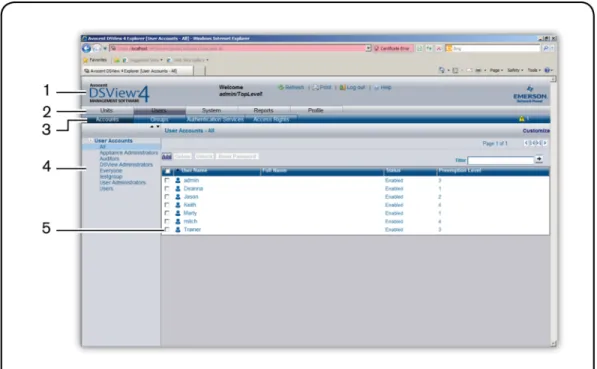
When a user has been logged in and authenticated, the Avocent Explorer window opens. From the Explorer window, you may view, access and manage units.
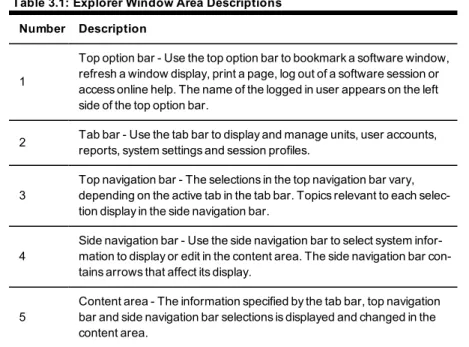
Number Description
1
Top option bar - Use the top option bar to bookmark a software window, refresh a window display, print a page, log out of a software session or access online help. The name of the logged in user appears on the left side of the top option bar.
2 Tab bar - Use the tab bar to display and manage units, user accounts, reports, system settings and session profiles.
3
Top navigation bar - The selections in the top navigation bar vary, depending on the active tab in the tab bar. Topics relevant to each selec-tion display in the side navigaselec-tion bar.
4
Side navigation bar - Use the side navigation bar to select system infor-mation to display or edit in the content area. The side navigation bar con-tains arrows that affect its display.
5
Content area - The information specified by the tab bar, top navigation bar and side navigation bar selections is displayed and changed in the content area.
Table 3.1: Explorer Window Area Descriptions
Accessing Target Devices
Target devices (TDs) that may be accessed system-wide are displayed in a Units View window. You may initiate a session with a target device from a Units View window by clicking the link in the Action column. SeeUnits View Windowson page 115.
You may also initiate a session with a target device from a Unit Overview window. SeeUnit Overview Windowson page 126.
For information about controlling the power of target devices attached to power devices, see Power Control of Devices Attached to Power Deviceson page 190.
Using the Side Navigation Bar
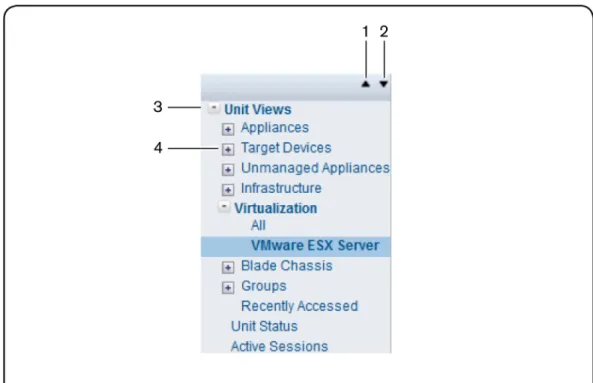
The side navigation bar is used to display windows that specify settings or perform operations. The contents of the side navigation bar varies, depending on the tab and top navigation bar selections and the window that is displayed.
Figure 3.2: Example Side Navigation Bar Table 3.2: Side Navigation Bar Descriptions
Number
Description
1 Collapse All Nodes - Click this arrow in the upper right corner to collapse all nodes and
their links.
2 Expand All Nodes - Click this arrow in the upper right corner to expand all nodes and display additional links.
3 Collapse Node - Click the - to collapse an opened tree branch and its links.
You may choose whether an expanded node will collapse when another Expand Node arrow is selected. SeeChanging user optionson page 39.
Clicking on a link that does not contain an arrow will display its corresponding window. Some windows contain additional links, which may display another window and a side navigation bar with different content.
Using Windows
Sorting information in a window
The order of rows in a list may be changed by clicking the heading of one of the displayed columns. When you click a column heading, the order of the list rows will change to
alphabetically ascending, based on that column. If you click the column heading a second time, the order will change to an alphabetically descending order. An up arrow indicates ascending order and a down arrow indicates descending order.
If you are using the topology feature in a Units View window, seeTopology viewon page 116 for sorting criteria.
Filtering information in a window
Some DSView software windows allow you to filter list information by providing a text string that will be used to retrieve matching items. Filtering is useful if you have many target devices or other items that extend over many pages. Windows that allow filtering contain a text field and a Filter button in the content area, as shown in See " DSView Explorer Windows " on page 25.
Filtering is performed either over the entire list of items or of specified columns, and can provide a shorter, more exact list of items. When filtering is performed, each row and column is searched for the specified text string. For example, you may wish to perform filtering to list only DSR 1031 switches in the Name column, target devices with KVM connections in the Action column, idle ACS console servers in the Status column and so on. Additionally, from a Units View window, you can use theCustom Fields and Filterlink to exclude columns from the filter and provide a more exact list of filtered items. SeeUsing the Customize link in windowson page 30.
When the topology feature is enabled in a Units View window, both parent and child units will display in the filtered view. For example, if you filter for a child named target device 1 that is attached to a DSR 1031 switch, target device 1 will appear below the DSR 1031 switch in the filtered view.
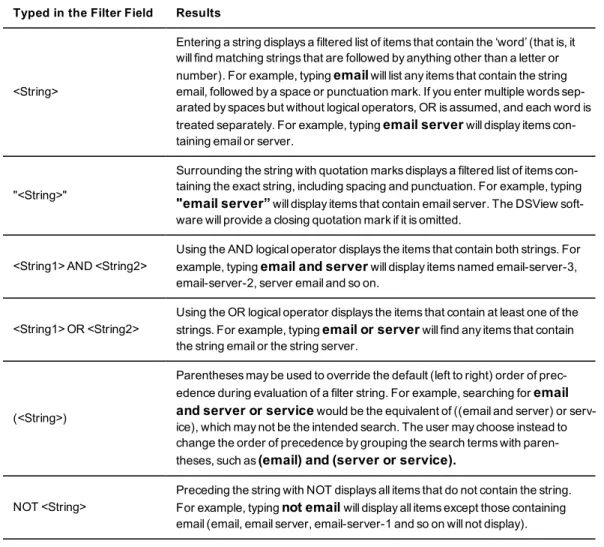
When filtering, you may use an asterisk (*) before and/or after text strings as a wildcard. For example, typingemailserver*and clicking Filterwill display items with emailserver at the