Intr
oducing Windows 8.1 for IT Pr
ofessionals
ED BOTT
Introducing
Windows 10 for
IT Professionals
PUBLISHED BY Microsoft Press
A Division of Microsoft Corporation One Microsoft Way
Redmond, Washington 98052-6399
Copyright 2016 © Microsoft Corporation
All rights reserved. No part of the contents of this book may be reproduced or transmitted in any form or by any means without the written permission of the publisher.
ISBN: 978-0-7356-9697-6
Printed and bound in the United States of America.
First Printing
Microsoft Press books are available through booksellers and distributors worldwide. If you need support related to this book, email Microsoft Press Support at [email protected]. Please tell us what you think of this book at http://aka.ms/tellpress.
This book is provided “as-is” and expresses the author’s views and opinions. The views, opinions and information expressed in this book, including URL and other Internet website references, may change without notice.
Some examples depicted herein are provided for illustration only and are fictitious. No real association or connection is intended or should be inferred.
Microsoft and the trademarks listed at http://www.microsoft.com/about/legal/en/us/IntellectualProperty/
Trademarks/EN-US.aspx are trademarks of the Microsoft group of companies. All other marks are property of
their respective owners.
Acquisitions Editor: Rosemary Caperton
Project Editor: Christian Holdener; S4Carlisle Publishing Services Editorial Production: S4Carlisle Publishing Services
What do you think of this book? We want to hear from you!
Microsoft is interested in hearing your feedback so we can improve our books and learning resources for you. To participate in a brief survey, please visit:
http://aka.ms/tellpress
Contents
Introduction . . . ix
Chapter 1 An overview of Windows 10
1
What is Windows 10? . . . 2A new approach to updates and upgrades . . . 2
The evolution of the Windows user experience . . . 4
User accounts and synchronization . . . 6
Windows apps . . . 7
A new default browser . . . 9
What’s new for IT pros? . . . 10
Greater control over updates and upgrades . . . .11
Security enhancements . . . 12
Deployment and manageability . . . 15
Virtualization . . . 15
Chapter 2 The Windows 10 user experience
19
An overview of the new Windows user experience . . . 20The Settings app. . . 21
Notifications and action buttons . . . .24
Cortana . . . 25
Universal apps in resizable windows . . . 27
Navigation . . . 29
Tablet Mode . . . .30
File Explorer . . . 31
Chapter 3 Installation and activation
35
Compatibility and preparation . . . 35
System requirements . . . 36
Supported upgrade paths . . . 36
Creating and using installation media . . . 36
New rules for activation . . . 39
Windows 10 installation options . . . 41
Creating and managing user accounts . . . .43
Which account type should you use? . . . .44
Chapter 4 Deploying Windows 10 in the Enterprise
49
Deployment scenarios . . . .50Enterprise deployment tools: An overview . . . 52
Microsoft Deployment Toolkit 2013 . . . 52
Windows Assessment and Deployment Kit . . . 53
Chapter 5 Security and privacy in Windows 10
57
The evolution of the threat landscape . . . 57Securing hardware . . . .58
Securing the boot process . . . 59
Locking down enterprise PCs with Device Guard . . . 62
Securing data on local storage devices . . . 63
Device encryption . . . .64
BitLocker Drive Encryption . . . .64
Remote business data removal . . . 65
Securing identities . . . 65
Blocking malware . . . 69
Windows Defender . . . 69
SmartScreen and phishing protection . . . 70
Chapter 6 Microsoft Edge and Internet Explorer 11
77
A brief history of Internet Explorer . . . 77
Browsing options in Windows 10 . . . 78
Microsoft Edge . . . 81
Configuring Enterprise Mode in Windows 10 . . . .86
Chapter 7 Windows 10 networking
91
Wireless networking enhancements . . . 91Making secure connections to corporate networks . . . .96
Managing network connections . . . .98
Support for IPv6 . . . 101
Chapter 8 Hyper-V and desktop virtualization options
103
Client Hyper-V . . . 103Desktop virtualization options . . . 108
Application virtualization . . . 110
User Experience Virtualization . . . 112
Chapter 9 Recovery and troubleshooting tools
113
Using Windows Recovery Environment . . . 113Windows 10 and push-button reset options . . . 116
The Keep My Files option . . . 119
The Remove Everything option . . . 120
Troubleshooting tools . . . 121
Sysinternals tools . . . 123
Microsoft Diagnostics and Recovery Toolset . . . 123
Chapter 10 Integrating Azure Active Directory
125
Getting started with Azure AD . . . 125Joining a Windows 10 PC to Azure AD . . . 130
Chapter 11 Universal apps and the new Windows Store
137
The Universal Windows Platform . . . 137
Introducing the new Windows Store . . . 138
How Universal Windows Platform apps work . . . 141
Using the Windows Store for Business . . . 145
Chapter 12 Storage 147
Storage Tools . . . 147Disk Management . . . 148
DiskPart . . . 148
Storage Sense . . . 149
File History . . . 151
Advanced Storage Options . . . 153
Chapter 13 Managing mobile devices and enterprise data
159
Mobile device management strategies. . . 159System Center Configuration Manager . . . 160
Microsoft Intune. . . 162
Work Folders . . . 163
Chapter 14 Windows 10 on phones and small tablets
167
The evolution of Windows on mobile devices . . . 167Installing Windows 10 Mobile . . . 169
What’s inside Windows 10 Mobile . . . 171
Windows 10 Mobile and apps . . . 172
Continuum . . . 175
Chapter 15 What’s new in Group Policy in Windows 10
177
Windows Update for Business . . . 177
Device Guard . . . 178
Microsoft Passport for Work . . . 180
Microsoft Edge and Internet Explorer . . . 181
Controlling access to preview builds and telemetry data . . . 182
Managing Windows Update Delivery Optimization . . . 183
Security policies . . . 184
What do you think of this book? We want to hear from you!
Microsoft is interested in hearing your feedback so we can improve our books and learning resources for you. To participate in a brief survey, please visit:
Introduction
I
’ve written about Microsoft Windows for nearly a quarter-century, and in all that time I have never worked on a project like this one. Then again, I’ve never seen anything quite like Windows 10 from Microsoft, either.With the assistance of a skilled team at Microsoft Press, I wrote this book in two phases. The first edition, published in early 2015, was based on the Windows 10 Technical Preview. For this edition, I waited until the release of Windows 10 version 1511 in November 2015 so that I could include all of its enterprise-focused features.
Windows 10 represents a major transformation of the PC landscape. For IT pros who’ve grown comfortable managing Microsoft Windows using a familiar set of tools and best practices, this version contains a startling amount of new. A new user experi-ence. A new app platform. New security features and new management tools. New ways of deploying major upgrades.
My goal in this book is to help you sort out what’s new in Windows 10, with a special emphasis on features that are different from the Windows versions you and your organi-zation are using today. I’ve tried to lay out those facts in as neutral a fashion as possible, starting with an overview of the operating system, describing the many changes to the user experience, and diving deep into deployment and management tools where it’s necessary.
Although I’ve written in-depth guides to Windows in the past, this book is not one of those. It’s also not a review. Only you can decide whether, and how and when, to incorporate Windows 10 into your enterprise, based on your own organizational require-ments. This book is designed to serve as a starting point so that you can get more out of your evaluation of Windows 10, which is why I have also included many links to external resources.
By design, this book focuses on things that are new, with a special emphasis on topics of interest to IT pros. So you might find fewer tips and tricks about the new user experi -ence than your users want but more about management, deployment, and security— which ultimately is what matters to the long-term well-being of the company you work for.
access to Windows 10 at no cost. Even if you have no immediate plans to migrate your organization to the next version of Windows, now is the time to evaluate this new oper-ating system.
I encourage you to share your feedback about this book directly with me. E-mail your comments to me at [email protected].
Ed Bott
January 28, 2016
Acknowledgments
I’d like to thank Michael Niehaus, Chris Hallum, and Fred Pullen, who provided invalu-able input for both editions of this book. I’d also like to thank the good folks at Microsoft Press—Anne Hamilton, Rob Linsky, and Rosemary Caperton—for their efforts at making this project happen.
About the author
Ed Bott is an award-winning technology journalist and author who has been writing about Microsoft technologies for more than two decades. He is the author of more than 25 books on Microsoft Windows and Office and writes regularly about technology for The Ed Bott Report at ZDNet.
Free ebooks from Microsoft Press
From technical overviews to in-depth information on special topics, the free ebooks from Microsoft Press cover a wide range of topics. These ebooks are available in PDF, EPUB, and Mobi for Kindle formats, ready for you to download at:
http://aka.ms/mspressfree
Errata, updates, & book support
We’ve made every effort to ensure the accuracy of this book and its companion content. You can access updates to this book—in the form of a list of submitted errata and their related corrections—at:
http://aka.ms/introwin10/errata
If you discover an error that is not already listed, please submit it to us at the same page.
If you need additional support, email Microsoft Press Book Support at mspinput@ microsoft.com. Please note that product support for Microsoft software and hardware is not offered through the previous addresses. For help with Microsoft software or hardware, go to http://support.microsoft.com.
We want to hear from you
At Microsoft Press, your satisfaction is our top priority, and your feedback our most valuable asset. Please tell us what you think of this book at:
http://aka.ms/tellpress
The survey is short, and we read every one of your comments and ideas. Thanks in advance for your input!
Stay in touch
C H A P T E R 1
An overview of Windows 10
M
icrosoft Windows 10 brings a long list of important changes that any IT pro should look forward to, including major improvements in the user experience, significant security enhancements, and a new web browser.But the most significant change is designed to remove the anxiety that accompanies enterprise upgrades and to make it possible for organizations to take advantage of new technology when it’s available, rather than years later. Historically, migrating an enterprise to a new version of Windows is a slow, cautious operation, with careful planning and staged deployments that can take several years. As a result of that conservatism, many enterprises provide their workers with PCs that lag far behind the devices those workers use at home.
The goal of Windows 10 is to deliver new features when they’re ready, as a free update, rather than saving them for a major release that might be years away. In fact, the very concept of a major release goes away—or at least recedes into the distant background—with Windows 10.
Terry Myerson, the Microsoft executive in charge of the operating systems division, calls this new delivery model “Windows as a Service.” He argues, “One could reasonably think of Windows in the next couple of years as one of the largest Internet services on the planet. And just like any Internet service, the idea of asking ‘What version are you on?’ will cease to make sense.”
That process has already begun. In late 2014, Microsoft launched its Windows Insider program with a Windows 10 Technical Preview aimed at IT pros and consumers. Roughly 10 months later, after many updates and an unprecedented amount of feedback from members of the Insider program, Microsoft officially released Windows 10 to the general public.
Only three months after the initial release of Windows 10 on July 29, 2015, Microsoft said more than 110 million devices were already running Windows 10. Those Windows 10 early adopters received the first batch of new features, officially identified as version 1511, through the tried-and-true Windows Update channel in November 2015. By January 2016, more than 200 million people were running Windows 10.
In short, it’s a new world for anyone charged with deploying and maintaining Windows in busi-nesses of any size.
What is Windows 10?
When you think of Windows, you probably think first of conventional desktop PCs and laptops. The Windows 10 release encompasses a much broader range of devices, as Figure 1-1, taken from a Micro-soft presentation, makes clear.
FIGURE 1-1 The Windows 10 family spans a wide range of devices, from phones to game consoles and the new HoloLens headset, with PCs in the middle.
Although all these devices share a great deal of common code, it’s not the case that the same code will run on each device. The version of Windows 10 Enterprise for a 64-bit desktop PC, for example, is very different from Windows 10 Mobile or the Windows 10–based operating system that powers the Xbox One game console.
But that common code has a big payoff when it comes to app development. Apps that are built on the Windows 10 universal app platform can run on all Windows 10 device families, delivered through a common Windows Store. They are also easier to manage and more secure than conventional Windows desktop applications, which run only on PCs.
A new approach to updates and upgrades
As I mentioned, the most revolutionary change in Windows 10 is the concept of continuous improve-ment. New features are delivered through Windows Update, rather than being set aside for the next major release. In a major change of longstanding best practices, Microsoft now recommends that enterprise customers enable Windows Update for the majority of users, although the option to use Windows Server Update Services (WSUS) is still available for some configurations.
In the new “Windows as a Service” model, Microsoft plans to deliver significant upgrades, with new features, two or three times per year. That’s a dramatically faster pace than the traditional Windows release scheme, in which new features were reserved for new versions released with great fanfare every three years or so.
Update, with additional reliability improvements, hardware driver updates, and the rare out-of-band security update also coming through Windows Update.
New features are delivered in larger update packages that are the equivalent of a complete in-place upgrade. Each new Windows 10 build proceeds through different “branches” on its way to the general public and business users. Figure 1-2 shows a conceptual diagram of how this development process works, with rough dates defining how long each testing/stabilization/bug-fixing period lasts before the build moves on to the next branch.
FIGURE 1-2 Each new Windows 10 version update goes through extensive internal and external testing before reaching the general public in the Current Branch. IT pros who prefer a more conservative approach can defer upgrades for longer.
Testers inside Microsoft get to use preview builds first, followed by members of the opt-in Windows Insider program, who use preview builds to provide feedback that Microsoft uses to identify bugs and fine-tune feature designs.
After a reasonable amount of polishing and bug-busting, a stable version is released to the general public. That’s the Current Branch section shown in Figure 1-2.
Version 1511 was released to the Current Branch in November 2015. (The version numbering scheme corresponds to this release date, with the year and month in yydd format.)
Risk-averse IT pros who would rather watch and wait before deploying new code can choose to assign Windows PCs (Pro, Enterprise, and Education editions only) to a later branch, known as the Current Branch for Business. By choosing this option, you can defer upgrades until Microsoft re-leases them to that branch, typically four to six months after the upgrade is released to the Current Branch.
The Long-Term Servicing Branch
The most conservative option in the new Windows 10 delivery model is the Long-Term Servicing Branch (LTSB), which is not shown in Figure 1-2. This branch, available only in Windows 10 Enterprise edition, is intended for use on mission-critical devices, where new features are irrelevant and stability is paramount. When you deploy Windows 10 Enterprise LTSB on a PC or tablet, that device receives security and reliability updates only. Upgrading to a new LTSB version or deploying Current Branch updates requires a new license or a Software Assurance subscription.
For IT pros who want to stay ahead of the curve, Microsoft offers early access to preview builds through the Windows Insider program. Participants in the preview program can currently choose between two update speeds, also known as rings. Choosing the Fast ring makes new builds avail-able as soon as they’re released by Microsoft; opting for the Slow ring delays the availability of a new build until it has been thoroughly vetted by the Fast ring, with any bugs addressed via interim updates.
Participation in the Windows Insider program is voluntary, and you can leave the program at any time.
The evolution of the Windows user experience
In the beginning, there was the Windows 95 Start button, which actually included the word Start. Clicking that button opened the Start menu, which was chock full of shortcuts to programs, utilities, and settings. Both of these crucial parts of the user experience evolved significantly in appearance and functionality over the years, but a time traveler from 1995 would have no trouble recognizing the Start menu in Windows 7.
In a singularly controversial decision, the designers of Windows 8 removed the Start button and Start menu completely, replacing them with a full screen filled with live tiles instead of icons. The Start button returned in Windows 8.1, although its main function was to provide access to the Start screen. Now, by popular demand, the Start menu returns in Windows 10.
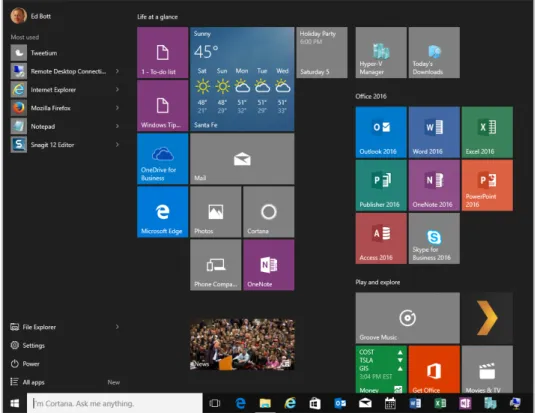
FIGURE 1-3 The Windows 10 Start menu blends elements of its Windows 7 predecessor with the live tiles that debuted in Windows 8.
This Start menu design (which evolved rapidly during the lengthy preview period before Windows 10’s official release) contains some familiar elements, including links to common locations, a list of fre -quently used apps and programs, and power controls. The items on the right are live tiles, which work like their equivalents from the Windows 8.1 Start screen.
The search box, just to the right of the Start button, offers quick access to the local file system and to the web. With a few quick configuration steps, you can enable Cortana, the voice-powered personal as -sistant that debuted in Windows Phone and is now an essential part of the larger Windows 10 platform.
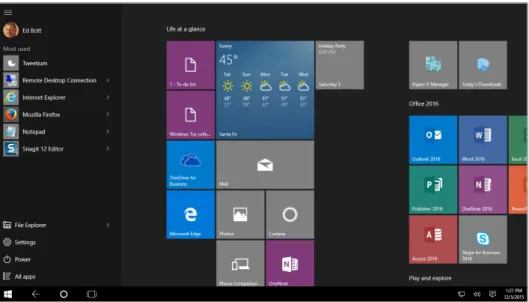
FIGURE 1-4 In Tablet Mode, the search box shrinks and the Start menu and apps fill the entire screen.
Several navigation elements that were added to Windows 8 have been removed for Windows 10. The Charms menu is gone, replaced on the right side of the screen by an Action Center that shows no-tifications and includes shortcuts to common tasks. Likewise, the Windows 8 navigation controls based on aiming a mouse pointer at corners are replaced by a new Task View, which also supports multiple virtual desktops.
More Info For a more detailed look at how Windows 10 works, see Chapter 2, “The Windows 10 user experience.”
User accounts and synchronization
Anyone migrating to Windows 10 from Windows 7 should pay special attention to a new user account type, introduced in Windows 8. Signing in with a Microsoft account instead of a local account provides tightly integrated support for cloud-based services, along with easy synchronization of settings and apps between devices.
Windows 10 supports signing in with an Azure Active Directory account, which allows administrators to manage a PC or mobile device without requiring it to be joined to a domain. In addition, you have the option to add a work or school account to make it easier to sign in to Office 365 and other cloud services.
FIGURE 1-5 Connecting accounts to the primary account allows for easier access to email and corporate apps. The
Windows flag logo on the Work Or School Account means it’s managed by Azure AD.
The list of settings that can be synchronized includes the layout of the Start screen as well as apps; previously purchased apps can be downloaded and installed from the Store when you sign in with a Microsoft account on a new device. You can use this feature to roam easily between devices, with per-sonal settings, apps, and browser tabs, history, and favorites available from each device on which you sign in using a synced Microsoft account. In an enterprise setting, Windows 10 includes provisioning features that allow IT pros to manage this process.
One key feature in Windows 10 is a universal synchronization client to manage access to cloud-based file storage in OneDrive and OneDrive for Business. The OneDrive for Business Next Generation Sync Client was released for Windows 10 in December 2015.
In enterprise deployments, you can link a Windows domain account with a Microsoft account to al-low robust security and effective network management while still getting the benefits of synchroniza -tion with a Microsoft account.
Windows apps
Windows 10 includes support for virtually all desktop applications that are compatible with Windows 7. It also supports the latest generation of Windows apps (sometimes referred to as Trusted Windows
The latest development platform for Windows 10 is called the Universal Windows Platform (UWP). By using the UWP core application programming interface (API), developers can create a single app package that can run on devices with a wide range of sizes and capabilities, including phones, tablets, PCs, and even the Xbox One. Universal apps are delivered through the Windows Store.
In Windows 8 and 8.1, modern apps run in one of two modes: full-screen or snapped to the side of the display. In Windows 10, these apps can run in a window. Figure 1-6, for example, shows the free Word Mobile app running in a resizable window on a Windows 10 PC.
FIGURE 1-6 The Word Mobile app is available through the Windows Store. Like other modern apps in Windows 10, it can run in a resizable window.
As is the case with most modern apps, the mobile Microsoft Office apps available in the Windows Store (Word’s Office-mates include Excel and PowerPoint) are designed to deliver an excellent experi -ence on touchscreen devices with small screens. These lightweight apps don’t have the full feature set of their Windows desktop counterparts, but they’re ideal for reading and light editing tasks.
FIGURE 1-7 The Windows Store offers more than just apps—you can also find games, music, movies, and TV shows
for purchase or for rent.
More Info For more details on these apps and on the changes to the Windows Store, including the Windows Store for Business, see Chapter 11, “Universal apps and the new Windows Store.”
A new default browser
One of the signature features of Windows 10 is a new default browser, Microsoft Edge. Although its EdgeHTML rendering engine is based on the familiar Trident engine that has been part of Internet Explorer since its earliest days, the new engine is built with the goal of being highly interoperable with modern web standards.
The Internet Explorer development team says it removed 220,000 lines of code when it began modify-ing the Trident engine for EdgeHTML. That major prunmodify-ing was essential to rid the new browser of compat-ibility baggage that contributed to Internet Explorer’s poor reputation in the web development commu-nity. With that step out of the way, they added new and useful features, such as integration with Cortana, a new reading list, and the ability to annotate and share webpages. More importantly, the new browser of-fers excellent support for modern web standards and better interoperability with other modern browsers.
Current Branch release included Edge version 12; Windows 10 version 1511 is a major update that takes Edge to version 13. Windows Figure 1-8 shows the touch-friendly and uncluttered (practically Spartan) Microsoft Edge interface.
FIGURE 1-8 Microsoft Edge, the default browser for Windows 10 devices, includes a simple, uncluttered design with an option to open any page in Internet Explorer.
If you’re wondering what happened to Internet Explorer, you’re not alone. Many line-of-business apps in enterprise deployments require Internet Explorer. Some apps require versions older than Inter-net Explorer 11, which is the only supported version as of January 2016.
The good news for IT pros in those challenging enterprise environments is that Internet Explorer will continue to be available in Windows 10, with Enterprise Mode available as a feature for ensuring that older apps work properly.
More Info You can read more details about this two-browser strategy in Chapter 6, “Microsoft Edge and Internet Explorer 11.”
What’s new for IT pros?
As an IT pro, your first concern is, of course, the users you support. How much training will they need? Which of your business applications will run problem-free, and which will require modification or replacement? How much effort will a wide-scale deployment require? And most important of all, can you keep your business data and your networks secure and available?
personal tasks with as little friction as possible. That flexibility has become so common in the modern era that the phenomenon has a name, consumerization of IT. To users, the strategy is known by a more colorful name: Bring Your Own Device (BYOD).
Microsoft’s approach to the consumerization of IT is to try to satisfy users and IT pros. For users, the goal is to provide familiar experiences on old and new devices. IT pros can choose from a correspond-ing assortment of enterprise-grade solutions to manage and secure those devices when they access a corporate network.
Greater control over updates and upgrades
From a network administrator’s perspective, perhaps the most important Windows 10 improvement is Windows Update for Business, a feature that debuted in the Current Branch in version 1511.
Windows Update for Business (available only for Pro, Enterprise, and Education editions) uses Group Policy settings to allow administrators to delay updates by up to four weeks, in intervals of one week. The same settings support deferring upgrades in the Current Branch for Business (which are already a few months behind their Current Branch release) by up to eight additional months, in one-month inter-vals. Figure 1-9 shows these policy settings in the Local Group Policy Editor in Windows 10 Pro.
More Info For more details about these and other Group Policy settings, see Chapter 15, “Group Policy in Windows 10.”
Security enhancements
The cat-and-mouse game between online criminals and computer security experts affects every popu-lar software product. Microsoft’s commitment to securing Windows is substantial, and it includes some groundbreaking advanced features. As part of the ongoing effort to make computing safer, Windows 8 introduced major new security features, Windows 8.1 added still more improvements, and Windows 10 ups the ante yet again.
The most significant new Windows 10 security feature involves a major improvement in authentica -tion, based on biometric factors.
On Windows 10 devices that include the appropriate hardware, two new features will significantly ease the process of authenticating to the device and to online services:
■
■ Windows Hello This feature uses biometric authentication—facial recognition, an iris scan,
or a fingerprint—to unlock devices. The technology is significantly more advanced than existing biometric methods that are supported for basic authentication in Windows 8.1. For example, Windows Hello requires an infrared-equipped camera to prevent spoofing identification using a photograph.
Enabling Windows Hello requires enrolling a Windows 10 device (PC, tablet, or phone) as trusted for the purposes of authentication. In that scenario, the enrolled device itself works as an additional proof of identity, supporting multifactor authentication.
■
■ Microsoft Passport The second feature is based on a new API that works in conjunction
with biometric authentication on an enrolled device to sign in to any supported mobile service. The Passport framework allows enterprise IT managers, developers, and website administra-tors to provide a more secure alternative to passwords. During the authentication process, no password is sent over the wire or stored on remote servers, cutting off the two most common avenues for security breaches.
Windows 10 also leverages security features found in modern hardware (and originally enabled in Windows 8 and Windows 8.1) to ensure that the boot process isn’t compromised by rootkits and other aggressive types of malware. On devices equipped with the Unified Extensible Firmware Inter -face (UEFI), the Secure Boot process validates and ensures that startup files, including the OS loader, are trusted and properly signed, preventing the system from starting with an untrusted operating system. After the OS loader hands over control to Windows 10, two additional security features are available:
■
■ Trusted boot This feature protects the integrity of the remainder of the boot process,
kernel-mode drivers are allowed to start. This configuration prevents antimalware software from being tampered with and allows the operating system to identify and block attempts to tamper with the boot process.
■
■ Measured boot On devices that include a Trusted Platform Module (TPM), Windows 10 can
perform comprehensive chain-of-integrity measurements during the boot process and store those results securely in the TPM. On subsequent startups, the system measures the operating-system kernel components and all boot drivers, including third-party drivers. This information can be evaluated by a remote service to confirm that those key components have not been improperly modified and to further validate a computer’s integrity before granting it access to resources, a process called remote attestation.
To block malicious software after the boot process is complete, Windows 10 includes two signature features that will be new to any organization that is migrating directly from Windows 7:
■
■ Windows Defender Previous Windows versions included a limited antispyware feature
called Windows Defender. Beginning with Windows 8, the same name describes a full-featured antimalware program that is the successor to Microsoft Security Essentials. Windows Defender is unobtrusive in everyday use, has minimal impact on system resources, and updates both its signatures and the antimalware engine regularly. Windows Defender includes network behavior monitoring as well. If you install a different antimalware solution, Windows Defender disables its real-time protection but remains available.
■
■ Windows SmartScreen Windows SmartScreen is a safety feature that uses application
reputation-based technologies to help protect Windows users from malicious software. This browser-independent technology checks any new application before installation, blocking potentially high-risk applications that have not yet established a reputation. The Windows SmartScreen app reputation feature works with the SmartScreen feature in the default Win-dows browser, which also protects users from websites seeking to acquire personal information such as user names, passwords, and billing data.
An all-new feature in Windows 10, Credential Guard, uses virtualization-based security to isolate secrets (including domain passwords) so that only privileged system software can access them. This feature prevents common credential-theft attacks such as Pass-The-Hash and Pass-The-Ticket. Creden-tial Guard must be enabled for each PC in an organization and works only with Windows 10 Enterprise edition.
Windows 10 adds information-protection capabilities that make it possible to protect corporate data even on employee-owned devices. Network administrators can define policies that automatically encrypt sensitive information, including corporate apps, data, email, and the contents of intranet sites. Support for this encryption is built into common Windows controls, such as Open and Save dialog boxes.
Two features should be of significant interest to anyone with responsibility for sensitive enterprise data:
■
■ Enterprise Data Protection This feature is an evolution of Remote Business Data Removal
(RBDR), a feature introduced in Windows 8.1 and significantly enhanced for Windows 10. Using this feature, administrators can mark and encrypt corporate content to distinguish it from ordi-nary user data. Policies control what employees can do with data marked as such, and when the relationship between the organization and the user ends, the encrypted corporate data is no longer available to the now-unauthorized user. This is a significant new feature, due to arrive in Windows 10 in 2016 but not available in current releases.
■
■ Pervasive Device Encryption Device encryption is available in all editions of Windows 10.
It is enabled out of the box and can be configured with additional BitLocker protection and management capability on the Pro and Enterprise editions. Devices that support the InstantGo feature (formerly known as Connected Standby) are automatically encrypted and protected when using a Microsoft account.
Organizations that need to manage encryption can easily enable additional BitLocker protection options and manageability to these devices. On unmanaged Windows 10 devices, BitLocker Drive En-cryption can be turned on by the user, with the recovery key saved to a Microsoft account.
BitLocker in Windows 10 supports encrypted drives, which are hard drives that come pre-encrypted from the manufacturer. On this type of storage device, BitLocker offloads the cryptographic operations to hardware, increasing overall encryption performance and decreasing CPU and power consumption.
On devices without hardware encryption, BitLocker encrypts data more quickly than you’ve grown accustomed to in Windows 7 environments. With BitLocker, you can choose to encrypt only the used space on a disk instead of the entire disk. In this configuration, free space is encrypted when it’s first used. This results in a faster, less disruptive encryption process so that enterprises can provision Bit-Locker quickly without an extended time commitment.
A final security measure is appropriate for organizations with high-security needs, such as regulated industries, defense contractors, and government agencies concerned about online espionage. With Windows 10 Enterprise edition, administrators will be able to use the Device Guard feature to com-pletely lock down devices so that they’re unable to run untrusted code.
In this configuration, the only apps that will be allowed to run are those signed by a Microsoft-issued, code-signing certificate. That includes any app from the Windows Store as well as desktop apps that an organization has submitted to Microsoft to be digitally signed. These signed apps also can be delivered to employees through a customized Business Store. If your enterprise uses internal line-of-business apps that are sideloaded, they will need to be signed by an enterprise certificate.
Deployment and manageability
Deploying Windows 10 in an organization is faster and easier than in Windows 7, thanks to new features originally introduced in Windows 8.1. Improvements in deployment processes for Windows 10 can make it even easier to standardize on a corporate configuration.
The traditional “wipe and load” option is still available for Windows 10 upgrades. That process involves capturing data and settings from an existing device, deploying a custom operating-system image, injecting drivers and installing apps, and then restoring the data and settings.
An additional option is the in-place upgrade, in which Windows handles the process of migrating apps and data from an existing image to a new (standard) image. This process is similar to the upgrade process consumers use via Windows Update, but it’s managed by System Center Configuration Man -ager and the Microsoft Deployment Toolkit, both of which should be familiar to IT pros.
Windows 10 adds a new provisioning option, which transforms a device with an OEM installation of Windows 10 into an enterprise-ready device. This procedure removes unwanted items from the OEM configuration and adds items, apps, and configuration details that would have been part of a stan -dard custom image. The result is the same as a wipe-and-load deployment, but it’s simpler and more flexible.
More Info For more information about planning and carrying out a Windows 10 deploy-ment, see Chapter 3, “Installation and activation.”
On unmanaged devices, the new recovery options in Windows 10 help streamline the process of reinstalling the operating system. These options, which have evolved significantly from their original Windows 8 versions, allow users to restore or repair a Windows 10 device without having to make an appointment with the help desk. The new recovery options in Windows 10 include a significant benefit: the restored operating system contains all but the most recent cumulative update, meaning that the user doesn’t have to go through a tedious round of system updates after repairing the instal-lation.
As with Windows 8.1, the reset option includes data-wiping capabilities that make it possible for a user to transfer a device to a new owner without worrying about inadvertently disclosing sensitive personal or business data.
Virtualization
As illustrated in Figure 1-10, Windows 10 version 1511 introduces Trusted Platform Module (TPM) support for virtual machines, allowing those VMs to enjoy full encryption.
FIGURE 1-10 The November 2015 Windows 10 update, version 1511, includes significant improvements in Hyper-V
security, including support for Secure Boot and TPM-based encryption.
Client Hyper-V leverages the security infrastructure of Windows 10 and can be managed easily by existing IT tools, such as System Center. VMs can be migrated between a desktop PC running Windows 10 and a Hyper-V environment on Windows Server. Client Hyper-V requires Windows 10 Pro, Enterprise, or Education; it also requires that specific hardware features be available on the host device.
In conjunction with Windows Server 2012 and later releases, Windows 10 also supports an alter-native form of virtualization: Virtual Desktop Infrastructure (VDI). Setting up a VDI environment is straightforward, thanks to a simple setup wizard. Managing a VDI environment is simple with adminis-tration, intelligent patching, and unified management capabilities.
touch-enabled devices. Features such as user-profile disks and Fair Share ensure high performance and flexibility, with support for lower-cost storage and sessions helping to reduce the cost of VDI. All of these benefits are available across different types of VDI desktops (personal VM, pooled VM, or session-based desktops).
C H A P T E R 2
The Windows 10 user experience
H
ow you react to Microsoft Windows 10 depends to a great extent on what your Windows desktop has looked like for the past few years.If you and your organization stuck with Windows 7 (especially if you completed a migration from Windows XP shortly before its end-of-support date in 2014), you’ll have to adjust to a few new ways of working. The redesigned Start menu is the most obvious change, followed closely by the relocation of many system settings from Control Panel to the modern Settings app.
Ironically, the learning curve is considerably more complex if you and your users were early adopt-ers of Windows 8. Not only will you have to learn the new elements of Windows 10, but you’ll have to
unlearn some techniques you mastered with Windows 8 and Windows 8.1.
Feedback to Microsoft after the release of Windows 8 made it clear that the radically revised user experience caused significant frustration. Even with the refinements introduced in Windows 8.1, the change in user experience was substantial for anyone accustomed to the familiar desktop and Start menu.
As a result, the Windows 10 user experience offers another significant round of changes, designed to bring together the best elements of Windows 7 and Windows 8.1 and smooth the transition between the familiar desktop ways and the new touch-friendly techniques.
In Windows 10, you and your users can take advantage of rich, new Windows apps on a traditional desktop PC or laptop, alongside familiar Windows desktop applications, interacting with those new apps in resizable windows. On a touch-enabled mobile device, you can turn on Tablet Mode, making it possible to work with apps in a full-screen setting, minus clutter and distraction.
A new set of navigation techniques replace the sometimes-confusing “hot corner” techniques from Windows 8, and the addition of virtual desktops in Windows 10 makes it possible to shift between groups of apps instead of shuffling windows around.
An overview of the new Windows user experience
The Start screen is gone. The desktop is back.
That’s the beginning of the Windows 10 user experience, but it’s far from the entire story.
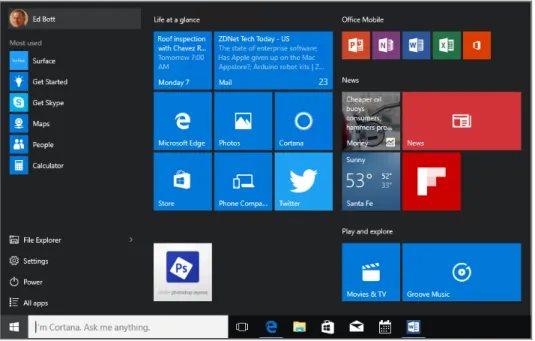
The new Start menu, shown in Figure 2-1, is divided vertically in two, just as its Windows 7 predeces-sor was, but its contents are a bit different.
FIGURE 2-1 The new Start menu combines distinctive features from its predecessors in Windows 7 and Windows 8.1.
The default arrangement of the left column contains the following, from top to bottom:
■
■ An icon for the current user, which when clicked or tapped reveals a menu with options to lock
the PC, sign out, switch accounts, or change account settings
■
■ Shortcuts to frequently used and recently added apps
■
■ Shortcuts for File Explorer (Windows 7 users, note the name change), the Settings app, and a
Power button
■
■ An All Apps shortcut that replaces the left side of the Start menu with a scrolling list of installed
apps and saved shortcuts—everything that was on its own screen in Windows 8.1
The shortcuts to system settings from the Windows 7 Start menu aren’t available on Start; instead, they’re on a hidden power-user’s menu, which is available when you right-click the Start button or use the Windows logo key + X shortcut. Figure 2-2 shows this menu, which switched to a dark theme in Windows 10 version 1511.
FIGURE 2-2 This Quick Link menu appears if you press Windows logo key + X or right-click the Start button at the left of the taskbar.
The default Start menu contains a Power button (with the options Sleep, Shut Down, and Restart). You can adjust the size of the Start menu by dragging the top and side borders. (You can use the Personalization option to expand the Start menu to a full screen without enabling Tablet Mode, which I describe later in this chapter.)
Those live tiles work more or less the same as their counterparts in Windows 8.1. You can resize each tile, arrange them into groups, and give each group a descriptive name.
The Settings app
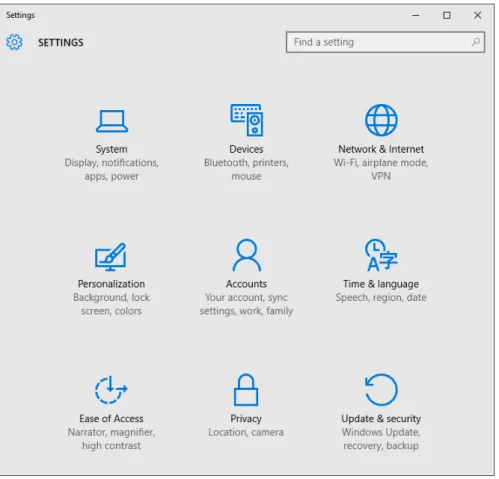
FIGURE 2-3 The Settings app is designed to be touch-friendly and to cover most common configuration tasks.
Speaking of Control Panel, it plays a diminished role in Windows 10 but is far from gone. Since the launch of Windows 8, each successive Windows release has moved more options into this app, usually (but not always) removing the corresponding entry in the desktop Control Panel. This is an ongoing process as well, one that is continuing after the initial release of Windows 10.
FIGURE 2-4 The number of options in the Settings app is growing steadily, but some tasks still offer only a limited selection.
In general, you’re likely to find shortcuts for simpler tasks in the new Settings app, with complex or eso -teric jobs (especially administrator tasks) requiring a trip to the desktop Control Panel and related utilities.
Notifications and action buttons
In Windows 10, the Charms menu, a signature feature of Windows 8 and 8.1, is gone completely. On a tablet or touchscreen-equipped PC running Windows 10, swiping in from the right opens the Action Center, which groups app notifications in a single place, with a customizable group of one-tap action buttons at the bottom of the pane.
The icon just to the left of the system clock “lights up” if you have new notifications, going dark after you clear the list.
Figure 2-6 shows the Action Center open, with unread email messages, upcoming calendar appoint-ments, and system messages available. The group of action buttons is expanded to show the full collec-tion on this device instead of just the top four.
FIGURE 2-6 The notifications pane shows messages from apps, online services, and the operating system itself,
The list of four action buttons shown by default can be changed, and you can expand the group to show additional options. (Those options depend on the device itself.)
Cortana
Cortana is one of the signature features of Windows 10, combining local and web search with the ability to understand spoken commands and enough smarts to convert those commands into tasks, appoint-ments, or instructions. Essentially, Cortana acts as a personal assistant, complete with an occasionally sassy personality (with the name and voice taken from the Halo franchise on Xbox).
Figure 2-7 shows Cortana’s organizational skills at work.
FIGURE 2-7 Cortana can manage your calendar, keep track of travel itineraries and shipments, provide news
bulletins, perform calculations, and find answers on the web.
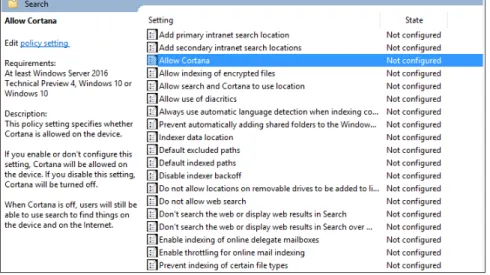
FIGURE 2-8 You can use this Group Policy setting to keep the Cortana service off managed PCs.
If you don’t enable Cortana, the box to the right of Start performs simple searches of the local file system, settings, and the web, minus any personality and also without any connection to your personal data.
Although Cortana has been part of Windows Phone for nearly a year, she appeared for the first time in the Windows 10 Preview in late January 2015. Because much of Cortana’s magical powers derive from web-based services, she’s getting smarter with age. What you see in current releases is only a fraction of what you’ll see after another year (or two or three) of continuous improvements.
The best way to understand Cortana is to type something into the box just to the right of the Start button, or click the microphone icon and say it instead.
After you and your users get past the novelty of it all, take a look at Cortana’s notebook (available from the icon just below Home in the navigation bar on Cortana’s left edge). That’s where you can fine-tune the information—news, upcoming appointments, weather, reminders, and so on—that pops up instantly when you click in the Ask Me Anything box. (That summary is replaced with search results as soon as you start typing.)
FIGURE 2-9 The Notebook offers users fine-grained control over what sort of information Cortana will assist with.
Universal apps in resizable windows
If you supported a group of users running Windows 8 or Windows 8.1, you know about the advantages of using Windows Store apps, which are easier to install, more secure, and generally easier to use on touchscreen devices. You’ve also probably heard familiar complaints based on a common theme: the experience of using Windows Store apps, mostly in a full screen, is dramatically different from the experience of using Windows desktop apps. The shift between those two modes of working is jarring, especially for users who spend most of their time on the desktop.
The other challenge of using Windows Store apps in Windows 8 and Windows 8.1 is navigating be-tween apps. On a touchscreen, it’s a reasonably fluid process: swipe from the left edge of the screen to switch between apps. But with a mouse or trackpad, the gesture for switching to another app requires moving the mouse pointer to the top-left corner, waiting for a row of thumbnails to appear, and then picking one.
To address the first problem, Windows Store apps can now run in resizable windows that can be dragged around the desktop, pinned to the taskbar, minimized and maximized, and otherwise man-aged just like their Windows desktop counterparts.
The design standards for modern apps are still evolving, but you can expect to see one element increasingly often. In the upper-left corner, just below the title bar, is a “hamburger menu,” so named because its three vertical lines resemble a stylized and not all that appetizing flat patty between two flat buns. Clicking or tapping the hamburger typically reveals a menu along the left edge of the screen that collapses to a thin row of icons when it’s not in use. Figure 2-10 shows three different takes on the hamburger menu from three different built-in apps: Mail, News, and Photos.
FIGURE 2-10 Windows apps, which used to run only in a full screen or snapped to the side, can now run in resizable
Navigation
As I mentioned earlier, the “hot corner” navigation techniques of Windows 8 are no longer supported. Instead, in Windows 10 you can switch to Task view and then click or tap to choose the app you want from a collection of proportionally sized thumbnails showing all open windows.
On a tablet or touchscreen-equipped device, swipe from the left to open Task view. With a mouse and keyboard, press the shortcut Windows logo key + Tab. In either mode, click or tap the Task View button on the taskbar, just to the right of the search box.
Figure 2-11 shows Task view in operation on a PC running Windows 10 version 1511, with six task windows available for switching.
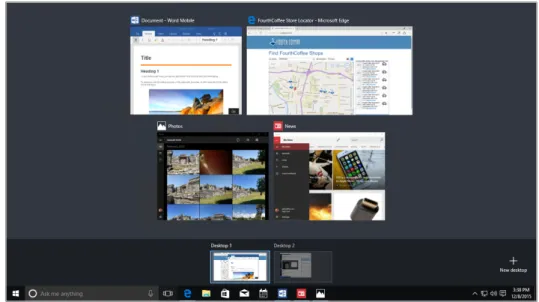
FIGURE 2-11 In Task view, every running app and every open settings page or File Explorer window gets its own thumbnail for quick task switching.
If you see only four running tasks in Figure 2-11, look more closely. Two additional programs are run-ning on a second virtual desktop, which you can switch to with a click or a tap.
Windows 10 also improves, subtly but significantly, on the window-snapping behavior (also known as Aero Snap) from Windows 7. In Windows 10, you can snap a window to either side, where it will oc-cupy half the screen, or to any of the four corners so that it occupies that quadrant of the display.
FIGURE 2-12 When you snap a window to one side of the screen, Windows 10 assumes you want to snap another window alongside it and displays thumbnails to let you choose.
Tablet Mode
Most of the changes I’ve described so far in this chapter are for the explicit benefit of people using a PC or laptop in the traditional fashion: with a keyboard and mouse or trackpad.
But if you are using a tablet (or a touchscreen-equipped hybrid device flipped for handheld use), the navigational challenges are different.
Enter Tablet Mode, which you can access by swiping in from the right and tapping the Tablet Mode action button at the bottom of the Notifications pane. (Tablet Mode also works well for some people on a traditional PC: run an important app using the full screen to make the best use of the available space and minimize distractions. Note that the option isn’t available with multiple monitors.)
FIGURE 2-13 In Tablet Mode, resizable windows are not allowed. Apps run in full screen unless they’re snapped side by side like this.
File Explorer
IT pros and power users spend a disproportionate amount of time managing files, which is why it’s worth calling out some of the changes in File Explorer in Windows 10.
If you’re moving to Windows 10 from Windows 7, the name change, from Windows Explorer to
File Explorer, is new. The next most obvious change, which will be familiar to anyone who has used
Windows 8.1, is the addition of Microsoft Office–style ribbons in place of menus and command bars.
FIGURE 2-14 For anyone moving from Windows 7, the arrangement of commands into ribbons is the biggest change in File Explorer.
In the left pane, a customizable Quick Access list replaces the Favorites list from earlier versions. You can show or hide libraries. (They’re hidden by default.)
FIGURE 2-15 With Windows 10, clicking in the search box in File Explorer exposes the Search Tools tab of the
rib-bon, with point-and-click options for filtering and finding files.
Some other subtle File Explorer changes in Windows 10 include a new Share icon you use to share a file, group of files, or folder with any app that supports share contracts. In the Folder Options dialog box, there’s now a drop-down list to choose which top-level item from the left tree pane you want selected when you open a new File Explorer window.
Cloud connections
The long-term roadmap for Windows 10 includes a unified sync client that combines access to files stored on either or both of Microsoft’s cloud-based storage services. OneDrive is a free con-sumer service that offers 5 GB of free storage, with additional storage available as a paid add-on or with an Office 365 Home or Personal subscription. OneDrive for Business is a feature of Office 365 Business and Enterprise subscriptions that offers personal storage as part of a work or school account.
As of December 2015, the OneDrive synchronization client is updated independently of Windows.
FIGURE 2-16 The new, unified OneDrive sync client included with Windows 10 allows OneDrive for Business users the space-saving option to choose specific folders instead of syncing an entire library of files.
C H A P T E R 3
Installation and activation
S
etup and activation are essential first steps for any new Microsoft Windows 10 PC, with different tools and techniques available to you depending on whether you’re upgrading a single PC or deploying Windows 10 across an enterprise. This is the first of two chapters about this crucial topic, focusing on interactive installations (clean installs and upgrades) for individual PCs. Chapter 4, “Deploying Windows 10 in the enterprise,” covers enterprise deployment tools and techniques.For small businesses and home offices that don’t have a full-time, formal IT infrastructure, deploy -ment tools aren’t necessary or practical. But even if you have a robust deploy-ment environ-ment in your workplace, it’s tremendously useful to understand how to set up a Windows 10 PC from scratch. Knowing these skills makes it possible to manage pilot projects in your organization as well as maintain systems you buy or upgrade for use at home or for after-hours experimentation.
This chapter covers the three most common setup options: upgrades from earlier operating sys-tems, clean installs, and new PCs with Windows 10 preinstalled. It also includes a detailed discussion of Windows activation. The details of setup and activation are sufficiently different in Windows 10 that it’s worth paying close attention here.
Compatibility and preparation
If you’ve already begun planning a wide-scale Windows 10 deployment, congratulations! You’re ahead of the vast majority of your peers. But even if you aren’t ready to begin a major migration, you can certainly make life easier on your future self by doing two things now:
■
■ First, take inventory of your existing hardware and make some intelligent decisions for future
purchases.
■
■ Second, start some pilot projects to familiarize yourself and other members of the IT staff with
Windows 10.
Existing touchscreen-equipped devices running Windows 8.1 offer a straightforward upgrade path to Windows 10, using Windows Update.
Windows 10 is also compatible with most virtualization software, including Hyper-V in Windows Server installations and Windows 8.1 PCs.
System requirements
The hardware requirements for Windows 10 are identical to those of Windows 7 and Windows 8.1, so any device that can run either of those operating systems should be capable of running Windows 10. In addition, most desktop applications that run on Windows 7 should also run on Windows 10.
To install Windows 10, you need sufficient free storage space (at least 16 GB for 32-bit versions and 20 GB for 64-bit) and sufficient installed RAM (a minimum of 1 GB for 32-bit, 2 GB for 64-bit), or the installation will be blocked.
The following device types are incompatible with Windows 10:
■
■ The Surface RT, Surface 2, and other devices running Windows RT are not compatible with
Windows 10.
■
■ Some older CPUs lack capabilities that are required by Windows 10. The processor must support
Physical Address Extensions (PAE); Data Execution Protection, via the No-eXecute (NX) page-protection feature or the eXecute Disable (XD) bit feature; and Streaming SIMD Extensions 2 (SSE2). In addition, a small number of older PCs might be blocked from 64-bit installations be-cause their processors don’t support specific instructions like these: CMPXCHG16b, PrefetchW, and LAHF/SAHF.
■
■ The Windows 10 Mobile operating system, although closely related to Windows 10 in many
respects, is delivered separately. Windows 10 editions built for installation on PCs will not work on phones.
Supported upgrade paths
Upgrading via Windows Update offers the simplest experience, preserving all installed desktop pro-grams, Windows Store apps, personal files, and settings. When you use this option, the Windows 10 upgrade edition is the equivalent of the previous edition. Thus, Windows 7 Home Premium upgrades to Windows 10 Home, and upgrading from Windows 7 Professional and Ultimate or Windows 8.1 Pro results in an installation of Windows 10 Pro.
You also can upgrade from a lesser edition—from Windows 8.1 Core to Windows 10 Pro, for ex-ample. I’ll say more about upgrade options later in this chapter.
Creating and using installation media
With Windows 10, Microsoft is making installation media widely available to the general public for the first time ever. To get started, visit Microsoft’s Get Windows 10 page, at http://www.microsoft.com/en-us/software-download/windows10. To upgrade a single PC with the least fuss, click the Upgrade Now
For a more flexible set of options, including the ability to create a bootable USB flash drive or DVD with the Windows 10 installer files, scroll down that page, and download a lightweight utility called the Media Creation Tool. Figure 3-1 shows this tool in action, after choosing the Create Installation Media For Another PC option.
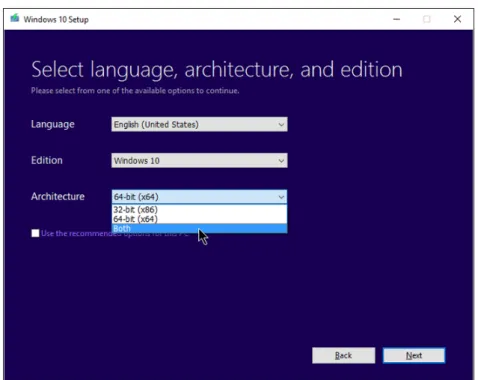
FIGURE 3-1 The Media Creation Tool downloads Windows 10 installation files that can be used on multiple PCs and
in virtual machines.
By default, the check box in the lower-left corner is selected, so options that are appropriate for the current system are preselected. If you’re downloading the installation files to upgrade multiple PCs, clear this check box (as I’ve done in Figure 3-1) and select the options you need from the three drop-down lists on this page. Select a language (nearly 40 languages are available as of December 2015), an edition (most people will choose Windows 10 rather than the obscure Windows 10 N edition, which is legally required as part of an antitrust settlement and lacks media-playback features), and an architec-ture (32-bit, 64-bit, or both).
FIGURE 3-2 You use the Media Creation Tool to create a bootable USB flash drive immediately or save the installer files as an ISO disk image.
The ISO format is the most versatile of all and should be your first choice if you want maximum flex -ibility. You can, for example, double-click an ISO file to mount it as a drive in Windows 8.1 or Windows 10 and then run Setup from the mounted drive. You can also attach an ISO file to a virtual machine (VM) as a virtual DVD to do a clean install or an upgrade in that VM.
Creating a bootable flash drive from an ISO file is also easy. Choose the option from Windows 8.1 or Windows 10 to create a recovery drive (but don’t select the option to copy system files). After that process is complete, mount the ISO image in File Explorer and drag its contents to the recovery drive, overwriting any existing files. After the copy is complete, you have a bootable Windows 10 installation drive.
Installation media for Windows 10 Enterprise isn’t available through that tool. Instead, you need to use one of the following options:
■
■ Customers with a Volume License agreement can get the latest ISO files from the Volume
Licensing Service Center.
■
■ MSDN subscribers can sign in to the MSDN download center and find a wide range of files, includ
-ing Enterprise and Education editions, intended for use in develop-ing and test-ing applications.
■
■ If you don’t have either of those paid options available, consider downloading an evaluation
New rules for activation
Product activation has been a part of Windows for the past 15 years, starting with Windows XP. Like its predecessors, Windows 10 requires activation as part of the license agreement. Typically, that process is automatic, with Windows checking a product key (or other authorized method) against an activa-tion server to confirm that the installed version of Windows matches the product key, and the device is authorized to use the associated Windows license.
Windows 10 allows you to complete setup without entering a product key, for reasons I explain a bit later in this section. You can skip the product key and postpone activation, but doing so means certain features aren’t available.
You can check the activation status of a Windows 10 device from Settings, Update & Security, on the Activation tab. Figure 3-3 shows this information for a system that was upgraded from Windows 8.1 Pro to Windows 10 Pro.
FIGURE 3-3 Windows 10 adds a new activation type called a digital entitlement, which doesn’t require entering a product key for activation.
The concept of activation using a “digital entitlement” is new in Windows 10 and is created when you upgrade a PC that is currently running a properly activated copy of Windows 7 or Windows 8.1. If you start Setup from within that older Windows version, you do not need to enter a product key. Win-dows confirms that the underlying system is properly activated and creates a digital entitlement based on the unique hardware ID. (This behavior, of course, is predicated on the free upgrade offer that runs for one year after the initial release of Windows 10. Microsoft hasn’t said what will happen on July 29, 2016, when that year is up.)
the installation is complete, Windows contacts the activation servers and sends the hardware ID. (It’s hashed, so it can’t be used to identify the specific device.) When the server finds a stored digital entitle -ment for that hardware ID, the system is activated automatically.
If you are using bootable installation media to perform a clean install on a PC that has never been upgraded to Windows 10 and activated, you will need to enter a product key to activate the system. If your installation media is for Windows 10 version 1511 (build 10586) or later, you can enter a product key from a matching edition of Windows 7, Windows 8, or Windows 8.1. That option also results in a digital entitlement, and there’s no further need to enter that product key.
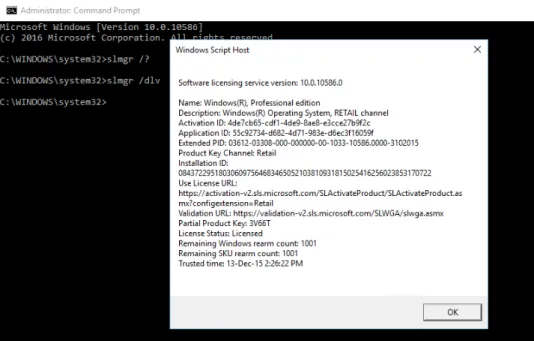
You can see even more detailed activation information about the current Windows installation by opening an administrative Command Prompt window and entering the command slmgr.vbs / dlv. Figure 3-4 shows the extremely detailed output for the same system whose activation status was shown in Figure 3-3.
FIGURE 3-4 Use the Slmgr.vbs script to view the licensing status. (Try the –? switch to see all available options.)
Of course, other activation options are available as well:
■
■ New PCs with Windows 10 preinstalled by the manufacturer are activated automatically by the
OEM. The license information is coded into the firmware of the device, allowing reinstallation of the same Windows 10 edition without requiring a product key.
■
■ Retail and OEM copies available through resellers include a product key that can be used to
activate a specific Windows 10 edition that has never been activated.
■
■ Volume License customers can use Multiple Activation Keys or a Key Management Server to
Windows 10 installation options
On a new PC that arrives with Windows 10 preinstalled, all the work of setup and activation is done at the factory. Your only responsibility is to go through the out of box experience (OOBE) by creating a new user account or signing into an existing one.
Upgrades and clean installs, by contrast, require a full setup, which proceeds in multiple phases. If you’ve made it this far into this book, I don’t need to tell you how Windows Setup works. Instead, allow me to point out some interesting options you’ll encounter along the way.
The simplest option by far is an in-place upgrade. For larger deployments, you can automate this process on devices running Windows 7 or Windows 8.1, using the Microsoft Deployment Toolkit (MDT), System Center Configuration Manager, or an alternative software distribution tool. (You can read more about that in Chapter 4.)
For a single device, using Windows Update to initiate the Windows 10 upgrade is a perfectly reasonable choice. During the preview period and for the first few months after the official release of Windows 10 in July 2015, Microsoft delivered a utility program called Get Windows 10 to all eligible PCs. This add-in placed an icon in the notification area offering the user the opportunity to reserve an upgrade. Beginning in late 2015, Microsoft began offering the upgrade option as an Optional update and plans to deliver the installer as a Recommended update beginning in early 2016.
Figure 3-5, for example, shows the update ready to run on a Windows 7 PC.
When started from Windows Update, the upgrade process offers no options. All user accounts, desktop programs, apps, and data files are migrated in place. In general, an installation should take no more than a couple of hours, and it can be much faster. The image-based installation has been field-tested on hundreds of millions of PCs over the past few years. If something goes wrong, the Setup program will automatically roll back to the previous version of Windows with all data files and configu -ration details unchanged.
Note If you use a third-party disk-encryption tool, take extra time before you even think about moving to Windows 10 on a device with encrypted storage. The in-place upgrade process should work flawlessly on systems protected with BitLocker encryption, but the Windows installer isn’t able to access disks encrypted using third-party software. Your safest option is to disable all encryption before upgrading, and then run the encryption software again after the upgrade is complete. Check with the provider of any third-party encryption software before upgrading to ensure that the software is compatible with Windows 10.
You also can start an upgrade from Windows 7 or Windows 8.1 by using physical installation media or a mounted ISO file and double-clicking Setup from the installation source. Choosing this option kicks off the familiar Windows upgrade workflow. It also offers additional options at the start, as shown in Figure 3-6.