Ed. 00
OpenTSP Driver Description
COPYRIGHT
This manual is proprietary to SAMSUNG Electronics Co., Ltd. and is protected by copyright. No information contained herein may be copied, translated, transcribed or duplicated for any commercial purposes or disclosed to third parties in any form without the prior written consent of SAMSUNG Electronics Co., Ltd.
TRADEMARKS
Product names mentioned in this document may be trademarks and/or registered trademarks of their respective companies.
This manual should be read before the installation and operation, and the operator should correctly install and operate the product by using this manual.
This manual may be changed for the system improvement, standardization and other technical reasons without prior notice.
For further information on the updated manual or have a question the content of manual, contact Document Center at the address below .
Address : Document Center 2nd Floor IT Center. Dong-Suwon P.O. Box 105, 416, Metan-3dong Paldal-gu, Suwon-si, Gyeonggi-do, Korea 442-600
e-mail : [email protected]
Or contact Call Center at the telephone below if you have any questions or concerns regarding the operation of your system.
Phone : 81-1588-4141
http://www.samsungnetwork.com
INTRODUCTION
Purpose
The OpenTSP Driver Manual provides a brief description on the OpenTSP, the installation procedure, and the procedure on using the functions of the OpenTSP, for engineers who develop the TAPI service and telephony application programs.
Document Content and Organization
This manual includes six chapters and the ‘Acronyms’. The chapters are summarized as follows :
CHAPTER 1. Introduction
This chapter provides description on the TAPI, used on the TSP driver before using the OpenTSP, the list of supported functions, and the list of functions used only on the TSP driver.
CHAPTER 2. OpenTSP Driver Installation
This chapter describes items that must be checked before installing the OpenTSP driver and the procedure for installing the OpenTSP driver.
CHAPTER 3. OpenTSP Window Description
This chapter provides description on the screen, toolbar, and buttons of the various tools created after the installing the OpenTSP driver.
CHAPTER 4. OpenTSP Driver Guide
This chapter provides the procedure on dialing, receiving, and disconnecting calls through the OpenTSP driver.
CHAPTER 5. TAPI Functions
This chapter describes the TAPI functions and expansion functions supported by the OpenTSP driver.
Page II © SAMSUNG Electronics Co., Ltd.
CHAPTER 6. Call Processing Flow
This chapter describes the life cycle of the TAPI, various call processing events of the OpenTSP driver, and the call processing procedure.
ABBREVIATION
The frequently used acronyms and their meanings in this guide are all collected.
Conventions
The following special paragraphs are used in this document to point out information that must be read. This information may be set-off from the surrounding text, but is always preceded by a bold title in capital letters.
WARNING
Indicates a potentially hazardous situation which if not avoided, could result in death or serious injury.
CAUTION
Indicates a potentially hazardous situation which if not avoided, may result in minor or moderate injury. It may also be used to alert against unsafe practices.
CHECKPOINT
Provides the operator with checkpoints for stable system operation.
NOTE
Indicates additional information as a reference.
OPERATION PROCEDURES
Console Screen Output
The lined box with ‘Courier New’ font will be used to distinguish between the main content and console output screen text.
‘Bold Courier New’ font will indicate the value entered by the operator on the console screen
References
OfficeServ Operator Manual
The OfficeServ Operator Manual describes the main features, installation procedure, service settings, and user guide of the OfficeServ Operator, an application program for telephony communication.
OfficeServ Call Manual
The OfficeServ Call Manual main features, installation procedure, service settings, and user guide of the OfficeServ Call, an application program for telephony communication.
Revision History
Edition No. Date of Issue Remark
Page IV © SAMSUNG Electronics Co., Ltd.
TABLE OF CONTENTS
INTRODUCTION
Purpose... I Document Content and Organization ... I Conventions ... II Console Screen Output ...III References...III Revision History ...III
CHAPTER 1. Introduction
1 Introduction to OpenTSP... 1-1 2 OpenTSP Features ... 1-2
CHAPTER 2. OpenTSP Driver Installation
1 Installation Environment and Conditions... 2-2 1.1 Installation Environment ... 2-2 1.2 Installation Conditions ... 2-3 1.3 Checking the Telephony Service ... 2-8 2 OpenTSP Driver Installation Procedure ...2-11 3 Checking Installation Data... 2-17 3.1 Checking the OpenTSP Driver Files ... 2-17 3.2 Checking the OpenTSP Driver Registration... 2-18 3.3 Changing the OpenTSP Driver Environment Settings ... 2-19 4 Removing the OpenTSP Driver ... 2-22
CHAPTER 3. OpenTSP Window Description
Page VI © SAMSUNG Electronics Co., Ltd.
2 Message Viewer ... 3-3 2.1 File Menu... 3-4 2.2 Edit Menu ... 3-5 2.3 Capture Menu... 3-6 2.4 Option Menu... 3-7 2.5 Computer Menu... 3-8 2.6 Help Menu ... 3-9 3 Scavenger Tool... 3-10 4 TAPI Browser Tool...3-11 4.1 File Menu... 3-12 4.2 Option Menu... 3-12 4.3 Help Menu ... 3-13 5 TAPI Sampler ... 3-14
CHAPTER 4. OpenTSP Driver Guide
1 Environment Setup Procedure... 4-2 1.1 Setup through the Phone and Modem Options (Advanced tab)... 4-2 1.2 Setup through OpenTSP Config Tool... 4-5 2 Call Processing ... 4-6 2.1 Call Processing of the Phone Dialer Program... 4-6 2.2 Call Processing of the TAPI Sampler ... 4-10 3 Checking Call Processing Messages through the Message Viewer ... 4-13
CHAPTER 5. TAPI Functions
1 Relationship Between the TAPI and TSPI... 5-1 2 List of the TAPI Functions ... 5-3 3 Feature List of the Expansion Functions in the OpenTSP Driver... 5-6 3.1 Station Lock... 5-7 3.2 Vacant Station Message ... 5-8 3.3 Follow Me ... 5-9 3.4 Make New Trunk Call ... 5-10 3.5 Page ...5-11 3.6 System Hold Retrieval ... 5-12 3.7 Clear Message Waiting... 5-13 3.8 Clear Call Back... 5-14 3.9 OHVA ... 5-15 3.10 Silent Monitoring... 5-16
3.11 Mute On/Off... 5-17 3.12 Line Reset ... 5-18
CHAPTER 6. Call Processing Flow
1 Life Cycle of the TAPI... 6-1 2 Call Processing Events for the OpenTSP Driver... 6-3 2.1 Major Events ... 6-3 2.2 Flow Chart of Call Status ... 6-4 2.3 Flow Chart of the Status of Calls in Progress... 6-5 2.4 Details of Calls ... 6-6 2.5 Holding Calls in Progress ... 6-7 2.6 Procedure for Consult Transfer... 6-9
ABBREVIATION
A ~ R ...Abbreviation-1 T ~ T ...Abbreviation-2
Page VIII © SAMSUNG Electronics Co., Ltd.
LIST OF FIGURES
Figure 1.1 TAPI Configuration Diagram... 1-1 Figure 2.1 Starting the Control Panel ... 2-4 Figure 2.2 Selecting Phone and Modem Options ... 2-4 Figure 2.3 Phone and Modem Options Window... 2-5 Figure 2.4 Advanced Tab of Phone and Modem Options ... 2-7 Figure 2.5 Executing the Control Panel... 2-8 Figure 2.6 Selecting Administrative Tools... 2-8 Figure 2.7 Selecting Service ... 2-9 Figure 2.8 Service Window ... 2-9 Figure 2.9 Telephony Service... 2-10 Figure 2.10 Installation Window...2-11 Figure 2.11 License Agreement ...2-11 Figure 2.12 License Key Entry... 2-Ошибка! Закладканеопределена. Figure 2.13 Selecting Installation Folder... 2-12 Figure 2.14 Selecting Installation Type ... 2-13 Figure 2.15 Selecting Installation Folder... 2-13 Figure 2.16 Phone and Modem Options ... 2-14 Figure 2.17 Communication Parameters ... 2-15 Figure 2.18 Installation Complete ... 2-16 Figure 2.19 OpenTSP Utility Program... 2-18 Figure 2.20 Advanced Tab of Phone and Modem Options ... 2-18 Figure 2.21 Selecting Configure ... 2-19 Figure 2.22 Communication Parameters ... 2-20 Figure 2.23 Confirming Changes in Environment Settings... 2-20 Figure 2.24 Closing TAPI Compatible Program ... 2-21 Figure 2.25 OpenTSP ConfigTool ... 2-21 Figure 2.26 Add/Delete Program ... 2-22 Figure 2.27 Delete Window ... 2-23 Figure 2.28 Confirm Deletion ... 2-23 Figure 2.29 Confirm File Deletion ... 2-23 Figure 2.30 Deletion Complete ... 2-24 Figure 3.1 TSP Submenu... 3-1 Figure 3.2 OpenTSP Config Tool Screen ... 3-2 Figure 3.3 Message Viewer Screen ... 3-3 Figure 3.4 File Menu ... 3-4 Figure 3.5 Edit Menu... 3-5 Figure 3.6 Capture Menu ... 3-6 Figure 3.7 Option Menu ... 3-7 Figure 3.8 Computer Menu ... 3-8 Figure 3.9 Help Menu ... 3-9
Figure 3.10 Scavenger Tool ... 3-10 Figure 3.11 TAPI Browser Tool...3-11 Figure 3.12 File Menu... 3-12 Figure 3.13 Option Menu ... 3-12 Figure 3.14 Help Menu ... 3-13 Figure 3.15 TAPI Sampler Screen ... 3-14 Figure 4.1 Starting Control Panel ... 4-2 Figure 4.2 Selecting Phone and Modem Options... 4-2 Figure 4.3 Phone and Modem Options Window... 4-3 Figure 4.4 Advanced Tab of Phone and Modem Options Window... 4-3 Figure 4.5 Selecting Configure Button of Advanced Tab ... 4-4 Figure 4.6 Communication Parameters Window ... 4-4 Figure 4.7 Closing TAPI Compatible Program... 4-5 Figure 4.8 OpenTSP Config Tool ... 4-5 Figure 4.9 Phone Dialer Screen ... 4-6 Figure 4.10 Option Screen... 4-6 Figure 4.11 Line Tab of Option Screen... 4-7 Figure 4.12 Audio/Video Tab of Option Screen ... 4-8 Figure 4.13 Selecting Dial from Phone Dialer Screen ... 4-8 Figure 4.14 Dialing from the Dial Screen ... 4-8 Figure 4.15 Dialing Display Screen... 4-9 Figure 4.16 Disconnecting the Call ... 4-9 Figure 4.17 Executing the TAPI Sampler Tool... 4-10 Figure 4.18 Selecting Extension Number... 4-10 Figure 4.19 Selecting Destination Number ...4-11 Figure 4.20 TAPI Message Display Screen ...4-11 Figure 4.21 Context Menu Display Screen ... 4-12 Figure 4.22 Executing the TAPI Sampler Tool... 4-13 Figure 4.23 Message Viewer Screen ... 4-13 Figure 5.1 Flow of Messages Between the TAPI and TSPI ... 5-1 Figure 5.2 Example of Internal Calling in the Phone Dialer ... 5-2 Figure 5.3 URL of the Entire List of Microsoft TAPI Functions ... 5-5 Figure 6.1 Life Cycle of the TAPI... 6-1 Figure 6.2 Example of Flow Chart of Call Status... 6-4 Figure 6.3 Flow Chart of the Status of Calls in Progress ... 6-5 Figure 6.4 Messages of Call Status... 6-6 Figure 6.5 Messages of Call Status... 6-6 Figure 6.6 Flow Chart of Calls on Hold ... 6-7 Figure 6.7 Messages of Call Status... 6-7 Figure 6.8 Messages of Call Status... 6-8
Page X © SAMSUNG Electronics Co., Ltd.
Figure 6.9 Flow Chart of Call Forwarding Status ... 6-9 Figure 6.10 Call Status Messages for Consult Transfer of Extension 201... 6-10 Figure 6.11 Call Status Messages for Consult Transfer of Extension 202 ... 6-10 Figure 6.12 Call Status Messages for Consult Transfer of Extension 203...6-11
LIST OF TABLES
Table 2.1 OpenTSP Driver Installation Procedure ... 2-1 Table 2.2 OpenTSP Driver Installation Environment ... 2-2
CHAPTER 1
Introduction
1
Introduction to OpenTSP
The OpenTSP Telephony Service Provider Driver 3.x(referred to as ‘OpenTSP’ hereinafter) interfaces with the Samsung key telephone switch through the TCP/IP system, based on TAPI 2.x/TAPI 3.x, and enables call control and call processing of the Telephony Application Programming Interface(TAPI) service through the TSPI. The OpenTSP driver is installed on a PC using the Windows O/S. The TAPI 2.x/TAPI 3.x was designed by Microsoft based on the TAPI standard.
The Microsoft TAPI consists of the three modules shown below :
Figure 1.1 TAPI Configuration Diagram Telephony
Application
TAPI Service
Telephony Service Provider
TAPI
TSPI
Phone System
(PBX, Key Telephone System etc.)
Page 1-2 © SAMSUNG Electronics Co., Ltd.
Modules in Figure 1.1 are described below :
Telephony Application
Supplied by the application vender, the Telephony Application provides features such as call processing to the users through the TAPI, an API provided by the Microsoft TAPI Service.
Telephony applications include the ‘dialing’ program, basically embedded in the Windows OS, and the Outlook, the Contact Manager program of Microsoft.
TAPI Service
As a basic module of the Microsoft Windows OS, the TAPI Service directly uses the Telephony Service Provider installed on a PC upon the request of the application program.
Telephony Service Provider (TSP)
Provided by the switch vendor, the TSP is a service provider that communicates with the Microsoft TAPI. The TSP is executed when the application program requests the TAPI feature.
2 OpenTSP
Features
Since the OpenTSP driver is a TSP composing the TAPI of the Windows OS, the Telephony Application program connects to the TAPI Service through a CTI to use the features of the Samsung key telephone system.
OpenTSP references the specification of the Microsoft TAPI, which supports the features introduced in ‘5.2. TAPI Function.’
Following features that are supplied only by the OpenTSP driver are described in ‘3. OpenTSP Driver Extended Function Feature List’.
Station Lock
Vacant Station Message Follow me
Make new trunk call Page
System hold retrieval Clear Message Waiting Clear Call back
OHVA
Silent Monitoring Mute on/off
CHAPTER 2
OpenTSP Driver Installation
This chapter describes the environment and procedure required for the installation of the OpenTSP driver. For proper installation and operation of the OpenTSP driver, the installation environment and conditions should be checked before installation. Refer to the table below, in which the installation procedure is summarized, when installing the OpenTSP driver.
Table 2.1 OpenTSP Driver Installation Procedure
Step Procedure Description
1 Installation Environment and Conditions
Check the following environment and condition before installing the OpenTSP driver.
- Check the H/W and S/W environments. - Check for the OpenTSP driver license key.
- Check if the OfficeServ Link program has been installed. - Previous versions of Samsung TAPI drivers should not be
on the system. 2 OpenTSP Driver Installation
Procedure
Install the OpenTSP driver according to the installation procedure.
Read the Cautions and Notes carefully to prevent error during installation.
3 Installation Data Verification After installing the OpenTSP driver, check if the installation is successful by verifying the driver file and the registration status.
Page 2-2 © SAMSUNG Electronics Co., Ltd.
1
Installation Environment and Conditions
The OpenTSP driver may be installed and executed for call processing on various Os of the Microsoft Windows. This section describes the environment and conditions that are required for proper installation of the OpenTSP driver.
1.1 Installation
Environment
Check the installation environment below before installing the OpenTSP driver.
Table 2.2 OpenTSP Driver Installation Environment
Type Category Requirement
Compatible Switch The OpenTSP may only be used in the Samsung key telephone system, which supports the TAPI 2.x interface.
Switch Interface The OpenTSP may only use the switch service through a separate S/W called OfficeServ Link.
Hardware
Network Interface A network card supporting TCP/IP protocol should be installed on the PC.
TAPI version TAPI 2.x or higher Software
OS - Windows 98 : Since the TAPI 2.x is included in the Second Edition of Windows 98, only the Windows 98SE version can be used.
- Windows ME : Check the TAPI version and upgrade through the Service Pack if the version is lower than 2.x.
- Windows 2000, Windows XP : Basically includes the TAPI 3.x. - Windows NT : The TAPI 2.x is included in 4.0 or higher
versions of the Service Pack. Check the service pack version and upgrade the service pack version to 4.0 or higher. - Windows CE : Does not support Windows CE.
1.2 Installation
Conditions
Check the items below before installing the OpenTSP driver on the system.
Valid License
The license key is required for installing and using the OpenTSP driver.
OfficeServ Link Program
The OfficeServ Link program should be installed to use the CTI features on the Samsung key telephone system. All CTI application programs are connected to the switch through the OfficeServ Link program.
OfficeServ Link Program
The OfficeServ Link program is a software that enables multiple CTI application programs to connect to the switch, and controls the message flow between the application programs and the switch. Refer to the OfficeServ Link Manual for details such as installation and operation of the OfficeServ Link program.
Samsung TSP Driver
Delete previous versions of the Samsung TSP driver, if any, before installing the new driver.
Previous versions of the Samsung TSP driver may be installed in cases below : If the Samsung TAPI2.x was installed on a PC using the Windows NT or 2000 Server OS
If the computer where the Samsung TAPI2.x driver was installed is set as the Telephony Client
Page 2-4 © SAMSUNG Electronics Co., Ltd.
Procedure for checking the information on the TSP driver installed on the computer is as follows :
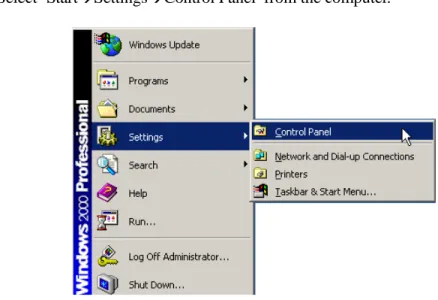
1) Select ‘Start Settings Control Panel’ on the computer.
Figure 2.1 Starting the Control Panel
2) Double click ‘Phone and Modem Options’ from the ‘Control Panel’ shown below :
3) Select [Edit(E)] from the ‘Phone and Modem Options’ window.
Page 2-6 © SAMSUNG Electronics Co., Ltd.
4) Enter the fields of the ‘Edit Location’ Window by referring to the figure below and click the [OK] button.
Figure 2.4 Edit Location Window
Select ‘Country/Region’ and enter your area code. Do not enter ‘0’ of the area code. For example, if the area code is 031, enter ‘31’.
The ‘Dialing Rules’ option is used for making external calls through the TAPI. Enter the number to be used for making external calls. The number assigned for outside calls is usually ‘9’.
Dialing Rules
Since phones in offices usually connect to the trunk line through a private switch, consult the telephony manager of your company for information on the number assigned for outside calls.
5) Select the ‘Advanced’ tab from the ‘Phone and Modem Options’ screen to display the list of drivers(telephony service providers) installed on the system.
Figure 2.5 Advanced Tab of Phone and Modem Options
The TAPI compatible driver can be installed separately on each computer, and a newly added TAPI driver is displayed on the ‘Advanced’ tab of the ‘Phone and Modem Options’.
The TAPI driver is registered as ‘Samsung SCTSP32 TAPI2.x Compatible Telephony Service Provider’ or ‘Samsung DCSTSP Telephony Service Provider’.
Page 2-8 © SAMSUNG Electronics Co., Ltd.
1.3 Checking
the
Telephony
Service
The procedure for checking if the Telephony service is normally operating is as follows :
1) Select ‘Start Settings Control Panel’ from the computer.
Figure 2.6 Executing the Control Panel
2) Double click the ‘Administrative Tools’ from the control panel below.
3) Select ‘Service’ from the ‘Administrative Tools’ window.
Figure 2.8 Selecting Service
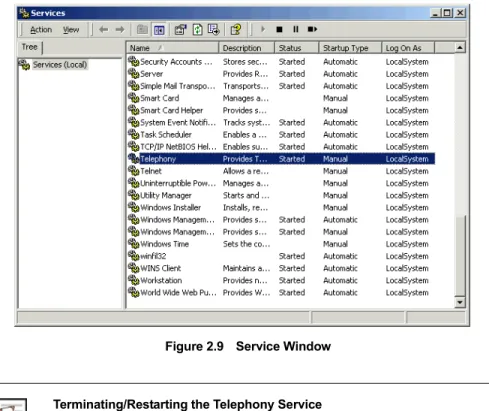
4) Check the ‘Telephony’ service(TAPI service) status from the ‘Service’ window below. If the ‘Telephony’ service is displayed as ‘started’, as shown below, the TAPI service is operating.
Figure 2.9 Service Window
Terminating/Restarting the Telephony Service
Users can terminate or restart the telephony service, if necessary, through the above window.
Page 2-10 © SAMSUNG Electronics Co., Ltd.
5) The telephony service of the Windows OS is related to the following services. Thus, the services below should be checked for normal operation.
Remote Access Auto Connection Manager Remote Access Connection Manager
Figure 2.10 Telephony Service
Cases where the OpenTSP Driver is not Properly Loaded or Unloaded
If the two services above are operated ‘Manually’ the two services will act as a single module of the telephony service. If the two services were abnormally set during the system setup procedure, the two services and the telephony service may not operate normally and the OpenTSP driver may not be loaded or unloaded properly, disabling the use of related application programs. To avoid such incidents, it is recommended to set the start type as ‘Not Used’ to disable unnecessary services. If the two services are marked as ‘Started’ and the OpenTSP does not operate properly, change the ‘start type’ to ‘Not Used’ and reboot the system.
2 OpenTSP
Driver
Installation
Procedure
The procedure for installing the OpenTSP driver is as follows :
1) Double click the OpenTSP installation file(OpenTSP_V20_Setup.exe) on the CD-ROM.
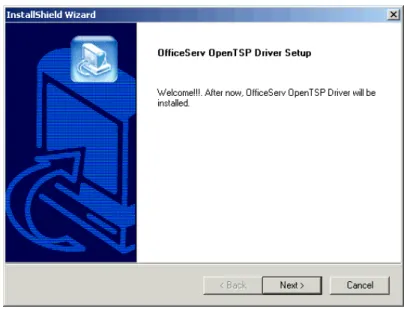
2) Click the [Next>] button on the screen below.
Figure 2.11 Installation Window
3) Read the License Agreement below and select [Yes] to approve. Select [No] to abort the installation program.
Page 2-12 © SAMSUNG Electronics Co., Ltd.
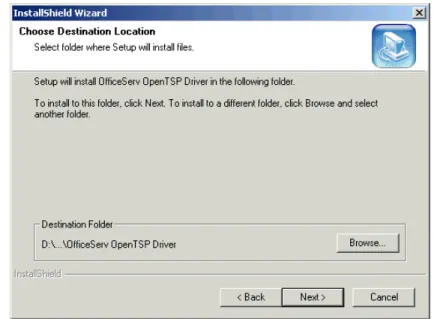
4) The ‘Choose Destination Location’ window appears as shown below. Click the [Next>] button to use the default path(C:\Program Files\Samsung Telephony Service Provider) or click the [Browse] button to change the installation folder.
Figure 2.13 Selecting Installation Folder
OpenTSP Driver Installation Folder
The OpenTSP installation program installs two types of programs on the user’s computer.
The SCTSP32.TSP file(basic Telephony Service Provider file) is copied to the C:\WINNT\system32 folder and is registered to TAPI .
Utility programs required for installing and operating the OpenTSP driver are copied to the C:\Program Files\Samsung Telephony Service Provider folder.
Thus, the folder selected during the installation procedure above(C:\Program Files\Samsung Telephony Service Provider) is the location to where the utility programs are copied.
5) Select ‘Typical’ from the ‘Setup Type’ window below and click the [Next>] button.
Figure 2.14 Selecting Installation Type
6) The ‘Select Program Folder’ window below appears. Click the [Next>] button to use the default name(Samsung Telephony Service Provider). Enter a new name into the field to change the folder name.
Page 2-14 © SAMSUNG Electronics Co., Ltd.
7) Enter the entry items of the ‘Phone and Modem Options’ window below.
Figure 2.16 Phone and Modem Options
‘Dialing Rules’ Setup
Refer to the steps from 1) to 4) of the ‘Samsung TAPI Driver’‘ in ‘1.2 Installation Conditions’ for setting the ‘Dialing Rules’.
8) Enter the items of the ‘Communication Parameters’ window below and click the [OK] button.
Figure 2.17 Communication Parameters
Trace Type
The Trace Type setup affects the performance of the OpenTSP driver and should be set to ‘None’ under normal circumstances. Change the setting to ‘Level 1’ or ‘Level 2’ only when searching specific statuses.
If the OpenTSP is installed when OfficeServ Link is not operating
Though the OpenTSP driver can be installed while the OfficeServ Link is not operating, the CTI application program automatically attempts connection to the corresponding port after the installation. Thus, the ‘Communication Parameter’ should be set to enable connection to the OfficeServ link before starting the CTI application program.
Page 2-16 © SAMSUNG Electronics Co., Ltd.
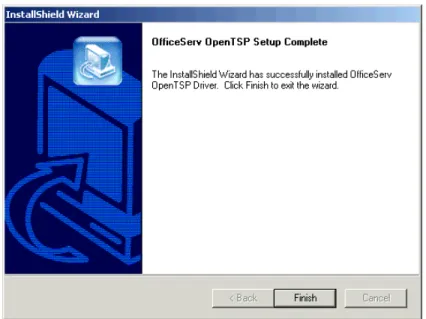
9) Upon successful installation of the OpenTSP driver, the ‘OpenTSP Setup Complete’ window appears. Click the [Finish] button.
3 Checking
Installation
Data
3.1 Checking the OpenTSP Driver Files
During the installation of the OpenTSP driver, the OpenTSP driver and utilities should have been copied to the folders below :
Location of the OpenTSP driver file
The OpenTSP driver is copied to different folders depending on the OS. Windows NT/Windows 2000 : Winnt\System32\sctsp32.tsp Windows XP : Windows\system32\sctsp32.tsp
Windows 98/Me : windows\system\sctsp32.tsp
Location of the OpenTSP driver utility files
The OpenTSP utility files should have been copied to the folder below if the default location in ‘Figure 2.15 Selecting Installation Folder’ was not changed.
Program Files\Samsung Electronics\Samsung Telephony Service Provider
Utilities for OpenTSP driver
The utilities required for installing/operating the OpenTSP driver are as follows : TB20.exe : Program for testing TAPI 2.x features
DBGView.exe : Trace Message Viewer program
Scavenger.exe : Program for removing Mismatch Call Handle
TAPISampler.exe : Test program for simple dialing/receiving/disconnecting calls and for tracking call status/data
OpenTSP Config Tool : Communication environment setup program for OpenTSP driver
Page 2-18 © SAMSUNG Electronics Co., Ltd.
As shown below, the utility programs are located at ‘Start Programs Samsung Telephony Service Provider’ for convenient use.
Figure 2.19 OpenTSP Utility Program
3.2 Checking
the
OpenTSP
Driver Registration
The registration of the OpenTSP driver file, which is registered as the TAPI driver of the Microsoft Windows OS, can be verified as follows. :
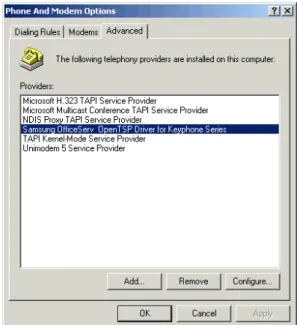
Check for the ‘Samsung SCTSP32 TAPI2.x Compatible Telephony Service Provider’ on the ‘Advanced’ tab of the ‘Start Control Panel Phone and Modem Options’.
3.3 Changing the OpenTSP Driver Environment Settings
The user may change the environment settings of the OpenTSP driver. The driver environment can be changed either through the ‘Phone and Modem Options’ screen or through the OpenTSP Config Tool program.
Changing from the ‘Phone and Modem Options’ screen
1) Click the [Configure] button from the ‘Start Control Panel Phone and Modem Options Advanced’ screen.
Page 2-20 © SAMSUNG Electronics Co., Ltd.
2) On the OpenTSP environment configuration screen below, change the settings and click the [OK] button.
Figure 2.22 Communication Parameters
3) The message below appears to confirm the changes.
Figure 2.23 Confirming Changes in Environment Settings
4) The OpenTSP driver must be restarted to apply the changes. Thus, close all CTI application programs and restart the OpenTSP driver.
Using the OpenTSP Config Tool program
The OpenTSP Config Tool program, which allows the user to change the
configuration of the OpenTSP driver, is installed in the OpenTSP driver installation folder. Through this program, users can easily check and change the settings. The procedure for changing the OpenTSP driver environment through the OpenTSP Config Tool program is as follows :
1) Execute the ‘OpenTSP Config Tool’ under the ‘Start Programs Samsung Telephony Service Provider’. The screen below is displayed.
Figure 2.24 Closing TAPI Compatible Program
2) The message above informs the user that all TAPI compatible programs need to be closed before changing the environment settings. Close all TAPI compatible programs that are currently operating and click the [OK] button.
3) Enter the fields in the window shown below and click the [OK] button.
Figure 2.25 OpenTSP ConfigTool
OpenTSP Configuration Tool
Refer to item 9) of the ‘2 OpenTSP Driver Installation Procedure’ for detail descriptions on each field.
Page 2-22 © SAMSUNG Electronics Co., Ltd.
4
Removing the OpenTSP Driver
Remove the OpenTSP driver installed on the system when the driver is no longer needed or when removing a previous version to install a new version of the driver.
Closing all TAPI compatible programs
All TAPI compatible application programs that are currently running must be closed before removing the OpenTSP driver. If the OpenTSP driver is being operated by a TAPI compatible application program, error may occur during the uninstallation process.
The procedure for removing the OpenTSP driver is as follows :
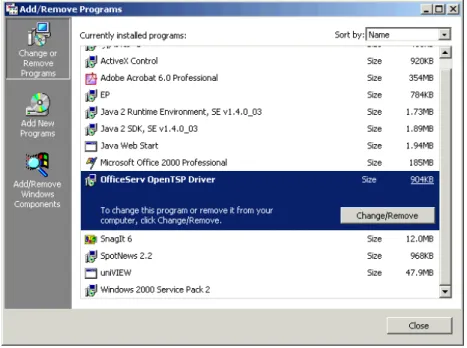
1) Select ‘Start Settings Control Panel Add/Delete Program’ to display the screen below. Then, select the ‘Samsung Telephony Service Provider’ and click the [Change/Remove] button.
2) Among the radio buttons, select the ‘Remove’ item and click the [Next>] button.
Figure 2.27 Delete Window
3) Click [OK] on the below message window confirming the removal of the OpenTSP driver files.
Figure 2.28 Confirm Deletion
4) The window below appears to confirm the deletion of the C:\WINNT\System32 \SCT32.TSP file. Click the [Retry] button to delete this file.
Page 2-24 © SAMSUNG Electronics Co., Ltd.
5) Files related to the OpenTSP driver are removed from the system. Click the [Finish] button on the screen below.
CHAPTER 3
OpenTSP Window Description
This chapter provides description on the screens, toolbars, and buttons of the various tools offered by the OpenTSP.
Tools provided by the OpenTSP are displayed as five submenus under the ‘Programs Samsung Telephone Service Provider’.
Figure 3.1 TSP Submenu
Tools provided by the OpenTSP are as follows : OpenTSP Config Tool
Message Viewer Scavenger Tool TAPI Browser Tool TAPI Sampler
Page 3-2 © SAMSUNG Electronics Co., Ltd.
1
OpenTSP Config Tool
The OpenTSP Config Tool allows the user to set the network information, Trace Type, and the License Key of the OfficeServ Link, to which the TSP connects.
Figure 3.2 OpenTSP Config Tool Screen
Server IP Address : Enter the IP address of the computer where the OfficeServ Link is installed. The OfficeServ Link program may or may not be installed and operated on the same computer where the OpenTSP driver is installed.
Server Port No : This is the number of the port where the OfficeServ Link program is waiting for connection. The default number is 6000. This port number should be set as the same port number set at the OfficeServ Link program.
Trace Type : The OpenTSP driver displays its operation data through the Tool(DBGView.exe). Set the details of the operation data to be displayed.
− None : No display(default)
− Level 1 : Displays only basic information.
2 Message
Viewer
The Message Viewer displays various events that occur on the OpenTSP driver.
Figure 3.3 Message Viewer Screen
The toolbar of the ‘Message Viewer’ screen is described below :
Button Name Hot Key Description Remark
Open (Ctrl + O) Opens log file saved on PC.
Save (Ctrl + S) Saves the displayed data as log file. O Log to File (Ctrl + G) Saves currently occurring events to both screen
and log file.
O
Capture (Ctrl + E) Captures messages. O Capture Kernel (Ctrl + K) Captures Kernel messages.
Pass through Kernel
(Ctrl + P) Inhibit display of Kernel messages.
Capture Win32 (Ctrl + W) Captures Win 32 messages. O Clear (Ctrl + X) Deletes captured messages. O Auto scroll (Ctrl + A) Automatically scrolls the screen during Capture. O Time Format (Ctrl + T) Changes the time display mode. O Filter/Highlight (Ctrl + L) Selects messages to be filtered.
History Depth (Ctrl + H) Sets the number of messages to be captured. O Find (Ctrl + F) Searches messages among the captured data.
Page 3-4 © SAMSUNG Electronics Co., Ltd.
2.1 File
Menu
The File menu allows the user to save or print the displayed messages.
Figure 3.4 File Menu
Item Description
Minimize to tray Message Viewer is displayed not on the task bar but on the system tray at the lower right corner of the screen.
New window Opens a new ‘Message Viewer’ window. Open Opens log files saved in the PC. Save Saves log files to the PC.
Save As Saves the log file as another name. Log to File Starts to receive log files.
Log to File As Starts to receive log files as another name. Print Prints log files.
Print Range Sets the range of the log file to be printed. Process Crash Dump Opens dump file.
2.2 Edit
Menu
The Edit menu allows the user to set the level of the messages to be displayed and to find, filter, or delete specific data of a displayed message.
Figure 3.5 Edit Menu
Item Description
Append Comment Enters command through the PC. Copy Copies selected areas to the clipboard. History Depth Sets the history level of the data to be retrieved. Font Changes the font displayed on the screen.
Find Searches specific words from the displayed messages. Filter/Highlight Sets words to filter or highlight from the displayed messages. Clear Display Deletes all displayed messages.
Page 3-6 © SAMSUNG Electronics Co., Ltd.
2.3 Capture
Menu
The Capture menu allows the user to select various options when displaying the events on the screen.
Figure 3.6 Capture Menu
Item Description
Capture Win32 Captures messages displayed through the OutputDebugString function of the Win32 application program. This option should always be selected to track OpenTSP messages.
Capture Kernel Captures debug messages displayed by the device driver or Windows kernel. Pass-Through Sets whether to deliver the debug messages displayed by the device driver or
Windows kernel to other kernel mode debuggers. This option does not influence tracking the OpenTSP messages.
Capture Events Selects whether to enable the capture feature. Messages are not captured if this option is not checked.
2.4 Option
Menu
The Option menu allows the user to select various options of the Message Viewer.
Figure 3.7 Option Menu
Item Description
Win32 PIDs Select whether to display the process id(process name in Windows 98) in the Debug Print column.
Force Carriage Returns Select whether to change lines for every new message. Clock Time Select the time display format.
- Selected : Time column displays the actual time.
- Not selected : Displays time elapsed from the first message. Show Milliseconds Select whether to display the clock time in milliseconds. Hide Toolbar Hides or shows the toolbar.
Auto Scroll Automatically scrolls the screen to show newly displayed messages. Always On Top Allows the ‘Message Viewer’ window to always be shown and not covered
Page 3-8 © SAMSUNG Electronics Co., Ltd.
2.5 Computer
Menu
The Computer menu allows the user to set or display data related to the PC to which the Message Viewer is connected.
Figure 3.8 Computer Menu
Item Description
Connect Enter the IP address of the PC to which the ‘Message Viewer’ should connect. Connect Local Connects the ‘Message Viewer’ to the PC where the ‘Message Viewer’ is
installed. The ‘Message Viewer’ connects to the Local PC by default. Disconnect Disconnects connection to the PC.
2.6 Help
Menu
The Help menu allows the user to use help screen or version of the Message Viewer.
Figure 3.9 Help Menu
Item Description
Help Displays help for the ‘Message Viewer’ window. About Displays version of the ‘Message Viewer’ window.
Page 3-10 © SAMSUNG Electronics Co., Ltd.
3 Scavenger
Tool
The Scavenger Tool allows the user to initialize the TSP driver without restarting the driver during operation.
Figure 3.10 Scavenger Tool
Item Description
Setup Displays the Scavenger option setup screen.
On the option setup screen, select the phone line from which the Garbage Call should be removed and reserve the operation time.
Close Sends the Scavenger Tool to the system tray.
4 TAPI
Browser
Tool
The TAPI Browser allows the user to execute the TSP driver for each TAPI function and view the execution result.
Figure 3.11 TAPI Browser Tool
Buttons on the toolbar are described below :
Item Description
Param Displays a window where parameters for each function are shown.
LAp+ Initializes TAPI.
LAp- Shut downs TAPI.
Line+ Opens the phone line. Line- Closes the phone line. Call+ Makes the call.
Call- Disconnects the call. PAp+
PAp- Pho+ Pho-
The OpenTSP does not support these commands for Phone Device.
Clear Deletes data on the window to the right where TAPI messages are displayed. [blank] The user can customize this button.
Page 3-12 © SAMSUNG Electronics Co., Ltd.
4.1 File
Menu
The File menu allows the user to delete displayed messages or to set parameters required for the operation of the TAPI browser.
Figure 3.12 File Menu
Item Description
Clear Deletes messages displayed on screen.
Params Displays a window where parameters for each function are shown. Exit Closes the ‘TAPI Browser Tool’.
4.2 Option
Menu
The Option menu allows the user to set the options or specifics required when executing each TAPI function through the TAPI browser.
Figure 3.13 Option Menu
Item Description
Default values Sets the default values of the TAPI Brower. User buttons Creates user-defined buttons.
Log parameters Displays the parameters along with the message. Log structures Selects the display format for the structure. Show time stamps Displays the time stamp in front of messages. Record log file Saves the log to file.
Item Description
Auto-deallocate idle monitored calls
Automatically removes the idle call handle of the Monitor authority. This option is checked by default.
Auto-deallocate idle owned calls
Automatically removes the idle call handle of the Owner authority. Checking is recommended.
Disable handle checking Does not check the call handle. Checking is not recommended.
4.3 Help
Menu
The Help menu provides instruction and version of the TAPI Browser.
Figure 3.14 Help Menu
Item Description
Using TB Displays a summarized guideline for the ‘TAPI Browser’. About TB Displays the version of the ‘TAPI Browser’.
Page 3-14 © SAMSUNG Electronics Co., Ltd.
5 TAPI
Sampler
The TAPI Sampler is a utility program that dials, receives, or disconnects calls through the OpenTSP driver or displays various TAPI events received by the application programs through the TAPI service.
Start the TAPI Sampler while the OfficeServ Link program is normally operating to display the screen below.
Figure 3.15 TAPI Sampler Screen
As shown above, the TAPI Sampler is simply configured.
My Extension : Select the number of the device to be sued by the TAPI Sampler. Destination : Enter the destination number for an intercom/external call.
Call Status Window : Displays the progress of call origination/termination. Detail Message Information Window : Displays detail information on messages the TAPI Sampler received through the TAPI service.
Call Status Window
Message Status Window
Call Status Window
Parameters of the Call Status Window are as follows :
Parameter Description
Time Time when the event occurred.
CallHandle Call Handle. Displayed in 4 byte hexadecimal. CallState Displays the call status as Idle, Connected, Busy, etc CallStatDetail Displays additional information, if any, on the call status. ConnectedID Displays the phone number of the other party.
Message Status Window
Parameters of the Message Status Window are as follows :
Parameter Description
Time Time when the event was received. Event Displays details on the received event.
Page 3-16 © SAMSUNG Electronics Co., Ltd.
CHAPTER 4
OpenTSP Driver Guide
This chapter describes the procedure on dialing, receiving, and disconnecting calls using the OpenTSP driver after successfully installing the driver on the PC. The tools or programs used for procedures from setting the environment to processing calls are as follows.
Step Item Used Tool(Program)
Set IP address and port Phone and Modem Options(Advanced tab), OpenTSP Config Tool
Set Trace type Phone and Modem Options(Advanced tab), OpenTSP Config Tool
1) Environment Setup
Set Dialing Rules Edit location of Phone and Modem Options (Refer to ‘1.3 Checking Telephony Service’ in Chapter 2.)
2) Call Processing Dialing, receiving, or disconnecting calls
Programs Accessories Communication Dial, TAPI Sampler
OpenTSP driver operation status
Programs Accessories Communicati on Dial, Message viewer, TAPI32 Browser Execute OpenTSP TAPI
call function
TAPI32 Browser 3) Checking Call
Processing Messages
Receive call processing result log
Message viewer
TAPI Compatible Application Program
TAPI Compatible Application Program can be used when the OfficeServ Link program to be connected to through the OpenTSP driver is normally operating.
Page 4-2 © SAMSUNG Electronics Co., Ltd.
1 Environment
Setup
Procedure
There are two ways to set the environment for setting the IP address and port, for selecting the Trace type, and for entering the license key.
Phone and Modem Options(Advanced tab) OpenTSP Config Tool
1.1 Setup
through
the
Phone and Modem Options (Advanced tab)
Procedure for setting the environment through the Phone and ModemOptions(Advanced tab) of the OS is as follows :
1) Select ‘Start Settings Control Panel’ on the computer.
Figure 4.1 Starting Control Panel
2) Select the ‘Phone and Modem Options from the ‘Control Panel’ shown below.
3) Click the [Edit(E)] button on the ‘Phone and Modem Options’ window.
Figure 4.3 Phone and Modem Options Window
5) Select the ‘Advanced’ tab on the ‘Phone and Modem Options’ window.
Page 4-4 © SAMSUNG Electronics Co., Ltd.
6) Select the ‘Samsung SCTSP32 TAPI 2.x Compatible Telephone Service Provider’ and click the [Configure(C)] button.
Figure 4.5 Selecting Configure Button of Advanced Tab
7) Enter the fields of the ‘Communication Parameters’ window and click the [OK] button.
Figure 4.6 Communication Parameters Window
Server IP Address : IP address of the PC where the OfficeServ Link is installed. Server Port No : Use the default number, 6000.(This port number should be set as the same port number set at the OfficeServ Link program.)
Trace Type : Select ‘Level 1’ or ‘Level 2’ to display call processing messages or select ‘None’ not to display messages.
1.2 Setup
through
OpenTSP Config Tool
Procedure for setting the OpenTSP driver environment through the OpenTSP Config Tool is as follows :
1) Execute the ‘OpenTSP Config Tool’ under the ‘Start Programs Samsung Telephony Service Provider’. The screen below is displayed.
Figure 4.7 Closing TAPI Compatible Program
2) The message above informs the user that all TAPI compatible programs need to be closed before changing the environment settings. Close all TAPI compatible programs that are currently operating and click the [OK] button.
3) Enter the fields in the window shown below and click the [OK] button.
Page 4-6 © SAMSUNG Electronics Co., Ltd.
2 Call
Processing
2.1 Call Processing of the Phone Dialer Program
A dialing program is basically installed in all versions of Windows OS.
Dialing Procedure
Procedure for dialing through the ‘Phone Dialer’ is as follows :
1) Connect the Samsung Key telephone system and the OfficeServ Link program through the CTI link.
2) Execute the ‘Phone Dialer’ program of the OS by clicking [Start Programs Accessories Communication Phone Dialer]. The ‘Phone Dialer’ screen shown below appears.
Figure 4.9 Phone Dialer Screen
3) Select [Edit Option] and display the screen below.
Default line for dialing : Select ‘Telephone’ since the OpenTSP driver is used for line telephones.
− Telephone(O) : Selects the communication line for line telephones.
− Internet(N) : Selects the communication line for Internet lines. Used lines : Applies according to the default line used for dialing.
− Phone(P) : Sets telephone lines. This number should be identical to the actual phone number of the Samsung switch.
− Internet Communication(I) :
− Internet Conference(F) :
4) The settings of the ‘Line’ tab are displayed below. The ‘DCS Line 2001’ in the ‘Phone’ field represents that the extension number is 2001. The OpenTSP driver displays the device list of the Samsung key telephone system as ‘DCS Line XXXX(extension number)’.
Page 4-8 © SAMSUNG Electronics Co., Ltd.
5) Select the ‘Audio/Video(A)’ tab and check if the ‘Line’ item of the ‘Dialing Device’ is set to Telephone, and click the [OK] button.
Figure 4.12 Audio/Video Tab of Option Screen
6) From the ‘Phone Dialer’ screen below, click ‘Phone Dial’.
Figure 4.13 Selecting Dial from Phone Dialer Screen
7) From the ‘Dial’ screen below, check if the ‘Dialing Pattern’ is set to Phone(P) and enter ‘2002’ into the entry field. Then, Click the Connect(C) button.
8) The screen below appears and shows that extension 2001 is dialing extension 2002.
Figure 4.15 Dialing Display Screen
9) The screen below appears upon successful connection. Select Disconnect(D) to terminate the connection after completing the call.
Figure 4.16 Disconnecting the Call
Checking the OpenTSP driver operation
If the OpenTSP driver is successfully connected to the TAPI service through the dialing program, the messages exchanged can be viewed through the Message Viewer.
Page 4-10 © SAMSUNG Electronics Co., Ltd.
2.2 Call
Processing
of
the TAPI Sampler
Users can dial, receive, or disconnect calls through the TAPI Sampler. The OfficeServ Link program should be normally running to ‘Dial’ using the TAPI program.
Dialing Calls
Procedure for dialing calls using the TAPI Sampler is as follows :
1) Click [Start Programs OfficeServ OpenTSP Driver TAPI Sampler Tool] as shown below.
Figure 4.17 Executing the TAPI Sampler Tool
2) Select your extension number from the ‘My Extension’ field on the screen below and click the ‘Open’ button.
3) Enter the destination number in the ‘Destination’ field and click the ‘Dial’ button. Setting different numbers for the ‘My Extension’ and ‘Destination’ fields will enable receiving calls through TAPI Sampler.
Figure 4.19 Selecting Destination Number
4) Information on the TAPI messages, sent to the TAPI Sampler by the TAPI service, are displayed ‘Message Status Window’.
Page 4-12 © SAMSUNG Electronics Co., Ltd.
Receiving Calls
Calls may also be received through the TAPI Sampler program.
A call is being sent from extension 2002 to extension 2001 in the figure below. The Call Status Window displays information on the call, such as time of event, call status, and destination number, and the Message Status Window displays detail information on the TAPI messages sent to the TAPI Sampler by the TAPI service. If a call arrives, right click the information of the call on the Call Status Window to display the Context Menu as shown below. Select [Answer] to answer the call.
Figure 4.21 Context Menu Display Screen
The Context Menu is described as follows :
CallInfo : Displays Detail information on the call on the Message Status Window. This feature displays the result of the TAPI function, lineGetCallInfo().
Answer : Answers the call.
Drop : Disconnects the connected call.
Deallocate: Clears all displayed call information regardless of the phone status. This feature initializes the line device managed by OpenTSP driver and deletes all call data on the corresponding line.(Impertinent to the actual status of the device) This feature appends the inconsistency between the status of the actual phone and the status data of the line device.
3 Checking Call Processing Messages through the
Message Viewer
The Message Viewer is used for verifying the messages processed during the operation of the OpenTSP driver.
Downloading the DBGView.exe file
As the execution file of the Message Viewer, the DBGView.exe is installed along with the OpenTSP driver. Made by Sysinternal, this program is used for logging debug messages within the Windows OS. Download and update your DBGView.exe file from http://www.sysintenal.com.
1) Click [Start Programs OfficeServ OpenTSP Driver TAPI Sampler Tool] as shown below :
Figure 4.22 Executing the TAPI Sampler Tool
2) The Message Viewer screen below appears and displays the messages exchanged during the operation of the OpenTSP driver.
Page 4-14 © SAMSUNG Electronics Co., Ltd.
Setting the message display level
Messages on the operation status of the OpenTSP driver are displayed on the Message viewer only when the Trace Type, the OpenTSP driver’s environment setup item, is set to ‘Level 1’ or ‘Level 2’, and are not displayed when the Trace Type is set to ‘None’.
Verifying the operation of the OpenTSP driver
Through the Message Viewer, users can view detail messages related to the
operation of the OpenTSP driver and can also save the displayed messages as files if necessary.
CHAPTER 5
TAPI Functions
This chapter describes the features of the TAPI functions and expansion functions that the OpenTSP driver supports.
1
Relationship Between the TAPI and TSPI
When the TAPI-compatible application requests a TAPI function, the Telephony Service Provider provides the TSPI functions related to the TAPI function. That is, the TAPI-compatible application receives the TAPI service offered by the key telephone system through the Telephony Service Provider.
The procedure for exchanging messages between the TAPI and TSPI is shown in the figure below :
Figure 5.1 Flow of Messages Between the TAPI and TSPI
Each step shown in Figure 5.1 is described below :
The TAPI-compatible application calls a TSPI function to the TAPI service of the key telephone system in order to process calls.
The TAPI-compatible application calls a TSPI function to the Telephony Service Provider.
The Telephony Service Provider forwards the event requested by the TAPI-compatible application to the TAPI service of the key telephone system. The TAPI service of the key telephone system processes the event and notifies the Telephony Service Provider of the results.
The Telephony Service Provider forwards the results received from the CTI service of the key telephone system to the TAPI-compatible application.
Operating System TAPI-Compatible Application PC Telephony Service Provider CTI Service
Page 5-2 © SAMSUNG Electronics Co., Ltd.
Example of Internal Calling Using the Phone Dialer
Figure 5.2 shows the procedures for using the phone dialer offered by the PC to make a call from Extension 2001 to Extension 2002 :
Figure 5.2 Example of Internal Calling in the Phone Dialer
The commands and events to be sent or received during internal calling are processed as described below :
lineMakeCall : The Phone Dialer uses the lineMakeCall TAPI function to press Extension 2002 for making a call.
TSPI_lineMakeCall : The TAPI service calls the TSPI_lineMakeCall function to the OpenTSP driver after being asked to process the TAPI function.
The OpenTSP driver creates the command that can be processed by the key telephone system and forwards it to the OfficeServ Link program in order to perform the functions requested by the TAPI service.
The OfficeServ Link forwards the command received from each OpenTSP driver to the key telephone system of Samsung.
The key telephone system interprets the forwarded command to make a call from Extension 2001 to Extension 2002.
The key telephone system forwards the extension processing results to the OfficeServ Link.
The OfficeServ Link forwards the extension processing results received from the key telephone system to the OpenTSP driver.
The OpenTSP driver converts the event for the processing results into the form that can be processed by the TAPI service and forwards the event to the TAPI service.
The TAPI service forwards the results for TAPI function processing to the Phone Dialer through the TAPI service.
Once the steps above are completed, the Phone Dialer offers the call processing results to users through an internal processing module.
PC
OfficeServ Link CTI Service
Key Telephone System
Ext. 2001 Ext.
TAPI Service Phone Dialer
2
List of the TAPI Functions
RestrictionThe OpenTSP driver supports INTERACTIVEVOICE mode and only the Line Device function out of the list of the TAPI functions of Microsoft.
List of the TAPI Functions
The list of the TAPI functions that the OpenTSP driver enables is shown below :
TAPI Functions of Microsoft
Supported
or Not Remarks
LineAddToConference O Consultation Call
LineAnswer O Off-Hook
LineBlindTransfer O Consultation Call+Transfer LineClose O
LineCompleteCall O Camp on+Msg Waiting+OHVA+Callback LineCompleteTransfer O Transfer
LineDeallocateCall O Idle Call Remove
LineDevSpecific O Refer to 5.3 List of the OpenTSP Driver Expansion Functions.
LineDial O Make Call
LineDrop O On-Hook
LineForward O Set/Reset Forward/DND
LineGenerateDigits O Send DTMF Digits LineGetAddressCaps O LineGetAddressID O LineGetAddressStatus O LineGetCallInfo O LineGetCallStatus O LineGetDevCaps O LineGetDevConfig O LineGetID O LineGetLineDevStatus O
LineHold O Hold
lineMakeCall O Make Call
lineNegotiateExtVersion O
lineOpen O
linePark O Direct Park : OK, UnDirect Park[=System Hold] : OK linePickup O Direct Pickup+Group Pickup
Page 5-4 © SAMSUNG Electronics Co., Ltd.
TAPI Functions of Microsoft Supported
or Not Remarks
linePrepareAddToConference O Consultation Call
lineRedirect O Redirect
linePark O Direct Park : OK, UnDirect Park[=System Hold] : OK lineRemoveFromConference O Consultation Call
lineSetAppSpecific O LineSetCallData O lineSetCallParams O lineSetMediaMode O lineSetStatusMessages O
lineSetupConference O Consultation Call
lineSetupTransfer O Consultation Call
lineSwapHold O Consultation Call for T-Hold And Hold+Retrieve for S-Hold
lineUnhold O Consultation Call for T-Hold and Retrieve for S-Hold
lineUnpark O System Hold Retrieval
The list above shows only the TAPI functions supported by the OpenTSP driver : Some functions from the list of the TAPI functions might be processed by the TAPI service itself. Also, some functions, which are used to add the Telephony Service Provider to the system, are not included in the list. If the functions that are not supported by the OpenTSP driver are called, an error message defined in the TAPI will appear.
The user can find the entire list of the Microsoft TAPI functions from the Microsoft site(http://www.msdn.microsoft.com/library/default.asp). The user can check the format of each function, how to use the functions, or the status values returned from the list and refer to the list to develop an application.
Page 5-6 © SAMSUNG Electronics Co., Ltd.
3 Feature List of the Expansion Functions in the
OpenTSP Driver
Besides the functions defined by the TAPI, the OpenTSP driver provides a variety of expansion functions. Call the lineDevSpecific function to use the expansion functions. Enter the syntax belowto call thelineDevSpecific function :
LONG lineDevSpecific(HLINE hLine, DWORD dwAddressID, HCALL hCall, LPVOID lpParams, DWORD dwSize);
The features available by the lineDevSpecific function in the Samsung key telephone system are as follows :
Station Lock
Vacant Station Message Follow Me
Make New Trunk Call Page
System Hold Retrieval Clear Message Waiting Clear Call Back OHVA
Silent Monitoring Mute On/Off Line Reset
3.1 Station
Lock
The Station Lock disables other users from using their own phones to make or answer calls.
The available modes are as follows : Unlock : Release lock.
Locked all : Lock call outgoing and incoming.
Enter the syntax below to call the lineDevSpecific function when the Station Lock is used in the TAPI application:
LONG lineDevSpecific(HLINE hLine, DWORD dwAddressID, HCALL hCall, LPVOID lpParams, DWORD dwSize);
Input Parameter Values
hLine : Processes the lines to be used. dwAddressID : 0
hCall : Not used
lpParams : Enters the command strings as shown below :
Value Byte
‘D’ ‘C’ ‘S’ 3 Bytes
‘L’ 1 Byte
Option : 0-Unlock 2-Lock All
1 Byte
Phone Password Up to 4 bytes
Page 5-8 © SAMSUNG Electronics Co., Ltd.
3.2 Vacant
Station
Message
The Vacant Station Message enables the phone to display a vacant message on the LED of the caller’s extension phone when a user sets the ‘vacant message’ to the user’s phone before he or she is away from the phone.
Number of Vacant Messages
The number of vacant messages that can be set to the system depends on the Samsung key telephone systems.
Enter the syntax below to call the lineDevSpecific function when the Vacant Station Message is used in the TAPI application:
LONG lineDevSpecific(HLINE hLine, DWORD dwAddressID, HCALL hCall, LPVOID lpParams, DWORD dwSize);
Input Parameter Values
hLine : Processes the lines to be used. dwAddressID : 0
hCall : Not used
lpParams : Enters the command strings as shown below : DwSize : Buffer length(Null value included)
Value Byte
‘D’ ‘C’ ‘S’ 3 Bytes
‘V’ 1 Byte
Message number(Hexa value) : 0-Clears a message.
1~20-Number of the messages
3.3 Follow
Me
The Follow Me enables call forwarding so that the user can answer a call even if the user is away from the phone. This feature is the same as ‘call forwarding
unconditional.’ However, the ‘call forwarding unconditional’ is set in the user’s phone while the Follow Me is set in another phone.
Enter the syntax below to call the lineDevSpecific function when the Follow Me is used in the TAPI application :
LONG lineDevSpecific(HLINE hLine, DWORD dwAddressID, HCALL hCall, LPVOID lpParams, DWORD dwSize);
Input Parameter Values
hLine : Processes the lines to be used. dwAddressID : 0
hCall : Not used
lpParams : Enters the command strings as shown below : DwSize : Buffer length(Null value included)
Value Byte
‘D’ ‘C’ ‘S’ 3 Bytes
‘F’ 1 Byte
Page 5-10 © SAMSUNG Electronics Co., Ltd.
3.4 Make New Trunk Call
The Make New Trunk Call enables the user to make a trunk call continuously without making the call again even after the trunk call is completed.
Enter the syntax below to call the lineDevSpecific function when the Make New Trunk Call is used in the TAPI application :
LONG lineDevSpecific(HLINE hLine, DWORD dwAddressID, HCALL hCall, LPVOID lpParams, DWORD dwSize);
Input Parameter Values
HLine : Processes the lines to be used. dwAddressID : 0
hCall : Not used
lpParams : Enters the command strings as shown below : DwSize : Buffer length(Null value included)
Value Byte
‘D’ ‘C’ ‘S’ 3 Bytes
‘T’ 1 Byte
Digit of the dialed phone number-n 1 Byte
3.5 Page
The Page enables the user to give a notice to people simultaneously through the speaker installed on the key telephone(or the external speaker installed separately). The page is categorized into internal page and external page. The internal page is made to the key phones, which are set as the internal page zone of the current key telephone system. The external page is made through the speakers, which are set as the external page zone. When the external page is made, an external speaker should be set in the <System Programming> of the Samsung key telephone system. Enter the syntax below to call the lineDevSpecific function when the Page is used in the TAPI application:
LONG lineDevSpecific(HLINE hLine, DWORD dwAddressID, HCALL hCall, LPVOID lpParams, DWORD dwSize);
Input Parameter Values
hLine : Processes the lines to be used. dwAddressID : 0
hCall : Not used
lpParams : Enters the command strings as shown below : DwSize : Buffer length(Null value included)
Value Byte
‘D’ ‘C’ ‘S’ 3 Bytes
‘P’ 1 Byte
Number of page 1 Byte
The page zone numbers are described below : ‘1’~‘4’ : Internal page zone
‘5’~‘8’ : External page zone ‘0’ : Entire internal page ‘9’ : Entire external page
Page 5-12 © SAMSUNG Electronics Co., Ltd.
3.6 System
Hold
Retrieval
The System Hold Retrieval enables the user to ‘hold’ an incoming call momentarily and answer the call from another extension.
Enter the syntax below to call the lineDevSpecific function when the System Hold Retrieval is used in the TAPI application:
LONG lineDevSpecific(HLINE hLine, DWORD dwAddressID, HCALL hCall, LPVOID lpParams, DWORD dwSize);
Input Parameter Values
hLine : Processes the lines to be used. dwAddressID : 0
hCall : Not used
lpParams : Enters the command strings as shown below : DwSize : Buffer length(Null value included)
Value Byte
‘D’ ‘C’ ‘S’ 3 Bytes
‘S’ 1 Byte
3.7 Clear
Message
Waiting
The Clear Message Waiting disables the message waiting LED to be displayed when a message is left in the user’s phone.
Checking if a message has been left
In the Samsung key telephone system, the LED on the message button of the connected phone turns on to notify the other party that a message has been left when a caller leaves the message because the caller cannot speak to the other party.
Enter the syntax below to call the lineDevSpecific function when the Clear Message Waiting is used in the TAPI application :
LONG lineDevSpecific(HLINE hLine, DWORD dwAddressID, HCALL hCall, LPVOID lpParams, DWORD dwSize);
Input Parameter Values
hLine : Processes the lines to be used. dwAddressID : 0
hCall : Not used
lpParams : Enters the command strings as shown below : DwSize : Buffer length(Null value included)
Value Byte
‘D’ ‘C’ ‘S’ 3 Bytes
‘M’ 1 Byte
Page 5-14 © SAMSUNG Electronics Co., Ltd.
3.8 Clear
Call
Back
The Call Back enables the user to make a call reservation when the other party is on the phone or does not answer. Then, a caller’s phone rings automatically when the other party’s phone becomes available. The Clear Call Back disables the Call Back. Enter the syntax below to call the lineDevSpecific function when the Call Back is used in the TAPI application :
LONG lineDevSpecific(HLINE hLine, DWORD dwAddressID, HCALL hCall, LPVOID lpParams, DWORD dwSize);
Input Parameter Values
hLine : Processes the lines to be used. dwAddressID : 0
hCall : Not used
lpParams : Enters the command strings as shown below : DwSize : Buffer length(Null value included)
Value Byte
‘D’ ‘C’ ‘S’ 3 Bytes
‘C’ 1 Byte