C
C
o
o
m
m
p
p
u
u
t
t
e
e
r
r
A
A
p
p
p
p
l
l
i
i
c
c
a
a
t
t
i
i
o
o
n
n
s
s
S
S
y
y
l
l
l
l
a
a
b
b
u
u
s
s
Lower Secondary
Normal (Technical)
© 2007 Curriculum Planning & Development Division. Ministry of Education, Singapore. This publication is not for sale. FOR RESTRICTED CIRCULATION ONLY. All rights reserved. No part of this publication may be reproduced without the prior permission of the Ministry of Education, Singapore.
CONTENTS
Page
1 AIMS 3
2 SYLLABUS CONTENT 3
2.1 Computer Basics 5
2.2 Computers in Everyday Life 8
2.3 Computer Graphics 11
2.4 Document Processing 14
2.5 Multimedia Presentations 20
2.6 Spreadsheets 23
3 ASSESSMENT 25
3.1 Format and Weighting 25
1 AIMS
The syllabus prepares our Normal (Technical) students to be technologically adept as effective citizens, and to function and contribute effectively in an increasingly technologically-driven world. The topics include the appreciation and use of several common software application packages for word processing, computer drawing, multimedia presentations, data tabulation and charts, and the Internet.
The general aims of the syllabus are to enable students to:
(1) develop a sense of information technology culture and an appreciation of the range and power of computer applications;
(2) develop an awareness of how computers work and how they are used in the home, school, workplace and community;
(3) appreciate the role computers play in everyday life and the impact computers have on society and people;
(4) acquire skills in using common application software to accomplish tasks.
2 SYLLABUS CONTENT
The names, mnemonics, descriptions and instructional objectives of the SIX core modules are as follows.
Module COB Computer Basics
This module introduces pupils to the world of computers and equips them with a basic knowledge of computers and how to take care of computer equipment. While the emphasis is on fundamental knowledge and skills, the developments in hardware and software are also included as and when applicable.
Module CEL Computers in Everyday Life
This module covers the use of computers in the home, school, workplace and community. Pupils learn the impact of computers and
the Internet on people and society, and are introduced to emerging trends and developments.
Module COG Computer Graphics
This module introduces pupils to computer art and design through the use of computer software. The basic concepts, tools and techniques are covered for creating and manipulating 2D vector graphics and bitmap graphics.
Module DOP Document Processing
Document processing is the process of putting ideas into visually effective documents quickly and accurately through the use of computer technology. The process includes creating, editing, formatting, manipulating, storing, retrieving and printing of content in a desired manner. The study of this module is reinforced through practical work.
Module SST Spreadsheets
A spreadsheet program enables the user to enter text, numbers and formulae into a convenient useful table. This module covers features of spreadsheet software to carry out specific tasks involving organisation, manipulation and presentation of data.
Module MMP Multimedia Presentation
Multimedia presentations incorporate the different media elements: text, graphics, sound, animation and video. The module concentrates on the design of a multimedia presentation through the use of presentation software in an effective way so as to enable the message and/or ideas to be communicated.
2.1 Computer Basics
Topic Instructional Objectives Sec 1 Sec 2
[1] Computer systems Pupils should be able to
State that computers can be used for a general purpose or a special purpose
• •
Understand that the personal computer is a general-purpose computing
machine that operates under different programs for different purposes
• •
Show awareness of the changes in size, storage capacity, speed and use of computers
• •
Types of
computer
Be aware of the possible uses of computers in the future
• •
Know that the different parts of a computer system are connected together through their respective ports
• •
Parts of a
computer system
Distinguish between hardware and software
• •
Identify the different parts of a
computer system that are used for the input, process and output operations
• •
State that the three basic operations of a computer system are input, process and output
• •
Input-Process-Output
operations
Understand that meaningful information can be output only after the computer has processed the correct input data
• •
Give examples of common input and output devices
• •
Input and output devices
State the context in which each input/output device is used in an application area
• •
Central
processing unit
State that the central processing unit (CPU) is hardware used to process data according to program instructions and to control data flow between the different parts of the computer
• •
Topic Instructional Objectives Sec 1 Sec 2
List the different secondary storage media used to store data and programs
• •
State that the unit of data stored in these media is the byte which represents a digit, letter or symbol
• •
Know that the capacity of a storage medium is specified in kilobytes, megabytes or gigabytes, and the relationship between these measures
• •
Understand that files can be very large and need a large backing store
• •
Secondary storage media
Know that file compression can be used to reduce file size but that these files may have to be expanded before use
• •
[2] Computer operations
Pupils should be able to
Basic computer terminology
Use basic computer terminology • •
Formatting storage media
Understand why storage media needs to be formatted
• •
Know that data and programs are saved in files
• •
Organise data and program files using folders
• •
Retrieve, save and print files • •
Working with files and folders
Do basic housekeeping tasks like copying, deleting and renaming files and folders
• •
State ways in which data can be lost • •
List measures to prevent loss of data • •
Understand the need to make backups for possible recovery in case the
originals are damaged
• •
Making backups
State the difference between backups and archives and that backups and archives can be in different media
Topic Instructional Objectives Sec 1 Sec 2
Demonstrate an awareness that
storage media must be taken care of to prevent loss of data
• •
State the proper way to handle and take care of equipment
• •
Care of computer systems and secondary storage media
Practise safe methods of working • •
[3] Computer software Pupils should be able to
State that instructions are required to operate a computer and these
instructions are contained in computer programs or software
• •
Systems software
State that the operating system is a system software to control the input-process-output operations taking place in a computer system
• •
Understand that application software refers to programs designed for specific tasks (i.e. user-related tasks)
• •
Application software
Understand that interfaces can be command-driven or graphical
2.2 Computers in Everyday Life
Topic Instructional Objectives Sec 1 Sec 2
[1] Computers in the home
Pupils should be able to
State that some household appliances and common devices are controlled by embedded microprocessors
• •
Household items with embedded microprocessors
Name the household appliances and common devices controlled by embedded microprocessors such as washing machines, refrigerators, microwave ovens, cameras and digital watches
• •
Attributes of household items
State the common attributes of
household appliances with embedded microprocessors
• •
Entertainment and recreation
Give examples on how the computer can be used for entertainment and recreation such as games, music and digital video
• •
[2] Computers in education
Pupils should be able to
Understand that computers can help learning through self-paced interactive lessons
•
Interactive lessons
Identify the attributes of a good computer-based learning software
•
State the different purposes of
computer-based learning (e.g. drill and practice, online tutorial, simulation and problem solving) • Advantages and disadvantages of computer-based learning
State the advantages and
disadvantages of computer-based learning
•
Data
management
Understand that computers are used to manage pupils’ records, library
records, and in the marking of
examination scripts (mention how data is captured through the use of OMR,
Topic Instructional Objectives Sec 1 Sec 2
magnetic strips and bar codes)
Understand that data can be collected over long or short periods, and over long or short distances (mention the use of data logging and questionnaires for data capture)
•
Know that the data is stored and can be processed at a later stage
•
Give a brief outline of how data is processed to prepare lists of overweight pupils, lists of overdue books, and pupils’ report books
•
[3] The Internet Pupils should be able to
Identify the components of a network
(mention the difference between a local area network, LAN, and a wide area network, WAN)
• •
State that computers in a network can share resources such as documents, databases and software
• •
State that computers in different locations in the world are linked together to form a global network, the Internet
• •
A global network
Define a web browser • •
Use search engines to look for information on the Internet
• •
Retrieve information from the Internet (including printing directly and file download)
• •
Search engines
Be aware of copyrights issues • •
State and use the proper etiquette on the Internet (Netiquette)
• •
Understand the dangers of the Internet • •
Net etiquette and safety
Use safety measures when on the Internet
• •
Topic Instructional Objectives Sec 1 Sec 2
Understand how electronic mail works • •
[4] Computers in public utilities and services
Pupils should be able to
List the steps involved in computerised postal mail sorting
• Identify where the computer is used in
postal mail sorting
•
Postal mail
State the benefits of using computers in postal mail sorting
• List the steps involved in generating
computerised utility bills
•
State the tasks performed by the computer in utility billing
•
Utility billing
State the benefits of using computers in utility billing
•
Identify where the computer is used at the airport
•
State the benefits of using computers at the airport
•
At the airport
List the steps involved in the registration of baggage
•
[5] Impact of computers
Pupils should be able to Identify the situations in which computers are used in society
•
State how the use of computers has affected the way people live and work
•
People and society
State the problems of over-reliance on computers
2.3 Computer Graphics
Topic Instructional Objectives Sec 1 Sec 2
[1] Vector graphics Pupils should be able to
Understand the task requirements • •
Plan how the drawing could be done • •
Create the graphic (drawing) using basic graphic elements such as lines, curves, sectors, polygons, circles, ovals, squares and rectangles
• •
Creating
graphics
Save and print the vector graphics as specified
• •
Manipulate graphics by using the following features
√ Copy and paste
√ Duplicate
√ Move and arrange (for align and order)
√ Resize
√ Flip (reflection)
√ Skew (shear, slant)
√ Rotate √ Group √ Combine √ Cut out √ Trim √ Weld √ Intersect • •
State that vector graphics can be resized without loss of details
•
Manipulating graphics
Reshape vector graphics by
manipulating the nodes and control points
•
Select colours for the outlines and fill of objects (includes transparency)
• •
Use of colours and fonts
Understand open and closed objects (and be able to close open objects)
Topic Instructional Objectives Sec 1 Sec 2
Create shading effects with gradient fill • •
Fill objects with pattern and texture • •
Use fonts as part of the graphic design
(e.g. fit text to path and envelope effects)
• •
Retrieve clip art from a library • •
Import clip art and pre-designed graphics from other sources
• •
Use of clip art
and pre-designed graphics
Edit clip art and pre-designed graphics to compose a picture (e.g. create a drawing)
• •
Transform two simple objects into another
•
Using blend and special text effects
Convert text objects into graphic objects (e.g. for fanciful text)
•
[2] Bitmap graphics Pupils should be able to
Understand that a bitmap graphic is composed of individually coloured pixels
•
Create bitmap graphics using straight line, curve, polygon, circle, oval, brush, spray and fill tools
•
Creating images
Save bitmap graphics in different file formats
•
Crop an image • •
State that resizing bitmap graphics can result in a loss of quality
• •
Magnify an area of a picture for editing purposes
•
Edit images by making changes to the pixels
•
Editing images
Edit images to compose a picture (e.g. making a collage)
•
Digitising images State that a scanner and a digital camera can be used to digitise images
Topic Instructional Objectives Sec 1 Sec 2
Use a scanner to digitise images •
Use a digital camera to capture images •
2.4 Document Processing
Topic Instructional Objectives Sec 1 Sec 2
[1] Creating a simple layout
Pupils should be able to
Start with a new blank document • •
Create a new document
Set the paper size and page orientation • • Import text into a document from
another document
• •
Import graphics into a document • •
Resize text (i.e. change font type and size) and graphics (i.e. change size)
• •
Edit graphics (crop, rotate and flip) • •
Import text and graphics
Move text and graphics • •
Use fanciful text Use fanciful text and font to improve
the look of a document (e.g. WordArt and Drop Cap)
• •
[2] Elements of effective designs
Pupils should be able to
Know and give examples of different paper size for documents
•
Paper size
Use different paper size for documents •
Page orientation Use the two types of page orientation: portrait and landscape
• •
Know that the page layout of a document should be neat (and not cluttered)
• •
Know and show that the positions of elements should be consistent (e.g.
page numbers, letterheads and logos)
• •
Design layout with 2 and more columns • •
Edit the layout of a document • •
Page layout
Understand that a document can be made up of two types of object: text and graphics (⇒ use of text boxes)
Topic Instructional Objectives Sec 1 Sec 2
Identify the three elements of fonts: typeface, style and point size
• •
Fonts and text
Use appropriate fonts for headings, sub-headings and body text to focus readers’ attention
• •
Understand that a graphic can be a clip art, a scanned image, a picture taken with a digital camera or a drawing produced with a graphics program
• •
Use appropriate graphics to improve readability and increase visual impact
(e.g. make background of graphics
transparent so that text is not blocked)
• •
Graphics
Make graphic transparent and as a watermark
•
Understand and use white space
appropriately to improve readability and design of the document
• •
Use of white space
Understand that setting the page margins can affect the amount of white space
• •
[3] Printing a document
Pupils should be able to
Print preview Use the Print Preview command • •
Send a document for printing • •
Default printer
Understand the meaning of a default printer
• •
Printer options Change the printer options • •
[4] Formatting a document
Pupils should be able to
Character formatting
Change fonts to enhance text • •
Paragraph formatting
Align text in the following ways: centralised, left justified, right justified and fully justified
Topic Instructional Objectives Sec 1 Sec 2
Set line spacing to desired width • •
Use tab stops and indentations •
Use bullets to emphasise each point in a list
• •
Change paper size • •
Change page orientation • •
Add page border • •
Set margins (top, bottom, left and right) for a page
• •
Insert page numbers (that are automatically generated)
•
Know and use different paging style (e.g. numerical and romanised)
•
Use a different start number for a page •
Add page breaks •
Add headers and footers •
Page formatting
Understand the purpose of headers and footers
•
Change the position of object frame (e.g. text box and picture)
• •
Add shadow to object frame • •
Manipulation of objects
Wrap text around object frame (basic to advanced)
• •
[5] Creating a document
Pupils should be able to
Type text for a new document • •
Use the ENTER key to end a paragraph
• •
Use the TAB key to indent the first line of a paragraph
• •
Text entry
Topic Instructional Objectives Sec 1 Sec 2
State that word wrap is a feature which causes text input to flow automatically to the next line
• •
Auto-adjustment of text
Know that the insertion or deletion of text causes an automatic re-adjustment of text in a line or paragraph
• •
Create address labels, name labels and diskette labels
•
Labels and envelopes
Create addressed envelopes •
[6] Editing a document
Pupils should be able to
Insert and delete text
Add and remove a word or phrase from a line or paragraph
• •
Search and replace text
Search for and replace a given word or phrase in the document
•
Check the spelling of words in a document against a built-in dictionary
• •
Use the spelling
checker
List the limitations of the spelling checker
• •
Highlight a block of text • •
Delete, copy or move the highlighted block of text
• •
Manipulate blocks of text within the same document
Understand that when text is cut or copied, it is kept in a memory area referred to as the clipboard1
• •
[7] Working with tables
Pupils should be able to
Create a table with the given number of rows and columns
• •
Change the size of rows and columns •
Add and delete rows and columns • •
Create table
Add (and remove) a border and gridlines to a table
• •
Topic Instructional Objectives Sec 1 Sec 2
Align table left, right and centre • •
Format and shade cells • •
Merge the cells of a table • •
Enter text in a table (including bulleted text)
• •
Enter, edit and
format text
Edit and format text in a table (including bulleted text)
• •
Import text and graphics into the cells of a table
• •
Use of text and graphics
Align text and graphics in cells of a table
• •
Understand the concept of mail merge •
Merge mail
Use the mail merge feature for documents (with data from table, spreadsheet and database table)
•
[8] Creating a multi-column document
Pupils should be able to
Understand that the multi-column layout is used in newspapers,
magazines, newsletters and brochures
•
Create a multi-column document (using tables, text boxes and built-in columns)
•
Add/remove/change border of the text box (frame)
•
Design the layout
Understand that text can be enclosed in text boxes or frames
•
Change the size of text box (frame) •
Understand that text can flow from one textbox or column to another
•
Control the flow
of text
Control the flow of text from one box (frame) to another
•
Import text into text box (frame) •
Import text and graphics into
Topic Instructional Objectives Sec 1 Sec 2
Wrap text around a graphic or graphic frame
•
boxes (frames)
Understand that text is usually imported
2.5 Multimedia Presentation
Topic Instructional Objectives Sec 1 Sec 2
[1] Multimedia basics Pupils should be able to
State that text, graphics, animation, sound and video are multimedia elements
• •
Identify and name media elements in a presentation
• •
Multimedia
elements
Prepare media elements • •
Understand that a multimedia presentation can be used as an effective means of communicating ideas
• •
Multimedia applications
Give examples of common multimedia applications
•
[2] Creating a multimedia presentation
Pupils should be able to
Use of a pre-designed layout
Create a presentation by using a pre-designed layout
• •
Retrieve and use clip art in a presentation
• •
Use of graphics
Import digitised images into a presentation
• •
Animate text and graphics in a presentation
• •
Use of animated text and graphics
Display animated text and graphics in the correct sequence
• •
Transition of screen
Use different screen transitions • •
Import sound clips in a presentation • •
Extract parts of sound clips •
Edit sound clips •
Use of sound clips
Topic Instructional Objectives Sec 1 Sec 2
Import video clips in a presentation • •
Use of video clips
Prepare video clip •
[3] Simple screen designs
Pupils should be able to
Use appropriate fonts and colours as part of screen design
• •
Use of fonts and colours
Use appropriate font type and size for heading and body text
• •
Understand that the use of appropriate fonts and colours together with the layout of media elements is effective in putting the message across
• •
Layout of text and
graphic objects
Understand that the appropriate relative sizes of text and picture frames, together with white space enhance the visual appeal of the design
• •
Use a master or background template for a presentation
•
Use of masters
Put/Remove media elements on/from the master or background template
•
[4] Flow within the presentation
Pupils should be able to
Move to the next and previous screens • •
Use of
navigational aids
Control the flow of a presentation through navigational aids
• •
Create a simple menu-controlled presentation
•
Creation of links
Create icons to control the flow of a presentation
Topic Instructional Objectives Sec 1 Sec 2
[5] Storyboarding Pupils should be able to
Understand that a storyboard shows the contents, screen designs and sequence of the presentation
• •
Selection of
content
Plan and prepare a storyboard for a presentation
• •
Produce a presentation based on a storyboard
• •
Arrange the media elements appropriately for each display
• •
Arrangement of
screen displays
Produce a logical sequence of displays
2.6 Spreadsheets
Topic Instructional Objectives S1 S2
[1] Introduction to spreadsheets
Pupils should be able to
State that a worksheet consists of columns and rows of cells
•
Columns, rows and cells
Identify the columns and rows of a worksheet
•
State that a cell is identified by its cell address
•
State the cell address of a data item in a worksheet
•
Cell addresses
Select a specific cell or group (range) of cells in a worksheet
•
Uses of spreadsheets
Give examples of uses of
spreadsheets such as keeping track of monthly expenses, sales data,
recording and computing test results, preparing financial statements and plotting charts
•
[2] Working with worksheets
Pupils should be able to
Enter text, numeric values and formulas into cells
•
Data entry
Edit, copy and erase cell contents •
Compute the total for columns and rows
•
Calculations
Use operators and functions in worksheet calculations
•
Insert and delete columns and rows •
Change the width of columns and rows •
Format the appearance of cells •
Format and align text, numeric and date data in cells
•
Format worksheet
Topic Instructional Objectives S1 S2
[3] Creating charts from a worksheet
Pupils should be able to
Create different types of charts from a worksheet
•
Creating charts
Add the chart title, axis labels and other details for the chart
•
Edit a chart •
Modify the data table of a chart •
Modifying data table
Understand the changes made to a chart when its data table is modified
•
[4] Hard copy printing Pupils should be able to
Worksheet Print out a worksheet (e.g. from a
workbook)
•
3 ASSESSMENT
The purpose of assessment is to find out how well the pupils can perform the various tasks expected of them. The emphasis should be task-oriented rather than knowledge for its own sake. This is the rationale for the greater importance accorded to the practical component of the Computer Applications syllabus. This task-oriented emphasis should be kept in mind even when setting questions for the written component.
3.1 Format and Weighting
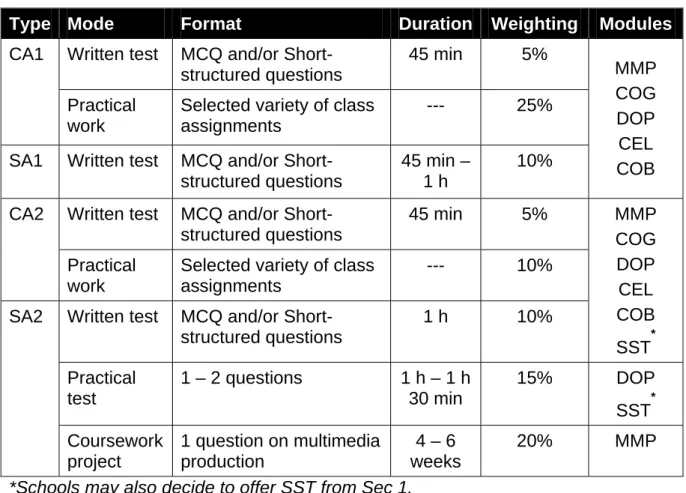
Table 3.1 shows the suggested modes of assessment for both the Continual Assessment (CA) and Semestral Assessment (SA) and the format of each assessment.
Table 3.1: Assessment Format and Weighting
Type Mode Format Duration Weighting Modules
Written test MCQ and/or Short-structured questions
45 min 5%
CA1
Practical work
Selected variety of class assignments
--- 25% SA1 Written test MCQ and/or
Short-structured questions 45 min – 1 h 10% MMP COG DOP CEL COB Written test MCQ and/or
Short-structured questions
45 min 5%
CA2
Practical work
Selected variety of class assignments
--- 10% Written test MCQ and/or
Short-structured questions 1 h 10% MMP COG DOP CEL COB SST * Practical test 1 – 2 questions 1 h – 1 h 30 min 15% DOP SST* SA2 Coursework project 1 question on multimedia production 4 – 6 weeks 20% MMP
3.2 Scheme of Assessment
Assessment at lower secondary is school-based and comprises written, practical and coursework components.
Written Paper
The written paper examines the core modules and comprises multiple-choice questions and short-structured questions of variable mark values. Short-structured questions could be of fill-in-the-blank type of questions, questions that require matching and those that require TRUE-FALSE responses.
As far as is possible, the questions set should test students’ knowledge (30%), understanding (40%) and application (30%) of concepts and skills learnt.
Practical Paper
The practical paper or assignments may comprise individual tasks from the DOP, COG and SST modules and tasks that require the integration of DOP with COG or DOP with SST.
Coursework Paper
The coursework project is a summative assessment of the practical skills learnt in the MMP module and to a lesser extent (and where applicable), the COG module in the course of study. The lower secondary coursework project requires students to work with media elements and create a multimedia presentation (Multimedia Production) based on a given broad theme.
The teacher will provide the broad theme for the presentation. Students decide on a topic within the theme and 2 – 4 subtopics within the topic. Students are expected to be able to create the media elements for the presentation and to complete the process skill instruments for planning and evaluating their work.
Assessment for Multimedia Production at lower secondary is based on the criteria of Design, Skills (used) and Enhancement (to the multimedia presentation). Table 3.2 shows the mark distribution and description of each criterion.
Table 3.2: Assessment Criteria for Multimedia Production
Assessment Criteria Marks Percentage Description
Design 13 37% This refers to the layout of the media
elements and grouping of content.
Skills 18 51% This refers to use of skills and
features of the application packages.
Enhancement 4 12% This refers to the ability to prepare
own sound and video clips for the presentation.
TOTAL 35 100%
The process skill instruments refer to the Planning Sheet and the Evaluation Report. Softcopies are available from the official website. These instruments must be completed and submitted for grading together with the multimedia presentation. The description and use of each is as follows.
Planning Sheet – Planning the Storyboard for Multimedia Production: Planning is a compulsory component of the coursework. Students use the planning sheet for the storyboard of their presentation before creating the presentation.
Evaluation Report – Evaluating the Multimedia Production: Upon completion of the presentation, students are required to evaluate their own work by filling in the evaluation report. The answers have to be specific to the task on hand in order to be acceptable for the award of marks.
Table 3.3 shows a breakdown of the marks for assessing the coursework project (Multimedia Production) at lower secondary.
Table 3.3: Marking Criteria for Multimedia Production at Lower Secondary
Performance criteria Max marks
1 mark 2 marks Comments
1 1
Evidence shown.
It is easy to read the font. Size of heading text is larger than size of body text 1 1 Path is correct. Evidence shown. Sound clip matches the text in the same screen display. 1 1 Path is correct. Evidence shown. Video clip matches the text in the same screen display. 2 At least one
picture file does not match the context
All the picture files matched the context.
Pictures match the text in the same display. 2 At least one picture file is not cropped or is partially cropped.
All the picture files are properly cropped. ♦ Text ° Readable font type ° Smaller point size for body text ♦ Sound clip ° Works when clicked ° Matches context ♦ Video clip ° Works when clicked ° Matches context ♦ Picture files ° Match context ° Crop ° Rotate 2 At least one picture file is not rotated.
All the picture files are rotated. Especially for pictures that are upside down. ♦ Skills ° Disable mouse click ° Disable pop-up menu 1 1 Evidence of work shown. Mark using softcopy of work. ♦ Features ° Animate objects ° Screen 1 1 One instance is evident. Mark using softcopy of work.
Performance criteria Max 1 mark 2 marks Comments marks
transitions
2 2
Does not work for one
instance.
Works for all pages.
♦ Navigation
° Can move forward to next page
° Can move back to previous page
° Can link back to first
(home/menu) page
° Can link from first (home/menu) page to specified page 2 2
One link does not work.
All the links work. Mark using softcopy of work. 2 Some media elements are too big or too small. Layout could be improved.
Size of media elements is just right. Good use of space. 2 Either title or one group heading missing from menu page. Menu page shows title of presentation and all group headings. 2 One group has
incorrect
members (One slide is not in order).
All the groups have correct members (All slides are in order). ♦ Design ° Size of media elements ° Title/headings on menu page ° Members of groups (Order of slides) ° Colour scheme 1 Colour of text contrasts with (or is appropriate for) colour of background. ♦ Enhancement ° Prepare/edit own sound clip
2 Sound clip is irrelevant or not
Sound clip is relevant and of
Performance criteria Max 1 mark 2 marks Comments marks
clear. suitable quality.
° Prepare own video clip 2 Video clip is irrelevant or not clear. Video clip is relevant and of suitable quality. TOTAL 35