2007 MDX
Navigation Manual
(Unlinked)
This document does not contain hyperlinks and may be formatted for printing instead of web us. This is
due to changes in content and specifications of the vehicle that happen throughout the model year. This
manual will be replaced with a hyperlinked version at the end of the model year.
Introduction ...4
Manual Overview ...4
System Overview ...4
Accessories Precautions ...5
Important Safety Information ...5
Map Overview ...6
Current Street ... 6
Verified/Unverified Street... 6
User Agreement ...8
Getting Started ...10
System Controls ...10
Voice Control Basics...13
Using the Voice Control System ... 14
Improving Voice Recognition ... 14
Selecting an Item (Button) on the Screen ...15
Selecting an Item in a List ...15
Entering Information ...16
System Start-up ...17
HandsFreeLink™ ...18
Remote Keyless Entry Setting ...18
Map Screen Legend...20
Traffic Display Legend...22
Real Time Traffic Display...23
Viewing Flow Data ... 23
Viewing Incident Reports... 24
System Function Diagram ...26
Entering a Destination ... 27
By Address ...28
Selecting the State or Province... 28
Selecting the City ... 28
Selecting the Street ... 30
Entering the Street Number ... 32
By Address Book ...32
Adding Addresses to the Personal Address Book... 33
By Places ...33
Finding the Place by Category ... 34
Finding the Place by Name... 38
Finding the Place by Phone Number ... 38
Finding the Place by Zagat 2006... 38
By Intersection...39
Selecting the State or Province... 39
Selecting the City ... 40
By Map Input...45
Showing the Map of Current Position... 45
Showing the Map of City... 46
Showing the Map of State ... 46
Showing the Map of Continental USA... 47
By Today’s Destinations...47
Editing Today’s Destination List ... 48
Adding Destinations to the List... 48
By Go Home ...49
Driving to Your Destination ... 50
Driving to Your Destination ...50
Calculate Route to Screen...50
Changing the Routing Method... 51
Viewing the Routes... 51
Viewing the Destination Map ... 53
Map Screen ...53
Route Line ... 53
Map Screen Legend ... 54
Guidance Screen ...55
Guidance Screen Legend ... 55
Direction List...57
EXIT INFO (Freeway Exit Information)... 58
Split Screen Guidance ...58
Map Scale ...60
Map Orientation ...61
Destination Icon ...62
Landmark and Incident Icons ...62
Showing Icons on the Map ... 65
Icon Options ... 65
Going Off the Route ...67
Off-road Tracking...67
Viewing/Saving the Current Location...68
Pop-ups and Disclaimers ...69
Changing the Route ...70
Change Route By Screen ... 70
Cancel Current Route ... 70
Change Routing Method ... 70
Detour ... 70
Avoid Streets ... 71
Search Waypoint on Route ... 71
Back to Current Route ... 72
Changing Your Destination...73
Using Interface Dial to Change Destination ... 73
Entering a Destination from the Menu Screen (while on route) ... 74
Continue Trip Screen...74
AcuraLink Messages ...75
Information Features ... 76
Information Screen ...76
Messages...76
Voice Command Help ...76
Cellular Phonebook ...77
Map Legend...77
Calendar ...78
Entering Your Schedule ... 78
Key to Zagat Ratings ...79
Calculator...80
Unit Conversion... 81
Roadside Assistance ...81
System Set-up... 82
Setup Mode ...82
Setup Screen (first) ...82
Brightness ... 82
Contrast ... 83
Guidance Prompts ... 83
Setup Screen (second)...84
Personal Information ...84
Address Book ... 85
Edit/Delete an Address ... 88
Home Address ... 88
PIN Number ... 88
Previous Destinations ... 89
Basic Settings ...90
Units (mile or km) ... 90
Voice Recognition Feedback ... 90
Voice ... 90
Routing & Guidance ...91
Rerouting ... 91
Unverified Area Routing ... 92
Edit Avoid Area... 96
Edit Waypoint Search Area ... 98
Guidance Mode ... 99
Clock Adjustment ...99
Auto Daylight ... 100
Auto Time Zone ... 100
Time Adjustment ... 101
Vehicle...101
Off-road Tracking ... 101
Switching Display Mode ... 104
AcuraLink/Messages ...107
System Information ...107
Rear View Camera ...107
Rear View Camera Brightness Adjustment... 108
System Initialization...109
System Initialization...109
Entering the Security Code...109
GPS Initialization ...110
Map Matching ...110
System Limitations ...111
Database Limitations ...113
Reporting Errors ...114
Service ...114
Visiting Your Dealer ...115
Obtaining a Navigation Update DVD ...116
Changing the DVD ...116
Coverage Areas ... 118
Map Coverage...118
U.S. Detailed Coverage Areas... 118
Canada Detailed Coverage Areas . 122
Frequently Asked Questions... 128
Troubleshooting ... 136
Glossary ... 137
Glossary ...137
Voice Command Index... 140
Global Commands ...140
Navigation General Commands...140
Navigation Display Commands...141
Find Place Commands ...142
Climate Control Commands ...143
Temperature Voice Commands ...144
Radio Voice Commands...145
CD Voice Commands...145
DVD Voice Commands (for 6 Disc Changer)...146
MP3/WMA Voice Commands (for 6 Disc Changer)...146
Single DVD Voice Commands (for DVD Player) ...148
Single MP3/WMA Voice Commands (for DVD Player)...149
Rear Radio Voice Commands ...150
Rear CD Voice Commands (for 6 Disc Changer) ...150
Rear DVD Voice Commands (for 6 Disc Changer) ...151
Rear MP3/WMA Voice Commands (for 6 Disc Changer) ...152
Rear Single CD Voice Commands (for DVD Player)...152
Rear Single DVD Voice Commands (for DVD Player)...153
Rear Single MP3/WMA Voice Commands (for DVD Player)...154
Information Screen Voice Commands ...155
Setup Screen (first) Commands ...155
On-Screen Commands ...156
Client Assistance ... 114
Manual Overview
The manual is divided into the following sections:
• Getting started - A basic introduction that discusses the controls and how to communicate with the system. • Entering a Destination - How to enter
an address or locate a point of interest (POI).
• Driving to your Destination - An explanation of the map features, guidance, and cautions.
• Information Features - Message, Voice Command Help, Cellular Phonebook, Map Legend, Calendar, Key to Zagat Ratings, Calculator, and Roadside Assistance.
• System Set-up - How to set up and tailor the system for your personal use and use the Address Book.
The back of this manual contains: • Map Coverage (page 118) • Cities with Traffic Coverage
(page 126)
• Frequently Asked Questions (FAQs) (page 128)
• Troubleshooting Guide (page 136) • Glossary of Terms (page 137) • Voice Command List (page 140)
System Overview
Your navigation system is a highly sophisticated location system with voice control that uses satellites and a map database to show you where you are and to help guide you to a desired
destination.
The navigation system receives signals from the global positioning system (GPS), a network of 24 satellites in orbit around the earth. By receiving signals from several of these satellites, the navigation system can determine the latitude, longitude, and elevation of your vehicle. In addition, a gyroscopic yaw sensor and a vehicle speed sensor in your vehicle keep track of the direction and speed of travel at all times.
The navigation system applies this location, direction, and speed
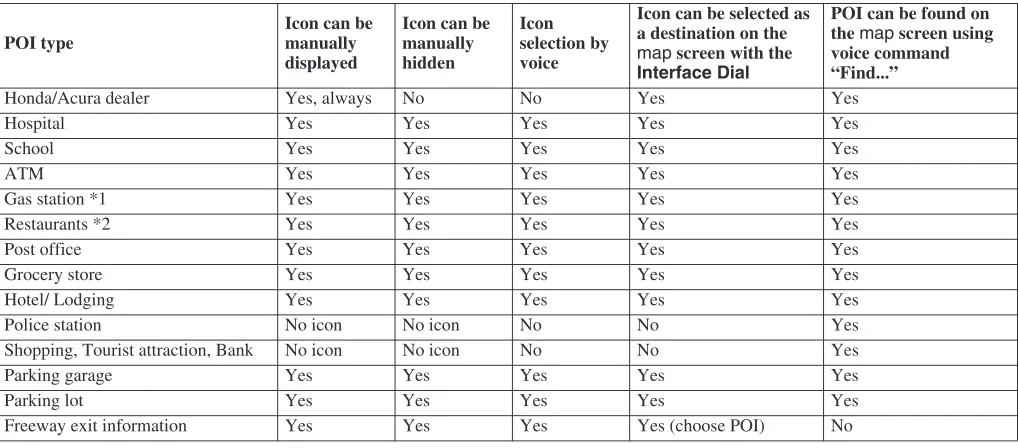
The navigation system is easy to use. The locations of many places of business and entertainment are already entered in the system. You can select any of them as a destination by using the Interface Dial or voice control.
There are several ways to enter a destination, such as by point of interest (POI), by address, by phone number, and by selecting it from the map. The last 50 destinations are saved for reuse at a later date. The system also allows you to store a home address to simplify returning home from your destination.
Accessories Precautions
If you have front window tinting installed, be aware that if the tint has metallic properties, it can seriously degrade or prevent GPS reception. This is because the GPS antenna is located under the dashboard.
If you plan to install electronic components such as radar detectors, vehicle location devices, remote starters, additional amplifiers, or other audio components, ensure that they are not located near the navigation control unit under the driver’s seat, near the navigation display in the dash, or near the GPS antenna under the dashboard. Signal noise emanating from these devices can cause intermittent disruption of the navigation system.
Important Safety Information
The navigation system can distract your attention from the road if you focus on the screen or operate the system’s controls while driving.
While driving, do not look at the screen or operate the system controls for more than a second or so at a time, and only after deciding you can do so safely. Pull to the side of the road if you need more time to look at the screen or operate the controls.
The navigation system is designed to provide route information to help you reach your destination. However, this route guidance may sometimes conflict with current road conditions such as street closures, road construction, detours, and out-of-date map data.
Additionally, the system itself has certain limitations (see page 111). Therefore, you must verify the audio and visual route information provided by the system by carefully observing the roadway, signs and signals, etc. If you are unsure, proceed with caution. Always use your own good judgment, and obey traffic laws while driving.
Map Overview
Current Street
The current street on which your vehicle is, appears at the bottom of the map screen (see page 20). A message saying “Not on a digitized road” may appear instead when you drive half a mile away from a mapped road. For more details, see Off-road Tracking on page 67.
Verified/Unverified Street
Your navigation system has two kinds of streets: verified (dark colored) and unverified (light colored). The differences between the two types of streets are contrasted in the chart on page 7.
Using the navigation system while driving can take your attention away from the road, causing a crash in which you could be seriously injured or killed.
Follow all operating instructions and safety information in this manual.
WARNING
“Unverified” Road
Verified streets (dark colored) Unverified streets (light colored)
When displayed
These roads are found within metropolitan areas, and include interstate freeways and major roads connecting cities.
These roads are found in rural areas, and typically include residential streets away from the center of a town.
Street color Shown on daytime map screen as black or red, such as
interstate freeways.
Shown on the daytime map screen as light brown.
Map Quality
The database vendor has verified these streets. Information like turn restrictions, average speed, and whether it is a one way street have been gathered and used when creating your route to a destination.
These streets have not been verified by the database vendor. The system does not contain information on one-way streets, turn restrictions, or the road’s average speed. They are shown on the map for reference and can have errors in map location, naming, and address range.
Routing differences
While driving to your destination, the displayed route line is solid blue. The system provides voice and map guidance to your destination.
Your route line is either a blue dotted “vector line,” or a dashed pink/blue line. For information on selecting this option, and the routing differences, see Unverified Area Routing on page 92.
Cautions
There are no pop up boxes urging extra caution during a route. However, because roads constantly change, you are urged to use common sense, and always obey posted traffic restrictions.
Regardless of whether the user chooses route guidance, there are cautionary screens before and during the route urging the user to be extra cautious, and obey all traffic restrictions. see
Unverified Area Routing on page 92.
Guidance voice
Voice guidance issues maneuvers such as “In a half mile make a right turn.”
The suffix “if possible” is added to each guidance maneuver. For example: “In a half mile make a right turn, if possible.”
Time and distance “to go”
The time and distance “to go,” displayed while on route to a destination, is based on the average speed and distance for the roads used for your route.
In using this DVD “Satellite Linked Navigation System” (the “DVD”), which includes HONDA MOTOR CO., LTD. software, ALPINE
ELECTRONICS, INC. software, NAVTEQ database contents, INFO USA CORPORATION database, ZAGAT SURVEY database contents, and ZENRIN CO. database contents (hereinafter referred to as “Licensors”), you are bound by the terms and conditions set forth below.
By using your copy of the DVD, you have expressed your Agreement to the terms and conditions of this Agreement. You should, therefore, make sure that you read and understand the following provisions. If for any reason you do not wish to be bound by the terms of this Agreement, please return the DVD to your dealer.
• The DVD may not be copied,
whole or in part, without the express written permission of the Licensors. • The DVD may not be transferred or
sublicensed to any third party for profit, rent or loan, or licensed for reuse in any manner.
• The DVD may not be decompiled, reverse engineered or otherwise disassembled, in whole or in part. • The DVD may not be used in a
network or by any other manner of simultaneous use in multiple systems. • The DVD is intended solely for
personal use (or internal use where the end-user is a business) by the consumer. The DVD is not to be used for commercial purposes.
• The Licensors do not guarantee to the
• Licensor shall not be responsible for any damages caused by the use of the
party.
• The warranty on the DVD shall not extend to an exchange or refund due to misspelling, omission of letters, or any other cosmetic discrepancy in the contents of the DVD.
• The right to use the DVD shall expire either when the user destroys the DVD or software, or when any of the terms of this Agreement are violated and the Licensors exercise the option to revoke the license to use the DVD or software.
client that the functions included in
duplicated, or otherwise modified, in
the DVD meet the specific objectives
DVD to the actual user or to any third
• The terms and conditions hereof apply to all subsequent users and owners as well as to the original purchaser.
• The use of oil company logos in the display are for your information and convenience, and in no way implies any sponsorship, approval or endorsement of these companies, or their products. The logos are trademarks of their respective owners.
The user shall indemnify and save harmless the Licensors, and their officers, employees and agents, from and against any claim, demand or action, irrespective of the nature of the cause of the claim, demand or action, alleging loss, costs, expense, damages or injuries (including injuries resulting in death) arising out of the use or possession of the DVD or software.
Use, duplication, or disclosure of this DVD by or on behalf of the United States government is subject to “Restricted Rights” as set forth at FAR 52.227-14, -19 or DFARS 252.227- 7013, as applicable. Manufacturers are the Licensors, including HONDA MOTOR CO., LTD., 2-1-1 Minami Aoyama Minato-Ku Tokyo 107-8556 JAPAN., Alpine Electronics, Inc., 20-1 Yoshima Kogyodanchi, Iwaki, Fukushima 970-1192 JAPAN., NAVTEQ Corporation, 222
Merchandise Mart, Suite 900, Chicago, IL, 60654, INFO USA
CORPORATION, 5711 South 86th Circle, Omaha, NE 68127.,
System Controls
CANCEL button
SETUP button INFO button
Interface Dial/ ENTER button MENU button MAP/GUIDE button Lower Display Screen
Passenger’s Temperature Driver’s Temperature Time (set by navigation system)
MAP/GUIDE button
Displays the map. When on a route, switches between the map and
guidance screens. See page 20 or 54.
CANCEL button
Cancels the current screen and returns to the previous screen display.
NOTE:
The NAVI BACK button performs the same basic function.
MENU button
Displays the Enter destination by
screen. When on a route, displays the
Change route by screen. See page 27.
INFO button
Displays the screen for selecting
Message, Voice Command Help,
Cellular Phonebook, Map Legend,
Calendar, Key to Zagat Ratings,
Calculator, and Roadside Assistance. See page 76.
SETUP button
Switches the display between Day mode, Night mode, and OFF. See page 104.
AUDIO button
Press to display the audio screen. For more information on audio system features, see the Audio section of the Owner’s Manual.
Interface Dial/ENTER button
The Interface Dial moves left, right, up, and down. Use the Interface Dial
to look around a displayed map. Moving the Interface Dial up or down can also be used to scroll up or down a page in a list. You can also rotate the Interface Dial knob to move the highlighting around the display or to scroll through a list. After making a selection in a menu or list, push in on the Interface Dial
(ENTER button) to enter the selection into the system.
In almost all cases, you can enter a selection into the system by pushing in on the Interface Dial.
When you are displaying a map, rotating the Interface Dial knob allows you to change the scale. Rotating it clockwise reduces the scale, showing less area with greater detail. Rotating it counterclockwise increases the scale, showing more area with less detail.
Selector ENTER Knob
Screen
All selections and instructions are displayed on the screen. The Display is not a “touch screen” - you enter information into the system either by voice or by using the Interface Dial.
Clean the screen with a soft, damp cloth. You may use a mild cleanser intended for use on liquid crystal displays (LCDs). Harsher chemicals may damage the screen.
NOTE:
Whenever you shift to R (reverse), the rear view is shown on the navigation system screen. See page 107.
Lower Display
Shows a summary of the audio and climate control information, as well as the time. This summary is helpful as a confirmation when adjusting audio or climate by voice.
The audio summary consists of the radio, frequency, and volume.
Voice Control Basics
Your vehicle has a voice control system that allows hands-free operation of most of the navigation system functions. You can also control the audio system and the climate control system. The voice control system uses the NAVI TALK
and NAVI BACK buttons on the steering wheel and a microphone near the map light on the ceiling.
NOTE:
While using the voice control system, all of the speakers (except the RES
NAVI TALK button
This button activates the voice control system. Press and release it when you want to give a voice command. See
Voice Command Index on page 140 for a list of voice commands.
NAVI BACK button
This button has the same function as the
CANCEL button. When you press and release it, the display returns to the previous screen. When the previous screen appears, the system replays the last prompt. This button is enabled for the navigation system commands only. However, it can be used to cancel an audio or climate control voice command up to one second after the command confirmation.
NOTE:
• On the Enter phone number screen, you can delete the entered number entirely by pushing the NAVI BACK button.
• The NAVI TALK and NAVI BACK buttons are deactivated while using the HandsFreeLink feature. See your vehicle Owner’s manual and the official web site
(www.handsfreelink.com) for information on this system. NAVI TALK
button NAVI BACK button HFL button
HFL BACK button
Navi/HFL
Using the Voice Control System
You should use the voice control system as much as possible, and consider manual entry using the Interface Dial
as a “back-up” method of entry.
Most of the system’s functions can be controlled by voice commands activated with the NAVI TALK button. To control your navigation system by voice:
• Press and release the NAVI TALK
button.
• Wait for the beep. • Give a voice command.
Once the microphone picks up your command, the system changes the display in response to the command and prompts you for the next command. Using the NAVI TALK button, answer the prompts as required.
If the system does not understand a command or you wait too long to give a command, it responds with “Pardon,” “Please repeat,” or “Would you say again.” If the system cannot perform a command or the command is not appropriate for the screen you are on, it sounds a beep.
Anytime you are not sure of what voice commands are available on a screen, you can always say “Help” at any screen. The system can then read the list of commands to you.
generally either repeats the command as a confirmation or asks you for further
familiarize you with the way the system expects commands to be phrased. See the Voice Recognition Feedback
setting in Setup.
If you hear a prompt such as “Please use the Interface Dial to...” or “Please choose an area with the Interface Dial,” the system is asking for input that cannot be performed using the voice control system.
Improving Voice Recognition
To achieve optimum voice recognition, the following guidelines should be followed:
NOTE:
displayed for the voice command that
• Adjust the air flow from both the
• •
not blow against the microphone on
Make sure the correct screen is
you are using. See Voice Command
Close the windows and the sunroof.
Index on page 140.
dashboard and side vents so they do
information. If you do not wish to hear
However, hearing the feedback will
the ceiling. Place your hand over the microphone; if you feel any aiflow, adjust the vents.
Higher fan speeds will be
this feedback, you can turn it off.
automatically lowered during voice
• Press and release the NAVI TALK
button, wait for the beep, then give a voice command.
• Give a voice command in a clear, natural speaking voice without pausing between words.
• If the system cannot recognize your command because of background noise, speak louder.
• If more than one person is speaking at the same time, the system may misinterpret your command.
• If you are still having trouble with the voice control system, refer to Voice Command Help on the
Information screen.
Selecting an Item (Button)
on the Screen
On most screens, there are items that can be selected (like buttons with titles such as OK or Return). To select an item on any screen, do one of the following:
• Use the voice control system and say the name of the desired item. Almost all selectable items on the screen, including some listed items, are recognized by the voice control system.
• Move the highlighting to the desired item with the Interface Dial or its
knob, then push in on the Interface Dial.
Tip:
If items are grayed out (very dark colored), this means that they cannot be selected.
Selecting an Item in a List
To scroll through a list, do one of the following:
• Rotate the Interface Dial knob to scroll one item at a time.
• Use the voice control system to scroll page by page. For example, to scroll up, say, “Up” or “Previous.” To scroll down, say “Next” or “Down.” • Move the Interface Dial up or down
to scroll through the list page by page.
If you cannot find the desired name, or have made an error, return to the previous screen by pressing the
CANCEL or the NAVI BACK button.
To select the desired item in the list, do one of the following:
Entering Information
When the system needs input from you, the display changes to a screen similar to the one at the right. You can then use the displayed letters, numbers, or symbols to enter information. You can enter your keyboard input in either of the following ways:
• Say the desired letter, number, or symbol on the screen if you are entering a City Street name.
• Move the highlighting to the desired letter, number, or symbol by rotating the Interface Dial knob, then push in on the Interface Dial.
Each entered letter will appear at the top of the display. Move the Interface Dial
right to enter a space between words. If necessary, move it to the left to delete an entry.
When entering an address, the system searches the database for words that match the letters you are entering. As a result, you will notice that some letters are no longer available.
When the system finds only one entry that matches, it completes the name entry for you. If the system finds more than one entry that matches your input, a list of these matches is displayed.
Tip:
When entering a name of city, street, or place, if you are unsure of the spelling of the name, enter the letters that you are sure of, then move the Interface Dial up to select LIST. The system will display a list of names that most closely match your input.
NOTE:
The voice command names that can be used for each letter are shown below. For additional keyboard symbols, see page 156.
Say Or say “...” Say Or say “...” Say Or say “...” Say Or say “...”
A Alpha/Apple H Hotel/Henry O Oscar V Victor
B Bravo/Boy I India/Igloo P Papa/Paul W Whiskey/William
C Charlie J Juliet/John Q Quebec/Queen X X-Ray
System Start-up
When you turn the ignition to ON (II), it takes several seconds for the navigation system to boot up.
The first screen to appear is the navigation system globe screen. The screen then changes to the Disclaimer
screen:
NOTE:
• The OK button does not appear immediately. It appears after the software is loaded.
• The symbol is explained on page 18.
Read this disclaimer carefully so you understand it before continuing. Push in on the Interface Dial to select OK, and the map screen will appear on the display. The “OK” cannot be activated by voice.
If you do not push in on the Interface Dial, the screen will go dark after 30 seconds. To return to the Disclaimer
screen, press any navigation or voice control button.
NOTE:
If you do not select OK, and then enter the Setup or Information screens, some items are not available, and will show up as darkened buttons (grayed out). See System Function Diagram on page 26.
If you have entered any Calendar reminders, they are displayed after you select OK.
The Calendar reminder screen remains displayed until you select OK
or Remind Later by rotating the
Interface Dial knob and pushing in on the Interface Dial, or press the
CANCEL button.
If you select OK and push in on the
If you press the CANCEL button, the message will be displayed the next time you start the vehicle.
NOTE:
The system will display the current message and any older or previously unread messages, with the newest message listed first.
HandsFreeLink™
If you have a Bluetooth compatible cell phone that is “paired and turned on,”
then CALL on the Calculate route to
screen is enabled.
When you select CALL, the system dials the number shown on the screen. If
CALL is not available (grayed out), and your phone is “paired,” then make sure the HFL is not in use; press the HFL BACK button.
For more information on
HandsFreeLink™, see the vehicle Owner’s manual and the official web site (www.handsfreelink.com).
Remote Keyless Entry
Setting
When you unlock the door and enter the vehicle, the Multi-Information Display (MID) in the gauge assembly welcomes you with one of the following displays: “Welcome Driver 1,” “Welcome Driver 2,” or just “Welcome.” The vehicle “senses” the driver number, based on which Remote Keyless Entry is used to unlock the vehicle.
NOTE:
• Remote transmitters 1 and 2 are respectively identified on the back with MEMORY 1 and MEMORY 2 labels.
The navigation system uses the driver number (as recognized by the MID) to personalize the navigation system. For example, if Driver 1 unlocks the vehicle, the “Driver 1” Personal address book and other navigation settings are automatically loaded when the vehicle is started. There is no way to change from one driver’s settings to the others while driving.
Throughout this manual, the icon “ ” is used to indicate features that are dependent on the “Driver number” as displayed on the MID “Welcome” display.
When the Remote Keyless Entry is deliberately “unlinked,” (as when giving the key to a valet) the MID will display “Welcome.” Then the following occurs: • Some settings (e.g., the “Personal
Address Book” and the “Calendar” Information feature), are not selectable (buttons grayed out). • Setup values (like volume,
brightness, etc.) may be changed but are not remembered the next time you restart the vehicle.
NOTE:
Map Screen Legend
Acura Dealer
School
Restaurant
ATM
Parking Lot
Post Office Honda Dealer
Hospital
Grocery Store
Gas Station
Hotel/Lodging
Parking Garage
Freeway Exit Information
Vehicle Position
(see page 68) (Use voice command
“Display the current location.” or use the Interface Dial to show current location.)
Landmark Icon (see page 62)
Map Scale
(see page 60)
Map Features
Dark Green: Park Light Blue: Hospital Brown: Shopping Mall
Light Brown: Indian Reservation Green: Golf Course
Gray: Airport/Stadium/Business Blue: Body of Water
Blue/Green: Cemetery Matte Blue: University
NOTE:
If you move the Interface Dial over an Incident Icon
Weather Accident / Incident (other)
Construction
Streets
(seeMap Overview on page 6)
Dark Red: Interstates or Freeways Black: Verified Streets
Light Brown: Unverified Streets
Current Street
(see page 6)
“Breadcrumbs”
(see Off-road Tracking on page 67)
GPS Signal Strength
: Best Reception : Good Reception Missing: Poor/No Reception
“North Up”
“Heading Up”
Map Orientation
(see page 61)
Map Menu
(see page 60)
Map Scale Adjustment
Map Screen Description
Zoom In/Out
Rotate the Interface Dial knob to change the map scale. Zooming in increases the detail, while zooming out gives you a wide area view. After changing the scale, give the system a few moments to update the display.
Map Scrolling
To view other map areas, move the
Interface Dial left, right, up, or down. The map will shift in that direction. To return the map to your current location, press either the MAP/GUIDE, the
CANCEL, or the NAVI BACK button.
The display automatically changes to the map screen when you reach your destination. Press the MENU button to return to the Enter destination by
screen.
Displaying Current Location
You can see the current address, latitude, longitude and elevation at any time by doing one of the following: • Use the voice control system and say
“Display current location.”
• Push in on the Interface Dial, select
Show Icon on Map, push in on the
Interface Dial again, and then move the Interface Dial left to select the
CURRENT LOCATION.
The Current location screen will appear on the display.
NOTE:
The elevation will not appear when the system is temporarily lacking proper GPS information. The system elevation may not agree with elevations shown on roadside elevation signs, and may fluctuate plus or minus 100 feet or more.
You can save the current location in your Address Book by doing one of the following:
• Use the voice control system and say “Save current position.”
• Push in on the Interface Dial and select Save, and then push in on the
Interface Dial again.
Traffic Display Legend
NOTE:
When driving to a destination on freeways that have traffic flow data, the route line is used to display moderate and heavy traffic flow status instead of the colored bands on the side of the road. The route line color indicates the following conditions:
• Free Flow Traffic - a section of the blue route line will be bordered with a light green line (this may be difficult to see)
• Moderate Traffic Flow - a section of the route line will change from blue to Map Scale
Traffic flow and incident icons are only displayed for the following scales: 1/2, 1, 2, 5 mile (or 800m, 1600m, 3km, 8km).
Incident Icons
Incident Icon Update Details:
• Typically M–F, 5:00 AM – 7:00 PM (varies by metropolitan area) • Continuously updated signal is
received.
Accident / Incident (other)
Construction
Weather
Traffic Flow Data
(using bands parallel to the road)
Heavy traffic: 0 – 27 mph (approx.)
Moderate traffic: 27 – 52 mph (approx.)
Free flow traffic: 52 + mph (approx.)
(shown for both sides of the freeway where available)
Viewing Incident Details:
To view the incident details, use the
Interface Dial to position the cursor (round red circle below) over an incident icon and push in.
Hearing Incident Details:
To have the message read to you, push in on the Interface Dial a second time.
To return to current position, say, or select Return.
Message Icon
Indicates that you have a message. View
messages by pushing in on the Interface Dial.
Real Time Traffic Display
The navigation screen can display up-to-the-minute traffic information when available including flow (traffic speed), accidents, and construction on freeways in more than 40 major metro areas. See page 126 for a list of the current US cities that offer traffic information.
The display of traffic flow and incidents on your map screen is optional and can be turned On/Off by selecting the “Traffic” icon on the Icon bar (see
Showing Icons on the Map on page 65).
The current metropolitan areas that have traffic coverage can be seen on
page 126. For more current metro coverage information, visit
www.acura.com/realtimetraffic. This link offers additional information on real-time information, including the following:
• The latest list of metro areas that have Nav-Traffic
• Detailed coverage information for each metro area
• An XM-Nav-Traffic demonstration • Frequently asked questions (FAQs)
Viewing Flow Data
Traffic flow data is displayed as colored bands on either side of the freeway (see
Traffic Display Legend on page 22). The different color bands represent the average road speeds as determined by “under-road sensors.”
While driving to your destination on a road, that has traffic flow data, your route line color is used to display the traffic flow data. This means that when the map scale is set to one of the traffic scales (1/2 through 5 mile scale), your blue route line may appear as alternating orange, red or blue segments (see
Traffic Display Legend on page 22).
NOTE:
A blue route line segment on a freeway can mean one of two things:
• The under road sensors indicate free flow traffic.
Naturally, only roads with these sensors will show traffic information. The amount of flow data varies considerably from one city to another. This map display is refreshed continuously. You can only view traffic information in the city where you are located.
NOTE:
• Traffic flow, and incident icons are only displayed the 1/2, 1, 2, and 5 miles scales (800m, 1600m, 3km, 8km scales)
• Not all freeways within a
metropolitan area have traffic flow data (colored bands on the side of the freeways) - this is normal, and you cannot assume that a lack of data implies no traffic.
• Not all cities have traffic flow information. See cities listed on page 126.
• Due to freeway maintenance and construction, traffic flow may be available only for one side of a road, or to be missing entirely for some portion of the freeway.
• The displayed traffic flow may disagree with the information from other audio or Internet based traffic displays.
• If traffic flow is not showing, verify that the “TRAFFIC” selection for the Icon Bar is ON, and that the icon options for traffic are both ON. (see page 65).
Viewing Incident Reports
Incident reports appear as small diamond shaped icons (see Traffic Display Legend on page 22 for
examples). There are three ways to view traffic incidents:
• Selects an incident icon from the map • By voice control, say “Display traffic
incidents.”
• Select “Traffic Incidents” from the
map menu.
Selecting an Incident Icon from the Map Screen
Zoom in or out so that you are between the 1/2 and 5 mile scales. (The map must be on the 1/2 to 5 mile scales to view the incident icons.) To view the details of a specific incident, use the
Interface Dial to position the cursor (round red circle) over the incident icon you are interested in. Then push in on the Interface Dial to view a pop-up box summary describing the incident. To see and hear the incident details, push in on the Interface Dial a second time. To return to your current position map screen, say or select Return. To continue viewing incidents in your “scrolled to” location, press the
Listing Traffic Incidents by Voice Control
From the map screen (any scale), say “Display traffic incidents,” or “Display traffic list.” A list of all incidents within the metro traffic area will be displayed. Incidents are listed by distance from your current position outward in all directions. To view an incident details, select an incident from the list, and push in on the Interface Dial.
Listing Traffic Incidents from the “Map Menu”
Select Traffic Incidents from the Map menu. A list of all incidents within the metro traffic area will be displayed. See
Map Menu on page 56.
No Traffic within 30 Miles
If you say “Display traffic incidents” or select Traffic Incidents but there are no incidents within 30 miles of your current location, the following screen will be displayed.
NOTE:
• Incident reports may be displayed on roads that have no traffic flow data available
• Freeway incident reports can lag behind the actual incident, or remain displayed after an incident has cleared. This is normal, and is dependant on the reporting agency, and the speed at which the data is updated.
System Function Diagram
This diagram shows the navigation system features, starting at the center and working outward in layers. The navigation program starts at “Key ON,” and then displays the globe screen (blue). If OK is selected on the
Disclaimer screen, the functions in the yellow segments of the diagram become available in the Setup and Information
screen. The white segments of the diagram are available anytime, even if you do not select OK.
The items above the map screen show various methods to begin driving to your destination (orange). You are provided with map/voice guidance, routing cautions, and a direction list. While driving to your destination, use the voice control system as much as possible to interact with the navigation, audio, and climate control systems (green).
REMIND
ERS(pg. 17
) CALENDAR
-TH
EMAP SCREEN (pg. 2
0) -(MA P/V OIC EGU IDAN
CE,ROUTING CAUTIONS, DIR
EC TIO NS LIS T)
-
D
RI
VI
NG
TO Y
OUR DESTIN
ATIO
N
-VO ICE: "HELP"(ALL) (pg. 140) VOICE: "INFORMA TION SCREEN"(pg. 76) VOICE: "MENU" (to change route)(pg.70)
VOICE: "HOW F
AR OR LONG TO THE
DESTIN ATION?" (pg. 140)
VOICE: "DISPLAY (OR SAVE) CURRENT LOCATION" (pg. 68) VOICE: "WHA T TIME IS IT?"
(pg. 140) VOICE:
"AUDIO" (pg. 145-154) VO ICE: CLIMA TE FAN, TEMP (pg. 143, 144) ENTE R W AYPOINTS (pg. 71) VIEW TRAFFIC (pg. 23) VOICE: "ZOOM IN/ZO OM OUT"
(pg. 60, 141)
VOICE: "HIDE/DISPLAY ICONS
" (pg. 64, 141)
VIEW TRAFFIC (pg. 23)
ADD BOOK (pg. 85) PINs (pg. 88)
UNITS MI/KM (pg. 90) VOICE MALE/F (pg
. 90) UNVERIFIED (pg. 92) AV OID AREA S (pg. 96) TIME ZONE (pg.
100) DAYLIGHT SA
V. (pg. 100) OFF-R OAD TRA CKING (pg. 67, 10 1) CORRECT VEHICLE POSITION (pg. 102) MAP COLOR (pg. 103) MENU COLOR (pg.
103) GUIDE. PR OMPTS (pg. VERSION (pg . 107) MESSA GES (pg. 107) BRIGHTNESS (pg.VO
LUME (pg. INTERF
ACE DIAL (pg.
CALL (pg. 81)
COST (pg. 79) NUMERIC RATING
(pg. 79)
ENTER (pg. 78) LIST (pg. 78) MATH (pg.
80)
CONVER T (pg. 81) LIST (pg.
77)
NAVI, A UDIO
,
CLIMA TE (pg
. 76) SELECT CA
TEGOR Y
(pg. 76)
IMPOR T, SEA CH, DE LETE (pg. 77) PRESS OK NO T SELECTEDOK NOT SELECTED OK ROADSIDE ASSIST ANCE KEY TO ZAGAT
RATINGS CALENDAR CALCULA TOR MAP LEGEND PHONEBOOK MESSA GE
VOICE HELP
SELECT BAND/FREQ
UENCY
VOL BALANCECD
FUNCTIONSOTHERAU DIO
BRIGHTNESSZOOM IN/OUT
SET UP BUTT ON (pg. 82) AU DIO BU TTON (pg. 11) INFO BU TT O N (pg. 76)
REAR CAMERA (REVERSE) T H E DIS CLA IMER SCREEN
(pg. 1
7) VOICE: "FIND NEAREST..." ATM, ETC. (pg. 142) SELECT A DESTINA TION WITH INTERF ACE DIAL
(pg. 73)
VOICE:
"GO HOME"(pg. 49) VOICE: "MENU" FOR ENTER DESTINA TION SCREEN (pg. 27) CONTINUE TO THE DESTINA TION (RESUME) AFTER REST AR T (pg. 74) GL OBE SCRE E N KEY ON PERSONAL BASIC ROUTING GUID ANCE CLOCK ADJUSTMENT VEHICLE COLOR AC URALINK SYSTEM INFO . SETUP SCREEN (FIRS T) V OIC EC OM MA ND S INFO SCREEN (pg. 155) AUDIO (pg. 145-154)
CLIMATE CONTROL (pg. 143, 144)
Fo r m ore information , see the ve hicle
owner's ma
nual. BLA
CK LE
When you press the MENU button, the display changes to:
Address (see page 28)
This selection requires you to enter the city (and possibly the state), and the address that you want to go to.
Address Book (see page 32) This selection allows you to select a stored address. The system can store up to a combined total of 200 Driver 1 and Driver 2 addresses.
Places (see page 33)
The system has been programmed with the locations of many businesses, parks, hospitals, etc. This selection lets you search these by category, name, phone number, or Zagat 2006 (for restaurant).
Intersection (see page 39)
This selection allows you to enter the names of two intersecting streets in a city. This is useful if you know the general location of your destination, but not the exact address.
Previous Destinations (see page 44) When you enter a destination with any of the available selections (except
Address Book and Go Home), the last 50 destinations are saved by the system. Use this selection to choose a destination again.
NOTE:
If Previous Destinations is grayed out, there is no Previous Destination entered.
Map Input (see page 45)
This selection allows you to point to a destination on the map using the
Interface Dial. This allows you to enter a destination or address that may not be listed in the database.
Today’s Destinations (see page 47) You can enter and sort up to five destinations and store them in the Today’s Destination list. You can then use the Today’s Destinations selection.
NOTE:
If Today’s Destinations is grayed out, there is no Today’s Destination entered.
Go Home (see page 49)
This selection allows you to select your home or a common place as a
destination.
NOTE:
By Address
After you select Address from the
Enter destination by screen, the display changes to:
Tip:
• When entering an address by voice, it is more efficient to say the city name first, then the street name.
• When entering an address by the Interface Dial, it is usually easier to enter the street first. A city or cities that the street appears in will be displayed. For your convenience, you do not have to enter both city and street.
NOTE:
• If you find that your city is not listed, it may be part of a larger
metropolitan area. Try entering the street first.
• Prior to departure, you can set areas to avoid. The system then includes them in its calculations for the destination you have entered. See Edit Avoid Area on page 96.
Selecting the State or Province
The state you are in is displayed at the top of the screen. If your desired destination is in another state, select
CHANGE STATE by moving the
Interface Dial down.
The display then changes to the Select a state screen. Use the voice control system and say the name of the state, or rotate the Interface Dial knob to select the state.
Selecting the City
The city you are in is displayed on the screen. If the city you want is displayed on the screen, say “Select current city.” If your desired destination is in another city, say or enter that city.
By Voice Control:
Say “City” on the Find address by
screen, and the display changes to the
Say city name screen. Say the city name and the searching will begin.
NOTE:
To enter the city name by voice spelling, say or select CHANGE TO SPELL MODE on the Say city name screen, and the display will change to the Enter city name screen.
Say the city name by saying individual letters, or words that represent the letters, one at a time.
The system has a talkback function. If your spoken letter is not recognized, the system will talk back to you. For example, if you say “E” but the system does not recognize the command, it will ask you “Please select the number of the input letter from the list” and the following pop-up box will appear:
You should select a letter by saying the number.
Alternately, to improve voice recognition, you can say “Echo” or “Edward” instead of “E.” See page 16 for a list of available words for each letter.
By Interface Dial:
This is helpful if the street runs through several cities, and you know what city the street is in. Select City, and the display then changes to the Enter city name screen. Use the Interface Dial
to enter the name of the city.
If the system does not find an exact match, select LIST when you finish entering the name of the city. Most of the cities and towns for that state are listed.
Listings of cities and towns in the non-detailed coverage area may have an asterisk “*” next to their names. If you select one, no detailed street data is available, and an address cannot be entered. Try entering the street first, and then select the city if available.
Select View Dest. Map and use the
Interface Dial to select an icon, approximate area, or street you wish to choose as your destination. Otherwise, a central location of the city will be selected. If you select a point of interest (POI) or road in an unverified area, you may or may not have routing in these areas. See Map Overview on page 6.
Selecting the Street
By Voice Control:
After you have selected the city, or if you say “Street” on the Find address by screen, the display changes to the
Say street name screen. Say the street name and the searching will begin.
To enter the street name by voice spelling, say or select CHANGE TO SPELL MODE on the Say street name screen, and the display will change to the Enter street name
screen.
The system has a talkback function. If your spoken letter is not recognized, the system will talk back to you. For example, if you say “E” but the system does not recognize the command, it will ask you “Please select the number of the input letter from the list” and the following pop-up box will appear:
You should select a letter by saying the number.
Alternately, to improve voice recognition, you can say “Echo” or “Edward” instead of “E.” See page 16 for a list of available words for each letter.
By Interface Dial:
After you have selected the city, or if you selected Street in the beginning, the display changes to the Enter street name screen. Use the Interface Dial
to enter the name of the street (like ELM or 42ND) that is your destination.
To enter the name of a major highway, you must use the full name, including a hyphen. For interstates, use an “I” (I-10). For U.S. highways, use US (US-18). For state highways, use the two character state designation (CA-101). For county roads, use the appropriate designation (G-2, for example).
Tip:
When entering a street, you do not need to enter the direction (N, S, E, W) or the type (St, Ave, etc.). The system will automatically determine that for you, based on your entered city and street number.
Entering the Street Number
After you have completed the street name, the display changes to the Enter street number screen. Use the voice control system and say the address number as a continuous string of numbers. For example, the address 1527 should be spoken as “One, five, two, seven.” You can also use the Interface Dial to enter the street number.
If you try to enter a number outside that range using the voice control system, you will hear beeps. The system displays the acceptable address range.
If you did not select a city in the beginning, the street name you selected might appear in more than one city. The system will give you a list of cities that the street appears in. Select the desired city from the list. The system then displays the Calculate route to screen (see Driving to Your Destination on page 50).
Tip:
If the particular address you want cannot be found, select Map Input on the Enter destination by screen and use the Interface Dial to select the appropriate location on the map (see By Map Input on page 45).
Select View Dest. Map and use the
Interface Dial to select an icon, approximate area, or street you wish to choose as your destination. Otherwise, a central location of the street will be selected. If you select a point of interest (POI) or road in an unverified area, you may or may not have routing in these areas. See Map Overview on page 6.
By Address Book
This selection allows you to choose a personal address entry for a destination. After you select Address Book from the Enter destination by screen, the display changes to:
If you have entered a PIN Number in Setup, the system prompts you to enter your PIN.
The system then displays a list of the places entered in your personal Address Book. You can sort the displayed addresses by Category: ALL,
Scroll through the list to find your desired destination. After you select it, the system then displays the Calculate route to screen (see Driving to Your Destination on page 50).
Adding Addresses to the Personal Address Book
There are two ways to enter addresses to the personal Address Book:
• Entering them in the personal Address Book feature in Setup (See page 85).
• Adding them in the Address Book directly from the Calculate route to
screen (See page 50).
NOTE:
• Destinations chosen from the Address Book do not show up in Previous Destinations.
• Prior to departure, you can set areas to avoid. The system then includes them in its calculations for the destination you have entered. See
By Places
After you select Places from the Enter destination by screen, the display changes to:
There are four ways to find a place or point of interest (POI), by Category,
Name, Phone Number, or ZAGAT 2006.
Let’s assume you want to find a coffee shop (restaurant) called “Bucks.” • If you know the phone number of the
coffee shop, select Phone Number, then enter the 10-digit number with area code. This is the quickest way to
• The second best method is to select
Category, then Restaurant, and enter the keyword “Bucks.” The list will include all restaurants that have the letters “bucks” anywhere in the name.
• You can try to enter “Bucks” using
Name, but you may have to search through a list that might include Bucks Welding, Bucks Surplus, etc.
NOTE:
• Prior to departure, you can set areas to avoid. The system then includes them in its calculations for the destination you have entered. See Edit Avoid Area on page 96.
Finding the Place by Category
The Category option gives you a list of categories or types of businesses to select from with the following screen:
Tip:
If you are not sure of the spelling of a place, the best way to find it is to use the keyword search. Select Category, choose a category and subcategory from the menus, then select Place Name by Keyword, and enter the partial name.
Auto Service
The subcategories are: Acura Dealers, Honda Dealers, Gas Stations, etc.
Banking
The subcategories are: ATM, Bank, etc.
Community
The subcategories are: City Hall, Civic/ Community Center, Convention/ Exhibition Center, Court House, Higher Education, Library, Post Office, and School, etc.
Emergency
The subcategories are: Hospital, Police Station, Roadside Assistance, etc.
Lodging
The subcategories are: Bed & Breakfast, Hotel/Motel, etc.
Leisure
The subcategories are: Amusement Park, Golf Course, Historical Monument, Marina, Movie Theater, Museum, Park/Recreation Area, Performing Arts, Sports Complex, and
Restaurant
This category is broken down into types of food, giving you a selection by each type: All Types, American, French, Japanese, etc.
The ZAGAT SURVEY for some restaurants is available in the system. See the Information screen, “Key to Zagat Ratings” for an explanation of these ratings (see page 79).
On the Select a place screen, restaurants with a Zagat Rating have a “Z” icon at the end of the line. To list only restaurants with Zagat Reviews, say or select ZAGAT 2006.
By voice, select the “Z” icon by saying “Zagat list number X” (where x is the line number 1-3). Alternately use the
Interface Dial to first select the line item, and push the dial to the right to view the survey.
Say “Read List” or move the Interface Dial right, and the review will be read to you. Say OK or push in on the
Interface Dial to display the
Calculate route to screen. See Key to Zagat Ratings on page 79 for details on the key to ratings.
Tip:
When trying to find a specific
Shopping (Retail)
The subcategories are: All Shopping, Accessories/Jewellery, Auto Parts & Electronics, Books/Music/Video, Clothing, Groceries, Home
Improvement, Mall/Department Store, Office Supplies/Electronics, Pharmacy/ Drug Store, Pet Food/Supplies, Sewing/ Linen, Shoes/Bags, Sporting Goods, and Toys/Arts/Crafts.
Tip:
When trying to find a specific shopping store, select the category “All
Shopping.” Some stores may not be in the right category.
Travel
The subcategories are: Airport,
Automobile Club, Bed & Breakfast, Bus Station, Camping, Commuter Rail Station, Ferry Terminal, Hotel/Motel, Named Place, Park & Ride, Parking Garage/House, Parking Lot, Rental Car Agency, Resort, Rest Area, Ski Area, Tourist Attraction, Tourist Information,
Advanced (Wholesale and Misc. Retail)
If you do not find the category or subcategory you need in the other options, you can find the categories with a keyword. When you select this option, the display changes to the Enter keyword for category screen. Enter the keyword using the Interface Dial.
After selecting a category, the system will give you the options of Place Name by Keyword, Sort by Distance to Travel, City Vicinity, or
Place Name.
With the following screen:
Place Name by Keyword
If you do not know the exact name of the destination, you can find the place with a keyword. When you select this option, the display changes to:
You can find your destination with keyword using the Sort by Distance to Travel option or City Vicinity
option.
If you select the Sort by Distance to Travel option, the Enter keyword for place screen appears. Enter the keyword using the Interface Dial. If the system does not find an exact match, select LIST when you finish entering the keyword. The system starts searching for places that match the entered keyword. If you see your desired place, select it from the list. If not, scroll through the list to find the desired place.
If you select the City Vicinity option, the Enter city name screen appears. Enter the name of the city using the
Interface Dial. The system will display a list of city names, with the closest match to the name you entered at the top of the list. Select your desired city name from the list. Once you have selected your desired city name, the
Enter keyword for place screen appears. Enter the keyword using the
Interface Dial to specify the desired place.
Sort by Distance to Travel
When you select this option, the system gives you a list of all the places in the subcategory. This list is arranged by distance from your current location, with the closest at the top of the list.
The distance and direction to the destination at the top of the list are shown in the screen. The distance shown is straight line distance (as the crow flies), not driving distance. Say or select the number (1-4) of the desired destination from the list.
Once you select a place, the system then displays the Calculate route to screen
City Vicinity
The system allows you to find points of interest in the vicinity of the city you entered. When you select this option, the display changes to Enter city name
screen. Enter the name of the city using the Interface Dial. If the system does not find an exact match, select LIST
when you finish entering the name of the city. Select a desired city from the list.
Once you have selected the city, the display changes to Enter a place name
screen. Enter the name of the place using the Interface Dial.
Once you select a place, the system then displays the Calculate route to screen (see Driving to Your Destination on page 50).
Place Name
When you select this option, the display changes to Enter a place name screen. Enter your selection using the
Interface Dial.
Finding the Place by Name
The Name option allows you to enter the name of a business, and then shows you a list of businesses with the same or similar names to select from. Use the name option only if you know the exact spelling of the place. If unsure, use the
Category option.
Finding the Place by Phone Number
The Phone Number option allows you to select a destination by its telephone number. Only telephone numbers stored in the system under the
Places (of business) option are recognized. The system does not contain residential telephone numbers, or numbers you may have entered in your personal Address Book.
Tip:
If you know the phone number of a point of interest (POI), its uniqueness makes it the fastest entry method. When using the voice control system, the entry should be spoken as a continuous string of numbers. For example, the telephone number (310) 555-4000 should be spoken as “Three, one, zero, five, five, five, four, zero, zero, zero.”
Finding the Place by Zagat 2006
The ZAGAT 2006 option allows you to find a restaurant by the Zagat Rating information.
The system lets you select several items (such as metro area, region, and neighborhood) to search the restaurant you like. When you select a type of food, the following display appears:
Name - When you select Name, the restaurants will be listed by alphabetical order.
When you select a sorting method, the list of restaurants will appear.
You can see the survey for a listed item by moving the dial to the right, or by saying “Zagat list number X” (where X is the number 1-3).
Once you select a restaurant, the system then displays the Calculate route to
screen (see Driving to Your Destination
on page 50).
NOTE
See Key to Zagat Ratings on page 79 for details on the key to ratings.
By Intersection
After you select Intersection from the
Enter destination by screen, the display changes to:
Tip:
When entering an address, it is usually easier to enter the street first. A city or cities that the street appears in will be displayed. For your convenience, you do not have to enter both city and street.
NOTE:
• If you find that your city is not listed, it may be part of a larger
metropolitan area. Try entering the street first.
• Prior to departure, you can set areas to avoid. The system then includes them in its calculations for the destination you have entered. See Edit Avoid Area on page 96.
Selecting the State or Province
The state you are in is displayed at the top of the screen. If your desired destination is in another state, select
CHANGE STATE by moving the
Interface Dial down.
Selecting the City
This is helpful if the street runs through several cities, and you know what city includes the street. The city you are in is displayed on the screen. If the city you want is displayed on the screen, say “Select current city.” If your desired destination is in another city, say or select another city.
By Voice Control:
Say “City” on the Find intersection by
screen, and the display changes to the
Say city name screen. Say the city name and searching will begin.
To enter the city name by voice spelling, say or select CHANGE TO SPELL MODE on the Say city name screen, and the display will change to the Enter city name screen.
Say the city name by saying individual letters, or words that represents the letters, one at a time.
The system has a talkback function. If your spoken letter is not recognized, the system will talk back to you. For example, if you say “E” but the system does not recognize the command, it will ask you “Please select the number of the input letter from the list” and the following pop-up box will appear:
You should select a letter by saying the number.
By Interface Dial:
Select City, and the display then changes to the Enter city name screen. Use the Interface Dial to enter the name of the city.
The system will display a list of city names, with the closest match to the name you entered at the top of the list. Select the number (1-6) of the desired city from the list.
If the system does not find an exact match, select LIST when you finish entering the name of the city. Most of the cities and towns for that state are listed.
Listings of cities and towns in the non-detailed coverage area may have an asterisk “*” next to their names. If you select one, no detail street data is available, and an address cannot be entered. See Map Coverage on page 118.
Select View Dest. Map and use the
Interface Dial to select an icon, approximate area, or street you wish to choose as your destination. Otherwise, a central location of the city will be selected. If you select a point of interest (POI) or road in an unverified area, you may or may not have routing in these areas. See Map Overview on page 6
Selecting the Street
By Voice Control:
After you have selected the city, or if you say “Street” on the Find intersection by screen, the display changes to the Say street name screen. Say the street name and the searching will begin.
To enter the street name by voice spelling, say or select CHANGE TO SPELL MODE on the Say street name screen, and the display will change to the Enter street name
Say the street name by saying individual letters or numbers, or words that represents the letters, one at a time.
your spoken letter is not recognized, the system will talk back to you. For example, if you say “E” but the system does not recognize the command, it will
following pop-up box will appear:
You should select a letter by saying the number.
Alternately, to improve voice recognition, you can say “Echo” or “Edward” instead of “E.” See page 16 for a list of available words for each letter.
By Interface Dial:
After you have selected the city, or if you select Street in the beginning, the display changes to the Enter street name screen. Use the Interface Dial
to enter one of the names (like ELM or 42ND) of the intersecting streets.
To enter the name of a major highway, you must use the full name, including a hyphen. For interstates, use an “I” (I-10). For U.S. highways, use US (US-18). For state highways, use the two character state designation (CA-101). For county roads, use the appropriate designation (G-2, for example).
Tip:
When entering a street, you do not need to enter the direction (N, S, E, W) or the type (St, Ave, etc.). The system will automatically determine that for you.
After you have com