Featurephone
T
he M6320 Featurephone is a practical and convenient way to use a wide range of business telephone features, including Call Forward, Conference Calling, and Speed Dial. The M6320 is equipped with automated 13 programmable feature keys to be programmed as either line keys or as feature keys and integrated dual headset sockets. It has also a two line display to show you information about your calls and a built in hands-free microphone.This guide first takes you through the basic features of the M6320 telephone. You’ll learn the different parts of the set and what they do, as well as other basics such as how to make calls and put calls on hold.
After you have covered the basics, you can then read how to set up the local features available on the M6320 telephone. Local features provide you with convenient ways to customize the set for your use.
M6320 Quick start up
4
Using your M6320 telephone—the basics
5
Answering calls 7Making calls 7 Placing a call on hold 7 Ending a call 8
Setting the alerter volume 8 Setting the handset volume 8
Setting the Handsfree speaker volume 8 Setting the On-hook monitor volume 8 Muting the handset 8
Tones that you hear when using the M6320 9 Handsfree Calling 9
Display Features 10
Setting up local features
11
Save, Memory, and Pause 11 Alerter Volume 12
Time and Date 13 Call Timer 13 Display Language 14 C.O. (Network) Features 14 Predial 15
Save Number 15 Memory Number 16 Pause 16
Mode Selection 17 Message Waiting 17
Quick ways to make calls
18
When you can’t reach someone
24
Override 24Ring Again 25
Ways to transfer or share calls
26
Conference 26Call Park 27 Privacy Release 27 Transfer 28
Controlling your telephone line
29
Make Busy 29Privacy 29
Agent Features
30
Logging in 30 Logging out 31
Answering ACD calls 31 Putting an ACD call on hold 32 Calling your supervisor 32 Line of Business key 33 Emergency calls 33 Not Ready key 34
Displaying the queue threshold 34
Supervisor Features
36
Interpreting agent indicators 36
Displaying the status of an ACD queue 36 Displaying a summary of agent activity 37 Observing agents 38
Calling an agent 39 Answering agent calls 39 Answering emergency calls 40 Night Service 40
Controlled Interflow 41 Supervisors as agents 41
Connecting your M6320
42
Introduction
This section of the user guide has been designed to provide you with
pointers to sections within the document to enable you to achieve a
quick start-up. The items mentioned below are considered to be
essential if you wish to use all functionality within the phone.
1. Key Layout
It is recommended that you familiarize yourself with the position
and function of the keys on the telephone. See pages 5 to 6.
2. Mode of operation
The phone has two modes of operation called handsfree and ACD
mode. If you are in an ACD environment you must set the phone to
ACD mode. For other environments the phone should be set to
handsfree mode. When the phone was delivered to you it was set to
Handsfree mode. See page 17 of this guide.
3. Time and Date and Format
1
2
3
4 5
6 7
8
9
10 11
12 13 14
15
16
17 18 18
Feature Keys
Feature Key 13
Feature Key 12
Feature Key 11
Feature Key 10
Feature Key 9
Feature Key 8
Feature Key 7
Program Key
Feature Key 6
Feature Key 5
Feature Key 4
Feature Key 3
Feature Key 2
PDN (Feature Key 1)
1. Handset allows two-way communication while a call is established.
2. Speaker turns on when you press an available line key. You can hear when the other party answers and pick up the handset to speak. You can also use the speaker to listen to the other party on Handsfree calls.
3. Release key cancels active calls. 4. Hold key keeps a caller on the line.
5. Feature/line keys let you make and receive telephone calls or use installed fea-tures.
6. Prime Directory Number (PDN) key is your main telephone line or extension number. It is automatically selected for outgoing calls when you lift the handset. Other telephone extensions that appear on your M6320 can be used by pressing the appropri-ate key.
7. Feature/Line Indicators. The $or %indicators appear beside active lines or fea-tures. A steady $or %means that the feature or line is active. A slow flashing $or %means the line is ringing. A fast flashing $or %means the line is on hold or a fea-ture is being programmed.
8. Dial Pad gives you easy push-button dialing and programming.
9. Volume Key adjusts the speaker, ringer, or handset volume. It is also used to scroll through setup functions shown on the display and to edit Predial digits.
10. Display shows useful information about your calls or features.
11. Visual Ringing and Message Waiting flashes when the telephone rings and illuminates when there is a message waiting (provide it has been programmed for mes-sage waiting see Setting up local features section).
12. Selector key in Handsfree mode allows you to speak to a caller without using the handset (see Handsfree Calling on page 6). In ACD mode the selector key is used to select which of the two headsets is active in transmit and receive.
13. Mutecan be used to prevent the other party hearing you when you use either handset or headset or handsfree.
14. Dual Headset Sockets either socket can be set to transmit and receive while the other headset is in receiving mode only. Headset 1 is the socket nearest to the user i.e. towards the bottom of the set, as indicated by the led dot.
The basics: continued
Answering calls
To signal an incoming call, your telephone rings, the alerter light flash-es, and the indicator beside a line or intercom key flashes slowly.
To answer a call:
1. If the call is ringing on a line other than your PDN, press the line or intercom key beside the flashing indicator.
2. Lift the handset to speak or press.to answer the call (see page 9).
To answer a call when the handset is off-hook and the line is not on:
1. The incoming call is signalled by a lone alerter beep and a flashing indicator beside the line key. To answer the call, press the line key.
Making calls
Using your handset:
1. Lift the handset—the PDN key is selected automatically and you hear a dial tone.
2. Dial the number.
Using a line key:
1. Press any available line key or ,. You hear a dial tone from the speaker.
2. Dial the number.
3. Lift the handset when the other party answers or press . (Hands-free Mode only) to talk to the called party (see page 9).
Placing a call on hold
Using the Hold key:
1. Press
a.
The indicator flashes beside the line on hold and you can use other lines or features.2. Press the line key with the flashing indicator to return to the held call.
Using Automatic hold:
Ending a call
1. Hang up or press
r
.Note: If a headset is connected, then
r
can be used.Setting the alerter volume
1. Press
@
up or down while the telephone is ringing. The dis-play shows the adjusted alerter (ringing) volume level, which remains in effect until the next adjustment.Setting the handset volume
1. Press
@
up or down while using the handset on a call. The display shows the adjusted handset volume level, which remains in effect until the next adjustment.Setting the Handsfree speaker volume
1. Press..
2. Press
@
up or down to adjust the volume. The display shows the adjusted Handsfree speaker volume level, which remains in effect until the next adjustment.Setting the On-hook monitoring volume
1. Press any available line key. (Not available with headset connected) 2. Press
@
up or down to adjust the volume. The display showsthe adjusted monitoring speaker volume level, which remains in effect until the next adjustment.
Muting the handset or headset
Dial tone A continuous tone which means you can dial your call.
Busy tone A tone which repeats once per second to indicate that the number you dialed is busy.
Reorder tone A fast busy tone which indicates the call cannot proceed.
Confirmation Two short beeps followed by silence informs you tone that the feature you used was successfully completed.
Call Waiting Two short beeps sent at regular intervals which indicate tone a second incoming call.
Ring Again One long and two short pings indicate that the line for tone which you left a Ring Again request has come free.
Special tone Three beeps followed by a dial tone indicate that you can proceed with the feature you have activated The basics: continued
Handsfree Calling (Handsfree mode only)
The Handsfree feature allows you to use the built-in microphone and speaker on your M6320 to carry on a telephone conversation. While using Handsfree, speak clearly and face the M6320 — raise your voice a little if you move away from the telephone. You can also use the Mute feature to turn off your microphone. Mute is useful when back-ground noises interfere with your conversation or when you want to speak privately with someone at your desk.
To answer a call using Handsfree:
1. Press
.
instead of picking up the receiver.2. If you wish to speak privately with the other person, pick up the handset. Handsfree turns off automatically.
3. Press
r
to end your call.To use Handsfree during your call:
1. Press
.
and replace the handset in the cradle. 2. To speak privately once again, pick up the handset. 3. Pressr
to end your call.Display features
The M6320 has an adjustable two-line display which shows you helpful information about the features you activate or the calls you make and receive. When making an outgoing call, for instance, the numbers you dial are shown on the display.
If your organization has installed the Calling Name Display feature, your display shows an incoming caller's name and telephone number:
If your organization has the Reason Display feature, your display shows additional information. For example, when you have forwarded an incoming call to another telephone in your system your display shows the following information:
The top line of the display shows the name and number of the person receiving the forwarded call. The bottom line shows your name and number as well the name of the feature which has been activated.
The messages and names which are shown on your display are selected
JOE SMITH 12345
[ b Feature key 7 [ c Feature key 6 [ d Feature key 5 [ e Feature key 4 [ ! Feature key 3 [ ! Feature key 2
[ ! PDN key (Feature key 1)
The M6320 has a variety of local features which you can set up to make the set easier to use and to customize the set to meet your specific needs. The
b
key allows you to enter Programming mode to set up the following features:• Personal Greeting - feature not available on this model • Display Language
• Alerter Volume • Predial
• Call Timer • Memory
• Time and Date Format • Time and Date Set • C.O. (Network) Features • Mode Selection
• Message Waiting
Setting up local features
Save, Memory, and Pause
The following three additional feature keys are available, when the C.O. (Network) Features function is disabled:
• Save Number • Memory Number • Pause
These keys are always available to you unless C.O. (Network) Features are enabled. C.O. (Network) Features must be enabled when the Save Number, Memory Number, and Pause keys are provisioned for switch features by your service provider). To find out whether the C.O. (Network) Features should be disabled or enabled, contact your System Administrator or Customer Service Representative.
The Save Number, Memory Number, and Predial functions are not avail-able when the set is used in the Automatic Call Distribution (ACD) environment. These three local features only work with the Prime Directory Number (PDN) of the set.
Note that an incoming call interrupts the activation or programming of all local functions. Local features are also not available during an active call, with a call on hold, or when a C.O. (Network) feature is active (the
Time/Date C.O. (Network) feature is active for 12 seconds).
Alerter Volume
To adjust the alerter volume:
1. Press
b
.2. Press
@
until Alerter Volume?is shown on the display. 3. Pressa
.4. Press
@
to adjust the volume level. The bars on the display indicate the adjusted level.5. Press
a
to save the new alerter volume level. 6. Pressb
orr
to exit programming mode.Time and Date
To set the time and date on your M6320:
1. Press
b
.2. Press
@
until Time and Date Set?is shown on the dis-play.3. Press
a
.4. Enter the date using the format shown on the display. 5. Enter the current time based upon the 24 hour clock. 6. Press
a
to save the new time and date settings. 7. Pressb
orr
to exit programming mode.To select the time and date display format:
1. Press
b
.2. Press
@
until Time and Date Format?is shown on the display.3. Press
a
.4. Press
@
until the desired format is shown on the display. 5. Pressa
to save the new format setting.6. Press
b
orr
to exit programming mode.Call Timer
The Call Timer uses the display to show the time elapsed since the start of a normal call (the timer appears on the display 5 seconds after the call starts and remains on the display 5 seconds after you end the call). Follow the instructions below to enable the Call Timer.
To enable the Call Timer:
1. Press
b
.2. Press
@
until Call Timer?is shown on the display. 3. Pressa
.4. Press
@
to enable or disable the Call Timer. 5. Pressa
to save the new setting.Display Language
To select the language used to show information on the display:
1. Press
b
.2. Press
@
until Language?is shown on the display. 3. Pressa
.4. Press
@
until the desired language is shown on the display. 5. Pressa
to save the new setting.6. Press
b
orr
to exit programming mode.C.O.(Network) Features
The M6320 allows you to replace the Save Number, Memory Number, and Pause local features with additional Central Office C.O. (Network) Features. When instructed to do so by your System Administrator or Customer Service Representative, use the following instructions to enable or disable Central Office C.O. (Network) Features. When enabled, the additional features will be located on the feature keys nor-mally pressed to use Save Number, Memory Number, and Pause.
To enable/disable C.O. (Network) Features in place of the Save, Memory, and Pause keys:
1. Press
b
.2. Press
@
until C.O. Features?is shown on the display. 3. Pressa
.4. Press
@
until the desired setting is shown. 5. Pressa
to save the new setting.6. Press
b
orr
to exit programming mode.The basics: continued
Predial
The Predial feature allows you to dial your number first, inspect it as it is shown on the display, and then pickup the handset or press
.
to make your call.To enable/disable the Predial feature:
1. Press
b
.2. Press
@
until Predial?is shown on the display. 3. Pressa
.4. Press
@
to enable or disable the Predial feature. 5. Pressa
to save the new setting.6. Press
b
orr
to exit programming mode.To make a call when Predial has been enabled:
1. Dial the telephone number - the number is shown on the display. 2. Pickup the handset or press
.
. The M6320 selects the PDN lineand makes the call. Note that you can edit the Predial number by using the
@
key and the dialpad digits.Save Number
The Save Number feature allows you to save the telephone number you are calling so that you can redial the number quickly the next time you call.
To save the number for the current call:
1. Before you end the current call, press
c
.When the number has been saved, Saved is displayed on the top line of the display for 3 seconds.
To make a call using the number you saved:
1. Press
c
.2. Pickup the handset or press
.
.Memory Number
The Memory Number feature allows you to program up to five tele-phone numbers which can be recalled and dialed quickly and easily. Note that the Memory? option does not appear on the Program menu when C.O. (Network) Features are enabled.
To program a number into memory:
1. Press
b
.2. Press
@
until Memory?is shown on the display. 3. Pressa
.4. Press
@
until the desired memory location is shown on the display (M1, M2, M3, M4 or M5). (If a number has already been stored, it is also shown on the display).5. Enter the number you wish to store. 6. Press
a
to save the new setting.7. Press
b
orr
to exit programming mode.To make a call using Memory Number:
1. Press
d
until the stored number you wish to call is shown on the display (M1, M2, M3, M4 or M5).2. Pickup the handset or press
.
.Pause
In order to make certain types of calls, you are sometimes required to pause a moment during dialing. When storing this type of telephone number using Memory Number or Speed Call, the required pause can be inserted into the sequence of digits (or dial string) by using the Pause key.
To insert a pause into the dial string:
The set has two operational modes Handsfree (default mode) and ACD mode. The handsfree mode is intended to give the user a high level of features, some of which are listed below.
• Handsfree operation by pressing the selector key.
• Dual headset working (only 1 operates in transmit mode) in conjunc-tion with the handset.
In ACD mode the set is designed for call centre working and has the following design features:
• Dual headset working (only 1 operates in transmit mode at a time). The speech transmit path can be switched between headsets using the selector key.
To select the mode of operation:
1. Press
b
.2. Press
@
or left/right cursor keys until Mode Selection?is dis-played.3. Press
a
or the down scroll key to show Handsfree Mode or ACD Mode.4. Press
@
or left/right cursor keys until the require mode is displayed. 5. Pressa
or the down scroll key to save the setting.6. Press
b
orr
to exit the program mode.To enable the large red LED at the top of the set to illuminate when a message is waiting, you will have to indicate to the phone which feature key is assigned to the network feature 'message waiting'.
To program the message waiting key:
1. Press
b
.2. Press
@
or left/right cursor keys until Message Waiting? is displayed.3. Press Hold
a
or the down scroll key to show Msg Wait key Unassigned.4. Press a feature key to assign that key to the message waiting function or press
r
to unassign the function.Setting up local features: continued
Mode Selection
The remaining sections of the guide describe network features which can be installed on your M6320. Note that some of the network
fea-tures contained here may not be available to you. Also note that your service provider may have provisioned your set with network features which are not described here.
Automatic Dial
Use Automatic Dial to program feature keys on your telephone for one-touch dialing. Automatic Dial keys on your set are assigned by your Customer Service Representative or System Administrator.
To program an Automatic Dial key:
1. Press the Automatic Dial key you want to program. 2. Dial the number you want to store.
3. Press the Automatic Dial key again.
4. Label the key.You may want to use a name or telephone number to identify the key.
To erase an Automatic Dial key:
1. Press the Automatic Dial key you want to clear. 2. Press
:
.3. Press the Automatic Dial key again.
To make a call using an Automatic Dial key:
1. Lift the handset. (You can also press the desired key, , or
.
to start the call).2. Press the desired Automatic Dial key to dial the number you want to call.
Automatic Line
num-Quick ways to make calls: continued
You can talk directly to a designated person using an Intercom line and they will hear you through their telephone speaker. For example, an Intercom line can be set up between two security desks.
Each I/C key is set up by your system manager to call a particular per-son. Intercom Group is a similar feature which allows you to call a num-ber of different people by dialling a short code.
Answering an Intercom call
Telephone not in use
If your telephone is not in use, the telephone rings and the I/C indicator flashes. To answer the Intercom call:
1. Press
g
or wait a few seconds to be automatically connected. The Intercom indicator comes on. You hear the caller’s voice through the speaker.2. If you want to respond, pick up the handset or press
f
.Telephone in use
If your telephone is in use, you hear a long buzz and the I/C indicator flashes.
1. Press
g
. The display clears. The I/C indicator comes on and the line indicator flashes. Your first call is put on hold and you hear the second caller’s voice.2. If you want to respond, pick up the handset, or press
f
. To return to your original call, press the line key that the call is on.Making an Intercom call:
1. Press
g
.2. Pick up the handset. The I/C indicator comes on. The called tele-phone rings.
If the person called does not answer within a few seconds, the call will be automatically connected to their Intercom, provided they are not on the telephone. If the person is busy on the telephone, you will hear their telephone continue to ring until they press their
g
key.Ending an Intercom call
The Intercom feature (I/C) clears when either party releases the call
The telephones in your company can be arranged in Intercom Groups. For example, your project team could be an Intercom Group. You can call another person within your group by dialling a code assigned by your system manager. The person called will hear you through the speaker on their telephone.
Making a call within your Intercom Group:
1. Press
h
. The I/C Group indicator comes on.2. Key the code of the person you want to talk to. Your system admin-istrator will provide you with the code.
The display shows you the number entered.
When the telephone rings, pick up the handset.
Answering an Intercom Group call
The telephone rings and the I/C Group indicator flashes. To answer the call, press
h
. The I/C Group indicator comes on and the display shows you information about the call.You hear the caller’s voice. If you want to respond, pick up the handset.
You can belong to more than one Intercom Group. Your telephone will have a separate I/C Group key for each group.
Quick ways to make calls: continued
Last Number Redial
You can redial the last number you called on a specific line. This is use-ful if the number you called was busy and you want to reach the person again.
To call using Last Number Redial:
1. Press the line key used to make the last call. 2. Press
:
twice.3. Lift the handset when the other party answers.
Speed Call
You can dial telephone numbers quickly and easily using one- or two-digit codes. Speed Call provides you with 10 one-digit codes (0–9) or up to 70 two-digit codes (00–69). See your Customer Service Representative or System Administrator to find out which type of codes are available to you.
To program a Speed Call number:
1. Press
i
.2. Enter a one- or two-digit code (0–9 or 00–69).
3. Dial the telephone number you want to assign to that code. You can store telephone numbers up to 24 digits long. Note that if there is a number already assigned to this code, the new number you input eras-es the old.
4. Press
i
again.5. Make a note of the Speed Call code and telephone number for future reference.
To erase a programmed Speed Call number:
1. Press
i
.2. Enter the one- or two-digit code for the number you want to erase. 3. Press
:
.4. Press
i
again.To make a call using Speed Call:
Call Forward
Away from your telephone, but expecting an important call? Do you want someone to take your calls for you while on vacation? Call Forward lets you redirect your calls to another telephone or voice mes-sage system.
To set Call Forward:
1. Press
j
.The indicator beside the Call Forward key flashes.
2. Enter the number to which you want to redirect your calls or skip to step 3 if you want to use the previous Call Forward number.
3. Press
j
again.The indicator beside the Call Forward key goes ON.
To cancel Call Forward:
1. Press
j
.The indicator beside the Call Forward key goes OFF.
Call Waiting
Call Waiting lets you know when you have a second incoming call by sending two short tones to the handset or speaker at regular intervals and by lighting the Call Waiting indicator.
To answer your second call:
1. Press the
k
key which shows the flashing indicator. The original call goes on hold automatically.To return to your original call:
1. Press the line key of the original call. The other party is put on hold automatically and the
k
indicator winks.How to avoid missing a call: continued
Telephones in your system can be programmed by your Customer Service Representative or System Administrator into Call Pickup groups. Call Pickup lets you answer a call ringing at any telephone in your pickup group from your M6320.
To pickup a call ringing at another telephone in your pickup group:
1. Lift the handset. (You can also press the desired line key, ,or
.
to start the call).2. Press
l
.Message Waiting Call Pickup
Message Waiting for the M6320 works with the Leave Message feature or with your organization’s voice mail system. An indicator beside the
p
key is ON whenever someone has left you a call request or a voice mail message. Message Waiting queues up all call requests left for you starting with the first caller.To retrieve your messages:
1. Lift your handset or press
f
.2. Press
p
to dial the Message Center automatically or dial the Message Center number yourself.3. Retrieve your messages one by one until all messages have been heard. The Message Waiting indicator turns OFF when you have listened to all of your messages.
Leave Message work with the Message Waiting feature by letting you send a call request to another telephone in your system. Your call request allows the other party to return your call quickly and easily.
To leave a call request:
1. Make a call.
2. If there is no answer or the line is busy, press
Q
.Override lets you interrupt a person on a call. It is helpful in emergency situations or when someone expects you to call with important news.
To bridge into a two-way call within your system:
1. Press
q
when you hear a busy signal.2. To temporarily disconnect the third party and speak privately with the person you called, press
q
again.3. To allow the original parties to carry on with their conversation, hang up your telephone.
Note: Not all lines in your system can be overridden when busy — check with your Customer Service Representative or System Administrator. When you cannot interrupt a call, you hear a reorder tone.
When you can’t reach someone: continued
Ring again
When you receive a busy signal when calling someone, Ring Again can signal you when their telephone becomes free. You can then use Ring Again to automatically redial the number. Note that you can only have one Ring Again request at a time.
To use Ring Again:
1. Make a call.
2. If the line is busy, press
s
.3. Press
r
to release the call. When the telephone you called becomes free, you hear a Confirmation tone from the speaker and the Ring Again indicator flashes.4. Lift the handset or press ..
5. Press
s
to automatically redial the number. If you do not presss
within a pre-defined time limit (between 8–32 sec-onds), the Ring Again request is cancelled automatically.6. If you have only one line and are already on a call when the Ring Again indicator flashes, you must complete the call before the pre-defined time limit and press
s
to redial the previously busy number.If you have two lines and are already on another call when the Ring Again indicator flashes, press
a
to put the current call on hold. Press the free line key and then presss
to redial the number.To cancel a Ring Again request:
Conference
You can set up a telephone call between you and up to five other people. This is useful when meeting in a common place is not possible.
To add a person to a call:
1. While on the current call, press
t
. The current call goes on hold automatically and you hear the dial tone.2. Dial the number of the new person you want to add to your call. 3. Press
t
to establish a conference.The line key indicator for the new person goes OFF once added to the conference.
4. Repeat steps 1–3 until you have added all the desired parties to the conference.
To add an incoming call to the conference:
1. While on the current conference call, press the line key of the incoming call. The conference call goes on hold automatically. 2. Press
t
to add the new caller.To end the conference call:
1. Hang up or press
r
.Ways to transfer or share calls: continued
Call Park
Call Park lets you put a call on hold at your telephone, then retrieve the call from any telephone in your system.
To park a call:
1. While on a call, press
u
.You hear two short beeps followed by silence. 2. Hang up.
To retrieve a parked call from any telephone in your system:
1. Lift the handset. 2. Press
u
.You hear three short beeps followed by the dial tone. 3. Dial the number of the telephone that parked the call.
Privacy Release
If you share a line with other people and the line is programmed for Privacy, no one can access the line while you are using it. You can tem-porarily release Privacy so that a co-worker can join your call.
To temporarily release Privacy while on a call:
1. Press
v
. Your co-worker can now select the line and join the call.To make your call private again:
1. Press
v
.Transfer
Send a current call to another telephone within your system using Transfer. You can either remain on the line when you make the transfer or simply redirect the call.
To transfer a call directly to another telephone:
1. Press
m
ort
.2. Call the person to whom you want to transfer the call. When the person answers, you can talk privately — the original caller cannot hear your conversation. If the line is busy or if the person does not answer, press
r
to return to the original caller.3. Press
m
ort
to complete the transfer and disconnect yourself from the call.To transfer a call by establishing a conference:
1. While on the current call, press
t
.The current call goes on hold automatically. You hear three beeps followed by the dial tone.
2. Dial the number of the new person you want to add to the confer-ence. When the person answers, you can talk privately — the origi-nal caller cannot hear your conversation. If the line is busy or the person does not answer, press
r
to return to the original caller. 3. Presst
to establish a conference. You can now speak withboth parties.
Controlling your telephone line
Make Busy
You can make your telephone appear busy to all callers except those using the intercom. You might want to use this feature when you are meeting with someone and don't want to be disturbed.
To make your telephone appear busy:
1. Press
x
. The indicator beside the Make Busy key goes ON.To cancel Make Busy:
1. Press
x
again. The indicator beside the Make Busy key goes OFF.Privacy
If you share a line with other people and the line is not programmed for Privacy, anyone can access the line while you are using it. Privacy lets you make a call temporarily private.
To make your current call private:
1. Press
y
.Other people who share your line are now prevented from bridging into your call.
To remove the privacy status from your call:
1. Press
y
again.AN ACD system distributes incoming calls evenly to all agents that are logged into the system. Agents are divided into groups working under the guidance of a supervisor. As an agent, you are responsible for answering calls that have been directed to your ACD group and presented at your posi-tion.
This part of the guide explains how to:
log in and out of the ACD system answer ACD calls put calls on hold -call your supervisor - use the Line of Business feature - deal with an emer-gency call - use the Not Ready key for post-call processing - display the queue threshold.
To act as an agent and receive ACD calls you must first log into the system. At the start of the log-in procedure the Make Busy indicator should be on. If the indicator is blinking, press
x
until the indicator comes on steadi-ly.To log in:
1. Press
,
.2. Lift the handset or plug in your headset. The In Calls indicator comes on and you hear special dial tone (a lower note and a higher note repeat-ed alternately).
3. Key your 4-digit log-in ID. The digits appear on the display as you key them.
If your installation uses passwords, you will hear special dial tone again and you should key your 4-digit password. Your supervisor will tell you if a password is required. The digits of your password will not be dis-played as you key them.
After successful entry of a log-in ID (and password, if required) the In
Calls and Make Busy indicators go out, the display clears, and the Not Ready indicator comes on.
Agent Features: continued
At the end of your shift you should log out from the ACD system.
To log out, press
x
. The Make Busy indicator comes on and you are logged out of the ACD system. No ACD calls or non-ACD calls will be pre-sented to your telephone while the Make Busy indicator is on.If you wish to receive non-ACD calls, press
x
a second time. The indicator starts to blink. Non-ACD calls may be received on line keys when the Make Busy indicator is blinking.If you press
x
while active on an ACD call, you will be logged out when the call is released.Note: If a call is presented to your station and it is not answered within a specified number of rings, your telephone will automatically go into
Make Busy mode.
ACD calls are presented to your telephone on the
,
key (the bottom key on your telephone). When an ACD call is received, the In Calls indicator flash-es and you hear a short ring from the telephone. If you are using a headset you hear a short tone through the earpiece.The
,
key is used only to answer ACD calls. The other features part of this guide explains how to make and answer non-ACD calls.To answer the ACD call, press
,
. The In Calls indicator comes on and you are connected to the caller.Note: At some sites the telephones are programmed to answer ACD calls automatically. Your supervisor will tell you if your ACD system works like this. If it does, you are connected to the caller immediately after the telephone rings without having to press
,.
At the end of the call press
r
(or hang up the handset if no headset iscon-Logging out
To put a call on hold while you look up information or consult your supervi-sor press
a
. The In Calls indicator starts to flash quickly.To return to the held call, press
,
again.Calls may also be put on hold automatically if, for example, you press the
B
key to call your supervisor or press a line key to make another call.You can switch back and forth between an ACD call and a non-ACD call by pressing the appropriate key:
,
for the ACD call andB
or the line key for the non-ACD call.The
B
key is used to call your supervisor and to answer any calls your supervisor makes to you. You can also call your supervisor by pressing a line key and dialling the appropriate extension number.To call your supervisor while active on an ACD call:
1. Press
B
. Your ACD call is automatically placed on hold, and the Supervisor indicator comes on.2. When you have finished talking to your supervisor press
r
. The Supervisor indicator goes out.To return to the ACD call, press
,
.Note: This procedure cannot be used to establish a three-way call between your ACD caller, your supervisor and you. Refer to ‘Call Transfer and Three-Way Calling’ in the ‘Other features’ part of this guide if you need to do this.
Putting an ACD call on hold
Agent Features: continued
This optional feature allows a Line of Business (LOB) code to be entered for each call that you answer. These codes will be predefined for your system and will allow tracking of such items as the number of calls of a specific type and the holding times for these calls. Up to three LOB codes may be entered for each ACD call. Your supervisor will tell you if this feature is used at your site.
To enter an LOB code while active on an ACD call press
C
, then key the appropriate digits to reflect the type of call being handled. The dig-its are displayed on your telephone.Note: If you make a mistake while entering a LOB code, pressing
C
a second time clears the display and allows you to enter the correct code.The Emergency key lets you call for assistance if you receive an abusive, threatening or urgent ACD call.
When dealing with an emergency call, first note the digits displayed on your telephone. This may help security with any follow-up activities for the call.
Press
D
to call your supervisor. TheD
indicator flashes while the supervisor is being called. When the supervisor is connected, the indicator comes on steadily and a Three-Way Call is established.In some installations, a tape recording of the call will also begin. The caller is not aware of the recording action.
Note: You must remain in the conference for the duration of the call: if you hang up, the call will be disconnected.
If your supervisor happens to be active on another emergency call, your request will either be routed to the first available supervisor or disallowed, depending on the way your ACD system has been configured. If your call is
Line of Business key
Pressing the
A
key at the end of an ACD call makes your position temporarily unavailable to receive new ACD calls. The key is most often used to allow time for post-call processing; for example, completing paper-work associated with an ACD call.To stop further ACD calls coming in, press
A
at the end of a call. The Not Ready indicator comes on.When you are ready to receive further calls press
A
a second time.Note: Do not press
A
during a ACD call or the call may be dis-connected.In some organizations codes are used to indicate the reason why the
A
key was pressed. If this feature is used at your site, the NotReady indicator will flash until you dial the code. Your supervisor will tell
you if this applies to your site and what codes to use if it does.
It is sometimes useful to know how many calls are waiting to be answered or how long the call at the front of the queue has been waiting. The optional Display Queue Threshold feature provides this information. Your supervisor will tell you if the feature is available at your site.
To view information about calls waiting to be answered press
E
.The information displayed normally includes a figure for the number of calls in the queue, or the waiting time for the call at the front of the queue and a graphical representation of the same information. A typical display is shown below.
Not Ready key
Displaying the queue threshold
Agent Features: continued
At some sites, information about the queue is displayed each time a call is presented to your telephone, as shown in the typical example below.
In this example the display shows that the call came in on the organization’s reservations number and the caller has been waiting for time T1. The bottom right-hand corner of the display shows that there are currently 26 calls in the queue.
At some sites, the queue information is displayed whenever you press the
A
key. In this case the information will remain visible, and will be updated at regular intervals until you pressA
again to resume receiv-ing ACD calls.Displaying the queue threshold (continued)
RESERVATIONS
As the supervisor of an ACD group, you are responsible for monitoring and assisting agents’ work. In addition you may work as an agent whenever nec-essary. You may be responsible for one or more ACD groups.
This part of the guide explains how to:
- interpret agent indicators - display the status of an ACD group - display a summary of agent activity - observe an agent - call an agent - answer a call from an agent - respond to an emergency call - use the
F
key - use theG
key - access ACD agent functions.The status of an ACD agent may be checked by looking at the indicator asso-ciated with the agent’s key. This indicator is automatically updated each time the agent’s status changes, and will always be in one of four states:
• Off agent position is logged out. • On agent is active on an ACD call.
Flashing - agent is waiting for an ACD call.
Flashing quickly - the
A
key has been pressed, the agent is busy with post-call processing.When you press the
E
key, information is displayed about how many calls are waiting to be answered and how long the call at the front of the queue with highest answering priority has been waiting. This allows you to see whether the ACD group is handling calls effectively or not.The example below shows the information typically displayed when you press the
E
key.Interpreting agent indicators
Supervisor Features: continued
INC is the number of incoming calls waiting in the ACD call queue LOG is the number of calls logically queued for this group
AGT is the number of agents available to answer calls
WAIT is the waiting time (in seconds) of the call at the front of the highest priority queue.
The information is displayed for 12 seconds, or until another feature key is pressed or an ACD call is presented on your
,
key. If you have more than oneE
key on your telephone each key will be associated with a dif-ferent ACD group.Some sites use the Display Queue Threshold feature rather than Display Queue Status. For information on this feature refer to Displaying the queue threshold in the Agent features part of this guide.
When you press the
H
key, information is displayed about the activi-ty of all the agent positions in your ACD group.The example below shows the information typically displayed when you press
H
.ACD is the number of agents active on ACD calls
SDN is the number of agents active on non-ACD calls (Secondary Directory Number calls)
NR is the number of agents logged in but not ready to receive calls IDL is the number of agents idle and ready to receive calls
ACD SDN NR IDL NMD
6 0 2 3 4
Displaying the status of an ACD queue (continued)
Displaying a summary of agent activity
INC LOG AGT WAIT
Agents may be observed when they are active on ACD calls or non-ACD calls. You may monitor an agent’s conversation or participate in the call. Depending on the way your ACD system has been configured, the agent may receive a warning tone indicating that they are being monitored.
To monitor a conversation between an agent and a caller:
1. Press
I
. The associated indicator comes on. Either2. Press the
J
key of the agent to be observed, or key the number of the agent’s,
key.The display shows the agent’s In Calls number. You hear the conversa-tion between the agent and the caller but you cannot participate in the conversation at this stage.
To participate in the call:
1. Press
K
while monitoring the call. A Three-Way Call is established.You can listen to a non-ACD call on an agent’s secondary directory number by pressing the appropriate
L
key while monitoring an ACD call.To switch back to the ACD call:
1. Press
J
again.You can toggle between the ACD call and the non-ACD call using the
J
andL
keys. It is not necessary for an agent to be logged in to monitor calls on the secondary directory number.Supervisor Features: continued
You can use the
K
key to contact the agents you supervise. You can also use it in conjunction with theJ
keys to call an agent directly without dialling the agent’s number.Press
K
. The associated indicator comes on. Press theJ
key for the agent you wish to call.The display shows the number associated with the agent’s
M
key. If the agent is talking on theM
key or does not have aM
key you hear busy tone.You can also contact an agent by pressing
K
and then dialling the appropriate number.Finally you may press a line key to select a secondary directory number and then dial an agent’s telephone number.
Note: The
J
keys cannot be used to contact agents directly on sec-ondary directory numbers.Agents will occasionally need your help in handling a call. Calls made to you by agents are presented on the
N
key. No calls can be originated from this key.When an agent presses the
M
key or dials the directory number asso-ciated with yourN
key, your telephone rings and theN
indi-cator flashes. The agent’s,
directory number is displayed.Press
N
.The Ans Agent indicator stays on and you are connected to the agent.
To end the call, press
r
, or hang up.Calling an agent
Instances may arise when an agent needs to contact you for assistance in deal-ing with an urgent or threatendeal-ing call. Agent telephones are configured with an
D
key which, when pressed, connects the agent directly to your position. At some sites a recording device may also be switched on to record the call.All emergency calls are presented on the
O
key. Your telephone rings steadily for 30 seconds and theO
light flashes.Press
O
.The associated indicator stays on and you are connected in a Three-Way Call with the agent and the caller.
To end the call, press
r
, or hang up.Note: Emergency calls are presented even if you activate
x.
Night Service controls the handling of incoming ACD calls received during normal business hours. Night Service handling will vary from location to location. It may involve routing calls to another site where agents are still working, or connecting calls to a recorded announcement to inform callers or your usual operating hours.
Night Service is activated automatically when all the agents press their
x
key, or alternatively when the supervisor presses theF
key for the group.When Night Service is activated, no new calls will be queued for the ACD group. Any calls already in the queue will be presented in the normal manner unless all the agents have pressed their
x
key.To activate Night Service:
1. Press
F
. The Night Serv indicator comes on and any new calls areAnswering emergency calls
Supervisor Features: continued
As a supervisor, it is your responsibility to monitor the state of the incom-ing call queues for your ACD group and to route calls from one group to another if a group has more calls waiting to be answered than can be han-dled in an acceptable time.
The
G
key allows you to re-route incoming calls from one ACD group to another. The route taken when the feature is activated is defined during site configuration — you have no local control over the route.Any calls already in progress or already in the queue are not affected.
To activate the Controlled Interflow feature:
1. Press
G
.The associated indicator comes on. All subsequent calls to this ACD group are re-routed to another group.
To turn off the re-routing feature:
1. Press
G
again.If you have an,key on your supervisor’s telephone you can also func-tion as an ACD agent if necessary, for example if the ACD group is excep-tionally busy.
To do this you must first log into the system to be recognized as an agent available to receive calls see Logging in, in the Agent features part of this guide. Once you are logged in, ACD calls will be presented on your ,
key. Refer to the Agent features part of the guide for information on per-forming agent activities.
Controlled Interflow
If your M6320 has not been connected to the wall jack/power supply or you are moving the set to another location, use these instructions to make all the required connections.
To connect your M6320 to the telephone wall jack and AC power:
1. Use the silver-grey line cord (7.5 feet/2.25 meters) and the AC adaptor unit provided with your M6320. Contact your System Administrator or Customer Service Representative if you need a replacement for a missing or damaged adaptor.
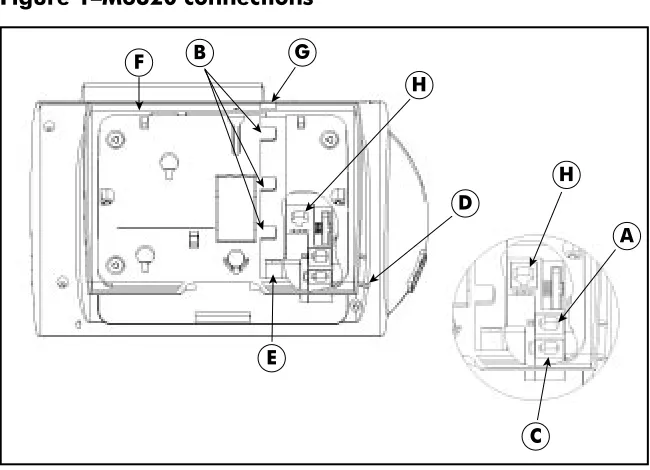
2. Remove the stand F.
3. Insert one end of the line cord into the appropriate jack (A) located underneath the M6320. The connector clicks into place when cor-rectly inserted.
4. If the handset has not been connected, insert one end of the curly handset cord into the appropriate jack (C). Feed the cord through the restraining tab (D) so that the cord falls to the left side of the set. Insert the other end of the handset cord into the handset.
Figure 1–M6320 connections
B
D
F G
➤
➤
➤
➤
➤
➤ ➤
➤
H
H
➤ A
5. Run the free end of the line cord through the “E” hole in the stand “F”. Slide the cord under the retaining tabs “B” (allow a little slack). Refit the stand in high or low position.
6. Turn the M6320 right-side up and position it on your desk, ensuring that line cord runs through slot “G”.
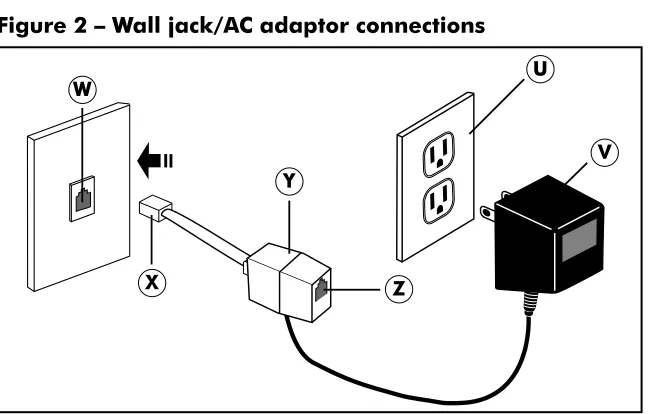
7. Insert the free end of the line cord into the open jack (Z) on the plas-tic connector (Y).
8. Insert the free end of the plastic connector (X) into the wall jack (W). 9. Plug in the AC adaptor (V) into a AC 110V wall socket (U).
Connecting your M6320: continued
Figure 2 – Wall jack/AC adaptor connections
V U
Y
Z X
Your telephone set has been prepared at the factory for use on your desk. If you require the set to be positioned on a wall, follow procedure.
To mount the M6320 on the wall:
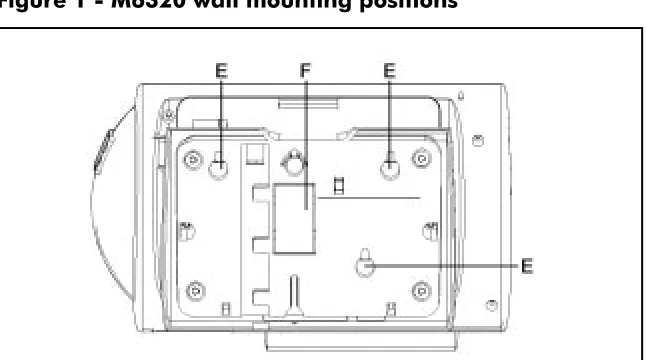
1. Pull off the wedge-shaped base unit (stand) from the telephone set. 2. If the set is to be connected to a line cord connecting block mounted
on the wall, push out the knock-out section in the base (F) as shown in Figure 1.
3. Reposition the stand on to the base the other way round. Press the stand firmly into the bottom of the set until the plastic tabs have clicked into place.
Wall mounting the M6320: continued
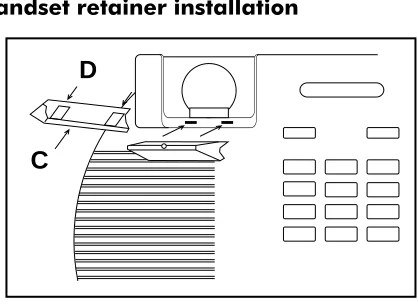
5. Position the handset retainer (C in Figure 2) into the handset cradle. The handset retainer is included in the stand assembly. Insert the two plastic tabs (D) on the retainer into the two holes provided. Press firm-ly until the retainer clicks into place.
6. Attach the telephone set to a standard wall bracket using the mounting holes provided on the wedge-shaped base. Once mounted on the wall bracket, the telephone set should hang flush to the wall. Note that the knock-out section removed in step 3 allows enough space to accom-modate the line cord connecting block, if present.
D
C
Permitted Connections
This telephone, with its associat-ed power supply connector, may only be connected to a Centrex telephone system using a socket provided by your system admin-istrator.
Only one terminal with its asso-ciated power supply may be con-nected to the telephone socket.
Non-permitted Connections
This telephone must not be con-nected to the Public Switched Telephone Network.
Power Failure
In the event of a local power fail-ure, calls can be made using the handset or headset, incoming ringing may be at a reduced level and special features such as the display and handsfree operation will not function.
Power Supply
The telephone must be installed near to a mains socket which should be easily accessible.
Caution Hazardous Voltages
When the terminal is connected to the telephone network all of the interconnection points are at Telephone Network Voltage (TNV).
Copyright © Aastra Technologies 2003. All rights reserved
Information is subject to change since Aastra Technologies reserves the right, without notice, to make changes in equipment design or components as progress in engineering or manufacturing methods may warrant.
P0885521