by Peter Weverka
PowerPoint
®
2007
A L L - I N - O N E D E S K R E F E R E N C E
FOR
PowerPoint
®
2007
A L L - I N - O N E D E S K R E F E R E N C E
FOR
by Peter Weverka
PowerPoint
®
2007
A L L - I N - O N E D E S K R E F E R E N C E
FOR
PowerPoint®2007 All-in-One Desk Reference For Dummies®
Published by
Wiley Publishing, Inc.
111 River Street Hoboken, NJ 07030-5774
www.wiley.com
Copyright © 2007 by Wiley Publishing, Inc., Indianapolis, Indiana Published by Wiley Publishing, Inc., Indianapolis, Indiana Published simultaneously in Canada
No part of this publication may be reproduced, stored in a retrieval system or transmitted in any form or by any means, electronic, mechanical, photocopying, recording, scanning or otherwise, except as permit-ted under Sections 107 or 108 of the 1976 Unipermit-ted States Copyright Act, without either the prior written permission of the Publisher, or authorization through payment of the appropriate per-copy fee to the Copyright Clearance Center, 222 Rosewood Drive, Danvers, MA 01923, (978) 750-8400, fax (978) 646-8600. Requests to the Publisher for permission should be addressed to the Legal Department, Wiley Publishing, Inc., 10475 Crosspoint Blvd., Indianapolis, IN 46256, (317) 572-3447, fax (317) 572-4355, or online at
http://www.wiley.com/go/permissions.
Trademarks:Wiley, the Wiley Publishing logo, For Dummies, the Dummies Man logo, A Reference for the Rest of Us!, The Dummies Way, Dummies Daily, The Fun and Easy Way, Dummies.com, and related trade dress are trademarks or registered trademarks of John Wiley & Sons, Inc. and/or its affiliates in the United States and other countries, and may not be used without written permission. PowerPoint is a registered trademark of Microsoft Corporation in the United States and/or other countries. All other trademarks are the property of their respective owners. Wiley Publishing, Inc., is not associated with any product or vendor mentioned in this book.
LIMIT OF LIABILITY/DISCLAIMER OF WARRANTY: THE PUBLISHER AND THE AUTHOR MAKE NO REPRESENTATIONS OR WARRANTIES WITH RESPECT TO THE ACCURACY OR COMPLETENESS OF THE CONTENTS OF THIS WORK AND SPECIFICALLY DISCLAIM ALL WARRANTIES, INCLUDING WITHOUT LIMITATION WARRANTIES OF FITNESS FOR A PARTICULAR PURPOSE. NO WARRANTY MAY BE CREATED OR EXTENDED BY SALES OR PROMOTIONAL MATERIALS. THE ADVICE AND STRATEGIES CONTAINED HEREIN MAY NOT BE SUITABLE FOR EVERY SITUATION. THIS WORK IS SOLD WITH THE UNDERSTANDING THAT THE PUBLISHER IS NOT ENGAGED IN RENDERING LEGAL, ACCOUNTING, OR OTHER PROFESSIONAL SERVICES. IF PROFESSIONAL ASSISTANCE IS REQUIRED, THE SERVICES OF A COMPE-TENT PROFESSIONAL PERSON SHOULD BE SOUGHT. NEITHER THE PUBLISHER NOR THE AUTHOR SHALL BE LIABLE FOR DAMAGES ARISING HEREFROM. THE FACT THAT AN ORGANIZATION OR WEBSITE IS REFERRED TO IN THIS WORK AS A CITATION AND/OR A POTENTIAL SOURCE OF FURTHER INFORMATION DOES NOT MEAN THAT THE AUTHOR OR THE PUBLISHER ENDORSES THE INFORMATION THE ORGANIZATION OR WEBSITE MAY PROVIDE OR RECOMMENDATIONS IT MAY MAKE. FURTHER, READERS SHOULD BE AWARE THAT INTERNET WEBSITES LISTED IN THIS WORK MAY HAVE CHANGED OR DISAPPEARED BETWEEN WHEN THIS WORK WAS WRITTEN AND WHEN IT IS READ.
For general information on our other products and services, please contact our Customer Care Department within the U.S. at 800-762-2974, outside the U.S. at 317-572-3993, or fax 317-572-4002.
For technical support, please visit www.wiley.com/techsupport.
Wiley also publishes its books in a variety of electronic formats. Some content that appears in print may not be available in electronic books.
Library of Congress Control Number: 2006925912 ISBN-13: 978-0-470-04062-1
ISBN-10: 0-470-04062-9
Manufactured in the United States of America 10 9 8 7 6 5 4 3 2 1
About the Author
Dedication
For Aiko Sophia and Henry Gabriel.
Author’s Acknowledgments
This book owes a lot to many hard-working people at Wiley Publishing in Indiana. I would like once again to thank Steve Hayes for his good advice, his encouragement, and the opportunity to write another For Dummiesbook.
Susan Christophersen knows the editing craft as well as any editor I have ever worked with. It was a pleasure — once again — to work with her.
Technical editor Joyce Nielsen made sure that all the explanations in this book are indeed accurate, and I would like to thank her for her excellent work and suggestions for improving this book. I would also like to thank Rich Tennant for the witty cartoons you will find on the pages of this book, and Ty Koontz for writing the index.
These people at the Wiley offices in Indianapolis gave their all to this book, and I want to acknowledge them by name:
Claudia Bell, Amanda Foxworth, John Greenough, Joyce Haughey, Steve Hayes, Jodi Jensen, Stephanie D. Jumper, Jessica Kramer, Barbara Moore, Barry Offringa, Lynsey Osborn, Heather Ryan, Erin Smith, Ryan Steffen, Ronald Terry, Laura VanWinkle, Erin Zeltner
Publisher’s Acknowledgments
We’re proud of this book; please send us your comments through our online registration form
located at www.dummies.com/register/.
Some of the people who helped bring this book to market include the following:
Acquisitions, Editorial, and Media Development
Project and Copy Editor:
Susan Christophersen
Senior Acquisitions Editor:Steve Hayes
Technical Editor:Joyce Nielsen
Editorial Manager:Jodi Jensen
Editorial Assistant:Amanda Foxworth
Cartoons:Rich Tennant (www.the5thwave.com)
Composition Services
Project Coordinators: Erin Smith, Ryan Steffen
Layout and Graphics:Claudia Bell, Joyce Haughey, Stephanie D. Jumper, Barbara Moore, Barry Offringa, Lynsey Osborn, Heather Ryan, Ronald Terry, Erin Zeltner
Proofreaders: Jessica Kramer, John Greenough,
Christy Pingleton, Techbooks
Indexer: Ty Koontz
Publishing and Editorial for Technology Dummies
Richard Swadley,Vice President and Executive Group Publisher
Andy Cummings,Vice President and Publisher
Mary Bednarek,Executive Acquisitions Director
Mary C. Corder,Editorial Director
Publishing for Consumer Dummies
Diane Graves Steele,Vice President and Publisher
Joyce Pepple,Acquisitions Director
Composition Services
Gerry Fahey,Vice President of Production Services
Contents at a Glance
Introduction ...1
Book I: Getting Started in PowerPoint ...5
Chapter 1: Introducing PowerPoint ...7
Chapter 2: PowerPoint Nuts and Bolts ...15
Chapter 3: Finding Your Way around the PowerPoint Screen ...37
Chapter 4: Planning Ahead for a Solid Presentation...57
Book II: Building Your Presentation ...69
Chapter 1: Inserting and Handling Slides ...71
Chapter 2: Handling Master Slides and Master Styles ...91
Chapter 3: Handling Slide Backgrounds ...109
Chapter 4: Entering the Text ...133
Chapter 5: Formatting Text on a Slide ...181
Book III: Communicating with Tables, Charts,
and Diagrams...219
Chapter 1: Constructing the Perfect Table...221
Chapter 2: Putting a Chart on a Slide...241
Chapter 3: Putting Diagrams on Slides ...287
Book IV: Embellishing Your Slides
with Graphics and Shapes ...313
Chapter 1: Drawing Shapes, Lines, and Other Objects...315
Chapter 2: Managing and Manipulating Objects ...335
Chapter 3: Decorating Slides with Graphics and Photographs ...365
Chapter 4: Decorating Slides with Clip Art ...391
Book V: Flash and Dash ...403
Chapter 1: Taking Advantage of Transitions and Animations ...405
Chapter 2: Making Video Slides ...451
Book VI: Giving a Presentation ...493
Chapter 1: Giving an In-Person Presentation ...495
Chapter 2: Speaker Notes and Handouts...511
Chapter 3: Creating a Self-Running Presentation ...525
Chapter 4: Creating a User-Run Presentation ...533
Chapter 5: Alternative Ways to Distribute Presentations ...555
Book VII: PowerPoint for Power Users ...569
Chapter 1: Customizing PowerPoint ...571
Chapter 2: Creating a Presentation Design for Your Company...579
Chapter 3: Collaborating with Others on a Presentation ...593
Chapter 4: Linking and Embedding for Compound Presentations...609
Chapter 5: Automating Tasks with Macros ...619
Table of Contents
Introduction...1
What’s in This Book, Anyway?...1
What Makes This Book Special ...2
Easy-to-look-up information...2
A task-oriented approach ...3
Meaningful screen shots...3
Foolish Assumptions ...3
Conventions Used in This Book ...3
Icons Used in This Book...4
Good Luck, Reader! ...4
Book I: Getting Started in PowerPoint...5
Chapter 1: Introducing PowerPoint . . . .7
PowerPoint Slides ...7
Some PowerPoint Jargon ...9
PowerPoint as a Communication Tool ...9
A Whirlwind Tour of PowerPoint ...10
Creating the slides...10
Designing your presentation...10
Inserting tables, charts, diagrams, and shapes...12
“Animating” your slides...12
Showing your presentation ...12
Chapter 2: PowerPoint Nuts and Bolts . . . .15
Starting PowerPoint...15
Creating a New Presentation ...17
Deciding between the blank presentation and a template ...18
Creating a blank presentation...19
Creating a presentation from a template...20
Starting from another presentation ...20
Saving Your Presentation Files ...22
Telling PowerPoint where you like to save presentations ...22
Saving presentations for use in earlier versions of PowerPoint ...23
Saving “AutoRecovery information” ...25
Opening and Closing Presentations...26
Opening a presentation ...26
PowerPoint 2007 All-in-One Desk Reference For Dummies
xii
Entering the Document Properties ...30
Understanding the New PowerPoint XML Format ...31
Shortcut Commands Worth Knowing ...32
Undoing a mistake ...32
Repeating an action — and quicker this time...33
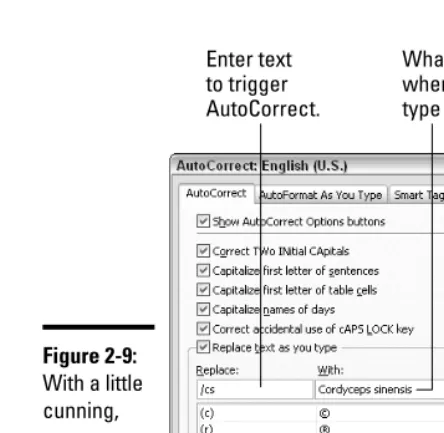
Entering text quickly with the AutoCorrect command ...33
Chapter 3: Finding Your Way around the PowerPoint Screen . . . .37
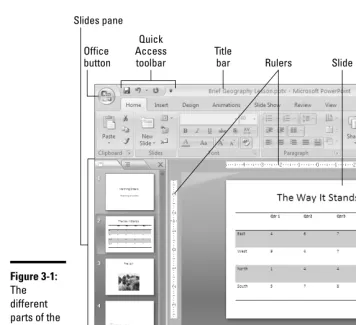
A Brief Geography Lesson...37
Knowing Your Way around the New PowerPoint Interface...39
The Office button ...40
The Quick Access toolbar ...40
The Ribbon and its tabs ...41
Context-sensitive tabs ...42
The anatomy of a tab ...43
Live previewing...46
Mini toolbars...47
PowerPoint 2007 for keyboard lovers...47
Zooming In, Zooming Out...49
Getting a Better View of Your Work ...50
Changing views ...51
Normal/Outline view: Fiddling with the text...51
Normal/Slides view: Moving from slide to slide ...52
Slide Sorter view: Moving and deleting slides ...52
Slide Show view: Giving a presentation ...52
Notes Page view: Reading your speaker notes ...52
Pure Black and White and Grayscale views ...53
The Master views ...53
Hiding and Displaying the Slides Pane and Notes Pane ...53
Displaying, Hiding, and Reading the Ruler...55
Chapter 4: Planning Ahead for a Solid Presentation . . . .57
Formulating Your Presentation ...58
Start by writing the text...58
Make clear what the presentation is about...58
Start from the conclusion...58
Personalize the presentation ...59
Tell a story...59
Assemble the content ...59
Designing Your Presentation ...59
Keep it simple ...59
Be consistent from slide to slide ...61
Choose colors that help communicate your message ...61
When fashioning a design, consider the audience...61
Beware the bullet point ...62
Observe the one-slide-per-minute rule...62
Make like a newspaper ...63
Table of Contents
xiii
Delivering Your Presentation...65
Rehearse, and rehearse some more...65
Connect with the audience ...65
Anticipate questions from the audience ...65
Know your equipment ...66
Take control from the start ...67
Play tricks with the PowerPoint screen ...67
Book II: Building Your Presentation ...69
Chapter 1: Inserting and Handling Slides . . . .71
Understanding How Slides Are Constructed ...72
Slide layouts ...72
Text frames and content frames...72
Selecting the right layout ...74
Creating New Slides for Your Presentation ...74
Inserting a new slide ...74
Creating a duplicate slide...77
Copying and pasting slides ...78
Stealing slides from other presentations ...79
Conjuring slides from Word document headings ...81
Selecting a Different Layout for a Slide ...84
Changing the Size and Orientation of Slides...84
Changing the size of slides ...85
Changing the orientation of slides ...85
Displaying Slides So That You Can Manipulate Them ...86
Selecting, Moving, and Deleting Slides ...87
Selecting slides ...87
Moving slides ...88
Deleting slides...88
Hidden Slides for All Contingencies...88
Hiding a slide ...89
Showing a hidden slide during a presentation ...89
Chapter 2: Handling Master Slides and Master Styles . . . .91
Using Master Slides and Master Styles for a Consistent Design ...91
Switching to Slide Master view ...92
Understanding master slides (the Slide Master and layouts) ...93
Understanding how master styles work...95
Relationships between the Slide Master, layouts, and slides ...96
Ground Rules for Handling Master Slides ...98
Altering a Master Slide ...99
Editing a master style ...99
Changing the layout of master slides ...101
PowerPoint 2007 All-in-One Desk Reference For Dummies
xiv
Restoring a Redesigned Presentation to Its Original State ...104
Reconnecting a presentation slide to its original layout...105
Re-imposing the original design on an entire presentation ...105
Removing a Background Graphic from a Single Slide...106
Chapter 3: Handling Slide Backgrounds . . . .109
Looking at Themes and Background Styles...109
A look at themes ...110
A look at background styles...110
Design Considerations...111
Setting the tone by your color choices ...111
Carefully selecting the background colors ...112
Making a Theme for Your Presentation...114
Selecting a theme ...114
Customizing a theme ...118
Creating Slide Backgrounds on Your Own ...121
Using a solid (or transparent) color for the slide background ...121
Selecting a gradient blend of two colors for the slide background...122
Placing a clip-art image in the slide background ...124
Using a graphic for a slide background ...126
Using a texture for a slide background...127
Changing the Background of a Single or Handful of Slides ...128
Selecting a different theme for some of the slides ...129
Creating a different background for some of the slides ...129
Selecting a different theme or background style for slide layouts ...130
Chapter 4: Entering the Text . . . .133
Entering Text: The Basics...133
Normal/Outline View for Reading and Editing Text...134
Manipulating the Text...136
Selecting text on a slide ...136
Moving, copying, and pasting text ...136
Deleting text ...140
Changing the Look of Text ...140
Choosing fonts for text ...141
Finding and replacing fonts throughout a presentation...144
Changing the font size of text ...146
Applying font styles to text ...146
Applying text effects to text...147
Changing the color of text ...150
Table of Contents
xv
Entering Symbols, Foreign Characters, Quote Marks, and Dashes ...153
Entering symbols and characters with the Symbol dialog box ...154
Handling dashes and quotation marks...155
Correcting Typos Automatically with the AutoCorrect Command ...156
Opening the AutoCorrect dialog box ...156
Telling PowerPoint which typos and misspellings to correct ...157
Preventing capitalization errors with AutoCorrect...157
Finding and Replacing Text...158
Finding stray words and text ...158
Conducting a Find-and-Replace operation ...160
Correcting Your Spelling Errors ...162
Correcting misspellings one at a time ...163
Spell checking an entire presentation ...164
Fine-tuning the spell checker...165
Researching a Topic inside PowerPoint...170
Using the Research task pane...171
Choosing your research options ...172
Finding the Right Word with the Thesaurus...174
Working with Text Written in a Foreign Language ...176
Telling PowerPoint which languages you will use ...176
Marking text as foreign language text...177
Translating Foreign-Language Text...178
Smart Tags, Smart Alecks...179
Chapter 5: Formatting Text on a Slide . . . .181
Putting a Text Box on a Slide ...181
Creating a text box ...182
Rotating a text box ...184
Establishing a default text box style ...185
Using a Shape as a Text Box ...186
Turning a shape into a text box...186
Turning a text box into a shape...186
Selecting Text Boxes and Text Frames ...187
Changing the Direction of Text...188
Controlling How Text Fits in Text Frames and Text Boxes ...189
Choosing how PowerPoint “autofits” text in text frames...190
Choosing how PowerPoint “autofits” text in text boxes ...192
Positioning Text in Frames and Text Boxes ...193
Aligning text in frames and text boxes ...193
Indenting text in text frames and text boxes ...194
Formatting a text frame for normal paragraphs, not indented lists ...199
PowerPoint 2007 All-in-One Desk Reference For Dummies
xvi
Handling Bulleted and Numbered Lists...204
Creating a standard bulleted or numbered list ...204
Removing bullets and numbers from lists ...205
Choosing a different bullet character, size, and color...205
Choosing a different list-numbering style, size, and color...207
Making sublists, or nested lists ...208
Fine-Tuning the Text Layout ...209
Adjusting the space between lines and paragraphs ...209
Fixing a top-heavy title ...212
Adjusting the space between characters ...212
Changing the internal margins of a text frame or box ...215
Putting Footers (and Headers) on Slides ...215
Some background on footers and headers ...215
Putting a standard footer on all your slides ...216
Creating a “nonstandard” footer ...217
Removing a footer from a single slide ...218
Book III: Communicating with Tables, Charts,
and Diagrams...219
Chapter 1: Constructing the Perfect Table . . . .221
Talking Table Jargon ...222
Creating a Table...222
Entering the Text and Numbers ...224
Selecting Different Parts of a Table...225
Aligning Text in Columns and Rows ...226
Merging and Splitting Cells ...227
Laying Out Your Table ...228
Changing the size of a table, columns, and rows ...228
Inserting and deleting columns and rows ...230
Moving columns and rows ...230
Changing the size of cell margins ...231
Formatting Your Table ...231
Designing a table with a table style ...232
Calling attention to different rows and columns ...233
Decorating your table with borders and colors ...234
Neat Table Tricks ...236
Changing the direction of header row text ...236
Using a picture as the table background...237
Drawing diagonal lines on tables ...239
Drawing on a table ...239
Table of Contents
xvii
Chapter 2: Putting a Chart on a Slide . . . .241
A Mercifully Brief Anatomy Lesson ...241
The Basics: Creating a Chart ...244
Choosing the Right Chart...245
Ground rules for choosing a chart ...246
Examining the different kinds of charts ...247
Providing the Raw Data for Your Chart ...262
Entering data in an Excel worksheet...263
Updating a chart with new data ...267
Changing a Chart’s Appearance ...267
Changing the chart type ...268
Changing the shape of a chart ...269
Relying on a Chart Style to change appearances ...269
Changing the layout of a chart ...270
Handling the gridlines...273
Changing a chart element’s color, font, or other particular ...275
Saving a Chart as a Template so You Can Use It Again ...277
Saving a chart as a template ...277
Creating a chart from a template ...277
Chart Tricks for the Daring and Heroic ...278
Decorating a chart with a picture ...278
Annotating a chart...279
Displaying the raw data alongside the chart ...280
Animating a chart ...281
Creating an overlay chart...282
Converting Old Charts to PowerPoint 2007 Charts ...283
Troubleshooting a Chart ...285
Chapter 3: Putting Diagrams on Slides . . . .287
The Basics: Creating SmartArt Diagrams...287
Creating the Initial Diagram ...289
Creating a diagram ...290
Swapping one diagram for another...291
Changing the Size and Position of a Diagram ...291
Laying Out the Diagram Shapes ...292
Selecting a diagram shape...292
Removing a shape from a diagram...293
Adding shapes to diagrams apart from hierarchy diagrams ...293
Adding shapes to hierarchy diagrams...295
Promoting and demoting shapes in hierarchy diagrams ...300
Handling the Text on Diagram Shapes ...300
Entering text on a shape...301
Entering text in a diagram shape you added ...302
PowerPoint 2007 All-in-One Desk Reference For Dummies
xviii
Changing a Diagram’s Direction ...303
Choosing a Look for Your Diagram ...304
Changing the Appearance of Diagram Shapes ...305
Changing the size of a diagram shape ...305
Exchanging one shape for another ...306
Changing a shape’s color, fill, or outline ...307
Changing fonts and font sizes on shapes ...308
Creating a Diagram from Scratch ...309
Writing Equations with the Equation Editor...310
Launching the Equation Editor...310
Templates and slots ...311
Drawing equations ...311
Book IV: Embellishing Your Slides
with Graphics and Shapes...313
Chapter 1: Drawing Shapes, Lines, and Other Objects . . . .315
The Basics: Drawing Lines and Shapes ...316
Drawing Lines and Arrows ...317
Drawing a straight line (or arrow)...318
Changing a line’s length and position ...318
Changing a line’s appearance ...319
Attaching and handling arrowheads...321
Drawing and editing arcs and curved lines...322
Freeform and scribble drawing ...325
Connecting Shapes with Connectors...326
Making a connection ...327
Attaching a connector to a different shape ...328
Adjusting a connector...328
Drawing Rectangles, Ovals, Stars, and Other Shapes...329
Drawing a shape ...329
Changing a shape’s symmetry ...330
Exchanging One Shape for Another...331
Using a Shape as a Text Box ...332
WordArt for Bending, Spindling, and Mutilating Text ...333
Creating a WordArt image ...333
Editing a WordArt image...334
Chapter 2: Managing and Manipulating Objects . . . .335
The Basics: Manipulating Lines, Shapes, Art, Text Boxes, and Other Objects ...336
Table of Contents
xix
Laying Out Objects with the Grid, Drawing Guides, and Rulers ...339 Displaying the grid and drawing guides ...340 Telling PowerPoint how tight to make the grid ...340 Creating and moving drawing guides ...341 Displaying and hiding the rulers ...342 Changing an Object’s Size ...342 “Eye-balling it” with the selection handles ...343 Entering Height and Width measurements ...344 Changing an Object’s Proportions ...344 Positioning Objects on a Slide...345 Dragging to move objects...345 Positioning objects by way of the dialog box ...345 Copying Objects ...348 When Objects Overlap: Choosing Which Appears
above the Other...348 Rotating and Flipping Objects ...350 Tricks for Aligning and Distributing Objects ...351 Aligning objects ...351 Distributing objects so that they are equidistant ...352 Changing an Object’s Color, Outline Color, and Transparency ...354 Filling an object with a color, picture, or texture ...355 Making a color transparent ...356 Putting the outline around an object ...357 Using a shape effect ...358 Putting a Third Dimension on an Object...359 Letting PowerPoint do the work...360 Building the third dimension on your own ...360 Putting a Shadow on an Object ...361 Grouping Objects to Make Working with Them Easier ...363 Grouping objects ...363 Ungrouping and regrouping ...364
PowerPoint 2007 All-in-One Desk Reference For Dummies
xx
Compressing Graphics to Save Disk Space...374 Using Graphics as Backgrounds...376 Using a picture in the background ...376 Using a graphic as background for text...378 Putting Together a Photo Album...380 Creating your photo album ...380 Putting on the final touches ...383 Editing your photo album ...383 Using Microsoft Office Picture Manager ...383 Mapping the graphic files on your computer ...384 Displaying the graphic file you want to work with ...385 Editing a picture ...386
Chapter 4: Decorating Slides with Clip Art . . . .391
What Is Clip Art?...391 Inserting a Clip-Art Image in a Slide...392 Tinkering with Clip Art’s Appearance ...393 Handling Media Files with the Clip Organizer ...394 Knowing your way around the Clip Organizer...395 Locating the media file you need ...395 Inserting a media file into a PowerPoint slide ...398 Storing your own files in the My Collections folders...399Book V: Flash and Dash ...403
Table of Contents
xxi
Hiding elements and changing their color after animation ...432 Motion paths for moving elements across a slide ...433 Playing choreographer with animations ...439 Starting an animation with a trigger ...444 Playing Sounds along with Animations ...447 Suggestions for Animating Slides ...448 Animating bulleted and numbered lists ...448 Changing elements’ size as they move ...448 Building a slide one element at a time...449 Animating different parts of a chart ...450
Chapter 2: Making Video Slides . . . .451
Looking before You Leap...451 Storing video files correctly ...452 Understanding how video files strain your computer...453 Understanding video file formats...453 Placing Videos on Slides...455 Inserting a video on a slide ...455 Inserting a video that isn’t compatible with PowerPoint...457 Starting and Pausing a Video during a Presentation ...459 Fine-Tuning a Video Presentation ...459 Adding Spice to Your Video Presentation ...462 Adjusting the size of the video screen...462 Putting a border around a video ...463PowerPoint 2007 All-in-One Desk Reference For Dummies
xxii
Book VI: Giving a Presentation ...493
Chapter 1: Giving an In-Person Presentation . . . .495
Rehearsing and Timing Your Presentation ...495 Putting on the Finishing Touches ...498 Showing Your Presentation...498 Starting and ending a presentation...499 Going from slide to slide...500 Switching to another program during a presentation ...502 Drawing on Slides...502 Wielding a pen or highlighter in a presentation ...502 Erasing pen and highlighter drawings ...503 Pointing with the Arrow ...504 Making Use of Blank Screens ...505 Customizing Shows for Particular Audiences ...505 Assembling slides for a custom show ...506 Editing a custom show...507 Presenting a custom show ...507Chapter 2: Speaker Notes and Handouts . . . .511
What Are Notes and Handouts? ...511 All about Notes ...512 Entering a note...512 Editing your notes in Notes Page view ...513 The Notes Master for formatting notes pages ...514 Providing Handouts for Your Audience...517 Printing an Outline Version of Your Presentation ...519 Printing Slides, Handouts, and Notes Pages ...520 Examining the Print options ...521 Getting around in the Print Preview window...523Chapter 3: Creating a Self-Running Presentation . . . .525
Good Uses for Self-Running Presentations ...525 Challenges of a Self-Running Presentation...526 Deciding How Long to Keep Slides On-Screen...527 Entering time periods yourself ...528 “Rehearsing” slide times ...529 Telling PowerPoint that Your Presentation Is Self-Running...530 Starting and Ending a Self-Running Presentation...531Table of Contents
xxiii
Challenges of a User-Run Presentation ...535 Helping viewers understand how to run the presentation ...535 Backtracking ...537 Fitting action buttons on slides ...537 Preventing a presentation from stalling ...538 Making Yours a User-Run Presentation ...538 Action Buttons vs. Hyperlinks...539 Action Buttons for Going from Slide to Slide...541 Drawing an action button hyperlink ...542 Repairing, removing, and reshaping action buttons...544 Creating your own action button ...544 Placing action buttons on a master slide ...546 Creating Hyperlinks ...546 Creating a hyperlink to a slide ...547 Creating a hyperlink to a Web page ...548 Hyperlinking to a file in another program...549 Creating an e-mail hyperlink ...550 Repairing and removing hyperlinks ...552 Making Sure That Your Presentation Doesn’t Stall ...552
Chapter 5: Alternative Ways to Distribute Presentations . . . .555
Putting On the Finishing Touches...555 Sending Your Presentation in an E-Mail Message ...557 Packaging Your Presentation on a CD ...557 Packaging a presentation on a CD...558 Packaging more than one presentation on a CD ...559 Using the Package command to assemble soundand video files ...561 Playing a presentation from a CD in PowerPoint Viewer ...562 Distributing Your Presentation to People
Who Don’t Have PowerPoint...563 Saving Your Presentation as a Web Page ...564 Turning a presentation into a Web page ...565 Opening a PowerPoint Web page in your browser ...566 Fine-tuning your Web page...566
Book VII: PowerPoint for Power Users ...569
PowerPoint 2007 All-in-One Desk Reference For Dummies
xxiv
Customizing the Status Bar...575 Changing Color Schemes...576
Chapter 2: Creating a Presentation Design for Your Company . . . . .579
Creating a Template for Your Presentation Designs ...580 Making Your Company Colors Part of the Design...581 Finding out a color’s RGB or HSL setting ...581 Employing a company color in a PowerPoint design ...584 Making Your Company’s Fonts Part of the Design...585 Designing Your Template ...586 Creating Slide Layouts for Your Template ...587 Creating a new slide layout ...587 Deleting slide layouts...588 Including Boilerplate Content in the Slide Design ...589 Telling Co-Workers How to Use Your Template...590 Loading a template on a computer ...590 Creating a presentation from a template...591Chapter 3: Collaborating with Others on a Presentation . . . .593
Comments for Critiquing Others’ Work...593 Writing and editing a comment ...594 Reading and reviewing comments ...595 Cleaning comments from a presentation ...595 Locking a Presentation with a Password ...597 Password-protecting a presentation...597 Opening a presentation that requires a password...598 Removing a password from a presentation ...599 Sharing Slides in a Slide Library...599 Depositing slides in a slide library...600 Reusing slides from a slide library...601 Collaborating with Others Using SharePoint Services ...602 Getting equipped to use SharePoint Services ...603 Visiting a SharePoint Services Web site ...603 Getting from place to place in the Web site ...603 Handling and managing files ...604 Other ways to collaborate at a SharePoint Services Web site ...607Table of Contents
xxv
Embedding Data from Other Programs on a PowerPoint Slide...613 Embedding an object ...613 Editing an embedded object ...615 Linking a PowerPoint Slide to Data in Another File ...616 Establishing the link...616 Updating a link ...617
Chapter 5: Automating Tasks with Macros . . . .619
What Is a Macro? ...619 Displaying the Developer Tab ...620 Managing the Macro Security Problem ...620 Running a Macro ...622 Running a Macro from a Button on the Quick Access Toolbar ...623 Installing Add-Ins...623PowerPoint 2007 All-in-One Desk Reference For Dummies
Introduction
O
nly a few years ago, PowerPoint was a novelty. All of a sudden, speakers started giving PowerPoint presentations at conferences and seminars. Audiences welcomed PowerPoint. The slides made presentations more inter-esting and lively. You could gaze at the slides while you listened to the speaker. Speakers — especially speakers who weren’t comfortable talking before an audience — liked PowerPoint, too. PowerPoint took away some of the burdens of public speaking. The program made it easier to speak in front of strangers.PowerPoint became a staple of conferences, seminars, and corporate board-rooms. Then the novelty wore off, and audiences started grumbling. The presentations were too much alike. You saw bulleted list after bulleted list. Presentations followed the same tired formula — introductory slides fol-lowed by “key point” slides following by a tidy conclusion. Writing in the New Yorker,Ian Parker declared that PowerPoint is “a social instrument, turning middle managers into bullet-point dandies.” Edward Tufte, professor of information design at Yale University, lamented the program’s “charjunk” and “PowerPointPhluff.” In a Wiredessay called “PowerPoint Is Evil,” he wrote, “PowerPoint style routinely disrupts, dominates, and trivializes content.”
Despite these complaints, speakers have not abandoned PowerPoint, and audiences still welcome it. But expectations have risen. Audiences expect the presenter to use PowerPoint skillfully and creatively. The audience knows when a presenter is just going through the motions and when a pre-senter is using PowerPoint to explore a subject and show it in a new light.
This book was written with the goal of showing you how to use the Power-Point software, but also how to use it with skill and imagination. I tell you which buttons to click to complete tasks, but I also show you how Power-Point can be a means of communicating and connecting with your audience. I show you how to build a persuasive presentation, one that brings the audi-ence around to your side. No matter how much experiaudi-ence you have with PowerPoint, this book will make you a better, more proficient, more confi-dent user of the program.
What’s in This Book, Anyway?
What Makes This Book Special
2
✦ Book I: Getting Started in PowerPoint:Explains the PowerPoint inter-face and how to get around on-screen, as well as basic tasks such as how to create presentations and view presentations in different ways. You can also find advice for formulating and designing presentations. ✦ Book II: Building Your Presentation:Shows how to create, manipulate,
and format slides, as well as how to handle the master slides and master styles that make it possible to format many slides simultaneously. You discover how to design the look of your presentation and enter lists, text, and text boxes.
✦ Book III: Communicating with Tables, Charts, and Diagrams:Explores the many techniques for creating, designing, and formatting tables, charts, and diagrams.
✦ Book IV: Embellishing Your Slides with Graphics and Shapes: Demon-strates how to create lines, shapes, text-box shapes, and WordArt images. You also find out how to adorn a presentation with photographs, graphics, and clip-art images.
✦ Book V: Flash and Dash:Shows how to take advantage of transitions and animations, as well as make video and sound a part of a presentation. ✦ Book VI: Giving a Presentation:Explores all the different ways to deliver
a presentation — in person, as a self-running presentation, and as a user-run presentation. You find out how to write slide notes and print presen-tations, as well as deliver them over the Internet and on CDs.
✦ Book VII: PowerPoint for Power Users:Looks into customizing Power-Point, designing templates, collaborating with others, linking and embedding, and understanding macros.
What Makes This Book Special
You are holding in your hands a computer book designed to make learning PowerPoint as easy and comfortable as possible. Besides the fact that this book is easy to read, it’s different from other books about PowerPoint.
Easy-to-look-up information
This book is a reference, and that means that readers have to be able to find out how to do something quickly. To that end, I have taken great pains to make sure that the material in this book is well organized and easy to find. The descriptive headings help you find information quickly. The bulleted and numbered lists make accomplishing a task simpler. The tables make options easier to understand.
Conventions Used in This Book
3
need quickly. Compare the table of contents in this book to the book next to it on the bookstore shelf. This book is better organized than the others.
A task-oriented approach
Most computer books describe what the software is, but this book shows you how to use the software. I assume that you came to this book because you want to know how to dosomething — animate a slide, create a chart, design a look for your presentation. You came to the right place. This book shows you how to make PowerPoint work for you.
Meaningful screen shots
The screen shots in this book show only the part of the screen that illus-trates what is being explained in the text. When an explanation refers to one part of the screen, only that part of the screen is shown. I took great care to make sure that the screen shots serve to help you understand the Power-Point features and how they work.
Foolish Assumptions
Please forgive me, but I made some foolish assumptions about you, the reader of this book. I assumed that:
✦ You own a copy of PowerPoint 2007, the latest version of PowerPoint, and you have installed it on your computer.
✦ You use the Windows operating system. Even if yours is an old version of Windows, all the methods in this book apply.
✦ You are kind to foreign tourists and small animals.
Conventions Used in This Book
I want you to understand all the instructions in this book, and in that spirit, I’ve adopted a few conventions.
Where you see boldface letters or numbers in this book, it means to type the letters or numbers. For example, “Enter 25in the Percentage text box” means to do exactly that: Enter the number 25.
Icons Used in This Book
4
To show you how to step through command sequences, I use the ➪symbol. For example, you can click the Office button and choose Publish➪Package for CD to copy a presentation to a CD. The ➪symbol is just a shorthand method of saying “Choose Publish and then Package for CD.”
To give most commands, you can press combinations of keys. For example, pressing Ctrl+S saves the file you’re working on. In other words, you can hold down the Ctrl key and press the S key to save a file. Where you see Ctrl+, Alt+, or Shift+ and a key name or key names, press the keys simultaneously.
Yet another way to give a command is to click a button. When I tell you to click a button, you see a small illustration of the button in the margin of this book (unless the button is too large to fit in the margin). The button shown here is the Save button, the one you can click to save a file.
Icons Used in This Book
To help you get the most out of this book, I’ve placed icons here and there. Here’s what the icons mean:
Next to the Tip icon, you can find shortcuts and tricks of the trade to make your visit to PowerPoint Land more enjoyable.
Where you see the Warning icon, tread softly and carefully. It means that you are about to do something that you may regret later.
When I explain a juicy fact that bears remembering, I mark it with a Remember icon. When you see this icon, prick up your ears. You will dis-cover something that you need to remember throughout your adventures with PowerPoint.
When I am forced to describe high-tech stuff, a Technical Stuff icon appears in the margin. You don’t have to read what’s beside the Technical Stuff icons if you don’t want to, although these technical descriptions often help you understand how a software feature works.
Good Luck, Reader!
Book I
Contents at a Glance
Chapter 1: Introducing PowerPoint ...7
Chapter 2: PowerPoint Nuts and Bolts...15
Chapter 3: Finding Your Way around the PowerPoint Screen ...37
Chapter 1: Introducing PowerPoint
In This Chapter
Taking a peek at PowerPoint
Understanding PowerPoint jargon
Communicating by way of PowerPoint presentations
Taking a quick tour of the program
I
n this short chapter, I take you to the end of a pier, briefly explain what swimming is, and push you in the water. As you thrash about, I tell you what a PowerPoint presentation is and explain some PowerPoint jargon. Then I fish you out of the water and take you on a whirlwind tour of Power-Point. By the time you finish reading this chapter, you will know what creat-ing a PowerPoint presentation entails.PowerPoint Slides
PowerPoint Slides
8
Book I Chapter 1
Introducing
PowerPoint
PowerPoint as a Communication Tool
9
Some PowerPoint Jargon
To make PowerPoint do your bidding, you need to know a little jargon:
✦ Presentation:All the slides, from start to finish, that you show your audience. Sometimes presentations are called “slide shows.” Presen-tations are saved in presentation files (.pptx files).
✦ Slides:The images you create with PowerPoint. During a presentation, slides appear on-screen one after the other. Don’t be put off by the word slide and dreary memories of sitting through your uncle’s slide-show vacation memories. You don’t need a slide projector to show these slides. You can now plug a laptop or other computer into special monitors that display PowerPoint slides. (Book II, Chapter 1 describes how to create slides.)
✦ Notes:Printed pages that you, the speaker, write and print so that you know what to say during a presentation. Only the speaker sees notes. (Book VI, Chapter 2 explains notes.)
✦ Handout:Printed pages that you may give to the audience after a pres-entation. A handout shows the slides in the prespres-entation. Handouts are also known by the somewhat derogatory term “leave-behinds.” (Book VI, Chapter 2 explains handouts.)
PowerPoint as a Communication Tool
PowerPoint isn’t just a speaker’s aid, but a means of communicating some-thing to an audience — an idea, a business plan, a marketing strategy. Power-Point has become so popular in part because it relieves the burden of public speaking. A nervous public speaker (and who isn’t a nervous public speaker?) can avert the attention of the audience to the slides and allow the slides to carry the day. But those slides in and of themselves can be great means of communication. PowerPoint offers numerous ways to communicate with an audience above and beyond what can be said in words:
✦ Colors:Your color choices set the tone and suggest what you want to convey in your presentation. Book II, Chapter 3 explains how to choose colors; Book VII, Chapter 2 describes how to incorporate a company’s colors (and logo) in a presentation.
A Whirlwind Tour of PowerPoint
10
✦ Tables:Support your proposal with table data. No one will be able to refute you. Book III, Chapter 1 explains how to create tables.
✦ Charts:For comparing and presenting data, nothing beats a chart. Book III, Chapter 2 explains charts.
✦ Diagrams:With diagrams, the audience can literally visualize a relation-ship, concept, or idea. Book III, Chapter 3 explains how to create diagrams. ✦ Shapes and text-box shapes:You can use lines, shapes, and text box
shapes (shapes with words on them) to illustrate your ideas. Book IV, Chapter 1 shows how to draw lines and shapes.
✦ Sound and video:Include sound and video to make your presentation a feast for the ears and eyes. Book V explains sound and video.
A Whirlwind Tour of PowerPoint
To help you understand what you’re getting into, the rest of this chapter pro-vides a whirlwind tour of PowerPoint. It explains what creating a presenta-tion entails, from inserting the first slide to putting on the finishing touches. Better fasten your safety belt.
Creating the slides
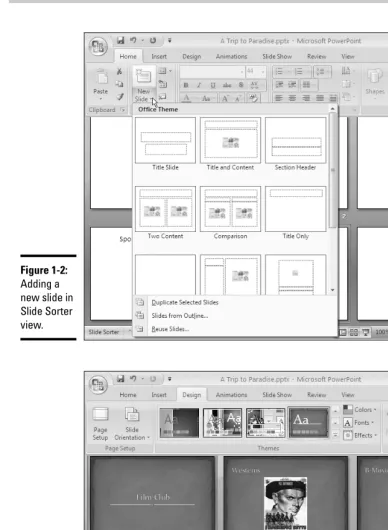
After you create a new presentation, your next task is to insert the slides (see Book II, Chapter 1). As shown in Figure 1-2, PowerPoint offers many pre-formatted slide layouts. These layouts are available on the New Slide drop-down list, the drop-drop-down list you open when you want to insert a slide. Each layout is designed for presenting information a certain way.
As you create slides, you can jot down notes in the Notes pane. You can use the notes later on to formulate your presentation and decide what you’ll say to your audience while each slide is on-screen.
To help complete tasks, you can change views. Figure 1-2 shows the Power-Point window in Slide Sorter view. This view is best for moving, copying, and deleting slides. PowerPoint offers the View tab and View buttons for chang-ing your view of a presentation. The program offers many different views, each designed to help with a different task.
Designing your presentation
Book I Chapter 1
Introducing
PowerPoint
A Whirlwind Tour of PowerPoint
11
A Whirlwind Tour of PowerPoint
12
the slides’ colors and backgrounds. You can also choose a new “theme” for your presentation — an all-encompassing design that applies to all (or most of) the slides. If you’re the type of person who doesn’t run with the herd, you can overhaul one of these themes and in effect redesign it by switching to Slide Master view and tinkering with the master slides (see Book II, Chapter 2).
Choose a design for your presentation early on. The fonts, graphics, shapes, tables, and charts you put in your presentation have to fit the design. If you change designs after you’ve created the majority of your slides, you may have to choose new font colors and graphics. You may have to redesign your tables, charts, and diagrams as well because they don’t fit into the new design you chose.
Inserting tables, charts, diagrams, and shapes
A PowerPoint presentation should be more than a loose collection of bul-leted lists. Starting on the Insert tab, you can place tables (see Book III, Chapter 1), charts (Book III, Chapter 2), and diagrams (Book III, Chapter 3) on slides. You can also adorn your slides with text boxes, WordArt images, and shapes (see Book IV, Chapter 1). And when you include a bulleted or numbered list, you can employ nonstandard bullets and numbering schemes to make your lists a little different from everybody else’s (see Book II, Chapter 5).Use your imagination. Try to take advantage of all the features that Power-Point provides for communicating with an audience.
“Animating” your slides
As I mentioned earlier, PowerPoint slides can play video and sound (see Book V). You can also enliven a presentation by “animating” it (see Book V, Chapter 1). Starting on the Animations tab, you can make slide items — bulleted lists, shapes, and clip art — arrive and leave the screen from differ-ent directions. You can make the items on a slide move on the screen. As a slide arrives, you can make it spin or flash.
Showing your presentation
Book I Chapter 1
Introducing
PowerPoint
A Whirlwind Tour of PowerPoint
13
These kinds of presentations can run in your absence:
✦ Self-running presentation:A presentation that runs on its own and can be exhibited at a trade show or other public place (see Book VI, Chapter 3). ✦ User-run presentation:A presentation that others can run. Special
but-tons permit individuals to go from slide to slide (see Book VI, Chapter 4). ✦ A handout:A printed copy of a presentation (see Book VI, Chapter 2).
✦ A CD:A packaged CD copy of a presentation that others can show on their computers (and you can take on the road). People who don’t have PowerPoint can view presentations after they are packed for a CD (see Book VI, Chapter 5).
✦ A Web page:A version of a presentation formatted for display on the Internet or an intranet (see Book VI, Chapter 5).
I hope you enjoyed this tour of PowerPoint. Before you disembark, please check your surroundings to make sure you haven’t left anything on the bus. Enjoy your stay in PowerPoint Land.
Book I: Getting Started in PowerPoint
Chapter 2: PowerPoint
Nuts and Bolts
In This Chapter
Starting PowerPointCreating a PowerPoint presentation from a template
Saving presentations
Saving presentations for earlier versions of PowerPoint
Opening and closing a presentation
Entering the document-property descriptions
Understanding what XML is
Undoing and repeating actions
T
he purpose of this chapter is to launch you deep into PowerPoint Land. This chapter describes tasks that you do almost every time you run the program. It explains how to start PowerPoint and create, save, open, and close presentations. You find out what document properties are and what PowerPoint’s new XML format is all about. Throughout this chapter are tips, tricks, and shortcuts for making basic PowerPoint tasks go more smoothly. Finally, I offer some shortcut commands that you will find extremely useful.Starting PowerPoint
Unless you start the PowerPoint program, you can’t construct PowerPoint presentations. Many have tried to construct presentations from mud and paper-mâché without starting PowerPoint first, but all have failed. Here are the various and sundry ways to start PowerPoint:
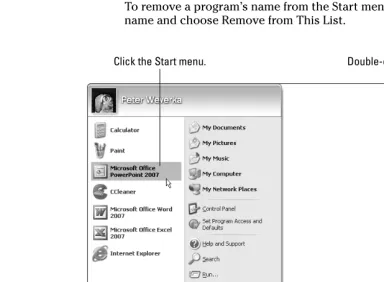
✦ The old-fashioned way:Click the Start button and choose All Programs➪Microsoft Office➪Microsoft Office PowerPoint 2007. ✦ The Start menu:Click Microsoft Office PowerPoint 2007 on the Start
Starting PowerPoint
16
1.
Click the Start button and choose All Programs➪Microsoft Office.2.
Move the pointer over Microsoft Office PowerPoint 2007 on the submenu, but don’t click to select the program’s name.3.
Right-click Microsoft Office PowerPoint 2007 on the submenu and choose Pin to Start Menu on the pop-up menu that appears when you right-click.To remove a program’s name from the Start menu, right-click the name and choose Remove from This List.
✦ Desktop shortcut icon:Double-click the Microsoft Office PowerPoint 2007 shortcut icon, as shown in Figure 2-1. A shortcut iconis an icon you can click to do something in a hurry. By creating a PowerPoint shortcut icon on the Windows desktop, you can double-click the icon and start Power-Point in a hurry. To place a PowerPower-Point shortcut icon on the desktop:
Click the Start menu. Double-click a shortcut icon.
Click the Quick Launch toolbar. Figure 2-1:
Book I Chapter 2
PowerPoint
Nuts and Bolts
Creating a New Presentation
17
1.
Click the Start button and choose All Programs➪Microsoft Office.2.
Move the pointer over Microsoft Office PowerPoint 2007 on the submenu, but don’t click the program’s name.3.
Right-click Microsoft Office PowerPoint 2007 on the submenu and choose Send To➪Desktop (Create Shortcut) on the pop-up menu that appears.✦ Quick Launch toolbar:Click the PowerPoint 2007 shortcut icon on the Quick Launch toolbar, as shown in Figure 2-1. TheQuick Launch toolbar appears on the Windows taskbar and is easy to find. Wherever your work takes you, you can see the Quick Launch toolbar and click its shortcut icons to start programs. Create a PowerPoint shortcut icon and follow these steps to place a copy of it on the Quick Launch toolbar:
1.
Click the shortcut icon on the desktop to select it.2.
Hold down the Ctrl key.3.
Drag the shortcut icon onto the Quick Launch toolbar.To change an icon’s position on the Quick Launch toolbar, drag it to the left or the right. To remove an icon, right-click it and choose Delete.
Yet another way to start PowerPoint is to make the program start automati-cally whenever you turn on your computer. If you’re the president of the PowerPoint Fan Club and you have to run PowerPoint each time your com-puter starts, create a PowerPoint shortcut icon and copy it into this folder if your computer runs Windows XP:
C:\Documents and Settings\Username\Start Menu\Programs\ Startup
Copy the shortcut icon into this folder if your computer runs Windows Vista:
C:\Users\Username\AppData\Roaming\Microsoft\Windows\ Start Menu\Programs\Startup
Creating a New Presentation
When you start PowerPoint, the program creates a new, blank presentation just for you. You can make this bare-bones presentation the starting point for constructing your presentation, or you can get a more sophisticated, fully realized layout and design by starting with a template.
Creating a New Presentation
18
and slide layouts from the template on which it was founded (the blank pres-entation gets its design from a simple, bare-bones template). When you decide between creating a presentation from the blank presentation or a template, you’re really deciding what your presentation will look like.
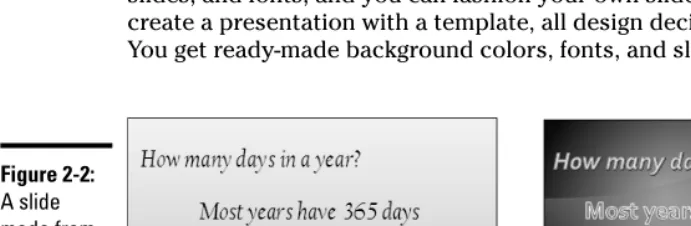
Figure 2-2 shows a slide created from the blank presentation (left) and a slide created from a template (right). Notice that the blank-presentation slide isn’t really “blank.” As Book II, Chapter 3 explains, you can redesign a blank pres-entation very easily. You can choose a theme, a background color for the slides, and fonts, and you can fashion your own slide layouts. When you create a presentation with a template, all design decisions are made for you. You get ready-made background colors, fonts, and slide layouts.
Deciding between the blank presentation
and a template
Templates are a mixed blessing. They’re designed by artists and they look very good. Some templates come with boilerplate text— already written material that you can recycle into your presentation. However, presentations made from templates are harder to modify. Sometimes the design gets in the way. A loud or intricate background may overwhelm the diagram or chart you want to put on a slide. For example, the clip-art image on the blank-presentation slide in Figure 2-2 would look out of place on the template slide because the image and the template background are incompatible.
Starting from the blank presentation means doing the design work on your own, although, as I mentioned earlier, designing presentations isn’t as hard as most people think because you can choose ready-made themes and back-ground styles for a blank presentation. Sometimes simpler is better. By start-ing from a blank presentation, you aren’t locked into someone else’s design choices, and you have more creative opportunities.
The difference between a template and the blank presentation is similar to the difference between a tract house and a house you build on your own. Figure 2-2:
Book I Chapter 2
PowerPoint
Nuts and Bolts
Creating a New Presentation
19
Buying the tract house is less work. You can move right in. But if you build a custom house, you can build it to your taste and specifications, and it’s unique. No one has a house quite like yours. Your house looks different from the neighbors’ houses.
Creating a blank presentation
PowerPoint shows you a blank presentation each time you open the pro-gram. You can save this presentation and start to work or, if you’re working on another presentation already and you want to create a new, blank presen-tation, you can follow these steps to create it:
1.
Click the Office button.2.
Choose New on the drop-down list.You see the New Presentation dialog box, shown in Figure 2-3.
3.
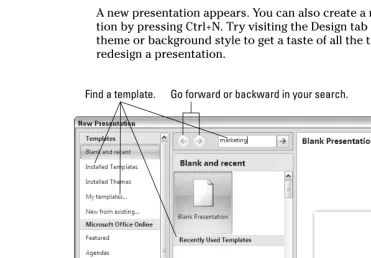
Double-click Blank Presentation.A new presentation appears. You can also create a new blank presenta-tion by pressing Ctrl+N. Try visiting the Design tab and choosing a theme or background style to get a taste of all the things you can do to redesign a presentation.
Find a template. Go forward or backward in your search.
Creating a New Presentation
20
Creating a presentation from a template
The New Presentation dialog box (refer to Figure 2-3) offers many opportuni-ties for finding a suitable template. To open this dialog box, click the Office button and choose New on the drop-down list.
As you employ the following techniques to find a template, remember that you can click the Back or Forward button in the dialog box to retreat and advance during your search. Here are all the ways to search for a template in the New Presentation dialog box:
✦ Use a template on your computer:Click Installed Templates (you’ll find this button in the upper-left corner of the dialog box. Templates that you loaded on your computer when you installed PowerPoint appear in the dialog box. Double-click a template to create a presentation.
✦ Search online at Microsoft:Make sure your computer is connected to the Internet, enter a search term in the Search box, and click the Start Searching button. For example, enter “marketing” to search for tem-plates suitable for presentations about marketing products. Temtem-plates appear in the dialog box. Click a template to examine it. Double-click a template to download and use it to create a presentation.
✦ Use a template you created (or downloaded earlier from Microsoft): Double-click the My Templates button. The New Presentation dialog box appears. Select a template and click OK. (Book VII, Chapter 2 explains how to create your own templates.)
The middle of the New Presentation dialog box lists templates and presenta-tions you recently worked on. Double-click a template name in the middle of the dialog box if you want to use a template listed there to create your newest masterpiece.
Starting from another presentation
If you can use another presentation as the starting point for creating a new presentation, more power to you. With the New from Existing command, you can nab slides from another presentation and make them the foundation for a new one. Follow these steps to commandeer another presentation:
1.
Click the Office button and choose New on the drop-down list. You see the New Presentation dialog box (refer to Figure 2-3).2.
Click the New from Existing button.Book I Chapter 2
PowerPoint
Nuts and Bolts
Creating a New Presentation
21
3.
Locate and select the presentation whose slides and design you covet.4.
Click the Create New button.I hope you shoplifted that presentation from yourself, not from a con-venience store.
Swapping one template for another
Suppose you decide on the blank presentation or a certain template when you create a pres-entation, but you regret your decision. You want a different template. As long as you already created a presentation with the template you want, you can impose its template design on your presentation. If necessary, create a pres-entation using the template you want, and then follow these steps to swap another presenta-tion’s template for your presentapresenta-tion’s template:
1. Select the last slide in your presentation. 2. On the Home tab, open the drop-down menu on the New Slide button and choose Reuse Slides.
The Reuse Slides task pane appears.
3. Click the Browse button and choose Browse File on the drop-down list.
You see the Browse dialog box.
4. Locate and select the presentation with the template you want; then click the Open button.
Slides from the presentation appear in the Reuse Slides task pane.
5. Click the Keep Source Formatting check box.
You can find this check box at the bottom of the Reuse Slides task pane.
6. Right-click a slide in the task pane and choose Insert All Slides on the shortcut menu.
All slides from the other presentation arrive in your presentation with their formatting intact.
7. Click the View tab.
8. Click the Slide Master button.
You land in Slide Master view. Book II, Chapter 2 explains what master slides are and how you can use them to format slides.
9. Scroll to the top of the Slides pane, right-click the first slide (the Slide Master), and choose Delete Master on the shortcut menu.
All the slides take on the formatting of the new Slide Master.
10. Click the Close Master View button on the Slide Master tab to leave Slide Master view.
Saving Your Presentation Files
22
Saving Your Presentation Files
Soon after you create a new presentation, be sure to save it. And save your presentation from time to time as you work on it as well. Until you save your work, it rests in the computer’s electronic memory (RAM), a precarious loca-tion. If a power outage occurs or your computer stalls, you lose all the work you did since the last time you saved your presentation. Make it a habit to save files every ten minutes or so or when you complete an important task.
To save a presentation, do one of the following:
✦ Click the Save button.
✦ Press Ctrl+S.
✦ Click the Office button and choose Save on the drop-down list.
I wish that saving were just a matter of clicking the Save button, but saving your work also entails telling PowerPoint where you prefer to save presenta-tions. It also means saving presentations for use in earlier versions of Power-Point as necessary, and saving AutoRecovery files. Better read on.
Telling PowerPoint where you
like to save presentations
When you attempt to save a presentation for the first time in the Save As dialog box, PowerPoint shows you the contents of the My Documents folder (in Windows XP) or the Document folder (in Windows Vista) on the assumption that you keep most of your presentations in that folder. The My Documents folder is the center of the universe as far as PowerPoint is concerned, but perhaps you keep the majority of your presentations in a different folder. How would you like to see your favorite folder first in the Save As and Open dialog boxes?
To direct PowerPoint to the folder you like best and make that folder’s name appear first in the Save As and Open dialog boxes, follow these steps:
1.
Click the Office button and choose PowerPoint Options on the drop-down list.You see the PowerPoint Options dialog box.
2.
Select the Save category.Figure 2-4 shows the topmost options in this category.
Book I Chapter 2
PowerPoint
Nuts and Bolts
Saving Your Presentation Files
23
For example, if you are fond of keeping presentations in the My Stuff folder on the C drive of your computer, enter C:\My Stuff.
4.
Click OK.Saving presentations for use in
earlier versions of PowerPoint
Not everyone is a proud owner of Microsoft Office PowerPoint 2007. Before you pass along a document to a co-worker who has an earlier version of PowerPoint, save your document so that your co-worker can open it. Presen-tations are stored in the XML format in PowerPoint 2007 (later in this chap-ter, “Understanding the New PowerPoint XML Format” explains XML). Unless you save your document for earlier versions of PowerPoint, people who don’t have the latest version can’t open them.
Saving a presentation for use in PowerPoint 97–2003
Follow these steps to save a presentation so that someone with PowerPoint 97, 2000, 2002, or 2003 can open it:
1.
Click the Office button.2.
Choose Save As➪PowerPoint 97-2003 Format. You see the Save As dialog box.3.
Enter a new name for the presentation, if necessary.4.
Click the Save button.Presentations saved in the PowerPoint 97–2003 format have the .ppt, not the .pptx, file extension.
Saving Your Presentation Files
24
Saving presentations for earlier versions of PowerPoint by default
If you’re way ahead of the pack and you always have to save PowerPoint pre-sentations in a different format so that co-workers can open them, make the dif-ferent format the default format for saving all your presentations. That way, you don’t have to choose a new format whenever you pass off a file to a co-worker.
Follow these steps to change the default format for saving presentations:
1.
Click the Office button and choose PowerPoint Options on the drop-down list.The PowerPoint Options dialog box appears.
2.
Select the Save category (refer to Figure 2-4).3.
In the Save Files in This Format drop-down list, choose PowerPoint Presentation 97–2003.4.
Click OK.Remember that you made PowerPoint 97–2003 the default format for saving presentation files. Someday soon, your co-workers will catch up with you. They will acquire PowerPoint 2007. And when that happens, return to the PowerPoint Options dialog box and choose PowerPoint Presentation in the Save Files in This Format drop-down list.
Converting PowerPoint 97–2003
presentations to 2007
When you open a presentation made in an ear-lier version of PowerPoint, the program switches to compatibility mode. PowerPoint 2007 shuts down features that weren’t a part of earlier ver-sions of PowerPoint to accommodate the pres-entation. You can tell when PowerPoint is in compatibility mode because the words “com-patibility mode” appear in the title bar next to the presentation’s name.
Follow these steps to convert a 97–2003 pres-entation for use in PowerPoint 2007:
1. Open the presentation file.
2. Click the Office button and choose Convert on the drop-down list.
A dialog box informs you what converting means.
Book I Chapter 2
PowerPoint
Nuts and Bolts
Saving Your Presentation Files
25
Saving “AutoRecovery information”
To insure against computer and power failures, PowerPoint saves presenta-tions in the background every 10 minutes. These presentapresenta-tions are saved in AutoRecoveryfiles. After your computer fails, you can try to recover some of the work you lost by getting it from the AutoRecovery file (see the sidebar “When disaster strikes!”).
When disaster strikes!
After your computer fails and you restart PowerPoint, you see the Document Recovery task pane with a list of files that were open when the failure occurred:
AutoSaved files are files that PowerPoint saved as part of its AutoRecovery procedure (see “Saving ‘AutoRecovery information’”).
Original files are files that you saved by clicking the Save button.
The Document Recovery task pane tells you when each file was saved. By studying the time listings, you can tell which version of a presentation — the AutoRecovery file or the file you saved — is most up-to-date.
Open the drop-down list for a presentation and select one of these options:
Open:Opens the presentation so that you can examine it. If you want to keep it, click the Save button.
Save As:Opens the Save As dialog box so that you can save the presentation under a different name. Choose this command to keep a copy of the recovered file on hand in case you need it.
Delete:Deletes the AutoRecovery file (this command is available with AutoRecovery files, not files that you saved on your own).
Opening and Closing Presentations
26
PowerPoint saves AutoRecovery files every 10 minutes, but if you want the program to save the files more or less frequently, you can change the Auto-Recovery setting. “AutoRecovering” taxes a computer’s memory. If your computer is sluggish, consider making AutoRecovery files at intervals longer than 10 minutes; if your computer fails often and you’re worried about losing data, make AutoRecovery files more frequently.
Follow these steps to tell PowerPoint how often to save data in an AutoRecovery file:
1.
Click the Office button and choose PowerPoint Options on the drop-down list.The PowerPoint Options dialog box appears.
2.
Click the Save category (refer to Figure 2-4).3.
Enter a Minutes setting in the Save AutoRecovery Information Every xx Minutes box.4.
Click OK.Opening and Closing Presentations
To get to work on a presentation, you have to open it first. And, of course, you close a presentation when you’re finished working on it and want to carry on normal activities. These pages explain all the intricate details of opening and closing presentations. In these pages, you will find many tips for finding and opening the presentation you want to work on.
Opening a presentation
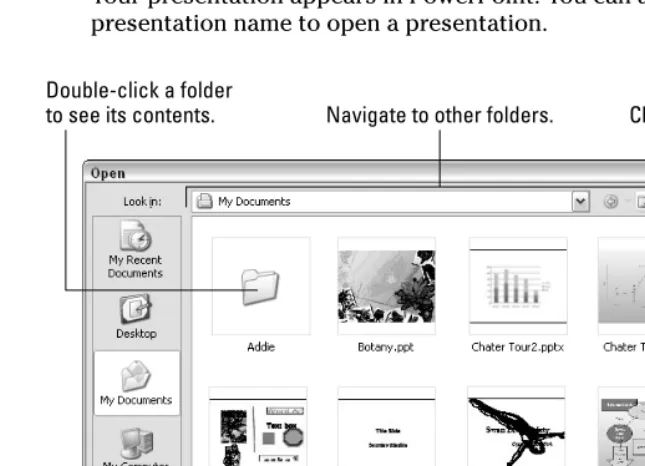
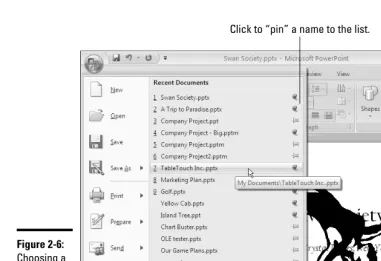
PowerPoint a