STOCK # 151942
MATWorX™ 32
User’s Guide
December, 1997
NEC America, Inc. reserves the right to change the specifications, functions, or features, at any time, without notice. NEC America, Inc. has prepared this document for the exclusive use of its employees and customers. The information contained herein is the property of NEC America, Inc. and shall not be reproduced without prior written approval from NEC America, Inc.
NEAX, MATWorX, DESIWorX, and Dterm are registered trademarks of NEC Corporation.
Copyright 1997 NEC America, Inc.
Printed in the USA
All other brand or product names are or may be trademarks or registered trademarks of, and are used to identify products or services of, their respective owners.
NEAX2000 IVS
MATWorX 32 User’s Guide
Table of Contents
Page
Chapter 1 About This Guide ... 1
Purpose of This Guide ... 1
How This Guide is Organized ... 1
Chapter 2 MATWorX 32 Overview ... 5
What’s MATWorX 32? ... 5
MATWorX 32 Tools ... 6
Add-Ins ... 6
MACH Script Editor ... 6
PBX Configuration Wizard ... 6
MATWorX 32 Applications ... 7
PBX Access Module (PAM) ... 7
Scheduler ... 7
DESIWorX ... 7
Introduction to Working in Windows 95... 8
Navigating Through the MATWorX 32 Taskbar ... 8
PBX Menu ... 9
System Menu... 9
Station Menu ... 10
Number Plan Menu... 10
Trunk Menu ... 10
Features Menu ... 10
Add-Ins Menu ... 11
Applications Menu ... 11
Help Menu ... 12
Working with MATWorX 32 Dialogs and Buttons... 13
Printing a Report... 17
Chapter 3 Installing MATWorX 32 ... 19
System Requirements ... 19
Page
Chapter 4 Getting Started ... 27
Starting MATWorX 32 ... 27
Connecting to a NEAX2000 IVS PBX ... 29
Using the PBX Configuration Wizard . 29 Establishing the Connection ... 30
Troubleshooting a Failed Connection 31 Disconnecting from the PBX ... 35
Exiting MATWorX 32 ... 35
Chapter 5 PBX Access Module (PAM)... 37
What’s the PAM? ... 37
PAM Communication Overview... 38
PAM Online Help ... 39
Accessing PAM Online Help ... 40
Chapter 6 Add-Ins ... 41
What’s an Add-In?... 41
Four Categories of Add-Ins ... 42
Features... 42
Enhanced Features ... 42
Commands ... 43
Wizards ... 43
Installing an Add-In ... 44
Starting an Add-In ... 45
Removing an Add-In ... 45
Add-In Online Help... 47
Chapter 7 MACH Script Editor ... 49
What’s the MACH Script Editor? ... 49
Starting the MACH Script Editor ... 50
MACH Script Editor Online Help ... 50
Chapter 8 Scheduler ... 51
What’s a Scheduler? ... 51
Starting the Scheduler ... 52
Scheduler Online Help ... 52
Page
Chapter 9 DESIWorX ... 55
What’s DESIWorX?... 55
Starting DESIWorX ... 56
DESIWorX Online Help... 56
Accessing DESIWorX Online Help .... 56
Chapter 10 MATWorX 32 Online Help ... 57
Online Help Features ... 57
Accessing the Online Help System... 57
Main Help Contents ... 58
Dialog-level Help ... 58
What’s This? Help ... 58
Tool Tips ... 58
Printing Help Topics ... 59
Tip:... 59
Appendix A Extended Command Set... 61
Appendix B Error Codes ... 65
Series 100 Error Codes ... 65
Series 200 Error Codes (currently not implemented) ... 66
Series 300 Error Codes ... 67
Series 400 Error Codes ... 69
Figure Title Page
Figure 2-1 MATWorX 32 Taskbar ...9
Figure 2-2 Print Preview Dialog ...17
Figure 3-1 Run Dialog ...21
Figure 3-2 MATWorX Install Dialog ...21
Figure 3-3 Welcome Dialog ...22
Figure 3-4 Software License Agreement ...22
Figure 3-5 Readme Information Dialog ...23
Figure 3-6 Choose Destination Location Dialog ....23
Figure 3-7 Select Program Folder Dialog ...24
Figure 3-8 Start Copying Files Dialog ...24
Figure 3-9 Setup Progress Windows ...25
Figure 3-10 Setup Complete Dialog ...25
Figure 4-1 Starting MATWorX 32 ...27
Figure 4-2 User Information Dialog ...28
Figure 4-3 MATWorX 32 Taskbar ...28
Figure 4-4 PBX Configuration Wizard Dialog ...30
Figure 4-5 Connection to PBX Dialog ...30
Figure 4-6 Disconnect from PBX Dialog ...35
Figure 4-7 MATWorX 32 Taskbar ...35
Figure 5-1 PAM Dialog ...37
Figure 5-2 PAM Communication Flow ...39
Figure 6-1 Feature Add-Ins ...42
Figure 6-2 Enhanced Feature Add-Ins ...42
Figure 6-3 Command Add-Ins ...43
Figure 6-4 Wizard Add-Ins ...43
Figure 6-5 Add-Ins Manager Dialog ...44
Figure 6-6 Add-Ins Components Dialog ...44
Figure 6-7 Add-In Installed Dialog ...45
Figure 6-8 Add-Ins Manager Dialog ...46
Figure 6-9 Add-In Removed Dialog ...46
Figure 7-1 MACH Script Editor Dialog ...49
Figure 8-1 Scheduler Dialog ...51
Figure 9-1 DESIWorX Dialog ...55
Figure Title Page
Chapter 1
About This Guide
Purpose of This Guide
This user guide contains useful information that will help you successfully install and use the MATWorX 32 program. Included are highlights about many key features of the program including the MATWorX 32 Taskbar, PBX Access Module (PAM), Add-Ins, PBX Configuration Wizard, MACH Script Editor,
Scheduler, DESIWorX, Extended Command Set, Error Codes, and the Online Help System. This guide is designed to be a supplement to the MATWorX 32 online Help system. The Help system provides context-sensitive information and procedures that will help you perform tasks using MATWorX 32. Refer to Chapter 10 “MATWorX 32 Online Help” for more information about the Help system and how to access it.
How This Guide is Organized
The MATWorX 32 User’s Guide is divided into the following chapters:
◆ MATWorX 32 Overview describes the MATWorX 32 program, its features, buttons, Taskbar selections, Add-Ins, and application tools. ◆ Installing MATWorX 32 describes the necessary
hardware (computer equipment) required to efficiently run the MATWorX 32 program as well as procedures for installing MATWorX 32 on your computer’s hard disk.
◆ PBX Access Module (PAM) describes the process of how MATWorX 32 applications communicate with the PBX via the PAM. The PAM is a gateway for 32-bit Microsoft Windows applications to connect to the NEAX2000 IVS PBX.
◆ Add-Ins describes the concept of Add-Ins, including what they are and how they work, as well as how to add and remove them. Add-Ins are the basic tools of MATWorX 32. Users can also create custom Add-Ins for specialized business solutions by purchasing a developer’s kit from NEC or an authorized NEC dealer.
◆ MACH Script Editor describes the concept and operation of the MOC Accelerated Command Heap (MACH) window. This window is a separate and powerful tool that is integrated into the MATWorX 32 software. It is similar to working with the Maintenance Operation Console (MOC), but provides much more functionality by enabling you to create a list of NEAX2000 IVS commands (a script) which you can save and run at any time. ◆ Scheduler describes the features and operations of
the Scheduler application. Using the Scheduler, you can build a series of MOC commands and save them in a script. Then you can simply run the script instead of manually typing them each time you need them. You can also schedule the script to run at certain times during a day, week, or month. You can build complex scripts that can modify NEAX2000 IVS behavior at scheduled times. ◆ DESIWorX describes the features and operations
◆ MATWorX 32 Online Help describes the online Help system in detail as well as how to access it and print Help topics.
◆ Appendix A lists the Extended Command Set that you can use in conjunction with the MACH Script Editor window. The Extended Command Set characters are modifiers you type in front of a NEAX2000 IVS command on the MACH Script Editor window. Using Extended Commands can greatly reduce the number of commands needed to perform certain tasks.
◆ Appendix B lists the error codes and related descriptions for the entire MATWorX 32 program. ◆ Appendix C describes the directory structure, files,
Chapter 2
MATWorX 32 Overview
In this chapter you learn about the following: ◆ What’s MATWorX 32?
◆ MATWorX 32 Tools ◆ MATWorX 32 Applications
◆ Introduction to Working in Windows 95 ◆ Navigating through the MATWorX 32 Taskbar ◆ Working with MATWorX 32 dialogs and buttons ◆ Printing a report
What’s MATWorX 32?
MATWorX 32 is a 32-bit Windows-based software application that enables you to program and maintain an unlimited number of NEAX2000 IVS PBXs via your computer. MATWorX 32 utilizes a client/server architecture that allows multiple dialogs (Add-Ins) to communicate with a PBX. You can connect to and program up to four PBXs at the same time. MATWorX 32 provides a graphical user interface (GUI) to a NEAX2000 IVS. This design lets you navigate quickly and intuitively throughout the program, thus saving you valuable time with your PBX maintenance tasks.
MATWorX 32 Tools
There are three kinds of tools included in the MATWorX 32 program: Add-Ins, MACH Script Editor, and a PBX Configuration Wizard. These tools are accessible from the Taskbar.
Add-Ins
Add-Ins are the basic tools of MATWorX 32. Each one provides you with specialized capabilities to program PBX features and functions. MATWorX 32 comes with more than a dozen Add-Ins that can be accessed from the Taskbar. In addition, you can also create custom Add-Ins for specialized business solutions by purchasing a developer’s kit from NEC or an authorized NEC dealer. Refer to Chapter 6 “Add-Ins” for more information.
MACH Script Editor
This is a powerful time-saving tool that enables you to create a list of NEAX2000 IVS commands that perform tasks in the PBX. This list is referred to as a script, which can be saved and run at anytime.You can also use the MACH Script Editor to perform many other operations. Refer to Chapter 7 “MACH Script Editor” for more information.
PBX Configuration Wizard
The PBX Configuration Wizard is a custom tool in MATWorX 32 that enables you to establish the proper communication settings between your computer and the NEAX2000 IVS. The Wizard asks you simple questions and then uses the information to
MATWorX 32 Applications
MATWorX 32 software includes three separate applications that can run independently from one another. However, when used in conjunction with MATWorX 32 or each other, these applications provide a robust suite of PBX maintenance applications.
PBX Access Module (PAM)
The PAM acts as a gateway between MATWorX 32 tools and connected NEAX2000 IVS PBXs. It provides connection and communication links for programming the PBX. Refer to Chapter 5 “PBX Access Module (PAM)” for more information. Scheduler
The Scheduler is a versatile application that can be used stand-alone or in conjunction with the MACH Script Editor. You can build and schedule scripts (series of MOC commands) all within the Scheduler, or you can build scripts using the MACH Script Editor and then schedule them to run using the Scheduler. Refer to Chapter 8 “Scheduler” for more information. DESIWorX
Introduction to Working in Windows 95
If you are new to working in Windows 95 or would like a refresher on Windows terminology, functions, and navigational procedures, take a minute to access the Microsoft Windows Tutorial Tour by following the steps below.
1. Launch Microsoft Windows 95 on your computer.
2. Select Help from the Start taskbar.
3. Select Tour: Ten Minutes to Using Windows under the Contents tab.
4. Follow the instructions on your screen.
Navigating Through the MATWorX 32 Taskbar
The MATWorX 32 Taskbar (Figure 2-1) is the main window of the program. It contains buttons and pull-down menus listing the selections available in the program. Each button or menu selection provides access to the tools and applications available in the program. To activate a selection, click on it. The Taskbar offers dynamic functionality to the program by allowing you to change it based on the Add-Ins you want to use. For example, by default each Add-In appears as a menu item and a button on the Taskbar. If you remove an Add-In from the Taskbar (via the Add-In Manager), it will no longer display as a menu item or button. If you choose to add it back, it will re-appear on the Taskbar.
Note: Some menu items (Add-In Manager, Help Contents F1, and About MATWorX 32) do not have a corresponding button. These items are accessible only from the pull-down menus.
Figure 2-1 MATWorX 32 Taskbar
PBX Menu
Connect - Select this menu item to access the Connection to PBX dialog where you can select a PBX from a list of available PBXs and connect to it.
You can also click the Connect to PBX button to select a PBX from a list of available PBXs and connect to it.
Disconnect - Select this menu item to access the Disconnect from PBX dialog where you can disconnect from the current PBX.
You can also click the Disconnect from PBX button to disconnect from the current PBX.
System Menu
The System Menu is a dynamic menu that contains system-related Add-Ins. For information about a particular System Add-In, access the online Help for that Add-In.
Station Menu
The Station Menu is a dynamic menu that contains station-related Add-Ins. For information about a particular Station Add-In, access the online Help for that Add-In.
You can also click the Station Tool Palette button to display a floating palette of buttons that can launch station-related Add-Ins.
Number Plan Menu
The Number Plan Menu is a dynamic menu that contains number plan-related Add-Ins. For
information about a particular Number Plan Add-In, access the online Help for that Add-In.
You can also click the Numbering Plan Tool Palette button to display a floating palette of buttons that can launch number plan-related Add-Ins.
Trunk Menu
The Trunk Menu is a dynamic menu that contains trunk-related Add-Ins. For information about a particular Trunk Add-In, access the online Help for that Add-In.
You can also click the Trunk Tool Palette button to display a floating palette of buttons that can launch trunk-related Add-Ins.
Features Menu
You can also click the Features Tool Palette button to display a floating palette of buttons that can launch feature-related Add-Ins.
Add-Ins Menu
Add-In Manager - Select this menu item to access the Add-Ins Manager dialog where you can add and remove Add-Ins to/from the MATWorX 32 Taskbar. Refer to Chapter 6 “Add-Ins” for more information. Active Add-Ins - Select this menu item to display a sub-menu that lists all currently active Add-Ins. Also, you can choose to “show all”, “hide all”, and “unload all” active Add-Ins.
Applications Menu
MACH Script Editor - Select this menu item to access the MACH Script Editor dialog where you can create and save a list (script) of NEAX2000 IVS commands to perform tasks in the PBX. You can also use the MACH Script Editor to perform many other
operations. Refer to Chapter 7 “MACH Script Editor” for more information.
You can also click the MACH Script Editor button to access the MACH Script Editor dialog. Scheduler - Select this menu item to access the MATWorX 32 Scheduler dialog where you can build and schedule scripts. You can also use the MACH Script Editor to build scripts and then schedule them to run using the Scheduler. Refer to Chapter 8
“Scheduler” for more information.
DESIWorX - Select this menu item to access the DESIWorX dialog where you can create and print function key labels for your Dterm stations. The labels are saved in a database and can be modified and printed when necessary. Refer to Chapter 9 “DESIWorX” for more information.
You can also click the DESIWorX button to access the DESIWorX dialog.
Configuration Wizard - Select this menu item to access the PBX Configuration Wizard where you can establish the proper communication settings between your computer and the NEAX2000 IVS. The Wizard asks you simple questions and then uses the
information to automatically configure the connection for the PC and the PBX. Refer to “Using the PBX Configuration Wizard” on page 29 for more information on accessing and using the PBX Configuration Wizard.
You can also click the Configuration Wizard button to access the PBX Configuration Wizard. Help Menu
Help Contents F1 - Select this menu item to access the main contents page of the MATWorX 32 online Help system. The Help system provides you with easy access to information about procedures, tools, Add-Ins, commands, values, and shortcuts.
Tip of the Day - Select this menu item to display an informative tip about using MATWorX 32 and related tools and applications.
Command Manual - Select this menu item to launch Adobe Acrobat Reader (included with MATWorX 32) and automatically open the NEAX2000 IVS
Command Manual.
You can also click the Acrobat Reader button to launch Adobe Acrobat Reader and automatically display a menu where you can select and open the MATWorX 32 User’s Guide, NEAX2000 IVS Command Manual, Help on Using Acrobat Reader, and NEC’s Copyright Notice.
Working with MATWorX 32 Dialogs and Buttons
The dialogs within MATWorX 32 enable you to perform various functions in order to program a NEAX2000 IVS PBX. Many dialogs contain buttons, fields, boxes, and other options that are described within this guide.
You are able to move each MATWorX 32 dialog by placing your cursor on the title bar and holding down your left mouse button, dragging the dialog to its new position, and releasing the mouse button. In addition, you are able to resize many of the MATWorX 32 dialogs and Help windows by placing your cursor on the outside border of the dialog, and once you see double arrows, holding down your left mouse button and dragging the border to its new size. Refer to “Introduction to Working in Windows 95” on page 8 for more information about basic Windows concepts. The following buttons appear on various dialogs within MATWorX 32. You can view What’s This? Help for all active buttons in the program by clicking your right mouse button while positioned over the button in question. Listed below is a description and function of each button.
Clicking the What’s This? button enables you to click on a field or button in a dialog to display What’s This Help for the item.
Clicking the OK button saves changes and closes the dialog.
Clicking the Lookup Data button replaces the listed data with the most current data contained in the PBX.
Clicking the Cancel Data button stops the lookup process. Data replaced during the lookup process will remain changed.
Clicking the Update Data button saves the changes on the dialog to the PBX.
Clicking the Hide Dialog button hides the Add-In dialog from view, but leaves it loaded in your PC’s memory so it can appear quickly if you launch it again. All data is retained until you close the dialog.
Clicking the Print Data button launches the Print Preview dialog where you can preview a report before printing. You can then click the Print Data button to print the displayed data to your default printer.
Clicking the Export button on the Print Preview dialog enables you to save and export the displayed report to a file.
Clicking the Email button on the Print Preview dialog enables you to email the report directly from MATWorX 32 if your email system supports MAPI.
Clicking the Delete Data button clears the displayed data on the dialog. It does not clear the data from the PBX.
Clicking the Add button enables you to add an Add-In to the MATWorX 32 Taskbar. Refer to Chapter 6 “Add-Ins” for more information.
Clicking the Remove button enables you to remove an Add-In from the MATWorX 32 Taskbar. Refer to Chapter 6 “Add-Ins” for more information.
Clicking the Clear Grid button completely clears the displayed grid, but does not delete the information from the database.
Clicking the Reset PBX button resets the PBX. A PBX reset is required before an update can take effect. Note, if you reset the PBX, all existing call connections will end. Also, if you are connected to the PBX through a direct connection, your connection will be lost, but will be automatically reconnected.
Clicking the Close button disregards any changes not already sent to the PBX and closes the dialog.
Clicking the PBX Configuration Wizard button launches the wizard.
Printing a Report
The MACH Script Editor, Scheduler, and several Add-Ins enable you to print reports and listup data by clicking the Print Data button. The Print Preview dialog (Figure 2-2) automatically displays so you can preview the report before printing.
Figure 2-2 Print Preview Dialog
You can use the Print Preview dialog to:
◆ Print the displayed report by clicking the Print Data button.
◆ Zoom in and out on the report by clicking the Zoom button.
◆ Save and export the displayed report to a file. ◆ Email the report directly from within
Chapter 3
Installing MATWorX 32
In this chapter you learn about the following: ◆ MATWorX 32 hardware and software “system”
requirements
◆ MATWorX 32 installation instructions for Windows 95 and NT 4.0 or higher
System Requirements
MATWorX 32 requires an IBM or compatible PC running Microsoft Windows 95 or NT 4.0 or higher and a NEAX2000 IVS PBX with 1000 series software or higher.
Table 3-1 System Requirements Minimum Requirements Recommended
486/66MHz processor Pentium 166MHz processor
16MB RAM for Windows 95 32MB RAM for Windows NT
32MB RAM
50MB available hard-disk space before installation
75MB available hard-disk space or more before installation
SVGA monitor with 800 x 600 resolution
15” or larger SVGA monitor with 1024 x 768 resolution
CD-ROM drive
Valid NEAX2000 IVS hardware connection (direct serial or modem)
MATWorX 32 Installation Instructions
To install MATWorX 32 for the first time, or to return to Setup later to add optional features or Help files you didn’t install the first time, you must use the
installation CD included in your MATWorX 32 package. You must run Setup from Windows. Important: Be sure to close all Windows programs
and screen savers that are running and disable any virus detection programs before using the Setup program.
The following procedure walks you through the installation of MATWorX 32. The Setup consists of a series of dialogs that supply you with default answers to questions regarding the installation of files to your hard disk. To accept the default answers, click the Next button. To make changes, click the Browse button and select a different directory, then click OK to return to the dialog box.
Note: The following procedure assumes you are starting the Setup program from your computer’s CD-ROM drive D:. If you start from a different drive, substitute the letter of that drive in this procedure.
1. Launch Microsoft Windows 95 or NT version 4.0 or higher on your computer.
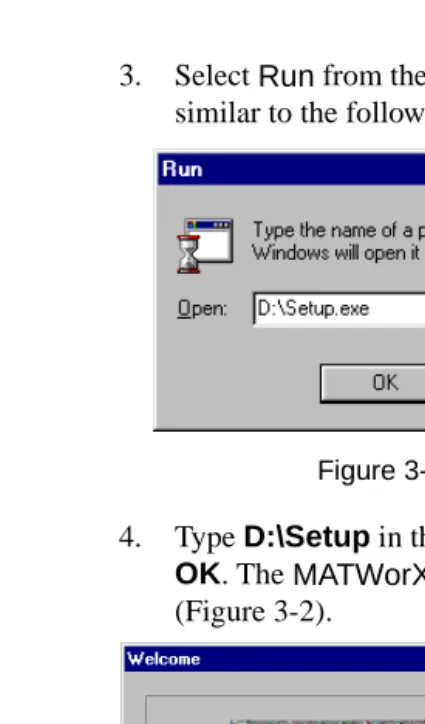
3. Select Run from the Start taskbar. A dialog similar to the following displays (Figure 3-1).
Figure 3-1 Run Dialog
4. Type D:\Setup in the Open text box and click OK. The MATWorX Install dialog displays (Figure 3-2).
5. Click Next. The Welcome dialog displays (Figure 3-3).
Figure 3-3 Welcome Dialog
6. Read the information in the Welcome dialog, then click Next. The Software License Agreement dialog displays (Figure 3-4).
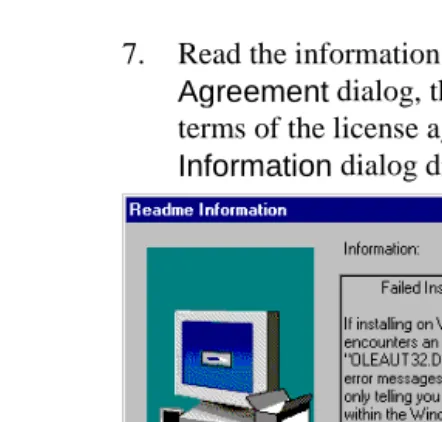
7. Read the information in the Software License Agreement dialog, then click Yes to accept the terms of the license agreement. The Readme Information dialog displays (Figure 3-5).
Figure 3-5 Readme Information Dialog
8. Read the information in the Readme Information dialog, then click Next. The Choose Destination Location dialog displays (Figure 3-6).
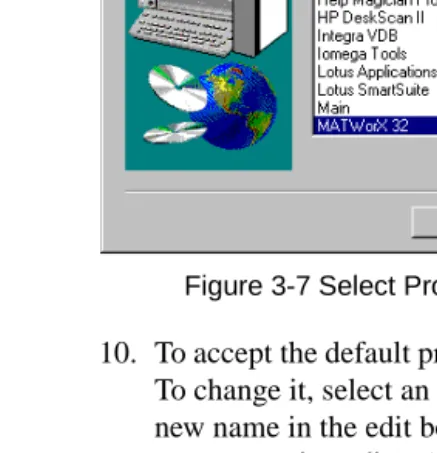
9. To accept the default destination directory, click Next. To change it, click Browse and select the desired directory, click OK, and then click Next. The Select Program Folder dialog displays (Figure 3-7).
Figure 3-7 Select Program Folder Dialog
10. To accept the default program folder, click Next. To change it, select an existing folder or type a new name in the edit box, then click Next. The Start Copying Files dialog displays (Figure 3-8) listing the settings you have established thus far.
11. To accept the settings and begin copying files to your hard disk, click Next. To change any setting, click Back to go backwards through the installation until the desired dialog displays. Then make the necessary adjustment(s) and click Next until the Setup program begins copying files to your hard disk.
The Setup Progress windows display (Figure 3-9), indicating the progress of the Setup program and the level of resources available on your computer.
Figure 3-9 Setup Progress Windows
The Setup Complete dialog displays (Figure 3-10) informing you that the Setup program has finished copying files to your hard disk.
Figure 3-10 Setup Complete Dialog
Chapter 4
Getting Started
In this chapter you learn about the following: ◆ Starting MATWorX 32
◆ Connecting to a NEAX2000 IVS PBX ◆ Exiting MATWorX 32
Starting MATWorX 32
This procedure explains how to launch MATWorX 32 each time you want to run the program.
Note: Before you can use MATWorX 32 to program a NEAX2000 IVS, you must configure a communication link between your PC and the PBX. Refer to “Connecting to a NEAX2000 IVS PBX” on page 29.
1. Launch Microsoft Windows 95 or NT 4.0 or higher on your computer.
2. Select Programs / MATWorX 32 / MATWorX 32 from the Start taskbar (Figure 4-1).
3. If you are launching MATWorX 32, DESIWorX 32, or Scheduler 32 for the first time, the User Information dialog displays (Figure 4-2).
Figure 4-2 User Information Dialog
4. Enter your Name, Company, and Product Serial Number in the appropriate text boxes, then click Next. The MATWorX 32 Taskbar displays (Figure 4-3).
Figure 4-3 MATWorX 32 Taskbar
Connecting to a NEAX2000 IVS PBX
Note: For the best performance using MATWorX 32, establish a direct communication connection from your computer to the PBX at 9600 baud. If you must use a modem connection, connect at 2400 baud.
Using the PBX Configuration Wizard
The PBX Configuration Wizard enables you to establish the proper communication settings between your computer and the NEAX2000 IVS. The Wizard asks you simple questions and then uses the
information to automatically configure the connection for the PC and the PBX.
If you have already established a connection between your computer and a PBX, you can still run the Wizard if you want to establish a connection to a different PBX. The following procedure explains how to launch the PBX Configuration Wizard.
Note: The PBX Configuration Wizard automatically starts when you click the Connect button if there are no configurations established for a PBX.
2. Select Configuration Wizard from the
Applications menu, or click the Configuration Wizard button. The PBX Configuration Wizard dialog displays (Figure 4-4).
Figure 4-4 PBX Configuration Wizard Dialog
3. Follow the instructions on your screen. Help is available for each dialog in the Wizard by clicking the Help button.
Establishing the Connection
Once you have established the communication settings between your computer and a NEAX2000 IVS, you can connect to it using MATWorX 32.
1. Launch MATWorX 32.
2. Click the Connect button on the MATWorX 32 Taskbar. The Connection to PBX dialog displays (Figure 4-5).
3. Select the PBX that you want to connect to. Click the down arrow to view all available PBXs. 4. Click the OK button.
You have now successfully connected MATWorX 32 to the PBX.
Troubleshooting a Failed Connection
The following bulleted list provides possible reasons for a failed connection between your computer and the PBX, as well as the action required to correct the problem.
◆ Have you created a hardware link between your PC and the PBX?
Yes - Go to the next bullet item.
No - MATWorX 32 will not operate properly until the hardware link is made. Linking your PC to the PBX is an important part of the PBX installation. This is different from configuring the communication settings between your PC and the PBX like what is established using the PBX Configuration Wizard. Please read the NEAX2000 IVS MAT Operation Guide for complete instructions on setting up the hardware link.
I don’t understand the question - Your PC and the PBX need to be joined by
◆ Have you entered configuration information for your PBX?
Yes - Go to the next bullet item.
No - Run the PBX Configuration Wizard to establish the proper communication settings between your computer and the PBX. I don’t understand the question - Once the hardware link is established, configuration information is necessary for the PC to connect to the PBX. For example, to dial the PBX, your PC must know the PBX's phone number. If you have not entered this data, you must do so by using the PBX Configuration Wizard.
◆ Have you run the PBX Configuration Wizard again since the connection failed?
Yes - Go to the next bullet item.
No - Run the PBX Configuration Wizard to detect any connection changes and re-establish the proper communication settings between your computer and the PBX.
I don’t understand the question - Sometimes changes occur with the connection without you knowing about them. These changes may cause the connection to fail. Many failed connections that were originally setup using the PBX Configuration Wizard can be repaired by running the Wizard again. The Wizard detects changes that have occurred since the last good connection was made. ◆ Is the failed connection a direct cable link or a
modem connection? Direct Connection
Reasons:
✓ The PC COM Port is currently in use by another application
Modem Connection
☞
No Dial ToneAction: Listen to the modem while it dials to
determine that no dial tone was present.
Reasons:
✓ PC modem's power is off (external only) ✓ PC modem's telephone line is not active or
not properly plugged in
✓ PBX configuration indicates the wrong PC COM port
✓ PBX Configuration indicates a Direct setting when the connection is really Modem ✓ External modem data cable is not properly
connected to the PC
✓ External modem data cable is defective ✓ Telephone line cable is defective
☞
No RingingAction: Listen to the modem after it dials to
determine that no ringing occurred.
Reason: Incorrect phone number (too short)
☞
Ringing followed by a voice answer or a recorded messageAction: Listen to the modem while it dials to
determine that the call was answered.
Reasons:
✓ Too many digits were entered for the phone number
✓ Incorrect digits ✓ Incorrect access code ✓ Incorrect area code
☞
Ringing, But No AnswerAction: Listen to the modem while it dials to
determine that it kept ringing.
Reasons:
✓ Incorrect phone number
✓ PBX power is off
✓ A valid station number is not assigned to the built-in PBX modem
☞
Busy SignalAction: Listen to the modem while it dials to
determine that a busy signal is received.
Reasons:
✓ Incorrect phone number
✓ PBX modem is being accessed by another user
☞
Ring and Answer, but no connect messageAction: Listen to the modem while it dials to
determine that the PBX answered. Watch for a Connect message.
Reasons:
✓ PC modem's highest speed is less than the PBX modem's speed
✓ Inappropriate initialization string
☞
Connect message, but no carrier detect messageAction: Listen to the modem while it dials to
determine that an answer was received. Watch for the Connect message, followed by the Carrier Detect message.
Reason: Possible incorrect PBX command.
Do not use PBX Command 40, YY=11, Second Data = 5.
Disconnecting from the PBX
This procedure explains how to disconnect from a PBX when you are finished working with it.
1. Click the Disconnect button on the MATWorX 32 Taskbar. The Disconnect from PBX dialog displays (Figure 4-6).
Figure 4-6 Disconnect from PBX Dialog
2. Click the OK button. MATWorX 32 disconnects from the PBX.
Exiting MATWorX 32
This procedure explains how to exit MATWorX 32 when you are finished working in the program. It is recommended to close all open MATWorX 32 Add-Ins and applications that may running before exiting the program.
1. Access the MATWorX 32 Taskbar (Figure 4-7).
Figure 4-7 MATWorX 32 Taskbar
2. Click the Exit Dialog button in the upper right corner of the dialog.
Chapter 5
PBX Access Module (PAM)
In this chapter you learn about the following: ◆ What’s the PAM?
◆ PAM Communication Overview ◆ PAM Online Help
What’s the PAM?
The PAM (Figure 5-1) is an application that acts as a gateway between MATWorX 32 tools and a
NEAX2000 IVS PBX. It provides connection and communication links for programming the PBX. When you start MATWorX 32, the PAM
automatically starts. Then, when MATWorX 32 tools need access to the PBX, they send Maintenance Operation Console (MOC) commands to the PAM. This operation is transparent to the user. It is not necessary for you to manually use the PAM. However, you can use its features if you are familiar with the PBX's MOC mode, and you want more control at the MOC level.
You can use the PAM to:
◆ Modify a dial-up profile (PBX configuration) for each PBX you access. Use the PBX Configuration Wizard to create dial-up profile.
◆ Connect to and disconnect from available PBXs. However, when using MATWorX 32 the recommended way to do this is with the PBX Connect and PBX Disconnect buttons on the MATWorX 32 Taskbar.
◆ View a real-time log of the transactions between the PAM and the PBX.
◆ Send any of the NEAX2000 IVS PBX commands to the PBX.
PAM Communication Overview
The PAM provides an Application Programming Interface (API) that:
◆ Provides high-level Object Linking and
Embedding (OLE) commands that can be used by Windows-based applications, such as MATWorX 32 tools, to retrieve and program PBX data. ◆ Ensures all OLE client applications yield enough
Figure 5-2 represents the communication flow between MATWorX 32 tools, the PAM, and the PBX.
Figure 5-2 PAM Communication Flow
PAM Online Help
Accessing PAM Online Help
There are several ways to access and use the PAM online Help system.
◆ To access the main Help contents, select Help Contents F1 from the Help menu on the PAM menu bar. You can also access the main Help contents by selecting Programs / MATWorX 32 / PAM Help from the Start taskbar.
◆ To display Help for the current PAM dialog, press F1.
◆ To display What’s This? Help, click the What’s This? button on the title bar of the dialog, then click on a field or button to display a pop-up description of the field or button.
◆ To display What’s This? Help, position your cursor over a field or button and click your right mouse button to display the What’s This? floating menu.
Then click on the floating menu to display the pop-up description of the field or button.
Chapter 6
Add-Ins
In this chapter you learn about the following: ◆ What’s an Add-In?
◆ Four categories of Add-Ins ◆ Installing an Add-In ◆ Starting an Add-In? ◆ Removing an Add-In ◆ Add-In Online Help
What’s an Add-In?
Add-Ins are the basic tools of MATWorX 32. Each one acts like a separate application by providing you with specialized capabilities to program PBX features and functions. Using Add-Ins, you can program a PBX with information like station and trunk assignments, numbering plan data, and caller ID to name a few. MATWorX 32 comes with several Add-Ins that can be accessed from the Taskbar. You can run multiple Add-Ins at the same time. In addition, you can create custom Add-Ins for specialized business solutions by purchasing a developer’s kit from NEC or an authorized NEC dealer.
Four Categories of Add-Ins
Features
Feature Add-Ins (Figure 6-1) simplify PBX return values by translating them from an encrypted code into a meaningful message. Software ID and Display Issue are two examples of this type of Add-In.
Figure 6-1 Feature Add-Ins
Enhanced Features
Enhanced Feature Add-Ins (Figure 6-2) use one or more related commands to setup a specific task or feature within the PBX. For example, the Caller ID Add-In uses multiple commands such as command 30, 09, 05, 06, 08, etc. to setup this enhanced feature in the PBX.
Commands
Command Add-Ins (Figure 6-3) enable you to setup data within the PBX for one particular command. For example, Trunk Data and Trunk Route Add-Ins represent commands 30 and 35, respectively.
Figure 6-3 Command Add-Ins
Wizards
Wizard Add-Ins (Figure 6-4) provide a simple way to perform difficult tasks by walking you through a series of questions in an automated process. The answers are then used by the program to perform the task. For example, the PBX Configuration Wizard automatically configures the communication connection between the PC and the PBX.
Installing an Add-In
The following procedure explains how to install an existing Add-In to the MATWorX 32 program so you can access it from the Taskbar. By default, all Add-Ins are installed and accessible from the Taskbar. Unless you remove an Add-In, you will not need to perform this procedure.
1. Access the MATWorX 32 Taskbar. 2. From the Add-Ins menu, select Add-In
Manager. The Add-Ins Manager dialog displays (Figure 6-5).
Figure 6-5 Add-Ins Manager Dialog
4. Select the Add-In you want to install and click Open. The Notice dialog displays (Figure 6-7) informing you that the Add-In has been successfully registered (installed).
Figure 6-7 Add-In Installed Dialog
5. Click OK. The Add-Ins Manager dialog re-displays with the Add-In included in the list of current Add-In modules. Notice that the Add-In also appears under the appropriate menu item and tool palette (button) on the Taskbar.
You have now successfully installed an Add-In.
Starting an Add-In
Add-Ins are accessed and run from the MATWorX 32 Taskbar. Simply select one from a pull-down menu or click on a tool palette (button) to open it, then select the appropriate Add-In.
Removing an Add-In
The following procedure explains how to remove an existing Add-In from the MATWorX 32 Taskbar. By default, all Add-Ins are installed and accessible from the Taskbar. When an Add-In is removed, it is not deleted from the program, rather it is only removed from the Taskbar. It can be easily added back with just a few clicks of the mouse. This way you can customize the Taskbar with only the Add-Ins that you use on a regular basis.
2. From the Add-Ins menu, select Add-In Manager. The Add-Ins Manager dialog displays (Figure 6-8).
Figure 6-8 Add-Ins Manager Dialog
3. Select the Add-In module you want to remove and click the Remove button. The Notice dialog displays (Figure 6-9) informing you that the Add-In has been successfully removed.
Figure 6-9 Add-In Removed Dialog
Add-In Online Help
This guide provides a simple overview to the features and capabilities of Add-Ins. For more detailed information, including procedures and descriptions, access the online Help for each individual Add-In. Help for Add-In dialogs is included in the MATWorX 32 online Help system. Refer to Chapter 10
Chapter 7
MACH Script Editor
In this chapter you learn about the following: ◆ What’s the MACH Script Editor? ◆ Starting the MACH Script Editor ◆ MACH Script Editor Online Help
What’s the MACH Script Editor?
The MOC Accelerated Command Heap (MACH) dialog (Figure 7-1) is a powerful time-saving tool that is integrated into MATWorX 32. It is similar to working with the Maintenance Operation Console (MOC), but provides much more functionality by enabling you to create a list of NEAX2000 IVS commands (a script) to perform tasks in the PBX. The script can be saved, printed, and run at any time.
Starting the MACH Script Editor
The following procedure explains how to access and run the MACH Script Editor from MATWorX 32. 1. Access the MATWorX 32 Taskbar.
2. From the Applications menu, select MACH Script Editor, or click the MACH Script Editor button on the button bar.
You have now successfully launched the MACH Script Editor dialog.
MACH Script Editor Online Help
This guide provides a simple overview to the features and capabilities of the MACH Script Editor. For more detailed information, including procedures and descriptions, access the online Help for the MACH Script Editor.
Chapter 8
Scheduler
In this chapter you learn about the following: ◆ What’s a Scheduler?
◆ Starting the Scheduler ◆ Scheduler Online Help
What’s a Scheduler?
The Scheduler (Figure 8-1) is a versatile application that can be used stand-alone or in conjunction with the MACH Script Editor. You can build and schedule scripts (series of MOC commands) all within the Scheduler, or you can build the scripts using the MACH Script Editor and then schedule them to run using the Scheduler. You can schedule the script to run at certain times during a day, week, or month. You can build simple or complex scripts that will modify NEAX2000 IVS behavior at scheduled times.
You can use the Scheduler to: ◆ Create MOC command scripts. ◆ Delete a script.
◆ Login to the PBX. ◆ Schedule a script to run. ◆ Schedule PBX system backups. ◆ View the results of a script. ◆ Print a script.
Starting the Scheduler
The following procedure explains how to access and run the Scheduler from MATWorX 32.
Note: You can also start the Scheduler by selecting Programs / MATWorX 32 / Scheduler from the Start taskbar in Windows.
1. Access the MATWorX 32 Taskbar.
2. From the Applications menu, select Scheduler, or click the Scheduler button on the button bar. You have now successfully launched the Scheduler application.
Scheduler Online Help
Accessing Scheduler Online Help
There are several ways to access and use the Scheduler online Help system.
◆ To access the main Help contents, select Help Contents F1 from the Help menu on the Scheduler menu bar. You can also access the main Help contents by selecting Programs / MATWorX 32 / Scheduler Help from the Start taskbar. ◆ To display Help for the current Scheduler dialog,
press F1.
Chapter 9
DESIWorX
In this chapter you learn about the following: ◆ What’s DESIWorX?
◆ Starting DESIWorX ◆ DESIWorX Online Help
What’s DESIWorX?
DESIWorX (Figure 9-1) is a unique application that enables you to create and print function key labels for the Dterm stations on your NEAX2000 IVS. The labels are saved in a database and can be modified and printed when necessary.
Figure 9-1 DESIWorX Dialog
You can use the DESIWorX to:
◆ Create a label database, including label design. ◆ Add a bitmap to a label.
Starting DESIWorX
The following procedure explains how to access and run DESIWorX from MATWorX 32.
Note: You can also start DESIWorX by selecting Programs / MATWorX 32 / DESI32 from the Start taskbar in Windows.
1. Access the MATWorX 32 Taskbar.
2. From the Applications menu, select DESIWorX, or click the DESIWorX button on the button bar. You have now successfully launched the DESIWorX application.
DESIWorX Online Help
The DESIWorX application contains its own context-sensitive online Help system. This guide provides a simple overview to the features and capabilities of DESIWorX. For more detailed information, including procedures and descriptions, access the DESIWorX online Help system.
Accessing DESIWorX Online Help
There are several ways to access and use the DESIWorX online Help system.
◆ To access the main Help contents, select Help Contents F1 from the Help menu on the DESIWorX menu bar. You can also access the main Help contents by selecting Programs / MATWorX 32 / WORX32 Help from the Start taskbar.
◆ To display Help for the current DESIWorX dialog, press F1.
Chapter 10 MATWorX 32 Online Help
In this chapter you learn about the following: ◆ Features of the MATWorX 32 online Help system ◆ Accessing the online Help system
◆ Printing Help topics
Online Help Features
Within the online Help system, you will find a wealth of useful information pertaining to the MATWorX 32 program and its tools (Add-Ins, MACH Script Editor, and PBX Configuration Wizard). In addition, you will find separate Help systems for each of the MATWorX 32 Applications (PAM, DESIWorX, and Scheduler). Some features include:
• Help for each dialog, including a description and purpose of the dialog and its buttons
• Context-sensitive “What’s This?” Help for every control (field and button) within a dialog
• Tool Tips when your cursor is positioned over active buttons
• Step-by-step procedures for configuring and programming a NEAX2000 IVS PBX
Accessing the Online Help System
There are several ways to access and use the online Help system within MATWorX 32. You can display and work in your current MATWorX 32 dialog while a Help window is open. You can also resize and move the MATWorX 32 dialog or the Help window to make it easier to display and follow the Help procedures while you work in MATWorX 32.
Main Help Contents
To access the main Help contents, select Help Contents F1 from the Help menu on the MATWorX 32 Taskbar. You can also access the main Help contents by selecting Programs / MATWorX 32 / MATWorX 32 Help from the Start taskbar. Dialog-level Help
To display Help for the current MATWorX 32 dialog, press F1.
What’s This? Help
What’s This? Help is a means to display pop-up information about a particular field or button within a dialog. To display What’s This? Help for a field or button, do one of the following:
◆ Click the What’s This? button on the title bar of the dialog, then click on a field or button to display a pop-up description of the field or button. ◆ Position your cursor over a field or button and click
your right mouse button to display the What’s This? floating menu.
Then click on the floating menu to display the pop-up description of the field or button.
Tool Tips
Printing Help Topics
1. Access the Help topic you want to print.
2. Click the Print button or select Print Topic from the File menu. The Print dialog displays. 3. Click OK.
Tip:
Appendix A
Extended Command Set
The Extended Command Set is a set of custom commands that can be used in the MACH Script Editor. These extended commands provide enhanced functionality to many of the existing NEAX2000 IVS Commands. The purpose of the extended commands is to enable you to quickly and easily perform
complicated tasks within a script by reducing the number of commands you need to use.
The NEAX2000 IVS Command Set is comprised of the commands used with a MAT Terminal, as specified in the “NEAX2000 IVS Command Manual.” (The commands look like: CM12 YY=03.)
The Extended Command Set characters are modifiers you type in front of the NEAX2000 IVS command in the MACH Script Editor window. The following list represents the Extended Command Set. @10 Finds the LEN assigned to the station in the First Data field and displays the LEN in the Second Data field.
~10 Swaps the LEN assignments of the stations indicated in the First and Second Data fields. >10 Moves the station in the First Data field to the
LEN indicated in the Second Data field. &10 Assigns an Add-On Module to the station in
the First Data field.
%10 Finds the Line Equipment Card type (MP) associated with the LEN in the First Data field and then displays it in the Second Data field.
^12 Copies the Class-1 Feature assignments from the station in the First Data field to the station in the Second Data field.
@20X (where X represents the Numbering Plan Group 0 - 3) Finds the Access Codes assigned to the Feature Code displayed in the First Data field. The first returned Access Code is displayed in the SD field. Additional Access Codes are displayed in the ED field.
^90 Copies the Programmable Key assignments from the station in the First Data field to the station in the Second Data field.
@980 Determines whether an Add-On exists for the station in the First Data field.
?1X (where X represents any command from the NEAX2000 IVS Command Set) Uses the First Data specified in the previous command as the First Data in this command. (Leave this Second Data field blank.)
?2X (where X represents any command from the NEAX2000 IVS Command Set) Uses the Second Data, that was specified or returned as a result of the previous command, as the First Data in this command. (Leave this Second Data field blank.)
*X (where X represents any command from the NEAX2000 IVS Command Set) Performs a PBX System Reset after executing the specified command. This operation will drop all calls, and should not be used with modem connections—only with direct connections. ! Performs a PBX System Reset. This
LX (where X represents any command from the NEAX2000 IVS Command Set) Performs a lookup and listing of all Second Data. (For example, L10 retrieves all LEN assignments.) This Extended Command cannot be used with any other Extended Commands in a script; it must be the only command line in a script.
Appendix B
Error Codes
The following error codes are generated by
MATWorX 32 and displayed in the Error text box on the MATWorX 32 Taskbar. These messages indicate processing errors generated in the PBX or the PAM while performing tasks within MATWorX 32. All error codes contain five digits, the first two beginning with 10. The remaining three digits are divided into four series beginning with 100, 200, 300, or 400.
• Series 100 errors are generated by the PBX Interface Class, indicating an error occurred inside the PBX while performing a requested operation. • Series 200 errors are currently not implemented. • Series 300 errors are generated by the PDQ Comm
Class, indicating a communication error occurred while talking with the PBX.
• Series 400 errors are generated by the Save/Load/ Verify (SLV) Class, indicating an error occurred while performing a save, load, or backup operation.
Series 100 Error Codes
No Error (Message 10100)
File Error (Error 10110)
Read Header Error (Error 10111) Write Header Error (Error 10112) Data Not Found (Error 10113) Wait Busy Now (Error 10114) Verify Failed (Error 10115) Load Failed (Error 10116) Code Not Used (Error 10117) Assigned Already (Error 10118) Invalid Area Number (Error 10119) PBX Error (Error 10120)
PBX Busy (Error 10121)
Handshake Time Out (Error 10122) PBX Initialize Error (Error 10123) Hardware Error (Error 10124) Wrong Error (Error 10125) Not Assigned (Error 10126)
Listup Not Supported (Error 10140) Indicates you tried to use a command to listup data, and the command is not used by MATWorX 32 to generate listup data or the command being used is not supported by the connected PBX.
User Cancelled (Error 10150)
Series 200 Error Codes
(currently not implemented) No Error (Message 10200)Digit Error (Error 10206) Time Out (Error 10207) Checksum Error (Error 10208) No File Defined (Error 10209) File Error (Error 10210)
Read Header Error (Error 10211) Write Header Error (Error 10212) Data Not Found (Error 10213) Wait Busy Now (Error 10214) Verify Failed (Error 10215) Load Failed (Error 10216) Code Not Used (Error 10217) Assigned Already (Error 10218) Invalid Area Number (Error 10219) PBX Error (Error 10220)
PBX Busy (Error 10221)
Handshake Time Out (Error 10222) PBX Initialize Error (Error 10223) Hardware Error (Error 10224) Wrong Error (Error 10225) Not Assigned (Error 10226) Listup Not Supported (Error 10240) User Cancelled (Error 10250)
Series 300 Error Codes
No Error (Message 10300)
Failed to Connect (Error 10304) Data Error (Error 10305) Digit Error (Error 10306) Time Out (Error 10307) Checksum Error (Error 10308) No File Defined (Error 10309) File Error (Error 10310)
Read Header Error (Error 10311) Write Header Error (Error 10312) Data Not Found (Error 10313) Wait Busy Now (Error 10314) Verify Failed (Error 10315) Load Failed (Error 10316) Code Not Used (Error 10317) Assigned Already (Error 10318) Invalid Area Number (Error 10319) PBX Error (Error 10320)
PBX Busy (Error 10321)
Handshake Time Out (Error 10322) PBX Initialize Error (Error 10323) Hardware Error (Error 10324) Wrong Error (Error 10325) Not Assigned (Error 10326)
Listup Not Supported (Error 10340) Indicates you tried to use a command to listup data, and the command is not used by MATWorX 32 to generate listup data or the command being used is not supported by the connected PBX.
Series 400 Error Codes
No Error (Message 10400)
Object Not Registered (Error 10401) Port Not Open (Error 10402) Port Not Selected (Error 10403) Failed To Connect (Error 10404) Data Error (Error 10405) Digit Error (Error 10406) Time Out (Error 10407) Checksum Error (Error 10408) No File Defined (Error 10409) File Error (Error 10410)
Read Header Error (Error 10411) Write Header Error (Error 10412) Data Not Found (Error 10413) Wait Busy Now (Error 10414) Verify Failed (Error 10415) Load Failed (Error 10416) Code Not Used (Error 10417) Assigned Already (Error 10418) Invalid Area Number (Error 10419) PBX Error (Error 10420)
PBX Busy (Error 10421)
Listup Not Supported (Error 10440) Indicates you tried to use a command to listup data, and the command is not used by MATWorX 32 to generate listup data or the command being used is not supported by the connected PBX.
Appendix C
Directory and File
Structure
Appendix C provides information about the directory structure, files, and file locations of the MATWorX 32 suite of applications installed on your computer.
Note:
If you changed the destination directory
or program folder name during the
installation process, the information
below may be different on your machine.
MATWorX 32 and related applications use many different files. The information here can be beneficial for troubleshooting if one or more files should accidentally become lost, corrupted, or renamed. Figure C-1 displays the directories and subdirectories that contain the MATWorX 32 application files.
The following list represents the directories and related subdirectories included in the MATWorX 32 suite of applications.
Caution:
Do not rename any of the MATWorX
32 files, subdirectories, or
directories once they have been
installed on your computer.
WorX32 - main directory where all subdirectories are located (the name of this directory may be different if you changed it during the installation)
AddIns - where Add-In files are located
Configwiz - where PBX Configuration Wizard files are located
DESIWorX - where DESIWorX label program files are located
Db - subdirectory of DESIWorX where DESIWorX database files are located Language - where language database files are located
MATWorX - where MATWorX program files and subdirectories are located
Help - subdirectory of MATWorX where Add-In Help files are located
Reader - subdirectory of MATWorX where Adobe Acrobat Reader files and MATWorX 32 supporting documentation are located
Fonts - subdirectory of Reader where Adobe Acrobat Reader fonts are located
PFM - subdirectory of Fonts where additional Adobe Acrobat Reader fonts are located
Pam - where PAM program files are located
Reports - where report templates are located
SETWorX - where Scheduler program files are located