Comprehensive Study and Technical Overview of
Application Development in iOS, Android and
Window Phone 8
Anuja H. Vaidya
Asst. Professor, Computer Science, Uka Tarsadia University,
Bardoli, Gujarat, India.
Sapan Naik
Asst. Professor, Computer Science, Uka Tarsadia University,
Bardoli, Gujarat, India.
ABSTRACT
Today the whole world is moving towards mobility, and majority of us must be having smart phone, which is we can say replacement of computers or laptop. Today’s smart phone also having Operating system like we do have in laptop and computer for multitask and better performance. So here in this paper, we have given brief overview of iOS, Android and Window Phone 8 mobile operating system, and shown the comparison of them. In later section of the paper we shown how to develop application in all this three platform.
Keywords: Mobile Application, Android, iOS, Window
Phone 8, Window Phone 7, iPhone1.
Introduction
We have included three different mobile OS for development of Mobile Application. iOS- it is mainly used for iPhone Application development. Android- it is used to create application that can run on an android base device. Windows: it is used to create an application that can be run on mobile having windows OS. Here in this paper, there are five sections as follows.
Section 1 contains Basic of Mobile Operating System.
Section 2 contains application development in iOS.
Section 3 contains application development in Android
Section 4 includes application development in Window Phone OS
Section 5 comprises conclusion.
2.
Basics of Mobile Operating System
What is iOS, Android and Window mobile OS[3,22,23]?
iOS : iOS is a mobile operating system developed and distributed by Apple Inc, released in 2007 for the iPhone and iPad Touch. Unlike Microsoft’s Windows Phone (Windows CE) and Google’s Android, Apple does not allow non-apple hardware to install license iOS[1]. The user interface of iOS is based on the concept of Direct Manipulation, using multi-touch gesture which consists of sliders, switches and buttons. iOS is divided into four different layers such as the Core OS layer, the Core Service layer, the media layer and the Cocoa Touch layer[2]. Features those are provided by iOS are as follow: Home Screen, Folders, Notification Center, Multitasking, Switching Application, Siri, Game Center. iOS application must be written and compiled specifically for iOS and the ARM architecture. XCode is the development
[image:1.595.325.532.263.472.2]environment for the iOS SDK and application are written in Objective-C language.
Figure 1: snapshot of iOS 6.0 running on iPhone 4.
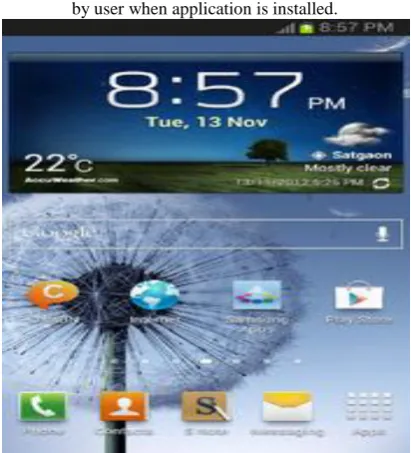
Android: Android is a linux based operating system designed for touch screen mobile device such as smartphones and tablets. Android is an open source and google releases the code under Apache License[4]. Android application written in
a customized version of the java programming language[5]. Android’s user interface is based on direct manipulation using
touch input by user[6]. The response to the user input provides immediate a fluid touch interface. Android device
boot to the home screen. Android homscreen are typically made up of app icons and widgets. Android consist of a kernel
based on linux kernel version 2.4 and from ice cream sandwich version 4.0 onwards, with middleware, libraries and
by user when application is installed.
Figure 2: snapshot of home screen on jelly bean android OS running on Galaxy Note II
Windows Phone 8: Windows phone 8 is the second generation of the windows phone mobile OS from Microsoft. Windows phone 8 is developed by Microsoft. It was released on October 29th, 2012. Its interface is known as Modern UI.
[image:2.595.54.263.513.723.2]Windows phone 8 replaces its CE based architecture with windows NT kernel found on windows 8 components. Current window phone 7.x cannot run or upate application that is developed for windows 8.x mobile and vice versa[7]. Nokia announced partnership with Microsoft on February 2011, making window phone OS as the primary operating system on nokia device[8]. Window phone 8 allows device with the following features: device with larger screen, multi core processor, NFC, backward compatibility with windows phone 7 apps, support for removable storage, home screen with resizable tiles across the entire screen, nokia map integration, a new wallet hub, integration of VoIP application and BitLocker encryption[9].
Figure 3: snapshot of windows phone 8 start screen.
Advantages and Disadvantages of iOS, android and windows phone 8 OS.
Advantages[10,11,12,13] Disadvantages[10,11,12,13]
iOS
Allows you to interact and manipulate your screen in variety of ways.
One won’t be able to run flash or shockwaves videos.
Provides the smart phones the unique interface.
One cannot interact with the screen if you’re wearing regular gloves.
Tight integration with social
networking and
sophisticated music experience.
Lack of customization.
Android
Free to customize any application.
Android software containing application often hang or crashed
Android smart phone can be used as a USB storage device.
Inconsistence in application design.
Ease of notification Continuous internet connection required.
Any application can be downloaded from google android app market that is too free of cost.
One can easily access a variety of setting quickly and easily using widgets.
Window Phone 8
Support for multi core processor
It is a generation shift technology, which means it won’t run existing hardware with the new start screen and update.
It’s new start screen , the interface is embedded with live tiles that can be configured in 3 different size
Comparison between iOS, Android and Window Phone 8 OS.
Feature iOS Android Window
Phone
Company Apple Google Microsoft
Current version
6.0.2(iPhone 5 and ipad mini only) 6.0.1
4.2.1 8
NT 8+[14]
Supported CPU Architecture
ARM ARM, MIPS,
Power Architecture, x86 ARM Programmed in
C, C++, Objective-C
C, C++ and java XNA(.NET C#), VB.NET, Silverlight, native C/C++, WinRTP, DirectX[15]
License Proprietary EULA except for open source component
Free and open source
Proprietary
Package Manager
iTunes APK Zune
Software
Multi-user No 4.2+ (only for tablets)[16] No Alternative input methods
Available on jailbroken devices[17].
Yes No
Search all fields of internal objects
6+ Search only
contacts name
Contacts can be searched by name, nick name and company name only. External storage encryption External storage not supported.
No No
Undo Yes No Yes
3.
Application Development using iOS[18]
To create iOS app basic need is Xcode and iOS SDK, which is a tools provided by Apple. Also you need to learn Objectiv-C, the language that powers all iOS apps and frameworks, and explore Cocoa Touch Framework. Xcode, Apple’s integrated development environment(IDE), provides everything that we need to create app for iPhone, iPad and and iPod Touch, includes a source editor, a graphical user interface editor.
To get started
1. Download the latest version of Xcode.
[image:3.595.316.524.208.348.2]2. Enroll as an apple developer in the iOS developer program.
Figure 4: snapshot of setup to create Apple app.
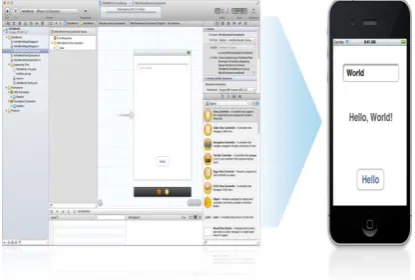
The tutorial First iOS app introduce the tools, the fundamental design patterns, and the application development process. Here we are creating an app which accepts user’s text input and prints on the screen.
As you can see above, there are three main interface elements as follow.
A text field (in which the user enters information)
A label (in which app displays the information)
A button (which causes the app to display information on label)
To create the iOS app in this tutorial, you need Xcode 4.3 or later.
Step 1: Create and test a new project.
Open Xcode. When you open the Xcode you will find welcome to Xcode window similar to this.
view application and then click next.
When you will click on next button, you will find following screen in which you need to fill in the Product Name, Company identifier and Class prefix fields.
Product name : HelloWorld
Company Identifier : (if you don’t have a company identifier, you can use edu.self.)
Class Prefix : HelloWorld
1.In the device family pop-up menu, make sure that i-phone is selected.
2.Make sure that use automatic resource counting option is selected and include unit tests is not selected.
3.After doing that click on next button, which will again pop up one dialog box that allows you to specify where to store your project.
4.Specify a location of your project and click on create button. Xcode opens your new project in a window (workspace window), which should look like this.
1.Add the User Interface Elements
You can add User Interface elements by dragging them from the object library to a view on canvas. To add the UI elements to the view and lay them out appropriately, you should follow the following steps.
1.Select MainStoryboard.storyboard in the project navigator the hello world view controller scene on the canvas.
2.Open object library, which appears at the bottom the utilities area.
3.In the object library, choose controls from the below pop-up menu, which displays list of controls with brief description.
5.As you can there is a text “your name” in text field, to do that we have placeholder field in Text Field Attribute Inspector. And alignment option for centering the text in text field. The Text Field Attribute Inspector should look something like this.
6.In the label Attribute inspector, click middle alignment button (to center a text within a label)
7.Drag a button on a canvas, double click on button and enter the text Hello. When you double click the button in the view, you should see something like this.
2.Create an action for the button In this tutorial, when user taps the hello button, we want it to send a “change the greeting” message (the action) to the view controller (the target). The view controller responds to this message by changing the string (i.e. the model object) that it manages. Then, the view controller updates the text that’s displayed in the label to reflect the change in the model object’s value.
Steps to add an action for the button.
1.If necessary, select mainstoryboard.storyboard in the project navigator to display the scene on the canvas.
2. In Xcode toolbar, hide utilities area by click on Utilities button, and click the assistant button to display the assistant editor, which looks like
this:
3. Make sure that the assistant displays the view controller’s implementation file (i.e. HelloWorldViewController.m)
4. On the canvas, control-drag from the hello button to the class extension in HelloWorldViewController.m
In the hello world project, the class extension looks like this:
When you release the control-drag, one popover will get display in which you can configure the action connection you just made.
5. In the popover, configure the button’s action connection:
In the connection pop-up menu, select action.
In the name field, enter changegreeting.
In a later step, you will implement the changegreeting: method so that it takes the text that the user enters into the text field and displays it in the label.
Type field contains id.(id data type can represent any cocoa touch.
In the event pop-up menu, select Touch Up Inside.
In the Arguments pop-up menu , select sender.
After you configure the action connection, the popover should look like this:
6. After completion of this, click on connect.
Xcode adds a stub implementation of the new changegreeting: method and indicates that the connection has been made.
To HelloWorldViewController.m, it added the following action method declaration to tha class extension.
- (IBAction)changegreeting: (id) sender;
And added the following stub method to the implementation area:
- (IBAction)changegreeting: (id)sender {
(Note: IBAction is a keyword, used to inform you that Xcode will treat this method as an for target-action command, is defined to void)
3. Create Outlets for the Text field and the Label
An outlet describes a connection between two objects. In this tutorial, you want the view controller to get the user’s text from text field and then display the text into label. To ensure that your view controller can communicate with these objects, you need to create an outlet connection between text field and label.
Add an outlet for the text field
1. Control-drag from the text field in the view to the class extension in the implementation file. When you do that you should see something like this:
2. In the popover that appears when you release the control-drag, configure the text field’s connection as follow. And then click on connect.
Through these steps, Xcode establish the connection between view controller and Text field.
3. Same steps should be followed for establish the connection between label and view controller.
At this point, you have created three connections to view controller.
- An action connection for the button.
- An outlet connection for text field.
- An outlet connection for label.
You can verify all these connection using connector inspector.
4. To open the connection inspector for the view controller, you need to follow following steps.
1. Switch to standard editor view. It looks like
2. Click the utilities view button.
3. Select hello world view controller in the outline view.
4. Show the connections inspector in the utilities area.
4. Make the text field’s delegate connection:
You need to specify a delegate objects for the text field, just because text fields sends a message to its delegate when the user done with input through keyboard.
2. Select “delegate” in the outlet section from the popup.
5. Add a property for the user’s name
1. In the project navigator, select HelloWorldViewController.h
2. Before the @end statement, write an @propertry statement for the string.
6. Implementing changegreeting:Method
Changegreeting:method should retrieve the string from the text field and set the view controller’s property to this string. Create new string that is based on the username property and display it in the label. To do this write the following code in HelloWorldViewController.m, in which we are already having changegreeting stub implementation.
In an iOS app, the keyboard is shown automatically when an element that allows text entry becomes the first responder; it is dismissed automatically when the element loses first responder status. The UITextFieldDelegate protocol is defined by the UIKit framework, and it includes the textFieldShouldReturn: method that the text field calls when the user taps the Return button.
7. Test the app.
Click run to test your app.
Application Development using Android [19, 20].
Before developing android app, first we need to check it out that whether we have add library for android SDK or not. To create any app using android OS, we will be using Eclipse IDE, in which we will be setting the reference of android SDK. When you are adding android SDK references into eclipse, you should see something like this.
1. Set android SDK reference.
In SDK location, we need to give location to the android SDK. Once you provide a location, you will be having different list of android platforms through which we can create android app. These steps will set your references. Now to create new android project, click (file > New > Android Project). You should see something like this.
2. Create new android project
1. On the next page to configure project, leave the default settings.
2. The next screen will help you to create a launcher icon for your project.
3. The next screen will help you to select an activity template for your project. Leave it blank for your project. And click finish. Your android project is now set up.
As here we are going to develop one application in which we will be having one text box and button. When we click on button, text written in text box will get fetched and we will display it in one popup window. For this first we have created one android project as mention above. Now follow the below steps.
1. Go to HelloWorld > res > values > string.xml
In this file add one string for button “click me”. When you do that you should see something like this.
3. After doing this go to HelloWorld > src > com.my.app.helloworld > main.java. this is the main file in which we are going to get a text from edit text and handle button click event through setOnClickListener method. In this method we are going to fetch data from edit text and display in popup window using Toast class. Code should see something like this.
4. After following these steps, we want to run our application. Before running an application we have to create virtual device on which we can test our app. For this go to window > Android SDK and AVD manager. It will open one dialog box, from menu displayed at left side select virtual device and click on “new”. It will open one dialog box, give
name in name field in opened dialog box and click “create AVD”.
5. After doing this, right click on project, select “run as android application”. Which will open one emulator, which is same as any android device? And you will find your application running on this emulator. When you do this, you should see something like this.
Application Development using Windows OS[20]
Here we are going to develop one “Hello World” application, introducing you to the tools and procedure required to build and test silverlight for windows phone application.
Prerequisites:
The following are required to complete this tutorial:
Microsoft visual studio 2012Express for Windows Phone or Microsoft Visual studio 2010
Microsoft Expression blend for windows phone.
Windows phone SDK 7.1
Now, we are going to create one window phone application with Microsoft Visual Studio 2010 Express for windows phone.
1. Creating windows phone application project in visual studio.
Figure: creating new window phone application.
In the Solution Explorer, go through the structure created by application template.
Figure: solution explorer of window phone application
2. Designing the User Interface
In this task, you create UI elements for application. The application UI will contain a caption, a textbox and a button. When we enter a text into textbox and then, when you click the button, an application displays a banner with a text you typed. It should look something like this.
Figure: application’s user interface
In solution explorer, open MainPage.xaml file, which is generated by window phone application template. In this file “LayoutRoot” grid container, change its RowDefinition property using following code.
To complete the design of the page, add a third row to contain banner with the message entered by the user. To create this row, insert the following code.
3. Handling events from the user interface.
Here, we are going the event handler that responds to action from the user interface. To add this event handler, click the button labeled “Click Me”, go to event tab, in “Click” event type ClickMeButton_Click in the textbox.
Figure: creating an event handler for the button.
Code changed in MainPage.xaml file.
Figure: Xaml view showing the new handler bound to click event
The method implementation is in the MainPage.xaml.cs file. Insert the following code inside the body of the ClickMeButton_Click method.
4. Building and Testing the application in Window Phone Emulator
Build the project. The project should compile without any error.
Verify that target of deployment is Window Phone Emulator, ensure that Window Phone 7 Emulator is selected. Click on start button to start debugging of your project.
Figure: HelloPhone application running in the windows phone emulator.
This is how we can create an application for window mobile using Window OS.
4. Conclusion:
Here in this paper, the same application has been created using three different platform (iOS, Android and Window).
5. References
[1] "Apple WWDC 2012 Keynote Address". Apple Inc.. 2012-06-11. Retrieved 2012-08-13.
[2] Haslam, Karen (January 12, 2007). "Macworld Expo: Optimised OS X sits on 'versatile' flash". Macworld. Retrieved October 15, 2007.
[3] http://en.wikipedia.org/wiki/IOS_6
[4] "Android Overview". Open Handset Alliance. Retrieved 2012-02-15.
[5] Shankland, Stephen (November 12, 2007). "Google's Android parts ways with Java industry group". CNET News. Retrieved 2012-02-15.
[6] "Touch Devices | Android Open Source". Source.android.com. Retrieved 2012-09-15.
[7] Rubino, Daniel. (Oct 29, 2012). Overview and Review of
Windows Phone 8. retrieved
fromhttp://www.wpcentral.com/overview-and-review-windows-phone-8
[8] Shankland, Stephen (Feb 11, 2011) Nokia, Microsoft becoming Windows Phone bedfellows. retrieved fromhttp://news.cnet.com/8301-30685_3-20031468-264.html#!
[9] Warren, Tom (20 June 2012). "Windows Phone 8 in detail: new Start Screen, multi-core support, VoIP integration, and NFC". The Verge. Vox Media. Retrieved 26 November 2012.
[10]http://www.virtualtags.net/uk/publications/mobileBound aries/
[11] http://www.i-chipstech.com/android-or-ios-advantages-and-disadvantages/
[12] http://mobilecon.info/advantages-and-disadvantages-android-mobile-phone.html
[13] http://www.bench3.org/tech/advantages-of-windows-phone-8/
[14]Victor H. (2012-06-20). "Windows Phone 8: the new features [Image 12: Shared Windows NT kernel, code with Windows 8]". phoneArena.com. Retrieved 2012-08-27.
[15]Windows Phone 8 adds DirectX, native development, easier app porting | The Verge
[16]Why Android Jelly Bean 4.2′s Multiple User Account Switching Is Tablet-Only? (Hint: Nokia Patented It For Phones) | TechCrunch
[17]Swype beta lands on the iPhone, gives you one more reason to jailbreak - GSMArena Blog
[18]https://developer.apple.com/
[19]http://developer.android.com
[20]file:///E:/android/Getting%20Started%20with%20Androi d%20Development%20Using%20Eclipse.htm
[21]http://msdn.microsoft.com
[22]http://en.wikipedia.org/wiki/Android_(operating_system)