United States Department of Agriculture Forest Service Rocky Mountain Research Station General Technical Report RMRS-GTR-106WWW June 2003
BehavePlus
fire modeling system
Version 2.0
User’s Guide
Patricia L. Andrews
Collin D. Bevins
Robert C. Seli
Abstract
Andrews, Patricia L.; Bevins, Collin D.; Seli, Robert C. 2003. BehavePlus fire modeling system, version2.0: User’s Guide. Gen. Tech. Rep. RMRS-GTR-106WWW. Ogden, UT: Department of Agriculture, Forest Service, Rocky Mountain Research Station. 132p.
The BehavePlus fire modeling system is a program for personal computers that is a collection of mathematical models that describe fire and the fire environment. It is a flexible system that produces tables, graphs, and simple diagrams. It can be used for a multitude of fire management applications including projecting the behavior of an ongoing fire, planning prescribed fire, and training. BehavePlus is the successor to the BEHAVE fire behavior prediction and fuel modeling system. Primary modeling capabilities include surface fire spread and intensity, safety zone size, size of point source fire, fire containment, spotting distance, crown scorch height, tree mortality, and probability of ignition. The User’s Guide describes operation of the program. Other papers describe the models and application of the system.
Keywords
Fire behavior, fire spread, fire intensity, computer program
The Authors
Patricia L. Andrews is a Research Physical Scientist at the Fire Sciences Laboratory in Missoula, MT. She received a B.A. degree in mathematics and chemistry from Montana State University, Billings in 1970 and an M.A. degree in mathematics and computer science in 1973 from the University of Montana, Missoula. She has been at the Fire Sciences Laboratory since 1973, serving as Project Leader of the Fire Behavior Research Work Unit from 1991 to 1996.
Collin D. Bevins is Director of Systems for Environmental Management, a Missoula, MT, nonprofit research and educational organization founded in 1977. Collin earned a B.A. degree from Carleton College, Northfield, MN in 1974, and an M.S. degree in forestry, University of Washington, Seattle, 1975.
Robert C. Seli is a Forester at the Fire Sciences Laboratory in Missoula, MT. He was previously a District Fire Management Officer on the Lolo National Forest, a Silviculturist on the Nezperce National Forest, and received a B.S. degree in forestry from North Carolina State University in 1974.
Acknowledgments
Funding for development of the BehavePlus program and supporting material was provided by the Joint Fire Science Program; USDA Forest Service, Rocky Mountain Research Station, Fire Behavior Research Work Unit; USDA Forest Service, Fire and Aviation Management, Washington D.C.; and Systems for Environmental Management.
Program development and supporting material was done primarily through contracts #53-0343-7-0020 and #53-0343-0-0011 with Systems for Environmental Management (SEM).
The following SEM people contributed to the project: Collin Bevins (program design and development, version 2 User’s Guide), Don Carlton (version 1 User’s Guide and online help system), Deb Tirmenstein (program testing, document review and editing), Joe Scott (online help and supporting material for the fire models added in version 2), and Miguel Cruz (Portuguese translation for the ‘language’ option).
Other contributors include Dave Custer (tutorial editing and formatting), Rob Seli (tutorial development, editing, online help, and version 2 User’s Guide), and Pat Andrews (project manager, system design, program testing, tutorial development, version 2 User’s Guide).
Software technical support is provided by USDA Forest Service, Fire and Aviation Management, National Systems Support Group, Boise, ID.
Cover Art: "WILDFIRE" (C) 1992, an original acrylic painting by Monte Dolack. Trumpeter swans take refuge in the air as a threatening wildfire rages through the forest habitat. This image is from a 29" x 24" poster commissioned by the National Wildfire Foundation and used here by permission of the artist.
All images used in BehavePlus and its associated manuals and training materials are from original works by Monte Dolack and appear by permission of the artist.
Preface
This User’s Guide explains how to use the BehavePlus fire modeling system software. Other papers will describe the models incorporated into the system and application of the predictions.
This is an RMRS online publication. It can be downloaded from the Rocky Mountain Research Station publications web page, http://www.fs.fed.us/rm/main/pubs/electronic.html
You can download this User’s Guide and the BehavePlus program and provide comments through the BehavePlus web site, http://fire.org
This User’s Guide is also an integral part of the BehavePlus system, serving as online help. This publication will be updated as features and modeling capabilities are added to the program. The BehavePlus system is supported by
USDA Forest Service
National Fire and Aviation Management Information Systems Team 3833 S. Development Avenue
Boise, ID 83705 (800) 253-5559
The use of trade or firm names in this publication is for reader information and does not imply endorsement by the U.S. Department of Agriculture of any product or service.
Table of Contents
1.Introduction... 1 2.Operation... 7 2.1. Overview... 7 2.2. Design... 8 2.3. Features... 10 2.4. Installation... 11 2.5. Definitions... 132.6. Menus and Toolbar... 14
3.Worksheets... 15
3.1. Worksheet layout... 15
3.2. Loading a previously saved Worksheet... 21
3.3. The startup Worksheet... 22
3.4. Changing a Worksheet... 22
3.5. Saving a Worksheet or a Run... 22
4.Modules... 23
4.1. Input options... 23
4.2. Output options... 25
5.Entering input... 27
5.1. Shaded text boxes... 27
5.2. Direct entry... 27
5.3. Range of values... 27
5.4. Discrete variables... 27
5.5. Choices... 28
5.6. Linked input variables... 29
6.Table output... 31
6.1. Single value calculation... 31
6.2. Table output... 32
6.3. Two way tables... 32
6.4. Table appearance... 34
6.5. Multiple pages... 34
7.Graph output... 37
7.1. Single variable graph... 37
7.2. Two variable graph... 39
7.3. Axis scales... 42
7.4. Graph appearance... 47
7.5. Number of curve points... 55
8.Diagram output... 57
8.1. Wind/slope/spread direction... 57
8.2. Fire characteristics chart... 61
8.3. Shape of a point source fire... 65
8.4. Containment shape... 69
Table of Contents BehavePlus v2.0 User’s Guide
9.View, print, & capture results... 73
9.1. View size... 73 9.2. Windows... 73 9.3. Pages... 74 9.4. Print... 75 9.5. Capture... 75 10.Error checking... 77
11.Custom fuel models... 79
11.1. Using previously saved fuel models... 79
11.2. Defining and saving custom fuel models... 81
12.Moisture scenarios... 83
12.1. Using previously saved moisture scenarios... 83
12.2. Defining and saving moisture scenarios... 85
13.Map applications... 87
13.1. Slope from map measurements... 87
13.2. Map distances... 90
14.Units... 93
14.1. English or metric... 93
14.2. Custom units set... 93
14.3. Number of decimal places... 93
14.4. Units conversion tool... 94
15.Language... 95
15.1. English or Portuguese... 95
15.2. Custom language set... 95
16.Fine Dead Fuel Moisture Tool... 97
17.Sun-Moon Calendar Tool... 99
18.File management... 101
18.1. Workspaces... 101
18.2. Load a Worksheet... 102
18.3. Load a Run... 102
18.4. Save as…... 102
18.5. Deleting Files & Folders... 103
19.Help... 105
19.1. Browser pane help... 105
19.2. Guide button... 106
19.3. User’s Guide... 106
References... 107 Appendices
A – Version comparison………..…..A1 B – Input and Output Variable Tables…...………..………..B1 C – Units Editor..………..………..…...C1 D – The 0Startup.bpw worksheet, defaults...……….………D1 E – Example Worksheets……...……….……...E1
1.
Introduction
The BehavePlus fire modeling system is a PC-based program that is a collection of models that describe fire and the fire environment. It is a flexible system that produces tables and graphs and can be used for a multitude of fire management applications. BehavePlus is the successor to the BEHAVE fire behavior
prediction and fuel modeling system (Andrews 1986, Andrews and Chase 1989, Burgan and Rothermel 1984, Andrews and Bradshaw 1990). It is called the BehavePlus fire modeling system to reflect its expanded scope (Andrews and Bevins 1999).
This document describes operation of the BehavePlus program. The fire models and their application are described elsewhere.
Many of the fire models in BehavePlus are the same as those in the FARSITE fire area simulator (Finney 1998) and the FlamMap fire behavior mapping and analysis system. Each system meets a different need. The same surface fire spread model (Rothermel 1972) was used in each case. These three programs and supporting documentation are available through www.fire.org. Shown below are example outputs from each system. Sample table, graph, and diagram output from BehavePlus:
BehavePlus v2.0 User’s Guide Introduction
Sample fire perimeter output from FARSITE:
Sample landscape fire potential output from FlamMap:
Introduction BehavePlus v2.0 User’s Guide
Version 1.0 of BehavePlus was based primarily on the same fire models that composed the old BEHAVE system. Development focus was initially on a new look and feel for the program. This paper describes version 2.0, which provides additional models and features. A summary of changes from version 1.0 to version 2.0 is given in Appendix A.
The primary modeling capabilities of BehavePlus, version 2.0, include
• Surface fire spread and intensity
• Safety zone size
• Size of a point source fire
• Fire containment
• Spotting distance
• Crown scorch height
• Tree mortality
• Probability of ignition from fire brands or from lightning Other modeling capabilities include
• Tables for fine dead fuel moisture
• Tables for relative humidity or dew point
• Standard and custom fuel models
• Dynamic palmetto-gallberry fuel
• Three methods for weighting two fuel models: two-dimensional expected spread, harmonic mean, area weighted
• Sunrise, sunset, dawn, and dusk at any location or date Key features include
• Diagrams for point source fire shape, shape of a contained fire, fire characteristics chart, wind / slope / fire directions
• Photographs and a key for the standard 13 fuel models
• Distances in map units
• User control of input options and output variables
• Description of each input and output variable
• User control of units and number decimal places displayed
• Multiple values can be entered for almost any input variable
BehavePlus v2.0 User’s Guide Introduction
The help system is an important part of the BehavePlus system. This User’s Guide is available with the program for help on operation of the program. In addition, a help browser is available in the dialog boxes providing immediate information on specific operations and definition of input and output variables as shown below.
Introduction BehavePlus v2.0 User’s Guide
2.
Operation
2.1. Overview
This User’s Guide addresses only operation of the program. The fire models, associated variables, and application are described elsewhere.
Organization of material on Operation of the BehavePlus program is different from the organization of the program itself. It is designed to help you find the answer to a question. Most users are comfortable with looking at menus and dialog boxes and associated information in the program without use of a User’s Guide. This is not a step-by-step operation manual, but a reference guide. The tutorials provide step-by-step instructions.
In describing operation of the program, we use the following font and/or conventions in describing menus, commands, buttons, tabs, and checkboxes:
Configure > Module selection > SURFACE > Options… > Fuel & Moisture > fuel models option button.
For example the sequence of menus, commands, check boxes, buttons, and tabs shown above refers to the following actions in BehavePlus:
Each of the above elements would be described in this User’s Guide as 1. Configure menu
2. Module selection command 3. SURFACE check box
4. Options... button 5. Fuel & Moisture tab 6. fuel models option button
Operation BehavePlus v2.0 User’s Guide
Other elements used in BehavePlus include
7. Spin box – select the value using the buttons or enter a value from the keyboard, 8. Text box – click inside the box to enter values from the keyboard.
9. Drop-down list – Choose the value from the list displayed with the button.
In the interest of saving space and improving readability, we include screen captures of only the portion of concern. The Tutorials include more complete screen captures.
2.2. Design
2.2.1.
Page Oriented
BehavePlus is meant to be more than just a fire modeling tool. It is meant to be a lesson book with a built-in training manual, and a planning tool whose results may be incorporated into management reports. It is meant to be a fire behavior assessment aid whose tables and graphs can be shared with others in briefings and in written documentation. BehavePlus is meant to be run over and over for multiple purposes, so it is meant to be self-documenting.
Because of these expectations, the BehavePlus user interface is designed around the concept of the standard 8.5 x 11 printed page.
Given input information BehavePlus can generate documentation, diagrams, tables, and graphs. Fortunately, they all fit on a standard printer page; merely press the Print button and file the copy. Six months later when you need to review the work, the What, How, and Why of each Run is considerably less obscure than it would have been otherwise.
The page on which you enter input information appears first (page 1) and is called the Worksheet. A complex Worksheet may span several pages. Once the Calculate button is pressed, BehavePlus generates additional pages containing output tables, graphs, and diagrams. These too are deigned to fit neatly on the printed page. Navigation buttons on the Tool Bar let you move to the first page, last page, next page, or previous page. The Pages menu lets you jump directly to any diagram, table, or graph. The Print dialog lets you print selected pages.
BehavePlus v2.0 User’s Guide Operation
2.2.2.
Highly Configurable
BehavePlus is meant to be the repository of many current and future models related to fire behavior and effects. These models may have alternate input sets and can produce many output variables. Individual models may be linked together so that outputs from one module automatically become inputs for another module. Input and output variables may have user-specified units of measure. Outputs may be in the form of diagrams, tables, and/or graphs. The language displayed on Worksheets and output pages may be changed.
BehavePlus may be used for fire behavior training, for fire planning, or for real-time fire behavior assessment. It may be used to assess just fire behavior, or just fire effects, or the link between them. It may be used to build custom fuel models, to determine astronomical events, or as a units conversion utility.
2.2.3.
Self Documenting
The brooding step-brother of configurability is complexity. Because BehavePlus is so highly configurable and may be used by people in various roles for various purposes, it strives to be self-documenting in an attempt to thwart entropy. The input Worksheet automatically documents all Modules in use, all input variables and units of measure, all output variables and units of measure, and pertinent notes on the current configuration. The Worksheet also allows you to enter a Run description (and possibly additional training or fire incident information) and contains a notes field for free-field entry of expository text.
2.2.4.
User Manual and Help
BehavePlus tries to provide pertinent information to you when you need it the most. The Guide Button next to each entry field opens a dialog containing a help browser pane with suggested or valid inputs. The help browser pane describes input and output variables and program operation. The browser provides tables, photographs, and figures to help you select inputs.
In addition, this manual is available as part of BehavePlus through Help > Program help.
2.2.5.
Not Boring
Finally, every attempt has been made to keep BehavePlus from becoming yet another boring program with a gray personality. Just in case all the complexity, configurability, widgets, dialogs, models, diagrams, tables, graphs, browsers, and quirky behavior aren’t enough to hold your attention, here and there we’ve inserted some paintings we rather enjoy to ease our weary eyes.
If you, however, prefer the gray approach, you can eliminate the pictures for the entire session by clearing the Show picture pane check box on the Configure > Appearance > Application tab
Operation BehavePlus v2.0 User’s Guide
You can also choose to show the picture or not in individual windows by selecting or clearing the Picture check box
2.3. Features
2.3.1.
Fire Models
BehavePlus contains models to estimate
• surface fire spread, intensity, flame length, scorch height, and direction of maximum spread
• surface fire spread rate, intensity, flame length, and scorch height in any compass direction
• fire shape, area, and perimeter
• spotting distance from a burning pile, from torching trees, or from a wind-driven surface fire
• success or failure of suppression resources to build line around a fire
• recommended fire safety zone radius, separation distance, and zone size
• fire-induced tree mortality
• probability of fire ignition from firebrands
• probability of fire ignition from lightning strikes
• relative humidity or dew point temperature
• midflame wind speed
• fine dead fuel moisture content
• sun-rise, sun-set, dawn, and dusk at any location or date
• palmetto-gallberry dynamic fuels
• custom fuel models
• custom moisture scenarios
BehavePlus v2.0 User’s Guide Operation
2.3.2.
Operation
BehavePlus has the following operational features:
• BehavePlus is cross-platform and works identically on all versions of Windows and Linux.
• Multiple Worksheets may be open at one time.
• Worksheets may be overlaid, tiled, cascaded, and resized.
• Modules (collections of related fire models) may be individually toggled on/off.
• Modules may have alternate input options available through the Configure > Module > Options > Input Options dialog box.
• Module output variables can be toggled on/off via the Configure > Modules > Options > Output Variables dialog box.
• Modules may be linked so the outputs from one module are automatically input into another module.
• All distance outputs may be scaled to map units.
• All input and output units of measure may be modified by the user.
• Custom Worksheet configurations may be saved and re-used.
• Custom sets of units of measure may be saved and re-used.
• The Guide Button next to each Worksheet entry field displays a help browser pane with context-specific text and either a list of valid choices (for discrete variables) or fields for generating a range of input values.
• Zero, one, or two input variables may have multiple entry values, producing either a simple result list, a single one-way table, or a multipage two-way table, respectively.
• If one input variable has multiple entry values, a separate graph can be generated for each output variable. If two input variables have multiple entry values each output variable graph contains a family of curves.
• The SURFACE, SIZE, and CONTAIN Modules can produce diagrams of their results.
• Help > Program Help makes this manual and all associated documentation available in PDF format for reading, web browsing, and printing.
• The user interface language may be dynamically changed via Configure > Language. Currently English (U.S.) and Portuguese (Portugal) are supported. (Contact [email protected] if you’d like to volunteer to add support for another language).
• Completed Runs may be saved and re-used.
2.4. Installation
2.4.1.
Download
BehavePlus is available for download from www.fire.org. Simply follow the BehavePlus links to the download page and select either the Windows or Linux installation package.
You should check the downloaded file size against the original to ensure you received the entire package. To be absolutely certain the package arrived intact, use the md5sum program from a command line prompt:
¾
md5sum bp_2_0_0.exe
If the resulting 32-digit hexadecimal number is not identical to the one published on the BehavePlus download page, your download copy is corrupt.
Operation BehavePlus v2.0 User’s Guide
2.4.2.
System Requirements
BehavePlus has modest system requirements met by the most inexpensive computers available on the market:
• Linux or Windows 95, 98, ME, NT, 2000, or XP
• Minimum 800 x 600 video resolution with 256 (8-bit) colors (recommend 1024 x 768 video resolution with 64K (16-bit) colors)
• 16 megabytes of available RAM
• 20 megabytes of disk storage
2.4.3.
Windows Installation
BehavePlus for Windows is packaged using the Wise Installation System. Simply type the name of the package (e.g., bp_2_0_0.exe) at a command prompt (or click on its name in Windows Explorer) and the installation wizard will guide you through the process. This mostly consists of pressing the OK button.
2.4.4.
Linux Installation
BehavePlus for Linux is packaged as a tarball using tar and gzip. Move the downloaded file (bp-2.0.0.tar.gz) into the parent directory where you wish it to be installed, and enter
¾
tar xvzf bp-2.0.0.tar.gz
This creates the bp-2.0.0 subdirectory and unpacks the BehavePlus binary executable, supporting library files, and data subdirectory structure within it.
2.4.5.
File Structure
BehavePlus has a proscribed file system structure; all files must be located in specific subdirectories. The parent directory of this file structure and all its subdirectories and files are collectively known as a Workspace. When BehavePlus is first installed it has a single Workspace called “DefaultDataFolder” as shown below.
BehavePlus v2.0 User’s Guide Operation
We recommend that you use Workspaces to aid file management as you apply BehavePlus to several projects. See the section 18.1 Workspaces for more information.
A list of three letter file extensions used by BehavePlus is shown in the following table. These extensions are automatically attached to the files you create in BehavePlus.
File extension File type Folder
.bpf Custom fuel models FuelModelFolder
.bpm Moisture scenarios MoistureScenarioFolder
.bpr Runs RunFolder
.bpu Custom Units Sets UnitsSetFolder
.bpw Worksheets WorksheetFolder
2.5. Definitions
A Worksheet is the first page or two containing the input Entry Fields. The content of a Worksheet depends upon the specific BehavePlus configuration including module selections, input options, output variables, units of measure, and diagram/table/graph options. Thus there are a large number of possible Worksheets. Some Example Worksheets are supplied with the BehavePlus distribution and are included in every Workspace. You may reconfigure BehavePlus as needed for any purpose, then save its Worksheet for later reuse. Functionally, a Worksheet is a BehavePlus configuration that does not have any input values associated with it.
A Run is a Worksheet that has a complete set of valid inputs, but no ouputs are saved in a Run. You must calculate a saved Run to obtain outputs. Any given Worksheet may have an infinite number of Runs, each determined by its input values. Runs may be saved for later use and review. The BehavePlus installation includes Example Runs.
A Model is a set of equations that estimate one or more output variables from one or more input variables. While BehavePlus contains many models, you will more commonly see references to Modules, which are collections of models.
A Fuel Model is a set of numbers describing a fuel bed used by the surface fire spread model. A Module is a collection of one or more Models that can be activated/deactivated by the user during Worksheet configuration. Selecting the IGNITE Module, for example, includes both the firebrand ignition model and the lightning strike ignition model.
A Continuous Variable is an input or output variable that has a continuous range of values. Continuous variables have a minimum and maximum valid value. Examples include fuel moisture content, and wind speed. A Discrete Variable has a finite set of valid values. Examples include Fuel Model, Spotting Source Location, and Tree Species.
A Guide Button is the button with the arrow icon next to each Worksheet entry field. Pressing the Guide Button activates an Input Guide dialog box containing a help browser pane and input assistance. For continuous variables, the dialog facilitates entry of a large number of inputs by specifying the minimum input value, maximum input value, and increment value. For discrete variables the dialog contains a list of all valid inputs from which the user may select zero or more values.
A Workspace is a complete subdirectory tree containing all required BehavePlus files plus any additional Worksheet, Run, Fuel Model, Moisture Scenario, Units Set, or capture files saved by the user. A Workspace corresponds to a single BehavePlus project, and each BehavePlus project should have its own Workspace. Workspaces are created by the File > Workspaces > New workspace and the Files > Workspaces > Clone current workspace commands.
Operation BehavePlus v2.0 User’s Guide
2.6. Menus and Toolbar
All BehavePlus operations are available from the menu bar.
The more common operations, such as Module Selection or Calculate, may also be invoked from Toolbar buttons. Toolbar buttons and their equivalent Menu commands are shown below:
Toolbar
Buttons Definition Equivalent menu operation
Open a new Worksheet File > New Open a saved Run File > Open run Print this Run File > Print
Module selection Configure > Module selection Calculate this Run File > Calculate
Display first page Page > then select page #
Display last page Page > then select page #
Display previous page Page > then select page #
Display next page Page > then select page #
3.
Worksheets
A Worksheet is a form on which you enter input. Worksheets vary in appearance and content in response to the current module configuration: a SURFACE module configuration requires different inputs than a SPOT module configuration.
Module selection, input options, and output variable selections determine BehavePlus configuration, which in turn defines the Worksheet appearance and content.
A number of predefined example Worksheets are included in the BehavePlus installation. You may use these Worksheets as provided, or use them as starting points for your own configuration. Simply open an example Worksheet and proceed to change your Module selection, input options, and/or output variables. Once BehavePlus is configured the way you want, you may name and save it as a new Worksheet. During subsequent BehavePlus sessions you may load your custom Worksheet and BehavePlus is configured as expected.
3.1. Worksheet layout
A BehavePlus Worksheet is more than just an input form; it is the primary source of documentation about the Run. Worksheets include the following sections:
Header – The Worksheet header shows the BehavePlus version number, useful for reporting bugs and determining if you have the most recent update. The header also includes the date and time of the last calculation and the page number, which lets you collate the correct pages after printing and spreading them out for further study.
Border – The line surrounding the Worksheet body may be modified with the Configure > Appearance > Worksheet tab.
Tabs – Zero, one, or more page tabs with labels along the right-hand margin of the Worksheet may be activated with the Configure > Appearance > Page Tabs tab.
Documentation – This section lists all the currently selected modules and contains an entry field for the Run description. Additional documentation entry fields for training applications or for fire projection applications are optionally activated through Configure > Appearance > Worksheet tab.
Input – This section contains the required input data entry fields identified by a short phrase and their units of measure. Each entry text box also has a Guide button that may be pressed for input assistance. Entry text boxes are grouped under headings such as “Fuel/Vegetation”, “Fuel Moisture”, “Weather”, and “Terrain”. Run Options – This section documents some of the configuration settings that are selected for the Worksheet.
Output Variables – This section lists all the selected output variables and their units of measure. This section may be toggled on/off in the Configure > Appearance > Worksheet tab.
Notes – This section permits the user to enter free-field expository text. The user has control of the size of this section or whether it is displayed using the Configure > Appearance > Worksheet tab.
Following is an example Worksheet:
Worksheets BehavePlus v2.0 User’s Guide
3.1.1.
Page Header
The header of each page includes the version number of the BehavePlus program, the date and time of the calculation, and the page number.
The date and time and page number can be used to correctly collate printed documents.
3.1.2.
Documentation
Documentation is the header information on the Worksheet. The calculation modules that have been selected are listed. Documentation always includes a Description field.
BehavePlus v2.0 User’s Guide Worksheets
Additional documentation lines can be added by selecting the Fire projection documentation and/or Training documentation check boxes from the Configure > Appearance > Worksheet tab.
Selecting the Fire projection documentation check box adds the following input fields to the Worksheet:
Selecting the Training documentation check box adds the following input fields to the Worksheet:
Both options can be checked.
3.1.3.
Input section
The required input variables and their units are displayed next to their entry fields. Fuel moisture variables that are not required have the text box shaded. In the example below, only 1-h fuel moisture is required for fuel model 1, because the other fuel categories are not included in the fuel model.
The Guide button for each input variable provides access to definitions and input assistance. Input variables are organized by logical association (rather than by calculation module). A table of all possible input variables by category is given in Appendix B.
Worksheets BehavePlus v2.0 User’s Guide
3.1.4.
Input codes
The definition of valid input codes can be displayed on the Worksheet by selecting the Show input codes for all discrete variables check box on the Configure > Appearance > Worksheet tab.
For example, with this option selected, fuel models names are given.
3.1.5.
Run options
For clarification, Run options are given after the input variables. The user does not have the option of suppressing this information.
3.1.6.
Output variables
Selected output variables and their units can be displayed at the end of the input Worksheet using the Configure > Appearance > Worksheet tab.
BehavePlus v2.0 User’s Guide Worksheets
For example:
3.1.7.
Notes
The Notes section of the Worksheet allows the user to enter a large amount of text associated with a Run. The user has the option of changing the number of lines provided for notes or even eliminating the notes section on the Configure > Appearance > Worksheet tab with the Show notes section check box and the Notes Lines spin box.
3.1.8.
Borders
The border color and thickness on the Worksheet and output pages can be changed on the Configure > Appearance > Application tab using the Border Color drop-down list and the Border Width spin box. The border can be eliminated by entering a Border Width of 0.
Worksheets BehavePlus v2.0 User’s Guide
3.1.9.
Page Tabs
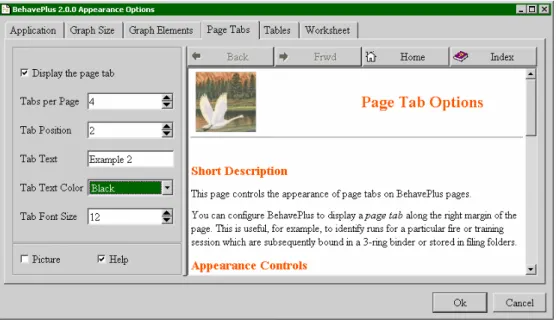
Page tabs can be displayed along the right margin of the page. This is useful, for example, to identify Runs for a particular fire or training session that are subsequently bound in a three-ring binder or stored in filing folders. Page tabs can be added and defined with the Configure > Appearance > Page Tabs tab.
Tabs per page -- The size of the tab depends upon the value selected in this spin box. Only one tab is actually displayed per page. If tabs per page is 4, the displayed tab occupies one-fourth the page height. If it is 10, the displayed tab occupies one-tenth the page height. As this number increases, the displayed tab size decreases. Tab position -- Determines the position of the displayed tab. Tab position 1 is always at the upper edge of the right margin.
Tab text -- The text to appear on the tab. The text is centered within the tab and will therefore be truncated at both ends if it is too long.
Tab text color -- A color is selected from the drop-down list. Tab font size -- Font point size is selected using this spin box. The above settings create the tab on the Worksheet below:
BehavePlus v2.0 User’s Guide Worksheets
3.2. Loading a previously saved Worksheet
A previously saved Worksheet can be loaded using
• the File > New command, • or the toolbarbutton.
To see the Worksheets in the folder click on the button to the left of the folder. To select a Worksheet either
• double click on it,
• or select and click the OK button.
A set of Worksheets is supplied with the program in the “ExampleWorksheets” folder. A short description is given for each. See Appendix E for further description of the “ExampleWorksheets”.
Worksheets BehavePlus v2.0 User’s Guide
3.3. The startup Worksheet
The 0Startup.bpw Worksheet automatically loads whenever you start Behave Plus v2.0. This Worksheet is a special case. It is used as the starting place for selecting calculation modules. It shows no input or output variables, but it sets defaults for all Run settings as described in Appendix D. The 0Startup.bpw Worksheet was used to initialize all of the example Worksheets.
A Worksheet can be designed to meet specific needs by starting with the 0Startup.bpw Worksheet, selecting the desired modules, and changing options as needed. The startup Worksheet is named 0Startup.bpw to assure that it is the first selection of the Example Worksheets folder.
3.4. Changing a Worksheet
A Worksheet can be changed at any time by changing the selected modules and associated options. The changes are in effect only for the current session unless the revised Worksheet is saved. If a Worksheet that came with the program in the ExampleWorksheets folder is changed, the revised version must be saved in another Worksheet folder.
3.5. Saving a Worksheet or a Run
A Worksheet can be saved for later use with the File > save As > Worksheet command. The values entered onto the Worksheet are not saved.
Save the Run, which is just a Worksheet with the defined input values, with the File > save As > Run command.
4.
Modules
Modules define a set of fire models for a Worksheet. Selection can be made with the Configure > Module command.
The output variables that can be calculated by each module are given in the output variable table in Appendix B.
Indentation indicates that the modules can be linked, which means that output from one module is used as input to the other. For example, if both SURFACE and SAFETY are selected, the modules are linked. Output from SURFACE is used as input to SAFETY. If only SAFETY is selected, all required input is entered by the user. A table of input variables and associated modules is given in Appendix B.
Selection of modules, options, and output variables determines the required input variables.
The Options… button is used to configure a modules input options or change the output variables it calculates.
4.1. Input options
Some modules offer options on alternate ways of specifying input. Others do not. For example, clicking the MORTALITY Options… button displays the “Mortality Module Options” dialog box with the Bark thickness is input option:
The choice affects the input variables included on the Worksheet. If Bark thickness is specified on the worksheet is selected, the resulting Worksheet is as follows:
Modules BehavePlus v2.0 User’s Guide
If Bark thickness is estimated from species and d.b.h. is selected, the resulting Worksheet is as follows:
BehavePlus v2.0 User’s Guide Modules
4.2. Output options
The desired output variables are selected through the Options… button associated with each module.The selected output determines the input requirements. For example, input variables for the SPOT Module are different for each spotting source.
Pause the mouse over the name of an output variable to see its description in the browser pane. For example, a pause over Spotting Distance from a Wind Driven Surface Fire in the SPOT Output Variables tab results in this browser pane.
Modules BehavePlus v2.0 User’s Guide
5.
Entering input
There are several ways to supply input to the BehavePlus program. Values can be typed directly into the input field, a choice can be made from a list of valid input values, a range of values can be specified, and for some variables, a selection can be made from a list of common choices.
5.1. Shaded text boxes
In some cases, input variables depend on values entered elsewhere on the Worksheet. When an input variable is not required, its text box is shaded. If a value is entered for a shaded text box, it is not used.
5.2. Direct entry
Values can be typed directly into the entry fields. Using the ‘Enter’ or ‘Tab’ keys move the cursor to the next field. The cursor can be moved to any field by a mouse click.
Valid input values can be viewed by using the guide button.
5.3. Range of values
More than one value can be entered for an input variable. Multiple values are separated by space or comma delimiters.
For continuous variables the Guide button allows definition of a range of values by a constant increment. For example, midflame wind speed from 0 to 20 mi/h in steps of 5 enters 0, 5, 10, 15, 20 on the Worksheet below.
You do not need to always specify equal steps. You can enter several independent values separated by commas directly in the text box.
5.4. Discrete variables
When the Guide button is clicked for a discrete variable, the allowed selections are given in the center pane. Clicking the values selects them; you can select several values. This example shows the fuel model “Input Guide” dialog box. The Ok button enters them on the Worksheet.
Entering input BehavePlus v2.0 User’s Guide
5.5. Choices
Although any value in the valid range can be entered for a continuous variable, in some cases common values can be entered with the Choices button.
BehavePlus v2.0 User’s Guide Entering input
Selected values in the Slope Steepness choices. Clicking the Ok button enters them on the Worksheet.
Selected values in the Slope Steepness choices. Clicking the Ok button enters them on the Worksheet.
5.6. Linked input variables
5.6. Linked input variables
In some cases input variables are directly associated with each other (an exception to the general rule). For example, in CONTAIN a line production rate, arrival time, and duration are assigned to each resource. In the following example, although multiple values are assigned to several input variables, those variables are linked together, so only a single calculation is done.
In some cases input variables are directly associated with each other (an exception to the general rule). For example, in CONTAIN a line production rate, arrival time, and duration are assigned to each resource. In the following example, although multiple values are assigned to several input variables, those variables are linked together, so only a single calculation is done.
6.
Table output
When more than one value is assigned to one or two input variables, table output is produced. Tables are produced by selecting the Display table results checkbox in the “Calculate Results” dialog box that displays after selecting a File > Calculate command.
6.1. Single value calculation
When each variable is assigned only one value, a simple list of output is given. No table or graph is possible. For example:
Table output BehavePlus v2.0 User’s Guide
6.2. Table output
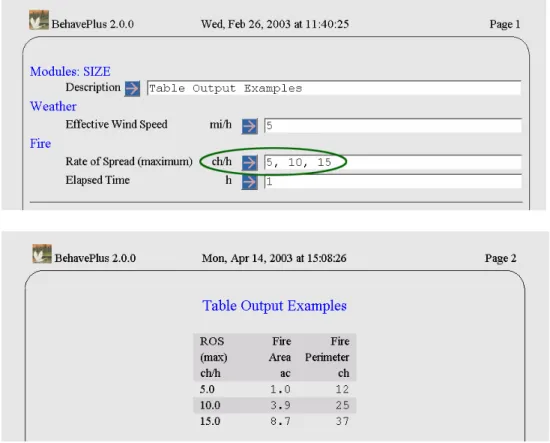
When more than one value is assigned to a variable, table output is produced. Each output variable is a specified column. For example, these Rate of Spread inputs produce the page 2 table below:
6.3. Two way tables
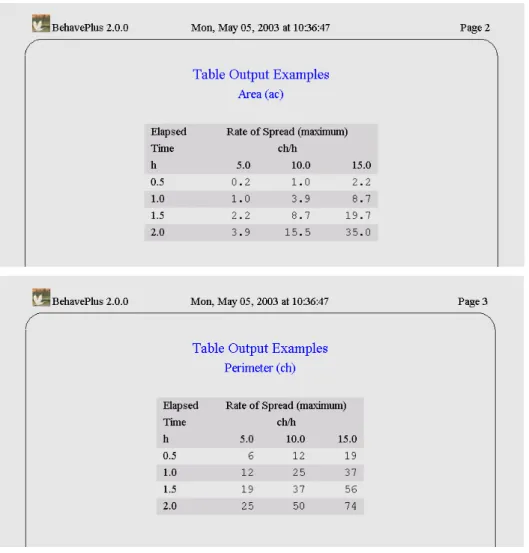
When more than one value is assigned to two variables, a two way table is produced. A table is produced for each selected output variable. Either variable can be specified as the row variable in the “Calculate Results” dialog box.
BehavePlus v2.0 User’s Guide Table output Table output
USDA Forest Service General Technical Report RMRS-GTR-106WWW. 2003 33
USDA Forest Service General Technical Report RMRS-GTR-106WWW. 2003 33
For example, with the above inputs this dialog box appears when you Calculate the Run.
For example, with the above inputs this dialog box appears when you Calculate the Run.
After selecting the Rate of Spread (maximum) option button and clicking the Ok button, the following tables are produced:
After selecting the Rate of Spread (maximum) option button and clicking the Ok button, the following tables are produced:
Changing the Table Row Variable to the Elapsed Time option button swaps the table columns and rows produces the following tables:
Table output BehavePlus v2.0 User’s Guide
6.4. Table appearance
Table shading can be changed with the Configure > Appearance > Tables tab.
Selecting the Shade alternate table rows check box causes all output tables to have alternating rows shaded with a background color. This may improve the readability of wide tables. If the check box is cleared, tables are displayed without any row background color.
The table row background color is selected from the Shade drop-down list.
6.5. Multiple pages
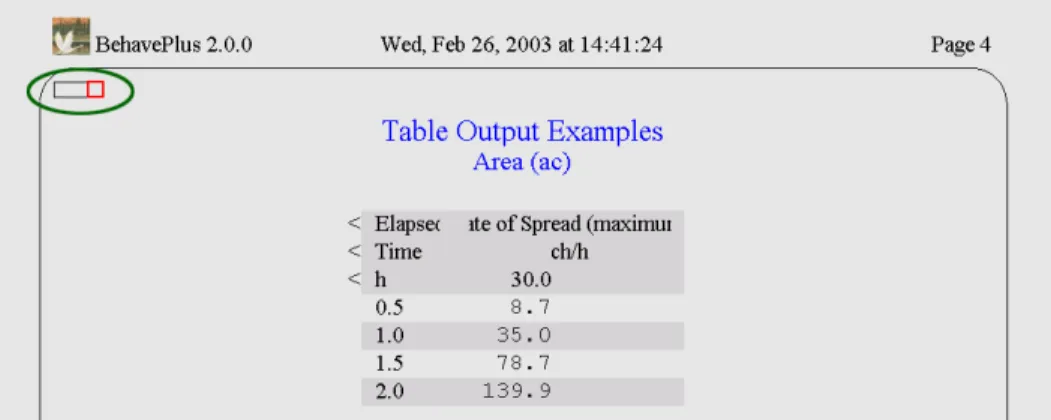
There is essentially no limit on the number of values that can be assigned to a variable. But the resulting table might not fit on a single page. For example, if rate of spread is calculated for values from 2 to 30 in steps of 2, and elapsed time is specified as the row variable, the table overlaps onto 3 pages.
BehavePlus v2.0 User’s Guide Table output
The > or < symbols lined to the right and/or left of the table heading indicates that there are additional results for those variables in the indicated direction.
Table output BehavePlus v2.0 User’s Guide
The box diagram at the upper left of the pages shows the relative position of the currently viewed page in the multipage table.
In this example, however, it would make more sense to specify rate of spread as the row variable since it produces a table that fits on a single page as shown below:
7.
Graph output
When more than one value is entered for one or two input variables, graphs can be produced. Graphs are viewed by selecting the Display Graph Results check box in the “Calculate Results” dialog box that displays after Calculate is requested. The form of the graph depends on whether the variables are continuous or discrete. The program automatically takes care of the differences for the user.
7.1. Single variable graph
When a range of values is entered for a single continuous variable, a graph is produced by calculating a fixed number of points (which can be changed in the Configure > Appearance > Graph Elements tab) over the entered range. Intermediate values entered on the Worksheet are ignored. For example, rate of spread entry of 5, 7, 9, 11, 13, 15 produces the same graph as rate of spread entry of 5, 15:
Graph output BehavePlus v2.0 User’s Guide
When a range of values is assigned to a discrete variable, a single calculation is performed for each value and a bar graph is produced. For example, the following is a comparison of surface fire spread rates for the standard 13 fire behavior fuel models:
BehavePlus v2.0 User’s Guide Graph output
7.2. Two variable graph
When a range of values is assigned to two variables, a graph is produced. If both variables are continuous, the variable used for the X-axis can be selected from the “Calculate Results” dialog box. For example:
In the “Calculate Results” dialog box clear the Display table results check box and accept the defaults in the Display graph results section:
Graph output BehavePlus v2.0 User’s Guide
Changing the X-Axis Variable to the Midflame Wind Speed (upslope) in the “Calculate Results” dialog box produces a very different graph:
If a range is assigned to two variables, one of which is continuous and one discrete, the continuous variable is always on the X-axis. For example:
BehavePlus v2.0 User’s Guide Graph output
Now you no longer have the option ofchanging the X-Axis Variable in the “Calculate Results” dialog box.
A graph is not possible when ranges are selected for two discrete variables.
Graph output BehavePlus v2.0 User’s Guide
7.3. Axis scales
7.3.1.
X-axis
The X-axis variable and scale are the same for all graphs produced by a Run. The maximum for the x-axis is set to be the maximum value specified for the variable on the Worksheet.
X Axis Origin and Y Axis Origin (minimum values) can be set for each as either zero or as the variable's minimum value as specified on the input Worksheet. The graph origin is set to (0,0) as the default.
For example, consider the following Run:
Options to define the origin of the graph are set through the Configure > Appearance > Graph Size tab.
Setting both the X Axis Origin and Y Axis Origin to zero produces the following graph:
BehavePlus v2.0 User’s Guide Graph output
In the Configure > Appearance > Graph Size tab select Min Value from the X-Axis Origin drop-down list to alter the graph appearance.
Graph output BehavePlus v2.0 User’s Guide
7.3.2.
Y-axis
The Y-axis scale normally differs between graphs produced by a Run since each graph is for a different output variable. For example, fireline intensity and flame length have different ranges of output and require a different Y-axis scale. By default the Y-axis is scaled to the maximum calculated output value for the variable to make best use of the graph area.
When you want to compare graphs between Runs, different Y-axis scales can obfuscate the comparison. A rate of spread graph for fuel model 10, for example, usually has a narrower output range than for fuel model 5 under the same conditions. To better compare calculated rate of spread graphs for the two fuel models, you can set both graphs to have the same Y-axis scale.
BehavePlus v2.0 User’s Guide Graph output
With the X Axis Origin and Y Axis Origin set to zero, the rate of spread graph below is produced:
To compare the results for fuel model 10 with the faster spreading fuel model 5, the scale for the fuel model 10 Run is changed to match that produced by model 5. The calculated maximums are given for each of the selected output variables as a reference.
In the “Calculate Results” dialog box select the Specify graph Y axis limits check box if you wish to modify the Y-axis ranges of the output graphs before they are displayed.
This displays the “Graph Limits” dialog box, where you can change the Y-axis maximum for the variable Rate of Spread (maximum) to 40:
Graph output BehavePlus v2.0 User’s Guide
BehavePlus v2.0 User’s Guide Graph output
7.4. Graph appearance
The appearance of the graph can be changed through the Configure > Appearance > Graph Size and Configure > Appearance > Graph Elements tabs.
Graph output BehavePlus v2.0 User’s Guide
7.4.1.
Graph Size
The vertical graph height on the page is set with the Graph Size(%) spin box on the Configure > Appearance > Graph Size tab.
Graphs are drawn starting at the upper left corner of the page and may occupy 25% to 100% of the page height. The default is 50%, as shown in the following graph.
BehavePlus v2.0 User’s Guide Graph output
Changing the Graph Size to 100% changes the above to the following graph:
Graph output BehavePlus v2.0 User’s Guide
7.4.2.
Graph Title
The graph title content is controlled using the Graph Title drop-down list on the Configure > Appearance > Graph Size tab.
Selecting Short from the Graph Title drop-down list displays just the contents of the Worksheet Description text box as the title. Selecting Long displays the Description text box and the graph variables.
BehavePlus v2.0 User’s Guide Graph output
Using the above Run a graph with a short title (the default) looks like the following.
Selecting Long from the Graph Title drop-down list on the Configure > Appearance > Graph Size tab adds more information to the title.
Graph output BehavePlus v2.0 User’s Guide
7.4.3.
Graph colors
Graph colors can be changed with the Configure > Appearance > Graph Elements tab.
Colors are selected from the predefined drop-down lists. Background is the background color of the graph.
Rainbow Colors sets the number of colors used to display graph lines or bars when Rainbow Colors is selected as the curve color. With three rainbow colors, the colors are red, green, and blue. If 4 colors are requested, four equally spaced hues from the color spectrum are used to display each graph line or bar in turn.
BehavePlus v2.0 User’s Guide Graph output Graph output
USDA Forest Service General Technical Report RMRS-GTR-106WWW. 2003 53
USDA Forest Service General Technical Report RMRS-GTR-106WWW. 2003 53
Bar Color
Bar Color is used to fill graph bars. Selecting Rainbow Colors fills each bar with its own color. The number of rainbow colors is set by the Rainbow Colors spin box discussed above.
Curve Color is used to draw graph lines. Selecting Rainbow Colors draws each line with its own color. The number of rainbow colors is set by the Rainbow Colors spin box discussed above.
Axis Color is used to draw graph axis lines, tic marks, and axis labels. Gridline Color is for the graph grid lines. The default is yellow.
Changing Rainbow Colors to 10 results in the following graph coloring:
Graph output BehavePlus v2.0 User’s Guide
7.4.4.
Line widths
Line widths can be changed using the Curve Width, Axis Width, and Gridline Width spin boxes on the Configure > Appearance > Graph Elements tab
Curve Width sets the width of graph lines. 0 is the thinnest and 9 thickest.
Axis Width sets the width of axis lines drawn on the graph. 1 is thinnest and 9 thickest.
Gridline Width sets the width of grid lines drawn on the graph. 1 is thinnest and 9 thickest. To prevent the display of any grid lines set Gridline Width to 0.
BehavePlus v2.0 User’s Guide Graph output Graph output
USDA Forest Service General Technical Report RMRS-GTR-106WWW. 2003 55
USDA Forest Service General Technical Report RMRS-GTR-106WWW. 2003 55
7.5. Number of curve points
7.5. Number of curve points
The resolution of the curves can be changed with the Curve Points spin box on the Configure > Appearance > Graph Elements tab. The resolution of the curves can be changed with the Curve Points spin box on the Configure > Appearance > Graph Elements tab.
The Curve Points spin box determines the number of points calculated for each curve in the graph. A straight-line segment is drawn between each pair of points. The default of 20 is visually adequate for most graphs. Requesting more points usually results in a marginal improvement in the visual appearance and requires more computation time. In cases where many curves are plotted and the calculation time is slow, reducing the number of curve points will speed things up.
The Curve Points spin box determines the number of points calculated for each curve in the graph. A straight-line segment is drawn between each pair of points. The default of 20 is visually adequate for most graphs. Requesting more points usually results in a marginal improvement in the visual appearance and requires more computation time. In cases where many curves are plotted and the calculation time is slow, reducing the number of curve points will speed things up.
Changing Curve Points from the default of 20 to 5 results in the following graph:
Changing Curve Points from the default of 20 to 5 results in the following graph:
Graph output BehavePlus v2.0 User’s Guide
8.
Diagram output
In addition to the usual table and graph output, BehavePlus produces diagrams for the following output variables.
• Wind/slope/fire spread direction diagrams from the SURFACE module
• Fire characteristics chart from the SURFACE module
• Shape of a point source fire from the SIZE module
• Shape of a fire after suppression action from the CONTAIN module The option of diagram output is given in the lists of output variables.
8.1. Wind/slope/spread direction
Direction diagrams can help the user avoid confusion on directions for wind, slope, and spread directions. Direction input options are selected on the Configure > Module selection > SURFACE > Options… > Directions tab.
Direction diagrams are produced with the Configure > Module selection > SURFACE > Options… > Outputs tab and selecting the Wind/Slope/Spread Direction Diagram check box.
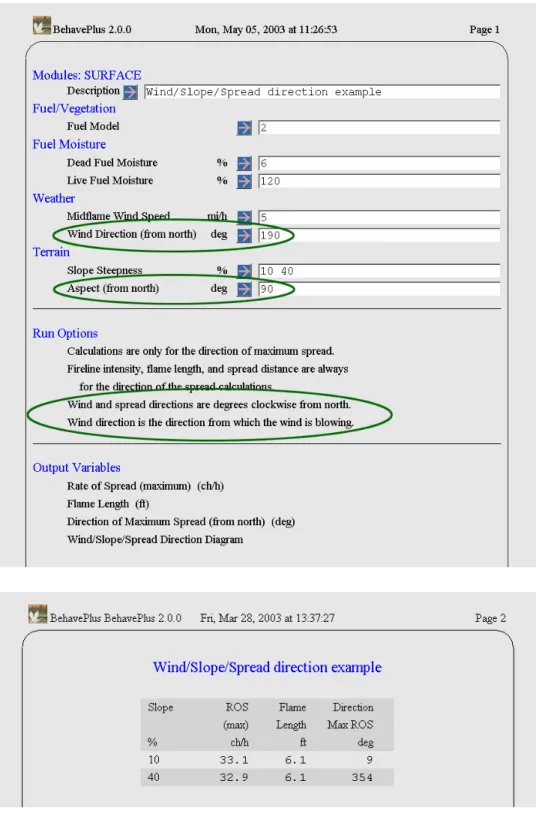
The diagrams differ according to the direction Input Options selected from the Configure > Module selection > SURFACE > Options… > Directions tab. The following shows the Input Option selection, the resulting Worksheet, the outputs table and diagrams.
BehavePlus v2.0 User’s Guide Diagram output
The following illustrates the effect of selecting the Wind & spread directions are option button on the variables that are requested on the Worksheet.
BehavePlus v2.0 User’s Guide Diagram output
8.2. Fire characteristics chart
A fire characteristics chart diagram plots the relationship of rate of spread, heat per unit area, flame length, and fireline intensity. This option is a simplified plot and does not offer the user any display options. Axis scales are set automatically and points are labeled with simple numbers. In the future, BehavePlus will provide a Fire Characteristics Tool so that that the user can customize it for a specific need.
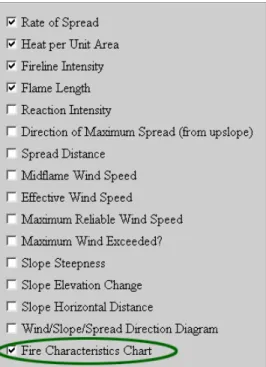
Fire characteristics charts are produced with the Configure > Module selection > SURFACE > Options… > Outputs tab and selecting the Fire Characteristics Chart check box.
Diagram output BehavePlus v2.0 User’s Guide
It is not necessary to select the four output variables that are plotted on the chart.
BehavePlus v2.0 User’s Guide Diagram output
The points labeled 1, 2, and 3 correspond to the three lines of the output table. Point 1 is for fuel model 2, point 2 for fuel model 5, and point 3 for fuel model 10.
Diagram output BehavePlus v2.0 User’s Guide
BehavePlus v2.0 User’s Guide Diagram output
The numbers on the chart correspond to the table cells in left-to-right and top-to-bottom order. In this example, Points 1 and 2 are for the first row of the result table (3% moisture) at the two wind speeds (7 and 10 mi/h). Points 3 and 4 are for the second row of the result table (6% moisture) at the two wind speeds. Points 5 and 6 are for the third row of the result table (9% moisture) at the two wind speeds.
8.3. Shape of a point source fire
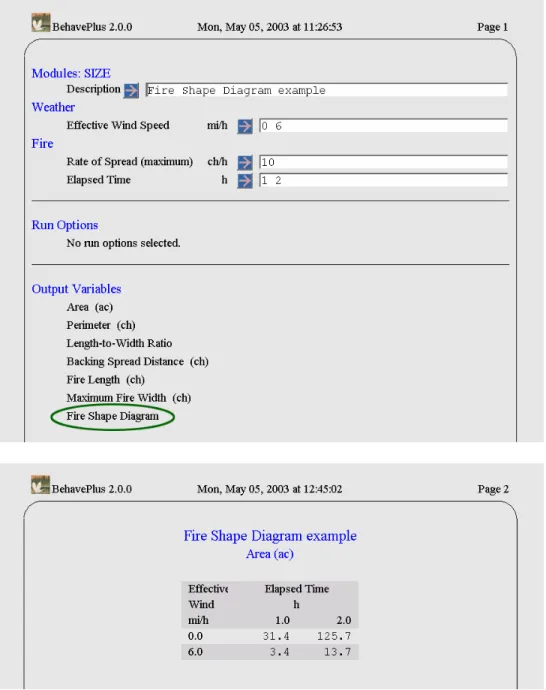
The elliptical shape of a point source fire can be plotted on the Configure > Module selection > SIZE > Options … > Outputs tab by selecting the Fire Shape Diagram check box
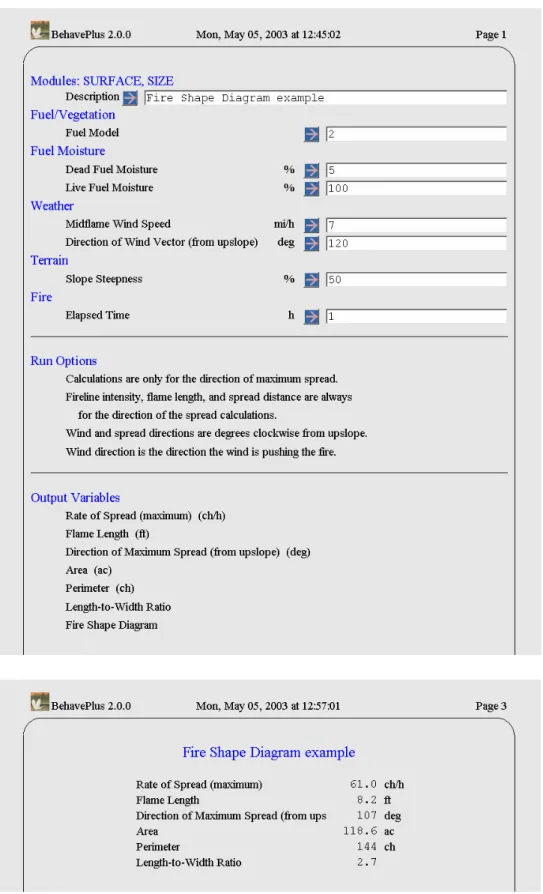
For example, the following shows the Worksheet, output table, and Fire Shape Diagram.
BehavePlus v2.0 User’s Guide Diagram output
In addition to the shape diagrams, values for all of the selected output variables are given on each diagram.
Diagram output BehavePlus v2.0 User’s Guide
BehavePlus v2.0 User’s Guide Diagram output
8.4. Containment shape
The Containment Diagram shows fire perimeter at time of report, at initial attack, and constructed fireline at the time the fire was successfully contained or when it escaped initial attack (all resources exhausted before containment). The Containment Diagram is displayed by selecting the Containment Diagram checkbox from the Configure > Module selection > Containment > Options … > Output Variables tab. Select the Contain Status checkbox to output whether the fire was Contained or Escaped on the Containment Diagram.
BehavePlus v2.0 User’s Guide Diagram output
Diagram output BehavePlus v2.0 User’s Guide
9.
View, print, & capture results
9.1. View size
The View > xx% command changes the size of your Worksheet and Run when viewed on screen. It does not affect the size of printed output.
9.2. Windows
When a Worksheet is first opened, the Run it represents is assigned a default name such as “unnamed01.bpr”, “unnamed02.bpr”, etc. This name is displayed on the title bar at the top of the BehavePlus application window.
When you save a Run with the File > saveAs > Run command you should rename the Run. The name of the Run is then displayed in the title bar of the BehavePlus window. The complete path name for the Run is shown at the bottom of the BehavePlus application window.
BehavePlus allows you to have any number of Runs open at once. Each Run has its own display window containing a Worksheet and possibly containing calculation results. Only one Run window is active at a time. The Windows menu item allows you to switch between Runs. It also allows you to cascade or tile the Runs within the BehavePlus window area. By default the Run windows are stacked on top of each other, so you only see the active Run. If your Run windows are already cascaded or tiled, you can make a Run active by clicking it.
The following is a “tiled” display of the two Runs, one English, one metric. The English Run (unnamed01.bpr) is the active Run.
View, print, & capture results BehavePlus v2.0 User’s Guide
9.3. Pages
While each Run has its own window, the window has one or more Pages. The first page(s) contain the Worksheet, and subsequent pages contain results tables, graphs, and diagrams.
You can navigate between pages using the following toolbar buttons: Go to the first page
Go to the last page Go to the previous page Go to the next page
The keyboard navigation arrows will also move you from one page to the next. The Pages > command allows you to jump directly to a specific page.
BehavePlus v2.0 User’s Guide View, print, & capture results
Selection can be made from the list of pages with text descriptions and an icon indicating whether it is a table, graph, diagram, etc.
9.4. Print
You can print all pages or selected pages with the File > Print command. Alternatively, select Print from the shortcut menu when you right click inside a page.
Whenever an output page is printed, it is good practice to print the associated Worksheet pages to avoid confusion on conditions for the Run. Printed pages are numbered and the date and time of the Run are included on the page header.
9.5. Capture
The currently displayed page can be captured and saved as a file in bmp, jpg, or png format with the File > Capture command. In the “Save As” dialog box enter a file name in the Capture File text box and select a file type from the Capture Description drop-down list.
The saved file can then be edited with an image processor or inserted into other documents.
In addition to the File > Capture command, you can use the ALT-Print Screen key or a screen capture utility (e.g. FullShot) to insert results from BehavePlus in other documents. The following steps are an example and do not constitute endorsement of specific software.
• Startup BehavePlus, WORD word processor, and FullShot software.
• On BehavePlus display, select the ‘R’ (for Region) in upper right hand of the window (put there by FullShot).
• Use the cursor to select the desired area
• Upon release of the mouse, FullShot opens with the selected image
• CTRL-C to save it in a clip board
• Go to the WORD document
• CTRL-V to insert the image
This is a quick and efficient method. There is no need to save the image in a file of its own. The image can be resized, cropped, or moved within WORD if desired.
View, print, & capture results BehavePlus v2.0 User’s Guide
10.
Error checking
If you do something that causes the program to crash, it is a program bug. Please report it through
www.fire.org.
When you do something in error, the program will tell you what the problem is and give you a chance to fix it.
Error checking BehavePlus v2.0 User’s Guide
11.
Custom fuel models
A fuel model is a set of values that describe a fuel type for the surface fire spread model. The standard fuel models are numbered 1 through 13. Additional fuel models, called Custom Fuel Models, can be developed, tested, saved, and used in BehavePlus.
11.1. Using previously saved fuel models
The 13 standard fuel models are always available. In order to use previously saved custom fuel models, the folder in which they are stored must be attached using the Configure > Fuel model set selection command.
Click on a folder's button to view its fuel model files. Each fuel model is stored in a separate file.
Fuel model files are attached by attaching the folder in which they reside. This makes the fuel models in that folder accessible for use. It is not possible to select and attach individual fuel models; the entire folder must be attached. For example, all the southern California fuel models are attached by selecting the SoCalifornia folder. Once a fuel model folder is attached, the fuel models appear in the Fuel Model input guide and may be entered as fuel model input.
After the SoCalifornia fuel model folder is attached, the Fuel Model input Guide Button gives the following valid selections for the Fuel Model text box.
To view the parameters of a particular fuel model, right-click on its name and select View parameters from the shortcut menu.
Custom fuel models BehavePlus v2.0 User’s Guide
Folders (and files) with a paper clip icon are currently attached to (i.e., accessible for use by) BehavePlus in the current session. Once the Ok button is pressed, only the selected folders will have their files attached. Unselected folders will NOT have their files attached, even if they are currently marked as attached by the paper clip icons.
BehavePlus v2.0 User’s Guide Custom fuel models
11.2. Defining and saving custom fuel models
To change the Worksheet so that individual fuel parameters are entered in place of the fuel model code use the Configure > Module selection > SURFACE > Options… > Fuel and moisture tab and select the fuel parameters. option button.
Or you can load the Example Worksheet FuelModeling.bpw, which as been set up this way, using the File > New command or toolbar button.