An XML Based Approach to Virtual Desktop Infrastructure
Chris Weber
1(100216595), Azhar Saiyed
2(100464089), Maaz Kamani
3(100453151), Pirasanth
Sivalingam
4(100460273)
Faculty of Business and IT, University of Ontario Institute of Technology, Canada
1
[email protected],
2[email protected],
3[email protected],
4
[email protected]
Abstract
Virtualization and the cloud are all the rage these days and every company seems to be migrating to a virtualized, cloud based system of some sort. One area in particular is with the virtualization of desktops. This paper proposes an implementation of such a VDI system. We analyze the system from a web service point of view since VDI systems are typically accessed through a web browser. We describe the various web processes involved in the system as well as their role in the business process and the various SOAP messages that such a system would use to communicate with the data center when loading a virtual desktop environment. We also provide an XML, DTD and XSL schema which the system would use to store and display the user’s virtual desktop web browser environment.
Keywords- XML, XSLT, DTD, SOAP, BPMN VDI, virtual desktop
I.
INTRODUCTION
With virtualization and cloud computing being two of the hottest topics in the information technology sector these days, businesses are continuously looking for ways to adapt these technologies to enhance their business.
Virtual desktop infrastructure of VDI for short is a new technology which combines both of the areas of virtualization and cloud computing in to one infrastructure. Rather than having a specific computer for each user in the company from which that user accesses all of their files, applications and personalized settings, we move their entire desktop environment in to the cloud. All of their data is stored and run from the cloud. Their PC can now be used simply as a viewer through which the user can access their desktop remotely.
The scope of this paper involves researching the approach to VDI’s from an eXtensible markup language (XML) perspective.
The remainder of this paper is organized as follows. Section 2 provides a survey of related works regarding virtual desktop infrastructure. Section 3 provides the body of our work with an analysis of a VDI system and our design relating to the SSM
problem definition for desktop virtualization. Section 4 provides an analysis of the implementation of web services used in the business process of a VDI system. Finally section 5 concludes the paper with a summary of the implementation of VDI’s as discussed herein and provides some areas of future work that have yet to be conducted in desktop virtualization.
II.
RELATED WORK
In todays’ world, many companies have fallen back to the virtualization of their data-significant infrastructures such as their servers and data centers, to simplify and reduce administration, management, and operating costs while still maintaining the core and ensuring no theft or data loss [1]. With all the benefits accompanied by this technology, many companies want to incorporate this into their desktop computers. In order to do this, companies have turned to Virtual Desktop Infrastructure (VDI). VDI is essentially running a desktop operating system and the assortment of applications required for the individual/employee all on the servers within the data center of the company. With this implementation, a user can access the applications as if they were on his computer through a remote desktop client on their machine [1].
Before the new trend of virtualizing the desktop became an option; machines were implemented and installed one by one with all the required specifications and software necessary for the company. If a problem ever occurred, a member of the I.T department would have to go and troubleshoot the issue. This takes time, as in some cases, the problem might be at a remote location when the I.T department resides within the main building. Not only is this the case but troubleshooting itself would require lengthy amounts of time, sometimes more than a day, as there are many areas to which might result in such a problem. This is just but one of the many issues that VDI negates and simplifies in order to ensure smooth productivity of all workers [1].
Many of VDI’s strongest benefits lye within the fact everything is stored in a central location. This means that in implementation, all users will use the same desktop image which, in the end, reduces
administrative and support costs [2]. Costs and management operations are reduced and simplified. There’s no need to upgrade user machines individually or even update their software to prevent the system from exploits because everything is on the companies’ server. With VDI only the devices that the data center is composed of would need the update and any hardware upgrades. The implementation allows for single area troubleshooting if a problem arises, concentration of resources to prevent any failure and removes the hassle of managing employee machines [3]
The reason for implementing VDI is to simplify and reduce costs of traditional company infrastructure but when implementing VDI, the same issues come into play but on the data center side. First off, every company has different types of employees, each with different duties which in most cases, results in a different set of software applications. Therefore there will need to be a unique image for those employees to be stored on the VDI server resulting in enormous storage consumption. Another issue would be the investment required for the VDI server. Even though VDI provides a single area to troubleshoot, it’s also a single point of failure and if that server goes down a huge amount of employees will be unable to do anything. Therefore enormous amounts of funds will need to be put into the equipment to ensure proper function. The cost of this alone might exceed the individual upgrade of employee machines [3].
Several implementations exist for VDI in terms of incorporation with the users who will be using the services. Thin computing is one the popular choices. This implementation delivers every necessity a user needs without the high costs traditional mass distribution of custom PCs give with no compromise of management or security [4]. What thin computing does is instead of using a PC loaded with multiple different types of applications, employees/users are given thin clients, pcs that rely heavily on servers, allowing IT stronger management ability of user desktops. Not only does it provide strong management, it reduces energy consumption, lowers costs and is much better for the environment in general [4]. Thin computers have no hard drives, a small amount of processing power and a relatively small amount of RAM. When a key on the keyboard is pressed, the thin client sends this information to the server which processes the inputs and returns an updated image to the terminal’s screen. All applications are stored and run on the server.
One other implementation of VDI is cloud virtual desktops. A company can implement the VDI technology that can be based off the cloud. One of the many benefits is the flexibility and efficiency that
is implemented with VDI [5]. It allows user to take specific user data and make it available across multiple devices. In addition, challenges such as Bring Your Own Device (BYOD) are eliminated with services such as VDI in the cloud [6].Many other third part vendors such as Microsoft, Dell, Cisco have an infrastructure that a company use to implement VDI. The resources invested by the leading technology companies maybe a much more viable option than implementing it yourself. The equipment, design and configurations are pre-configured and pretested on high demanding IT environments [7].
“Green” is a term that is used to symbolize and express the environment. There is huge concern for every project on how it will use fewer resources and save the environment. VDI is a great technology that really can help the environment stay green. There are primarily five key areas where VDI can help the environment [8].
First it increases energy efficiency. VDI’s use a fraction of the electricity consumed to regular desktop PCs. This allows saving on both the power being consumed and the power used to cool the system itself [9]. Virtual desktops also improve utilization of resources. Desktop PCs are usually used 5-10% of the time, usually sitting idle. One the other hand, VDI hardware, is in the form of servers and shared networks, which being used at a higher level. Also hardware upgrades are much easier compared to upgrades on PCs assigned to individuals. Furthermore, VDI’s reduce waste. VDI are far smaller than desktop PCs, with fewer parts containing less metal, plastic and electronics components. This allows for less toxic medals during production and at the end of the devices lifecycle during disposal [9]. A virtual desktop infrastructure also provides a lower operating overhead. The ease of supporting VDI translates to a reduced user downtime and increase in productivity, bringing savings that be applied to other areas of business. Finally, the VDI system provides a longer lifespan of infrastructure. VDI devices can last several years longer than that of a regular computer providing reduced costs and easier maintenance efforts on IT staff.
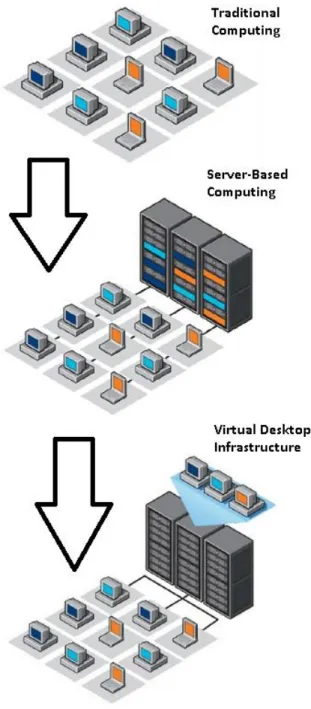
Figure 1 shows how desktop computing has evolved over recent years. It used to be like the first image in the diagram where every user had their own desktop or laptop which would run their OS and all of their applications. However then server based computing came along where the user’s desktop and applications were moved off of the physical computer and on to a specific server in the data center. Every user was allocated a set amount of space on a specified server where they would always access
Figure 1. Progression of Desktop Computing
their desktop from. The problem with this implementation was that a user’s desktop was tied to a specific server. Therefore if every user that was allocated on one server was working, they would be loading all of their desktops on the server and the server would be running at a high resource usage. Meanwhile another server may be sitting idle because none of its users are currently logged in. To solve this issue we introduce virtual desktop infrastructure. A VDI runs the user’s desktop in the data center like
server based computing does, however it combines all servers in to one cluster or “mega-server”. Thus, resource usage and loading of user accounts can be spread evenly across all servers. This improves efficiency and decreases resource usage of a single device. Section 3 takes a look at the design and implementation of such a system.
A. Soft Systems Methodology (SSM)
Soft Systems Methodology (SSM), is a systemized process used to support and structure complex thinking processes. Many people hear the word “soft” and think that it deals specifically with soft skills such as communications however that is not true and the methodology is commonly used to deal with real, physical problems in the world. It also enables the user to react to changes in the real world that possibly have an influence on the action [10]. The models are sometimes descriptive or standardized and are compared to the world as it is. It assumes that everyone views the world differently therefore resulting in different evaluations for any situation. This is strong for any practitioner of SSM as it gives many options on how to approach the problem and the course of action needed to be taken for said problem. SSM was developed as a result of failure from the traditional way of thinking. The standard method starts off with developing an objective and from there working to find a solution. Coming to a consensus on the objective is in most cases the problem. SSM understands this and helps deal with the diversity of peoples’ view on the problem [11].
III.
VIRTUAL DESKTOP
INFRASTRUCTURE
The following section discusses our work in the design of an XML based system for a virtual desktop infrastructure implementation as defined by the soft systems methodology.
A. System Design
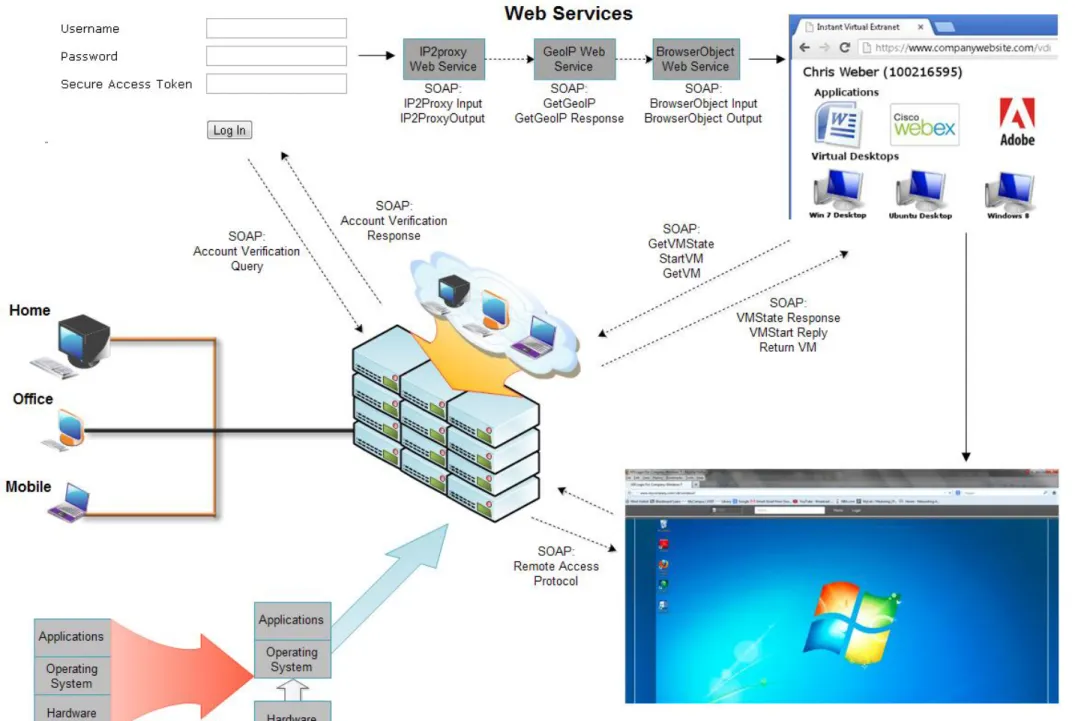
Our system involves separating the user’s operating system/desktop environment from their physical computer and moving it in to a data center (Fig. 2). The now virtualized desktop environment will run on a cluster of servers within the datacenter and the user’s PC can be a desktop, laptop or a thin client computer which is basically just a monitor that can be used to view their virtual desktop in the data center. Figure 2 shows that the user first visits a log in page from their web browser where they enter their
username, password and secure token. When they log in, the system will query an authentication server using a SOAP request message. A SOAP response will be sent back to the web browser indicating if the credentials were valid or not. If successful, the diagram shows that next the system will execute three web services before their virtual desktop portal is shown. If any of these web services fail or return unexpected values, the system will not continue and they will be returned to the log in screen. Once the three web service checks pass, the system will show the user their remote access portal which includes all of their virtual desktops and web applications which they have access to as defined in the VDI XML schema. The user can select any of the desktops to start. The system will use a web service to query the data center to determine the current running state of the virtual desktop using a GetVMState SOAP request. The system will reply with a VMState Response SOAP message. If the desktop is not currently running, the system will send a StartVM SOAP message and when successfully started the system will send a VMStarted response which tells the system the VM has started so the desktop will be shown to the user through the use of a remote desktop protocol.
B. Practical Implementation
There are many companies these days that are implementing VDI solutions in to their business. One such company that could greatly benefit from this is SuperheatFGH. Superheat is a company that works in the industrial/construction industry and operates in the heat treatment sector. They provide heat treatment services to these companies [12].
There are several reasons Superheat could benefit from a VDI. First of all they are expanding their operations in Europe and the U.S. They are currently adding 100 new sales agents immediately with 25 working in the main office and 75 working from home. There will also be an additional 20 new control staff to handle the increasing number of jobs that Superheat will be running. There will also be an expected 400 new employees added over the next 3-5 years. The IT department will need a more scalable way to handle this increased employee base while remaining at the current fixed level of IT staff and about the same IT budget. A VDI solution can help manage this increase in work. Currently it takes anywhere from 3-7 hours to completely set up a new PC for an employee. However a virtual desktop solution would cut this down to mere minute’s thus reducing time and costs on the IT budget. It also allows IT to easily manage the increasing infrastructure because all of the desktops would be
hosted in one location in the company’s data center. A virtual desktop implementation would also allow IT to reduce their costs. Currently a PC lasts from 2-3 years before it needs to be upgraded or repaired due to slowing performance. A VDI could extend this life to at least 5-7 years because the desktop is no longer running directly on the PC but rather on the servers. Therefore and older, slower computer could run the virtual desktop at the same speed as a brand new PC.
C. Soft Systems Methodology
Root Definition -
A private cloud based system owned by the company and managed together with the IT department, will allow significant growth and scalability for the companies desktop and server infrastructure (both existing and future). The platform will be implemented and fully integrated within the current infrastructure within six months of commencement.
The company is growing rapidly and the IT department needs to keep the infrastructure in line with company growth while still working within a limited budget; both in terms of financials and human resources. The solution to manage this growth is with a virtual desktop infrastructure (VDI) which will provide several benefits to the company.
The VDI will support an increased employee base in the manufacturing segment of the company where each user does not need a dedicated machine for their limited desktop use. In addition, the VDI will support remote access for employees who need (or want) to work from home or on the road. Finally, the VDI will allow for scalability and centralized management of the desktops. Any updates or policy changes can be implemented while the desktop is in use which would reduce IT costs by eliminating overtime and downtime of the systems during system updates.
CATWOE Analysis -
Customer –Employee, Company
Actors – Company implementing VDI, VDI platform provider, IT department
Transformation – Moving the user’s desktop off of their physical machine and virtualizing it in the cloud where the user can then access it from any device, anywhere in the world.
Weltanschauung (Why bother?) – To support an increase in staff while keeping infrastructure related
costs low and reducing management burden on IT staff.
Owner – Company
Environment – Financial constraints, time constraints, corporate goals
IV.
IMPLEMENTATION
Figure 2 shows that the user accesses their virtual desktops by visiting a company webpage where they will log in to their account and a list of their virtual desktops will be shown to them. This web page lists all of the applications and virtual desktops which the user has access to. The account information used by this web interface is stored in the data center using the XML file in Appendix A. The XSL file is used to format that data in the web interface and a sample parsed XML file is shown in Figure 3. Appendix A
also provides the accompanying DTD file for the XML file.
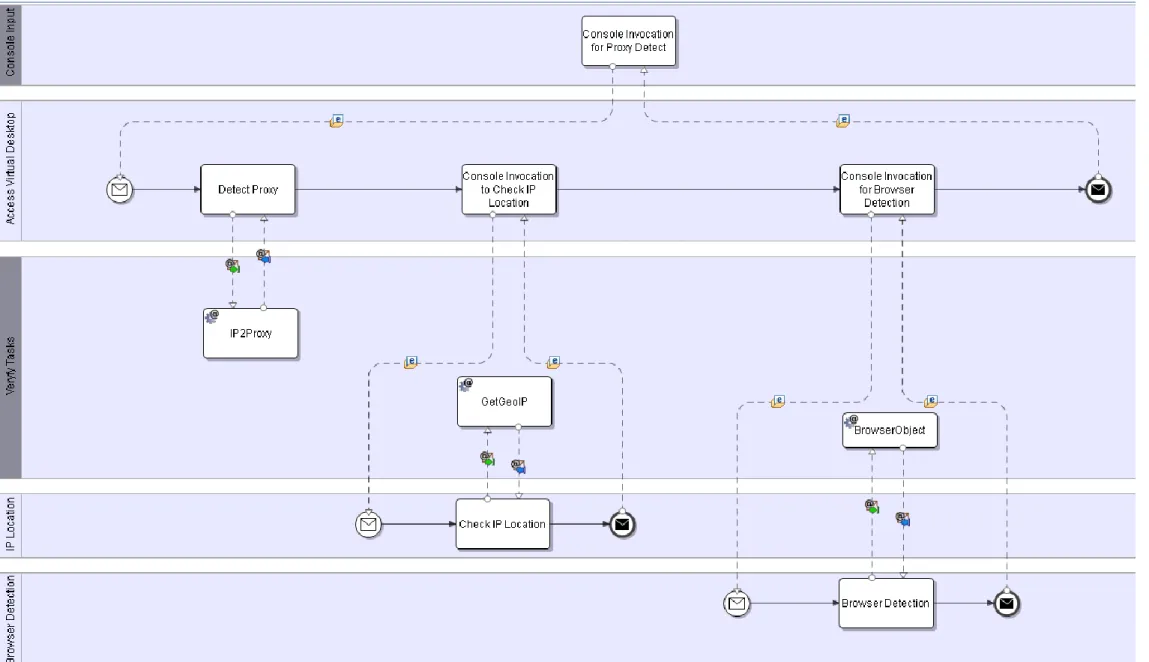
Before the list of desktops they can access will be shown, a series of web processes will be executed in the background. These web services include: IP2Proxy, GeoIPService and BrowserObject and the business process for their execution is shown in Figure 3. The IP2Proxy
[13]
web service checks to make sure the user is not connected through a proxy. This is used as a security check to prevent malicious users from gaining access to the virtual desktops since attackers typically perform these attacks through a proxy. This service is provided for a fee but can be accessed using the following trial license: 03-1PQ2-ABOJ. The GeoIPService [14] checks the country code of the user’s IP address. This service is used to make sure the user is accessing their desktop from the proper country. If the country doesn’t match what it should, it could indicate an attacker trying to gain access to the virtual desktop. Finally the BrowserObject [15] web service detects the web browser that the user is running. It is used to format the virtual desktop to suit the device it is being accessed from whether it be a PC, smartphone or tablet. This web service is provided for a fee from FraudLabs but can be accessed for free using the following trial license: 08-8SAX-0CTF.The following section describes how data flows through the process. Figure 3 also shows this process in detail. First the proxy detection task is run which invokes the IP2Proxy web service. This service uses the visitors IP address as the input and outputs a YES or NO message. Realistically if a YES is received, indicating that the user is connected through a proxy, their connection will be halted and they will not be able to access their virtual desktop.
Next the “Check IP Location” task is executed which invokes the GetGeoIP service and returns the country code of the visitors IP address. The input to the service is the visiting user’s IP address and the output is the country code for said IP address. If the country code does not match the location where the user should be, they will also not be able to proceed further in accessing their desktop. Finally the “Browser Detection” task is run which executes the BrowserObject web service. This service takes an input a user agent string which is a list of browser versions. The service checks this list against the user’s actual browser and returns the name of the browser that the user is running. The following is an example as a user agent string which would be used for this input:
Mozilla/5.0 (Windows NT 6.1; WOW64) AppleWebKit/537.22 (KHTML, like Gecko) Chrome/25.0.1364.172 Safari/537.22
V.
CONCLUSION
We presented a discussion on virtual desktop infrastructure including how it works from a technical standpoint. We then proposed an XML based implementation of a VDI system.
In terms of future work, there is much to be done in the area of virtual desktops. First of all more work needs to be done in terms of security. With VDI, the user’s login credentials and other settings are being transferred over the network and in some cases the public network which is very insecure. Furthermore we would look at what would happen if a malicious user was able to hack in to a virtual desktop. In the old days of physical desktops that would give the attacker some sort of access in to the network but now this would allow them direct access right in to the datacenter, or the heart, of a corporate network. We talked with an employee at Cisco about virtual desktops because this is currently an area they are exploring heavily. However he mentioned as was just discussed that security is one of the major concerns right now along with costs that is really holding back companies from implementing this technology.
VI.
REFERENCES
[1] Vmware, "Virtual Desktop Infrastructure," Ziff Davis Media, 2013.
[2] R. Wilkinson, "Best Practices for Building and Securing a VDI Implementation," 2006. [3] L. Harbaugh, "The Pros and Cons of Using
Virtual Desktop Infrastructure," 22 March 2012. [Online]. Available:
http://www.pcworld.com/article/252314/the_pr os_and_cons_of_using_virtual_desktop_infrastr ucture.html. [Accessed 20 March 2013]. [4] "Thin Computing," 2013. [Online]. Available:
http://www.arcy.com/thincomputing.html. [Accessed 20 March 2013].
[5] E. Anderson, "Talking Through VDI Options," BCW, 7 December 2010. [Online]. Available: http://www.businesscomputingworld.co.uk/talki ng-through-the-vdi-options/. [Accessed 25 March 2013].
[6] A. Cole, "Cloud-Based VDI: A Question of Scale," IT Business Edge, 2 October 2012. [Online]. Available: http://www.itbusinessedge.com/interviews/clou d-based-vdi-a-question-of-scale.html.
[Accessed 25 March 2013].
[7] Dell, "Desktop Virtualization Solution," Dell, [Online]. Available: http://www.dell.com/Learn/us/en/555/virtual-client?c=us&l=en&s=biz. [Accessed 25 March 2013].
[8] P. Logic, "Green Your IT with VDI," California, 2010 January.
[9] D. A. DaSilva, "Enabling Green IT Through Building a Virtual Desktop Infrastructure," 2012.
[10] B. Williams, "Soft System Methodology," 2005.
[11] learnaboutor, "Introduction to Soft Systems Methodology," 2012. [Online]. Available: http://www.learnaboutor.co.uk/strategicProble ms/m_s_3frs.htm. [Accessed 20 March 2013]. [12] SuperheatFGH, "Corporate Overview,"
SuperheatFGH, [Online]. Available: http://www.superheatfgh.com/common/content. asp?PAGE=363. [Accessed 26 March 2013]. [13] FraudLabs, "IP2Proxy," FraudLabs, [Online].
Available:
http://www.fraudlabs.com/ip2proxy.aspx. [Accessed 25 march 2013].
[14] "GeoIPService," Webservicex, [Online]. Available:
http://www.webservicex.net/ws/WSDetails.asp x?CATID=12&WSID=64. [Accessed 25 March 2013].
[15] "BrowserObject," FraudLabs, [Online]. Available:
http://www.fraudlabs.com/browserobject.aspx. [Accessed 25 March 2013].
[16] "VDI - How it Works," VMWare, 14 June 2010. [Online]. Available:
http://www.slideshare.net/datacenters/vdi-how-it-works. [Accessed 24 March 2013].
[17] Y. Chou, "Microsoft Virtual Desktop Infrastructure (VDI) Explained - See more at: http://blogs.technet.com/b/yungchou/archive/20
10/01/06/microsoft-virtual-desktop-
infrastructure-vdi-explained.aspx#sthash.TOVdCIzy.dpuf," Technet, 6 January 2010. [Online]. Available: http://blogs.technet.com/b/yungchou/archive/20
10/01/06/microsoft-virtual-desktop-infrastructure-vdi-explained.aspx. [Accessed 24 March 2013].
Figures
Appendix A
XML Document<?xml version="1.0" encoding="UTF-8"?>
<!DOCTYPE root-name PUBLIC "Virtual-Desktop-Access-Process" "Virtual-Desktop-Access-Process.dtd"> <?xml-stylesheet type='text/xsl' href='Virtual-Desktop-Access-Process.xsl'?>
<Account> <User> <FirstName>Chris</FirstName> <LastName>Weber</LastName> <UserName>100216595</UserName> <Password>password</Password> <SecureToken>r345fg</SecureToken> <TimeStamp>26-03-2013 06:23:12</TimeStamp> <IpAddress>217.165.123.64</IpAddress> <BrowserObject>
<UserAgent>Mozilla/5.0 (Windows NT 6.1; WOW64) AppleWebKit/537.22 (KHTML, like Gecko) Chrome/25.0.1364.172 Safari/537.22</UserAgent> <Browser>Chrome</Browser> </BrowserObject> <Applications> <MicrosoftOfficeWord>Yes</MicrosoftOfficeWord> <CiscoWebex>Yes</CiscoWebex> <Adobe>Yes</Adobe> <Sharepoint>No</Sharepoint> <OraclePeopleSoft>No</OraclePeopleSoft> </Applications> <VirtualDesktops> <Desktop> <DesktopName>Win7 Desktop</DesktopName> <OS>Windows 7</OS> <VmState>Off</VmState> <LastLogin> <IpAddress>208.123.164.12</IpAddress> <StartTime>25-03-2013 05:00:12</StartTime> <EndTime>25-03-2013 15:28:58</EndTime> <Browser>Firefox</Browser> </LastLogin> </Desktop> <Desktop> <DesktopName>Ubuntu Desktop</DesktopName> <OS>Ubuntu 12.04</OS> <VmState>Off</VmState> <LastLogin> <IpAddress>199.212.142.3</IpAddress> <StartTime>12-03-2013 10:23:34</StartTime>
<EndTime>12-03-2013 10:50:45</EndTime> <Browser>Firefox</Browser>
</LastLogin> </Desktop>
<Desktop>
<DesktopName>Windows 8 Development Desktop</DesktopName> <OS>Windows 8</OS> <VmState>Off</VmState> <LastLogin> <IpAddress>174.12.16.9</IpAddress> <StartTime>02-01-2013 14:09:23</StartTime> <EndTime>25-03-2013 15:00:34</EndTime> <Browser>Safari</Browser> </LastLogin> </Desktop> </VirtualDesktops> </User> <User> <FirstName>Azhar</FirstName> <LastName>Saiyed</LastName> <UserName>100464089</UserName> <Password>Password123</Password> <SecureToken>89rg4j</SecureToken> <TimeStamp>27-02-2013 09:10:48</TimeStamp> <IpAddress>232.212.167.8</IpAddress> <BrowserObject>
<UserAgent>Mozilla/5.0 (Windows NT 6.1; WOW64) AppleWebKit/537.22 (KHTML, like Gecko) Chrome/25.0.1364.172 Safari/537.22</UserAgent> <Browser>Internet Explorer</Browser> </BrowserObject> <Applications> <MicrosoftOfficeWord>Yes</MicrosoftOfficeWord> <CiscoWebex>No</CiscoWebex> <Adobe>No</Adobe> <Sharepoint>Yes</Sharepoint> <OraclePeopleSoft>No</OraclePeopleSoft> </Applications> <VirtualDesktops> <Desktop> <DesktopName>Windows XP Desktop</DesktopName> <OS>Windows XP</OS> <VmState>On</VmState> <LastLogin> <IpAddress>208.123.164.12</IpAddress> <StartTime>25-03-2013 05:00:12</StartTime> <EndTime>25-03-2013 15:28:58</EndTime>
<Browser>Firefox</Browser> </LastLogin> </Desktop> </VirtualDesktops> </User> </Account> XML DTD
<!ELEMENT Account (User+)>
<!ELEMENT User (FirstName, LastName, UserName, Password, SecureToken, TimeStamp, IpAddress, BrowserObject, Applications, VirtualDesktops)> <!ELEMENT FirstName (#PCDATA)>
<!ELEMENT LastName (#PCDATA)> <!ELEMENT UserName (#PCDATA)> <!ELEMENT Password (#PCDATA)> <!ELEMENT SecureToken (#PCDATA)> <!ELEMENT TimeStamp (#PCDATA)> <!ELEMENT IpAddress (#PCDATA)>
<!ELEMENT BrowserObject (UserAgent, Browser)>
<!ELEMENT Applications (MicrosoftOfficeWord, CiscoWebex, Adobe, Sharepoint, OraclePeopleSoft)> <!ELEMENT VirtualDesktops (Desktop+)>
<!ELEMENT UserAgent (#PCDATA)> <!ELEMENT Browser (#PCDATA)>
<!ELEMENT Desktop (DesktopName, OS, VmState, LastLogin)> <!ELEMENT DesktopName (#PCDATA)>
<!ELEMENT OS (#PCDATA)> <!ELEMENT VmState (#PCDATA)>
<!ELEMENT LastLogin (IpAddress, StartTime, EndTime, Browser)> <!ELEMENT IPAddress (#PCDATA)>
<!ELEMENT StartTime (#PCDATA)> <!ELEMENT EndTime (#PCDATA)> <!ELEMENT Browser (#PCDATA)>
XSL Document <?xml version="1.0" encoding="ISO-8859-1"?> <!-- Edited by XMLSpy® --> <xsl:stylesheet version="1.0" xmlns:xsl="http://www.w3.org/1999/XSL/Transform"> <xsl:template match="/"> <html> <body>
<h2>VDI User Data</h2>
<tr bgcolor="#9acd32"> <th>---User Information---</th> </tr> </table> <table border="1"> <tr bgcolor="#9acd32"> <th>UserName</th> <th>First Name</th> <th>Last Name</th> <th>TimeStamp</th> <th>IP Address</th> <th>Browser</th> </tr> <xsl:for-each select="Account/User"> <tr> <td><xsl:value-of select="UserName"/></td> <td><xsl:value-of select="FirstName"/></td> <td><xsl:value-of select="LastName"/></td> <td><xsl:value-of select="TimeStamp"/></td> <td><xsl:value-of select="IpAddress"/></td> <td><xsl:value-of select="BrowserObject/Browser"/></td> </tr> </xsl:for-each> </table> <xsl:for-each select="Account/User">
<H1><th><xsl:value-of select="FirstName"/></th> <th><xsl:value-of select="LastName"/></th> <th>(</th><th><xsl:value-of select="UserName"/></th><th>)</th></H1>
<H2>Applications</H2> <table border="1"> <tr bgcolor="#9acd32"> <th>Microsoft Word</th> <th>Cisco WebEx</th> <th>Adobe</th> <th>Sharepoint</th> <th>Oracle PeopleSoft</th> </tr> <xsl:for-each select="Applications"> <tr> <td><xsl:value-of select="MicrosoftOfficeWord"/></td> <td><xsl:value-of select="CiscoWebex"/></td> <td><xsl:value-of select="Adobe"/></td>
<td><xsl:value-of select="Sharepoint"/></td> <td><xsl:value-of select="OraclePeopleSoft"/></td> </tr> </xsl:for-each> </table> <H2>Virtual Desktops</H2> <table border="1"> <tr bgcolor="#9acd32"> <th>Desktop Name</th> <th>OS</th> <th>VM State</th> <th>Last IP Address</th> <th>Last Start Time</th> <th>Last End Time</th> <th>Last Browser Used</th> </tr> <xsl:for-each select="VirtualDesktops/Desktop"> <tr> <td><xsl:value-of select="DesktopName"/></td> <td><xsl:value-of select="OS"/></td> <td><xsl:value-of select="VmState"/></td> <td><xsl:value-of select="LastLogin/IpAddress"/></td> <td><xsl:value-of select="LastLogin/StartTime"/></td> <td><xsl:value-of select="LastLogin/EndTime"/></td> <td><xsl:value-of select="LastLogin/Browser"/></td> </tr> </xsl:for-each> </table> </xsl:for-each> </body> </html> </xsl:template> </xsl:stylesheet>