Aspire
ISDN - PRI
This manual has been developed by NEC Unified Solutions, Inc. It is intended for the use of its customers and service personnel, and should be read in its entirety before attempting to install or program the system. Any comments or suggestions for improving this manual would be appreciated. Forward your remarks to:
NEC Unified Solutions, Inc. 4 Forest Parkway Shelton, CT 06484 www.necunifiedsolutions.com
Nothing contained in this manual shall be deemed to be, and this manual does not constitute, a warranty of, or representation with respect to, any of the equipment covered. This manual is subject to change without notice and NEC Unified Solutions, Inc. has no obligation to provide any updates or corrections to this manual. Further, NEC Unified Solutions, Inc. also reserves the right, without prior notice, to make changes in equipment design or components as it deems appropriate. No representation is made that this manual is complete or accurate in all respects and NEC Unified Solutions, Inc. shall not be liable for any errors or omissions. In no event shall NEC Unified Solutions, Inc. be liable for any incidental or consequential damages in connection with the use of this manual. This document contains proprietary information that is protected by copyright. All rights are reserved. No part of this document may be photocopied or reproduced without prior written consent of NEC Unified Solutions, Inc.
Table of Contents
Section 1 . . . 1
ISDN PRI Features . . . 1
Introduction to ISDN . . . 3
About ISDN . . . 3
ISDN Features . . . 5
Primary Rate Interface (PRI) Installation . . . 5
Description . . . 5
Conditions . . . 5
Installing the Aspire T1/PRI Interface PCB (P/N 0891009) . . . 5
Primary Rate Interface (PRI), Answering Calls . . . 10
Description . . . 10
Conditions . . . 11
Default Setting . . . 11
Programming. . . 12
Related Features . . . 20
Operation. . . 20
Primary Rate Interface (PRI), Placing Calls . . . 22
Description . . . 22
Conditions . . . 22
Default Setting . . . 22
Programming. . . 23
Related Features . . . 32
Operation. . . 32
Section 2 . . . 34
ISDN PRI Programming . . . 34
Programming. . . 36
Before You Start Programming . . . 36
Before Reading This Section . . . 36
How to Use This Section . . . 36
How to Enter the Programming Mode . . . 37
How to Exit the Programming Mode . . . 37
Using Keys to Move Around in the Programs . . . 38
Programming Names and Text Messages. . . 39
Using Soft Keys For Programming. . . 41
Table of Contents
Program 10 : System Configuration Setup. . . 42
10-03 : PCB Setup . . . 42
10-08 : Pre-Ringing Setup . . . 45
Program 11 : System Numbering . . . 48
11-01 : System Numbering . . . 48
11-09 : Trunk Access Code. . . 57
Program 14 : Trunk, Basic Setup . . . 60
14-01 : Basic Trunk Data Setup . . . 60
14-05 : Trunk Group . . . 62
14-07 : Trunk Access Map Setup . . . 64
Program 15 : Extension, Basic Setup . . . 66
15-01 : Basic Extension Data Setup. . . 66
15-02 : Multi-Line Telephone Basic Data Setup . . . 68
15-06 : Trunk Access Map for Extensions . . . 70
15-07 : Programmable Function Keys . . . 72
Program 20 : System Option Setup. . . 74
20-02 : System Options for Multi-Line Telephones . . . 74
20-06 : Class of Service for Extensions . . . 76
20-08 : Class of Service Options (Outgoing Call Service) . . . 78
20-09 : Class of Service Options (Incoming Call Service). . . 80
20-13 : Class of Service Options (Supplementary Service) . . . 82
20-15 : Ring Cycle Setup . . . 84
20-19 : System Options for Caller ID . . . 86
Program 21 : Outgoing Call Setup . . . 87
21-01 : System Options for Outgoing Calls . . . 87
21-08 : Repeat Dial Setup . . . 88
21-12 : ISDN Calling Party Number Setup for Trunks . . . 90
21-13 : ISDN Calling Party Number Setup for Extensions . . . 92
Table of Contents
Program 22 : Incoming Call Setup . . . 97
22-01 : System Options for Incoming Calls . . . 97
22-02 : Incoming Call Trunk Setup . . . 99
22-03 : Trunk Ring Tone Range . . . 101
22-04 : Incoming Extension Ring Group Assignment . . . 103
22-05 : Incoming Trunk Ring Group Assignment . . . 105
22-06 : Normal Incoming Ring Mode . . . 107
22-08 : DIL/IRG No Answer Destination. . . 109
22-11 : DID Translation Number Conversion . . . 111
Program 35 : SMDR Options. . . 115
35-02 : SMDR Output Options . . . 115
Program 81 : Basic Hardware Setup for Trunk . . . 117
81-01 : COIU Initial Data Setup . . . 117
Program 82 : Basic Hardware Setup for Extension . . . 121
ISDN PRI Features
Section 1
ISDN PRI Features
Section 1:
About ISDN
Introduction to ISDN
About ISDN
!! Important !!
ISDN is an emerging technology on the leading edge of international digital communication's net-working. Always check with your NEC Unified Solutions Technical Service Representative before setting up your ISDN application. Working together will ensure maximum compatibility and reliable ISDN performance.
Primary Rate Interface (PRI) Installation
ISDN Features
Primary Rate Interface (PRI) Installation
Description
Your system is compatible with ISDN Primary Rate Interface (PRI) services. The PRI services currently supported include:
● Basic PRI Call Control (BCC).
● Display of incoming caller's number (with software 1.02 or higher and when allowed by the telco).
● Routing in the system based on the number the caller dialed (Called Number Information element).
● ISDN maintenance functions (such as In Service/Out of Service Messaging).
● Speech and 3.1KHz audio.
Conditions
● Each T1/PRI Interface PCB is switch selectable between T1 and PRI operation. For more on T1 trunk-ing, refer to the T1 Trunking feature in your system's Software Manual (P/N 0893200).
Installing the Aspire T1/PRI Interface PCB (P/N 0891009)
System Requirements:
● T1/PRI Interface PCB, P/N 0891009
● Aspire system software: Any Version
● NTCPU (P/N 0891002) with PAL Upgrade (P/N 0891039) OR Enhanced NTCPU (P/N 0891038)
● For DTMF receivers with such options as ANI/DNIS
● CSU/DSU Unit and interconnecting cables (see below)
The T1/PRI PCB has a single 24 channel circuit which you can configure for either T1 trunking or PRI. When set for PRI, each T1/PRI PCB provides 24 PRI (23 B & 1 D) channels with 64K Clear Channel response Each PCB uses a single slot in the system cabinet.
Connecting the T1/PRI Interface PCB requires the following equipment.
When installed, the T1/PRI Interface PCB uses the first block of 24 consecutive trunks. For example, if you have an 8COIU PCB installed for trunks 1-8, the T1/PRI Interface PCB will automatically use trunks 9-32. If you have 8COIU PCBs installed for trunks 1-8 and 17-24, the T1/PRI PCB will use trunks 25-48. The T1/PRI Interface cannot use trunks 9-16 (even if available) since they are not part of a consecutive block of 24 trunks.
• Satellite 931 CSU (P/N 85945)
Primary Rate Interface (PRI) Installation
T1/PRI Interface PCB Switches
Switch Name
Switch
Position Result
SW100 1.5M(PI/T1) Connecting a PRI/T1 (1.544Mb/s) line. 2M (PRI/E1) Connecting a PRI/E1 (2.048Mb/s) line.
SW101 T T-Bus Connection
S S-Bus Connection
SW3 (4 bit dip
switch)
PRI (1.544Mb/s)
T1 (1.544Mb/s)
SW3 (4 bit dip
switch) (Cont’d)
PRI (2.048Mb/s)
E1 (2.048Mb/s)
CN11 Normal Idle
Loop Used with Loop Back testing only.
1 0 0 1 2 3
O N 1 2 3 4
1 0 0 1 2 3
O N 1 2 3 4
1 0 0 1 2 3
O N 1 2 3 4
1 0 0 1 2 3
Primary Rate Interface (PRI) Installation
Connector Pin-Outs on T1/PRI PCB
RJ45 Cable Connector - CN3 S-Bus Connection
Pin No. Connection
1 TA 2 TB 3 -4 RA 5 RB 6 -7 -8
-RJ45 Cable Connector - CN3 T-Bus Connection
Pin No. Connection
1 RA 2 RB 3 -4 TA 5 TB 6 -7 -8
-Network Interface Pinout for the 8-Pin RJ48C Connector
Terminal Interface Pinout for the 8-Pin RJ48C Connector
Pin No. Connection For connection to T1
network: Use AT&T Type ABAM cable or equivalent (individu-ally-shielded twisted pair, rated at 100 ohms
at 1 MHz).
Pin No. Connection
1 RxD (R1) 1 RxD (R)
2 RxD (T1) 2 RxD (T)
4 TxD (R) 4 TxD (R1)
5 TxD (T) 5 TxD (T1)
3, 6 No Connection 3, 6 No Connection
7, 8 No Connection 7, 8 No Connection
12345678
Primary Rate Interface (PRI) Installation
To install a T1/PRI Interface PCB:
1. Attach a grounded wrist strap to your wrist and a grounded metal object (such as CEU ground). 2. To remove the front cover, loosen the two front panel retaining screws. Slide the front cover to the
right then pull straight out. 3. Set the run/block switch DOWN.
4. Make sure the SW100 switch on the T1/PRI Interface PCB is set to 1.5M (PRI/T1). 5. Set the SW101 dip switches on the T1/PRI PCB for either T-Bus or S-Bus mode. 6. Set the SW3 dip switches on the T1/PRI PCB for either PRI Mode or T1 Mode. 7. Plug the T1/PRI Interface PCB into any universal slot.
Note that the white PCB Pull Tab should always be positioned closest to the top of the cabinet. 8. Set the RUN/BLOCK switch UP.
With normal operation, the status LED will flash fast. If trouble was found during the self diag-nostics routine, the status LED will flash slowly.
Once connected, the ISDN Layer Link Status LEDs will be on steady when the Layer link is established. If there is no link, the LED will be off.
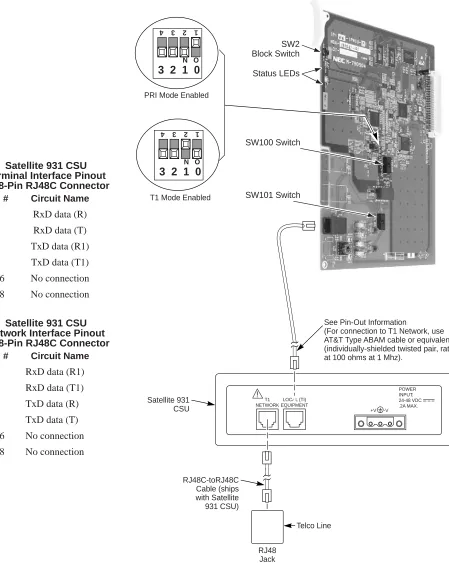
9. Connect the cable from the NT1 Network Termination cable to the CN3 connector on the T1/PRI PCB.
The CSU connects to the network through an 8-pin RJ45/RJ48 connector. With PRI Networking, a cross-over cable must be used on the master system’s T1/PRI PCB or CSU to the telco demarca-tion. If the systems are networked side by side and not through telco, then a straight-through cable is used.
10. Connecting a Satellite 931 CSU (P/N 85945):
● Connect the cable from the T1/PRI PCB to the ‘LOCAL EQUIPMENT’ connector on the back panel of the CSU.
● Using the 8-pin RJ48C-RJ48C modular cable that was shipped in the box with the Satellite 931 CSU, connect the cable to the ‘T1 NETWORK’ connector on the back panel of the CSU.
● Connect the opposite end of the NETWORK cable to the telco connection.
Primary Rate Interface (PRI) Installation
Figure 1: Satellite CSU Connection
See Pin-Out Information
(For connection to T1 Network, use AT&T Type ABAM cable or equivalent) (individually-shielded twisted pair, rated at 100 ohms at 1 Mhz).
Satellite 931 CSU Telco Line RJ48 Jack RJ48C-toRJ48C Cable (ships with Satellite 931 CSU) PRI Mode Enabled
T1 Mode Enabled
T1 NETWORK LOCAL (TI) EQUIPMENT POWER INPUT: 24-48 VDC .2A MAX. +V -V !
3 2 1 0
O N 1 2 3 4
3 2 1 0
O N 1 2 3 4
Status LEDs SW2 Block Switch
SW100 Switch
SW101 Switch
Satellite 931 CSU Terminal Interface Pinout for 8-Pin RJ48C Connector
Satellite 931 CSU Network Interface Pinout for 8-Pin RJ48C Connector
Pin # Circuit Name
1 RxD data (R) 2 RxD data (T) 4 TxD data (R1) 5 TxD data (T1) 3, 6 No connection 7, 8 No connection
Pin # Circuit Name
Primary Rate Interface (PRI) Installation
-Primary Rate Interface (PRI), Answering Calls
Primary Rate Interface (PRI), Answering Calls
Description
The system provides flexible routing of incoming PRI calls to help meet the exact site requirements. This allows PRI calls to ring and be answered at any combination of system extensions. Many of the options available to incoming analog trunk calls are also available to incoming PRI calls.
Delayed Ringing
Extensions in a Ring Group can have delayed ringing for PRI trunks - just like other types of trunks. If the PRI trunk is not answered at its original destination, it rings the DIL No Answer Ring Group. This could, for example, help a secretary that covers calls for their boss. If the boss doesn’t answer the call, it rings the sec-retary’s phone after a programmable time.
Calling Name Delivery
If provided by the telco, and depending on the version of your system software, the system can support call-ing name delivery in the Facility Information Element. With this information available, display telephone users can see the name of the calling party.
Caller ID
With Caller ID enabled, the system will provide information for ISDN calls that do not contain the Caller ID information. If the Caller ID information is restricted, the telephone display will show “PRIVATE”. If the system is not able to provide Caller ID information because the telco information is not available, then the display will show “OUT OF AREA”.
SMDR Includes Dialed Number
The SMDR report can optionally print the trunk’s name (entered in system programming) or the number the incoming caller dialed (i.e., the dialed ISDN digits). This gives you the option of analyzing the SMDR report based on the number your callers dial. (This option also applies to a DID trunk as well.)
Calling Party Number Notification
The system can provide calling party number notification for outgoing ISDN calls. When a call is made on an ISDN line by an extension, the system will send the identification for the extension placing the call, if it’s programmed. If there is no Extension Calling Number assigned, the system will send the calling number for the ISDN trunk. If both the extension and trunk information is programmed, the extension information will be sent as it takes priority.
When the option for calling party subaddress is on, the extension number will be sent as the subaddress infor-mation. Both the calling party number and calling party subaddress are sent in a SETUP message as the calling party information element and a calling party subaddress information element. Allow the system to send the subaddress by setting the following programs: 10-03-05=1, 15-01-04=1, 20-08-13=1, 21-13-01=enter number to be sent.
Calling Line Identification Presentation
CLIP display available with software 1.02+.
A Class of Service option has been added which can be used to allow the Calling Party Number IE in the Setup Message.
Calling Party Allowed or Prevented for Extension
Calling Party allowed for extension with software 1.04+.
This makes it difficult to determine the type of call by the trunk that is ringing. It also prevents using Direct Inward Lines to route incoming calls, since any call sent to the PRI PCB can appear on any circuit. During programming, set up all trunks on the same PRI PCB in the same way. Refer to Programming below. To provide more precise routing of PRI trunks, set up PRI Direct Inward Dialing (DID). With DID, the sys-tem uses the last three or four digits of the Called Number Information Element to route an incoming call via the system’s DID translation tables. When programming PRI trunks for DID, refer to the Aspire Software Manual (P/N 0893200) for additional DID programming.
In addition, in areas where ISDN is not uniformly implemented, many ISDN calls may route to the 3.1 Khz Audio Ring Group. This can occur if the telco automatically designates a call as 3.1 KHz when it is from a non-ISDN telephone. To provide uniform treatment of incoming PRI calls, consider having the Ring Group assignments for both normal PRI calls and 3.1KHz Audio calls. Refer to Programming below for more information.
How the Telephone System Handles PRI Trunks
The Channel ID of an incoming SETUP message on a PRI line is related to the trunk group number. The system will create the trunk line number as the lowest trunk port number in the range of the same trunk group related to the channel number of the Channel ID information element of an incoming call’s SETUP message.
For example, referring to the chart below, the system translates the call as being trunk port 4.
Conditions
● PRI requires the installation of a T-Serve II CSU (P/N 85950) or Quad Datasmart DSU (P/N 85956). Consult your sales representative for more information.
Default Setting
● Once set, PRI trunks ring extension 301 and flash at all other extensions just like other trunk calls.
Trunk Number
Trunk Group
Channel Number
1 1 1
2 1 2
3 1 3
4 2 4
5 2 5
6 2 6 <--- Incoming Call
7 2 7
8 5 8
. . . 23 . . . 5 . . . 23
Start
Continued on the following
page.
In 10-03-01, determine the mode of the PRI PCB (0=not set, 1=T-Bus, 2=S-Bus, 3=Network Mode (leased), 4=Network Mode (interconnected), 5=Network Mode (interconnected, fixed layer 1=NT), 6=S-Point.
In 10-03-14,select the service protocol to be used (0=keypad facility, 1=specified protocol for Aspire).
In 10-03-12, select to use either short-haul (0) or long-haul (1).
In 10-03-13, select the loss-of-signal detection limit. In 10-03-11, set the
system ID number (0-50). In 10-03-10, set the system as
either the slave (0) or master (1) system.
In 10-03-09, select either Keypad Facility (0) or Called Party Number (1) for the dial information element. In 10-03-08,
enter '0'.
(S-Point Only)
In 10-03-07, select the number of DID digits to be received (0-4). In 10-03-06, determine the length of cable used to connect from the CSU to the PRI PCB (0=0-40m, 1=40-81m, 2=81-122m, 3=122-162m, 4=162-200m).
In 10-03-04, select the Layer 3 timer type (1-5). The timer value is set up in Program 81-06 (T-Bus) and 82-06 (S-Bus).
In 10-03-03, enter '0'. No Is the CRC Multi-Frame (CRC4) used? Yes In 10-03-03, enter '1'.
Is the Dial Sending Mode Enblock or Overlap Sending?
In 10-03-08, enter '1'.
Enblock Overlap
Is the system networked?
Yes
Continued from the previous page.
Should an extension be able to display the
reason why a call is transferred to it?
In 20-13-23, set the extension's COS to '1'. In 20-13-23, set the
extension's COS to '0'. No Yes
Is the amount of time the system waits before placing the call in a
talk state sufficient? In 21-01-03, enter the
interval for the trunk interdigit timer.
No
Do you wish to have the Caller ID Name displayed for incoming calls?
Yes
In 20-19-04, set the
timer to '0'. No
In 20-19-04, set the timer to at least '10'
seconds. Yes
Continued Should the sub-address
ID be displayed for incoming calls?
In 20-09-03, set the extension's COS to '1'. In 20-09-03, set the
extension's COS to '0'. No Yes
Define the extension's Class of Service in 20-06-01.
Is SMDR used?
In 35-02-16, enter '0' to print the trunk name assigned in 14-01-01 or
enter '1' to print the received dialed number. Yes
No
In 14-05-01, assign PRI lines to trunk groups (determines available
Should all PRI Trunks ring the same
extensions?
In 22-02-01, enter 3.
Refer to the Aspire Software
Manual for DID programming.
In 22-02-01, enter 0. Yes No
In 22-05-01, assign all the trunks on a PRI PCB to the same Ring Group.
In 14-07-01 and 15-06-01, set up the trunk Access Maps for PRI trunks.
Should extension ring for incoming calls on PRI trunk?
In 22-04-01, assign extension to PRI trunk's Ring Group. In 22-04-01, do not
assign extension to PRI trunk's Ring Group.
Yes No
In 14-01-01, assign names to trunks to make identification easier.
Do you want unanswered PRI calls to reroute if unanswered? In 22-01-04,
enter 0.
In 22-01-04, enter the DIL No Answer
Time (>0).
In 22-08-01, enter the no-answer Ring Group for unanswered PRI calls.
Continued on the following
page.
Reroute Do not reroute
For each extension in the Ring Group, in 22-06-01, enter '1' for
each time mode when the extension should ring. Continued from the
previous page.
In 22-04-01, assign extension to PRI trunk's Ring No
Answer Ring Group.
For each extension in the Ring Group, in 22-06-01, enter '1' for
Continued from the previous page.
If a PRI call rings longer than a specified interval, should the ring cadence
change to a unique "alarm" sound?
In 22-01-02, Enter 1. Also, set the interval in
22-01-03.
In 22-01-02, enter 0. No Yes
Do you want to change the way PRI calls ring
telephones?
Change the Ring Tone Range in 22-03-01 and 15-02-02 the tones within
each range in 82-01-01 and the ring cadence in 20-15-01. Yes
No
For ringing extensions, should extension ring
when line key starts flashing or wait for the
system ring cycle?
In 10-08-01, enter 1 to enable pre-ringing
for trunk calls. When line
key flashes In 10-08-01, enter 0
to disable pre-ringing for trunk calls.
Wait for ring cycle
Do you want line keys or loop keys for incoming PRI trunks? Consider using loop keys,
Multiple Directory Numbers, or Ring Groups for PRI trunks
instead of line keys.
In 15-07-01, program function keys as line keys
(*01), loop keys (*05) or line group keys (*02). Yes
No
Do you want to adjust the gain (volume) for trunks?
No Adjust the CODEC Gain
in 14-01-02 (transmit) and 14-01-03 (receive).
➻
10-03-01 : PCB Setup - ISDN Line ModeSetup and confirm the Basic Configuration data for each PCB. This program selects the ISDN Line Mode: 0=Not set, 1=T-Bus, 2=S-Bus, 3=Network Mode (Leased Line), 4=Network Mode (Intercon-nected Line), 5=Network Mode (Intercon(Intercon-nected Line, Fixed Layer 1=NT), 6=S-Point (Leased Line). The option selected here determines the clock source for a networked system. With option 3, telco sends the clock to the master and slave systems. With option 4, the master system sends the clock to telco which then sends the clock to the slave system (with no telco, the master system sends the clock directly to the slave system). With option 5, the master and slave systems both send the clock to telco.
Default Setting: T-Bus (1).
➻
10-03-02 : PCB Setup - Logical Port NumberSetup and confirm the Basic Configuration data for each PCB. This program displays the start port number of a PRI line. Thirty logic ports are automatically assigned to a PRI line (T-Bus = 1-200, S-Bus = 1-256).
Default Setting: (0).
➻
10-03-03 : PCB Setup - CRC Multi-Frame (CRC4)Setup and confirm the Basic Configuration data for each PCB. This program determines whether or not the CRC Multi-Frame (CRC4) is used (0=off, 1=on).
Default Setting: Off (0).
➻
10-03-04 : PCB Setup - Layer 3 Timer TypeSetup and confirm the Basic Configuration data for each PCB. This program selects the Layer 3 timer type (1-5). Each timer value of Layer 3 is set up for each type in Program 81-06 (T-Bus) and Program 82-06 (S-Bus).
Default Setting: Layer 3 Timer Type (1).
➻
10-03-06 : PCB Setup - Length of CableSetup and confirm the Basic Configuration data for each PCB. Select the length of cable to be used (0=0-40m, 1=40-81m, 2=81-122m, 3=122-162m, 4=162-200m).
Default Setting: Cable Length 40-81m (1).
➻
10-03-07 : PCB Setup - S-Point DID DigitsSetup and confirm the Basic Configuration data for each PCB. This program selects number of DID digits to be received (0-4).
Default Setting: Number of DID Digits (0).
➻
10-03-08 : PCB Setup - Dial Sending ModeSetup and confirm the Basic Configuration data for each PCB. Select either enblock or overlap sending (0=Enblock Sending, 1=Overlap Sending).
Default Setting: Enblock Sending (0).
➻
10-03-09 : PCB Setup - Dial Information ElementSetup and confirm the Basic Configuration data for each PCB. If Overlap Sending is selected in Pro-gram 10-03-08, select either Keypad Facility (0) or Called Party Number (1) for the dial information element.
Default Setting: Keypad Facility (0).
➻
10-03-10 : PCB Setup - Master/Slave SystemSetup and confirm the Basic Configuration data for each PCB. If the system is networked, set the sys-tem as either the slave (0) or master (1) syssys-tem.
➻
10-03-11 : PCB Setup - Networking System NumberSetup and confirm the Basic Configuration data for each PCB. If the system is networked, define the system number (0-50).
Default Setting: System Number (0).
➻
10-03-12 : PCB Setup - Short/Long HaulSetup and confirm the Basic Configuration data for each PCB. Select either short-haul (0) or long-haul (1).
Default Setting: Short-Haul (0).
➻
10-03-13 : PCB Setup - Loss-of-Signal Detection LimitSetup and confirm the Basic Configuration data for each PCB. Select the loss-of-signal detection limit. In short-haul mode: 0=0.91V, 1=0.74V, 2=0.59V, 3=0.42V, 4=0.32V, 5=0.21V, 6=0.16V. 7=0.10V. In long-haul mode: 0=1.70V, 1=0.84V, 2=0.84V, 3=0.45V, 4=0.45V, 5=0.20V, 6=0.10V, 7=not defined.
Default Setting: 0.91V (0).
➻
10-03-14 : PCB Setup - Service Protocol for S-PointSetup and confirm the Basic Configuration data for each PCB. Select the service protocol to be used (0=keypad facility, 1=specified protocol for Aspire).
Default Setting: Keypad Facility (0).
➻
10-08-01 : Pre-ringing SetupEnable (1) or disable (0) pre-ringing for outside calls. Refer to the Aspire Software Manual for more information.
Default Setting: Pre-ringing disabled (0).
➻
14-01-01 : Basic Trunk Data Setup - Trunk NamesAssign names to trunks to make identifying incoming calls easier. Keep in mind that with certain telco’s you may not be able to correlate the type of PRI call with specific trunk.
Default Setting: Trunk names are the same as the line number (ex: Line 001).
➻
14-01-02 : Basic Trunk Data Setup - Transmit CODEC Gain TypeIf required, adjust the transmit CODEC gains for each trunk. Default Setting: 1 (0 dB transmit gain)
➻
14-01-03 : Basic Trunk Data Setup - Receive CODEC Gain Type If required, adjust the transmit CODEC gains for each trunk.Default Setting: 1 (0 dB receive gain)
➻
14-05-01 : Trunk GroupsAssign the PRI trunks to trunk groups. This determines the channels available for PRI lines. Default Setting: All trunks assigned to Trunk Group 1.
➻
14-07-01 : Trunk Access Map SetupSet up Trunk Access Maps (200) for PRI trunks. You must also assign extensions to Trunk Access Maps in Program 15-06-01. Note that for incoming calls, Ring Group programming overrides Access Map programming. See How the Telco Handles PRI Trunks on page 12 for more.
➻
15-02-02 : Multi-Line Telephone Basic Data Setup - Trunk Ring Tone Use this option to change the ringing pitch of incoming trunk calls to keysets.Default Setting: Midrange (2)
➻
15-06-01 : Trunk Access Map for ExtensionsAssign Trunk Access Maps (200) to extensions. You must set up the Trunk Access Maps in Program 14-07-01. See How the Telco Handles PRI Trunks on page 12 for more.
Default Setting: All extensions use Access Map 1.
➻
15-07-01 : Programmable Function KeysTo have incoming PRI calls ring specific keys, assign trunks to line keys (*01 + line # [001-200]). You can also have loop keys (code *05) and Trunk Group keys (code *02 + Trunk Group).
Default Setting: Function keys 1-12 are line keys for trunks 1-12.
➻
20-06-01 : Class of Service for ExtensionsAssign a Class of Service (1-15) to an extension.
Default Setting: Extension 301 has COS 15. All other extension have COS 1.
➻
20-09-03 : Class of Service Options (Incoming Call Service) - Sub-Address Identification Enable (1) or disable (0) the telco’s ability to display the sub-address identification.Default Setting: ISDN Sub-Address Identification disabled (0).
➻
20-13-23 : Class of Service Options (Supplementary Service) - Display the Reason for Transfer Enable (1) or disable (0) an extension’s ability to display the reason (Call Forward, Busy, No Answer or DND) a VRS, DID, DISA, or ISDN call is being transferred to their extension.Default Setting: No reason is displayed (0).
➻
20-15-01 : Ring Cycle Setup - Normal Incoming Call on TrunkUse this option to change the way calls ring the telephones. Keep in mind that changing this option affects all types of trunk calls - not just PRI calls.
Default Setting: Outside calls ring keysets with a short ring followed by a pause (3).
➻
20-19-04 : System options for Caller ID - Wait Facility IE TimerThis option sets how long the system will wait for the Caller ID name (0-64800 seconds). If set to “0” no name is provided.
Default Setting: 10 seconds.
➻
21-01-03 : System Options for Outgoing Calls - Trunk Interdigit Time (External)Set the amount of time the system must wait before placing the call in a talk state (call isn't timed until then, Voice Over and Barge-In are not allowed until after timer expires) (0-64800 seconds).
Default Setting: Trunk Interdigit = 5 seconds.
➻
22-01-02 : System Options for Incoming Calls - Incoming Call Ring No Answer AlarmEnable (1) or disable (0) the Incoming Call RNA Alarm. If enabled, the ring cadence will change for a call that rings longer than the interval set in Program 22-01-03.
Default Setting: Incoming Ring No Answer Alarm disabled (0).
➻
22-01-03 : System Options for Incoming Calls - Ring No Answer Alarm TimeSet the Ring No Answer Alarm interval (0-64800 seconds). If a trunk rings a keyset longer than this interval, the system changes the ring cadence, if enabled in 22-01-02.
Default Setting: Ring No Answer Alarm Time = 60 seconds.
➻
22-01-04 : System Options for Incoming Calls - DIL No Answer Recall Time➻
22-02-01 : Incoming Call Trunk SetupUse this option to set the service type for PRI trunks using. Enter 0 (for normal operation) or 3 (to have the PRI trunk use the DID tables and route on the last three digits a caller dials). There is one item for each Night Service Mode.
Default Setting: All trunk service types set for normal (0).
➻
22-03-01 : Trunk Ring Tone RangeAssign Ring Tone Ranges to trunks. Customize the tones within each Ring Tone Range in Program 82-01. Trunks ring extensions according to the Ring Tone Range selected in 22-03 and the user settings made with Service Code 820. You may want your ISDN trunks to ring with a unique ring tone.
Default Setting: Pattern 0.
➻
22-04-01 : Incoming Extension Ring Group AssignmentTo have PRI trunks ring extensions, use this program to assign extensions (up to 32 max.) to Ring Groups (1-100). You must also assign the PRI trunks to the Ring Groups in Program 22-05 below. See How the Telco Handles PRI Trunks on page 12 for more.
Default Setting: All extensions are in Ring Group 1.
➻
22-05-01 : Incoming Trunk Ring Group AssignmentTo have PRI trunks ring extensions, assign trunks to Ring Groups (Ring Groups =1-100, 102 = In-Skin/ External Voice Mail, 103 = Centralized Voice Mail). Normally, you should assign a trunk on a PRI PCB to the same Ring Group. You must also assign extensions to Ring Groups in Program 22-04-01 above. See How the Telco Handles PRI Trunks on page 12 for more.
Default Setting: All trunks are in Ring Group 1.
➻
22-06-01 : Normal Incoming Ring ModeFor each extension in the Ring Group assigned in 22-04-01, indicate if trunks should ring (1) or not ring (0).
Default Setting: All extensions ring.
➻
22-08-01 : DIL/IRG No Answer DestinationIf an incoming PRI trunk call rings longer than the DIL No Answer Time (Program 22-01-04), it routes to the Ring Group you specify in this option (Ring Groups=1-100, In-Skin/External Voice Mail = 102, Cen-tralized Voice Mail = 103).
Default Setting: Calls reroute to Ring Group 1 based on the timer in Program 22-01-04.
➻
22-11-01 : DID Translation Table Number ConversionSpecify for each Translation Table entry (2000):
● The digits received by the system (eight max.)
● The extension the system dials after translation (24 digits max.)
● The name that should show on the dialed extension’s display when it rings (twelve charac-ters max.)
● The Transfer Target-1 and 2
● If the Transfer Targets are busy or receive no answer, those calls are transferred to the final transfer destination (Program 22-10).
➻
35-02-16 : SMDR Output Options, Trunk Name or Received Dialed NumberIf SMDR is used, this option allows you to determine how the SMDR should print incoming calls on ANI/DNIS or DID trunks (0=print trunk port name assigned in Program 14-01-01, 1=print received dialed number). On ANI/DNIS trunks, if enabled, the DNIS digits can be printed instead of the trunk name. If a call is received on a DID trunk, the received number can be printed. If the received number is not in the DID Translation Table (Program 22-11-01), then no number is printed. On ISDN trunks, the called party number can be printed for DID’s, if desired.
Default Setting: Print Trunk Port Name (0).
➻
82-01-01 : Incoming Ring ToneCustomize the incoming ring tone (the tones a user hears when a call rings an extension). Trunks ring extensions according to the Ring Tone Range selected in 22-03-01 and the user settings made with Ser-vice Code 820.
Default Setting: Refer to Program 82-01-01 in the Software Manual.
Related Features
Direct Inward Dialing
Use DID to control the inbound routing of PRI trunks. With DID, the system will use the last three or four digits of the Called Number Information Element to route an incoming call via the DID translation tables. When programming PRI lines for DID, refer to the Aspire Software Manual (P/N 0893200) for further programming information.
Forced Trunk Disconnect
This feature only works on analog trunk. ISDN trunks do not have the Forced Trunk Disconnect available. Night Service
If enabled, an extension user can dial the Universal Answer code to pick up a ringing PRI trunk. Transfer
Transferred calls on DISA, DID, ISDN trunks, or from the VRS can display the reason a call is being transferred (Call Forward, Busy, No Answer, or DND).
Operation
To answer an incoming trunk call:
1. Lift handset.
2. At keyset, press flashing line key.
-Description
The system provides 23 high-speed state-of-the-art digital trunks on a double pair of wires.
Conditions
PRI requires the installation of a CSU/DSU Unit and interconnecting cables. Consult with your sales representative for more information.
Default Setting
● Once set, users can place calls over PRI trunks. !! Important !!
Start
Continued on
In 10-03-01, determine the mode of the PRI PCB (0=not set, 1=T-Bus, 2=S-Bus, 3=Network Mode (leased), 4=Network Mode (interconnected), 5=Network Mode (interconnected, fixed layer 1=NT), 6=S-Point.
In 10-03-14,select the service protocol to be used (0=keypad facility, 1=specified protocol for Aspire).
In 10-03-12, select to use either short-haul (0) or long-haul (1).
In 10-03-13, select the loss-of-signal detection limit. In 10-03-11, set the
system ID number (0-50). In 10-03-10, set the system as
either the slave (0) or master (1) system.
In 10-03-09, select either Keypad Facility (0) or Called Party Number (1) for the dial information element. In 10-03-08,
enter '0'.
In 10-03-07, select the number of DID digits to be received (0-4). In 10-03-06, determine the length of cable used to connect from the CSU to the PRI PCB (0=0-40m, 1=40-81m, 2=81-122m, 3=122-162m, 4=162-200m).
In 10-03-04, select the Layer 3 timer type (1-5). The timer value is set up in Program 81-06 (T-Bus) and 82-06 (S-Bus).
In 10-03-03, enter '0'. No Is the CRC Multi-Frame (CRC4) used? Yes In 10-03-03, enter '1'.
Is the Dial Sending Mode Enblock or Overlap Sending?
In 10-03-08, enter '1'.
Enblock Overlap
Is the system networked?
Yes
Should system users be able to place outgoing
calls on trunks?
In 20-08-02, enter 1 to enable outgoing calls. In 20-08-02, enter 0 to
disable outgoing calls. No Yes
Stop
Continued on next
page. In 20-06-01, assign
Class of Service to extensions.
Should telco display the calling number for outgoing calls?
In 20-08-13, enter 1 to enable calling number
display by telco. Yes
In 20-08-13, enter 0 to disable calling number
display by telco.
No
Should telco display the trunk identification for outgoing calls
the extension places?
In 20-13-31, enter 1 to enable trunk ID display
by telco. Yes
In 20-13-31, enter 0 to disable trunk ID display
by telco.
No
Continued from previous
Continued from previous page. Continued on next page.
Do you need to restrict certain extensions from placing calls on
certain trunks?
Build an outgoing restriction matrix.
In 14-07-01 for each Access Map, select
the access options for each trunk.
In 15-06-01, assign extensions to Access Maps. In the default program,
extensions have full
access to all trunks. Yes
No
In 1005, assign Class of Service to
extensions.
Are outgoing calls allowed on specific trunks?
In 14-01-07, enter 1 to allow outgoing calls. In 14-01-07, enter 0 to
prevent outgoing calls. No Yes
In 14-05-01 assign PRI trunks to trunk groups (This determines available channels for PRI
trunks).
Should telco display the calling number's sub-address?
In 20-09-03, enter 1 to enable sub-address
display by telco. Yes
In 20-09-03, enter 0 to disable sub-address
display by telco.
No
In 21-12-01, program the calling party number data (15 digits max.) for each trunk.
In 21-13-01, program the calling party number data (15 digits max.) for each extension.
Should Caller ID be included in the call's setup message?
In 15-01-04, enter 1. In 10-03-05 enter 1. Yes
In 15-01-04, enter 0.
Continued from previous
page.
If a user preselects a line, how long should the system remember the preselection?
In 20-02-06, enter the preselection
interval.
Should extension users have one-button placing
of outside calls?
In 15-07-01, assign function keys as line keys (code
*01+001-200). In 15-07-01, do not assign
function keys as line keys.
Should extension users have one-button access to trunk
groups for placing calls?
In 15-07-01, assign loop keys (*05) or line group keys (*02). In 15-07-01, do not
assign Trunk Group Access or trunk group
keys. Yes Yes No Yes No
See "Loop Key" in the software manual for more
details. Should caller hear DTMF confirmation
tones as they are dialing a trunk call? In 14-01-10, enter 1.
In 14-01-10, enter 0. No Yes
Is the amount of time the system waits before placing the call in a
talk state sufficient?
In 21-01-03, enter the interval for the trunk interdigit timer. No No Yes Continued on next page.
If the system detects the called party is busy, how long should the busy
Stop Continued
from previous
page.
Do you want to set up an Alternate Trunk Route Access Code ? Stop
In 11-01-01, set up a Service Code for Alternate Trunk Route
Access. For example, to make 50 the Alternate Trunk Route Access Code:
DIAL = 5 Digit = 2 Kind = 8
In 11-09-02, assign the Service Code set up in the previous step for Alternate
Trunk Route Access.
Should extension be able to use Alternate Trunk Route Access?
In 21-15-01, enter the extension number
and enter 0 to prevent routing. In 21-15-01, enter the
extension number and enter the Trunk Group Routing route number.
Is Trunk Group Routing defined? Refer to the Trunk
Group Routing feature and set up Trunk
Group Routing. No Yes No Yes No Yes
Check the Analog Trunk Timers in 81-01 for compatibility with the telco.
If desired, assign names to trunks in 14-01-01.
Do you want to adjust the gain (volume) for
trunks? Adjust the CODEC Gain
in 14-01-02 (transmit) and 14-01-03 (receive).
Trunks
➻
10-03-01 : PCB Setup - ISDN Line ModeSetup and confirm the Basic Configuration data for each PCB. This program selects the ISDN Line Mode: 0=Not set, 1=T-Bus, 2=S-Bus, 3=Network Mode (Leased Line), 4=Network Mode (Intercon-nected Line), 5=Network Mode (Intercon(Intercon-nected Line, Fixed Layer 1=NT), 6=S-Point (Leased Line). The option selected here determines the clock source for a networked system. With option 3, telco sends the clock to the master and slave systems. With option 4, the master system sends the clock to telco which then sends the clock to the slave system (with no telco, the master system sends the clock directly to the slave system). With option 5, the master and slave systems both send the clock to telco.
➻
10-03-02 : PCB Setup - Logical Port NumberSetup and confirm the Basic Configuration data for each PCB. This program displays the start port number of a PRI line. Thirty logic ports are automatically assigned to a PRI line (T-Bus = 1-200, S-Bus = 1-256).
➻
10-03-03 : PCB Setup - CRC Multi-Frame (CRC4)Setup and confirm the Basic Configuration data for each PCB. This program determines whether or not the CRC Multi-Frame (CRC4) is used (0=off, 1=on).
➻
10-03-04 : PCB Setup - Layer 3 Timer TypeSetup and confirm the Basic Configuration data for each PCB. This program selects the Layer 3 timer type (1-5). Each timer value of Layer 3 is set up for each type in Program 81-06 (T-Bus) and Program 82-06 (S-Bus).
➻
10-03-05 : PCB Setup - CLIP InformationBased on this setting, the system will include a “Presentation Allowed” (1) or “Presentation Restricted” (0) in the Setup message to allow or deny the Calling Party Number. Program 15-01-04 must also be set to a ‘1’ if this option is enabled.
➻
10-03-06 : PCB Setup - Length of CableSetup and confirm the Basic Configuration data for each PCB. Select the length of cable to be used (0=0-40m, 1=40 81m, 2=81-122m, 3=122-162m, 4=162-200m).
➻
10-03-07 : PCB Setup - S-Point DID DigitsSetup and confirm the Basic Configuration data for each PCB. This program selects number of DID digits to be received (0-4).
➻
10-03-08 : PCB Setup - Dial Sending ModeSetup and confirm the Basic Configuration data for each PCB. Select either enblock or overlap sending (0=Enblock Sending, 1=Overlap Sending).
➻
10-03-09 : PCB Setup - Dial Information ElementSetup and confirm the Basic Configuration data for each PCB. If Overlap Sending is selected in Pro-gram 10-03-08, select either Keypad Facility (0) or Called Party Number (1) for the dial information element.
➻
10-03-10 : PCB Setup - Master/Slave SystemSetup and confirm the Basic Configuration data for each PCB. If the system is networked, set the sys-tem as either the slave (0) or master (1) syssys-tem.
➻
10-03-11 : PCB Setup - Networking System NumberSetup and confirm the Basic Configuration data for each PCB. If the system is networked, define the system number (0-50).
➻
10-03-12 : PCB Setup - Short/Long Haul➻
10-03-13 : PCB Setup - Loss-of-Signal Detection LimitSetup and confirm the Basic Configuration data for each PCB. Select the loss-of-signal detection limit. In short-haul mode: 0=0.91V, 1=0.74V, 2=0.59V, 3=0.42V, 4=0.32V, 5=0.21V, 6=0.16V. 7=0.10V. In long-haul mode: 0=1.70V, 1=0.84V, 2=0.84V, 3=0.45V, 4=0.45V, 5=0.20V, 6=0.10V, 7=not defined
➻
10-03-14 : PCB Setup - Service Protocol for S-PointSetup and confirm the Basic Configuration data for each PCB. Select the service protocol to be used (0=keypad facility, 1=specified protocol for Aspire).
➻
11-01-01 : System NumberingSet up a Service Code for Alternate Trunk Route Access. You may want to use an alternate access code for your outgoing PRI trunks. Also see programs 11-09-02 and 21-15-01.
Default Setting: No Alternate Trunk Route Access code programmed.
➻
11-09-02 : Trunk Access Code - Alternate Trunk Route Access CodeAssign the Service Code set up in 11-01-01 for Alternate Trunk Route Access. You may want to use an alternate access code for your outgoing PRI trunks. Also see programs 11-01-01 and 21-15-01.
Default Setting: No Alternate Trunk Route Access code programmed.
➻
14-01-02 : Basic Trunk Data Setup - Transmit CODEC Gain TypeIf required, adjust the transmit CODEC gains for each trunk. Default Setting: 1 (0 dB transmit gain)
➻
14-01-03 : Basic Trunk Data Setup - Receive CODEC Gain Type If required, adjust the transmit CODEC gains for each trunk.Default Setting: 1 (0 dB receive gain)
➻
14-01-07 : Basic Trunk Port Setup - Outgoing CallsAllow this option (1) for each PRI trunk you want to use for outgoing calls. Prevent this option (0) if the trunk will not be used for outgoing calls.
Default Setting: Outgoing calls allowed (1).
➻
14-01-10 : Basic Trunk Data Setup - DTMF Tones for Outgoing Calls For each trunk, enable (1) or disable (0) DTMF tones for outgoing trunk calls.Default Setting: DTMF tone disabled for outgoing calls (0).
➻
14-05-01 : Trunk GroupsAssign the PRI trunks to trunk groups. This determines the channels available for PRI lines. Default Setting: All trunks assigned to Trunk Group 1.
➻
14-07-01 : Trunk Access Map SetupSet up Trunk Access Maps (200) for PRI trunks. You must also assign extensions to Trunk Access Maps in Program 15-06-01.
Default Setting: All trunks in Access Map 1 have full access (7). All trunks in the other Access Maps have no access (0).
➻
15-01-04 : Basic Extension Data Setup - ISDN Caller ID➻
15-06-01 : Trunk Access Map for ExtensionsAssign Trunk Access Maps (200) to extensions. You must set up the Trunk Access Maps in Program 14-07-01. This allows you to control extension access to the PRI trunks.
Default Setting: All extensions use Access Map 1.
➻
15-07-01 : Programmable Function KeysAssign a function key for Caller ID Block for ISDN (63) if required.
To simplify placing PRI calls, assign function keys as line keys (*01 + line # [001-200]), loop keys (code 1078) and Trunk Group keys (code 1012 + Trunk Group).
Default Setting: Function keys 1-12 are line keys for trunks 1-12.
➻
20-02-06 : System Options for Multi-Line Telephones - Preselection TimeSet the preselection interval (0-64800 seconds). When a keyset user preselects a line key, the system remembers the preselection for this interval.
Default Setting: Preselection time is 5 seconds.
➻
20-06-01 : Class of Service for ExtensionsAssign a Class of Service (1-15) to each extension. Use this option in conjunction with Program 20-08-02.
Default Setting: Extension 301 has COS 15. All other extension have COS 1.
➻
20-08-02 : Class of Service Options (Outgoing Call Service) - Trunk CallsIn an extension’s Class of Service, enable (1) or disable (0) trunk calling. Default Setting: Trunk calling enabled (1).
➻
20-08-13 : Class of Service Options (Outgoing Call Service) - ISDN CLIPDetermine if the ISDN calling line identity presentation and screening indicators are to be allowed (0=disabled, 1=enabled).
Default Setting: ISDN Calling Party Number disabled (0).
➻
20-09-03 : Class of Service Options (Incoming Call Service) - Sub-Address Identification Enable (1) or disable (0) the telco’s ability to display the sub-address identification.Default Setting: ISDN Sub-Address Identification disabled (0).
➻
20-13-31 : Class of Service Options - ISDN Connected Line IdentificationEnable (1) or disable (0) the telco’s ability to display trunk identification for outgoing calls the exten-sion places.
Default Setting: ISDN Connected Line Identification disabled (0).
➻
21-01-03 : System Options for Outgoing Calls - Trunk Interdigit Time (External)Set the amount of time the system must wait before placing the call in a talk state (call isn't timed until then, Voice Over and Barge-In are not allowed until after timer expires) (0-64800 seconds).
Default Setting: Trunk Interdigit = 5 seconds.
➻
21-08-04 : Repeat Dial Setup - Time for Send Busy Tone for ISDN TrunkSet the length of the time the system should send a busy tone after detecting the called party is busy (by receiving either a 'RELease complete' or 'DISConnect' message from the CO). After this timer's expires, the keyset will go to an idle status (0-64800 seconds). If '0' is entered, a caller will not hear a busy tone when the ISDN trunk detects a busy state. It will immediately go the an idle status.
➻
21-12-01 : ISDN Calling Party Number Setup for TrunksAssign Calling Party Numbers for each trunk (maximum 16 digits per entry). When a call is made by an extension which does not have an Extension Calling Number assigned (Program 21-13-01), the sys-tem sends the calling number for the ISDN trunk defined in 21-12-01. If the Calling Party Number is assigned in both Programs 21-12-01 and 21-13-01, the system sends the data in Program 21-13-01.
Default Setting: No digits assigned.
➻
21-13-01 : ISDN Calling Party Number Setup for ExtensionsAssign each extension a Calling Party Number (maximum 16 digits per entry). The calling number is the subscriber number of the dial-in number. When a call is made by an extension which does not have an Extension Calling Number assigned (Program 21-12-01), the system sends the calling number for the ISDN trunk defined in Program 13. If a Calling Party Number is assigned in both Programs 21-12-01 and 21-13-01, the system sends the data in Program 21-21-12-01.
Default Setting: No digits assigned.
➻
21-15-01 : Individual Trunk Group Route for ExtensionsTo better control placing calls over PRI trunks, consider setting up Alternate Trunk Route Access. Use this option to specify the Alternate Trunk Route for each extension. Also see programs 01-01, 11-09-02, 14-06-01.
Default Setting: No routes assigned (00).
➻
22-02-01 : Incoming Call Trunk SetupUse this option to set the service type for PRI trunks. Enter 0 (for normal operation) or 3 (if the PRI trunk has DID type operation for incoming calls).
Default Setting: All trunk service types set for normal (0).
➻
81-01-01 : COIU Initial Data SetupHandsfree
With Automatic Handsfree, an extension user can press a line key to place a trunk call without first lift-ing the handset or presslift-ing SPK. Users without Automatic Handsfree can preselect a line key before lifting the handset or pressing SPK.
Repeat Redial
Repeat Dial on ISDN trunks do not use the system timer 21-08-03 : Repeat Dial Setup - Repeat Dial Calling Timer. The ISDN trunks can detect whether the call was busy or answered.
Repeat Dial on an analog trunk does not use this system timer 21-08-04 : Repeat Dial Setup - Time for Send Busy Tone for ISDN Trunk.
Operation
To place a PRI call over a trunk group:
1. At keyset, press idle CALL key.
OR
At single line set, lift handset. 2. Dial 804.
3. Dial PRI trunk group number (001-200). 4. Dial number.
OR
1. At keyset, press trunk group key (PGM 15-07 or SC 852: *02 + group). Also see the “Loop Keys” feature in the Software Manual. 2. Dial number.
Dialing # after the telephone number will speed up the dialing on PRI lines.
To place a PRI call using Trunk Group Routing:
1. At keyset, press idle CALL key.
OR
At single line set, lift handset. 2. Dial 9.
If your system has an Alternate Trunk Route Access code for PRI trunks, you may dial that instead.
3. Dial number.
OR
To place a call over a specific PRI trunk:
1. At keyset, press idle CALL key.
OR
At single line set, lift handset. 2. Dial #9.
3. Dial line PRI line number (e.g., 005 for line 5). 4. Dial number.
OR
1. At keyset, press line key (PGM 15-07 or SC 851: 001 to 200).
Section 2:
Before Reading This Section
This section provides you with detailed information about the system programs. By changing a program, you change the way the feature associated with that program works. In this section, you’ll find out about each program, the features that the program affects and how to enter the program data into system memory.
When you want to customize a feature, find it in Section 1 and learn about it. Section 1 will tell you what programs you have to change to get the operation you want. Make a note of the changes on the Program Record Forms provided with your system. Then, look the program up in this section if you have any ques-tions about how to enter the data.
How to Use This Section
This section lists each program in numerical order. For example, Program 10-01 is at the beginning of the section and Program 92-01 is at the end. The information on each program is subdivided into the following headings:
Description describes what the program options control. The Default Settings for each program are also included. When you first install the system, it uses the Default Setting for all programs. Along with the Description are the Conditions which describe any limits or special considerations that may apply to the pro-gram.
The reverse type (white on black) just beneath the Description heading is the program’s access level. You can only use the program if your access level meets or exceeds the level the program requires. Refer to How to Enter the Programming Mode (page 38) for a list of the system’s access levels and passwords.
Feature Cross Reference provides you with a table of all the features affected by the program. You’ll want to keep the referenced features in mind when you change a program. Customizing a feature may have an effect on another feature that you didn’t intend.
Telephone Programming Instructions shows you how to enter the program’s data into system memory. For example:
1. Enter the programming mode. 2. 15-07-01
tells you to enter the programming mode, dial 150701 from the telephone dial pad. After you do, you’ll see the message “15-07-01 TEL301” on the first line of the telephone display. This indicates the program num-ber (15-07), item numnum-ber (01), and that the options are being set for extension 301. The second row of the display “KY01 = *01” indicates that Key 01 is being programmed with the entry of *01. The third row allows you to move the cursor to the left or right, depending on which arrow is pressed. To learn how to enter the programming mode, see How to Enter the Programming Mode below.
Do not start customizing your system without first reading “Section 1, ISDN PRI Features”.
15-07-01 TEL301 KY01 = *01
To enter the programming mode:
1. Go to any working display telephone.
In a newly installed system, use extension 301 (port 1). 2. Do not lift the handset.
3. Press CALL1. 4. # * # *
5. Dial the system password + HOLD.
Refer to the following table for the default system passwords. To change the pass-words, use Program 90-02.
How to Exit the Programming Mode
To exit the programming mode:
When you are done programming, you must be out of a program’s options to exit (pressing the MSG key will exit the program’s option).
1. Press MSG key to exit the program’s options, if needed.
2. Press SPK. You see, "Saving System Data" if changes to were to the system’s programming. 3. The display shows "Complete Data Save" when completed and will exit the phone to an idle
mode.
To save a customer’s database, a blank PC-ATA card is required. Insert the card into the NTCPU and, using Program 90-03, save the software to the PC-ATA card. (Program
Password
Password User Name Level Programs at this Level
374772 NEC-I 1 (MF) All programs
12345678 ASPIRE 2 (IN) All programs in this section not listed below for SA and SB 0000 ADMIN1 3 (SA) 10-01, 10-02, 10-12, 10-13, 10-14, 10-15, 10-16, 10-17, 10-18,
10-22, 12-02, 12-03, 12-04, 15-01, 15-07, 15-09, 15-10, 15-11, 20-16, 21-07, 21-14, 22-04, 22-11, 25-08, 30-03, 32-02, 40-02, 41-02, 41-03, 41-04, 41-05, 41-06, 41-07, 41-08, 41-09, 41-10, 41-11, 41-12, 41-13, 41-14, 41-15, 41-16, 41-17, 41-18, 90-03,
90-04, 90-06, 90-07, 90-18, 90-19
9999 ADMIN2 4 (SB) 13-04, 13-05, 13-06
Once you enter the programming mode, use the keys in the following chart to enter data, edit data and move around in the menus.
Keys for Entering Data
Use this key... When you want to . . .
0-9 and * Enter data into a program.
HOLD Complete the programming step you just made (like pressing Enter on a PC keyboard). When a program entry displays, press HOLD to bypass the entry without changing it.
CONF Delete the entry to the left (like pressing Backspace on a PC keyboard). MSG Exit one step at a time from the program window currently being viewed.
For example, if you’re programming item 5 in 15-03, pressing MSG will allow you to enter a new option in program 15-03. Pressing MSG again will allow you to select a new program in the 15- series. Pressing MSG a third time will allow you to enter a new program beginning with ‘1’. Pressing MSG one last time will bring you to the beginning program display, allow-ing you to enter any program number.
FLASH Switch extension, line, etc. being programmed by pressing FLASH. The cursor moves up to the top row of the display. Pressing FLASH again moves the cursor back to the middle row.
LINE KEYS Use pre-programmed settings to help with the program entry. These settings vary between programs from LINE 1 = 0 (off) and LINE 2 = 1 (on) to preset values for timers where LINE 1 = 5, LINE 2 = 10, LINE 3 = 15, etc. For programs with this option, the line key which currently matches the pro-grammed setting will light steady.
The display may also indicate Soft Keys which will allow you to select the values as well (-1 and +1 will step through these pre-programmed settings.) LINE KEY 1 Program a pause into an Abbreviated Dialing bin.
LINE KEY 2 Program a recall/flash into an Abbreviated Dialing bin. LINE KEY 3 Program a @ into an Abbreviated Dialing bin.
VOL
▲
Scroll backward through a list of entry numbers (e.g., from extension 301 to 302, 303, etc.) or through entries in a table (e.g., Common Permit Table). If you enter data and then press this key, the system accepts the data before scrolling forward.Several programs (e.g., Program 20-16: Selectable Display Messages) require you to enter text. Use the fol-lowing chart when entering and editing text. When using the keypad digits, press the key once for the first character, twice for the second character, etc. For example, to enter a C, press key “2” three times. Press the key six times display the lower case letter. The name can be up to 12 digits long.
With Software Prior to 2.05:
Key for Entering Names
Use this keypad digit . . . When you want to. . .
1 Enter characters:
1 @ [ ¥ ] ^ _ ‘ { | }
←
←
←
←
→
→
→
→
Press repeatedly to scroll through the list. After selecting your entry, press the next letter or use the left scroll or right scroll Soft Key to move the cursor. 2 Enter characters A-C, a-c, 2. After selecting your entry, press the next letter or
use the left scroll or right scroll Soft Key to move the cursor.
3 Enter characters D-F, d-f, 3. After selecting your entry, press the next letter or use the left scroll or right scroll Soft Key to move the cursor.
4 Enter characters G-I, g-i, 4. After selecting your entry, press the next letter or use the left scroll or right scroll Soft Key to move the cursor.
5 Enter characters J-L, j-l, 5. After selecting your entry, press the next letter or use the left scroll or right scroll Soft Key to move the cursor.
6 Enter characters M-O, m-o, 6. After selecting your entry, press the next letter or use the left scroll or right scroll Soft Key to move the cursor.
7 Enter characters P-S, p-s, 7. After selecting your entry, press the next letter or use the left scroll or right scroll Soft Key to move the cursor.
8 Enter characters T-V, t-v, 8. After selecting your entry, press the next letter or use the left scroll or right scroll Soft Key to move the cursor.
9 Enter characters W-Z, w-z, 9. After selecting your entry, press the next letter or use the left scroll or right scroll Soft Key to move the cursor.
0 Enter characters:
0 ! “ # $ % & ‘ ( )
Press repeatedly to scroll through the list. After selecting your entry, press the next letter or use the left scroll or right scroll Soft Key to move the cursor. * Enter characters:
* + , - . / : ; < = > ?
Press repeatedly to scroll through the list. After selecting your entry, press the next letter or use the left scroll or right scroll Soft Key to move the cursor. Soft Key Left/Right
Arrows
Accepts an entry (only required if two letters on the same key are needed - ex: TOM) and moves cursor in the arrows direction.
When using i-Series telephones on the Aspire system, not all the same characters are available. Refer to the following chart for the i-Series characters:
digit . . . When you want to. . .
1 Enter characters:
1 @ [ ¥ ] ^ _ ` { | }
→
→
→
→
←
←
←
←
Á À Â Ã Ç É Ê ì ó 2 Enter characters A-C, a-c, 2.3 Enter characters D-F, d-f, 3. 4 Enter characters G-I, g-i, 4. 5 Enter characters J-L, j-l, 5. 6 Enter characters M-O, m-o, 6. 7 Enter characters P-S, p-s, 7. 8 Enter characters T-V, t-v, 8. 9 Enter characters W-Z, w-z, 9. 0 Enter characters:
0 ! “ # $ % & ’ ( ) ô Õ ú ä ö ü
α
ε
θ
* Enter characters:* + , - . / : ; < = > ? π ∑
σ
Ω ∞ ¢ £# # = Accepts an entry (only required if two letters on the same key are needed - ex: TOM). Pressing # again = Space. (In system programming mode, use the right arrow soft key instead to accept and/or add a space.)
CONF Clear the character entry one character at a time.
CLEAR Clear all the entries from the point of the flashing cursor and to the right.
Use this keypad
digit . . . When you want to. . .
1 Enter characters:
1 @ [ ¥ ] ^ _ ` { | }
→
→
→
→
←
←
←
←
å blank blank blank blank blank blank blank blank2 Enter characters A-C, a-c, 2. 3 Enter characters D-F, d-f, 3. 4 Enter characters G-I, g-i, 4. 5 Enter characters J-L, j-l, 5. 6 Enter characters M-O, m-o, 6. 7 Enter characters P-S, p-s, 7. 8 Enter characters T-V, t-v, 8. 9 Enter characters W-Z, w-z, 9. 0 Enter characters:
0 ! “ # $ % & ’ ( ) blank blank blank ä ö ü
α
ε
θ
* Enter characters:
* + , - . / : ; < = > ? π ∑
σ
Ω ∞ ¢ £# # = Accepts an entry (only required if two letters on the same key are needed - ex: TOM). Pressing # again = Space.
CONF Clear the character entry one character at a time.
Each Aspire display telephone provides interactive soft keys for intuitive feature access. The options for these keys will automatically change depending on where you are in the system programming. Simply press the Soft Key located below the option you wish and the display will change accordingly.
Pressing the VOLUME
▲
or VOLUME▼
will scroll between the menus.What the Soft Key Display Prompts Mean
When using a display phone in programming mode, you will see various Soft Key options displayed. These keys will allow you to easily select, scan, or move through the programs.
_
Program Mode Base Service OP1 OP2
❍ ❍ ❍ ❍
_
Program Mode Hard Mtnance
❍ ❍ ❍ ❍
Soft key Display Prompts
If you press this Soft Key . . . The system will. . .
back
Go back one step in the program display.You can press VOLUME